reset MERCEDES-BENZ METRIS 2017 MY17 Operator’s Manual
[x] Cancel search | Manufacturer: MERCEDES-BENZ, Model Year: 2017, Model line: METRIS, Model: MERCEDES-BENZ METRIS 2017Pages: 318, PDF Size: 5.01 MB
Page 173 of 318
On-board computer (vehicles without
steering wheel buttons)
Operating the on-board computer
Overview
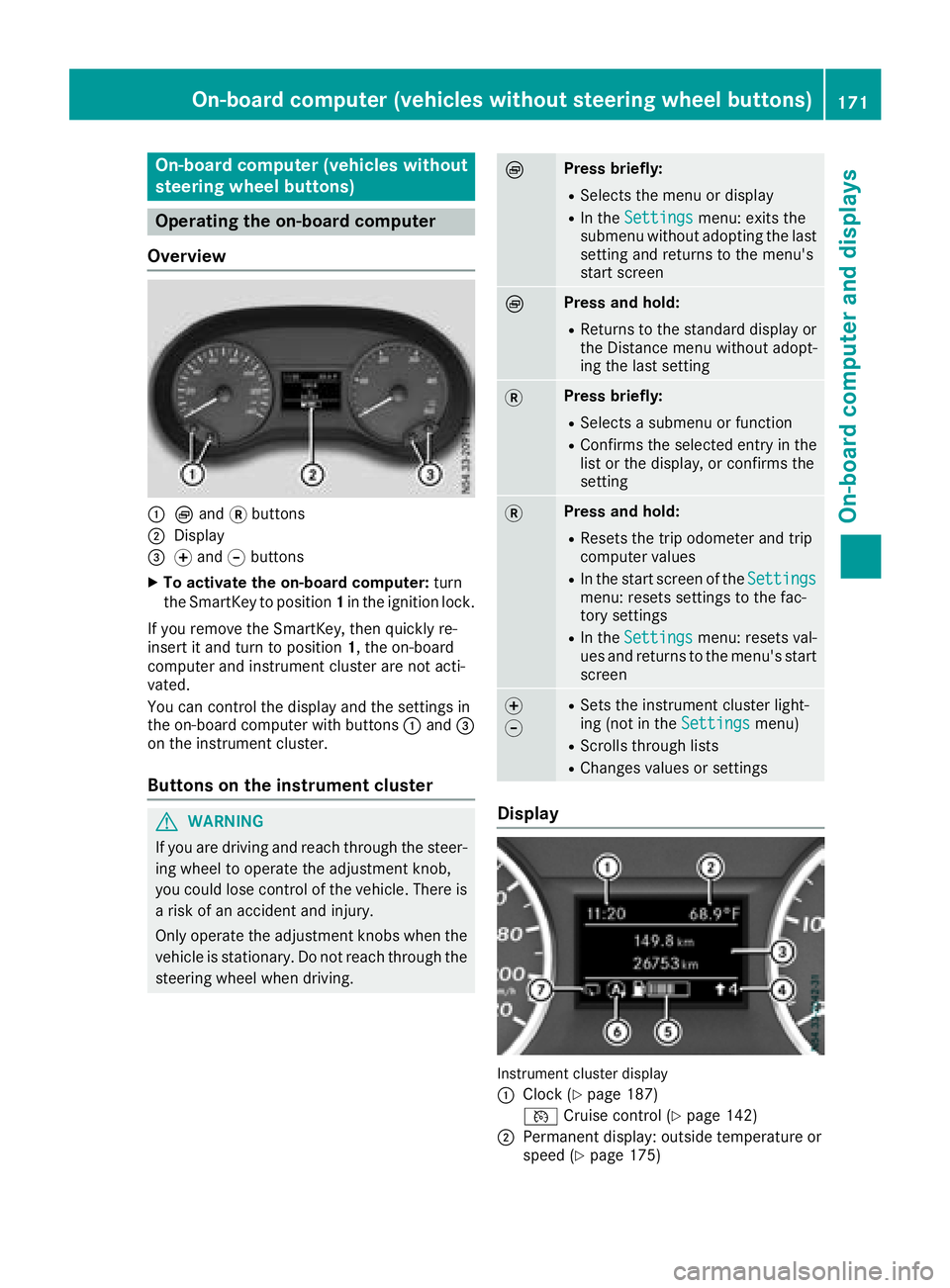
:È and 3buttons
;Display
=f and gbuttons
XTo activate the on-board computer: turn
the SmartKey to position 1in the ignition lock.
If you remove the SmartKey, then quickly re-
insert it and turn to position 1, the on-board
computer and instrument cluster are not acti-
vated.
You can control the display and the settings in
the on-board computer with buttons :and =
on the instrument cluster.
Buttons on the instrument cluster
GWARNING
If you are driving and reach through the steer- ing wheel to operate the adjustment knob,
you could lose control of the vehicle. There is
a risk of an accident and injury.
Only operate the adjustment knobs when thevehicle is stationary. Do not reach through the
steering wheel when driving.
ÈPress briefly:
RSelects the menu or display
RIn the Settingsmenu: exits the
submenu without adopting the last
setting and returns to the menu's
start screen
ÈPress and hold:
RReturns to the standard display or the Distance menu without adopt-
ing the last setting
3Press briefly:
RSelects a submenu or function
RConfirms the selected entry in the
list or the display, or confirms the
setting
3Press and hold:
RResets the trip odometer and trip
computer values
RIn the start screen of the Settingsmenu: resets settings to the fac-
tory settings
RIn theSettingsmenu: resets val-
ues and returns to the menu's start
screen
f
gRSets the instrument cluster light-
ing (not in the Settingsmenu)
RScrolls through lists
RChanges values or settings
Display
Instrument cluster display
:
Clock (Ypage 187)
V Cruise control (
Ypage 142)
;Permanent display: outside temperature or
speed (Ypage 175)
On-board computer (vehicles without steering wheel buttons)171
On-board computer and displays
Z
Page 174 of 318
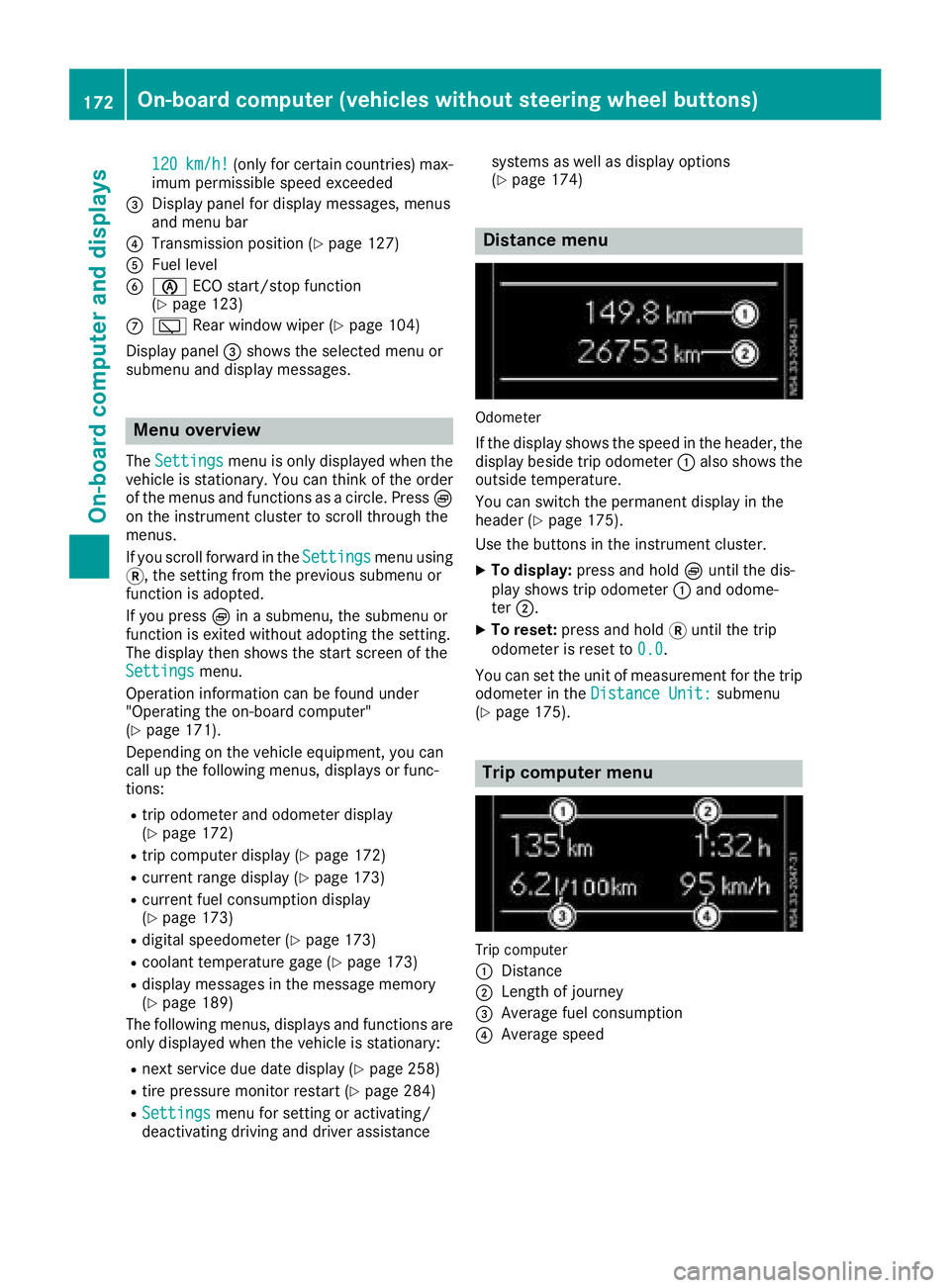
120km/h!(only for certain countries) max-
imum permissible speed exceeded
=Display panel for display messages, menus
and menu bar
?Transmission position (Ypage 127)
AFuel level
Bè ECO start/stop function
(Ypage 123)
Cè Rear window wiper (Ypage 104)
Display panel =shows the selected menu or
submenu and display messages.
Menu overview
The Settingsmenu is only displayed when the
vehicle is stationary. You can think of the order
of the menus and functions as a circle. Press È
on the instrument cluster to scroll through the
menus.
If you scroll forward in the Settings
menu using
3, the setting from the previous submenu or
function is adopted.
If you press Èin a submenu, the submenu or
function is exited without adopting the setting.
The display then shows the start screen of the
Settings
menu.
Operation information can be found under
"Operating the on-board computer"
(
Ypage 171).
Depending on the vehicle equipment, you can
call up the following menus, displays or func-
tions:
Rtrip odometer and odometer display
(Ypage 172)
Rtrip computer display (Ypage 172)
Rcurrent range display (Ypage 173)
Rcurrent fuel consumption display
(Ypage 173)
Rdigital speedometer (Ypage 173)
Rcoolant temperature gage (Ypage 173)
Rdisplay messages in the message memory
(Ypage 189)
The following menus, displays and functions are only displayed when the vehicle is stationary:
Rnext service due date display (Ypage 258)
Rtire pressure monitor restart (Ypage 284)
RSettingsmenu for setting or activating/
deactivating driving and driver assistance systems as well as display options
(
Ypage 174)
Distance menu
Odometer
If the display shows the speed in the header, the
display beside trip odometer
:also shows the
outside temperature.
You can switch the permanent display in the
header (
Ypage 175).
Use the buttons in the instrument cluster.
XTo display: press and hold Èuntil the dis-
play shows trip odometer :and odome-
ter ;.
XTo reset: press and hold 3until the trip
odometer is reset to 0.0
.
You can set the unit of measurement for the trip odometer in the Distance Unit:
submenu
(Ypage 175).
Trip computer menu
Trip computer
:
Distance
;Length of journey
=Average fuel consumption
?Average speed
172On-board computer (vehicles without steering wheel buttons)
On-board computer and displays
Page 175 of 318
Use the buttons in the instrument cluster.
XTo display:pressÈto select the trip com-
puter display.
The values displayed relate to those meas-
ured since the trip computer was last reset.
XTo reset values: press and hold3until all
values are reset.
The trip computer is automatically reset if the
value exceeds 9,999 hours or 99,999 miles.
You can set the unit of measurement for con-
sumption and distance in the Distance Unit:
submenu (Ypage 175).
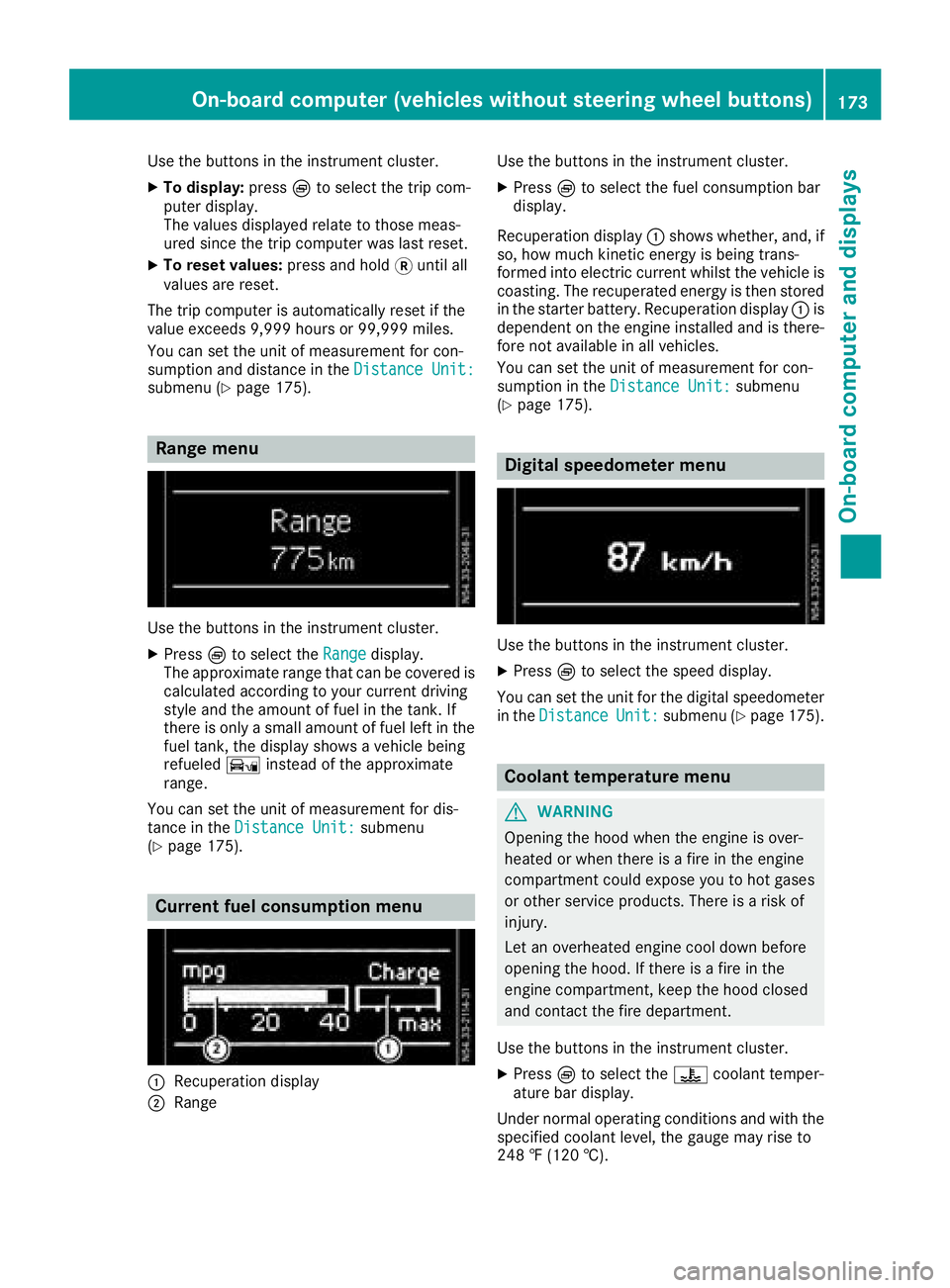
Range menu
Use the buttons in the instrument cluster.
XPressÈto select the Rangedisplay.
The approximate range that can be covered is calculated according to your current driving
style and the amount of fuel in the tank. If
there is only a small amount of fuel left in the
fuel tank, the display shows a vehicle being
refueled Ïinstead of the approximate
range.
You can set the unit of measurement for dis-
tance in the Distance Unit:
submenu
(Ypage 175).
Current fuel consumption menu
:Recuperation display
;Range Use the buttons in the instrument cluster.
XPress
Èto select the fuel consumption bar
display.
Recuperation display :shows whether, and, if
so, how much kinetic energy is being trans-
formed into electric current whilst the vehicle is
coasting. The recuperated energy is then stored in the starter battery. Recuperation display :is
dependent on the engine installed and is there-
fore not available in all vehicles.
You can set the unit of measurement for con-
sumption in the Distance Unit:
submenu
(Ypage 175).
Digital speedometer menu
Use the buttons in the instrument cluster.
XPress Èto select the speed display.
You can set the unit for the digital speedometer
in the Distance
Unit:submenu (Ypage 175).
Coolant temperature menu
GWARNING
Opening the hood when the engine is over-
heated or when there is a fire in the engine
compartment could expose you to hot gases
or other service products. There is a risk of
injury.
Let an overheated engine cool down before
opening the hood. If there is a fire in the
engine compartment, keep the hood closed
and contact the fire department.
Use the buttons in the instrument cluster.
XPress Èto select the ?coolant temper-
ature bar display.
Under normal operating conditions and with the
specified coolant level, the gauge may rise to
248 ‡ (120 †).
On-board computer (vehicles without steering wheel buttons)173
On-board computer and displays
Z
Page 176 of 318
Settings menu
Introduction
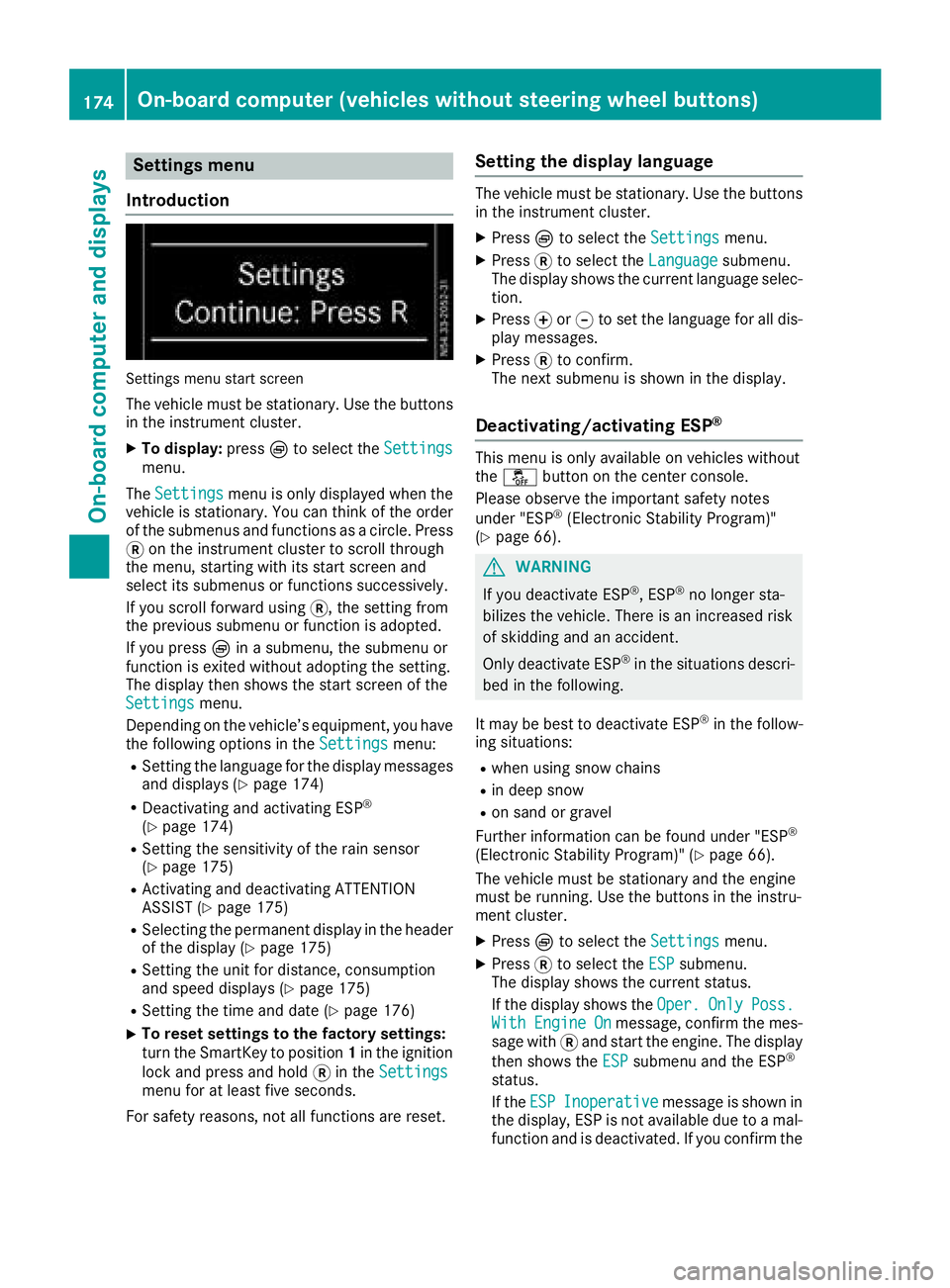
Settings menu start screen
The vehicle must be stationary. Use the buttons
in the instrument cluster.
XTo display: pressÈto select the Settingsmenu.
The Settings
menu is only displayed when the
vehicle is stationary. You can think of the order
of the submenus and functions as a circle. Press
3 on the instrument cluster to scroll through
the menu, starting with its start screen and
select its submenus or functions successively.
If you scroll forward using 3, the setting from
the previous submenu or function is adopted.
If you press Èin a submenu, the submenu or
function is exited without adopting the setting.
The display then shows the start screen of the
Settings
menu.
Depending on the vehicle’s equipment, you have the following options in the Settings
menu:
RSetting the language for the display messages
and displays (Ypage 174)
RDeactivating and activating ESP®
(Ypage 174)
RSetting the sensitivity of the rain sensor
(Ypage 175)
RActivating and deactivating ATTENTION
ASSIST (Ypage 175)
RSelecting the permanent display in the header
of the display (Ypage 175)
RSetting the unit for distance, consumption
and speed displays (Ypage 175)
RSetting the time and date (Ypage 176)
XTo reset settings to the factory settings:
turn the SmartKey to position 1in the ignition
lock and press and hold 3in the Settings
menu for at least five seconds.
For safety reasons, not all functions are reset.
Setting the display language
The vehicle must be stationary. Use the buttons
in the instrument cluster.
XPress Èto select the Settingsmenu.
XPress3to select the Languagesubmenu.
The display shows the current language selec- tion.
XPress forg to set the language for all dis-
play messages.
XPress 3to confirm.
The next submenu is shown in the display.
Deactivating/activating ESP®
This menu is only available on vehicles without
the å button on the center console.
Please observe the important safety notes
under "ESP
®(Electronic Stability Program)"
(Ypage 66).
GWARNING
If you deactivate ESP
®, ESP®no longer sta-
bilizes the vehicle. There is an increased risk
of skidding and an accident.
Only deactivate ESP
®in the situations descri-
bed in the following.
It may be best to deactivate ESP
®in the follow-
ing situations:
Rwhen using snow chains
Rin deep snow
Ron sand or gravel
Further information can be found under "ESP®
(Electronic Stability Program)" (Ypage 66).
The vehicle must be stationary and the engine
must be running. Use the buttons in the instru-
ment cluster.
XPress Èto select the Settingsmenu.
XPress3to select the ESPsubmenu.
The display shows the current status.
If the display shows the Oper.
OnlyPoss.WithEngineOnmessage, confirm the mes-
sage with 3and start the engine. The display
then shows the ESP
submenu and the ESP®
status.
If theESP
Inoperativemessage is shown in
the display, ESP is not available due to a mal-
function and is deactivated. If you confirm the
174On-board computer (vehicles without steering wheel buttons)
On-board computer and displays
Page 181 of 318
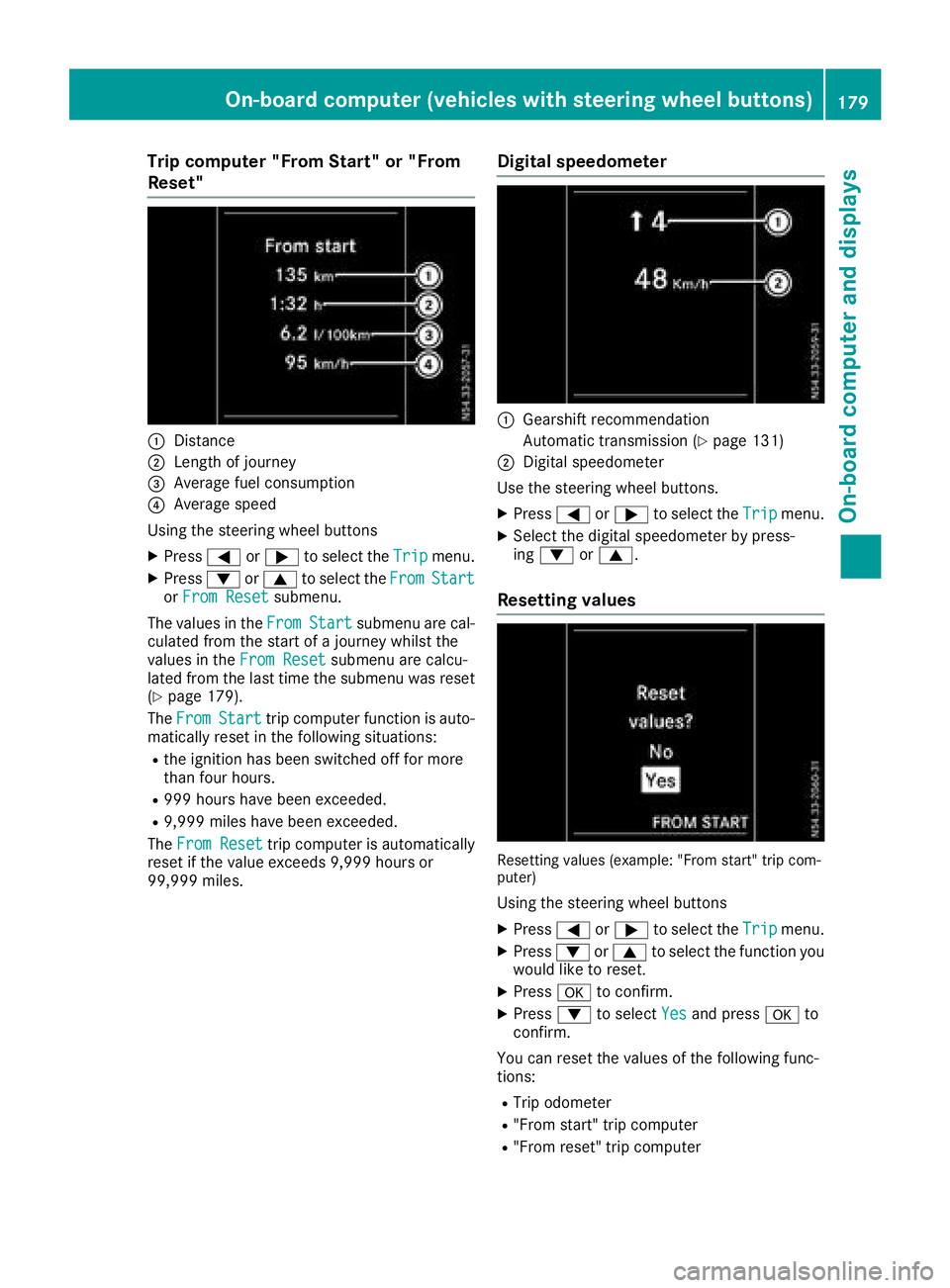
Trip computer "From Start" or "From
Reset"
:Distance
;Length of journey
=Average fuel consumption
?Average speed
Using the steering wheel buttons
XPress =or; to select the Tripmenu.
XPress:or9 to select the FromStartorFrom Resetsubmenu.
The values in the From
Startsubmenu are cal-
culated from the start of a journey whilst the
values in the From Reset
submenu are calcu-
lated from the last time the submenu was reset
(
Ypage 179).
The From
Starttrip computer function is auto-
matically reset in the following situations:
Rthe ignition has been switched off for more
than four hours.
R999 hours have been exceeded.
R9,999 miles have been exceeded.
The From Reset
trip computer is automatically
reset if the value exceeds 9,999 hours or
99,999 miles.
Digital speedometer
:Gearshift recommendation
Automatic transmission (
Ypage 131)
;Digital speedometer
Use the steering wheel buttons.
XPress =or; to select the Tripmenu.
XSelect the digital speedometer by press-
ing: or9.
Resetting values
Resetting values (example: "From start" trip com-
puter)
Using the steering wheel buttons
XPress =or; to select the Tripmenu.
XPress:or9 to select the function you
would like to reset.
XPress ato confirm.
XPress :to select Yesand press ato
confirm.
You can reset the values of the following func-
tions:
RTrip odometer
R"From start" trip computer
R"From reset" trip computer
On-board computer (vehicles withsteering whee lbu ttons)179
On-board computer and displays
Z
Page 183 of 318
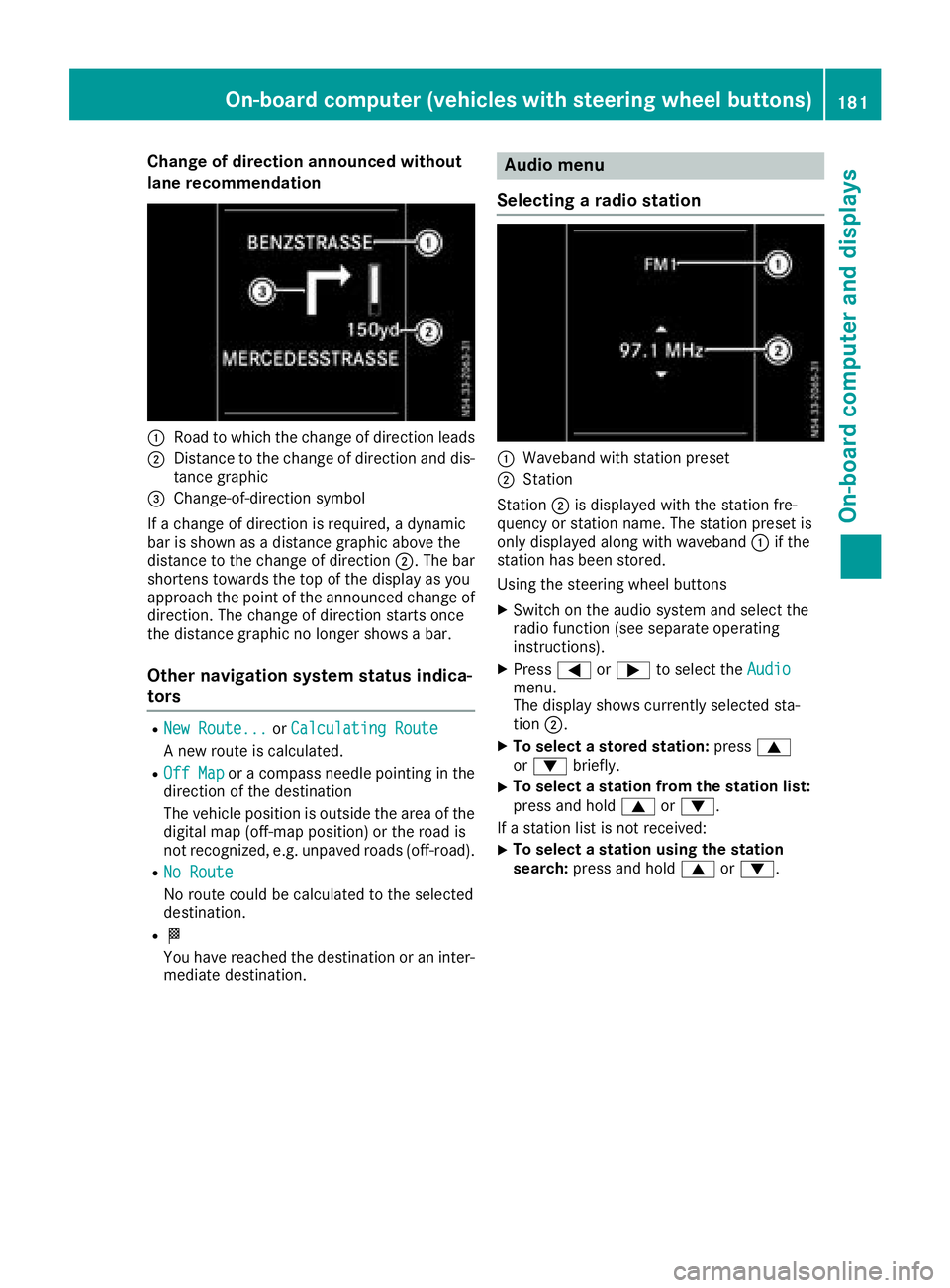
Change of direction announced without
lane recommendation
:Road to which the change of direction leads
;Distance to the change of direction and dis-
tance graphic
=Change-of-direction symbol
If a change of direction is required, a dynamic
bar is shown as a distance graphic above the
distance to the change of direction ;. The bar
shortens towards the top of the display as you
approach the point of the announced change of
direction. The change of direction starts once
the distance graphic no longer shows a bar.
Other navigation system status indica-
tors
RNew Route...or Calculating Route
A new route is calculated.
ROff Mapor a compass needle pointing in the
direction of the destination
The vehicle position is outside the area of the
digital map (off-map position) or the road is
not recognized, e.g. unpaved roads (off-road).
RNo Route
No route could be calculated to the selected
destination.
RO
You have reached the destination or an inter-
mediate destination.
Audio menu
Selecting a radio station
:Waveband with station preset
;Station
Station ;is displayed with the station fre-
quency or station name. The station preset is
only displayed along with waveband :if the
station has been stored.
Using the steering wheel buttons
XSwitch on the audio system and select the
radio function (see separate operating
instructions).
XPress =or; to select the Audiomenu.
The display shows currently selected sta-
tion;.
XTo select a stored station: press9
or : briefly.
XTo select a station from the station list:
press and hold 9or:.
If a station list is not received:
XTo select a station using the station
search: press and hold 9or:.
On-board computer (vehicles with steering wheel buttons)181
On-board computer and displays
Z
Page 188 of 318
Depending on the vehicle’s equipment, you have
the following options in theServicemenu:
RCalling up display messages in the message
memory (Ypage 203)
RRestarting the tire pressure loss warning sys-
tem or checking the tire pressure electroni-
cally (
Ypage 284)
RCalling up the service due date (ASSYST
PLUS) (Ypage 258)
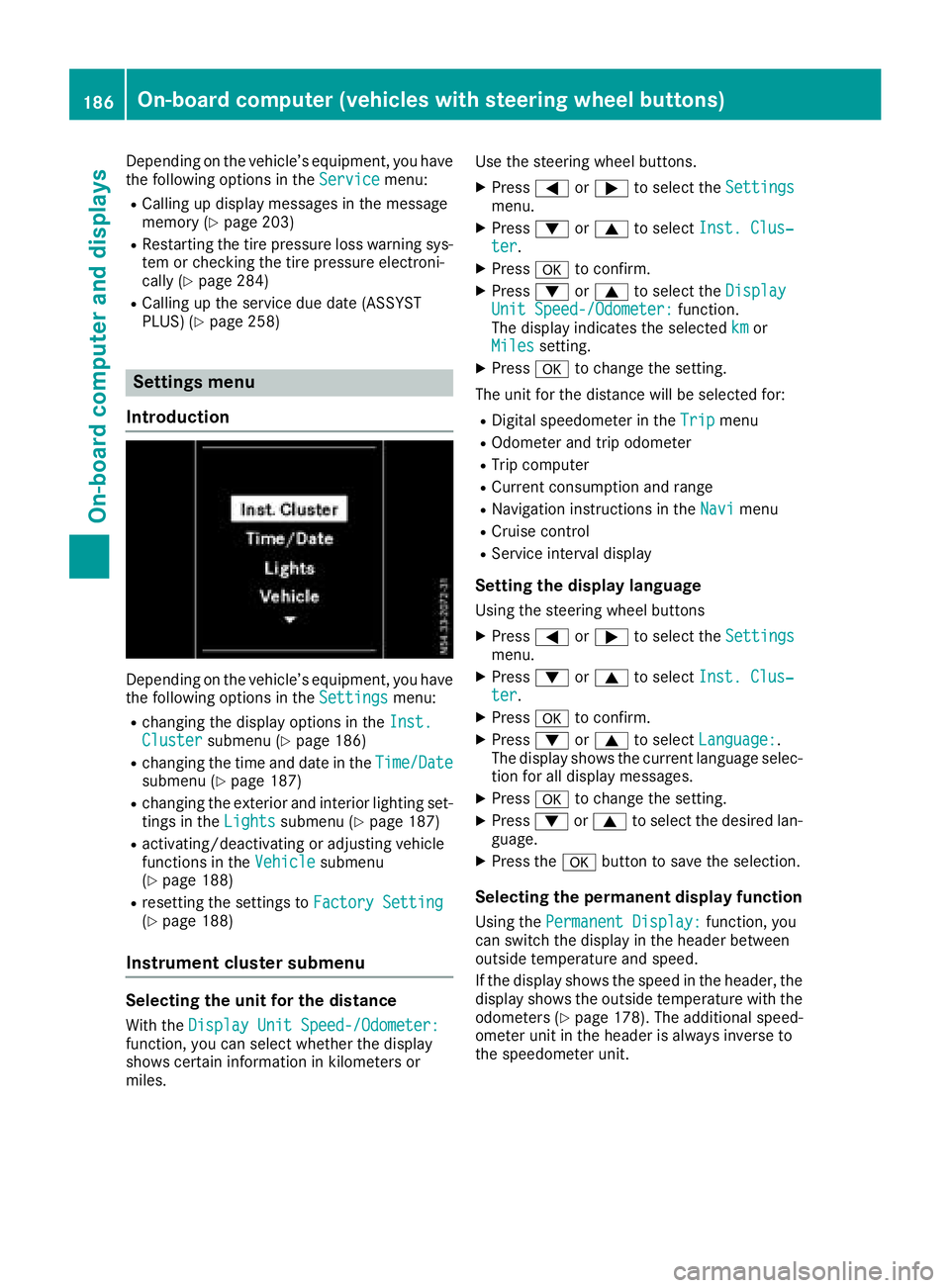
Settings menu
Introduction
Depending on the vehicle’s equipment, you have
the following options in the Settingsmenu:
Rchanging the display options in the Inst.Clustersubmenu (Ypage 186)
Rchanging the time and date in theTime/Datesubmenu (Ypage 187)
Rchanging the exterior and interior lighting set-
tings in theLightssubmenu (Ypage 187)
Ractivating/deactivating or adjusting vehicle
functions in the Vehiclesubmenu
(Ypage 188)
Rresetting the settings to Factory Setting(Ypage 188)
Instrument cluster submenu
Selecting the unit for the distance
With theDisplay Unit Speed-/Odometer:function, you can select whether the display
shows certain information in kilometers or
miles. Use the steering wheel buttons.
XPress
=or; to select the Settingsmenu.
XPress:or9 to select Inst. Clus‐ter.
XPressato confirm.
XPress :or9 to select the DisplayUnit Speed-/Odometer:function.
The display indicates the selected kmor
Milessetting.
XPress ato change the setting.
The unit for the distance will be selected for:
RDigital speedometer in the Tripmenu
ROdometer and trip odometer
RTrip computer
RCurrent consumption and range
RNavigation instructions in the Navimenu
RCruise control
RService interval display
Setting the display language
Using the steering wheel buttons
XPress=or; to select the Settingsmenu.
XPress:or9 to select Inst. Clus‐ter.
XPressato confirm.
XPress :or9 to select Language:.
The display shows the current language selec-
tion for all display messages.
XPress ato change the setting.
XPress :or9 to select the desired lan-
guage.
XPress the abutton to save the selection.
Selecting the permanent display function
Using the Permanent Display:function, you
can switch the display in the header between
outside temperature and speed.
If the display shows the speed in the header, the
display shows the outside temperature with the
odometers (
Ypage 178). The additional speed-
ometer unit in the header is always inverse to
the speedometer unit.
186On-board computer (vehicles withsteering whee lbu ttons)
On-board computer and displays
Page 190 of 318
Activating/deactivating interiorlighting
delayed switch-off
If you activat eth eInterior Lighting Delayfunction ,th einterio rlightin gremains lit for a
further 20 seconds after th eke yis removed.
Usin gth esteering whee lbuttons
XPress =or; to select th eSettingsmenu.
XPress :or9 to select Lights.
XPressato confirm .
XPress:or9 to select th eInteriorLighting Delayfunction .
The curren tstatus is shown.
XTo act ivate/deact ivate:pressaagain.
Vehicle submenu
Setting the sensitivity of thera in sensor
Usin gth esteering whee lbuttons
XPress =or; to select th eSettingsmenu.
XPress :or9 to select Vehicle.
XPressato confirm .
XPress:or9 to select th eRai nSen ‐sor Sensitivityfunction .
The display shows th ecurren tsetting.
XPress ato chang eth esetting.
XPress :or9 to select th eHig h,
Standardor Lowsetting. This settin gcontrol s
th erain sensor's sensitivit yto precipitation.
The windshield wiper then wipes mor eor less
frequently at th esame precipitatio nintensity.
XPress th ea buttonto store th eentry.
You can fin dfurther information under "Wind-
shield wiper " (
Ypage 104).
Switching the automatic locking featu re
on/off
Usin gth esteering whee lbuttons
XPress =or; to select th eSettingsmenu.
XPress :or9 to select Vehicle.
XPressato confirm .
XPress:or9 to select th eAutomaticDoo rLoc kfunction .
The curren tstatus is shown.
XTo act ivate/deact ivate:pressaagain.
If you activat eth eAutomatic
Doo rLockfunc-
tion, your vehicl ewill loc kautomatically from a
spee dof approximately 15 km/h.
You can fin dfurther information under "Auto-
matic door lock" (
Ypage 74).
Activating/deactivating the acoustic
locking confi rmation
Usin gth esteering whee lbuttons
XPress =or; to select th eSettingsmenu.
XPress :or9 to select Vehicle.
XPressato confirm .
XPress:or9 to select AcousticLockFeedback.
The curren tstatus is shown.
XTo act ivate/deact ivate:pressaagain.
If you activat eth eAcoustic Loc kFeedback
function ,an acoustic tone sounds when th e
vehicl eis locked.
Restoring the factory settings
Usin gth esteering whee lbuttons
XPress =or; to select th eSettingsmenu.
XPress :or9 to select FactorySet ‐ting.
XPress ato confirm .
The Reset All Settings?function is dis-
played.
XPress :or9 to select NoorYes.
XPress ato confirm th echoice.
If you select Yes,th edisplay shows aconfir-
mation message .
188On-board computer (vehicles with steering wheel buttons)
On-board computer and displays
Page 235 of 318
FunctionPage
GControl knob
Turn: selects menus and
entries
Press: confirms selection/
entry
H9/:
Selects the previous/next
line in the menu
= /;
Within a menu:
Jumps one entry to the left/
right
Jumps up one menu level
higher/jumps back to the
main menu
Shows other editing
options/menus
Io Turn:
Sets the volume
JqPress:
Switches on/off
KF
Radio mode:
Press briefly: station search
Press and hold: sets a station
Media mode:
Press briefly: skips forward
Press and hold: fast forwards
FunctionPage
LE
Radio mode:
Press briefly: station search
Press and hold: sets a station
Media mode:
Press briefly: skips back
Press and hold: rewinds
M6
Accepts a call
Makes a call236
N~
Ends a call
Rejects a call
O8
Mute
Pauses SD memory
card/USB device
Switches the hands-free sys-
tem on/off
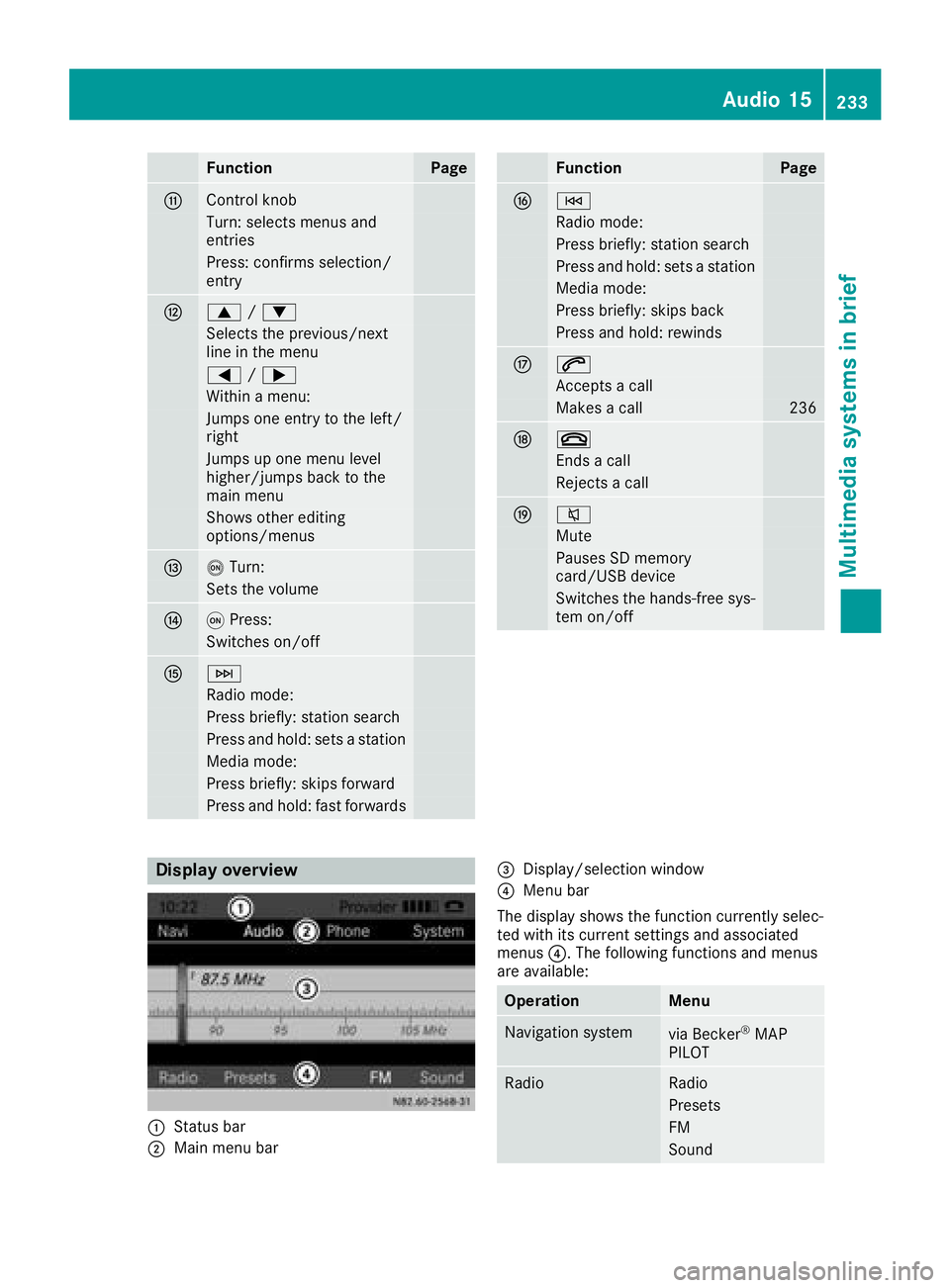
Display overview
:Status bar
;Main menu bar
=Display/selection window
?Menu bar
The display shows the function currently selec-
ted with its current settings and associated
menus ?. The following functions and menus
are available:
OperationMenu
Navigation systemvia Becker®MAP
PILOT
RadioRadio
Presets
FM
Sound
Audio 15233
Multimedia systems in brief
Z
Page 259 of 318
Maintenance
General notes
HEnvironmental note
Observe measures to protect the environ-
ment when working on the vehicle. You must
observe the legal requirements when dispos-
ing of service products, e.g. engine oil. This
also includes all components, e.g. filters,
which have come into contact with service
products. Any qualified specialist workshop
can provide information about this.
Dispose of empty containers, cleaning cloths
and care products in an environmentally
responsible manner. Comply with the instruc-
tions for use of the care products.
Do not run the engine for longer than neces-
sary when the vehicle is stationary.
Before carrying out maintenance measures and
repairs, you must read the following documents
relating to maintenance measures and repairs:
Rrelevant sections of the technical documen-
tation such as the Operator's Manual and
workshop information
Rlegal stipulations such as work safety regula-
tions and accident prevention regulations
While working under the vehicle, you must
secure the vehicle on jack stands with sufficient load capacity.
Never use a vehicle jack instead of stands. The
jack is designed only to raise the vehicle for a
short time when changing a wheel. It is not
suited for performing maintenance work under
the vehicle.
Please also refer to the notes about qualified
specialist workshops (
Ypage 31).
The scope and regularity of the inspection and
maintenance work primarily depend on the
often diverse operating conditions. Specialist
knowledge beyond the scope of this Operator's
Manual is required when carrying out testing
and maintenance work. This work should only be
carried out by trained staff.
The vehicle Maintenance Booklet describes the scope and frequency of maintenance work and
contains additional notes on the Limited War-
ranty. You will find information about service
products approved by Mercede s-Benz a
ndcapacities under "Service products and capaci-
ties" (
Ypage 304)
Maintenance services must be carried out in
accordance with the provisions and recommen- dations in the Maintenance Booklet. Not doing
so could void the warranty claim and lead to
refusal of goodwill gestures after the manufac-
turer has submitted a damage report.
Observe the information under "Mercedes-Benz
genuine parts" (
Ypage 33).
Service interval display
General notes
The service interval display informs you of the
next service due date. Information on the type of
service and service intervals can be found in the
Maintenance Booklet.
iThe service interval display does not provide
information about the engine oil level. The
service interval display should therefore not
be confused with the engine oil level display.
For example, the display shows one of the fol-
lowing service messages for a few seconds:
RService A in .. days
RService A Dueor Service A Due
RServ. A Exceed. by .. Days
Then either the remaining time or distance until
the next service due date is displayed. If the
service due date has been exceeded, the
elapsed time or distance traveled after the over-
due service date is shown. The letter in the dis-
play message indicates which service is due. A
stands for a minor service andBfor a major ser-
vice.
A qualified specialist workshop, e.g. an author-
ized Mercedes-Benz Commercial Van Center,
will reset the service interval display after the
service work has been carried out. You can also
obtain further information on maintenance
work, for example.
The prescribed service interval is based on nor- mal vehicle use. Service work will need to be
performed more frequently than prescribed if
the vehicle is operated under more arduous con-
ditions or with higher loads. Such arduous con-
ditions include:
Rregular city driving with frequent intermediate
stops
Rdriving predominantly short distances
Maintenance257
Maintenance and care
Z