buttons MERCEDES-BENZ ML SUV 2008 User Guide
[x] Cancel search | Manufacturer: MERCEDES-BENZ, Model Year: 2008, Model line: ML SUV, Model: MERCEDES-BENZ ML SUV 2008Pages: 381, PDF Size: 7.18 MB
Page 118 of 381
On-board computer
115Outside temperature display
G
Risk of accident
The road surface may be icy, especially in
wooded areas or on bridges, even if tem-
peratures are just above freezing point. The
vehicle could skid if you fail to adapt your
driving style. You should therefore always
adapt your driving style and speed to suit
the weather conditions.
There is a short delay before a change in out-
side temperature is displayed. On-board computer
Points to remember
The on-board computer is activated as soon
as you turn the key to position 1in the ignition
lock. You can use the on-board computer to
call up information relating to your vehicle
and to make and adjust settings.
You can call up the next service due date,
select the display language for the instrument
cluster and set other functions. G
Risk of accident
Only use the on-board computer when road
and traffic conditions permit. You would
otherwise be distracted and unable to con-
centrate properly on driving, and could
cause an accident.
The on-board computer shows information in
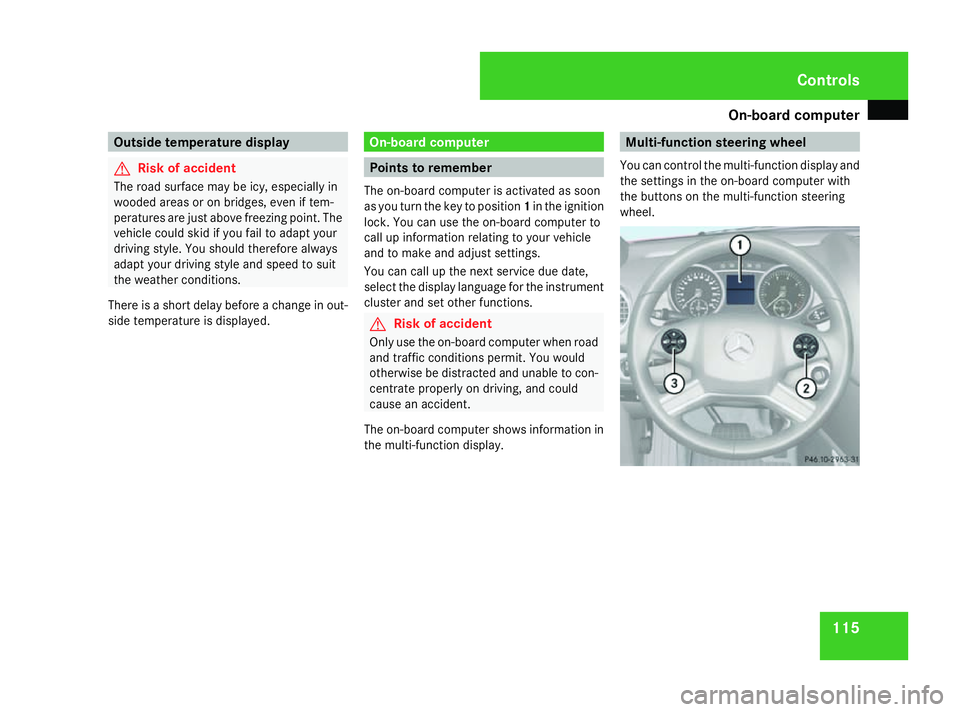
the multi-function display. Multi-function steering wheel
You can control the multi-function display and
the settings in the on-board computer with
the buttons on the multi-function steering
wheel. Controls
164_AKB; 5; 5, en-GB
wobuchh,
Version: 2.10.6 2008-05-11T11:55:12+02:00 - Seite 115 ZDateiname: 6515_4293_02_buchblock.pdf; preflight
Page 123 of 381
On-board computer
120
menus. The terms themselves are not always
displayed in the multi-function display.
Depending on the audio system fitted, the
Audio, Navigation* and Telephonemenus
are slightly different. The examples given in
this Owner's Manual apply to vehicles equip-
ped with COMAND APS*. Standard display menu
i Menu overview: (Y page 118).
Use the buttons on the multi-function steer-
ing wheel.
X Press the èor· button to select the
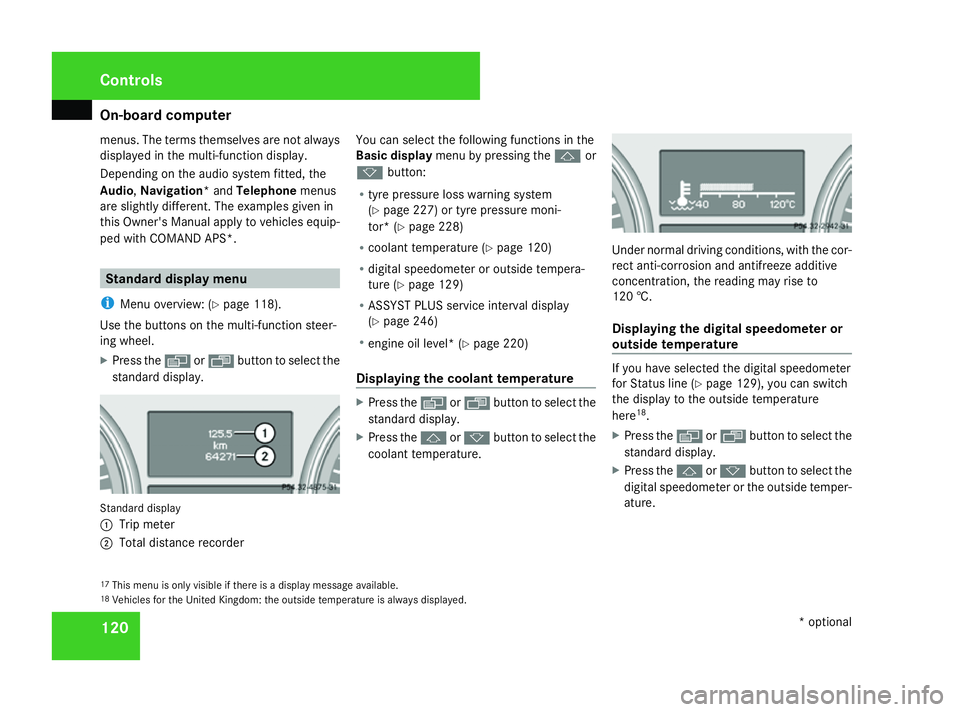
standard display. Standard display
1
Trip meter
2 Total distance recorder You can select the following functions in the
Basic display menu by pressing the jor
k button:
R tyre pressure loss warning system
(Y page 227) or tyre pressure moni-
tor* (Y page 228)
R coolant temperature (Y page 120)
R digital speedometer or outside tempera-
ture (Y page 129)
R ASSYST PLUS service interval display
(Y page 246)
R engine oil level* (Y page 220)
Displaying the coolant temperature X
Press the èor· button to select the
standard display.
X Press the jork button to select the
coolant temperature. Under normal driving conditions, with the cor-
rect anti-corrosion and antifreeze additive
concentration, the reading may rise to
120 †.
Displaying the digital speedometer or
outside temperature
If you have selected the digital speedometer
for Status line (Y
page 129), you can switch
the display to the outside temperature
here 18
.
X Press the èor· button to select the
standard display.
X Press the jork button to select the
digital speedometer or the outside temper-
ature.
17 This menu is only visible if there is a display message available.
18 Vehicles for the United Kingdom: the outside temperature is always displayed. Controls
* optional
164_AKB; 5; 5, en-GB
wobuchh,
Version: 2.10.6
2008-05-11T11:55:12+02:00 - Seite 120 Dateiname: 6515_4293_02_buchblock.pdf; preflight
Page 124 of 381
On-board computer
121Digital speedometer
Outside temperature
AMG menu (ML 63 AMG only)
i Menu overview: see (Y page 118).
Use the buttons on the multi-function steer-
ing wheel.
X Press the èor· button to select the
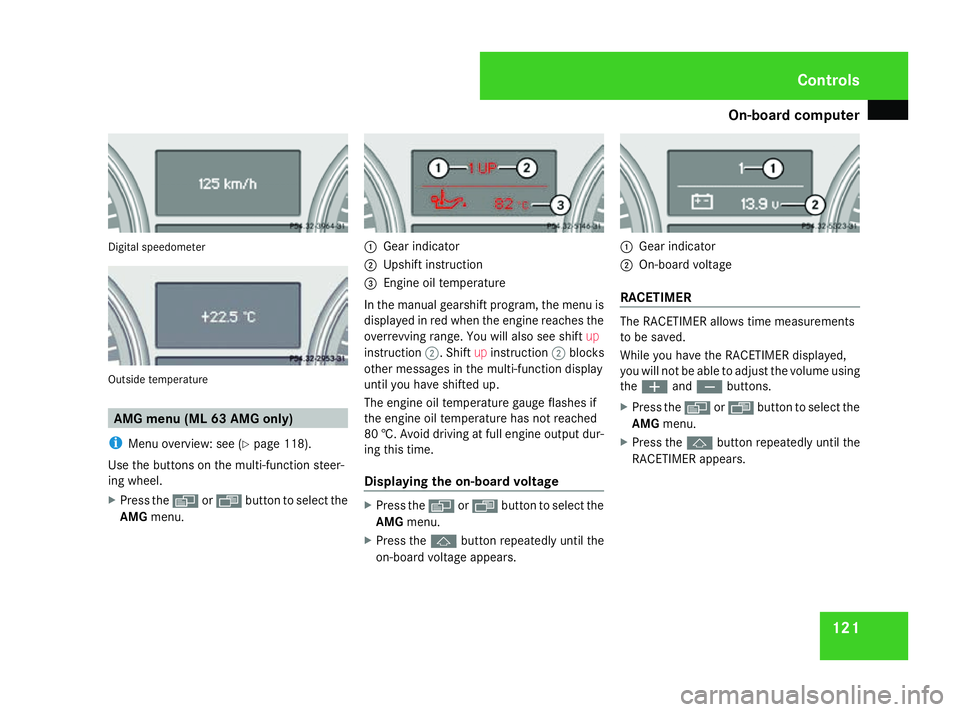
AMG menu. 1
Gear indicator
2 Upshift instruction
3 Engine oil temperature
In the manual gearshift program, the menu is
displayed in red when the engine reaches the
overrevving range. You will also see shift up
instruction 2. Shiftupinstruction 2blocks
other messages in the multi-function display
until you have shifted up.
The engine oil temperature gauge flashes if
the engine oil temperature has not reached
80 †. Avoid driving at full engine output dur-
ing this time.
Displaying the on-board voltage X
Press the èor· button to select the
AMG menu.
X Press the jbutton repeatedly until the
on-board voltage appears. 1
Gear indicator
2 On-board voltage
RACETIMER The RACETIMER allows time measurements
to be saved.
While you have the RACETIMER displayed,
you will not be able to adjust the volume using
the
æ andç buttons.
X Press the èor· button to select the
AMG menu.
X Press the jbutton repeatedly until the
RACETIMER appears. Controls
164_AKB; 5; 5, en-GB
wobuchh,
Version: 2.10.6 2008-05-11T11:55:12+02:00 - Seite 121 ZDateiname: 6515_4293_02_buchblock.pdf; preflight
Page 126 of 381
On-board computer
123
X
Press the èor· button to select the
AMG menu.
X Press the jbutton repeatedly until the
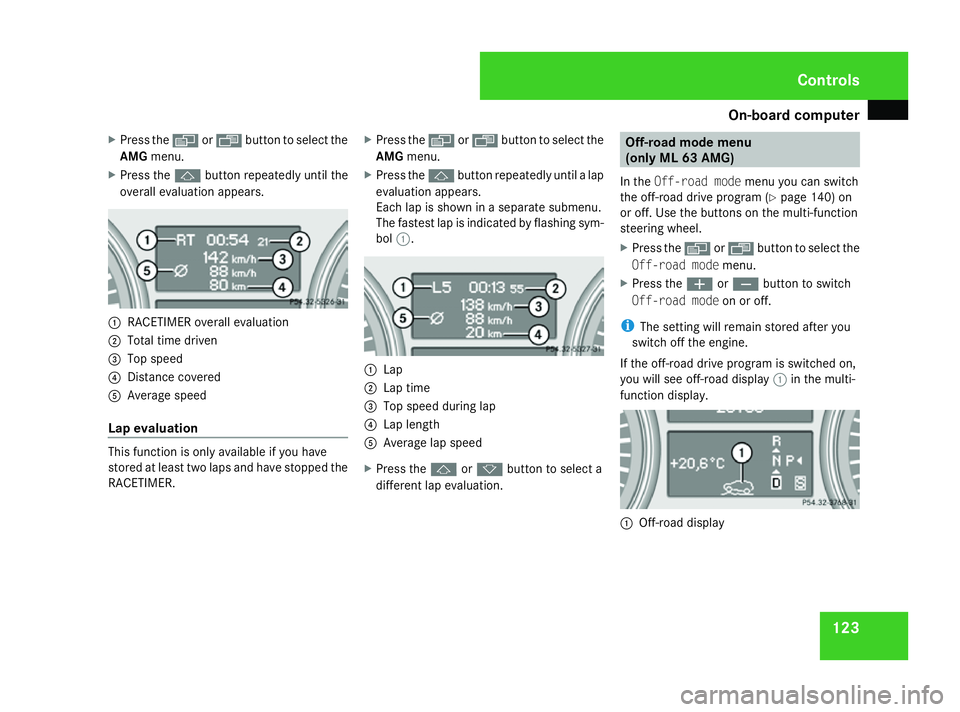
overall evaluation appears. 1
RACETIMER overall evaluation
2 Total time driven
3 Top speed
4 Distance covered
5 Average speed
Lap evaluation This function is only available if you have
stored at least two laps and have stopped the
RACETIMER. X
Press the èor· button to select the
AMG menu.
X Press the jbutton repeatedly until a lap
evaluation appears.
Each lap is shown in a separate submenu.
The fastest lap is indicated by flashing sym-
bol 1. 1
Lap
2 Lap time
3 Top speed during lap
4 Lap length
5 Average lap speed
X Press the jork button to select a
different lap evaluation. Off-road mode menu
(only ML 63 AMG)
In the Off-road mode menu you can switch
the off-road drive program (Y page 140) on
or off. Use the buttons on the multi-function
steering wheel.
X Press the èor· button to select the
Off-road mode menu.
X Press the æorç button to switch
Off-road mode on or off.
i The setting will remain stored after you
switch off the engine.
If the off-road drive program is switched on,
you will see off-road display 1in the multi-
function display. 1
Off-road display Controls
164_AKB; 5; 5, en-GB
wobuchh,
Version: 2.10.6 2008-05-11T11:55:12+02:00 - Seite 123 ZDateiname: 6515_4293_02_buchblock.pdf; preflight
Page 127 of 381
On-board computer
124 Audio/TV*/DVD* menu
Use the functions in the Audio/TV/DVD
menu to operate the audio equipment or
COMAND APS*. If the audio equipment or
COMAND APS* is switched off, the multi-
function display shows the message AUDIO
off.
i Menu overview: (Y page 118).
Use the buttons on the multi-function steer-
ing wheel.
Selecting a radio station You can only store new stations using the
audio systemor COMAND APS
*.Please refer
to the separate operating instructions for
notes on how to do this.
X Switch on the audio equipment or
COMAND APS* and select Radio (see the
separate operating instructions).
X Use the èor· button to select the
Audio/TV/DVD menu. X
To select a stored station: briefly press
the j ork button.
X To select a channel from the channel
list: press and hold the jork but-
ton.
X To select a station using the station
search (only if no station list is being
received): press and hold the jor
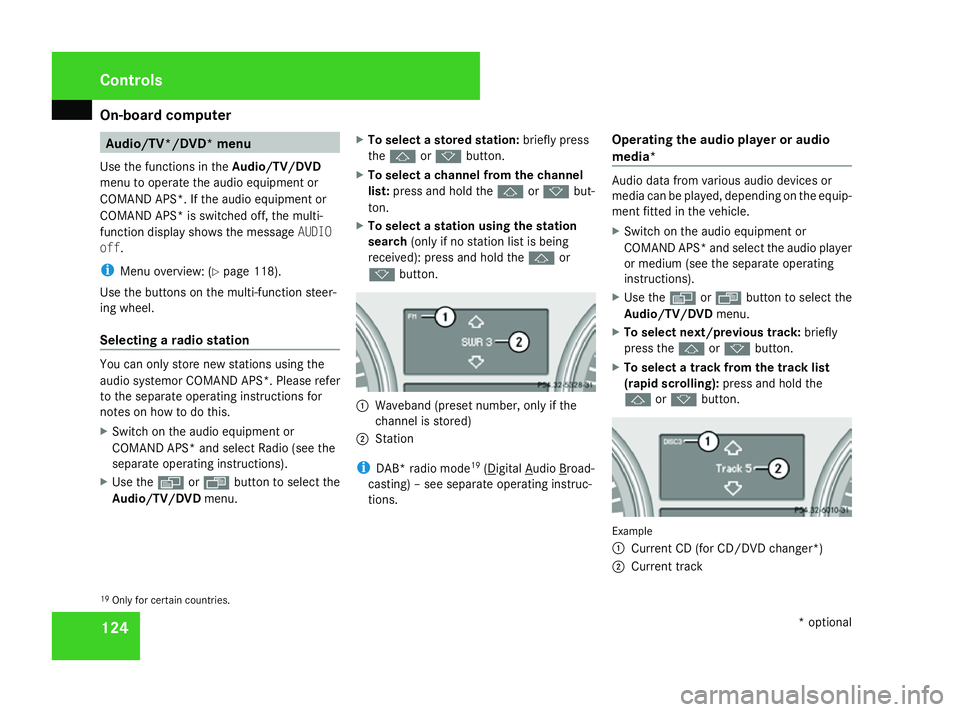
k button. 1
Waveband (preset number, only if the
channel is stored)
2 Station
i DAB* radio mode 19
( Digital Audio Broad-
casting) – see separate operating instruc-
tions. Operating the audio player or audio
media* Audio data from various audio devices or
media can be played, depending on the equip-
ment fitted in the vehicle.
X
Switch on the audio equipment or
COMAND APS* and select the audio player
or medium (see the separate operating
instructions).
X Use the èor· button to select the
Audio/TV/DVD menu.
X To select next/previous track: briefly
press the jork button.
X To select a track from the track list
(rapid scrolling): press and hold the
j ork button. Example
1
Current CD (for CD/DVD changer*)
2 Current track
19 Only for certain countries. Controls
* optional
164_AKB; 5; 5, en-GB
wobuchh,
Version: 2.10.6 2008-05-11T11:55:12+02:00 - Seite 124Dateiname: 6515_4293_02_buchblock.pdf; preflight
Page 128 of 381
On-board computer
125
In audio AUX mode, the current track is not
displayed.
Operating the TV* X
Switch on COMAND and select TV (see the
separate operating instructions).
X Use the èor· button to select the
Audio/TV/DVD menu.
X To select a stored station: briefly press
the j ork button.
X To select a channel from the channel
list: press and hold the jork but-
ton.
X To select a channel with the channel
search (only if COMAND is not receiving a
channel list): press and hold the jor
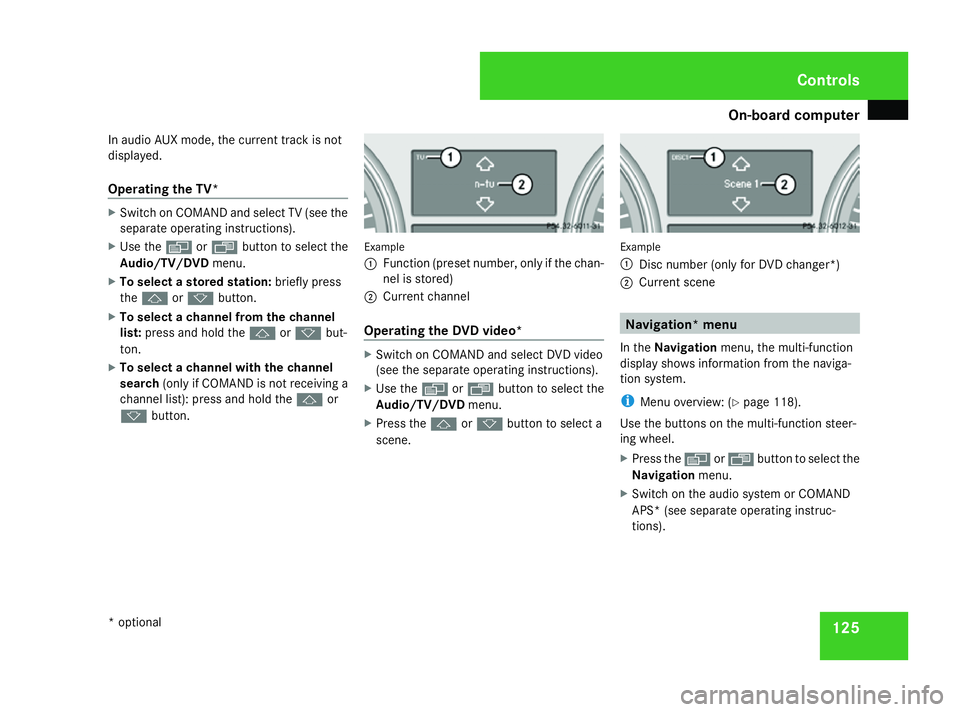
k button. Example
1
Function (preset number, only if the chan-
nel is stored)
2 Current channel
Operating the DVD video* X
Switch on COMAND and select DVD video
(see the separate operating instructions).
X Use the èor· button to select the
Audio/TV/DVD menu.
X Press the jork button to select a
scene. Example
1
Disc number (only for DVD changer*)
2 Current scene Navigation* menu
In the Navigation menu, the multi-function
display shows information from the naviga-
tion system.
i Menu overview: (Y page 118).
Use the buttons on the multi-function steer-
ing wheel.
X Press the èorÿ button to select the
Navigation menu.
X Switch on the audio system or COMAND
APS* (see separate operating instruc-
tions). Controls
* optional
164_AKB; 5; 5, en-GB
wobuchh,
Version: 2.10.6 2008-05-11T11:55:12+02:00 - Seite 125 ZDateiname: 6515_4293_02_buchblock.pdf; preflight
Page 129 of 381
On-board computer
126
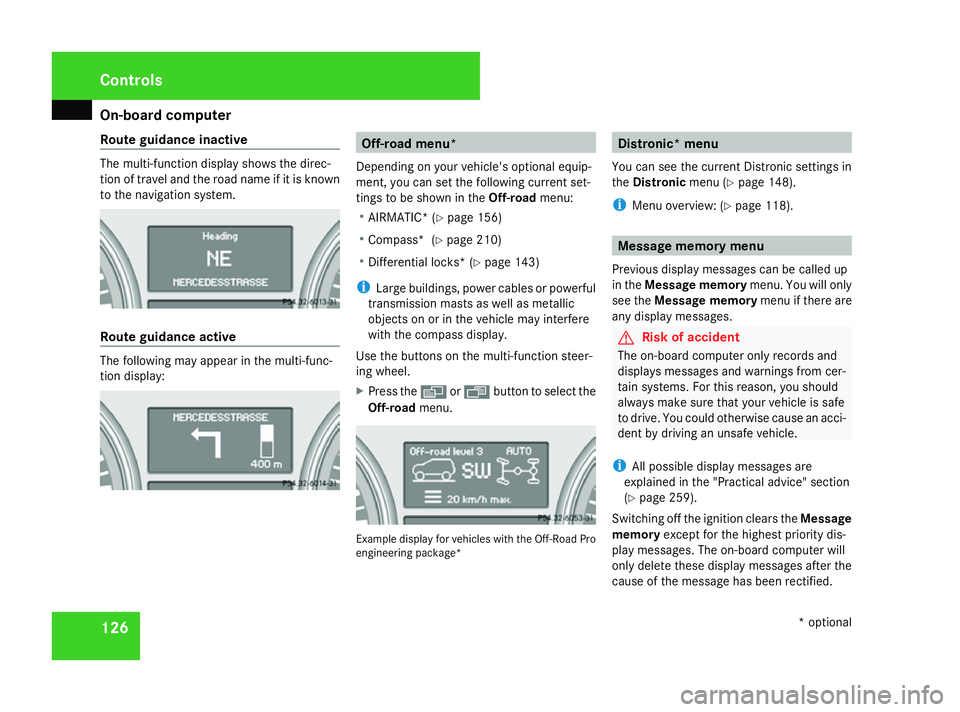
Route guidance inactive The multi-function display shows the direc-
tion of travel and the road name if it is known
to the navigation system. Route guidance active
The following may appear in the multi-func-
tion display: Off-road menu*
Depending on your vehicle's optional equip-
ment, you can set the following current set-
tings to be shown in the Off-roadmenu:
R AIRMATIC* (Y page 156)
R Compass* (Y page 210)
R Differential locks* (Y page 143)
i Large buildings, power cables or powerful
transmission masts as well as metallic
objects on or in the vehicle may interfere
with the compass display.
Use the buttons on the multi-function steer-
ing wheel.
X Press the èor· button to select the
Off-road menu. Example display for vehicles with the Off-Road Pro
engineering package* Distronic* menu
You can see the current Distronic settings in
the Distronic menu (Ypage 148).
i Menu overview: (Y page 118). Message memory menu
Previous display messages can be called up
in the Message memory menu. You will only
see the Message memory menu if there are
any display messages. G
Risk of accident
The on-board computer only records and
displays messages and warnings from cer-
tain systems. For this reason, you should
always make sure that your vehicle is safe
to drive. You could otherwise cause an acci-
dent by driving an unsafe vehicle.
i All possible display messages are
explained in the "Practical advice" section
(Y page 259).
Switching off the ignition clears the Message
memory except for the highest priority dis-
play messages. The on-board computer will
only delete these display messages after the
cause of the message has been rectified. Controls
* optional
164_AKB; 5; 5, en-GB
wobuchh,
Version: 2.10.6 2008-05-11T11:55:12+02:00 - Seite 126Dateiname: 6515_4293_02_buchblock.pdf; preflight
Page 130 of 381
On-board computer
127
i
Menu overview: (Y page 118).
Displaying messages Use the buttons on the multi-function steer-
ing wheel.
X Press the èor· button repeatedly
until either the original menu or the Mes-
sage memory menu appears.
If the Message memory menu does not
appear, there are no display messages.
If there are messages, the following mes-
sage may appear in the multi-function dis-
play, for example: 2 messages.
X Use the jork button to scroll
through the display messages. Settings menu
In the Settings menu, you can use the To
reset: Press reset button for 3 sec-
onds function to restore most settings to the
factory settings. And there are submenus via
which you can make individual settings for
your vehicle.
i Menu overview: (Y page 118). Use the buttons on the multi-function steer-
ing wheel.
Resetting to factory settings For safety reasons, not all functions are reset:
permanent Speedtronic can only be set in the
Vehicle
submenu. The Headlamp mode
function in the Lightingsubmenu is only
reset if the vehicle is stationary.
X Press the èor· button to select the
Settings menu.
X Press and hold reset button Jon the
instrument cluster for approximately three
seconds.
A prompt appears in the multi-function dis-
play asking you to press the reset button
again to confirm.
X Press reset button Jagain.
The functions of most submenus are
restored to the factory settings.
or
X If you want to retain the settings, do not
press reset button Ja second time.
You will see the Settingsmenu again after
approximately 5 seconds.
X Press the èor· button to select a
different menu. Submenus in the Settings menu X
Press èor· to select the Set-
tings menu.
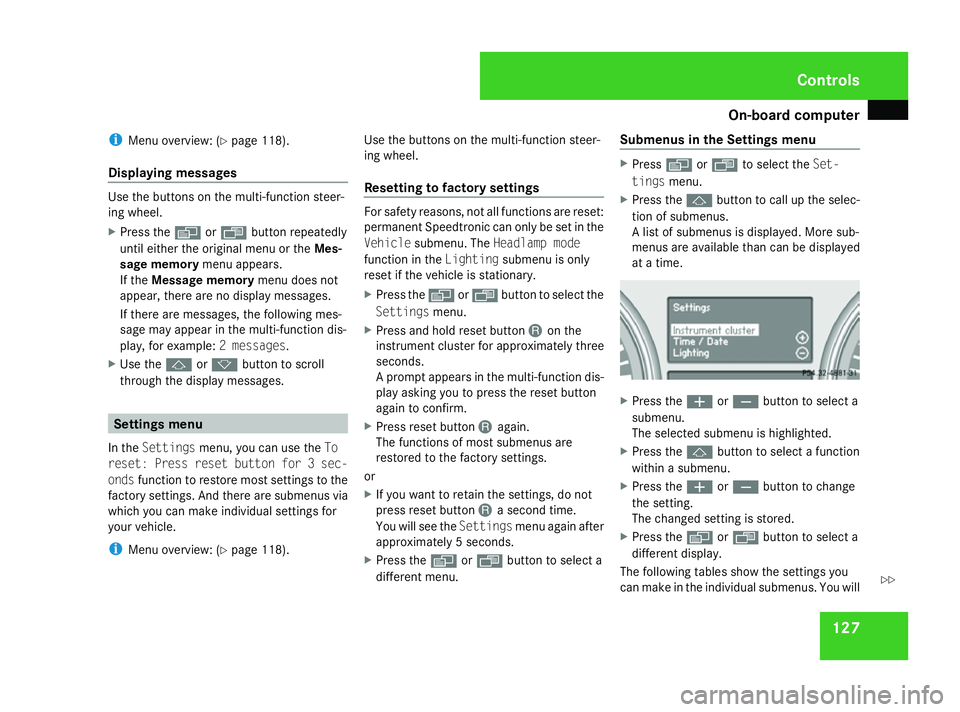
X Press the jbutton to call up the selec-
tion of submenus.
A list of submenus is displayed. More sub-
menus are available than can be displayed
at a time. X
Press the æorç button to select a
submenu.
The selected submenu is highlighted.
X Press the jbutton to select a function
within a submenu.
X Press the æorç button to change
the setting.
The changed setting is stored.
X Press the èorÿ button to select a
different display.
The following tables show the settings you
can make in the individual submenus. You will Controls
164_AKB; 5; 5, en-GB
wobuchh,
Version: 2.10.6 2008-05-11T11:55:12+02:00 - Seite 127 ZDateiname: 6515_4293_02_buchblock.pdf; preflight
Page 137 of 381
On-board computer
134
X
Press èor· to select the Set-
tings menu.
X Press the jbutton to call up the selec-
tion of submenus.
X Press æorç to select the Conve-
nience submenu.
X Press jto select Fold in mirrors
when locking .
X Press the æorç button to activate
or deactivate the Fold in mirrors when
locking feature.
X Press the j,èorÿ button to
select a different display. Additional functions menu
The following table shows the settings you
can make in the Additional functions menu.
You will find additional information on the
pages shown. The number of functions
depends on your vehicle's optional equip-
ment. Function
R
Activates/deactivates Park-
tronic* (Y page 134)
R Activates/deactivates the distance
warning system* (Y page 134)
R Setting DSR (Y page 134)
R Primes/deactivates tow-away protec-
tion* (Y page 135)
R Primes/deactivates the interior motion
sensor* (Y page 135) Use the buttons on the multi-function steer-
ing wheel.
Activating/deactivating Parktronic*
Only vehicles without a PTS switch on the
centre console (Y
page 166) feature this
function.
X Press the èor· button to select the
Additional functions menu.
X If the PARKTRONIC function is not dis-
played, press the jork button to
select PARKTRONIC. X
Press the æorç button to activate
or deactivate PARKTRONIC.
X Press the j,èor· button to
select a different display.
Activating/deactivating the distance
warning system* This function is only available with Dis-
tronic* (Y
page 148).
X Press the èor· button to select the
Additional functions menu.
X If the Distance warning function is not
displayed, press the jork button
to select the Distance warning system.
X Press the æorç button to activate
or deactivate the Distance warning sys-
tem.
When the distance warning system is acti-
vated, the :symbol will be shown in the
lower multi-function display.
X Press the j,èor· button to
select a different display.
Setting DSR The
DSR Speed function allows you to set the
threshold speed (vehicle speed for driving
downhill) of the DSR (Y page 139) to a valueControls
* optional
164_AKB; 5; 5, en-GB
wobuchh,
Version: 2.10.6 2008-05-11T11:55:12+02:00 - Seite 134Dateiname: 6515_4293_02_buchblock.pdf; preflight
Page 138 of 381
On-board computer
135
between 4 km/h and 18 km/h. The adjust-
ment is carried out in increments of 2 km/h.
X
Press the èor· button to select the
Additional functions menu.
X If the DSR Speed function is not displayed,
press the jork button to select the
DSR.
X Press the æorç button to set the
desired threshold speed.
X Press the j,èorÿ button to
select a different display.
Priming/deactivating tow-away protec-
tion* If you deactivate
Tow-away protection, it
will not be primed when you next lock the
vehicle.
X Press the èor· button to select the
Additional functions menu.
X IfTow-away protection is not displayed,
press the jork button to select
Tow-away protection.
X Press the æorç button to prime or
deactivate Tow-away protection.
X Press the j,èorÿ button to
select a different display. Priming/deactivating the interior
motion sensor* If you deactivate the
Interior motion sen-
sor, it will not be primed when you next lock
the vehicle.
X Press the èor· button to select the
Additional functions menu.
X If the Interior motion sensor function
is not displayed, press the jork
button to select the Interior motion
sensor.
X Press the æorç button to prime or
deactivate the Interior motion sen-
sor.
X Press the j,èorÿ button to
select a different display. Trip computer menu
You can use the Trip computermenu to call
up or reset statistical data for your vehicle.
i You can select kmormiles as the unit of
measurement for distance (Y page 128).
i Menu overview: (Y page 118).
Use the buttons on the multi-function steer-
ing wheel.
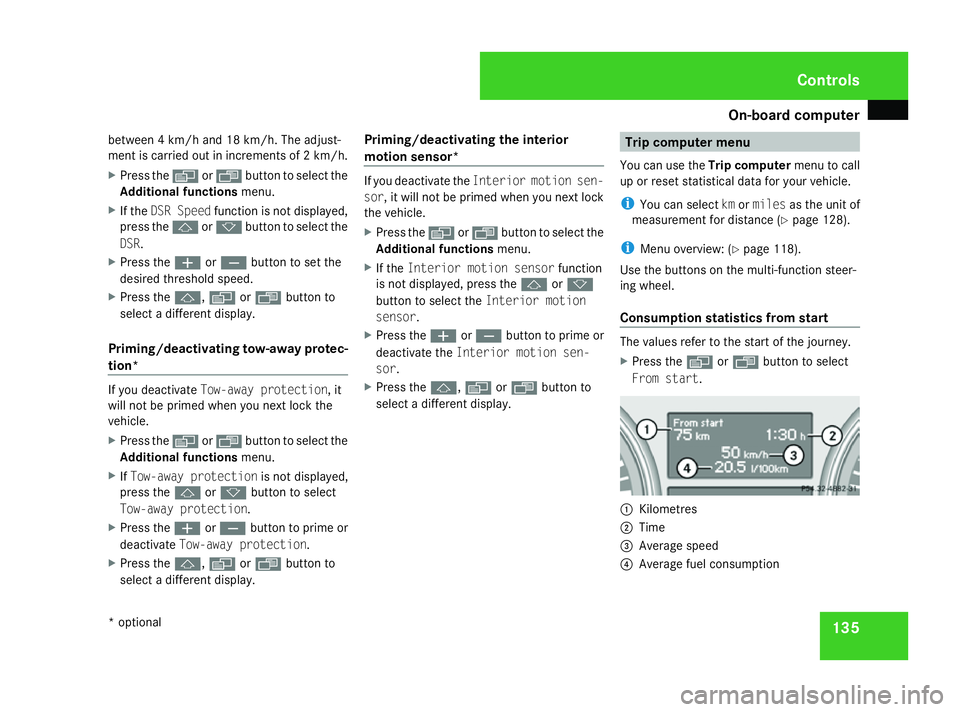
Consumption statistics from start The values refer to the start of the journey.
X
Press the èor· button to select
From start. 1
Kilometres
2 Time
3 Average speed
4 Average fuel consumption Controls
* optional
164_AKB; 5; 5, en-GB
wobuchh,
Version: 2.10.6 2008-05-11T11:55:12+02:00 - Seite 135 ZDateiname: 6515_4293_02_buchblock.pdf; preflight