inserted MERCEDES-BENZ S-Class 2001 W220 Comand Manual
[x] Cancel search | Manufacturer: MERCEDES-BENZ, Model Year: 2001, Model line: S-Class, Model: MERCEDES-BENZ S-Class 2001 W220Pages: 243, PDF Size: 2.33 MB
Page 11 of 243
Introduction
Audio
Introduction
Telephone Navigation Index AudioInfo Services and
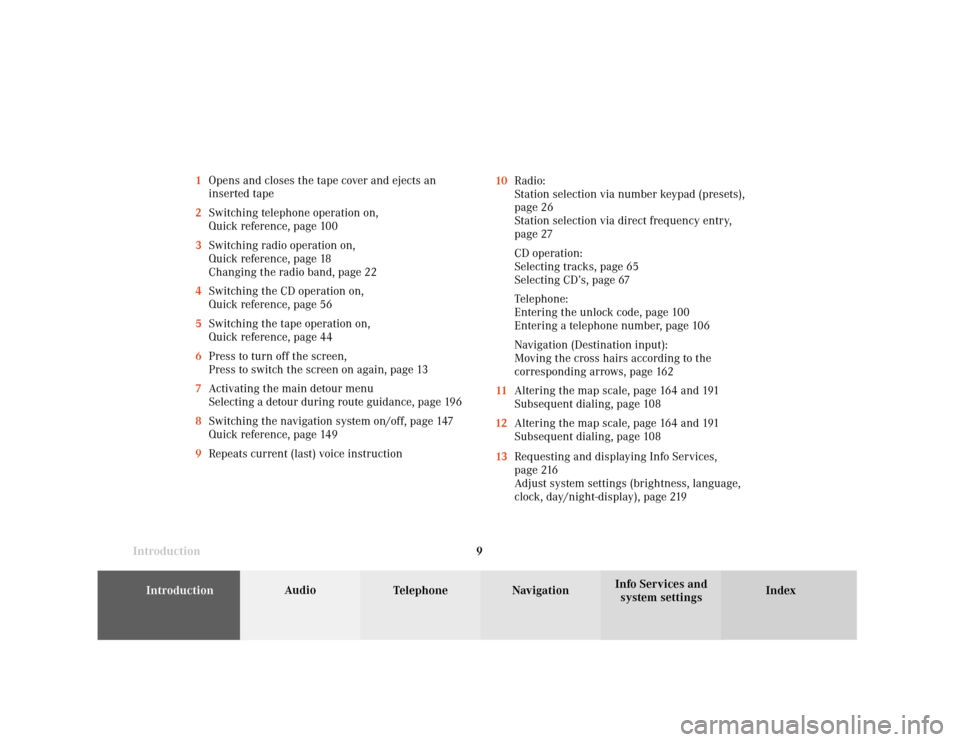
system settings 9 1Opens and closes the tape cover and ejects an
inserted tape
2Switching telephone operation on,
Quick reference, page 100
3Switching radio operation on,
Quick reference, page 18
Changing the radio band, page 22
4Switching the CD operation on,
Quick reference, page 56
5Switching the tape operation on,
Quick reference, page 44
6Press to turn off the screen,
Press to switch the screen on again, page 13
7Activating the main detour menu
Selecting a detour during route guidance, page 196
8Switching the navigation system on/off, page 147
Quick reference, page 149
9Repeats current (last) voice instruction10Radio:
Station selection via number keypad (presets),
page 26
Station selection via direct frequency entry,
page 27
CD operation:
Selecting tracks, page 65
Selecting CD’s, page 67
Telephone:
Entering the unlock code, page 100
Entering a telephone number, page 106
Navigation (Destination input):
Moving the cross hairs according to the
corresponding arrows, page 162
11Altering the map scale, page 164 and 191
Subsequent dialing, page 108
12Altering the map scale, page 164 and 191
Subsequent dialing, page 108
13Requesting and displaying Info Services,
page 216
Adjust system settings (brightness, language,
clock, day/night-display), page 219
Page 43 of 243
41
AudioTelephone
Navigation
Index
IntroductionInfo Services and
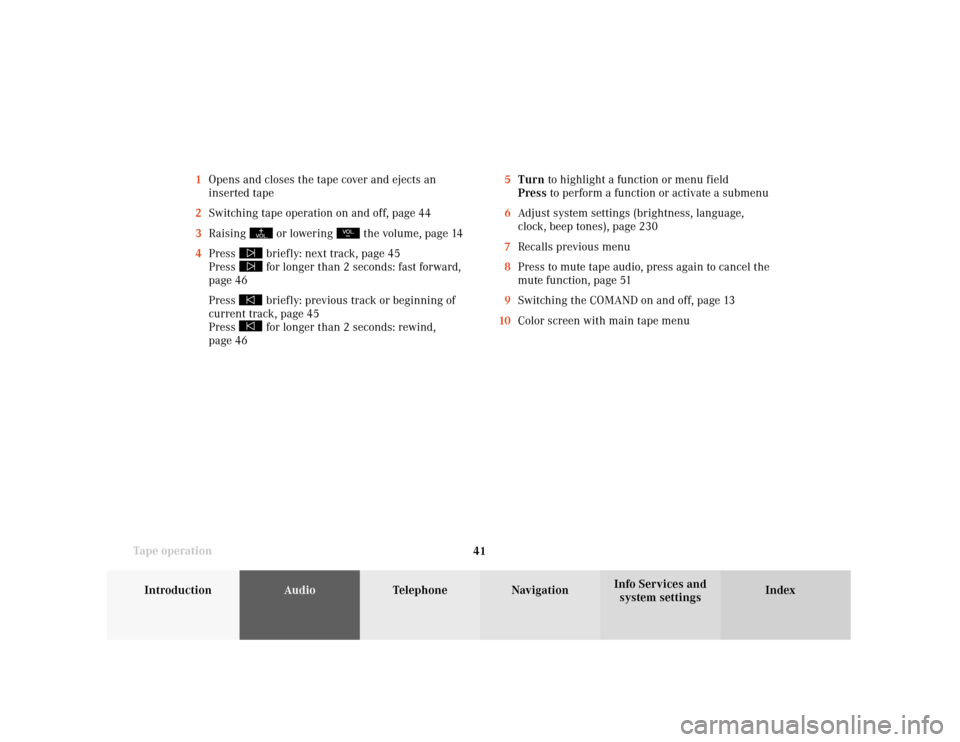
system settings Tape operation1Opens and closes the tape cover and ejects an
inserted tape
2Switching tape operation on and off, page 44
3Raising
or lowering
the volume, page 14
4Press
briefly: next track, page 45
Press for longer than 2 seconds: fast forward,
page 46
Press briefly: previous track or beginning of
current track, page 45
Press for longer than 2 seconds: rewind,
page 465Turn to highlight a function or menu field
Press to perform a function or activate a submenu
6Adjust system settings (brightness, language,
clock, beep tones), page 230
7Recalls previous menu
8Press to mute tape audio, press again to cancel the
mute function, page 51
9Switching the COMAND on and off, page 13
10Color screen with main tape menu
Page 46 of 243
44
AudioTelephone
Navigation
Index Info Services and
system settings Introduction
Tape operation
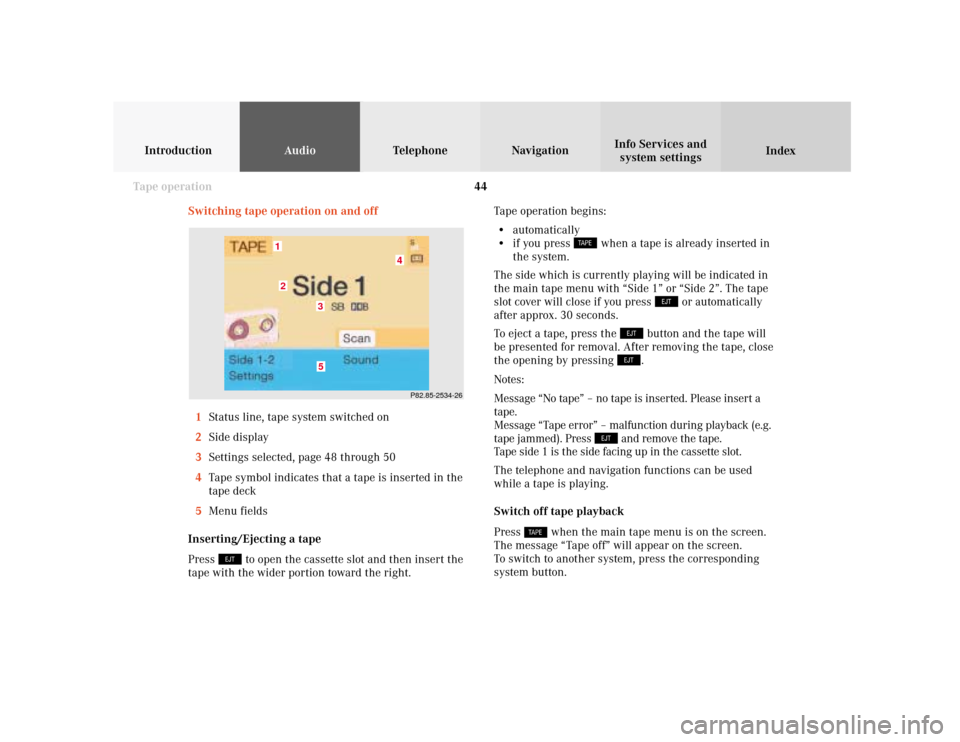
Switching tape operation on and off
1Status line, tape system switched on
2Side display
3Settings selected, page 48 through 50
4Tape symbol indicates that a tape is inserted in the
tape deck
5Menu fields
Inserting/Ejecting a tape
Press
to open the cassette slot and then insert the
tape with the wider portion toward the right.Tape operation begins:
• automatically
• if you press
when a tape is already inserted in
the system.
The side which is currently playing will be indicated in
the main tape menu with “Side 1” or “Side 2”. The tape
slot cover will close if you press
or automatically
after approx. 30 seconds.
To eject a tape, press the
button and the tape will
be presented for removal. After removing the tape, close
the opening by pressing .
Notes:
Message “No tape” – no tape is inserted. Please insert a
tape.
Message “Tape error” – malfunction during playback (e.g.
tape jammed). Press
and remove the tape.
Tape side 1 is the side facing up in the cassette slot.
The telephone and navigation functions can be used
while a tape is playing.
Switch off tape playback
Press
when the main tape menu is on the screen.
The message “Tape off” will appear on the screen.
To switch to another system, press the corresponding
system button.
P82.85-2534-26
5
4
3
21
Page 62 of 243
60
AudioTelephone Navigation
Index Info Services and
system settings Introduction
CD operation
P82.85-2088-26
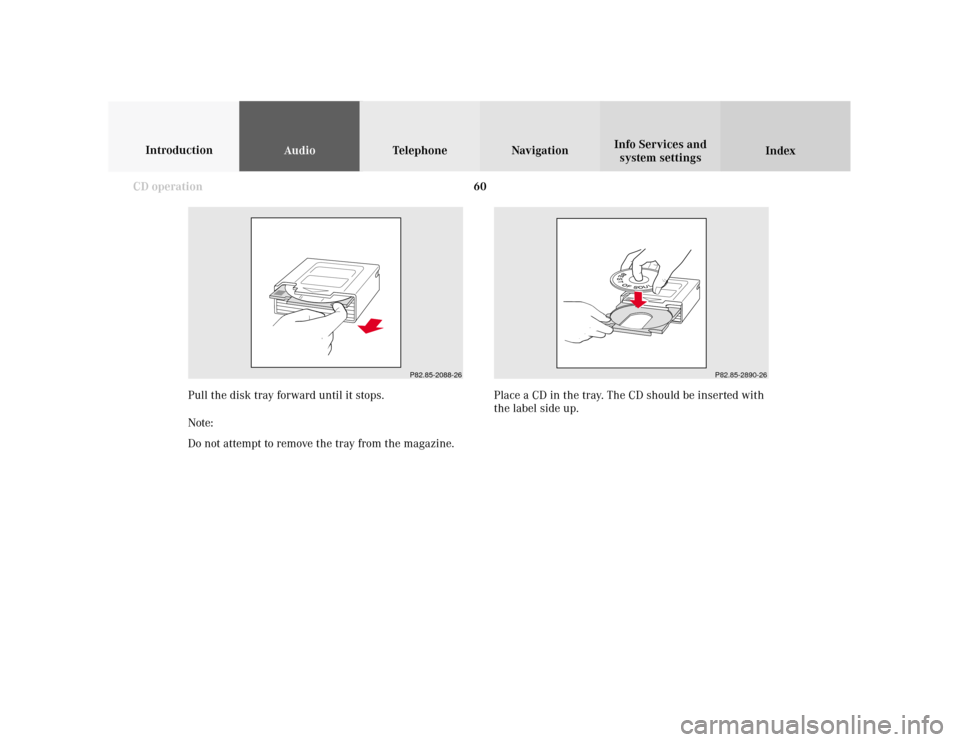
Pull the disk tray forward until it stops.
Note:
Do not attempt to remove the tray from the magazine.Place a CD in the tray. The CD should be inserted with
the label side up.
P82.85-2890-26
Page 66 of 243
64
AudioTelephone Navigation
Index Info Services and
system settings Introduction
CD operation
P82.85-2978-26
3
2
1
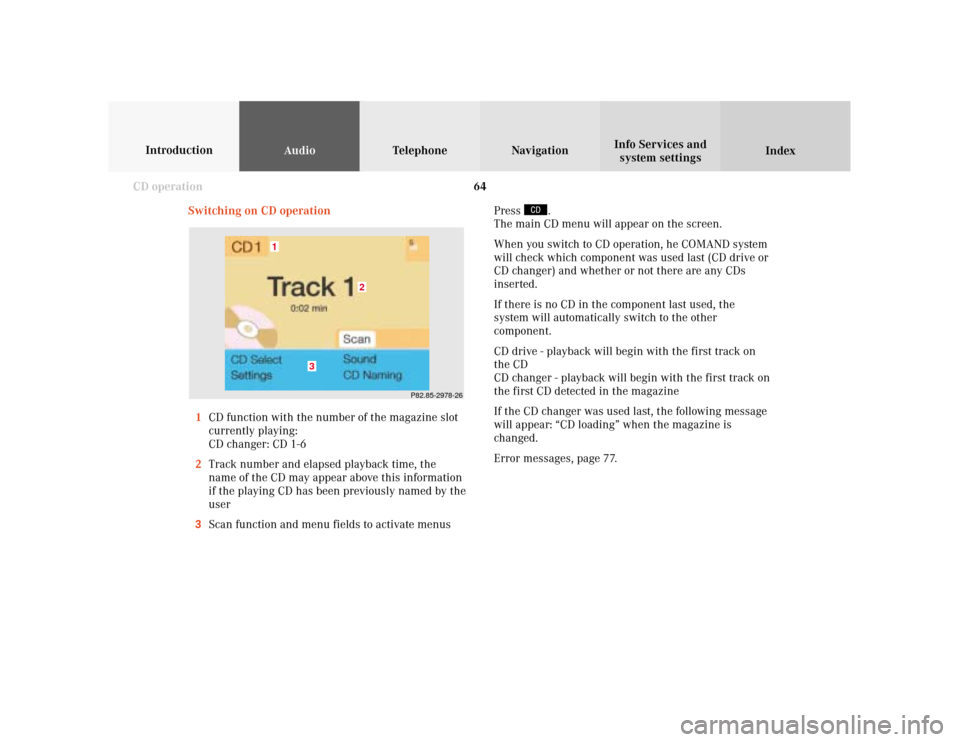
Switching on CD operation
1CD function with the number of the magazine slot
currently playing:
CD changer: CD 1-6
2Track number and elapsed playback time, the
name of the CD may appear above this information
if the playing CD has been previously named by the
user
3Scan function and menu fields to activate menusPress
.
The main CD menu will appear on the screen.
When you switch to CD operation, he COMAND system
will check which component was used last (CD drive or
CD changer) and whether or not there are any CDs
inserted.
If there is no CD in the component last used, the
system will automatically switch to the other
component.
CD drive - playback will begin with the first track on
the CD
CD changer - playback will begin with the first track on
the first CD detected in the magazine
If the CD changer was used last, the following message
will appear: “CD loading” when the magazine is
changed.
Error messages, page 77.
Page 73 of 243
71
Introduction
AudioTelephone
Navigation
Index Info Services and
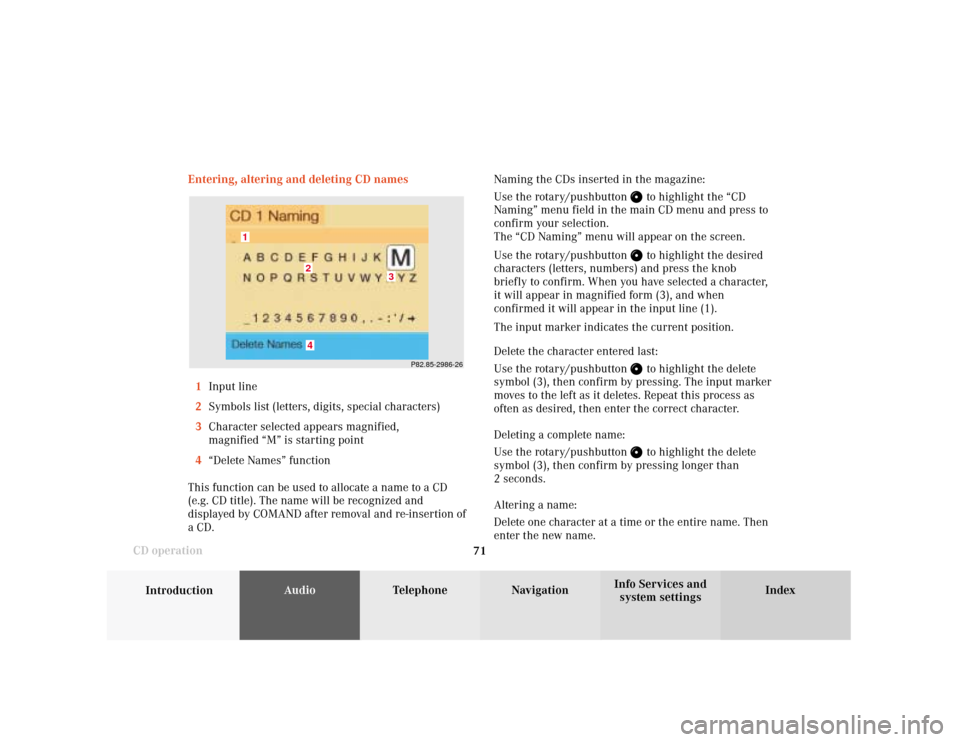
system settings CD operationEntering, altering and deleting CD names
1Input line
2Symbols list (letters, digits, special characters)
3Character selected appears magnified,
magnified “M” is starting point
4“Delete Names” function
This function can be used to allocate a name to a CD
(e.g. CD title). The name will be recognized and
displayed by COMAND after removal and re-insertion of
a CD.Naming the CDs inserted in the magazine:
Use the rotary/pushbutton
to highlight the “CD
Naming” menu field in the main CD menu and press to
confirm your selection.
The “CD Naming” menu will appear on the screen.
Use the rotary/pushbutton to highlight the desired
characters (letters, numbers) and press the knob
briefly to confirm. When you have selected a character,
it will appear in magnified form (3), and when
confirmed it will appear in the input line (1).
The input marker indicates the current position.
Delete the character entered last:
Use the rotary/pushbutton to highlight the delete
symbol (3), then confirm by pressing. The input marker
moves to the left as it deletes. Repeat this process as
often as desired, then enter the correct character.
Deleting a complete name:
Use the rotary/pushbutton to highlight the delete
symbol (3), then confirm by pressing longer than
2 seconds.
Altering a name:
Delete one character at a time or the entire name. Then
enter the new name.
P82.85-2986-26
4
3
2
1
Page 74 of 243

72
AudioTelephone Navigation
Index Info Services and
system settings Introduction
CD operation
Notes:
The CD names are saved in the names list in alphabeti-
cal order. If the name memory is full, the following
message will appear: “Attention, name memory is full;
new entry only possible after clearing old one!”
Confirm the message by pressing the menu field
marked “OK”. The input menu will appear again.
Use the “Delete Names” menu field to clear the
memory, page 73.
P82.85-2987-26
Press the rotary/pushbutton
longer than 2 seconds
to confirm the name. The main CD menu will appear on
the screen.
The name of the CD currently playing will appear above
the track number.
The CD will retain this name even if it is inserted into a
different magazine slot.
Page 79 of 243

77
Introduction
AudioTelephone
Navigation
Index Info Services and
system settings CD operationError messages
1CD changer error messages“No CD changer” – The system cannot detect the CD
changer; contact a Mercedes-Benz Center (1)
“No magazine” –There is no magazine inserted in the
CD changer; load CDs into the magazine and insert the
magazine into the CD changer (1)
“Magazine empty” –There are no CDs in the magazine;
load CDs into the magazine and insert the magazine
into the CD changer (1)
“Being activated” – The CD changer is not yet ready for
operation (1).
“Reading error” – The system cannot read the CD
which has been inserted (2), e.g. audio CD
P82.85-6058-26
1
Page 152 of 243
150
Index Info Services and
system settings IntroductionAudio TelephoneNavigation
Destination input
Changing the Navigation CD
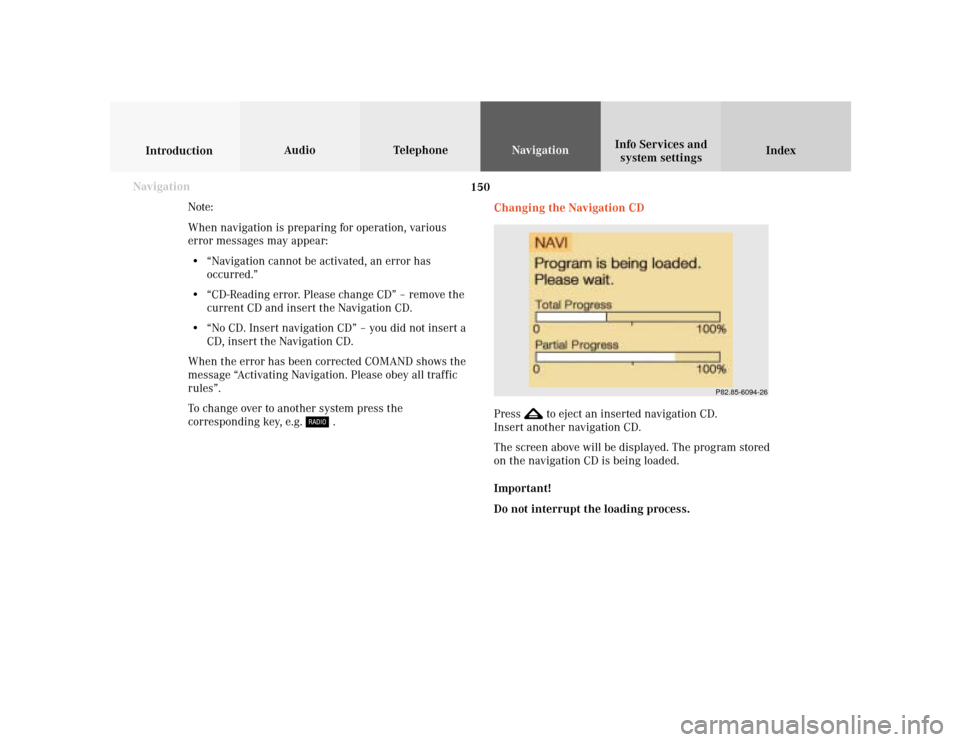
Press
to eject an inserted navigation CD.
Insert another navigation CD.
The screen above will be displayed. The program stored
on the navigation CD is being loaded.
Important!
Do not interrupt the loading process. Note:
When navigation is preparing for operation, various
error messages may appear:
• “Navigation cannot be activated, an error has
occurred.”
• “CD-Reading error. Please change CD” – remove the
current CD and insert the Navigation CD.
• “No CD. Insert navigation CD” – you did not insert a
CD, insert the Navigation CD.
When the error has been corrected COMAND shows the
message “Activating Navigation. Please obey all traffic
rules”.
To change over to another system press the
corresponding key, e.g.
. Navigation
P82.85-6094-26