change time MERCEDES-BENZ S CLASS 2010 User Guide
[x] Cancel search | Manufacturer: MERCEDES-BENZ, Model Year: 2010, Model line: S CLASS, Model: MERCEDES-BENZ S CLASS 2010Pages: 548, PDF Size: 11.45 MB
Page 123 of 548
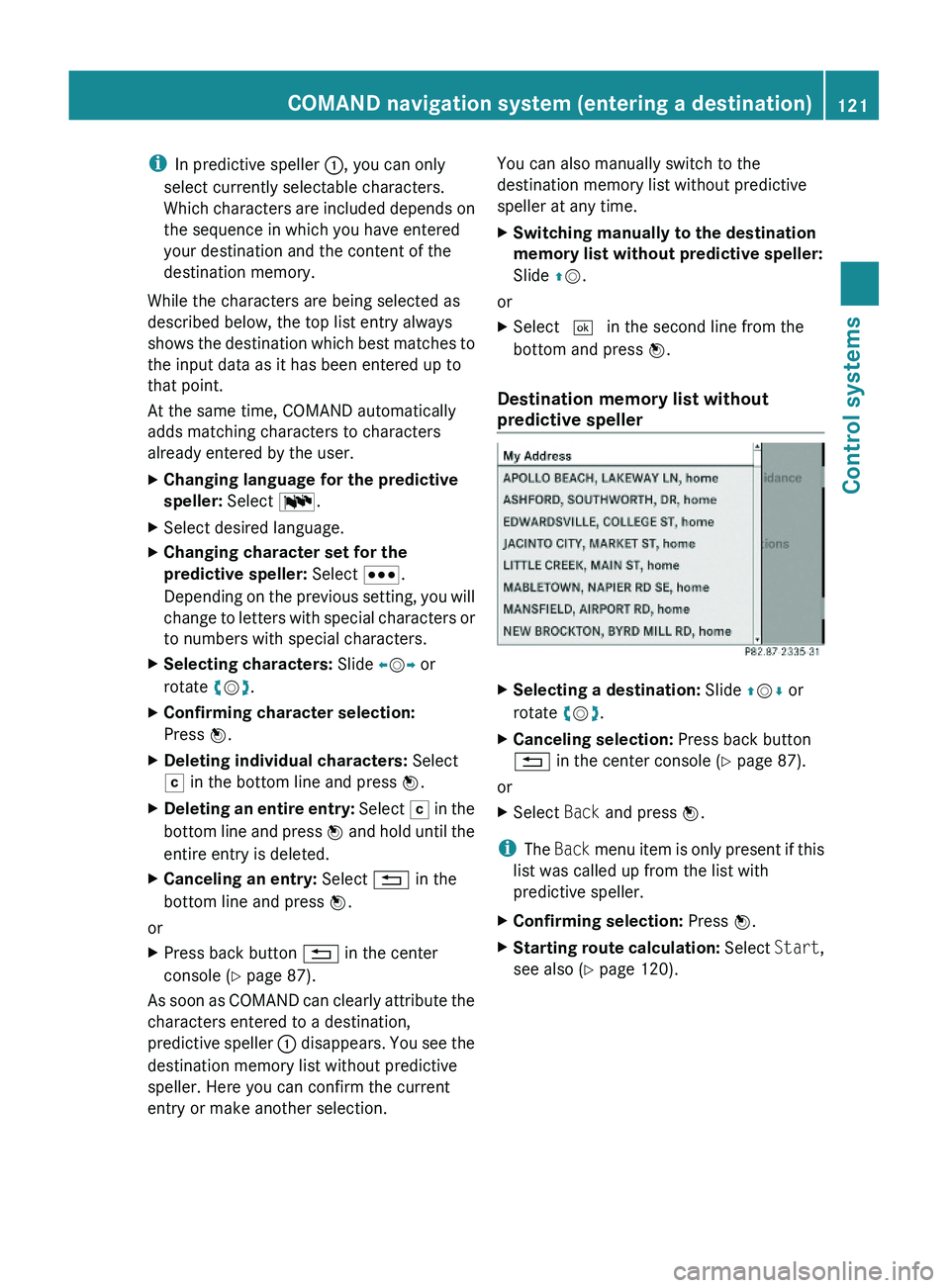
iIn predictive speller \000F, you can only
select currently selectable characters.
Which characters are included depends on
the sequence in which you have entered
your destination and the content of the
destination memory.
While the characters are being selected as
described below, the top list entry always
shows the destination which best matches to
the input data as it has been entered up to
that point.
At the same time, COMAND automatically
adds matching characters to characters
already entered by the user.
XChanging language for the predictive
speller: Select \000].
XSelect desired language.XChanging character set for the
predictive speller: Select \000^.
Depending on the previous setting, you will
change to letters with special characters or
to numbers with special characters.
XSelecting characters: Slide \000
Page 146 of 548
XEnter the address. Proceed as described
for destination entry in the “Entering a
destination by address” section
( Y page 107).XSelect Save after entering the address.
Your address is saved.
Using the address book entry as your own
address
XIf you want to assign your own address
for the first time: Select Assign
Address Book Entry .
or
XIf you want to change your own
address: Select Change 0054 Assign
Address Book Entry 0054 Home or Work .
In both cases, the menu appears for
searching for an address book entry.
XSelect desired address book entry.
Proceed as described in the “Searching for
an address book entry” section
( Y page 160).
Once the address data is complete and if it
matches the digital map data, COMAND
saves the entry as your own address in the
destination memory.
If address data is still missing or if it cannot
be found on the digital map, a message
appears indicating that the address is
incomplete.XClosing message: Select OK.
i
In the address book entry, the city and
street must be spelled in the same way as
the destination entry so that the data
matches the digital map data.
In order for the state (USA) or province
(Canada) to match the map data, you may
either enter the entire name or the
abbreviation in the address book.
Examples:
R Florida or FL
R Colorado or CO
RAlberta or AB
R Ontario or ON
Depending on which data is missing or cannot
be found on the digital map, you must now
either:
R select a state (USA) or province (Canada)
R or enter a city
R or enter a street
R or enter a house numberXSelecting a state (USA) or province
(Canada): Select desired state (USA) or
province (Canada) from the list.XEntering a city: Proceed as described for
destination entry in the “Entering a city”
section ( Y page 111).XEntering a street: Proceed as described
for destination entry in the “Entering a
street” section ( Y page 114).XEntering a house number: Proceed as
described for destination entry in the
“Entering a house number” section
( Y page 117).
If all data is available and matches the
digital map data, you can save the address.XSaving: Select Save.
Selecting your own address for route
guidance
XSelect Navi 0054 Destination 0054 From
Memory .
The destination memory list appears either
with or without the predictive speller.
Whether the predictive speller appears
depends on the number of entries in the
destination memory.144COMAND navigation system (destination memory)Control systems
221_AKB; 6; 20, en-USd2ugruen,Version: 2.11.8.12009-09-24T13:28:17+02:00 - Seite 144
Page 181 of 548
Such damages are not covered by the
Mercedes-Benz Limited Warranty.
Only use round discs with a diameter of
12 cm.
Notes about handling CDs/DVDs
ROnly hold discs by the edge.
RHandle discs carefully to prevent playback
problems.
RAvoid getting scratches, fingerprints and
dust on discs.
RClean discs from time to time with a
commercially-available cleaning cloth. Do
not wipe them with a circular motion, but
only in straight lines from the center
outwards.
ROnly use a pen designed for such a purpose
to label discs.
RPlace discs back in their boxes after use.
RProtect discs from heat and direct sunlight.
Inserting/ejecting CDs and DVDs
GObserve Safety notes, see page 176.
iIf the CD/DVD has a printed side, this
must face upwards when the CD/DVD is
inserted. If neither side is printed, the side
to be played should face downwards.
DVD changer
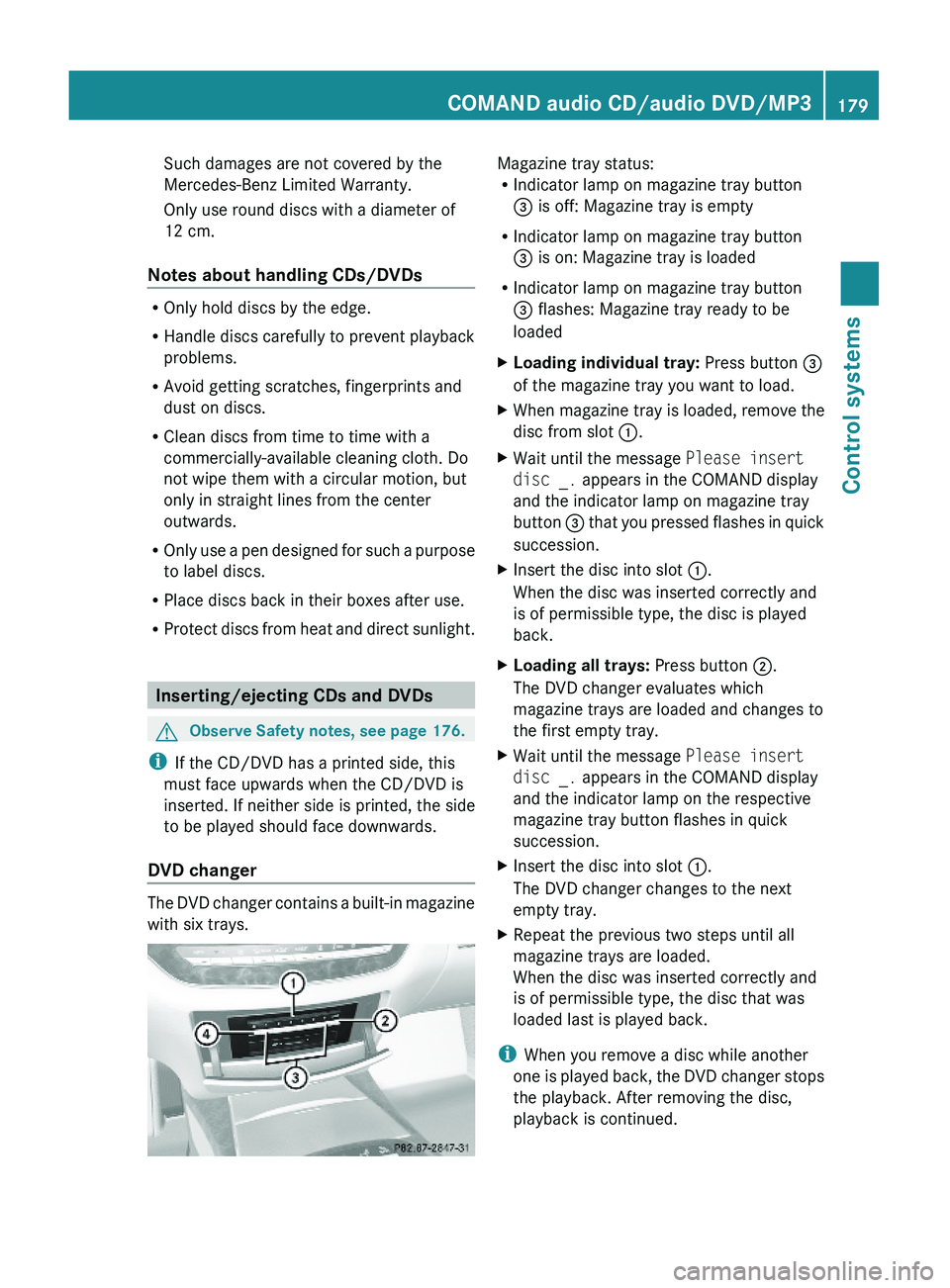
The DVD changer contains a built-in magazine
with six trays.
Magazine tray status:RIndicator lamp on magazine tray button
\000
Page 193 of 548
XSelect Active Source for Rear in the
COMAND.
XSwitch to the main function COMAND in the
Rear Seat Entertainment System.
COMAND video DVD
Safety notes
GObserve Safety notes, see page 176.
Automatic picture fade-out
If a video DVD is playing when the vehicle is
shifted from park position P into neutral
position N or drive position D the picture is
faded out automatically and the following
message appears in the display: In order
not to distract driver, picture is
faded out while the vehicle is in
motion.
When the vehicle is shifted back into park
position P, the picture comes on again.
When the vehicle is shifted into reverse gear
R, the rear view camera appears in the display
during video DVD playback.
Notes about video DVD operation
COMAND can playback commercially
available, prerecorded video DVDs that bear
the following label. You will usually find the
label on the DVD booklet, the inlay, or the
DVD itself.
iVideo DVDs differ from recordable DVD-
R and DVD-RW discs.
iThere may be playback problems when
playing copied DVDs.
There is a large variety of discs, disc-writing
software and writers available. This variety
means that there is no guarantee that the
system will be able to play discs that you
have written/copied yourself.
Some DVDs may not comply with the NTSC
or PAL TV playback standards. Sound, picture
and other playback problems may occur
when you play such DVDs.
COMAND can playback video DVDs meeting
the following requirements:
RCorrect regional code
RNTSC or PAL TV standard
The appropriate information is usually given
either on the DVD or the DVD box. The factory
setting of COMAND is regional code 1. This
setting can only be changed five times at
most by an authorized Mercedes-Benz
Center. This will allow you to playback video
DVDs with other regional codes, as long as
they comply with the NTSC or PAL TV
standard.
Notes about DVDs
! Do not affix stickers or labels to the discs.
These could peel away and damage
COMAND. COMAND is designed to hold
discs which comply with the IEC 60908
standard. You can therefore only use discs
with a maximum thickness of 1.3 mm.
If you insert thicker discs, e.g. those that
contain data on both sides (DVD on one
side and audio data on the other), they
cannot be ejected and can damage
COMAND.
Do not use CDs with a diameter of 8 cm.
Attempting to play discs with a diameter of
8 cm or playing such discs with an adapter
may cause damage COMAND.
Such damages are not covered by the
Mercedes-Benz Limited Warranty.
Only use round discs with a diameter of
12 cm.
COMAND video DVD191Control systems221_AKB; 6; 20, en-USd2ugruen,Version: 2.11.8.12009-09-24T13:28:17+02:00 - Seite 191Z
Page 216 of 548
! If the air conditioning cannot be activated
again, this indicates that the air
conditioning is losing refrigerant. The
compressor has turned off.
Have the air conditioning checked at the
nearest authorized Mercedes-Benz Center.
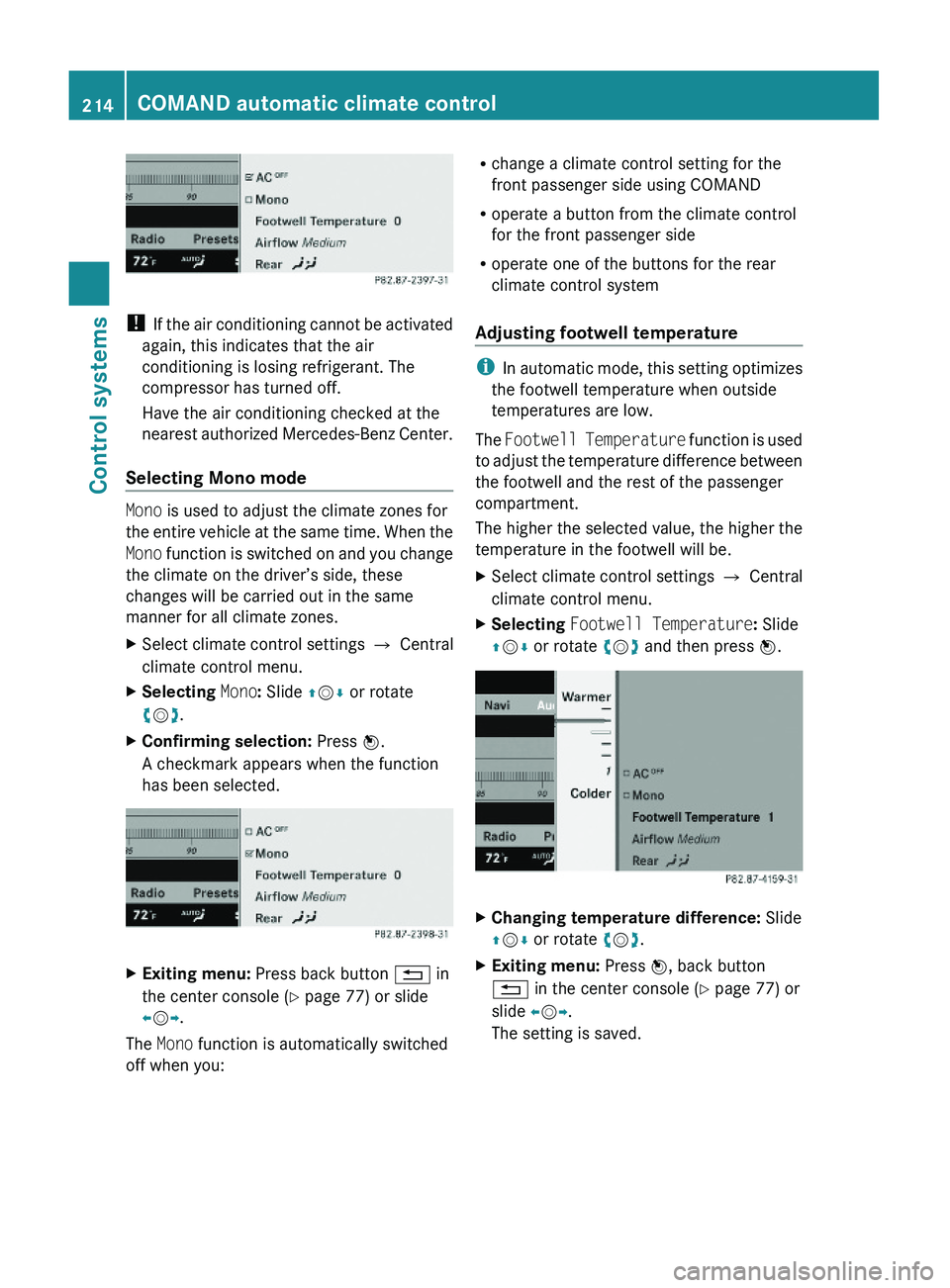
Selecting Mono mode
Mono is used to adjust the climate zones for
the entire vehicle at the same time. When the
Mono function is switched on and you change
the climate on the driver’s side, these
changes will be carried out in the same
manner for all climate zones.
XSelect climate control settings \000T Central
climate control menu.
XSelecting Mono: Slide \000
Page 233 of 548
Ending a call or rejecting an incoming
callXPress button 007F.
Dialing a number from the phone book
When your telephone is ready to receive calls,
you may select and dial a number from the
phone book at any time.
XPress button 0040 or 003E to select the
Telephone menu.XPress button 003D or 003C or 0064 to
switch to the phone book.
The stored names are displayed in
ascending alphabetical order.XPress button 003D or 003C to select the
desired entry.
If you press and hold button 003D or
003C the system scrolls rapidly through the
list of names (quick search). After holding
button 003D or 003C for a short while the
scrolling speed increases. Release the
button to stop the quick search. The search
stops automatically at the end of the list.XIf the Symbol 004C appears on the right-hand
side of the name several entries are
present for the same name: Press button
006A or 0064 and select the desired entry.XPress button 006A or 0064 .
The control system dials the selected
phone number.
If the connection is successful and this
feature is supported by your network
provider, the name of the party (if stored in
your phone book) you are calling will
appear in the multifunction display.
The control system stores the dialed
number in the redial memory.
or
XPress button 007F if you do not want to
make the call.Redialing
The control system stores the most recently
dialed phone numbers. This eliminates the
need to search through your entire phone
book.
XPress button 0040 or 003E to select the
Telephone menu.XPress button 006A.XPress button 003D or 003C to select the
desired number or name.XPress button 006A or 0064 .
The control system dials the selected
phone number.
Assistance menu
In the DriveAssist menu, you can change
the settings of your driving systems.
The following functions are available:
R Displaying distance graphic, DISTRONIC
PLUS ( Y page 334)
R Switching ESC on or off ( Y page 232)
R Activating/deactivating PRE-SAFE ®
Brake
(vehicles with DISTRONIC PLUS only)
( Y page 232)
R Switching ATTENTION ASSIST on or off
( Y page 232)
R Switching Blind Spot Assist on or off
( Y page 233)
R Switching Lane Keeping Assist on or off
( Y page 233)
Instrument cluster control system231Control systems221_AKB; 6; 20, en-USd2ugruen,Version: 2.11.8.12009-09-24T13:28:17+02:00 - Seite 231Z
Page 237 of 548
XPress button \000d again if you would like
to change the current status.
Depending on the previous status, the
Daytime Running Lamps will be switched
on (Enabled) or off (Disabled).
With Daytime Running Lamps mode
Enabled selected and the exterior lamp
switch at position \000' or \000f, the low-
beam headlamps are switched on when the
engine is running.
In low ambient light conditions the following
lamps will come on additionally:
RParking lamps
RTail lamps
RLicense plate lamps
RSide marker lamps
For more information on the daytime running
lamp mode, see “Lighting” (Y page 299).
iMake sure the exterior lamp switch is set
to \000e or \000f when you switch off the
daytime running lamps while driving at
night.
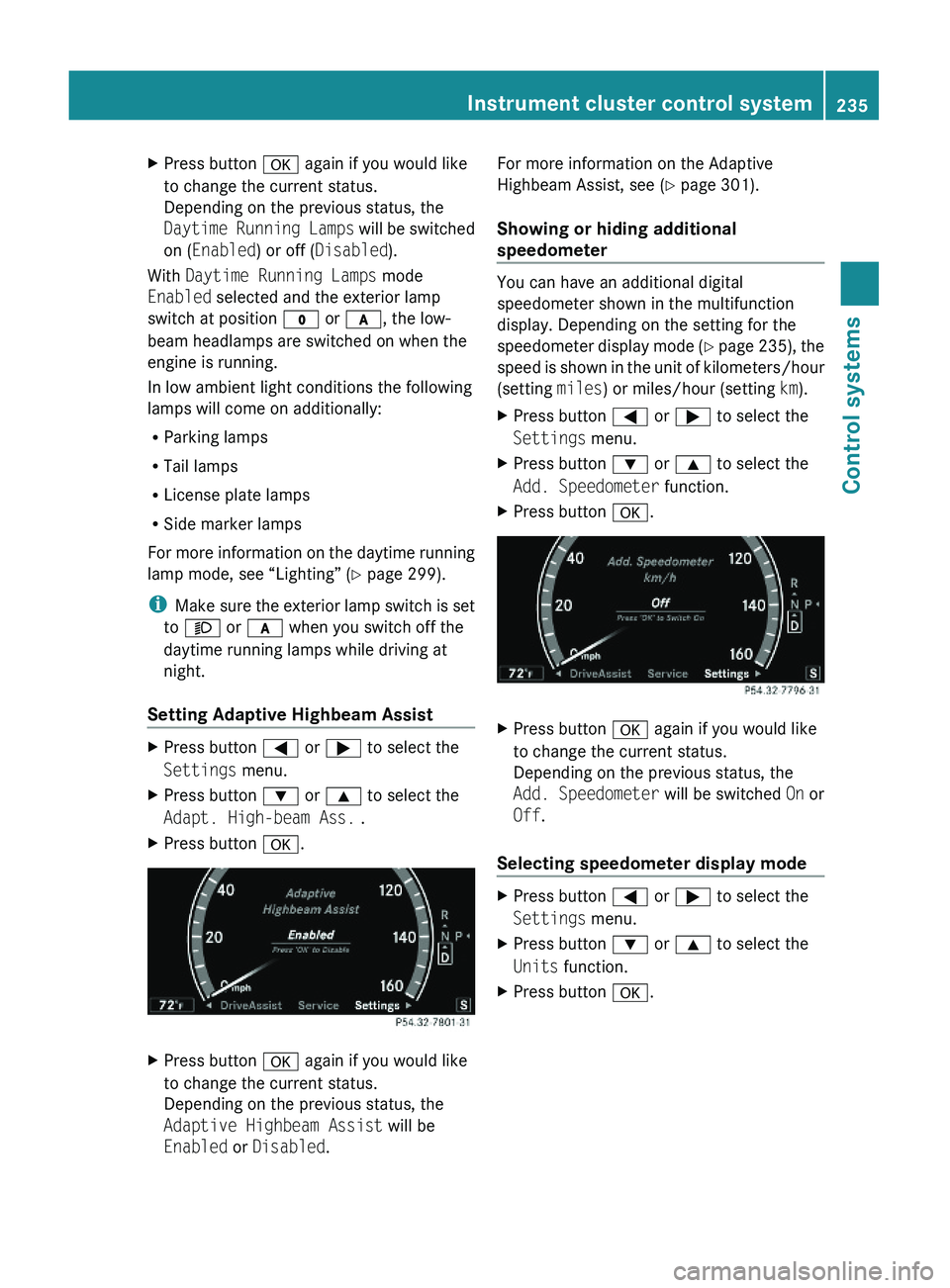
Setting Adaptive Highbeam Assist
XPress button \000@ or \000> to select the
Settings menu.
XPress button \000= or \000< to select the
Adapt. High-beam Ass. .
XPress button \000d.XPress button \000d again if you would like
to change the current status.
Depending on the previous status, the
Adaptive Highbeam Assist will be
Enabled or Disabled.
For more information on the Adaptive
Highbeam Assist, see (Y page 301).
Showing or hiding additional
speedometer
You can have an additional digital
speedometer shown in the multifunction
display. Depending on the setting for the
speedometer display mode (Y page 235), the
speed is shown in the unit of kilometers/hour
(setting miles) or miles/hour (setting km).
XPress button \000@ or \000> to select the
Settings menu.
XPress button \000= or \000< to select the
Add. Speedometer function.
XPress button \000d.XPress button \000d again if you would like
to change the current status.
Depending on the previous status, the
Add. Speedometer will be switched On or
Off.
Selecting speedometer display mode
XPress button \000@ or \000> to select the
Settings menu.
XPress button \000= or \000< to select the
Units function.
XPress button \000d.Instrument cluster control system235Control systems221_AKB; 6; 20, en-USd2ugruen,Version: 2.11.8.12009-09-24T13:28:17+02:00 - Seite 235Z
Page 240 of 548
GWarning!
Please do not use the Voice Control System
in an emergency, as the tone of your voice
may change in a stressful situation. This could
cause a delay in completing your phone call
in a timely manner. This could distract you in
an emergency situation and cause you to be
involved in an accident.
General information
Depending on vehicle equipment, you can
operate the following systems via the Voice
Control System:
RTelephone (Y page 245)
RNavigation (Y page 240)
RAddress book (Y page 249)
RAudio (Y page 252) (AM/FM radio,
Satellite radio, CD/DVD changer, MP3
mode (SD card, USB, Music Register, Media
Interface), AUX)
RVideo
You control these systems using spoken
commands. Moreover, controls such as the
buttons on the multifunction steering wheel
(Y page 238) allow you to keep your hands
on the steering wheel.
The Voice Control System recognizes
commands and number sequences,
irrespective of the speaker. To optimize
speech recognition for your voice follow the
individualization process (Y page 271).
You can use the Voice Control System to call
up all of COMAND’s main menu items.
The commands can be spoken without
pausing between the individual words. If an
unavailable or incorrect command is used,
the Voice Control System will prompt you for
a new command by asking “Please repeat” or
“Please repeat your entry”.
The Voice Control System will confirm
important commands and inform you in case
of incorrect entries.
iTo support the user, the Voice Control
System contains an extensive help function
(Y page 267).
You can use the commands “Continue” or
“Back” to scroll up or down in lists.
The command “Correction” lets you repeat
the entry.
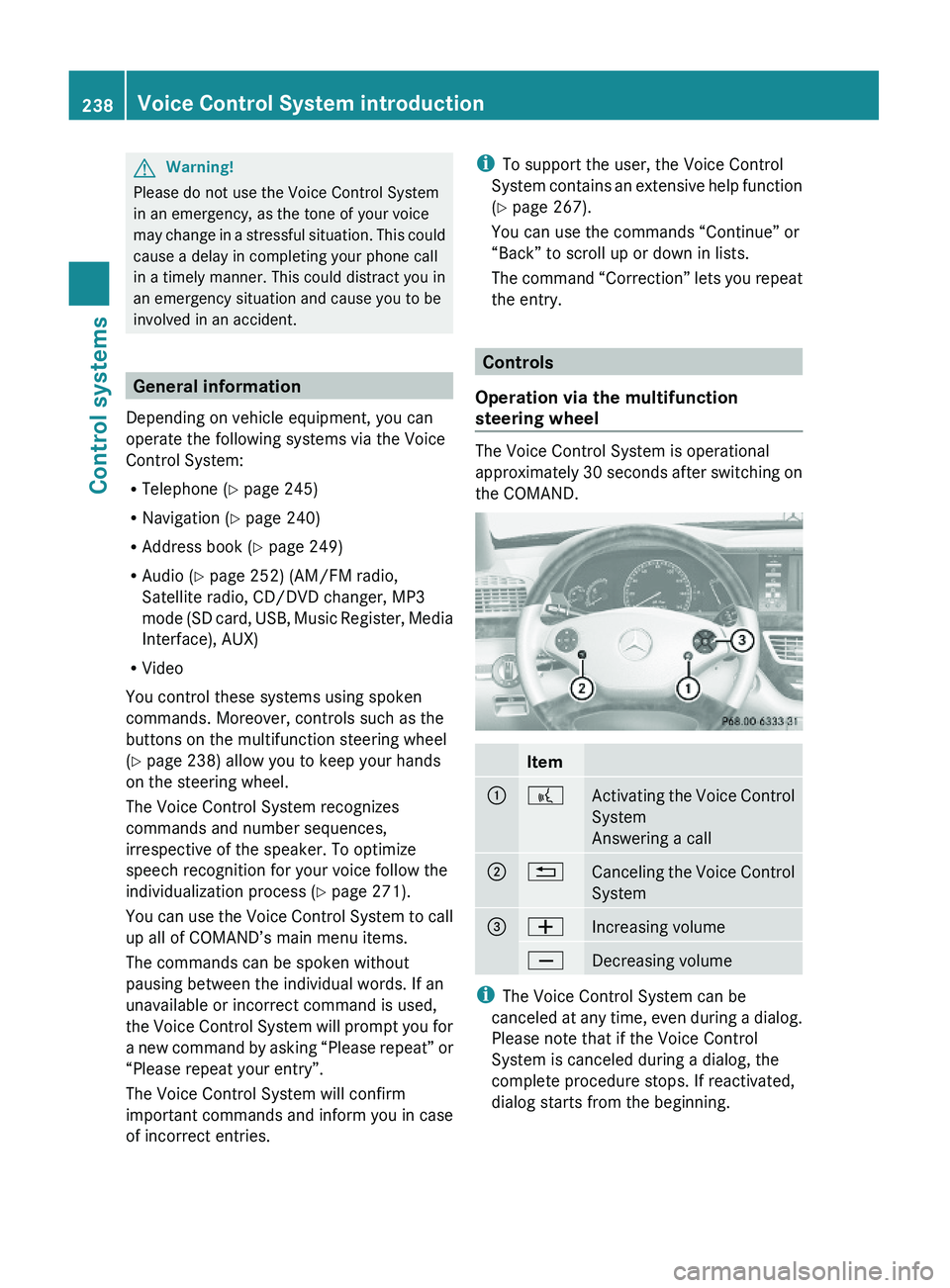
Controls
Operation via the multifunction
steering wheel
The Voice Control System is operational
approximately 30 seconds after switching on
the COMAND.
Item\000F\000bActivating the Voice Control
System
Answering a call
\000G\000ACanceling the Voice Control
System
\000
Page 255 of 548
Selecting a wave band
You can set the wave band with the following
commands:
R “FM”
R “AM”
R “Weatherband”
“Next station”, “Previous station”
The following commands are used to start the
station search and to tune in the next station:
R “Next station”
R “Previous station”
“Next Category”, “Previous Category”
You can use the following commands to
change the category on satellite radio:
R “Next Category”
R “Previous Category”
Selecting frequency (FM range)
You can select frequencies within the FM
range (87.9 to 107.9 MHz) directly. The Voice
Control System also recognizes the words
“Frequency”, “Point” and “Megahertz”.
Sample dialog:
009DNinety five point five megahertz.
The Voice Control System tunes the
radio to frequency FM 95.5.
Selecting frequency (AM range)
You can select frequencies within the AM
range (530 to 1710 kHz) directly. Voice
control also recognizes the words
“Frequency” and “Kilohertz”.
Sample dialog:
009DFive hundred and thirty kilohertz.
The Voice Control System tunes the
radio to frequency AM 530.“Save station”
Using the “Save station” command you can
give a voice name to the station currently
selected. You can also use this command to
improve voice recognition for difficult names
or if you want to use a name of your own. You
could, for example, save a station with the
name “Favorite station 37
”.
When you have given the command, the Voice
Control System prompts up to three times to
say the station name. When repeating the
station name, make sure that you pronounce
it in exactly the same way as you did the first
time. Otherwise, the name cannot be saved
and the Voice Control System aborts the
saving procedure.
Sample dialog:
009DSave station.009CPlease say the station name.009DFavorite station 37
.009CPlease repeat the station name.009DFavorite station 37
.009CThe station “Favorite station 37
” has
been saved.
“Select station”
Using the “Select station” command, you can
select a saved station.
Sample dialog:
009DSelect station.009CPlease say the station name.009DFavorite station 37
.
The Voice Control System sets the station.
“Favorite station 37
” or e.g. “WNYC”
Using this command, you can directly select
a saved station.
37 Example for a voice name.Voice Control System radio253Control systems221_AKB; 6; 20, en-USd2ugruen,Version: 2.11.8.12009-09-24T13:28:17+02:00 - Seite 253Z
Page 308 of 548
Intermittent wiping
Only switch on intermittent wiping under wet
weather conditions or in the presence of
precipitation.
When you select intermittent wiping, the rain
sensor is activated. The rain sensor sets a
suitable wiping interval depending on the
wetness of the sensor surface automatically.
! Do not leave windshield wipers on an
intermittent setting when the vehicle is
taken to an automatic car wash or during
windshield cleaning. Windshield wipers will
operate in the presence of water sprayed
on the windshield, and windshield wipers
may be damaged as a result.
! If you have set intermittent wiping, dirt on
the surface of the rain sensor or optical
effects may cause the windshield wipers to
wipe in an undesired fashion. This could
then damage the windshield wiper blades
or scratch the windshield. You should
therefore switch off the windshield wipers
when weather conditions are dry.
XTurn the combination switch to position
004E or 004F .
After the initial wipe, pauses between
wipes are controlled by the rain sensor
automatically.
Intermittent wiping is interrupted when the
vehicle is at a standstill and a front door is
opened. This protects persons getting into or
out of the vehicle from being sprayed.
Intermittent wiping will be continued when all
doors are closed and
R the automatic transmission is in drive
position D or reverse gear R
or
R the wiper setting is changed using the
combination switch
Single wipeXPress the combination switch briefly in
direction of arrow 0087 to the resistance
point.
The windshield wipers wipe one time
without washer fluid.
Wiping with washer fluid
XPress the combination switch in direction
of arrow 0087 past the resistance point.
The windshield wipers operate with washer
fluid.
i To prevent smears on the windshield or
noisy/chattering wiper blades, wipe with
washer fluid every now and then even when
it is raining.
For information on filling up the washer
reservoir, see “Washer system and headlamp
cleaning system” ( Y page 409).
For information on cleaning the headlamps
with washer fluid, see “Headlamp cleaning
system” ( Y page 303).
Problems with wipers
! If anything blocks the windshield wipers
(leaves, snow, etc.), switch them off
immediately.
For safety reasons, do the following before
attempting to remove any blockage:
R Stop the vehicle in a safe location.
R Remove the SmartKey from the starter
switch.
or
R Turn off the engine by pressing the
KEYLESS-GO start/stop button and
open the driver’s door (with the driver’s
door open, starter switch is in position
0 , same as with SmartKey removed from
starter switch).
R Engage the electronic parking brake.
306WipersControls in detail
221_AKB; 6; 20, en-USd2ugruen,Version: 2.11.8.12009-09-24T13:28:17+02:00 - Seite 306