steering MERCEDES-BENZ S CLASS 2010 Owner's Manual
[x] Cancel search | Manufacturer: MERCEDES-BENZ, Model Year: 2010, Model line: S CLASS, Model: MERCEDES-BENZ S CLASS 2010Pages: 548, PDF Size: 11.45 MB
Page 151 of 548
Using the Bluetooth®
interface
COMAND provides telephony via the
Bluetooth ®
interface by connecting a
Bluetooth ®
-compatible mobile phone. The
following functions can be used when a
suitable mobile phone is connected to the
Bluetooth ®
interface:
R Hands-free phone operation
R Phone book
R Reception of electronic business cards
(vCards 10
)
i For further information on suitable mobile
phones and connecting Bluetooth ®
-
enabled mobile phones to COMAND
R visit www.mbusa-mobile.com
R call the Mercedes-Benz Customer
Assistance Center at
1-800-FOR-MERCedes
(1-800-367-6372) (in the USA)
R call Customer Service at
1-800-387-0100 (in Canada)
Calls disconnected while the vehicle is
in motion
A call may be disconnected if
R there is insufficient network coverage
R you move from one transmitter/receiver
area (cell) into another and no channels are
free or the cell is full
Operating options
i The components and operating principles
of COMAND can be found on ( Y page 76).
You can operate the mobile phone using the
following:
R the keys on the mobile phone
R the COMAND telephone keypad in the
center console
R the COMAND controller
R the multifunction steering wheel
R the Voice Control System ( Y page 237)
Unless otherwise specified, the descriptions
and illustrations in this section apply to
COMAND or the telephone keypad in the
center console. Thus, in order to use the
described functions you always have to call
up the Telephone menu. The fastest way to
get to the Telephone menu is pressing
shortcut button 0058.
You can control other functions of the mobile
phone via the COMAND, instrument cluster
control system (Y page 230) or Voice Control
System ( Y page 237).
Caller ID
COMAND can display the telephone number
and the name of the caller, e.g. for an
incoming call and also in other menus or
displays.
For the telephone number to be displayed,
the caller must transmit his telephone
number.
This is also the case for name displays. For
this, the telephone number and the name of
the caller must also be saved in the mobile
phone book.
Functional restrictions
You will not be able to use the telephone, or
you may have to wait a while, in the following
situations:
R If the Bluetooth function in COMAND or
on the mobile phone is switched off.
R If the telephone has not yet logged into the
network.
The telephone tries to log into a network
automatically. If no network is available,
you will also not be able to make a “911”
emergency call. If you attempt to make an
10 vCards are electronic business cards used by e-mail applications, mobile phones, PDAs, etc. to exchange
contact information.COMAND telephone149Control systems221_AKB; 6; 20, en-USd2ugruen,Version: 2.11.8.12009-09-24T13:28:17+02:00 - Seite 149Z
Page 160 of 548
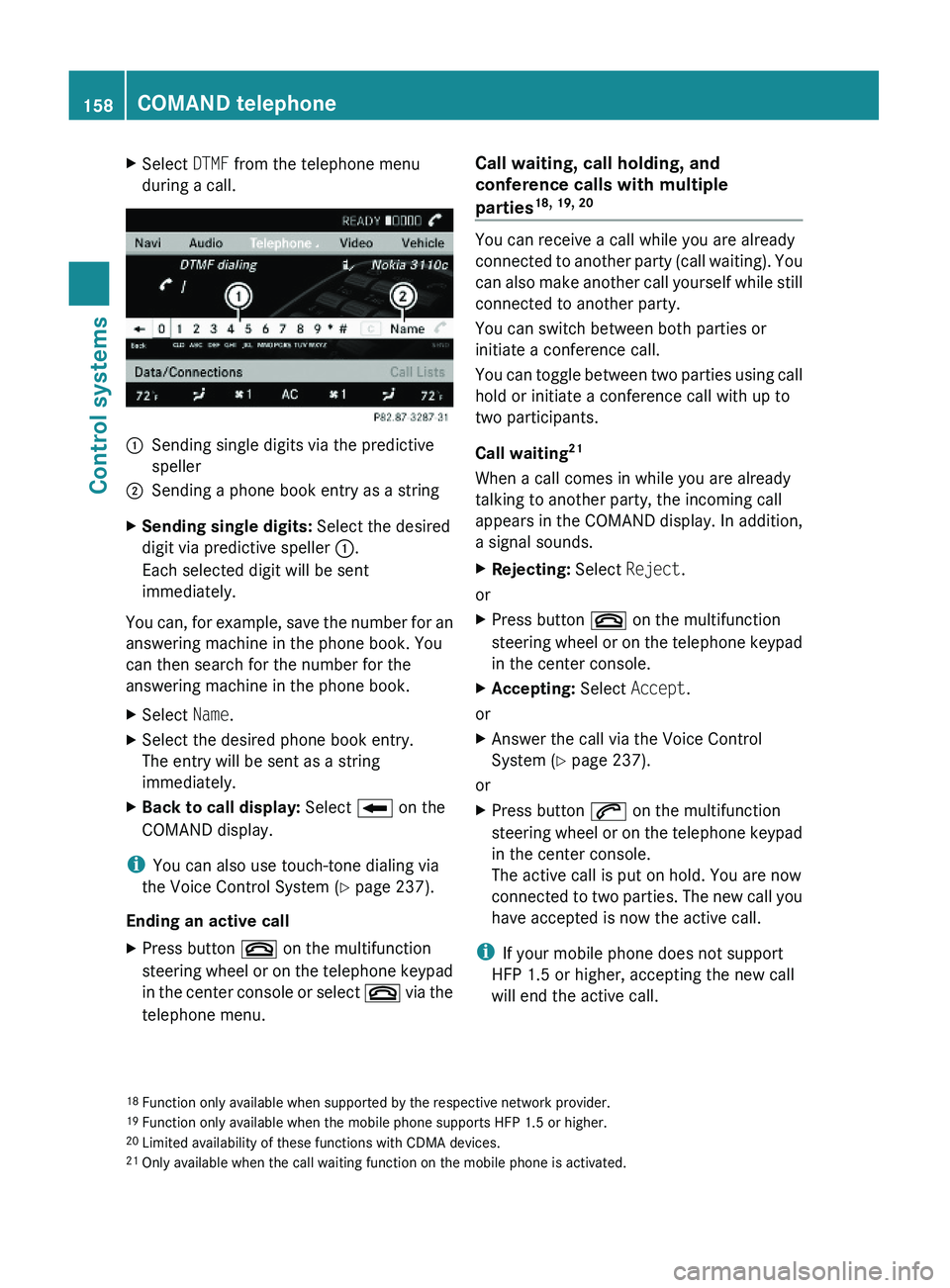
XSelect DTMF from the telephone menu
during a call.\000FSending single digits via the predictive
speller
\000GSending a phone book entry as a stringXSending single digits: Select the desired
digit via predictive speller \000F.
Each selected digit will be sent
immediately.
You can, for example, save the number for an
answering machine in the phone book. You
can then search for the number for the
answering machine in the phone book.
XSelect Name.XSelect the desired phone book entry.
The entry will be sent as a string
immediately.
XBack to call display: Select \000E on the
COMAND display.
iYou can also use touch-tone dialing via
the Voice Control System (Y page 237).
Ending an active call
XPress button \000 on the multifunction
steering wheel or on the telephone keypad
in the center console or select \000 via the
telephone menu.
Call waiting, call holding, and
conference calls with multiple
parties18, 19, 20
You can receive a call while you are already
connected to another party (call waiting). You
can also make another call yourself while still
connected to another party.
You can switch between both parties or
initiate a conference call.
You can toggle between two parties using call
hold or initiate a conference call with up to
two participants.
Call waiting21
When a call comes in while you are already
talking to another party, the incoming call
appears in the COMAND display. In addition,
a signal sounds.
XRejecting: Select Reject.
or
XPress button \000 on the multifunction
steering wheel or on the telephone keypad
in the center console.
XAccepting: Select Accept.
or
XAnswer the call via the Voice Control
System (Y page 237).
or
XPress button \000j on the multifunction
steering wheel or on the telephone keypad
in the center console.
The active call is put on hold. You are now
connected to two parties. The new call you
have accepted is now the active call.
iIf your mobile phone does not support
HFP 1.5 or higher, accepting the new call
will end the active call.
18Function only available when supported by the respective network provider.19Function only available when the mobile phone supports HFP 1.5 or higher.20Limited availability of these functions with CDMA devices.21Only available when the call waiting function on the mobile phone is activated.
158COMAND telephoneControl systems
221_AKB; 6; 20, en-USd2ugruen,Version: 2.11.8.12009-09-24T13:28:17+02:00 - Seite 158
Page 170 of 548
Selecting stations/channels using the
search functionXSlide 009E005B 009F or rotate 0082005B 0083 when the main
area is selected.
Depending on the direction in which the
controller is being slid or rotated, the
system searches upward or downward and
stops at the next receivable station/
channel.
or
XPress and hold button 003C or 003D on the
multifunction steering wheel 24
.
Selecting stations using station presets
i This function is not available for Weather
Band.
XSelect Audio 0054 FM/AM Radio 0054 FM or
AM .XSelect Presets .
or
XPress 00A1 when the main area is selected.
The preset menu appears. The dot 003F in
front of a preset position indicates that the
currently selected station is saved there.XSelect station preset by rotating 0082005B 0083 or
sliding 00A0005B 0050 and press 00A1.
or
XEnter a position number with the telephone
keypad using buttons 0101 - 0109
( Y page 79).
or
XPress button 003C or 003D on the
multifunction steering wheel briefly 24
.
i Vehicles with rear multicontour seats:
Rear occupants can also select a station
using the buttons on the rear armrest
( Y page 80).
Selecting stations by entering the
frequency manually
i This function is not available for Weather
Band.
XSelect Audio 0054 FM/AM Radio 0054 FM or
AM .
Entering the frequency using the
COMAND controller
XSelect Radio 0054 Enter Frequency .
The menu for manual frequency entry
appears.XExiting menu without making an entry:
Press back button 0041 in the center
console ( Y page 87).XIncreasing or decreasing number: Slide
00A0 005B 0050 or rotate 0082005B 0083.
i
You can only select available frequencies.
XSelecting the next number: Slide 005B009F.XConfirming frequency entry: Press 00A1.
COMAND tunes in to the frequency
entered.
i If you enter a frequency which is outside
the frequency range, COMAND tunes in to
the next lowest frequency.
Entering the frequency using the
telephone keypad
XPress button 004D on the telephone
keypad ( Y page 79).XEnter frequency using buttons 010B -
0109 .
COMAND tunes in to the frequency
entered.
Selecting channels using the WB
channel
i This function is only available for Weather
Band.
24 Function is only available if the Audio menu is selected in the instrument cluster.168COMAND FM/AM radioControl systems
221_AKB; 6; 20, en-USd2ugruen,Version: 2.11.8.12009-09-24T13:28:17+02:00 - Seite 168
Page 185 of 548
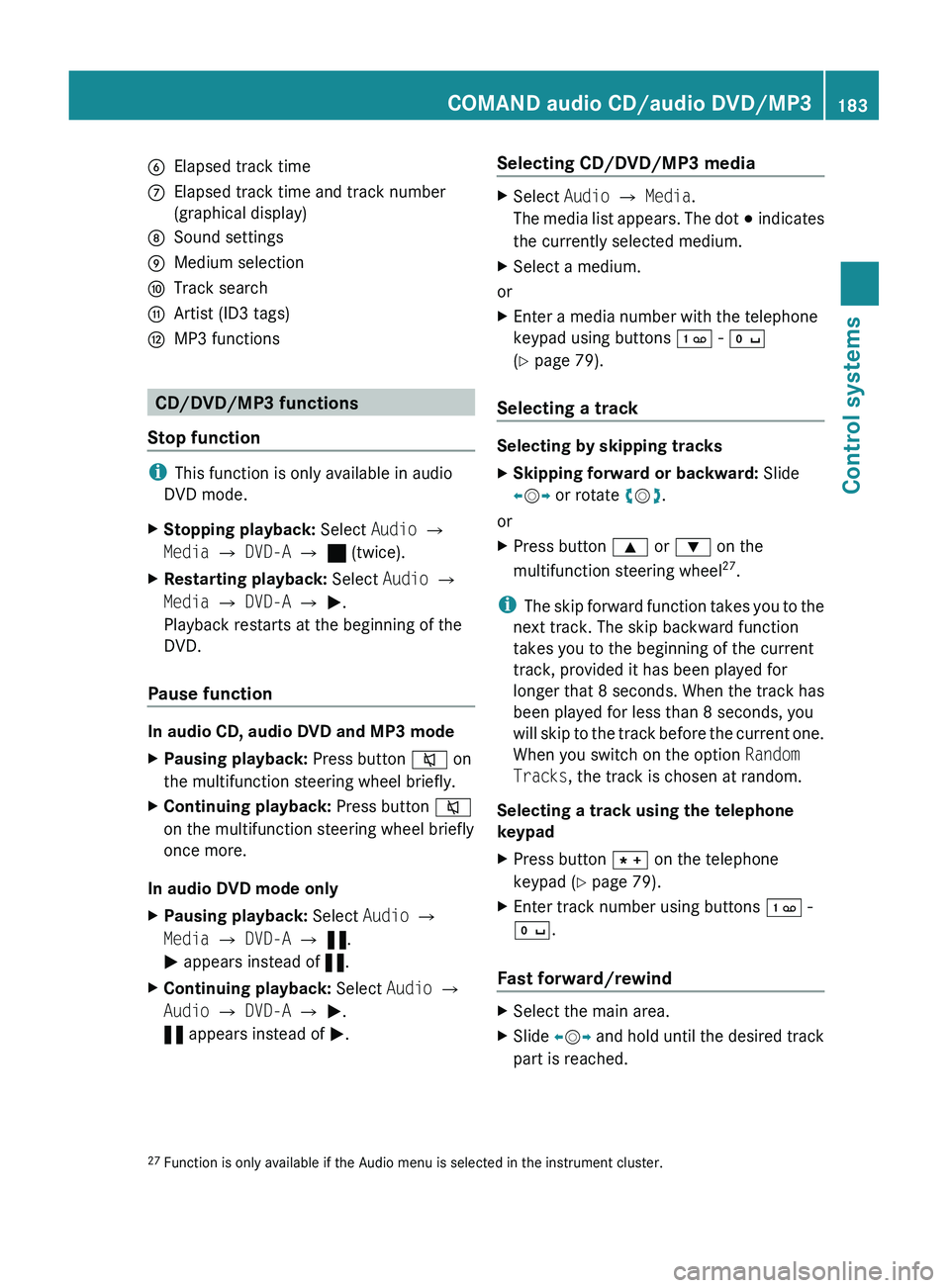
0087Elapsed track time006EElapsed track time and track number
(graphical display)006FSound settings0070Medium selection0071Track search0072Artist (ID3 tags)0073MP3 functions
CD/DVD/MP3 functions
Stop function
i This function is only available in audio
DVD mode.
XStopping playback: Select Audio 0054
Media 0054 DVD-A 0054 ± (twice).XRestarting playback: Select Audio 0054
Media 0054 DVD-A 0054 0050 .
Playback restarts at the beginning of the
DVD.
Pause function
In audio CD, audio DVD and MP3 mode
XPausing playback: Press button 006C on
the multifunction steering wheel briefly.XContinuing playback: Press button 006C
on the multifunction steering wheel briefly
once more.
In audio DVD mode only
XPausing playback: Select Audio 0054
Media 0054 DVD-A 0054 « .
0050 appears instead of «.XContinuing playback: Select Audio 0054
Audio 0054 DVD-A 0054 0050 .
« appears instead of 0050.Selecting CD/DVD/MP3 media XSelect Audio 0054 Media .
The media list appears. The dot 003E indicates
the currently selected medium.XSelect a medium.
or
XEnter a media number with the telephone
keypad using buttons 0101 - 010B
( Y page 79).
Selecting a track
Selecting by skipping tracks
XSkipping forward or backward: Slide
009E 005B 009F or rotate 0082005B 0083.
or
XPress button 003C or 003D on the
multifunction steering wheel 27
.
i The skip forward function takes you to the
next track. The skip backward function
takes you to the beginning of the current
track, provided it has been played for
longer that 8 seconds. When the track has
been played for less than 8 seconds, you
will skip to the track before the current one.
When you switch on the option Random
Tracks , the track is chosen at random.
Selecting a track using the telephone
keypad
XPress button 004D on the telephone
keypad ( Y page 79).XEnter track number using buttons 0101 -
010B .
Fast forward/rewind
XSelect the main area.XSlide 009E005B 009F and hold until the desired track
part is reached.27 Function is only available if the Audio menu is selected in the instrument cluster.COMAND audio CD/audio DVD/MP3183Control systems221_AKB; 6; 20, en-USd2ugruen,Version: 2.11.8.12009-09-24T13:28:17+02:00 - Seite 183Z
Page 196 of 548
XPause playback: Select II.
In the display, II changes to 0050.XContinue playback: Select 0050.
Play is continued from the point at which it
was stopped.
Selecting scene/chapter
Entering scene/chapter using the
COMAND controller
XMake sure that the control menu is shown
( Y page 192).XSkipping forwards or back: Slide 009E005B 009F or
turn 0082005B 0083.
or
XPress button 003C or 003D on the
multifunction steering wheel 28
.
i Vehicles with rear multicontour seats:
Rear occupants can also select a scene/
chapter using the buttons on the rear
armrest ( Y page 80).
Entering the scene/chapter using the
telephone keypad
XPress button 004D on the telephone
keypad ( Y page 79).XEnter scene/chapter using buttons 0089 -
0037 .
COMAND tunes in to the scene/chapter
entered.
Selecting film/track
i This function is only available if the DVD
is comprised of several films/tracks.
XSelect Video 0054 Video DVD .XShow the menu system, if necessary
( Y page 193).XSelect DVD-V 0054 DVD Functions 0054
Title Selection .
A selection list appears.XSelect a film/track.
Screen settings
Setting brightness, contrast and color
XSelect Video 0054 Video DVD .XShow the menu system, if necessary
( Y page 193).XSelect DVD-V 0054 Brightness 0054
Contrast or Color .XChanging settings: Slide 00A0005B 0050 or turn
0082 005B 0083 until you reach the desired setting.XSaving settings: Press 00A1.
Changing the picture format
XSelect Video 0054 Video DVD .XShow the menu system, if necessary
( Y page 193).XSelect DVD-V.
The DVD-V menu appears. The dot 003F in
front of a menu item - 16:9 Optimized,
4:3 or Widescreen indicates the current
format.XChanging the format: Slide 00A0005B 0050 or turn
0082 005B 0083, until you reach the desired setting.XSaving the format: Press 00A1.
DVD menu
The DVD menu is the menu stored on the DVD
itself. It is structured in various ways
according to the individual DVD and permits
certain actions and settings.
28 Function is only available if the Audio menu is selected in the instrument cluster.194COMAND video DVDControl systems
221_AKB; 6; 20, en-USd2ugruen,Version: 2.11.8.12009-09-24T13:28:17+02:00 - Seite 194
Page 210 of 548
Setting easy-entry/exit feature
iThe components and operating principles
of COMAND can be found on (Y page 76).
GWarning!
You must make sure no one can become
trapped or injured by the moving steering
wheel and driver’s seat when the easy-entry/
exit feature is activated.
To stop seat/steering wheel movement, do
one of the following:
RPress seat adjustment switch.
RMove steering wheel adjustment stalk.
RPress one of the memory position buttons
or the memory button M.
Do not leave children unattended in the
vehicle, or with access to an unlocked vehicle.
Children could open the driver’s door and
unintentionally activate the easy-entry/exit
feature, which could result in an accident
and/or serious personal injury.
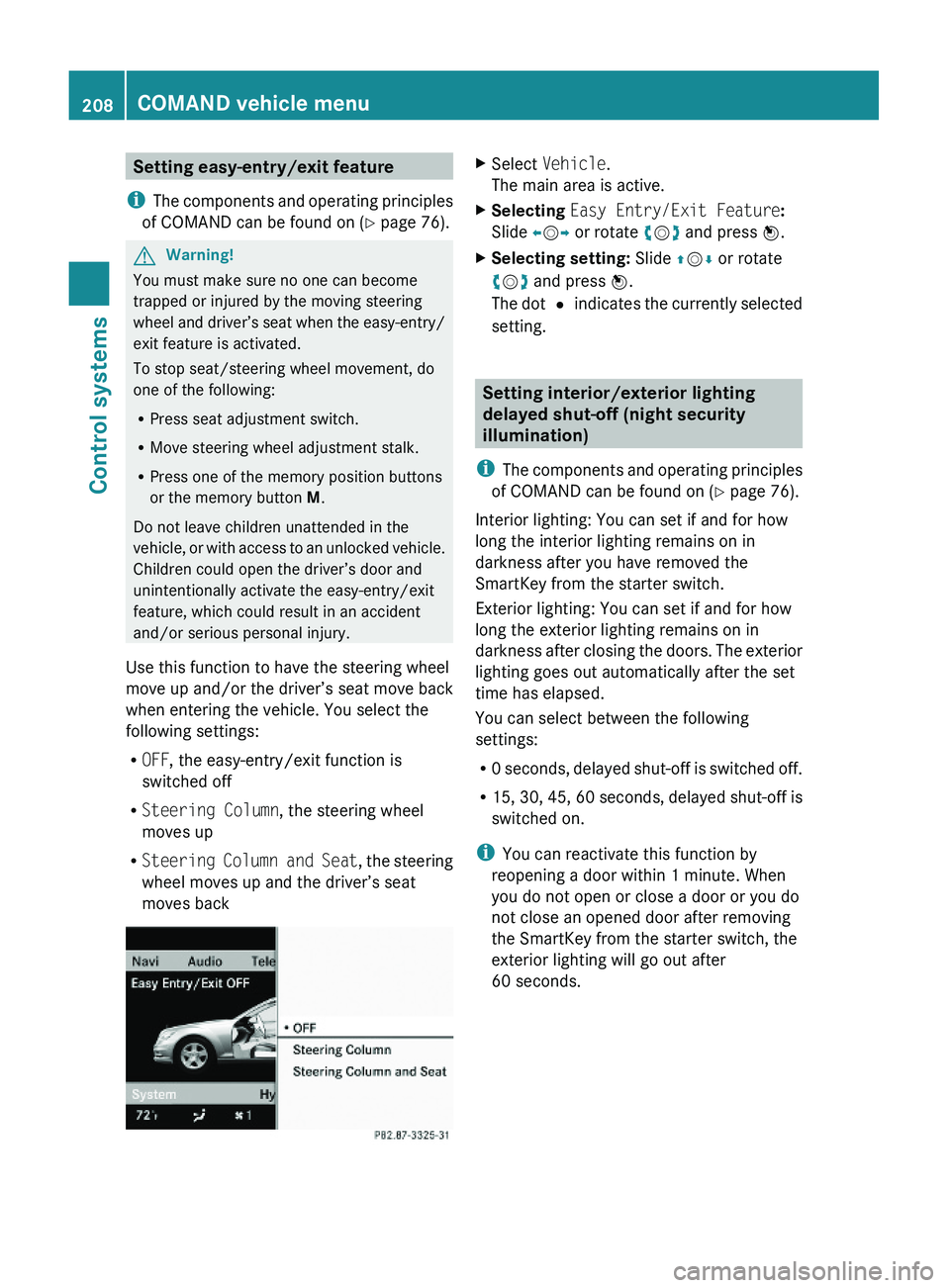
Use this function to have the steering wheel
move up and/or the driver’s seat move back
when entering the vehicle. You select the
following settings:
ROFF, the easy-entry/exit function is
switched off
RSteering Column, the steering wheel
moves up
RSteering Column and Seat, the steering
wheel moves up and the driver’s seat
moves back
XSelect Vehicle.
The main area is active.
XSelecting Easy Entry/Exit Feature:
Slide \000
Page 223 of 548
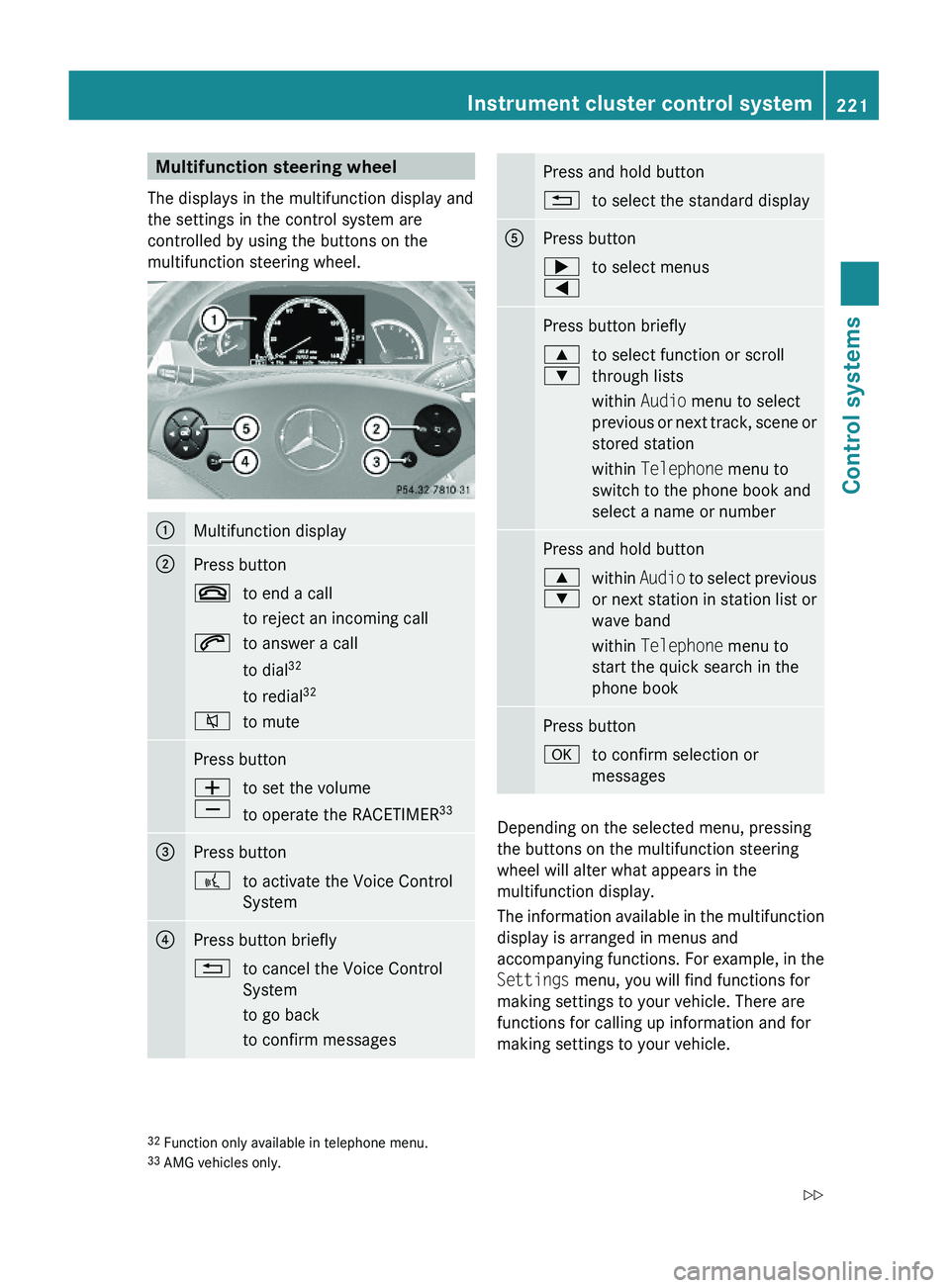
Multifunction steering wheel
The displays in the multifunction display and
the settings in the control system are
controlled by using the buttons on the
multifunction steering wheel.
\000FMultifunction display\000GPress button\000to end a call
to reject an incoming call
\000jto answer a call
to dial32
to redial32
\000lto mutePress button\000Z
\000[
to set the volume
to operate the RACETIMER33
\000
Page 228 of 548
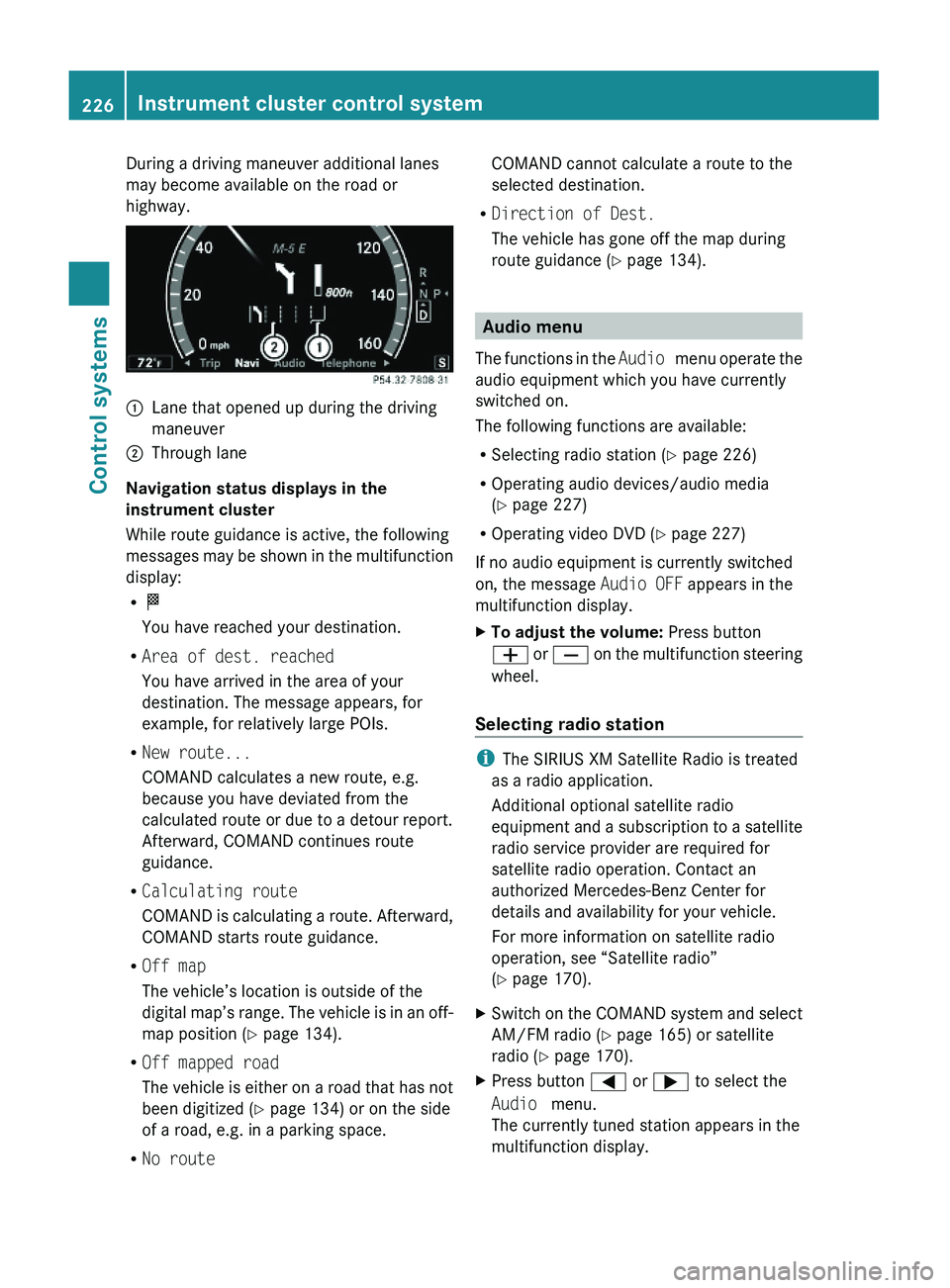
During a driving maneuver additional lanes
may become available on the road or
highway.
\000FLane that opened up during the driving
maneuver
\000GThrough lane
Navigation status displays in the
instrument cluster
While route guidance is active, the following
messages may be shown in the multifunction
display:
R\000T
You have reached your destination.
RArea of dest. reached
You have arrived in the area of your
destination. The message appears, for
example, for relatively large POIs.
RNew route...
COMAND calculates a new route, e.g.
because you have deviated from the
calculated route or due to a detour report.
Afterward, COMAND continues route
guidance.
RCalculating route
COMAND is calculating a route. Afterward,
COMAND starts route guidance.
ROff map
The vehicle’s location is outside of the
digital map’s range. The vehicle is in an off-
map position (Y page 134).
ROff mapped road
The vehicle is either on a road that has not
been digitized (Y page 134) or on the side
of a road, e.g. in a parking space.
RNo route
COMAND cannot calculate a route to the
selected destination.
RDirection of Dest.
The vehicle has gone off the map during
route guidance (Y page 134).
Audio menu
The functions in the Audio menu operate the
audio equipment which you have currently
switched on.
The following functions are available:
RSelecting radio station (Y page 226)
ROperating audio devices/audio media
(Y page 227)
ROperating video DVD (Y page 227)
If no audio equipment is currently switched
on, the message Audio OFF appears in the
multifunction display.
XTo adjust the volume: Press button
\000Z or \000[ on the multifunction steering
wheel.
Selecting radio station
iThe SIRIUS XM Satellite Radio is treated
as a radio application.
Additional optional satellite radio
equipment and a subscription to a satellite
radio service provider are required for
satellite radio operation. Contact an
authorized Mercedes-Benz Center for
details and availability for your vehicle.
For more information on satellite radio
operation, see “Satellite radio”
(Y page 170).
XSwitch on the COMAND system and select
AM/FM radio (Y page 165) or satellite
radio (Y page 170).
XPress button \000@ or \000> to select the
Audio menu.
The currently tuned station appears in the
multifunction display.
226Instrument cluster control systemControl systems
221_AKB; 6; 20, en-USd2ugruen,Version: 2.11.8.12009-09-24T13:28:17+02:00 - Seite 226
Page 240 of 548
GWarning!
Please do not use the Voice Control System
in an emergency, as the tone of your voice
may change in a stressful situation. This could
cause a delay in completing your phone call
in a timely manner. This could distract you in
an emergency situation and cause you to be
involved in an accident.
General information
Depending on vehicle equipment, you can
operate the following systems via the Voice
Control System:
RTelephone (Y page 245)
RNavigation (Y page 240)
RAddress book (Y page 249)
RAudio (Y page 252) (AM/FM radio,
Satellite radio, CD/DVD changer, MP3
mode (SD card, USB, Music Register, Media
Interface), AUX)
RVideo
You control these systems using spoken
commands. Moreover, controls such as the
buttons on the multifunction steering wheel
(Y page 238) allow you to keep your hands
on the steering wheel.
The Voice Control System recognizes
commands and number sequences,
irrespective of the speaker. To optimize
speech recognition for your voice follow the
individualization process (Y page 271).
You can use the Voice Control System to call
up all of COMAND’s main menu items.
The commands can be spoken without
pausing between the individual words. If an
unavailable or incorrect command is used,
the Voice Control System will prompt you for
a new command by asking “Please repeat” or
“Please repeat your entry”.
The Voice Control System will confirm
important commands and inform you in case
of incorrect entries.
iTo support the user, the Voice Control
System contains an extensive help function
(Y page 267).
You can use the commands “Continue” or
“Back” to scroll up or down in lists.
The command “Correction” lets you repeat
the entry.
Controls
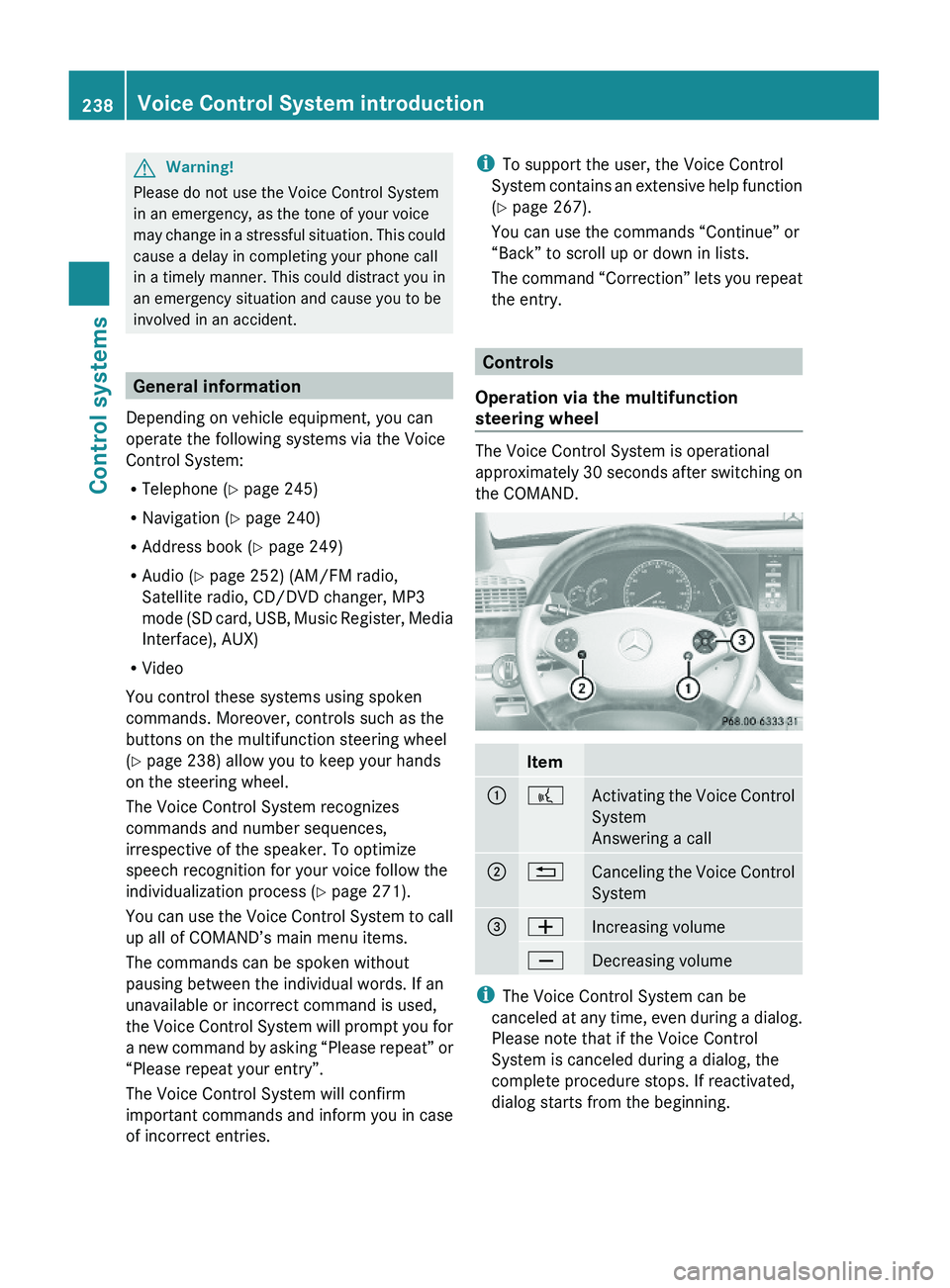
Operation via the multifunction
steering wheel
The Voice Control System is operational
approximately 30 seconds after switching on
the COMAND.
Item\000F\000bActivating the Voice Control
System
Answering a call
\000G\000ACanceling the Voice Control
System
\000
Page 241 of 548
Starting the dialog with the Voice
Control System
XSwitch on the ignition (Y page 284).XPress button \000b on the multifunction
steering wheel.
An acoustic signal sounds. The dialog is
started.
XSpeak a command.
Pausing and resuming a dialog
Pausing
You can pause the dialog when a selection list
is displayed in COMAND.
XSpeak the command “Pause”.
Continue With Push-to-talk appears
at the top of the selection list. You can
select an entry using the COMAND
controller.
Resuming
XPress button \000b on the multifunction
steering wheel.
The dialog is resumed.
Aborting dialog
XPress button \000A on the multifunction
steering wheel.
or
XSpeak one of the commands “Stop”, “Quit”,
“Abort”, “Terminate”, “Cancel” or “Exit”.
This does not apply when entering voice
names or during the individualization
process.
or
XPress any COMAND button.
Setting volume level
XActivate the Voice Control System.XSpeak a command, for example “Help”.XPress button \000Z or \000[. The volume is
increased or decreased during voice
output.
or
XSet volume for voice output using the
COMAND volume thumbwheel on the lower
part of the front center console
(Y page 88).
iYou can also set the text reader speed
(Y page 91).
Displays
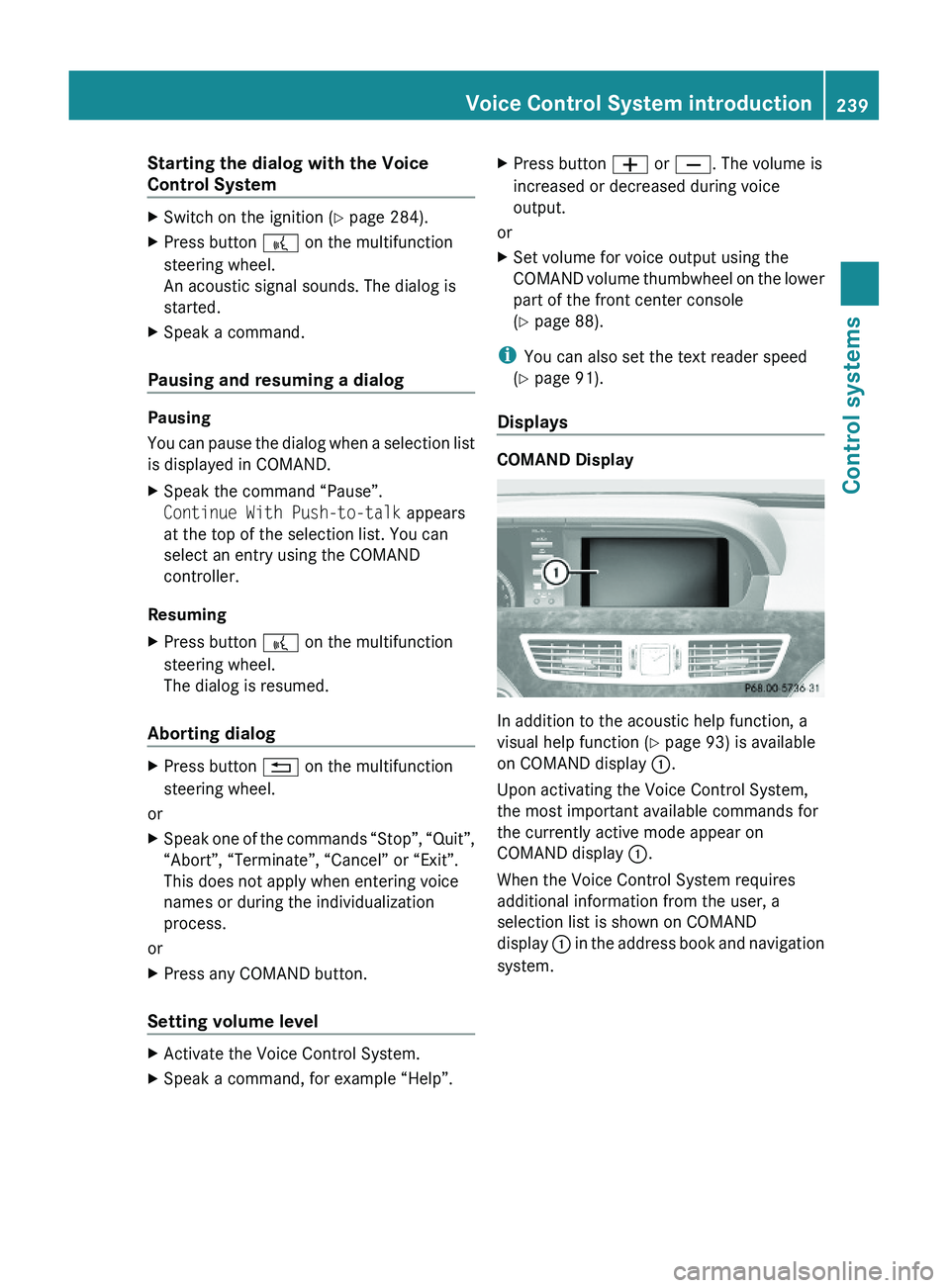
COMAND Display
In addition to the acoustic help function, a
visual help function (Y page 93) is available
on COMAND display \000F.
Upon activating the Voice Control System,
the most important available commands for
the currently active mode appear on
COMAND display \000F.
When the Voice Control System requires
additional information from the user, a
selection list is shown on COMAND
display \000F in the address book and navigation
system.
Voice Control System introduction239Control systems221_AKB; 6; 20, en-USd2ugruen,Version: 2.11.8.12009-09-24T13:28:17+02:00 - Seite 239Z