navigation MERCEDES-BENZ S CLASS 2010 Service Manual
[x] Cancel search | Manufacturer: MERCEDES-BENZ, Model Year: 2010, Model line: S CLASS, Model: MERCEDES-BENZ S CLASS 2010Pages: 548, PDF Size: 11.45 MB
Page 244 of 548
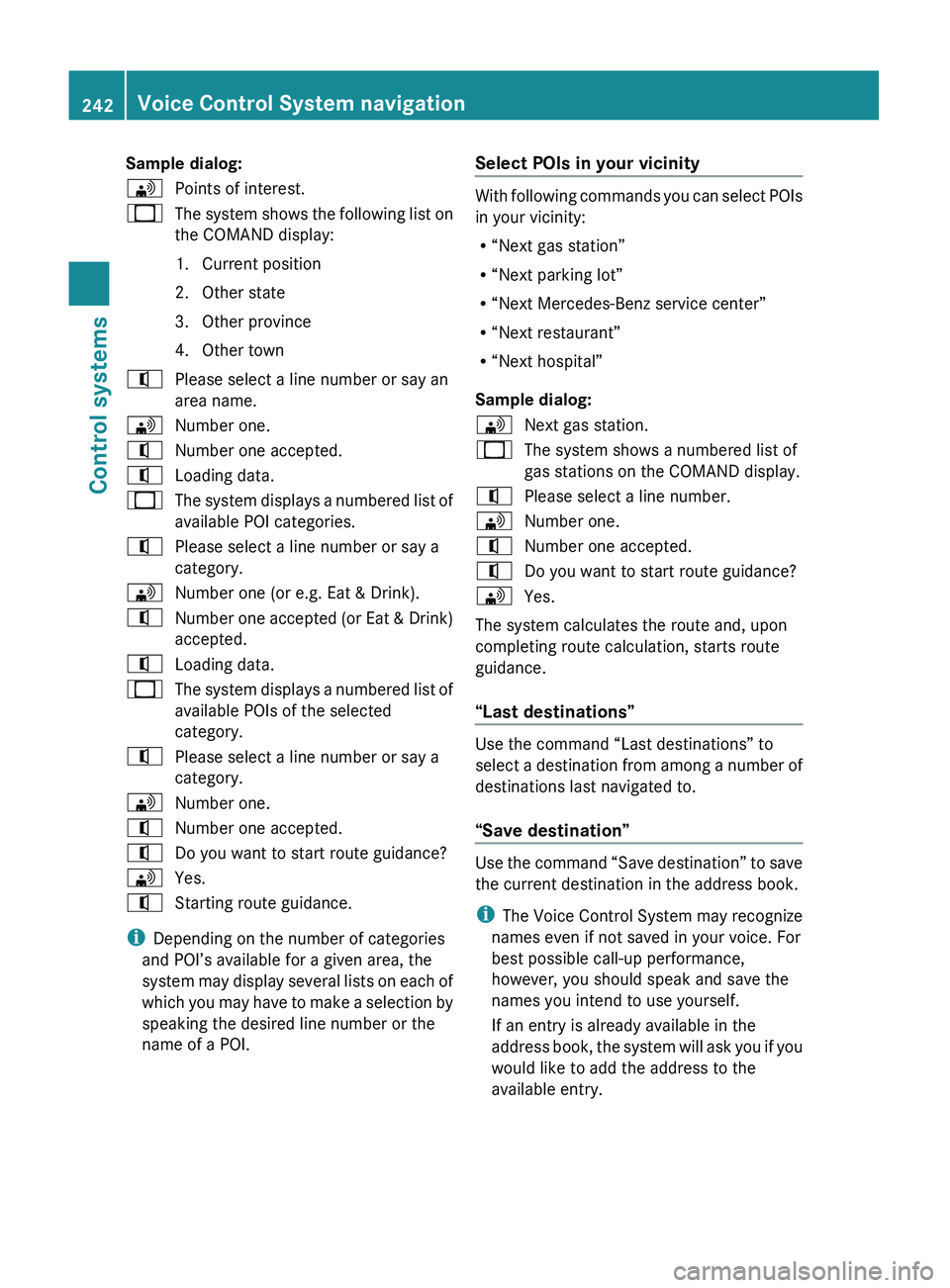
Sample dialog:009DPoints of interest.009BThe system shows the following list on
the COMAND display:
1. Current position
2. Other state
3. Other province
4. Other town009CPlease select a line number or say an
area name.009DNumber one.009CNumber one accepted.009CLoading data.009BThe system displays a numbered list of
available POI categories.009CPlease select a line number or say a
category.009DNumber one (or e.g. Eat & Drink).009CNumber one accepted (or Eat & Drink)
accepted.009CLoading data.009BThe system displays a numbered list of
available POIs of the selected
category.009CPlease select a line number or say a
category.009DNumber one.009CNumber one accepted.009CDo you want to start route guidance?009DYes.009CStarting route guidance.
i Depending on the number of categories
and POI’s available for a given area, the
system may display several lists on each of
which you may have to make a selection by
speaking the desired line number or the
name of a POI.
Select POIs in your vicinity
With following commands you can select POIs
in your vicinity:
R “Next gas station”
R “Next parking lot”
R “Next Mercedes-Benz service center”
R “Next restaurant”
R “Next hospital”
Sample dialog:
009DNext gas station.009BThe system shows a numbered list of
gas stations on the COMAND display.009CPlease select a line number.009DNumber one.009CNumber one accepted.009CDo you want to start route guidance?009DYes.
The system calculates the route and, upon
completing route calculation, starts route
guidance.
“Last destinations”
Use the command “Last destinations” to
select a destination from among a number of
destinations last navigated to.
“Save destination”
Use the command “Save destination” to save
the current destination in the address book.
i The Voice Control System may recognize
names even if not saved in your voice. For
best possible call-up performance,
however, you should speak and save the
names you intend to use yourself.
If an entry is already available in the
address book, the system will ask you if you
would like to add the address to the
available entry.
242Voice Control System navigationControl systems
221_AKB; 6; 20, en-USd2ugruen,Version: 2.11.8.12009-09-24T13:28:17+02:00 - Seite 242
Page 245 of 548
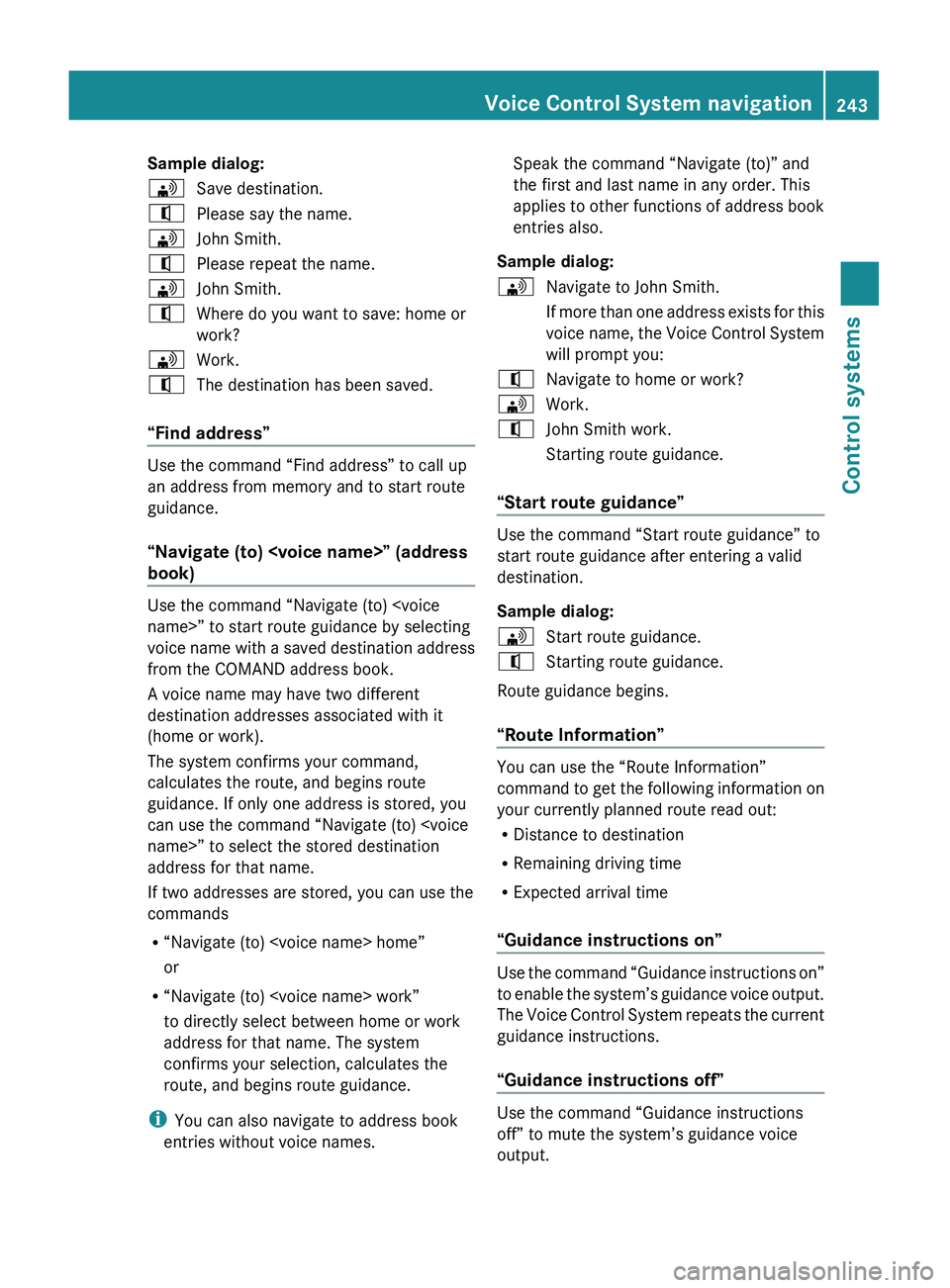
Sample dialog:009DSave destination.009CPlease say the name.009DJohn Smith.009CPlease repeat the name.009DJohn Smith.009CWhere do you want to save: home or
work?009DWork.009CThe destination has been saved.
“Find address”
Use the command “Find address” to call up
an address from memory and to start route
guidance.
“Navigate (to)
book)
Use the command “Navigate (to)
voice name with a saved destination address
from the COMAND address book.
A voice name may have two different
destination addresses associated with it
(home or work).
The system confirms your command,
calculates the route, and begins route
guidance. If only one address is stored, you
can use the command “Navigate (to)
address for that name.
If two addresses are stored, you can use the
commands
R “Navigate (to)
or
R “Navigate (to)
to directly select between home or work
address for that name. The system
confirms your selection, calculates the
route, and begins route guidance.
i You can also navigate to address book
entries without voice names.
Speak the command “Navigate (to)” and
the first and last name in any order. This
applies to other functions of address book
entries also.
Sample dialog:009DNavigate to John Smith.
If more than one address exists for this
voice name, the Voice Control System
will prompt you:009CNavigate to home or work?009DWork.009CJohn Smith work.
Starting route guidance.
“Start route guidance”
Use the command “Start route guidance” to
start route guidance after entering a valid
destination.
Sample dialog:
009DStart route guidance.009CStarting route guidance.
Route guidance begins.
“Route Information”
You can use the “Route Information”
command to get the following information on
your currently planned route read out:
R Distance to destination
R Remaining driving time
R Expected arrival time
“Guidance instructions on”
Use the command “Guidance instructions on”
to enable the system’s guidance voice output.
The Voice Control System repeats the current
guidance instructions.
“Guidance instructions off”
Use the command “Guidance instructions
off” to mute the system’s guidance voice
output.
Voice Control System navigation243Control systems221_AKB; 6; 20, en-USd2ugruen,Version: 2.11.8.12009-09-24T13:28:17+02:00 - Seite 243Z
Page 246 of 548
“Cancel route guidance”
Use the command “Cancel route guidance”
to cancel route guidance.
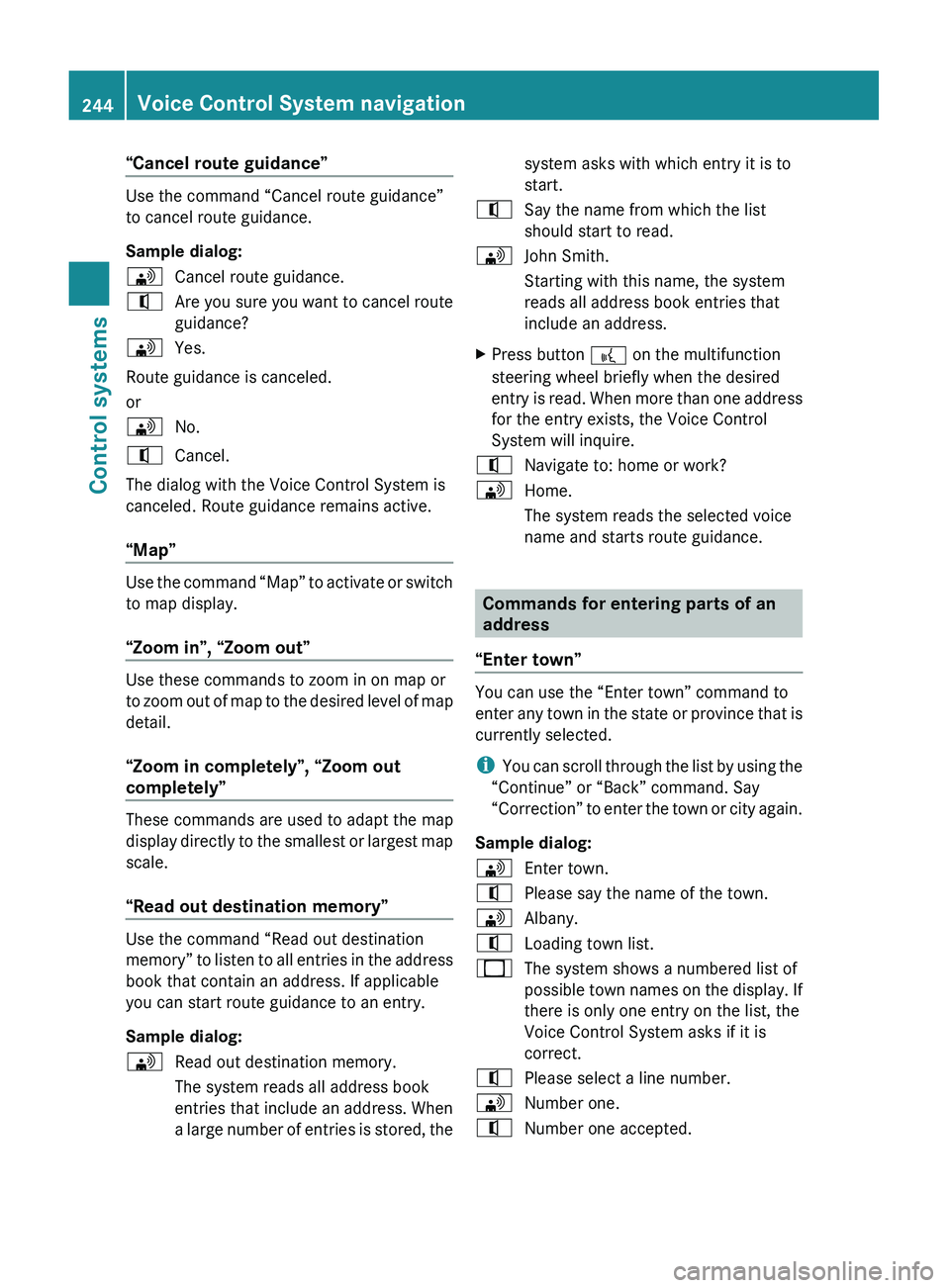
Sample dialog:
009DCancel route guidance.009CAre you sure you want to cancel route
guidance?009DYes.
Route guidance is canceled.
or
009DNo.009CCancel.
The dialog with the Voice Control System is
canceled. Route guidance remains active.
“Map”
Use the command “Map” to activate or switch
to map display.
“Zoom in”, “Zoom out”
Use these commands to zoom in on map or
to zoom out of map to the desired level of map
detail.
“Zoom in completely”, “Zoom out
completely”
These commands are used to adapt the map
display directly to the smallest or largest map
scale.
“Read out destination memory”
Use the command “Read out destination
memory” to listen to all entries in the address
book that contain an address. If applicable
you can start route guidance to an entry.
Sample dialog:
009DRead out destination memory.
The system reads all address book
entries that include an address. When
a large number of entries is stored, thesystem asks with which entry it is to
start.009CSay the name from which the list
should start to read.009DJohn Smith.
Starting with this name, the system
reads all address book entries that
include an address.XPress button 0062 on the multifunction
steering wheel briefly when the desired
entry is read. When more than one address
for the entry exists, the Voice Control
System will inquire.009CNavigate to: home or work?009DHome.
The system reads the selected voice
name and starts route guidance.
Commands for entering parts of an
address
“Enter town”
You can use the “Enter town” command to
enter any town in the state or province that is
currently selected.
i You can scroll through the list by using the
“Continue” or “Back” command. Say
“Correction” to enter the town or city again.
Sample dialog:
009DEnter town.009CPlease say the name of the town.009DAlbany.009CLoading town list.009BThe system shows a numbered list of
possible town names on the display. If
there is only one entry on the list, the
Voice Control System asks if it is
correct.009CPlease select a line number.009DNumber one.009CNumber one accepted.244Voice Control System navigationControl systems
221_AKB; 6; 20, en-USd2ugruen,Version: 2.11.8.12009-09-24T13:28:17+02:00 - Seite 244
Page 260 of 548
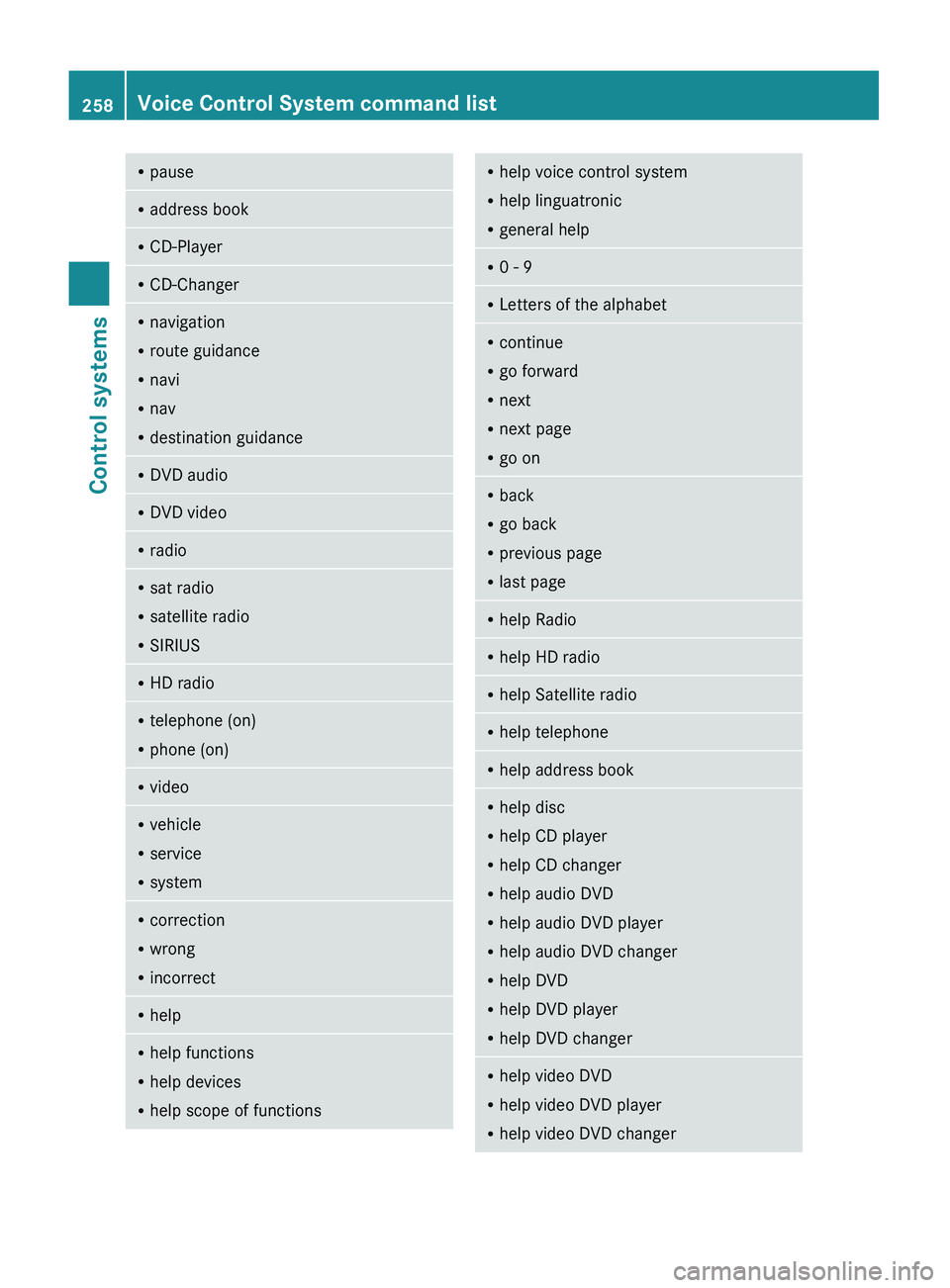
RpauseRaddress bookRCD-PlayerRCD-ChangerRnavigation
R route guidance
R navi
R nav
R destination guidanceR
DVD audioRDVD videoRradioRsat radio
R satellite radio
R SIRIUSRHD radioRtelephone (on)
R phone (on)RvideoRvehicle
R service
R systemRcorrection
R wrong
R incorrectRhelpRhelp functions
R help devices
R help scope of functionsRhelp voice control system
R help linguatronic
R general helpR0 - 9RLetters of the alphabetRcontinue
R go forward
R next
R next page
R go onR
back
R go back
R previous page
R last pageRhelp RadioRhelp HD radioRhelp Satellite radioRhelp telephoneRhelp address bookRhelp disc
R help CD player
R help CD changer
R help audio DVD
R help audio DVD player
R help audio DVD changer
R help DVD
R help DVD player
R help DVD changerRhelp video DVD
R help video DVD player
R help video DVD changer258Voice Control System command listControl systems
221_AKB; 6; 20, en-USd2ugruen,Version: 2.11.8.12009-09-24T13:28:17+02:00 - Seite 258
Page 261 of 548
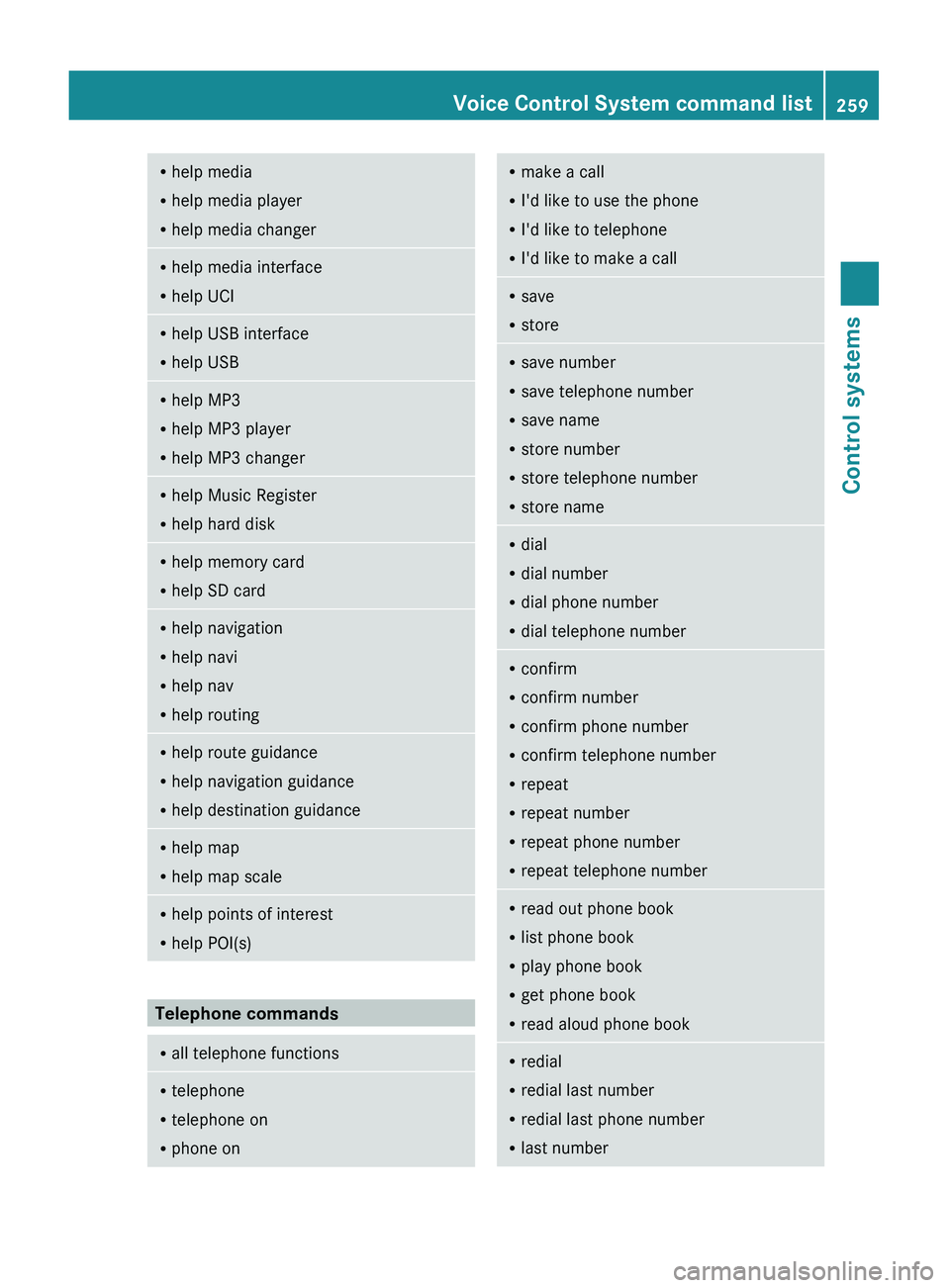
Rhelp media
R help media player
R help media changerRhelp media interface
R help UCIRhelp USB interface
R help USBRhelp MP3
R help MP3 player
R help MP3 changerRhelp Music Register
R help hard diskRhelp memory card
R help SD cardRhelp navigation
R help navi
R help nav
R help routingRhelp route guidance
R help navigation guidance
R help destination guidanceRhelp map
R help map scaleRhelp points of interest
R help POI(s)
Telephone commands
R
all telephone functionsRtelephone
R telephone on
R phone onRmake a call
R I'd like to use the phone
R I'd like to telephone
R I'd like to make a callRsave
R storeRsave number
R save telephone number
R save name
R store number
R store telephone number
R store nameRdial
R dial number
R dial phone number
R dial telephone numberRconfirm
R confirm number
R confirm phone number
R confirm telephone number
R repeat
R repeat number
R repeat phone number
R repeat telephone numberRread out phone book
R list phone book
R play phone book
R get phone book
R read aloud phone bookR
redial
R redial last number
R redial last phone number
R last numberVoice Control System command list259Control systems221_AKB; 6; 20, en-USd2ugruen,Version: 2.11.8.12009-09-24T13:28:17+02:00 - Seite 259Z
Page 262 of 548
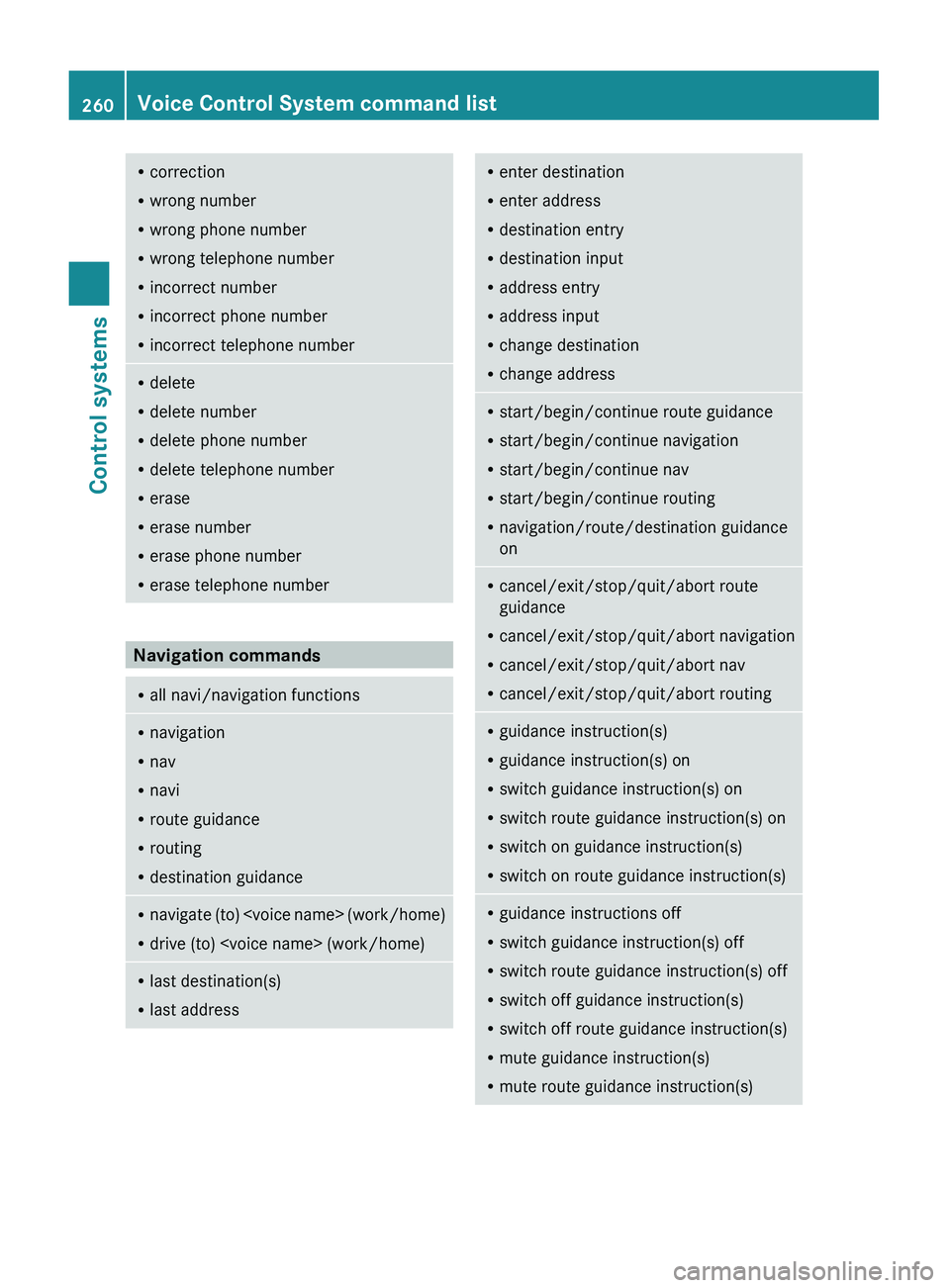
Rcorrection
R wrong number
R wrong phone number
R wrong telephone number
R incorrect number
R incorrect phone number
R incorrect telephone numberRdelete
R delete number
R delete phone number
R delete telephone number
R erase
R erase number
R erase phone number
R erase telephone number
Navigation commands
R
all navi/navigation functionsRnavigation
R nav
R navi
R route guidance
R routing
R destination guidanceRnavigate (to)
R drive (to)
R last addressRenter destination
R enter address
R destination entry
R destination input
R address entry
R address input
R change destination
R change addressRstart/begin/continue route guidance
R start/begin/continue navigation
R start/begin/continue nav
R start/begin/continue routing
R navigation/route/destination guidance
onR cancel/exit/stop/quit/abort route
guidance
R cancel/exit/stop/quit/abort navigation
R cancel/exit/stop/quit/abort nav
R cancel/exit/stop/quit/abort routingRguidance instruction(s)
R guidance instruction(s) on
R switch guidance instruction(s) on
R switch route guidance instruction(s) on
R switch on guidance instruction(s)
R switch on route guidance instruction(s)Rguidance instructions off
R switch guidance instruction(s) off
R switch route guidance instruction(s) off
R switch off guidance instruction(s)
R switch off route guidance instruction(s)
R mute guidance instruction(s)
R mute route guidance instruction(s)260Voice Control System command listControl systems
221_AKB; 6; 20, en-USd2ugruen,Version: 2.11.8.12009-09-24T13:28:17+02:00 - Seite 260
Page 265 of 548
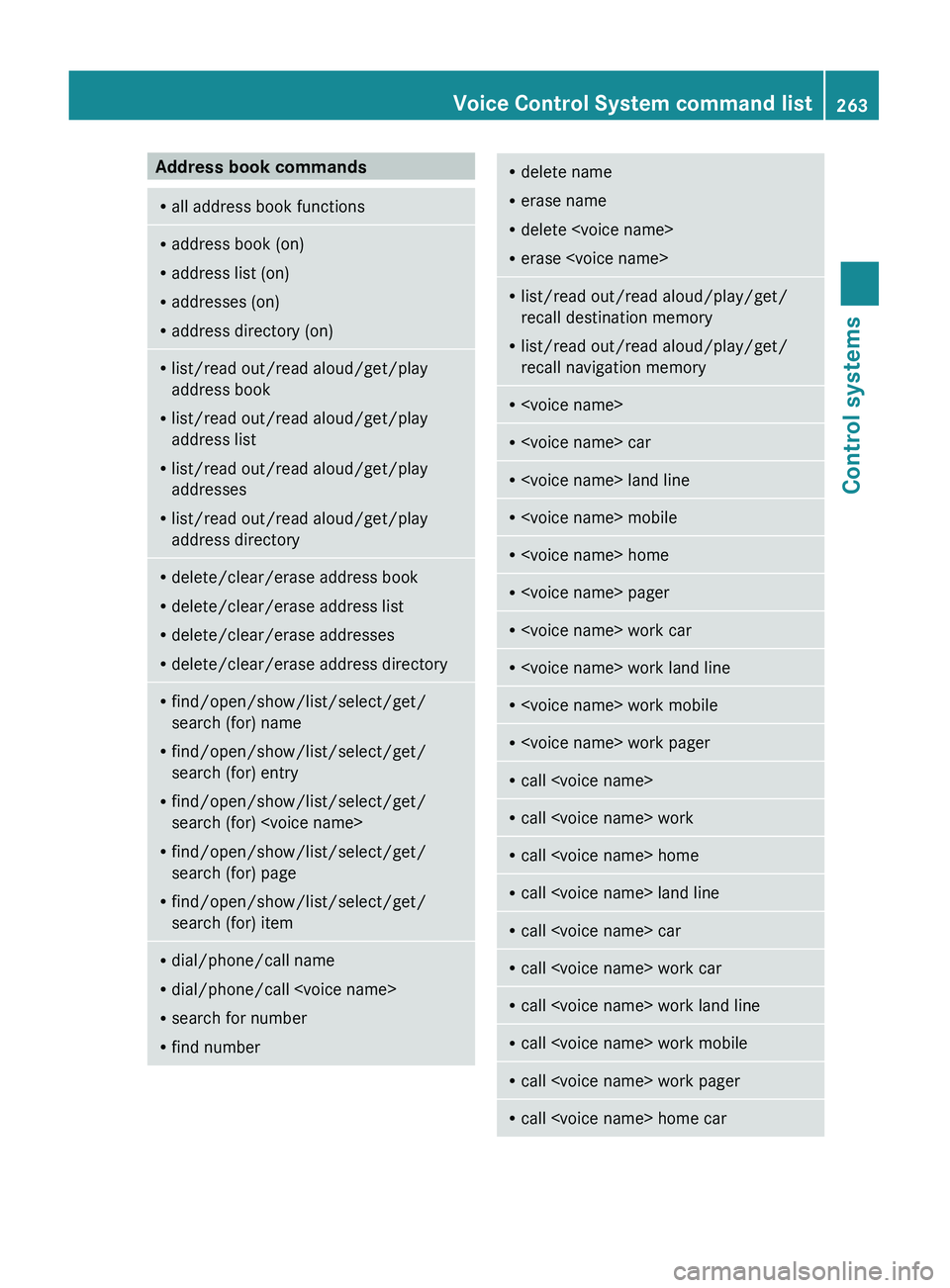
Address book commandsRall address book functionsRaddress book (on)
R address list (on)
R addresses (on)
R address directory (on)Rlist/read out/read aloud/get/play
address book
R list/read out/read aloud/get/play
address list
R list/read out/read aloud/get/play
addresses
R list/read out/read aloud/get/play
address directoryR delete/clear/erase address book
R delete/clear/erase address list
R delete/clear/erase addresses
R delete/clear/erase address directoryRfind/open/show/list/select/get/
search (for) name
R find/open/show/list/select/get/
search (for) entry
R find/open/show/list/select/get/
search (for)
R find/open/show/list/select/get/
search (for) page
R find/open/show/list/select/get/
search (for) itemR dial/phone/call name
R dial/phone/call
R search for number
R find numberRdelete name
R erase name
R delete
R erase
recall destination memory
R list/read out/read aloud/play/get/
recall navigation memoryR
Page 394 of 548
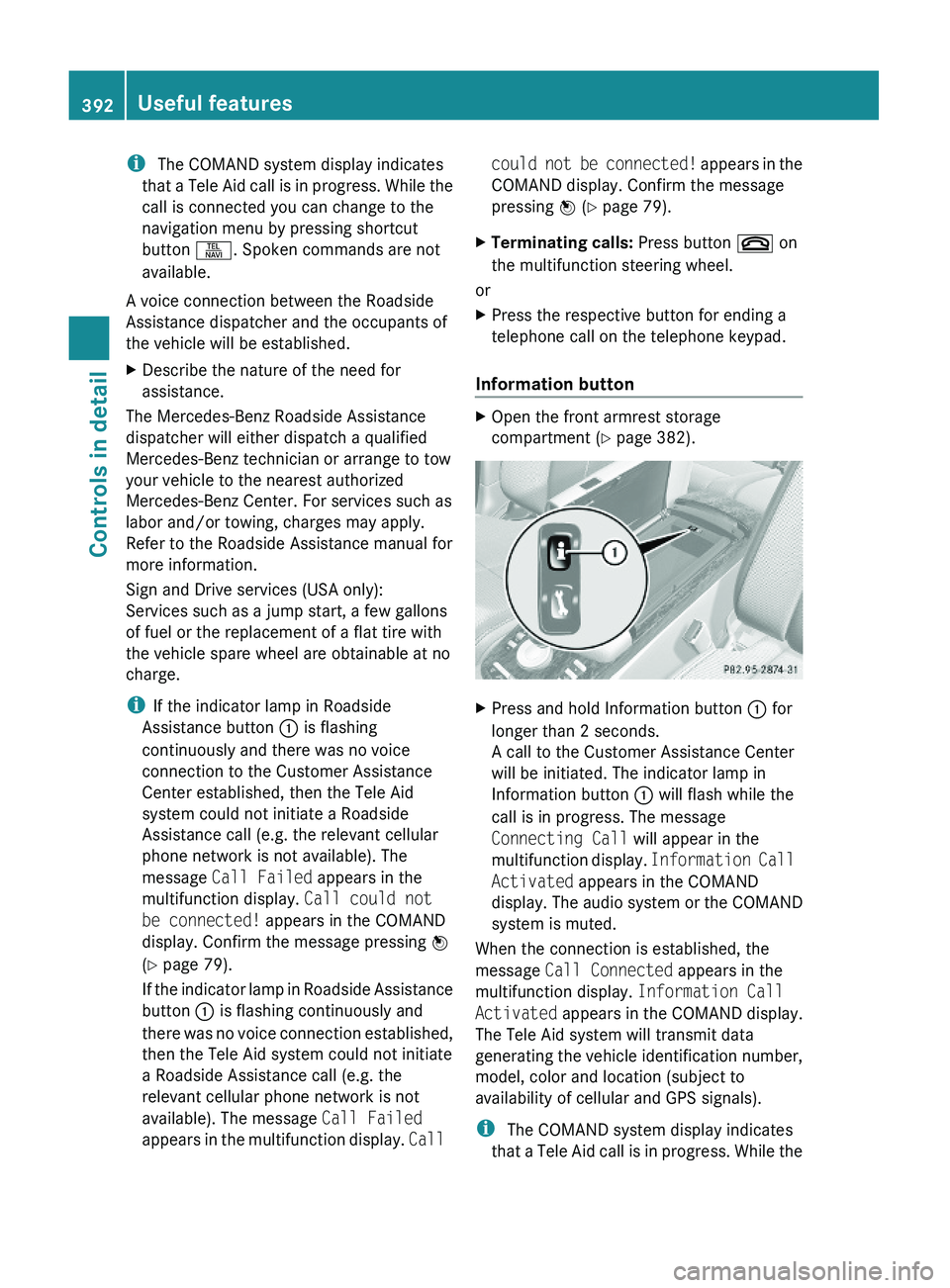
i The COMAND system display indicates
that a Tele Aid call is in progress. While the
call is connected you can change to the
navigation menu by pressing shortcut
button \000X. Spoken commands are not
available.
A voice connection between the Roadside
Assistance dispatcher and the occupants of
the vehicle will be established.
XDescribe the nature of the need for
assistance.
The Mercedes-Benz Roadside Assistance
dispatcher will either dispatch a qualified
Mercedes-Benz technician or arrange to tow
your vehicle to the nearest authorized
Mercedes-Benz Center. For services such as
labor and/or towing, charges may apply.
Refer to the Roadside Assistance manual for
more information.
Sign and Drive services (USA only):
Services such as a jump start, a few gallons
of fuel or the replacement of a flat tire with
the vehicle spare wheel are obtainable at no
charge.
iIf the indicator lamp in Roadside
Assistance button \000F is flashing
continuously and there was no voice
connection to the Customer Assistance
Center established, then the Tele Aid
system could not initiate a Roadside
Assistance call (e.g. the relevant cellular
phone network is not available). The
message Call Failed appears in the
multifunction display. Call could not
be connected! appears in the COMAND
display. Confirm the message pressing \000
Page 395 of 548
call is connected you can change to the
navigation menu by pressing shortcut
button 0058. Spoken commands are not
available.
A voice connection between the Customer
Assistance Center representative and the
occupants of the vehicle will be established.
Information regarding the operation of your
vehicle, the nearest authorized Mercedes-
Benz Center or Mercedes-Benz USA products
and services is available to you.
For more details concerning the Tele Aid
system, please visit www.mbusa.com (USA
only), log in to “Owner’s Online” and visit the
“My Tele Aid” section to learn more.
i If the indicator lamp in Information
button 0046 is flashing continuously and
there was no voice connection established,
then the Tele Aid system could not initiate
an Information call (e.g. the relevant
cellular phone network is not available).
The message Call Failed appears in the
multifunction display. Call could not
be connected! appears in the COMAND
display. Confirm the message pressing 00A1
( Y page 79).XTerminating calls: Press button 007F on
the multifunction steering wheel.
or
XPress the respective button for ending a
telephone call on the telephone keypad.
Call priority
If other service calls such as a Roadside
Assistance call or Information call are active,
an emergency call is still possible. In this
case, the emergency call will take priority and
override all other active calls.
The indicator lamp in the respective button
flashes until the call is concluded. Automatic
initiated emergency calls can only be
terminated by a Customer Assistance Center
representative. All other calls can be
terminated by pressing button 007F on the
multifunction steering wheel or the
respective button for ending a telephone call
on the telephone keypad.
Destination Download to the COMAND
system
i The components and operating principles
of the COMAND system can be found on
( Y page 77).
Destination Download allows you access to a
database of over 10 million points of interest
(POIs) that can be downloaded to your
vehicle’s navigation system. If you know the
destination, the address can be downloaded,
or can be provided with points of interests
near your location.
Route guidance
You will be prompted to confirm that route
guidance to the entered address is to be
started.
XSlide 00A0005B 0050 or rotate 0082005B 0083 to select Yes
menu item and confirm by pressing 00A1.
The system calculates the route and
subsequently starts the route guidance to the
defined address.
i If you select No, you can save the address
to your address book.
i The Destination Download feature is
available if the relevant mobile phone
network is available and data connection is
possible.
Search & Send
i In order to utilize Search & Send your
vehicle must be equipped with Tele Aid,
Navigation, and an active Tele Aid
subscription.
“Search & Send” is a navigation destination
address entry service. A destination address
located using Google Maps ®
or Yahoo Local
Maps ®
websites can be delivered via Tele Aid
Useful features393Controls in detail221_AKB; 6; 20, en-USd2ugruen,Version: 2.11.8.12009-09-24T13:28:17+02:00 - Seite 393Z
Page 396 of 548
directly to the Navigation system in your
vehicle.
Specify and Send a Destination Address
i Please refer to any specific instructions
provided by either website regarding
entering or sending an address. Each
website functions differently and is subject
to change.XGo to www.maps.google.com or
www.maps.yahoo.com and enter a
destination address in the address entry
field.XDepending on which website you are using,
click on the appropriate button to send the
destination address to your Tele Aid
account email address.XEnter the email address you specified when
you activated your Tele Aid account in the
appropriate field when the “Send” dialog
box appears.XClick “Send”.
Retrieve Destination Address
XPress the Tele Aid Information button to
begin the download of the destination
address to your vehicle's navigation
system.
i If you have sent more than one
destination address to your vehicle you
must make one Information call for each
destination address download.
XSelect Yes when the message appears
asking if you would like to start navigation.
This will open the start navigation screen.XSelect Start.
or
XSelect No if you wish to save the
downloaded destination address in the
From Memory destination list for future
use.
i Destination addresses will download in
the same order they were sent. If you have
multiple Mercedes-Benz vehicles equipped
with Tele Aid and active accounts, each
destination address sent will be retrievable
by all vehicles associated with the e-mail
address you specified for your Tele Aid
account.
Remote door unlock
In case you have locked your vehicle
unintentionally (e.g. SmartKey inside vehicle),
and the reserve SmartKey is not available:
XContact the Customer Assistance Center
at 1-800-FOR-MERCedes
(1-800-367-6372) (USA only) or
1-888-923-8367 (Canada only).
You will be asked to provide your password.XThen return to your vehicle at the time
arranged with the Customer Assistance
Center and pull the trunk lid handle for a
minimum of 20 seconds until the indicator
lamp in the SOS button is flashing.
The message Connecting Call appears in
the multifunction display.
As an alternative, you may unlock the vehicle
via Internet in the “My Tele Aid” section of
“Owner’s Online”, using your ID and password
(USA only).
i The remote door unlock feature is
available if the relevant cellular phone
network is available.
The SOS button will flash and the message
Connecting Call will appear in the
multifunction display to indicate receipt of
the door unlock command.
If the trunk lid handle was pulled for more
than 20 seconds before door unlock
authorization was received, you must wait
15 minutes before pulling the trunk lid
handle again.
Remote door lock
If you have forgotten to lock your vehicle and
are no longer near it, you can have it locked
remotely through the Customer Assistance
Center.
394Useful featuresControls in detail
221_AKB; 6; 20, en-USd2ugruen,Version: 2.11.8.12009-09-24T13:28:17+02:00 - Seite 394