Display MERCEDES-BENZ S-Class 2011 W221 Owner's Manual
[x] Cancel search | Manufacturer: MERCEDES-BENZ, Model Year: 2011, Model line: S-Class, Model: MERCEDES-BENZ S-Class 2011 W221Pages: 524, PDF Size: 22.53 MB
Page 215 of 524
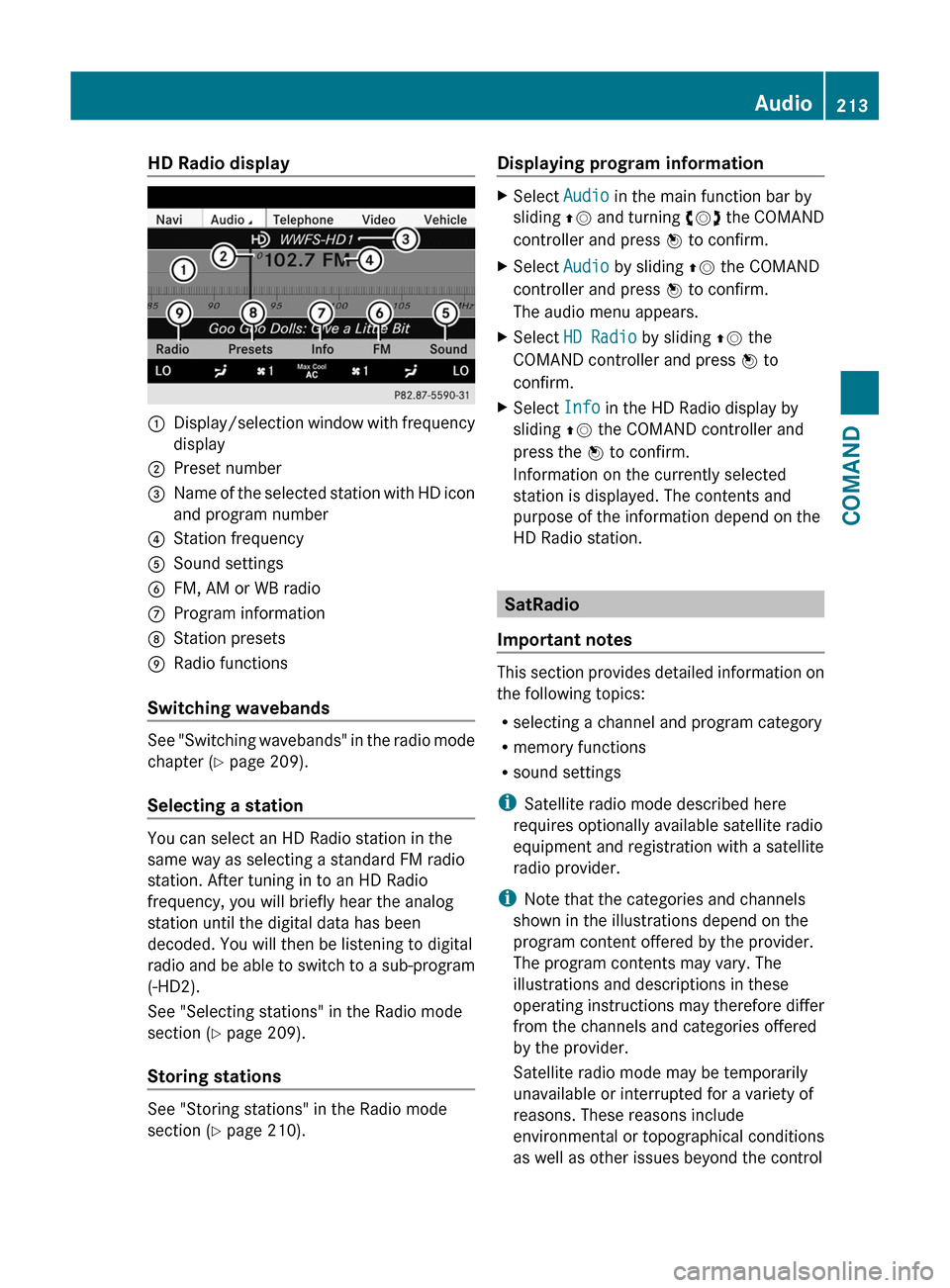
HD Radio display1Display/selection window with frequency
display
2Preset number3Name of the selected station with HD icon
and program number
4Station frequency5Sound settings6FM, AM or WB radio7Program information8Station presets9Radio functions
Switching wavebands
See "Switching wavebands" in the radio mode
chapter (Y page 209).
Selecting a station
You can select an HD Radio station in the
same way as selecting a standard FM radio
station. After tuning in to an HD Radio
frequency, you will briefly hear the analog
station until the digital data has been
decoded. You will then be listening to digital
radio and be able to switch to a sub-program
(-HD2).
See "Selecting stations" in the Radio mode
section (Y page 209).
Storing stations
See "Storing stations" in the Radio mode
section (Y page 210).
Displaying program informationXSelect Audio in the main function bar by
sliding ZV and turning cVd the COMAND
controller and press W to confirm.
XSelect Audio by sliding ZV the COMAND
controller and press W to confirm.
The audio menu appears.
XSelect HD Radio by sliding ZV the
COMAND controller and press W to
confirm.
XSelect Info in the HD Radio display by
sliding ZV the COMAND controller and
press the W to confirm.
Information on the currently selected
station is displayed. The contents and
purpose of the information depend on the
HD Radio station.
SatRadio
Important notes
This section provides detailed information on
the following topics:
Rselecting a channel and program category
Rmemory functions
Rsound settings
iSatellite radio mode described here
requires optionally available satellite radio
equipment and registration with a satellite
radio provider.
iNote that the categories and channels
shown in the illustrations depend on the
program content offered by the provider.
The program contents may vary. The
illustrations and descriptions in these
operating instructions may therefore differ
from the channels and categories offered
by the provider.
Satellite radio mode may be temporarily
unavailable or interrupted for a variety of
reasons. These reasons include
environmental or topographical conditions
as well as other issues beyond the control
Audio213COMANDZ
Page 216 of 524
of Mercedes-Benz USA, LLC. Operation
may also be impaired in certain locations
(e.g. tunnels, parking garages or inside or
next to buildings) or near certain
constructions.
iSIRIUS XM Radio offers more than 130
digital-quality radio channels providing
100% commercial-free music, sport, news
and entertainment.
SIRIUS XM Radio employs a fleet of high-
performance satellites to broadcast around
the clock in the contiguous USA and
Canada.
Satellite radio is available for a monthly fee.
Details are available from the SIRIUS XM
Service Center and at
http://www.sirius.com (USA) or
http://www.siriuscanada.com
(Canada).
Registering satellite radio
XSelect Audio in the main function bar by
sliding ZV and turning cVd the COMAND
controller and press W to confirm.
XSelect Satellite radio and press W to
confirm.
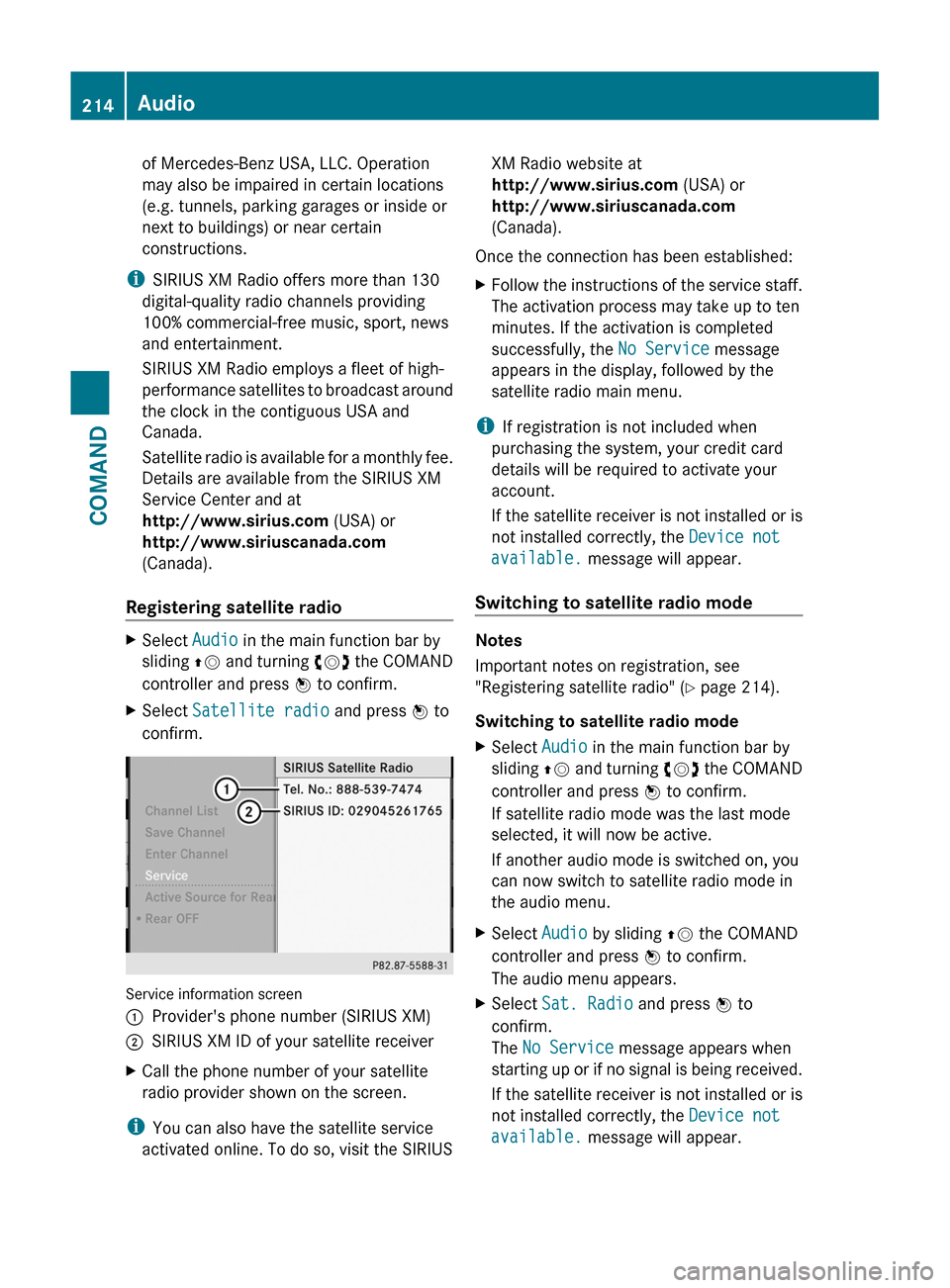
Service information screen
1Provider's phone number (SIRIUS XM)2SIRIUS XM ID of your satellite receiverXCall the phone number of your satellite
radio provider shown on the screen.
iYou can also have the satellite service
activated online. To do so, visit the SIRIUS
XM Radio website at
http://www.sirius.com (USA) or
http://www.siriuscanada.com
(Canada).
Once the connection has been established:
XFollow the instructions of the service staff.
The activation process may take up to ten
minutes. If the activation is completed
successfully, the No Service message
appears in the display, followed by the
satellite radio main menu.
iIf registration is not included when
purchasing the system, your credit card
details will be required to activate your
account.
If the satellite receiver is not installed or is
not installed correctly, the Device not
available. message will appear.
Switching to satellite radio mode
Notes
Important notes on registration, see
"Registering satellite radio" (Y page 214).
Switching to satellite radio mode
XSelect Audio in the main function bar by
sliding ZV and turning cVd the COMAND
controller and press W to confirm.
If satellite radio mode was the last mode
selected, it will now be active.
If another audio mode is switched on, you
can now switch to satellite radio mode in
the audio menu.
XSelect Audio by sliding ZV the COMAND
controller and press W to confirm.
The audio menu appears.
XSelect Sat. Radio and press W to
confirm.
The No Service message appears when
starting up or if no signal is being received.
If the satellite receiver is not installed or is
not installed correctly, the Device not
available. message will appear.
214AudioCOMAND
Page 217 of 524
Once COMAND receives the signal, the
satellite radio display appears. The station
last selected is played.
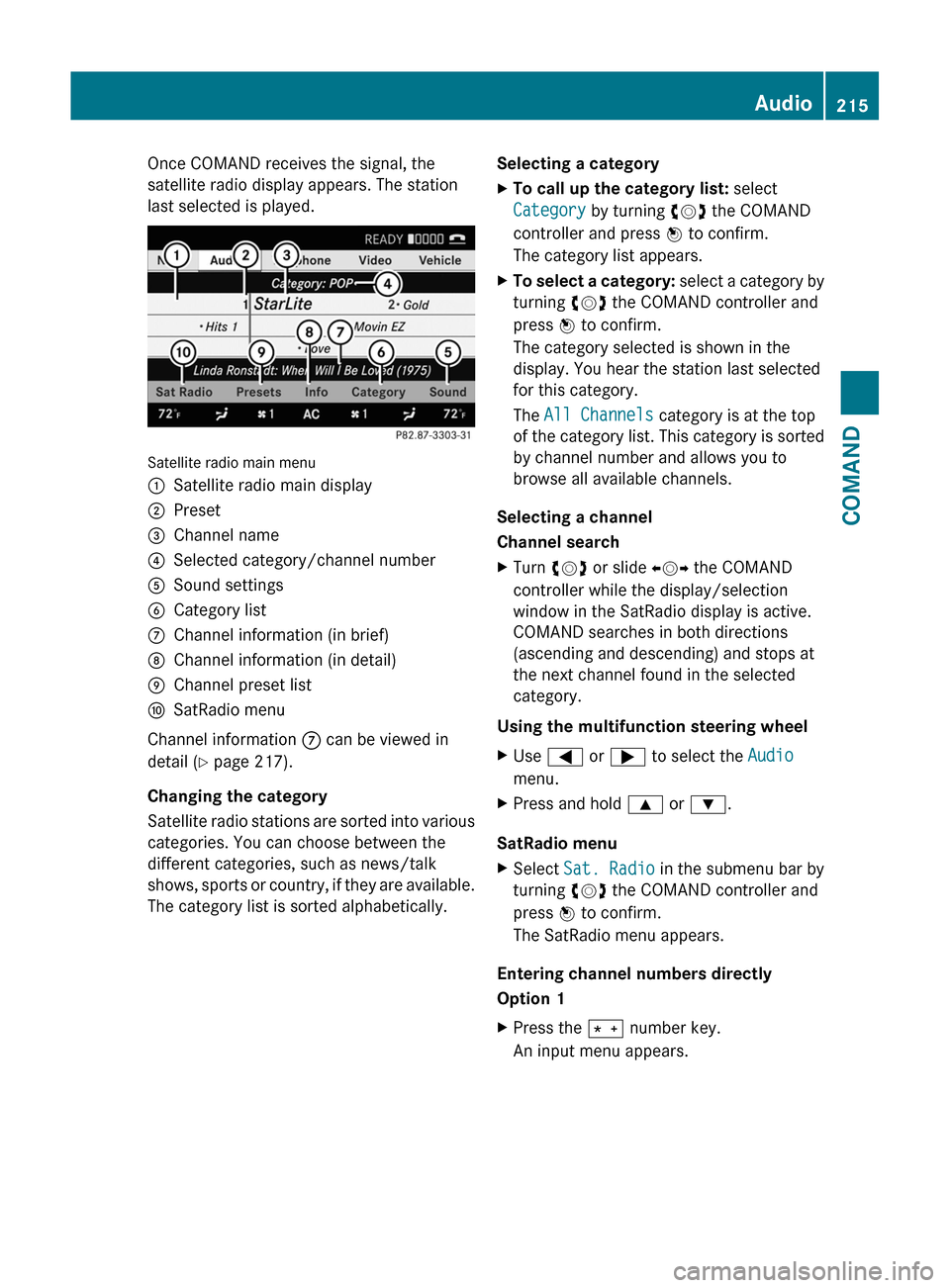
Satellite radio main menu
1Satellite radio main display2Preset3Channel name4Selected category/channel number5Sound settings6Category list7Channel information (in brief)8Channel information (in detail)9Channel preset listaSatRadio menu
Channel information 7 can be viewed in
detail ( Y page 217).
Changing the category
Satellite radio stations are sorted into various
categories. You can choose between the
different categories, such as news/talk
shows, sports or country, if they are available.
The category list is sorted alphabetically.
Selecting a categoryXTo call up the category list: select
Category by turning cVd the COMAND
controller and press W to confirm.
The category list appears.XTo select a category: select a category by
turning cVd the COMAND controller and
press W to confirm.
The category selected is shown in the
display. You hear the station last selected
for this category.
The All Channels category is at the top
of the category list. This category is sorted
by channel number and allows you to
browse all available channels.
Selecting a channel
Channel search
XTurn cVd or slide XVY the COMAND
controller while the display/selection
window in the SatRadio display is active.
COMAND searches in both directions
(ascending and descending) and stops at
the next channel found in the selected
category.
Using the multifunction steering wheel
XUse = or ; to select the Audio
menu.XPress and hold 9 or : .
SatRadio menu
XSelect Sat. Radio in the submenu bar by
turning cVd the COMAND controller and
press W to confirm.
The SatRadio menu appears.
Entering channel numbers directly
Option 1
XPress the Ä number key.
An input menu appears.Audio215COMANDZ
Page 218 of 524
Option 2XSelect Sat. Radio in the submenu bar by
turning cVd the COMAND controller and
press W to confirm.XSelect Enter Channel and press W to
confirm.
An input menu appears.XTo enter a channel: irrespective of the
option chosen, press the corresponding
number keys on the control panel one after
the other.
COMAND sets the selected channel.
i You can only select currently permitted
digits.
Selecting a channel from the SatRadio
channel list
XSelect Sat. Radio in the submenu bar by
turning cVd the COMAND controller and
press W to confirm.XSelect Channel List and press W to
confirm.
The channel list appears.XSelect a channel by turning cVd the
COMAND controller and press W to
confirm.
Memory functions
Storing channels
i There are ten presets available.
XPress W the COMAND controller when the
display/selection window is active.
or
XSelect Presets in the submenu bar by
turning cVd the COMAND controller and
press W to confirm.
In both cases, the channel presets appear.
The R dot in front of a preset entry
indicates that the currently selected
station is stored under this preset.XSelect a preset by turning cVd the
COMAND controller and press and hold
W until you hear a tone.
or
XPress and hold a number button, e.g. 4,
until you hear a tone.
The channel is stored under the preset.
Storing channels automatically
This function automatically stores channels
with adequate reception. Stations stored
manually in the preset memory will be
overwritten.
XOption 1: press W the COMAND controller
when the display/selection window is
active.XSelect Autostore in the presets by turning
cVd the COMAND controller and press
W to confirm.XOption 2: select Presets in the submenu
by sliding VÆ and turning cVd the
COMAND controller and press W to
confirm.XSelect Autostore and press W to confirm.
In both cases, COMAND searches for
channels that can be received. You will see
a message to this effect. The available
channels are automatically stored in the
preset positions.XTo cancel storing: select Cancel and
press W to confirm.
Selecting a channel from the preset list
XTo call up the channel list: select
Presets by turning cVd the COMAND
controller and press W to confirm.
The channel preset list appears.XTo set a channel: select a preset by
turning cVd the COMAND controller and
press W to confirm.
or
XPress a number key, e.g. 4.216AudioCOMAND
Page 219 of 524
Using the multifunction steering wheelXUse = or ; to select the Audio
menu.
XPress 9 or : briefly.
Displaying information
XSelect Info in the submenu bar by turning
cVd the COMAND controller and press
W to confirm.
Information on the currently received
program is displayed.
XTo return to the SatRadio main display:
slide XVY the COMAND controller.
Displaying service information
If you have any questions or require version
information, you can call the provider's
customer service center at any time.
XSelect Sat. Radio in the submenu bar by
turning cVd the COMAND controller and
press W to confirm.
XSelect Service and press W to confirm.
The provider's details appear.
XTo return to the SatRadio main display:
slide XVY the COMAND controller.
Updating the channel list
When receiving a new channel list, the display
shows the Updating channel... message.
The station last selected is muted until the
update has been completed. Satellite radio
mode is not available during the update
process.
When the update has been completed, the
satellite radio main menu appears. The
station last selected is played.
Sound settings
You will find details on the sound settings in
the "At a glance" section (Y page 133).
Audio CD/DVD and MP3 mode
Important safety notes
GWarning!
COMAND is classified as a Class 1 laser
product. You must not open the casing. If you
open the casing, or if the casing is faulty or
damaged, there is a risk of exposure to
invisible laser radiation. This may damage
your eyes, or those of others.
COMAND does not contain any parts that can
be serviced by the user. For safety reasons,
all maintenance work must be carried out by
qualified aftersales technicians.
GWarning!
Only when the vehicle is stationary should
you:
Rload a disc
Reject a disc
There is a risk of being distracted from the
road and traffic conditions if this is done while
the vehicle is in motion.
Inserting/ejecting CDs/DVDs
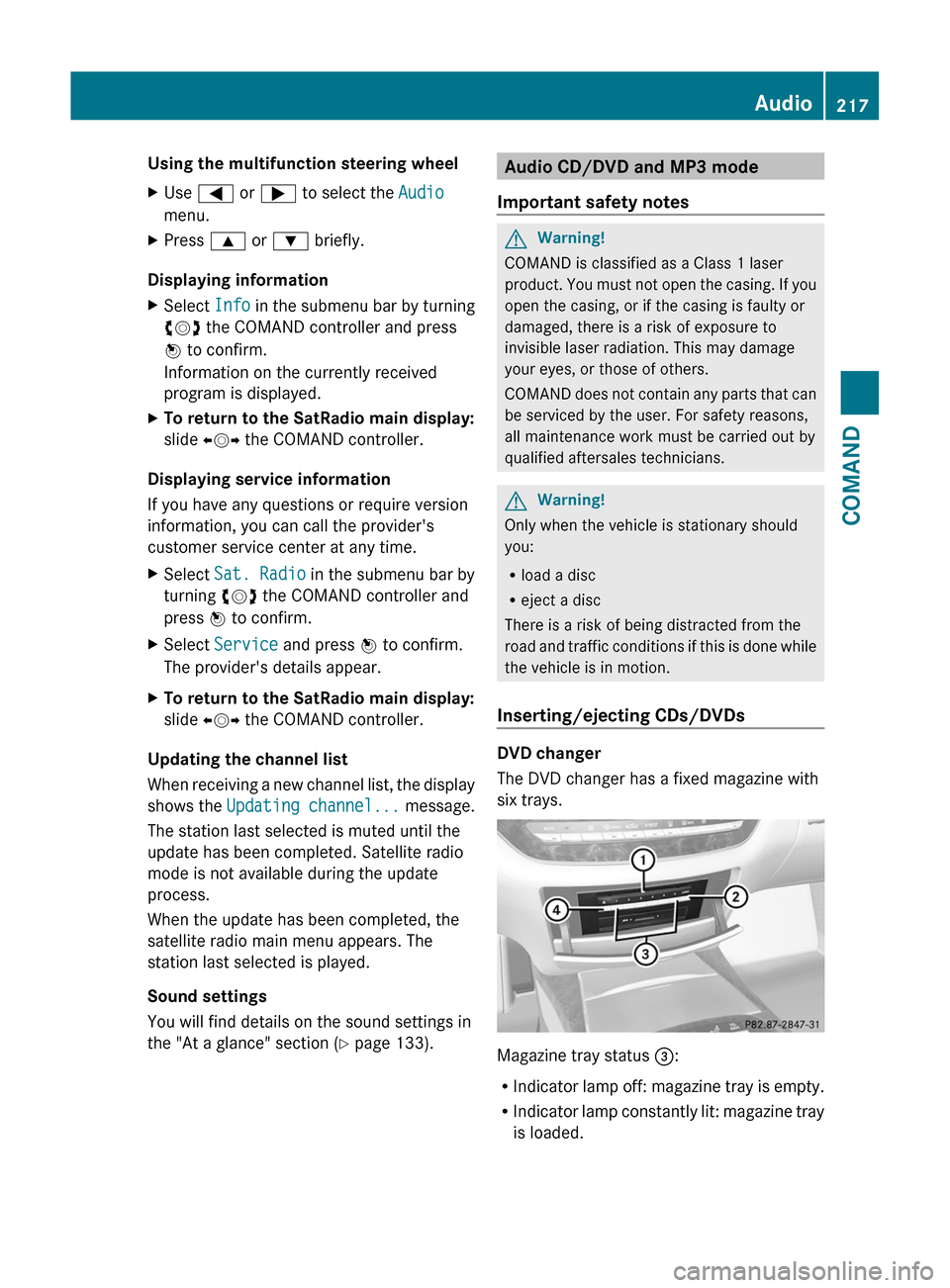
DVD changer
The DVD changer has a fixed magazine with
six trays.
Magazine tray status =:
RIndicator lamp off: magazine tray is empty.
RIndicator lamp constantly lit: magazine tray
is loaded.
Audio217COMANDZ
Page 221 of 524
Option 2XPress the R function button once or
twice.XSelect an audio medium from the media list
( Y page 221).
Option 3
XSelect Audio in the main function bar by
sliding ZV and turning cVd the COMAND
controller and press W to confirm.
If disc mode was the last mode selected, it
will now be active.
If another audio source is switched on, you
can now switch to disc mode in the audio
menu.XSelect Audio by sliding ZV and turning
cVd the COMAND controller and press
W to confirm.
The audio menu appears.XSelect Disc or Memory card and press
W to confirm.
The desired disc mode is activated.XSelect an audio medium from the media list
( Y page 221).
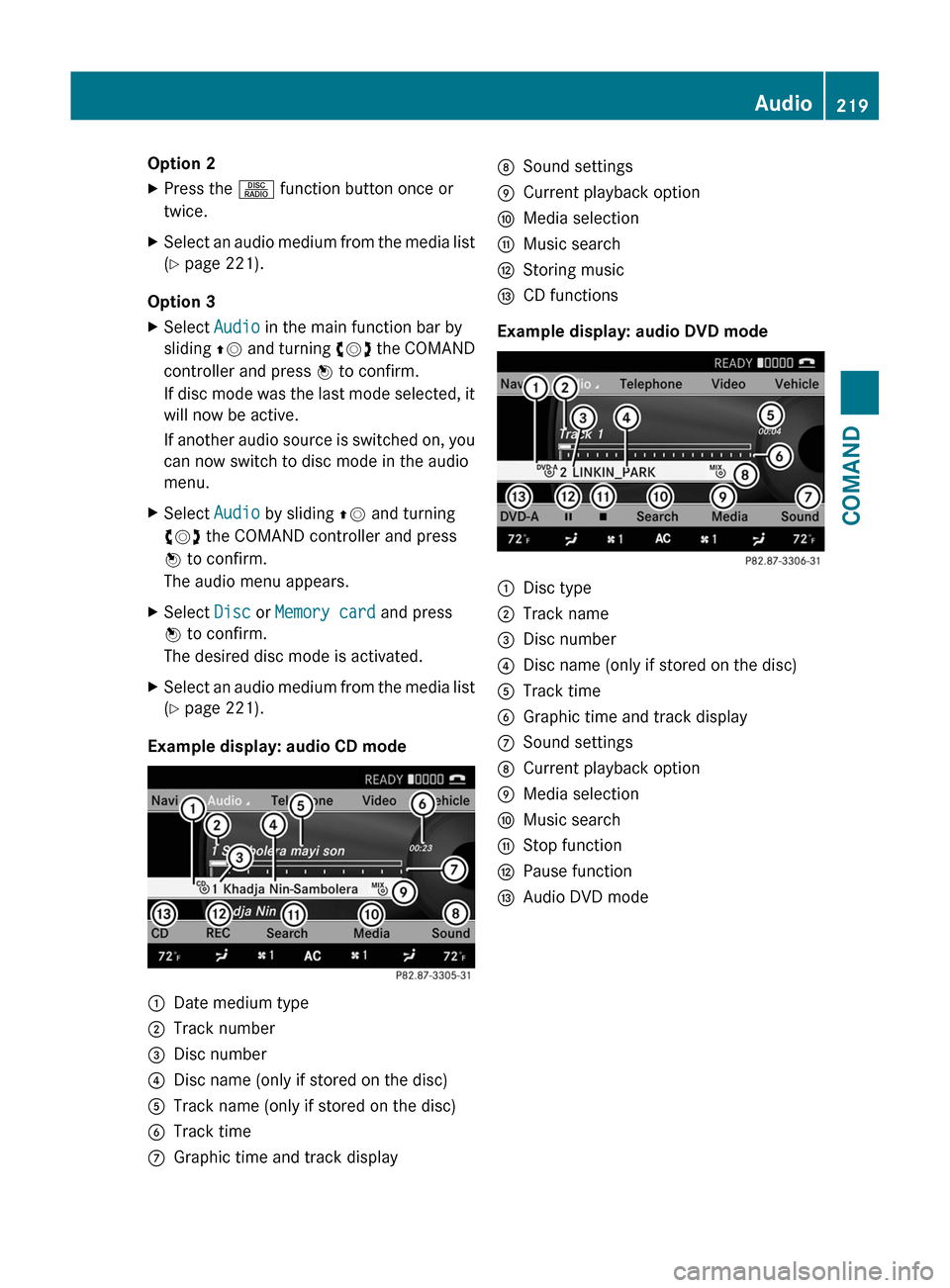
Example display: audio CD mode
:Date medium type;Track number=Disc number?Disc name (only if stored on the disc)ATrack name (only if stored on the disc)BTrack timeCGraphic time and track displayDSound settingsECurrent playback optionFMedia selectionGMusic searchHStoring musicICD functions
Example display: audio DVD mode
:Disc type;Track name=Disc number?Disc name (only if stored on the disc)ATrack timeBGraphic time and track displayCSound settingsDCurrent playback optionEMedia selectionFMusic searchGStop functionHPause functionIAudio DVD modeAudio219COMANDZ
Page 222 of 524
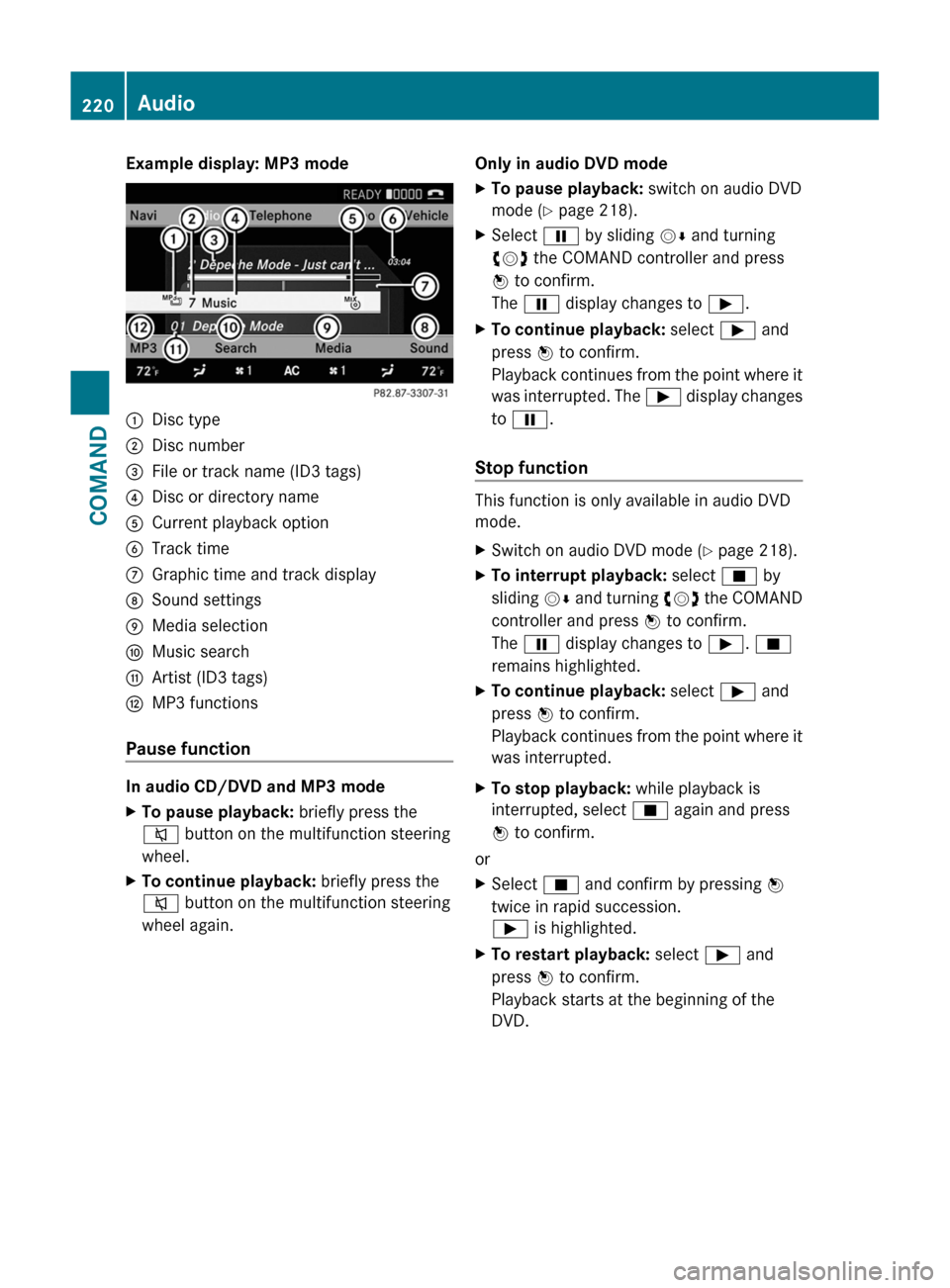
Example display: MP3 mode:Disc type;Disc number=File or track name (ID3 tags)?Disc or directory nameACurrent playback optionBTrack timeCGraphic time and track displayDSound settingsEMedia selectionFMusic searchGArtist (ID3 tags)HMP3 functions
Pause function
In audio CD/DVD and MP3 mode
XTo pause playback: briefly press the
8 button on the multifunction steering
wheel.XTo continue playback: briefly press the
8 button on the multifunction steering
wheel again.Only in audio DVD modeXTo pause playback: switch on audio DVD
mode ( Y page 218).XSelect Ë by sliding VÆ and turning
cVd the COMAND controller and press
W to confirm.
The Ë display changes to Ì.XTo continue playback: select Ì and
press W to confirm.
Playback continues from the point where it
was interrupted. The Ì display changes
to Ë .
Stop function
This function is only available in audio DVD
mode.
XSwitch on audio DVD mode ( Y page 218).XTo interrupt playback: select É by
sliding VÆ and turning cVd the COMAND
controller and press W to confirm.
The Ë display changes to Ì. É
remains highlighted.XTo continue playback: select Ì and
press W to confirm.
Playback continues from the point where it
was interrupted.XTo stop playback: while playback is
interrupted, select É again and press
W to confirm.
or
XSelect É and confirm by pressing W
twice in rapid succession.
Ì is highlighted.XTo restart playback: select Ì and
press W to confirm.
Playback starts at the beginning of the
DVD.220AudioCOMAND
Page 223 of 524

Selecting CD/audio DVD/MP3 discs
Selecting via the media list
XIn CD/audio DVD and MP3 mode: select
Media by sliding VÆ or turning cVd the
COMAND controller and press W to
confirm.
The media list appears. The # dot
indicates the currently selected medium.
Media list
The media list shows the discs currently
available.
Media list (when equipped with a DVD
changer)
Magazine trays, positions 1 to 6: readable
data media are audio CDs, MP3 CDs or MP3
DVDs, audio DVDs and video DVDs.
Memory card, position 7MUSIC REGISTER, position 8Media Interface, position 9USB, position 10
iIf a disc cannot be read, an entry appears
after the display in the magazine tray.
Equipped with a single DVD driveDVD drive, position 1: readable data media
are audio CDs, MP3 CDs or MP3 DVDs,
audio DVDs and video DVDs.
Memory card, position 2MUSIC REGISTER, position 3Media Interface, position 4USB, position 5XSelect the data medium by turning cVd
the COMAND controller and press W to
confirm.
iIf you select a video DVD, the system
switches to video DVD mode
(Y page 236).
Selecting a track using the number
keypad
XPress a number button, e.g. n, when the
display/selection window is active.
The medium at the corresponding position
in the media list is loaded and then played.
Selecting a track
Selecting by skipping to a track
XTo skip forwards or back to a track: slide
XVY or turn cVd the COMAND controller
when the display/selection window is
active.
The skip forward function skips to the next
track.
Skipping backwards restarts the current
track (if it has been playing for more than
eight seconds) or starts the previous track
(if the current track has only been playing
for a shorter time).
If you activate the Medium mix or Random
tracks playback option (MP3 mode only),
the track order is random.
XOn the multifunction steering wheel:
switch COMAND to audio CD, audio DVD or
MP3 mode (Y page 218).
XUse = or ; to select the Audio
menu.
XPress the 9 or : button on the
multifunction steering wheel.
Audio221COMANDZ
Page 224 of 524
Selecting by track listXIn audio mode, select Search by sliding
VÆ or turning cVd the COMAND
controller and press W to confirm.
XSelect Current track list.
or
XPress W the COMAND controller in MP3
mode when the display/selection window
is active.
The track list appears. The # dot indicates
the current track.
XSelect the track by turning cVd and press
W to confirm.
iIn MP3 mode, the list shows all the tracks
in alphabetical order.
XOn the multifunction steering wheel:
switch COMAND to audio CD, audio DVD or
MP3 mode (Y page 218).
XUse = or ; to select the Audio
menu.
XPress and hold the 9 or : button
until the desired track has been reached.
If you hold down 9 or :, the system
runs through the list more quickly. Not all
audio drives or data carriers support this
function.
If track information is stored on the audio
drive or data storage device, the
multifunction display shows the number and
name of the track.
Selecting a track using the number
keypad
XPress the Ä button on the number pad.
A numerical entry field appears. The
number of positions offered corresponds to
the number of tracks on the CD/DVD. Only
numbers that correspond to a track
number on the CD/DVD can be entered.
XEnter the desired track number using the
number buttons.
Fast forward/rewindXWhile the display/selection window is
active, slide XVY and hold the COMAND
controller until the desired position has
been reached.
Selecting a folder
This function is only available in MP3 mode.
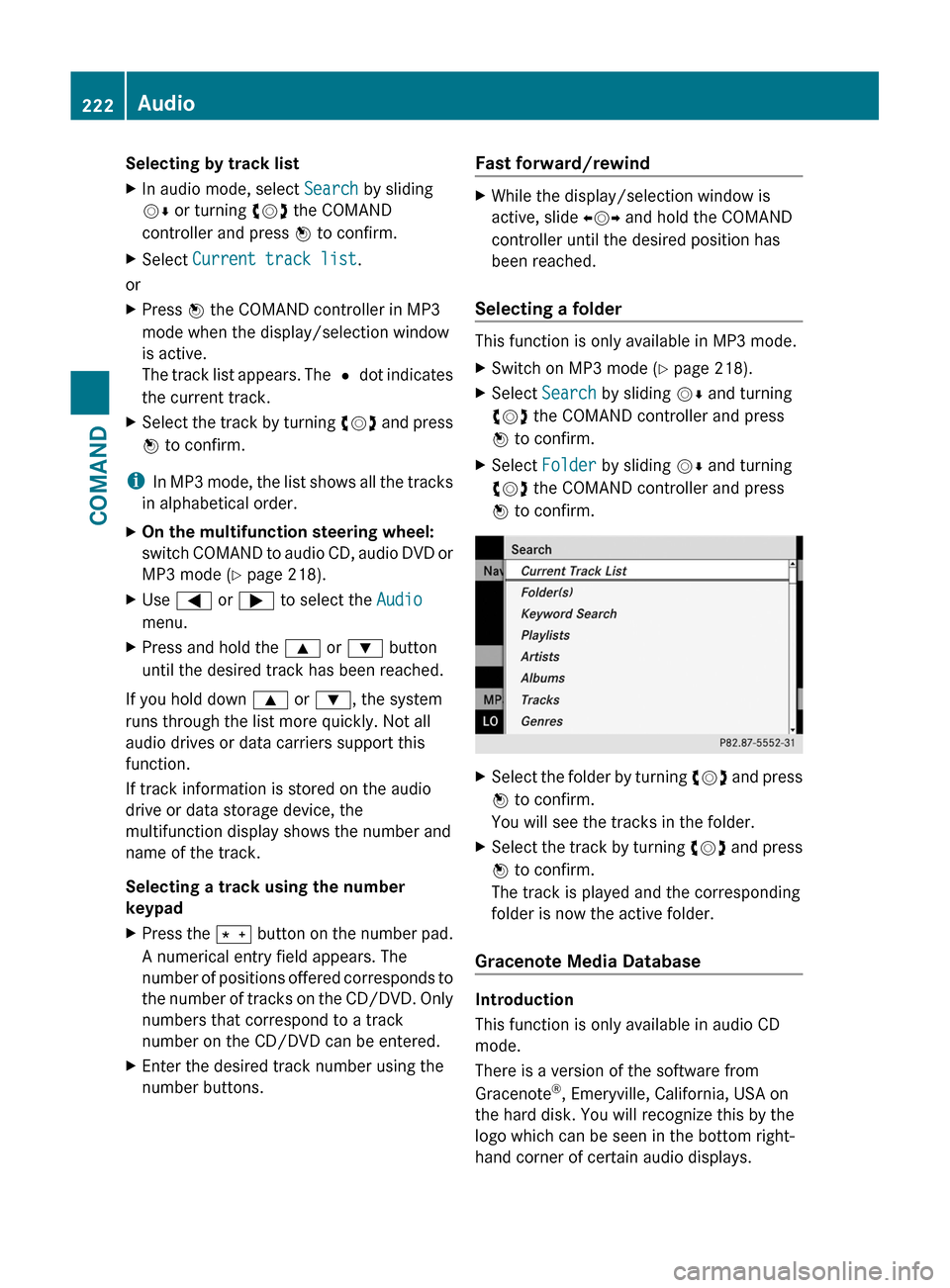
XSwitch on MP3 mode (Y page 218).XSelect Search by sliding VÆ and turning
cVd the COMAND controller and press
W to confirm.
XSelect Folder by sliding VÆ and turning
cVd the COMAND controller and press
W to confirm.
XSelect the folder by turning cVd and press
W to confirm.
You will see the tracks in the folder.
XSelect the track by turning cVd and press
W to confirm.
The track is played and the corresponding
folder is now the active folder.
Gracenote Media Database
Introduction
This function is only available in audio CD
mode.
There is a version of the software from
Gracenote®, Emeryville, California, USA on
the hard disk. You will recognize this by the
logo which can be seen in the bottom right-
hand corner of certain audio displays.
222AudioCOMAND
Page 225 of 524
Many audio CDs contain CD text. COMAND
uses the information contained therein to
display the artist, album and track name.
If the audio CD does not contain any CD text
information, COMAND can use the Gracenote
Media Database to identify unknown audio
tracks when breaking in audio CD mode. This
is only possible if the relevant information is
saved in the Gracenote Media Database and
if the "Gracenote Media Database" function
is activated.
If this is the case, COMAND will display the
corresponding data such as artist, album and
track name in the relevant displays and lists.
If COMAND accesses the Gracenote Media
Database when reading an audio CD, you will
see the following message:
Selecting Gracenote® data to be displayed
If several entries exist for the CD of a
particular artist, you can select which of the
entries should be shown.
If the inserted CD does not contain any
Gracenote® data, the Gracenote Media
Database menu item is shown in gray and
cannot be selected.
XSwitch on audio CD mode (Y page 218).XSelect CD by sliding VÆ and turning cVd
the COMAND controller and press W to
confirm.
XSelect Gracenote Media Database by
turning cVd the COMAND controller and
press W to confirm.
Switch the function on O or off ª.
Updating Gracenote® music recognition
technology and the Gracenote Media
Database
The digital data on the Gracenote Media
Database becomes obsolete due to the
release of new CDs. Optimum functionality
can only be attained with up-to-date
Gracenote® music recognition technology.
Information about new versions can be
obtained from an authorized Mercedes-Benz
Center.
You can have your music recognition
software updated there with a DVD, or you
can update it yourself.
iThe Gracenote Media Database is
updated in conjunction with the navigation
system's digital map (Y page 186).
Setting the audio format
You can only set the audio format in audio
DVD mode. The number of audio formats
available depends on the DVD. The content of
an audio DVD is called an "album", and this
can be divided into up to nine groups. A group
can contain music in different sound qualities
(stereo and multi-channel formats, for
example), or bonus tracks. Each group can
contain up to 99 tracks. If an audio DVD only
contains one audio format, the "Group" menu
item(s) cannot be selected.
XSwitch on audio DVD mode (Y page 218).XSelect DVD-A by sliding VÆ and turning
cVd the COMAND controller and press
W to confirm.
Audio223COMANDZ