Voice MERCEDES-BENZ S-Class 2011 W221 User Guide
[x] Cancel search | Manufacturer: MERCEDES-BENZ, Model Year: 2011, Model line: S-Class, Model: MERCEDES-BENZ S-Class 2011 W221Pages: 524, PDF Size: 22.53 MB
Page 146 of 524
guides you through the training with spoken
instructions.
XSelect Vehicle in the main function bar by
turning cVd the COMAND controller and
press W to confirm.
XSelect System by turning cVd the
COMAND controller and press W to
confirm.
XSelect Voice Control and press W to
confirm.
XSelect Start new individualization
and press W to confirm.
You see and hear a prompt asking whether
you would like further information.
XSelect Yes or No and press W to confirm.
If you select No, the first part of
individualization begins. You will be asked
whether you would like to train digits or
voice commands.
If you select Yes, you will see and hear
information on the individualization
process. The first part of individualization
then begins automatically.
XTo close the display: press W the
COMAND controller.
You will be asked whether you would like
to train digits or voice commands.
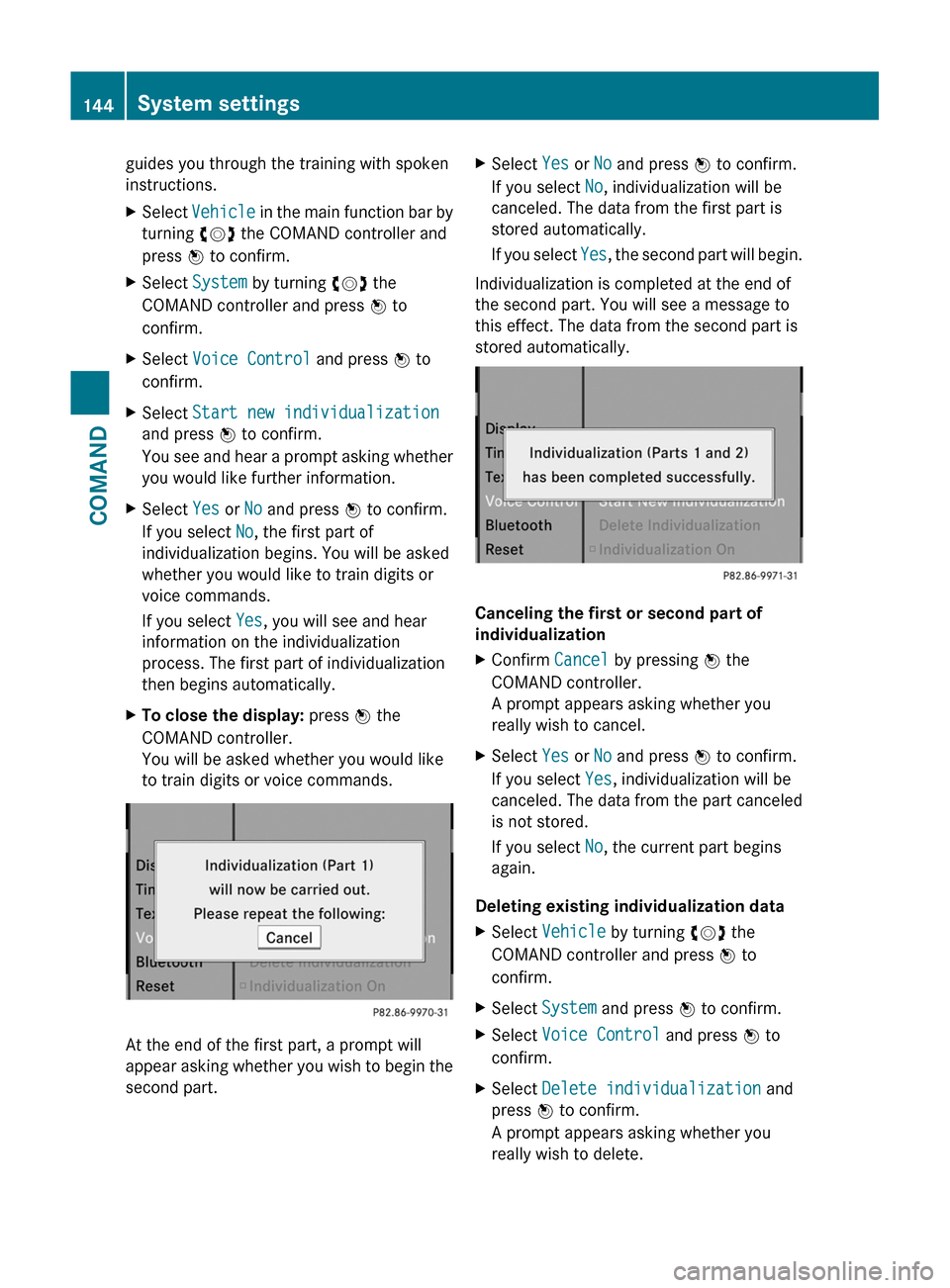
At the end of the first part, a prompt will
appear asking whether you wish to begin the
second part.
XSelect Yes or No and press W to confirm.
If you select No, individualization will be
canceled. The data from the first part is
stored automatically.
If you select Yes, the second part will begin.
Individualization is completed at the end of
the second part. You will see a message to
this effect. The data from the second part is
stored automatically.
Canceling the first or second part of
individualization
XConfirm Cancel by pressing W the
COMAND controller.
A prompt appears asking whether you
really wish to cancel.
XSelect Yes or No and press W to confirm.
If you select Yes, individualization will be
canceled. The data from the part canceled
is not stored.
If you select No, the current part begins
again.
Deleting existing individualization data
XSelect Vehicle by turning cVd the
COMAND controller and press W to
confirm.
XSelect System and press W to confirm.XSelect Voice Control and press W to
confirm.
XSelect Delete individualization and
press W to confirm.
A prompt appears asking whether you
really wish to delete.
144System settingsCOMAND
Page 150 of 524
System language settings
This function allows you to determine the
language for the menu displays and the
navigation announcements. The selected
language affects the characters available for
entry.
If you change the system language, the
language for Voice Control System will be
also be changed. If the selected language is
not supported by Voice Control System,
"English" will be selected.XSelect Vehicle by turning cVd the
COMAND controller and press W to
confirm.XSelect System and press W to confirm.XSelect Language and press W to confirm.
You see the language list. The # dot
indicates the current setting.XSelect the language by turning cVd the
COMAND controller and press W to
confirm.
COMAND loads the selected language and
sets it.
i In Arabic as well as some other countries,
the selection option English (Arabic
map) is available when setting the system
language. This language setting shows the
menus and input data in COMAND in
English and the map in Arabic for certain
countries. The destination is entered in
English.
Reset function
You can reset COMAND to the factory
settings. Amongst other things, this will
delete all personal data (e.g. station presets,
address book entries, entries in the
destination memory and in the list of previous
destinations in the navigation system).
Resetting is recommended before selling or
transferring ownership of your vehicle, for
example.
XSelect Vehicle in the main function bar by
turning cVd the COMAND controller and
press W to confirm.XSelect System by turning cVd the
COMAND controller and press W to
confirm.XSelect Reset and press W to confirm.
A prompt appears asking whether you wish
to reset.XSelect Yes or No and press W to confirm.
If you select No, the process will be aborted.
If you select Yes, another prompt appears
asking whether you really wish to reset.XSelect Yes or No and press W to confirm.
If you select Yes, a message will be shown.
COMAND is reset and restarted.
If you select No, the process will be aborted.
Navigation
Vehicle equipment
i These Operating Instructions describe all
standard and optional equipment available
for your vehicle at the time of purchase.
Please note that your vehicle may not be
equipped with all features described.
Introduction
Important safety notes
GWarning
For safety reasons, only enter a destination
when the vehicle is stationary. When the
vehicle is in motion, a passenger should enter
the destination. Study manual and select
route before driving.
Bear in mind that at a speed of just 30 mph
(approximately 50 km/h), your vehicle is
covering a distance of 44 feet (approximately
14 m) every second.
148NavigationCOMAND
Page 193 of 524
Telephone
Vehicle equipment
i These Operating Instructions describe all
standard and optional equipment available
for your vehicle at the time of purchase.
Please note that your vehicle may not be
equipped with all features described.
General information
Introduction
The telephone function, in conjunction with a
Bluetooth ®
-capable mobile phone, offers
Bluetooth ®
interface telephony.
Using theBluetooth ®
interface and a suitable
mobile phone, you can receive vCards.
For more information on suitable mobile
phones and on connecting a Bluetooth ®
-
capable mobile phone to COMAND, visit
http://www.mbusa-mobile.com or call
the Mercedes-Benz Customer Assistance
Center under
1-800-FOR-MERCedes(1-800-367-6372)
(US) or Customer Relations under
1-800-387-0100 (Canada).
Important safety notes
GWarning
A driver's attention to the road must always
be his/her primary focus when driving. For
your safety and the safety of others, we
recommend that you pull over to a safe
location and stop before placing or taking a
telephone call. If you choose to use the mobile
phone while driving, please use the handsfree
device and only use the mobile phone when
weather, road, and traffic conditions permit.
Some jurisdictions prohibit the driver from
using a cellular mobile phone while driving a
vehicle.
Bear in mind that at a speed of just 30 mph
(approximately 50 km/h), your vehicle is
covering a distance of 44 feet (approximately
14 m) every second.GWarning
You and others may damage your health due
to excessive electromagnetic radiation. By
using an external antenna, the possible health
risks of electromagnetic fields, which are
under discussion among the scientific
community, should be largely prevented.
Calls disconnected while the vehicle is
in motion
A call may be disconnected if:
R there is insufficient network coverage in
certain areas.
R you move from one transmitter/receiver
area (cell) into another and no channels are
free.
R you use a SIM card which is not compatible
with the network available.
R when using a mobile phone with
"Twincard", the second SIM card is
registered on the network at the same time.
Operating options
You can operate the telephone by using:
R the = and ; button or the 9 button
on COMAND
R the 6 or ~ button and the number
keypad on COMAND
R using the 6 or ~ button on the
multifunction steering wheel
R voice commands via the Voice Control
System
Unless stated otherwise, the descriptions and
illustrations in this section refer to COMAND.
Function restrictions
You will not yet be able to use the telephone
in the following situations:
R when the mobile phone is not yet
connected to a network The telephone
Telephone191COMANDZ
Page 200 of 524
XTo select a call: select an entry by turning
cVd the COMAND controller and press
W to confirm.
XTo connect a call: press the 6 button
on the COMAND controller.
iThe redialing function is also available
using the on-board computer
(Y page 375).
Calling voicemail8
You can only call voicemail if the voicemail
number on the SIM card is stored under the
4 button on your mobile phone.
XPress and hold the 4 button on the
telephone keypad.
Connecting a call to an entry on a call list
or in the COMAND phone book
XOpen a call list and select an entry
(Y page 205).
or
XCall up the COMAND phone book and
select an entry (Y page 201).
Functions available during a call
Overview
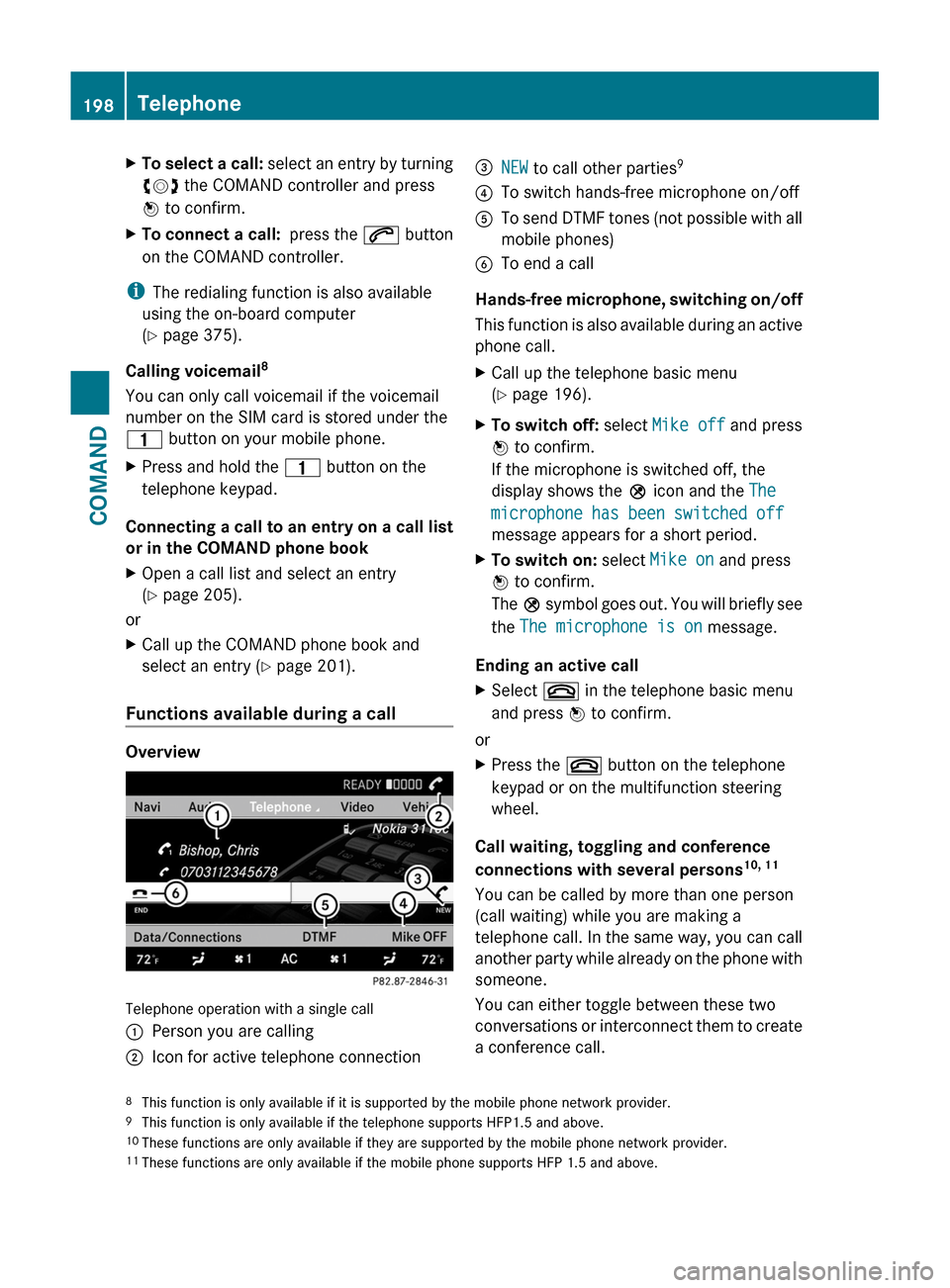
Telephone operation with a single call
:Person you are calling;Icon for active telephone connection=NEW to call other parties9?To switch hands-free microphone on/offATo send DTMF tones (not possible with all
mobile phones)
BTo end a call
Hands-free microphone, switching on/off
This function is also available during an active
phone call.
XCall up the telephone basic menu
(Y page 196).
XTo switch off: select Mike off and press
W to confirm.
If the microphone is switched off, the
display shows the Q icon and the The
microphone has been switched off
message appears for a short period.
XTo switch on: select Mike on and press
W to confirm.
The Q symbol goes out. You will briefly see
the The microphone is on message.
Ending an active call
XSelect ~ in the telephone basic menu
and press W to confirm.
or
XPress the ~ button on the telephone
keypad or on the multifunction steering
wheel.
Call waiting, toggling and conference
connections with several persons10, 11
You can be called by more than one person
(call waiting) while you are making a
telephone call. In the same way, you can call
another party while already on the phone with
someone.
You can either toggle between these two
conversations or interconnect them to create
a conference call.
8This function is only available if it is supported by the mobile phone network provider.9This function is only available if the telephone supports HFP1.5 and above.10These functions are only available if they are supported by the mobile phone network provider.11These functions are only available if the mobile phone supports HFP 1.5 and above.
198TelephoneCOMAND
Page 201 of 524
You can simultaneously switch back and forth
between two parties or conduct a conference
call with up to five others.
Toggling12
If you are on the telephone and you receive
another call, the call waiting display will
appear. You also hear an acoustic signal.
XTo reject: select Reject and press W to
confirm.
or
XPress the ~ button on the telephone
keypad or on the multifunction steering
wheel.
XTo accept: select Accept and press W to
confirm.
or
XPress the 6 button on the telephone
keypad or on the multifunction steering
wheel.
If you accept the waiting call, the active call
is ended.
iThe active call will also be ended if you
accept the waiting call using Voice Control
System (see the separate operating
instructions).
If you accept the waiting call using the mobile
phone, the active call will be put on hold.
Then, you have two calls, with the accepted
call being the active call.
The COMAND display changes. If you
continue to operate functions on the mobile
phone, the COMAND display may differ from
that of the mobile phone.
Calling additional parties
You can call a second person while on the
phone with someone else. This action puts
the previous call on hold.
XSelect NEW from the telephone basic menu
and press W to confirm.
or
XSelect SEND on the telephone keypad.XEnter the phone number manually
(Y page 197) or using the phone book
(Y page 204).
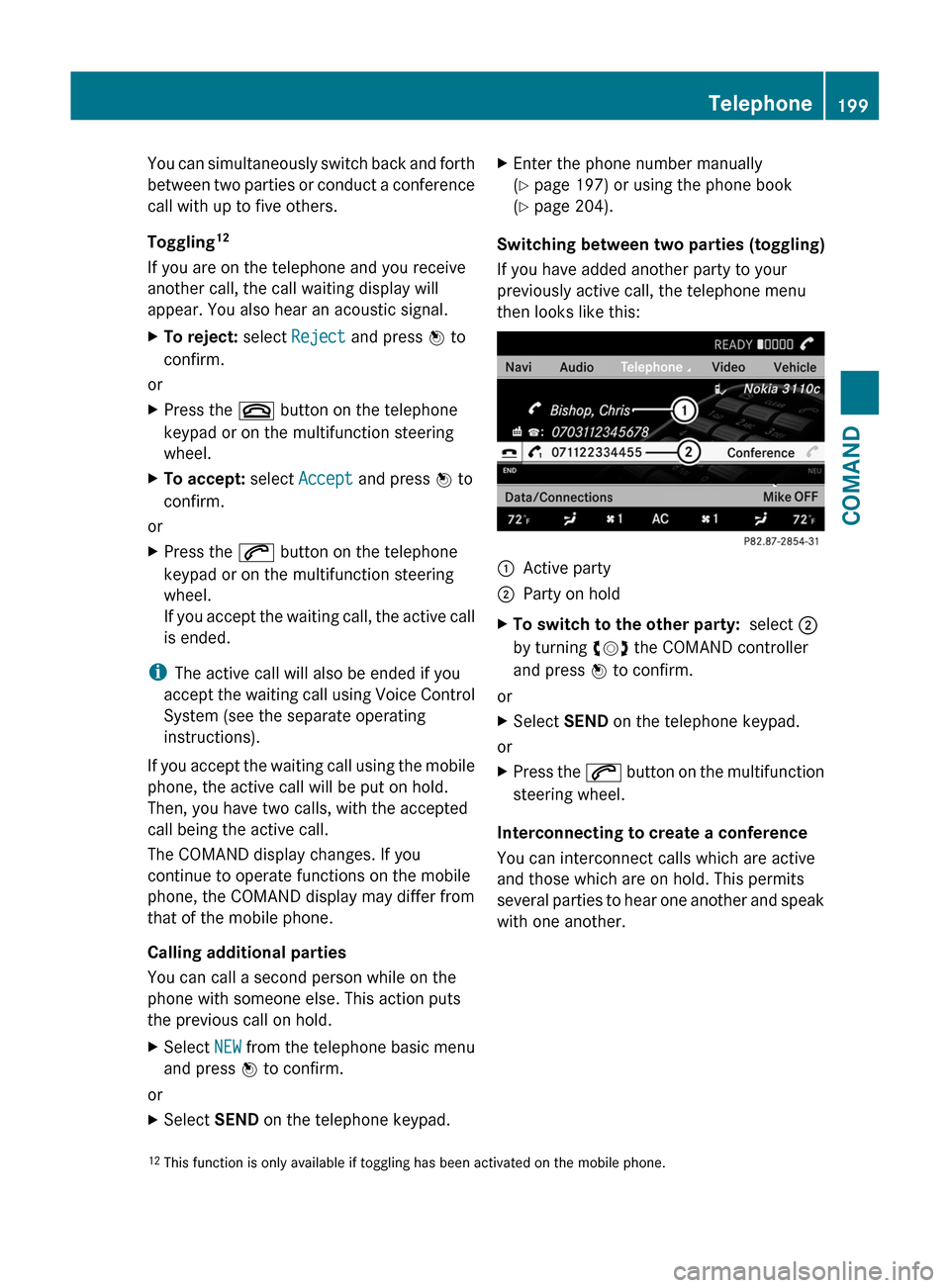
Switching between two parties (toggling)
If you have added another party to your
previously active call, the telephone menu
then looks like this:
:Active party;Party on holdXTo switch to the other party: select ;
by turning cVd the COMAND controller
and press W to confirm.
or
XSelect SEND on the telephone keypad.
or
XPress the 6 button on the multifunction
steering wheel.
Interconnecting to create a conference
You can interconnect calls which are active
and those which are on hold. This permits
several parties to hear one another and speak
with one another.
12This function is only available if toggling has been activated on the mobile phone.Telephone199COMANDZ
Page 202 of 524
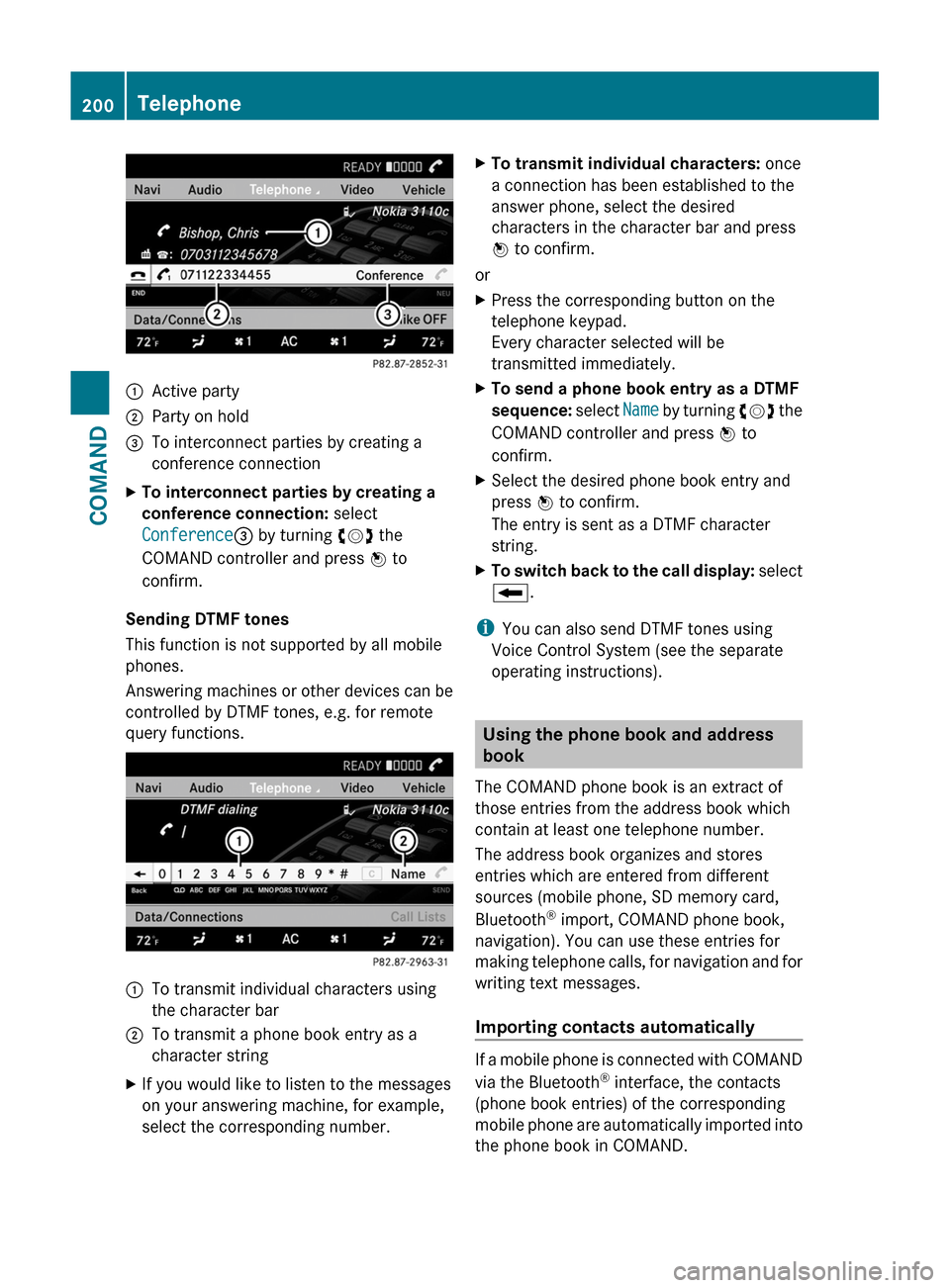
:Active party;Party on hold=To interconnect parties by creating a
conference connection
XTo interconnect parties by creating a
conference connection: select
Conference= by turning cVd the
COMAND controller and press W to
confirm.
Sending DTMF tones
This function is not supported by all mobile
phones.
Answering machines or other devices can be
controlled by DTMF tones, e.g. for remote
query functions.
:To transmit individual characters using
the character bar
;To transmit a phone book entry as a
character string
XIf you would like to listen to the messages
on your answering machine, for example,
select the corresponding number.
XTo transmit individual characters: once
a connection has been established to the
answer phone, select the desired
characters in the character bar and press
W to confirm.
or
XPress the corresponding button on the
telephone keypad.
Every character selected will be
transmitted immediately.
XTo send a phone book entry as a DTMF
sequence: select Name by turning cVd the
COMAND controller and press W to
confirm.
XSelect the desired phone book entry and
press W to confirm.
The entry is sent as a DTMF character
string.
XTo switch back to the call display: select
B.
iYou can also send DTMF tones using
Voice Control System (see the separate
operating instructions).
Using the phone book and address
book
The COMAND phone book is an extract of
those entries from the address book which
contain at least one telephone number.
The address book organizes and stores
entries which are entered from different
sources (mobile phone, SD memory card,
Bluetooth® import, COMAND phone book,
navigation). You can use these entries for
making telephone calls, for navigation and for
writing text messages.
Importing contacts automatically
If a mobile phone is connected with COMAND
via the Bluetooth® interface, the contacts
(phone book entries) of the corresponding
mobile phone are automatically imported into
the phone book in COMAND.
200TelephoneCOMAND
Page 204 of 524
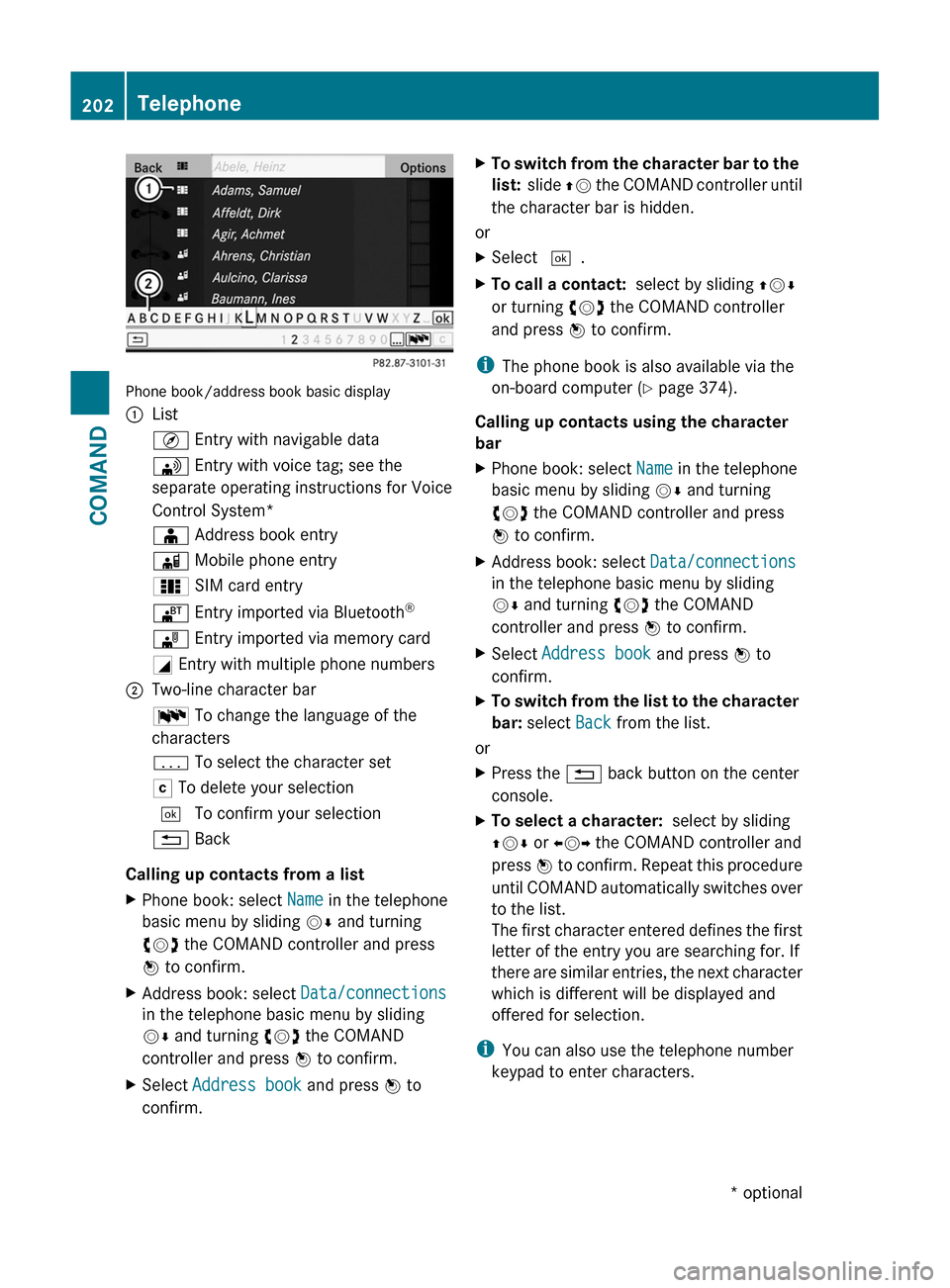
Phone book/address book basic display
:ListÇ Entry with navigable data\ Entry with voice tag; see the
separate operating instructions for Voice
Control System*
Æ Address book entryà Mobile phone entry0 SIM card entry® Entry imported via Bluetooth®¯ Entry imported via memory cardG Entry with multiple phone numbers;Two-line character barB To change the language of the
characters
p To select the character setF To delete your selection¬ To confirm your selection% Back
Calling up contacts from a list
XPhone book: select Name in the telephone
basic menu by sliding VÆ and turning
cVd the COMAND controller and press
W to confirm.
XAddress book: select Data/connections
in the telephone basic menu by sliding
VÆ and turning cVd the COMAND
controller and press W to confirm.
XSelect Address book and press W to
confirm.
XTo switch from the character bar to the
list: slide ZV the COMAND controller until
the character bar is hidden.
or
XSelect ¬.XTo call a contact: select by sliding ZVÆ
or turning cVd the COMAND controller
and press W to confirm.
iThe phone book is also available via the
on-board computer (Y page 374).
Calling up contacts using the character
bar
XPhone book: select Name in the telephone
basic menu by sliding VÆ and turning
cVd the COMAND controller and press
W to confirm.
XAddress book: select Data/connections
in the telephone basic menu by sliding
VÆ and turning cVd the COMAND
controller and press W to confirm.
XSelect Address book and press W to
confirm.
XTo switch from the list to the character
bar: select Back from the list.
or
XPress the % back button on the center
console.
XTo select a character: select by sliding
ZVÆ or XVY the COMAND controller and
press W to confirm. Repeat this procedure
until COMAND automatically switches over
to the list.
The first character entered defines the first
letter of the entry you are searching for. If
there are similar entries, the next character
which is different will be displayed and
offered for selection.
iYou can also use the telephone number
keypad to enter characters.
202TelephoneCOMAND* optional
Page 207 of 524
stores the destination in the address book
with the complete navigable address data.
In this case, navigation can be started
without any further data input.
If the contact entry contains a postal
address, e.g. as a result of importing a
vCard, the system can also navigate to this
address. If the data is incomplete or
unclear, COMAND asks the user to enter
the relevant address data. After the entry
has been completed and navigation has
been started, COMAND replaces the
existing address with the navigable
address if necessary.XSearch for an address book entry using the
¤ symbol.XDisplay the details about an entry and
highlight the address data field.XSelect Options by sliding VÆ and turning
cVd the COMAND controller and press
W to confirm.XSelect Navigate and press W to confirm.XSelect Start and press W to confirm.
i
You may only select Navigate if the
address data field contains complete,
navigable data. This is indicated by the ¤
symbol.
Voice tags*
i Voice tags are entered via Voice Control
System*; see the separate operating
instructions for Voice Control System*.
Adding or changing a voice tag
i You can add one voice tag per address
book entry.
XSearch for an address book entry with or
without a voice tag ( ¦ symbol).XSelect Options by sliding VÆ and turning
cVd the COMAND controller and press
W to confirm.XSelect Voice tag and press W to confirm.XSelect Add or Edit and press W to confirm.
Subsequent operation is controlled
by voice. Voice Control System* guides you
through the menus.
Deleting a voice tag
XSearch for an address book entry with a
voice tag.XSelect Options by sliding VÆ and turning
cVd the COMAND controller and press
W to confirm.XSelect Voice tag and press W to confirm.XSelect Delete and press W to confirm.
A deletion prompt appears.
Listening to a voice tag
XSearch for an address book entry with a
voice tag.XSelect Options by sliding VÆ and turning
cVd the COMAND controller and press
W to confirm.XSelect Voice tag and press W to confirm.XSelect Listen and press W to confirm.
You will hear the voice tag.
Using call lists
Introduction
COMAND displays calls received (including
missed calls) and made during phone
operation in lists.
i The respective menu item can only be
selected if calls have already been made or
received in COMAND or if the call lists have
been imported from the telephone.
Opening the call list and selecting an
entry
XTo call up the telephone menu: press the
S function button.XSelect Call lists in the telephone basic
menu by sliding VÆ and turning cVd theTelephone205COMAND* optionalZ
Page 367 of 524
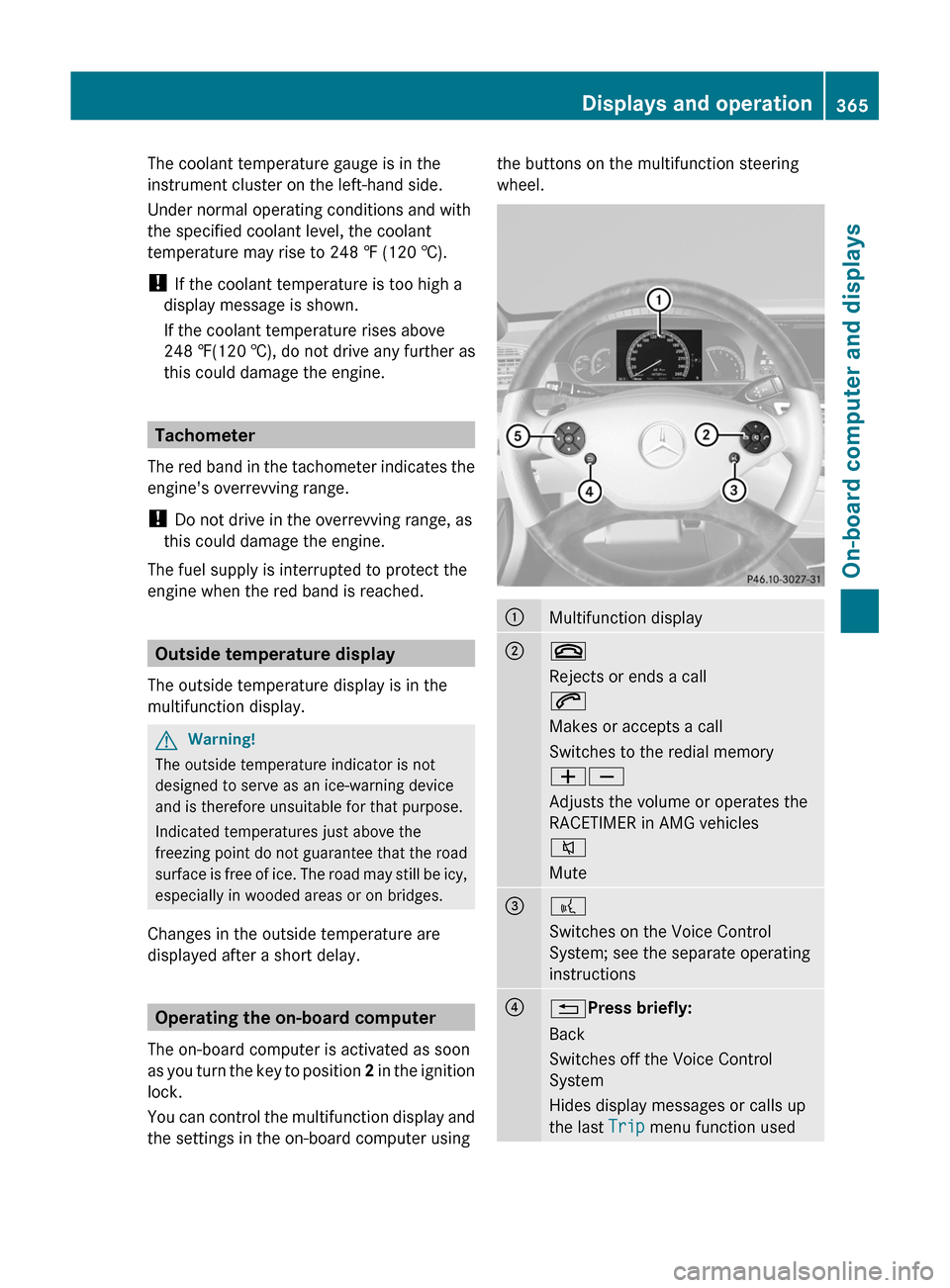
The coolant temperature gauge is in the
instrument cluster on the left-hand side.
Under normal operating conditions and with
the specified coolant level, the coolant
temperature may rise to 248 ‡ (120 †).
! If the coolant temperature is too high a
display message is shown.
If the coolant temperature rises above
248 ‡(120 †), do not drive any further as
this could damage the engine.
Tachometer
The red band in the tachometer indicates the
engine's overrevving range.
! Do not drive in the overrevving range, as
this could damage the engine.
The fuel supply is interrupted to protect the
engine when the red band is reached.
Outside temperature display
The outside temperature display is in the
multifunction display.
GWarning!
The outside temperature indicator is not
designed to serve as an ice-warning device
and is therefore unsuitable for that purpose.
Indicated temperatures just above the
freezing point do not guarantee that the road
surface is free of ice. The road may still be icy,
especially in wooded areas or on bridges.
Changes in the outside temperature are
displayed after a short delay.
Operating the on-board computer
The on-board computer is activated as soon
as you turn the key to position 2 in the ignition
lock.
You can control the multifunction display and
the settings in the on-board computer using
the buttons on the multifunction steering
wheel.
:Multifunction display;~
Rejects or ends a call
6
Makes or accepts a call
Switches to the redial memory
WX
Adjusts the volume or operates the
RACETIMER in AMG vehicles
8
Mute
=?
Switches on the Voice Control
System; see the separate operating
instructions
?%Press briefly:
Back
Switches off the Voice Control
System
Hides display messages or calls up
the last Trip menu function used
Displays and operation365On-board computer and displaysZ
Page 436 of 524
An emergency call is dialed automatically if
an air bag or Emergency Tensioning Device is
triggered.
iAn automatically dialed mbrace
emergency call cannot be canceled.
An emergency call can also be dialed
manually.
Once the emergency call is in progress, the
indicator lamp in the SOS button flashes. The
Connecting Call message appears in the
multifunction display.
The COMAND display shows Emergency
Call Activated and the audio system is
muted.
Once a connection has been established, the
Call Connected message appears in the
multifunction display.
The COMAND display shows the Emergency
Call Activated message.
All important information on the emergency
is compiled, for example:
Rcurrent location of the vehicle (as
determined by the GPS system)
Rvehicle model
Rvehicle color
Rvehicle identification number
iIf the Emergency Call Activated
message appears in the COMAND display,
you cannot use other COMAND functions.
You can continue to operate climate
control via the automatic climate control
functions (Y page 287).
A voice connection between the Response
Center and the occupants of the vehicle will
be established automatically soon after the
emergency call has been initiated. If the
vehicle occupants are able to respond, the
Response Center will attempt to obtain more
detailed information on the emergency.
iIf no vehicle occupant answers, an
ambulance is immediately sent to the
vehicle.
GWarning
If the indicator lamp in the SOS button is
flashing continuously and there was no voice
connection to the Response Center
established, then the mbrace system could
not initiate an emergency call (e.g. the
relevant cellular phone network is not
available).
The message Call Failed appears in the
multifunction display for approximately
10 seconds.
Should this occur, assistance must be
summoned by other means.
iDuring the emergency call, the telephone
is switched off automatically. The
telephone must be switched back on for
further use.
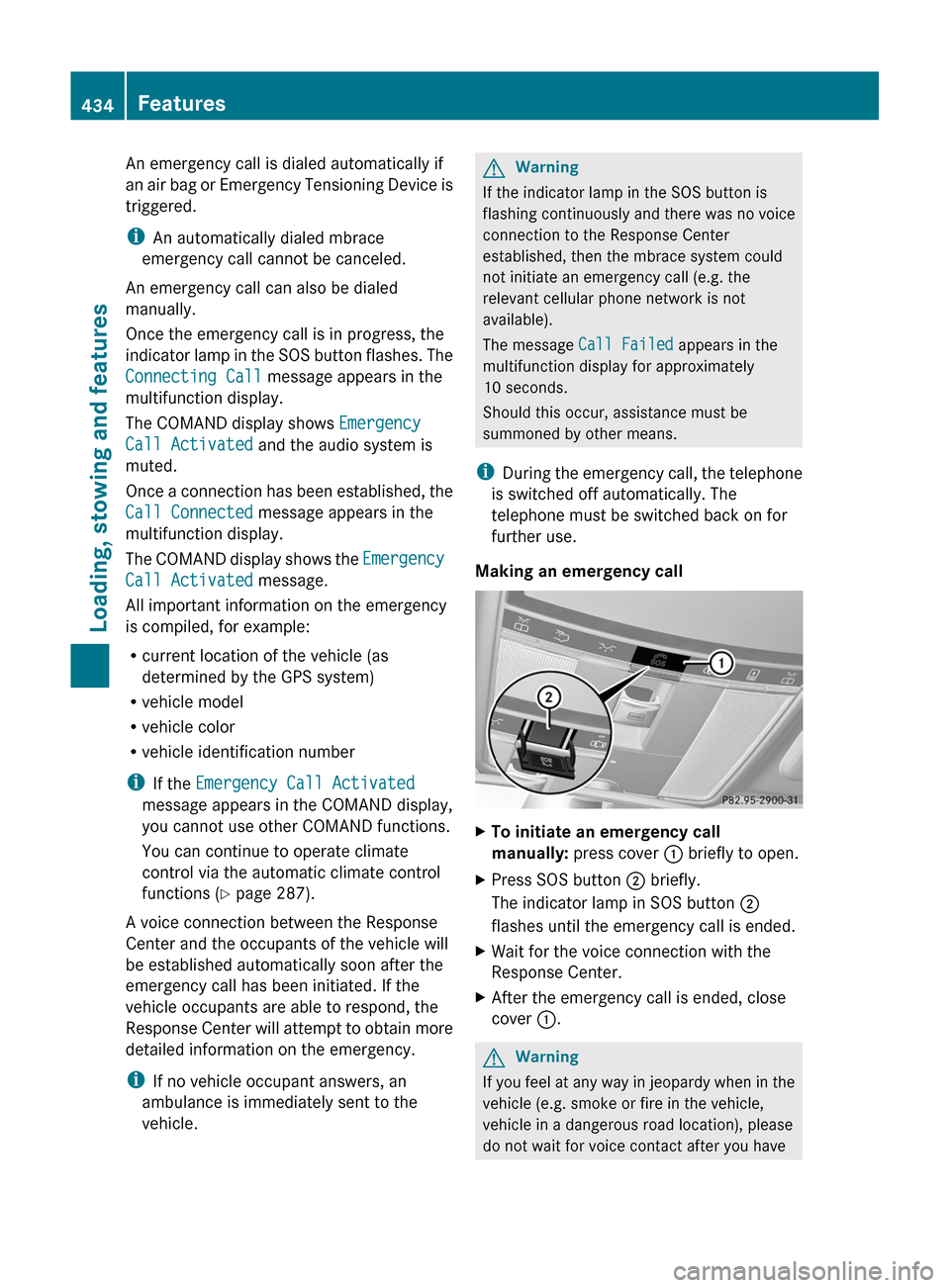
Making an emergency call
XTo initiate an emergency call
manually: press cover : briefly to open.
XPress SOS button ; briefly.
The indicator lamp in SOS button ;
flashes until the emergency call is ended.
XWait for the voice connection with the
Response Center.
XAfter the emergency call is ended, close
cover :.
GWarning
If you feel at any way in jeopardy when in the
vehicle (e.g. smoke or fire in the vehicle,
vehicle in a dangerous road location), please
do not wait for voice contact after you have
434FeaturesLoading, stowing and features