Sd card MERCEDES-BENZ S-Class 2011 W221 Owner's Manual
[x] Cancel search | Manufacturer: MERCEDES-BENZ, Model Year: 2011, Model line: S-Class, Model: MERCEDES-BENZ S-Class 2011 W221Pages: 524, PDF Size: 22.53 MB
Page 19 of 524
Rear window heatingMalfunction .................................... 293
Switching on/off ........................... 293
Redials ................................................ 197
Refueling ............................................ 313
Remote control .................................. 123
Programming (garage door
opener) .......................................... 440
Rear Seat Entertainment System ...138
Reporting
Malfunctions relevant to safety ........ 27
Reserve (fuel tank)
see Fuel
Reserve fuel
Display message ............................ 400
Warning lamp ................................. 418
Reset .................................................. 148
Residual heat Switching on/off ........................... 294
Restraint systems
see SRS
Reversing lamp (display message) .. 396
Roadside Assistance (breakdown) .... 25
Roller blind see Roller sunblind
Roller sunblind
Panorama roof with power tilt/
sliding panel ..................................... 95
Rear side windows ...........................90
Rear window .................................. 429
Rear window (COMAND) ................258
Roller sunblind of the panorama
roof with power tilt/sliding panel Operating (front roller sunblind) ....... 95
Operating (rear roller sunblind) ........96
Roof carrier ................................ 426, 427
Roof lining and carpets (cleaning
guidelines) ......................................... 459
Roof load (maximum) ........................ 516
Route Calculating ..................................... 154
Estimated time of arrival ................169
Route overview .............................. 170
see Route guidance (on-board
computer)
Route calculation
Starting .......................................... 154Route guidance .................................. 164
Cancel ........................................... 167
Continue ........................................ 167
Continuing ..................................... 167
Destination reached ......................168
Lane recommendations .................165
Off-road ......................................... 171
Traffic reports ................................ 172
Route guidance (on-board
computer) .......................................... 369
Route options Setting ........................................... 150
Route overview .................................. 170
Route type Setting ........................................... 150
S
Safety Children in the vehicle .....................60
Child restraint systems ....................61
Occupant Classification System
(OCS) ............................................... 48
Overview of occupant safety
systems ........................................... 42
Safety notes
Audio CD/DVD and MP3
mode ..................................... 217, 247
Operating safety ....................114, 266
Using the telephone ....................... 191
Video DVD mode ........................... 236
Safety systems
see Driving safety systems
SatRadio ............................................. 213
Displaying information ...................217
Registering .................................... 214
Selecting a category ......................215
Switching to ................................... 214
Screen
Selecting for remote operation ......138
SD memory card
Loading .......................................... 218
Seat
Active multicontour seat ........ 106, 268
Adjusting (rear compartment) ........102
Selecting (COMAND) .....................266
Index17
Page 37 of 524
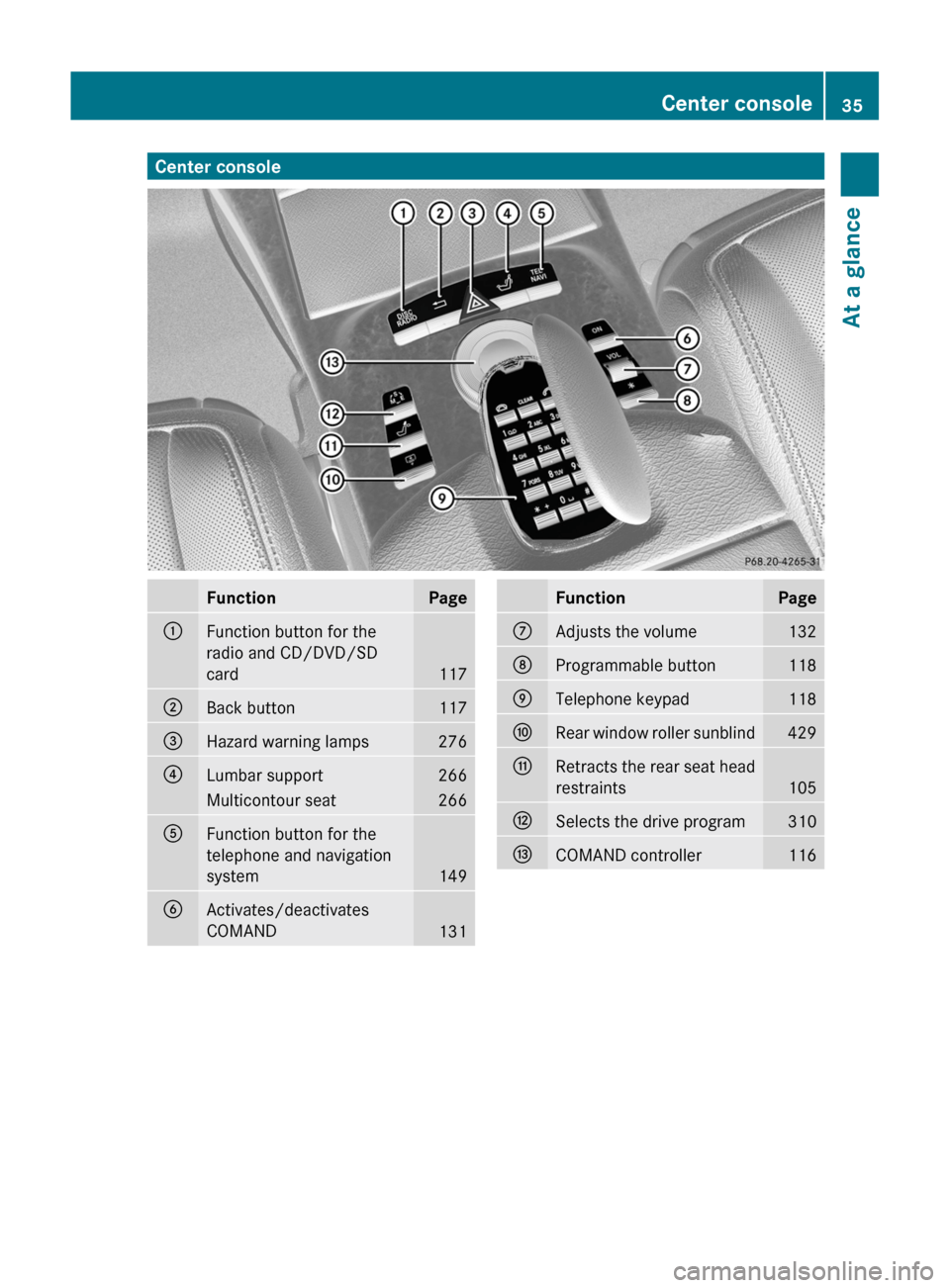
Center consoleFunctionPage:Function button for the
radio and CD/DVD/SD
card117
;Back button117=Hazard warning lamps276?Lumbar support266Multicontour seat266AFunction button for the
telephone and navigation
system149
BActivates/deactivates
COMAND131
FunctionPageCAdjusts the volume132DProgrammable button118ETelephone keypad118FRear window roller sunblind429GRetracts the rear seat head
restraints105
HSelects the drive program310ICOMAND controller116Center console35At a glance
Page 118 of 524
At a glance
COMAND operating system
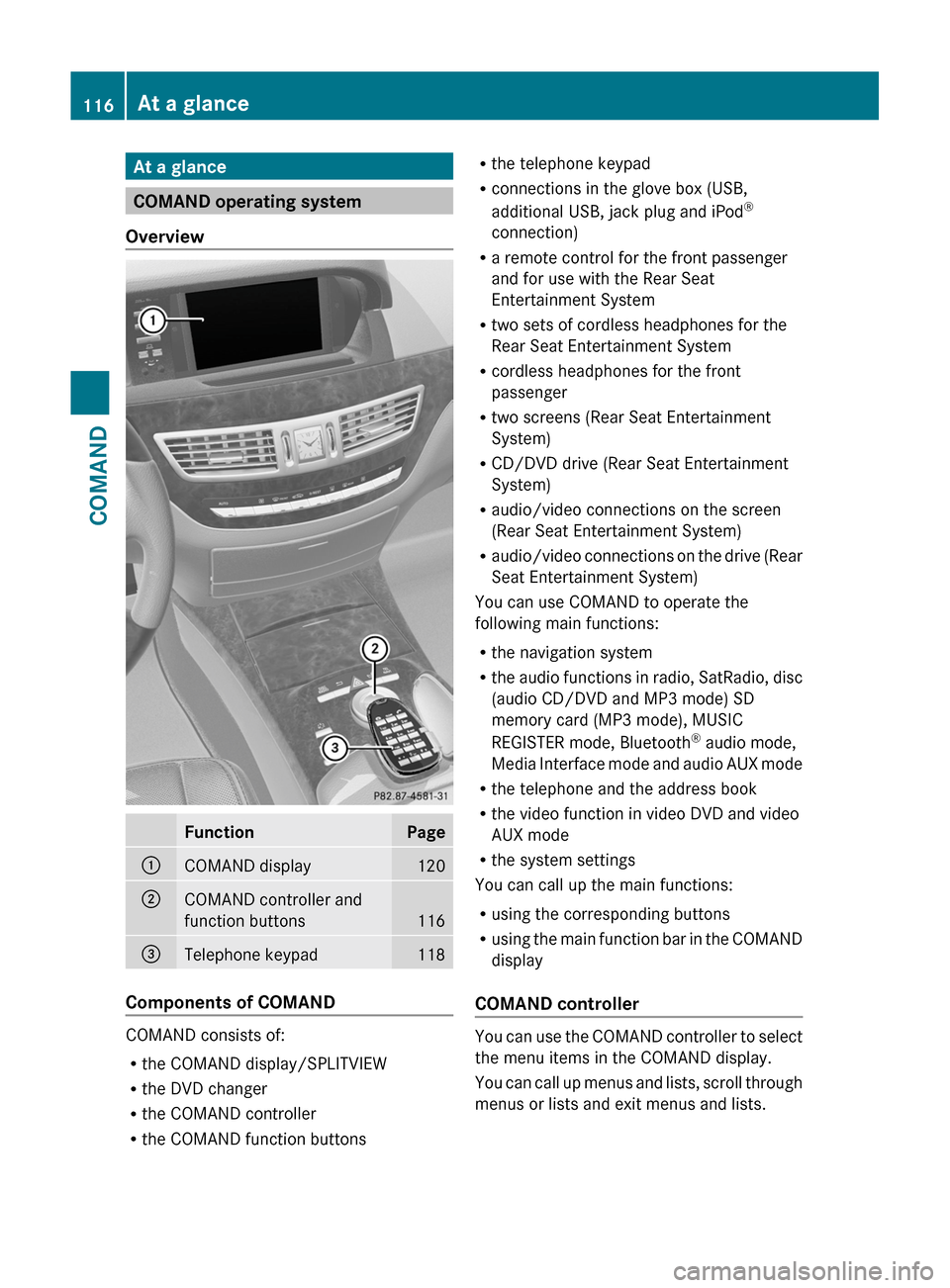
Overview
FunctionPage:COMAND display120;COMAND controller and
function buttons116
=Telephone keypad118
Components of COMAND
COMAND consists of:
Rthe COMAND display/SPLITVIEW
Rthe DVD changer
Rthe COMAND controller
Rthe COMAND function buttons
Rthe telephone keypad
Rconnections in the glove box (USB,
additional USB, jack plug and iPod®
connection)
Ra remote control for the front passenger
and for use with the Rear Seat
Entertainment System
Rtwo sets of cordless headphones for the
Rear Seat Entertainment System
Rcordless headphones for the front
passenger
Rtwo screens (Rear Seat Entertainment
System)
RCD/DVD drive (Rear Seat Entertainment
System)
Raudio/video connections on the screen
(Rear Seat Entertainment System)
Raudio/video connections on the drive (Rear
Seat Entertainment System)
You can use COMAND to operate the
following main functions:
Rthe navigation system
Rthe audio functions in radio, SatRadio, disc
(audio CD/DVD and MP3 mode) SD
memory card (MP3 mode), MUSIC
REGISTER mode, Bluetooth® audio mode,
Media Interface mode and audio AUX mode
Rthe telephone and the address book
Rthe video function in video DVD and video
AUX mode
Rthe system settings
You can call up the main functions:
Rusing the corresponding buttons
Rusing the main function bar in the COMAND
display
COMAND controller
You can use the COMAND controller to select
the menu items in the COMAND display.
You can call up menus and lists, scroll through
menus or lists and exit menus and lists.
116At a glanceCOMAND
Page 119 of 524
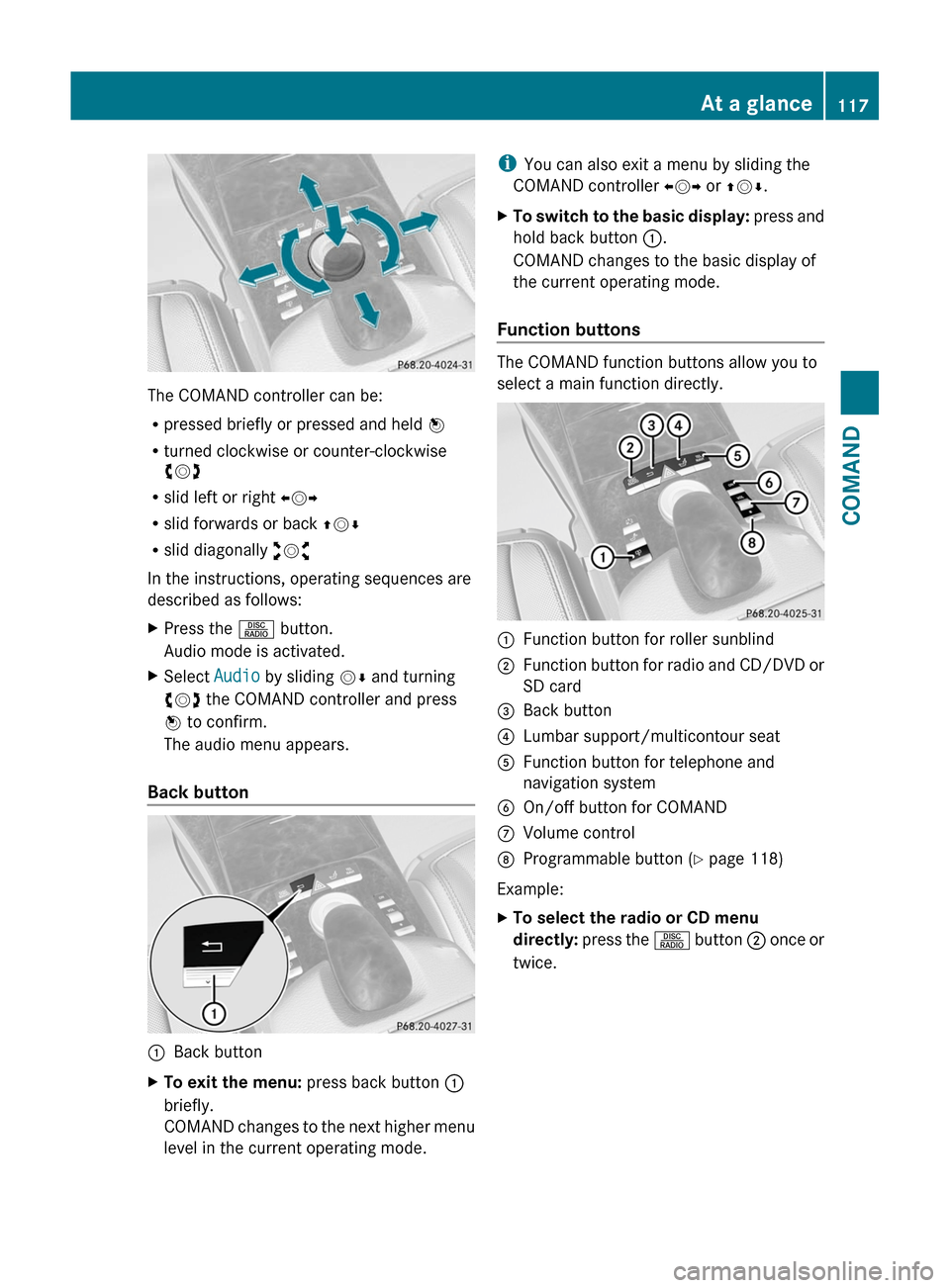
The COMAND controller can be:
Rpressed briefly or pressed and held W
Rturned clockwise or counter-clockwise
cVd
Rslid left or right XVY
Rslid forwards or back ZVÆ
Rslid diagonally aVb
In the instructions, operating sequences are
described as follows:
XPress the R button.
Audio mode is activated.
XSelect Audio by sliding VÆ and turning
cVd the COMAND controller and press
W to confirm.
The audio menu appears.
Back button
:Back buttonXTo exit the menu: press back button :
briefly.
COMAND changes to the next higher menu
level in the current operating mode.
iYou can also exit a menu by sliding the
COMAND controller XVY or ZVÆ.
XTo switch to the basic display: press and
hold back button :.
COMAND changes to the basic display of
the current operating mode.
Function buttons
The COMAND function buttons allow you to
select a main function directly.
:Function button for roller sunblind;Function button for radio and CD/DVD or
SD card
=Back button?Lumbar support/multicontour seatAFunction button for telephone and
navigation system
BOn/off button for COMANDCVolume controlDProgrammable button (Y page 118)
Example:
XTo select the radio or CD menu
directly: press the R button ; once or
twice.
At a glance117COMANDZ
Page 122 of 524
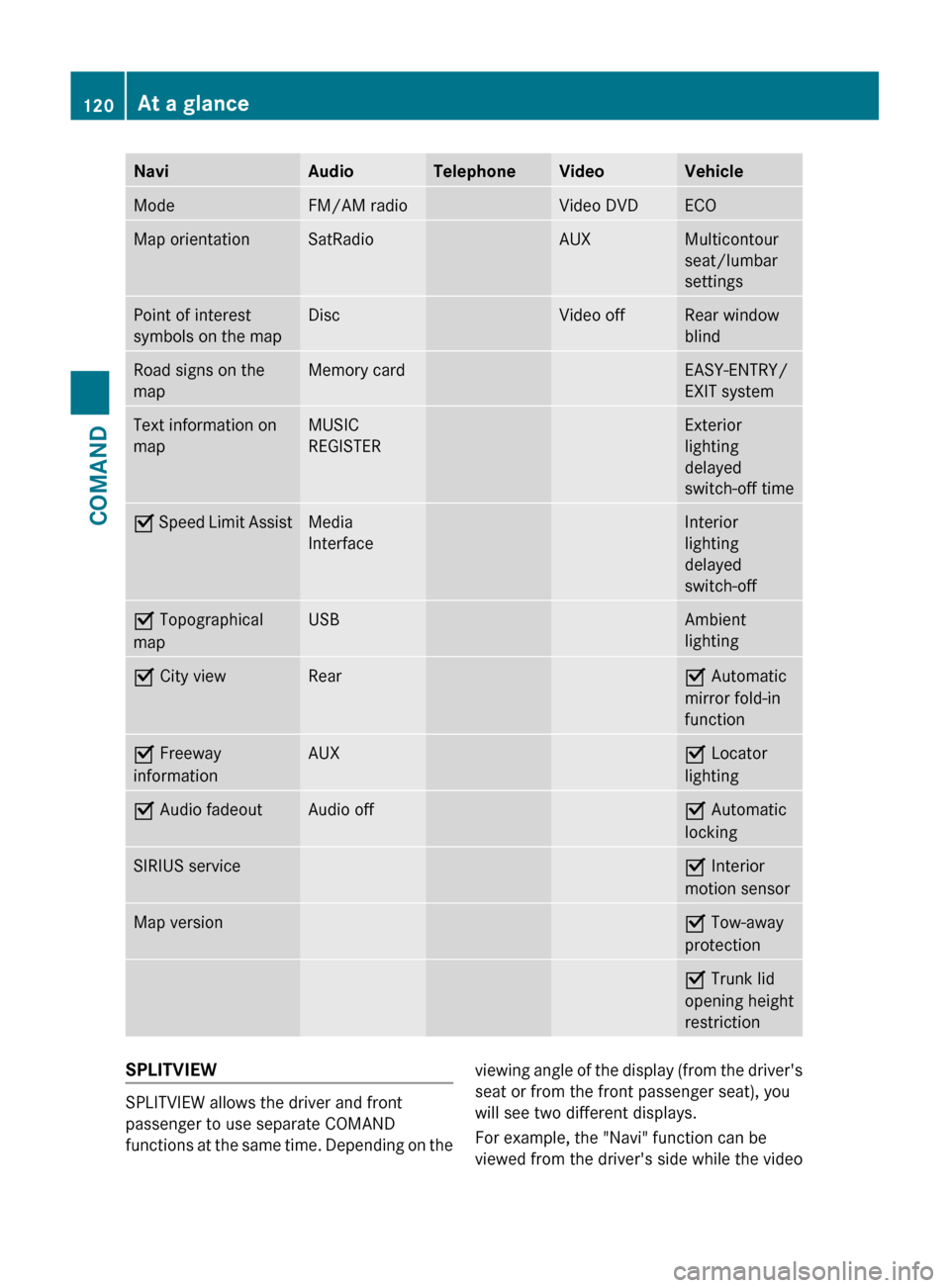
NaviAudioTelephoneVideoVehicleModeFM/AM radioVideo DVDECOMap orientationSatRadioAUXMulticontour
seat/lumbar
settingsPoint of interest
symbols on the mapDiscVideo offRear window
blindRoad signs on the
mapMemory cardEASY-ENTRY/
EXIT systemText information on
mapMUSIC
REGISTERExterior
lighting
delayed
switch-off timeO Speed Limit AssistMedia
InterfaceInterior
lighting
delayed
switch-offO Topographical
mapUSBAmbient
lightingO City viewRearO Automatic
mirror fold-in
functionO Freeway
informationAUXO Locator
lightingO Audio fadeoutAudio offO Automatic
lockingSIRIUS serviceO Interior
motion sensorMap versionO Tow-away
protectionO Trunk lid
opening height
restrictionSPLITVIEW
SPLITVIEW allows the driver and front
passenger to use separate COMAND
functions at the same time. Depending on the
viewing angle of the display (from the driver's
seat or from the front passenger seat), you
will see two different displays.
For example, the "Navi" function can be
viewed from the driver's side while the video120At a glanceCOMAND
Page 123 of 524
DVD function can be viewed from the front
passenger side.
Use the SPLITVIEW remote control to operate
COMAND from the front passenger side.
Points to remember:
RYour vehicle may be equipped with
SPLITVIEW. The use of SPLITVIEW is
currently not permitted in the following
states: AL, CO, IL, LA, MA, MD, NH, PA, VA,
VT, WA, WI, and WV as well as in the
Canadian provinces Manitoba,
Newfoundland, New Brunswick, and Prince
Edward Island. The driver is responsible for
complying with ALL regional laws. If your
vehicle is registered in a state or province
where SPLITVIEW is not permitted, this
function must be deactivated. Please
consult an authorized Mercedes-Benz
center to verify if the use of SPLITVIEW is
permitted in your state/province.
RThe SPLITVIEW remote control can be used
to adjust the volume of the front-passenger
side headphones. Before putting on the
headphones, make certain that the volume
has not been set too high.
RYou can only use media from the driver's
and front-passenger sides separately if the
media are from different sources. Example:
on the driver's side, an audio CD is being
played on the DVD changer. This means
that on the front-passenger side, the DVD
changer cannot be used to play a different
medium, for instance a video DVD.
However, other media can be used at the
same time on the front-passenger side,
including radio, memory card, MUSIC
REGISTER, Media Interface, USB or AUX.
RIf you use the same medium on both sides,
you can both carry out the respective
settings.
RThere must be clear line of sight between
the headphones and the display so that
COMAND can optimally transmit music and
speech via the infrared signal on the front-
passenger's headphones. For this reason,
please also observe that the headphones
have left and right sides, and use them
correctly.
RUsing SPLITVIEW you can only use
entertainment functions separately, such
as audio and video functions.
RThe multifunction steering wheel can only
used for functions which relate to the
driver's side.
Switching SPLITVIEW on/off
XTo switch on SPLITVIEW: select
Vehicle from the main function bar by
turning cVd the COMAND controller and
press W to confirm.
The "Vehicle" menu appears.
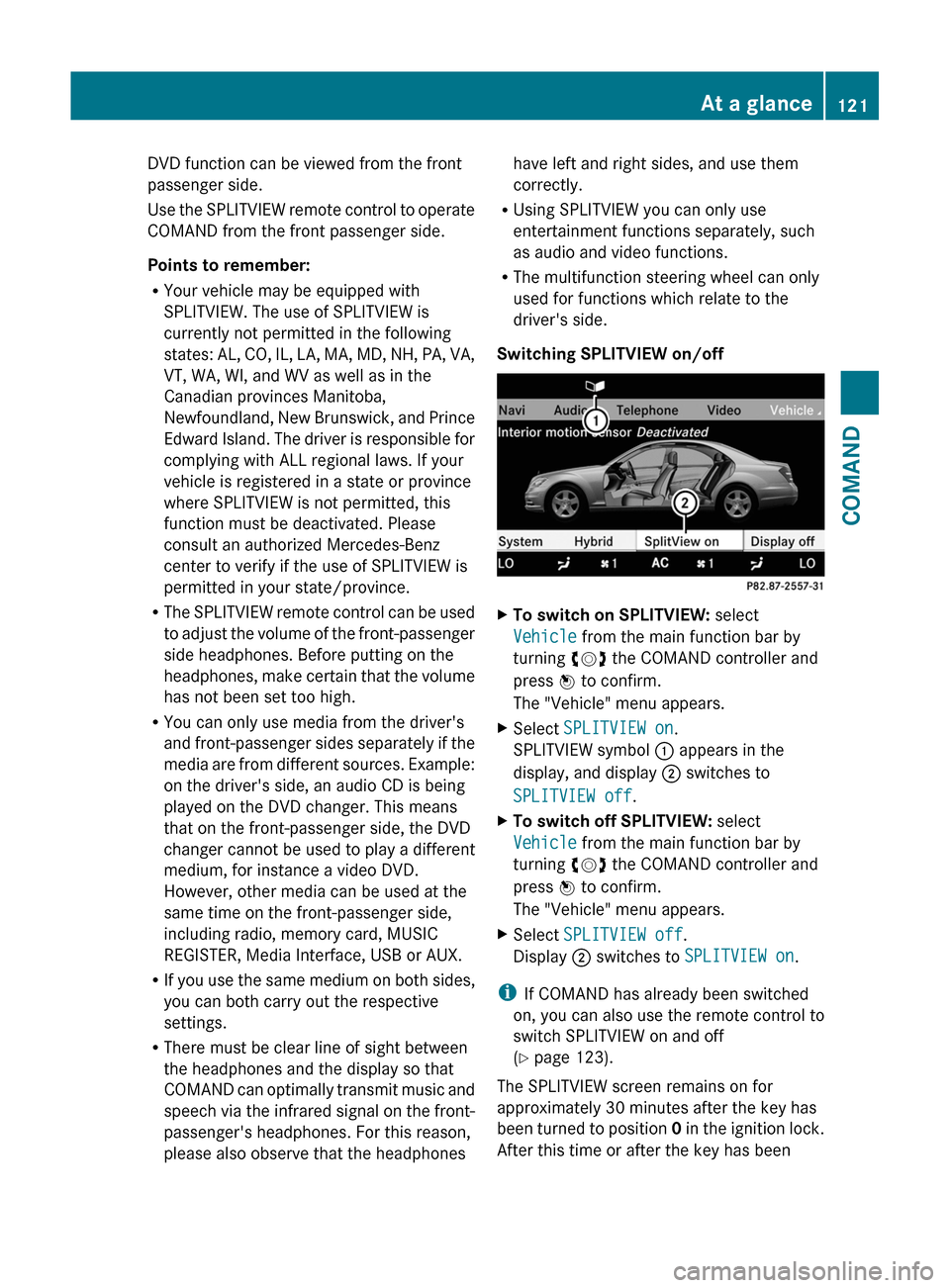
XSelect SPLITVIEW on.
SPLITVIEW symbol : appears in the
display, and display ; switches to
SPLITVIEW off.
XTo switch off SPLITVIEW: select
Vehicle from the main function bar by
turning cVd the COMAND controller and
press W to confirm.
The "Vehicle" menu appears.
XSelect SPLITVIEW off.
Display ; switches to SPLITVIEW on.
iIf COMAND has already been switched
on, you can also use the remote control to
switch SPLITVIEW on and off
(Y page 123).
The SPLITVIEW screen remains on for
approximately 30 minutes after the key has
been turned to position 0 in the ignition lock.
After this time or after the key has been
At a glance121COMANDZ
Page 136 of 524
Surround sound
General notes
If your vehicle is equipped with the harman/
kardon® Logic 7® surround sound system,
you can set the optimum surround sound for
every passenger.
The harman/kardon® Logic 7® surround
sound system is available for the following
operating modes:
Rradio (FM only)
Rsatellite radio
Raudio CD
Raudio DVD (MLP, dts, PCM and Dolby
Digital audio formats)
RMP3 (including SD memory card)
RBluetooth® audio mode
RMedia Interface
Rvideo DVD (PCM, dts and Dolby Digital
audio formats)
RAUX
Because many DVDs contain both stereo and
multi-channel audio formats, it may be
necessary to set the audio format
(Y page 223).
iThe Logic7® On function enables
playback of, e.g. stereo recordings with a
surround sound experience for every
passenger. It enables optimum playback of
music and films on CD, audio DVD or video
DVD with multichannel audio formats, such
as MLP, dts or Dolby Digital. The resulting
audio experience reflects that intended by
the sound engineer during the original
recording.
iIf you select LOGIC7® Off, the sound
system plays the tracks as stored on the
medium. Due to the design of the
passenger compartment, an optimum
audio experience cannot be guaranteed for
all passengers.
iDiscs which support the audio formats
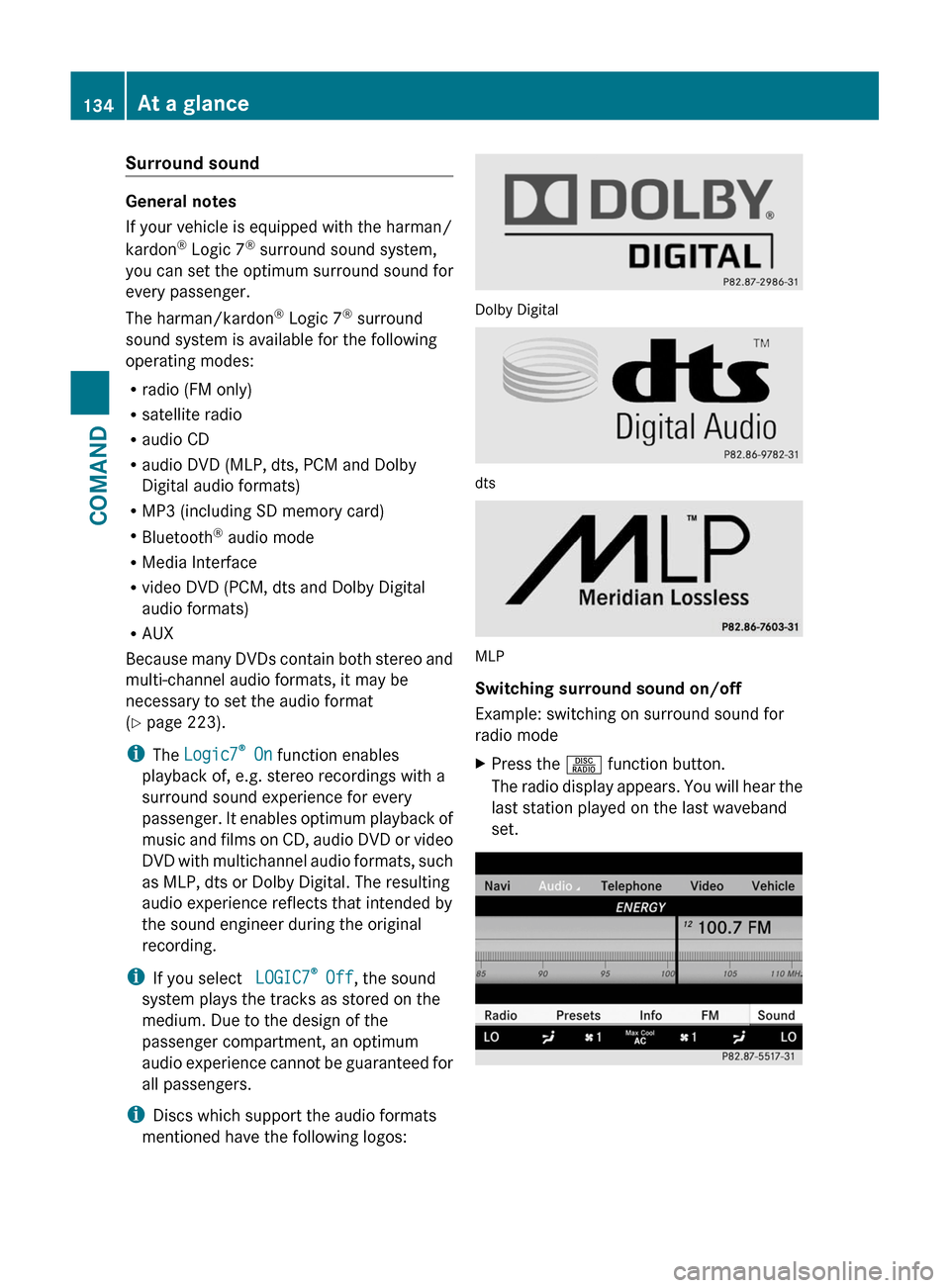
mentioned have the following logos:
Dolby Digital
dts
MLP
Switching surround sound on/off
Example: switching on surround sound for
radio mode
XPress the R function button.
The radio display appears. You will hear the
last station played on the last waveband
set.
134At a glanceCOMAND
Page 147 of 524
XSelect Yes or No and press W to confirm.
If you select No, the process will be aborted.
If you select Yes, the individualization is
deleted. You will see a message to this
effect.
Bluetooth® settings
General information about Bluetooth®
Bluetooth® technology is the standard for
short-range wireless data transmission of up
to approximately 10 meters. Bluetooth®
allows, for example, the exchange of vCards.
Bluetooth® is a registered trademark of
Bluetooth Special Interest Group (SIG) Inc.
Requirements for a Bluetooth®
connection
You can connect mobile phones and
notebooks with COMAND.
To do so, the following conditions need to be
met:
RBluetooth®-capable devices, e.g. mobile
phones, must comply with a certain profile
in order to be connected to COMAND.
Every Bluetooth® device has its own
specific Bluetooth® name.
RBluetooth® must be activated in COMAND
and on the respective Bluetooth® device;
see the separate operating instructions.
Rthe Bluetooth® device must be "visible" to
COMAND in order for COMAND to find and
display it. For the setting procedures,
please see the operating instructions for
the Bluetooth® device.
iOnce a mobile phone has been
connected, reception and transmission
volume may change.
Activating/deactivating Bluetooth®
XSelect Vehicle in the main function bar by
turning cVd the COMAND controller and
press W to confirm.
XSelect System by turning cVd the
COMAND controller and press W to
confirm.
XSelect Bluetooth by turning cVd the
COMAND controller and press W to
confirm.
XSelect Bluetooth activated and press
W to confirm.
This switches Bluetooth® on O or off ª.
Connecting Bluetooth® devices
General information
Before using your Bluetooth® device with
COMAND for the first time, you will need to
connect it.
Connecting is comprised of:
Rsearching for a Bluetooth® device and
Rsubsequently authorizing it
iYou can connect up to ten devices to
COMAND.
For more information on suitable mobile
phones and on connecting a Bluetooth®-
capable mobile phone to COMAND, visit
http://www.mbusa-mobile.com or call
the Mercedes-Benz Customer Assistance
Center at
1-800-FOR-MERCedes(1-800-367-6372)
(US) or Customer Service at
1-800-387-0100 (Canada).
System settings145COMANDZ
Page 187 of 524
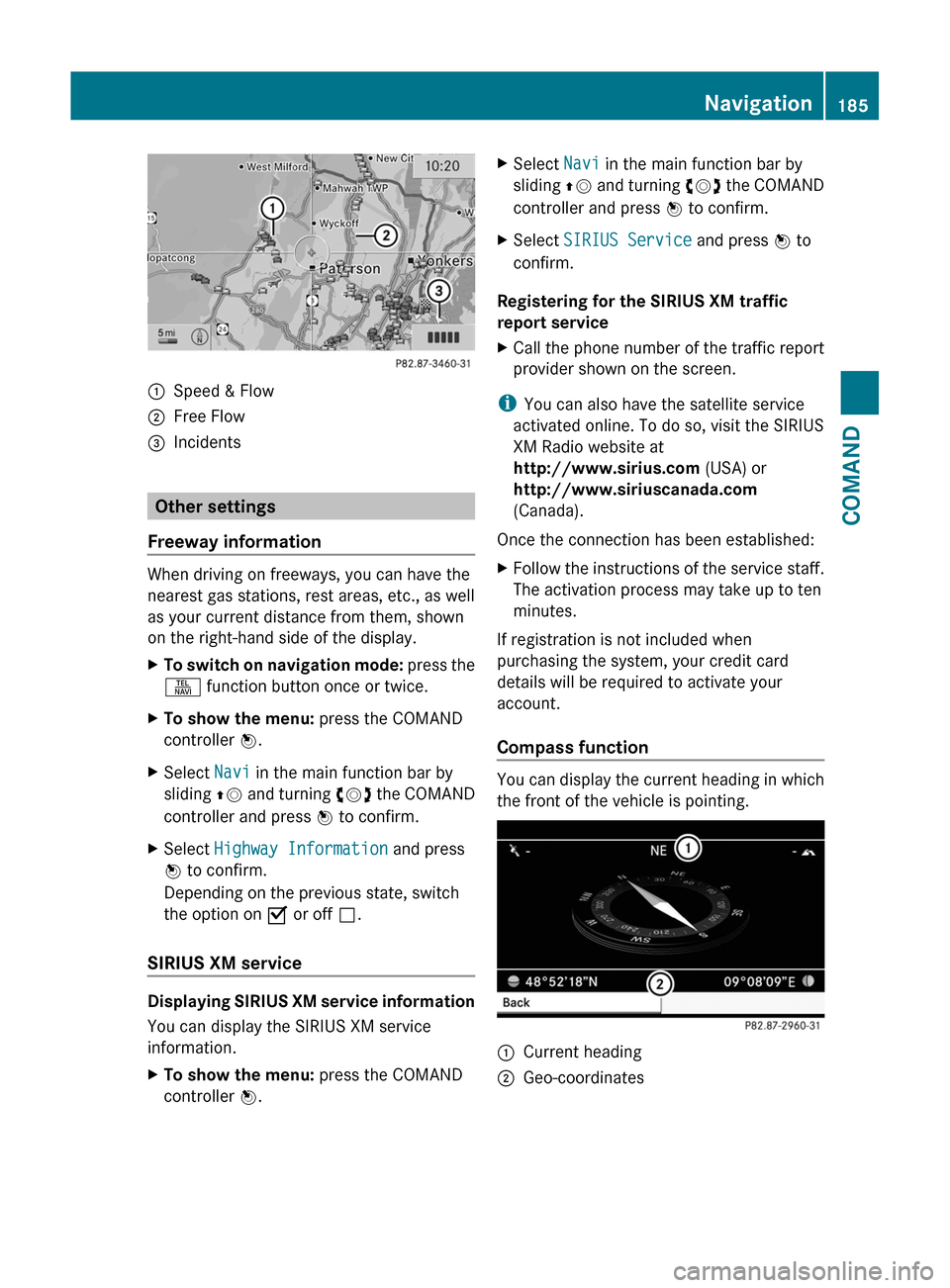
:Speed & Flow;Free Flow=Incidents
Other settings
Freeway information
When driving on freeways, you can have the
nearest gas stations, rest areas, etc., as well
as your current distance from them, shown
on the right-hand side of the display.
XTo switch on navigation mode: press the
S function button once or twice.
XTo show the menu: press the COMAND
controller W.
XSelect Navi in the main function bar by
sliding ZV and turning cVd the COMAND
controller and press W to confirm.
XSelect Highway Information and press
W to confirm.
Depending on the previous state, switch
the option on O or off ª.
SIRIUS XM service
Displaying SIRIUS XM service information
You can display the SIRIUS XM service
information.
XTo show the menu: press the COMAND
controller W.
XSelect Navi in the main function bar by
sliding ZV and turning cVd the COMAND
controller and press W to confirm.
XSelect SIRIUS Service and press W to
confirm.
Registering for the SIRIUS XM traffic
report service
XCall the phone number of the traffic report
provider shown on the screen.
iYou can also have the satellite service
activated online. To do so, visit the SIRIUS
XM Radio website at
http://www.sirius.com (USA) or
http://www.siriuscanada.com
(Canada).
Once the connection has been established:
XFollow the instructions of the service staff.
The activation process may take up to ten
minutes.
If registration is not included when
purchasing the system, your credit card
details will be required to activate your
account.
Compass function
You can display the current heading in which
the front of the vehicle is pointing.
:Current heading;Geo-coordinatesNavigation185COMANDZ
Page 193 of 524
Telephone
Vehicle equipment
i These Operating Instructions describe all
standard and optional equipment available
for your vehicle at the time of purchase.
Please note that your vehicle may not be
equipped with all features described.
General information
Introduction
The telephone function, in conjunction with a
Bluetooth ®
-capable mobile phone, offers
Bluetooth ®
interface telephony.
Using theBluetooth ®
interface and a suitable
mobile phone, you can receive vCards.
For more information on suitable mobile
phones and on connecting a Bluetooth ®
-
capable mobile phone to COMAND, visit
http://www.mbusa-mobile.com or call
the Mercedes-Benz Customer Assistance
Center under
1-800-FOR-MERCedes(1-800-367-6372)
(US) or Customer Relations under
1-800-387-0100 (Canada).
Important safety notes
GWarning
A driver's attention to the road must always
be his/her primary focus when driving. For
your safety and the safety of others, we
recommend that you pull over to a safe
location and stop before placing or taking a
telephone call. If you choose to use the mobile
phone while driving, please use the handsfree
device and only use the mobile phone when
weather, road, and traffic conditions permit.
Some jurisdictions prohibit the driver from
using a cellular mobile phone while driving a
vehicle.
Bear in mind that at a speed of just 30 mph
(approximately 50 km/h), your vehicle is
covering a distance of 44 feet (approximately
14 m) every second.GWarning
You and others may damage your health due
to excessive electromagnetic radiation. By
using an external antenna, the possible health
risks of electromagnetic fields, which are
under discussion among the scientific
community, should be largely prevented.
Calls disconnected while the vehicle is
in motion
A call may be disconnected if:
R there is insufficient network coverage in
certain areas.
R you move from one transmitter/receiver
area (cell) into another and no channels are
free.
R you use a SIM card which is not compatible
with the network available.
R when using a mobile phone with
"Twincard", the second SIM card is
registered on the network at the same time.
Operating options
You can operate the telephone by using:
R the = and ; button or the 9 button
on COMAND
R the 6 or ~ button and the number
keypad on COMAND
R using the 6 or ~ button on the
multifunction steering wheel
R voice commands via the Voice Control
System
Unless stated otherwise, the descriptions and
illustrations in this section refer to COMAND.
Function restrictions
You will not yet be able to use the telephone
in the following situations:
R when the mobile phone is not yet
connected to a network The telephone
Telephone191COMANDZ