bluetooth MERCEDES-BENZ S-Class 2013 W221 User Guide
[x] Cancel search | Manufacturer: MERCEDES-BENZ, Model Year: 2013, Model line: S-Class, Model: MERCEDES-BENZ S-Class 2013 W221Pages: 542, PDF Size: 7.97 MB
Page 202 of 542
When you authorize a new mobile phone, it is
connected automatically.
Connecting comprises:
R
searching for a Bluetooth ®
-capable mobile
phone
R subsequently authorizing it
You can connect up to 15 mobile phones.
Searching for amobile phone
X To call up the telephone menu: press the
0011 function button once or twice.
X Select Data/Connections in the
telephone basic menu by sliding 001C0006and
turning 0031001C0032the COMAND controller and
press 0021to confirm.
X Select Bluetooth Telephones and press
0021 to confirm.
X Select Update and press
0021to confirm.
COMAND searches for Bluetooth ®
telephones within range and adds them to
the Bluetooth ®
telephone list.
The duration of the searc hdepends on the
number of Bluetooth ®
telephones within
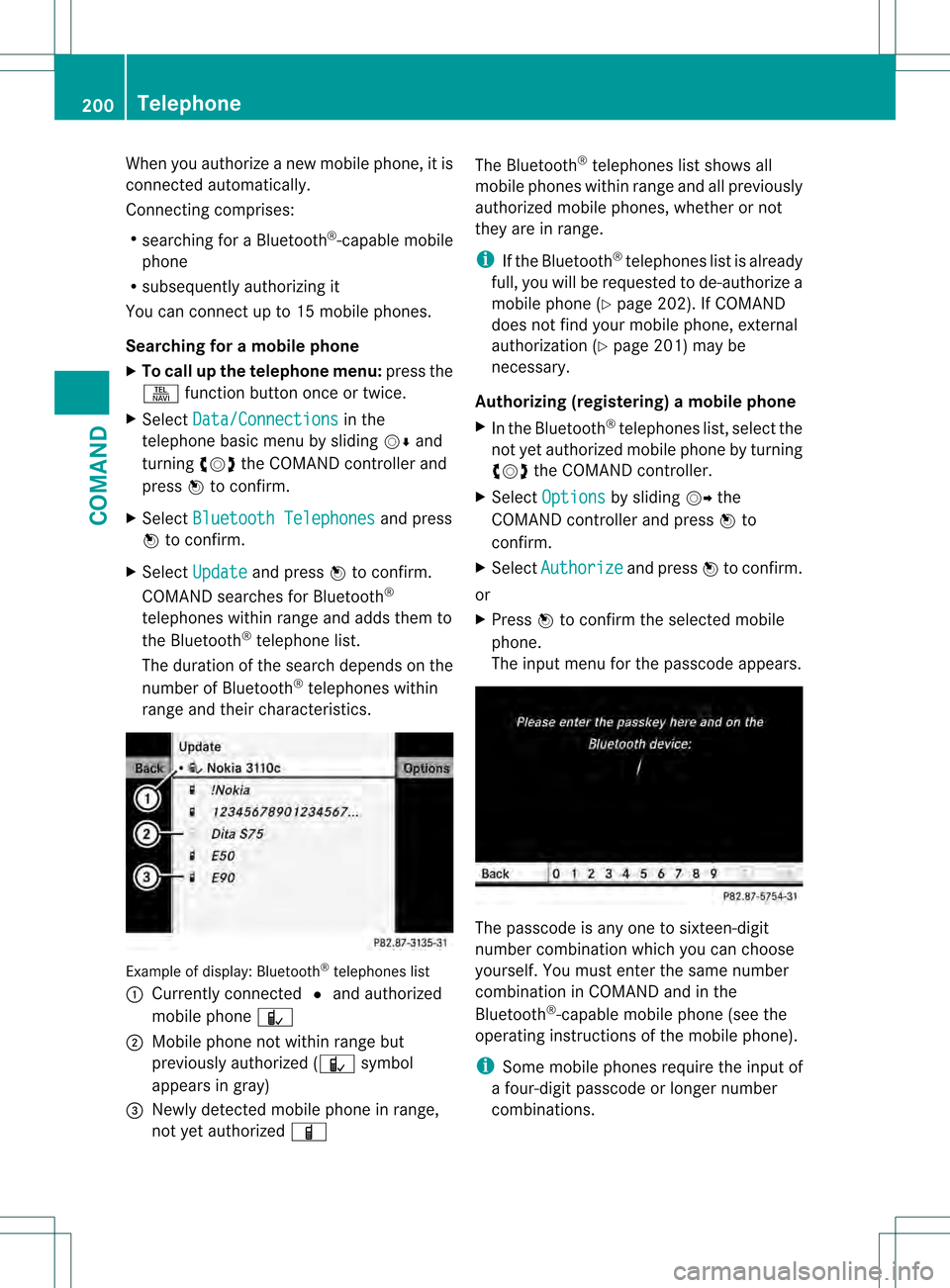
range and their characteristics. Example of display: Bluetooth
®
telephones list
0002 Currently connected 002Cand authorized
mobile phone 0017
0003 Mobile phone not within range but
previously authorized ( 0017symbol
appears in gray)
0026 Newly detected mobile phone in range,
not yet authorized 000D The Bluetooth
®
telephones list shows all
mobile phones within range and all previously
authorized mobile phones, whether or not
they are in range.
i If the Bluetooth ®
telephones list is already
full, you will be requested to de-authorize a
mobile phone ( Ypage 202). If COMAND
does not find your mobile phone, external
authorization (Y page 201) may be
necessary.
Authorizing (registering) amobile phone
X In the Bluetooth ®
telephones list, selec tthe
not yet authorized mobile phone by turning
0031001C0032 the COMAND controller.
X Select Options by sliding
001C003Dthe
COMAND controller and press 0021to
confirm.
X Select Authorize and press
0021to confirm.
or
X Press 0021to confirm the selected mobile
phone.
The input menu for the passcode appears. The passcode is any one to sixteen-digit
number combination which you can choose
yourself. You must enter the same number
combination in COMAND and in the
Bluetooth
®
-capable mobile phone (see the
operating instructions of the mobile phone).
i Some mobile phones require the input of
a four-digit passcode or longer number
combinations. 200
TelephoneCOMAND
Page 203 of 542
If you want to reauthorize a mobile phone
following de-authorization, you can select a
different passcode.
X
To enter apasscode in COMAND: press
the numbe rkeys in sequence.
0003 is available for selection after the first
number has been entered.
or
X Select the digits one by one by turning
0031001C0032 the COMAND controller and press
0021 to confirm.
X To confirm an entry in COMAND: select
0003 using the COMAND controller and
press 0021to confirm.
or
X Select SENDon the telephone keypad.
X Now enter the same passcode in the mobile
phone.
To make entries on the mobile phone: if
the Bluetooth ®
connection is successful, you
will be requested to enter the passcode (see
mobile phone operating instructions).
X Enter the same passcode on the mobile
phone that you entered in COMAND.
i After entering the passcode, you may also
need to enter a confirmation in your mobile
phone to connectc alls. Please check your
mobile phone display.
If the Error during authorization process message appears on the
COMAND display, you may have exceeded
the allowed time. Repeat th eprocedure.
The mobile phone is connected to COMAND
(authorized) .You can now make phone calls
using the COMAND hands-free system.
External authorization If COMAND does not detect your mobile
phone, this may be due to particular security
settings on your mobile phone. In this case,
you can test if your mobile phone can find
COMAND. The Bluetooth ®
device name of
COMAND is MB Bluetooth .Observe the following: some mobile phones
require that you reconnect to COMAND after
you have entered the passcode (see the
mobile phone operating instructions). The
mobile phone cannot otherwise be
authorized.
X
Press the 0011function button on the
COMAND controller once or twice.
X Select Data/Connections in the
telephone basic menu by sliding 001C0006and
turning 0031001C0032the COMAND controller and
press 0021to confirm.
X Select Bluetooth Telephones and press
0021 to confirm.
X Select Update .
X Select Options by sliding
001C003Dand press
0021 to confirm.
X Select External Authorization and
press 0021to confirm.
X Start the Bluetooth ®
search on the mobile
phone (see the mobile phone operating
instructions).
X Select COMAND (MB Bluetooth ) on the
mobile phone.
i The order in which the passkey is entered
depends on the mobile phone.
X Enter the passkey on the mobile phone
when prompted.
X Confirm the Do you want to authorize
XX? question in COMAND with
Yes .
X Enter the passkey in COMAND.
Connecting another mobile phone If you have authorized more than one mobile
phone, you can switch between the individual
phones.
i
You can only switch to another authorized
phone if you are not currently making a call.
X Select the mobile phone in the Bluetooth ®
telephones list by turning 0031001C0032the Telephone
201COMAND Z
Page 204 of 542
COMAND controller and press
0021to
confirm.
The selected mobile phone is searched for
and connected if it is within Bluetooth ®
range and if Bluetooth ®
is activated.
Only one mobile phone can be connected
at any one time. The currently connected
mobile phone is indicated by the 002Cdot in
the Bluetooth ®
telephones list
(Y page 199).
Displaying details X
Select Data/Connections in the
telephone basic menu by sliding 001C0006and
turning 0031001C0032the COMAND controller and
press 0021to confirm.
X Select Bluetooth Telephones and press
0021 to confirm.
X Selec tthe desired mobile phone in the
Bluetooth ®
telephones list.
X Select Options by sliding
001C003Dand press
0021 to confirm.
X Select Details and press
0021to confirm.
The following information concerning the
selected mobile phone is shown:
R Bluetooth ®
name
R Bluetooth ®
address
R equipment class, e.g. telephone,
computer
R availability
R authorization status
X To close the detailed view: turn0031001C0032 or
slide 003C001C003D the COMAND controller.
De-registering (de-authorizing) amobile
phone Mercedes-Benz USA, LLC recommends de-
authorizating in both COMAND and the
mobile phone. Subsequen tauthorization may
otherwise fail. X
To call up the telephone menu: press the
0011 function button once or twice.
X Select Data/Connections in the
telephone basic menu by sliding 001C0006and
turning 0031001C0032the COMAND controller and
press 0021to confirm.
X Select Bluetooth Telephones and press
0021 to confirm.
X Selec tthe desired mobile phone in the
Bluetooth ®
telephones list.
X Select Options by sliding
001C003Dand press
0021 to confirm.
X Select De-authorize and press
0021to
confirm.
Ap rompt appears asking whethe ryou
really wish to de-authorize this device.
X Select Yes or
No .
If you select Yes , the device will be deleted
from the Bluetooth ®
telephones list.
If you select No , the process will be aborted.
i Before re-authorizing the mobile phone,
you should also delete the device name MB Bluetooth from your mobile phone's
Bluetooth ®
list.
Basic telephone menu (Bluetooth ®
interface) X
To call up the telephone menu: press the
0011 function button once or twice.
If the mobile phone is ready for use, the
following display appears: 202
TelephoneCOMAND
Page 205 of 542
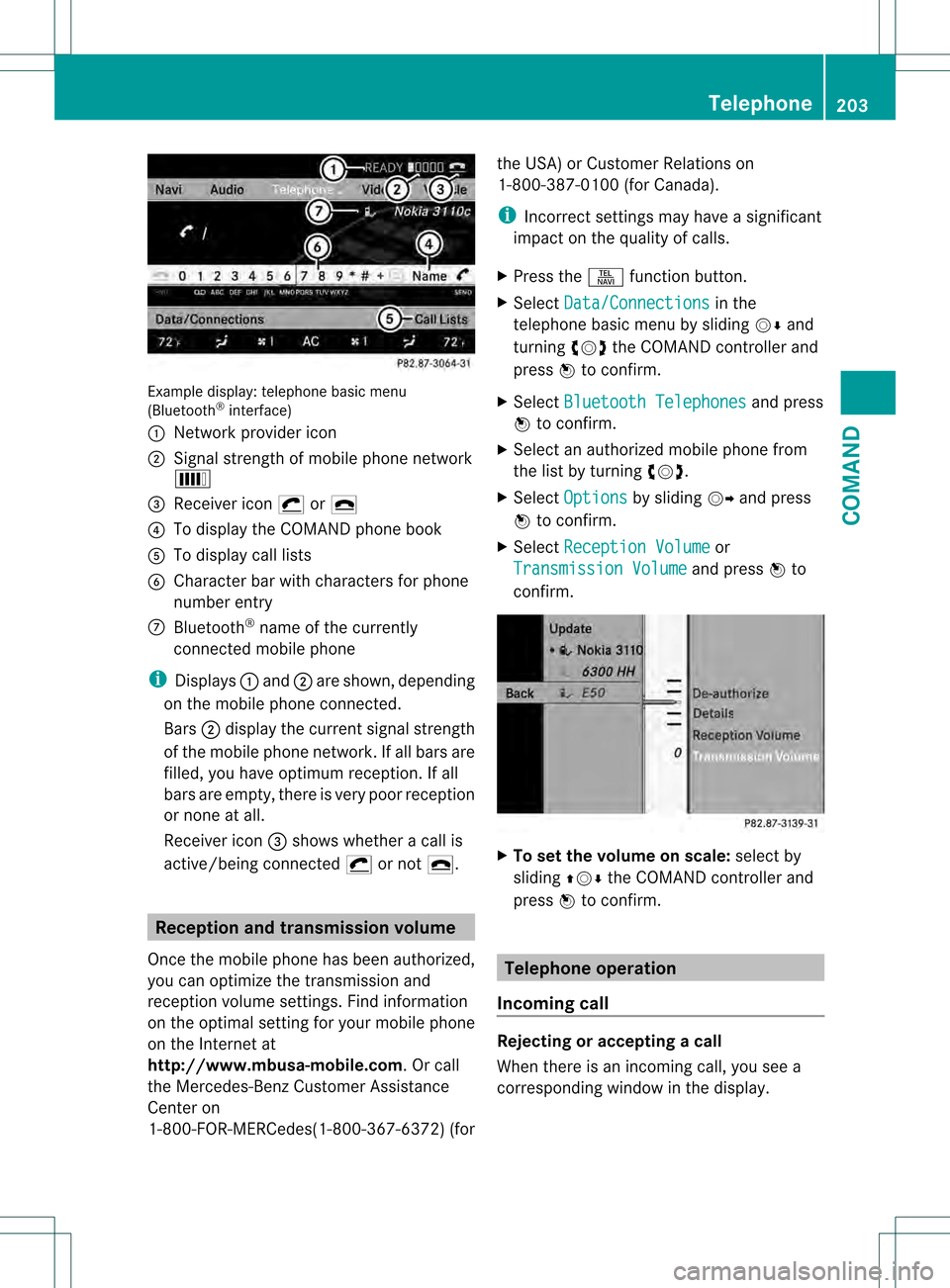
Example display
:telephone basic menu
(Bluetooth ®
interface)
0002 Network provider icon
0003 Signal strength of mobile phone network
0016
0026 Receiver icon 0019or003E
0025 To display the COMAND phone book
0023 To display call lists
0024 Character bar with characters for phone
number entry
0014 Bluetooth ®
name of the currently
connected mobile phone
i Displays 0002and 0003are shown, depending
on the mobile phone connected.
Bars 0003display the curren tsignal strength
of the mobile phone network .Ifall bars are
filled, you have optimum reception. If all
bars are empty, there is very poor reception
or none at all.
Receiver icon 0026shows whether a call is
active/being connected 0019or not 003E. Reception and transmission volume
Once the mobile phone has been authorized,
you can optimize the transmission and
receptio nvolume settings. Find information
on the optimal setting for your mobile phone
on the Internet at
http://www.mbusa-mobile.com. Or call
the Mercedes-Benz Customer Assistance
Center on
1-800-FOR-MERCedes(1-800-367-6372) (forthe USA) or Customer Relations on
1-800-387-010
0(for Canada).
i Incorrect settings may have a significant
impact on the quality of calls.
X Press the 0011function button.
X Select Data/Connections in the
telephone basic menu by sliding 001C0006and
turning 0031001C0032the COMAND controller and
press 0021to confirm.
X Select Bluetooth Telephones and press
0021 to confirm.
X Selec tana uthorized mobile phone from
the list by turning 0031001C0032.
X Select Options by sliding
001C003Dand press
0021 to confirm.
X Select Reception Volume or
Transmission Volume and press
0021to
confirm. X
To set the volume on scale: select by
sliding 002A001C0006the COMAND controller and
press 0021to confirm. Telephone operation
Incoming call Rejecting or accepting
acall
When there is an incoming call, you see a
corresponding window in the display. Telephone
203COMAND Z
Page 210 of 542
The address book organizes and stores
entries that are entered from different
sources (mobile phone, SD memory card,
Bluetooth ®
import, COMAND phone book,
navigation). You can use these entries to
make telephone calls and for navigation. You
can create a maximum of 3000 address book
entries.
Importing contacts automatically COMAND automatically imports contacts
from a mobile phone to the phone book.
In this case, the mobile phone must be active
via the Bluetooth ®
interface.
Depending on the mobile phone, this process
may take some time. Depending on the
mobile phone used, only the phone book
entries in the mobile phone or these entries
and the phone book entries from the SIM card
are imported.
Automatically imported contacts in COMAND
can be identified by the 0014/0001symbol.
These are available to you in COMAND only
when the mobile phone is active via the
Bluetooth ®
interface.
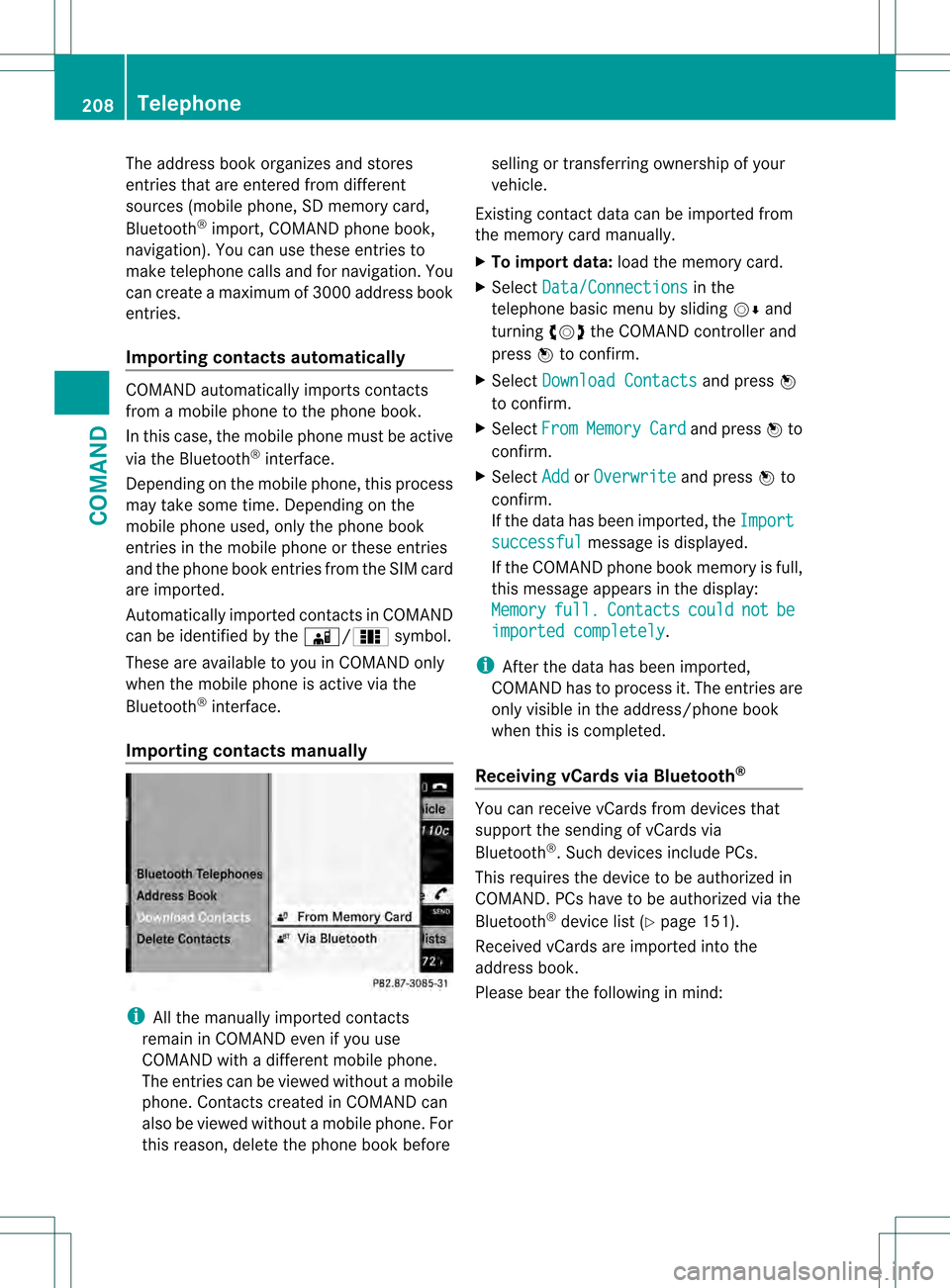
Importing contacts manually i
All the manually imported contacts
remain in COMAND even if you use
COMAND with a different mobile phone.
The entries can be viewed without a mobile
phone. Contacts created in COMAND can
also be viewed without a mobile phone. For
this reason, delete the phone book before selling or transferring ownership of your
vehicle.
Existing contact data can be imported from
the memory card manually.
X To import data: load the memory card.
X Select Data/Connections in the
telephone basic menu by sliding 001C0006and
turning 0031001C0032the COMAND controller and
press 0021to confirm.
X Select Download Contacts and press
0021
to confirm.
X Select From Memory Card and press
0021to
confirm.
X Select Add or
Overwrite and press
0021to
confirm.
If the data has been imported, the Import successful message is displayed.
If the COMAND phone book memory is full,
this message appears in the display:
Memory full. Contacts could not be
imported completely .
i After the data has been imported,
COMAND has to process it. The entries are
only visible in the address/phone book
when this is completed.
Receiving vCards via Bluetooth ® You can receive vCards from devices that
support the sending of vCards via
Bluetooth
®
.S uch devices include PCs.
This requires the device to be authorized in
COMAND .PCs have to be authorized via the
Bluetooth ®
device list (Y page 151).
Received vCards are imported into the
address book.
Please bear the following in mind: 208
TelephoneCOMAND
Page 211 of 542
R
Bluetooth ®
must be activated in COMAND
and on the Bluetooth ®
device ( 0005operating
instructions of the device).
R the Bluetooth ®
device mus tbe able to send
vCards via Bluetooth ®
(0005 operating
instructions of the device).
R the Bluetooth ®
device in the vehicle must
be switched on.
i If you switch to another main function,
e.g. navigation, while receiving vCards, the
reception of vCards will be terminated.
X Select Data/Connections in the
telephone basic menu by sliding 001C0006and
turning 0031001C0032the COMAND controller and
press 0021to confirm.
X Select Download Contacts and press
0021
to confirm.
X Select Via Bluetooth and press
0021to
confirm.
This interrupts the Bluetooth ®
connection
between COMAND and your active mobile
phone. In turn, COMAND is ready to receive
vCards from another Bluetooth ®
device.
X Start data transfer on the external
Bluetooth device ( 0005operating instructions
of the device).
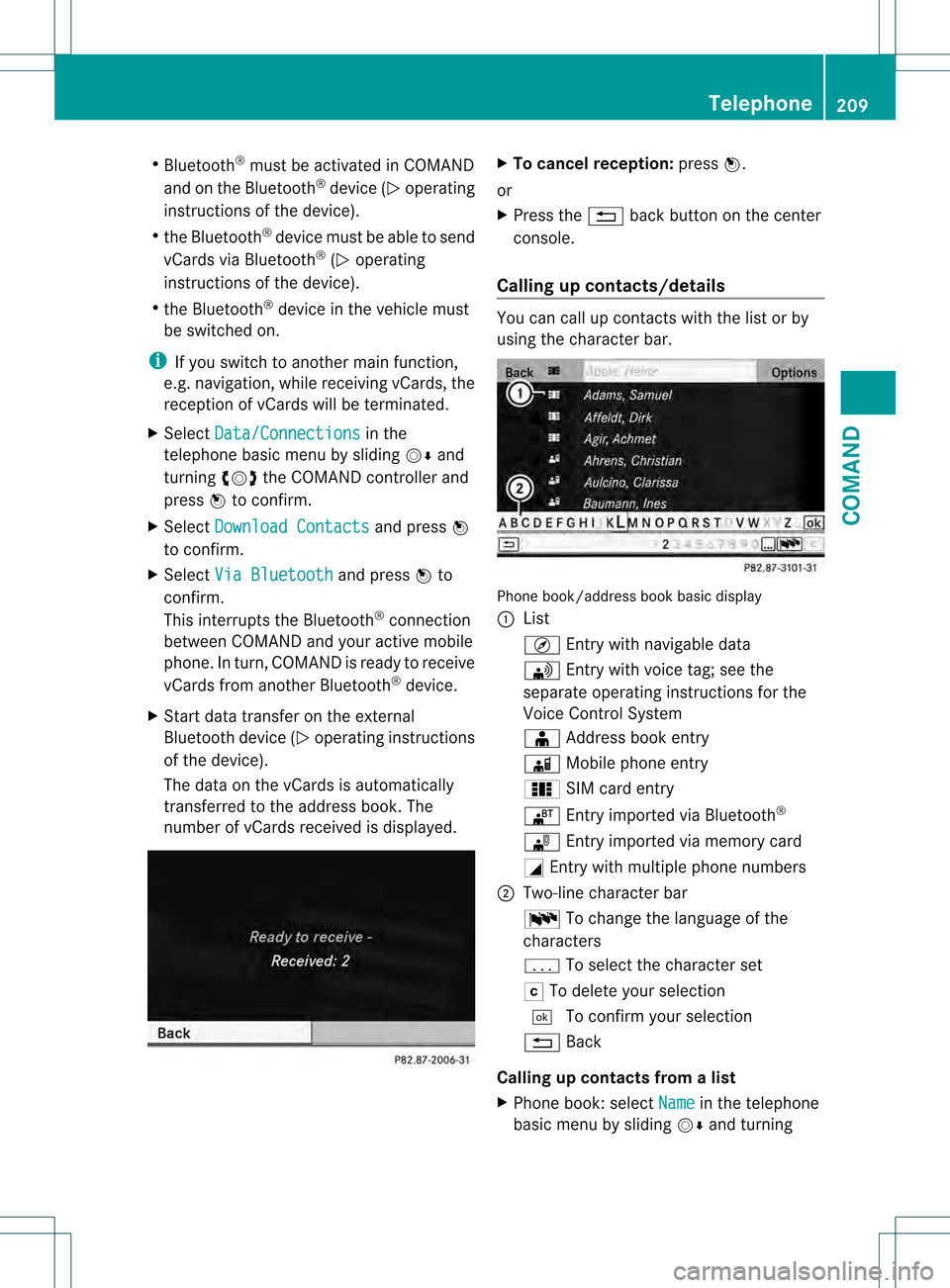
The data on the vCards is automatically
transferred to the address book. The
number of vCards received is displayed. X
To cancel reception: press0021.
or
X Press the 0001back button on the center
console.
Calling up contacts/details You can call up contact
swith the list or by
using the character bar. Phone book/address book basic display
0002
List
001A Entry with navigable data
003B Entry with voice tag; see the
separate operating instructions for the
Voice Control System
0015 Address book entry
0014 Mobile phone entry
0001 SIM card entry
001A Entry imported via Bluetooth ®
0012 Entry imported via memory card
0005 Entry with multiple phone numbers
0003 Two-line character bar
001D To change the language of the
characters
0001 To selec tthe character set
0004 To delete your selection
0003 To confirm your selection
0001 Back
Calling up contacts from alist
X Phone book :select Name in the telephone
basic menu by sliding 001C0006and turning Telephone
209COMAND Z
Page 213 of 542
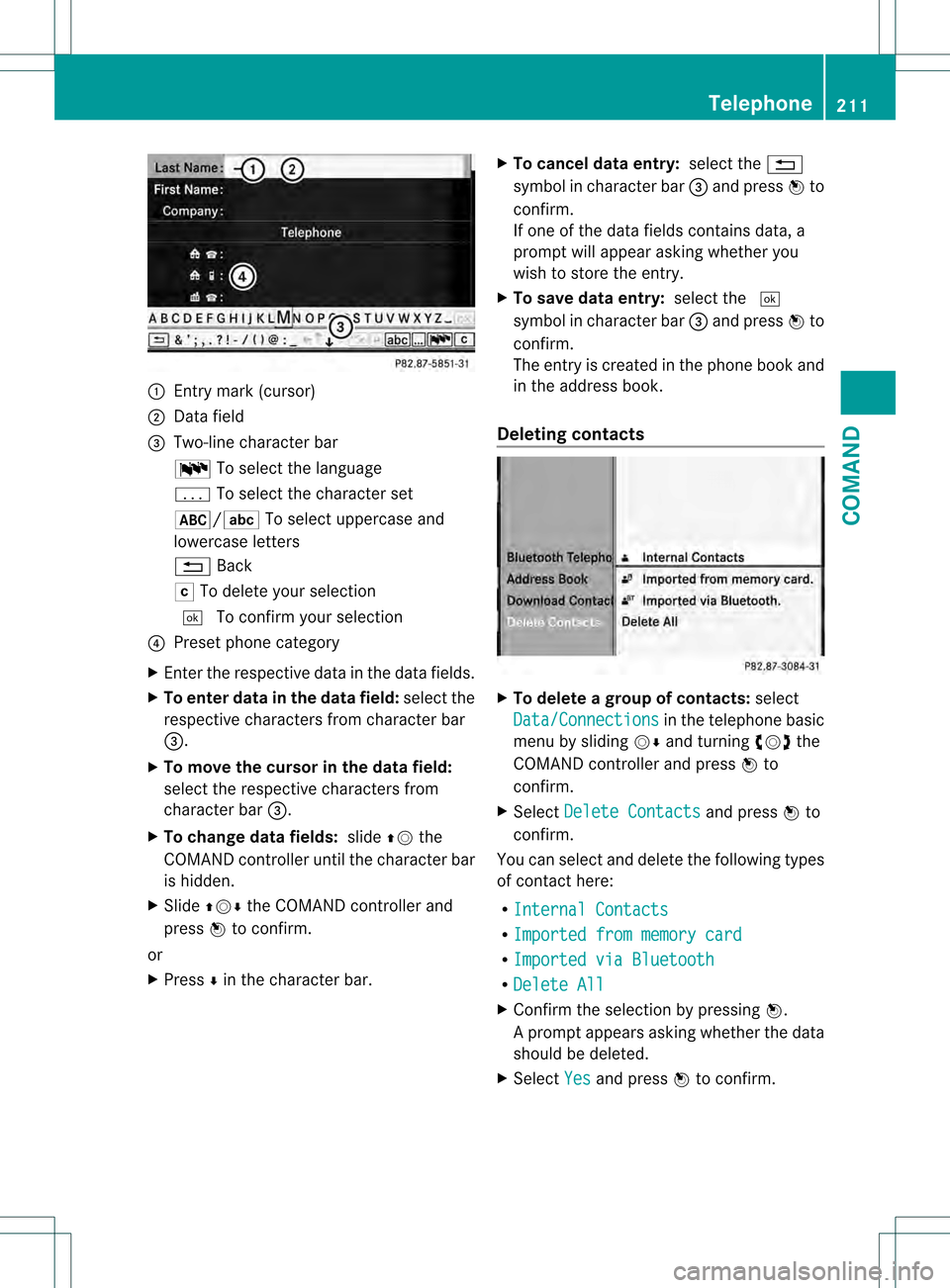
0002
Entry mark (cursor)
0003 Data field
0026 Two-line character bar
001D To select the language
0001 To select the character set
002D/0003 To select uppercase and
lowercase letters
0001 Back
0004 To delete your selection
0003 To confirm your selection
0025 Prese tphone category
X Enter the respective data in the data fields.
X To enter data in the data field: select the
respective characters from character bar
0026.
X To move the cursor in the data field:
select the respective characters from
character bar 0026.
X To change data fields: slide002A001Cthe
COMAND controller until the character bar
is hidden.
X Slide 002A001C0006 the COMAND controller and
press 0021to confirm.
or
X Press 0006in the character bar. X
To cancel data entry: select the0001
symbol in character bar 0026and press 0021to
confirm.
If one of the data fields contains data, a
prompt will appeara sking whether you
wish to store the entry.
X To save data entry: select the0003
symbol in character bar 0026and press 0021to
confirm.
The entry is created in the phone book and
in the address book.
Deleting contacts X
To delete a group of contacts: select
Data/Connections in the telephone basic
menu by sliding 001C0006and turning 0031001C0032the
COMAND controller and press 0021to
confirm.
X Select Delete Contacts and press
0021to
confirm.
You can select and delete the following types
of contact here:
R Internal Contacts R
Imported from memory card R
Imported via Bluetooth R
Delete All X
Confirm the selection by pressing 0021.
Ap rompt appears asking whethe rthe data
should be deleted.
X Select Yes and press
0021to confirm. Telephone
211COMAND Z
Page 241 of 542
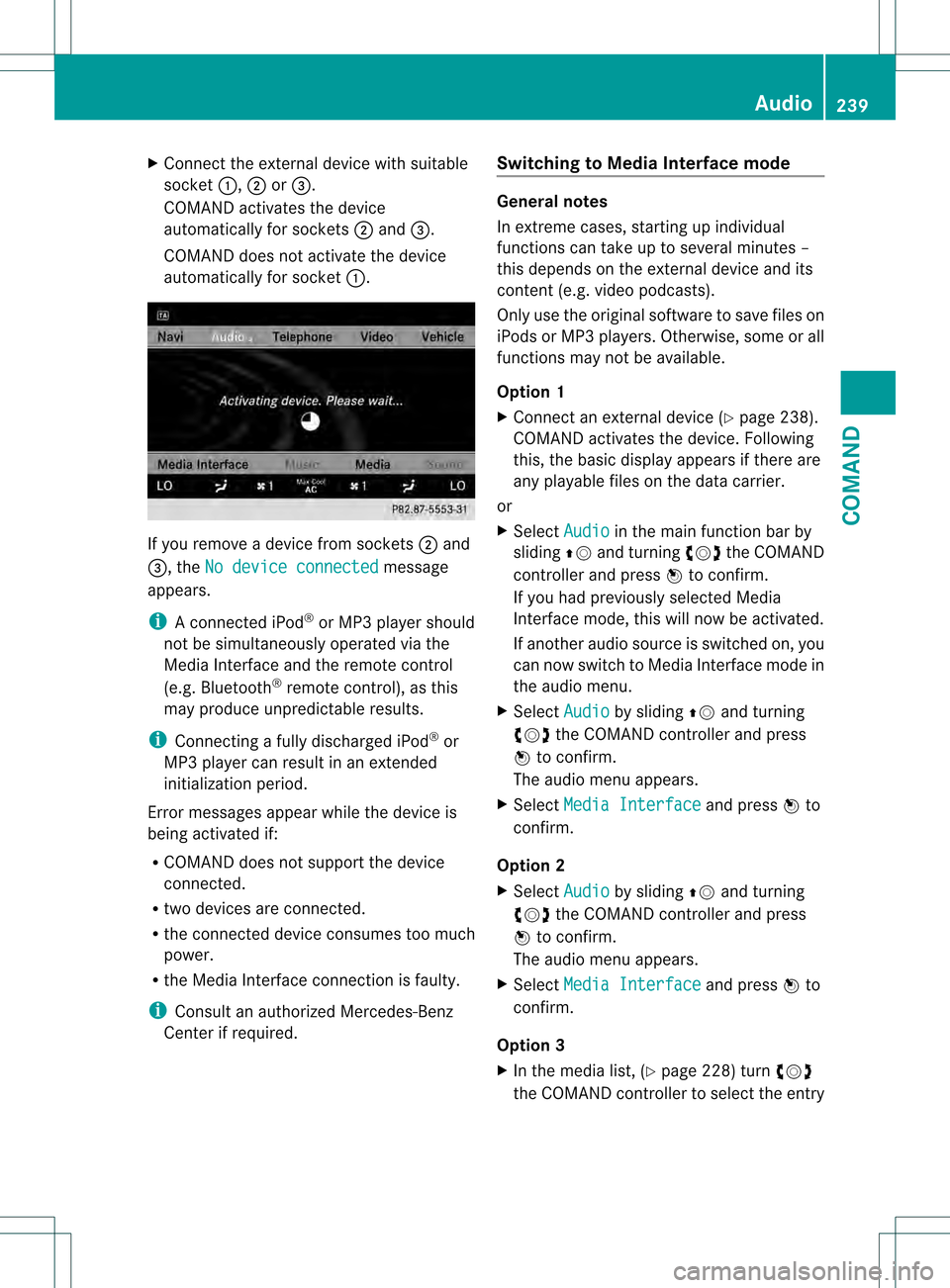
X
Connect the external device with suitable
socket 0002,0003or0026.
COMAND activates the device
automatically for sockets 0003and 0026.
COMAND does no tactivate the device
automatically for socket 0002.If you remove a device from sockets
0003and
0026, the No device connected message
appears.
i A connected iPod ®
or MP3 player should
not be simultaneously operate dvia the
Media Interface and the remote control
(e.g .Bluetooth ®
remote control), as this
may produce unpredictable results.
i Connecting a fully discharged iPod ®
or
MP3 player can result in an extended
initialization period.
Error messages appear while the device is
being activated if:
R COMAND does not support the device
connected.
R two devices are connected.
R the connected device consumes too much
power.
R the Media Interface connection is faulty.
i Consult an authorized Mercedes-Benz
Center if required. Switching to Medi
aInterface mode General notes
In extreme cases, starting up individual
functions can take up to several minutes –
this depends on the external device and its
content(
e.g. video podcasts).
Only use the original software to save files on
iPods or MP3 players. Otherwise, some or all
functions may not be available.
Option 1
X Connect an external device (Y page 238).
COMAND activates the device. Following
this, the basic display appears if there are
any playable files on the data carrier.
or
X Select Audio in the main function bar by
sliding 002A001Cand turning 0031001C0032the COMAND
controller and press 0021to confirm.
If you had previously selected Media
Interface mode, this will now be activated.
If another audio source is switched on, you
can now switch to Media Interface mode in
the audio menu.
X Select Audio by sliding
002A001Cand turning
0031001C0032 the COMAND controller and press
0021 to confirm.
The audio menu appears.
X Select Media Interface and press
0021to
confirm.
Option 2
X Select Audio by sliding
002A001Cand turning
0031001C0032 the COMAND controller and press
0021 to confirm.
The audio menu appears.
X Select Media Interface and press
0021to
confirm.
Option 3
X In the media list, (Y page 228) turn0031001C0032
the COMAND controller to select the entry Audio
239COMAND Z
Page 386 of 542
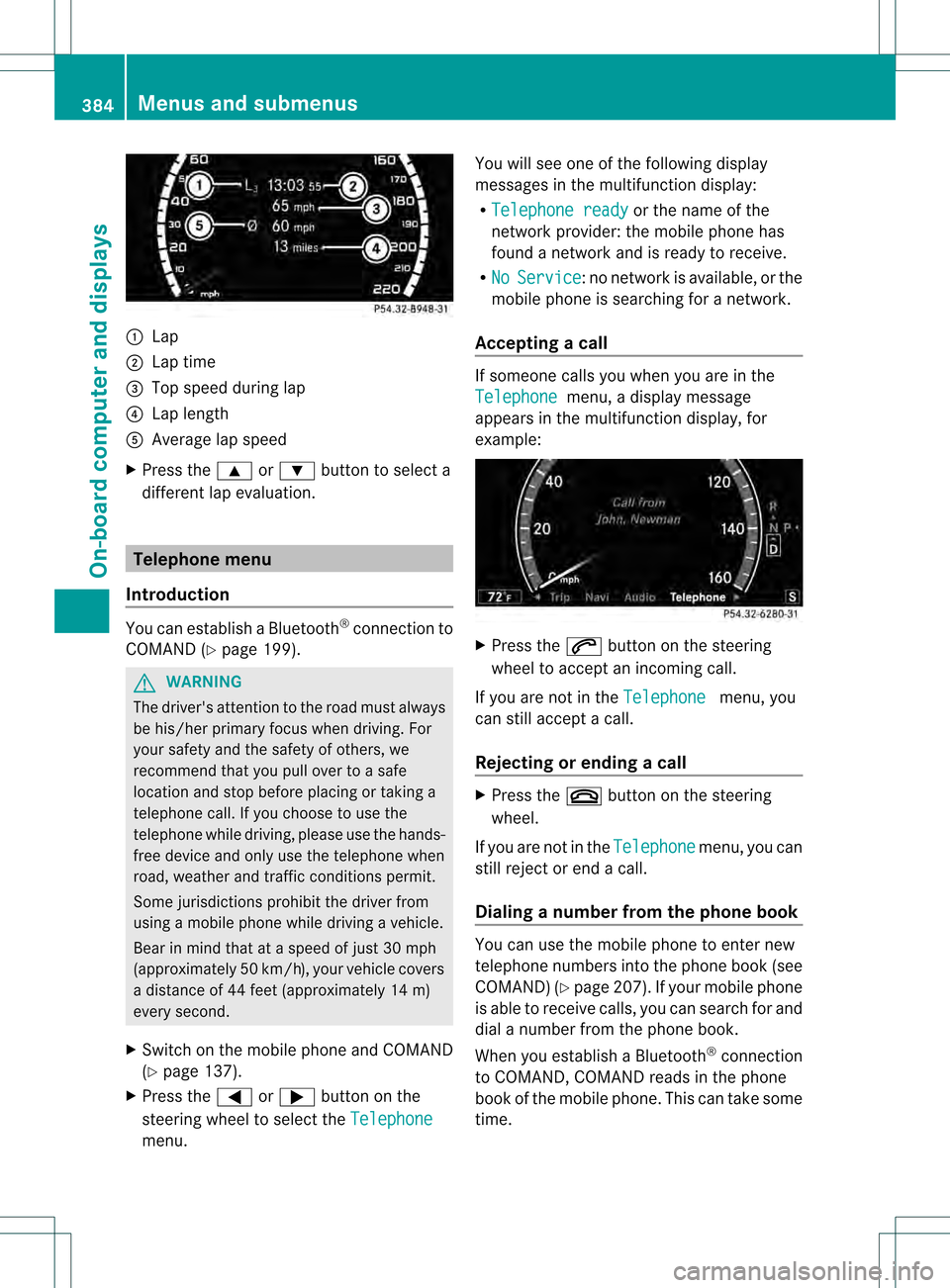
0002
Lap
0003 Lap time
0026 Top speed during lap
0025 Lap length
0023 Average lap speed
X Press the 000Aor000B button to select a
different lap evaluation. Telephone menu
Introduction You can establish a Bluetooth
®
connection to
COMAND (Y page 199). G
WARNING
The driver's attention to the road must always
be his/her primary focus when driving. For
yours afety and the safety of others, we
recommend that you pull ove rto a safe
location and stop before placing or taking a
telephone call. If you choose to use the
telephone while driving, please use the hands-
free device and only use the telephone when
road, weather and traffic conditions permit.
Some jurisdictions prohibit the driver from
using a mobile phone while driving a vehicle.
Bear in mind that at a speed of just 30 mph
(approximately 50 km/h) , your vehicle covers
a distance of 44 feet (approximately 14 m)
every second.
X Switch on the mobile phone and COMAND
(Y page 137).
X Press the 0009or000C button on the
steering wheel to select the Telephonemenu. You will see one of the following display
messages in the multifunction display:
R
Telephone ready or the name of the
network provider :the mobile phone has
found a network and is ready to receive.
R No Service :n
o network is available, or the
mobile phone is searching for a network.
Accepting acall If someone calls you whe
nyou are in the
Telephone menu, a display message
appears in the multifunction display, for
example: X
Press the 0027button on the steering
wheel to accept an incoming call.
If you are not in the Telephone menu, you
can still accept a call.
Rejecting or ending acall X
Press the 001Fbutton on the steering
wheel.
If you are not in the Telephone menu, you can
still reject or end a call.
Dialing a number from the phone book You can use the mobile phone to enter new
telephone numbers into the phone book (see
COMAND) (Y
page 207). If you rmobile phone
is able to receive calls, you can search for and
dial a number from the phone book.
When you establish a Bluetooth ®
connection
to COMAND, COMAND reads in the phone
book of the mobile phone. This can take some
time. 384
Menus and submenusOn-board computer and displays
Page 453 of 542
As soo
nas the emergency call has been
initiated, the indicator lamp in the SOS button
flashes. The Connecting Call message
appears on the multifunction display.
Emergency Call Activated is shown in the
COMAND display. The audio system is muted.
Once the connection has been made, the
Call Connected message appears in the
multifunction display.
The Emergency Call Activated message
is shown in the COMAND display.
All important information on the emergency
is transmitted, for example:
R current location of the vehicle (as
determined by the GPS system)
R vehicle identification number
R information on the type of emergency
i If the Emergency Call Activated message is shown in the COMAND display,
you cannot use other functions of
COMAND.
Shortly after the emergency call has been
initiated, a voice connection is automatically
established between the Mercedes-Benz
Customer Assistance Center and the vehicle
occupants. If the vehicle occupants respond,
the Mercedes-Benz Customer Assistance
Center attempts to get more information on
the emergency.
i If there is no response from the vehicle
occupants, an ambulance is immediately
sent to the vehicle. G
WARNING
If the indicator lamp in the SOS button is
flashing continuously and there was no voice
connection to the Response Center
established, then the mbrace system could
not initiate an emergency call (e.g. the
relevant cellularp hone network is not
available).
The message Call Failed appears in the
multifunction display for approximately
10 seconds. Should this occur, assistance must be
summoned by other means.
i During an emergency call, the
Bluetooth ®
connection on the phone is
canceled automatically. After making the
emergency call, the connection is
automatically re-established.
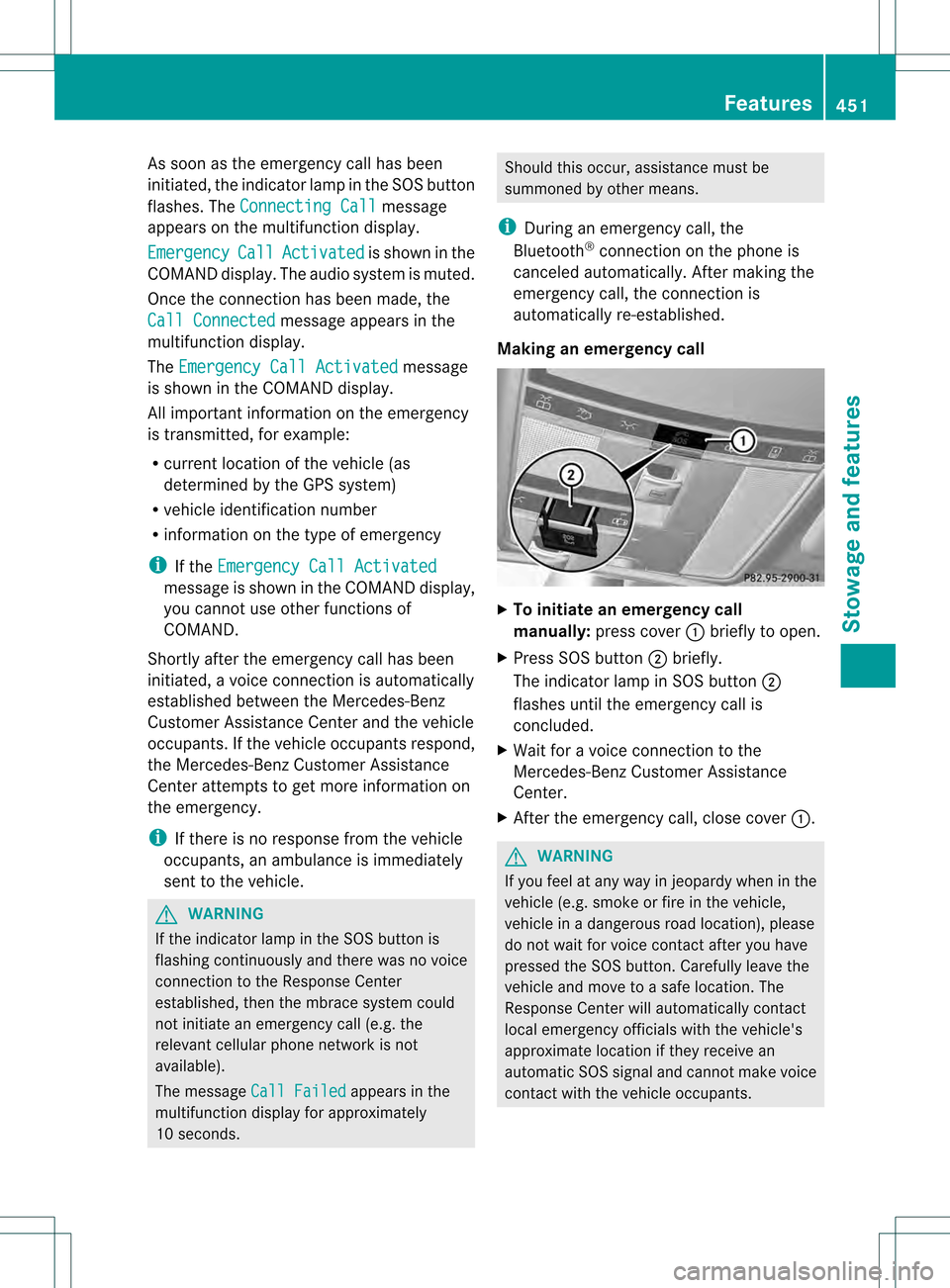
Making an emergency call X
To initiate an emergency call
manually: press cover 0002briefly to open.
X Press SOS button 0003briefly.
The indicator lamp in SOS button 0003
flashes until the emergency call is
concluded.
X Wait for a voice connection to the
Mercedes-Ben zCustome rAssistance
Center.
X After the emergency call, close cover 0002. G
WARNING
If you feel at any way in jeopardy when in the
vehicle (e.g. smoke or fire in the vehicle,
vehicle in a dangerous road location), please
do not wait for voice contact after you have
pressed the SOS button. Carefully leave the
vehicle and move to a safe location. The
Response Center will automatically contact
local emergency officials with the vehicle's
approximate location if they receive an
automatic SOS signal and cannot make voice
contact with the vehicle occupants. Features
451Stowage and features Z