language MERCEDES-BENZ S-Class 2013 W221 User Guide
[x] Cancel search | Manufacturer: MERCEDES-BENZ, Model Year: 2013, Model line: S-Class, Model: MERCEDES-BENZ S-Class 2013 W221Pages: 542, PDF Size: 7.97 MB
Page 250 of 542
It may also be possible to select the scene/
chapter from within the menu stored on the
DVD.
X
To skip forwards or back: turn0031001C0032 or
slide 003C001C003D the COMAND controller.
The control menu (Y page 246) appears for
approximately eight seconds.
X On the multifunction steering wheel:
switch on video DVD mode in COMAND
(Y page 246).
X Use the 0009or000C button to select the
Audio menu.
X Press 000Aor000B to select a scene/
chapter.
If you press and hold 000Aor000B for an
extended period, rapid scroll begins.
Selecting afilm/title This function is only available if the DVD is
divided into several films/tracks. If the DVD
contains several films, these can be selected
directly.
Afilm can be selected either when
the DV Dis being played back or when it is
stopped.
The film can also be selected from the menu
on the DVD itself.
X Press 0021the COMAND controller to show
the menu.
X Select DVD-V by turning
0031001C0032the COMAND
controller and press 0021to confirm.
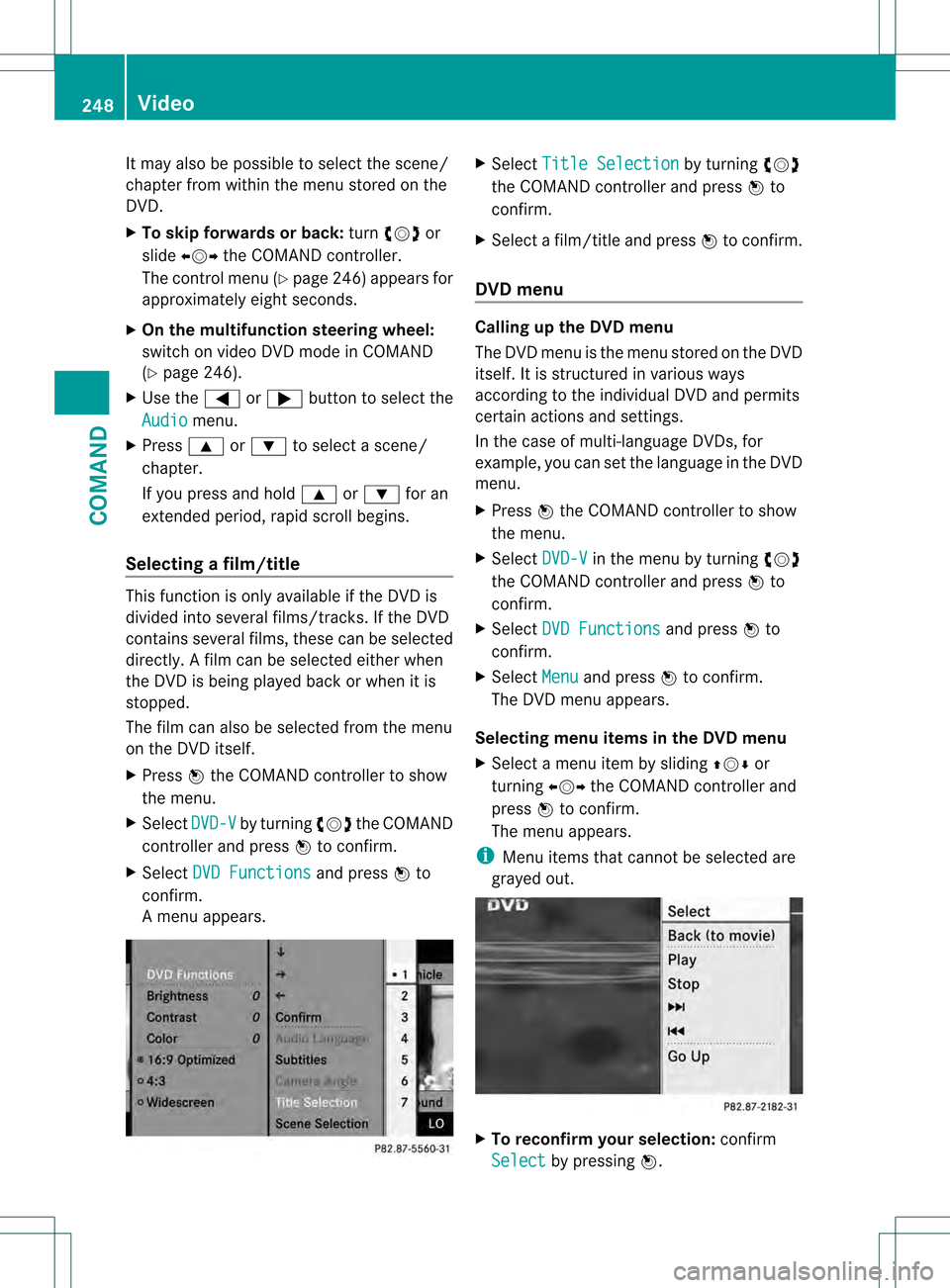
X Select DVD Functions and press
0021to
confirm.
Am enu appears. X
Select Title Selection by turning
0031001C0032
the COMAND controller and press 0021to
confirm.
X Select a film/title and press 0021to confirm.
DVD menu Calling up the DVD menu
The DVD menu is the menu stored on the DVD
itself. It is structured in various ways
according to the individual DVD and permits
certain actions and settings.
In the case of multi-language DVDs, for
example, you can set the language in the DVD
menu.
X Press 0021the COMAND controller to show
the menu.
X Select DVD-V in the menu by turning
0031001C0032
the COMAND controller and press 0021to
confirm.
X Select DVD Functions and press
0021to
confirm.
X Select Menu and press
0021to confirm.
The DVD menu appears.
Selecting menu items in the DVD menu
X Select a menu item by sliding 002A001C0006or
turning 003C001C003Dthe COMAND controller and
press 0021to confirm.
The menu appears.
i Menu items that cannot be selected are
grayed out. X
To reconfirm your selection: confirm
Select by pressing
0021.248
VideoCOMAND
Page 251 of 542
COMAND executes the action.
Make a selection from th
efurther options,
if necessary.
COMAND then switches back to the DVD
menu.
i Depending on the DVD, it is possible that
the Back (to the movie) ,
Play ,
Stop ,
0007, 0008orGo up menu item may not
be operative or operative only at certain
points of the DVD. To indicate this, the
0008 symbol is shown in the display.
Stopping a film or skipping to the
beginning or end of ascene
X Select any men uitem from the DVD menu.
The menu appears.
X To stop the film: select theStop menu
ite ma nd press 0021to confirm.
X To skip to the end of a scene: select the
0008 menu ite mand press 0021to confirm.
X To ski pto the beginning of ascene:
selec tthe 0007 menu item and press 0021to
confirm.
Moving up one level in the DVD menu
X Press the 0001back button.
or
X Select the corresponding menu item in the
DVD menu and press 0021the COMAND
controller to confirm.
or
X Select any menu item in the DVD menu and
press 0021the COMAND controller to
confirm.
X Select Go up and press
0021to confirm.
Back to the film
X Press the 0001back button repeatedly
until you see the movie.
or
X Select the corresponding menu item from
the DVD menu.
X Select the Back (to the movie) menu
item in the menu and press 0021to confirm. Setting the language and audio format This function is not available on all DVDs. If it
is available, you can set the DVD menu
language, the audio language or the audio
format. The number of settings is determined
by the DVD content. It is possible that the
settings may also be accessed in the DVD
menu (Y
page 248).
X Press 0021the COMAND controller to show
the menu.
X Select DVD-V in the menu by turning
0031001C0032
the COMAND controller and press 0021to
confirm.
X Select DVD Functions and press
0021to
confirm.
X Select Audio Language and press
0021to
confirm.
In both cases, a menu appears after a few
seconds. The 002Cdot in front of an entry
indicates the currently selected language.
X Select a setting by turning 0031001C0032the
COMAND controller and press 0021to
confirm.
X To exit the menu: slide003C001C003D the COMAND
controller.
Subtitles and camera angle These functions are not available on all DVDs.
The number of subtitle languages and camera
angles available depends on the content of
the DVD.Iti
s possible that the settings may
also be accessed in the DVD menu
(Y page 248).
X Press 0021the COMAND controller to show
the menu.
X Select DVD-V in the menu by turning
0031001C0032
the COMAND controller and press 0021to
confirm. Video
249COMAND Z
Page 255 of 542
X
To set operation via the main
loudspeakers: press the0010function
button on the cente rconsole once or twice.
X Select Audio by sliding
002A001Cthe COMAND
controller and press 0021to confirm.
The Audio menu appears.
X Select Rear by turning
0031001C0032the COMAND
controller and press 0021to confirm.
i The headphones' volume setting does not
affect the main loudspeakers.
Adjusting the sound settings You can select the sound settings in the audio
CD/DVD/MP3, video DVD and AUX modes.
X Switch on an audio operating mode (e.g.
audio CD mode).
X Select Treble or
Bass using
the 000B0009000C buttons on the remote
control and press the 000Cbutton to confirm.
An adjustmen tscale appears.
X Select a setting using the 000A000B
buttons and press the 000Cbutton to confirm.
Multiple users Simultaneous use of the rear-
compartment disc drive
The two rear-compartment screens can be
operated almost entirely independently from
one another. However, there can be a conflict
in some menus if the two screens are used
simultaneously.
If the rear-compartment disc drive is being
used for both screens simultaneously,
selecting certain menus or settings on one of
the screens also affects the othe rscreen.
The following functions affect both screens:
R changing playback options
R selecting a track (fro matrack list or folder)
R using the play, pause and stop functions
R fast forwarding/rewinding or scrolling
R calling up the DVD menu and navigating
withi nit R
setting the language, subtitles and camera
angle
R calling up interactive DVD content
The following functions affect only one
screen:
R audio and video functions as well as picture
settings
R switching between full screen and the
menu
Switching between operating modes
When you exit an operating mode (e.g. audio
CD mode), the current setting is saved. If you
call up this operating mode againl ater, there
are two possibilities:
R the operating mode has been changed on
the other screen.
R the operating mode has no tbeen changed.
In the first case, the operating mode appears
as it is on the other screen.
In the second case, the setting appears on the
screen as it was when you last exited the
operating mode.
Picture settings Overview
You can select these settings in video DVD
and AUX mode. Instructions for AUX mode
are detailed later (
Ypage 263).
Adjusting the brightness, contrast and
color
X Switch on video DVD mode (Y page 246).
X To show the menu: press the000Cbutton
on the remote control.
or
X Select Menu while the navigation menu
(Y page 246) is shown and press the 000C
button to confirm.
X In both cases, select Video DVD using
the 000B0009000C buttons and press the
000C button to confirm. Rear Seat Entertainment System
253COMAND Z
Page 256 of 542
X
Select Brightness ,
Contrast ,
Color or
Auto using the
000A000B buttons and
press 000Cto confirm.
An adjustment scale appears.
X Select a setting using the 000A000B
buttons and press the 000Cbutton to confirm.
Changing the picture format
X To show the menu: press the000Cbutton
on the remote control.
or
X Select Menu while the navigation menu
(Y page 246) is shown and press the 000C
button to confirm.
X Select Video DVD using
the 000B0009000C buttons and press the
000C button to confirm.
The äsymbol in front of the Auto ,
16:9 Optimized ,
4:3 or
Widescreen menu item
indicates the format currently set.
X Select a format using the 000A000B
buttons and press the 000Cbutton to confirm. System settings
Note You can adjus
talmost all system settings
individually for each screen without affecting
the other screen. You make these settings
using the remote control.
Selecting the display language X
Select System using the
000A0009000C
buttons on the remote control and press
the 000Cbutton to confirm.
You see the system menu on the selected
rear screen. X
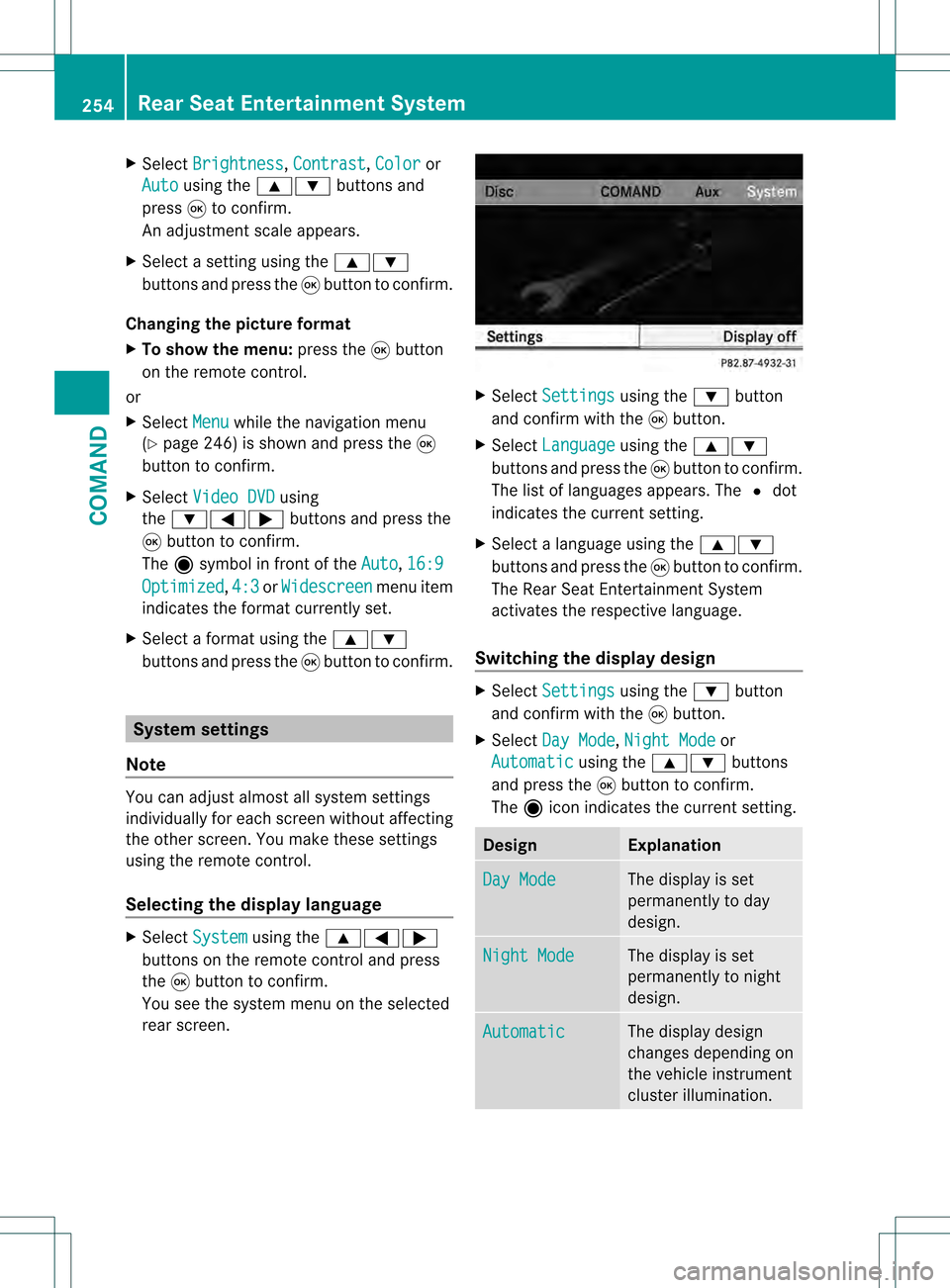
Select Settings using the
000Bbutton
and confirm with the 000Cbutton.
X Select Language using the
000A000B
buttons and press the 000Cbutton to confirm.
The list of languages appears. The 002Cdot
indicates the current setting.
X Selec talanguage using the 000A000B
buttons and press the 000Cbutton to confirm.
The Rear Seat Entertainment System
activates the respective language.
Switching the display design X
Select Settings using the
000Bbutton
and confirm with the 000Cbutton.
X Select Day Mode ,
Night Mode or
Automatic using the
000A000B buttons
and press the 000Cbutton to confirm.
The äicon indicates the current setting. Design Explanation
Day Mode The display is set
permanently to day
design.
Night Mode The display is set
permanently to night
design.
Automatic The display design
changes depending on
the vehicle instrument
cluster illumination.254
Rear Seat Entertainment SystemCOMAND
Page 264 of 542
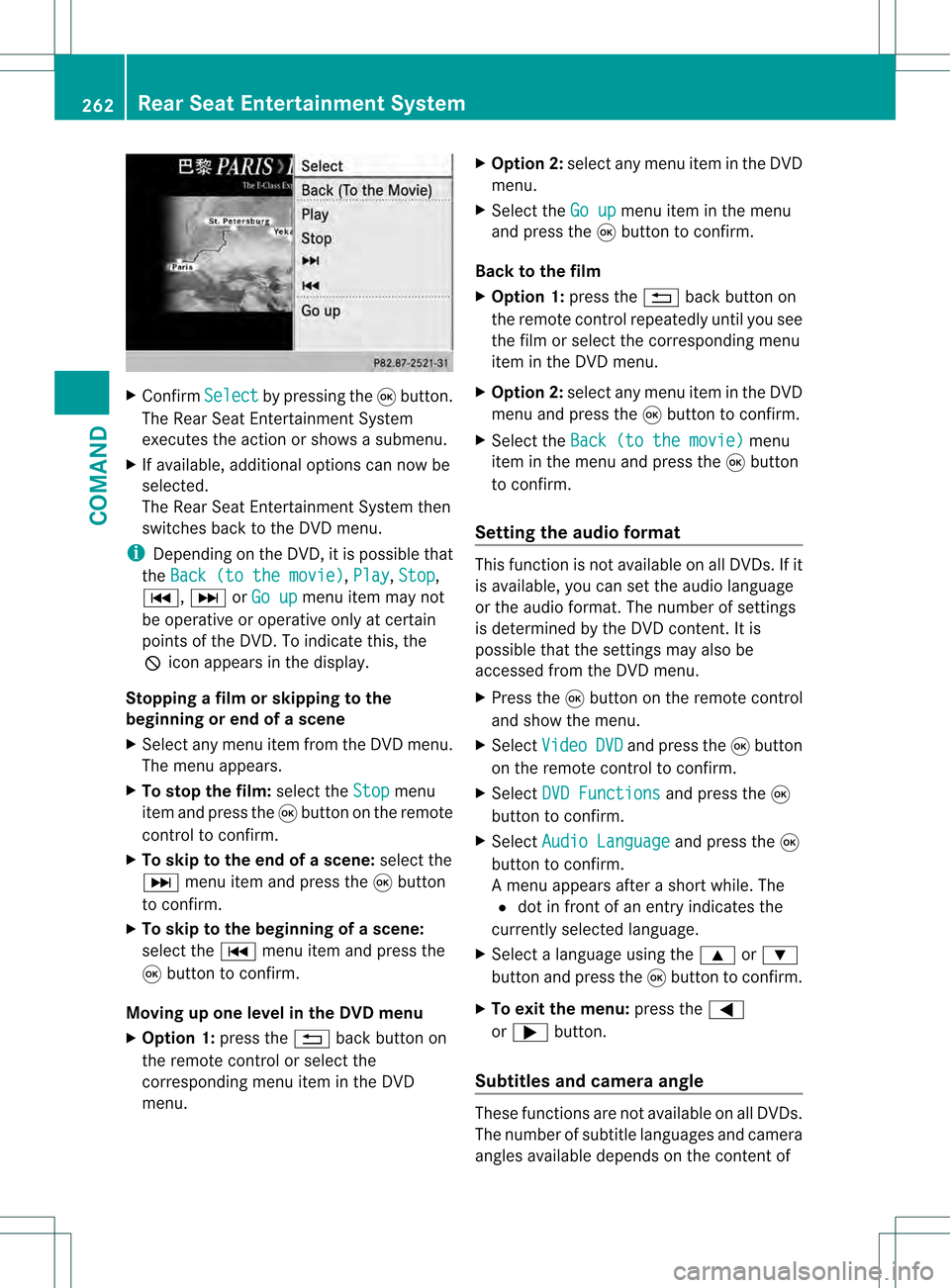
X
Confirm Select by pressing the
000Cbutton.
The Rear Seat Entertainment System
executes the action or shows a submenu.
X If available, additional option scan now be
selected.
The Rear Seat Entertainment System then
switches back to the DVD menu.
i Depending on the DVD, it is possible that
the Back (to the movie) ,
Play ,
Stop ,
0007, 0008orGo up menu item may not
be operative or operative only at certain
points of the DVD. To indicate this, the
0008 icona ppears in the display.
Stopping a film or skipping to the
beginning or end of ascene
X Select any men uitem from the DVD menu.
The menu appears.
X To stop the film: select theStop menu
ite ma nd press the 000Cbutton on the remote
control to confirm.
X To skip to the end of a scene: select the
0008 menu ite mand press the 000Cbutton
to confirm.
X To ski pto the beginning of ascene:
selec tthe 0007 menu item and press the
000C button to confirm.
Moving up one level in the DVD menu
X Option 1: press the0001back button on
the remote control or select the
corresponding menu item in the DVD
menu. X
Option 2: select any menu item in the DVD
menu.
X Select the Go up menu item in the menu
and press the 000Cbutton to confirm.
Back to the film
X Option 1: press the0001back button on
the remote control repeatedly until you see
the film or select the corresponding menu
item in the DVD menu.
X Option 2: select any menu item in the DVD
menu and press the 000Cbutton to confirm.
X Select the Back (to the movie) menu
item in the menu and press the 000Cbutton
to confirm.
Setting the audio format This function is not available on all DVDs. If it
is available, you can set the audio language
or the audio format. The number of settings
is determined by the DVD content. It is
possible that the settings may also be
accessed from the DVD menu.
X
Press the 000Cbutton on the remote control
and show the menu.
X Select Video DVD and press the
000Cbutton
on the remote control to confirm.
X Select DVD Functions and press the
000C
button to confirm.
X Select Audio Language and press the
000C
button to confirm.
Am enu appears after a short while. The
002C dot in front of an entry indicates the
currently selected language.
X Select a language using the 000Aor000B
button and press the 000Cbutton to confirm.
X To exit the menu: press the0009
or 000C button.
Subtitles and camera angle These functions are not available on all DVDs.
The number of subtitle languages and camera
angles available depends on the contentof262
Rear Seat Entertainment SystemCOMAND