ad blue MERCEDES-BENZ S-Class 2013 W221 Owner's Manual
[x] Cancel search | Manufacturer: MERCEDES-BENZ, Model Year: 2013, Model line: S-Class, Model: MERCEDES-BENZ S-Class 2013 W221Pages: 542, PDF Size: 7.97 MB
Page 2 of 542
Publication details
Internet
Further information about Mercedes-Benz
vehicles and about Daimler AG can be found
on the following websites:
http://www.mbusa.com (USA only)
http://www.mercedes-benz.ca (Canada
only) Editorial office
Not to be reprinted, translated or otherwise
reproduced, in whole or in part, without the
written permission of Daimler AG.
Symbols
Registered trademarks:
R
Bluetooth ®
is a registered trademark of
Bluetooth SIG Inc.
R DTS is a registered trademark of DTS, Inc.
R Dolby and MLP are registered trademarks
of DOLBY Laboratories.
R BabySmart™, ESP ®
and PRE-SAFE ®
are
registered trademarks of Daimler AG.
R HomeLink ®
is a registered trademark of
Prince.
R iPod ®
and iTunes ®
are registered
trademarks of Apple Inc.
R Logic7 ®
is a registered trademark of
Harman International Industries.
R Microsoft ®
and Windows media ®
are
registered trademarks of Microsoft
Corporation.
R SIRIUS is a registered trademark of Sirius
XM radio Inc.
R HD Radio is a registered trademark of
iBiquity Digital Corporation.
R Gracenote ®
is a registered trademark of
Gracenote, Inc.
R ZAGATSurvey ®
and related brands are
registered trademarks of ZagatSurvey,
LLC.
In this Operator's Manual, you will find the
following symbols: G
WARNING
Warning notes draw your attention to hazards
that endanger your health or life, or the health
or life of others. H
Environmental note
Environmental notes provide you with
information on environmentally aware actions
or disposal.
! Notes on material damage alert you to
dangers that could lead to damage to your
vehicle. i
Practical tips or further information that
could be helpful to you.
X This symbol indicates an
instruction that must be followed.
X Several of these symbols in
succession indicate an instruction
with several steps.
(Y page) This symbol tells you where you
can find more information about a
topic.
YY This symbol indicates a warning or
an instruction that is continued on
the next page.
Display
Display This font indicates a display in the
multifunction display/COMAND
display.
Parts of the software in the vehicle are
protected by copyright ©
2005
The FreeType Project
http://www.freetype.org. All rights
reserved.
As at 14.11.2011
Page 8 of 542
B
Back button ....................................... 123
Back support see Lumbar support
Bag hook ............................................ 441
Balance, adjusting .............................139
Bang &Olufsen sound system .........141
BAS (Brake Assist System) .................74
Basic carriers see Separate operating instructions
Basic settings
see Settings
BAS PLUS (Brake Assist System
PLUS) .................................................... 74
Bass, setting ...................................... 139
Battery (SmartKey) Checking .......................................... 85
Important safety notes ....................85
Replacing ......................................... 85
Battery (vehicle)
Charging ........................................ 486
Display message ............................ 410
Important safety notes ..................484
Jump starting ................................. 488
Belt
see Seat belts
Bird's-eye view (navigation) .............188
Blind see Roller sunblind
Blin dSpot Assist
Activating/deactivating .................387
Display message ............................ 416
Notes/function .............................. 363
see Active Blind Spot Assist
BlueTEC
Adding DEF .................................... 325
BlueTEC (DEF) .................................... 533
Bluetooth ®
Activating/deactivating .................151
Authorizing a device (registering) ..152
Conditions (general )...................... 151
Conditions (telephone ).................. 199
Connecting another mobile phone .201
Connecting devices .......................151
De-authorizing (de-registering) a
device ............................................ 153
External authorization (general) .....153 External authorization (telephone)
.201
General information .......................151
Introduction ................................... 197
Receiving vCards ........................... 208
Searching for devices ....................152
Settings ......................................... 151
Telephone basic menu ...................202
Telephony ...................................... 199
Telephony notes ............................ 197
Bluetooth ®
interface
Telephony ...................................... 197
Brake Assist System
see BAS (Brake Assist System)
Brake fluid
Display message ............................ 399
Notes ............................................. 535
Brake fluid level ................................ 468
Brake lamps Display message ............................ 406
Brakes
ABS .................................................. 73
BAS .................................................. 74
BAS PLUS ........................................ 74
Brake fluid (notes) .........................535
Display message ............................ 391
Driving tips .................................... 331
High-performance brake system ....333
Important safety notes ..................331
Maintenance .................................. 332
Parking brake ................................ 328
Warning lamp ................................. 427
Breakdown
see Flat tire
see Towing away
Brightness, setting (TV, video) .........244
Bulbs see Changing bulbs C
California Important notice for retail
customers and lessees ....................29
Call
Accepting/ending/rejecting .......... 203
see Telephone
Calling up a malfunction
see Display messages 6
Index
Page 25 of 542
Switching between picture
formats (TV, video)
............................245
Switching between summer time
and standard time .............................148
Switching off the alarm (ATA) ............79
Switching the hands-free
microphone on/off ............................ 205
Switching wavebands (radio) ...........216
Syste msettings
Bluetooth ®
..................................... 151
Date ............................................... 148
Language ....................................... 153
Programmable button (COMAND) ..124
Text reader spee d.......................... 149
Time ............................................... 148
Time zone ...................................... 148
Voice Control System ....................149 T
Tachometer ........................................ 375
Tail lamps Display message ............................ 406
Tank
see Fuel tank
Tank content
Fuel gauge ....................................... 37
Technical data
Capacities ...................................... 530
Notes ............................................. 528
Tires/wheels ................................. 521
Vehicle data ................................... 537
TELEAID
Automatic retrieval of vehicle data
(service due date ).......................... 456
Call priority .................................... 453
Display message ............................ 399
Downloading destinations
(COMAND) ..................................... 453
Emergency call .............................. 450
Important safety notes ..................449
Locating astolen vehicl e............... 456
MB info call button ........................452
Remote vehicle locking ..................455
Roadside Assistance button ..........452
Search &Send ............................... 454
Self-test ......................................... 450System
.......................................... 450
Vehicle remote unlocking ..............455
Telephone
Accepting/ending acall................ 203
Accepting acall............................. 384
Adjusting the volume for calls .......138
Basi cmenu (Bluetooth ®
interface) ....................................... 202
Calling (outgoing call ).................... 204
Calling voicemai l............................ 205
Conference connection .................. 205
Connecting a mobile phone
(general information) .....................199
De-authorizing a mobile phone ......202
Ending an active call ......................205
Entering anumbe r......................... 204
External authorization
(Bluetooth ®
) ................................... 201
Function restrictions ......................198
General notes ................................ 197
Keypad .......................................... .124
Menu (on-board computer) ............384
Number from the phone book ....... .384
Operating options ..........................198
Overview of functions ....................205
Reception and transmission
volume ........................................... 203
Redialing ........................................ 385
Rejecting/ending acall................. 384
Rejecting acall.............................. 203
Rejecting or accepting a waiting
call ................................................. 205
Safety notes .................................. 197
Sending DTMF tones ..................... .207
Switching hands-free microphone
on/off ............................................ 205
Toggling ......................................... 205
Using the telephone ....................... 203
see Bluetooth ®
see Call lists
Telephone mode
Redialing ........................................ 204
Telephone module with
Bluetooth ®
SIM Access Profile
see separate installation instructions Index
23
Page 115 of 542
Switching the seat heating on/off
Switching on/off G
WARNING
Repeatedly setting the seat heating to level
3 may result in excessive seat temperatures.
The health of passengers that have limited
temperature sensitivity or a limited ability to
react to excessively high temperatures may
be affected or they may even suffer burn-like
injuries. Therefore, do not use seat heating
level 3repeatedly.
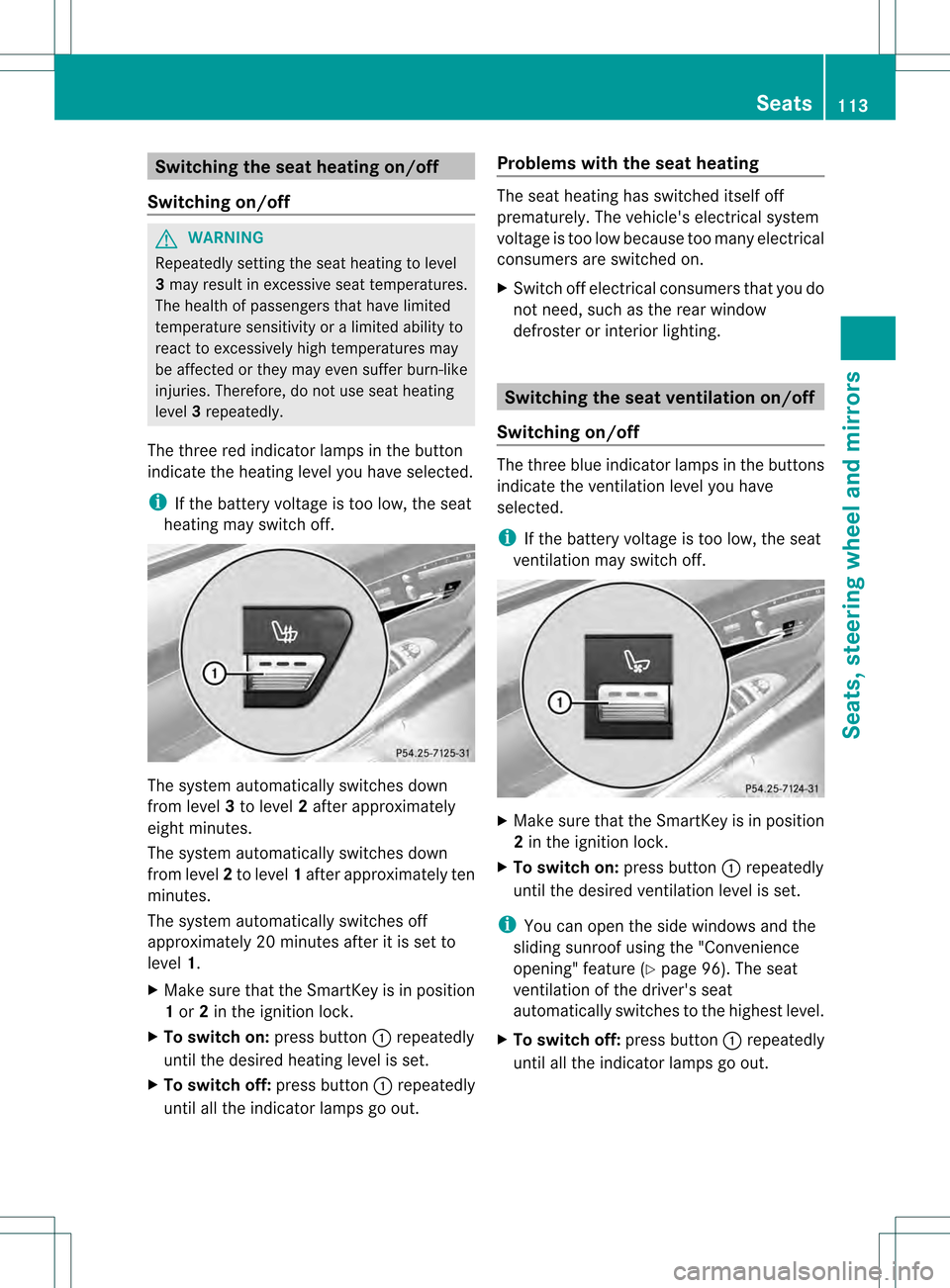
The three red indicator lamps in the button
indicate the heating level you have selected.
i If the battery voltage is too low, the seat
heating may switch off. The system automatically switches down
from level
3to level 2after approximately
eight minutes.
The system automatically switches down
from level 2to level 1after approximately ten
minutes.
The system automatically switches off
approximately 20 minutes after it is set to
level 1.
X Make sure that the SmartKey is in position
1or 2in the ignition lock.
X To switch on: press button0002repeatedly
until the desired heating level is set.
X To switch off: press button0002repeatedly
until all the indicator lamps go out. Problems with the seat heating The seat heating has switched itself off
prematurely. The vehicle's electrical system
voltage is too low because too many electrical
consumers are switched on.
X
Switch off electrical consumers that you do
not need, such as the rear window
defroster or interior lighting. Switching the seat ventilation on/off
Switching on/off The three blue indicator lamps in the buttons
indicate the ventilation level you have
selected.
i
If the battery voltage is too low, the seat
ventilation may switch off. X
Make sure that the SmartKey is in position
2in the ignition lock.
X To switch on: press button0002repeatedly
until the desired ventilation level is set.
i You can open the side windows and the
sliding sunroof using the "Convenience
opening" feature (Y page 96). The seat
ventilation of the driver's seat
automatically switches to the highest level.
X To switch off: press button0002repeatedly
until all the indicator lamps go out. Seats
113Seats, steering wheel and mirrors Z
Page 124 of 542
At
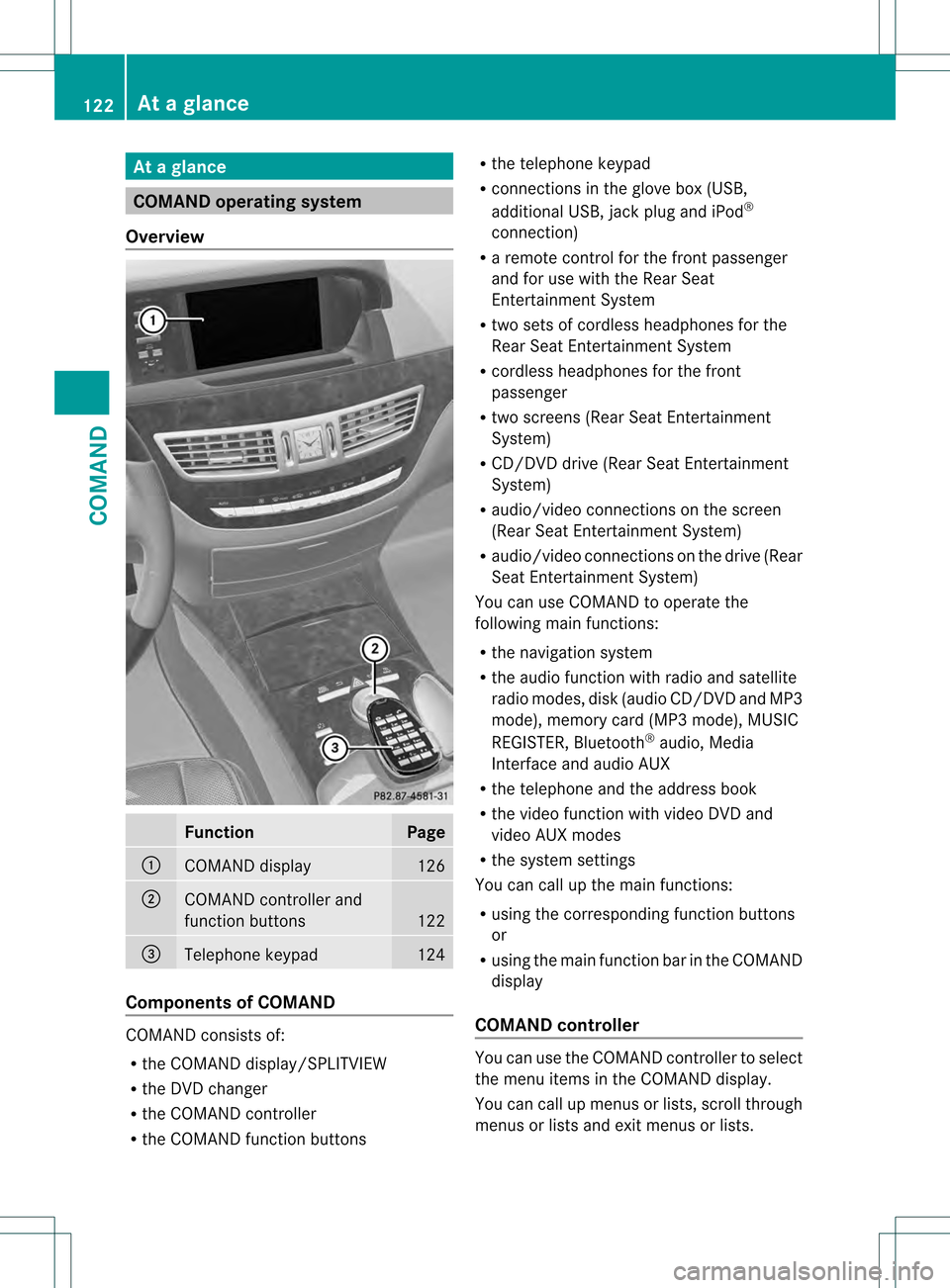
ag lance COMAND operating system
Overview Function Page
0002
COMAN
Ddisplay 126
0003
COMAND controller and
function buttons
122
0026
Telephone keypad 124
Components of COMAND
COMAND consists of:
R
the COMAND display/SPLITVIEW
R the DVD changer
R the COMAND controller
R the COMAND function buttons R
the telephone keypad
R connections in the glove box (USB,
additional USB, jac kplug and iPod ®
connection)
R a remote control for the front passenger
and for use with the Rear Seat
Entertainment System
R two sets of cordless headphones for the
Rear Seat Entertainment System
R cordless headphones for the front
passenger
R two screens (Rear Seat Entertainment
System)
R CD/DVD drive (Rear Seat Entertainment
System)
R audio/video connections on the screen
(Rear Seat Entertainment System)
R audio/video connections on the drive (Rear
Seat Entertainment System)
You can use COMAND to operate the
following main functions:
R the navigation system
R the audio function with radio and satellite
radio modes, disk (audio CD/DV Dand MP3
mode), memory card (MP3 mode), MUSIC
REGISTER, Bluetooth ®
audio, Media
Interface and audio AUX
R the telephone and the address book
R the video function with video DVD and
video AUX modes
R the system settings
You can call up the main functions:
R using the corresponding functio nbuttons
or
R using the main function bar in the COMAND
display
COMAND controller You can use the COMAND controller to select
the menu items in the COMAND display.
You can call up menus or lists, scroll through
menus or lists and exit menus or lists.122
At
ag lanceCOMAND
Page 153 of 542
X
Select Yes or
No and press
0021to confirm.
If you select No , the process will be aborted.
If you select Yes , the individualization is
deleted. You will see a message to this
effect. Bluetooth
®
settings
General information about Bluetooth ®Bluetooth
®
technology is the standard for
short-range wireless data transmissio nofup
to approximately 10 meters. Bluetooth ®
allows, for example, the exchange of vCards.
Bluetooth ®
is a registered trademark of
Bluetooth Special Interes tGroup (SIG) Inc. Requirements for a Bluetooth
®
connection You can connect mobile phones and
notebooks to COMAND.
To do so, the following conditions need to be
met:
R Bluetooth ®
-capable devices, e.g. mobile
phones, must comply with a certain profile
in order to be connected to COMAND.
Every Bluetooth ®
device has its own
specific Bluetooth ®
name.
R Bluetooth ®
must be activated in COMAND
and on the respective Bluetooth ®
device;
see the separate operating instructions.
R the Bluetooth ®
device must be "visible" to
COMAND in order for COMAND to find and
display it. For the setting procedures,
please see the operating instructions for
the Bluetooth ®
device. i
Once a mobile phone has been
connected, receptio nand transmission
volume may change.
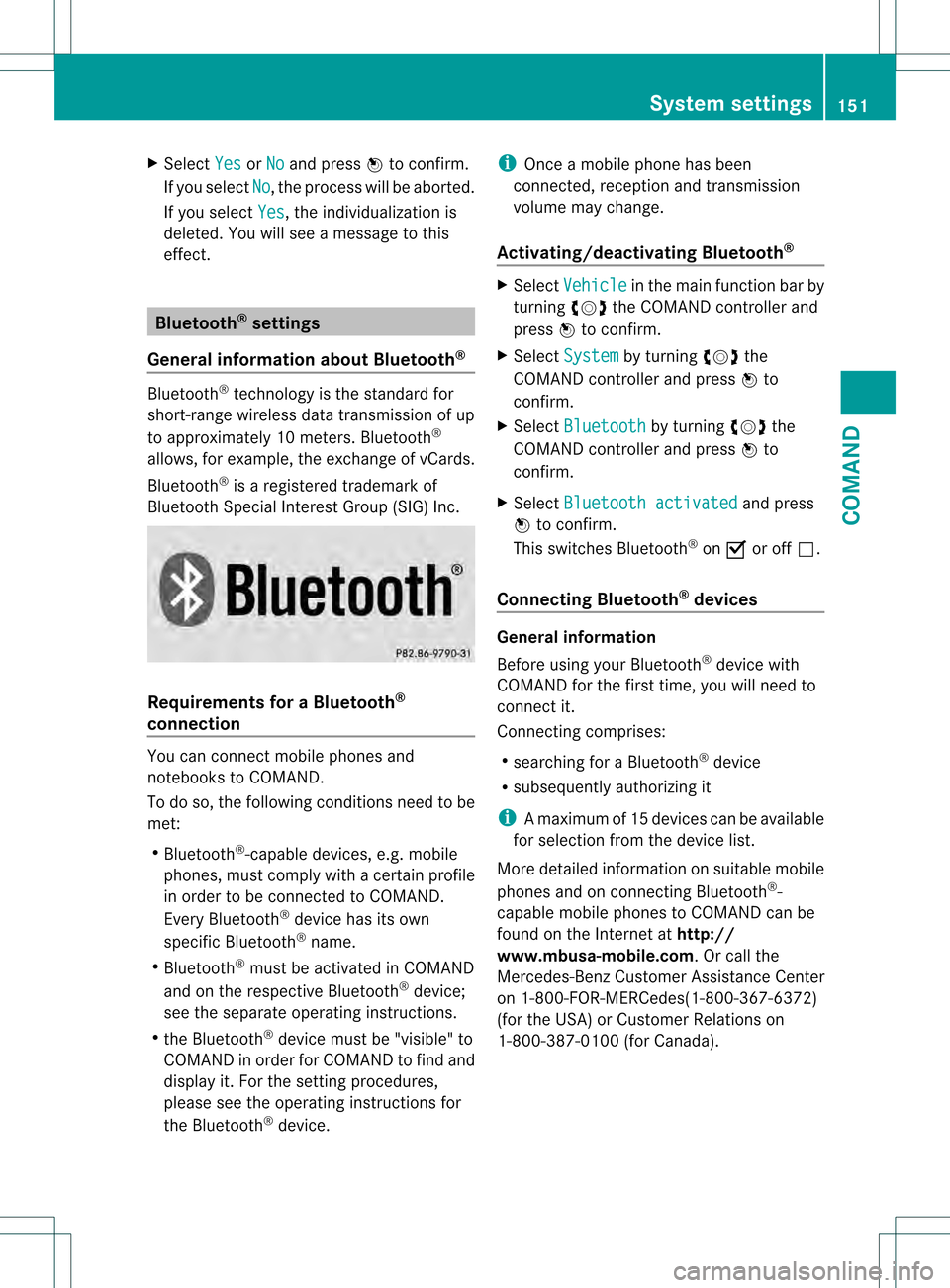
Activating/deactivating Bluetooth ® X
Select Vehicle in the main functio
nbar by
turning 0031001C0032the COMAND controller and
press 0021to confirm.
X Select System by turning
0031001C0032the
COMAND controller and press 0021to
confirm.
X Select Bluetooth by turning
0031001C0032the
COMAND controller and press 0021to
confirm.
X Select Bluetooth activated and press
0021 to confirm.
This switches Bluetooth ®
on 000A or off 0002.
Connecting Bluetooth ®
devices General information
Before using your Bluetooth
®
device with
COMAND for the first time, you will need to
connect it.
Connecting comprises:
R searching for a Bluetooth ®
device
R subsequently authorizing it
i Amaximum of 15 devices can be available
for selectio nfrom the device list.
More detailed information on suitable mobile
phones and on connecting Bluetooth ®
-
capable mobile phones to COMAND can be
found on the Internet at http://
www.mbusa-mobile.com. Or call the
Mercedes-Benz Customer Assistance Center
on 1-800-FOR-MERCedes(1-800-367-6372)
(for the USA) or Customer Relations on
1-800-387-0100 (for Canada). System settings
151COMAND Z
Page 154 of 542
Searching for Bluetooth
®
devices
X Activate Bluetooth ®
(Y page 151).
X Select Vehicle in the main function bar by
turning 0031001C0032the COMAND controller and
press 0021to confirm.
X Select System by turning
0031001C0032the
COMAND controller and press 0021to
confirm.
X Select Bluetooth by turning
0031001C0032the
COMAND controller and press 0021to
confirm.
X Select Search for Bluetooth Devices and press
0021to confirm.
X Select Update and press
0021to confirm.
COMAND searches for Bluetooth ®
devices
within range. After a short while, the
Bluetooth ®
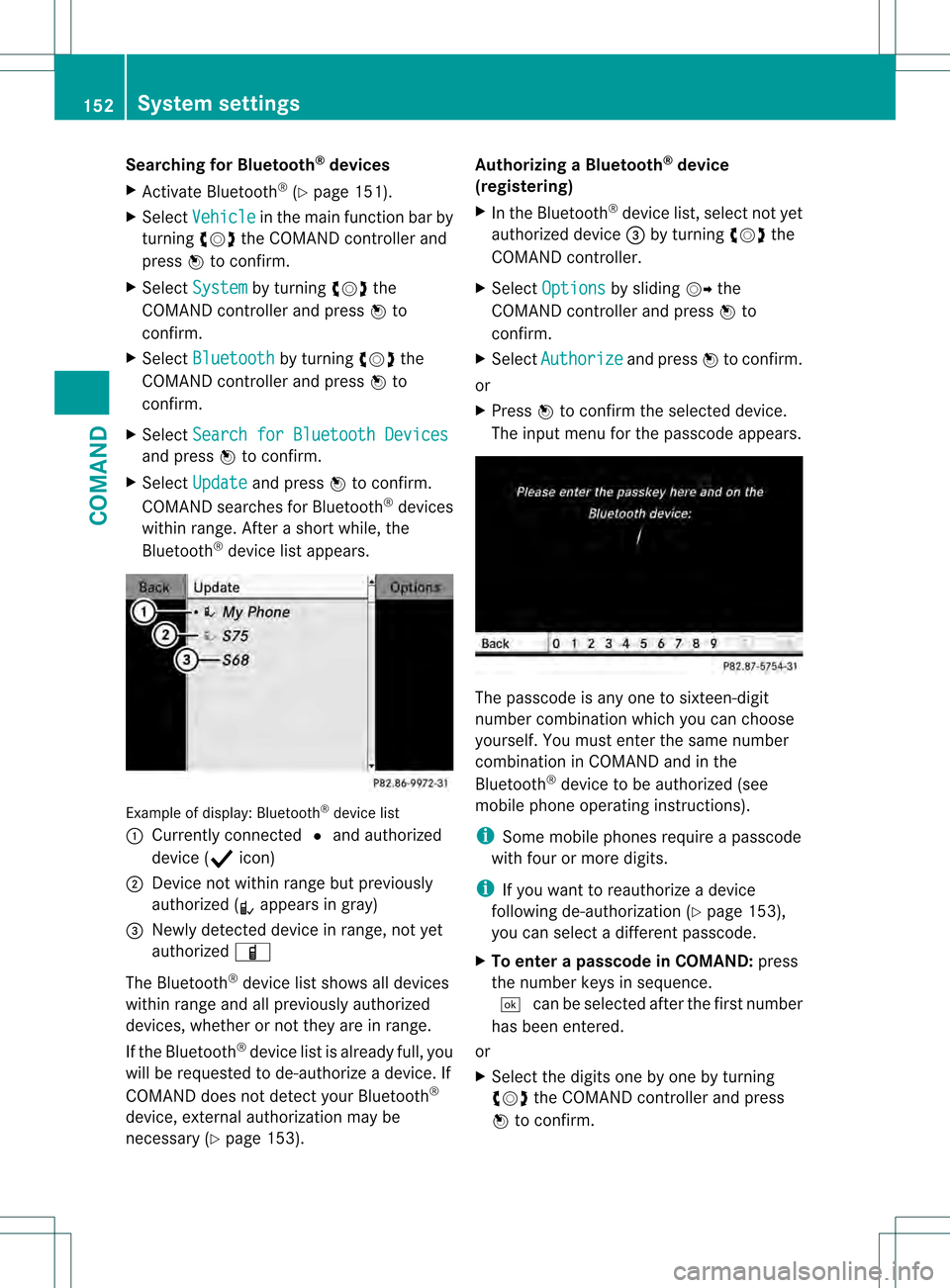
device list appears. Example of display:B
luetooth®
device list
0002 Currently connected 002Cand authorized
device (0007 icon)
0003 Device not within range but previously
authorized (0009 appears in gray)
0026 Newly detected device in range, not yet
authorized 000D
The Bluetooth ®
device list shows all devices
within range and all previously authorized
devices, whether or not they are in range.
If the Bluetooth ®
device list is already full, you
will be requested to de-authorize a device. If
COMAN Ddoes not detect your Bluetooth ®
device, external authorization may be
necessary (Y page 153). Authorizing a Bluetooth
®
device
(registering)
X In the Bluetooth ®
device list, select not yet
authorized device 0026by turning 0031001C0032the
COMAND controller.
X Select Options by sliding
001C003Dthe
COMAND controller and press 0021to
confirm.
X Select Authorize and press
0021to confirm.
or
X Press 0021to confirm the selected device.
The input menu for the passcode appears. The passcode is any one to sixteen-digit
number combination which you can choose
yourself. You must enter the same number
combination in COMAND and in the
Bluetooth
®
device to be authorized (see
mobile phone operating instructions).
i Some mobile phones require a passcode
with four or more digits.
i If you want to reauthorize a device
following de-authorization ( Ypage 153),
you can select a different passcode.
X To enter apasscode in COMAND: press
the numbe rkeys in sequence.
0003 can be selected after the first number
has been entered.
or
X Select the digits one by one by turning
0031001C0032 the COMAND controller and press
0021 to confirm. 152
System settingsCOMAND
Page 155 of 542
X
To confirm an entry in COMAND: select
0003 using the COMAND controller and
press 0021to confirm.
or
X Select SENDon the telephone keypad.
X Enter the same passcode into the
Bluetooth ®
device (see the operating
instructions for the respective device).
The device is authorized.
External authorization If COMAND does not detect your
Bluetooth
®
device, this may be du eto
particular security settings on your
Bluetooth ®
device. In this case, you can test
if your Bluetooth ®
device can find COMAND.
The Bluetooth ®
device name of COMAND is
"MB Bluetooth".
X Select Update .
X Select Options by sliding
001C003Dthe
COMAND controller and press 0021to
confirm.
X Select External Authorization and
press 0021to confirm.
X Start the Bluetooth ®
scan process on the
Bluetooth ®
device (see separate operating
instructions of the respective device).
X Select COMAND ("MB Bluetooth").
i The order in which the passkey is entered
depends on the mobile phone.
X Enter the passkey on the Bluetooth ®
device
when prompted.
X Confirm the Do you want to authorize
XX? question in COMAND with
Yes .
X Enter the passkey in COMAND.
Displaying the details of a Bluetooth ®
device X
In the Bluetooth ®
device list, select the
desired device by turning 0031001C0032the
COMAND controller. X
Select Options by sliding
001C003Dthe
COMAND controller and press 0021to
confirm.
X Select Details and press
0021to confirm.
The detailed display for this device
appears.
X To close the detailed view: turn0031001C0032 or
slide 003C001C003D the COMAND controller.
De-authorizing (de-registering) a
Bluetooth ®
device Mercedes-Benz USA, LLC recommends de-
authorization in both COMAND and the
Bluetooth
®
device, e.g. the mobile phone.
Subsequent authorization may otherwise fail.
X In the Bluetooth ®
device list, select the
authorized device by turning 0031001C0032the
COMAND controller.
X Select Options by sliding
001C003Dthe
COMAND controller and press 0021to
confirm.
X Select De-authorize and press
0021to
confirm.
Ap rompt appears asking whethe ryou
really wish to de-authorize this device.
X Select Yes or
No and press
0021to confirm.
If you select Yes , the authorization for the
device will be revoked.
If you select No , the process will be aborted.
i If a Bluetooth ®
device has been de-
authorized and is out of range, when a new
search is carried out it will not appear in the
Bluetooth ®
device list. System language settings
This function allows you to determine the
language for the menu display sand the
navigation messages. The selected language
affects the characters available for entry.
Whe nyou set the system language, the
language of the Voice Control System will System settings
153COMAND Z
Page 173 of 542
e.g. roads closed to through traffic and non-
residents.
R roads that have time restrictions (e.g.
closed on Sundays and public holidays) are
avoided for route guidance.
Change of direction Introduction
Changes of direction have three phases:
R
preparation phase
R announcemen tphase
R change-of-direction phase
Preparation phase
COMAND prepares you for the upcoming
change of direction. Based on the example
display below, the change of direction is
announced with a message. You see the full-
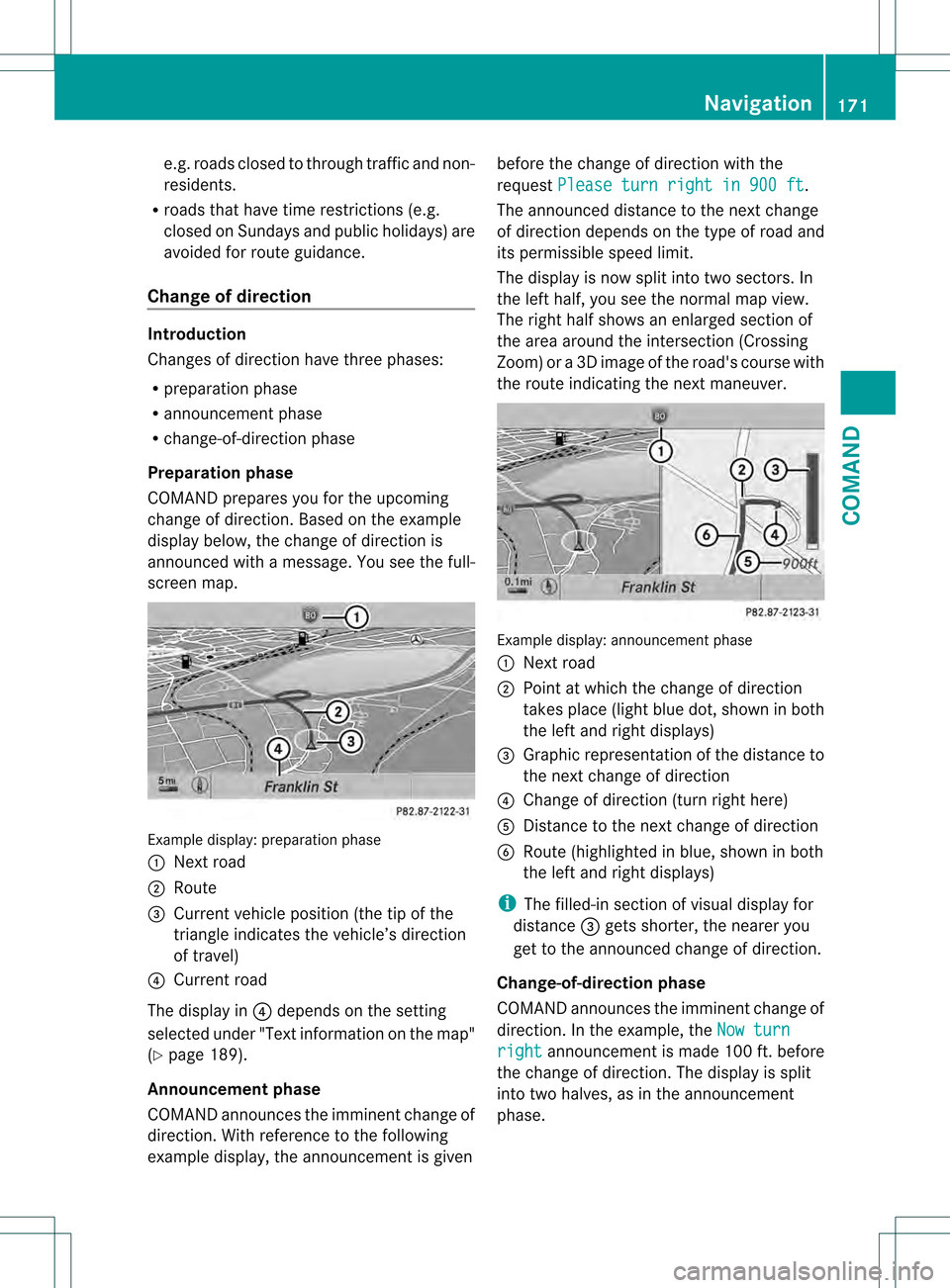
screen map. Example display:p
reparation phase
0002 Next road
0003 Route
0026 Current vehicle position (the tip of the
triangle indicates the vehicle’s direction
of travel)
0025 Current road
The display in 0025depends on the setting
selected under "Text informatio nonthe map"
(Y page 189).
Announcement phase
COMAND announces the imminent change of
direction. With referencet o the following
example display, the announcement is given before the change of direction with the
request Please turn right in 900 ft .
The announced distance to the next change
of direction depends on the type of road and
its permissible speed limit.
The display is now split into two sectors. In
the left half, you see the normal map view.
The right half shows an enlarged section of
the area around the intersection (Crossing
Zoom) or a 3D image of the road's course with
the route indicating the next maneuver. Example display: announcement phase
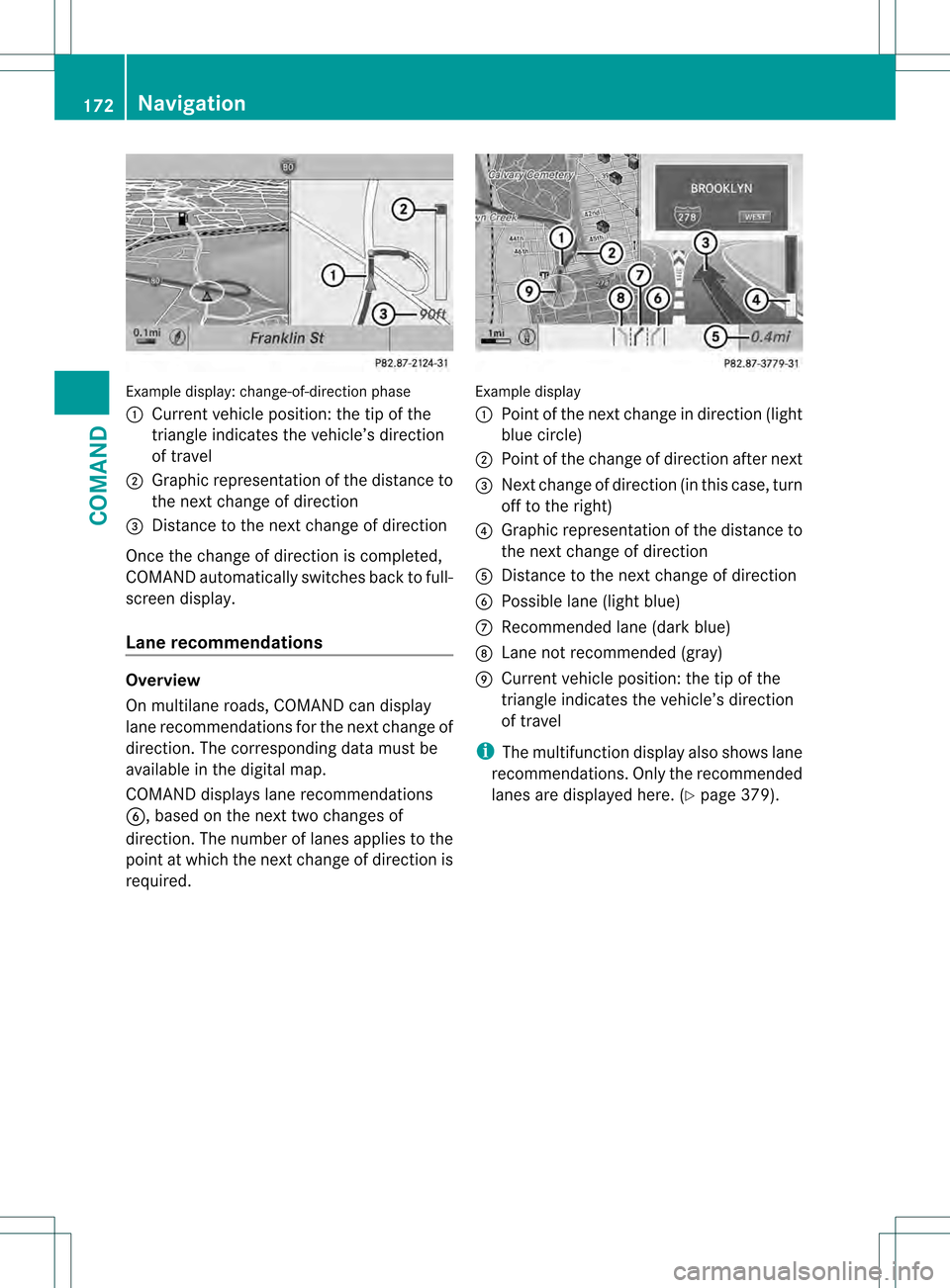
0002
Next road
0003 Point at which the change of direction
takes place (light blue dot, shown in both
the left and right displays)
0026 Graphic representation of the distance to
the next change of direction
0025 Change of direction (turn right here)
0023 Distance to the next change of direction
0024 Route (highlighted in blue, shown in both
the left and right displays)
i The filled-in section of visual display for
distance 0026gets shorter, the nearer you
get to the announced change of direction.
Change-of-direction phase
COMAND announces the imminent change of
direction .Inthe example, the Now turn right announcement is made 100 ft. before
the change of direction. The display is split
into two halves, as in the announcement
phase. Navigation
171COMAND Z
Page 174 of 542
Example display
:change-of-direction phase
0002 Current vehicle position: the tip of the
triangle indicates the vehicle’s direction
of travel
0003 Graphic representation of the distance to
the next change of direction
0026 Distance to the next change of direction
Once the change of direction is completed,
COMAND automatically switches back to full-
screen display.
Lane recommendations Overview
On multilane roads, COMAND can display
lane recommendations for the next change of
direction. The corresponding data must be
available in the digital map.
COMAND displays lane recommendations
0024, based on the next two changes of
direction. The number of lanes applies to the
point at which the next change of direction is
required. Example display
0002
Point of the next change in direction (light
blue circle)
0003 Point of the change of direction after next
0026 Next change of direction (in this case, turn
off to the right)
0025 Graphic representation of the distance to
the next change of direction
0023 Distance to the next change of direction
0024 Possible lane (light blue)
0014 Recommended lane (dark blue)
0015 Lane not recommended (gray)
0016 Current vehicle position: the tip of the
triangle indicates the vehicle’s direction
of travel
i The multifunction display also shows lane
recommendations. Only the recommended
lanes are displayed here. (Y page 379).172
NavigationCOMAND