navigation MERCEDES-BENZ S-Class 2015 W222 Comand Manual
[x] Cancel search | Manufacturer: MERCEDES-BENZ, Model Year: 2015, Model line: S-Class, Model: MERCEDES-BENZ S-Class 2015 W222Pages: 298, PDF Size: 6.39 MB
Page 183 of 298
If the vehicle is stationary, the search results
can be supplemented manually, e.g. "Hotel
Adler".
X Call up Local Search (Y page 179).
X To select a search position, e.g. At cur‐
At cur‐
rent location
rent location: turn and press the con-
troller.
X To select Search history Search history : turn and press
the controller.
The most recent search queries are dis-
played. Local Search settings
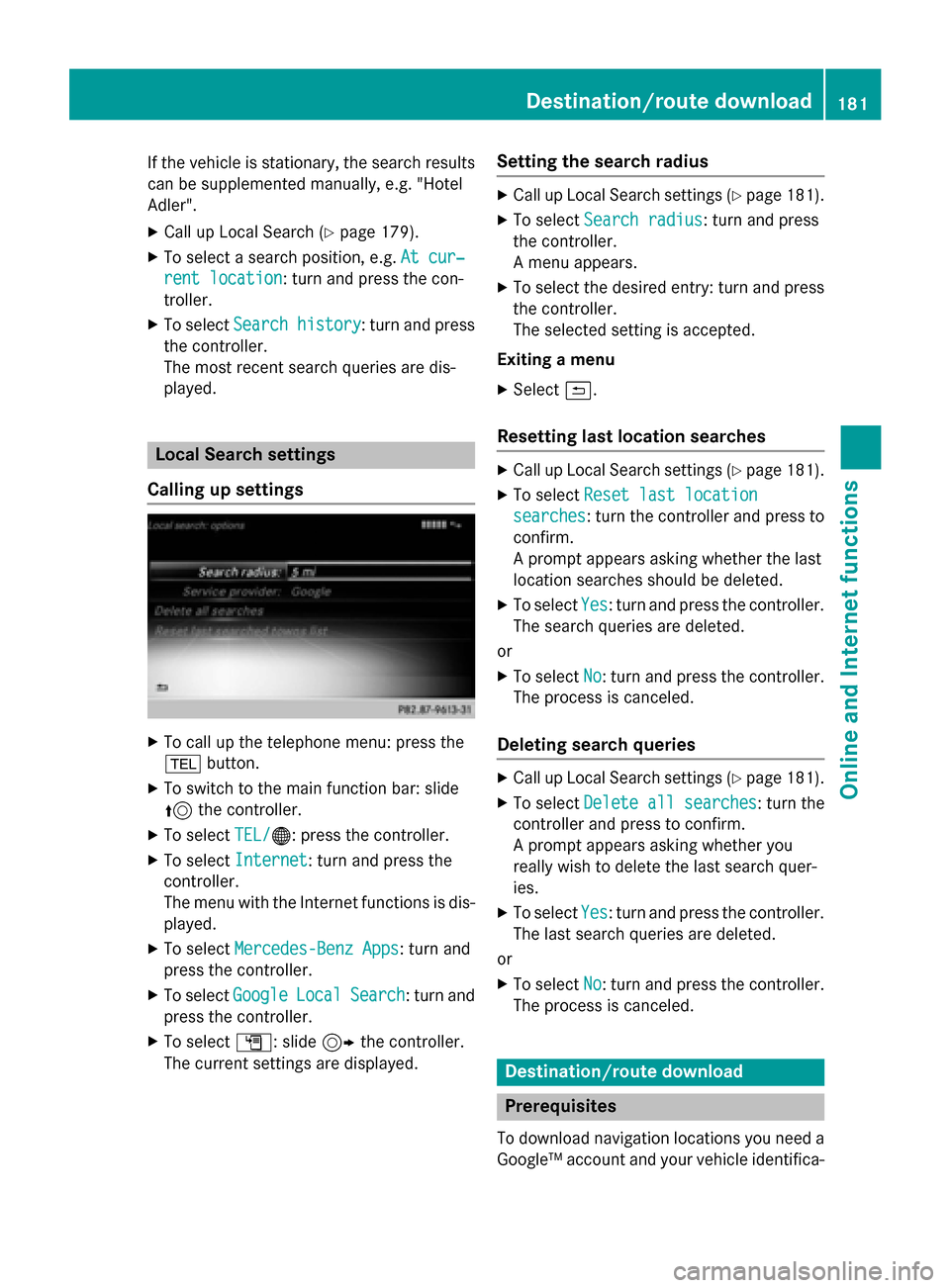
Calling up settings X
To call up the telephone menu: press the
002B button.
X To switch to the main function bar: slide
5 the controller.
X To select TEL/
TEL/00A7: press the controller.
X To select Internet Internet: turn and press the
controller.
The menu with the Internet functions is dis-
played.
X To select Mercedes-Benz Apps Mercedes-Benz Apps: turn and
press the controller.
X To select Google
GoogleLocal
LocalSearch
Search: turn and
press the controller.
X To select G: slide 9the controller.
The current settings are displayed. Setting the search radius X
Call up Local Search settings (Y page 181).
X To select Search radius
Search radius: turn and press
the controller.
A menu appears.
X To select the desired entry: turn and press
the controller.
The selected setting is accepted.
Exiting a menu
X Select 0039.
Resetting last location searches X
Call up Local Search settings (Y page 181).
X To select Reset last location Reset last location
searches
searches: turn the controller and press to confirm.
A prompt appears asking whether the last
location searches should be deleted.
X To select Yes Yes: turn and press the controller.
The search queries are deleted.
or
X To select No
No: turn and press the controller.
The process is canceled.
Deleting search queries X
Call up Local Search settings (Y page 181).
X To select Delete all searches Delete all searches : turn the
controller and press to confirm.
A prompt appears asking whether you
really wish to delete the last search quer-
ies.
X To select Yes Yes: turn and press the controller.
The last search queries are deleted.
or
X To select No
No: turn and press the controller.
The process is canceled. Destination/route download
Prerequisites
To download navigation locations you need a Google™ account and your vehicle identifica- Destination/route download
181Online and Internet functions Z
Page 184 of 298
tion number. Further information about the
vehicle identification number (VIN)
(Y page 184).
To download navigation locations, the
mbrace system must be:
R activated
R operational
R activated for the services of the system and
for Internet access
For information on the mbrace system, see
the separate vehicle Operator's Manual. Procedure and general information
Sign into your Google™ account on the Inter- net. Use the Google™ Maps website to send
the destination to a server (Y page 182).
Using the Download Download POI
POIApp, the destination
is displayed in the vehicle (Y page 182).
The destination can be:
R imported (Y page 183)
R used for route guidance (Y page 183)
R called up (Y page 183)
R deleted from the server (Y page 184)Sending destinations to the server
X Sign into your Google™ account.
X Call up the Google™ Maps website.
X Enter a destination.
X Click "More" at the destination.
X Click "Send".
X Enter the corresponding information in the
boxes shown.
X Select "Send to car".
X Select Mercedes-Benz as the vehicle
brand.
X Enter the mbrace e-mail address or the
vehicle identification number.
Further information about the vehicle iden- tification number (Y page 184).
X Click "Send".
The destination is sent to the server. The availability of the destination/route
download function is country-dependent. Displaying destinations in the vehicle
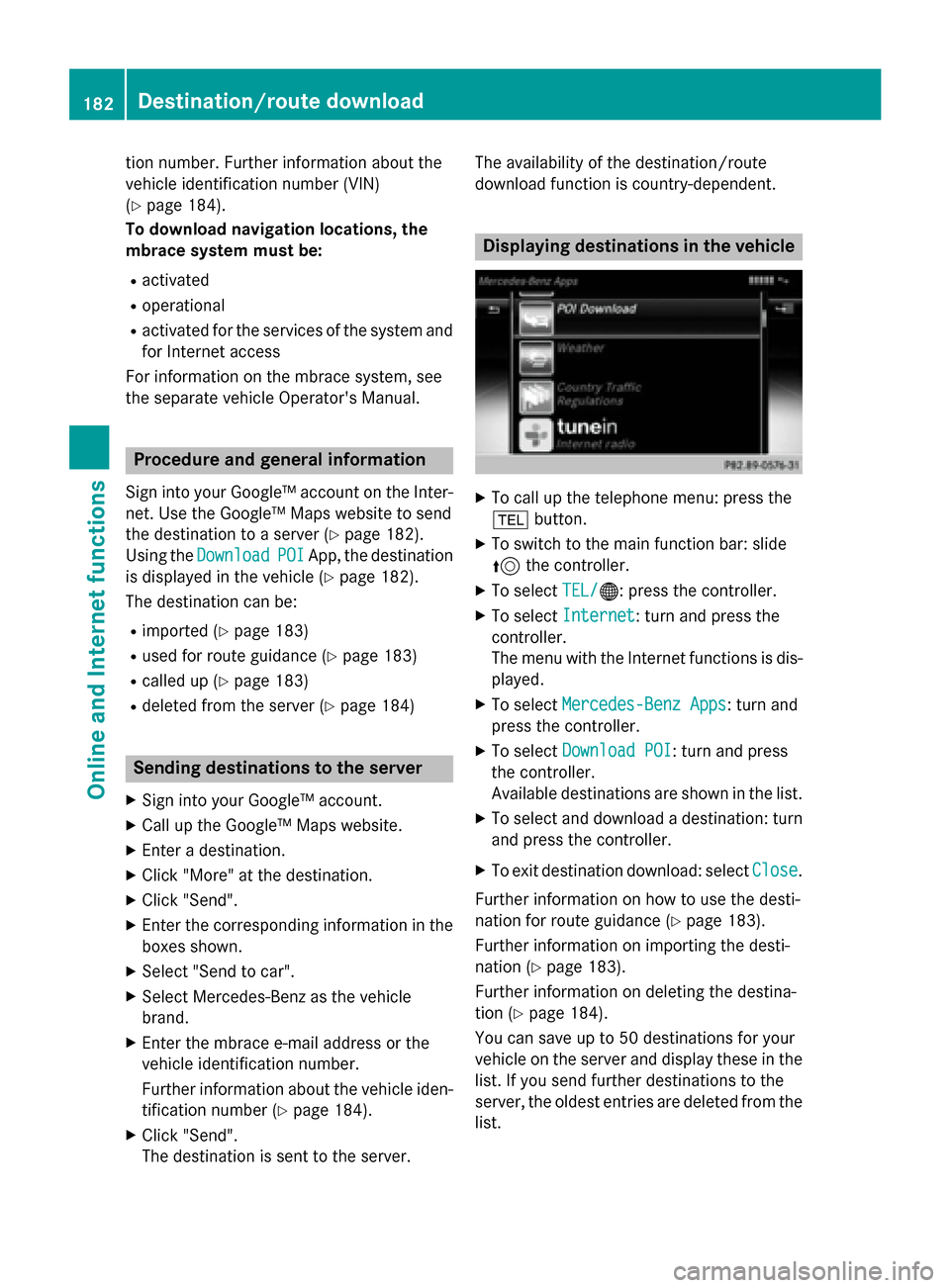
X
To call up the telephone menu: press the
002B button.
X To switch to the main function bar: slide
5 the controller.
X To select TEL/ TEL/00A7: press the controller.
X To select Internet
Internet: turn and press the
controller.
The menu with the Internet functions is dis-
played.
X To select Mercedes-Benz Apps Mercedes-Benz Apps: turn and
press the controller.
X To select Download POI
Download POI : turn and press
the controller.
Available destinations are shown in the list.
X To select and download a destination: turn
and press the controller.
X To exit destination download: select Close Close.
Further information on how to use the desti-
nation for route guidance (Y page 183).
Further information on importing the desti-
nation (Y page 183).
Further information on deleting the destina-
tion (Y page 184).
You can save up to 50 destinations for your
vehicle on the server and display these in the list. If you send further destinations to the
server, the oldest entries are deleted from the
list. 182
Destina
tion/route do wnloadOnline and Internet functions
Page 185 of 298
Using destinations
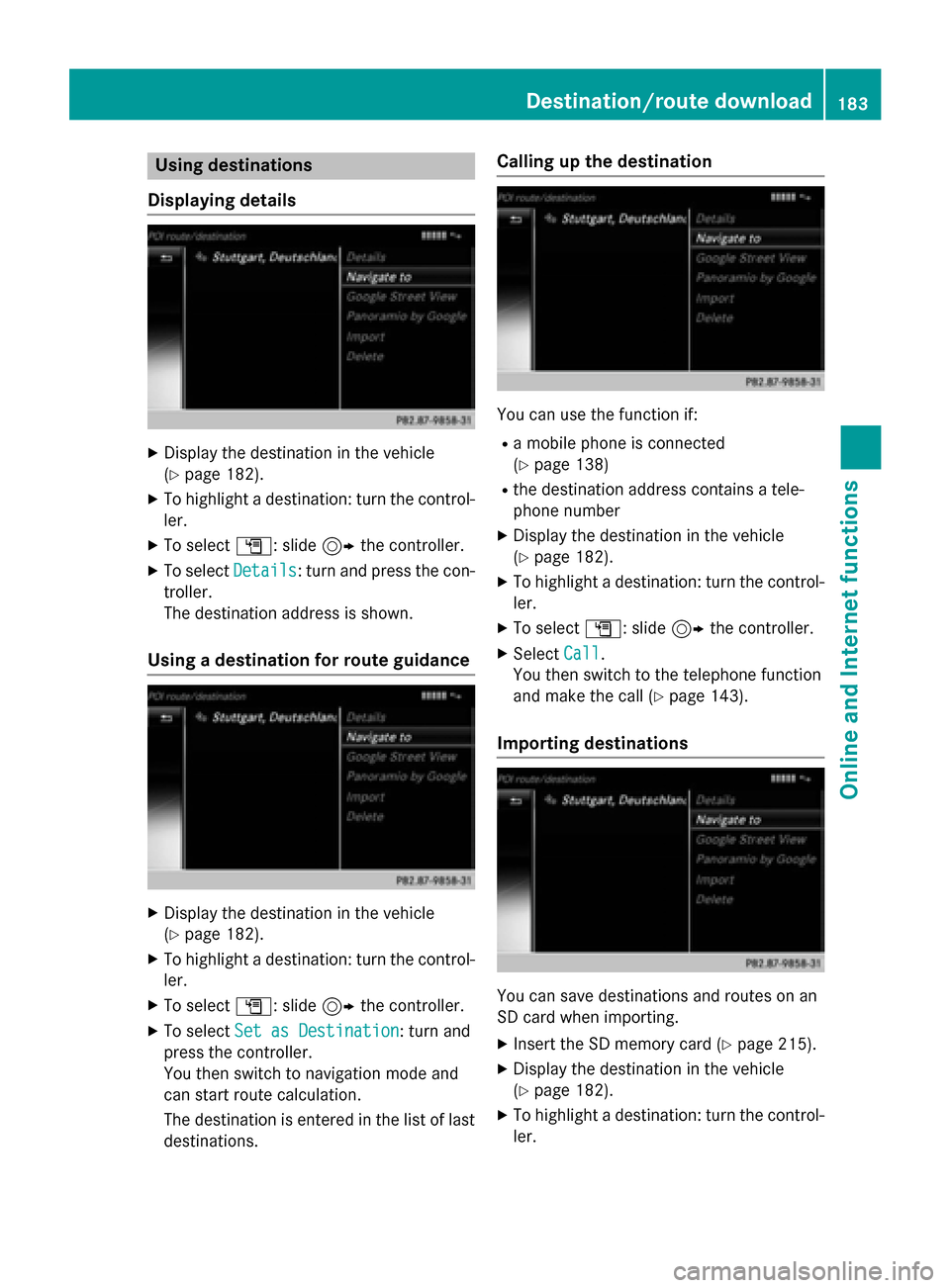
Displaying details X
Display the destination in the vehicle
(Y page 182).
X To highlight a destination: turn the control-
ler.
X To select G: slide 9the controller.
X To select Details
Details: turn and press the con-
troller.
The destination address is shown.
Using a destination for route guidance X
Display the destination in the vehicle
(Y page 182).
X To highlight a destination: turn the control-
ler.
X To select G: slide 9the controller.
X To select Set as Destination Set as Destination: turn and
press the controller.
You then switch to navigation mode and
can start route calculation.
The destination is entered in the list of last
destinations. Calling up the destination
You can use the function if:
R a mobile phone is connected
(Y page 138)
R the destination address contains a tele-
phone number
X Display the destination in the vehicle
(Y page 182).
X To highlight a destination: turn the control-
ler.
X To select G: slide 9the controller.
X Select Call Call.
You then switch to the telephone function
and make the call (Y page 143).
Importing destinations You can save destinations and routes on an
SD card when importing.
X Insert the SD memory card (Y page 215).
X Display the destination in the vehicle
(Y page 182).
X To highlight a destination: turn the control-
ler. Destination/route download
183Online and Internet functions Z
Page 191 of 298
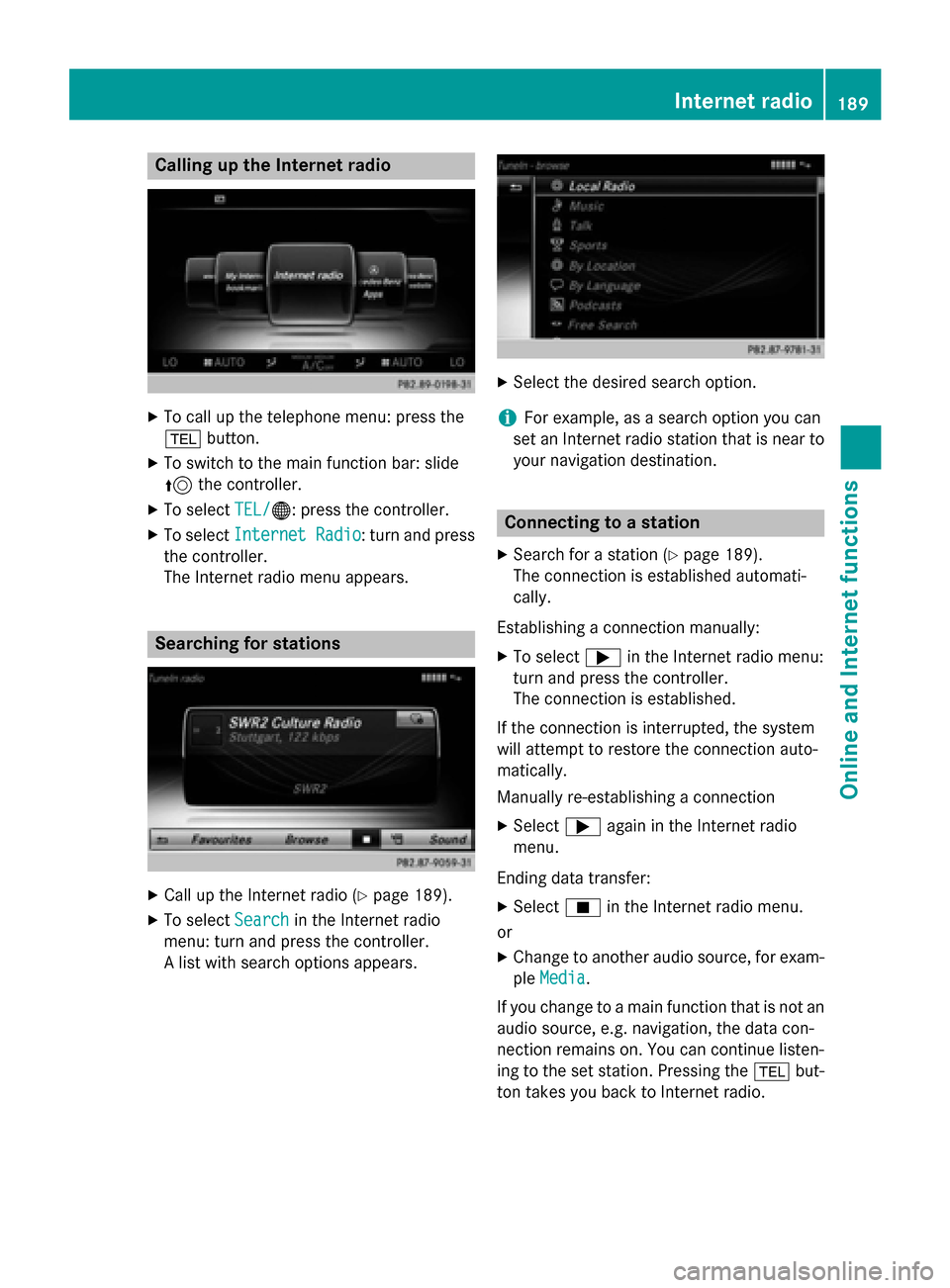
Calling up the Internet radio
X
To call up the telephone menu: press the
002B button.
X To switch to the main function bar: slide
5 the controller.
X To select TEL/
TEL/00A7: press the controller.
X To select Internet Radio
Internet Radio : turn and press
the controller.
The Internet radio menu appears. Searching for stations
X
Call up the Internet radio (Y page 189).
X To select Search
Search in the Internet radio
menu: turn and press the controller.
A list with search options appears. X
Select the desired search option.
i For example, as a search option you can
set an Internet radio station that is near to your navigation destination. Connecting to a station
X Search for a station (Y page 189).
The connection is established automati-
cally.
Establishing a connection manually: X To select 0065in the Internet radio menu:
turn and press the controller.
The connection is established.
If the connection is interrupted, the system
will attempt to restore the connection auto-
matically.
Manually re-establishing a connection
X Select 0065again in the Internet radio
menu.
Ending data transfer:
X Select 00DBin the Internet radio menu.
or
X Change to another audio source, for exam-
ple Media
Media.
If you change to a main function that is not an
audio source, e.g. navigation, the data con-
nection remains on. You can continue listen-
ing to the set station. Pressing the 002Bbut-
ton takes you back to Internet radio. Internet radio
189Online and Internet functions Z
Page 212 of 298
Your COMAND equipment
These operating instructions describe all
standard and optional equipment available
for your COMAND system at the time of pur-
chase. Country-specific differences are pos-
sible. Please note that your COMAND system may not be equipped with all the features
described. This also applies to safety-relevant
systems and functions. Therefore, the equip-
ment on your COMAND system may differ
from that in the descriptions and illustrations. Should you have any questions concerning
equipment and operation, please consult an
authorized Mercedes-Benz Center. Activating media mode
General notes
There are several ways to activate media
sources using COMAND.
The relevant sections of the Operator's Man-
ual describe the simplest way to activate a
media source.
This section describes all options for activat-
ing media sources. Using the MEDIA button
X Press the 00FDbutton.
The menu appears with the available media sources.
X To select media sources: turn the controller
until the desired media source is in the
center. Press the controller.
The media sources appear in the following
order:
R CD/DVD
R Memory card
R Media Register
R Vehicles without Media Interface: USB 1
and USB 2
R Vehicles with Media Interface: Media
Interface 1 and Media Interface 2 R
BT audio
R TV (if your vehicle is equipped with a TV)
R AUX
If playable music files are found, they will be played by COMAND.
X To display the function bars: slide 00520064the
controller. Switching on automatically
After an external media source has been con-
nected, COMAND will only activate the cor-
responding media mode automatically in the
case of CDs and SD cards. When using USB
devices, depending on the vehicle's equip-
ment, the relevant Media Interface 1, 2 or
USB 1, 2 basic display must already be acti-
vated.
External media sources:
R Apple devices (e.g. iPhone ®
)
R USB devices (e.g. USB stick, MP3 player)
R CD
R DVD
R SD cards
R via AUX cable (automatic activation
depends on the device connected)
R via devices connected by Bluetooth ®
If playable music files are found, they will be
played by COMAND.
i If a media function is already switched on
in COMAND, this will be interrupted and the
basic display of the newly connected
device will appear.
If another function, such as navigation, is
operating, the basic display will not change.
Only the music from the newly connected
media source will play 210
Activa
ting media modeMedia
Page 214 of 298
Starting an application at a different
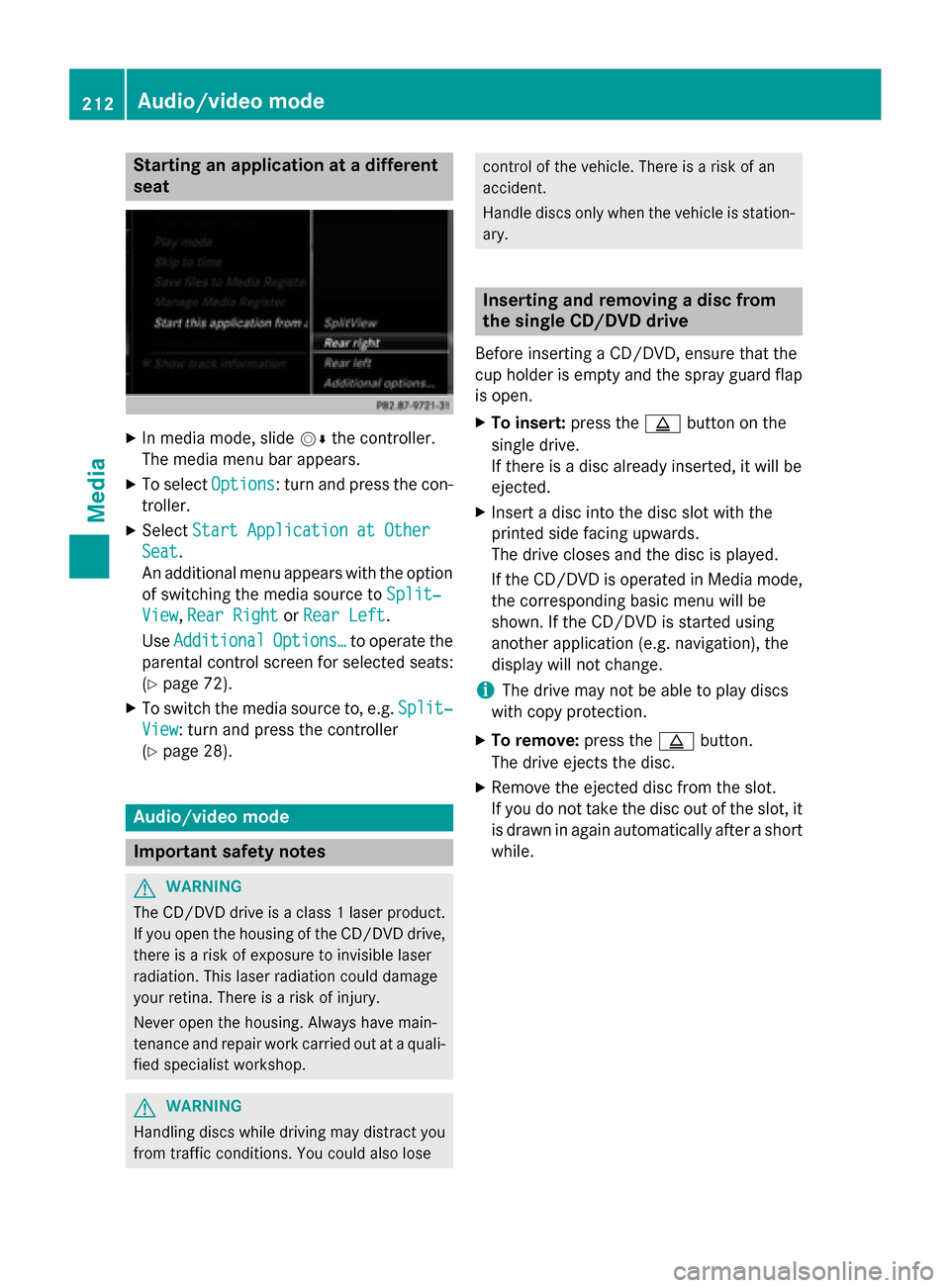
seat
X
In media mode, slide 00520064the controller.
The media menu bar appears.
X To select Options
Options: turn and press the con-
troller.
X Select Start Application at Other Start Application at Other
Seat
Seat.
An additional menu appears with the option of switching the media source to Split‐ Split‐
View
View, Rear Right
Rear Right orRear Left
Rear Left.
Use Additional
Additional Options…
Options…to operate the
parental control screen for selected seats:
(Y page 72).
X To switch the media source to, e.g. Split‐ Split‐
View
View: turn and press the controller
(Y page 28). Audio/video mode
Important safety notes
G
WARNING
The CD/DVD drive is a class 1 laser product. If you open the housing of the CD/DVD drive,
there is a risk of exposure to invisible laser
radiation. This laser radiation could damage
your retina. There is a risk of injury.
Never open the housing. Always have main-
tenance and repair work carried out at a quali- fied specialist workshop. G
WARNING
Handling discs while driving may distract you from traffic conditions. You could also lose control of the vehicle. There is a risk of an
accident.
Handle discs only when the vehicle is station- ary. Inserting and removing a disc from
the single CD/DVD drive
Before inserting a CD/DVD, ensure that the
cup holder is empty and the spray guard flap is open.
X To insert: press the00F8button on the
single drive.
If there is a disc already inserted, it will be
ejected.
X Insert a disc into the disc slot with the
printed side facing upwards.
The drive closes and the disc is played.
If the CD/DVD is operated in Media mode,
the corresponding basic menu will be
shown. If the CD/DVD is started using
another application (e.g. navigation), the
display will not change.
i The drive may not be able to play discs
with copy protection.
X To remove: press the00F8button.
The drive ejects the disc.
X Remove the ejected disc from the slot.
If you do not take the disc out of the slot, it
is drawn in again automatically after a short
while. 212
Audio/video modeMedia
Page 217 of 298
Inserting and ejecting an SD memory
card
Important safety notes G
WARNING
SD memory cards are small parts. They can be swallowed and cause asphyxiation. This
poses an increased risk of injury or even fatal injury.
Keep SD memory cards out of the reach of
children. If an SD memory card is swallowed,
seek immediate medical attention.
! If you are no longer using the SD memory
card, you should remove it and take it out of
the vehicle. High temperatures can dam-
age the card.
COMAND supports SD memory cards
(Secure Digital), SDHC memory cards
(Secure DigitalHighCapacity), and SDXC
memory cards ( SecureDigital e Xtended
C apacity.
Inserting an SD memory card X
Insert the SD memory card into the SD card
slot in the stowage space under the arm-
rest until the SD memory card engages into place. The side with the contacts must face
downwards.
The music is played while the files are
loaded in the background. If there are no
supported audio/video files, you will see a message to this effect.
Ejecting an SD memory card X
Press the memory card.
The memory card is ejected.
X Remove the memory card. Connecting USB devices
There are two USB ports located in the stow-
age compartment in the center console. X
Connect the USB device to the USB port.
The data medium will only be played and
the files will only be loaded in the back-
ground if the corresponding media display
is visible. Otherwise, the system does not
automatically switch to USB. If there are no
supported audio/video files, you will see a message to this effect.
i MP3 players must support Media Transfer
Protocol (MTP). Activating media mode
Switching on automatically After an external media source has been con-
nected, COMAND will only activate the cor-
responding media mode automatically and
show the basic display in the case of CDs and SD cards. If the CD/DVD is started using
another application (e.g. navigation), the dis-
play will not change.
When using USB devices, depending on the
vehicle's equipment, the relevant Media
Interface 1, 2 or USB 1, 2 basic display must
already be activated.
X Insert the CDs/DVDs (Y page 212)
or X Insert an SD memory card: (Y page 215)
or
X Connect a USB device: (Y page 215)
COMAND loads the medium inserted and
playback starts automatically if the basic
display is set to the correct USB media
source.
Further options for switching on R
Using the number keypad: (Y page 211)
R Using the main function bar: (Y page 211)
R Using the device list: (Y page 211)
R Using the 00FDbutton: (Y page 210) Audio/video mode
215Media Z
Page 239 of 298
X
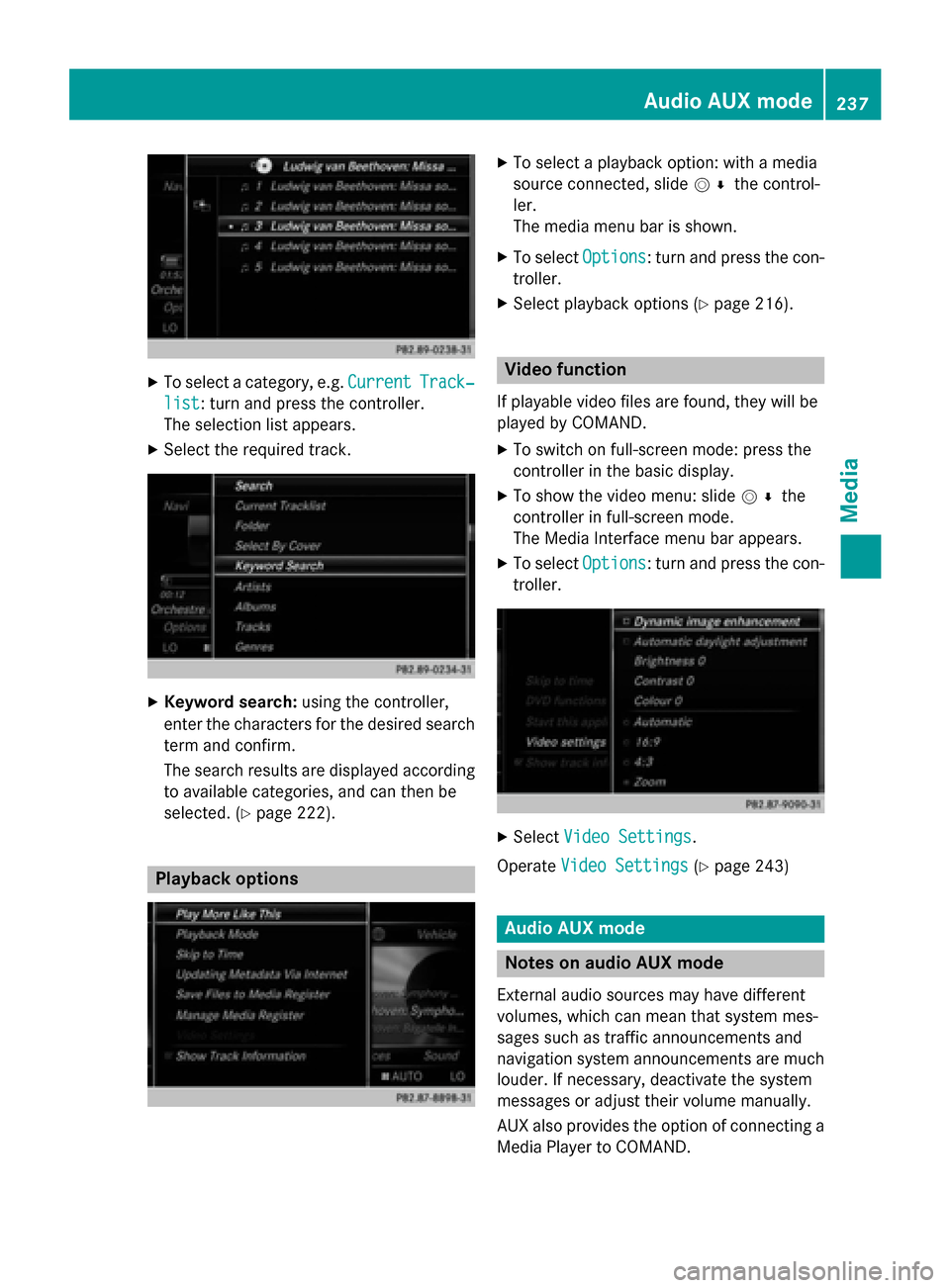
To select a category, e.g. Current
CurrentTrack‐
Track‐
list
list: turn and press the controller.
The selection list appears.
X Select the required track. X
Keyword search: using the controller,
enter the characters for the desired search
term and confirm.
The search results are displayed according to available categories, and can then be
selected. (Y page 222). Playback options X
To select a playback option: with a media
source connected, slide 005200C5the control-
ler.
The media menu bar is shown.
X To select Options Options: turn and press the con-
troller.
X Select playback options (Y page 216). Video function
If playable video files are found, they will be
played by COMAND. X To switch on full-screen mode: press the
controller in the basic display.
X To show the video menu: slide 005200C5the
controller in full-screen mode.
The Media Interface menu bar appears.
X To select Options Options: turn and press the con-
troller. X
Select Video Settings
Video Settings.
Operate Video Settings
Video Settings (Ypage 243) Audio AUX mode
Notes on audio AUX mode
External audio sources may have different
volumes, which can mean that system mes-
sages such as traffic announcements and
navigation system announcements are much louder. If necessary, deactivate the system
messages or adjust their volume manually.
AUX also provides the option of connecting aMedia Player to COMAND. Audio AUX mode
237Media Z
Page 241 of 298
Video AUX mode
Connecting external video sources
G
WARNING
External video sources may have different vol-
umes, which can mean that system messages such as traffic announcements and navigation
system announcements are much louder. If
necessary, please deactivate the system mes- sages or adjust their volume manually.
Video AUX is another option for showing vid- eos using COMAND.
To connect an external video source to the
video AUX, you will require a video AUX cable.
i If you only use an audio AUX cable, you
will only be able to hear the sound from the
video being played.
Videos cannot be shown on the driver's
side while the vehicle is in motion. Switching to AUX video mode
X Connect the external video source.
The socket for the video AUX jack is located
in the stowage compartment in the center
console.
The video AUX is not selected automati-
cally.
X Press the 00FDbutton.
The menu for the last accessed media
source appears.
X To select Media
Media from the main function bar:
turn and press the controller.
You will see the menu.
X Select Aux
Aux .
The AUX video menu appears.
X To select Audio/Video Audio/Video in the menu bar:
slide 005200C5 and press the controller.
A Source Type Selection
Source Type Selection menu
appears.
X Select Video
Video.
The 003Bdot indicates the current setting. If the video source is connected and play-
back selected, the image from the external
video source will appear if Video
Videois
selected.
Please see the corresponding device operat-
ing instructions for information on how to
operate the external video source.
Information about sound settings
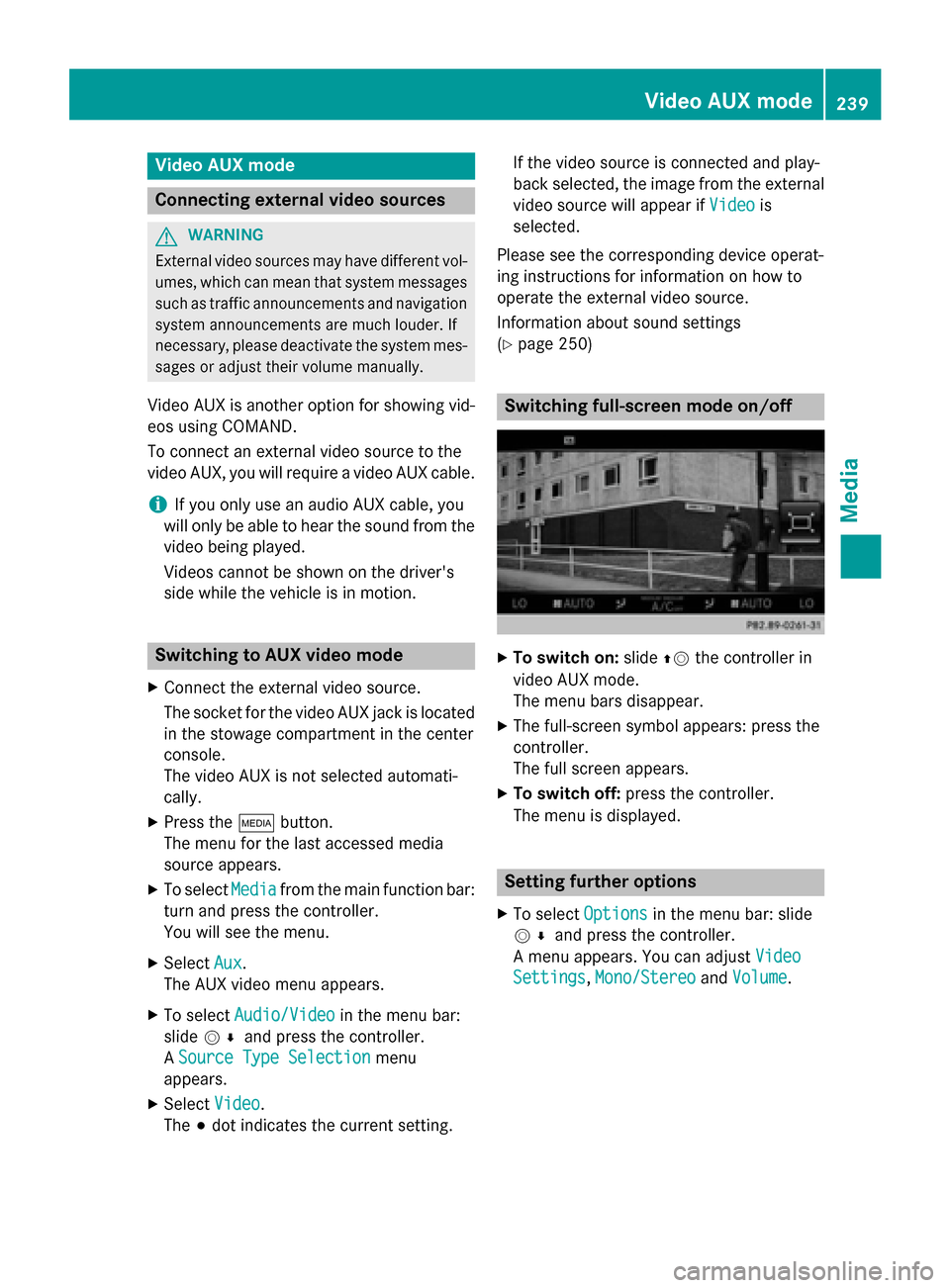
(Y page 250) Switching full-screen mode on/off
X
To switch on: slide00970052the controller in
video AUX mode.
The menu bars disappear.
X The full-screen symbol appears: press the
controller.
The full screen appears.
X To switch off: press the controller.
The menu is displayed. Setting further options
X To select Options Optionsin the menu bar: slide
005200C5 and press the controller.
A menu appears. You can adjust Video
Video
Settings
Settings, Mono/Stereo
Mono/Stereo andVolume
Volume . Video AUX mode
239Media Z
Page 261 of 298
Your COMAND equipment
................260
Rear Seat Entertainment System
overview ............................................ 260
System settings ................................ 268
Vehicle settings ................................ 270
Navigation mode ............................... 271
Online and Internet functions ..........271
Radio mode ........................................ 272
Media mode ....................................... 272
Audio/video mode ............................273
Video DVD mode ............................... 276
AUX mode .......................................... 280 259Rea
r Seat Entertainment System