USB port MERCEDES-BENZ S-Class 2015 W222 Comand Manual
[x] Cancel search | Manufacturer: MERCEDES-BENZ, Model Year: 2015, Model line: S-Class, Model: MERCEDES-BENZ S-Class 2015 W222Pages: 298, PDF Size: 6.39 MB
Page 174 of 298
Your COMAND equipment
These operating instructions describe all
standard and optional equipment available
for your COMAND system at the time of pur-
chase. Country-specific differences are pos-
sible. Please note that your COMAND system may not be equipped with all the features
described. This also applies to safety-relevant
systems and functions. Therefore, the equip-
ment on your COMAND system may differ
from that in the descriptions and illustrations. Should you have any questions concerning
equipment and operation, please consult an
authorized Mercedes-Benz Center. Important safety notes
G
WARNING
If you operate mobile communication equip-
ment while driving, you will be distracted from traffic conditions. You could also lose controlof the vehicle. There is a risk of an accident.
Only operate this equipment when the vehicleis stationary.
If you make a call on your mobile phone while
driving, always use hands-free mode. Only
use the mobile phone when road, weather
and traffic conditions permit. Some jurisdic-
tions prohibit the driver from using a mobile
phone while driving a vehicle.
Bear in mind that at a speed of 30 mph
(approximately 50 km/h), the vehicle covers
a distance of 44 feet (approximately 14 m)
per second.
Excessive levels of electromagnetic radiation
may cause damage to your health and the
health of others.
There is scientific discussion surrounding the possible health risks posed by electromag-
netic fields. You can reduce this risk by using
an exterior antenna. Therefore, connect your mobile communica-
tions equipment to the vehicle's exterior
antenna wherever possible. General notes
Connection difficulties while the vehi-
cle is in motion
The connection may be lost if:
R the mobile phone network coverage is
insufficient
R the vehicle has moved into a mobile phone
cell with no free channels
R the SIM card used is not compatible with
the network available Function restrictions
You will not be able to use the Mercedes-Benz
Apps and Internet connection, or will no lon-
ger be able to use them, or may have to wait
before using them, in the following situations:
R when the mobile phone is switched off.
R if your mobile phone has not been enabled
for Internet access.
R if the Bluetooth ®
function is switched off on
COMAND and the desired phone is sup-
posed to be connected via Bluetooth ®
.
R if the Bluetooth ®
function is switched off on
the mobile phone and the phone is sup-
posed to be connected via Bluetooth ®
.
R if the mobile phone is not connected via
USB and the phone is supposed to be con-
nected via USB.
R if neither the mobile phone network nor the
mobile phone allow simultaneous use of a
phone and an Internet connection.
R if the mobile phone has not been enabled
for Internet access via Bluetooth ®
and/or
USB.
The driver is not permitted to call up websites while driving and use of the Mercedes-Benz
Apps is restricted. 172
General notesOnline and Internet functions
Page 175 of 298
i
It is possible that you may not be able to
receive calls when an Internet connection
is active. This depends on the mobile phone
and the mobile phone network used. Conditions for access
USA: to use Mercedes-Benz apps and Inter-
net access, mbrace must be activated and
operational. Furthermore, mbrace must be
activated for Mercedes-Benz apps and Inter-
net access. Take note of the connection pri-
orities. An emergency call has the highest pri-
ority. When a service call, e.g. a breakdown
service call or the MB Info Call, is active, an
emergency call can still be initiated. A service
call, on the other hand, has priority over a
current Internet connection. Therefore, you
cannot establish an Internet connection dur-
ing a service call.
Canada: a mobile phone must be connected
via Bluetooth ®
(Y page 138) or USB
(Y page 235) with COMAND. Furthermore,
you need a valid mobile service contract with
a data option, which is used to calculate the
associated connection costs.
Conditions for a Bluetooth ®
connection
R The mobile phone supports at least one of
the Bluetooth ®
profiles DUN (Dial-Up
Networking) or PAN (Personal Area
Network).
The Bluetooth ®
profiles DUN and PAN ena-
ble the Internet connection of the mobile
phone to be made available to the system.
Conditions for a USB connection
R The mobile phone supports at least one of
the USB classes:
- RNDIS (R emoteNetwork DriverInter-
face Specification)
- CDC/NCM (Network ControlModel)
- CDC/ECM (Ethernet ControlModel)
- CDC/ACM (Access ControlModel) The USB classes enable the mobile phone
Internet connection to be made available to
the system.
The terms of use are shown when the system is used for the first time and then once a year
thereafter. Only read and accept the terms of
use when the vehicle is stationary.
The driver is not permitted to call up websites while driving and use of the Mercedes-Benz
Apps is restricted.
i The availability of individual Mercedes-
Benz Apps may vary depending on the
country. Setting up an Internet connection
Procedure and general information
USA: to use Mercedes-Benz apps and Inter-
net access, mbrace must be activated and
operational. Furthermore, mbrace must be
activated for Mercedes-Benz apps and Inter-
net access. No further settings are required.
Canada: in order to set up a mobile phone for
Internet access, the mobile phone must be
connected via Bluetooth ®
(Y page 138) or
USB (Y page 215) with COMAND. If you are
using Internet access for the first time, you
must enable the connected mobile phone for
Internet access (Y page 174). If the con-
nected mobile phone supports the Blue-
tooth ®
PAN profile or the USB classes RNDIS,
CDC/NCM or CDC/ECM, you do not need to make additional settings. The Internet con-
nection is established. If the connected
mobile phone does not support the named
Bluetooth ®
profile or the named USB classes,
predefined (Y page 174) or manual access
data (Y page 175) must be set. Setting up an Internet connection
173Online and Internet functions Z
Page 176 of 298
Enabling the mobile phone for Inter-
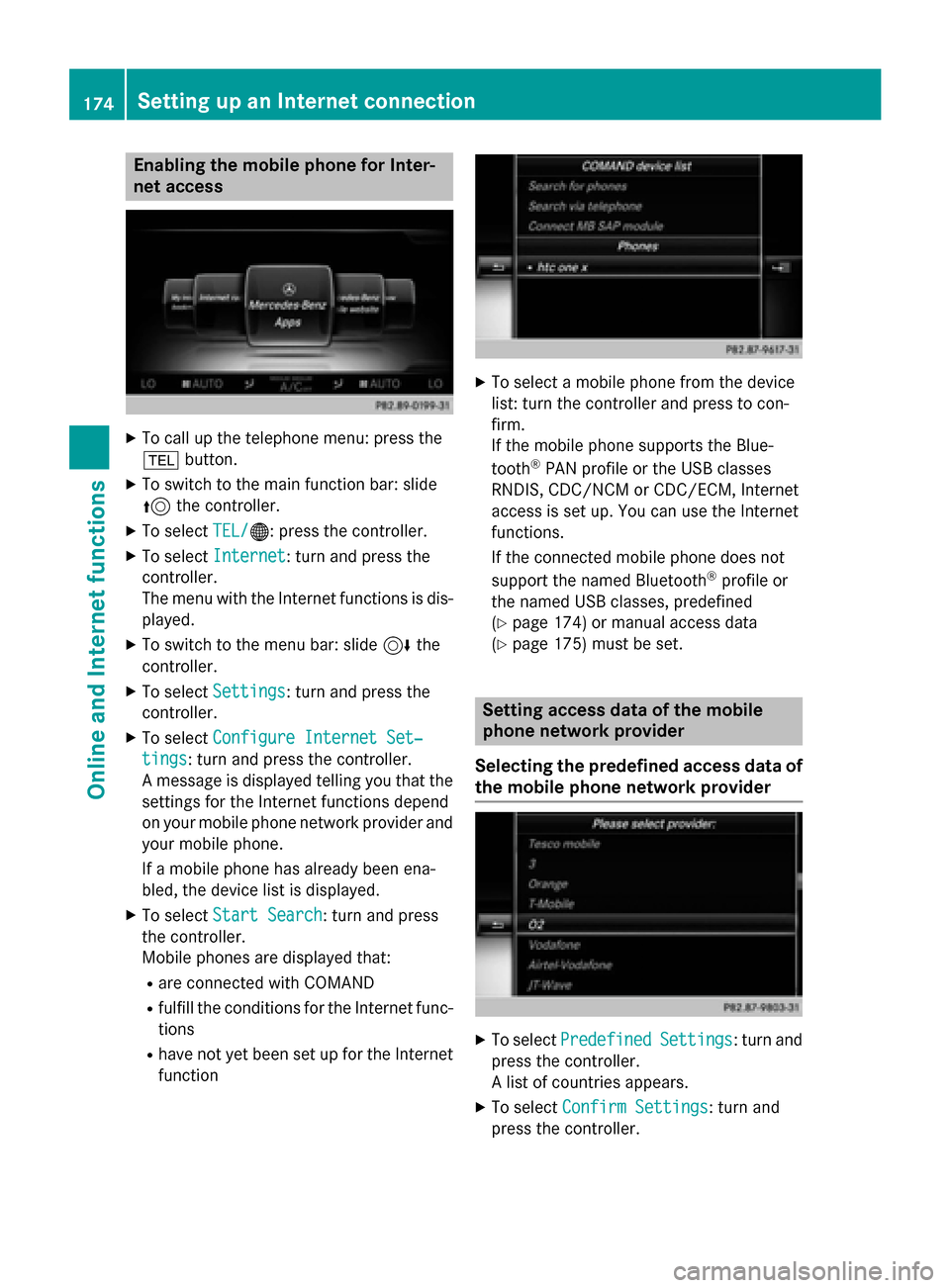
net access X
To call up the telephone menu: press the
002B button.
X To switch to the main function bar: slide
5 the controller.
X To select TEL/ TEL/00A7: press the controller.
X To select Internet
Internet: turn and press the
controller.
The menu with the Internet functions is dis-
played.
X To switch to the menu bar: slide 6the
controller.
X To select Settings
Settings: turn and press the
controller.
X To select Configure Internet Set‐
Configure Internet Set‐
tings tings: turn and press the controller.
A message is displayed telling you that the settings for the Internet functions depend
on your mobile phone network provider andyour mobile phone.
If a mobile phone has already been ena-
bled, the device list is displayed.
X To select Start Search Start Search : turn and press
the controller.
Mobile phones are displayed that:
R are connected with COMAND
R fulfill the conditions for the Internet func-
tions
R have not yet been set up for the Internet
function X
To select a mobile phone from the device
list: turn the controller and press to con-
firm.
If the mobile phone supports the Blue-
tooth ®
PAN profile or the USB classes
RNDIS, CDC/NCM or CDC/ECM, Internet
access is set up. You can use the Internet
functions.
If the connected mobile phone does not
support the named Bluetooth ®
profile or
the named USB classes, predefined
(Y page 174) or manual access data
(Y page 175) must be set. Setting access data of the mobile
phone network provider
Selecting the predefined access data of the mobile phone network provider X
To select Predefined Predefined Settings
Settings: turn and
press the controller.
A list of countries appears.
X To select Confirm Settings Confirm Settings: turn and
press the controller. 174
Setting up an Internet connectionOnline and Internet functions
Page 217 of 298
Inserting and ejecting an SD memory
card
Important safety notes G
WARNING
SD memory cards are small parts. They can be swallowed and cause asphyxiation. This
poses an increased risk of injury or even fatal injury.
Keep SD memory cards out of the reach of
children. If an SD memory card is swallowed,
seek immediate medical attention.
! If you are no longer using the SD memory
card, you should remove it and take it out of
the vehicle. High temperatures can dam-
age the card.
COMAND supports SD memory cards
(Secure Digital), SDHC memory cards
(Secure DigitalHighCapacity), and SDXC
memory cards ( SecureDigital e Xtended
C apacity.
Inserting an SD memory card X
Insert the SD memory card into the SD card
slot in the stowage space under the arm-
rest until the SD memory card engages into place. The side with the contacts must face
downwards.
The music is played while the files are
loaded in the background. If there are no
supported audio/video files, you will see a message to this effect.
Ejecting an SD memory card X
Press the memory card.
The memory card is ejected.
X Remove the memory card. Connecting USB devices
There are two USB ports located in the stow-
age compartment in the center console. X
Connect the USB device to the USB port.
The data medium will only be played and
the files will only be loaded in the back-
ground if the corresponding media display
is visible. Otherwise, the system does not
automatically switch to USB. If there are no
supported audio/video files, you will see a message to this effect.
i MP3 players must support Media Transfer
Protocol (MTP). Activating media mode
Switching on automatically After an external media source has been con-
nected, COMAND will only activate the cor-
responding media mode automatically and
show the basic display in the case of CDs and SD cards. If the CD/DVD is started using
another application (e.g. navigation), the dis-
play will not change.
When using USB devices, depending on the
vehicle's equipment, the relevant Media
Interface 1, 2 or USB 1, 2 basic display must
already be activated.
X Insert the CDs/DVDs (Y page 212)
or X Insert an SD memory card: (Y page 215)
or
X Connect a USB device: (Y page 215)
COMAND loads the medium inserted and
playback starts automatically if the basic
display is set to the correct USB media
source.
Further options for switching on R
Using the number keypad: (Y page 211)
R Using the main function bar: (Y page 211)
R Using the device list: (Y page 211)
R Using the 00FDbutton: (Y page 210) Audio/video mode
215Media Z
Page 218 of 298
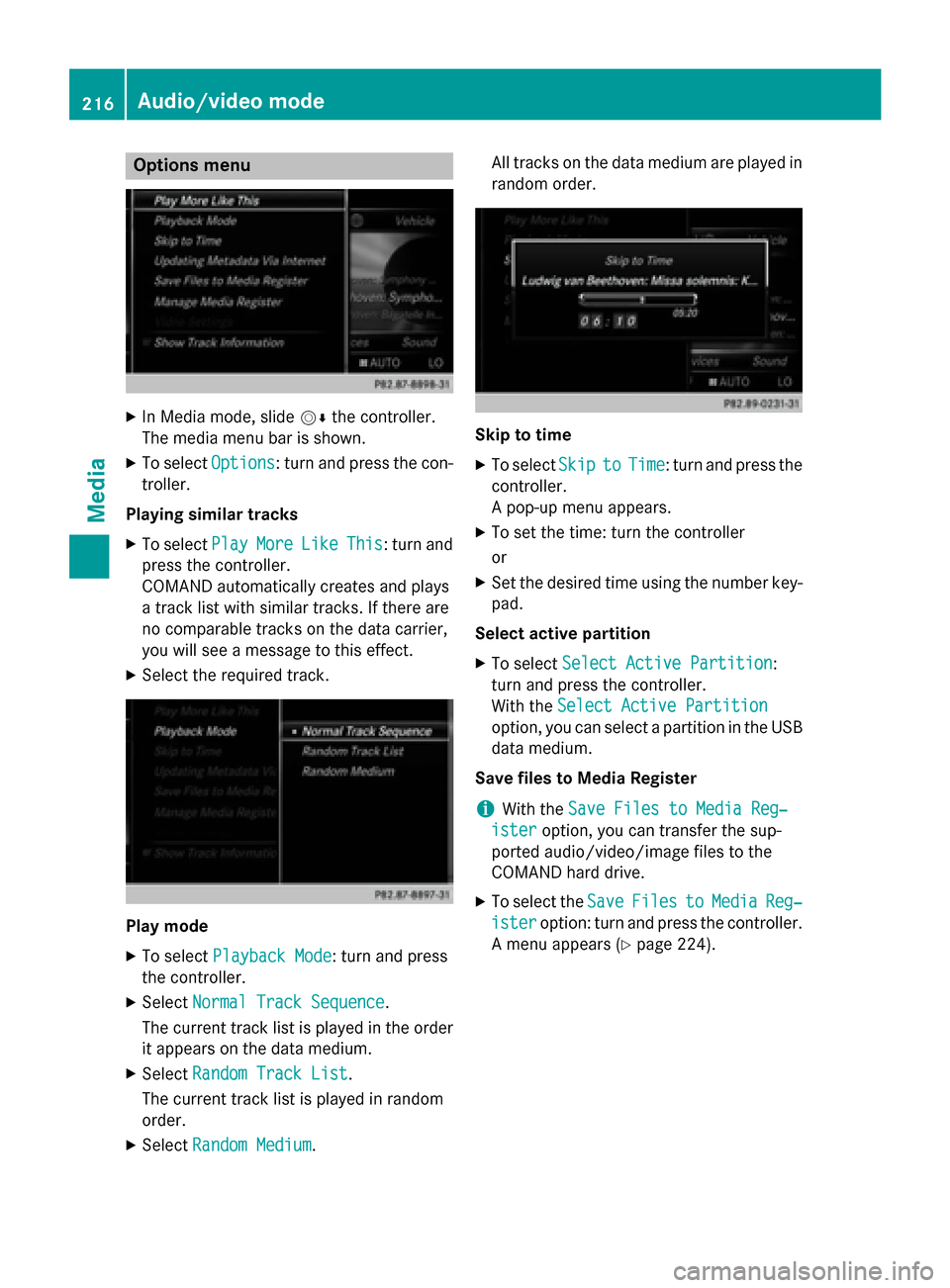
Options menu
X
In Media mode, slide 00520064the controller.
The media menu bar is shown.
X To select Options Options: turn and press the con-
troller.
Playing similar tracks X To select Play PlayMore
MoreLike
LikeThis
This: turn and
press the controller.
COMAND automatically creates and plays
a track list with similar tracks. If there are
no comparable tracks on the data carrier,
you will see a message to this effect.
X Select the required track. Play mode
X To select Playback Mode Playback Mode: turn and press
the controller.
X Select Normal Track Sequence
Normal Track Sequence.
The current track list is played in the order it appears on the data medium.
X Select Random Track List
Random Track List.
The current track list is played in random
order.
X Select Random Medium Random Medium. All tracks on the data medium are played in
random order. Skip to time
X To select Skip
Skipto
toTime
Time: turn and press the
controller.
A pop-up menu appears.
X To set the time: turn the controller
or
X Set the desired time using the number key-
pad.
Select active partition
X To select Select Active Partition Select Active Partition:
turn and press the controller.
With the Select Active Partition Select Active Partition
option, you can select a partition in the USB
data medium.
Save files to Media Register
i With the
Save Files to Media Reg‐
Save Files to Media Reg‐
ister
ister option, you can transfer the sup-
ported audio/video/image files to the
COMAND hard drive.
X To select the Save SaveFiles
Files to
toMedia
Media Reg‐
Reg‐
ister
ister option: turn and press the controller.
A menu appears (Y page 224).216
Audio/video modeMedia
Page 221 of 298
Selecting Internet update of metadata
X In media mode, slide 00520064the controller.
The media menu bar is shown.
X To select Options
Options: turn and press the con-
troller.
X Select Updating Metadata Via Inter‐
Updating Metadata Via Inter‐
net
net in the selection list.
A connection with the Gracenote ®
data
server is established. The missing data is
loaded, saved and displayed in the main
display field.
If there is no data found or there is no Inter- net connection, a corresponding error mes-sage will appear.
Switching the Gracenote ®
data display
on/off X
Switch on CD mode (Y page 215).
X To select Gracenote Media Database Gracenote Media Database:
turn and press the controller.
X To switch the display off: select None
None.
In the basic display, Track 1 Track 1,Track 2 Track 2etc.
are shown instead of the Gracenote ®
data,
for example.
X To switch on the display: press the control-
ler. Notes on audio/video mode
Permissible data carriers R
CD-R, CD-A and CD-RW
R DVD-R, DVD-V and DVD-RW
R SD memory card
R USB storage device
Permissible file systems R
ISO 9660/Joliet standard for CDs
R UDF for video DVDs
R FAT16, FAT32, exFAT and NTFS for SD
memory card and USB storage media Multisession CDs For multisession CDs, the content of the first
session determines how COMAND will proc-
ess the CD. COMAND plays only one session
and gives priority to the audio CD session.
File structure of a data carrier When you create a disc with compressed
music files, the tracks can be organized in
folders. A folder may also contain subfolders.
The disc may contain no more than eight
directory levels. Files beyond the eighth level
will not be recognized by the system.
i COMAND supports up to 50,000 files
from one data medium. For data media with
more than 64 GB, only files in the following
folders are supported: music, pictures, vid-
eos.
Track and file names When you create a disc with compressed
music files, you can assign names to the
tracks and folders.
If MP3 or WMA files are stored in the root
directory itself, the root directory will also be
treated as a folder.
You should observe the following when
assigning track names:
R track names must have at least one char-
acter.
R track names must have the ending of a
supported audio/video format, e.g. mp3,
aac or m4v.
R there must be a dot between the track
name and the extension.
Example of a correct track name:
"Track1.mp3".
Permissible formats COMAND supports the following audio for-
mats:
R MP3
R WMA Audio/video mode
219Media Z
Page 222 of 298
R
CD-A
R AAC formats: .aac, .mp4, .m4a and .m4b
Copy-protected iTunes ®
music files with
the .m4p file extension are not supported.
COMAND supports the following video for-
mats:
R DVD-V
R MPEG
R wmv
R M4V
R AVI up to 720p
Permissible bit and sampling rates COMAND supports MP3 files of the following
types:
R fixed and variable bit rates from 32 kbit/s
to 320 kbit/s
R sampling rates of 8 kHz to 48 kHz
COMAND supports WMA files of the following
types:
R fixed bit rates from 5 kbit/s to 384 kbit/s
R sampling rates of 8 kHz to 48 kHz
COMAND does not support WMA files of the
following types:
R DRM (Digital Rights Management)
encrypted files
R variable bit rate
R WMA Pro
R 5.1 surround sound
i Only use tracks with a bit rate of at least
128 kbit/s and a sampling rate of at least
44.1 kH z.Lower rates can cause a notice-
able deterioration in quality. This is espe-
cially the case if you have activated a sur-
round sound function.
Selecting an active partition (USB mass
storage devices only) You can select this function for USB storage
devices when the storage device is parti-
tioned. Up to 9 partitions (primary or logical,
FAT, FAT32 and NTFS) are supported. Select active partition
X To select Options Optionsin the media menu bar:
turn and press the controller.
X Select Select Active Partition
Select Active Partition.
Notes on copyright Audio/video files that you create or repro-
duce yourself for playback are generally sub-
ject to copyright protection.
In many countries, reproductions, even for
private use, are not permitted without the
prior consent of the copyright holder.
Make sure that you know about the applicable copyright regulations and that you comply
with these.
Notes on CDs/DVDs !
COMAND is designed to play discs that
comply with the EN 60908 standard. There-
fore, you can only use discs with a maxi-
mum thickness of 1.3 mm.
If you insert thicker discs, e.g. those that
contain data on both sides (DVD on one
side and audio data on the other), they can-
not be ejected and can damage the device.
Only use round discs with a diameter of
12 cm. Do not use discs with a diameter of
8 cm, even with an adapter.
Discs with copy protection are not compati-
ble with the audio CD standard and therefore may not be able to be played by COMAND.
Playback problems may occur when playing
copied discs.
There may be playback problems if you play
CDs that you have copied yourself with a stor- age capacity of more than 700 MB.
i COMAND is able to play back audio CDs in
multichannel audio format. Media search
Starting the media search
X In Media mode, slide 00520064the controller. 220
Media searchMedia
Page 237 of 298
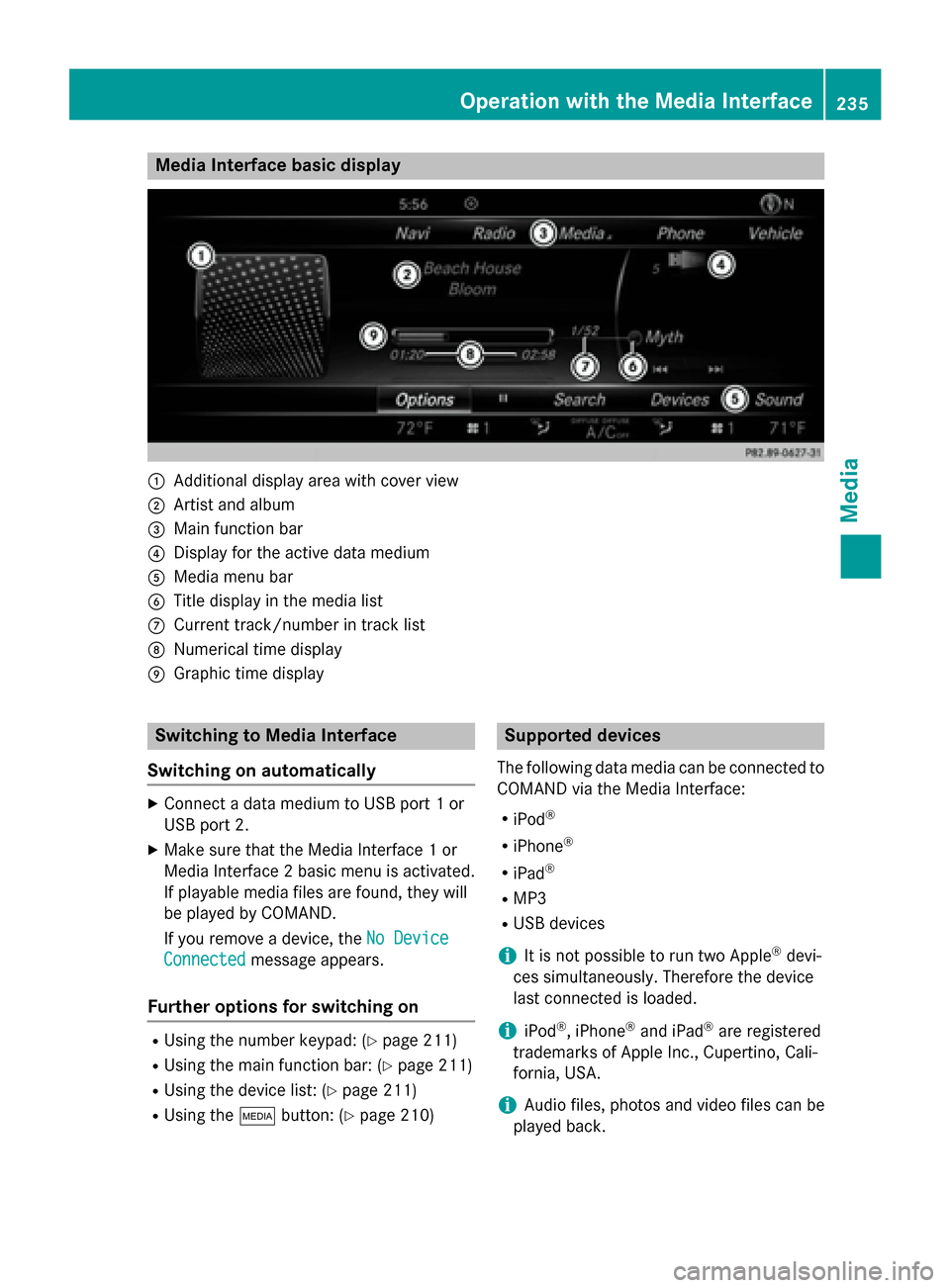
Media Interface basic display
0043
Additional display area with cover view
0044 Artist and album
0087 Main function bar
0085 Display for the active data medium
0083 Media menu bar
0084 Title display in the media list
006B Current track/number in track list
006C Numerical time display
006D Graphic time display Switching to Media Interface
Switching on automatically X
Connect a data medium to USB port 1 or
USB port 2.
X Make sure that the Media Interface 1 or
Media Interface 2 basic menu is activated.
If playable media files are found, they will
be played by COMAND.
If you remove a device, the No Device No Device
Connected
Connected message appears.
Further options for switching on R
Using the number keypad: (Y page 211)
R Using the main function bar: (Y page 211)
R Using the device list: (Y page 211)
R Using the 00FDbutton: (Y page 210) Supported devices
The following data media can be connected to
COMAND via the Media Interface:
R iPod ®
R iPhone ®
R iPad ®
R MP3
R USB devices
i It is not possible to run two Apple ®
devi-
ces simultaneously. Therefore the device
last connected is loaded.
i iPod ®
, iPhone ®
and iPad ®
are registered
trademarks of Apple Inc., Cupertino, Cali-
fornia, USA.
i Audio files, photos and video files can be
played back. Operation with the Media Interface
235Media Z
Page 248 of 298
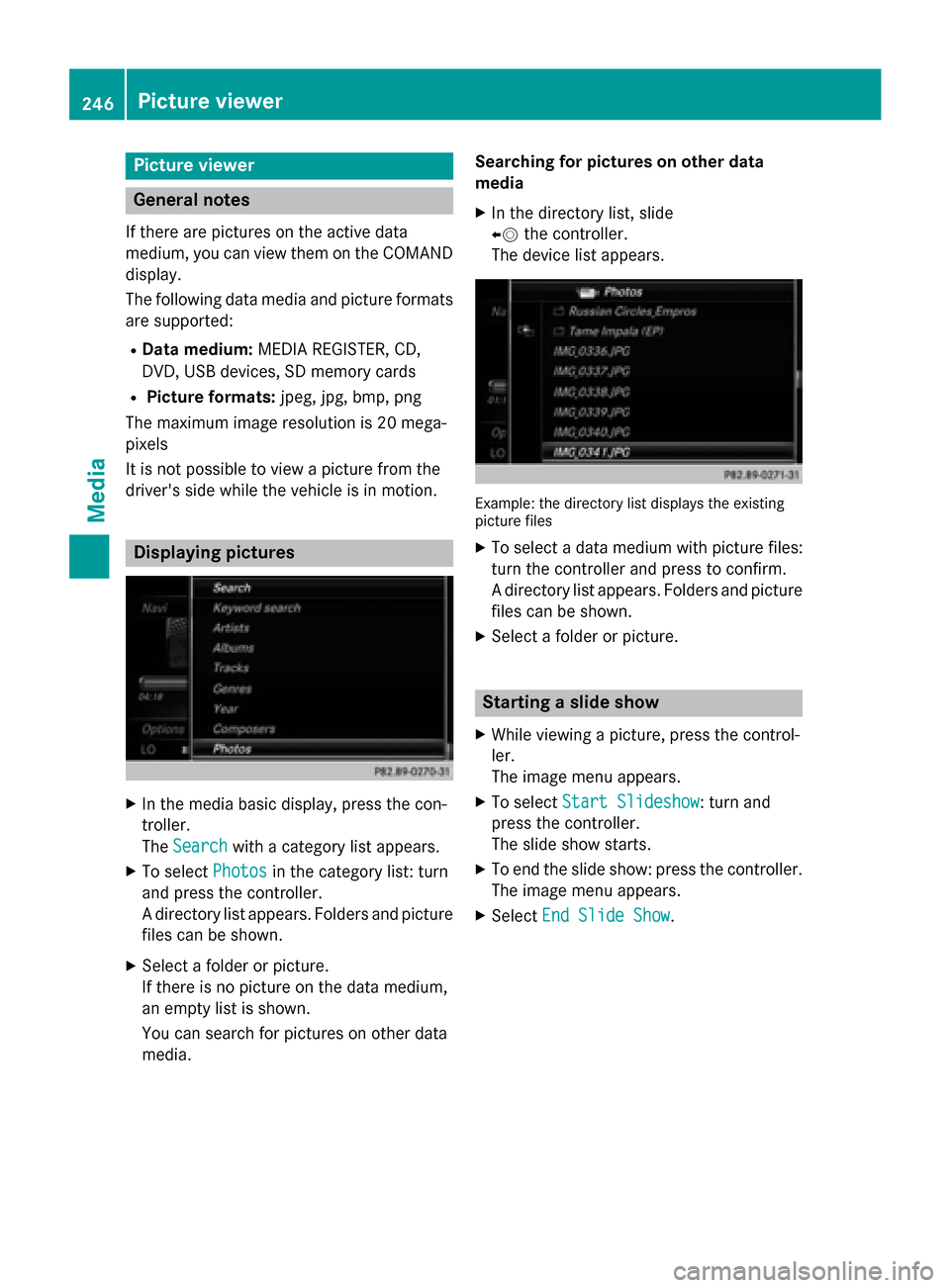
Picture viewer
General notes
If there are pictures on the active data
medium, you can view them on the COMAND
display.
The following data media and picture formats
are supported:
R Data medium: MEDIA REGISTER, CD,
DVD, USB devices, SD memory cards
R Picture formats: jpeg, jpg, bmp, png
The maximum image resolution is 20 mega-
pixels
It is not possible to view a picture from the
driver's side while the vehicle is in motion. Displaying pictures
X
In the media basic display, press the con-
troller.
The Search
Search with a category list appears.
X To select Photos
Photos in the category list: turn
and press the controller.
A directory list appears. Folders and picture files can be shown.
X Select a folder or picture.
If there is no picture on the data medium,
an empty list is shown.
You can search for pictures on other data
media. Searching for pictures on other data
media
X In the directory list, slide
00950052 the controller.
The device list appears. Example: the directory list displays the existing
picture files
X To select a data medium with picture files:
turn the controller and press to confirm.
A directory list appears. Folders and picture files can be shown.
X Select a folder or picture. Starting a slide show
X While viewing a picture, press the control-
ler.
The image menu appears.
X To select Start Slideshow Start Slideshow: turn and
press the controller.
The slide show starts.
X To end the slide show: press the controller.
The image menu appears.
X Select End Slide Show
End Slide Show. 246
Picture viewerMedia
Page 262 of 298
Your COMAND equipment
These operating instructions describe all
standard and optional equipment available
for your COMAND system at the time of pur-
chase. Country-specific differences are pos-
sible. Please note that your COMAND system may not be equipped with all the features
described. This also applies to safety-relevant
systems and functions. Therefore, the equip-
ment on your COMAND system may differ
from that in the descriptions and illustrations. Should you have any questions concerning
equipment and operation, please consult an
authorized Mercedes-Benz Center. Rear Seat Entertainment System
overview
Important safety notes
G
WARNING
The CD/DVD drive is a class 1 laser product. If you open the housing of the CD/DVD drive,
there is a risk of exposure to invisible laser
radiation. This laser radiation could damage
your retina. There is a risk of injury.
Never open the housing. Always have main-
tenance and repair work carried out at a quali- fied specialist workshop. G
WARNING
If objects such as headphones/headsets or
external audio/video sources are not secured in the passenger compartment, they can be
flung around and hit vehicle occupants. There
is a risk of injury, for example in the event of
sudden braking or a sudden change in direc-
tion.
Always stow these items or similar objects
carefully so that they cannot be flung around, for example in a lockable vehicle stowage
compartment. Components
The Rear Seat Entertainment System
includes:
R two screens for the rear behind the front-
seat head restraints
R two remote controls for the rear compart-
ment
R a CD/DVD drive in the rear compartment
R AUX jacks
R two USB ports
R two sets of cordless headphones General notes
R You can only adjust the volume for the
headphones supplied, directly on the head-
phones.
R If media from different sources are used,
they can be used separately from each of
the operating positions. Example: a film
from the DVD drive is played on the rear
right-hand operating position. This means
that another film from the same DVD can-
not be played separately on the rear left-
hand operating position. However, on the
rear left-hand operating position, it is pos-
sible to use the radio, TV, memory card,
MUSIC REGISTER, media interface, USB,
online and Internet functions or AUX.
R If you use the same medium on both sides,
you can both carry out the respective set-
tings. The "last one wins" principle applies
here, i.e. the last setting activated is
favored.
R The Internet can be used separately at all
operating positions.
R The Internet can only be used if it is set up
and connected via a telephone
(Y page 173). 260
Rea
r Seat Entertainment System overviewRear Seat Entertainment System