language MERCEDES-BENZ S-Class 2015 W222 Comand Manual
[x] Cancel search | Manufacturer: MERCEDES-BENZ, Model Year: 2015, Model line: S-Class, Model: MERCEDES-BENZ S-Class 2015 W222Pages: 298, PDF Size: 6.39 MB
Page 119 of 298
X
To select Traffic
Traffic: turn and press the con-
troller.
X To select Traffic
Traffic Information
Information On
OnMap
Map:
turn and press the controller.
X Select Incidents
Incidents,Speed Speed&
&Flow
Flow orFree
Free
Flow
Flow.
The display is activated 0073or deactivated
0053. Reading out traffic reports on the
route
Introduction The read-aloud function is only available while
route guidance is active. It reads out traffic
reports affecting the current route.
You can select from the following text reader
properties:
R Language (Y page 52)
R Text reader speed (Y page 48)
You can start the text reader function man-
ually or set it to automatic.
Starting the text reader function man-
ually X
To switch to navigation mode: press the
00BE button.
X To show the menu: slide6the control-
ler.
X To select Traffic
Traffic: turn and press the con-
troller.
X Select Read Out All Messages on Read Out All Messages on
Route
Route.
COMAND reads out the reports in
sequence.
If there are no reports for the route, the
Read
Read Out OutAll
AllMessages
Messages on
onRoute
Route menu
item is gray and cannot be selected.
X To cancel the read-aloud function: select
Cancel Read-Aloud Function
Cancel Read-Aloud Function.
COMAND reads out the current report and
then exits the read-aloud function. Automatic read-aloud function X
To switch to navigation mode: press the
00BE button.
X To show the menu: slide6the control-
ler.
X To select Traffic
Traffic: turn and press the con-
troller.
X Select Read Traffic Announcements
Read Traffic Announcements
Automatically
Automatically.
Depending on the previous status, switch
the option on 0073or off 0053. Recalculating the route dynamically
The Dynamic Traffic Route Dynamic Traffic Route route type
takes into account all of the traffic reports it
receives for the current route when calculat-
ing the route (Y page 80).
If you have selected Dynamic Traffic Dynamic Traffic
Route
Route as the route type, COMAND guides you
to your destination along the updated route. Storing destinations
General notes
If a route to a destination has been calculated,
COMAND saves the destination to the last
destinations memory. If the memory is full,
COMAND overwrites the oldest destination.
When you save the current vehicle position or a crosshair position, this position is stored in
the "Last destinations" memory.
You can save destinations permanently in the
address book and on an SD memory card. For instance, this is possible immediately after
entering an address. Storing destinations
117Navigation Z
Page 142 of 298
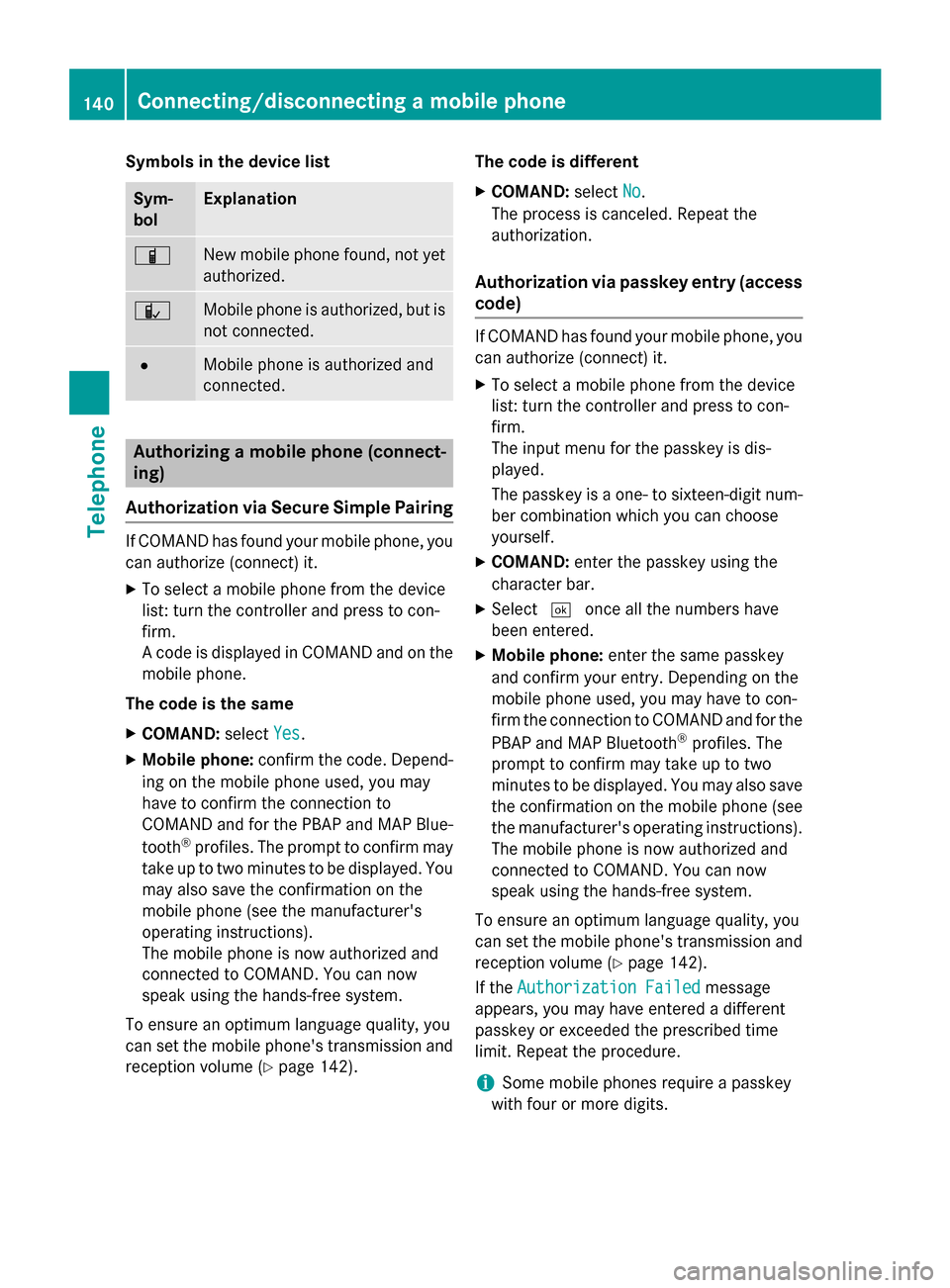
Symbols in the device list
Sym-
bol Explanation
00D3
New mobile phone found, not yet
authorized. 00DC
Mobile phone is authorized, but is
not connected. 0036
Mobile phone is authorized and
connected.
Authorizing a mobile phone (connect-
ing)
Authorization via Secure Simple Pairing If COMAND has found your mobile phone, you
can authorize (connect) it.
X To select a mobile phone from the device
list: turn the controller and press to con-
firm.
A code is displayed in COMAND and on the
mobile phone.
The code is the same X COMAND: selectYes
Yes.
X Mobile phone: confirm the code. Depend-
ing on the mobile phone used, you may
have to confirm the connection to
COMAND and for the PBAP and MAP Blue-
tooth ®
profiles. The prompt to confirm may
take up to two minutes to be displayed. You may also save the confirmation on the
mobile phone (see the manufacturer's
operating instructions).
The mobile phone is now authorized and
connected to COMAND. You can now
speak using the hands-free system.
To ensure an optimum language quality, you
can set the mobile phone's transmission and
reception volume (Y page 142). The code is different
X COMAND: selectNo
No.
The process is canceled. Repeat the
authorization.
Authorization via passkey entry (access
code) If COMAND has found your mobile phone, you
can authorize (connect) it.
X To select a mobile phone from the device
list: turn the controller and press to con-
firm.
The input menu for the passkey is dis-
played.
The passkey is a one- to sixteen-digit num-
ber combination which you can choose
yourself.
X COMAND: enter the passkey using the
character bar.
X Select 0054once all the numbers have
been entered.
X Mobile phone: enter the same passkey
and confirm your entry. Depending on the
mobile phone used, you may have to con-
firm the connection to COMAND and for the
PBAP and MAP Bluetooth ®
profiles. The
prompt to confirm may take up to two
minutes to be displayed. You may also save the confirmation on the mobile phone (see
the manufacturer's operating instructions).
The mobile phone is now authorized and
connected to COMAND. You can now
speak using the hands-free system.
To ensure an optimum language quality, you
can set the mobile phone's transmission and reception volume (Y page 142).
If the Authorization Failed Authorization Failed message
appears, you may have entered a different
passkey or exceeded the prescribed time
limit. Repeat the procedure.
i Some mobile phones require a passkey
with four or more digits. 140
Connecting/disconnecting a mobile phoneTelephone
Page 143 of 298
i
If you wish to re-authorize the mobile
phone after de-authorizing it, you can
choose another passkey for it.
i Mercedes-Benz recommends de-authori-
zation in COMAND and on the mobile
phone (Y page 142). Subsequent authori-
zation may otherwise fail. Establishing the connection from the
mobile phone
The Bluetooth ®
device name of COMAND is
"MB Bluetooth".
X COMAND: call up the telephone menu.
X To switch to the menu bar: slide 6the
controller.
X To select Connect Device Connect Device: turn the con-
troller and press to confirm.
The device list is displayed.
X To select Connect via Phone Connect via Phone: turn and
press the controller.
A message is displayed, stating that you
can start the search on your mobile phone.
X Mobile phone: start the search for a Blue-
tooth ®
device (see manufacturer's operat-
ing instructions).
COMAND is displayed with the name "MB
Bluetooth" in the mobile phone's device
list.
X Select "MB Bluetooth".
The following prompt appears in the
COMAND display Do you want
Do you want
Device_name to be authorized? Device_name to be authorized?
X COMAND: selectYes
Yes.
If No
No is selected, the procedure is canceled.
If your mobile phone supports Secure Sim- ple Pairing, a code is now displayed on both
devices.
The code is the same
X COMAND: selectYes
Yes.
X Mobile phone: confirm the code. Depend-
ing on the mobile phone used, you may
have to confirm the connection to
COMAND and for the PBAP and MAP Blue- tooth
®
profiles. The prompt to confirm may
take up to two minutes to be displayed. You
may also save the confirmation on the
mobile phone (see the manufacturer's
operating instructions).
The mobile phone is now authorized and
connected to COMAND. You can now
speak using the hands-free system.
To ensure an optimum language quality,
you can set the mobile phone's transmis-
sion and reception volume (Y page 142).
The code is different
X COMAND: selectNo
No.
The process is canceled. Repeat the pro-
cedure.
If your mobile phone does not support Secure
Simple Pairing, an input menu is displayed for the passkey. The passkey is a one- to sixteen-digit number combination which you can
choose yourself. Enter the same passkey on
both COMAND and the mobile phone and
confirm. Depending on the mobile phone
used, you may have to confirm the connection
to COMAND and for the PBAP and MAP Blue-
tooth ®
profiles. Reconnecting automatically
COMAND always searches for the last con-
nected mobile phone.
If no connection can be made to the most
recently connected mobile phone, the system searches for the mobile phone that was con-
nected before that one. Switching between mobile phones
If you have authorized more than one mobile
phone, you can switch between the individual
phones.
X To call up the telephone menu: press the
002B button.
X To switch to the menu bar: slide 6the
controller. Connecting/disconnecting a mobile phone
141Telephone Z
Page 160 of 298
The following sub-folders can be selected
for text messages and e-mails:
R Inbox
Inbox
This folder contains all the incoming mes-
sages.
R Outbox
Outbox
This folder contains all the outgoing mes-
sages.
R Drafts Drafts
This folder contains all the messages that
you have saved as a draft.
i Folders cannot be selected if they are
empty.
Depending on the mobile phone used, the
sub-folder function may be available.
Read-aloud function for messages X
To start the read-aloud function: press the
controller when the message is displayed.
X To select Read Aloud
Read Aloud: turn and press the
controller.
COMAND reads out the message.
X To cancel the read-aloud function: press
the 0063 button.
or X Press the controller, select Cancel Read-
Cancel Read-
Aloud Function
Aloud Function and press the controller
again.
You can set the language (Y page 52)and the
speed (Y page 48)of the read-aloud function.
Displaying details and phone numbers COMAND can also show a shortened sender
display in full.
X To call up the telephone menu: press the
002B button.
X To switch to the menu bar: slide 6the
controller.
X To select 0083: turn and press the controller.
The message menu is displayed.
X To switch to the menu bar: slide 6the
controller. X
To select Folder
Folder : turn and press the con-
troller.
X To select Text Message Text Message orE-Mail
E-Mail : turn
and press the controller.
The selected folder is displayed.
X To highlight the desired message: turn the
controller.
X To select G: slide 9the controller.
X To select Details
Details: turn and press the con-
troller.
The detailed view appears.
X To close the detailed display: slide8
the controller.
X To return to the telephone menu: press
the 003D button. Writing text messages
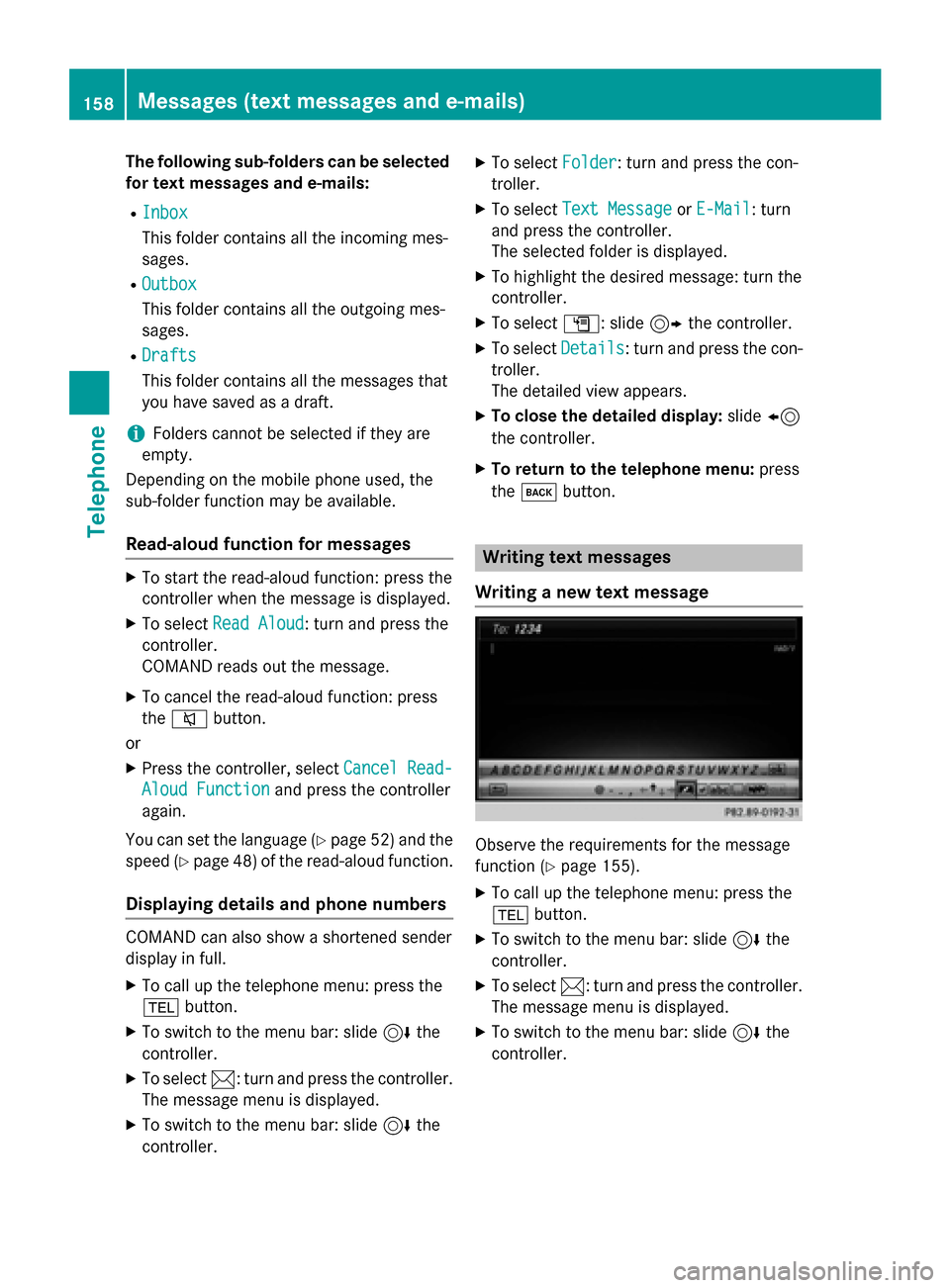
Writing a new text message Observe the requirements for the message
function (Y
page 155).
X To call up the telephone menu: press the
002B button.
X To switch to the menu bar: slide 6the
controller.
X To select 0083: turn and press the controller.
The message menu is displayed.
X To switch to the menu bar: slide 6the
controller. 158
Messages (text messages and e-mails)Telephone
Page 243 of 298
DVD playback conditions
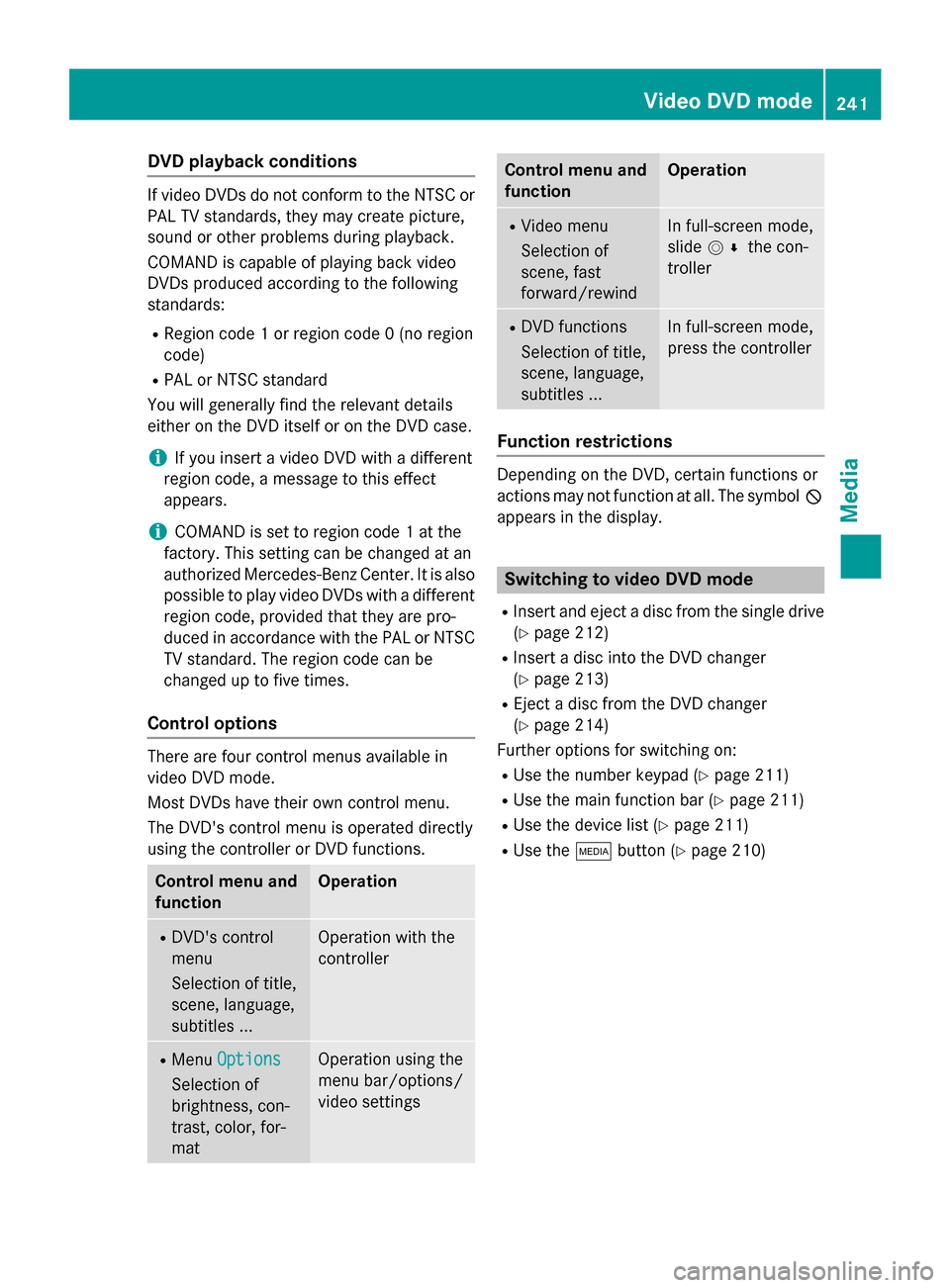
If video DVDs do not conform to the NTSC or
PAL TV standards, they may create picture,
sound or other problems during playback.
COMAND is capable of playing back video
DVDs produced according to the following
standards:
R Region code 1 or region code 0 (no region
code)
R PAL or NTSC standard
You will generally find the relevant details
either on the DVD itself or on the DVD case.
i If you insert a video DVD with a different
region code, a message to this effect
appears.
i COMAND is set to region code 1 at the
factory. This setting can be changed at an
authorized Mercedes-Benz Center. It is also possible to play video DVDs with a different
region code, provided that they are pro-
duced in accordance with the PAL or NTSC
TV standard. The region code can be
changed up to five times.
Control options There are four control menus available in
video DVD mode.
Most DVDs have their own control menu.
The DVD's control menu is operated directly
using the controller or DVD functions. Control menu and
function Operation
R
DVD's control
menu
Selection of title,
scene, language,
subtitles ... Operation with the
controller
R
Menu Options Options
Selection of
brightness, con-
trast, color, for-
mat Operation using the
menu bar/options/
video settings Control menu and
function Operation
R
Video menu
Selection of
scene, fast
forward/rewind In full-screen mode,
slide
005200C5 the con-
troller R
DVD functions
Selection of title,
scene, language,
subtitles ... In full-screen mode,
press the controller
Function restrictions
Depending on the DVD, certain functions or
actions may not function at all. The symbol
0047
appears in the display. Switching to video DVD mode
R Insert and eject a disc from the single drive
(Y page 212)
R Insert a disc into the DVD changer
(Y page 213)
R Eject a disc from the DVD changer
(Y page 214)
Further options for switching on:
R Use the number keypad (Y page 211)
R Use the main function bar (Y page 211)
R Use the device list (Y page 211)
R Use the 00FDbutton (Y page 210) Video DVD
mode
241Media Z
Page 246 of 298
Showing the DVD's control menu
X To select Menu
Menufrom the DVD functions
menu: turn and press the controller.
The DVD functions menu is hidden and the
DVD's menu entries (e.g. scenes, language,
trailers) are displayed.
X To select a menu entry: turn and press the
controller. Video menu
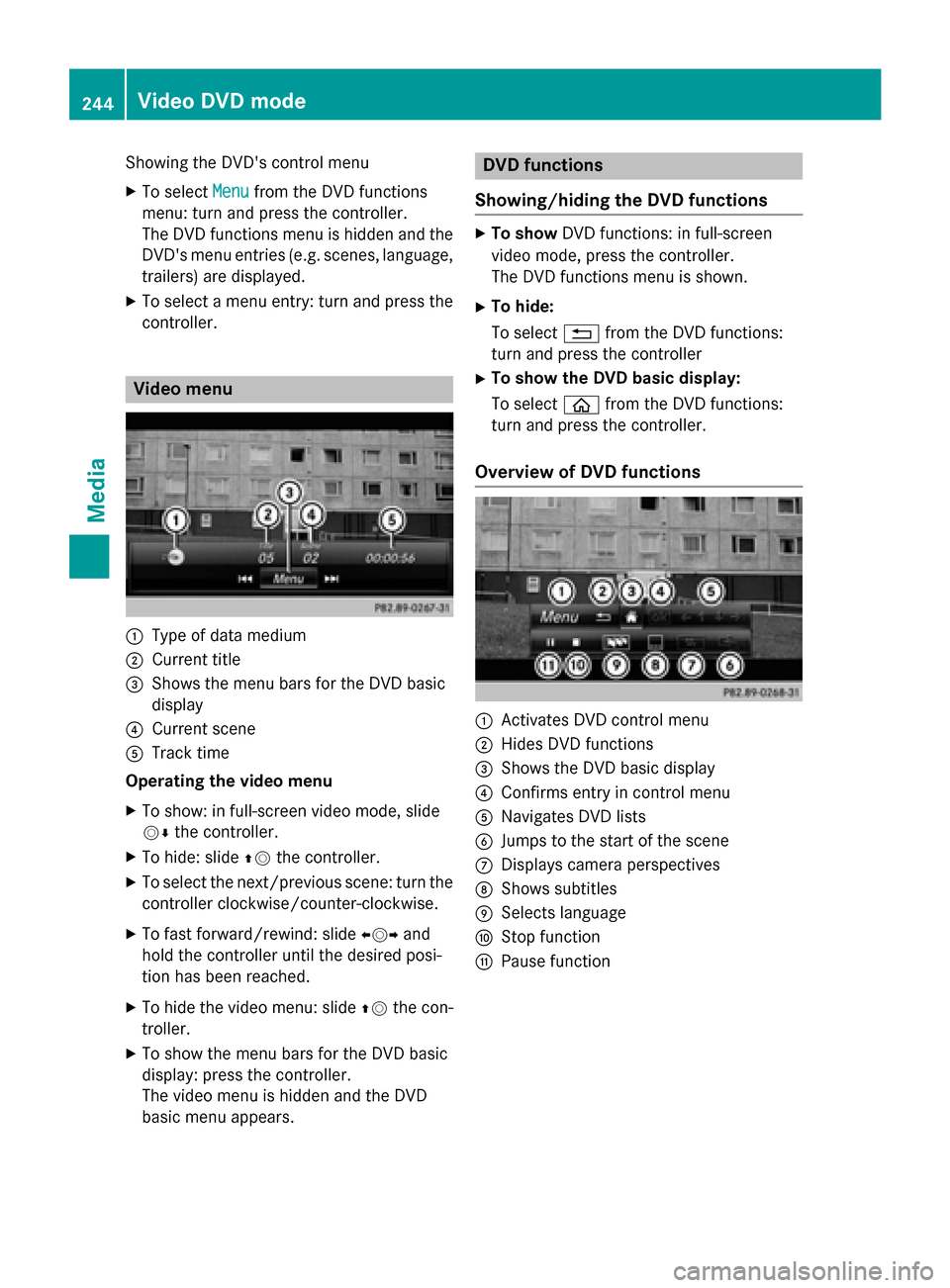
0043
Type of data medium
0044 Current title
0087 Shows the menu bars for the DVD basic
display
0085 Current scene
0083 Track time
Operating the video menu
X To show: in full-screen video mode, slide
00520064 the controller.
X To hide: slide 00970052the controller.
X To select the next/previous scene: turn the
controller clockwise/counter-clockwise.
X To fast forward/rewind: slide 009500520096and
hold the controller until the desired posi-
tion has been reached.
X To hide the video menu: slide 00970052the con-
troller.
X To show the menu bars for the DVD basic
display: press the controller.
The video menu is hidden and the DVD
basic menu appears. DVD functions
Showing/hiding the DVD functions X
To show DVD functions: in full-screen
video mode, press the controller.
The DVD functions menu is shown.
X To hide:
To select 0038from the DVD functions:
turn and press the controller
X To show the DVD basic display:
To select 00E2from the DVD functions:
turn and press the controller.
Overview of DVD functions 0043
Activates DVD control menu
0044 Hides DVD functions
0087 Shows the DVD basic display
0085 Confirms entry in control menu
0083 Navigates DVD lists
0084 Jumps to the start of the scene
006B Displays camera perspectives
006C Shows subtitles
006D Selects language
006E Stop function
006F Pause function 244
Video DVD modeMedia
Page 270 of 298
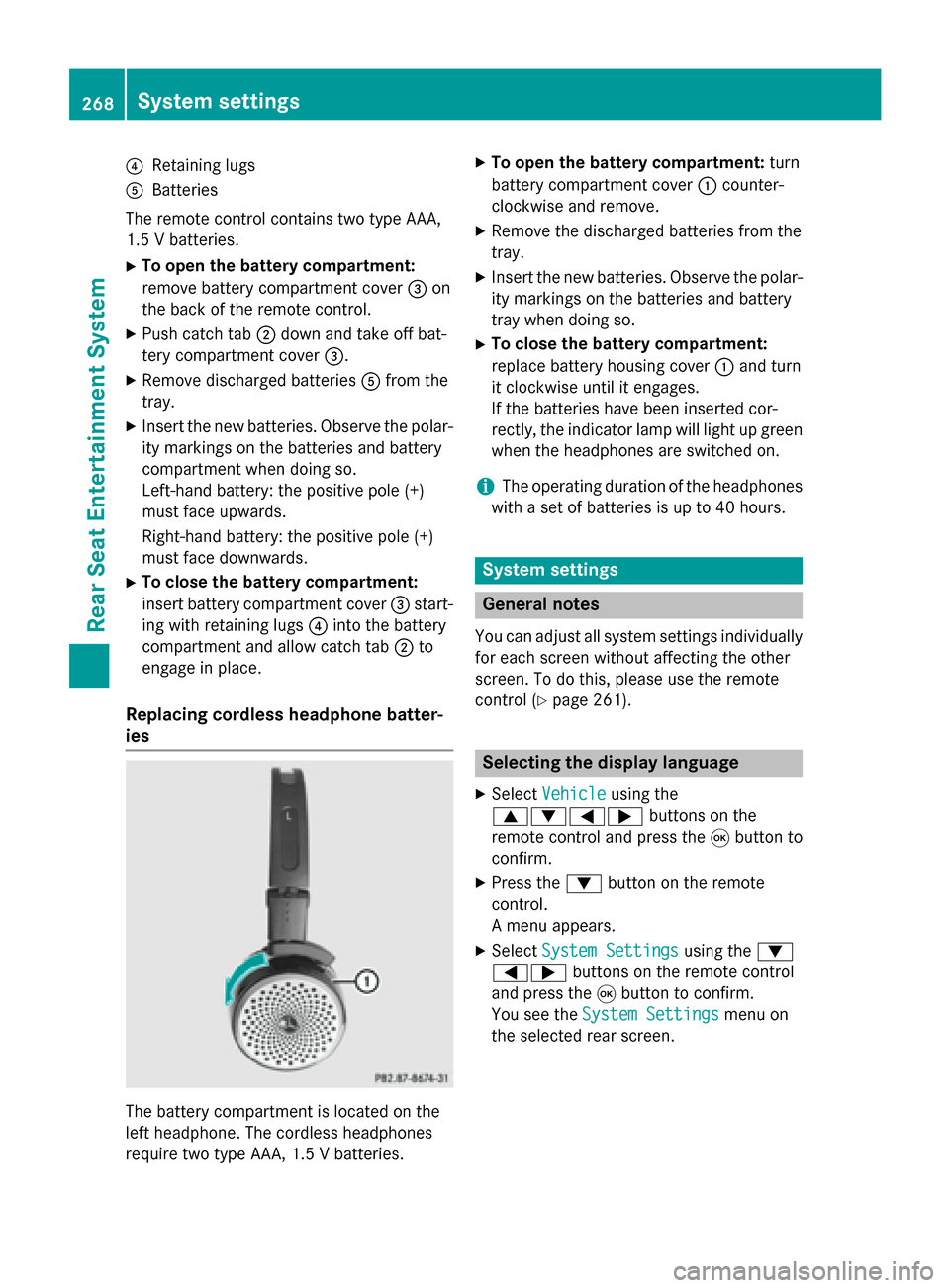
0085
Retaining lugs
0083 Batteries
The remote control contains two type AAA,
1.5 V batteries.
X To open the battery compartment:
remove battery compartment cover 0087on
the back of the remote control.
X Push catch tab 0044down and take off bat-
tery compartment cover 0087.
X Remove discharged batteries 0083from the
tray.
X Insert the new batteries. Observe the polar-
ity markings on the batteries and battery
compartment when doing so.
Left-hand battery: the positive pole (+)
must face upwards.
Right-hand battery: the positive pole (+)
must face downwards.
X To close the battery compartment:
insert battery compartment cover 0087start-
ing with retaining lugs 0085into the battery
compartment and allow catch tab 0044to
engage in place.
Replacing cordless headphone batter-
ies The battery compartment is located on the
left headphone. The cordless headphones
require two type AAA, 1.5 V batteries. X
To open the battery compartment: turn
battery compartment cover 0043counter-
clockwise and remove.
X Remove the discharged batteries from the
tray.
X Insert the new batteries. Observe the polar-
ity markings on the batteries and battery
tray when doing so.
X To close the battery compartment:
replace battery housing cover 0043and turn
it clockwise until it engages.
If the batteries have been inserted cor-
rectly, the indicator lamp will light up green
when the headphones are switched on.
i The operating duration of the headphones
with a set of batteries is up to 40 hours. System settings
General notes
You can adjust all system settings individually
for each screen without affecting the other
screen. To do this, please use the remote
control (Y page 261). Selecting the display language
X Select Vehicle Vehicle using the
006300640059 buttons on the
remote control and press the 008Bbutton to
confirm.
X Press the 0064button on the remote
control.
A menu appears.
X Select System Settings System Settings using the0064
00590065 buttons on the remote control
and press the 008Bbutton to confirm.
You see the System Settings System Settings menu on
the selected rear screen. 268
System settingsRea
r Seat Entertainment System
Page 271 of 298
X
Select Language
Language using the00630064 but-
tons and press the 008Bbutton to confirm.
The list of languages appears. A 0036dot
indicates the current setting.
X Select the language using the 00630064
buttons and press the 008Bbutton to confirm.
The system activates the corresponding
language. Switching the display design
X Select Vehicle
Vehicle using the
006300640059 buttons on the
remote control and press the 008Bbutton to
confirm.
X Select System Settings
System Settings using the0064
00590065 buttons on the remote control
and press the 008Bbutton to confirm.
You see the System Settings
System Settings menu on
the selected rear screen.
X Select Display
Display using the 00630064 but-
tons on the remote control and press the
008B button to confirm.
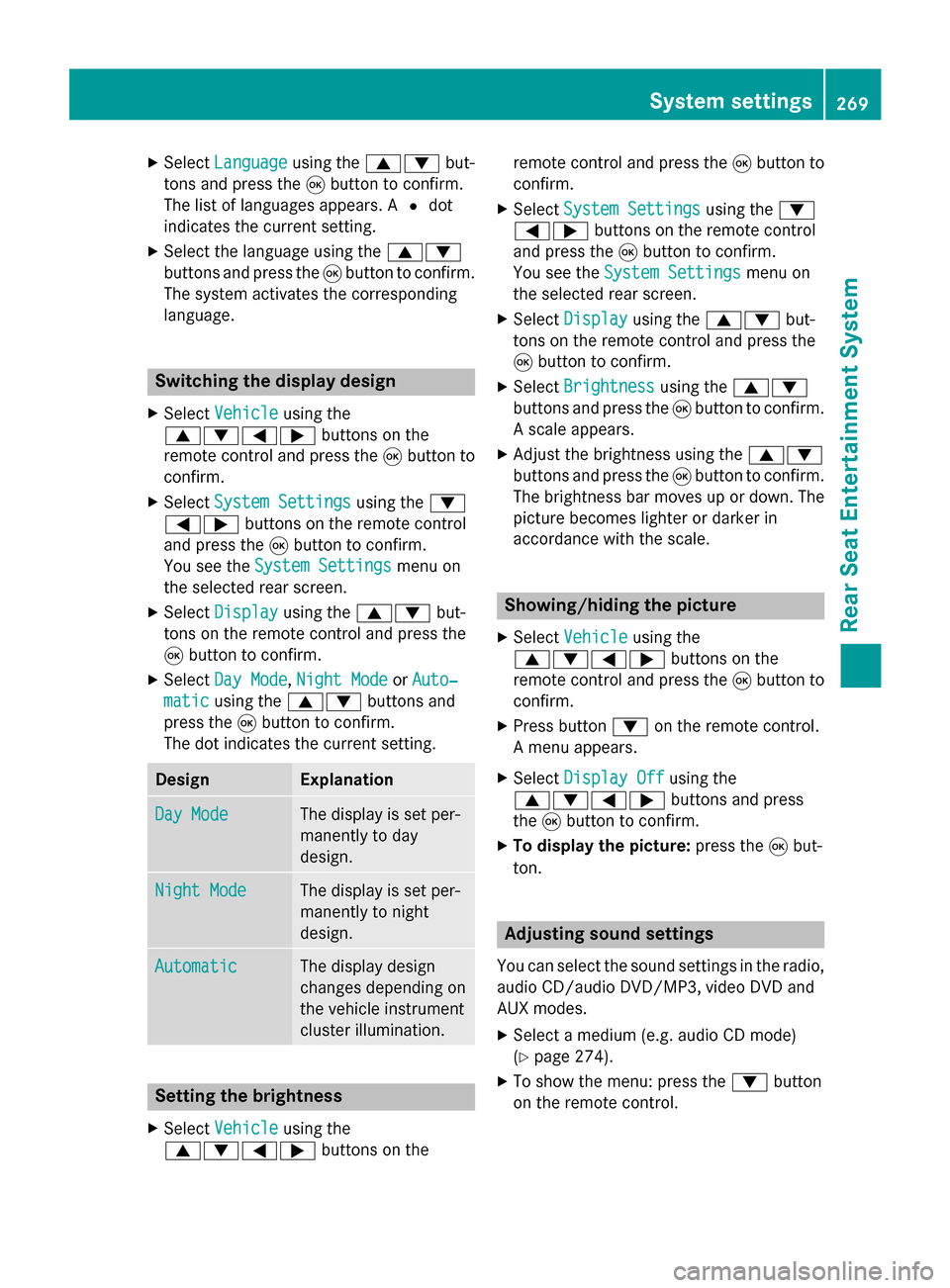
X Select Day Mode
Day Mode, Night Mode
Night Mode orAuto‐
Auto‐
matic
matic using the 00630064 buttons and
press the 008Bbutton to confirm.
The dot indicates the current setting. Design Explanation
Day Mode
Day Mode The display is set per-
manently to day
design.
Night Mode Night Mode The display is set per-
manently to night
design.
Automatic Automatic The display design
changes depending on
the vehicle instrument
cluster illumination.
Setting the brightness
X Select Vehicle Vehicle using the
006300640059 buttons on the remote control and press the
008Bbutton to
confirm.
X Select System Settings
System Settings using the0064
00590065 buttons on the remote control
and press the 008Bbutton to confirm.
You see the System Settings
System Settings menu on
the selected rear screen.
X Select Display
Display using the 00630064 but-
tons on the remote control and press the
008B button to confirm.
X Select Brightness
Brightness using the00630064
buttons and press the 008Bbutton to confirm.
A scale appears.
X Adjust the brightness using the 00630064
buttons and press the 008Bbutton to confirm.
The brightness bar moves up or down. The picture becomes lighter or darker in
accordance with the scale. Showing/hiding the picture
X Select Vehicle Vehicle using the
006300640059 buttons on the
remote control and press the 008Bbutton to
confirm.
X Press button 0064on the remote control.
A menu appears.
X Select Display Off
Display Off using the
006300640059 buttons and press
the 008Bbutton to confirm.
X To display the picture: press the008Bbut-
ton. Adjusting sound settings
You can select the sound settings in the radio, audio CD/audio DVD/MP3, video DVD and
AUX modes.
X Select a medium (e.g. audio CD mode)
(Y page 274).
X To show the menu: press the 0064button
on the remote control. System settings
269Rear Seat Entertainment System Z
Page 279 of 298
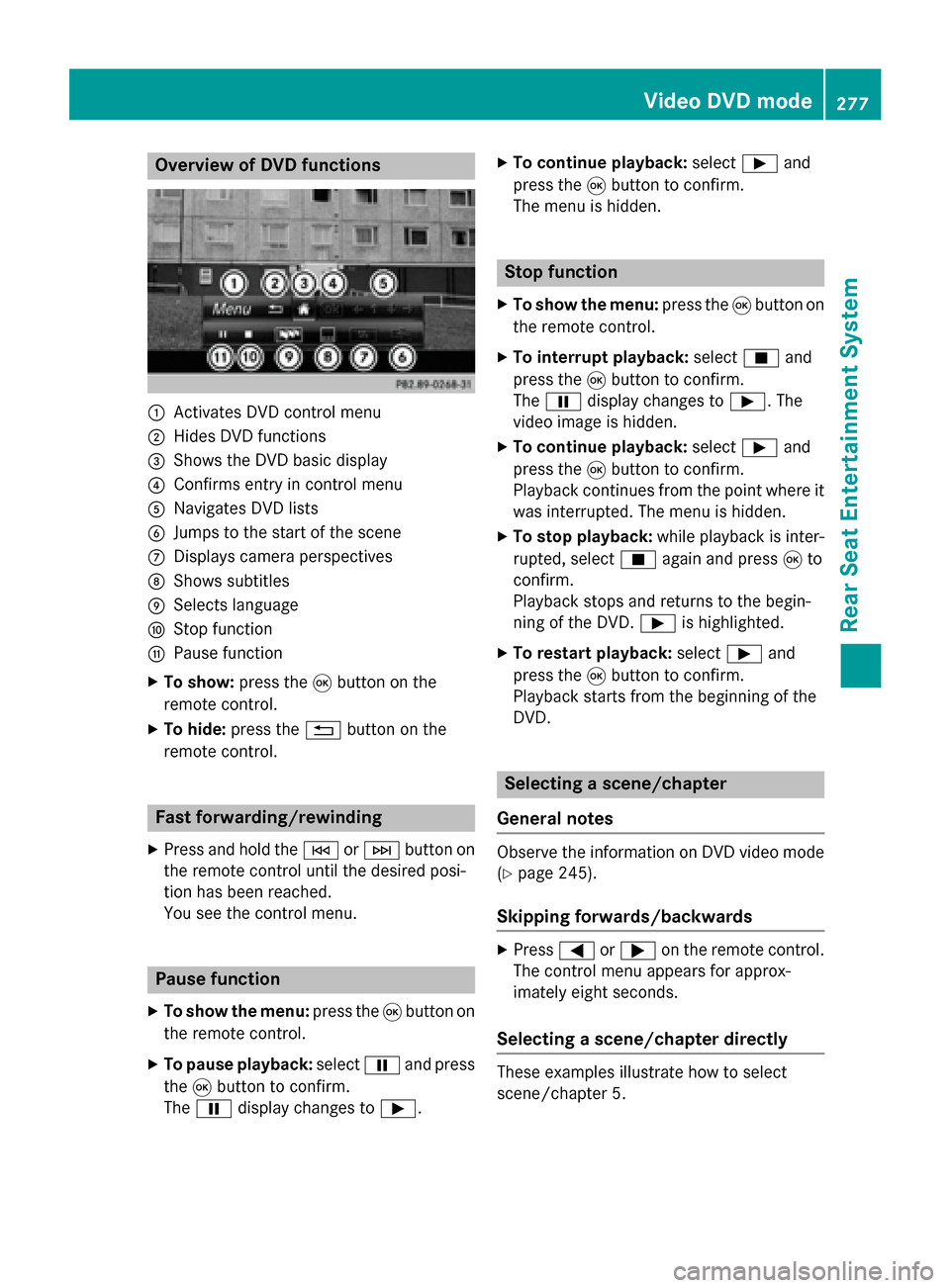
Overview of DVD functions
0043
Activates DVD control menu
0044 Hides DVD functions
0087 Shows the DVD basic display
0085 Confirms entry in control menu
0083 Navigates DVD lists
0084 Jumps to the start of the scene
006B Displays camera perspectives
006C Shows subtitles
006D Selects language
006E Stop function
006F Pause function
X To show: press the008Bbutton on the
remote control.
X To hide: press the 0038button on the
remote control. Fast forwarding/rewinding
X Press and hold the 0048or0049 button on
the remote control until the desired posi-
tion has been reached.
You see the control menu. Pause function
X To show the menu: press the008Bbutton on
the remote control.
X To pause playback: select00CFand press
the 008Bbutton to confirm.
The 00CF display changes to 00D0.X
To continue playback: select00D0and
press the 008Bbutton to confirm.
The menu is hidden. Stop function
X To show the menu: press the008Bbutton on
the remote control.
X To interrupt playback: select00DBand
press the 008Bbutton to confirm.
The 00CF display changes to 00D0. The
video image is hidden.
X To continue playback: select00D0and
press the 008Bbutton to confirm.
Playback continues from the point where it was interrupted. The menu is hidden.
X To stop playback: while playback is inter-
rupted, select 00DBagain and press 008Bto
confirm.
Playback stops and returns to the begin-
ning of the DVD. 00D0is highlighted.
X To restart playback: select00D0and
press the 008Bbutton to confirm.
Playback starts from the beginning of the
DVD. Selecting a scene/chapter
General notes Observe the information on DVD video mode
(Y
page 245).
Skipping forwards/backwards X
Press 0059or0065 on the remote control.
The control menu appears for approx-
imately eight seconds.
Selecting a scene/chapter directly These examples illustrate how to select
scene/chapter 5. Video DVD mode
277Rear Seat Entertainment System Z
Page 280 of 298
X
Option 1: while the film is playing, press
the 007E button on the remote control.
X Press the corresponding number key, such
as 5.
X Option 2: while the film is playing, press
the 008Bbutton on the remote control and
show the menu.
X Select Menu
Menu and press the 008Bbutton to
confirm.
The DVD menu appears.
X Select Scene
Scene Selection Selection and press the 008B
button to confirm.
X Using button 0063or0064, select 5
5and
press the 008Bbutton to confirm.
In both cases, playback will begin from the 5th scene/chapter after a brief pause. Selecting a film/track
Option 1:
X Press the 008Bbutton on the remote control
and show the menu.
X Select Menu
Menuusing the 0063006400590065
buttons on the remote control and press
the 008Bbutton to confirm.
The DVD menu appears.
X Select Track Selection
Track Selection using the
0063006400590065 buttons on the
remote control and press the 008Bbutton to
confirm.
X To call up the selection list: press the008B
button.
X Select a film/track.
Option 2:
Example: selecting film 2
X Press button 2.
After a brief pause, the second film is
played. DVD menu
Calling up the DVD menu The DVD menu is the menu stored on the DVD
itself. It is structured in various ways accord-
ing to the individual DVD and permits certain
actions and settings.
In the case of multi-language DVDs, for exam- ple, you can change the DVD language in the
DVD menu.
X Press the 008Bbutton on the remote control
and show the menu.
X Select Menu Menuusing the 0063006400590065
buttons on the remote control and press
the 008Bbutton to confirm.
The DVD menu appears.
Selecting menu items in the DVD menu X
Select a menu item using the
0063006400590065 buttons on the
remote control and press the 008Bbutton to
confirm.
X Select Select Select using the
0063006400590065 buttons on the
remote control and press the 008Bbutton to
confirm.
The system executes the function or shows a submenu.
X If available, additional options can now be
selected.
The system then switches back to the DVD
menu.
i Menu items which cannot be selected are
shown in gray.
i Depending on the DVD, certain menu
items may not function. For example, the
menu items:
R Back (to film) Back (to film)
R Play
Play
R Stop
Stop
R 0048
R 0049
R Go Up
Go Up. 278
Video DVD modeRear Seat Entertainment System