radio settings MERCEDES-BENZ S-Class 2015 W222 Comand Manual
[x] Cancel search | Manufacturer: MERCEDES-BENZ, Model Year: 2015, Model line: S-Class, Model: MERCEDES-BENZ S-Class 2015 W222Pages: 298, PDF Size: 6.39 MB
Page 255 of 298
X
To make the desired Equalizer
Equalizersettings:
turn the controller.
The rotary menus show the set values.
X To return to the menu: slide 00970052the con-
troller.
X To return to the basic menu: press the 0038
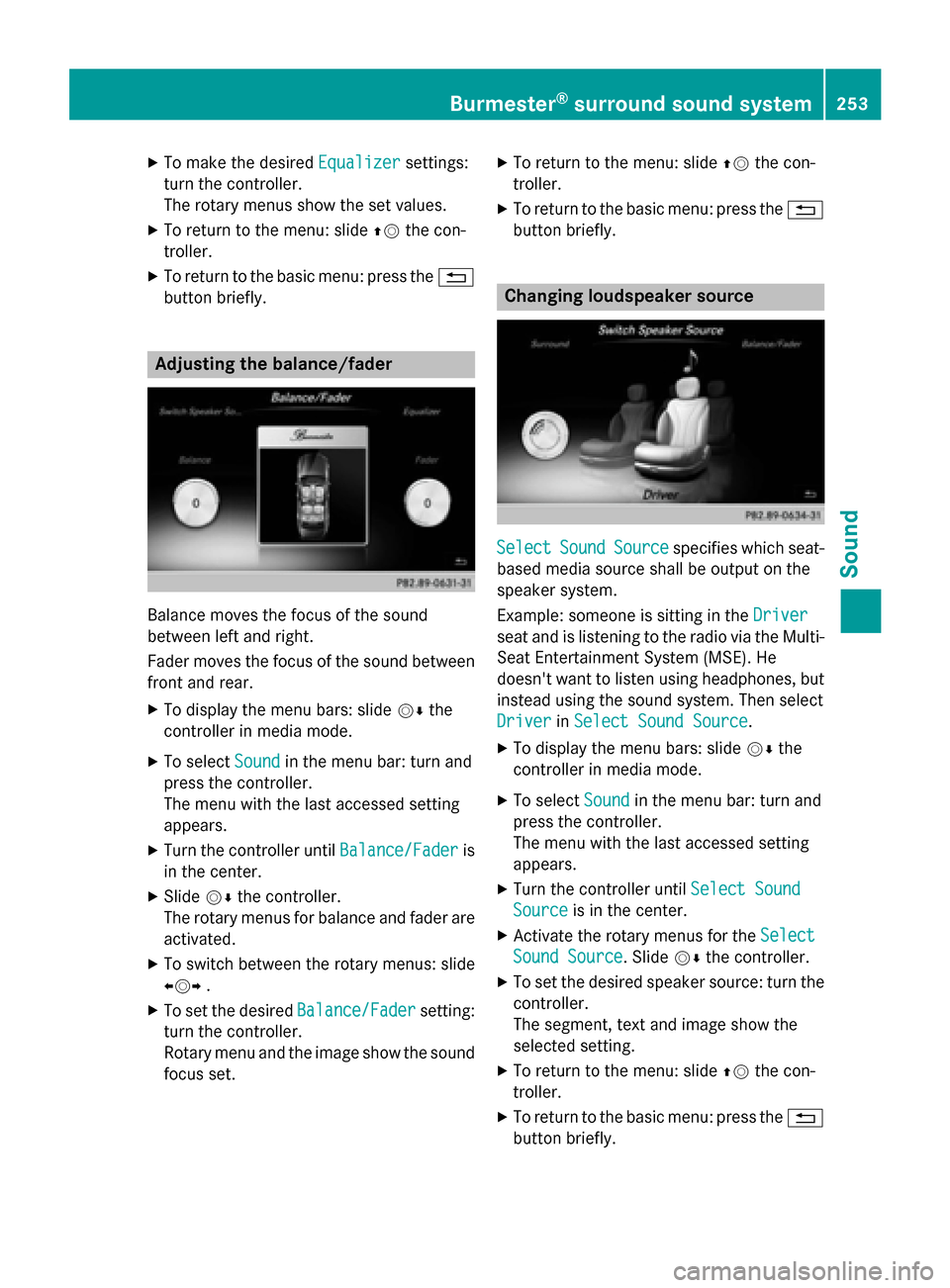
button briefly. Adjusting the balance/fader
Balance moves the focus of the sound
between left and right.
Fader moves the focus of the sound between
front and rear.
X To display the menu bars: slide 00520064the
controller in media mode.
X To select Sound
Sound in the menu bar: turn and
press the controller.
The menu with the last accessed setting
appears.
X Turn the controller until Balance/Fader
Balance/Fader is
in the center.
X Slide 00520064the controller.
The rotary menus for balance and fader are
activated.
X To switch between the rotary menus: slide
009500520096 .
X To set the desired Balance/Fader Balance/Fadersetting:
turn the controller.
Rotary menu and the image show the sound focus set. X
To return to the menu: slide 00970052the con-
troller.
X To return to the basic menu: press the 0038
button briefly. Changing loudspeaker source
Select Select
Sound
SoundSource
Source specifies which seat-
based media source shall be output on the
speaker system.
Example: someone is sitting in the Driver Driver
seat and is listening to the radio via the Multi- Seat Entertainment System (MSE). He
doesn't want to listen using headphones, but
instead using the sound system. Then select
Driver Driver inSelect Sound Source
Select Sound Source.
X To display the menu bars: slide 00520064the
controller in media mode.
X To select Sound
Soundin the menu bar: turn and
press the controller.
The menu with the last accessed setting
appears.
X Turn the controller until Select Sound
Select Sound
Source Source is in the center.
X Activate the rotary menus for the Select
Select
Sound Source
Sound Source. Slide 00520064the controller.
X To set the desired speaker source: turn the
controller.
The segment, text and image show the
selected setting.
X To return to the menu: slide 00970052the con-
troller.
X To return to the basic menu: press the 0038
button briefly. Burmester
®
surround sound system 253Sound
Page 256 of 298
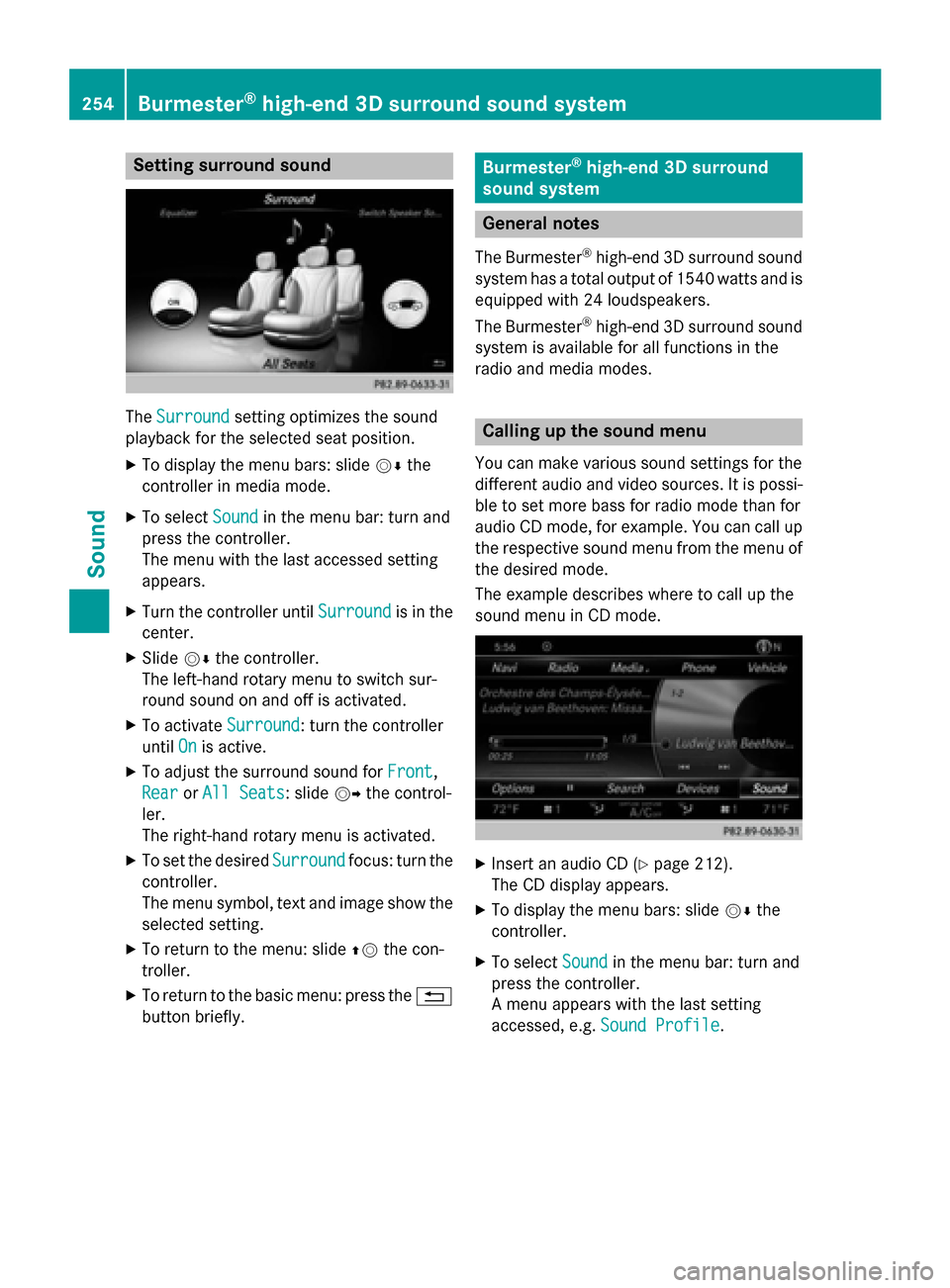
Setting surround sound
The
Surround
Surround setting optimizes the sound
playback for the selected seat position.
X To display the menu bars: slide 00520064the
controller in media mode.
X To select Sound
Soundin the menu bar: turn and
press the controller.
The menu with the last accessed setting
appears.
X Turn the controller until Surround Surroundis in the
center.
X Slide 00520064the controller.
The left-hand rotary menu to switch sur-
round sound on and off is activated.
X To activate Surround
Surround: turn the controller
until On Onis active.
X To adjust the surround sound for Front
Front,
Rear
Rear orAll Seats
All Seats: slide 00520096the control-
ler.
The right-hand rotary menu is activated.
X To set the desired Surround
Surround focus: turn the
controller.
The menu symbol, text and image show the
selected setting.
X To return to the menu: slide 00970052the con-
troller.
X To return to the basic menu: press the 0038
button briefly. Burmester
®
high-end 3D surround
sound system General notes
The Burmester ®
high-end 3D surround sound
system has a total output of 1540 watts and is equipped with 24 loudspeakers.
The Burmester ®
high-end 3D surround sound
system is available for all functions in the
radio and media modes. Calling up the sound menu
You can make various sound settings for the
different audio and video sources. It is possi-
ble to set more bass for radio mode than for
audio CD mode, for example. You can call up the respective sound menu from the menu of
the desired mode.
The example describes where to call up the
sound menu in CD mode. X
Insert an audio CD (Y page 212).
The CD display appears.
X To display the menu bars: slide 00520064the
controller.
X To select Sound Soundin the menu bar: turn and
press the controller.
A menu appears with the last setting
accessed, e.g. Sound Profile Sound Profile.254
Burmester ®
high-end 3D surround sound systemSound
Page 261 of 298
Your COMAND equipment
................260
Rear Seat Entertainment System
overview ............................................ 260
System settings ................................ 268
Vehicle settings ................................ 270
Navigation mode ............................... 271
Online and Internet functions ..........271
Radio mode ........................................ 272
Media mode ....................................... 272
Audio/video mode ............................273
Video DVD mode ............................... 276
AUX mode .......................................... 280 259Rea
r Seat Entertainment System
Page 271 of 298
X
Select Language
Language using the00630064 but-
tons and press the 008Bbutton to confirm.
The list of languages appears. A 0036dot
indicates the current setting.
X Select the language using the 00630064
buttons and press the 008Bbutton to confirm.
The system activates the corresponding
language. Switching the display design
X Select Vehicle
Vehicle using the
006300640059 buttons on the
remote control and press the 008Bbutton to
confirm.
X Select System Settings
System Settings using the0064
00590065 buttons on the remote control
and press the 008Bbutton to confirm.
You see the System Settings
System Settings menu on
the selected rear screen.
X Select Display
Display using the 00630064 but-
tons on the remote control and press the
008B button to confirm.
X Select Day Mode
Day Mode, Night Mode
Night Mode orAuto‐
Auto‐
matic
matic using the 00630064 buttons and
press the 008Bbutton to confirm.
The dot indicates the current setting. Design Explanation
Day Mode
Day Mode The display is set per-
manently to day
design.
Night Mode Night Mode The display is set per-
manently to night
design.
Automatic Automatic The display design
changes depending on
the vehicle instrument
cluster illumination.
Setting the brightness
X Select Vehicle Vehicle using the
006300640059 buttons on the remote control and press the
008Bbutton to
confirm.
X Select System Settings
System Settings using the0064
00590065 buttons on the remote control
and press the 008Bbutton to confirm.
You see the System Settings
System Settings menu on
the selected rear screen.
X Select Display
Display using the 00630064 but-
tons on the remote control and press the
008B button to confirm.
X Select Brightness
Brightness using the00630064
buttons and press the 008Bbutton to confirm.
A scale appears.
X Adjust the brightness using the 00630064
buttons and press the 008Bbutton to confirm.
The brightness bar moves up or down. The picture becomes lighter or darker in
accordance with the scale. Showing/hiding the picture
X Select Vehicle Vehicle using the
006300640059 buttons on the
remote control and press the 008Bbutton to
confirm.
X Press button 0064on the remote control.
A menu appears.
X Select Display Off
Display Off using the
006300640059 buttons and press
the 008Bbutton to confirm.
X To display the picture: press the008Bbut-
ton. Adjusting sound settings
You can select the sound settings in the radio, audio CD/audio DVD/MP3, video DVD and
AUX modes.
X Select a medium (e.g. audio CD mode)
(Y page 274).
X To show the menu: press the 0064button
on the remote control. System settings
269Rear Seat Entertainment System Z
Page 273 of 298
the remote control and press the
008Bbutton
to confirm.
You will see a menu with the available vehi-
cle functions.
X Select Vehicle Settings
Vehicle Settings orSeat Set‐ Seat Set‐
tings
tings using the 00590065 buttons.
X Press the 008Bbutton on the remote control.
Further information on seat settings
(Y page 63).
Further information on panel heating
(Y page 59).
i The panel heating in the rear compart-
ment is available if the key in the ignition
lock is in position 1or 2. Navigation mode
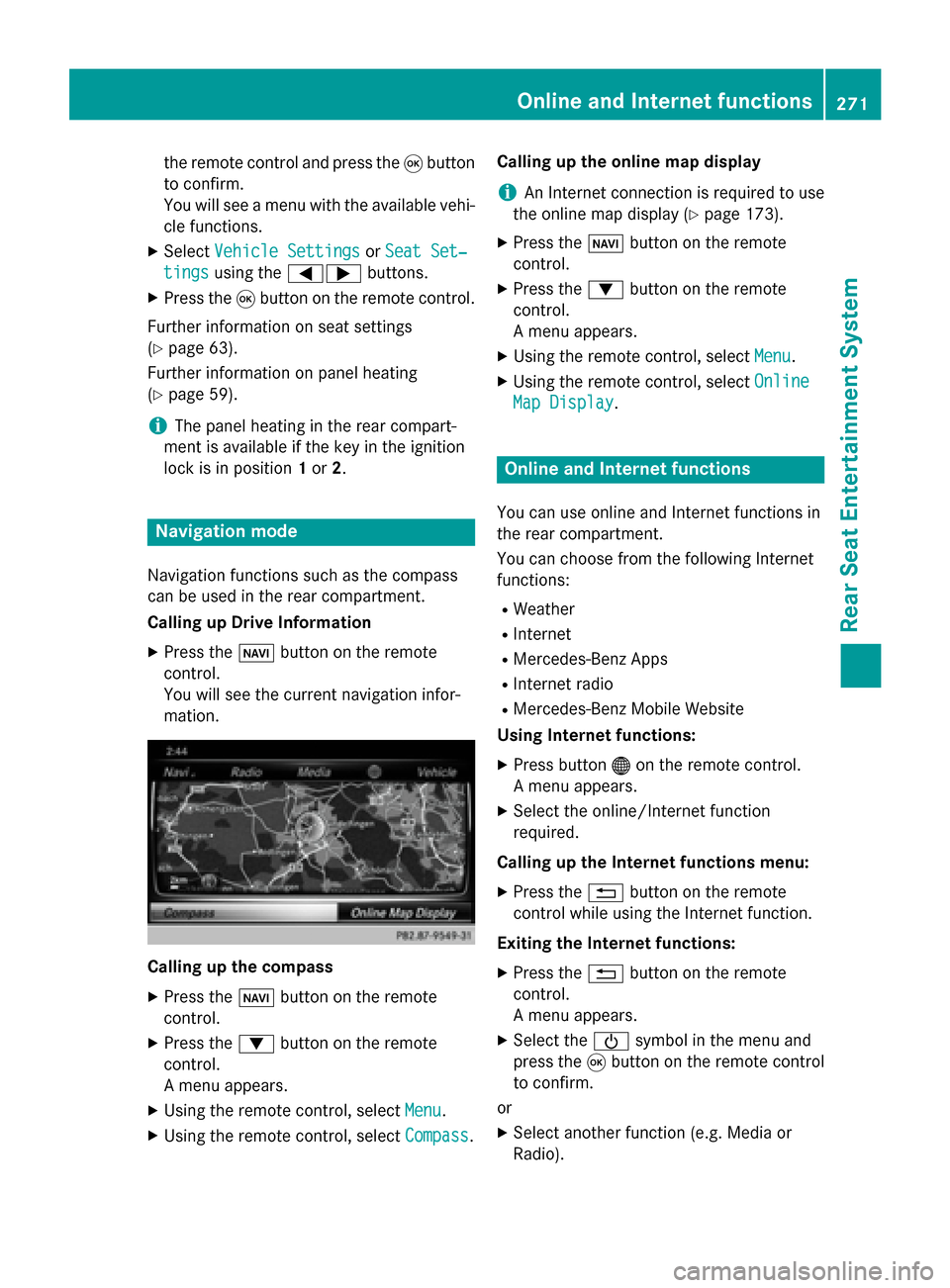
Navigation functions such as the compass
can be used in the rear compartment.
Calling up Drive Information
X Press the 00BEbutton on the remote
control.
You will see the current navigation infor-
mation. Calling up the compass
X
Press the 00BEbutton on the remote
control.
X Press the 0064button on the remote
control.
A menu appears.
X Using the remote control, select Menu
Menu.
X Using the remote control, select Compass Compass.Calling up the online map display
i
An Internet connection is required to use
the online map display (Y page 173).
X Press the 00BEbutton on the remote
control.
X Press the 0064button on the remote
control.
A menu appears.
X Using the remote control, select Menu Menu.
X Using the remote control, select Online
Online
Map Display
Map Display. Online and Internet functions
You can use online and Internet functions in
the rear compartment.
You can choose from the following Internet
functions:
R Weather
R Internet
R Mercedes-Benz Apps
R Internet radio
R Mercedes-Benz Mobile Website
Using Internet functions:
X Press button 00A7on the remote control.
A menu appears.
X Select the online/Internet function
required.
Calling up the Internet functions menu:
X Press the 0038button on the remote
control while using the Internet function.
Exiting the Internet functions: X Press the 0038button on the remote
control.
A menu appears.
X Select the 00D0symbol in the menu and
press the 008Bbutton on the remote control
to confirm.
or
X Select another function (e.g. Media or
Radio). Online and Internet functions
271Rear Seat Entertainment System Z