set tv MERCEDES-BENZ S-Class 2015 W222 Comand Manual
[x] Cancel search | Manufacturer: MERCEDES-BENZ, Model Year: 2015, Model line: S-Class, Model: MERCEDES-BENZ S-Class 2015 W222Pages: 298, PDF Size: 6.39 MB
Page 32 of 298
X
Select a type of search inquiry, such as
Enter search term
Enter search term.
An input field appears.
X Enter the destination using the COMAND
remote control and press the 0070button.
The Google™ results list appears.
X Select the destination using the COMAND
remote control.
A menu appears.
X Select Set as Destination Set as Destination.
X The prompt Accept the navigation
Accept the navigation
data from Mercedes-Benz Apps?
data from Mercedes-Benz Apps?
appears on the driver's side.
X Select Yes
YesorNo
No.
If you select Yes
Yes, the navigation data is
used for route guidance. Touchpad
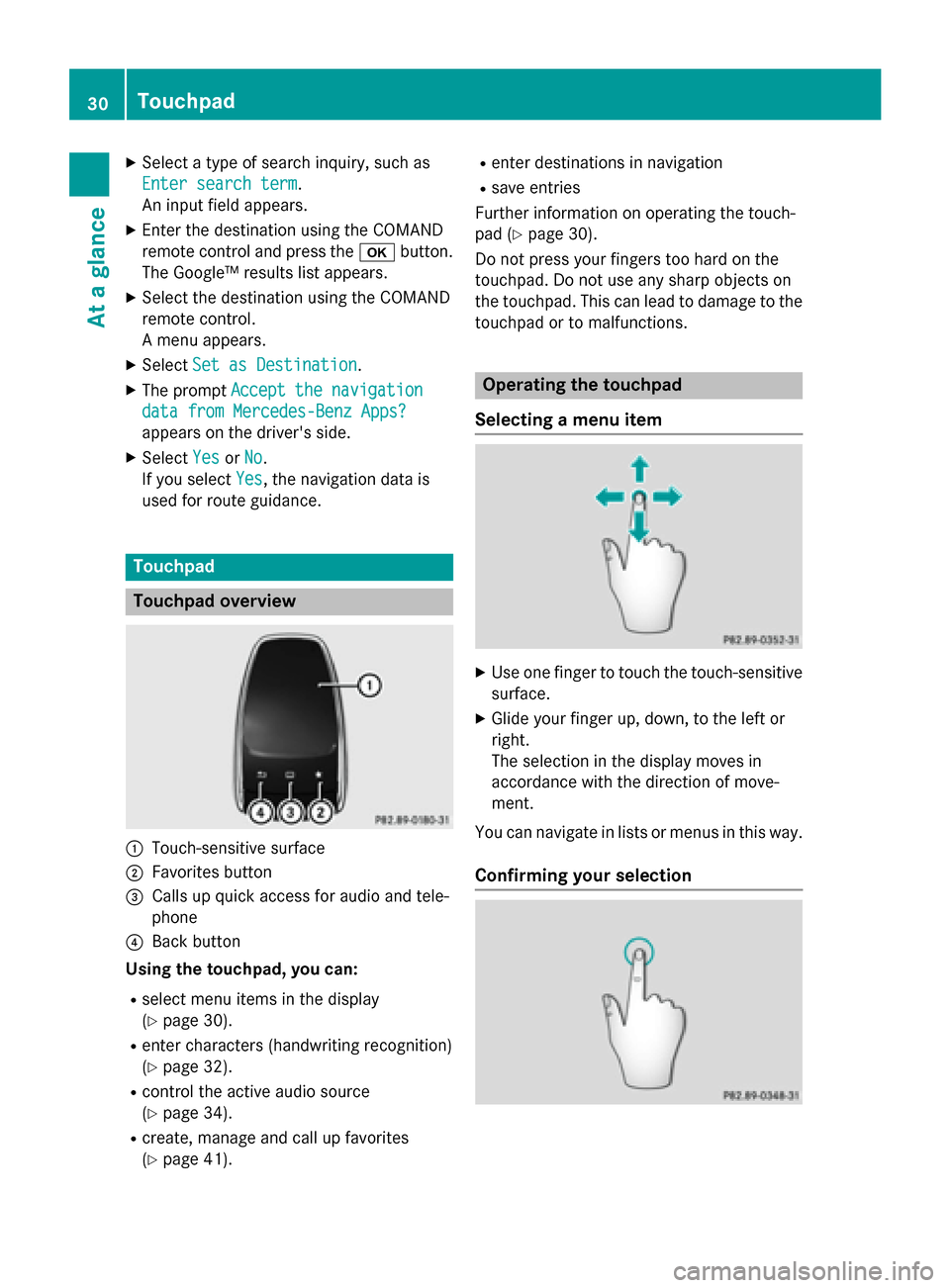
Touchpad overview
0043
Touch-sensitive surface
0044 Favorites button
0087 Calls up quick access for audio and tele-
phone
0085 Back button
Using the touchpad, you can:
R select menu items in the display
(Y page 30).
R enter characters (handwriting recognition)
(Y page 32).
R control the active audio source
(Y page 34).
R create, manage and call up favorites
(Y page 41). R
enter destinations in navigation
R save entries
Further information on operating the touch-
pad (Y page 30).
Do not press your fingers too hard on the
touchpad. Do not use any sharp objects on
the touchpad. This can lead to damage to the
touchpad or to malfunctions. Operating the touchpad
Selecting a menu item X
Use one finger to touch the touch-sensitive
surface.
X Glide your finger up, down, to the left or
right.
The selection in the display moves in
accordance with the direction of move-
ment.
You can navigate in lists or menus in this way.
Confirming your selection 30
TouchpadAt a glance
Page 33 of 298
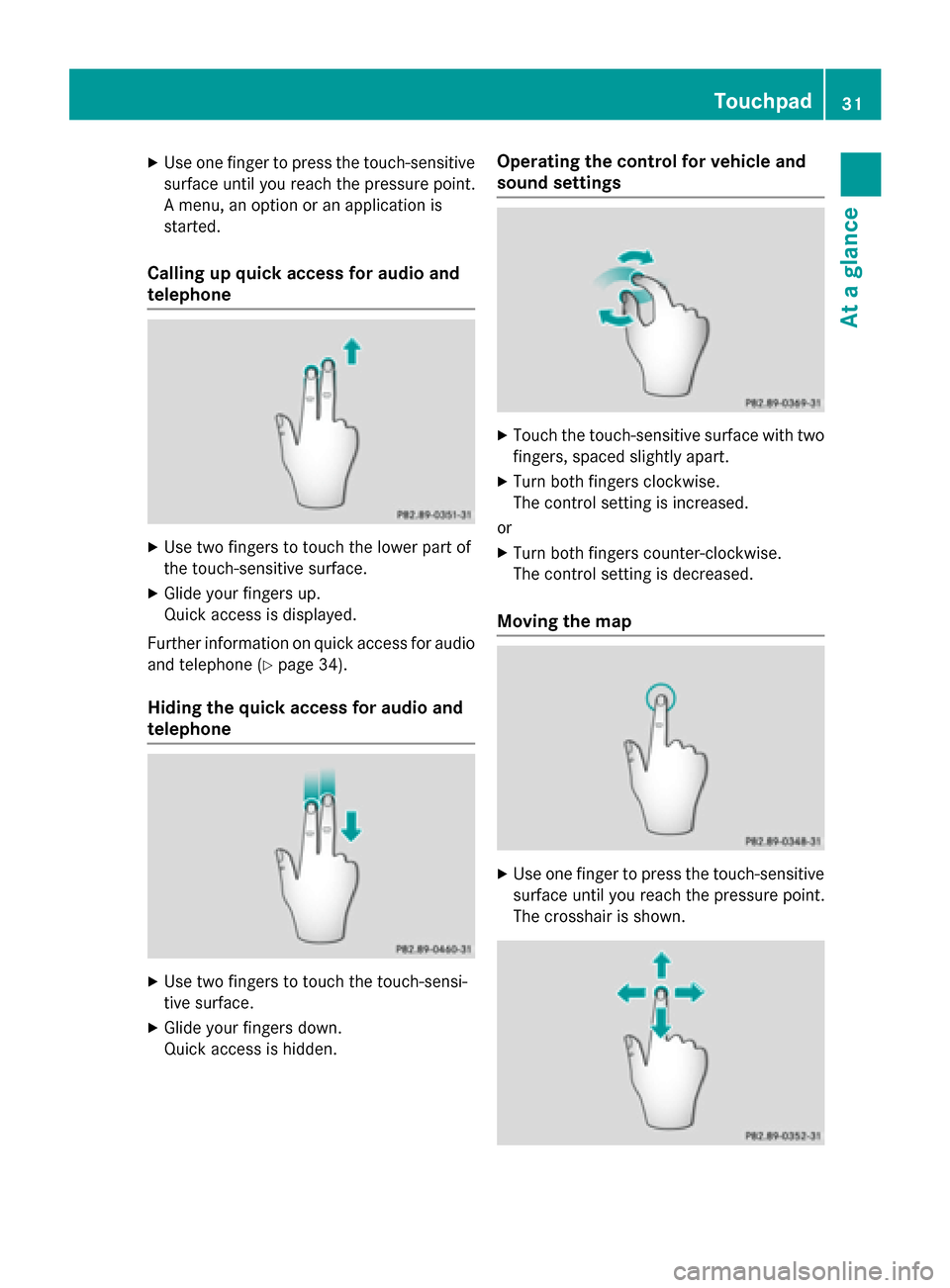
X
Use one finger to press the touch-sensitive
surface until you reach the pressure point.
A menu, an option or an application is
started.
Calling up quick access for audio and
telephone X
Use two fingers to touch the lower part of
the touch-sensitive surface.
X Glide your fingers up.
Quick access is displayed.
Further information on quick access for audio
and telephone (Y page 34).
Hiding the quick access for audio and
telephone X
Use two fingers to touch the touch-sensi-
tive surface.
X Glide your fingers down.
Quick access is hidden. Operating the control for vehicle and
sound settings
X
Touch the touch-sensitive surface with two
fingers, spaced slightly apart.
X Turn both fingers clockwise.
The control setting is increased.
or X Turn both fingers counter-clockwise.
The control setting is decreased.
Moving the map X
Use one finger to press the touch-sensitive
surface until you reach the pressure point.
The crosshair is shown. Touchpad
31At a glance
Page 37 of 298
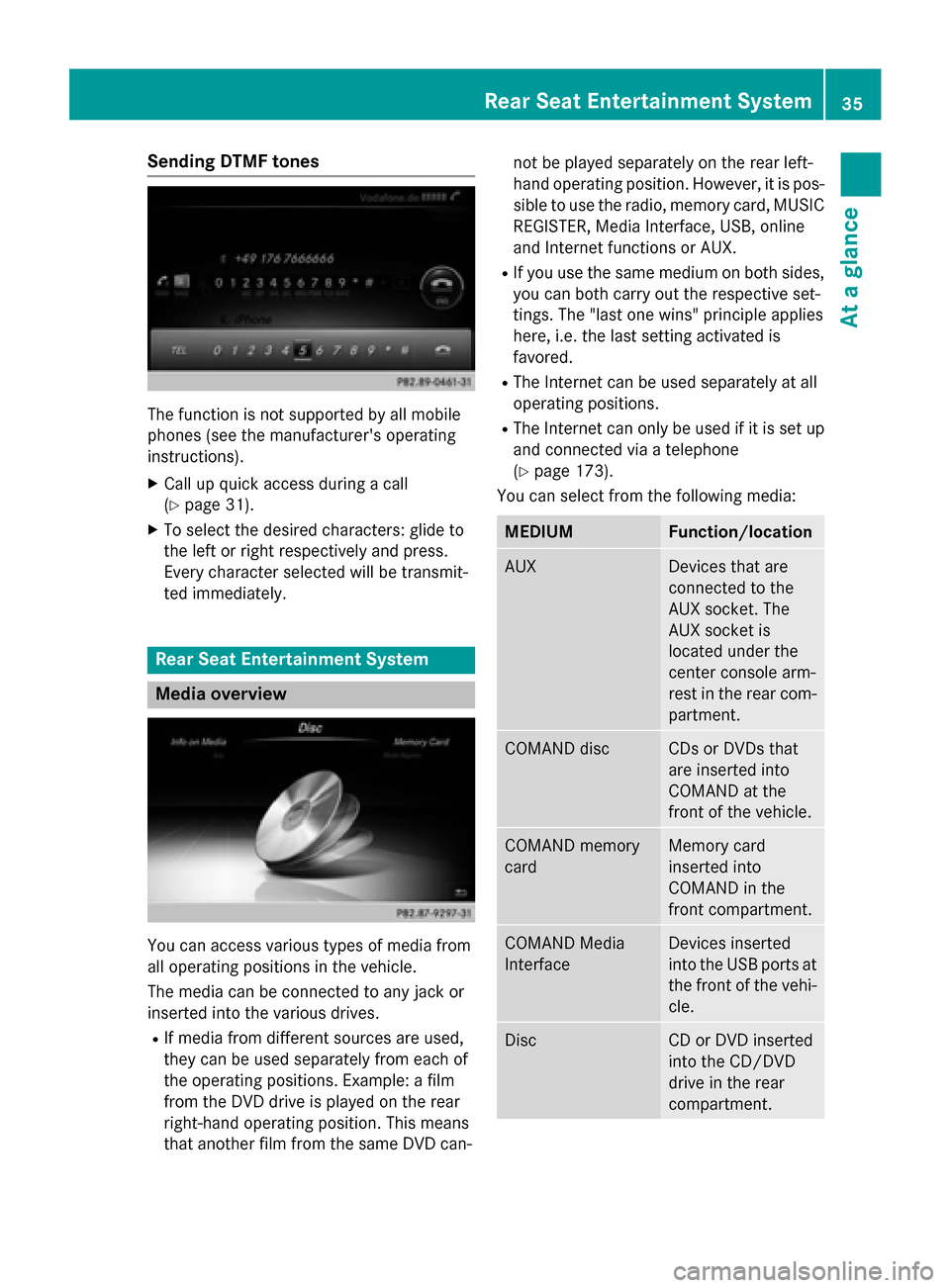
Sending DTMF tones
The function is not supported by all mobile
phones (see the manufacturer's operating
instructions).
X Call up quick access during a call
(Y page 31).
X To select the desired characters: glide to
the left or right respectively and press.
Every character selected will be transmit-
ted immediately. Rear Seat Entertainment System
Media overview
You can access various types of media from
all operating positions in the vehicle.
The media can be connected to any jack or
inserted into the various drives.
R If media from different sources are used,
they can be used separately from each of
the operating positions. Example: a film
from the DVD drive is played on the rear
right-hand operating position. This means
that another film from the same DVD can- not be played separately on the rear left-
hand operating position. However, it is pos- sible to use the radio, memory card, MUSIC
REGISTER, Media Interface, USB, online
and Internet functions or AUX.
R If you use the same medium on both sides,
you can both carry out the respective set-
tings. The "last one wins" principle applies
here, i.e. the last setting activated is
favored.
R The Internet can be used separately at all
operating positions.
R The Internet can only be used if it is set up
and connected via a telephone
(Y page 173).
You can select from the following media: MEDIUM Function/location
AUX Devices that are
connected to the
AUX socket. The
AUX socket is
located under the
center console arm-
rest in the rear com-
partment. COMAND disc CDs or DVDs that
are inserted into
COMAND at the
front of the vehicle.
COMAND memory
card Memory card
inserted into
COMAND in the
front compartment.
COMAND Media
Interface Devices inserted
into the USB ports at
the front of the vehi- cle. Disc CD or DVD inserted
into the CD/DVD
drive in the rear
compartment.Rear Seat Entertainment System
35At a glance
Page 38 of 298
MEDIUM Function/location
Media Register Media found in the
MEDIA REGISTER.
Media Interface 1
Media Interface 2 Devices connected
to USB ports 1 and
2. USB ports 1 and 2
are located under
the center console
armrest in the rear
compartment. Bluetooth Audio Devices connected
with COMAND via
Bluetooth
®
. TV Television
Accessing media in the vehicle
X
To show the menu: press the 0064button
on the remote control.
X Using the 006400590065 buttons on the
remote control, select Devices
Devices .
The discs/devices available are shown. The 0036 dot indicates the current setting.
X Select the device/disc using the 00640063
buttons and press the 008Bbutton to confirm.
If the device/disc contains music or video
files, these will be played.
Further information on media in the rear com-
partment (Y page 261). Character entry (telephony)
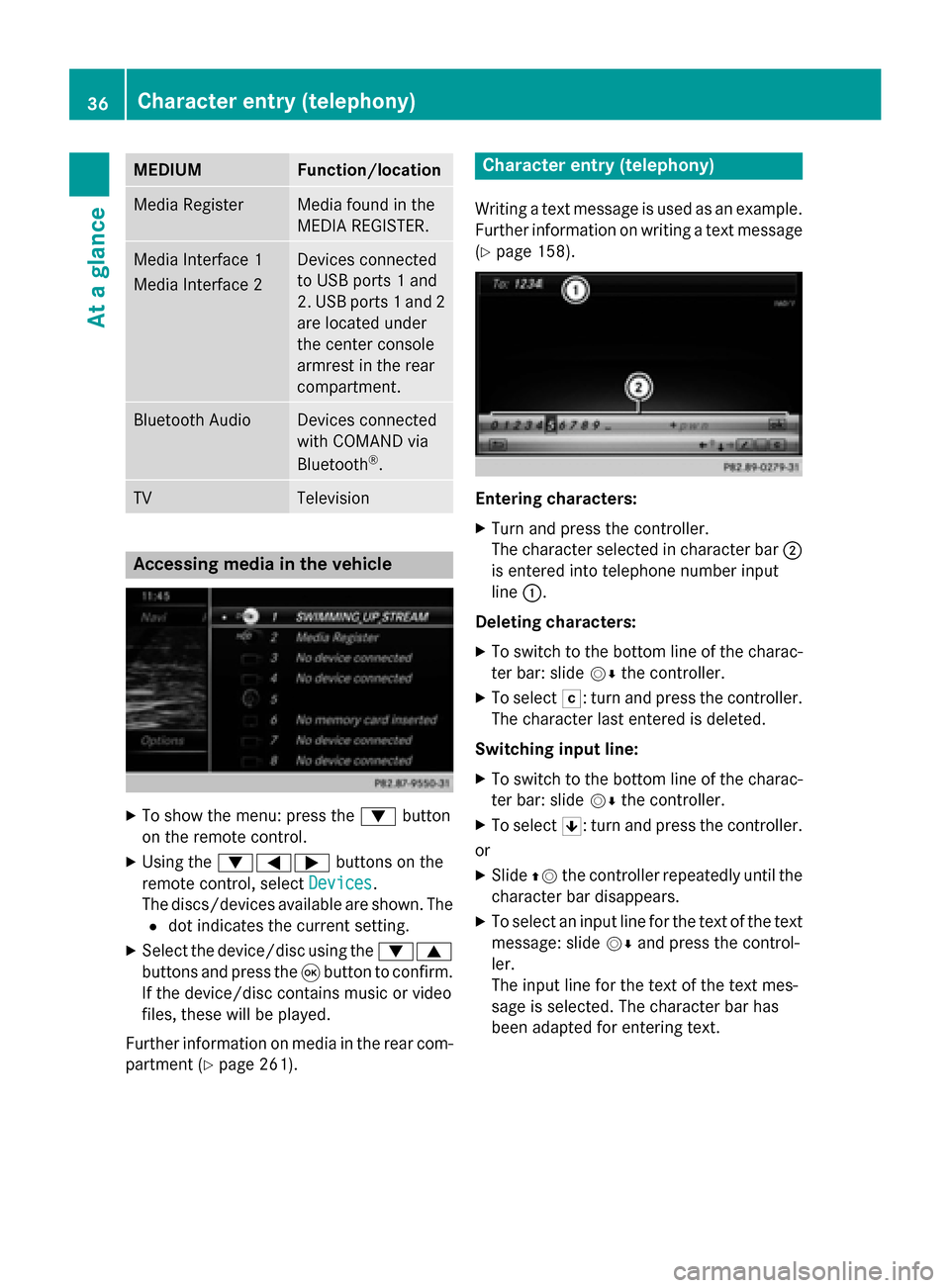
Writing a text message is used as an example. Further information on writing a text message
(Y page 158). Entering characters:
X Turn and press the controller.
The character selected in character bar 0044
is entered into telephone number input
line 0043.
Deleting characters:
X To switch to the bottom line of the charac-
ter bar: slide 00520064the controller.
X To select 0042: turn and press the controller.
The character last entered is deleted.
Switching input line:
X To switch to the bottom line of the charac-
ter bar: slide 00520064the controller.
X To select 0060: turn and press the controller.
or X Slide 00970052the controller repeatedly until the
character bar disappears.
X To select an input line for the text of the text
message: slide 00520064and press the control-
ler.
The input line for the text of the text mes-
sage is selected. The character bar has
been adapted for entering text. 36
Character entry (telephony)At a glance
Page 39 of 298
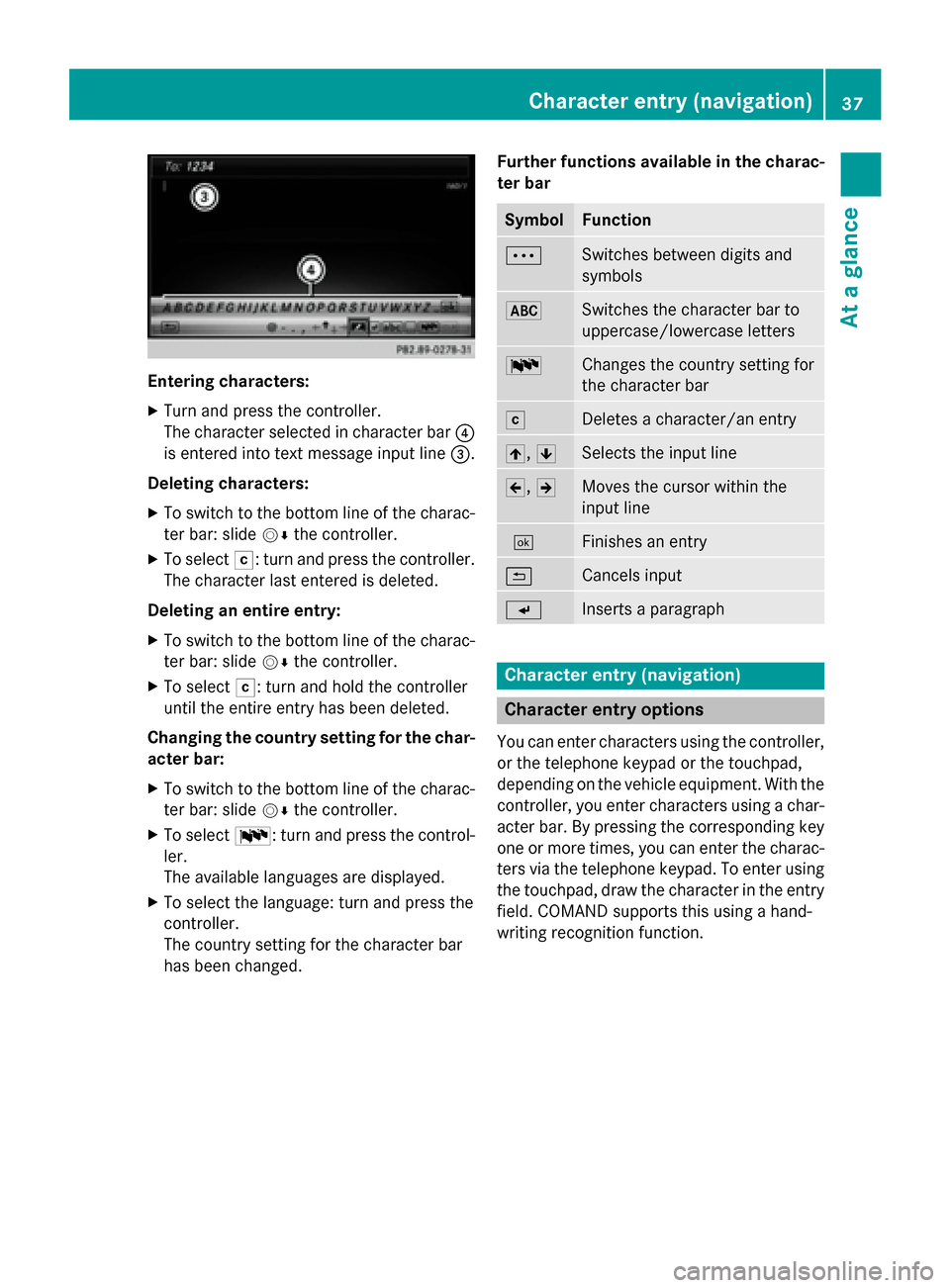
Entering characters:
X Turn and press the controller.
The character selected in character bar 0085
is entered into text message input line 0087.
Deleting characters:
X To switch to the bottom line of the charac-
ter bar: slide 00520064the controller.
X To select 0042: turn and press the controller.
The character last entered is deleted.
Deleting an entire entry:
X To switch to the bottom line of the charac-
ter bar: slide 00520064the controller.
X To select 0042: turn and hold the controller
until the entire entry has been deleted.
Changing the country setting for the char- acter bar:
X To switch to the bottom line of the charac-
ter bar: slide 00520064the controller.
X To select 0054: turn and press the control-
ler.
The available languages are displayed.
X To select the language: turn and press the
controller.
The country setting for the character bar
has been changed. Further functions available in the charac-
ter bar Symbol Function
0062
Switches between digits and
symbols
0069
Switches the character bar to
uppercase/lowercase letters
0054
Changes the country setting for
the character bar
0042
Deletes a character/an entry
005F,
0060 Selects the input line
005D,
005E Moves the cursor within the
input line
0054
Finishes an entry
0039
Cancels input
007D
Inserts a paragraph
Character entry (navigation)
Character entry options
You can enter characters using the controller, or the telephone keypad or the touchpad,
depending on the vehicle equipment. With thecontroller, you enter characters using a char-
acter bar. By pressing the corresponding key
one or more times, you can enter the charac- ters via the telephone keypad. To enter using the touchpad, draw the character in the entry
field. COMAND supports this using a hand-
writing recognition function. Character entry (navigation)
37At a glance
Page 41 of 298
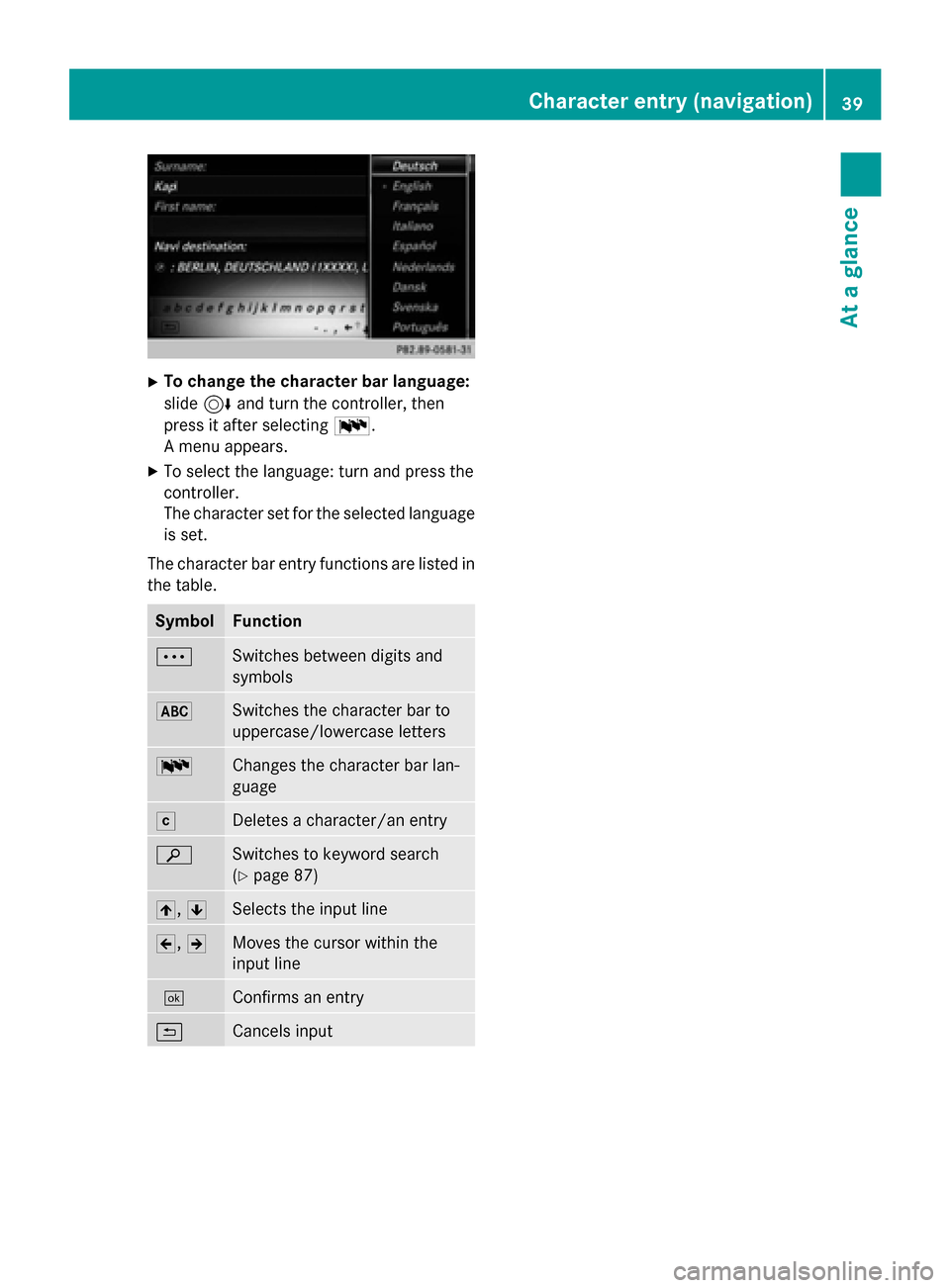
X
To change the character bar language:
slide 6and turn the controller, then
press it after selecting 0054.
A menu appears.
X To select the language: turn and press the
controller.
The character set for the selected language
is set.
The character bar entry functions are listed in
the table. Symbol Function
0062
Switches between digits and
symbols
0069
Switches the character bar to
uppercase/lowercase letters
0054
Changes the character bar lan-
guage
0042
Deletes a character/an entry
00D3
Switches to keyword search
(Y
page 87) 005F,
0060 Selects the input line
005D,
005E Moves the cursor within the
input line
0054
Confirms an entry
0039
Cancels input Character entry (navigation)
39At a glance
Page 45 of 298
Your COMAND equipment
..................44
Display settings .................................. 44
Time settings ....................................... 46
Text reader settings ............................48
Voice Control System settings ..........48
WiFi ...................................................... 48
Bluetooth ®
settings ............................ 51
Automatic volume adjustment ..........51
Setting the system language .............52
Assigning a favorites button ..............52
Importing/exporting data ..................54
Reset function ..................................... 55 43Sys
tem settings
Page 46 of 298
Your COMAND equipment
These operating instructions describe all
standard and optional equipment available
for your COMAND system at the time of pur-
chase. Country-specific differences are pos-
sible. Please note that your COMAND system may not be equipped with all the features
described. This also applies to safety-relevant
systems and functions. Therefore, the equip-
ment on your COMAND system may differ
from that in the descriptions and illustrations. Should you have any questions concerning
equipment and operation, please consult an
authorized Mercedes-Benz Center. Display settings
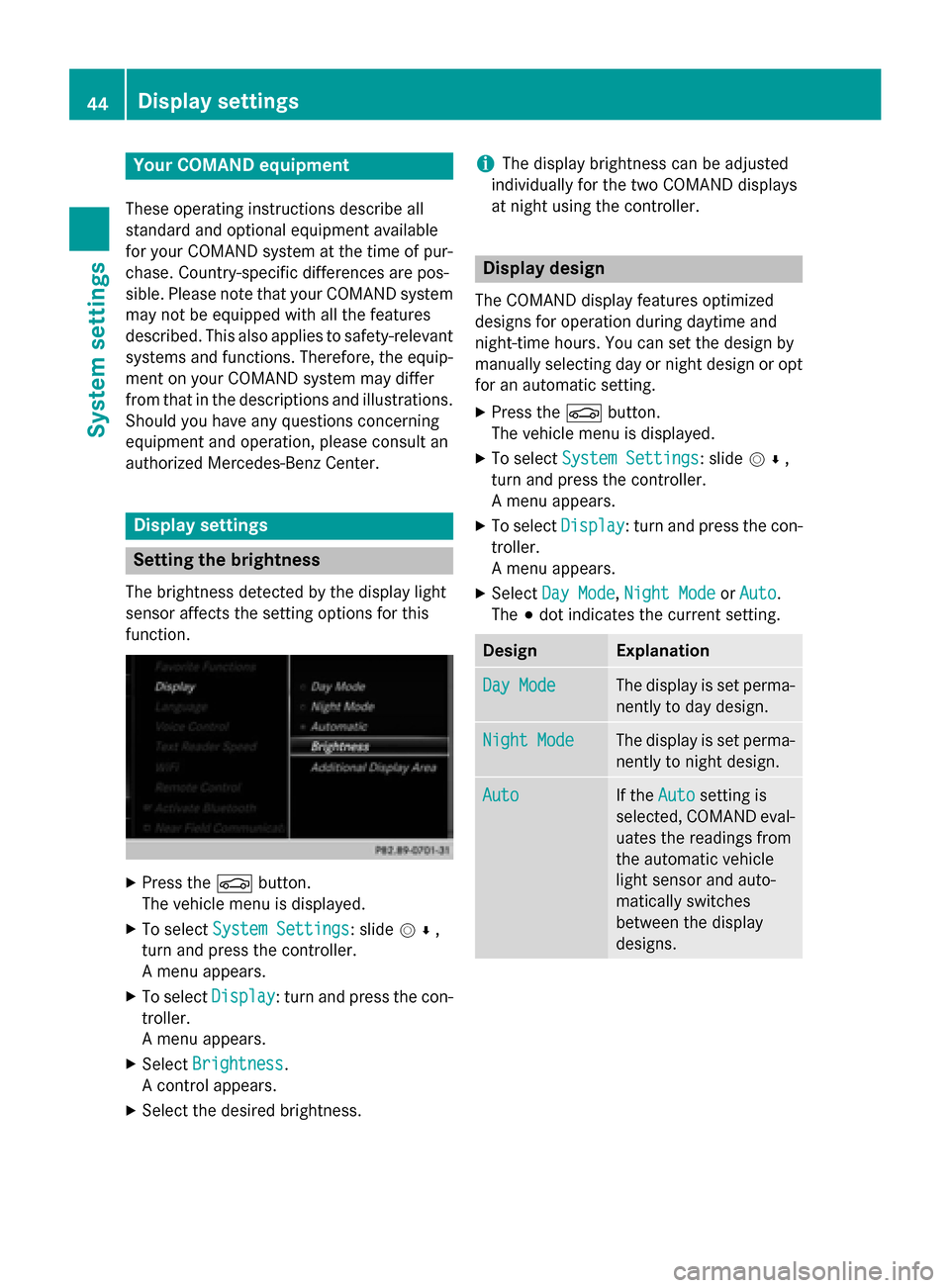
Setting the brightness
The brightness detected by the display light
sensor affects the setting options for this
function. X
Press the 00D4button.
The vehicle menu is displayed.
X To select System Settings
System Settings : slide005200C5,
turn and press the controller.
A menu appears.
X To select Display
Display : turn and press the con-
troller.
A menu appears.
X Select Brightness Brightness .
A control appears.
X Select the desired brightness. i
The display brightness can be adjusted
individually for the two COMAND displays
at night using the controller. Display design
The COMAND display features optimized
designs for operation during daytime and
night-time hours. You can set the design by
manually selecting day or night design or opt
for an automatic setting.
X Press the 00D4button.
The vehicle menu is displayed.
X To select System Settings System Settings : slide005200C5,
turn and press the controller.
A menu appears.
X To select Display Display: turn and press the con-
troller.
A menu appears.
X Select Day Mode
Day Mode ,Night Mode Night Mode orAuto
Auto .
The 003Bdot indicates the current setting. Design Explanation
Day Mode
Day Mode The display is set perma-
nently to day design. Night Mode
Night Mode The display is set perma-
nently to night design. Auto
Auto If the
Auto
Autosetting is
selected, COMAND eval-
uates the readings from
the automatic vehicle
light sensor and auto-
matically switches
between the display
designs. 44
Display set
tingsSystem settings
Page 47 of 298
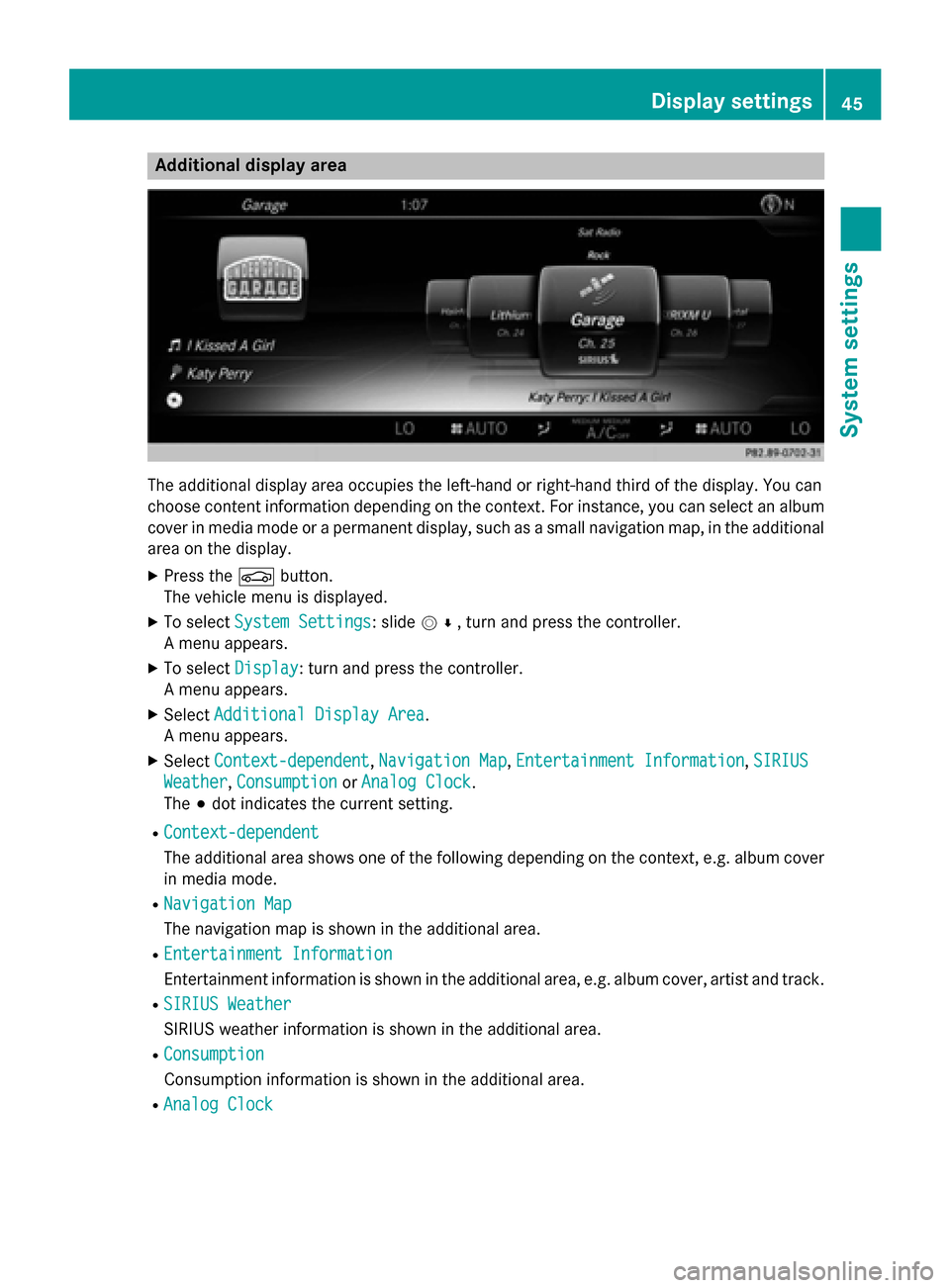
Additional display area
The additional display area occupies the left-hand or right-hand third of the display. You can
choose content information depending on the context. For instance, you can select an album
cover in media mode or a permanent display, such as a small navigation map, in the additional area on the display.
X Press the 00D4button.
The vehicle menu is displayed.
X To select System Settings
System Settings: slide 005200C5, turn and press the controller.
A menu appears.
X To select Display Display: turn and press the controller.
A menu appears.
X Select Additional Display Area
Additional Display Area.
A menu appears.
X Select Context-dependent
Context-dependent, Navigation Map Navigation Map,Entertainment Information
Entertainment Information, SIRIUS
SIRIUS
Weather
Weather, Consumption
Consumption orAnalog Clock
Analog Clock.
The 003Bdot indicates the current setting.
R Context-dependent
Context-dependent
The additional area shows one of the following depending on the context, e.g. album cover in media mode.
R Navigation Map
Navigation Map
The navigation map is shown in the additional area.
R Entertainment Information
Entertainment Information
Entertainment information is shown in the additional area, e.g. album cover, artist and track.
R SIRIUS Weather SIRIUS Weather
SIRIUS weather information is shown in the additional area.
R Consumption Consumption
Consumption information is shown in the additional area.
R Analog Clock Analog Clock Display settings
45System settings
Page 48 of 298
A clock is shown in the additional area.
Time settings
General information
COMAND can automatically set the time and date.
The following navigation system functions
require the time, time zone and summer/
standard time to be set correctly in order to
work properly:
R route guidance on routes with time-
dependent traffic guidance
R calculation of expected time of arrival Switching automatic time on and off
The Automatic Time Settings
Automatic Time Settings function is
used to activate or deactivate the automatic
setting of the time and date. This function is
activated when the vehicle leaves the factory.
X Press the 00D4button.
The vehicle menu is displayed.
X To select Time
Time: slide 6, turn and press
the controller to confirm.
A menu appears.
X To select Automatic Time Settings Automatic Time Settings:
press the controller.
X To switch the function on 0073or off 0053:
press the controller. Setting the time zone
To set the time zone, the Automatic Time
Automatic Time
Settings
Settings function must be activated
(Y page 46).
X Press the 00D4button.
The vehicle menu is displayed.
X To select Time
Time: slide 6, turn and press
the controller.
A menu appears. X
To select Time Zone:
Time Zone:: turn and press the
controller.
A list of countries appears. The 003Bdot indi-
cates the current setting.
X Select the country you are currently in by
turning and pressing the controller.
The country is accepted.
A time zone list may also be displayed,
depending on the country selected.
X To select the desired time zone: turn and
press the controller.
The time zone is accepted.
A list of available options for setting
summer time appears (Y page 46). Setting summer and standard time
You can use the Daylight Savings Time Daylight Savings Time
(Summer)
(Summer) menu to set automatic summer
time changeover or switch the summer time
setting on or off. The changeover to summer
time advances the time by one hour.
The Daylight Savings Time (Summer) Daylight Savings Time (Summer)
menu or the Automatic
Automaticoption is not availa-
ble in all countries.
X Press the 00D4button.
The vehicle menu is displayed.
X To select Time
Time: slide 6the controller,
turn and press to confirm.
A menu appears.
X To select Daylight Savings Time Daylight Savings Time
(Summer)
(Summer): turn and press the controller.
A list of available options for setting
summer time appears.
X To select Auto Auto,On
OnorOff
Off : turn and press
the controller. 46
Time settingsSystem settings