Rear sear MERCEDES-BENZ S-Class 2015 W222 Comand Manual
[x] Cancel search | Manufacturer: MERCEDES-BENZ, Model Year: 2015, Model line: S-Class, Model: MERCEDES-BENZ S-Class 2015 W222Pages: 298, PDF Size: 6.39 MB
Page 6 of 298
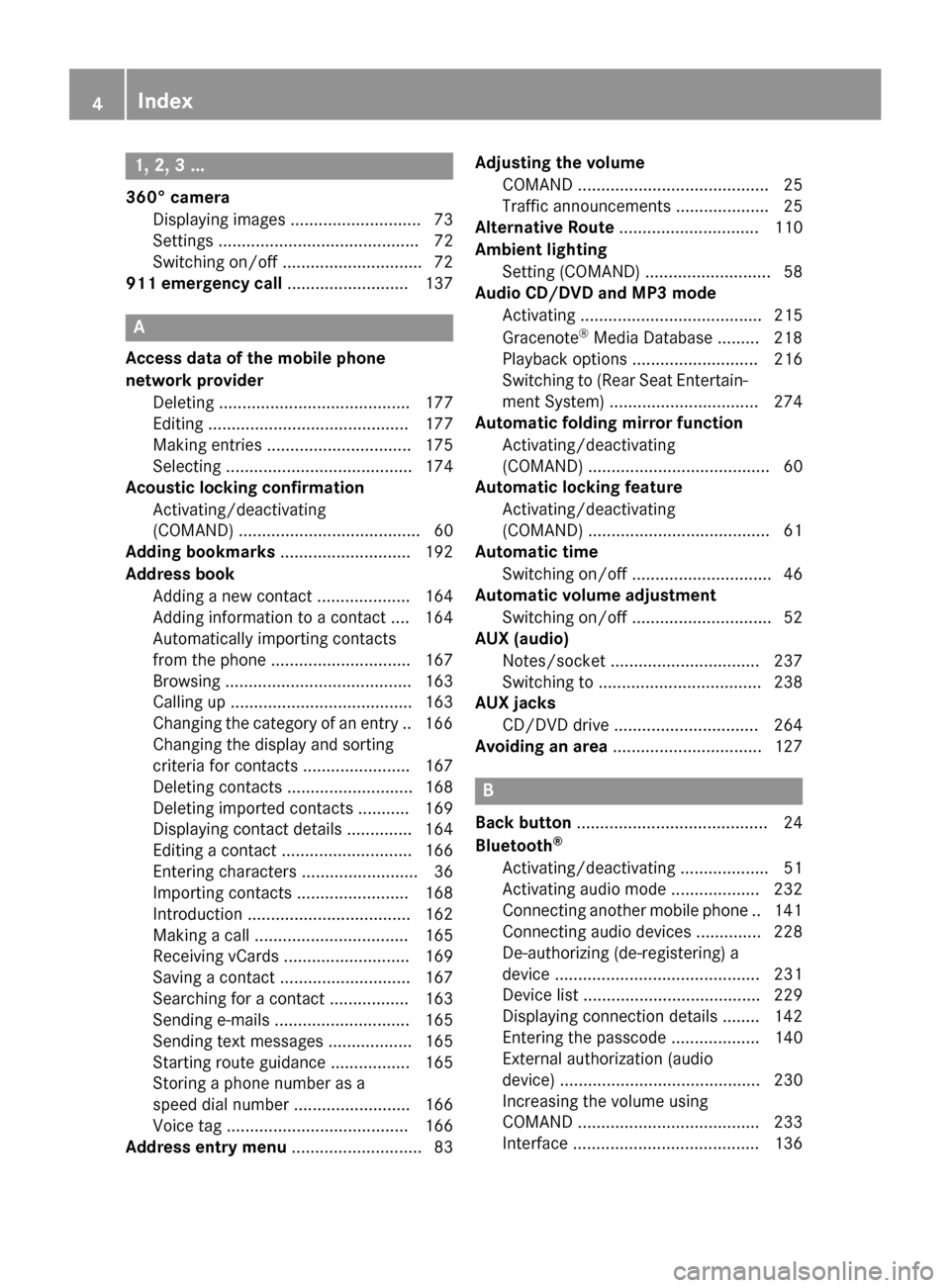
1, 2, 3 ...
360° camera Displaying images ............................ 73
Settings ...........................................72
Switching on/of f.............................. 72
911 emergency call .......................... 137A
Access data of the mobile phone
network provider Deleting ......................................... 177
Editing ........................................... 177
Making entries ............................... 175
Selecting ........................................ 174
Acoustic locking confirmation
Activating/deactivating
(COMAND) ....................................... 60
Adding bookmarks ............................ 192
Address book Adding a new contact .................... 164
Adding information to a contact .... 164
Automatically importing contacts
from the phone .............................. 167
Browsing ........................................ 163
Calling up ....................................... 163
Changing the category of an entry .. 166 Changing the display and sorting
criteria for contacts ....................... 167
Deleting contacts ........................... 168
Deleting imported contacts ........... 169
Displaying contact details .............. 164
Editing a contact ............................ 166
Entering characters ......................... 36
Importing contacts ........................ 168
Introduction ................................... 162
Making a call ................................. 165
Receiving vCards ........................... 169
Saving a contact ............................ 167
Searching for a contact ................. 163
Sending e-mails ............................. 165
Sending text messages .................. 165
Starting route guidance ................. 165
Storing a phone number as a
speed dial number ......................... 166
Voice tag ....................................... 166
Address entry menu ............................ 83 Adjusting the volume
COMAND ......................................... 25
Traffic announcements .................... 25
Alternative Route .............................. 110
Ambient lighting Setting (COMAND) ........................... 58
Audio CD/DVD and MP3 mode
Activating ....................................... 215
Gracenote ®
Media Database ......... 218
Playback options ........................... 216
Switching to (Rear Seat Entertain-
ment System) ................................ 274
Automatic folding mirror function
Activating/deactivating
(COMAND) ....................................... 60
Automatic locking feature
Activating/deactivating
(COMAND) ....................................... 61
Automatic time
Switching on/of f.............................. 46
Automatic volume adjustment
Switching on/of f.............................. 52
AUX (audio)
Notes/socket ................................ 237
Switching to ................................... 238
AUX jacks
CD/DVD drive ............................... 264
Avoiding an area ................................ 127 B
Back button ......................................... 24
Bluetooth ®
Activating/deactivating ................... 51
Activating audio mode ................... 232
Connecting another mobile phone .. 141
Connecting audio devices .............. 228
De-authorizing (de-registering) a
device ............................................ 231
Device list ...................................... 229
Displaying connection details ........ 142
Entering the passcode ................... 140
External authorization (audio
device) ........................................... 230
Increasing the volume using
COMAND ....................................... 233
Interface ........................................ 136 4
Index
Page 7 of 298
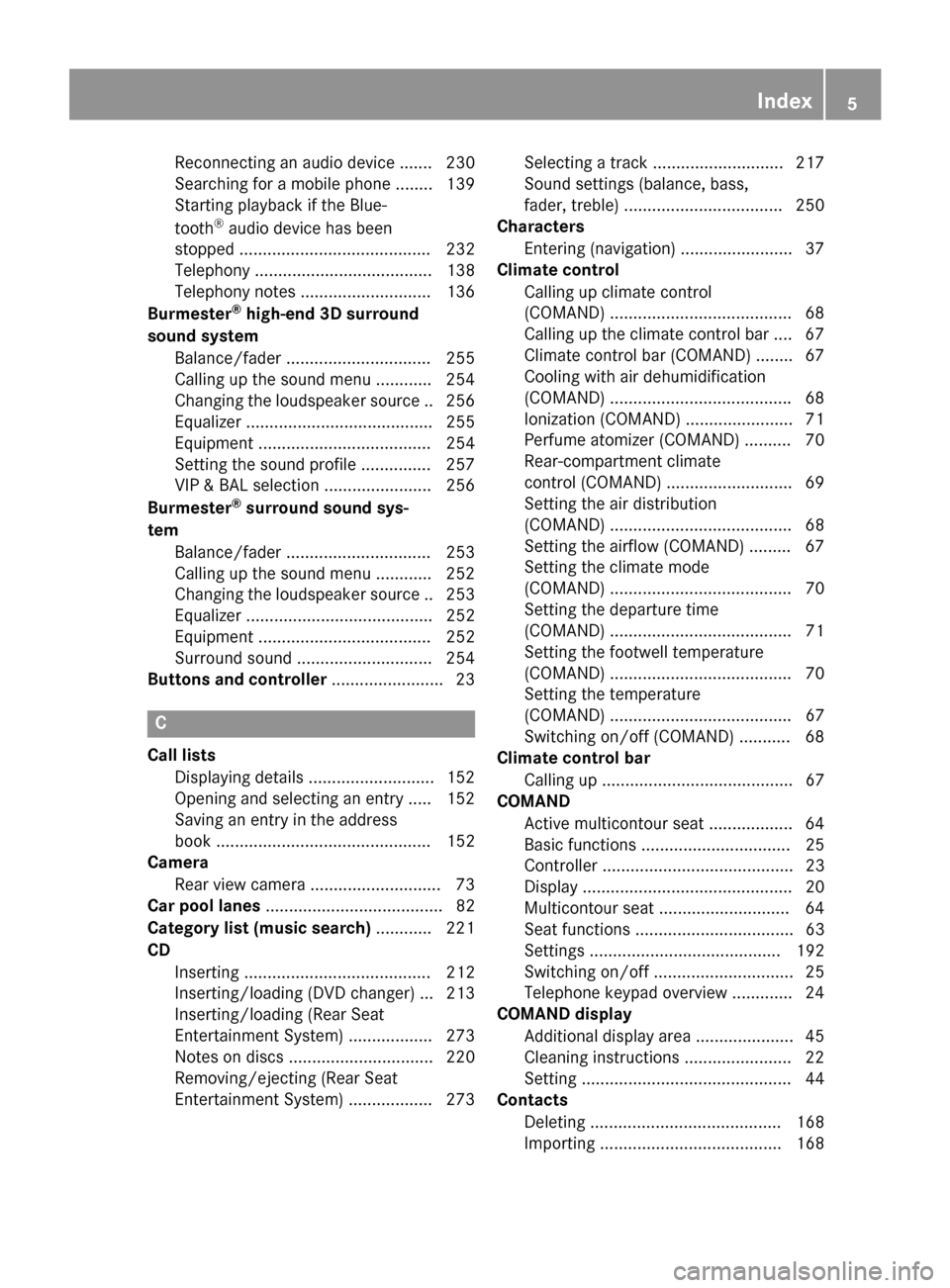
Reconnecting an audio device ......
.230
Searching for a mobile phone ....... .139
Starting playback if the Blue-
tooth ®
audio device has been
stopped ......................................... 232
Telephony ...................................... 138
Telephony notes ............................ 136
Burmester ®
high-end 3D surround
sound system Balance/fader ............................... 255
Calling up the sound menu ............ 254
Changing the loudspeaker source .. 256 Equalizer ........................................ 255
Equipment ..................................... 254
Setting the sound profile .............. .257
VIP & BAL selection ....................... 256
Burmester ®
surround sound sys-
tem Balance/fader ............................... 253
Calling up the sound menu ............ 252
Changing the loudspeaker source .. 253
Equalizer ........................................ 252
Equipment ..................................... 252
Surround sound ............................ .254
Buttons and controller ........................ 23C
Call lists Displaying details ........................... 152
Opening and selecting an entry ..... 152
Saving an entry in the address
book .............................................. 152
Camera
Rear view camera ............................ 73
Car pool lanes ...................................... 82
Category list (music search) ............ 221
CD Inserting ........................................ 212
Inserting/loading (DVD changer) ... 213
Inserting/loading (Rear Seat
Entertainment System) .................. 273
Notes on discs ............................... 220
Removing/ejecting (Rear Seat
Entertainment System) .................. 273 Selecting a track ............................ 217
Sound settings (balance, bass,
fader, treble) .................................. 250
Characters
Entering (navigation) ........................ 37
Climate control
Calling up climate control
(COMAND) ....................................... 68
Calling up the climate control bar .... 67
Climate control bar (COMAND) ....... .67
Cooling with air dehumidification
(COMAND) ...................................... .68
Ionization (COMAND) ....................... 71
Perfume atomizer (COMAND) .......... 70
Rear-compartment climate
control (COMAND) ........................... 69
Setting the air distribution
(COMAND) ....................................... 68
Setting the airflow (COMAND) .........67
Setting the climate mode
(COMAND) ....................................... 70
Setting the departure time
(COMAND) ....................................... 71
Setting the footwell temperature
(COMAND) ....................................... 70
Setting the temperature
(COMAND) ....................................... 67
Switching on/off (COMAND) ........... 68
Climate control bar
Calling up ......................................... 67
COMAND
Active multicontour seat .................. 64
Basic functions ................................ 25
Controller ......................................... 23
Display ............................................. 20
Multicontour seat ............................ 64
Seat functions .................................. 63
Setting s......................................... 192
Switching on/of f.............................. 25
Telephone keypad overview ............. 24
COMAND display
Additional display are a..................... 45
Cleaning instructions ....................... 22
Setting ............................................. 44
Contacts
Deleting ......................................... 168
Importing ....................................... 168 Index
5
Page 8 of 298
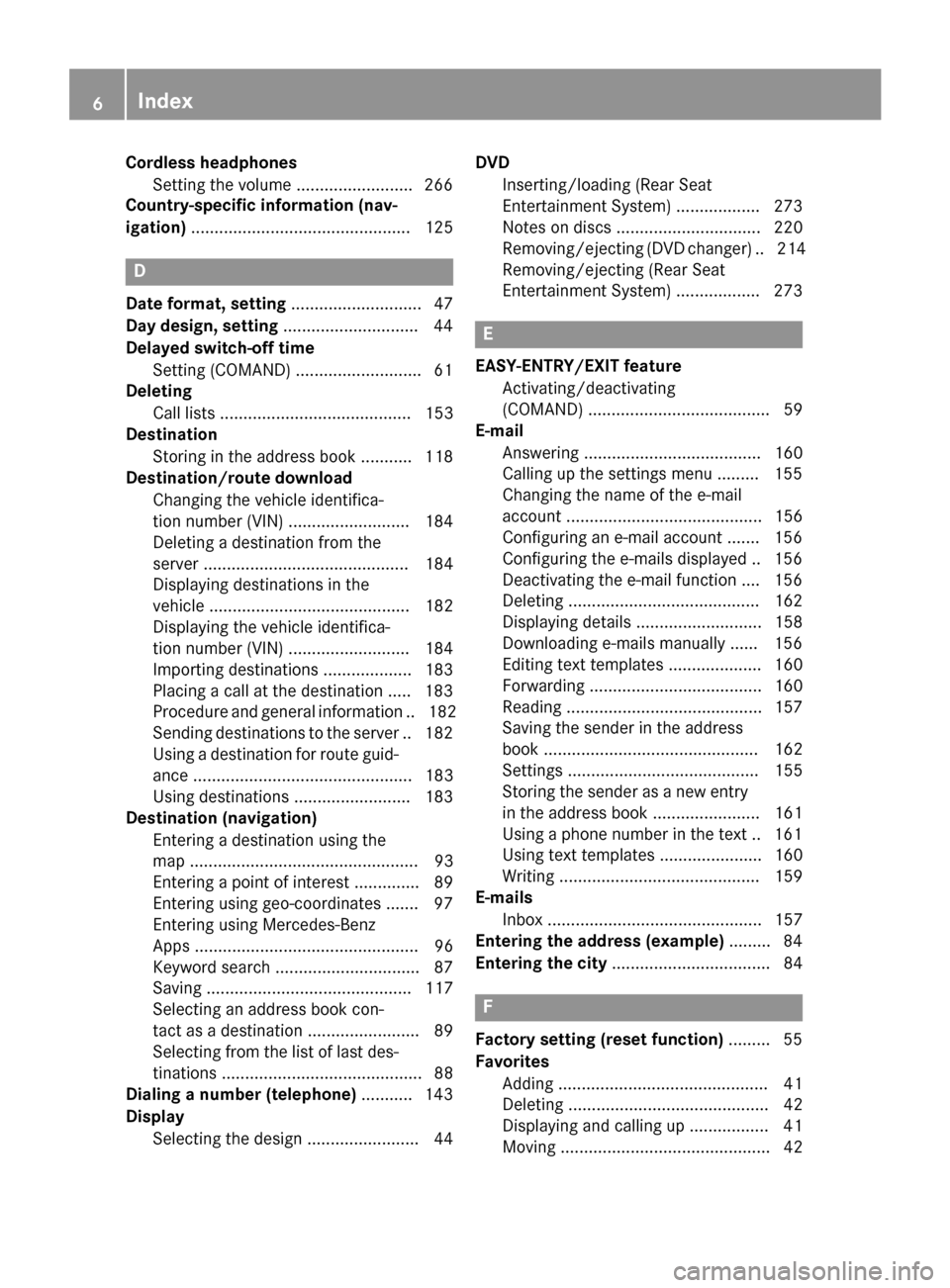
Cordless headphones
Setting the volume ........................ .266
Country-specific information (nav-
igation) ............................................... 125 D
Date format, setting ............................ 47
Day design, setting .............................44
Delayed switch-off time Setting (COMAND) .......................... .61
Deleting
Call list s......................................... 153
Destination
Storing in the address book ........... 118
Destination/route download
Changing the vehicle identifica-
tion number (VIN) .......................... 184
Deleting a destination from the
server ............................................ 184
Displaying destinations in the
vehicle ........................................... 182
Displaying the vehicle identifica-
tion number (VIN) .......................... 184
Importing destinations ................... 183
Placing a call at the destination ..... 183
Procedure and general information .. 182
Sending destinations to the server .. 182Using a destination for route guid-
ance ............................................... 183
Using destinations ......................... 183
Destination (navigation)
Entering a destination using the
map ................................................. 93
Entering a point of interest .............. 89
Entering using geo-coordinate s....... 97
Entering using Mercedes-Benz
Apps ................................................ 96
Keyword search ............................... 87
Saving ............................................ 117
Selecting an address book con-
tact as a destination ........................ 89
Selecting from the list of last des- tinations ........................................... 88
Dialing a number (telephone) ........... 143
Display Selecting the design ........................ 44 DVD
Inserting/loading (Rear Seat
Entertainment System) .................. 273
Notes on discs ............................... 220
Removing/ejecting (DVD changer )..2 14
Removing/ejecting (Rear Seat
Entertainment System) .................. 273 E
EASY-ENTRY/EXIT feature Activating/deactivating
(COMAND) ....................................... 59
E-mail
Answering ...................................... 160
Calling up the settings menu ......... 155
Changing the name of the e-mail
account .......................................... 156
Configuring an e-mail account ....... 156
Configuring the e-mails displayed .. 156
Deactivating the e-mail function .... 156
Deleting ......................................... 162
Displaying details ........................... 158
Downloading e-mails manually ...... 156
Editing text templates .................... 160
Forwarding ..................................... 160
Reading .......................................... 157
Saving the sender in the address
book .............................................. 162
Setting s......................................... 155
Storing the sender as a new entry in the address boo k....................... 161
Using a phone number in the text .. 161
Using text templates ...................... 160
Writing ........................................... 159
E-mails
Inbox .............................................. 157
Entering the address (example) ......... 84
Entering the city .................................. 84 F
Factory setting (reset function) ......... 55
Favorites Adding ............................................. 41
Deleting ........................................... 42
Displaying and calling up ................. 41
Moving ............................................. 42 6
Index
Page 11 of 298
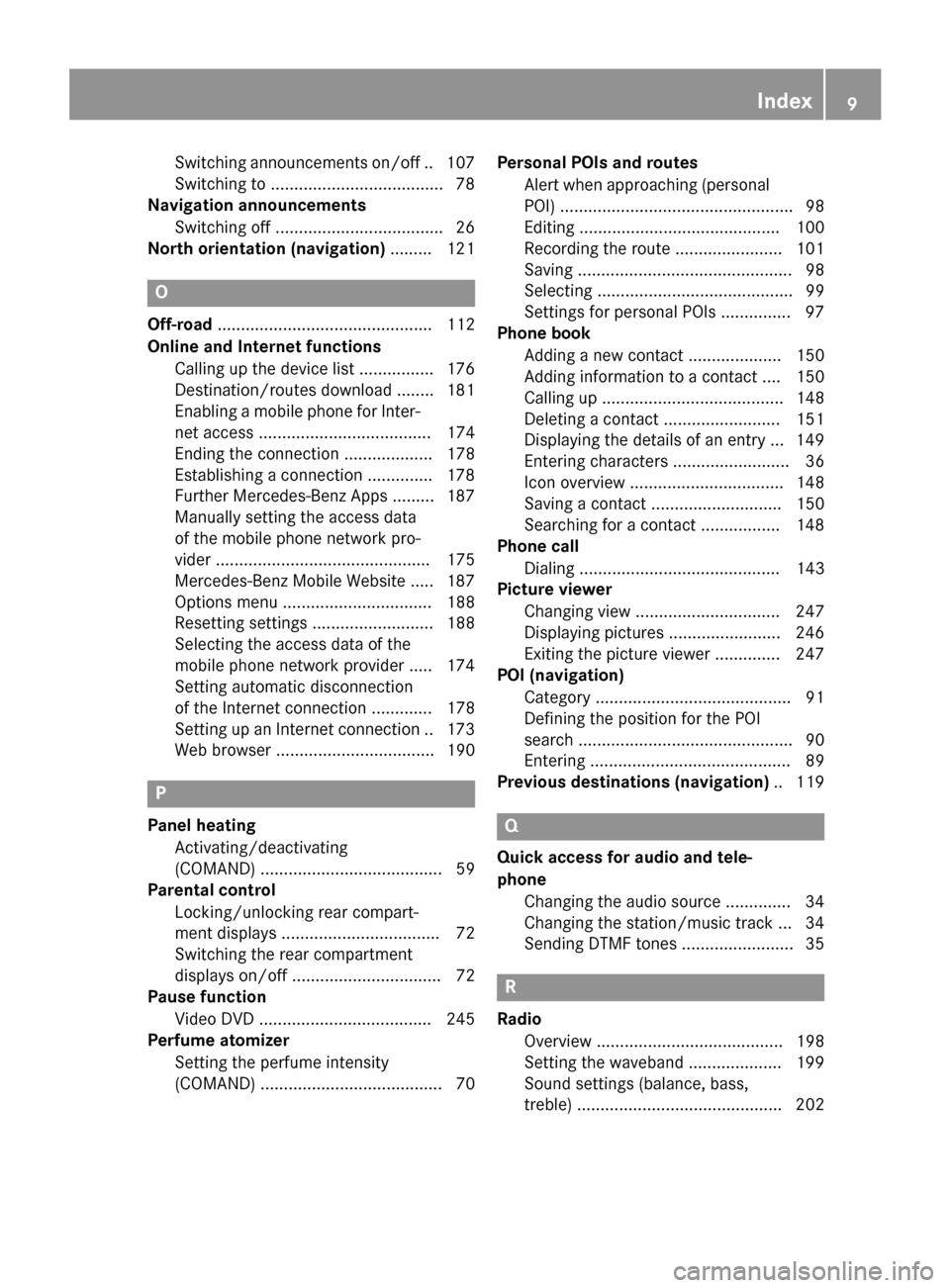
Switching announcements on/of
f..1 07
Switching to ..................................... 78
Navigation announcements
Switching off ................................... .26
North orientation (navigation) ......... 121O
Off-road .............................................. 112
Online and Internet functions Calling up the device list ................ 176
Destination/routes download ........ 181
Enabling a mobile phone for Inter-
net acces s..................................... 174
Ending the connection ................... 178
Establishing a connection .............. 178
Further Mercedes-Benz App s......... 187
Manually setting the access data
of the mobile phone network pro-
vider .............................................. 175
Mercedes-Benz Mobile Website ..... 187
Options menu ................................ 188
Resetting settings .......................... 188
Selecting the access data of the
mobile phone network provider ..... 174
Setting automatic disconnection
of the Internet connection ............. 178
Setting up an Internet connection .. 173 Web browser .................................. 190 P
Panel heating Activating/deactivating
(COMAND) ....................................... 59
Parental control
Locking/unlocking rear compart-
ment display s.................................. 72
Switching the rear compartment
displays on/off ................................ 72
Pause function
Video DVD ..................................... 245
Perfume atomizer
Setting the perfume intensity
(COMAND) ....................................... 70 Personal POIs and routes
Alert when approaching (personal
POI) .................................................. 98
Editing ........................................... 100
Recording the route ....................... 101
Saving .............................................. 98
Selecting .......................................... 99
Settings for personal POI s............... 97
Phone book
Adding a new contact .................... 150
Adding information to a contact .... 150
Calling up ....................................... 148
Deleting a contact ......................... 151
Displaying the details of an entry ... 149
Entering characters ......................... 36
Icon overview ................................. 148
Saving a contact ............................ 150
Searching for a contact ................. 148
Phone call
Dialing ........................................... 143
Picture viewer
Changing view ............................... 247
Displaying pictures ........................ 246
Exiting the picture viewe r.............. 247
POI (navigation)
Category .......................................... 91
Defining the position for the POI
search .............................................. 90
Entering ........................................... 89
Previous destinations (navigation) .. 119 Q
Quick access for audio and tele-
phone Changing the audio source .............. 34
Changing the station/music track ... 34
Sending DTMF tones ........................ 35 R
Radio Overview ........................................ 198
Setting the waveband .................... 199
Sound settings (balance, bass,
treble) ............................................ 202 Index
9
Page 22 of 298
audio, 10 GB Media Register on the hard
drive
- Music search using all media
R Sound system
You can select from three sound systems:
- Standard sound system
- Burmester ®
surround sound system
- Burmester high-end 3D surround sound
system for ultimate listening pleasure
R Navigation system
- Destination entry using keyword search
- Realistic 3D map with textured city mod-
els
- Personal POIs and routes using SD mem-
ory card
- Navigation functions for passengers,
such as Drive Information and Google™
Maps
- Dynamic route guidance via SIRIUS sat-
ellite radio
R Communication
- Messaging functions (text messages,
email)
- Address book
- Internet browser
- Mercedes-Benz Apps with Google™
Local Search, Destination Download,
Weather, Facebook, Google™ Street
View, Internet radio, stock prices, news
and much more
- WiFi interface for the connection of a
smartphone to COMAND and the option
of remote control for the front passenger (SPLITVIEW) and the Rear Seat Entertain-
ment System
- Mercedes-Benz Mobile Website
- WiFi hotspot functionality to connect a
tablet PC or laptop in order to enable
access to the Internet using the custom-
er's mobile phone R
SIRIUS Weather
- Weather data as an information chart
(current forecast, 5-day preview,
detailed information)
- Weather data on the weather map, e.g.
rain radar data, storm characteristics
and the track of tropical cyclones (hurri-
canes, typhoons)
R Vehicle functions
- Vehicle settings, such as ambient light-
ing, belt adjustment and tow-away alarm
- 360° camera
- Rear view camera
- Climate control functions, such as cli-
mate mode, perfume atomizer and aux-
iliary heating
- Setting the multicontour seat with new
massage program
R Favorites button
Fast access to up to twelve favorites func-
tions using the favorites button and num-
ber keys on the telephone keypad (if avail-
able) or the favorites button on the touch-
pad (if available).
R Multi-Seat Entertainment System
- All passengers have access to entertain-
ment options via COMAND
- Digital remote control operation and dig-
ital cordless headphones COMAND display
General notes !
Do not use the space in front of the dis-
play for storage. Objects placed here could
damage the display or impair its function.
Avoid any direct contact with the display
surface. Pressure on the display surface
may result in impairments to the display,
which could be irreversible.
Wearing polarized sunglasses may impair
your ability to read the display.
The display has an automatic temperature-
controlled switch-off feature. The brightness 20
OverviewAt a glance
Page 31 of 298
The menu called up on the driver's side is
shown.
If COMAND is switched off by removing the
key from the ignition lock while SPLITVIEW is
activated and then switched on again within
30 minutes, SPLITVIEW is activated with the
last settings.
If COMAND is switched on again after more
than 30 minutes, SPLITVIEW is not activated. If SPLITVIEW is activated on the front-
passenger side, the settings from the driver's
side will be used.
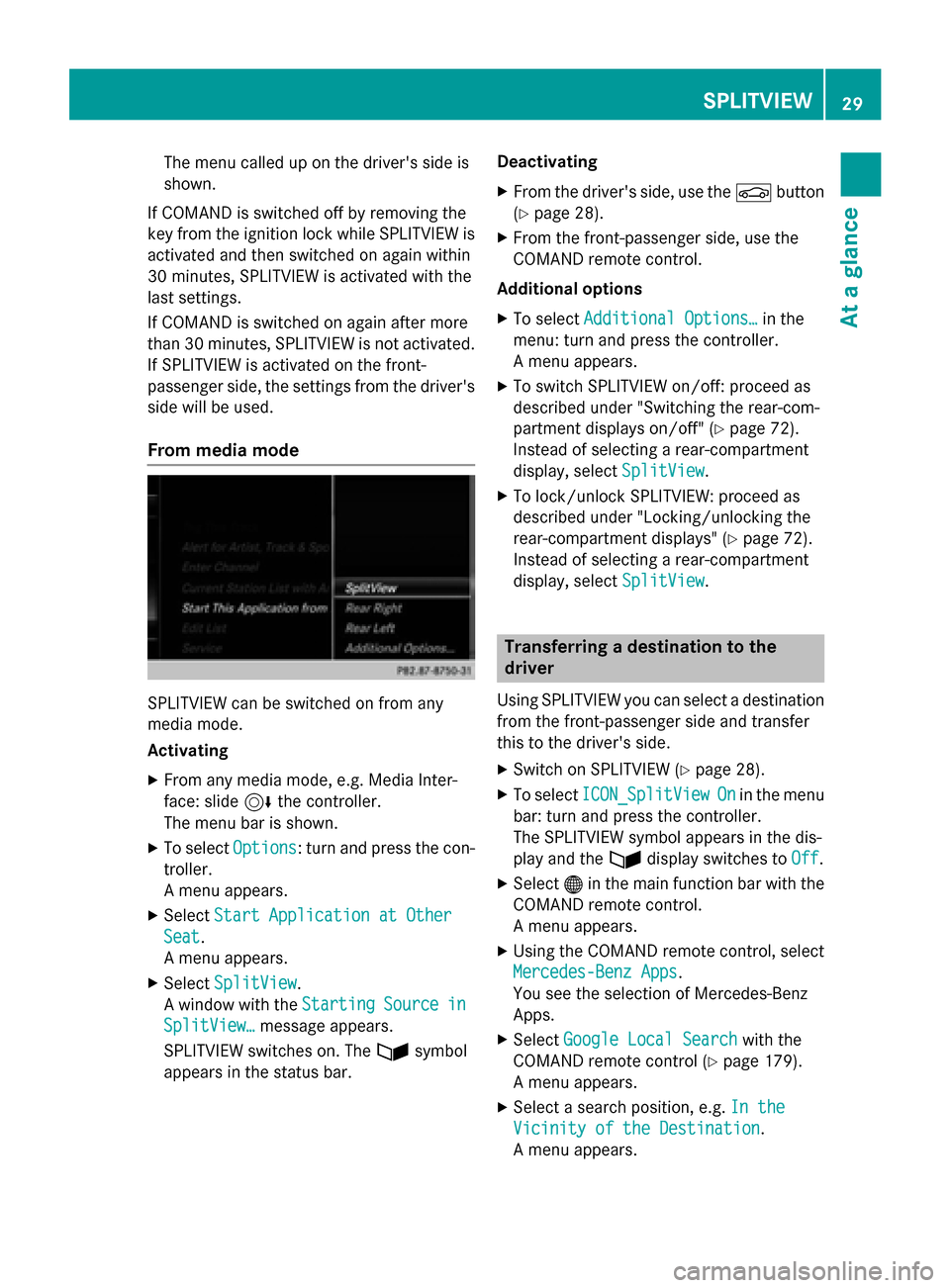
From media mode SPLITVIEW can be switched on from any
media mode.
Activating
X From any media mode, e.g. Media Inter-
face: slide 6the controller.
The menu bar is shown.
X To select Options Options: turn and press the con-
troller.
A menu appears.
X Select Start Application at Other
Start Application at Other
Seat Seat.
A menu appears.
X Select SplitView SplitView.
A window with the Starting
StartingSource
Sourcein
in
SplitView…
SplitView… message appears.
SPLITVIEW switches on. The 00E9symbol
appears in the status bar. Deactivating
X From the driver's side, use the 00D4button
(Y page 28).
X From the front-passenger side, use the
COMAND remote control.
Additional options X To select Additional Options… Additional Options… in the
menu: turn and press the controller.
A menu appears.
X To switch SPLITVIEW on/off: proceed as
described under "Switching the rear-com-
partment displays on/off" (Y page 72).
Instead of selecting a rear-compartment
display, select SplitView SplitView.
X To lock/unlock SPLITVIEW: proceed as
described under "Locking/unlocking the
rear-compartment displays" (Y page 72).
Instead of selecting a rear-compartment
display, select SplitView SplitView. Transferring a destination to the
driver
Using SPLITVIEW you can select a destination
from the front-passenger side and transfer
this to the driver's side.
X Switch on SPLITVIEW (Y page 28).
X To select ICON_SplitView ICON_SplitView On
Onin the menu
bar: turn and press the controller.
The SPLITVIEW symbol appears in the dis-
play and the 00E9display switches to Off
Off.
X Select 00A7in the main function bar with the
COMAND remote control.
A menu appears.
X Using the COMAND remote control, select
Mercedes-Benz Apps Mercedes-Benz Apps.
You see the selection of Mercedes-Benz
Apps.
X Select Google Local Search Google Local Search with the
COMAND remote control (Y page 179).
A menu appears.
X Select a search position, e.g. In the
In the
Vicinity of the Destination
Vicinity of the Destination.
A menu appears. SPLITVIEW
29At a glance
Page 268 of 298
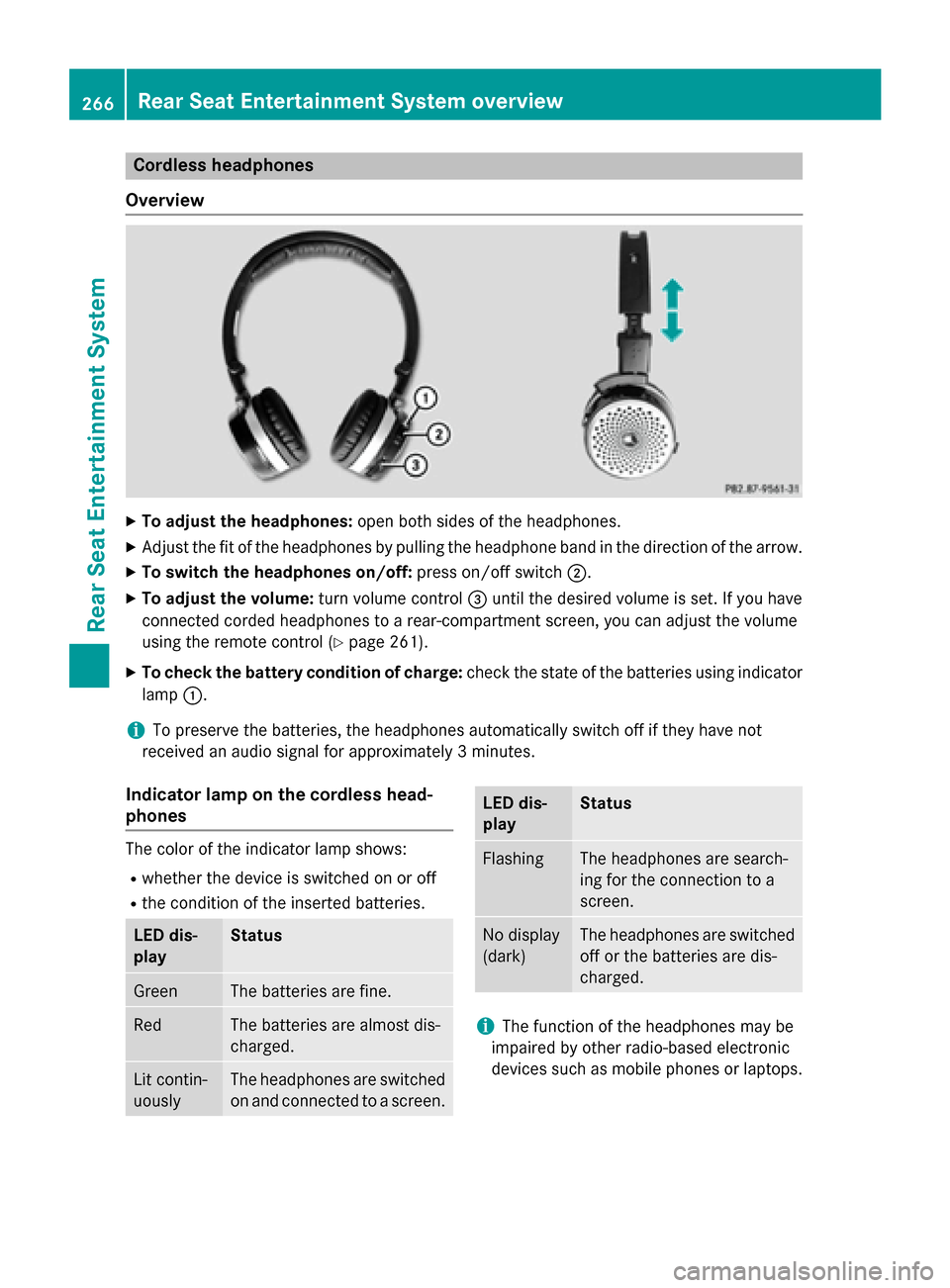
Cordless headphones
Overview X
To adjust the headphones: open both sides of the headphones.
X Adjust the fit of the headphones by pulling the headphone band in the direction of the arrow.
X To switch the headphones on/off: press on/off switch0044.
X To adjust the volume: turn volume control0087until the desired volume is set. If you have
connected corded headphones to a rear-compartment screen, you can adjust the volume
using the remote control (Y page 261).
X To check the battery condition of charge: check the state of the batteries using indicator
lamp 0043.
i To preserve the batteries, the headphones automatically switch off if they have not
received an audio signal for approximately 3 minutes.
Indicator lamp on the cordless head-
phones The color of the indicator lamp shows:
R whether the device is switched on or off
R the condition of the inserted batteries. LED dis-
play Status
Green The batteries are fine.
Red The batteries are almost dis-
charged. Lit contin-
uously The headphones are switched
on and connected to a screen. LED dis-
play Status
Flashing The headphones are search-
ing for the connection to a
screen.
No display
(dark) The headphones are switched
off or the batteries are dis-
charged. i
The function of the headphones may be
impaired by other radio-based electronic
devices such as mobile phones or laptops. 266
Rear Seat Entertainment System overviewRear Seat Entertainment System
Page 275 of 298
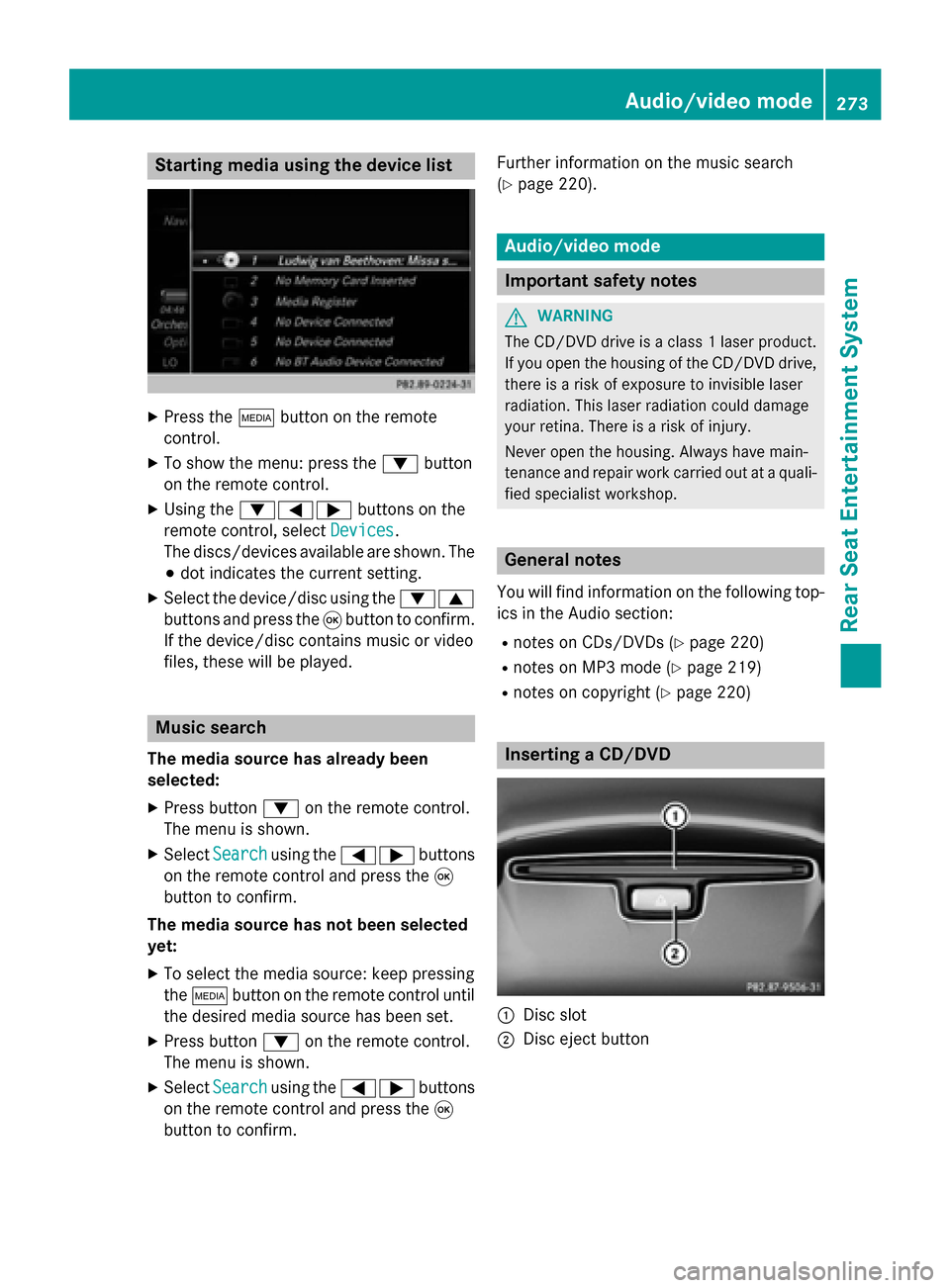
Starting media using the device list
X
Press the 00FDbutton on the remote
control.
X To show the menu: press the 0064button
on the remote control.
X Using the 006400590065 buttons on the
remote control, select Devices
Devices.
The discs/devices available are shown. The 003B dot indicates the current setting.
X Select the device/disc using the 00640063
buttons and press the 008Bbutton to confirm.
If the device/disc contains music or video
files, these will be played. Music search
The media source has already been
selected:
X Press button 0064on the remote control.
The menu is shown.
X Select Search Search using the 00590065 buttons
on the remote control and press the 008B
button to confirm.
The media source has not been selected
yet:
X To select the media source: keep pressing
the 00FD button on the remote control until
the desired media source has been set.
X Press button 0064on the remote control.
The menu is shown.
X Select Search Search using the 00590065 buttons
on the remote control and press the 008B
button to confirm. Further information on the music search
(Y
page 220). Audio/video mode
Important safety notes
G
WARNING
The CD/DVD drive is a class 1 laser product. If you open the housing of the CD/DVD drive,
there is a risk of exposure to invisible laser
radiation. This laser radiation could damage
your retina. There is a risk of injury.
Never open the housing. Always have main-
tenance and repair work carried out at a quali- fied specialist workshop. General notes
You will find information on the following top- ics in the Audio section:
R notes on CDs/DVDs (Y page 220)
R notes on MP3 mode (Y page 219)
R notes on copyright (Y page 220) Inserting a CD/DVD
0043
Disc slot
0044 Disc eject button Audio/video mode
273Rear Seat Entertainment System Z
Page 276 of 298
Depending on the vehicle model and equip-
ment level, the CD/DVD drive is found:
R at the rear of the center console under the
automatic climate control panel or
R between the parcel shelf and skibag.
The CD/DVD drive is a single disc drive. If
there is already a disc inserted, this must be
ejected before another is inserted.
X Insert a disc into the disc slot.
The printed side of the disc must face
upwards. If neither side of the disc is
printed, the side you wish to play must face
downwards.
The CD/DVD drive draws in the disc.
The CD/DVD drive plays the disc:
R if it has been inserted correctly and is a
permissible disc, and
R once you have activated disc mode.
Data on an MP3 CD first needs to be loaded by the drive. Loading may take some time,
depending on the number of folders and
tracks. Switching to audio/video mode
X Insert a CD/DVD (Y page 264).
The system loads the inserted disc and
starts playback.
or
X Select Media Mediausing the 006300590065
buttons on the remote control and press
the 008Bbutton to confirm.
X Select Disc
Discusing the 00590065 buttons
and press the 008Bbutton to confirm.
The system plays the disc.
X To switch to other media: insert the
device into the corresponding jack.
The system searches for files on the device that can be played back, and then plays
them. Selecting a track
Selecting by skipping to a track X
To skip forwards or backwards to a
track: press the 0059or0065 button on
the remote control.
or
X Press the 0048or0049 button.
The skip forward function skips to the next track.
If the elapsed track time has exceeded 8
seconds, the function skips back to the
beginning of the track. If the elapsed time is shorter, it will skip to the start of the pre-
vious track.
If the Random Tracks Random Tracks orRandom Folder
Random Folder
playback option has been selected, the
track order is random.
Selecting by track list In audio CD mode, the track list contains all
tracks on the disc currently playing.
In MP3 mode, the track list shows all tracks in
the currently active folder as well as the folder
structure, allowing you to select any track on
the MP3 CD.
X Select Search Search using the 006400590065
buttons on the remote control and press
the 008Bbutton to confirm.
X Select Current Tracklist
Current Tracklist using the
00630064 buttons and press the 008Bbutton
to confirm.
The track list appears. The 0036dot indicates
the current track.
X Select the track using the 00630064but-
tons and press the 008Bbutton to confirm.
Making a selection by entering the track number directly This function is only available in Media mode.
X Press the 007Ebutton on the remote
control.
The track entry display appears. 274
Audio/video modeRear Seat Entertainment System
Page 277 of 298
Example: track 2
X
Press number button 2.
Example: track 12 X Press the corresponding number keys in
rapid succession.
X Wait for approximately three seconds after
making the entry.
You will hear the track which has been
entered. The corresponding basic menu
then reappears.
i It is not possible to enter numbers that
exceed the number of tracks on the CD or in
the currently active folder. Fast forwarding/rewinding
X With the display/selection window active,
press the 0059or0065 button on the
remote control repeatedly until you reach
the desired position.
or
X Press and hold the 0048or0049 button
until the desired position is reached. Selecting a folder
This function is only available in MP3 mode.
X Select Search
Search using the 006400590065
buttons on the remote control and press
the 008Bbutton to confirm.
X Select Folder
Folder using the 006400590065
buttons and press the 008Bbutton to confirm.
The folder content appears.
X To switch to the next folder up: press the
0059 button on the remote control.
The display shows the next folder up.
X Select the folder with the 00630064but-
tons and press the 008Bbutton to confirm.
You will see the tracks in the folder.
X Select the track using the 00630064but-
tons and press the 008Bbutton to confirm.
The track is played and the corresponding
folder is now the active folder. Pause/Playback
X To pause playback: press the0065/
00CF button on the remote control.
The 00CF display changes to 00D0.
X To continue playback: press the0065/
00CF button.
The 00D0 display changes to 00CF. Playback options
X Select Options Options using the 006400590065
buttons and press the 008Bbutton to confirm.
X The options list appears. The 0036dot indi-
cates the option currently selected.
X Select Normal Normal Track
TrackSequence
Sequence ,Random
Random
Tracks
Tracks orRandom Folder
Random Folder using the
00630064 buttons and press the 008Bbutton
to confirm.
The option is switched on. For all options
except Normal Track Sequence
Normal Track Sequence, you will
see a corresponding display in the display/
selection window.
i If you switch the data carrier which you
are currently listening to, the Normal
Normal
Track Sequence Track Sequence option is activated auto-
matically. If an option is selected, it
remains selected after the system is
switched on or off. Switching track information on/off
If the function is switched on, the information saved in the audio files, such as track, artist or
album, will be shown (if available).
If the function is switched off, the names of
the files and folders on the disc are shown.
X Select Options Options using the 006400590065
buttons and press the 008Bbutton to confirm.
X Select Show Track Information
Show Track Information using
the 00630064 buttons and press the 008B
button to confirm.
The function is switched on 0073or off 0053,
depending on the previous status. Audio/video mode
275Rear Seat Entertainment System Z