navigation MERCEDES-BENZ S-CLASS COUPE 2015 User Guide
[x] Cancel search | Manufacturer: MERCEDES-BENZ, Model Year: 2015, Model line: S-CLASS COUPE, Model: MERCEDES-BENZ S-CLASS COUPE 2015Pages: 417, PDF Size: 13.42 MB
Page 264 of 417
Setting ATTENTION ASSIST
X Press òon the steering wheel to open
the menu list.
X Press :or9 on the steering wheel
to select the Settings
Settings menu.
X Confirm by pressing aon the steering
wheel.
X Use : or9 to select the Assis‐
Assis‐
tance
tance submenu.
X Press ato confirm your selection.
X Press :or9 to select ATTENTION
ATTENTION
ASSIST
ASSIST.
X Press ato confirm your selection.
X Press the :or9 button to select
Deactivated
Deactivated Standard
StandardorSensitive
Sensitive.
X Press ato confirm the selection.
When ATTENTION ASSIST is deactivated, the é symbol appears in the Assistance
Assistance
graphic
graphic menu in the multifunction display.
For further information about ATTENTION
ASSIST, see (Y page 228).
Activating/deactivating Active Lane
Keeping Assist X Press òon the steering wheel to open
the menu list.
X Press :or9 on the steering wheel
to select the Settings Settingsmenu.
X Confirm by pressing aon the steering
wheel.
X Press :or9 to select the Assis‐
Assis‐
tance
tance submenu.
X Press ato confirm your selection.
X Press the :or9 button to select
Lane Keeping Assist
Lane Keeping Assist.
X Press ato confirm.
The current selection, Standard
StandardorAdap‐
Adap‐
tive
tive, appears.
X To change the setting: pressaagain.
Further information about Active Lane Keep-
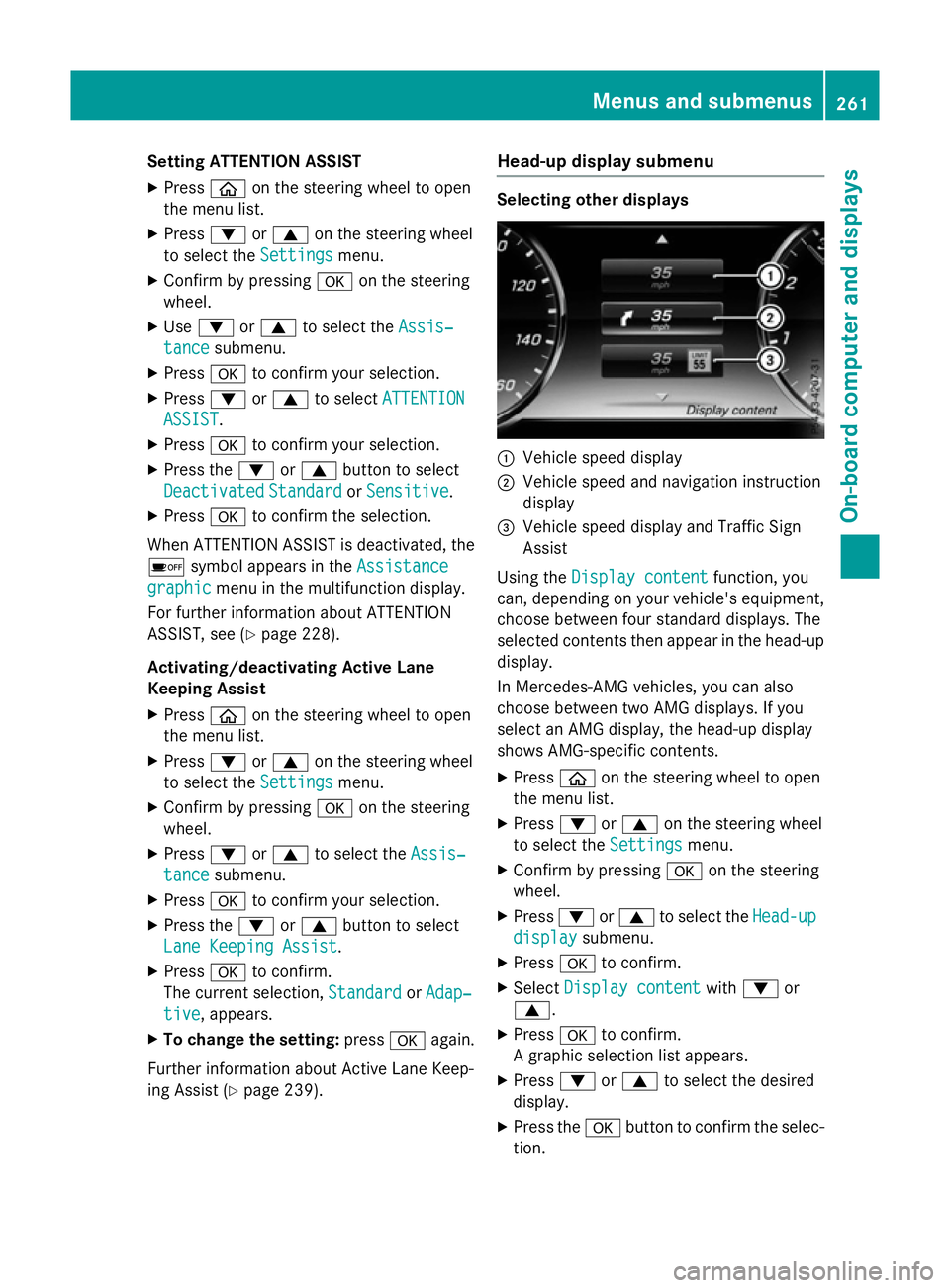
ing Assist (Y page 239). Head-up display submenu Selecting other displays
:
Vehicle speed display
; Vehicle speed and navigation instruction
display
= Vehicle speed display and Traffic Sign
Assist
Using the Display content
Display content function, you
can, depending on your vehicle's equipment,
choose between four standard displays. The
selected contents then appear in the head-up
display.
In Mercedes-AMG vehicles, you can also
choose between two AMG displays. If you
select an AMG display, the head-up display
shows AMG-specific contents.
X Press òon the steering wheel to open
the menu list.
X Press :or9 on the steering wheel
to select the Settings
Settings menu.
X Confirm by pressing aon the steering
wheel.
X Press :or9 to select the Head-up Head-up
display
display submenu.
X Press ato confirm.
X Select Display content
Display content with: or
9.
X Press ato confirm.
A graphic selection list appears.
X Press :or9 to select the desired
display.
X Press the abutton to confirm the selec-
tion. Menus and submenus
261On-board computer and displays Z
Page 265 of 417
Further information on navigation can be
found on COMAND Online (see the separate
operating instructions).
Further information about Traffic Sign Assist
(Y page 230).
Setting the position
You can adjust the position of the head-up
display on the windscreen. You can compen-
sate for height differences if the seat posi-
tions are changed, for example.
X Switch on the head-up display
(Y page 247).
X Press òon the steering wheel to open
the menu list.
X Press the :or9 button on the steer-
ing wheel to select the Settings
Settings menu.
X Confirm by pressing aon the steering
wheel.
X Press :or9 to select the Head-up Head-up
display
display submenu.
X Press ato confirm.
X Press the :or9 button to select the
Position
Position function.
X Press ato save the setting.
X Press :or9 to adjust the position
to a level from Level +5
Level +5 toLevel -5
Level -5.
X Press aor% to save the setting.
Using the Memory function, you can save and
call up the set position of the head-up display as a single memory preset (Y page 122).
Adjusting the brightness
The brightness of the head-up display is auto-
matically adjusted to the surrounding light
conditions. You can also individually adjust
the brightness of the head-up display.
X Switch on the head-up display
(Y page 247).
X Press òon the steering wheel to open
the menu list.
X Press the :or9 button on the steer-
ing wheel to select the Settings
Settings menu.
X Confirm by pressing aon the steering
wheel. X
Use : or9 to select the Head-up
Head-up
display display submenu.
X Press ato confirm.
X Press the :or9 button to select the
Brightness
Brightness function.
X Press the abutton to save the setting.
X Press :or9 to adjust the bright-
ness to a level from Level +5
Level +5 (bright) to
Level -5
Level -5 (dark).
X Press the aor% button to save the
setting.
Light submenu Switching the Intelligent Light System
on/off
X Press òon the steering wheel to open
the menu list.
X Press :or9 on the steering wheel
to select the Settings Settingsmenu.
X Confirm by pressing aon the steering
wheel.
X Use : or9 to select the Lights
Lights
submenu.
X Press ato confirm.
X Press the :or9 button to select the
Intelligent Light System
Intelligent Light System function.
If the Intelligent Light System
Intelligent Light System func-
tion has been switched on, the cone of light and the Lsymbol in the multifunction
display are shown in white.
X Press the abutton to save the setting.
If you switch on the Intelligent Light
Intelligent Light
System
System function, the following functions are
activated:
R Motorway mode
R Active light function
R Cornering light function
R Extended range foglamps
If you set the dipped-beam headlamps for
driving on the right/left, the multifunction
display shows the Inactive for left-
Inactive for left-
side traffic side traffic orInactive for right-
Inactive for right-
side traffic
side traffic display message in the262
Menus and submenusOn-board computer and displays
Page 267 of 417
R
additional speedometer in the status area
of the multifunction display.
The unit in the additional speedometer is
displayed inversely to the selected dis-
tance unit.
R total distance recorder and trip meter
R trip computer
R current consumption and the range
R navigation instructions in the Navi
Navi menu
R cruise control
R SPEEDTRONIC
R DISTRONIC PLUS
R DISTRONIC PLUS with Steering Assist and
Stop&Go Pilot
R ASSYST PLUS service interval display
Switching the additional speedometer
on/off
The Digital speedo [km/h] Digital speedo [km/h] function
allows you to choose whether the status area
in the multifunction display shows the speed
digitally. The unit in the additional speedom-
eter is always inverse to the speedometer
unit.
X Press òon the steering wheel to open
the menu list.
X Press :or9 on the steering wheel
to select the Settings
Settings menu.
X Confirm by pressing aon the steering
wheel.
X Press :or9 to select the Instru‐
Instru‐
ment cluster ment cluster submenu.
X Press ato confirm your selection.
X Press the :or9 button to select the
Digital speedo [km/h]
Digital speedo [km/h] function.
The current selection appears.
X To activate/deactivate: pressa
again. Vehicle submenu Setting permanent SPEEDTRONIC
X Press òon the steering wheel to open
the menu list.
X Press the :or9 button on the steer-
ing wheel to select the Settings
Settings menu.
X Confirm by pressing aon the steering
wheel.
X Press :or9 to select the Vehicle Vehicle
submenu.
X Press ato confirm.
X Press the :or9 button to select the
Limit speed (winter tyres) Limit speed (winter tyres) function.
The current setting appears.
X Press ato confirm.
X Press :or9 to adjust permanent
SPEEDTRONIC in increments of ten
(240 km/h 240 km/h to160 km/h 160 km/h). The Off
Offsetting
switches permanent SPEEDTRONIC off.
X Press the abutton to store the entry.
For further information on permanent SPEED- TRONIC (Y page 194).
Restoring the factory settings X
Press òon the steering wheel to open
the menu list.
X Press :or9 on the steering wheel
to select the Settings
Settingsmenu.
X Confirm by pressing aon the steering
wheel.
X Press :or9 to select the Factory
Factory
settings
settings submenu.
X Press ato confirm.
The Reset all settings?
Reset all settings? function
appears.
X Press the :or9 button to select No
No
or Yes
Yes .
X Press the abutton to confirm the selec-
tion.
If you have selected Yes Yes, the multifunction
display shows a confirmation message.
For safety reasons, not all functions will be
reset: the Limit speed (winter tyres) Limit speed (winter tyres) 264
Menus and submenusOn-board computer and displays
Page 308 of 417
Warning/
indicator
lamp
N N
Signal type
Possible causes/consequences and M
MSolutions !
N
The yellow ABS warning lamp is lit while the engine is running.
ABS (Anti-lock Braking System) has been deactivated due to a fault. Therefore BAS (Brake Assist), BAS PLUS with Cross-Traffic Assist, COLLISION PREVEN-
TION ASSIST PLUS, ESP ®
(Electronic Stability Program), PRE‑SAFE ®
,
PRE‑ SAFE ®
PLUS, PRE‑ SAFE®
Brake, the HOLD function, Hill Start Assist,
Crosswind Assist, adaptive brake lights, STEER CONTROL, Active Lane Keep- ing Assist and Active Blind Spot Assist are also deactivated.
ATTENTION ASSIST is deactivated.
G WARNING
The brake system continues to function normally, but without the functions
listed above. The wheels could therefore lock if you brake hard, for example.
The steerability and braking characteristics may be severely affected. The
braking distance may increase in an emergency braking situation.
If ESP ®
is not operational, ESP ®
is unable to stabilise the vehicle.
There is an increased danger of skidding and risk of an accident.
X Observe the additional display messages in the multifunction display.
X Drive on carefully.
X Consult a qualified specialist workshop.
If the ABS control unit is faulty, there is also a possibility that other systems,
such as the navigation system or the automatic transmission, will be unavail- able. Warning and indicator lamps in the instrument cluster
305On-board computer and displays Z
Page 330 of 417
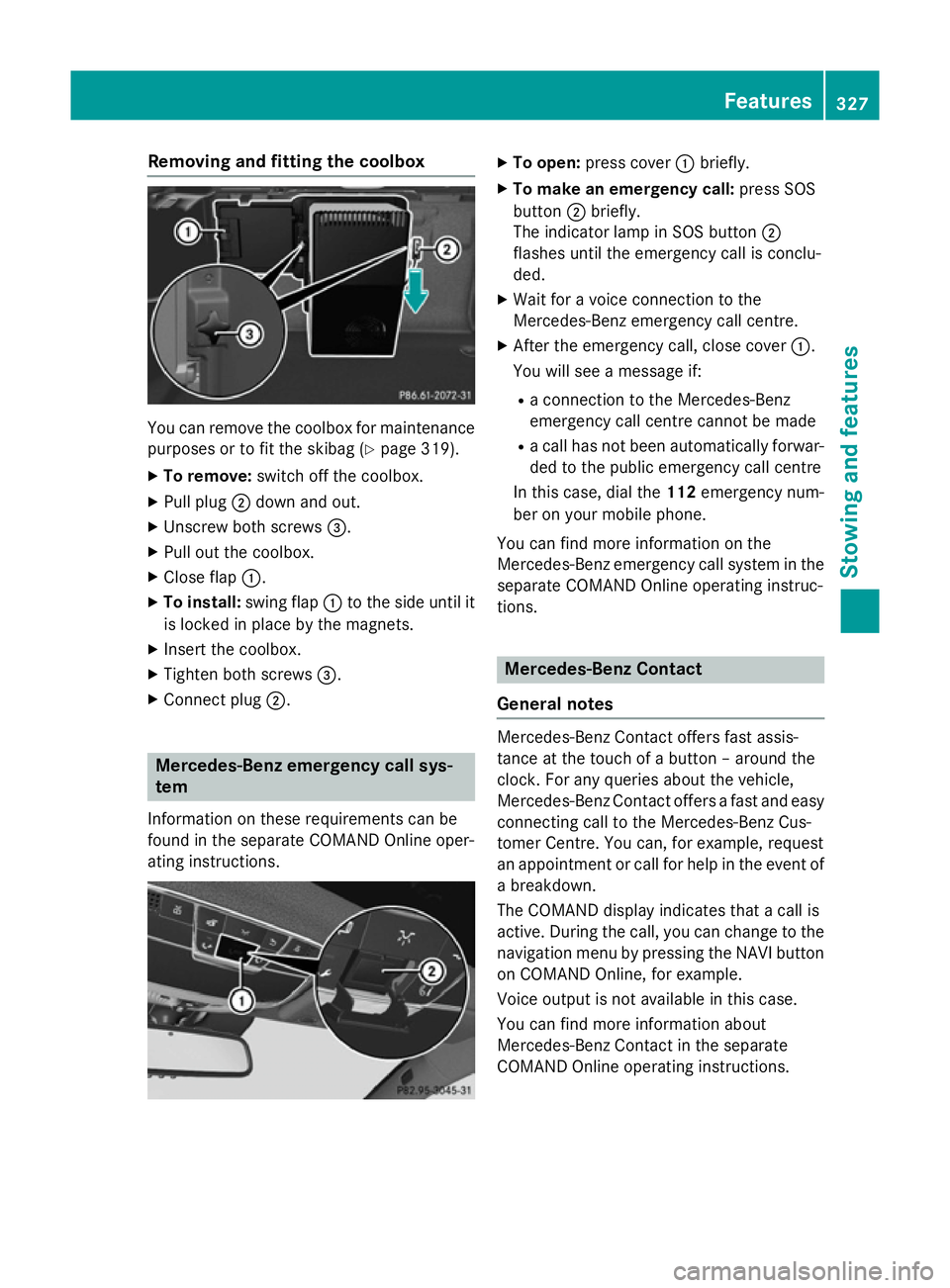
Removing and fitting the coolbox
You can remove the coolbox for maintenance
purposes or to fit the skibag (Y page 319).
X To remove: switch off the coolbox.
X Pull plug ;down and out.
X Unscrew both screws =.
X Pull out the coolbox.
X Close flap :.
X To install: swing flap:to the side until it
is locked in place by the magnets.
X Insert the coolbox.
X Tighten both screws =.
X Connect plug ;. Mercedes-Benz emergency call sys-
tem
Information on these requirements can be
found in the separate COMAND Online oper-
ating instructions. X
To open: press cover :briefly.
X To make an emergency call: press SOS
button ;briefly.
The indicator lamp in SOS button ;
flashes until the emergency call is conclu-
ded.
X Wait for a voice connection to the
Mercedes-Benz emergency call centre.
X After the emergency call, close cover :.
You will see a message if:
R a connection to the Mercedes-Benz
emergency call centre cannot be made
R a call has not been automatically forwar-
ded to the public emergency call centre
In this case, dial the 112emergency num-
ber on your mobile phone.
You can find more information on the
Mercedes-Benz emergency call system in the separate COMAND Online operating instruc-
tions. Mercedes-Benz Contact
General notes Mercedes-Benz Contact offers fast assis-
tance at the touch of a button – around the
clock. For any queries about the vehicle,
Mercedes-Benz Contact offers a fast and easy
connecting call to the Mercedes-Benz Cus-
tomer Centre. You can, for example, request
an appointment or call for help in the event of a breakdown.
The COMAND display indicates that a call is
active. During the call, you can change to the
navigation menu by pressing the NAVI button
on COMAND Online, for example.
Voice output is not available in this case.
You can find more information about
Mercedes-Benz Contact in the separate
COMAND Online operating instructions. Features
327Stowing and features Z