Direct select MERCEDES-BENZ S-Class COUPE 2017 C217 User Guide
[x] Cancel search | Manufacturer: MERCEDES-BENZ, Model Year: 2017, Model line: S-Class COUPE, Model: MERCEDES-BENZ S-Class COUPE 2017 C217Pages: 338, PDF Size: 8.16 MB
Page 164 of 338
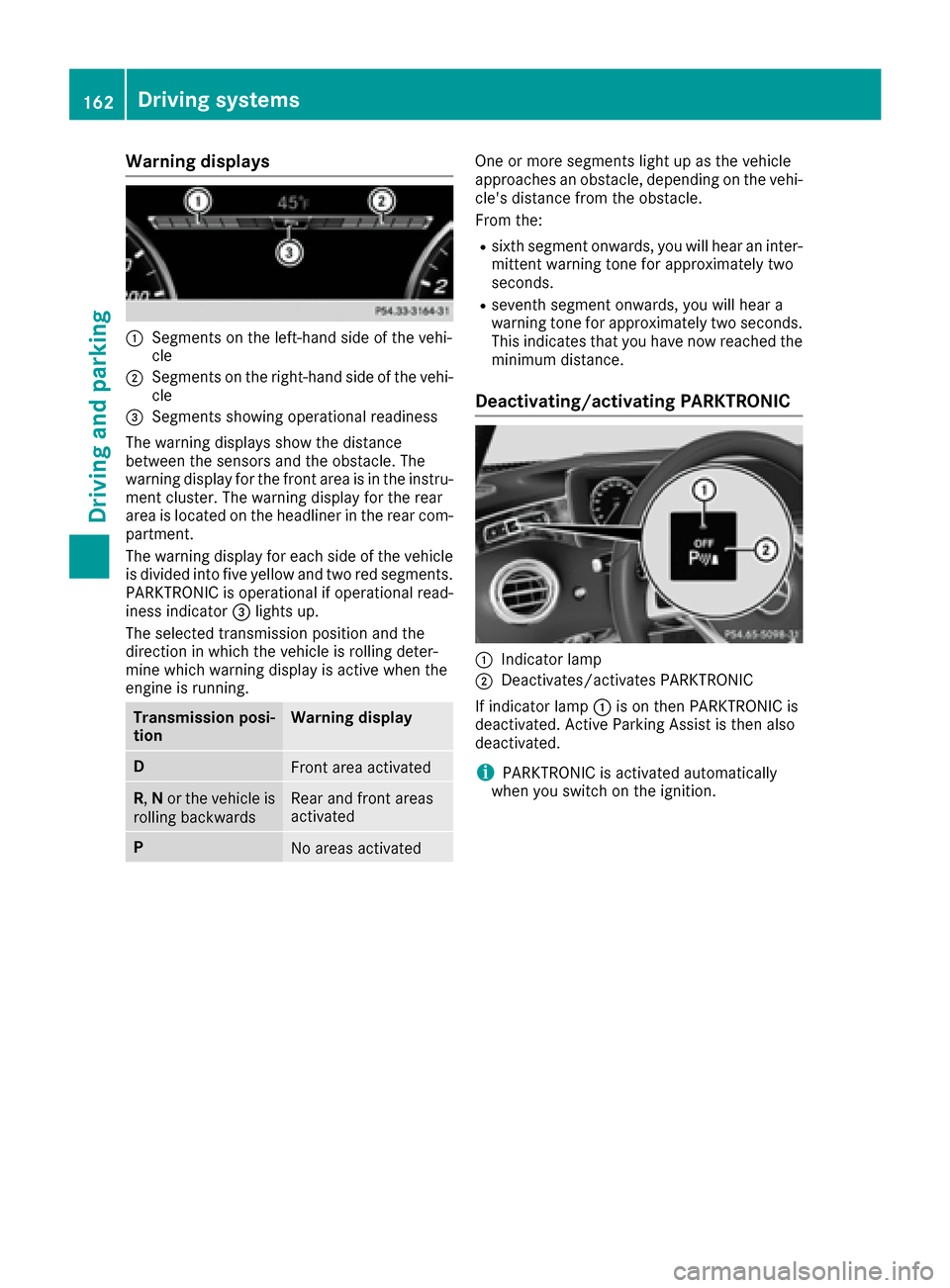
Warning displays
0043Segments on the left-hand side of the vehi-
cle
0044Segments on the right-hand side of the vehi-cle
0087Segments showing operational readiness
The warning displays show the distance
between the sensors and the obstacle. The
warning display for the front area is in the instru-
ment cluster. The warning display for the rear
area is located on the headliner in the rear com-
partment.
The warning display for each side of the vehicle
is divided into five yellow and two red segments.
PARKTRONIC is operational if operational read-
iness indicator 0087lights up.
The selected transmission position and the
direction in which the vehicle is rolling deter-
mine which warning display is active when the
engine is running.
Transmission posi-
tionWarning display
DFront area activated
R, Nor the vehicle is
rolling backwardsRear and front areas
activated
PNo areas activated
One or more segments light up as the vehicle
approaches an obstacle, depending on the vehi-
cle's distance from the obstacle.
From the:
Rsixth segment onwards, you will hear an inter-
mittent warning tone for approximately two
seconds.
Rseventh segment onwards, you will hear a
warning tone for approximately two seconds.
This indicates that you have now reached the minimum distance.
Deactivating/activating PARKTRONIC
0043Indicator lamp
0044Deactivates/activates PARKTRONIC
If indicator lamp 0043is on then PARKTRONIC is
deactivated. Active Parking Assist is then also
deactivated.
iPARKTRONIC is activated automatically
when you switch on the ignition.
162Driving systems
Driving and parking
Page 167 of 338
Rthat are parallel to the direction of travel andat least 39.5 in (1.0 m)longer than your vehi-
cle
Rthat are at right angles to the direction of
travel and at least 39.5 in (1.0 m) wider than
your vehicle
iNote that Active Parking Assist cannot
measure the size of a parking space if it is at
right angles to the direction of travel. You will
need to judge whether your vehicle will fit into the parking space.
When driving at speeds below 19 mph
(30 km/h), you will see the parking symbol as a
status indicator in the instrument cluster. When
a parking space has been detected, an arrow
towards the right or the left also appears. By
default, Active Parking Assist only displays park-
ing spaces on the front-passenger side. Parking
spaces on the driver's side are displayed as
soon as the turn signal on the driver's side is
activated. When parking on the driver's side,
this must remain switched on until you acknowl-
edge the use of Active Parking Assist by press-
ing the 0076button on the multifunction steer-
ing wheel. The system automatically determines
whether the parking space is parallel or at right
angles to the direction of travel.
A parking space is displayed while you are driv-
ing past it, and until you are approximately 50 ft (15 m) away from it.
Parking
GWARNING
If you leave the vehicle when it is only being
braked by Active Parking Assist it could roll
away if:
Rthere is a malfunction in the system or in
the voltage supply.
Rthe electrical system in the engine com-
partment, the battery or the fuses have
been tampered with.
Rthe battery is disconnected.
Rthe accelerator pedal has been depressed,
e.g. by a vehicle occupant.
There is a risk of an accident.
Before leaving the vehicle, always secure it
against rolling away.
iWhen PARKTRONIC detects obstacles,
Active Parking Assist brakes automatically
during the parking process. You are respon-
sible for braking in good time.
XStop the vehicle when the parking space sym- bol shows the desired parking space in the
instrument cluster.
XShift the transmission to position R.
The Start
ParkAssist?Yes:OKNo:0038
message appears in the multifunction display.
XTo cancel the procedure: press the0038
button on the multifunction steering wheel or
pull away.
or
XTo park using Active Parking Assist: press
the 0076 button on the multifunction steering
wheel.
The Park Assist Active Accelerate
and BrakeObserve Surroundingsmes-
sage appears in the multifunction display.
XLet go of the multifunction steering wheel.
XBack up the vehicle, being ready to brake at all
times. When backing up, drive at a speed
below approximately 6 mph (10 km/h). Oth-
erwise Active Parking Assist will be canceled.
Active Parking Assist brakes the vehicle to a
standstill when the vehicle approaches the
rear border of the parking space.
Maneuvering may be required in tight parking
spaces.
The Park
AssistActiveSelect DObserveSurroundingsmessage appears in the multi-
function display.
XShift the transmission to position Dwhile the
vehicle is stationary.
Active Parking Assist immediately steers in
the other direction.
The Park Assist Active Accelerate
and BrakeObserve Surroundingsmes-
sage appears in the multifunction display.
iYou will achieve the best results by waiting
for the steering procedure to complete before
pulling away.
XDrive forwards and be ready to brake at all
times.
Active Parking Assist brakes the vehicle to a
standstill when the vehicle approaches the
rear border of the parking space.
The Park
AssistActiveSelect RObserveSurroundingsmessage appears in the multi-
function display.
Driving systems165
Driving and parking
Z
Page 168 of 338
As soon as the parking procedure is complete,
thePark Assist Switched Offmessage
appears and a warning tone sounds. The vehicle
is now parked. The vehicle is kept stationary
without the driver having to depress the brake
pedal. The braking effect is canceled when you
depress the accelerator pedal.
Active Parking Assist no longer supports you
with steering interventions and brake applica-
tions. When Active Parking Assist is finished,
you must steer and brake again yourself.
PARKTRONIC is still available.
Parking tips:
RThe way your vehicle is positioned in the park- ing space after parking is dependent on vari-
ous factors. These include the position and
shape of the vehicles parked in front and
behind it and the conditions of the location. It
may be the case that Active Parking Assist
guides you too far into a parking space, or not
far enough into it. In some cases, it may also
lead you across or onto the curb. If necessary,
you should cancel the parking procedure with
Active Parking Assist.
RYou can also select preselect transmission
position D. The vehicle redirects and does not
drive as far into the parking space. Should the
transmission change take place too early, the parking procedure will be canceled. A sensi-
ble parking position can no longer be ach-
ieved from this p
osition.
Exiting a parking space
In order that Active Parking Assist can support
you when exiting the parking space:
Rthe border of the parking space must be high
enough at the front and the rear. A curb is too
small, for example.
Rthe border of the parking space must not be
too wide. Your vehicle can be maneuvered
into a position at a maximum of 45° to the
starting position in the parking space.
Ra maneuvering distance of at least 3.3 ft
(1.0
m) must be available .
Active Parking Assist can only assist you with
exiting a parking space if you have parked the
vehicle parallel to the direction of travel using
Active Parking Assist.
iIf PARKTRONIC detects obstacles, Active
Parking Assist brakes automatically whilst the vehicle exits the parking space. You are
responsible for braking in good time.
XStart the engine.
XRelease the electric parking brake.
XSwitch on the turn signal in the direction you
are pulling away.
XShift the transmission to position
Dor R.
The Start
ParkAssist?Yes:OKNo:0038
message appears in the multifunction display.
XTo cancel the procedure:press the 0038
button on the multifunction steering wheel or
pull away.
or
XTo exit a parking space using Active Park-
ing Assist: press the0076button on the mul-
tifunction steering wheel.
The Park Assist Active Accelerate
and BrakeObserve Surroundingsmes-
sage appears in the multifunction display.
XLet go of the multifunction steering wheel.
XPull away, being ready to brake at all times. Do
not exceed a maximum speed of approx-
imately 6 mph (10 km/h) when exiting a park-
ing space. Otherwise Active Parking Assist
will be canceled.
XShift the transmission to position Dor Ras
required or according to the message while
the vehicle is stationary.
Active Parking Assist immediately steers in
the other direction. The Park Assist
Active Accelerate and BrakeObserveSurroundingsmessage appears in the mul-
tifunction display.
iYou will achieve the best results by waiting
for the steering procedure to complete before
pulling away.
If you back up after activation, the steering
wheel is moved to the straight-ahead posi-
tion.
XDrive forwards and back up as prompted by
the PARKTRONIC warning displays, several
times if necessary.
Once you have exited the parking space com-
pletely, the steering wheel is moved to the
straight-ahead position. You hear a tone and the
Park
AssistSwitchedOffmessage appears
in the multifunction display. You will then have
to steer and merge into traffic on your own.
PARKTRONIC is still available. You can take over
the steering before the vehicle has exited the
parking space completely. This is useful if you
166Driving systems
Driving an d parking
Page 187 of 338
No lane-correcting brake application occurs if:
Ryou clearly and actively steer, brake or accel-erate.
Ryou cut the corner on a sharp bend.
Ryou have switched on the turn signal.
Ra driving safety system intervenes, e.g. ESP®,
PRE-SAFE®Brake or Active Blind Spot Assist.
Ryou have adopted a sporty driving style with
high cornering speeds or high rates of accel-
eration.
RESP®is switched off.
Rthe transmission is not in position D.
Ra loss of tire pressure or a defective tire has
been detected and displayed.
Ran obstacle in the lane in which you are driving
has been detected.
Active Lane Keeping Assist may not detect other
road users or traffic situations. An inappropriate
brake application may be interrupted at any time
if you:
Rsteer slightly in the opposite direction.
Rswitch on the turn signal.
Rclearly brake or accelerate.
A lane-correcting brake application is interrup-
ted automatically if:
Ra driving safety system intervenes, e.g. ESP®,
PRE-SAFE®Brake or Active Blind Spot Assist.
Rlane markings can no longer be recognized.
Activating/deactivating Active Lane
Keeping Assist
XPress button 0044.
Indicator lamp 0043lights up. The Lane Keep‐
ingAssistOnmessage appears in the mul-
tifunction display. If all conditions have been
satisfied, a warning or steering intervention
may be made. If you drive at speeds above 40 mph
(60 km/h) and lane markings are detected,
the lines in the assistance graphic
(
Ypage 197) appear in green. Active Lane
Keeping Assist is ready for use.
XTo deactivate: press button0044.
Indicator lamp 0043goes out. The Active Lane
Keeping Assist is deactivated. The Lane
Keeping Assist Offmessage appears in
the multifunction display.
Selecting Standard or Adaptive setting
XIn the DriveAssistmenu on the on-board
computer, select the Active Lane Keep‐
ing Assistfunction (Ypage 199).
XSelect settingStandardorAdaptive.
When Standardis selected, no warning vibra-
tion occurs in the following situations:
Ryou switch on the turn signals. In this event,
the warnings are suppressed for a certain
period of time.
Ra driving safety system intervenes, such as
ABS, BAS or ESP®.
When Adaptive
is selected, no warning vibra-
tion occurs in the following situations:
Ryou switch on the turn signals. In this event,
the warnings are suppressed for a certain
period of time.
Ra driving safety system intervenes, e.g.
ABS, BAS or ESP®.
Ryou accelerate hard, e.g. kickdown.
Ryou brake hard.
Ryou steer actively, e.g. swerve to avoid an
obstacle or change lanes quickly.
Ryou cut the corner on a sharp bend.
In order that you are warned only when neces-
sary and in good time if you cross the lane mark-
ing, the system recognizes certain conditions
and warns you accordingly.
The warning vibration occurs earlier if:
Ryou approach the outer lane marking on a
bend.
Rthe road has very wide lanes, e.g. a highway.
Rthe system recognizes solid lane markings.
The warning vibration occurs later if:
Rthe road has narrow lanes.
Ryou cut the corner on a bend.
Driving systems185
Driving and parking
Z
Page 194 of 338
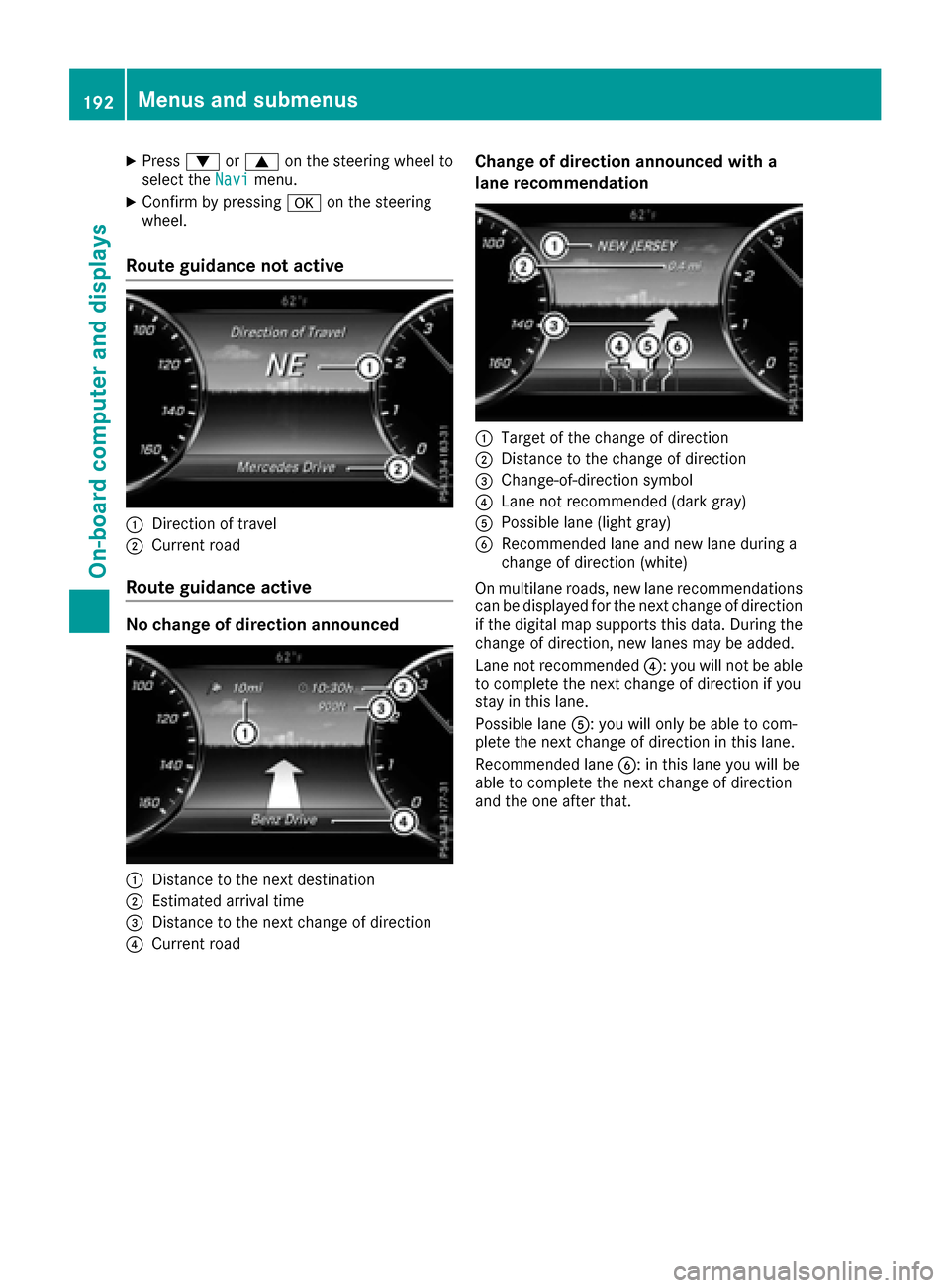
XPress0064or0063 on the steering wheel to
select the Navimenu.
XConfirm by pressing 0076on the steering
wheel.
Route guidance not active
0043Direction of travel
0044Current road
Route guidance active
No change of direction announced
0043Distance to the next destination
0044Estimated arrival time
0087Distance to the next change of direction
0085Current road
Change of direction announced with a
lane recommendation
0043Target of the change of direction
0044Distance to the change of direction
0087Change-of-direction symbol
0085Lane not recommended (dark gray)
0083Possible lane (light gray)
0084Recommended lane and new lane during a
change of direction (white)
On multilane roads, new lane recommendations
can be displayed for the next change of direction
if the digital map supports this data. During the
change of direction, new lanes may be added.
Lane not recommended 0085: you will not be able
to complete the next change of direction if you
stay in this lane.
Possible lane 0083: you will only be able to com-
plete the next change of direction in this lane.
Recommended lane 0084: in this lane you will be
able to complete the next change of direction
and the one after that.
192Menus and submenus
On-board computer and displays
Page 195 of 338
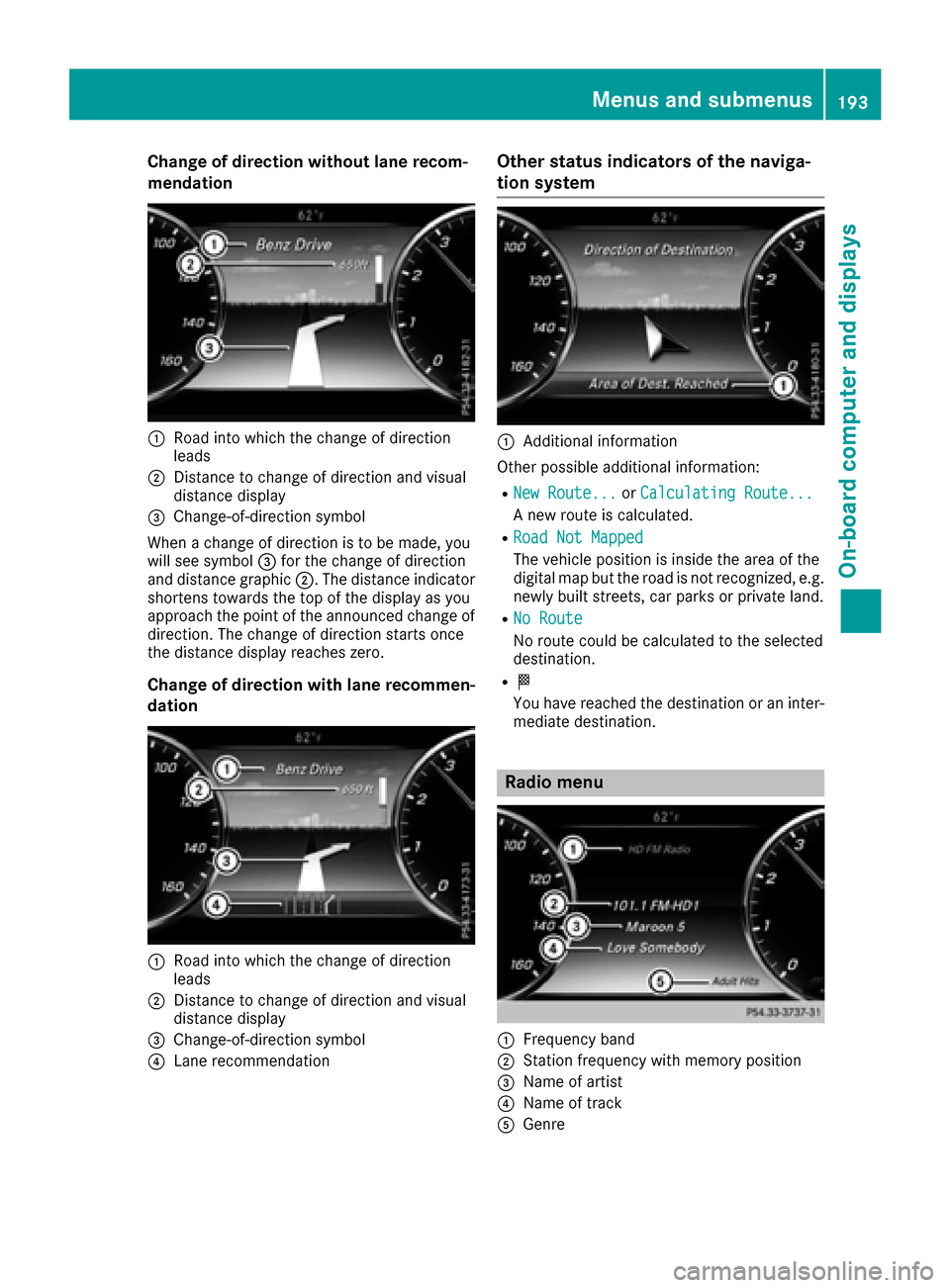
Change of direction without lane recom-
mendation
0043Road into which the change of direction
leads
0044Distance to change of direction and visual
distance display
0087Change-of-direction symbol
When a change of direction is to be made, you
will see symbol 0087for the change of direction
and distance graphic 0044. The distance indicator
shortens towards the top of the display as you
approach the point of the announced change of
direction. The change of direction starts once
the distance display reaches zero.
Change of direction with lane recommen-
dation
0043Road into which the change of direction
leads
0044Distance to change of direction and visual
distance display
0087Change-of-direction symbol
0085Lane recommendation
Other status indicators of the naviga-
tion system
0043Additional information
Other possible additional information:
RNew Route...or Calculating Route...
A new route is calculated.
RRoad Not Mapped
The vehicle position is inside the area of the
digital map but the road is not recognized, e.g.
newly built streets, car parks or private land.
RNo Route
No route could be calculated to the selected
destination.
R004B
You have reached the destination or an inter-
mediate destination.
Radio menu
0043Frequency band
0044Station frequency with memory position
0087Name of artist
0085Name of track
0083Genre
Menus and submenus193
On-board computer and displays
Z
Page 244 of 338
General notes
The multimedia system section in this Opera-
tor's Manual describes the basic principles for
operation. More information can be found in theDigital Operator's Manual.
Important safety notes
GWARNING
If you operate information systems and com-
munication equipment integrated in the vehi-
cle while driving, you will be distracted from
traffic conditions. You could also lose control
of the vehicle. There is a risk of an accident.
Only operate the equipment when the traffic
situation permits. If you are not sure that this
is possible, park the vehicle paying attention
to traffic conditions and operate the equip-
ment when the vehicle is stationary.
You must observe the legal requirements for the
country in which you are currently driving when
operating the multimedia system.
The multimedia system calculates the route to
the destination without taking the following into
account, for example:
Rtraffic lights
Rstop and yield signs
Rparking or stopping restrictions
Rroad narrowing
Rother road and traffic rules and regulations
The multimedia system may give incorrect nav-
igation recommendations if the actual street/
traffic situation does not correspond with the
digital map's data.
For example:
Ra diverted route
Rthe road layout or the direction of a one-way
street has been changed
For this reason, you must always observe road
and traffic rules and regulations during your
journey. Road and traffic rules and regulations
always have priority over multimedia system
driving recommendations.
Navigation announcements are intended to
direct you while driving without diverting your
attention from the road and driving. Please always use this feature instead of con-
sulting the map display for directions. Looking
at the icons or map display can distract you from
traffic conditions and driving, and increase the
risk of an accident.
This equipment complies with FCC radiation
exposure limits set forth for uncontrolled equip-
ment and meets the FCC radio frequency (RF)
Exposure Guidelines in Supplement C to OET65.
This equipment has very low levels of RF energy
that is deemed to comply without maximum
permissive exposure evaluation (MPE). How-
ever, it is recommended
to insta
ll it at a distance
of at least 8 inches (approx. 20 cm) between the
radiation source and a person's body (not
including limbs such as hands, wrists, feet and
legs).
GWARNING
Modifications to electronic components, their software as well as wiring can impair their
function and/or the function of other net-
worked components. In particular, systems
relevant to safety could also be affected. As a
result, these may no longer function as inten-
ded and/or jeopardize the operating safety of
the vehicle. There is an increased risk of an
accident and injury.
Never tamper with the wiring as well as elec-
tronic components or their software. You
should have all work to electrical and elec-
tronic equipment carried out at a qualified
specialist workshop.
If you make any changes to the vehicle elec-
tronics, the general operating permit is ren-
dered invalid.
Function restrictions
For safety reasons, some functions are restric-
ted or unavailable while the vehicle is in motion.
You will notice this, for example, because either
you will not be able to select certain menu items
or a message will appear to this effect.
242Function restrictions
Multimedia system
Page 248 of 338
Switching the character entry between
touchpad and controller
Prerequisite: an input line for text, numbers or
characters has been selected.
XTo switch to the controller:press the con-
troller.
Character entry using the controller is active.
XTo switch to the touchpad: press the touch-
pad with your finger.
Handwriting recognition on the touchpad is
active.
Favorites
Calling up and exiting favorites
XTo call up: press the007Dbutton on the con-
troller or on the touchpad.
XSelect a favorite, e.g. Vehicle.
The favorites are displayed.
XTo exit: press the 007Dbutton again.
Adding favorites
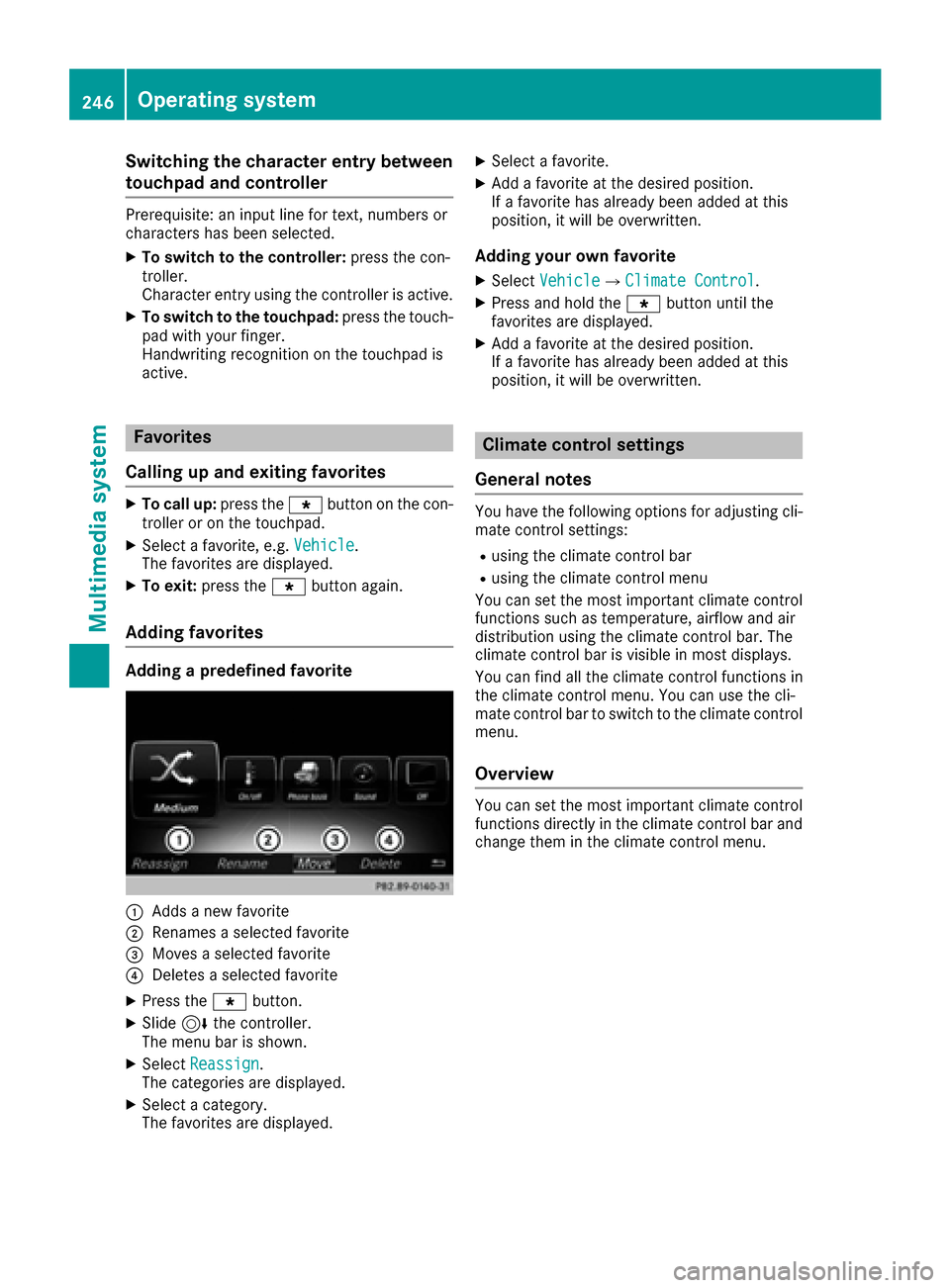
Adding a predefined favorite
0043Adds a new favorite
0044Renames a selected favorite
0087Moves a selected favorite
0085Deletes a selected favorite
XPress the 007Dbutton.
XSlide6the controller.
The menu bar is shown.
XSelect Reassign.
The categories are displayed.
XSelect a category.
The favorites are displayed.
XSelect a favorite.
XAdd a favorite at the desired position.
If a favorite has already been added at this
position, it will be overwritten.
Adding your own favorite
XSelect Vehicle007BClimate Control.
XPress and hold the 007Dbutton until the
favorites are displayed.
XAdd a favorite at the desired position.
If a favorite has already been added at this
position, it will be overwritten.
Climate control settings
General notes
You have the following options for adjusting cli-
mate control settings:
Rusing the climate control bar
Rusing the climate control menu
You can set the most important climate control
functions such as temperature, airflow and air
distribution using the climate control bar. The
climate control bar is visible in most displays.
You can find all the climate control functions in
the climate control menu. You can use the cli-
mate control bar to switch to the climate control
menu.
Overview
You can set the most important climate control
functions directly in the climate control bar and
change them in the climate control menu.
246Operating system
Multimedia system
Page 267 of 338
The system has not been able to initiate an MB
Info call, if:
Rthe indicator lamp in the00D9Info call button
is flashing continuously
Rno voice connection to the Mercedes-Benz
Customer Assistance Center was estab-
lished.
This can occur if the relevant mobile phone net-
work is not available, for example.
The Call Failed
message appears in the mul-
tifunction display.
XTo end a call: press the0076button on the
multifunction steering wheel.
or
XPress the corresponding multimedia system
button for ending a phone call.
Call priority
When service calls are active, e.g. Roadside
Assistance or Info calls, an emergency call can
still be initiated. In this case, an emergency call
will take priority and override all other active
calls.
The indicator lamp of the respective button
flashes until the call is ended.
An emergency call can only be terminated by the
Mercedes-Benz Customer Assistance Center.
All other calls can be ended by pressing:
Rthe 0076 button on the multifunction steering
wheel
Rthe corresponding button in the multimedia
system to end the voice call
When a call is initiated, the audio system is
muted.
The mobile phone is no longer connected to the multimedia system.
However, if you want to use your mobile phone,
do so only when the vehicle is stationary and in
a safe location.
Downloading destinations
Downloading destinations
Downloading destinations gives you access to a
database with over 15 million points of interest
(POIs). These can be downloaded on the navi-
gation system in your vehicle. If you know the
destination, the address can be downloaded.
Alternatively, you can obtain the location of Points of Interest (POIs)/important destinations
in the vicinity.
Furthermore, you can download routes with up
to four way points.
You are prompted to confirm route guidance to
the address entered.
XSelect Yesby turning 3or sliding 1
the controller and confirm with 7.
The system calculates the route and subse-
quently starts the route guidance with the
address entered.
If you select No
the address can be stored in
the address book.
The destination download function is available
if:
Rthe vehicle is equipped with a navigation sys-
tem.
Rthe relevant mobile phone network is availa-
ble and data transfer is possible.
Route Assistance
This service is part of the mbrace PLUS Package
and cannot be purchased separately.
You can use the route assistance function even
if the vehicle is not equipped with a navigation
system.
Within the framework of this service, you receive
a professional and reliable form of navigation
support without having to leave your vehicle.
The customer service representative finds a
suitable route depending on your vehicle's cur-
rent position and the desired destination. You
will then be guided live through the current route
section.
Search & Send
General notes
To use "Search & Send", your vehicle must be
equipped with mbrace and a navigation system.
Additionally, an mbrace service subscription
must be completed.
"Search & Send" is a destination entry service. A
destination address which is found on Google
Maps
®can be transferred via mbrace directly to
your vehicle's navigation system.
Features265
Stowage and features
Z