audio MERCEDES-BENZ S-Class MAYBACH 2017 W222 Comand Manual
[x] Cancel search | Manufacturer: MERCEDES-BENZ, Model Year: 2017, Model line: S-Class MAYBACH, Model: MERCEDES-BENZ S-Class MAYBACH 2017 W222Pages: 230, PDF Size: 8.27 MB
Page 30 of 230
XSelect a search position, e.g.IntheVicin‐ity of the Destination.
A menu appears.
XSelect the type of search query.
An input field appears.
XEnter the destination using the COMAND
remote control and press the bbutton.
The Google™ results list appears.
XSelect the destination using the COMAND
remote control.
A menu appears.
XSelect Set as Destination.
XA prompt appears on the driver's side.
XSelectYesorNo.
If you select Yes, the navigation data is used
for route guidance.
Touchpad
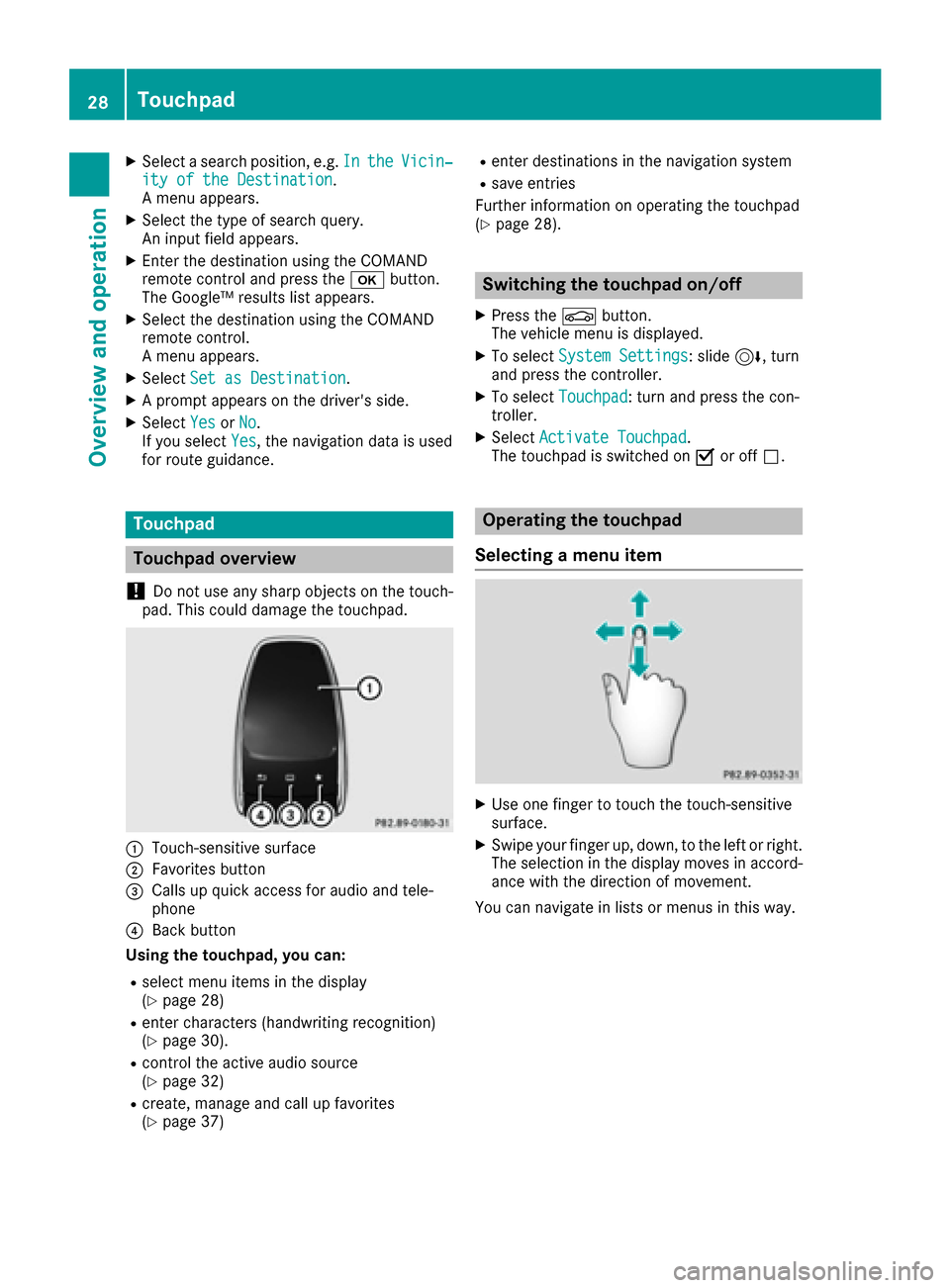
Touchpad overview
!
Do not use any sharp objects on the touch-
pad. This could damage the touchpad.
:Touch-sensitive surface
;Favorites button
=Calls up quick access for audio and tele-
phone
?Back button
Using the touchpad, you can:
Rselect menu items in the display
(Ypage 28)
Renter characters (handwriting recognition)
(Ypage 30).
Rcontrol the active audio source
(Ypage 32)
Rcreate, manage and call up favorites
(Ypage 37)
Renter destinations in the navigation system
Rsave entries
Further information on operating the touchpad
(
Ypage 28).
Switching the touchpad on/off
XPress the Øbutton.
The vehicle menu is displayed.
XTo select System Settings: slide6, turn
and press the controller.
XTo select Touchpad: turn and press the con-
troller.
XSelect Activate Touchpad.
The touchpad is switched on Oor off ª.
Operating the touchpad
Selecting a menu item
XUse one finger to touch the touch-sensitive
surface.
XSwipe your finger up, down, to the left or right.
The selection in the display moves in accord- ance with the direction of movement.
You can navigate in lists or menus in this way.
28Touchpad
Overview and operation
Page 31 of 230
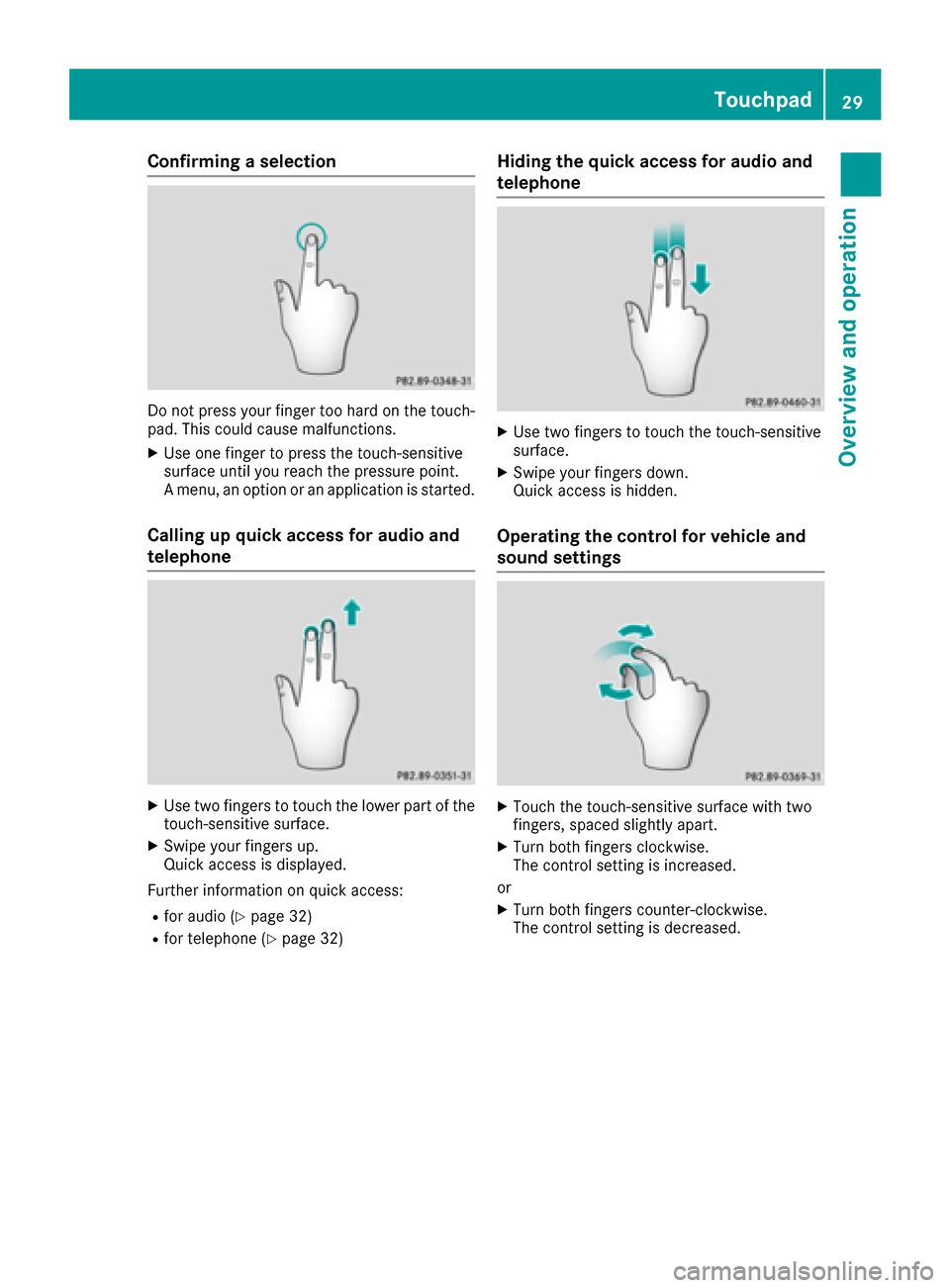
Confirming a selection
Do not press your finger too hard on the touch-
pad. This could cause malfunctions.
XUse one finger to press the touch-sensitive
surface until you reach the pressure point.
A menu, an option or an application is started.
Calling up quick access for audio and
telephone
XUse two fingers to touch the lower part of the
touch-sensitive surface.
XSwipe your fingers up.
Quick access is displayed.
Further information on quick access:
Rfor audio (Ypage 32)
Rfor telephone (Ypage 32)
Hiding the quick access for audio and
telephone
XUse two fingers to touch the touch-sensitive
surface.
XSwipe your fingers down.
Quick access is hidden.
Operating the control for vehicle and
sound settings
XTouch the touch-sensitive surface with two
fingers, spaced slightly apart.
XTurn both fingers clockwise.
The control setting is increased.
or
XTurn both fingers counter-clockwise.
The control setting is decreased.
Touchpad29
Overview and operation
Page 34 of 230
Moving the cursor within the input line
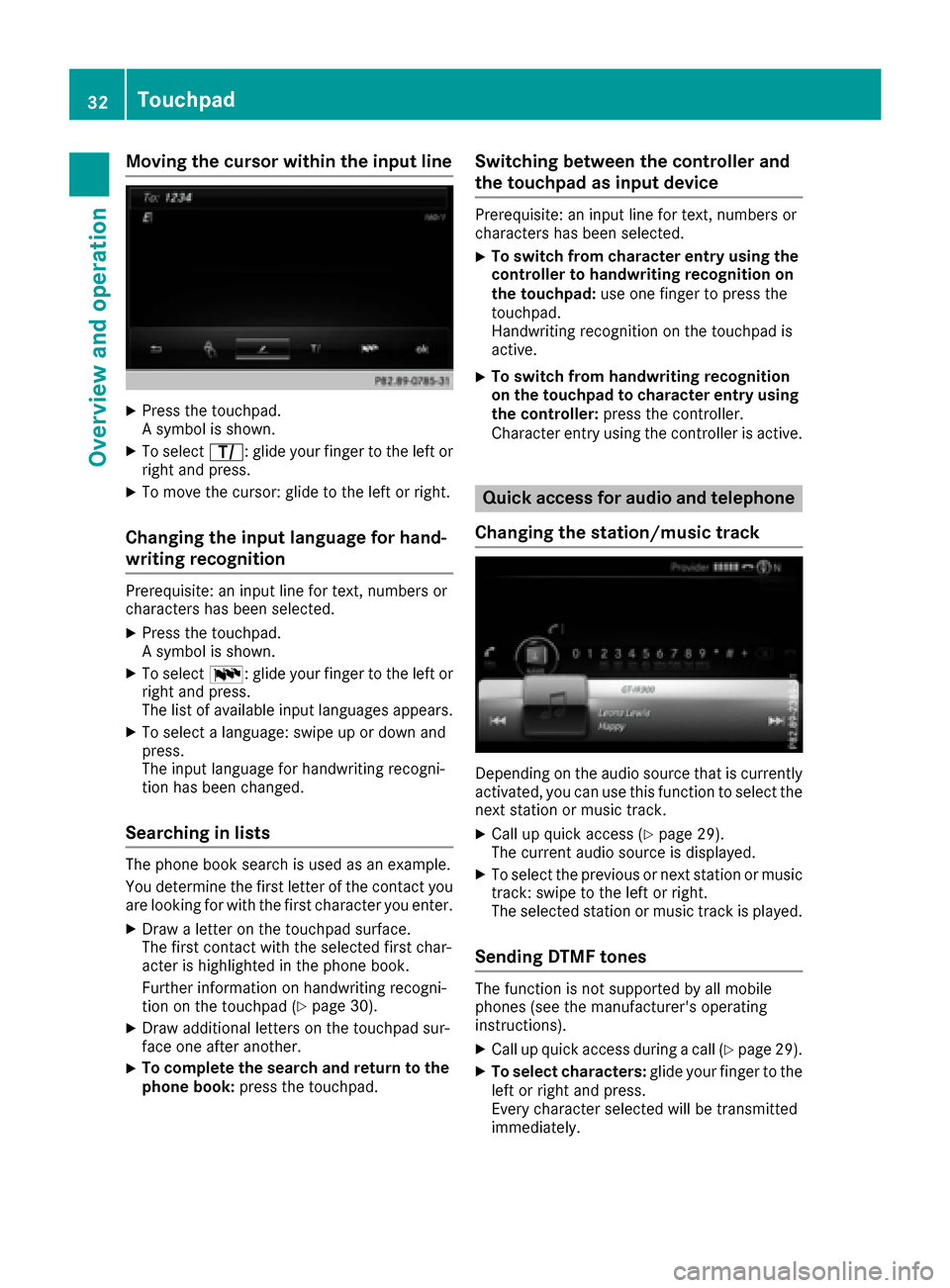
XPress the touchpad.
A symbol is shown.
XTo selectp: glide your finger to the left or
right and press.
XTo move the cursor: glide to the left or right.
Changing the input language for hand-
writing recognition
Prerequisite: an input line for text, numbers or
characters has been selected.
XPress the touchpad.
A symbol is shown.
XTo select B: glide your finger to the left or
right and press.
The list of available input languages appears.
XTo select a language: swipe up or down and
press.
The input language for handwriting recogni-
tion has been changed.
Searching in lists
The phone book search is used as an example.
You determine the first letter of the contact you
are looking for with the first character you enter.
XDraw a letter on the touchpad surface.
The first contact with the selected first char-
acter is highlighted in the phone book.
Further information on handwriting recogni-
tion on the touchpad (
Ypage 30).
XDraw additional letters on the touchpad sur-
face one after another.
XTo complete the search and return to the
phone book: press the touchpad.
Switching between the controller and
the touchpad as input device
Prerequisite: an input line for text, numbers or
characters has been selected.
XTo switch from character entry using the
controller to handwriting recognition on
the touchpad: use one finger to press the
touchpad.
Handwriting recognition on the touchpad is
active.
XTo switch from handwriting recognition
on the touchpad to character entry using
the controller: press the controller.
Character entry using the controller is active.
Quick access for audio and telephone
Changing the station/music track
Depending on the audio source that is currently
activated, you can use this function to select the
next station or music track.
XCall up quick access (Ypage 29).
The current audio source is displayed.
XTo select the previous or next station or music
track: swipe to the left or right.
The selected station or music track is played.
Sending DTMF tones
The function is not supported by all mobile
phones (see the manufacturer's operating
instructions).
XCall up quick access during a call (Ypage 29).
XTo select characters: glide your finger to the
left or right and press.
Every character selected will be transmitted
immediately.
32Touchpad
Overview and operation
Page 35 of 230
Rear Seat Entertainment System
Media overview
You can access various types of media from all
operating positions in the vehicle.
The media can be connected to any available
jacks in the vehicle or inserted into the various
drives.
RIf media from different sources are used, they
can be used separately from each of the oper- ating positions. Example: a film from the DVD
drive is played on the rear right-hand operat-
ing position. This means that another film
from the same DVD cannot be played sepa-
rately on the rear left-hand operating position. However, it is possible to use the radio, mem-
ory card, Media Register, Media Interface,
USB, online and Internet functions or AUX at
the same time from the rear left-hand oper-
ating position.
RIf you use the same medium on both sides,
you can both carry out the respective set-
tings. The "last one wins" principle applies
here, i.e. the last setting activated is favored.
RThe Internet can be used separately at all
operating positions.
RThe Internet can only be used if it is set up and
connected via a telephone (Ypage 142). You can select from the following media:
MEDIUMFunction/location
AUXDevices that are con-
nected to the AUX
socket. The AUX
socket is located
under the center con-
sole armrest in the
rear compartment.
COMAND discCDs or DVDs that are
inserted into the mul-
timedia system at the
front.
COMAND memory
cardMemory card that is
inserted into the mul-
timedia system at the
front.
COMAND Media
InterfaceDevices inserted into
the USB ports at the
front of the vehicle.
DiscCD or DVD inserted
into the rear-com-
partment drive.
Media RegisterMedia found in the
MEDIA REGISTER.
Media Interface 1
Media Interface 2Devices connected to
USB ports 1 and 2.
USB ports 1 and 2 are
located under the
center console arm-
rest in the rear com-
partment.
Bluetooth AudioDevices connected
with the multimedia
system via Blue-
tooth
®.
Rear Seat Entertainment System33
Overview and operation
Page 47 of 230
XSelectRegenerate.
A new security key is generated.
XTo save the security key: turn the controller
and select Save.
The Wi-Fi menu appears. The new security key
will now be displayed and verified when a
connection is established via the security key.
The connection must be re-established with
the newly created security key.
iDevice connections established using the
previous security key will no longer work after
the security key is changed. You have to
reconnect these devices (
Ypage 44).
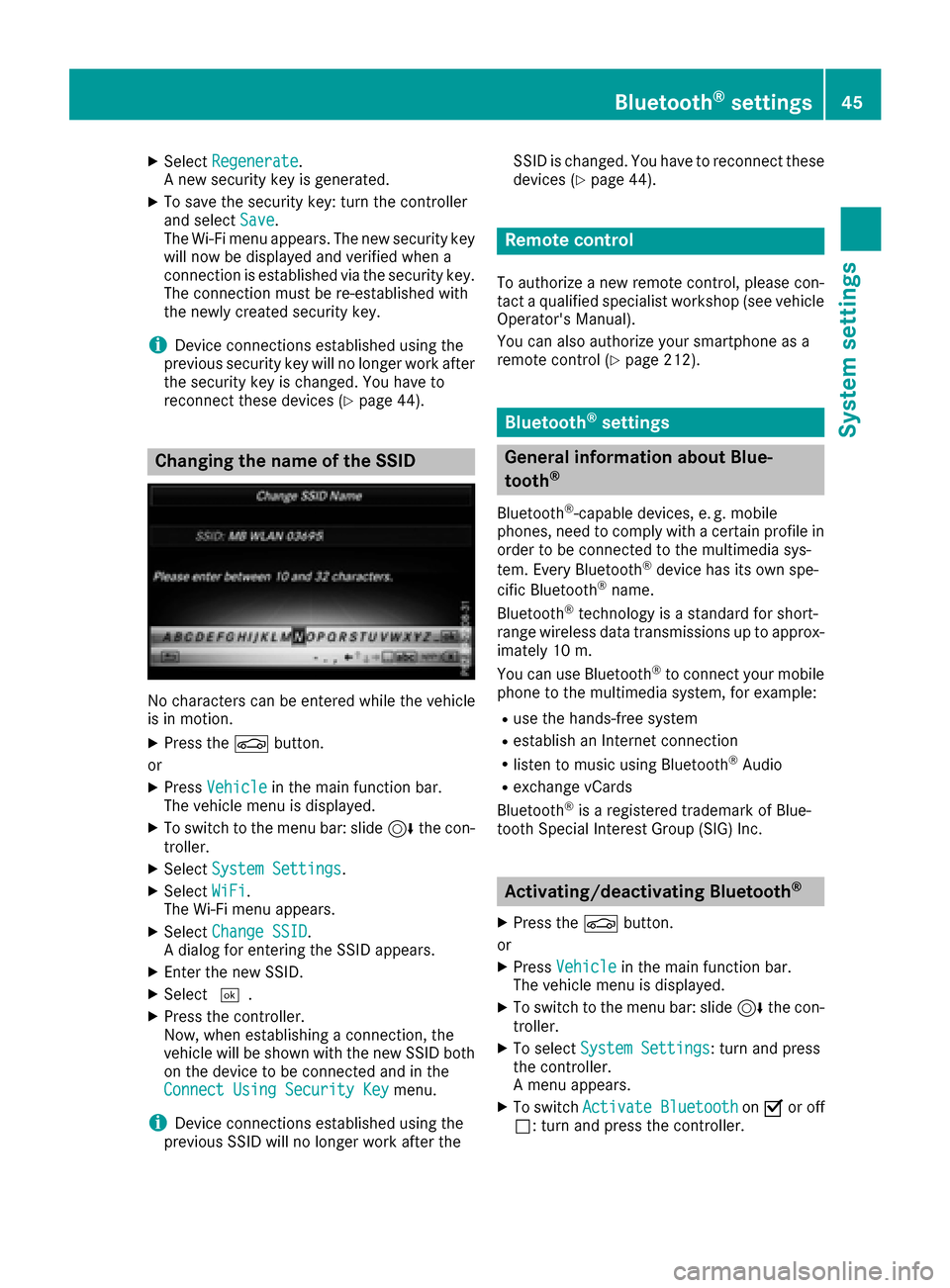
Changing the name of the SSID
No characters can be entered while the vehicle
is in motion.
XPress the Øbutton.
or
XPress Vehiclein the main function bar.
The vehicle menu is displayed.
XTo switch to the menu bar: slide 6the con-
troller.
XSelect System Settings.
XSelectWiFi.
The Wi-Fi menu appears.
XSelect Change SSID.
A dialog for entering the SSID appears.
XEnter the new SSID.
XSelect ¬.
XPress the controller.
Now, when establishing a connection, the
vehicle will be shown with the new SSID both
on the device to be connected and in the
Connect Using Security Key
menu.
iDevice connections established using the
previous SSID will no longer work after the SSID is changed. You have to reconnect these
devices (
Ypage 44).
Remote control
To authorize a new remote control, please con-
tact a qualified specialist workshop (see vehicle
Operator's Manual).
You can also authorize your smartphone as a
remote control (
Ypage 212).
Bluetooth®settings
General information about Blue-
tooth®
Bluetooth®-capable devices, e. g. mobile
phones, need to comply with a certain profile in
order to be connected to the multimedia sys-
tem. Every Bluetooth
®device has its own spe-
cific Bluetooth®name.
Bluetooth®technology is a standard for short-
range wireless data transmissions up to approx-
imately 10 m.
You can use Bluetooth
®to connect your mobile
phone to the multimedia system, for example:
Ruse the hands-free system
Restablish an Internet connection
Rlisten to music using Bluetooth®Audio
Rexchange vCards
Bluetooth®is a registered trademark of Blue-
tooth Special Interest Group (SIG) Inc.
Activating/deactivating Bluetooth®
X
Press the Øbutton.
or
XPress Vehiclein the main function bar.
The vehicle menu is displayed.
XTo switch to the menu bar: slide 6the con-
troller.
XTo select System Settings: turn and press
the controller.
A menu appears.
XTo switch Activate BluetoothonO or off
ª: turn and press the controller.
Bluetooth®settings45
System settings
Z
Page 48 of 230
Switching Near Field Communication
on/off
XPress theØbutton.
The Vehiclemenu appears.
XTo switch to the menu bar: slide 6the con-
troller.
XTo select System Settings: turn and press
the controller.
A menu appears.
XTo switch Near Field Communicationon
O or off ª: turn and press the controller.
Automatic volume adjustment
General information
With the AutomaticVolumeAdjustmentfunc-
tion, the volumes of different audio sources are
adjusted for each other, to compensate for rel-
ative differences in volume.
For example: changing from a relatively quiet to
a relatively loud radio station. The volume for
both stations sounds the same. Manual read-
justment of the volume is not required.
The Automatic Volume Adjustment
function
is deactivated ªwhen the vehicle leaves the
factory. Using this function, the dynamic range
of the music is slightly reduced. To make the
most of the audiophile sound quality, it is rec-
ommended to leave it off.
Switching the automatic volume
adjustment on/off
XPress the Øbutton.
or
XPress Vehiclein the main function bar.
The vehicle menu is displayed.
XTo switch to the menu bar: slide 6the con-
troller.
XTo select System Settings: turn and press
the controller.
A menu appears.
XTo select Automatic Volume Adjustment:
turn and press the controller.
Switch the Automatic Volume Adjustment
function on Oor off ª.
Setting the system language
General information
This function allows you to determine the lan-
guage for the menu displays and the navigation
messages. The selected language affects the
characters available for entry.
iThe navigation announcements are not
available in all languages. If a language is not
available, the navigation announcements will
be in English.
iWhen you set the system language, the lan-
guage of the Voice Control System will
change accordingly. If it is not supported by
the Voice Control System, English will be
selected.
Setting the system language
XPress the Øbutton.
or
XPress Vehiclein the main function bar.
The vehicle menu is displayed.
XTo switch to the menu bar: slide 6the con-
troller.
XTo select System Settings: turn and press
the controller.
A menu appears.
XTo select Language: turn and press the con-
troller.
The list of languages appears. The #dot indi-
cates the current setting.
XSelect the desired language.
The multimedia system loads the selected
language and sets it.
Assigning a favorites button
On vehicles with a touchpad, the FavoriteFunctionsfunction can be called up via the
system menu or via the favorites button on the
touchpad.
Calling up the Favorites function via the sys-
tem menu
XPress the Øbutton.
or
XPress Vehiclein the main function bar.
The vehicle menu is displayed.
46Assigning a favorites button
System settings
Page 72 of 230
If your vehicle meets the access conditions
for carpool lanes, you can use this function.
Navigation includes carpool lanes if the car-
pool lanes option is activated.
Depending on local conditions, the multimedia
system may not always be able to include all
route options. A route may include a ferry, for
instance, even though Avoid Ferries
is ena-
bled. The multimedia system will notify you of
this visually as well as through a navigation mes-
sage.
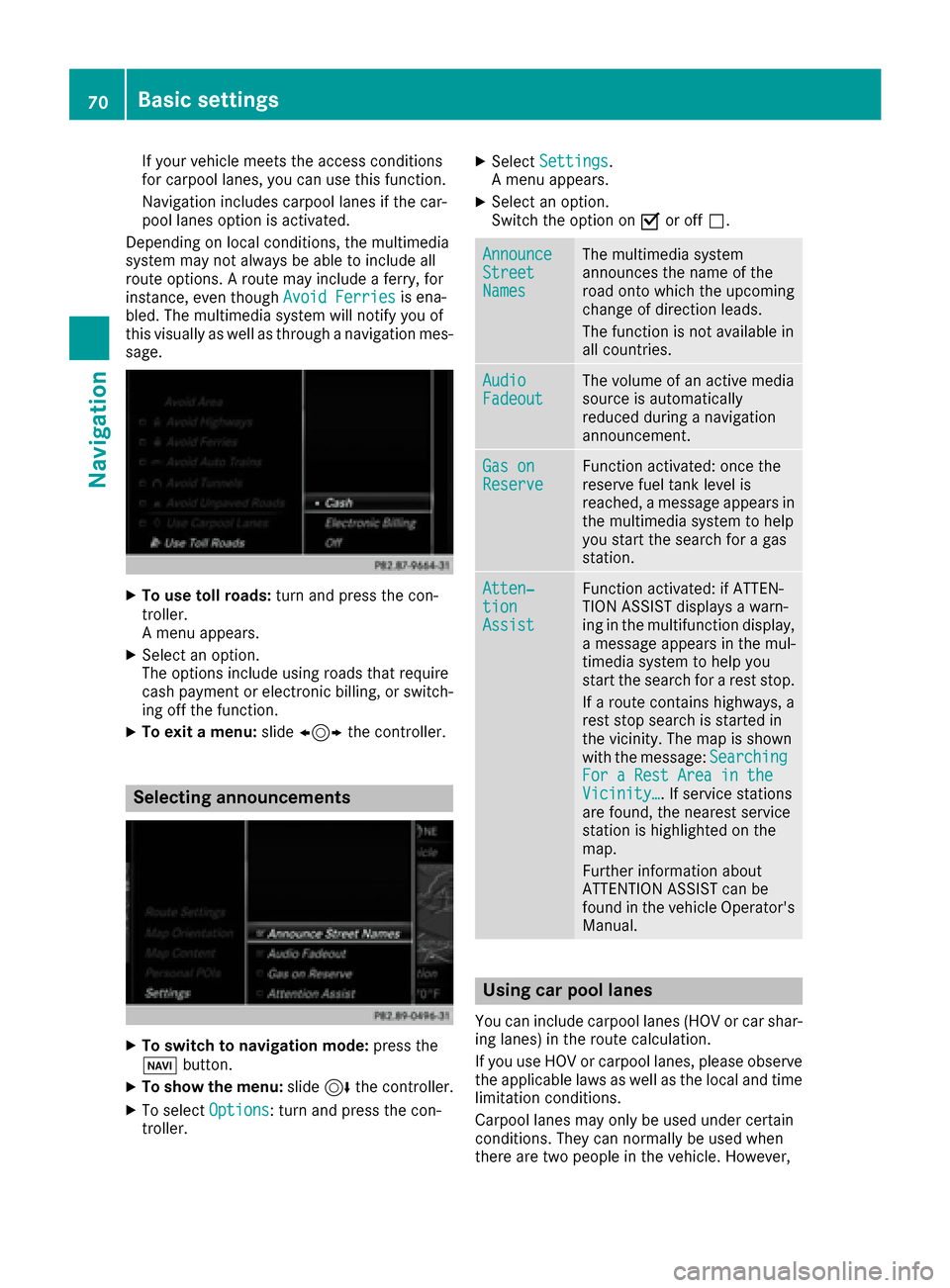
XTo use toll roads: turn and press the con-
troller.
A menu appears.
XSelect an option.
The options include using roads that require
cash payment or electronic billing, or switch-
ing off the function.
XTo exit a menu: slide1 the controller.
Selecting announcements
XTo switch to navigation mode: press the
Ø button.
XTo show the menu: slide6the controller.
XTo select Options: turn and press the con-
troller.
XSelect Settings.
A menu appears.
XSelect an option.
Switch the option on Oor off ª.
AnnounceStreetNames
The multimedia system
announces the name of the
road onto which the upcoming
change of direction leads.
The function is not available in
all countries.
AudioFadeoutThe volume of an active media
source is automatically
reduced during a navigation
announcement.
Gas onReserveFunction activated: once the
reserve fuel tank level is
reached, a message appears in
the multimedia system to help
you start the search for a gas
station.
Atten‐tionAssist
Function activated: if ATTEN-
TION ASSIST displays a warn-
ing in the multifunction display,
a message appears in the mul-
timedia system to help you
start the search for a rest stop.
If a route contains highways, a
rest stop search is started in
the vicinity. The map is shown
with the message: Searching
For a Rest Area in theVicinity…. If service stations
are found, the nearest service
station is highlighted on the
map.
Further information about
ATTENTION ASSIST can be
found in the vehicle Operator's
Manual.
Using car pool lanes
You can include carpool lanes (HOV or car shar-
ing lanes) in the route calculation.
If you use HOV or carpool lanes, please observe
the applicable laws as well as the local and time
limitation conditions.
Carpool lanes may only be used under certain
conditions. They can normally be used when
there are two people in the vehicle. However,
70Basic settings
Navigation
Page 154 of 230
You can activate/deactivate the following set-
tings:
RDownload Images Automatically
It may take some time to download the con-
tents of websites that contain a large amount
of images. Therefore, it may be useful to deac-
tivate this option.
RBlock Pop-Ups
Popups are windows (usually with advertise-
ments) which are displayed automatically
when you call up a website. You can block
these displays.
RActivate Javascript
Javascript makes it possible to display and
interact with dynamic content on the website.
RAllow Cookies
Some websites save information in small text
files (cookies) on your system. You can deter-
mine whether cookies may be stored.
REnable Internet Audio
You can switch the browser's audio playback
on or off here.
RHide Scroll Bars
You can show or hide the scroll bar here.
RShow Link Target
You can display the link's URL here.
RCharacter Size
You can select the font size which is used
when displaying the website.
RCharacter Code
You can select a different character set here,
e.g. if the characters of a website appear dis-
torted.
Changing settings
XTo select the desired setting: turn and press
the controller.
Switch the setting onOor off ª.
Changing the character size or character
code
XSelect CharacterSizeorCharacterCode.
XTo select the setting you require: turn and
press the controller.
iIf you change the settings, the websites may
not be displayed correctly.
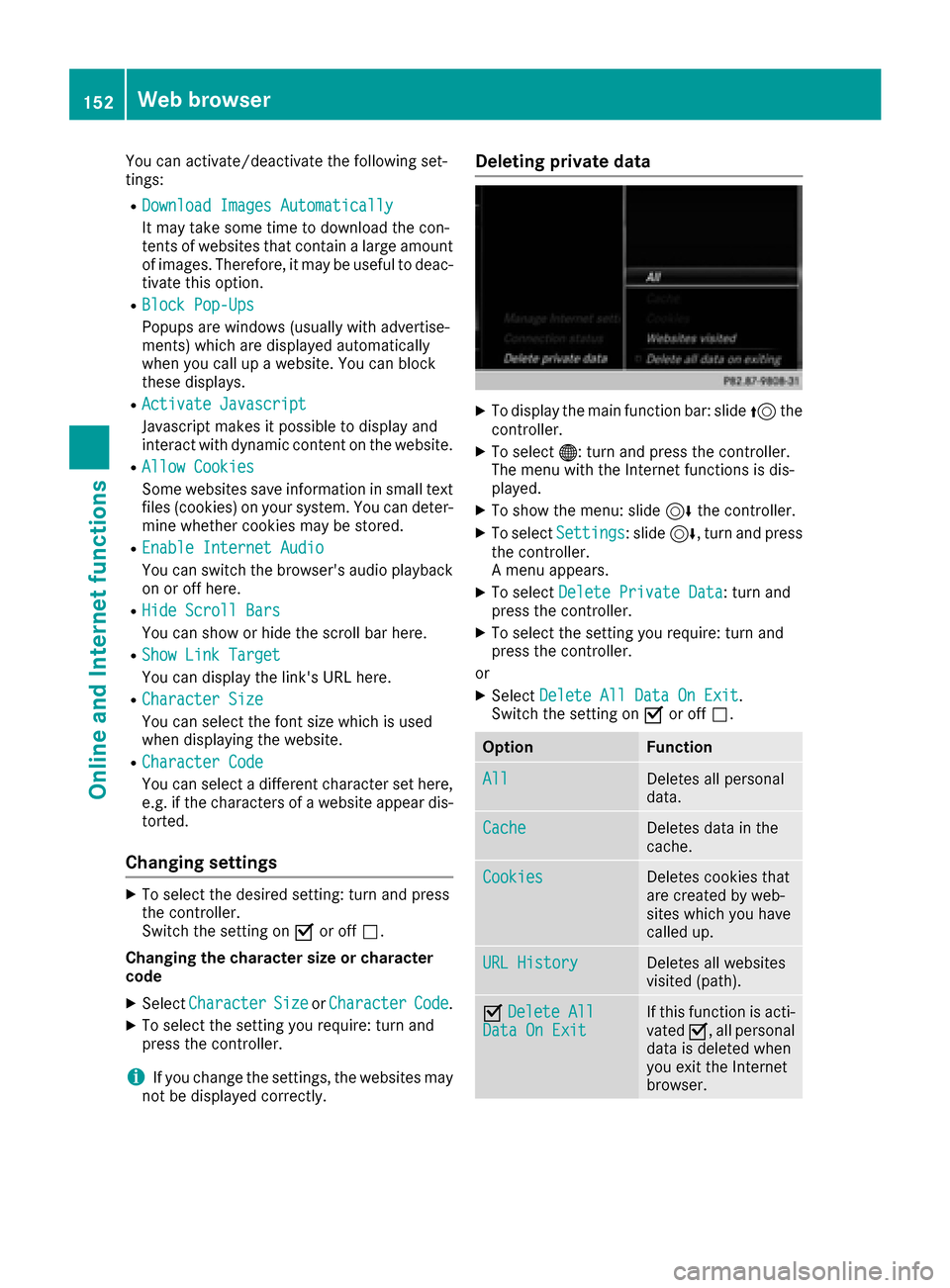
Deleting private data
XTo display the main function bar: slide 5the
controller.
XTo select ®: turn and press the controller.
The menu with the Internet functions is dis-
played.
XTo show the menu: slide 6the controller.
XTo select Settings: slide6, turn and press
the controller.
A menu appears.
XTo select Delete Private Data: turn and
press the controller.
XTo select the setting you require: turn and
press the controller.
or
XSelect Delete All Data On Exit.
Switch the setting on Oor off ª.
OptionFunction
AllDeletes all personal
data.
CacheDeletes data in the
cache.
CookiesDeletes cookies that
are created by web-
sites which you have
called up.
URL HistoryDeletes all websites
visited (path).
ODelete AllData On ExitIf this function is acti-
vated O, all personal
data is deleted when
you exit the Internet
browser.
152Web browser
Online and Internet functions
Page 168 of 230
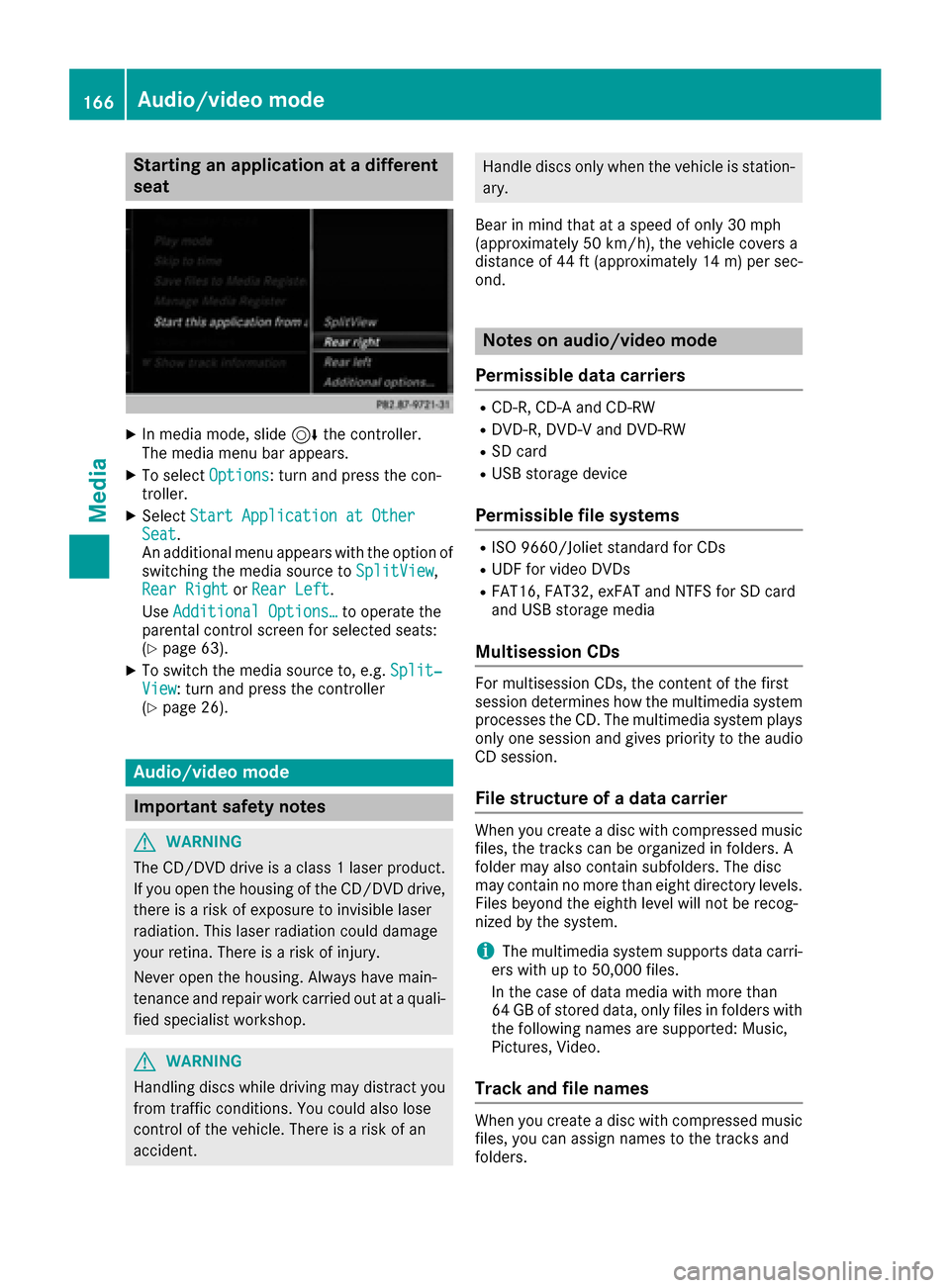
Starting an application at a different
seat
XIn media mode, slide6the controller.
The media menu bar appears.
XTo select Options: turn and press the con-
troller.
XSelect Start Application at OtherSeat.
An additional menu appears with the option of
switching the media source to SplitView
,
Rear Rightor Rear Left.
Use Additional Options…
to operate the
parental control screen for selected seats:
(
Ypage 63).
XTo switch the media source to, e.g. Split‐View: turn and press the controller
(Ypage 26).
Audio/video mode
Important safety notes
GWARNING
The CD/DVD drive is a class 1 laser product.
If you open the housing of the CD/DVD drive,
there is a risk of exposure to invisible laser
radiation. This laser radiation could damage
your retina. There is a risk of injury.
Never open the housing. Always have main-
tenance and repair work carried out at a quali- fied specialist workshop.
GWARNING
Handling discs while driving may distract you from traffic conditions. You could also lose
control of the vehicle. There is a risk of an
accident.
Handle discs only when the vehicle is station-
ary.
Bear in mind that at a speed of only 30 mph
(approximately 50 km/h), the vehicle covers a
distance of 44 ft (approximately 14 m)per sec-
ond.
Notes on audio/video mode
Permissible data carriers
RCD-R, CD-A and CD-RW
RDVD-R, DVD-V and DVD-RW
RSD card
RUSB storage device
Permissible file systems
RISO 9660/Joliet standard for CDs
RUDF for video DVDs
RFAT16, FAT32, exFAT and NTFS for SD card
and USB storage media
Multisession CDs
For multisession CDs, the content of the first
session determines how the multimedia system
processes the CD. The multimedia system plays
only one session and gives priority to the audio
CD session.
File structure of a data carrier
When you create a disc with compressed music
files, the tracks can be organized in folders. A
folder may also contain subfolders. The disc
may contain no more than eight directory levels.
Files beyond the eighth level will not be recog-
nized by the system.
iThe multimedia system supports data carri-
ers with up to 50,000 files.
In the case of data media with more than
64 GB of stored data, only files in folders with the following names are supported: Music,
Pictures, Video.
Track and file names
When you create a disc with compressed musicfiles, you can assign names to the tracks and
folders.
166Audio/video mode
Media
Page 169 of 230
If MP3 or WMA files are stored in the root direc-
tory itself, the root directory will also be treatedas a folder.
You should observe the following when assign-
ing track names:
Rtrack names must have at least one character
Rtrack names must have an extension of a sup-
ported audio or video format, e.g. .mp3, .aac
or .m4v.
Rthere must be a dot between the track name
and the extension
Example of a correct track name:
"Track1.mp3".
Permissible formats
The multimedia system supports the following
audio and video formats:
Audio for-
matsMP3, WMA, CDA, AAC for-
mats (.aac, .mp4, .m4a
and .m4b)
Video for-
matsDVD-V, MPEG, WMV, M4V,
AVI up to 720p
Copy-protected iTunes®music files with
the .m4p file extension are not supported.
Permissible bit and sampling rates
The multimedia system supports MP3 and WMA
files of the following type:
FormatBit rates [kbit/
s]Sampling
rates [kHz]
MP332-320
(fixed and varia-
ble bit rates)8-48
WMA5-384
(fixed bit rates)8-48
The multimedia system does not support WMA
files of the following type:
RDRM (Digital Rights Management) encrypted
files
Rfiles with variable bit rates
RWMA Pro
R5.1 surround sound
iOnly use tracks with a bit rate of at least
128 kbit/s and a sampling rate of at least
44.1 kHz. Lower rates can cause a noticeable
deterioration in quality. This is especially the
case if you have activated a surround sound
function.
Selecting an active partition (USB mass
storage devices only)
You can select this function for USB storage
devices if the storage device is partitioned. Up
to 9 partitions (primary or logical, FAT, FAT32
and NTFS) are supported.
Selecting an active partition
XSelect a USB storage device (Ypage 164).
XSlide 6the controller.
The media menu bar is shown.
XTo select Optionsin the media menu bar:
turn and press the controller.
XSelect Select Active Partition.
Notes on copyright
Audio or video files that you create or reproduce
yourself for playback are generally subject to
copyright protection.
In many countries, reproductions, even for pri-
vate use, are not permitted without the prior
consent of the copyright holder.
Make sure that you know about the applicable
copyright regulations and that you comply with
these.
Notes on CDs/DVDs
!Do not affix stickers or labels to the discs.
They could peel off and damage the drive.
The drive is designed to receive EN 60908 standard discs. Therefore, you can
only use discs with a maximum thickness of
1.3 mm.
If you insert thicker discs, e.g. those that con-
tain data on both sides (DVD on one side and
audio data on the other), they cannot be ejec-
ted and can damage the drive.
Do not use discs with an 8 cm diameter, even
when using an adapter. Only use round discs
with a 12 cm diameter.
Discs with copy protection are not compatible
with the audio CD standard and therefore may
not be able to be played.
Audio/video mode167
Media
Z