service MERCEDES-BENZ S-Class MAYBACH 2017 W222 Comand Manual
[x] Cancel search | Manufacturer: MERCEDES-BENZ, Model Year: 2017, Model line: S-Class MAYBACH, Model: MERCEDES-BENZ S-Class MAYBACH 2017 W222Pages: 230, PDF Size: 8.27 MB
Page 161 of 230
XSwitch on satellite radio mode (Ypage 159).
The satellite radio main menu appears show-
ing the preview channel. You cannot select
any other stations.
XIn satellite radio mode, slide 6the control-
ler.
XTo select Options: turn and press the con-
troller.
XTo select Service: turn and press the con-
troller.
The service information screen appears.
Once the telephone connection has been estab-
lished:
XFollow the instructions of the service staff.
The activation process may take up to
10 minutes. If the activation is completed successfully, the
Updating Channels...
message appears in the display, followed by
the satellite radio main menu.
iYou can also have the satellite service acti-
vated online. To do this, visit
http://www.siriusxm.com (USA) or
http://www.siriusxm.ca (Canada).
iIf registration is not included when purchas-
ing the system, your credit card details will be
required to activate your account.
If the satellite receiver is not installed correctly,
the Device
Unavailablemessage will appear.
Switching to satellite radio
XTo show the main function bar: slide 5the controller.
XTo select Radio: turn and press the controller.
The radio display appears. You will hear the last station played on the last waveband selected.
XTo select Radioin radio mode: slide 5and press the controller.
The menu with the available radio modes appears.
XTo select Sat Radio: turn and press the controller.
The No Service
message appears if there is no signal.
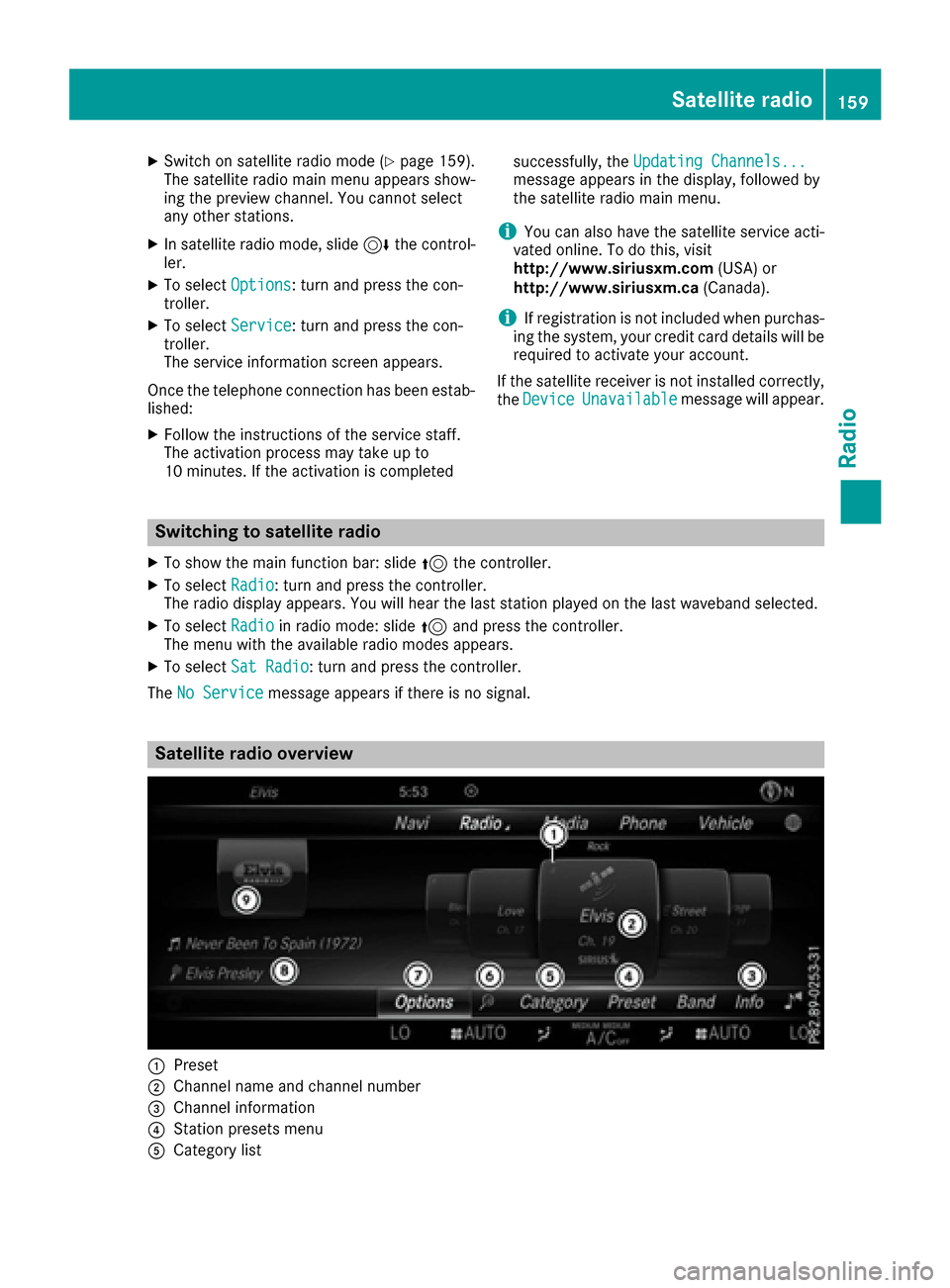
Satellite radio overview
:Preset
;Channel name and channel number
=Channel information
?Station presets menu
ACategory list
Satellite radio159
Radio
Page 164 of 230
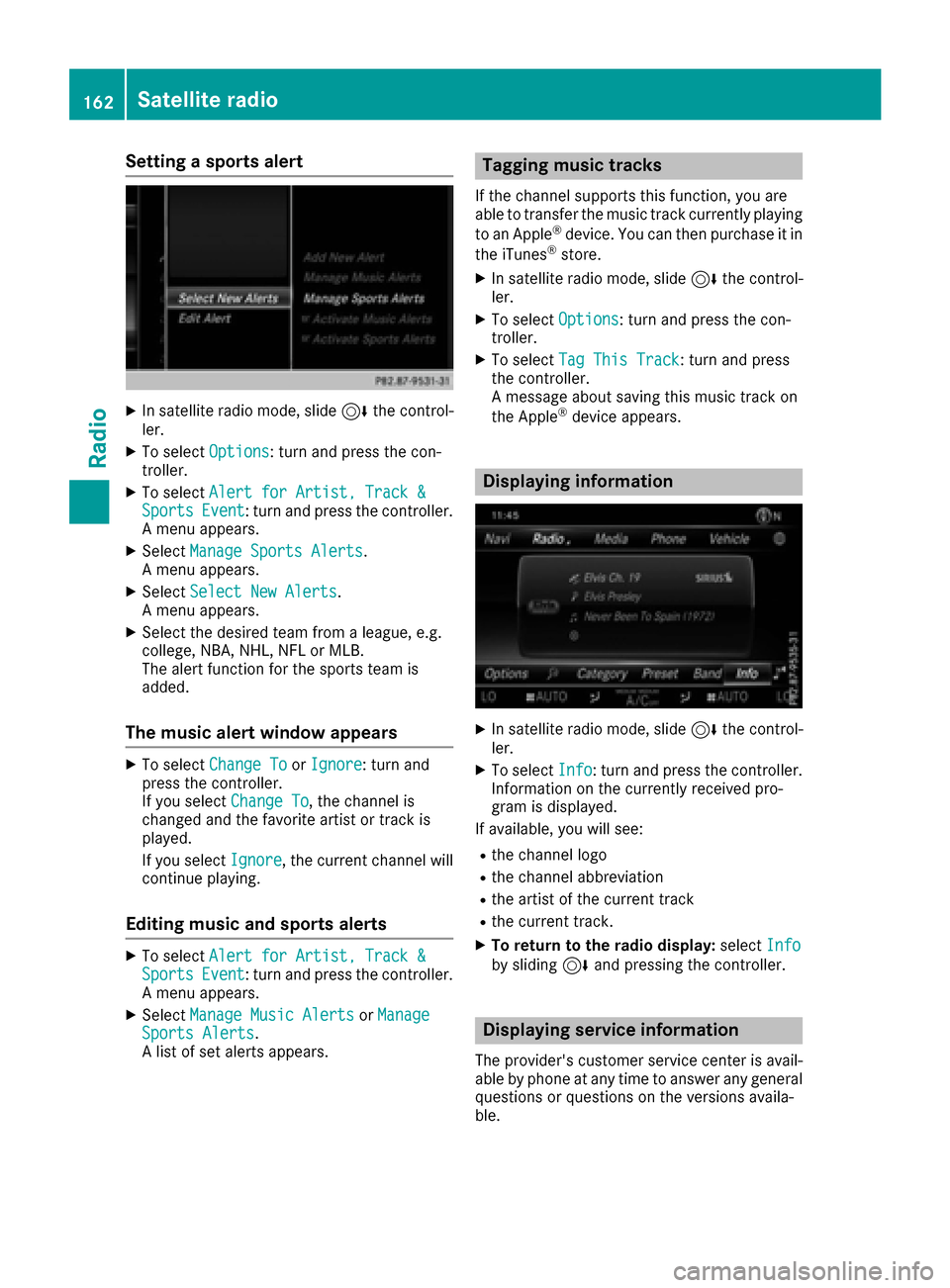
Setting a sports alert
XIn satellite radio mode, slide6the control-
ler.
XTo select Options: turn and press the con-
troller.
XTo select Alert for Artist, Track &SportsEvent: turn and press the controller.
A menu appears.
XSelect Manage Sports Alerts.
A menu appears.
XSelect Select New Alerts.
A menu appears.
XSelect the desired team from a league, e.g.
college, NBA, NHL, NFL or MLB.
The alert function for the sports team is
added.
The music alert window appears
XTo select Change ToorIgnore: turn and
press the controller.
If you select Change To
, the channel is
changed and the favorite artist or track is
played.
If you select Ignore
, the current channel will
continue playing.
Editing music and sports alerts
XTo select Alert for Artist, Track &SportsEvent: turn and press the controller.
A menu appears.
XSelect Manage Music AlertsorManageSports Alerts.
A list of set alerts appears.
Tagging music tracks
If the channel supports this function, you are
able to transfer the music track currently playing
to an Apple
®device. You can then purchase it in
the iTunes®store.
XIn satellite radio mode, slide 6the control-
ler.
XTo select Options: turn and press the con-
troller.
XTo select Tag This Track: turn and press
the controller.
A message about saving this music track on
the Apple
®device appears.
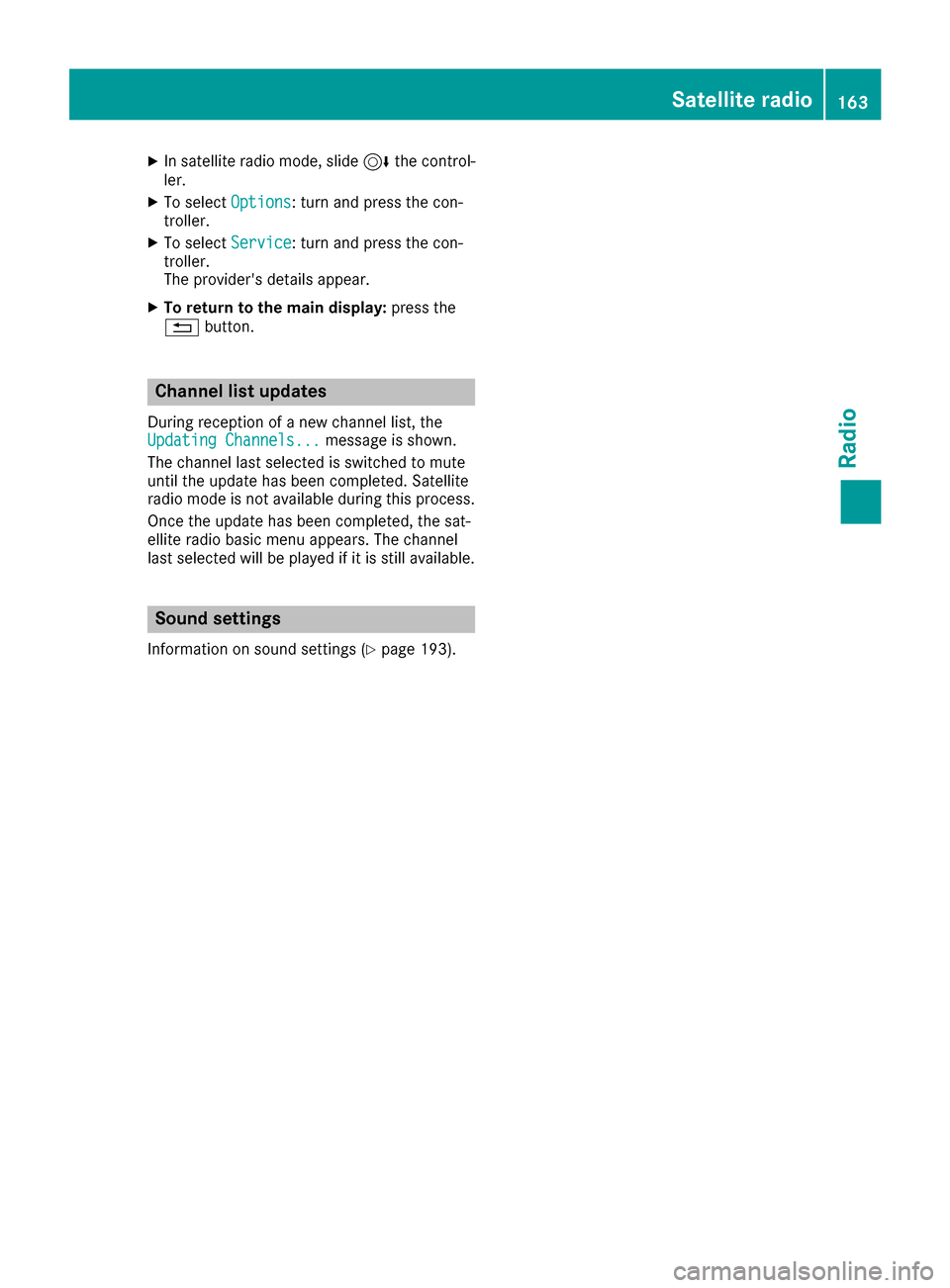
Displaying information
XIn satellite radio mode, slide 6the control-
ler.
XTo select Info: turn and press the controller.
Information on the currently received pro-
gram is displayed.
If available, you will see:
Rthe channel logo
Rthe channel abbreviation
Rthe artist of the current track
Rthe current track.
XTo return to the radio display: selectInfoby sliding 6and pressing the controller.
Displaying service information
The provider's customer service center is avail-
able by phone at any time to answer any general
questions or questions on the versions availa-
ble.
162Satellite radio
Radio
Page 165 of 230
XIn satellite radio mode, slide6the control-
ler.
XTo select Options: turn and press the con-
troller.
XTo select Service: turn and press the con-
troller.
The provider's details appear.
XTo return to the main display: press the
% button.
Channel list updates
During reception of a new channel list, the
Updating Channels...message is shown.
The channel last selected is switched to mute
until the update has been completed. Satellite
radio mode is not available during this process. Once the update has been completed, the sat-
ellite radio basic menu appears. The channel
last selected will be played if it is still available.
Sound settings
Information on sound settings (Ypage 193).
Satellite radio163
Radio
Page 201 of 230
Your multimediasystem equipment
These operating instructions describe all the
standard and optional equipment of your multi-
media system, as available at the time of going
to press. Country-specifi cdifferences are pos-
sible. Bear in mind that your vehicle may not
feature all functions described here. This also
applies to safety-relevant systems andfunc-
tions.
Read the information on qualified specialist
workshop s in the vehicle Operator's Manual.
SIRIUS Weather
Introduction
Thisfunction is currentl yno t available for Can-
ada.
Fo rth e reception of weather forecasts via sat-
ellite radio, you will need a SIRIUS XM Satellite
Weather subscription.
If th e message: Please call SIRIUS to
activate the system at :888-539-7474ESN :SIRIUS IDappears along with theID
number of the SIRIUS device, you will need to
have the weather service activated first.
XTo select CallorCancel:turn an dpress th e
controller.
If a mobile phone is connected to the multi-
media system(
Ypage 113), when you select
Cal la call is placed to a member of the SIR-
IU S service staff. The ID number of th eSIRIU S
device will be transferred to the telephone
display.
XThis will be followed by instructions from the
service employee.
The multimedia system can receive weather
forecast sfo rth eUS A (including Alaska and
Hawaii) via satellite radio. The received weather
data can be displayed as an information chart
(daily forecast , five-day forecast, detailed infor-
mation) or on the weather map.
The weather data received from the weather
station is stored for one hour in the multimedia
system. It can therefore be displayed again
immediately after restarting the engine (for
example after refueling). Depending on which scale has been selected,
th
e weather map can display the following
weather data with symbols:
Rrain radar
Rstorm characteristics
Rhigh and low-pressure areas, weather fronts
Rcourse of tropical cyclones (hurricanes,
typhoons )
Rstorm warnings
Rwind direction and speeds
iThe rain radar cannot be displayed for
Alaska, Hawaii and Puerto Rico.
iHurricane: term used to describe the tropi-
cal cyclones that primarily develop in the
Atl antic, North Pacifi c andSouth Pacific
oceans. The wind speeds are above 74 mph
(118 km/h). Five categorie sare used to clas-
sify thestrengt h of a hurricane.
Typhoon: term used to describe a tropical
cyclone that develops in the northwestern
Pacific. The wind speeds are in the category of
a hurricane.
Switching the SIRIUS Weather display
on/off
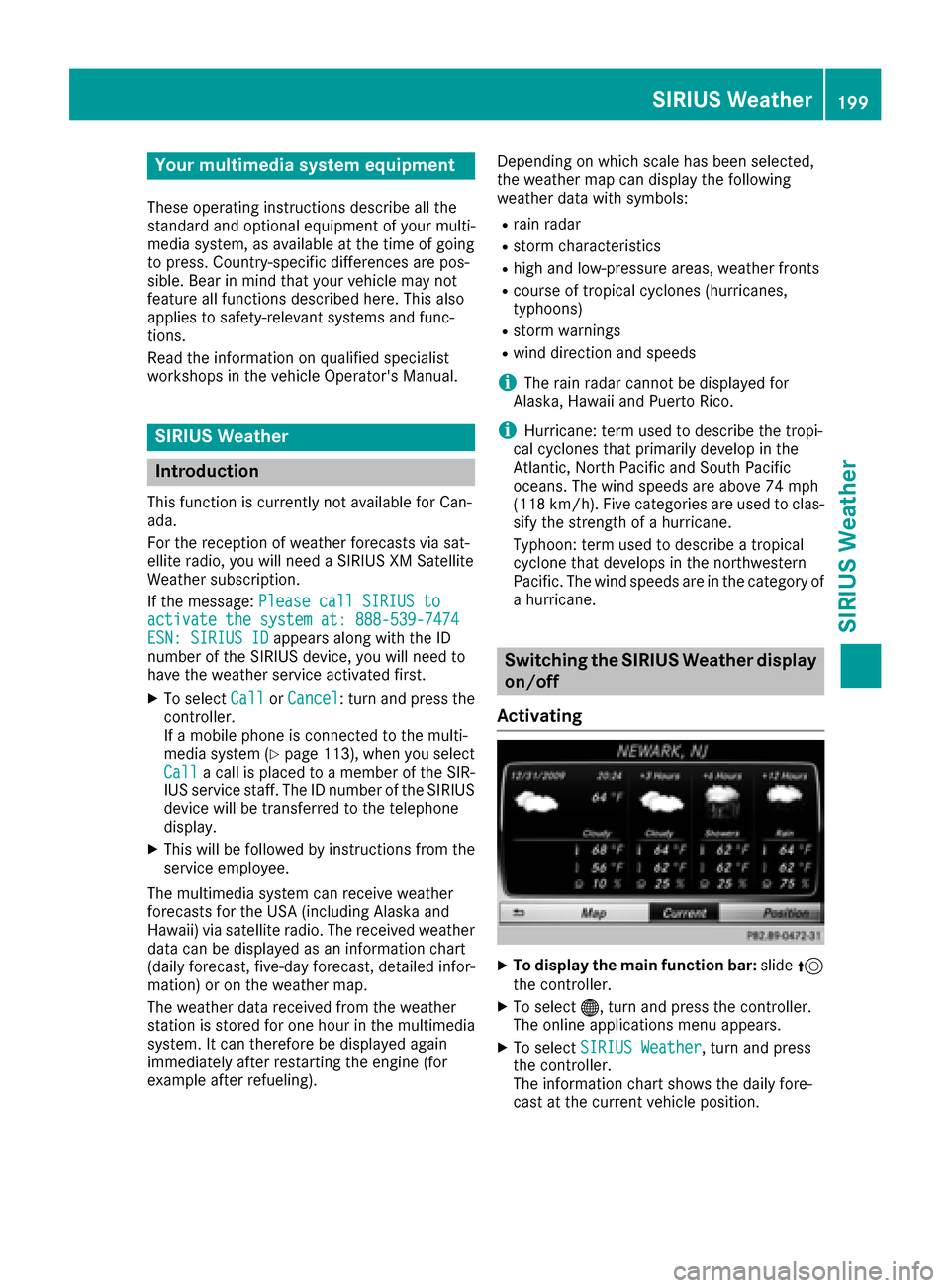
Activating
XTo display th e main function bar: slide5
th econtroller.
XTo select ®,turn an dpress th econtroller.
The online applications menu appears.
XTo select SIRIUS Weathe r,turn an dpress
th econtroller.
The information chart shows th e daily fore-
cast at the current vehicle position.
SIRIUS Weather199
SIRIUS Weather