USB MERCEDES-BENZ S-Class MAYBACH 2017 W222 Comand Manual
[x] Cancel search | Manufacturer: MERCEDES-BENZ, Model Year: 2017, Model line: S-Class MAYBACH, Model: MERCEDES-BENZ S-Class MAYBACH 2017 W222Pages: 230, PDF Size: 8.27 MB
Page 186 of 230
iVideo files from Apple®devices cannot be
played using the USB port.
Selecting a music file
Selecting with the controller
XTo display the current track list: press the
controller in the basic display.
XSelect Current Tracklist.
The track list for the active data medium
appears.
XTo select a track: turn the controller and press
to confirm.
XTo skip forward or back to a track: turn the
controller in the basic display.
The selected track is played.
Selecting with fast forward/rewind
XWith the media source active in the basic dis- play, slide 1the controller and hold it
until the desired position has been reached.
Searching for a track
Selecting Search using media menu bar
XTo switch to the menu bar: slide 6the con-
troller.
XTo select Search: turn and press the control-
ler.
The category list appears.
Overview
The following categories are listed:
RCurrent Tracklist
RFolder
RSelect By Cover
RKeyword Search
RPlaylists
RArtists
RAlbums
RTrack
RGenres
RYear
RComposers
RVideos
RPhotos
RPodcasts
RAudiobooks
iThe functions are available as soon as the
entire media content has been read and ana-
lyzed.
If the same device is reconnected with
unchanged media content, these functions
are available more quickly.
The audio books and podcasts categories are
only available for Apple
®devices.
When connecting Apple®devices, the cate-
gories “Folder”, “Year” and “Photos” are not
available.
XTo select a category, e.g. Current Track‐list: turn and press the controller.
The selection list appears.
XSelect the required track.
Searching for tracks via keywords
XTo select Keyword Searchin the category
list: turn and press the controller.
XEnter and confirm the characters of the
desired search using the controller
(
Ypage 174).
Search results are sorted according to the
available categories, displayed and can then
be selected.
Selecting the playback option
XIn media mode, slide 6the controller.
The media menu bar is shown.
XTo select Options: turn and press the con-
troller.
XTo select the desired playback option: turn
and press the controller.
Additional information on playback options
(
Ypage 170).
Selecting video settings
If playable video files are found, they will be
played by the multimedia system.
XTo switch on full-screen mode: press the con-
troller in the basic display.
XTo show the video menu: slide 6the con-
troller in full-screen mode.
The Media Interface menu bar appears.
184Operation with the Media Interface
Media
Page 193 of 230
FStops playback
GPauses playback
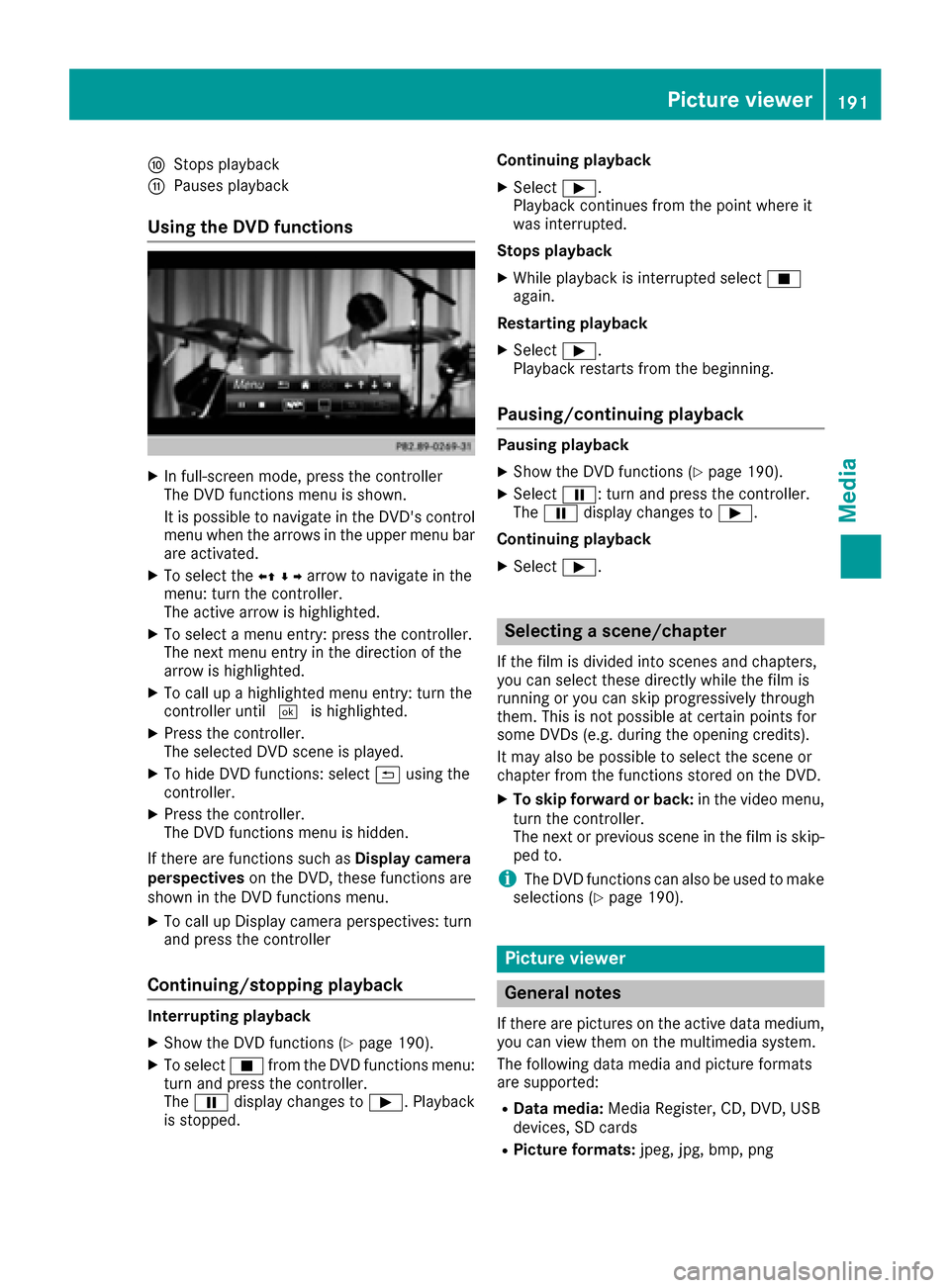
Using the DVD functions
XIn full-screen mode, press the controller
The DVD functions menu is shown.
It is possible to navigate in the DVD's control
menu when the arrows in the upper menu bar
are activated.
XTo select theXZ¬Yarrow to navigate in the
menu: turn the controller.
The active arrow is highlighted.
XTo select a menu entry: press the controller.
The next menu entry in the direction of the
arrow is highlighted.
XTo call up a highlighted menu entry: turn the
controller until ¬is highlighted.
XPress the controller.
The selected DVD scene is played.
XTo hide DVD functions: select &using the
controller.
XPress the controller.
The DVD functions menu is hidden.
If there are functions such as Display camera
perspectives on the DVD, these functions are
shown in the DVD functions menu.
XTo call up Display camera perspectives: turn
and press the controller
Continuing/stopping playback
Interrupting playback
XShow the DVD functions (Ypage 190).
XTo select Éfrom the DVD functions menu:
turn and press the controller.
The Ë display changes to Ì. Playback
is stopped. Continuing playback
XSelect
Ì.
Playback continues from the point where it
was interrupted.
Stops playback
XWhile playback is interrupted select É
again.
Restarting playback
XSelect Ì.
Playback restarts from the beginning.
Pausing/continuing playback
Pausing playback
XShow the DVD functions (Ypage 190).
XSelect Ë: turn and press the controller.
The Ë display changes to Ì.
Continuing playback
XSelect Ì.
Selecting a scene/chapter
If the film is divided into scenes and chapters,
you can select these directly while the film is
running or you can skip progressively through
them. This is not possible at certain points for
some DVDs (e.g. during the opening credits).
It may also be possible to select the scene or
chapter from the functions stored on the DVD.
XTo skip forward or back: in the video menu,
turn the controller.
The next or previous scene in the film is skip-
ped to.
iThe DVD functions can also be used to make
selections (Ypage 190).
Picture viewer
General notes
If there are pictures on the active data medium,
you can view them on the multimedia system.
The following data media and picture formats
are supported:
RData media: Media Register, CD, DVD, USB
devices, SD cards
RPicture formats: jpeg, jpg, bmp, png
Picture viewer191
Media
Z
Page 215 of 230
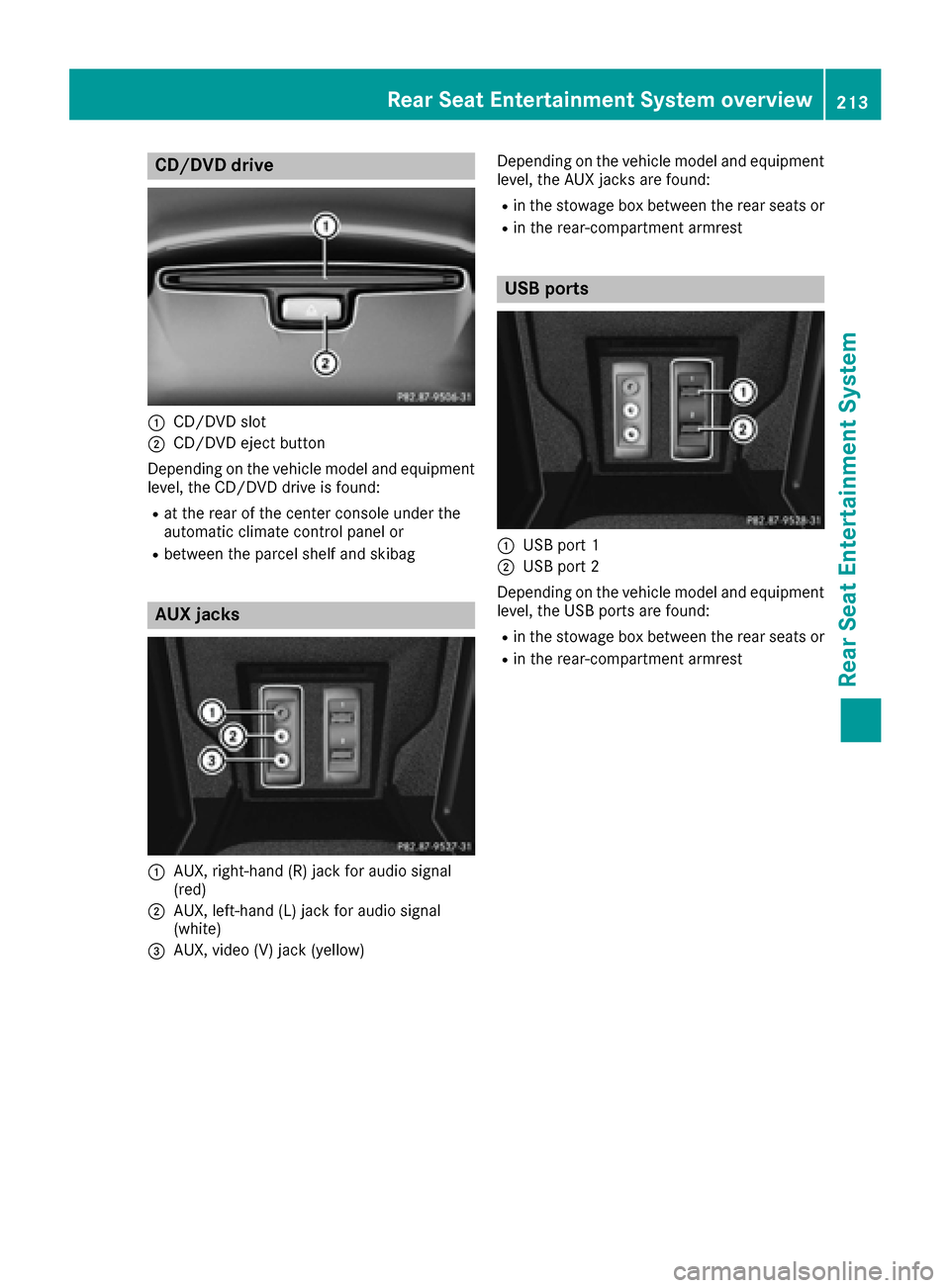
CD/DVD drive
:CD/DVD slot
;CD/DVD eject button
Depending on the vehicle model and equipment
level, the CD/DVD drive is found:
Rat the rear of the center console under the
automatic climate control panel or
Rbetween the parcel shelf and skibag
AUX jacks
:AUX, right-hand (R) jack for audio signal
(red)
;AUX, left-hand (L) jack for audio signal
(white)
=AUX, video (V) jack (yellow) Depending on the vehicle model and equipment
level, the AUX jacks are found:
Rin the stowage box between the rear seats or
Rin the rear-compartment armrest
USB ports
:USB port 1
;USB port 2
Depending on the vehicle model and equipment
level, the USB ports are found:
Rin the stowage box between the rear seats or
Rin the rear-compartment armrest
Rear Seat Entertainment System overview213
Rear Seat Entertainment System
Z