navigation MERCEDES-BENZ S-CLASS SEDAN 2012 Manual PDF
[x] Cancel search | Manufacturer: MERCEDES-BENZ, Model Year: 2012, Model line: S-CLASS SEDAN, Model: MERCEDES-BENZ S-CLASS SEDAN 2012Pages: 536, PDF Size: 39.39 MB
Page 214 of 536
XTo delete an individual contact: select
the entry ( Y page 209).XSelect Options by sliding VY the
COMAND controller and press W to
confirm.XSelect Delete and press W to confirm.
A prompt appears asking whether the data
should be deleted.XSelect Yes and press W to confirm.
i
Automatically imported contacts cannot
be deleted ( Y page 208).
Calling a number stored in an entry
Using the phone book
XSelect Name in the telephone basic menu
by sliding VY and turning cVd the
COMAND controller and press W to
confirm.XCall up the contact ( Y page 209).XContact with multiple telephone
numbers (with the G symbol): press
W .
or
XPress SEND on the telephone keypad.
A list of all telephone numbers is opened.XSelect the desired number by turning
cVd the COMAND controller.XPress W.
or
XPress SEND on the telephone keypad.
The number is dialed.XContact with one telephone number
(without the G symbol): press W.
or
XPress SEND on the telephone keypad.
The number is dialed.
i You can also use the phone book in the
on-board computer to make a call
( Y page 384).
Using the address bookXSelect Data/Connections in the
telephone basic menu by sliding VÆ and
turning cVd the COMAND controller and
press W to confirm.XSelect Address Book and press W to
confirm.XCall contact ( Y page 209) and press W to
confirm.XSelect the telephone number by turning
cVd the COMAND controller and press
W to confirm.
Starting route guidance to an entry
i
This function is available as soon as you
have stored a destination in the destination
memory ( Y page 183). COMAND also
stores the destination in the address book
with the complete navigable address data.
In this case, navigation can be started
without any further data input.
If the contact entry contains a postal
address, e.g. as a result of importing a
vCard, the system can also navigate to this
address. If the data is incomplete or
unclear, COMAND asks the user to enter
the relevant address data. After the entry
has been completed and navigation has
been started, COMAND replaces the
existing address with the navigable
address if necessary.
XSearch for an address book entry using the
¤ symbol.XConfirm the entry by pressing W.
Telephone numbers and addresses are
displayed.XSelect the address data field.XPress the COMAND controller.
or
XSelect Options by sliding VY the
COMAND controller and press W to
confirm.212TelephoneCOMAND
Page 234 of 536
XSwitch on audio CD mode (Y page 226).XSelect CD by sliding VÆ and turning cVd
the COMAND controller and press W to
confirm.XSelect Gracenote Media Database by
turning cVd the COMAND controller and
press W to confirm.
Switch the function on O or off ª.
Updating Gracenote ®
music recognition
technology and the Gracenote Media
Database
The digital data on the Gracenote Media
Database becomes obsolete due to the
release of new CDs. Optimum functionality
can only be attained with up-to-date
Gracenote ®
music recognition technology.
Information about new versions can be
obtained from an authorized Mercedes-Benz
Center.
You can have your music recognition
software updated there with a DVD, or you
can update it yourself.
i The Gracenote Media Database is
updated in conjunction with the navigation
system's digital map ( Y page 192).
Setting the audio format
You can only set the audio format in audio
DVD mode. The number of audio formats
available depends on the DVD. The content of
an audio DVD is called an "album", and this
can be divided into up to nine groups. A group
can contain music in different sound qualities
(stereo and multichannel formats, for
example), or bonus tracks. Each group can
contain up to 99 tracks. If an audio DVD only
contains one audio format, the "Group" menu
item(s) cannot be selected.
XSwitch on audio DVD mode ( Y page 226).XSelect DVD-A by sliding VÆ and turning
cVd the COMAND controller and press
W to confirm.XSelect Group by turning cVd and press
W to confirm.
The list of available groups appears. The
# dot indicates the group currently
selected.XTo exit the menu: slide XVY the COMAND
controller or press the % button.
Playback options
The following options are available to you:
R Normal Track Sequence
The tracks are played in the normal order
(e.g. track 1, 2, 3, etc.).
In MP3 mode, the track order is determined
by the order in which the tracks are written
to the MP3 data carrier when it is created.
Alphabetical order is the most common.
Once all the tracks in a folder have been
played, the tracks in the next folder are
played.
R Medium Mix
All the tracks on the medium are played in
random order (e.g. track 3, 8, 5 etc.).
R Track List Mix (MP3 mode only)
All the tracks that are listed in the current
track list are played in random order.
XTo select options: switch on audio CD/
DVD or MP3 mode ( Y page 226).XSelect CD, DVD-A or MP3 by sliding VÆ and
turning cVd the COMAND controller and
press W to confirm.
The options list appears. The # dot
indicates the option selected.XSelect an option by turning cVd and press
W to confirm.
The option is switched on. For all options
except "Normal track sequence", you will
see a corresponding display in the display/
selection window. See the example of the
display in audio CD mode ( Y page 226).
i
The "Normal track sequence" option is
automatically selected when you change
the medium you are currently listening to
232AudioCOMAND
Page 246 of 536
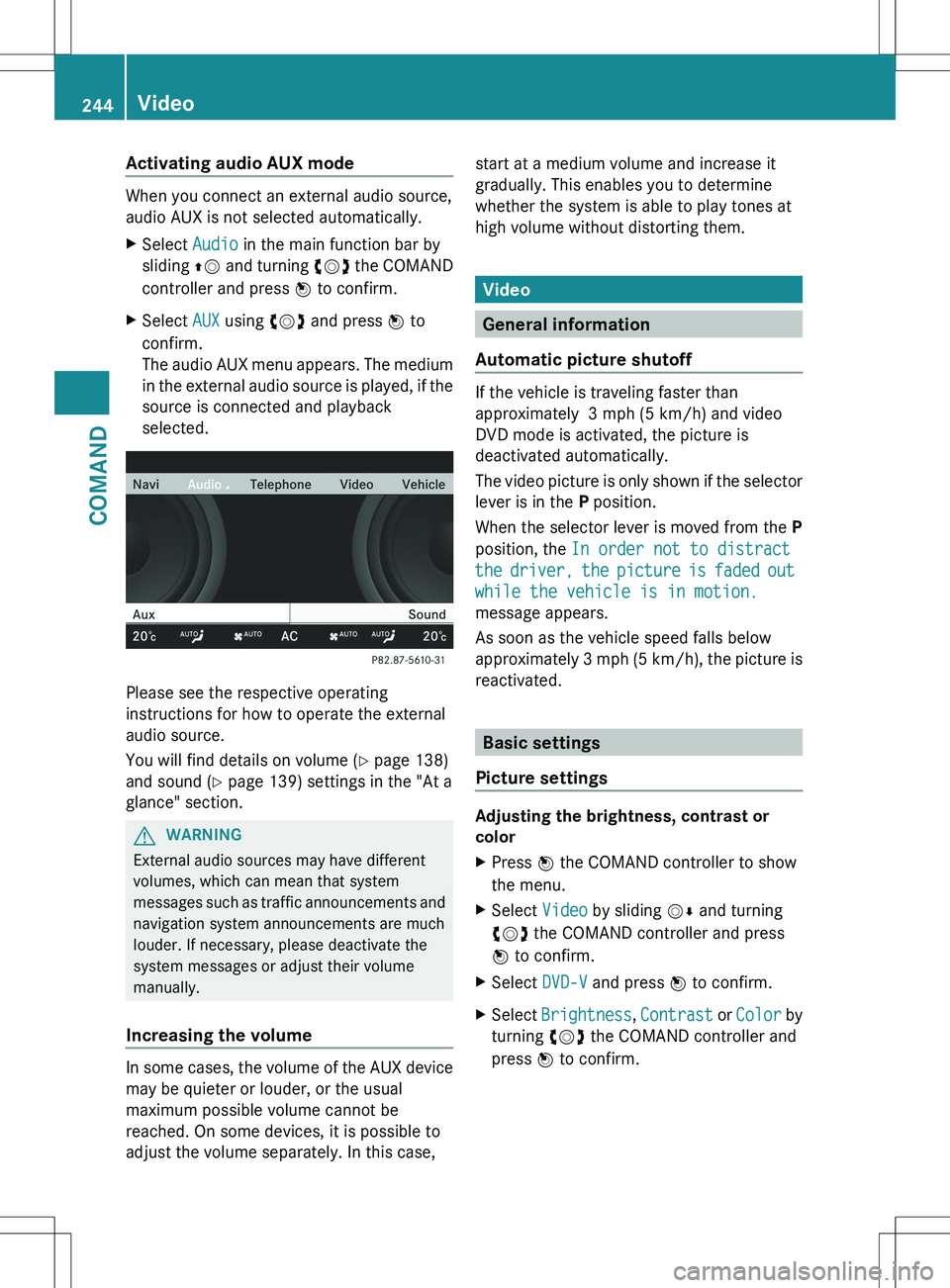
Activating audio AUX mode
When you connect an external audio source,
audio AUX is not selected automatically.
XSelect Audio in the main function bar by
sliding ZV and turning cVd the COMAND
controller and press W to confirm.XSelect AUX using cVd and press W to
confirm.
The audio AUX menu appears. The medium
in the external audio source is played, if the
source is connected and playback
selected.
Please see the respective operating
instructions for how to operate the external
audio source.
You will find details on volume ( Y page 138)
and sound ( Y page 139) settings in the "At a
glance" section.
GWARNING
External audio sources may have different
volumes, which can mean that system
messages such as traffic announcements and
navigation system announcements are much
louder. If necessary, please deactivate the
system messages or adjust their volume
manually.
Increasing the volume
In some cases, the volume of the AUX device
may be quieter or louder, or the usual
maximum possible volume cannot be
reached. On some devices, it is possible to
adjust the volume separately. In this case,
start at a medium volume and increase it
gradually. This enables you to determine
whether the system is able to play tones at
high volume without distorting them.
Video
General information
Automatic picture shutoff
If the vehicle is traveling faster than
approximately 3 mph (5 km/h) and video
DVD mode is activated, the picture is
deactivated automatically.
The video picture is only shown if the selector
lever is in the P position.
When the selector lever is moved from the P
position, the In order not to distract
the driver, the picture is faded out
while the vehicle is in motion.
message appears.
As soon as the vehicle speed falls below
approximately 3 mph (5 km/h), the picture is
reactivated.
Basic settings
Picture settings
Adjusting the brightness, contrast or
color
XPress W the COMAND controller to show
the menu.XSelect Video by sliding VÆ and turning
cVd the COMAND controller and press
W to confirm.XSelect DVD-V and press W to confirm.XSelect Brightness , Contrast or Color by
turning cVd the COMAND controller and
press W to confirm.244VideoCOMAND
Page 248 of 536
authorized Mercedes-Benz Center. This will
allow you to play video DVDs with a
different region code, provided that they
are produced in accordance with the PAL
or NTSC standard. The region code can be
changed up to five times.
Function restrictions
Depending on the DVD, it is possible that
certain functions or actions will be
temporarily blocked or may not function at all.
As soon as you try to activate these functions
or actions, you will see the K symbol in the
display.
Inserting and removing DVDs
XProceed as described in the "Inserting and
ejecting CDs and DVDs" section
( Y page 225).
Activating video DVD mode
Option 1
XInsert a video DVD.
COMAND loads the medium inserted and
starts to play it.
Option 2
XSelect Video in the main function bar by
sliding ZV and turning cVd the COMAND
controller and press W to confirm.
Video DVD mode is switched on.
Hiding/showing the navigation menu
XTo show: turn cVd or slide ZVÆ the
COMAND controller.
i This function is not available while the
DVD's own menu ( Y page 248) is being
displayed.
XTo hide: slide ZVÆ the COMAND
controller.
or
XWait for approximately eight seconds.
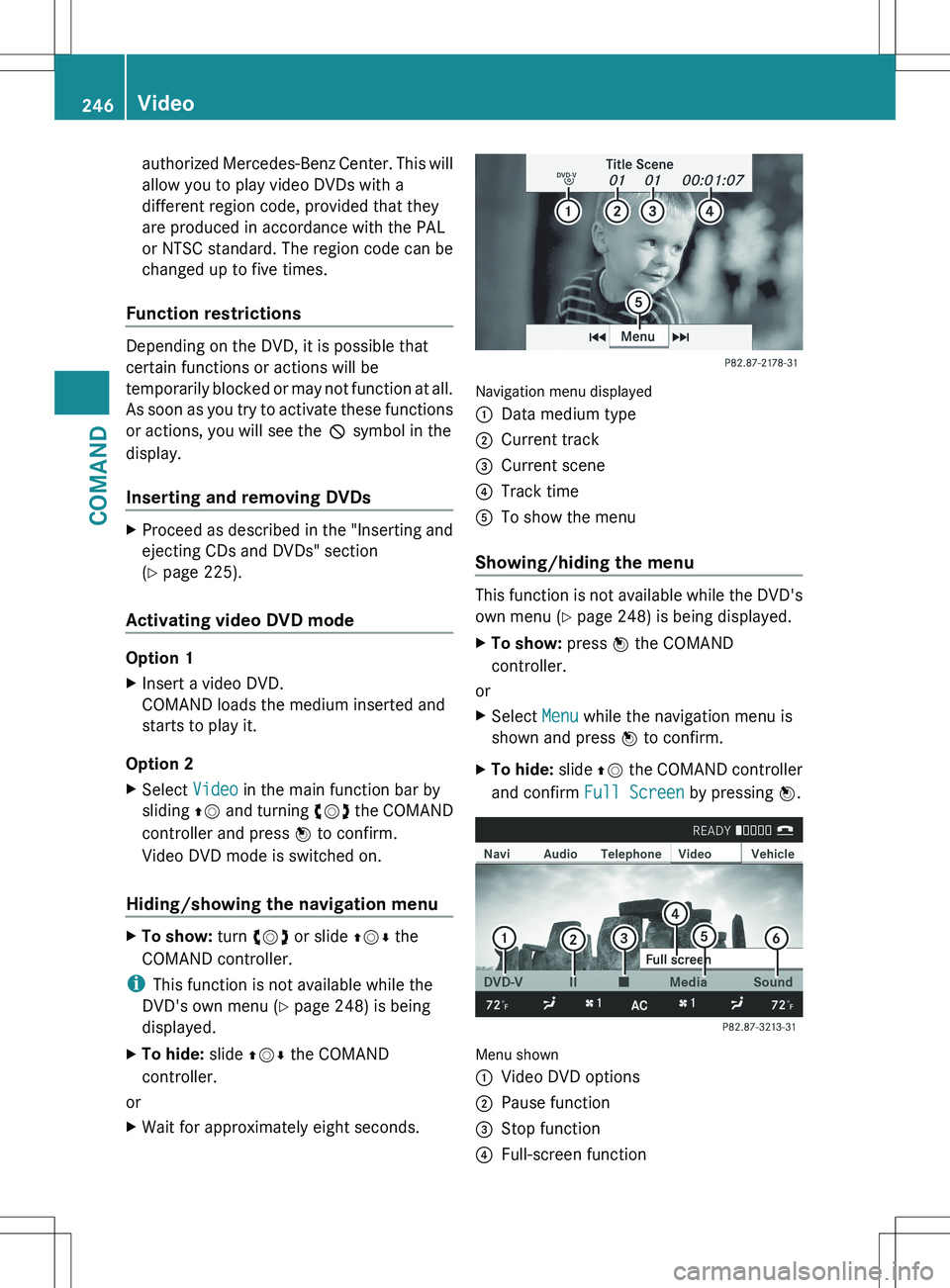
Navigation menu displayed
:Data medium type;Current track=Current scene?Track timeATo show the menu
Showing/hiding the menu
This function is not available while the DVD's
own menu ( Y page 248) is being displayed.
XTo show: press W the COMAND
controller.
or
XSelect Menu while the navigation menu is
shown and press W to confirm.XTo hide: slide ZV the COMAND controller
and confirm Full Screen by pressing W.
Menu shown
:Video DVD options;Pause function=Stop function?Full-screen function246VideoCOMAND
Page 249 of 536
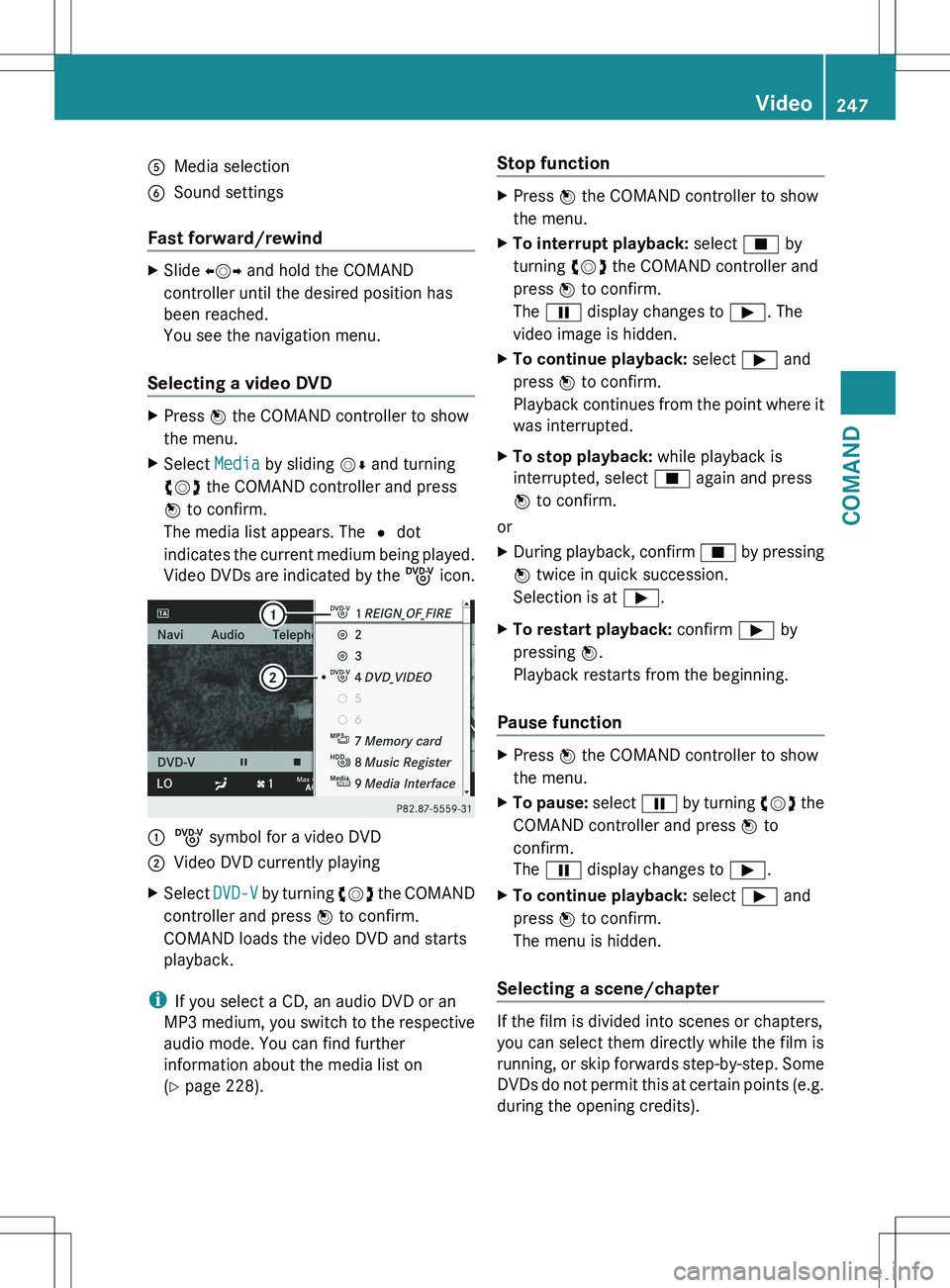
AMedia selectionBSound settings
Fast forward/rewind
XSlide XVY and hold the COMAND
controller until the desired position has
been reached.
You see the navigation menu.
Selecting a video DVD
XPress W the COMAND controller to show
the menu.XSelect Media by sliding VÆ and turning
cVd the COMAND controller and press
W to confirm.
The media list appears. The # dot
indicates the current medium being played.
Video DVDs are indicated by the ý icon.:ý symbol for a video DVD;Video DVD currently playingXSelect DVD-V by turning cVd the COMAND
controller and press W to confirm.
COMAND loads the video DVD and starts
playback.
i If you select a CD, an audio DVD or an
MP3 medium, you switch to the respective
audio mode. You can find further
information about the media list on
( Y page 228).
Stop functionXPress W the COMAND controller to show
the menu.XTo interrupt playback: select É by
turning cVd the COMAND controller and
press W to confirm.
The Ë display changes to Ì. The
video image is hidden.XTo continue playback: select Ì and
press W to confirm.
Playback continues from the point where it
was interrupted.XTo stop playback: while playback is
interrupted, select É again and press
W to confirm.
or
XDuring playback, confirm É by pressing
W twice in quick succession.
Selection is at Ì.XTo restart playback: confirm Ì by
pressing W.
Playback restarts from the beginning.
Pause function
XPress W the COMAND controller to show
the menu.XTo pause: select Ë by turning cVd the
COMAND controller and press W to
confirm.
The Ë display changes to Ì.XTo continue playback: select Ì and
press W to confirm.
The menu is hidden.
Selecting a scene/chapter
If the film is divided into scenes or chapters,
you can select them directly while the film is
running, or skip forwards step-by-step. Some
DVDs do not permit this at certain points (e.g.
during the opening credits).
Video247COMANDZ
Page 252 of 536
XSelect DVD Functions and press W to
confirm.XSelect Subtitles or Camera angle and
press W to confirm.
In both cases, a menu appears. The # dot
in front of an entry indicates the current
setting.XSelect a setting by turning cVd the
COMAND controller and press W to
confirm.XTo exit the menu: slide XVY the COMAND
controller.
Interactive content
DVDs can contain interactive content (e.g. a
video game). In a video game, for example,
you may be able to influence events by
selecting and triggering actions. The type and
number of actions depend on the DVD.
XSelect an action by sliding ZVÆ or XVY the
COMAND controller and press W to
execute it.
A menu appears and the first entry,
Select , is highlighted.XPress W the COMAND controller.
AUX video mode
AUX jacks
An external video source (video AUX) can be
connected to COMAND via the media
interface (Y page 238) using the AUX jacks in
the glove box.
i In vehicles with a rear view camera, the
video AUX jack cannot be used for external
video sources.
Switching to video AUX modeXSelect Video in the main function bar by
sliding ZV and turning cVd the COMAND
controller and press W to confirm.
If video AUX mode was the last mode
selected, it will now be active.
If another video source is switched on, you
can now switch to video AUX mode in the
video menu.XSelect Video and press W to confirm.XSelect AUX and press W to confirm.
The video AUX menu appears. You will hear
and see the content of the external video
source if it is connected and switched to
playback.
For details on how to operate the external
video source, see the respective device's
operating instructions.
Showing/hiding the menu
XTo show: press W the COMAND
controller.XTo hide: slide ZV the COMAND controller
and confirm Full screen by pressing W.
Volume and sound settings
You will find details on volume ( Y page 138)
and sound ( Y page 139) settings in the "At a
glance" section.
GWARNING
External video sources may have different
volumes, which can mean that system
messages such as traffic announcements and
navigation system announcements are much
louder. If necessary, please deactivate the
system messages or adjust their volume
manually.
i In some cases, the volume of the AUX
device may be quieter or louder, or the
usual maximum possible volume cannot be
reached. On some devices, it is possible to
adjust the volume separately. In this case,
start at a medium volume and increase it
250VideoCOMAND
Page 255 of 536

XTo set operation via the main
loudspeakers: press the R function
button on the center console once or twice.XSelect Audio by sliding ZV the COMAND
controller and press W to confirm.
The Audio menu appears.XSelect Rear by turning cVd the COMAND
controller and press W to confirm.
i
The headphones' volume setting does not
affect the main loudspeakers.
Adjusting the sound settings
You can select the sound settings in the audio
CD/DVD/MP3, video DVD and AUX modes.
XSwitch on an audio operating mode (e.g.
audio CD mode).XSelect Treble or Bass using
the :=; buttons on the remote
control and press the 9 button to confirm.
An adjustment scale appears.XSelect a setting using the 9:
buttons and press the 9 button to confirm.
Multiple users
Simultaneous use of the rear-
compartment disc drive
The two rear-compartment screens can be
operated almost entirely independently from
one another. However, there can be a conflict
in some menus if the two screens are used
simultaneously.
If the rear-compartment disc drive is being
used for both screens simultaneously,
selecting certain menus or settings on one of
the screens also affects the other screen.
The following functions affect both screens:
R changing playback options
R selecting a track (from a track list or folder)
R using the play, pause and stop functions
R fast forwarding/rewinding or scrolling
R calling up the DVD menu and navigating
within it
R setting the language, subtitles and camera
angle
R calling up interactive DVD content
The following functions affect only one
screen:
R audio and video functions as well as picture
settings
R switching between full screen and the
menu
Switching between operating modes
When you exit an operating mode (e.g. audio
CD mode), the current setting is saved. If you
call up this operating mode again later, there
are two possibilities:
R the operating mode has been changed on
the other screen.
R the operating mode has not been changed.
In the first case, the operating mode appears
as it is on the other screen.
In the second case, the setting appears on the
screen as it was when you last exited the
operating mode.
Picture settings
Overview
You can select these settings in video DVD
and AUX mode. Instructions for AUX mode
are detailed later ( Y page 263).
Adjusting the brightness, contrast and
color
XSwitch on video DVD mode ( Y page 246).XTo show the menu: press the 9 button
on the remote control.
or
XSelect Menu while the navigation menu
( Y page 246) is shown and press the 9
button to confirm.XIn both cases, select Video DVD using
the :=; buttons and press the
9 button to confirm.Rear Seat Entertainment System253COMANDZ
Page 256 of 536
XSelect Brightness , Contrast , Color or
Auto using the 9: buttons and
press 9 to confirm.
An adjustment scale appears.XSelect a setting using the 9:
buttons and press the 9 button to confirm.
Changing the picture format
XTo show the menu: press the 9 button
on the remote control.
or
XSelect Menu while the navigation menu
( Y page 246) is shown and press the 9
button to confirm.XSelect Video DVD using
the :=; buttons and press the
9 button to confirm.
The ä symbol in front of the Auto, 16:9
Optimized , 4:3 or Widescreen menu item
indicates the format currently set.XSelect a format using the 9:
buttons and press the 9 button to confirm.
System settings
Note
You can adjust almost all system settings
individually for each screen without affecting
the other screen. You make these settings
using the remote control.
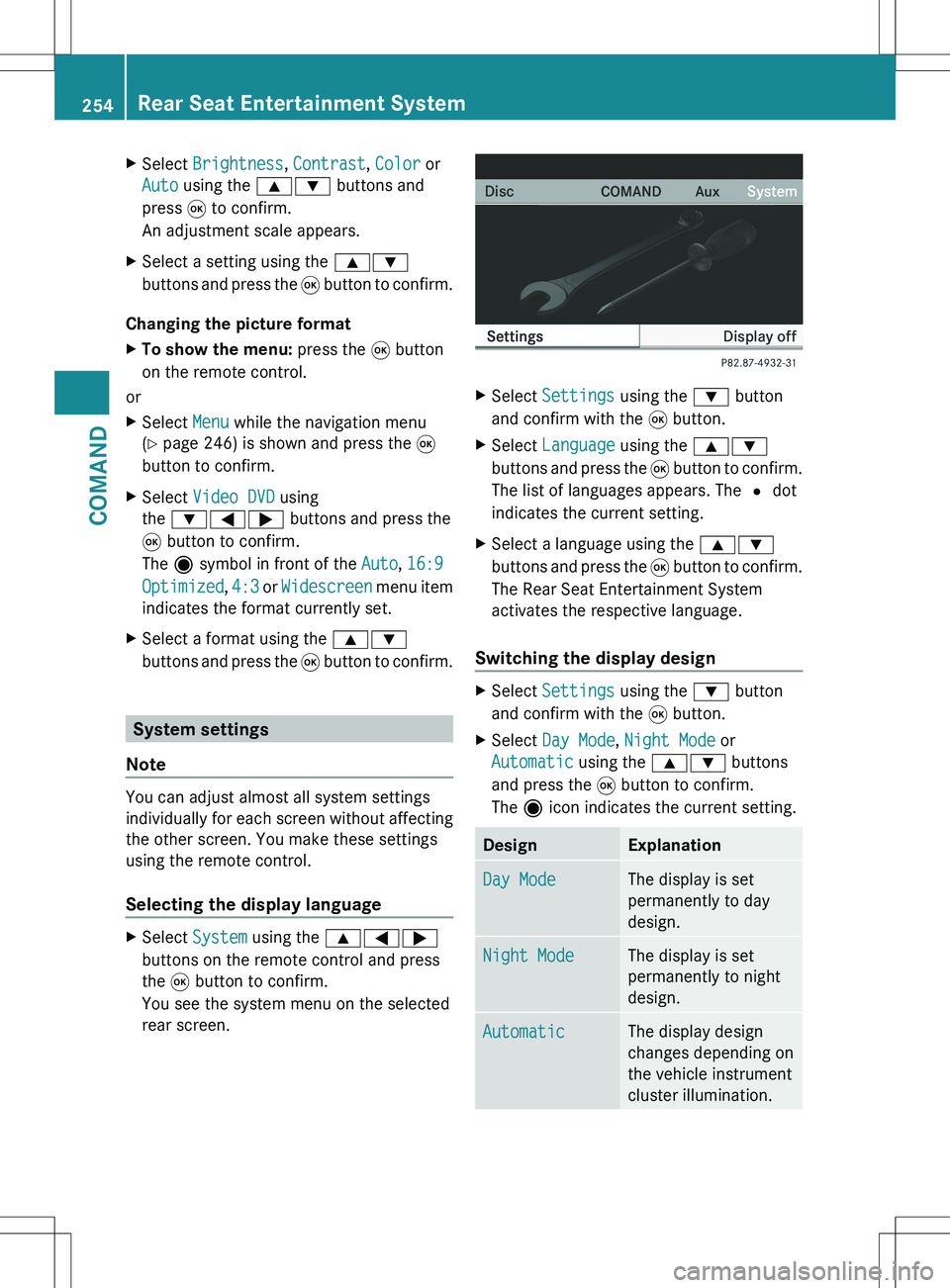
Selecting the display language
XSelect System using the 9=;
buttons on the remote control and press
the 9 button to confirm.
You see the system menu on the selected
rear screen.XSelect Settings using the : button
and confirm with the 9 button.XSelect Language using the 9:
buttons and press the 9 button to confirm.
The list of languages appears. The # dot
indicates the current setting.XSelect a language using the 9:
buttons and press the 9 button to confirm.
The Rear Seat Entertainment System
activates the respective language.
Switching the display design
XSelect Settings using the : button
and confirm with the 9 button.XSelect Day Mode , Night Mode or
Automatic using the 9: buttons
and press the 9 button to confirm.
The ä icon indicates the current setting.DesignExplanationDay ModeThe display is set
permanently to day
design.Night ModeThe display is set
permanently to night
design.AutomaticThe display design
changes depending on
the vehicle instrument
cluster illumination.254Rear Seat Entertainment SystemCOMAND
Page 261 of 536
DVD playback conditions
Playback problems may occur when playing
copied discs. There is a large variety of discs,
DVD authoring software, writing software and
writers available. This variety means that
there is no guarantee that the Rear Seat
Entertainment System will be able to play
video DVDs that you have copied yourself.
You will find further information in the "Video"
chapter ( Y page 245). Information regarding
COMAND also applies to the Rear Seat
Entertainment System.
Function restrictions
Depending on the DVD, it is possible that
certain functions or actions described in this
section will be temporarily blocked or may not
function at all. As soon as you try to activate
these functions or actions, you will see the
K symbol in the display.
Inserting and removing a CD/DVD
XProceed as described in the "Audio CD/
DVD and MP3 mode" section
( Y page 225).
Activating video DVD mode
XInsert a video DVD.
The Rear Seat Entertainment System loads
the disc.
If disc mode was the last mode selected, it
will now be active.
If it was not, switch on video DVD mode as
described in the following instruction.XSelect Disc in the menu using the
9=; buttons on the remote
control and press the 9 button to confirm.
If the video DVD fulfills the playback
criteria, the film either starts automatically
or the menu stored on the DVD appears. If
the DVD menu appears, you must start the
film manually.XSelect the corresponding menu item in the
DVD menu.Hiding/showing the navigation menuXTo show: press the 9 or : button
on the remote control.XTo hide: press the 9 or : button.
or
XWait for approximately eight seconds.
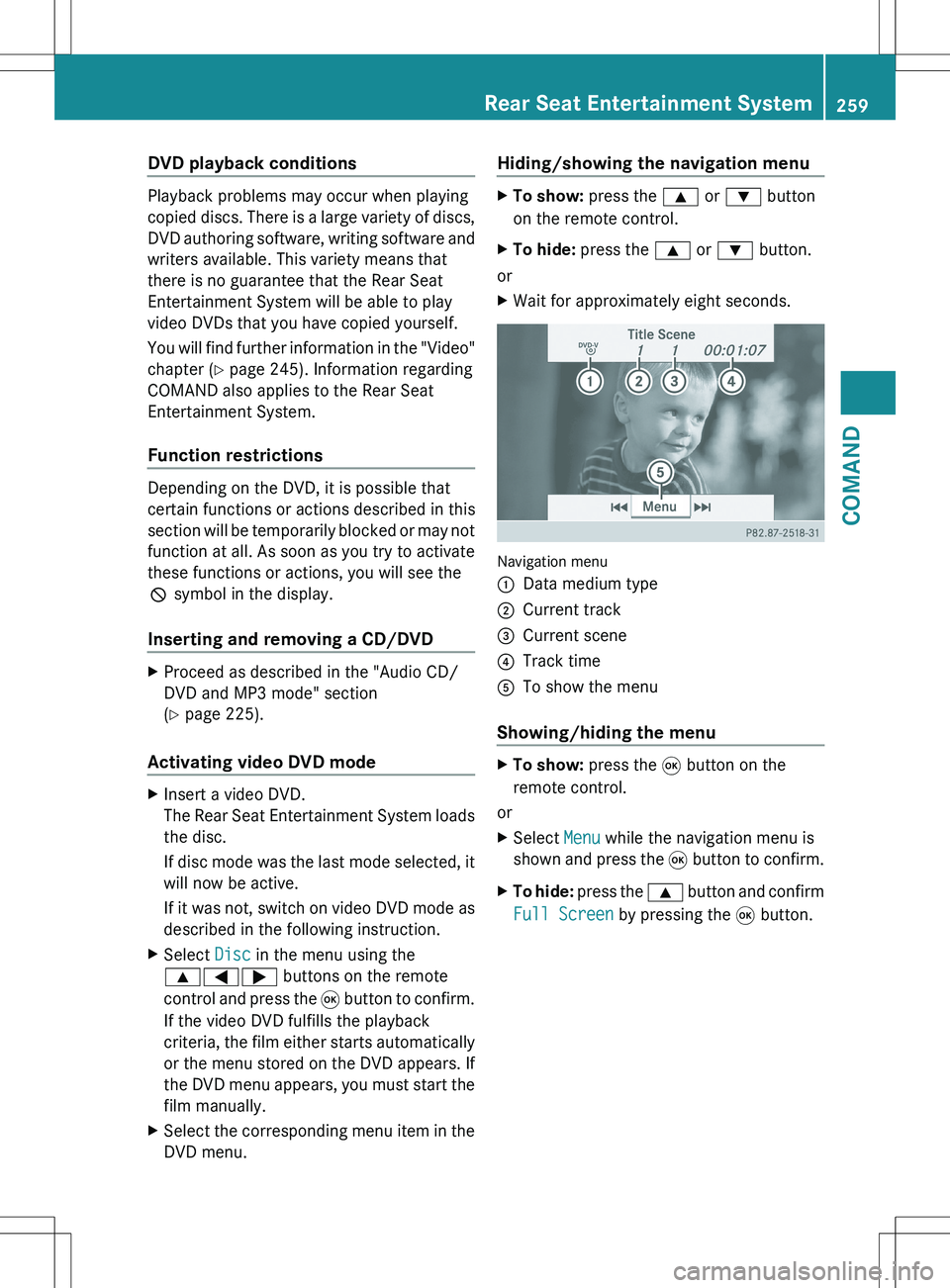
Navigation menu
:Data medium type;Current track=Current scene?Track timeATo show the menu
Showing/hiding the menu
XTo show: press the 9 button on the
remote control.
or
XSelect Menu while the navigation menu is
shown and press the 9 button to confirm.XTo hide: press the 9 button and confirm
Full Screen by pressing the 9 button.Rear Seat Entertainment System259COMANDZ
Page 262 of 536
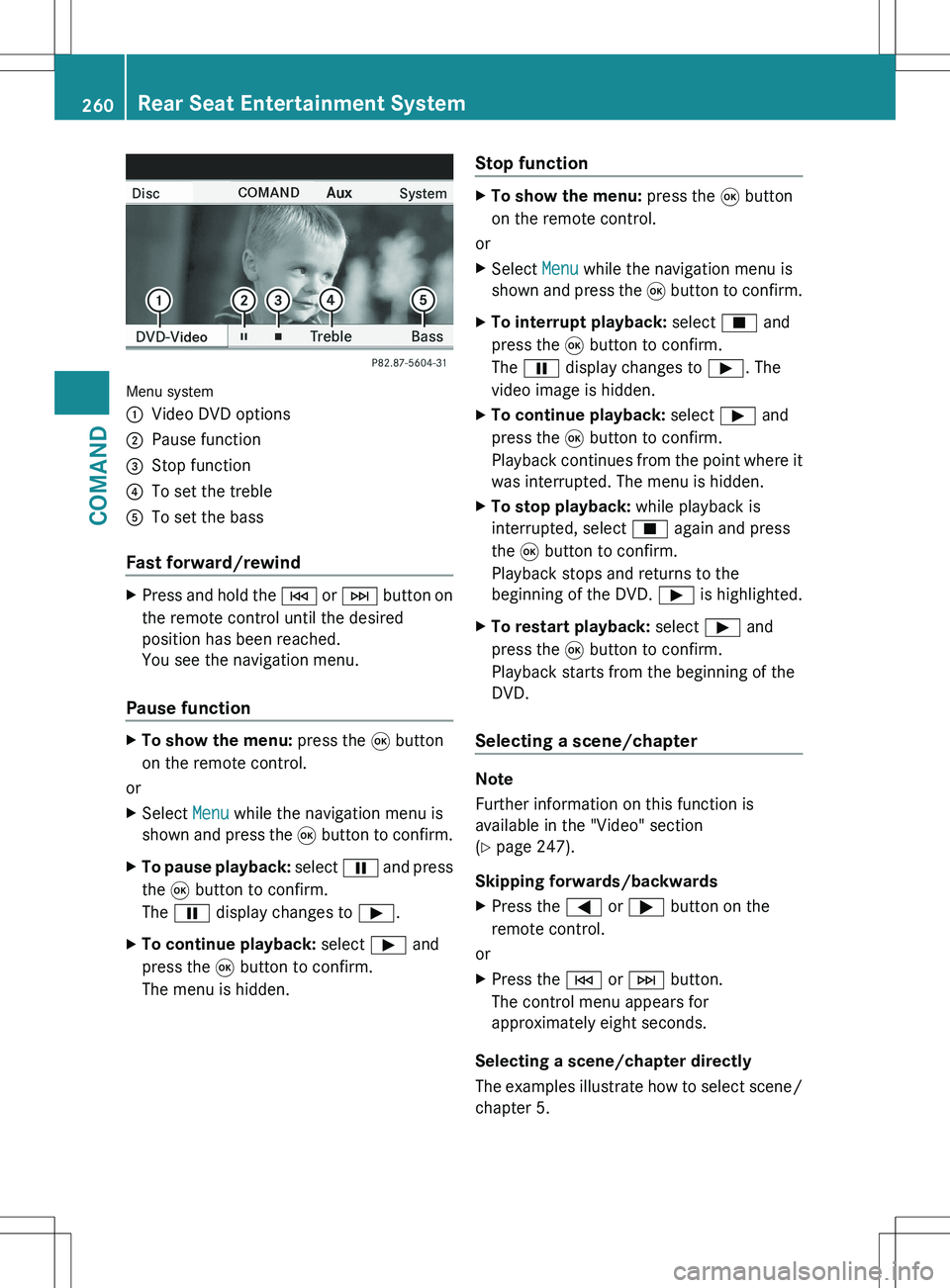
Menu system
:Video DVD options;Pause function=Stop function?To set the trebleATo set the bass
Fast forward/rewind
XPress and hold the E or F button on
the remote control until the desired
position has been reached.
You see the navigation menu.
Pause function
XTo show the menu: press the 9 button
on the remote control.
or
XSelect Menu while the navigation menu is
shown and press the 9 button to confirm.XTo pause playback: select Ë and press
the 9 button to confirm.
The Ë display changes to Ì.XTo continue playback: select Ì and
press the 9 button to confirm.
The menu is hidden.Stop functionXTo show the menu: press the 9 button
on the remote control.
or
XSelect Menu while the navigation menu is
shown and press the 9 button to confirm.XTo interrupt playback: select É and
press the 9 button to confirm.
The Ë display changes to Ì. The
video image is hidden.XTo continue playback: select Ì and
press the 9 button to confirm.
Playback continues from the point where it
was interrupted. The menu is hidden.XTo stop playback: while playback is
interrupted, select É again and press
the 9 button to confirm.
Playback stops and returns to the
beginning of the DVD. Ì is highlighted.XTo restart playback: select Ì and
press the 9 button to confirm.
Playback starts from the beginning of the
DVD.
Selecting a scene/chapter
Note
Further information on this function is
available in the "Video" section
( Y page 247).
Skipping forwards/backwards
XPress the = or ; button on the
remote control.
or
XPress the E or F button.
The control menu appears for
approximately eight seconds.
Selecting a scene/chapter directly
The examples illustrate how to select scene/
chapter 5.
260Rear Seat Entertainment SystemCOMAND