service MERCEDES-BENZ S63AMG 2010 W221 Owner's Guide
[x] Cancel search | Manufacturer: MERCEDES-BENZ, Model Year: 2010, Model line: S63AMG, Model: MERCEDES-BENZ S63AMG 2010 W221Pages: 548, PDF Size: 12.48 MB
Page 140 of 548
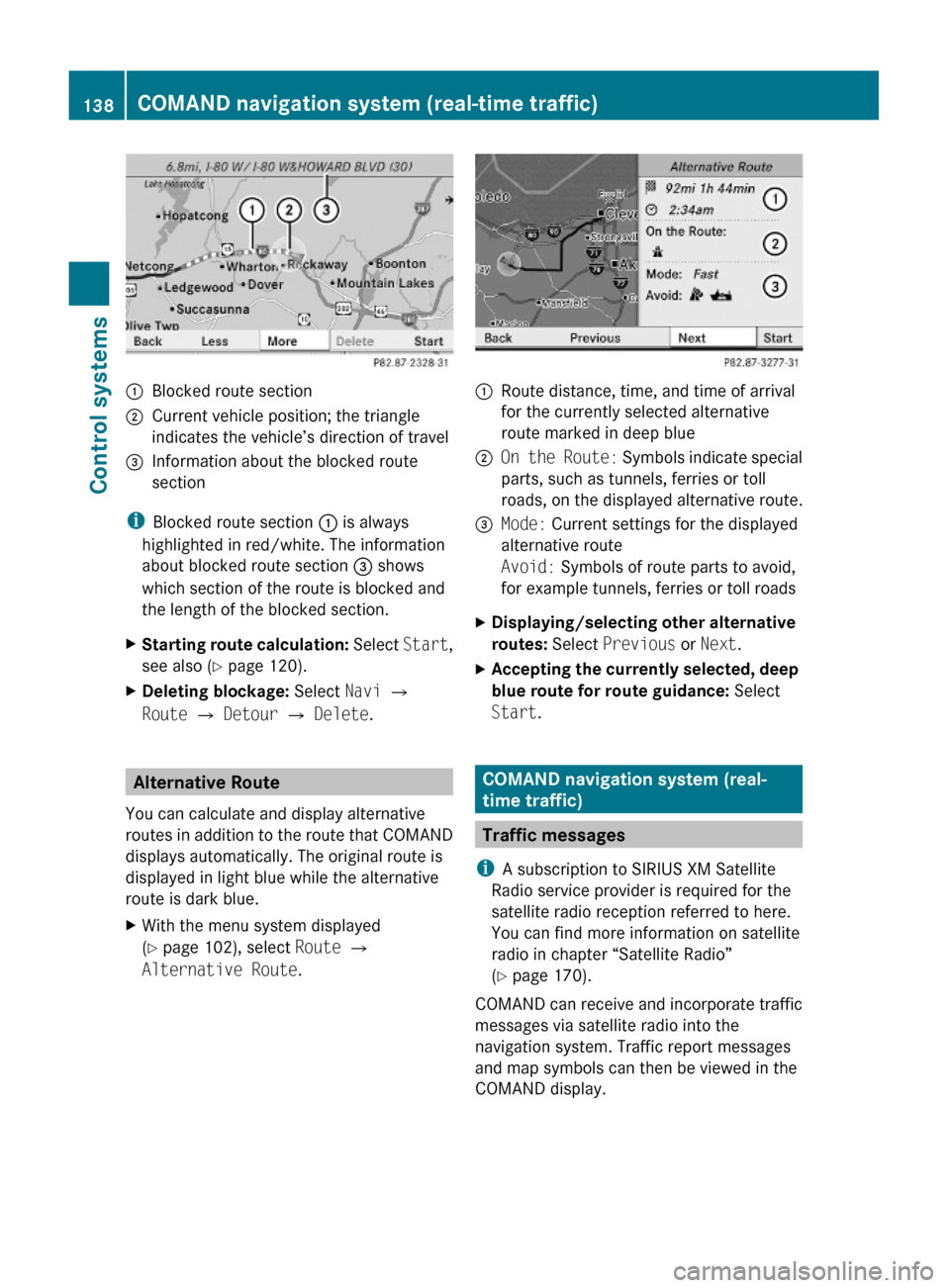
:Blocked route section;Current vehicle position; the triangle
indicates the vehicle’s direction of travel
=Information about the blocked route
section
iBlocked route section : is always
highlighted in red/white. The information
about blocked route section = shows
which section of the route is blocked and
the length of the blocked section.
XStarting route calculation: Select Start,
see also (Y page 120).
XDeleting blockage: Select Navi Q
Route Q Detour Q Delete.
Alternative Route
You can calculate and display alternative
routes in addition to the route that COMAND
displays automatically. The original route is
displayed in light blue while the alternative
route is dark blue.
XWith the menu system displayed
(Y page 102), select Route Q
Alternative Route.
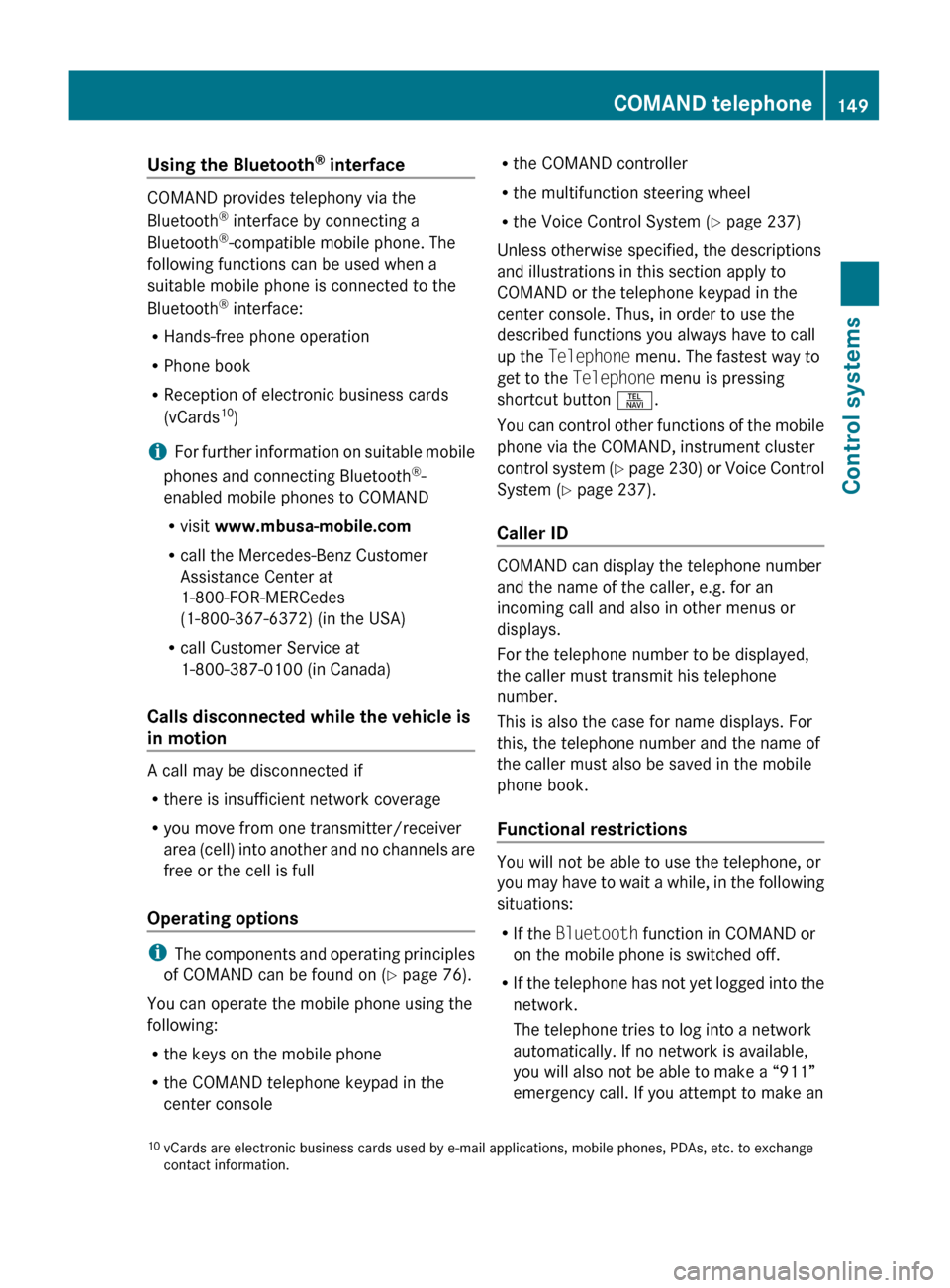
:Route distance, time, and time of arrival
for the currently selected alternative
route marked in deep blue
;On the Route: Symbols indicate special
parts, such as tunnels, ferries or toll
roads, on the displayed alternative route.
=Mode: Current settings for the displayed
alternative route
Avoid: Symbols of route parts to avoid,
for example tunnels, ferries or toll roads
XDisplaying/selecting other alternative
routes: Select Previous or Next.
XAccepting the currently selected, deep
blue route for route guidance: Select
Start.
COMAND navigation system (real-
time traffic)
Traffic messages
iA subscription to SIRIUS XM Satellite
Radio service provider is required for the
satellite radio reception referred to here.
You can find more information on satellite
radio in chapter “Satellite Radio”
(Y page 170).
COMAND can receive and incorporate traffic
messages via satellite radio into the
navigation system. Traffic report messages
and map symbols can then be viewed in the
COMAND display.
138COMAND navigation system (real-time traffic)Control systems
221_AKB; 6; 20, en-USd2ugruen,Version: 2.11.8.12009-09-24T13:28:17+02:00 - Seite 138
Page 151 of 548
Using the Bluetooth®
interface
COMAND provides telephony via the
Bluetooth ®
interface by connecting a
Bluetooth ®
-compatible mobile phone. The
following functions can be used when a
suitable mobile phone is connected to the
Bluetooth ®
interface:
R Hands-free phone operation
R Phone book
R Reception of electronic business cards
(vCards 10
)
i For further information on suitable mobile
phones and connecting Bluetooth ®
-
enabled mobile phones to COMAND
R visit www.mbusa-mobile.com
R call the Mercedes-Benz Customer
Assistance Center at
1-800-FOR-MERCedes
(1-800-367-6372) (in the USA)
R call Customer Service at
1-800-387-0100 (in Canada)
Calls disconnected while the vehicle is
in motion
A call may be disconnected if
R there is insufficient network coverage
R you move from one transmitter/receiver
area (cell) into another and no channels are
free or the cell is full
Operating options
i The components and operating principles
of COMAND can be found on ( Y page 76).
You can operate the mobile phone using the
following:
R the keys on the mobile phone
R the COMAND telephone keypad in the
center console
R the COMAND controller
R the multifunction steering wheel
R the Voice Control System ( Y page 237)
Unless otherwise specified, the descriptions
and illustrations in this section apply to
COMAND or the telephone keypad in the
center console. Thus, in order to use the
described functions you always have to call
up the Telephone menu. The fastest way to
get to the Telephone menu is pressing
shortcut button S.
You can control other functions of the mobile
phone via the COMAND, instrument cluster
control system (Y page 230) or Voice Control
System ( Y page 237).
Caller ID
COMAND can display the telephone number
and the name of the caller, e.g. for an
incoming call and also in other menus or
displays.
For the telephone number to be displayed,
the caller must transmit his telephone
number.
This is also the case for name displays. For
this, the telephone number and the name of
the caller must also be saved in the mobile
phone book.
Functional restrictions
You will not be able to use the telephone, or
you may have to wait a while, in the following
situations:
R If the Bluetooth function in COMAND or
on the mobile phone is switched off.
R If the telephone has not yet logged into the
network.
The telephone tries to log into a network
automatically. If no network is available,
you will also not be able to make a “911”
emergency call. If you attempt to make an
10 vCards are electronic business cards used by e-mail applications, mobile phones, PDAs, etc. to exchange
contact information.COMAND telephone149Control systems221_AKB; 6; 20, en-USd2ugruen,Version: 2.11.8.12009-09-24T13:28:17+02:00 - Seite 149Z
Page 152 of 548
outgoing call, the No Service message will
appear for a short while.
RThe SIM card is not inserted in GSM type
phone.
RWhen you remove the SmartKey from the
starter switch during a call in hand-free
mode, the call will be maintained for up to
30 minutes. It will then be terminated.
Switch to “Private Mode” on the mobile
phone before switching off COMAND to
maintain the call beyond that time limit.
Refer to the operating instructions of your
mobile phone.
RWhen you want to switch off COMAND
during a call in hands-free mode, the
message You cannot shut off COMAND
until you have finished your
telephone call. appears.
Activating telephone mode
XSelect Telephone.
or
XPress button 6 on telephone keypad.
or
XPress shortcut button S once or twice.
iThe number of times you have to press
shortcut button S depends on the
operating mode currently selected.
Telephone keypad
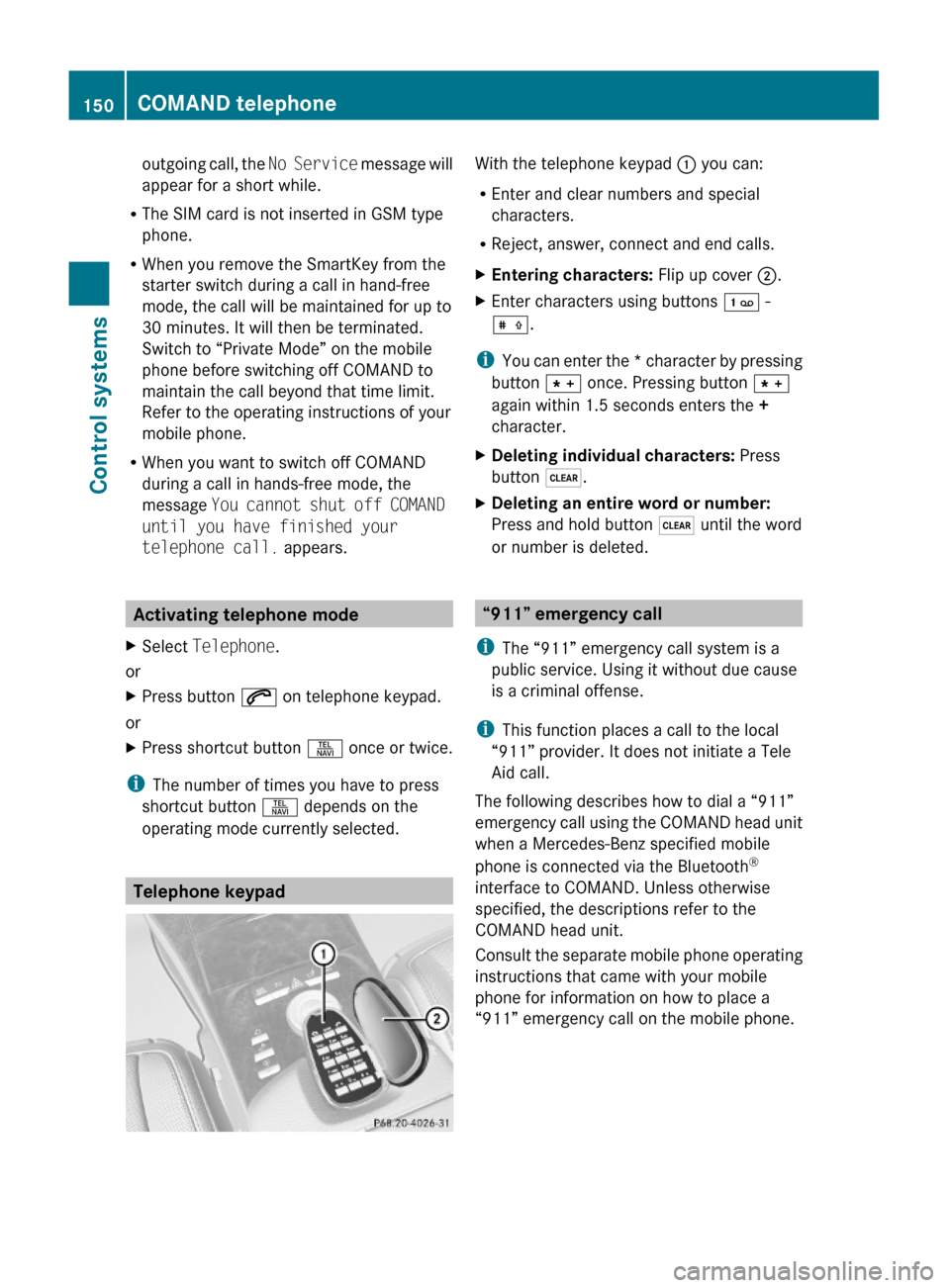
With the telephone keypad : you can:
REnter and clear numbers and special
characters.
RReject, answer, connect and end calls.
XEntering characters: Flip up cover ;.XEnter characters using buttons ´ -
Æ.
iYou can enter the * character by pressing
button à once. Pressing button Ã
again within 1.5 seconds enters the +
character.
XDeleting individual characters: Press
button $.
XDeleting an entire word or number:
Press and hold button $ until the word
or number is deleted.
“911” emergency call
iThe “911” emergency call system is a
public service. Using it without due cause
is a criminal offense.
iThis function places a call to the local
“911” provider. It does not initiate a Tele
Aid call.
The following describes how to dial a “911”
emergency call using the COMAND head unit
when a Mercedes-Benz specified mobile
phone is connected via the Bluetooth®
interface to COMAND. Unless otherwise
specified, the descriptions refer to the
COMAND head unit.
Consult the separate mobile phone operating
instructions that came with your mobile
phone for information on how to place a
“911” emergency call on the mobile phone.
150COMAND telephoneControl systems
221_AKB; 6; 20, en-USd2ugruen,Version: 2.11.8.12009-09-24T13:28:17+02:00 - Seite 150
Page 153 of 548
The following conditions must be met for a
“911” emergency call via COMAND:
RMobile phone must be switched on.
RThe corresponding mobile
communications network must be
available.
iEmergency calls may not be possible with
all telephone networks or if certain network
services and/or telephone functions are
active. Check with your local service
providers.
If you cannot make an emergency call, you
will have to initiate rescue measures yourself.
Placing a “911” emergency call using
COMAND with the mobile phone
unlocked
XPress button S to switch to telephone
mode.
XEnter 911 using the telephone keypad in
the center console.
XPress button 6 on the telephone
keypad in the center console.
or
XSelect 6 in the COMAND display and
press W for dialing to begin.
Connecting call… appears in the
COMAND display while the mobile phone
establishes the connection.
XWait until the emergency call center
answers, then describe the emergency.
iDepending on the phone type, if no SIM
card is inserted in a GSM mobile phone or
if there is no service on a CDMA mobile
phone, NO SERVICE may appear in the
COMAND display. In that case, you only can
make an emergency call on the mobile
phone itself, without the use of COMAND.
Placing a “911” emergency call with the
mobile phone locked
iIf the mobile phone is locked, you only can
make an emergency call on the mobile
phone itself, without the use of COMAND.
Bluetooth interface
Bluetooth® is a technology for wireless
exchange of data over short distances of up
to approximately 33 feet (10 m). You can
connect your mobile phone to COMAND or
exchange vCards using Bluetooth®.
Activating and deactivating Bluetooth®
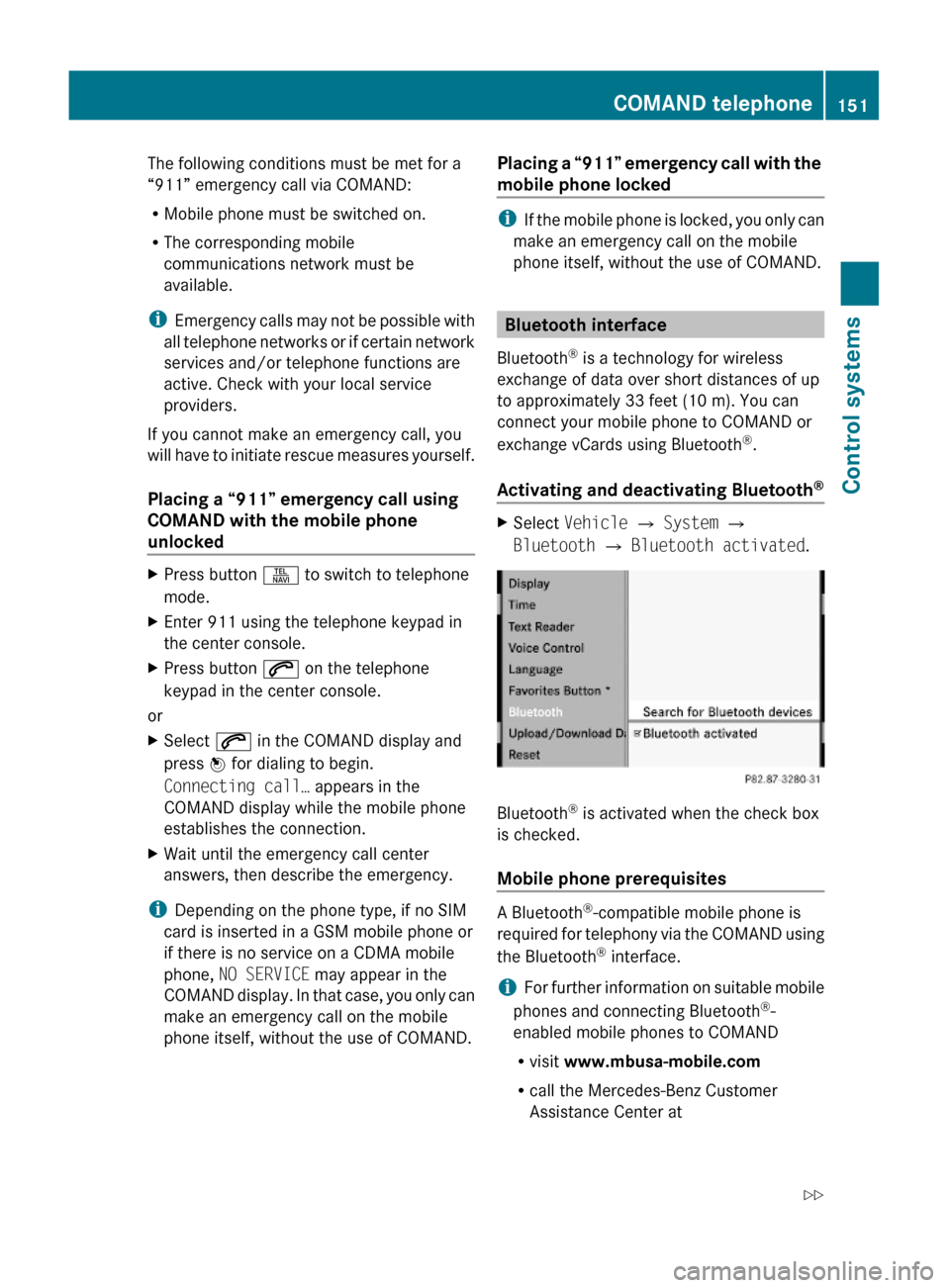
XSelect Vehicle Q System Q
Bluetooth Q Bluetooth activated.
Bluetooth® is activated when the check box
is checked.
Mobile phone prerequisites
A Bluetooth®-compatible mobile phone is
required for telephony via the COMAND using
the Bluetooth® interface.
iFor further information on suitable mobile
phones and connecting Bluetooth®-
enabled mobile phones to COMAND
Rvisit www.mbusa-mobile.com
Rcall the Mercedes-Benz Customer
Assistance Center at
COMAND telephone151Control systems221_AKB; 6; 20, en-USd2ugruen,Version: 2.11.8.12009-09-24T13:28:17+02:00 - Seite 151Z
Page 154 of 548
1-800-FOR-MERCedes
(1-800-367-6372) (in the USA)
R call Customer Service at
1-800-387-0100 (in Canada)
The battery of the mobile phone should
always be charged sufficiently to avoid
malfunctions.
You should check the following on your
mobile phone (see your mobile phone
operating instructions) to prepare for
telephony via the Bluetooth ®
interface:
R Hands-Free Profile (HFP)
The mobile phone must support Hands-
Free Profile 1.0 or higher.
i Some displays, such as the signal
strength, appear depending on the
supported Hands-Free Profile version.
R Bluetooth ®
visibility
With certain mobile phones, the
Bluetooth ®
function must be activated but
also made "visible" to other devices.
R Bluetooth ®
device name
Each Bluetooth ®
device has a Bluetooth ®
device name. The device name is arbitrary,
but it may be identical for all devices of a
single mobile phone manufacturer. You
should therefore assign an individual and
unique device name to your mobile phone.
Connecting the mobile phoneXSwitch on the mobile phone and enter the
PIN. Refer to the mobile phone operating
instructions for details.XActivate the Bluetooth ®
functionality on
the mobile phone. Refer to mobile phone
operating instructions for detail.
Bluetooth ®
is activated in the COMAND by
default. If the Bluetooth function in the
COMAND is not activated, the message
Bluetooth not activated in system
settings. appears. Activate Bluetooth ®
in
the COMAND manually ( Y page 151).
Authorizing the mobile phone
The mobile phone must be registered, e.g.
authorized, before you can use it in
connection with COMAND for the first time.
You can authorize several mobile phones.
COMAND will always connect to the last
connected mobile phone within range.
i If the connection to the last connected
mobile phone fails, COMAND searches for
the mobile phone that was connected
before that.
When authorizing a new mobile phone, it will
be connected automatically 11
.XSelect Data/Connections Q
Bluetooth Telephones Q Update .
The COMAND searches for Bluetooth ®
devices within range and lists them in the
Bluetooth ®
phone list.
The duration of the search depends on the
number of Bluetooth ®
devices within range
and the characteristics of the mobile
phone, such as Hands-Free Profile version
and possibly required visibility.11 Function available if supported by the mobile phone.152COMAND telephoneControl systems
221_AKB; 6; 20, en-USd2ugruen,Version: 2.11.8.12009-09-24T13:28:17+02:00 - Seite 152
Page 157 of 548
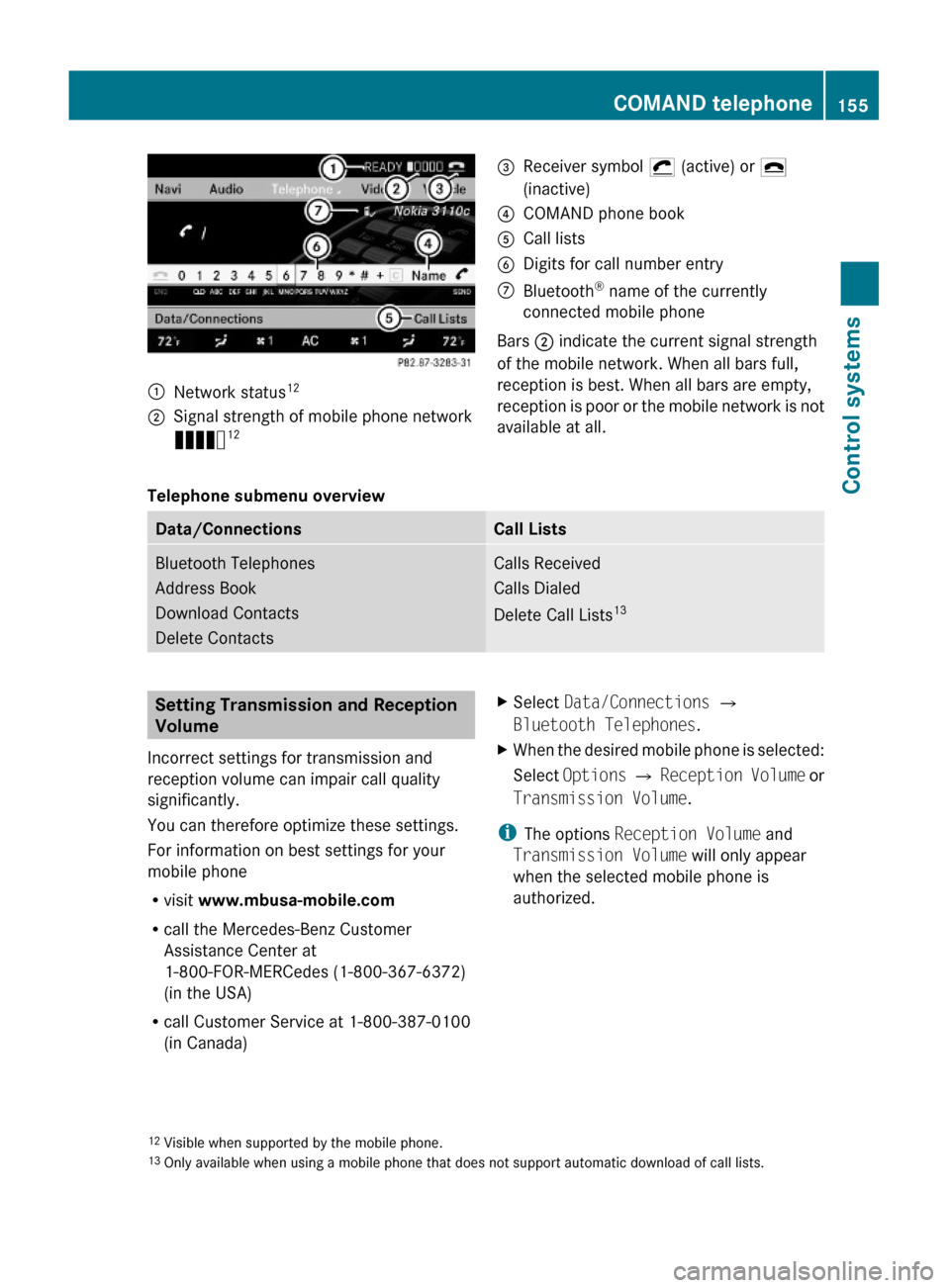
:Network status12;Signal strength of mobile phone network
Ä12=Receiver symbol ¡ (active) or ¢
(inactive)
?COMAND phone bookACall listsBDigits for call number entryCBluetooth® name of the currently
connected mobile phone
Bars ; indicate the current signal strength
of the mobile network. When all bars full,
reception is best. When all bars are empty,
reception is poor or the mobile network is not
available at all.
Telephone submenu overview
Data/ConnectionsCall ListsBluetooth Telephones
Address Book
Download Contacts
Delete Contacts
Calls Received
Calls Dialed
Delete Call Lists13
Setting Transmission and Reception
Volume
Incorrect settings for transmission and
reception volume can impair call quality
significantly.
You can therefore optimize these settings.
For information on best settings for your
mobile phone
Rvisit www.mbusa-mobile.com
Rcall the Mercedes-Benz Customer
Assistance Center at
1-800-FOR-MERCedes (1-800-367-6372)
(in the USA)
Rcall Customer Service at 1-800-387-0100
(in Canada)
XSelect Data/Connections Q
Bluetooth Telephones.
XWhen the desired mobile phone is selected:
Select Options Q Reception Volume or
Transmission Volume.
iThe options Reception Volume and
Transmission Volume will only appear
when the selected mobile phone is
authorized.
12Visible when supported by the mobile phone.13Only available when using a mobile phone that does not support automatic download of call lists.
COMAND telephone155Control systems221_AKB; 6; 20, en-USd2ugruen,Version: 2.11.8.12009-09-24T13:28:17+02:00 - Seite 155Z
Page 169 of 548
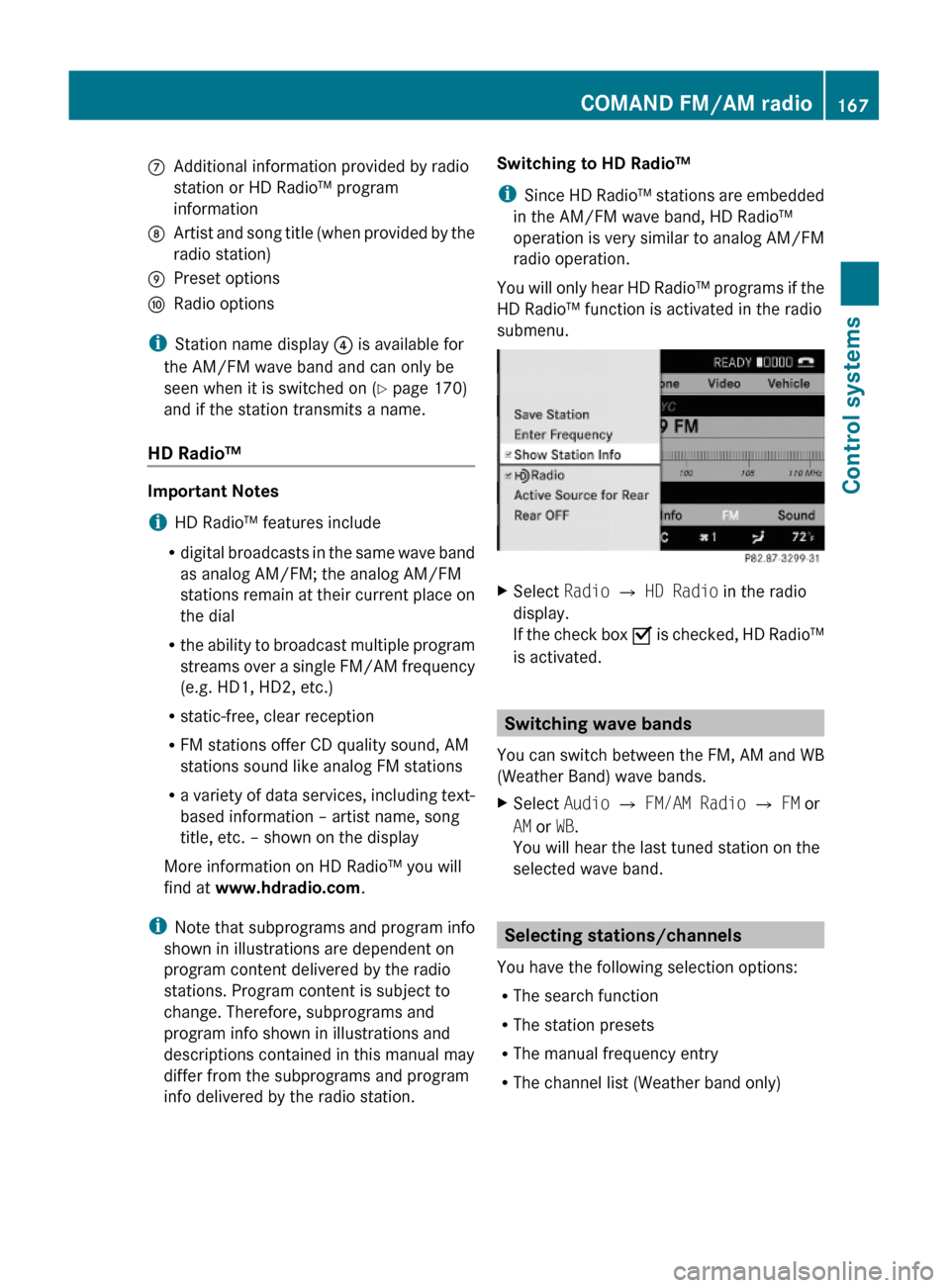
CAdditional information provided by radio
station or HD Radio™ program
information
DArtist and song title (when provided by the
radio station)
EPreset optionsFRadio options
iStation name display ? is available for
the AM/FM wave band and can only be
seen when it is switched on (Y page 170)
and if the station transmits a name.
HD Radio™
Important Notes
iHD Radio™ features include
Rdigital broadcasts in the same wave band
as analog AM/FM; the analog AM/FM
stations remain at their current place on
the dial
Rthe ability to broadcast multiple program
streams over a single FM/AM frequency
(e.g. HD1, HD2, etc.)
Rstatic-free, clear reception
RFM stations offer CD quality sound, AM
stations sound like analog FM stations
Ra variety of data services, including text-
based information – artist name, song
title, etc. – shown on the display
More information on HD Radio™ you will
find at www.hdradio.com.
iNote that subprograms and program info
shown in illustrations are dependent on
program content delivered by the radio
stations. Program content is subject to
change. Therefore, subprograms and
program info shown in illustrations and
descriptions contained in this manual may
differ from the subprograms and program
info delivered by the radio station.
Switching to HD Radio™
iSince HD Radio™ stations are embedded
in the AM/FM wave band, HD Radio™
operation is very similar to analog AM/FM
radio operation.
You will only hear HD Radio™ programs if the
HD Radio™ function is activated in the radio
submenu.
XSelect Radio £ HD Radio in the radio
display.
If the check box Ç is checked, HD Radio™
is activated.
Switching wave bands
You can switch between the FM, AM and WB
(Weather Band) wave bands.
XSelect Audio Q FM/AM Radio Q FM or
AM or WB.
You will hear the last tuned station on the
selected wave band.
Selecting stations/channels
You have the following selection options:
RThe search function
RThe station presets
RThe manual frequency entry
RThe channel list (Weather band only)
COMAND FM/AM radio167Control systems221_AKB; 6; 20, en-USd2ugruen,Version: 2.11.8.12009-09-24T13:28:17+02:00 - Seite 167Z
Page 173 of 548
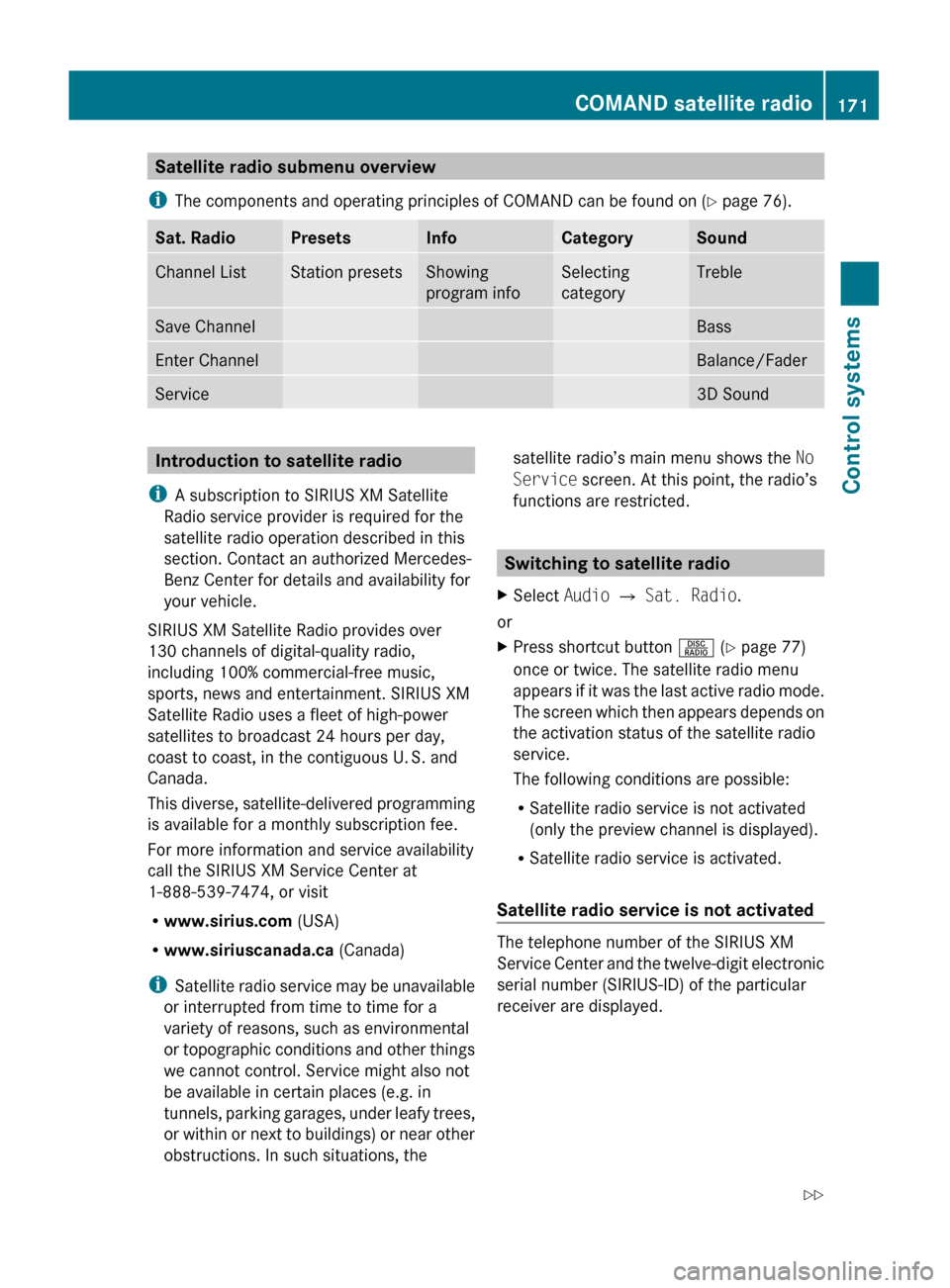
Satellite radio submenu overview
i The components and operating principles of COMAND can be found on ( Y page 76).Sat. RadioPresetsInfoCategorySoundChannel ListStation presetsShowing
program infoSelecting
categoryTrebleSave ChannelBassEnter ChannelBalance/FaderService3D SoundIntroduction to satellite radio
i A subscription to SIRIUS XM Satellite
Radio service provider is required for the
satellite radio operation described in this
section. Contact an authorized Mercedes-
Benz Center for details and availability for
your vehicle.
SIRIUS XM Satellite Radio provides over
130 channels of digital-quality radio,
including 100% commercial-free music,
sports, news and entertainment. SIRIUS XM
Satellite Radio uses a fleet of high-power
satellites to broadcast 24 hours per day,
coast to coast, in the contiguous U. S. and
Canada.
This diverse, satellite-delivered programming
is available for a monthly subscription fee.
For more information and service availability
call the SIRIUS XM Service Center at
1-888-539-7474, or visit
R www.sirius.com (USA)
R www.siriuscanada.ca (Canada)
i Satellite radio service may be unavailable
or interrupted from time to time for a
variety of reasons, such as environmental
or topographic conditions and other things
we cannot control. Service might also not
be available in certain places (e.g. in
tunnels, parking garages, under leafy trees,
or within or next to buildings) or near other
obstructions. In such situations, thesatellite radio’s main menu shows the No
Service screen. At this point, the radio’s
functions are restricted.
Switching to satellite radio
XSelect Audio Q Sat. Radio .
or
XPress shortcut button R (Y page 77)
once or twice. The satellite radio menu
appears if it was the last active radio mode.
The screen which then appears depends on
the activation status of the satellite radio
service.
The following conditions are possible:
R Satellite radio service is not activated
(only the preview channel is displayed).
R Satellite radio service is activated.
Satellite radio service is not activated
The telephone number of the SIRIUS XM
Service Center and the twelve-digit electronic
serial number (SIRIUS-ID) of the particular
receiver are displayed.
COMAND satellite radio171Control systems221_AKB; 6; 20, en-USd2ugruen,Version: 2.11.8.12009-09-24T13:28:17+02:00 - Seite 171Z
Page 174 of 548
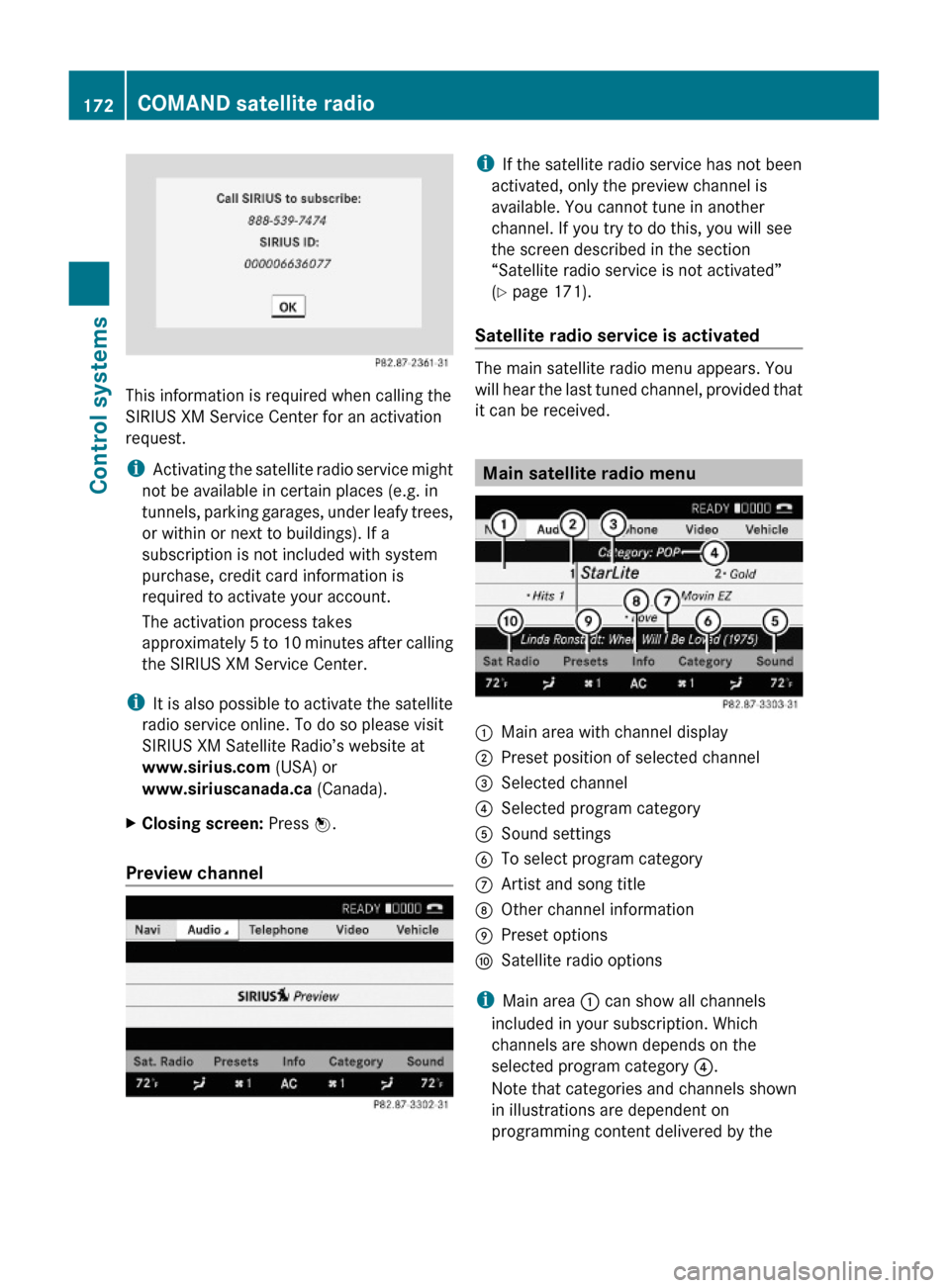
This information is required when calling the
SIRIUS XM Service Center for an activation
request.
iActivating the satellite radio service might
not be available in certain places (e.g. in
tunnels, parking garages, under leafy trees,
or within or next to buildings). If a
subscription is not included with system
purchase, credit card information is
required to activate your account.
The activation process takes
approximately 5 to 10 minutes after calling
the SIRIUS XM Service Center.
iIt is also possible to activate the satellite
radio service online. To do so please visit
SIRIUS XM Satellite Radio’s website at
www.sirius.com (USA) or
www.siriuscanada.ca (Canada).
XClosing screen: Press W.
Preview channel
iIf the satellite radio service has not been
activated, only the preview channel is
available. You cannot tune in another
channel. If you try to do this, you will see
the screen described in the section
“Satellite radio service is not activated”
(Y page 171).
Satellite radio service is activated
The main satellite radio menu appears. You
will hear the last tuned channel, provided that
it can be received.
Main satellite radio menu
:Main area with channel display;Preset position of selected channel=Selected channel?Selected program categoryASound settingsBTo select program categoryCArtist and song titleDOther channel informationEPreset optionsFSatellite radio options
iMain area : can show all channels
included in your subscription. Which
channels are shown depends on the
selected program category ?.
Note that categories and channels shown
in illustrations are dependent on
programming content delivered by the
172COMAND satellite radioControl systems
221_AKB; 6; 20, en-USd2ugruen,Version: 2.11.8.12009-09-24T13:28:17+02:00 - Seite 172
Page 175 of 548
service provider. Programming content is
subject to change.
Therefore, channel and categories shown
in illustrations and descriptions contained
in this manual may differ from the channels
and categories delivered by the service
provider.
Selecting program category
iThe channels are categorized. Categories
allow you to tune to stations broadcasting
a certain type of program.
Satellite radio channels are split up into
categories such as News, Sports, Rock, or
Country, if available.
XSelect Audio Q Sat. Radio Q
Category.
The category list appears.
XSelect category by rotating cVd or sliding
ZVÆ and press W.
When selecting a channel using the
channel search function or the channel list,
you have access to the channels you
subscribe to and which are included in the
selected category.
iWhen you select the category All
Channels, you have access to all the
channels you subscribe to, regardless of
category, when you are tuning in a channel
using the channel search function or the
channel list.
Tuning in channels
You have the following selection options:
Rthe channel search function
Rthe channel presets
Rthe manual channel number entry
Rthe channel list
Tuning in channels using channel
search function
iIf you try to tune in a channel when the
satellite radio service is not activated, you
will see the screen described in the section
“Satellite radio service is not activated”
(Y page 171).
XSlide XVY or rotate cVd when the main
area is selected.
Depending on the direction in which the
controller is being pressed or rotated, the
system searches upward or downward and
stops at the next receivable channel.
iWhich channels are found by the channel
search function depends on which
channels you have subscribed to and the
program category you have selected
(Y page 173).
Tuning in channels using channel
presets
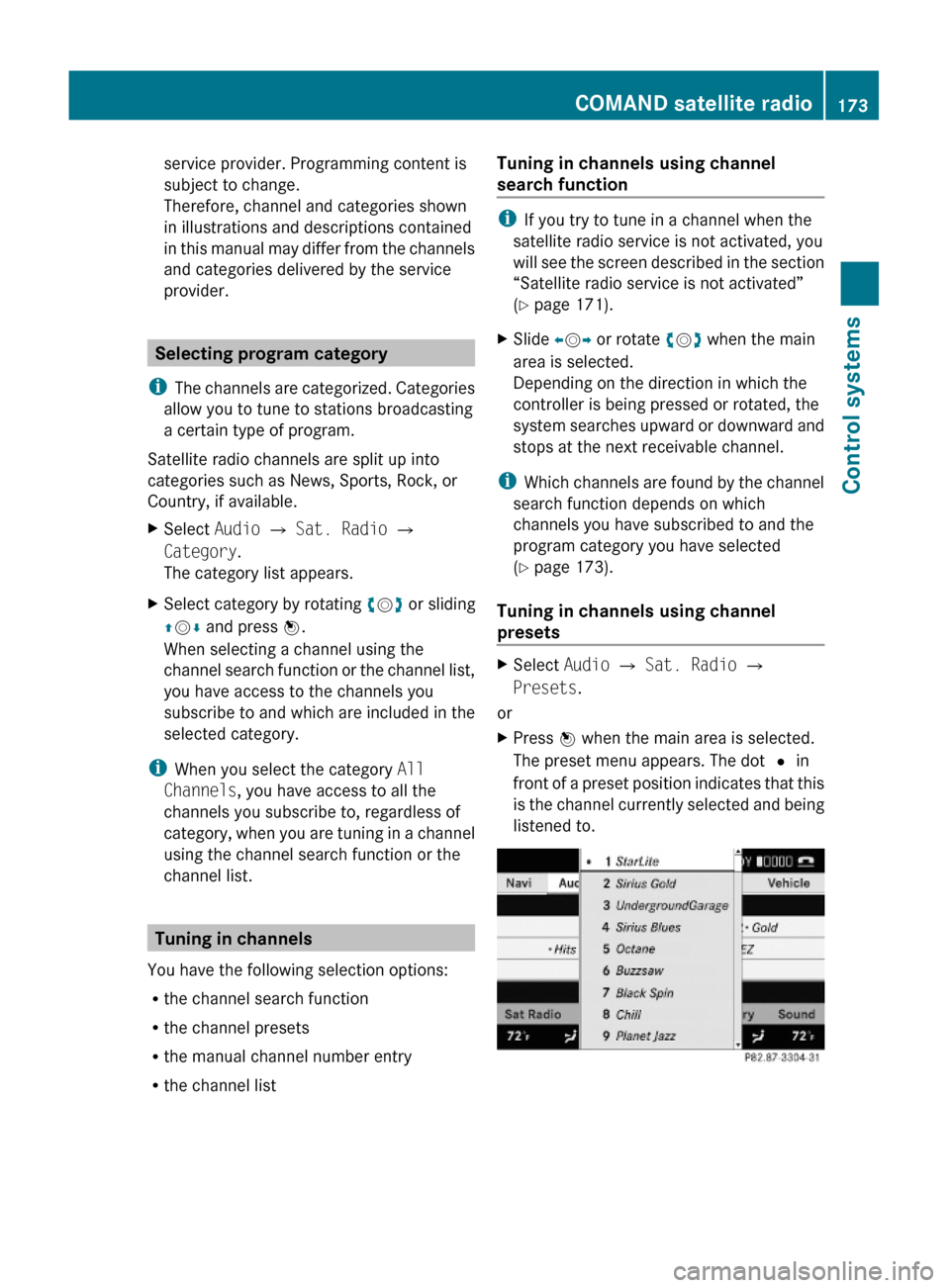
XSelect Audio Q Sat. Radio Q
Presets.
or
XPress W when the main area is selected.
The preset menu appears. The dot # in
front of a preset position indicates that this
is the channel currently selected and being
listened to.
COMAND satellite radio173Control systems221_AKB; 6; 20, en-USd2ugruen,Version: 2.11.8.12009-09-24T13:28:17+02:00 - Seite 173Z