wheel MERCEDES-BENZ S63AMG 2010 W221 Repair Manual
[x] Cancel search | Manufacturer: MERCEDES-BENZ, Model Year: 2010, Model line: S63AMG, Model: MERCEDES-BENZ S63AMG 2010 W221Pages: 548, PDF Size: 12.48 MB
Page 257 of 548
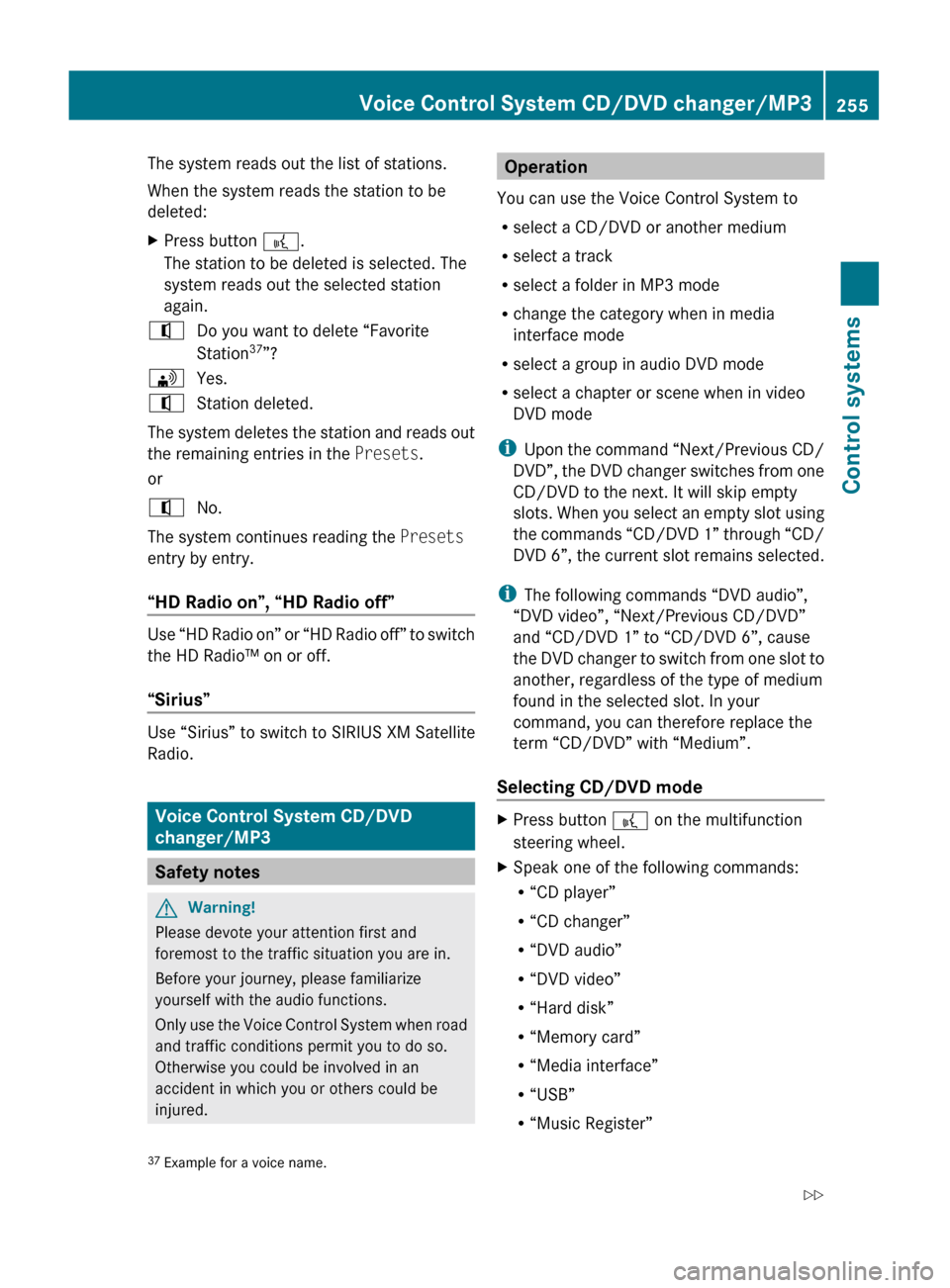
The system reads out the list of stations.
When the system reads the station to be
deleted:XPress button ?.
The station to be deleted is selected. The
system reads out the selected station
again.^Do you want to delete “Favorite
Station 37
”?\Yes.^Station deleted.
The system deletes the station and reads out
the remaining entries in the Presets.
or
^No.
The system continues reading the Presets
entry by entry.
“HD Radio on”, “HD Radio off”
Use “HD Radio on” or “HD Radio off” to switch
the HD Radio™ on or off.
“Sirius”
Use “Sirius” to switch to SIRIUS XM Satellite
Radio.
Voice Control System CD/DVD
changer/MP3
Safety notes
GWarning!
Please devote your attention first and
foremost to the traffic situation you are in.
Before your journey, please familiarize
yourself with the audio functions.
Only use the Voice Control System when road
and traffic conditions permit you to do so.
Otherwise you could be involved in an
accident in which you or others could be
injured.
Operation
You can use the Voice Control System to
R select a CD/DVD or another medium
R select a track
R select a folder in MP3 mode
R change the category when in media
interface mode
R select a group in audio DVD mode
R select a chapter or scene when in video
DVD mode
i Upon the command “Next/Previous CD/
DVD”, the DVD changer switches from one
CD/DVD to the next. It will skip empty
slots. When you select an empty slot using
the commands “CD/DVD 1” through “CD/
DVD 6”, the current slot remains selected.
i The following commands “DVD audio”,
“DVD video”, “Next/Previous CD/DVD”
and “CD/DVD 1” to “CD/DVD 6”, cause
the DVD changer to switch from one slot to
another, regardless of the type of medium
found in the selected slot. In your
command, you can therefore replace the
term “CD/DVD” with “Medium”.
Selecting CD/DVD modeXPress button ? on the multifunction
steering wheel.XSpeak one of the following commands:
R “CD player”
R “CD changer”
R “DVD audio”
R “DVD video”
R “Hard disk”
R “Memory card”
R “Media interface”
R “USB”
R “Music Register”37Example for a voice name.Voice Control System CD/DVD changer/MP3255Control systems221_AKB; 6; 20, en-USd2ugruen,Version: 2.11.8.12009-09-24T13:28:17+02:00 - Seite 255Z
Page 258 of 548
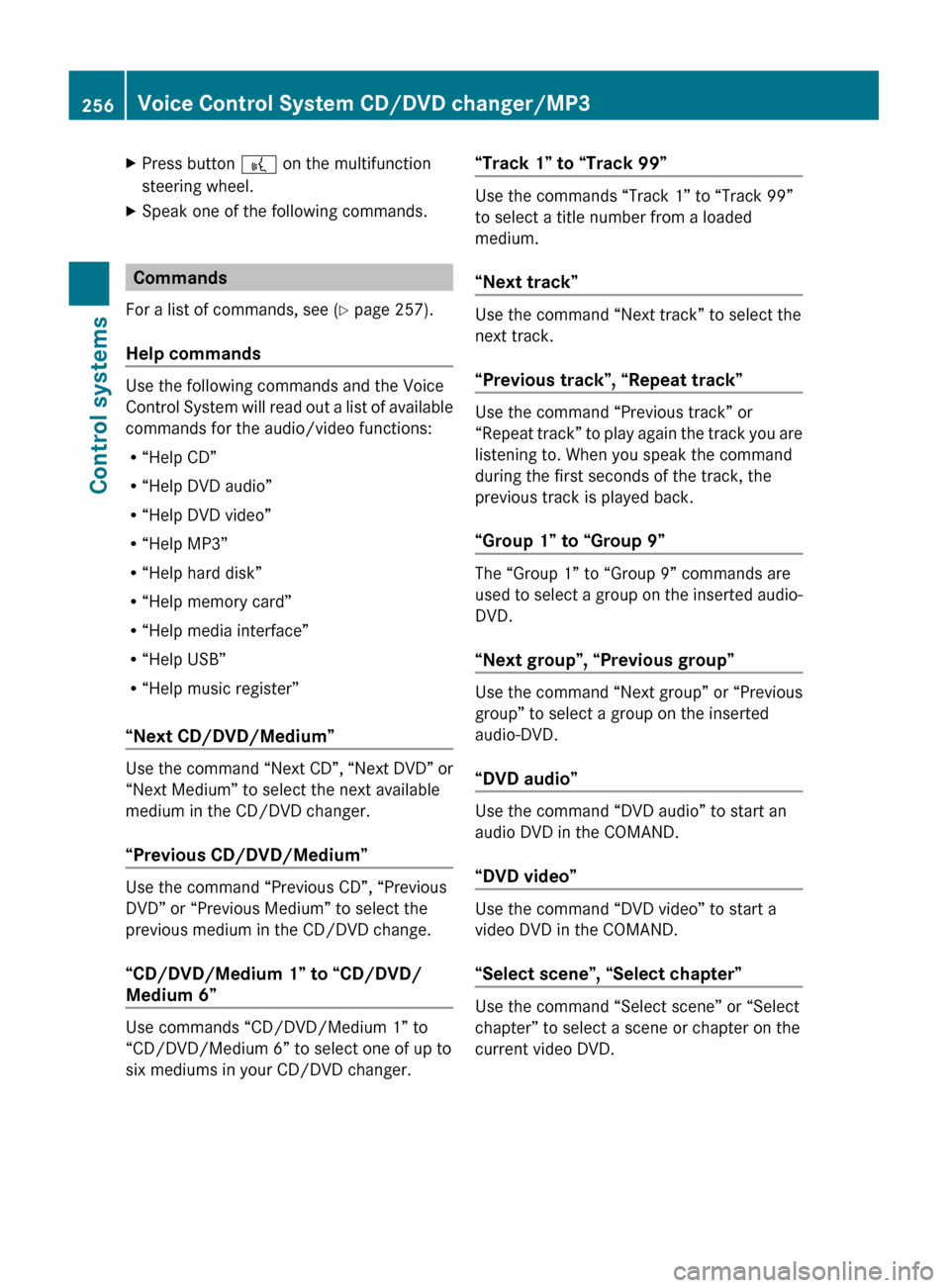
XPress button ? on the multifunction
steering wheel.XSpeak one of the following commands.
Commands
For a list of commands, see ( Y page 257).
Help commands
Use the following commands and the Voice
Control System will read out a list of available
commands for the audio/video functions:
R “Help CD”
R “Help DVD audio”
R “Help DVD video”
R “Help MP3”
R “Help hard disk”
R “Help memory card”
R “Help media interface”
R “Help USB”
R “Help music register”
“Next CD/DVD/Medium”
Use the command “Next CD”, “Next DVD” or
“Next Medium” to select the next available
medium in the CD/DVD changer.
“Previous CD/DVD/Medium”
Use the command “Previous CD”, “Previous
DVD” or “Previous Medium” to select the
previous medium in the CD/DVD change.
“CD/DVD/Medium 1” to “CD/DVD/
Medium 6”
Use commands “CD/DVD/Medium 1” to
“CD/DVD/Medium 6” to select one of up to
six mediums in your CD/DVD changer.
“Track 1” to “Track 99”
Use the commands “Track 1” to “Track 99”
to select a title number from a loaded
medium.
“Next track”
Use the command “Next track” to select the
next track.
“Previous track”, “Repeat track”
Use the command “Previous track” or
“Repeat track” to play again the track you are
listening to. When you speak the command
during the first seconds of the track, the
previous track is played back.
“Group 1” to “Group 9”
The “Group 1” to “Group 9” commands are
used to select a group on the inserted audio-
DVD.
“Next group”, “Previous group”
Use the command “Next group” or “Previous
group” to select a group on the inserted
audio-DVD.
“DVD audio”
Use the command “DVD audio” to start an
audio DVD in the COMAND.
“DVD video”
Use the command “DVD video” to start a
video DVD in the COMAND.
“Select scene”, “Select chapter”
Use the command “Select scene” or “Select
chapter” to select a scene or chapter on the
current video DVD.
256Voice Control System CD/DVD changer/MP3Control systems
221_AKB; 6; 20, en-USd2ugruen,Version: 2.11.8.12009-09-24T13:28:17+02:00 - Seite 256
Page 259 of 548
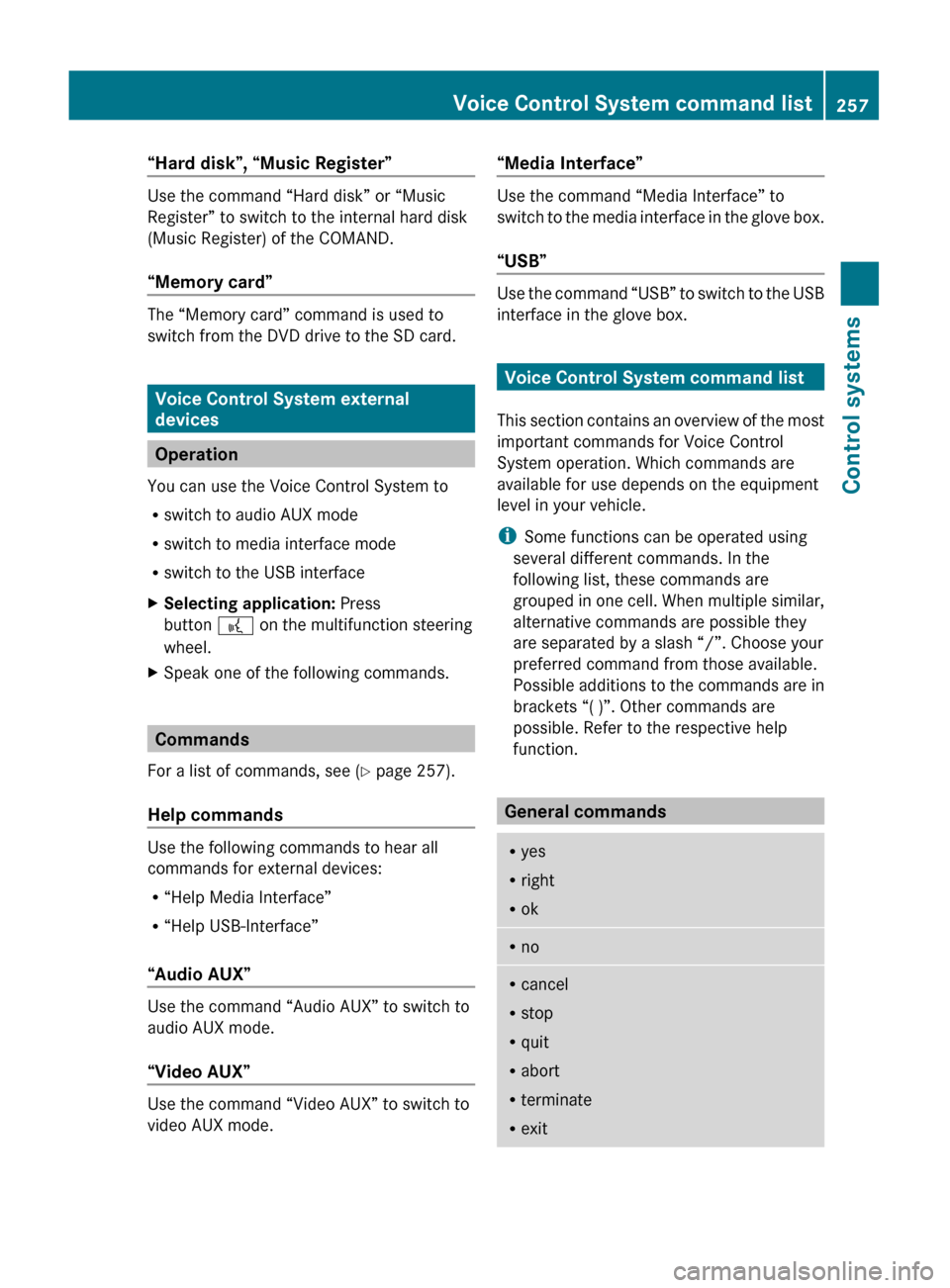
“Hard disk”, “Music Register”
Use the command “Hard disk” or “Music
Register” to switch to the internal hard disk
(Music Register) of the COMAND.
“Memory card”
The “Memory card” command is used to
switch from the DVD drive to the SD card.
Voice Control System external
devices
Operation
You can use the Voice Control System to
R switch to audio AUX mode
R switch to media interface mode
R switch to the USB interface
XSelecting application: Press
button ? on the multifunction steering
wheel.XSpeak one of the following commands.
Commands
For a list of commands, see ( Y page 257).
Help commands
Use the following commands to hear all
commands for external devices:
R “Help Media Interface”
R “Help USB-Interface”
“Audio AUX”
Use the command “Audio AUX” to switch to
audio AUX mode.
“Video AUX”
Use the command “Video AUX” to switch to
video AUX mode.
“Media Interface”
Use the command “Media Interface” to
switch to the media interface in the glove box.
“USB”
Use the command “USB” to switch to the USB
interface in the glove box.
Voice Control System command list
This section contains an overview of the most
important commands for Voice Control
System operation. Which commands are
available for use depends on the equipment
level in your vehicle.
i Some functions can be operated using
several different commands. In the
following list, these commands are
grouped in one cell. When multiple similar,
alternative commands are possible they
are separated by a slash “/”. Choose your
preferred command from those available.
Possible additions to the commands are in
brackets “( )”. Other commands are
possible. Refer to the respective help
function.
General commands
R yes
R right
R okRnoRcancel
R stop
R quit
R abort
R terminate
R exitVoice Control System command list257Control systems221_AKB; 6; 20, en-USd2ugruen,Version: 2.11.8.12009-09-24T13:28:17+02:00 - Seite 257Z
Page 269 of 548
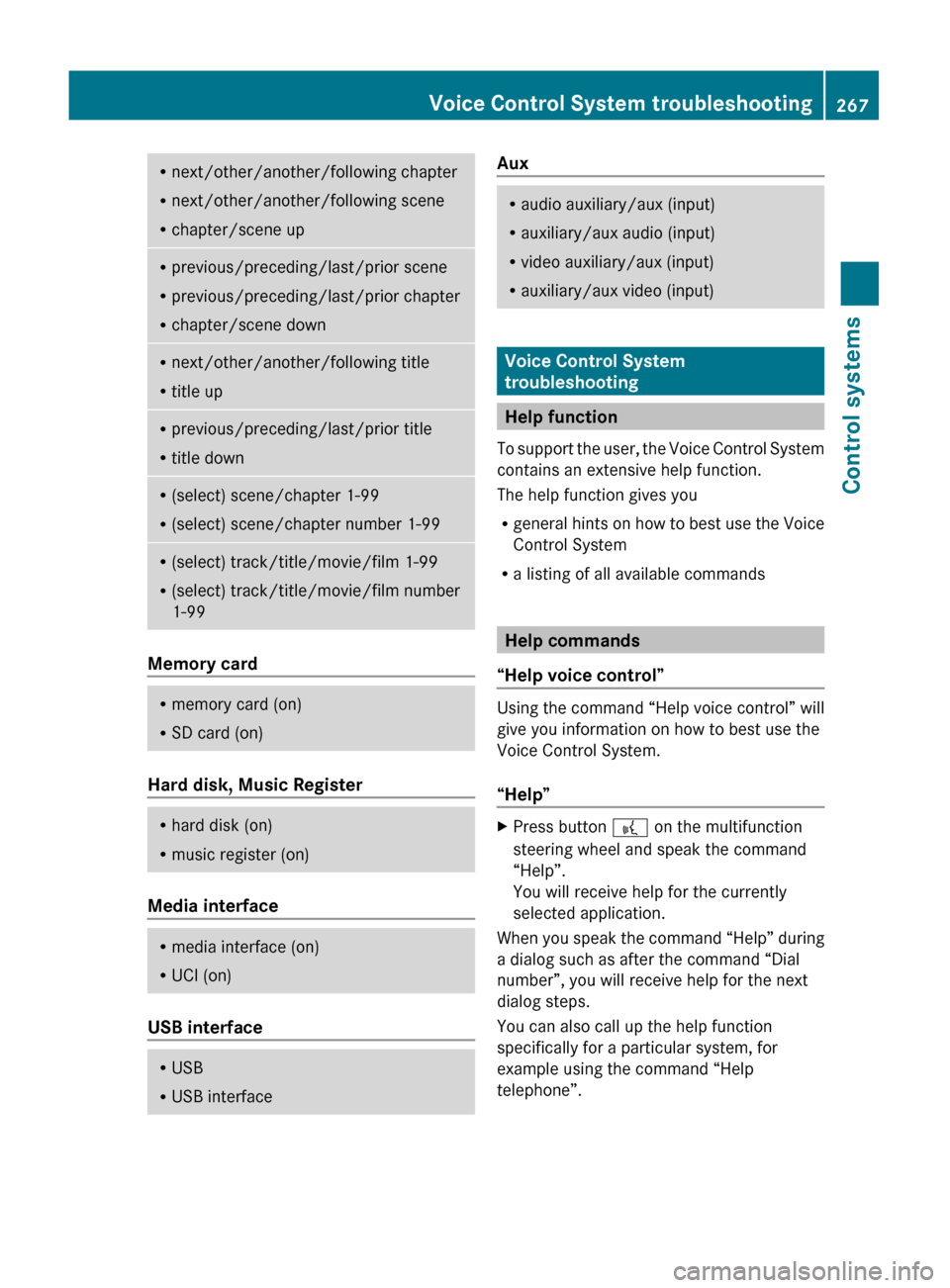
Rnext/other/another/following chapter
R next/other/another/following scene
R chapter/scene upRprevious/preceding/last/prior scene
R previous/preceding/last/prior chapter
R chapter/scene downRnext/other/another/following title
R title upRprevious/preceding/last/prior title
R title downR(select) scene/chapter 1-99
R (select) scene/chapter number 1-99R(select) track/title/movie/film 1-99
R (select) track/title/movie/film number
1-99
Memory card
R memory card (on)
R SD card (on)
Hard disk, Music Register
R
hard disk (on)
R music register (on)
Media interface
R
media interface (on)
R UCI (on)
USB interface
R
USB
R USB interfaceAuxRaudio auxiliary/aux (input)
R auxiliary/aux audio (input)
R video auxiliary/aux (input)
R auxiliary/aux video (input)
Voice Control System
troubleshooting
Help function
To support the user, the Voice Control System
contains an extensive help function.
The help function gives you
R general hints on how to best use the Voice
Control System
R a listing of all available commands
Help commands
“Help voice control”
Using the command “Help voice control” will
give you information on how to best use the
Voice Control System.
“Help”
XPress button ? on the multifunction
steering wheel and speak the command
“Help”.
You will receive help for the currently
selected application.
When you speak the command “Help” during
a dialog such as after the command “Dial
number”, you will receive help for the next
dialog steps.
You can also call up the help function
specifically for a particular system, for
example using the command “Help
telephone”.
Voice Control System troubleshooting267Control systems221_AKB; 6; 20, en-USd2ugruen,Version: 2.11.8.12009-09-24T13:28:17+02:00 - Seite 267Z
Page 271 of 548
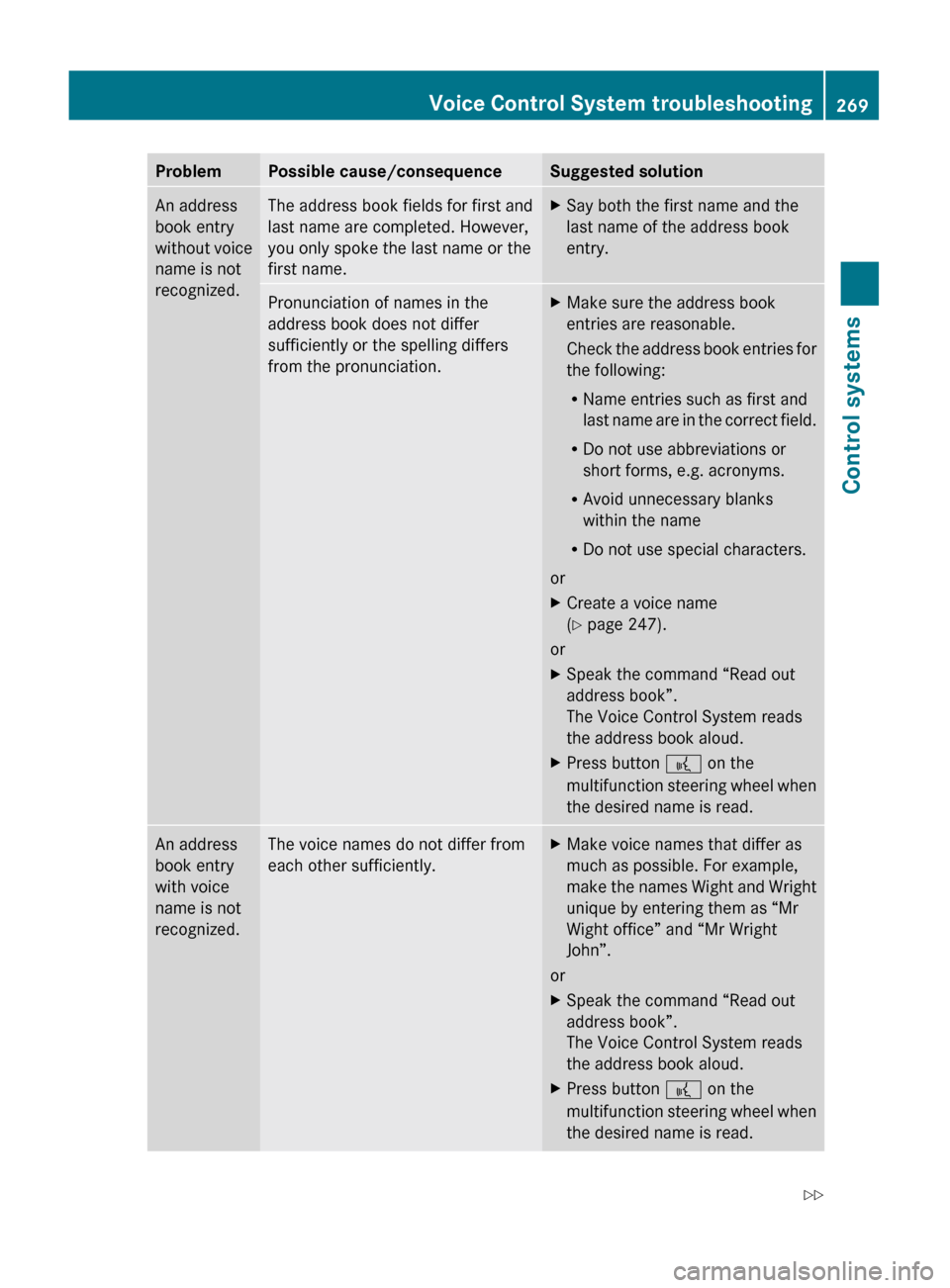
ProblemPossible cause/consequenceSuggested solutionAn address
book entry
without voice
name is not
recognized.The address book fields for first and
last name are completed. However,
you only spoke the last name or the
first name.XSay both the first name and the
last name of the address book
entry.Pronunciation of names in the
address book does not differ
sufficiently or the spelling differs
from the pronunciation.XMake sure the address book
entries are reasonable.
Check the address book entries for
the following:
R Name entries such as first and
last name are in the correct field.
R Do not use abbreviations or
short forms, e.g. acronyms.
R Avoid unnecessary blanks
within the name
R Do not use special characters.
or
XCreate a voice name
( Y page 247).
or
XSpeak the command “Read out
address book”.
The Voice Control System reads
the address book aloud.XPress button ? on the
multifunction steering wheel when
the desired name is read.An address
book entry
with voice
name is not
recognized.The voice names do not differ from
each other sufficiently.XMake voice names that differ as
much as possible. For example,
make the names Wight and Wright
unique by entering them as “Mr
Wight office” and “Mr Wright
John”.
or
XSpeak the command “Read out
address book”.
The Voice Control System reads
the address book aloud.XPress button ? on the
multifunction steering wheel when
the desired name is read.Voice Control System troubleshooting269Control systems221_AKB; 6; 20, en-USd2ugruen,Version: 2.11.8.12009-09-24T13:28:17+02:00 - Seite 269Z
Page 272 of 548
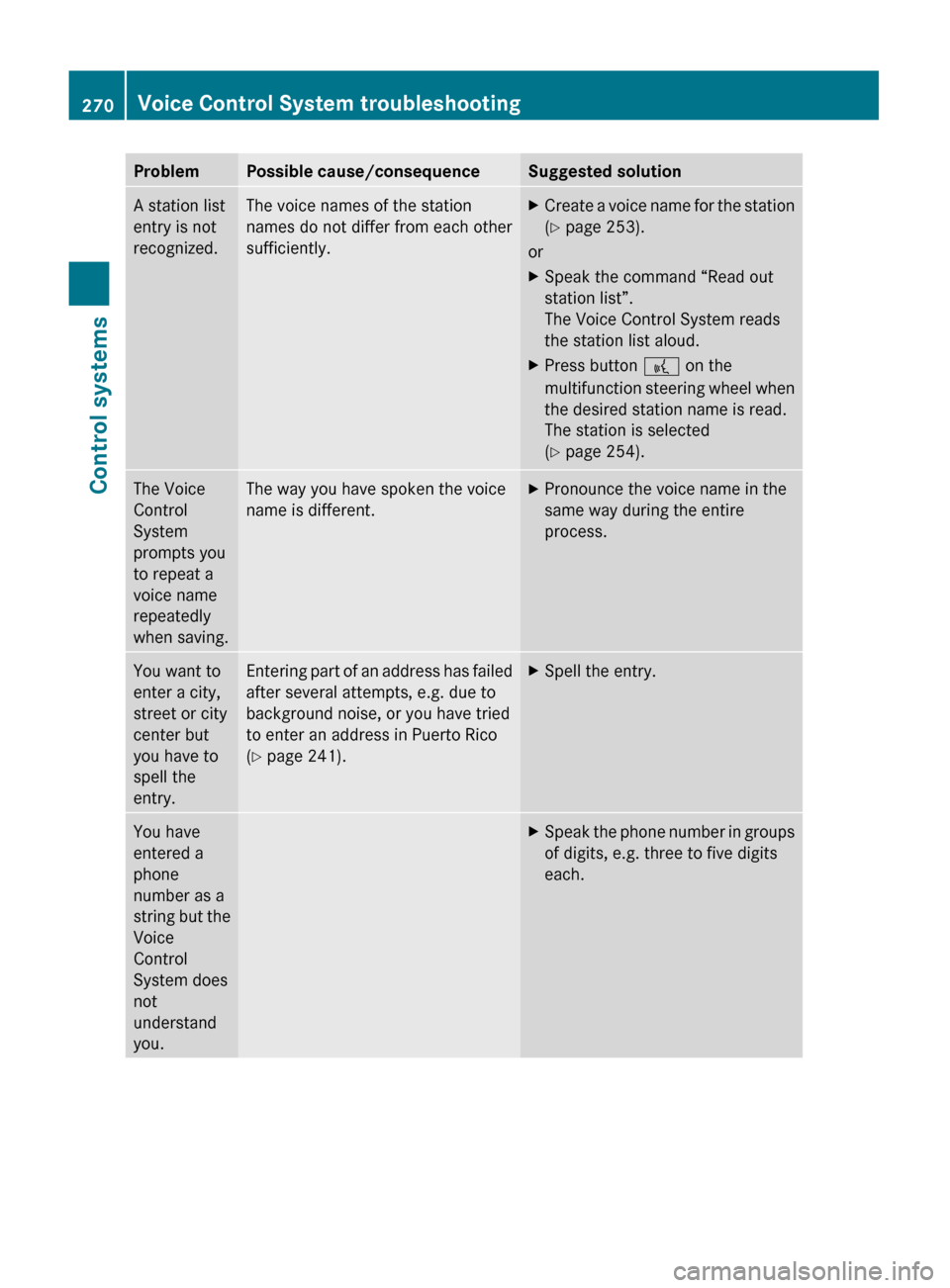
ProblemPossible cause/consequenceSuggested solutionA station list
entry is not
recognized.The voice names of the station
names do not differ from each other
sufficiently.XCreate a voice name for the station
( Y page 253).
or
XSpeak the command “Read out
station list”.
The Voice Control System reads
the station list aloud.XPress button ? on the
multifunction steering wheel when
the desired station name is read.
The station is selected
( Y page 254).The Voice
Control
System
prompts you
to repeat a
voice name
repeatedly
when saving.The way you have spoken the voice
name is different.XPronounce the voice name in the
same way during the entire
process.You want to
enter a city,
street or city
center but
you have to
spell the
entry.Entering part of an address has failed
after several attempts, e.g. due to
background noise, or you have tried
to enter an address in Puerto Rico
( Y page 241).XSpell the entry.You have
entered a
phone
number as a
string but the
Voice
Control
System does
not
understand
you.XSpeak the phone number in groups
of digits, e.g. three to five digits
each.270Voice Control System troubleshootingControl systems
221_AKB; 6; 20, en-USd2ugruen,Version: 2.11.8.12009-09-24T13:28:17+02:00 - Seite 270
Page 275 of 548
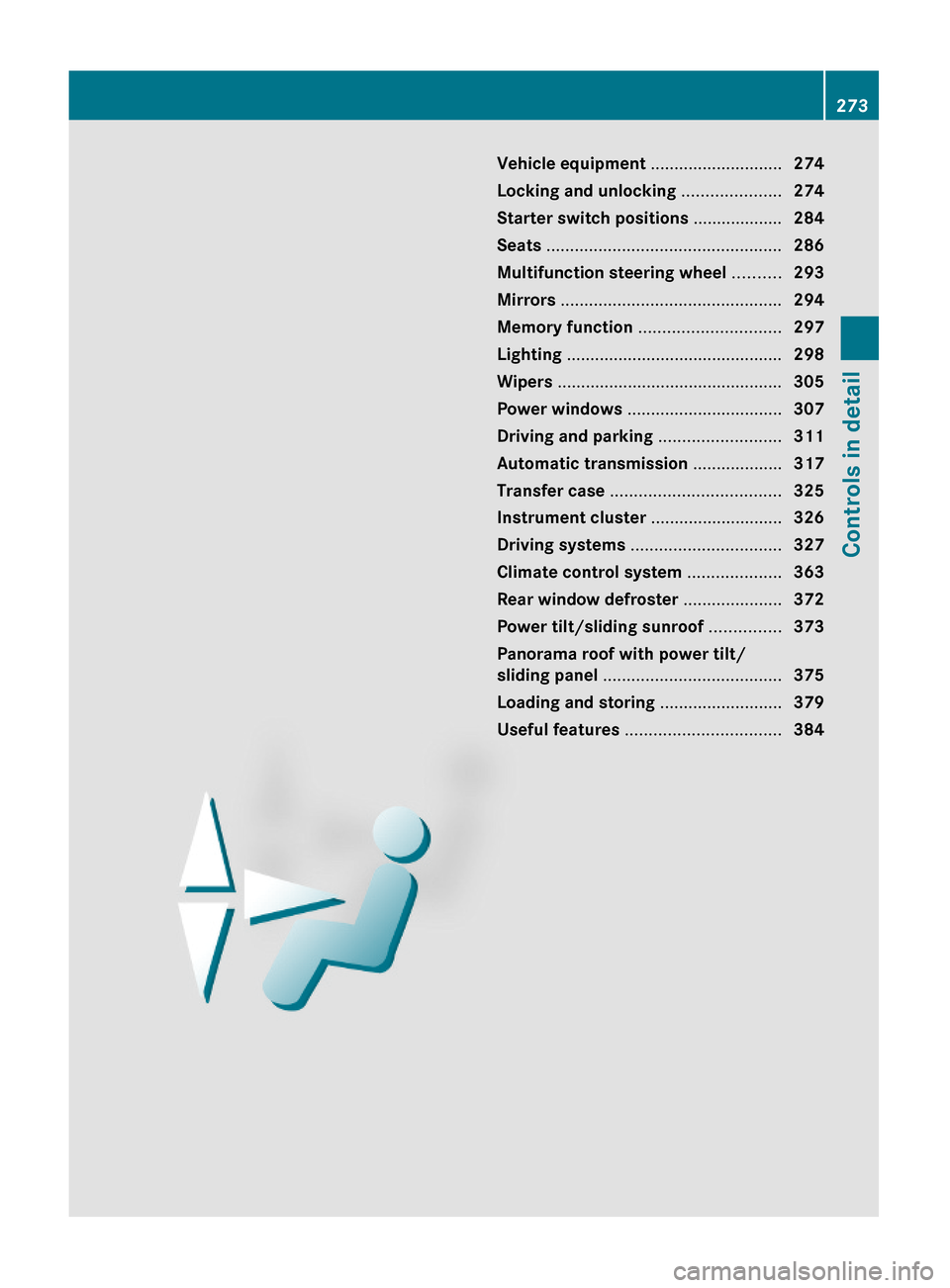
Vehicle equipment ............................274
Locking and unlocking .....................274
Starter switch positions ...................284
Seats ..................................................286
Multifunction steering wheel ..........293
Mirrors ...............................................294
Memory function ..............................297
Lighting ..............................................298
Wipers ................................................305
Power windows .................................307
Driving and parking ..........................311
Automatic transmission ...................317
Transfer case ....................................325
Instrument cluster ............................326
Driving systems ................................327
Climate control system ....................363
Rear window defroster .....................372
Power tilt/sliding sunroof ...............373
Panorama roof with power tilt/
sliding panel ......................................375
Loading and storing ..........................379
Useful features .................................384
273Controls in detail221_AKB; 6; 20, en-USd2ugruen,Version: 2.11.8.12009-09-24T13:28:17+02:00 - Seite 273
Page 281 of 548
The doors are designed to unlock
automatically after an accident if the force of
the impact exceeds a preset threshold.
The vehicle locks automatically when the
ignition is switched on and the wheels are
turning at a vehicle speed of above 9 mph
(15 km/h). You could therefore lock yourself
out when the vehicle is pushed or towed or is
on a test stand.
Locking and unlocking from the inside
GObserve Safety notes, see page 56.
You can lock or unlock the vehicle from the
inside using the central locking or unlocking
switch. This can be useful, for example, if you
want to lock the vehicle before starting to
drive.
The central locking or unlocking switch does
not lock or unlock the fuel filler flap or the
interior storage compartments, such as the
glove box.
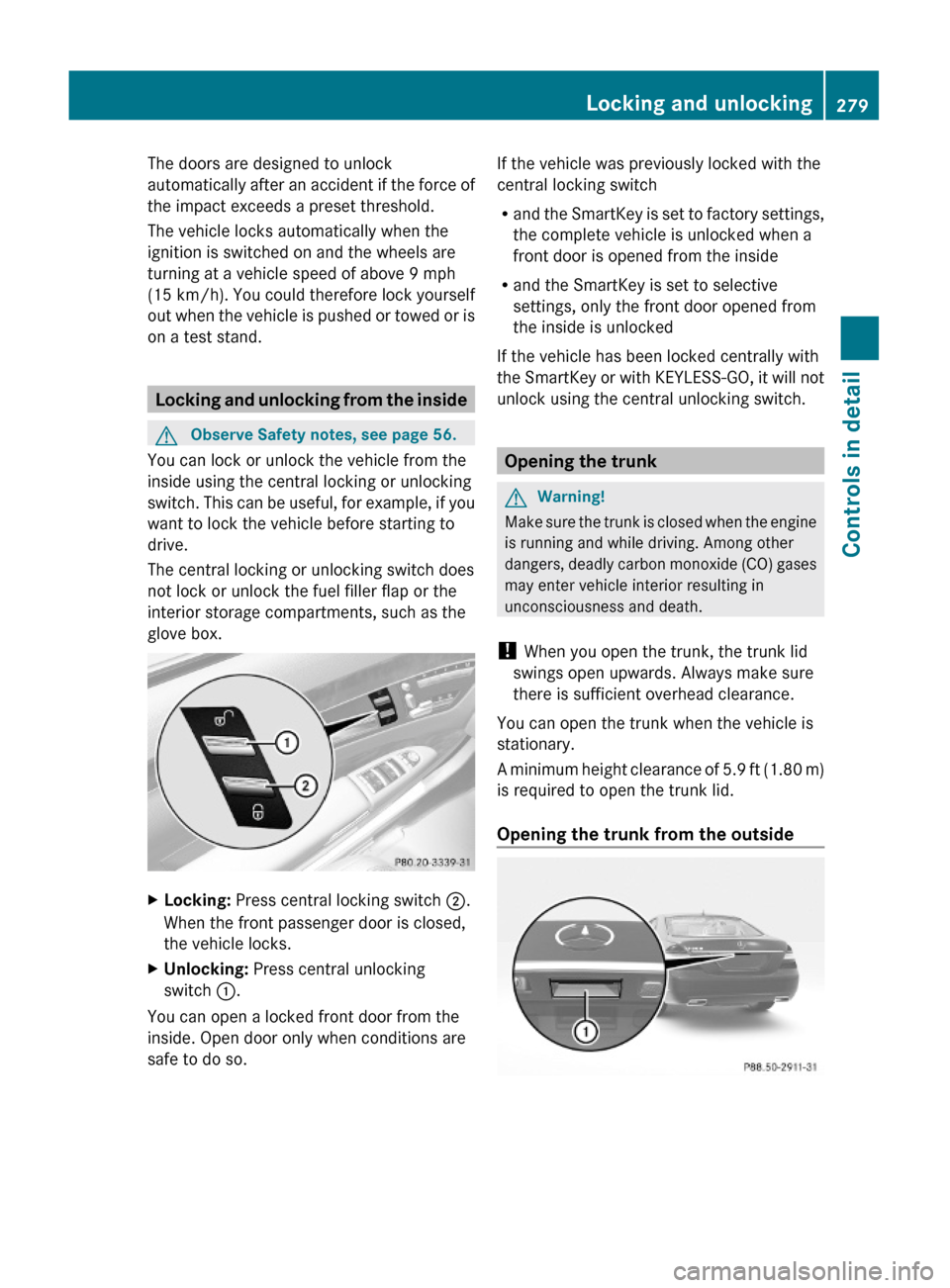
XLocking: Press central locking switch ;.
When the front passenger door is closed,
the vehicle locks.
XUnlocking: Press central unlocking
switch :.
You can open a locked front door from the
inside. Open door only when conditions are
safe to do so.
If the vehicle was previously locked with the
central locking switch
Rand the SmartKey is set to factory settings,
the complete vehicle is unlocked when a
front door is opened from the inside
Rand the SmartKey is set to selective
settings, only the front door opened from
the inside is unlocked
If the vehicle has been locked centrally with
the SmartKey or with KEYLESS-GO, it will not
unlock using the central unlocking switch.
Opening the trunk
GWarning!
Make sure the trunk is closed when the engine
is running and while driving. Among other
dangers, deadly carbon monoxide (CO) gases
may enter vehicle interior resulting in
unconsciousness and death.
! When you open the trunk, the trunk lid
swings open upwards. Always make sure
there is sufficient overhead clearance.
You can open the trunk when the vehicle is
stationary.
A minimum height clearance of 5.9 ft (1.80 m)
is required to open the trunk lid.
Opening the trunk from the outside
Locking and unlocking279Controls in detail221_AKB; 6; 20, en-USd2ugruen,Version: 2.11.8.12009-09-24T13:28:17+02:00 - Seite 279Z
Page 288 of 548
iWhen you now press the KEYLESS-GO
start/stop button once and the driver’s
door is open, the power supply is switched
off.
Seats
Safety notes
GWarning!
In order to avoid possible loss of vehicle
control the following must be done before the
vehicle is put into motion:
R seat adjustment
R head restraint adjustment
R steering wheel adjustment
R rear view mirror adjustment
R fastening of seat belts
GWarning!
Do not adjust the driver’s seat while driving.
Adjusting the seat while driving could cause
the driver to lose control of the vehicle.
Never ride in a moving vehicle with the seat
backrest in an excessively reclined position as
this can be dangerous. You could slide under
the seat belt in a collision. If you slide under
it, the seat belt would apply force at the
abdomen or neck. That could cause serious
or fatal injuries. The seat backrest and seat
belts provide the best restraint when the
wearer is in a position that is as upright as
possible and seat belts are properly
positioned on the body.
GWarning!
Your seat must be adjusted so that you can
correctly fasten your seat belt.
Observe the following points:
R Adjust the seat backrest until your arms are
slightly angled when holding the steering
wheel.
R Adjust the seat to a comfortable seating
position that still allows you to reach the
accelerator/brake pedal safely. The
position should be as far back as possible
with the driver still able to operate the
controls properly.
R Adjust the head restraint so that it is as
close to the head as possible. The center of
the head restraint must support the back of
the head at eye level.
R Never place hands under the seat or near
any moving parts while a seat is being
adjusted.
Failure to do so could result in an accident
and/or serious personal injury.GWarning!
The power seats can be operated at any time.
Therefore, do not leave children unattended
in the vehicle, or with access to an unlocked
vehicle. A child’s unsupervised access to a
vehicle could result in an accident and/or
serious personal injury.
GWarning!
According to accident statistics, children are
safer when properly restrained in the rear
seating positions than in the front seating
position. Thus, we strongly recommend that
children be placed in the rear seats whenever
possible. Regardless of seating position,
children 12 years old and under must be
seated and properly secured in an
appropriately sized infant restraint, toddler
restraint, or booster seat recommended for
the size and weight of the child. For additional
information, see “Children in the vehicle”.
A child’s risk of serious or fatal injuries is
significantly increased if the child restraints
are not properly secured in the vehicle and/
286SeatsControls in detail
221_AKB; 6; 20, en-USd2ugruen,Version: 2.11.8.12009-09-24T13:28:17+02:00 - Seite 286
Page 291 of 548
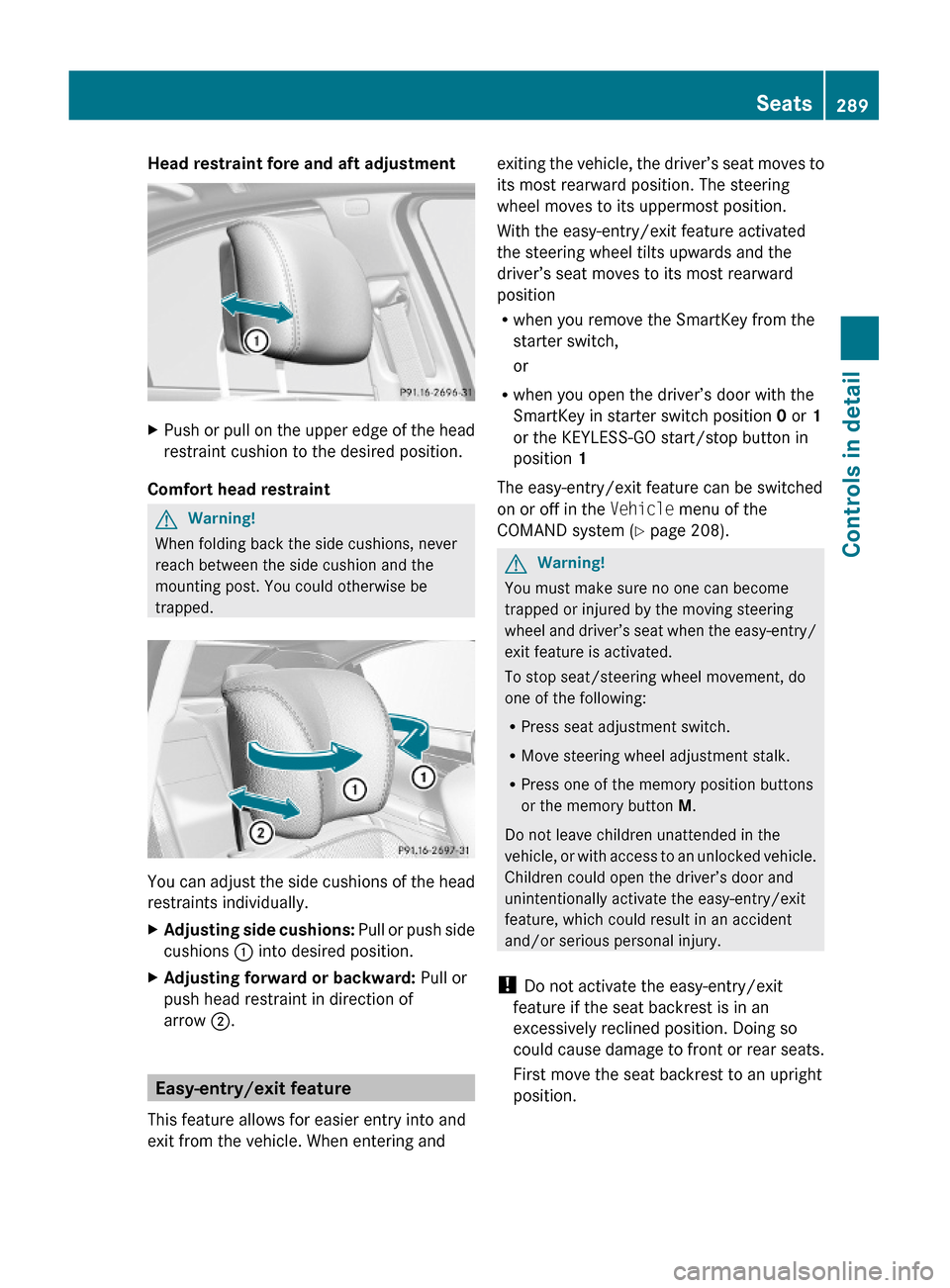
Head restraint fore and aft adjustment XPush or pull on the upper edge of the head
restraint cushion to the desired position.
Comfort head restraint
GWarning!
When folding back the side cushions, never
reach between the side cushion and the
mounting post. You could otherwise be
trapped.
You can adjust the side cushions of the head
restraints individually.
XAdjusting side cushions: Pull or push side
cushions : into desired position.
XAdjusting forward or backward: Pull or
push head restraint in direction of
arrow ;.
Easy-entry/exit feature
This feature allows for easier entry into and
exit from the vehicle. When entering and
exiting the vehicle, the driver’s seat moves to
its most rearward position. The steering
wheel moves to its uppermost position.
With the easy-entry/exit feature activated
the steering wheel tilts upwards and the
driver’s seat moves to its most rearward
position
Rwhen you remove the SmartKey from the
starter switch,
or
Rwhen you open the driver’s door with the
SmartKey in starter switch position 0 or 1
or the KEYLESS-GO start/stop button in
position 1
The easy-entry/exit feature can be switched
on or off in the Vehicle menu of the
COMAND system (Y page 208).
GWarning!
You must make sure no one can become
trapped or injured by the moving steering
wheel and driver’s seat when the easy-entry/
exit feature is activated.
To stop seat/steering wheel movement, do
one of the following:
RPress seat adjustment switch.
RMove steering wheel adjustment stalk.
RPress one of the memory position buttons
or the memory button M.
Do not leave children unattended in the
vehicle, or with access to an unlocked vehicle.
Children could open the driver’s door and
unintentionally activate the easy-entry/exit
feature, which could result in an accident
and/or serious personal injury.
! Do not activate the easy-entry/exit
feature if the seat backrest is in an
excessively reclined position. Doing so
could cause damage to front or rear seats.
First move the seat backrest to an upright
position.
Seats289Controls in detail221_AKB; 6; 20, en-USd2ugruen,Version: 2.11.8.12009-09-24T13:28:17+02:00 - Seite 289Z