AUX MERCEDES-BENZ SL-Class 2016 R231 Owner's Guide
[x] Cancel search | Manufacturer: MERCEDES-BENZ, Model Year: 2016, Model line: SL-Class, Model: MERCEDES-BENZ SL-Class 2016 R231Pages: 614, PDF Size: 15.67 MB
Page 482 of 614
XSelectMenu LanguageorAudio Lan‐
guageand press Wto confirm.
In both cases, a menu appears after a few
seconds. The #dot in front of an entry indi-
cates the currently selected language.
XSelect a setting by turning cVdthe
COMAND controller and press Wto con-
firm.
Subtitles and camera angle
These functions are not available on all DVDs.
The number of subtitle languages and camera
angles available depends on the content of
the DVD. It may also be possible to access the
settings from the DVD menu.
XShow the DVD menu (Ypage 478).
XSelect DVD-Videoin the menu by turning
cVd the COMAND controller and press W
to confirm.
XSelect DVD Functionsand press Wto
confirm.
XSelect SubtitlesorCamera Angleand
press Wto confirm.
In both cases, a menu appears. The #dot in
front of an entry indicates the current set-
ting.
XSelect a setting by turning cVdthe
COMAND controller and press Wto con-
firm.
Interactive content
DVDs can contain interactive content (e.g. a
video game). In a video game, for example,
you may be able to influence events by select-
ing and triggering actions. The type and num-
ber of actions depend on the DVD.
XSelect an action by sliding ZVÆorXVY the
COMAND controller and press Wto exe-
cute it.
A menu appears and the first entry, Select
,
is highlighted.
XPress Wthe COMAND controller.
Video AUX mode
Connecting external video sources
External video sources may have different
volumes, which can mean that system mes-
sages such as traffic announcements and
navigation system announcements are much
louder. If necessary, deactivate the system
messages or adjust their volume manually.
If your vehicle is equipped with Media Inter-
face, you can connect an external video
source (AUX video) (
Ypage 467).
The 1/8 inch audio/video jacks are in the
center console stowage compartment.
iIn vehicles with a rear view camera, the
AUX video jack cannot be used for external
video sources.
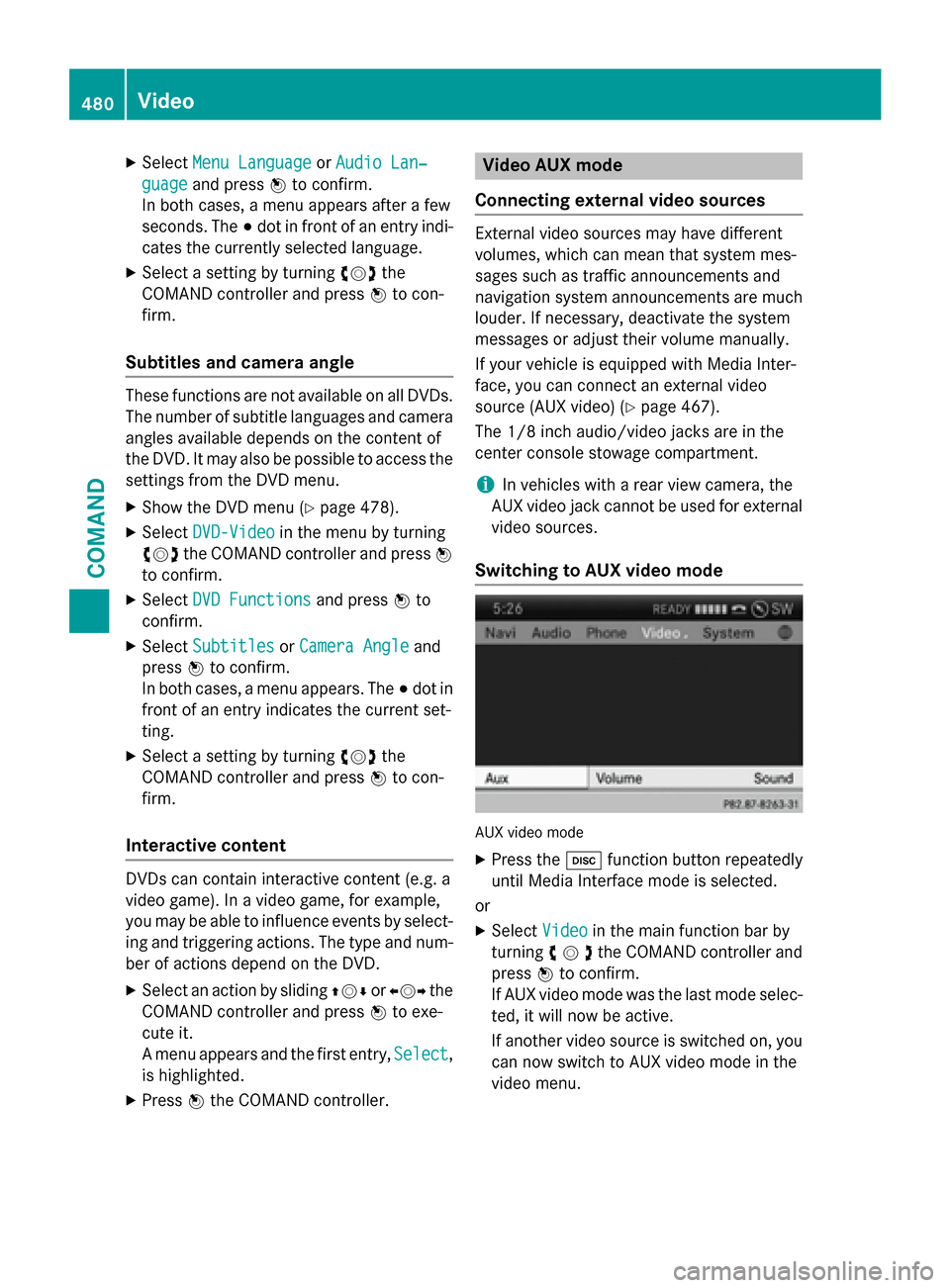
Switching to AUX video mode
AUX video mode
XPress the hfunction button repeatedly
until Media Interface mode is selected.
or
XSelect Videoin the main function bar by
turning cVdthe COMAND controller and
press Wto confirm.
If AUX video mode was the last mode selec-
ted, it will now be active.
If another video source is switched on, you can now switch to AUX video mode in the
video menu.
480Video
COMAND
Page 483 of 614
XSelectVideoand press Wto confirm.
XSelect Auxand press Wto confirm.
The AUX video menu appears. You will hear
and see the content of the external video
source if it is connected and switched to
playback.
Showing/hiding the menu
XTo show: in video AUX mode, press Wthe
COMAND controller.
XTo hide: slideZVthe COMAND controller
and confirm Full Screen
by pressingW.
Volume and sound settings
Information on:
RVolume settings (Ypage 297)
RSound settings (Ypage 298)
iA device which is connected as an exter-
nal video source may seem quieter or
louder in the vehicle, or the usual maximum
volume cannot be achieved. On some devi-
ces, it is possible to adjust the volume sep-
arately. In this case, start at a medium vol-
ume and increase it gradually. This enables
you to determine whether the system is
able to play the sound at high volume with-
out distorting it.
Increasing the volume on COMAND
XShow the video AUX menu (Ypage 481).
XSelect Volumeby turning cVdthe
COMAND controller and press Wto con-
firm.
A menu appears. The #dot indicates the
current setting.
XSelect StandardorBoostand press Wto
confirm.
Standard
: the volume of the external video
source is adjusted to a standard value.
Boost
: the volume of the external video
source is raised by approximately 10 dB.
Picture viewer
Introduction
If there are pictures on the active data
medium, you can look at them. You can dis-
play pictures with a resolution of up to 20
megapixels.
Data mediumSupported picture
formats
CD/DVD with pic-
ture filesbmp, jpeg, jpg, png
USB devices (sticks,
hard drives)
SD memory cardbmp, jpeg, jpg, png
Calling up a category list
XSelect a data medium with pictures (e.g. a
memory card):
Rin the Audio menu (Ypage 437)
Rin the media list (Ypage 449)
XSelect Searchin the basic display by slid-
ing VÆ and turning cVdthe COMAND
controller and press Wto confirm.
The category list appears (
Ypage 454).
Displaying pictures
XSelect (Ypage 454) Photosin the category
list by turning cVdthe COMAND controller
and press Wto confirm.
A folder directory appears.
XSelect a folder with photos and press Wto
confirm.
The folder displays the existing picture files (example).
Video481
COMAND
Z
Page 485 of 614
Overview
Important safety notes
GWARNING
The CD/DVD drive is a class 1 laser product.
If you open the housing of the CD/DVD drive,
there is a risk of exposure to invisible laser
radiation. This laser radiation could damage
your retina. There is a risk of injury.
Never open the housing. Always have main-
tenance and repair work carried out at a quali- fied specialist workshop.
GWARNING
If objects such as headphones/headsets or
external audio/video sources are not secured
in the passenger compartment, they can be
flung around and hit vehicle occupants. There
is a risk of injury, for example in the event of
sudden braking or a sudden change in direc-
tion.
Always stow these items or similar objects
carefully so that they cannot be flung around,
for example in a lockable vehicle stowage
compartment.
equipment
Observe that a range of Rear Seat Entertain-
ment Systems are available for Mercedes-
Benz vehicles. In this Operator's Manual, the
Rear Seat Entertainment System Code 864 is
used for illustration purposes. If you have a
different Rear Seat Entertainment System in
your vehicle, please refer to the separate prin-
ted operating instructions .
Components
The Rear Seat Entertainment System
includes:
Rtwo screens for the rear behind the front-
seat head restraints
Rtwo remote controls
Ra CD/DVD drive
RAUX jacks on both screens (AUX display)
and on the CD/DVD drive (AUX drive)
Rtwo sets of cordless headphones
Rear Seat Entertainment System483
COMAND
Z
Page 486 of 614
Rear-compartment screens
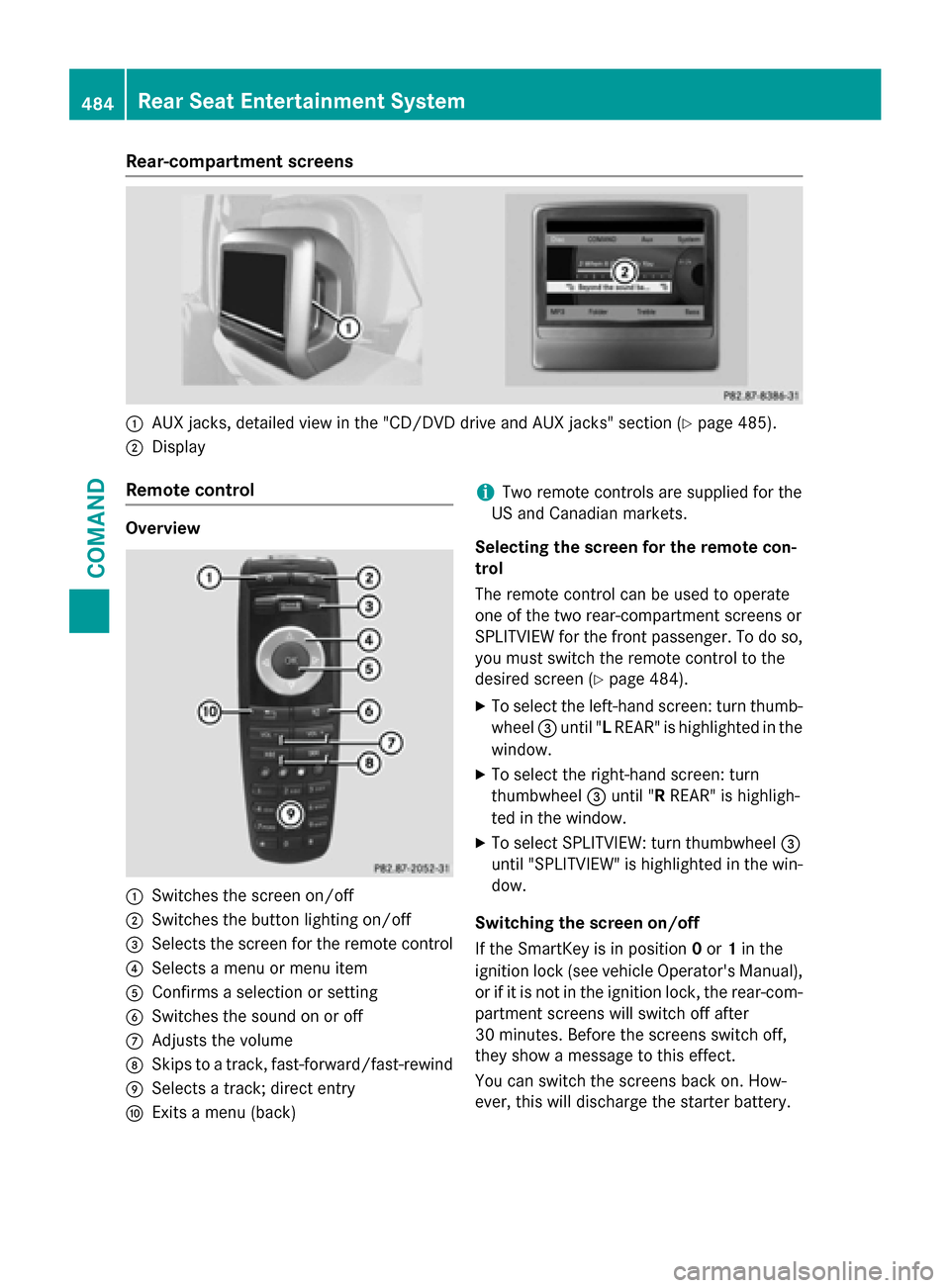
:AUX jacks, detailed view in the "CD/DVD drive and AUX jacks" section (Ypage 485).
;Display
Remote control
Overview
:Switches the screen on/off
;Switches the button lighting on/off
=Selects the screen for the remote control
?Selects a menu or menu item
AConfirms a selection or setting
BSwitches the sound on or off
CAdjusts the volume
DSkips to a track, fast-forward/fast-rewind
ESelects a track; direct entry
FExits a menu (back)
iTwo remote controls are supplied for the
US and Canadian markets.
Selecting the screen for the remote con-
trol
The remote control can be used to operate
one of the two rear-compartment screens or
SPLITVIEW for the front passenger. To do so, you must switch the remote control to the
desired screen (
Ypage 484).
XTo select the left-hand screen: turn thumb-
wheel =until " LREAR" is highlighted in the
window.
XTo select the right-hand screen: turn
thumbwheel =until " RREAR" is highligh-
ted in the window.
XTo select SPLITVIEW: turn thumbwheel =
until "SPLITVIEW" is highlighted in the win-
dow.
Switching the screen on/off
If the SmartKey is in position 0or 1in the
ignition lock (see vehicle Operator's Manual),
or if it is not in the ignition lock, the rear-com-
partment screens will switch off after
30 minutes. Before the screens switch off,
they show a message to this effect.
You can switch the screens back on. How-
ever, this will discharge the starter battery.
484Rear Seat Entertainment System
COMAND
Page 487 of 614
XPoint the remote control at the rear-com-
partment screen which has been selected
for remote operation.
XPress button:on the remote control
(
Ypage 484).
The respective rear-compartment screen
switches on or off.
iYou can only switch the screens on using
the remote control if the ignition is
switched on.
Switching the button lighting on/off
XPress button ;on the remote control
(
Ypage 484).
Depending on the previous status, the but-
ton lighting is switched on or off.
iIf you do not use the remote control for
about 15 seconds, the button lighting
switches off automatically.
Switching the sound on or off
XPress button Bon the remote control
(
Ypage 484).
The sound is switched on/off.
Selecting a menu/menu item and con-
firming your selection
XSelect a menu/menu item using the
=;9: buttons on the
remote control and press the 9button to
confirm.
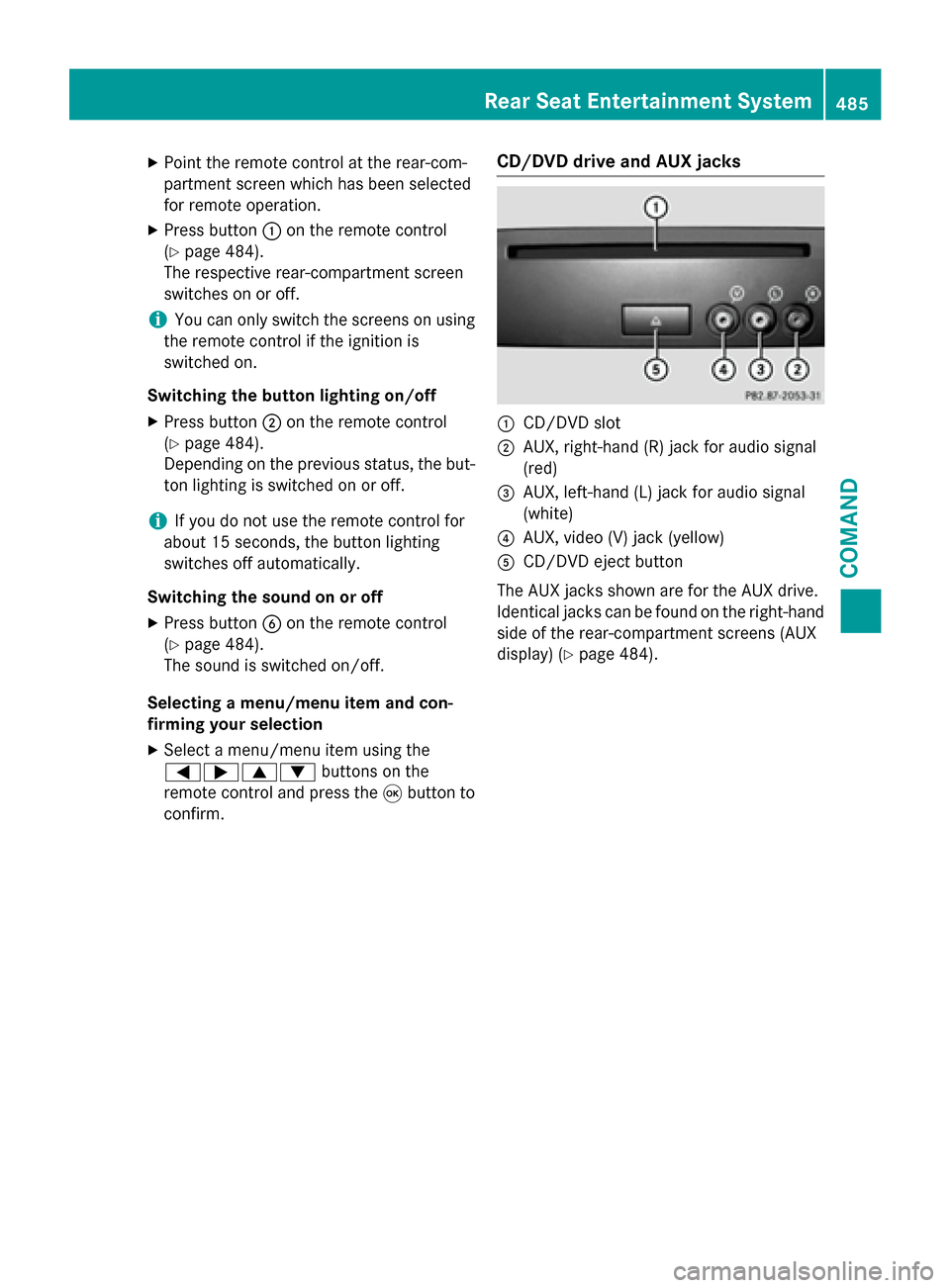
CD/DVD drive and AUX jacks
:CD/DVD slot
;AUX, right-hand (R) jack for audio signal
(red)
=AUX, left-hand (L) jack for audio signal
(white)
?AUX, video (V) jack (yellow)
ACD/DVD eject button
The AUX jacks shown are for the AUX drive.
Identical jacks can be found on the right-hand
side of the rear-compartment screens (AUX
display) (
Ypage 484).
Rear Seat Entertainment System485
COMAND
Z
Page 491 of 614
Selecting sound settings
You can select the sound settings in the CD/
MP3, video DVD and AUX modes.
XSwitch on an operating mode (e.g. audio
CD mode) (
Ypage 491).
XSelectTrebleorBassusing
the :=; buttons on the remote
control and press the 9button to confirm.
An adjustment scale appears.
XSelect a setting using the 9:but-
tons and press the 9button to confirm.
Multiple users
Simultaneous use of the rear-compart-
ment disc drive
The two rear-compartment screens can be
operated almost entirely independently from
one another. However, there can be a conflict
in some menus if the two screens are used
simultaneously.
If the rear-compartment disc drive is being
used for both screens simultaneously, select-
ing certain menus or settings on one of the
screens also affects the other screen.
The following functions affect both screens:
Rchanging playback options
Rselecting a track (from a track list or folder)
Rusing the play, pause and stop functions
Rfast forwarding/rewinding or scrolling
Rcalling up the DVD menu and navigating
within it
Rsetting the language, subtitles and camera
angle
Rcalling up interactive DVD content
The following functions affect only one
screen:
Raudio and video functions as well as picture
settings
Rswitching between full screen and the
menu Switching between operating modes
When you exit an operating mode (e.g. audio
CD mode), the current setting is saved. If you
call up this operating mode again later, there
are two possibilities:
Rthe operating mode has been changed on
the other screen.
Rthe operating mode has not been changed.
In the first case, the operating mode appears as it is on the other screen.
In the second case, the setting appears on the
screen as it was when you last exited the
operating mode.
Picture settings
Overview
You can select picture settings in video DVD
and AUX mode (
Ypage 500).
Adjusting the brightness, contrast and
color
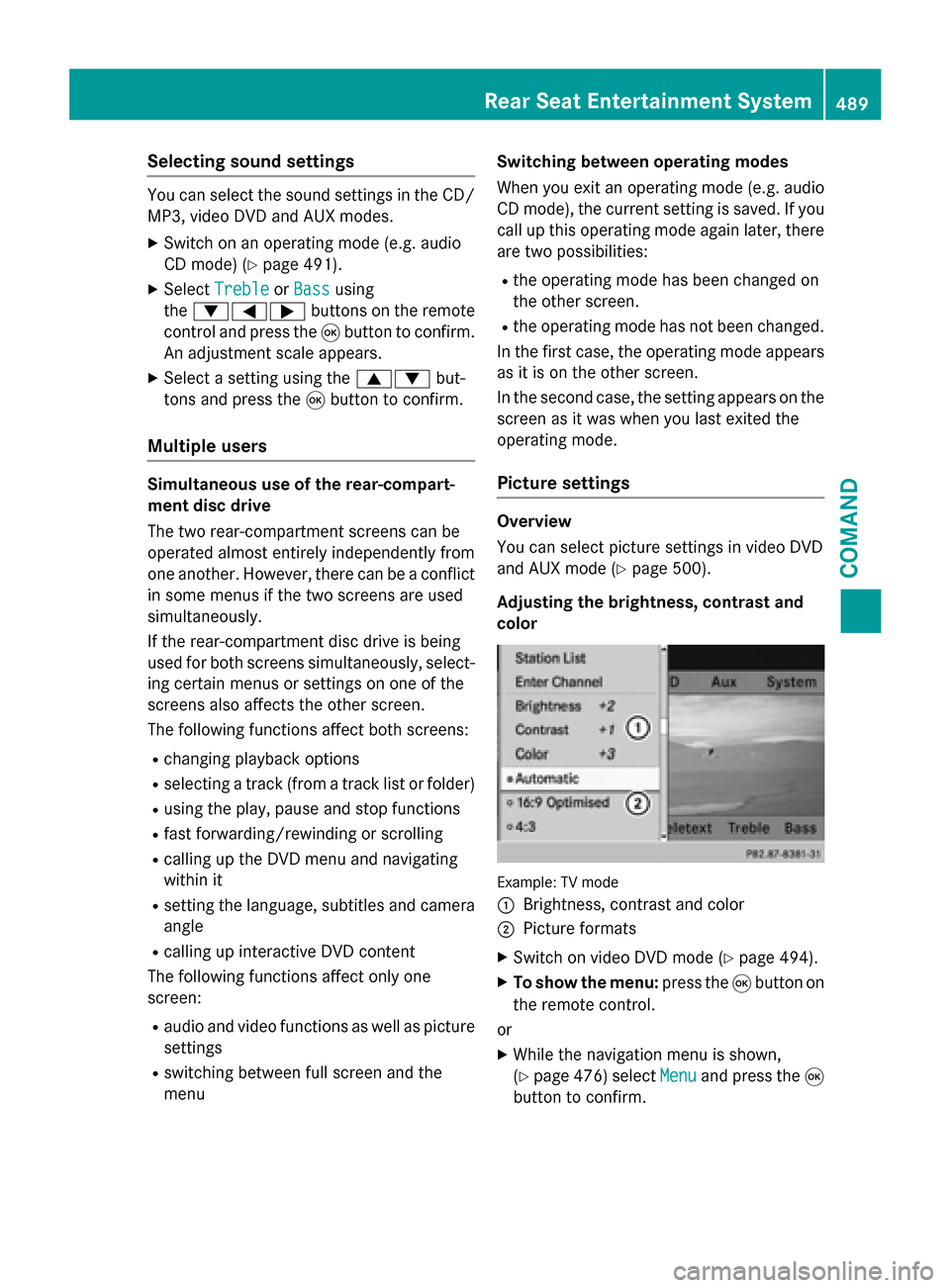
Example: TV mode
:
Brightness, contrast and color
;Picture formats
XSwitch on video DVD mode (Ypage 494).
XTo show the menu: press the9button on
the remote control.
or
XWhile the navigation menu is shown,
(
Ypage 476) select Menuand press the9
button to confirm.
Rear Seat Entertainment System489
COMAND
Z
Page 502 of 614
MP3 mode
XTo select a track by skipping to a track:
press the=or; button on the
remote control.
or
XPress the EorF button.
The skip forward function skips to the next
track.
If the elapsed track time has exceeded 8
seconds, the function skips back to the
beginning of the track.
If the elapsed track time is less than 8 sec-
onds, the function skips back to the begin-
ning of the previous track.
XTo select a folder: press the:button
on the remote control.
XHighlight one of the two folder symbols
with the =or; button and press 9
to confirm.
Depending on your selection, the previous
or next folder is selected and the first track
is played.
Additional setting option:
RAdjusting the sound settings (Ypage 489)
Video DVD mode
XTo hide a menu: confirmMenuwith the 9
button.
The video image is played in full screen
mode.
Additional setting options:
RAdjusting the brightness, contrast and
color (
Ypage 489)
RChanging the picture format (Ypage 490)
RAdjusting the sound settings (Ypage 489)
AUX mode
Introduction
You can connect one external video source to
each of the displays of the Rear Seat Enter-
tainment System (AUX display) and also one
external video source to the rear-compart- ment CD/DVD drive (AUX drive) with a sound
and video signal.
Please see the corresponding operating
instructions for information on how to oper-
ate the external video source.
For further details about external video sour-
ces, please consult an authorized Mercedes-
Benz Center.
Connecting AUX equipment
AUX drive
The AUX drive jacks are located on the
CD/DVD drive next to the CD/DVD eject but-
ton (
Ypage 485).
Displaying AUX
The AUX display jacks are on the side of the
screen (
Ypage 484).
Audio and video connection
XInsert the audio plugs for the left and right
signals into the corresponding Land R
jacks.
XInsert the video plug into the Vjack.
Activating AUX mode
AUX drive
XSelect Auxin the menu using the
9=; buttons on the remote
control and press the 9button to confirm.
The AUX menu appears.
XSelect Sourcefrom the AUX menu and
press the 9button to confirm.
XSelect Disc Drive Auxand press the 9
button to confirm.
You will hear and see the content of the
external video source if it is connected to
the CD/DVD drive and switched to play-
back. If no video image is available from the
AUX source connected, you will see an
audio menu.
500Rear Seat Entertainment System
COMAND
Page 503 of 614
Displaying AUX
XSelectth escree nby turning th escrol l
whee lon th eremot econtrol (
Ypage 484)
until "L REA R "(leftscreen) or "REA RR"
(right screen) is highlighte din th ewindow.
XSelec tAuxin th emen uusin gth e
9=; buttons on theremot e
control and press th e9 butto nto confirm .
XSelectSourcefrom th eAU Xmen uand
press th e9 butto nto confirm .
XSelectDispla yAuxand press th e9 but-
to nto confirm .
You will see and hear th econten tof th e
video source if it is switched to playback. If
no video imag eis available from th eAU X
source connected, you will see an audio
menu.
Adjusting treble and bas s
XSelectTrebleor Bas sin th eAU Xmen u
and press th e9 butto non th eremot e
control to confirm .
An adjustmen tscale appears .
XSelect asetting usin gth e9 or:
butto nand press th e9 butto nto confirm .
Adjusting th ebrightness, contrast or
color
XSelec tDispla yAuxorDis cDriveAuxin
th eAU Xmen uand press th e9 butto nto
confirm .
XSelectBrightnes s,Contrastor Color
and press th e9 butto nto confirm .
An adjustmen tscale appears .
XSelect asetting usin gth e9 or:
butto nand press th e9 butto nto confirm .
Changingth epicture forma t
XSelectDispla yAuxorDis cDriveAuxin
th eAU Xmen uand press th e9 butto nto
confirm .
XSelect16: 9Optimized,4:3or Wide‐
screenusin gth e9: buttons and
press th e9 butto nto confirm .
The dot in fron tof amen uitem indicate s
th ecurren tsetting .
SIRIUS Weather
Your COMAND equipment
These operating instruction sdescribe all th e
standard and optional equipmen tfo ryour
COMAND system, as available at th etime of
goin gto print .Country-specifi cdifference s
are possible. Pleas enote that your
COMAND system may no tbe equipped wit h
all th efeatures described .
Introduction
i
This function is currentl yno tavailable fo r
Canada.
Fo rth ereception of weather forecast svia
satellit eradio, you will need aSIRIU SXM Sat -
ellit eWeather subscription .
Whe nth eCal l
SIRIUStoactivatesys‐
tem at 888-539-7474message wit hth e
SIRIU Sdevice identification number appears ,
you will first hav eto obtain access to th e
weather service. Adescription of th eproce -
dure can be found in th e"Registerin gsatellit e
radio" section (
Ypage 442).
COMAND can receiv eweather forecast svia
satellit eradi ofo rth eentire US A(includin g
Alask aand Hawaii). The received weather
dat acan be displayed as an information chart
(daily forecast ,five-day forecast ,detailed
information )or on th eweather map.
The weather dat areceived from aweather
station is store din COMAND fo ron ehour .It
can therefore be displayed again immediately
SIRIUS Weather501
COMAND
Z
Page 605 of 614
Service products and filling capaci-
ties
Important safety notes
GWARNING
Service products may be poisonous and haz-
ardous to health. There is a risk of injury.
Comply with instructions on the use, storage
and disposal of service products on the labels
of the respective original containers. Always
store service products sealed in their original
containers. Always keep service products out
of the reach of children.
HEnvironmental note
Dispose of service products in an environ-
mentally responsible manner.
Service products include the following:
RFuels
RLubricants (e.g. engine oil, transmission oil)
RCoolant
RBrake fluid
RWindshield washer fluid
RClimate control system refrigerant
Comply with all valid regulations with respect
to handling, storing, and disposing of service
fluids.
Components and service products must be
matched. You should therefore only use prod-
ucts that have been tested and approved by
Mercedes-Benz.
Information about tested and approved prod-
ucts can be obtained from an authorized
Mercedes-Benz Center or on the Internet at
http://bevo.mercedes-benz.com.
You can recognize service products approved
by Mercedes-Benz by the following inscrip-
tion on the containers:
RMB-Freigabe (e.g. MB-Freigabe 229.51)
RMB-Approval (e.g. MB-Approval 229.51)
Other designations or recommendations indi-
cate a level of quality or a specification in
accordance with an MB Sheet Number (e.g. MB 229.51). They have not necessarily been
approved by Mercedes-Benz.
Fuel
Important safety notes
GWARNING
Fuel is highly flammable. If you handle fuel
incorrectly, there is a risk of fire and explo-
sion.
You must avoid fire, open flames, creating
sparks and smoking. Switch off the engine
and, if applicable, the auxiliary heating before refueling.
GWARNING
Fuel is poisonous and hazardous to health.
There is a risk of injury.
You must make sure that fuel does not come into contact with your skin, eyes or clothing
and that it is not swallowed. Do not inhale fuel
vapors. Keep fuel away from children.
If you or others come into contact with fuel,
observe the following:
RWash away fuel from skin immediately
using soap and water.
RIf fuel comes into contact with your eyes,
immediately rinse them thoroughly with
clean water. Seek medical assistance with-
out delay.
RIf fuel is swallowed, seek medical assis-
tance without delay. Do not induce vomit-
ing.
RImmediately change out of clothing which
has come into contact with fuel.
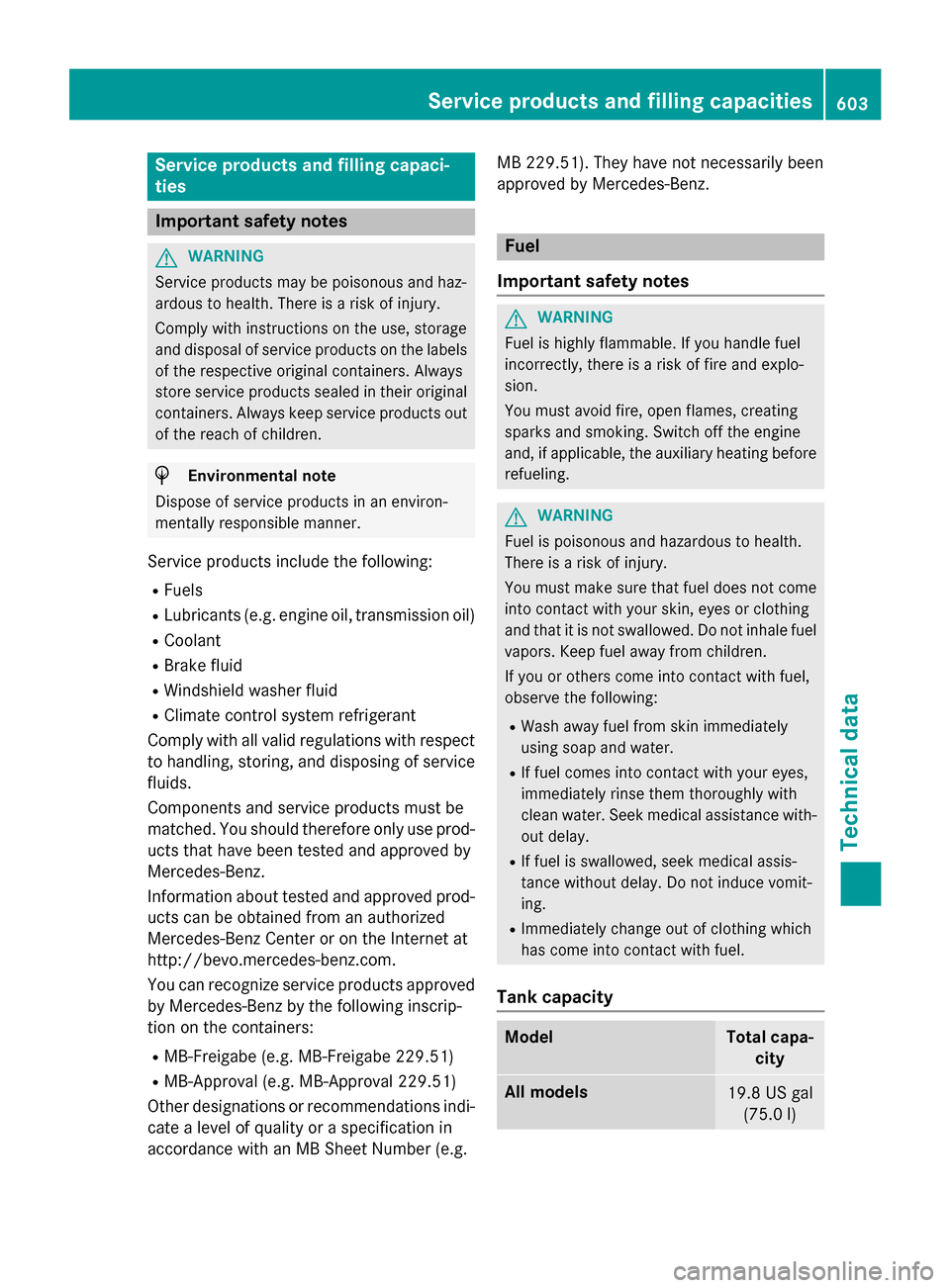
Tank capacity
ModelTotal capa- city
All models19.8 US gal(75.0 l)
Service products and filling capacities603
Technical data
Z