ECO mode MERCEDES-BENZ SL-Class 2016 R231 Repair Manual
[x] Cancel search | Manufacturer: MERCEDES-BENZ, Model Year: 2016, Model line: SL-Class, Model: MERCEDES-BENZ SL-Class 2016 R231Pages: 614, PDF Size: 15.67 MB
Page 492 of 614
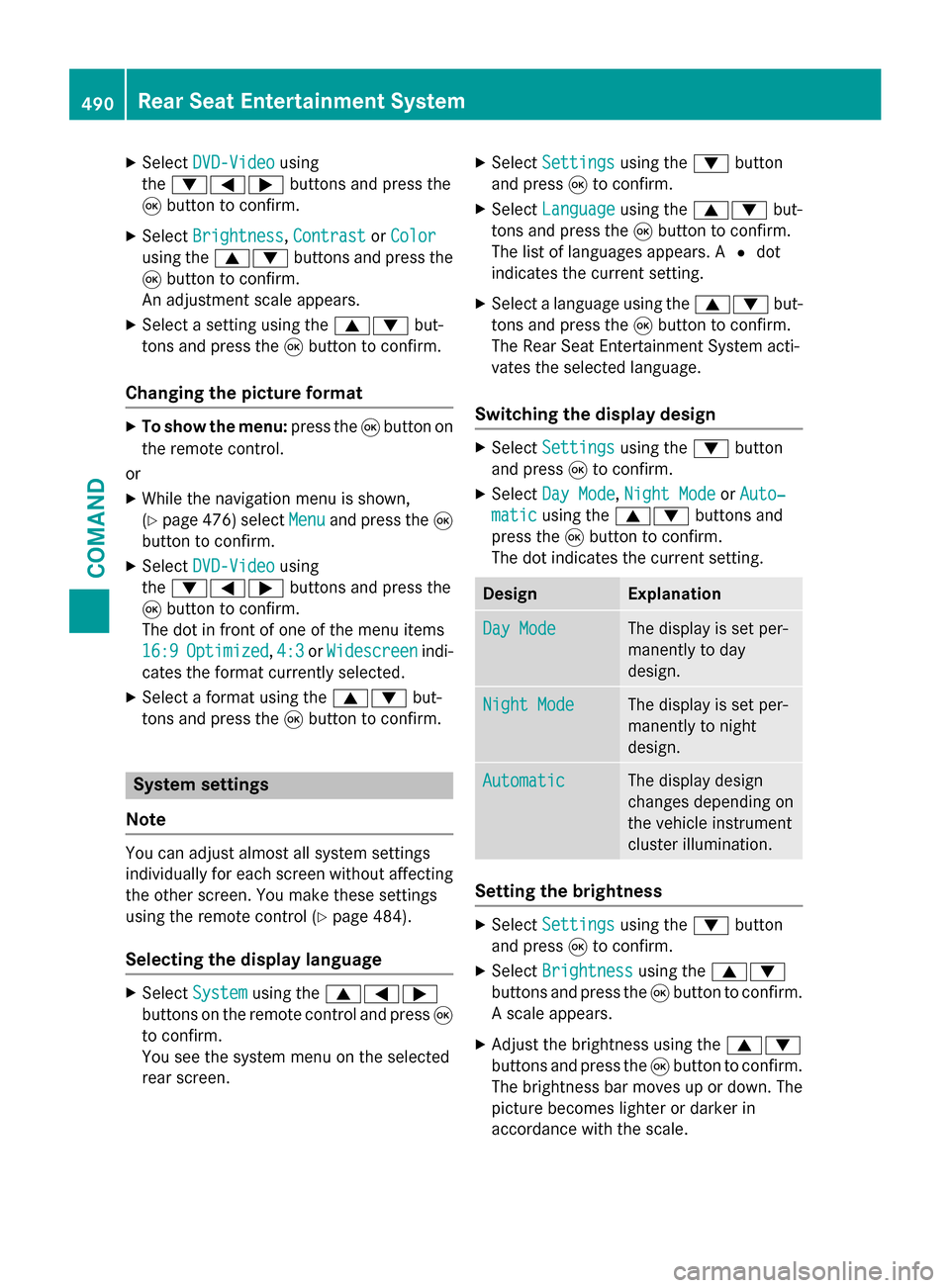
XSelectDVD-Videousing
the :=; buttons and press the
9 button to confirm.
XSelect Brightness,Contrastor Color
using the 9: buttons and press the
9 button to confirm.
An adjustment scale appears.
XSelect a setting using the 9:but-
tons and press the 9button to confirm.
Changing the picture format
XTo show the menu: press the9button on
the remote control.
or
XWhile the navigation menu is shown,
(
Ypage 476) select Menuand press the9
button to confirm.
XSelect DVD-Videousing
the :=; buttons and press the
9 button to confirm.
The dot in front of one of the menu items
16:9
Optimized, 4:3or Widescreenindi-
cates the format currently selected.
XSelect a format using the 9:but-
tons and press the 9button to confirm.
System settings
Note
You can adjust almost all system settings
individually for each screen without affecting
the other screen. You make these settings
using the remote control (
Ypage 484).
Selecting the display language
XSelect Systemusing the 9=;
buttons on the remote control and press 9
to confirm.
You see the system menu on the selected
rear screen.
XSelect Settingsusing the :button
and press 9to confirm.
XSelect Languageusing the 9: but-
tons and press the 9button to confirm.
The list of languages appears. A #dot
indicates the current setting.
XSelect a language using the 9:but-
tons and press the 9button to confirm.
The Rear Seat Entertainment System acti-
vates the selected language.
Switching the display design
XSelect Settingsusing the :button
and press 9to confirm.
XSelect Day Mode,Night Modeor Auto‐
maticusing the 9: buttons and
press the 9button to confirm.
The dot indicates the current setting.
DesignExplanation
Day ModeThe display is set per-
manently to day
design.
Night ModeThe display is set per-
manently to night
design.
AutomaticThe display design
changes depending on
the vehicle instrument
cluster illumination.
Setting the brightness
XSelect Settingsusing the :button
and press 9to confirm.
XSelect Brightnessusing the 9:
buttons and press the 9button to confirm.
A scale appears.
XAdjust the brightness using the 9:
buttons and press the 9button to confirm.
The brightness bar moves up or down. The
picture becomes lighter or darker in
accordance with the scale.
490Rear Seat Entertainment System
COMAND
Page 494 of 614
Selecting a track
Selecting by skipping to a track
XTo skip forwards or backwards to a
track:press the =or; button on
the remote control.
or
XPress the EorF button.
The skip forward function skips to the next
track.
If the elapsed track time has passed 8 sec-
onds, the function skips back to the begin-
ning of the track. If the elapsed time is
shorter, it will skip to the start of the pre-
vious track.
If the Random Tracks
orRandom Folder
playback option has been selected, the
track order is random.
Selecting by track list
In audio CD mode, the track list contains all
tracks on the disc currently playing. In audio
DVD mode, the track list contains all tracks in the currently active group.
In MP3 mode, the track list shows all tracks in
the currently active folder as well as the folder
structure, allowing you to select any track on
the MP3 CD.
XSelect Track List(audio CD/DVD mode)
or Folder
(MP3 mode) using
the :=; buttons on the remote
control, and confirm by pressing the 9
button.
or
XPress the 9button when the display/
selection window is active.
The track list appears. The #dot indicates
the current track.
XSelect a track using the 9:buttons
and press the 9button to confirm. Making a selection by entering the track
number directly
XPress the
hbutton on the remote con-
trol.
The track entry display appears.
Example: track 2
XPress number button 2.
Example: track 12
XPress the corresponding number keys in
rapid succession.
XWait for approximately three seconds after
making the entry.
You will hear the track which has been
entered. The corresponding basic menu
then reappears.
iIt is not possible to enter numbers that
exceed the number of tracks on the CD or in
the currently active folder.
Fast forwarding/rewinding
XWith the display/selection window active,
press the =or; button on the
remote control repeatedly until you reach
the desired position.
or
XPress and hold the EorF button
until the desired position is reached.
Selecting a folder
This function is only available in MP3 mode.
XSelect Folderin MP3 mode using
the :=; buttons on the remote
control and press the 9button to confirm.
or
XPress the 9button when the display/
selection window is active.
The folder content appears.
492Rear Seat Entertainment System
COMAND
Page 497 of 614
If it was not, switch on video DVD mode as
described in the following instruction.
XSelectDiscin the menu using the
9=; buttons on the remote
control and confirm by pressing the 9
button.
If the video DVD fulfills the playback crite-
ria, the film either starts automatically or
the menu stored on the DVD appears. If the
DVD menu appears, you must start the film
manually.
XSelect the corresponding menu item in the
DVD menu.
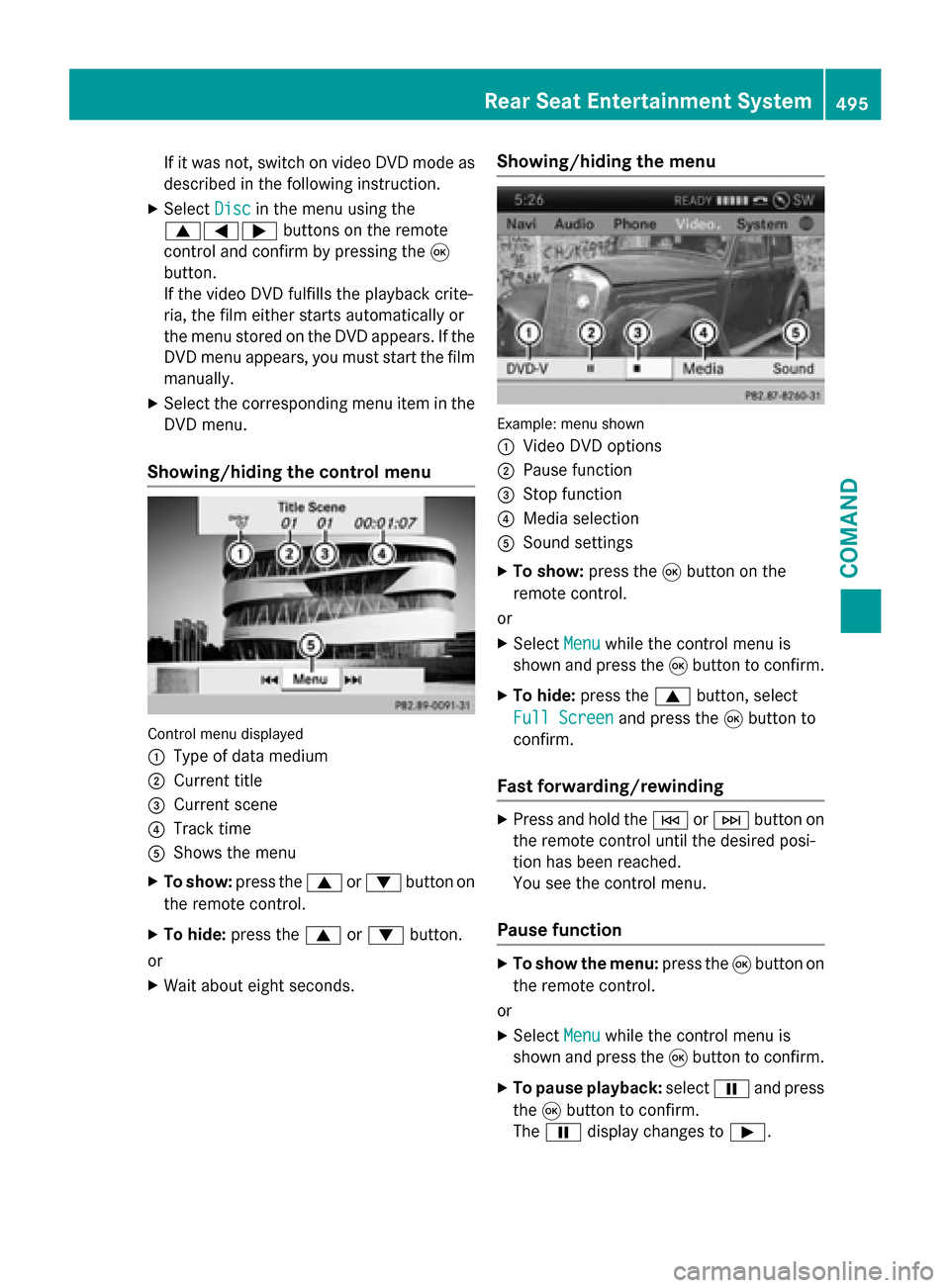
Showing/hiding the control menu
Control menu displayed
:
Type of data medium
;Current title
=Current scene
?Track time
AShows the menu
XTo show: press the9or: button on
the remote control.
XTo hide: press the 9or: button.
or
XWait about eight seconds.
Showing/hiding the menu
Example: menu shown
:
Video DVD options
;Pause function
=Stop function
?Media selection
ASound settings
XTo show: press the9button on the
remote control.
or
XSelect Menuwhile the control menu is
shown and press the 9button to confirm.
XTo hide: press the 9button, select
Full Screen
and press the 9button to
confirm.
Fast forwarding/rewinding
XPress and hold the EorF button on
the remote control until the desired posi-
tion has been reached.
You see the control menu.
Pause function
XTo show the menu: press the9button on
the remote control.
or
XSelect Menuwhile the control menu is
shown and press the 9button to confirm.
XTo pause playback: selectËand press
the 9button to confirm.
The Ë display changes to Ì.
Rear Seat Entertainment System495
COMAND
Z
Page 498 of 614
XTo continue playback:selectÌand
press the 9button to confirm.
The menu is hidden.
Stop function
XTo show the menu: press the9button on
the remote control.
or
XSelect Menuwhile the control menu is
shown and press the 9button to confirm.
XTo interrupt playback: selectÉand
press the 9button to confirm.
The Ë display changes to Ì. The
video image is hidden.
XTo continue playback: selectÌand
press the 9button to confirm.
Playback continues from the point where it
was interrupted. The menu is hidden.
XTo stop playback: while playback is inter-
rupted, select Éagain and press the 9
button to confirm.
Playback stops and returns to the begin-
ning of the DVD. Ìis highlighted.
XTo restart playback: selectÌand
press the 9button to confirm.
Playback starts from the beginning of the
DVD.
Selecting a scene/chapter
General notes
Observe the information on DVD video mode
(
Ypage 478).
Skipping forwards/backwards
XPress the =or; button on the
remote control.
or
XPress the EorF button.
The navigation menu (
Ypage 476 )appears
for approximately eight seconds. Selecting a scene/chapter directly
These examples illustrate how to select
scene/chapter 5.
XOption 1:
while the film is playing, press
the h button on the remote control.
XPress the corresponding number key, such
as5.
XOption 2: while the film is playing, press
the 9button on the remote control and
show the menu.
XSelect DVD-Vand press the 9button to
confirm.
XSelect DVD Functionsand press the 9
button to confirm.
XSelect SceneSelectionand press the 9
button to confirm.
XSelect 5using the 9or: button and
press the 9button to confirm.
In both cases, playback will begin from the
fifth scene/chapter after a brief pause.
Selecting a film/track
Option 1:
XPress the 9button on the remote control
and show the menu.
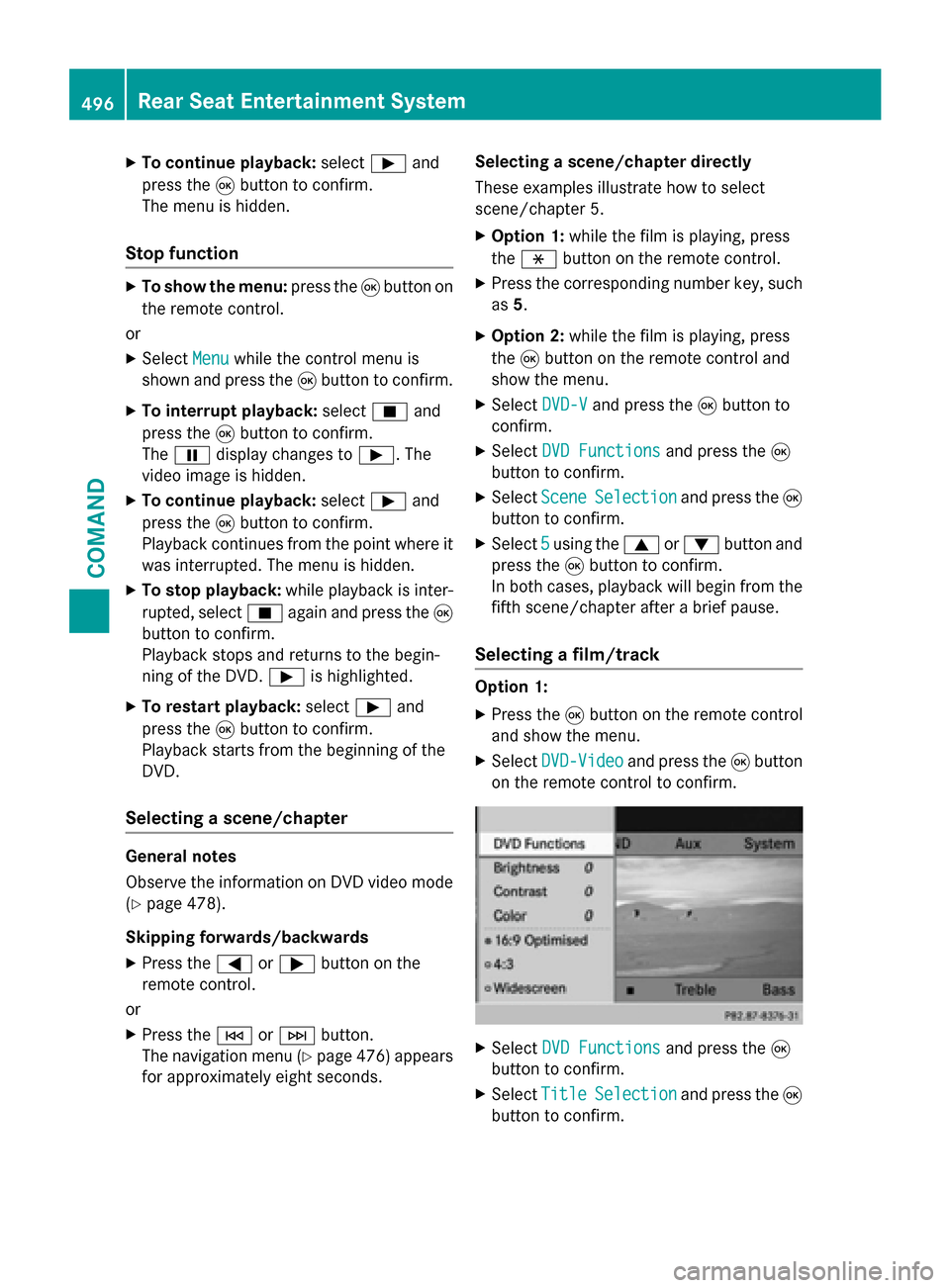
XSelect DVD-Videoand press the 9button
on the remote control to confirm.
XSelect DVD Functionsand press the 9
button to confirm.
XSelect TitleSelectionand press the 9
button to confirm.
496Rear Seat Entertainment System
COMAND
Page 500 of 614
Back to the film
XPress thekbutton repeatedly until you
see the movie.
or
XSelect any menu item in the DVD menu and
press 9to confirm.
XSelect the Back (to the movie)menu
item in the menu and press the 9button to
confirm.
Setting the audio format
This function is not available on all DVDs. If it
is available, you can set the audio language or
the audio format. The number of settings is
determined by the DVD content. It may also
be possible to access the settings from the
DVD menu.
XPress the 9button on the remote control
and show the menu.
XSelect DVD-Videoand press the 9button
on the remote control to confirm.
XSelect DVD Functionsand press the 9
button to confirm.
XSelect Audio Languageand press the 9
button to confirm.
A menu appears after a short while. The #
dot in front of an entry indicates the cur-
rently selected language.
XSelect a language using the 9:but-
tons and press the 9button to confirm.
XTo exit the menu: press the=or;
button.
Subtitles and camera angle
These functions are not available on all DVDs.
The number of subtitle languages and camera
angles available depends on the content of
the DVD. It may also be possible to access the
settings from the DVD menu.
XPress the 9button on the remote control
and show the menu.
XSelect DVD-Videoand press the 9button
on the remote control to confirm.
XSelect DVD Functionsand press the 9
button to confirm.
XSelect SubtitlesorCamera Angleand
press the 9button to confirm.
In both cases, a menu appears after a few
seconds. The #dot in front of an entry
indicates the current setting.
XSelect a setting using the 9:but-
tons and press the 9button to confirm.
XTo exit the menu: press the=or;
button.
Interactive content
DVDs can also contain interactive content
(e.g. a video game). In a video game, you may
be able to influence events by selecting and
triggering actions. The type and number of
actions depend on the DVD.
XSelect an action using the
9;:= buttons on the
remote control and press the 9button to
execute it.
A menu appears and the first entry, Select
,
is highlighted.
XPress the 9button.
Operation with an active COMAND
source
Switching the function on/off in
COMAND
You can transfer an audio or video source
selected in COMAND to the Rear Seat Enter-
tainment System. If you subsequently switch
modes in COMAND, the new source will not
be transmitted to the Rear Seat Entertain-
ment System.
XTo switch on the function in COMAND:
switch to the desired audio mode in
COMAND, e.g. CD mode (
Ypage 448), or
show the menu in video DVD mode
(
Ypage 476).
XSelect the menu item at the bottom left,
e.g. CD
in audio CD mode, by sliding VÆ
498Rear Seat Entertainment System
COMAND
Page 501 of 614
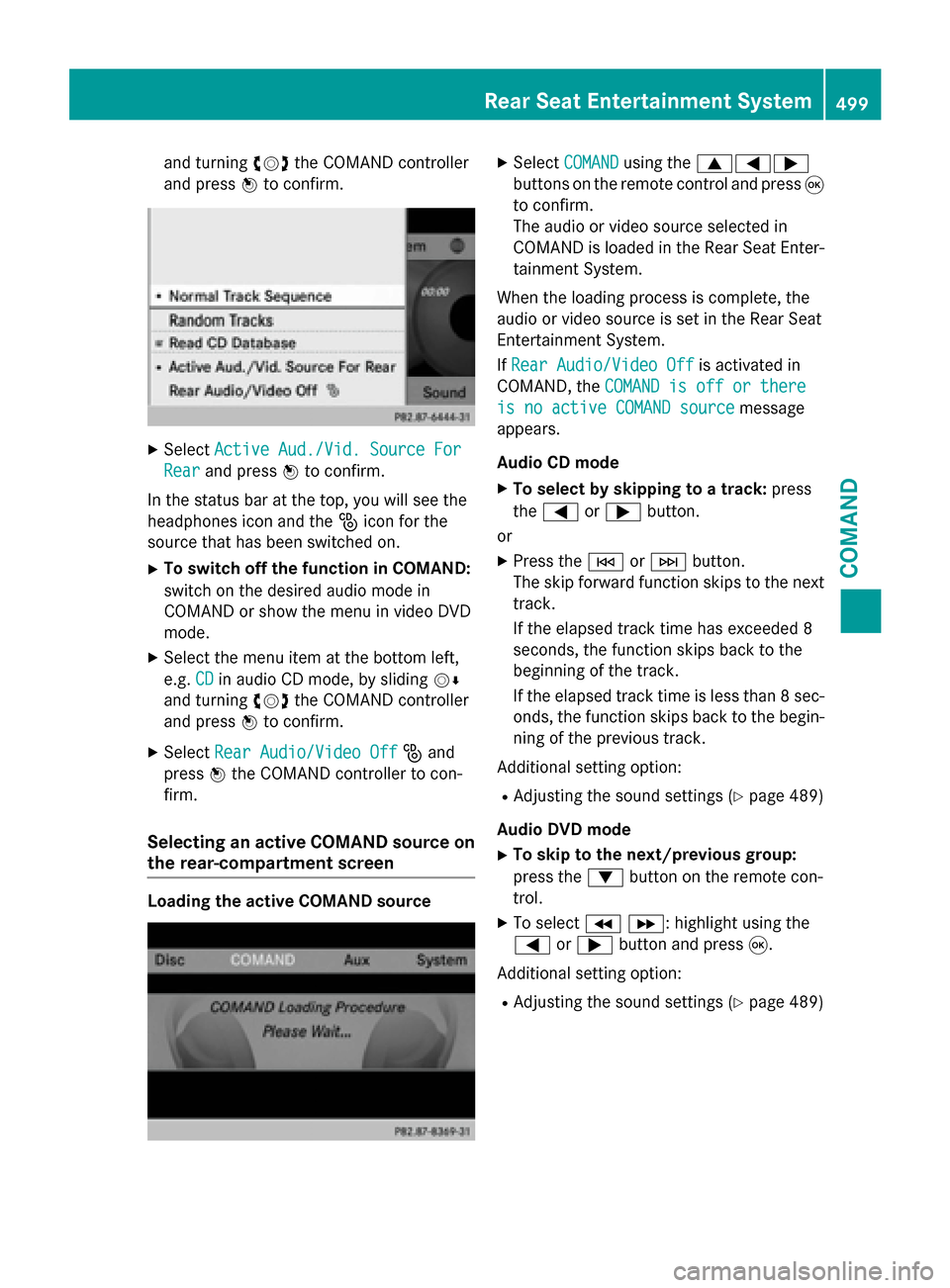
and turningcVdthe COMAND controller
and press Wto confirm.
XSelect Active Aud./Vid. Source For
Rearand press Wto confirm.
In the status bar at the top, you will see the
headphones icon and the _icon for the
source that has been switched on.
XTo switch off the function in COMAND:
switch on the desired audio mode in
COMAND or show the menu in video DVD
mode.
XSelect the menu item at the bottom left,
e.g. CD
in audio CD mode, by sliding VÆ
and turning cVdthe COMAND controller
and press Wto confirm.
XSelect Rear Audio/Video Off_and
press Wthe COMAND controller to con-
firm.
Selecting an active COMAND source on
the rear-compartment screen
Loading the active COMAND source
XSelect COMANDusing the 9=;
buttons on the remote control and press 9
to confirm.
The audio or video source selected in
COMAND is loaded in the Rear Seat Enter- tainment System.
When the loading process is complete, the
audio or video source is set in the Rear Seat
Entertainment System.
If Rear Audio/Video Off
is activated in
COMAND, the COMAND is off or there
is no active COMAND sourcemessage
appears.
Audio CD mode
XTo select by skipping to a track: press
the = or; button.
or
XPress the EorF button.
The skip forward function skips to the next
track.
If the elapsed track time has exceeded 8
seconds, the function skips back to the
beginning of the track.
If the elapsed track time is less than 8 sec-
onds, the function skips back to the begin-
ning of the previous track.
Additional setting option:
RAdjusting the sound settings (Ypage 489)
Audio DVD mode
XTo skip to the next/previous group:
press the :button on the remote con-
trol.
XTo select KL : highlight using the
= or; button and press 9.
Additional setting option:
RAdjusting the sound settings (Ypage 489)
Rear Seat Entertainment System499
COMAND
Z
Page 502 of 614
MP3 mode
XTo select a track by skipping to a track:
press the=or; button on the
remote control.
or
XPress the EorF button.
The skip forward function skips to the next
track.
If the elapsed track time has exceeded 8
seconds, the function skips back to the
beginning of the track.
If the elapsed track time is less than 8 sec-
onds, the function skips back to the begin-
ning of the previous track.
XTo select a folder: press the:button
on the remote control.
XHighlight one of the two folder symbols
with the =or; button and press 9
to confirm.
Depending on your selection, the previous
or next folder is selected and the first track
is played.
Additional setting option:
RAdjusting the sound settings (Ypage 489)
Video DVD mode
XTo hide a menu: confirmMenuwith the 9
button.
The video image is played in full screen
mode.
Additional setting options:
RAdjusting the brightness, contrast and
color (
Ypage 489)
RChanging the picture format (Ypage 490)
RAdjusting the sound settings (Ypage 489)
AUX mode
Introduction
You can connect one external video source to
each of the displays of the Rear Seat Enter-
tainment System (AUX display) and also one
external video source to the rear-compart- ment CD/DVD drive (AUX drive) with a sound
and video signal.
Please see the corresponding operating
instructions for information on how to oper-
ate the external video source.
For further details about external video sour-
ces, please consult an authorized Mercedes-
Benz Center.
Connecting AUX equipment
AUX drive
The AUX drive jacks are located on the
CD/DVD drive next to the CD/DVD eject but-
ton (
Ypage 485).
Displaying AUX
The AUX display jacks are on the side of the
screen (
Ypage 484).
Audio and video connection
XInsert the audio plugs for the left and right
signals into the corresponding Land R
jacks.
XInsert the video plug into the Vjack.
Activating AUX mode
AUX drive
XSelect Auxin the menu using the
9=; buttons on the remote
control and press the 9button to confirm.
The AUX menu appears.
XSelect Sourcefrom the AUX menu and
press the 9button to confirm.
XSelect Disc Drive Auxand press the 9
button to confirm.
You will hear and see the content of the
external video source if it is connected to
the CD/DVD drive and switched to play-
back. If no video image is available from the
AUX source connected, you will see an
audio menu.
500Rear Seat Entertainment System
COMAND
Page 532 of 614
Certain garage door drives are incompatible
with the integrated garage door opener. Ifyou
have difficulty programing the integrated
garage door opener, contact an authorized
Mercedes-Benz Center.
Alternatively, you can call the following tele-
phone assistance services:
RUSA: Mercedes-Benz Customer Assistance
Center at 1-800-FOR-MERCedes
RCanada: Customer Service at
1-800-387-0100
RHomeLink®hotline 1-800-355-3515 (free
of charge)
More information on HomeLink
®and /or
compat ibleproducts isalso available online
at http:/ /www.homelin k.com.
Notes on the declaration of conformity
(
Ypage 34).
USA: FCC ID: CB2HMIHL4
Canada: IC: 279B-HMIHL4
Important safety notes
GWARNING
When you operate or program the garage door
with the integrated garage door opener, per-
sons in the range of movement of the garage
door can become trapped or struck by the
garage door. There is a risk of injury.
When using the integrated garage door
opener, always make sure that nobody is
within the range of movement of the garage
door.
GWARNING
Combustion engines emit poisonous exhaust
gases such as carbon monoxide. Inhaling
these exhaust gases leads to poisoning. There
is a risk of fatal injury. Therefore never leave
the engine running in enclosed spaces with-
out sufficient ventilation.
Programming
Programing buttons
Pay attention to the "Important safety notes"
(
Ypage 530).
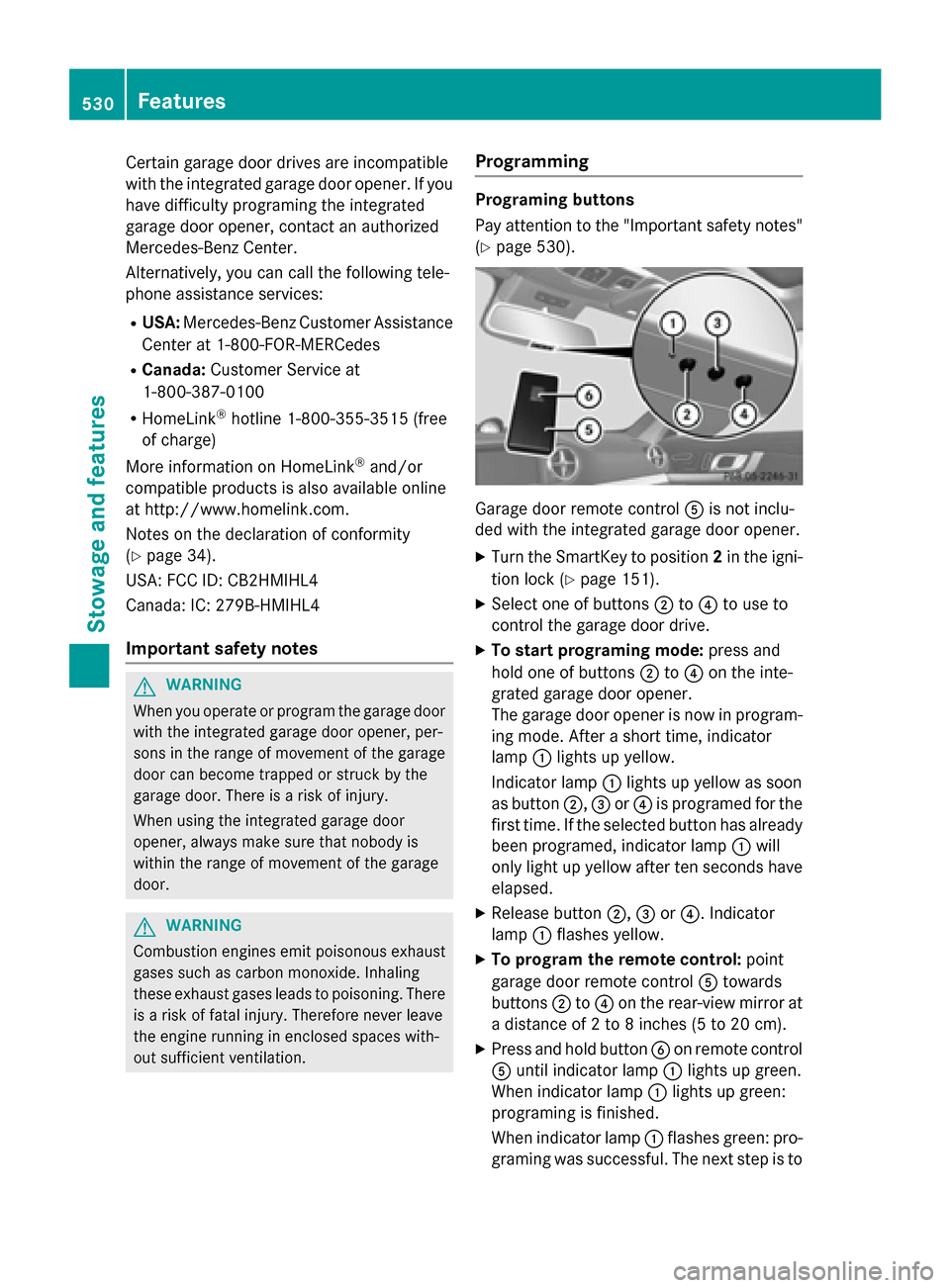
Garage door remote control Ais not inclu-
ded with the integrated garage door opener.
XTurn the SmartKey to position 2in the igni-
tion lock (
Ypage 151).
XSelect one of buttons ;to? to use to
control the garage door drive.
XTo start programing mode: press and
hold one of buttons ;to? on the inte-
grated garage door opener.
The garage door opener is now in program-
ing mode. After a short time, indicator
lamp :lights up yellow.
Indicator lamp :lights up yellow as soon
as button ;,=or? is programed for the
first time. If the selected button has already
been programed, indicator lamp :will
only light up yellow after ten seconds have
elapsed.
XRelease button ;,=or?. Indicator
lamp :flashes yellow.
XTo program the remote control: point
garage door remote control Atowards
buttons ;to? on the rear-view mirror at
a distance of 2 to 8 inches (5 to 20 cm).
XPress and hold button Bon remote control
A until indicator lamp :lights up green.
When indicator lamp :lights up green:
programing is finished.
When indicator lamp :flashes green: pro-
graming was successful. The next step is to
530Features
Stowage and features
Page 538 of 614
Useful information
i
This Operator's Manual describes all
models and all standard and optional equip-
ment of your vehicle available at the time of
publication of the Operator's Manual.
Country-specific differences are possible.
Please note that your vehicle may not be
equipped with all features described. This
also applies to safety-related systems and
functions.
iRead the information on qualified special-
ist workshops (
Ypage 34).
Engine compartment
Hood
Important safety notes
GWARNING
If the hood is unlatched, it may open up when the vehicle is in motion and block your view.
There is a risk of an accident.
Never unlatch the hood while driving. Before
every trip, ensure that the hood is locked.
GWARNING
When opening and closing the hood, it may
suddenly fall into the closed position. There is a risk of injury to persons within range of
movement of the hood.
Open and close the hood only when no one is
within its range of movement.
GWARNING
Opening the hood when the engine is over-
heated or when there is a fire in the engine
compartment could expose you to hot gases
or other service products. There is a risk of
injury.
Let an overheated engine cool down before
opening the hood. If there is a fire in the
engine compartment, keep the hood closed
and contact the fire department.
GWARNING
The engine compartment contains moving
components. Certain components, such as
the radiator fan, may continue to run or start
again suddenly when the ignition is off. There is a risk of injury.
If you need to do any work inside the engine
compartment:
Rswitch off the ignition
Rnever reach into the area where there is a
risk of danger from moving components,
such as the fan rotation area
Rremove jewelry and watches
Rkeep items of clothing and hair, for exam-
ple, away from moving parts
Opening the hood
GWARNING
Certain components in the engine compart-
ment, such as the engine, radiator and parts
of the exhaust system, can become very hot.
Working in the engine compartment poses a
risk of injury.
Where possible, let the engine cool down and touch only the components described in the
following.
GWARNING
When the hood is open and the windshield
wipers are set in motion, you can be injured by
the wiper linkage. There is a risk of injury.
Always switch off the windshield wipers and
the ignition before opening the hood.
!Make sure that the windshield wipers are
not folded away from the windshield. You
could otherwise damage the windshield
wipers or the hood.
536Engine compartment
Maintenance and care
Page 545 of 614
Observe the legal requirements in all coun-
tries concerned.
XDo not use hot water and do not wash the
vehicle in direct sunlight.
XUse a soft sponge to clean.
XUse a mild cleaning agent, such as a car
shampoo approved by Mercedes-Benz.
XThoroughly hose down the vehicle with a
gentle jet of water.
XDo not point the water jet directly towardsthe air inlet.
XUse plenty of water and rinse out the
sponge frequently.
XRinse the vehicle with clean water and dry
thoroughly with a chamois.
XDo not let the cleaning agent dry on the
paintwork.
When using the vehicle in winter, remove all
traces of road salt deposits carefully and as
soon as possible.
Power washers
GWARNING
The water jet from a circular jet nozzle (dirt
blasters) can cause invisible exterior damage
to the tires or chassis components. Compo-
nents damaged in this way may fail unexpect-
edly. There is a risk of an accident.
Do not use power washers with circular jet
nozzles to clean the vehicle. Have damaged
tires or chassis components replaced imme-
diately.
!Always maintain a distance of at least
11.8 in (30 cm) between the vehicle and the
power washer nozzle. Information about
the correct distance is available from the
equipment manufacturer.
Move the power washer nozzle around
when cleaning your vehicle.
Do not aim directly at any of the following:
Rtires
Rdoor gaps, roof gaps, joints, etc.
Relectrical components
Rbattery
Rconnectors
Rlights
Rseals
Rtrim
Rventilation slots
Damaged seals or electrical components
can lead to leaks or failures.
!Vehicles with HANDS-FREE ACCESS: if a
SmartKey with KEYLESS-GO is within the
detection range of the KEYLESS-GO
antenna, the following situations could lead
to the unintentional opening of the trunk
lid:
Rusing a car wash
Rusing a power washer
Make sure that the SmartKey is at least
6.5 ft (2 m) away from the vehicle.
!Mille Miglia special model: parts of your
vehicle are covered with a decorative foil.
Maintain a distance of at least 70 cm
between the foil-wrapped parts of the vehi-
cle and the nozzle of the power washer.
Information about the correct distance is
available from the equipment manufac-
turer.
Move the power washer nozzle around
when cleaning your vehicle.
Cleaning the paintwork
!Do not affix:
Rstickers
Rfilms
Rmagnetic plates or similar items
to painted surfaces. You could otherwise
damage the paintwork.
Scratches, corrosive deposits, areas affected
by corrosion and damage caused by inade-
quate care cannot always be completely
repaired. In such cases, visit a qualified spe-
cialist workshop.
Care543
Maintenance and care
Z