language MERCEDES-BENZ SL-CLASS ROADSTER 2016 User Guide
[x] Cancel search | Manufacturer: MERCEDES-BENZ, Model Year: 2016, Model line: SL-CLASS ROADSTER, Model: MERCEDES-BENZ SL-CLASS ROADSTER 2016Pages: 614, PDF Size: 15.67 MB
Page 352 of 614
XTo show the menu:pressWthe COMAND
controller.
XSelect RPTin the navigation system menu
bar by turning cVdthe COMAND control-
ler and press Wto confirm.
Switching navigation announcements
on/off
XTo switch off: press the8button dur-
ing an announcement.
You will briefly see the message: The
driving instructions have been
muted.
XTo switch on:pressWthe COMAND con-
troller.
XSelect RPTin the navigation system menu
bar by turning cVdthe COMAND control-
ler and press Wto confirm.
iCOMAND automatically switches the nav-
igation announcements back on when:
Ryou have a new route calculated
Ryou switch COMAND on again or start the engine
Switching announcements and audio
fadeout on/off
XSelect Naviin the main function bar by
sliding ZVand turning cVdthe COMAND
controller and press Wto confirm.
XSelect Announcementsand press Wto
confirm.
A menu appears.
You can activate/deactivate the following
functions:
RAnnounce Street Names
Street names are announced during
route guidance.
RAudible Info During Phone Call
During a phone call, navigation
announcements and traffic reports are
audible in the background.
RAudio Fadeout
The volume of an active audio or video
source is automatically reduced during a navigation announcement.
RGas on Reserve
Once you have reached reserve fuel
level, you will see a prompt asking
whether you wish to start the search for a
gas station (
Ypage 336).
XSelect the function and press Wto confirm.
Switch the function on Oor off ª.
Setting the volume manually
XAdjust the volume using the qcontrol
knob during a navigation announcement.
or
XSelect RPTin the map view with the menu
shown and adjust the volume using the q
control knob.
Announce Street Names
If the function is switched on, the name of the
street which you are turning into is
announced.
Announcements are not made in the chosen
language in all countries. They are made when
relevant street names for the selected lan-
guage are available in the database.
XTo switch to navigation mode: press the
Ø button.
XTo show the menu: pressWthe COMAND
controller.
XSelect Naviin the main function bar by
sliding ZVthe COMAND controller and
press Wto confirm.
XSelect AnnounceStreetNamesand press
W to confirm.
The function is switched on Oor off ª,
depending on the previous status.
350Navigation
COMAND
Page 363 of 614
Displaying all traffic reports
XTo switch to navigation mode:press the
Ø button.
XTo sho wthemenu: pressWtheCOMAND
controller .
XSelectTraffi cin thenavigation system
men ubar by turning cVdtheCOMAND
controller and press Wto confirm .
XSelectAllMessagesand press Wto con-
firm.
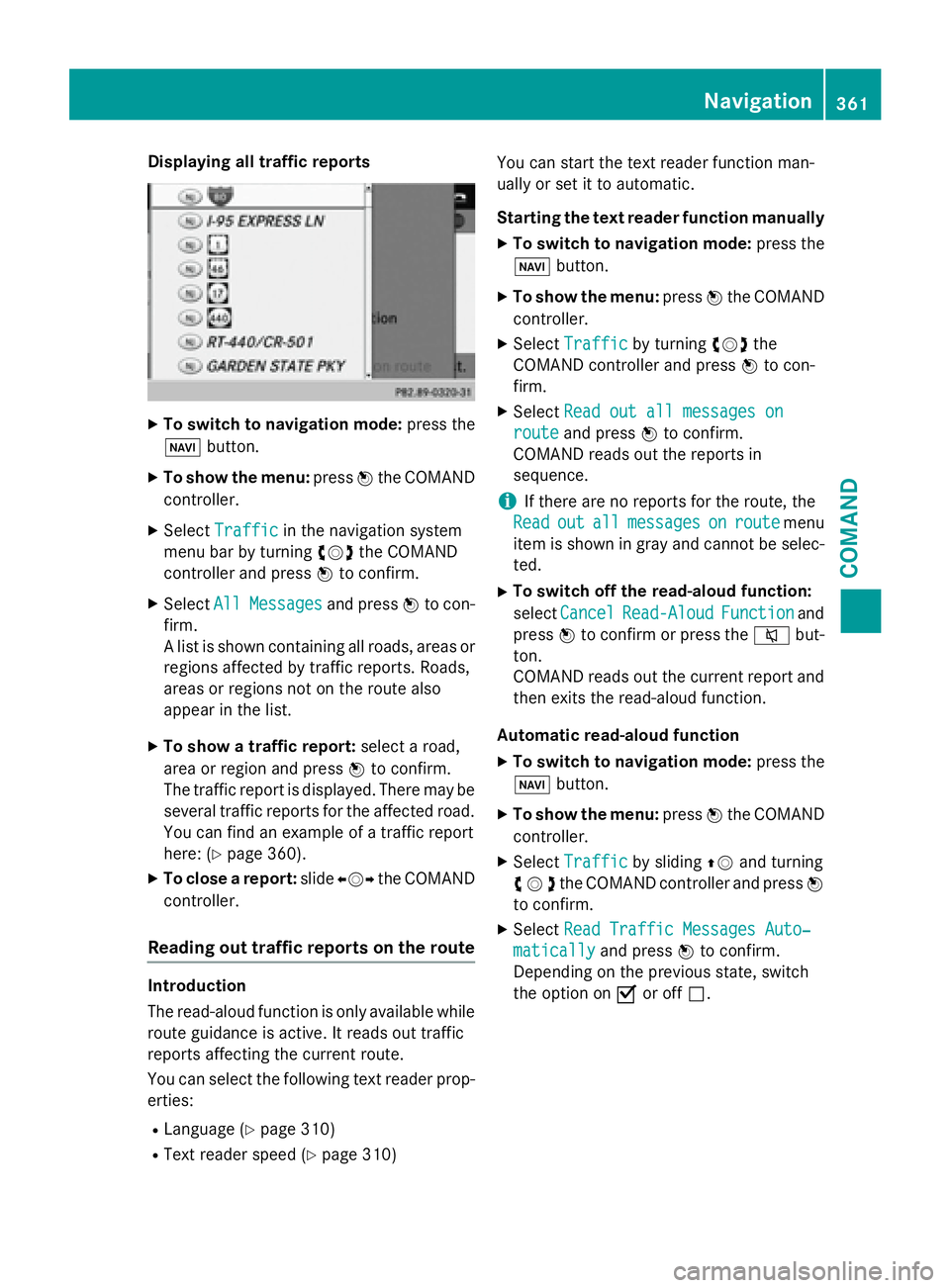
A list is shown containin gall roads, area sor
region saffecte dby traffic reports. Roads ,
area sor region sno ton th eroute also
appea rin th elist .
XTo sho w atraffic report: selectaroad,
area or region and press Wto confirm .
The traffic report is displayed. There may be
several traffic report sfo rth eaffecte droad.
You can fin dan exampl eof atraffic report
here: (
Ypage 360).
XTo close areport: slideXVY theCOMAND
controller .
Reading out traffic reports on th erout e
Introduction
The read-aloud function is only available while
route guidance is active .It read sout traffic
report saffecting th ecurren troute .
You can select th efollowing text reader prop-
erties:
RLanguage (Ypage 310)
RTextreader speed (Ypage 310) You can start th
etext reader function man -
ually or set it to automatic.
Starting th etext reader function manually
XTo switch to navigation mode: press the
Ø button.
XTo sho wthemenu: pressWtheCOMAND
controller .
XSelectTraffi cby turning cVdthe
COMAND controller and press Wto con-
firm.
XSelec tRea dout all messages on
routeand press Wto confirm .
COMAND read sout th ereport sin
sequence .
iIf there are no report sfo rth eroute ,th e
Rea d
outallmessagesonroutemen u
item is shown in gra yand canno tbe selec-
ted.
XTo switch off th eread-aloud function:
select Cancel
Read-Alou dFunctionand
press Wto confirm or press th e8 but-
ton.
COMAND read sout th ecurren treport and
then exit sth eread-aloud function .
Automatic read-aloud function
XTo switch to navigation mode: press the
Ø button.
XTo sho wthemenu: pressWtheCOMAND
controller .
XSelectTraffi cby slidin gZV and turning
cVd the COMAND controller and press W
to confirm.
XSelect Read Traffic Messages Auto‐
maticallyand press Wto confirm.
Depending on the previous state, switch
the option on Oor off ª.
Navigation361
COMAND
Z
Page 403 of 614
iCOMAND may not load all of the most
recent text messages:
This may occur inexceptional cases, for
example when using certain mobile
phones/brackets and ifthe mobile phone
inbox holds a large number of text mes-
sages.
Displaying the text message inbox
Calling up the inbox
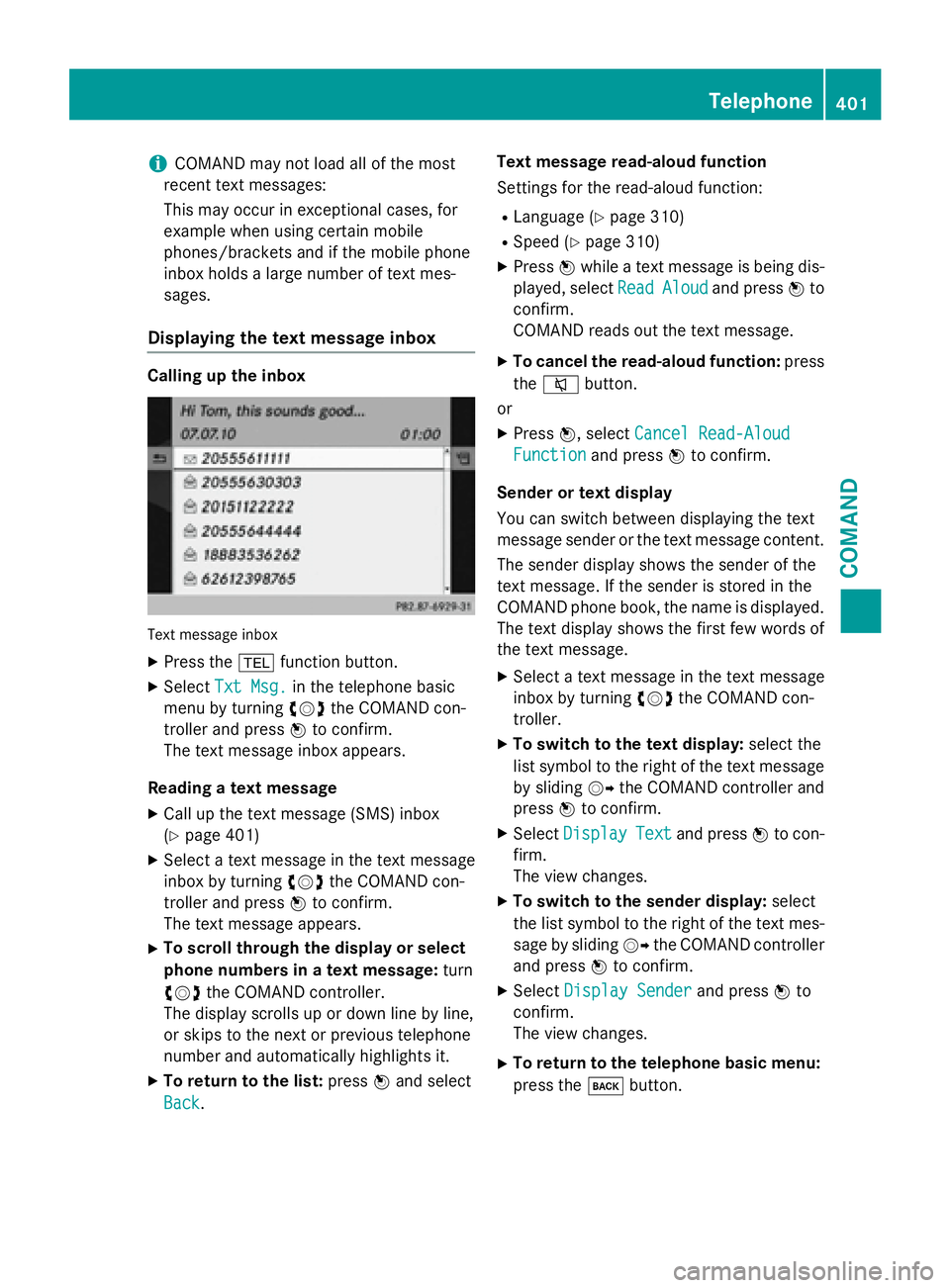
Tex tmessage inbox
XPress the %function button.
XSelect Txt Msg.inthe telephone basic
menu byturning cVdthe COMAND con-
troller and press Wto confirm.
The text message inbox appears.
Reading a text message
XCall up the text message (SMS)inbox
(
Ypage 401)
XSe lect a text message inthe text message
inbox byturning cVdthe COMAND con-
troller and press Wto confirm.
The text message appears.
XTo scroll th roughthe display orselect
phone numbers in a text message: turn
cVd the COMAND controller.
The display scrolls up or downlinebyline,
or skips to the next or previous telephone
number and automatically highlights it.
XTo return to the list: pressWand select
Back
. Text message read-aloud function
Se
ttings for the read-aloud function:
RLanguage (Ypage 310)
RSpe ed (Ypage 310)
XPress Wwhile a text message is being dis-
played, select Read
Aloudand pressWto
confirm.
COMAND reads out the text message.
XTo cancel the read-aloud function: press
the 8 button.
or
XPress W, select Cancel Read-Aloud
Functionand press Wto confirm.
Sender ortext display
You can switch between displaying the text
message sender or the text message content. The sender display shows the sender of the
text message. Ifthe sender isstored inthe
COMAND phone book, the name isdisplayed.
The text display shows the first few words of
the text message.
XSe lect a text message inthe text message
inbox byturning cVdthe COMAND con-
troller.
XTo switch to the text display: select the
list symbol to the right of the text message
by sliding VYthe COMAND controller and
press Wto confirm.
XSelect DisplayTextand press Wto con-
firm.
The view changes.
XTo switch to the sender display: select
the list symbol to the right of the text mes-
sage bysliding VYthe COMAND controller
and press Wto confirm.
XSelect Display Senderand press Wto
confirm.
The view changes.
XTo return to the telephone basic menu:
press the kbutton.
Telephone401
COMAND
Z
Page 473 of 614
XSelectSearchin the basic display by slid-
ing VÆ and turning cVdthe COMAND
controller and press Wto confirm.
The category list appears.
iSearchis not available until the device
has been activated.
iReading: if the media content of the con-
nected device is being read, this is indica-
ted on the upper right by a symbol. When
reading has ended, the categories Select
By CoverandKeyword Searchare avail-
able.
Depending on the connected device and
the size of the media content, reading may
take several minutes. When the device is
next started or reconnected, the advanced
functions will be quickly available.
However, if you change the media content
on your iPod
®/iPhone®, it has to be read
and analyzed again.
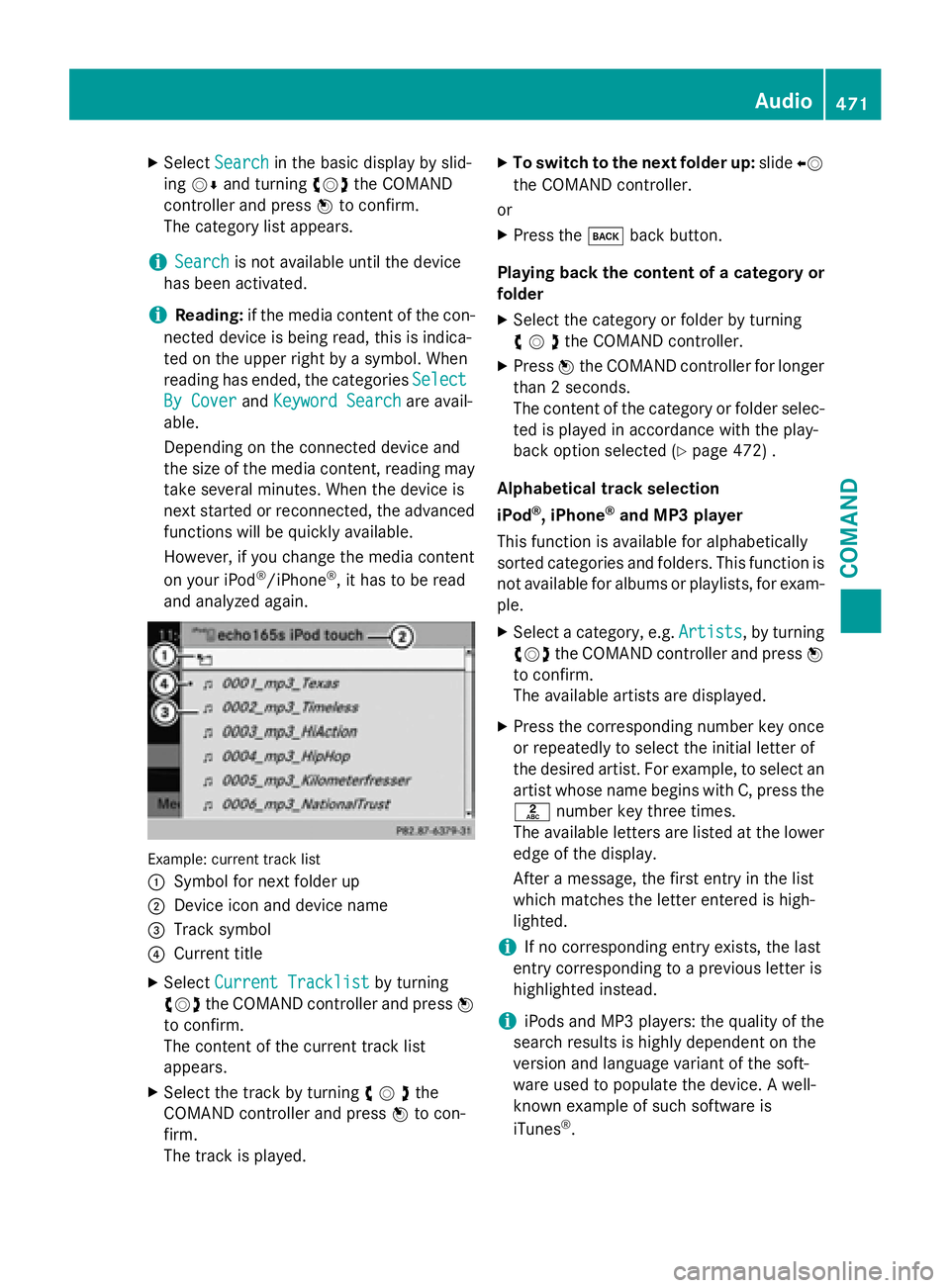
Example: current track list
:
Symbol for next folder up
;Device icon and device name
=Track symbol
?Current title
XSelect Current Tracklistby turning
cVd the COMAND controller and press W
to confirm.
The content of the current track list
appears.
XSelect the track by turning cVdthe
COMAND controller and press Wto con-
firm.
The track is played.
XTo switch to the next folder up: slideXV
the COMAND controller.
or
XPress the kback button.
Playing back the content of a category or
folder
XSelect the category or folder by turning
cVdthe COMAND controller.
XPress Wthe COMAND controller for longer
than 2 seconds.
The content of the category or folder selec-
ted is played in accordance with the play-
back option selected (
Ypage 472) .
Alphabetical track selection
iPod
®, iPhone®and MP3 player
This function is available for alphabetically
sorted categories and folders. This function is
not available for albums or playlists, for exam-
ple.
XSelect a category, e.g. Artists, by turning
cVd the COMAND controller and press W
to confirm.
The available artists are displayed.
XPress the corresponding number key once
or repeatedly to select the initial letter of
the desired artist. For example, to select an
artist whose name begins with C, press the
l number key three times.
The available letters are listed at the lower
edge of the display.
After a message, the first entry in the list
which matches the letter entered is high-
lighted.
iIf no corresponding entry exists, the last
entry corresponding to a previous letter is
highlighted instead.
iiPods and MP3 players: the quality of the
search results is highly dependent on the
version and language variant of the soft-
ware used to populate the device. A well-
known example of such software is
iTunes
®.
Audio471
COMAND
Z
Page 481 of 614
In the case of multi-language DVDs, for exam-
ple, you can change the DVD language in the
DVD menu.
XShow the menu (Ypage 477).
XSelectDVD-Videoin the menu by turning
cVd the COMAND controller and press W
to confirm.
XSelect DVD Functionsand press Wto
confirm.
XSelect Menuand press Wto confirm.
The DVD menu appears.
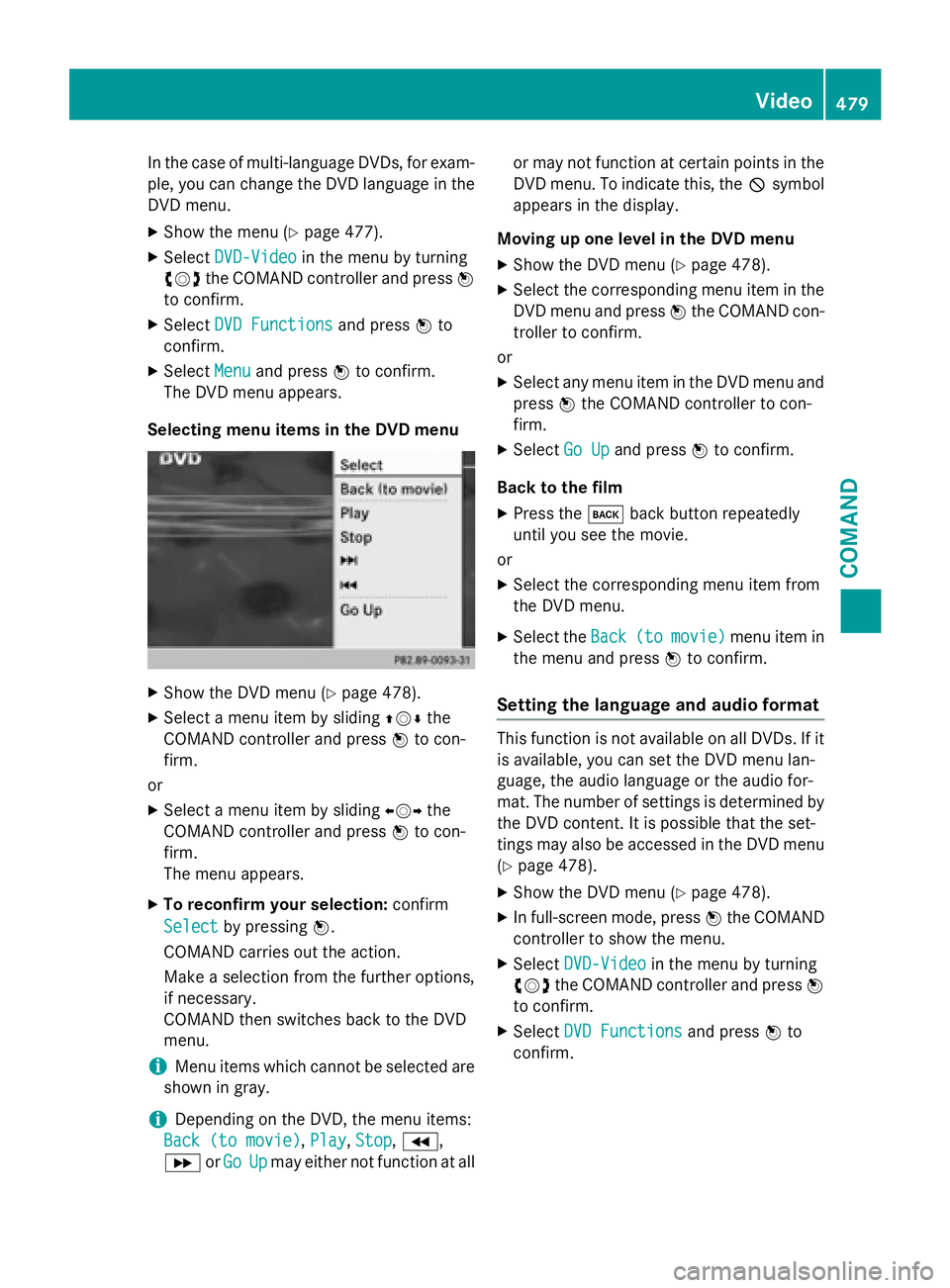
Selecting menu items in the DVD menu
XShow the DVD menu (Ypage 478).
XSelect a menu item by sliding ZVÆthe
COMAND controller and press Wto con-
firm.
or
XSelect a menu item by sliding XVYthe
COMAND controller and press Wto con-
firm.
The menu appears.
XTo reconfirm your selection: confirm
Select
by pressing W.
COMAND carries out the action.
Make a selection from the further options,
if necessary.
COMAND then switches back to the DVD
menu.
iMenu items which cannot be selected are
shown in gray.
iDepending on the DVD, the menu items:
Back (to movie)
, Play,Stop,K,
L orGo
Upmay either not function at all or may not function at certain points in the
DVD menu. To indicate this, the Ksymbol
appears in the display.
Moving up one level in the DVD menu
XShow the DVD menu (Ypage 478).
XSelect the corresponding menu item in the
DVD menu and press Wthe COMAND con-
troller to confirm.
or
XSelect any menu item in the DVD menu and press Wthe COMAND controller to con-
firm.
XSelect Go Upand press Wto confirm.
Back to the film
XPress the kback button repeatedly
until you see the movie.
or
XSelect the corresponding menu item from
the DVD menu.
XSelect the Back(tomovie)menu item in
the menu and press Wto confirm.
Setting the language and audio format
This function is not available on all DVDs. If it
is available, you can set the DVD menu lan-
guage, the audio language or the audio for-
mat. The number of settings is determined by
the DVD content. It is possible that the set-
tings may also be accessed in the DVD menu
(
Ypage 478).
XShow the DVD menu (Ypage 478).
XIn full-screen mode, press Wthe COMAND
controller to show the menu.
XSelect DVD-Videoin the menu by turning
cVd the COMAND controller and press W
to confirm.
XSelect DVD Functionsand press Wto
confirm.
Video479
COMAND
Z
Page 482 of 614
XSelectMenu LanguageorAudio Lan‐
guageand press Wto confirm.
In both cases, a menu appears after a few
seconds. The #dot in front of an entry indi-
cates the currently selected language.
XSelect a setting by turning cVdthe
COMAND controller and press Wto con-
firm.
Subtitles and camera angle
These functions are not available on all DVDs.
The number of subtitle languages and camera
angles available depends on the content of
the DVD. It may also be possible to access the
settings from the DVD menu.
XShow the DVD menu (Ypage 478).
XSelect DVD-Videoin the menu by turning
cVd the COMAND controller and press W
to confirm.
XSelect DVD Functionsand press Wto
confirm.
XSelect SubtitlesorCamera Angleand
press Wto confirm.
In both cases, a menu appears. The #dot in
front of an entry indicates the current set-
ting.
XSelect a setting by turning cVdthe
COMAND controller and press Wto con-
firm.
Interactive content
DVDs can contain interactive content (e.g. a
video game). In a video game, for example,
you may be able to influence events by select-
ing and triggering actions. The type and num-
ber of actions depend on the DVD.
XSelect an action by sliding ZVÆorXVY the
COMAND controller and press Wto exe-
cute it.
A menu appears and the first entry, Select
,
is highlighted.
XPress Wthe COMAND controller.
Video AUX mode
Connecting external video sources
External video sources may have different
volumes, which can mean that system mes-
sages such as traffic announcements and
navigation system announcements are much
louder. If necessary, deactivate the system
messages or adjust their volume manually.
If your vehicle is equipped with Media Inter-
face, you can connect an external video
source (AUX video) (
Ypage 467).
The 1/8 inch audio/video jacks are in the
center console stowage compartment.
iIn vehicles with a rear view camera, the
AUX video jack cannot be used for external
video sources.
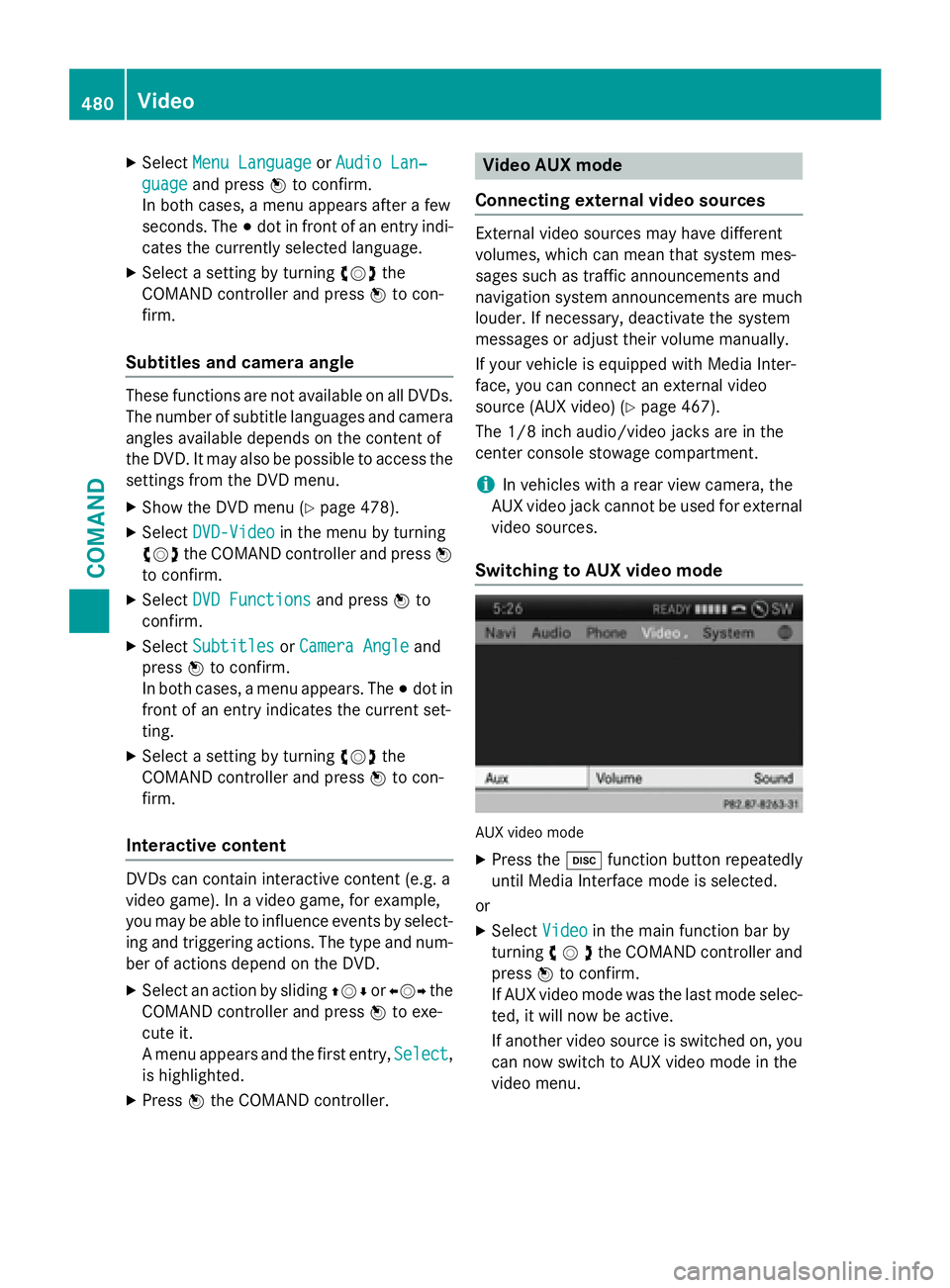
Switching to AUX video mode
AUX video mode
XPress the hfunction button repeatedly
until Media Interface mode is selected.
or
XSelect Videoin the main function bar by
turning cVdthe COMAND controller and
press Wto confirm.
If AUX video mode was the last mode selec-
ted, it will now be active.
If another video source is switched on, you can now switch to AUX video mode in the
video menu.
480Video
COMAND
Page 491 of 614
Selecting sound settings
You can select the sound settings in the CD/
MP3, video DVD and AUX modes.
XSwitch on an operating mode (e.g. audio
CD mode) (
Ypage 491).
XSelectTrebleorBassusing
the :=; buttons on the remote
control and press the 9button to confirm.
An adjustment scale appears.
XSelect a setting using the 9:but-
tons and press the 9button to confirm.
Multiple users
Simultaneous use of the rear-compart-
ment disc drive
The two rear-compartment screens can be
operated almost entirely independently from
one another. However, there can be a conflict
in some menus if the two screens are used
simultaneously.
If the rear-compartment disc drive is being
used for both screens simultaneously, select-
ing certain menus or settings on one of the
screens also affects the other screen.
The following functions affect both screens:
Rchanging playback options
Rselecting a track (from a track list or folder)
Rusing the play, pause and stop functions
Rfast forwarding/rewinding or scrolling
Rcalling up the DVD menu and navigating
within it
Rsetting the language, subtitles and camera
angle
Rcalling up interactive DVD content
The following functions affect only one
screen:
Raudio and video functions as well as picture
settings
Rswitching between full screen and the
menu Switching between operating modes
When you exit an operating mode (e.g. audio
CD mode), the current setting is saved. If you
call up this operating mode again later, there
are two possibilities:
Rthe operating mode has been changed on
the other screen.
Rthe operating mode has not been changed.
In the first case, the operating mode appears as it is on the other screen.
In the second case, the setting appears on the
screen as it was when you last exited the
operating mode.
Picture settings
Overview
You can select picture settings in video DVD
and AUX mode (
Ypage 500).
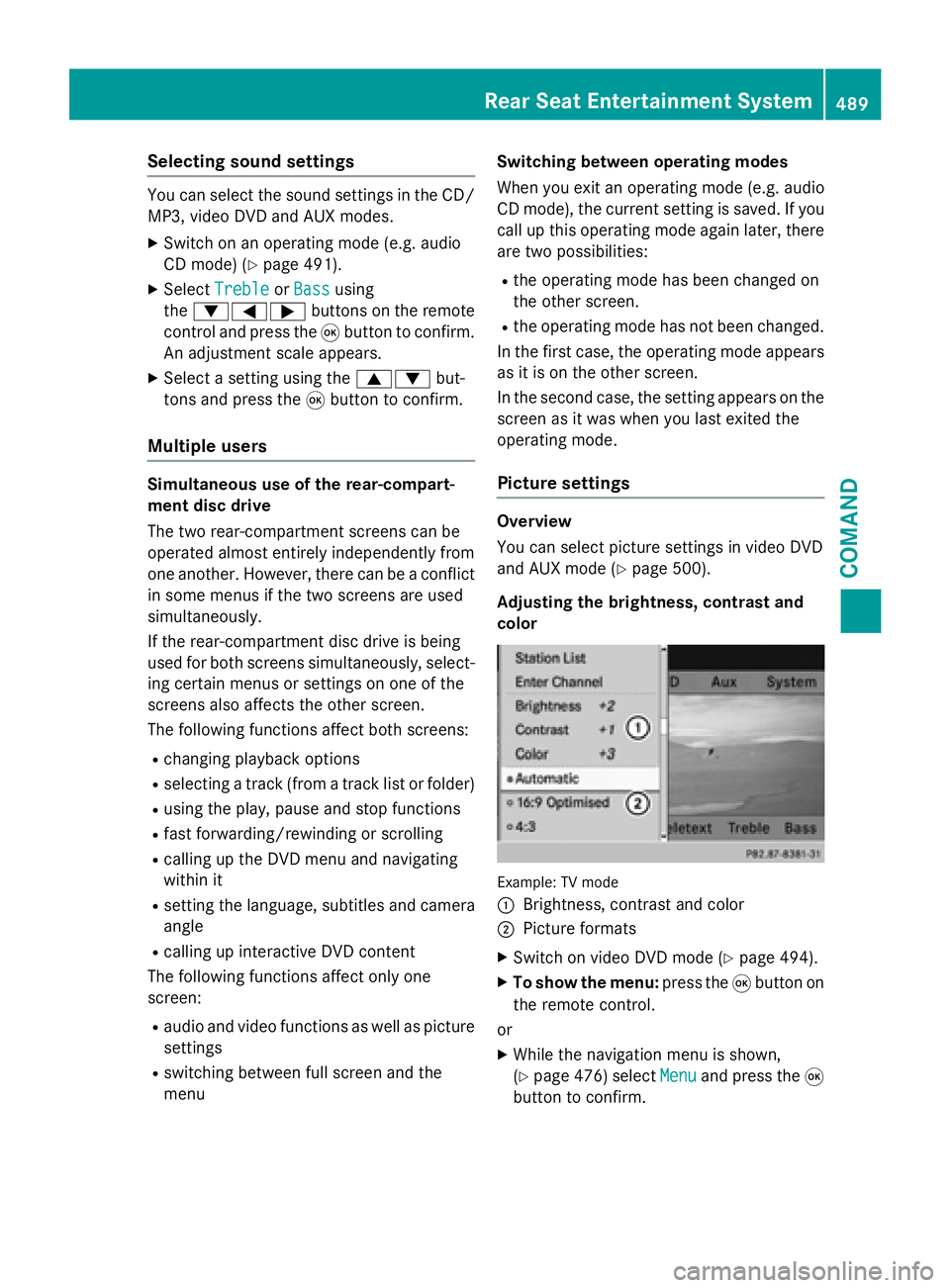
Adjusting the brightness, contrast and
color
Example: TV mode
:
Brightness, contrast and color
;Picture formats
XSwitch on video DVD mode (Ypage 494).
XTo show the menu: press the9button on
the remote control.
or
XWhile the navigation menu is shown,
(
Ypage 476) select Menuand press the9
button to confirm.
Rear Seat Entertainment System489
COMAND
Z
Page 492 of 614
XSelectDVD-Videousing
the :=; buttons and press the
9 button to confirm.
XSelect Brightness,Contrastor Color
using the 9: buttons and press the
9 button to confirm.
An adjustment scale appears.
XSelect a setting using the 9:but-
tons and press the 9button to confirm.
Changing the picture format
XTo show the menu: press the9button on
the remote control.
or
XWhile the navigation menu is shown,
(
Ypage 476) select Menuand press the9
button to confirm.
XSelect DVD-Videousing
the :=; buttons and press the
9 button to confirm.
The dot in front of one of the menu items
16:9
Optimized, 4:3or Widescreenindi-
cates the format currently selected.
XSelect a format using the 9:but-
tons and press the 9button to confirm.
System settings
Note
You can adjust almost all system settings
individually for each screen without affecting
the other screen. You make these settings
using the remote control (
Ypage 484).
Selecting the display language
XSelect Systemusing the 9=;
buttons on the remote control and press 9
to confirm.
You see the system menu on the selected
rear screen.
XSelect Settingsusing the :button
and press 9to confirm.
XSelect Languageusing the 9: but-
tons and press the 9button to confirm.
The list of languages appears. A #dot
indicates the current setting.
XSelect a language using the 9:but-
tons and press the 9button to confirm.
The Rear Seat Entertainment System acti-
vates the selected language.
Switching the display design
XSelect Settingsusing the :button
and press 9to confirm.
XSelect Day Mode,Night Modeor Auto‐
maticusing the 9: buttons and
press the 9button to confirm.
The dot indicates the current setting.
DesignExplanation
Day ModeThe display is set per-
manently to day
design.
Night ModeThe display is set per-
manently to night
design.
AutomaticThe display design
changes depending on
the vehicle instrument
cluster illumination.
Setting the brightness
XSelect Settingsusing the :button
and press 9to confirm.
XSelect Brightnessusing the 9:
buttons and press the 9button to confirm.
A scale appears.
XAdjust the brightness using the 9:
buttons and press the 9button to confirm.
The brightness bar moves up or down. The
picture becomes lighter or darker in
accordance with the scale.
490Rear Seat Entertainment System
COMAND
Page 499 of 614
XTo call up the selection list:press the9
button.
XSelect a film/title.
Option 2:
Example: selecting film 2
XPress button 2.
After a brief pause, the second film is
played.
DVD menu
Calling up the DVD menu
The DVD menu is the menu stored on the DVD
itself. It is structured in various ways accord-
ing to the individual DVD and permits certain actions and settings.
In the case of multi-language DVDs, for exam-
ple, you can change the DVD language in the
DVD menu.
XPress the 9button on the remote control
and show the menu.
XSelect DVD-Videoand press the 9button
on the remote control to confirm.
XSelect DVD Functionsand press the 9
button to confirm.
XSelect Menuand press the 9button to
confirm.
The DVD menu appears.
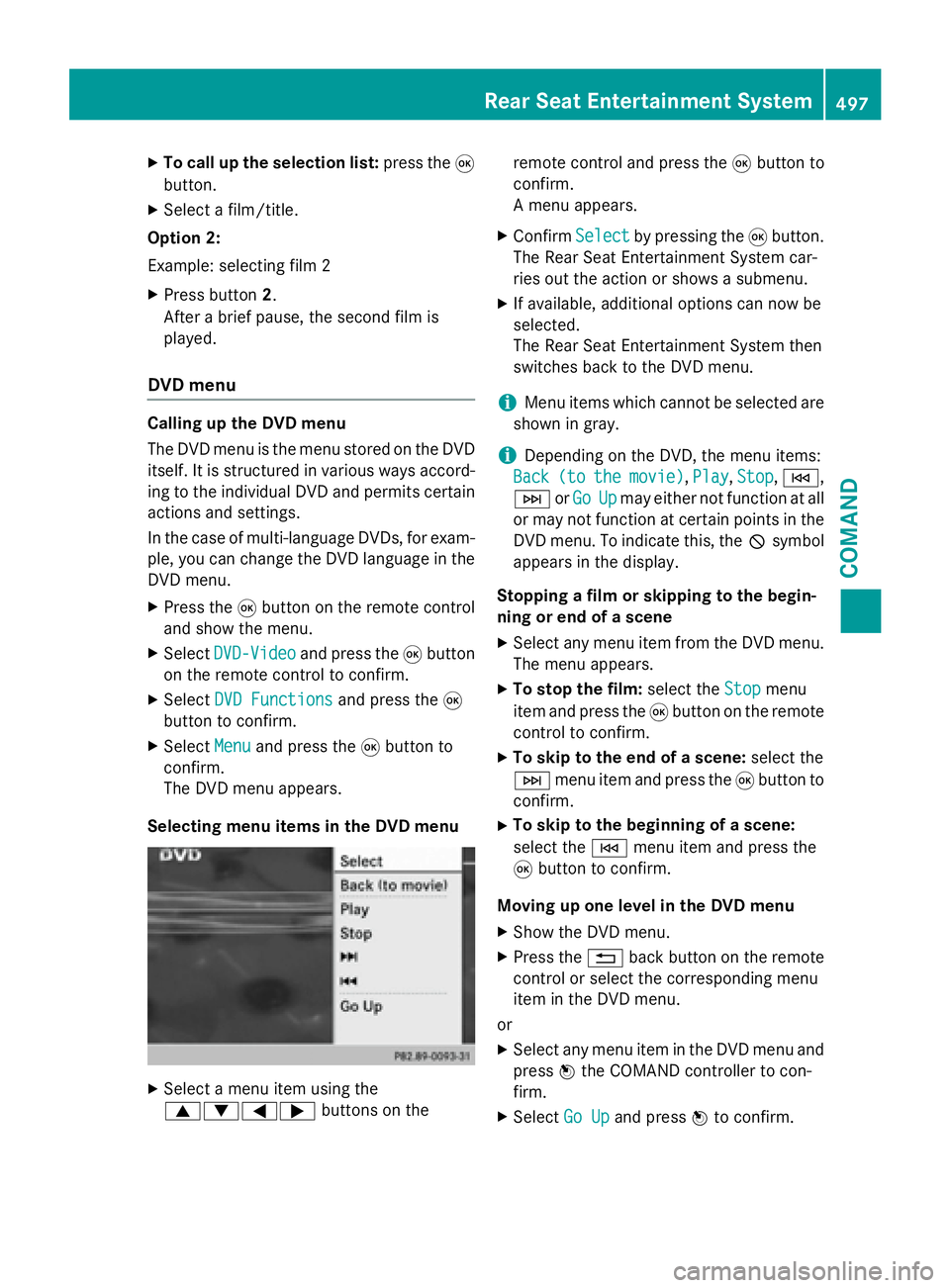
Selecting menu items in the DVD menu
XSelect a menu item using the
9:=; buttons on the remote control and press the
9button to
confirm.
A menu appears.
XConfirm Selectby pressing the 9button.
The Rear Seat Entertainment System car-
ries out the action or shows a submenu.
XIf available, additional options can now be
selected.
The Rear Seat Entertainment System then
switches back to the DVD menu.
iMenu items which cannot be selected are
shown in gray.
iDepending on the DVD, the menu items:
Back
(tothemovie), Play, Stop,E,
F orGo
Upmay either not function at all
or may not function at certain points in the
DVD menu. To indicate this, the Ksymbol
appears in the display.
Stopping a film or skipping to the begin-
ning or end of a scene
XSelect any menu item from the DVD menu.
The menu appears.
XTo stop the film: select theStopmenu
item and press the 9button on the remote
control to confirm.
XTo skip to the end of a scene: select the
F menu item and press the 9button to
confirm.
XTo skip to the beginning of a scene:
select the Emenu item and press the
9 button to confirm.
Moving up one level in the DVD menu
XShow the DVD menu.
XPress the %back button on the remote
control or select the corresponding menu
item in the DVD menu.
or
XSelect any menu item in the DVD menu and press Wthe COMAND controller to con-
firm.
XSelect Go Upand press Wto confirm.
Rear Seat Entertainment System497
COMAND
Z
Page 500 of 614
Back to the film
XPress thekbutton repeatedly until you
see the movie.
or
XSelect any menu item in the DVD menu and
press 9to confirm.
XSelect the Back (to the movie)menu
item in the menu and press the 9button to
confirm.
Setting the audio format
This function is not available on all DVDs. If it
is available, you can set the audio language or
the audio format. The number of settings is
determined by the DVD content. It may also
be possible to access the settings from the
DVD menu.
XPress the 9button on the remote control
and show the menu.
XSelect DVD-Videoand press the 9button
on the remote control to confirm.
XSelect DVD Functionsand press the 9
button to confirm.
XSelect Audio Languageand press the 9
button to confirm.
A menu appears after a short while. The #
dot in front of an entry indicates the cur-
rently selected language.
XSelect a language using the 9:but-
tons and press the 9button to confirm.
XTo exit the menu: press the=or;
button.
Subtitles and camera angle
These functions are not available on all DVDs.
The number of subtitle languages and camera
angles available depends on the content of
the DVD. It may also be possible to access the
settings from the DVD menu.
XPress the 9button on the remote control
and show the menu.
XSelect DVD-Videoand press the 9button
on the remote control to confirm.
XSelect DVD Functionsand press the 9
button to confirm.
XSelect SubtitlesorCamera Angleand
press the 9button to confirm.
In both cases, a menu appears after a few
seconds. The #dot in front of an entry
indicates the current setting.
XSelect a setting using the 9:but-
tons and press the 9button to confirm.
XTo exit the menu: press the=or;
button.
Interactive content
DVDs can also contain interactive content
(e.g. a video game). In a video game, you may
be able to influence events by selecting and
triggering actions. The type and number of
actions depend on the DVD.
XSelect an action using the
9;:= buttons on the
remote control and press the 9button to
execute it.
A menu appears and the first entry, Select
,
is highlighted.
XPress the 9button.
Operation with an active COMAND
source
Switching the function on/off in
COMAND
You can transfer an audio or video source
selected in COMAND to the Rear Seat Enter-
tainment System. If you subsequently switch
modes in COMAND, the new source will not
be transmitted to the Rear Seat Entertain-
ment System.
XTo switch on the function in COMAND:
switch to the desired audio mode in
COMAND, e.g. CD mode (
Ypage 448), or
show the menu in video DVD mode
(
Ypage 476).
XSelect the menu item at the bottom left,
e.g. CD
in audio CD mode, by sliding VÆ
498Rear Seat Entertainment System
COMAND