navigation MERCEDES-BENZ SL-CLASS ROADSTER 2016 User Guide
[x] Cancel search | Manufacturer: MERCEDES-BENZ, Model Year: 2016, Model line: SL-CLASS ROADSTER, Model: MERCEDES-BENZ SL-CLASS ROADSTER 2016Pages: 614, PDF Size: 15.67 MB
Page 227 of 614
ATime
BOutside temperature or speed
(
Ypage 233)
XTo display menu bar?:press the =
or ; button on the steering wheel.
If you do not press the buttons any longer,
menu bar ?is faded out after a few sec-
onds.
Text field =shows the selected menu or
submenu and display messages.
iYou can set the time using COMAND.
Possible displays in the multifunction display:
Z Gearshift recommendation when
shifting manually (
Ypage 165)
XjY Active Parking Assist (
Ypage 202)
CRUISE
Cruise control (Ypage 180)
_ Adaptive Highbeam Assist
(
Ypage 128)
è ECO start/stop function
(
Ypage 155)
ë HOLD function (
Ypage 191)
Menus and submenus
Menu overview
Using the =or; button on the steer-
ing wheel, open the menu bar.
Operating the on-board computer
(
Ypage 223).
Depending on the vehicle equipment, you can
select the following menu:
RTripmenu (Ypage 225)
RNavimenu (navigation instructions)
(
Ypage 227)
RAudiomenu (Ypage 228)
RTelmenu (telephone) (Ypage 229)
RDriveAssistmenu (assistance)
(
Ypage 230)
RServmenu (Ypage 232)
RSettmenu (settings) (Ypage 232)
RAMGmenu (Mercedes-AMG vehicles)
(
Ypage 236)
Trip menu
Standard display
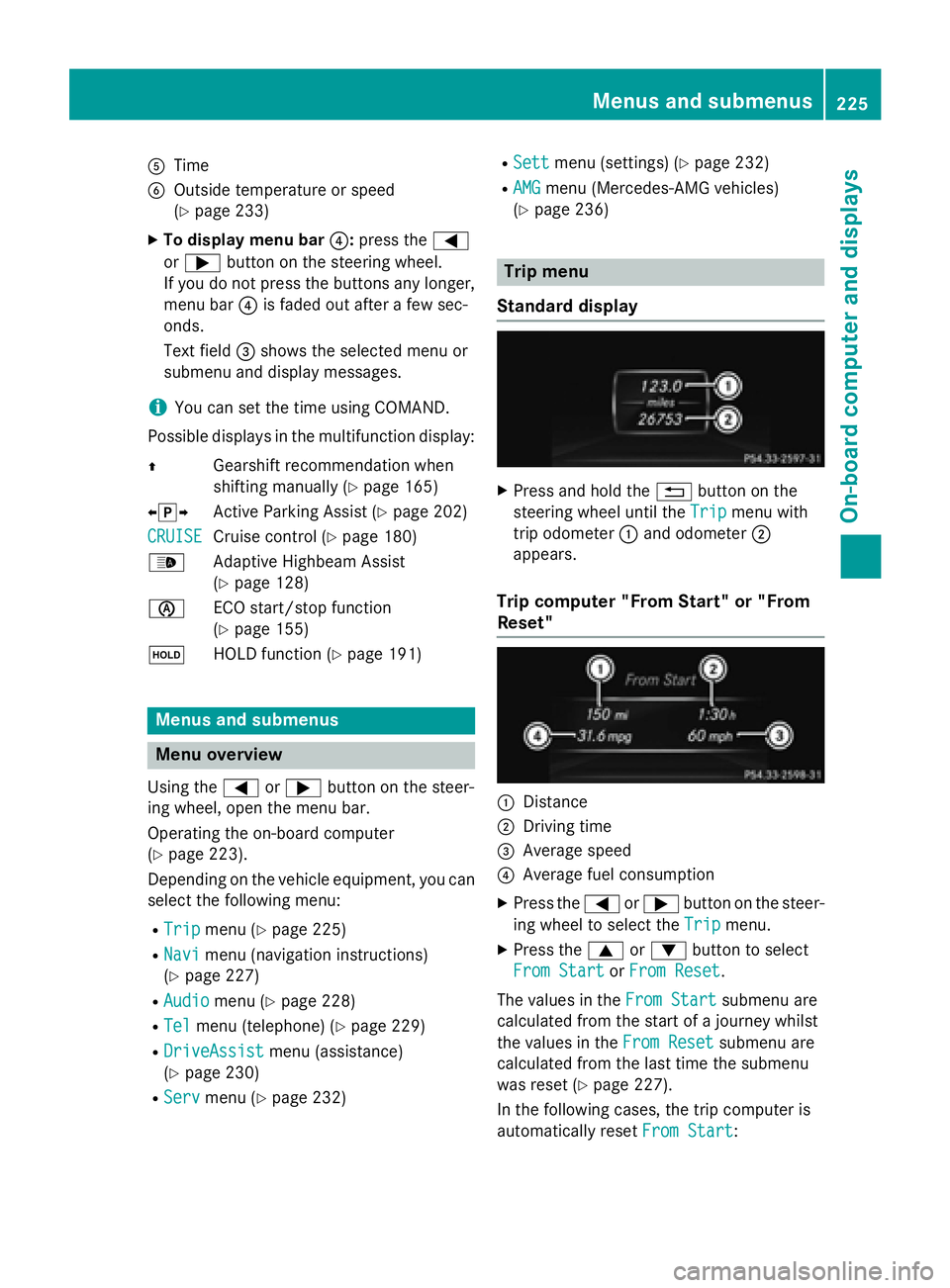
XPress and hold the %button on the
steering wheel until the Trip
menu with
trip odometer :and odometer ;
appears.
Trip computer "From Start" or "From
Reset"
:Distance
;Driving time
=Average speed
?Average fuel consumption
XPress the =or; button on the steer-
ing wheel to select the Trip
menu.
XPress the9or: button to select
From Start
or From Reset.
The values in the From Start
submenu are
calculated from the start of a journey whilst
the values in the From Reset
submenu are
calculated from the last time the submenu
was reset (
Ypage 227).
In the following cases, the trip computer is
automatically reset From Start
:
Menus and submenus225
On-board computer and displays
Z
Page 229 of 614
Resetting values
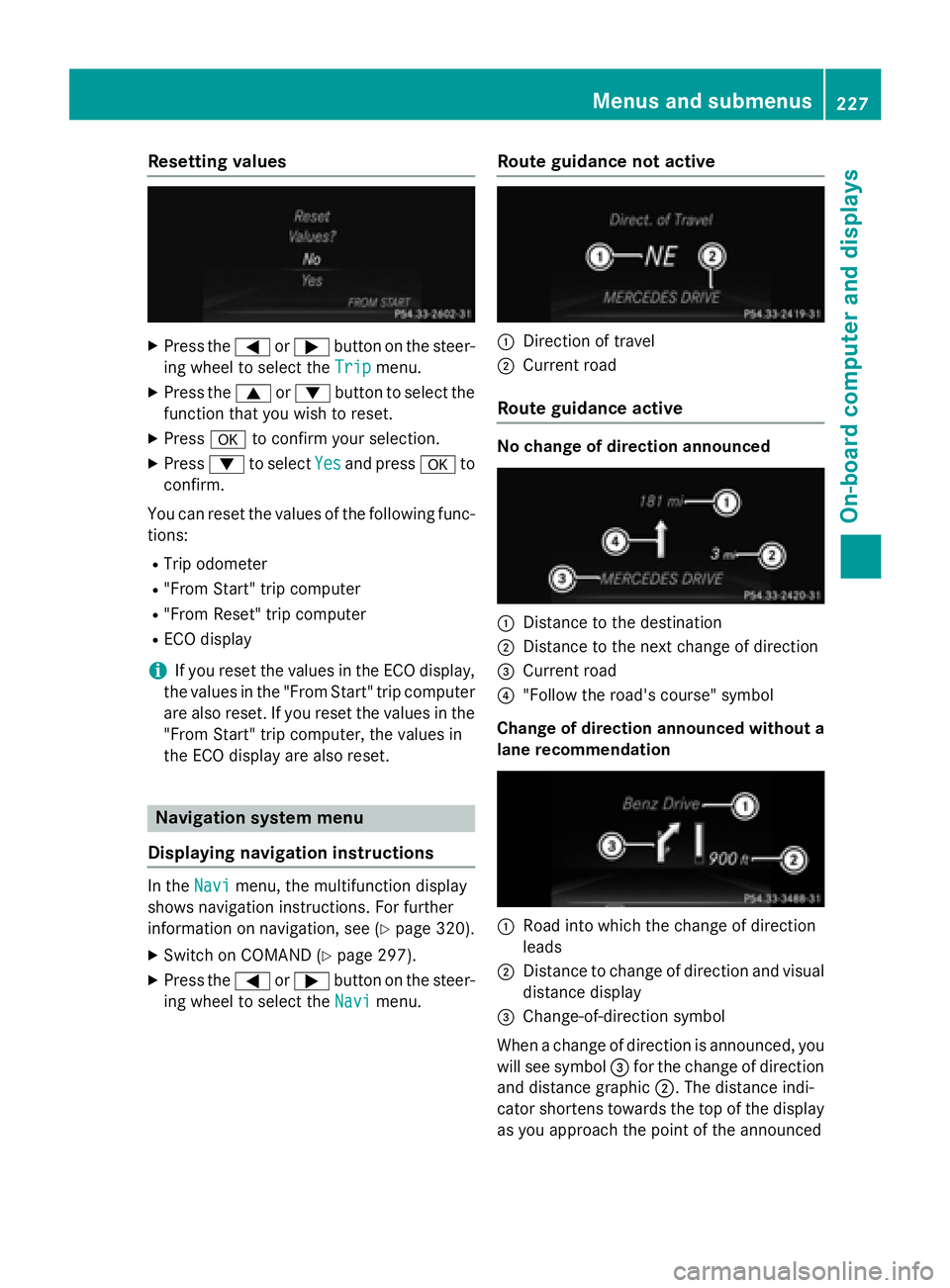
XPress the=or; button on the steer-
ing wheel to select the Trip
menu.
XPress the9or: button to select the
function that you wish to reset.
XPress ato confirm your selection.
XPress :to select Yesand press ato
confirm.
You can reset the values of the following func-
tions:
RTrip odometer
R"From Start" trip computer
R"From Reset" trip computer
RECO display
iIf you reset the values in the ECO display,
the values in the "From Start" trip computer
are also reset. If you reset the values in the
"From Start" trip computer, the values in
the ECO display are also reset.
Navigation system menu
Displaying navigation instructions
In the Navimenu, the multifunction display
shows navigation instructions. For further
information on navigation, see (
Ypage 320).
XSwitch on COMAND (Ypage 297).
XPress the =or; button on the steer-
ing wheel to select the Navi
menu.
Route guidance not active
:Direction of travel
;Current road
Route guidance active
No change of direction announced
:Distance to the destination
;Distance to the next change of direction
=Current road
?"Follow the road's course" symbol
Change of direction announced without a
lane recommendation
:Road into which the change of direction
leads
;Distance to change of direction and visual
distance display
=Change-of-direction symbol
When a change of direction is announced, you
will see symbol =for the change of direction
and distance graphic ;. The distance indi-
cator shortens towards the top of the display
as you approach the point of the announced
Menus and submenus227
On-board computer and displays
Z
Page 230 of 614
change of direction. The change of direction
starts once the distance display reaches zero.
Change of direction announced with a
lane recommendation
:Road into which the change of direction
leads
;Distance to change of direction and visual
distance display
=Lanes not recommended
?Recommended lane and new lane during a
change of direction
AChange-of-direction symbol
On multilane roads, new lane recommenda-
tions can be displayed for the next change of
direction if the digital map supports this data.
During the change of direction, new lanes
may be added.
Lane not recommended =: you will not be
able to complete the next change of direction
if you stay in this lane.
Recommended lane and new lane during a
change of direction ?: in this lane you will be
able to complete the next two changes of
direction without changing lane.
Other status indicators of the naviga-
tion system
The navigation system displays additional
information and the vehicle status.
RO: you have reached the destination or an
intermediate destination.
RNew Route...or Calculating Route:
calculating a new route
ROff Mapor OffMappedRoad: the vehicle
position is inside the area of the digital map but the road is not recognize, e.g. new
roads, car parks or private land
RNo Route: no route could be calculated to
the selected destination
Audio menu
Selecting a radio station
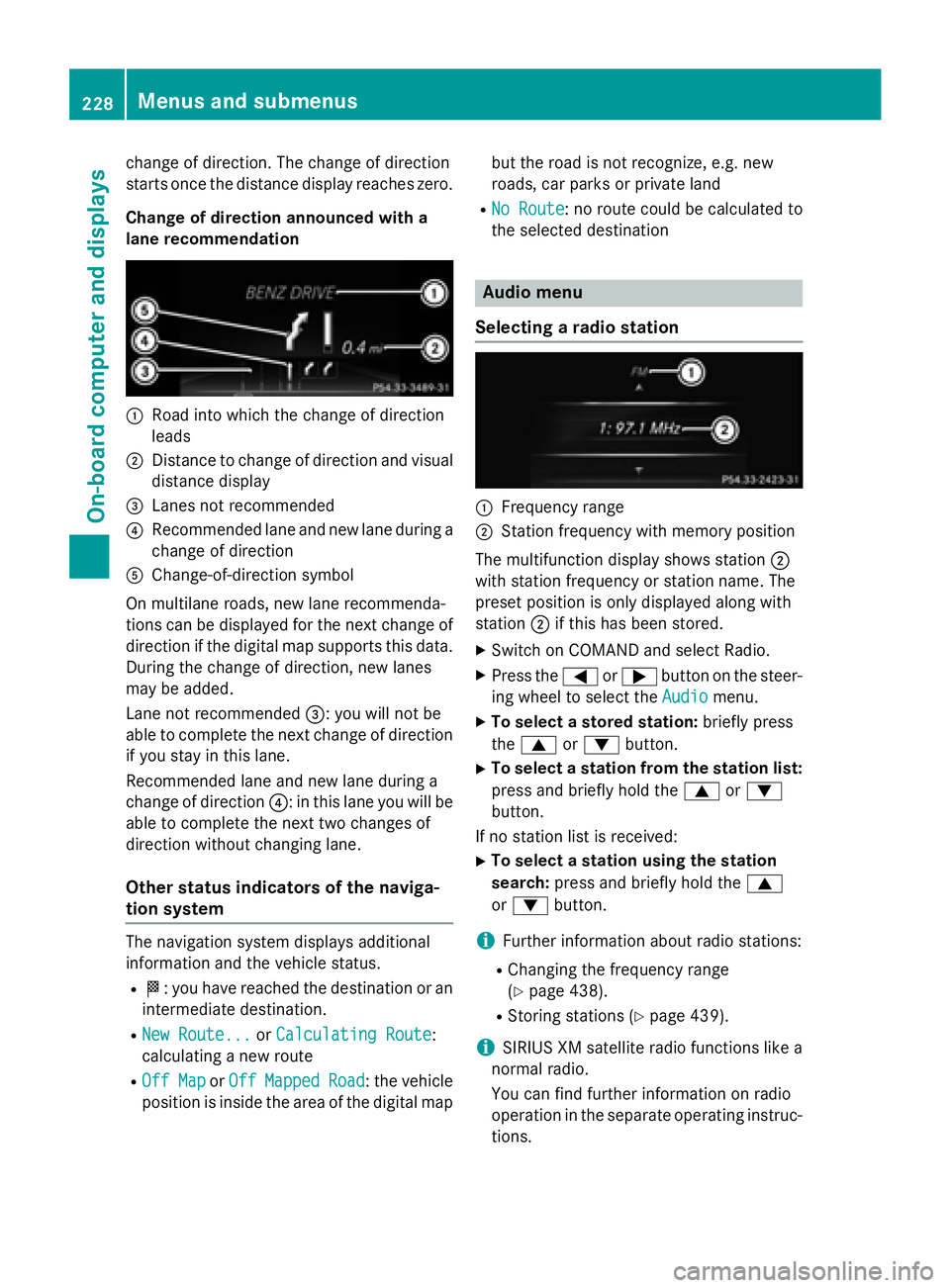
:Frequency range
;Station frequency with memory position
The multifunction display shows station ;
with station frequency or station name. The
preset position is only displayed along with
station ;if this has been stored.
XSwitch on COMAND and select Radio.
XPress the =or; button on the steer-
ing wheel to select the Audio
menu.
XTo select a stored station: briefly press
the 9 or: button.
XTo select a station from the station list:
press and briefly hold the 9or:
button.
If no station list is received:
XTo select a station using the station
search: press and briefly hold the 9
or : button.
iFurther information about radio stations:
RChanging the frequency range
(
Ypage 438).
RStoring stations (Ypage 439).
iSIRIUS XM satellite radio functions like a
normal radio.
You can find further information on radio
operation in the separate operating instruc- tions.
228Menus and submenus
On-board computer and displays
Page 235 of 614
Rthe trip computer
Rthe current consumption and the range
Rthe navigation instructions in theNavi
menu
Rcruise control
RDISTRONIC PLUS
RASSYST PLUS service interval display
Selecting permanent display
The Permanent Display:
function allows
you to choose whether the multifunction dis-
play always shows the outside temperature or
the speed in km/h. Canada only: the speed is
shown in mph. The speed display is inverse to
the speedometer.
XPress the =or; button on the steer-
ing wheel to select the Sett.
menu.
XPress the:or9 button to select the
Instrument Cluster
submenu.
XPress ato confirm.
XPress the :or9 button to select the
Permanent Display:
function.
The current setting Outside
Temperature
orSpeedometer [km/h]/Speedometer
[mph]appears.
XPress the abutton to save the setting.
Lights
Setting the daytime running lamps
This function is not available in Canada.
XPress the =or; button on the steer-
ing wheel to select the Sett.
menu.
XPress the:or9 button to select the
Light
submenu.
XPress ato confirm.
XPress :or9 to select the Daytime
Running Lightsfunction.
If the Daytime Running Lights
function
has been switched on, the multifunction
display shows the cone of light and the
W symbol in orange.
XPress the abutton to save the setting. Further information on daytime running
lamps (
Ypage 122).
Switching the spotlight function on/off
XPress the =or; button on the steer-
ing wheel to select the Sett.
menu.
XPress the:or9 button to select the
Light
submenu.
XPress ato confirm.
XPress :or9 to select the Spot‐
light:function.
When the spotlight function is activated,
the assistance graphic shows the pedes-
trian symbol.
XPress the abutton to save the setting.
Further information on the spotlight function
of Night View Assist Plus (
Ypage 213).
Setting the brightness of the ambient
lighting
XPress the =or; button on the steer-
ing wheel to select the Sett.
menu.
XPress the:or9 button to select the
Light
submenu.
XPress ato confirm.
XPress the :or9 button to select the
Amb. Light +/-
function.
The current setting appears.
XPress ato confirm.
XPress the :or9 button to adjust the
brightness to a level from Disabled
to
Level 5
(bright).
XPress the aor% button to save the
setting.
Setting the ambient lighting color
XPress the =or; button on the steer-
ing wheel to select the Sett.
menu.
XPress the:or9 button to select the
Light
submenu.
XPress ato confirm.
XPress the :or9 button to select the
Ambient Light Color
function.
XPress ato confirm.
Menus and submenus233
On-board computer and displays
Z
Page 274 of 614
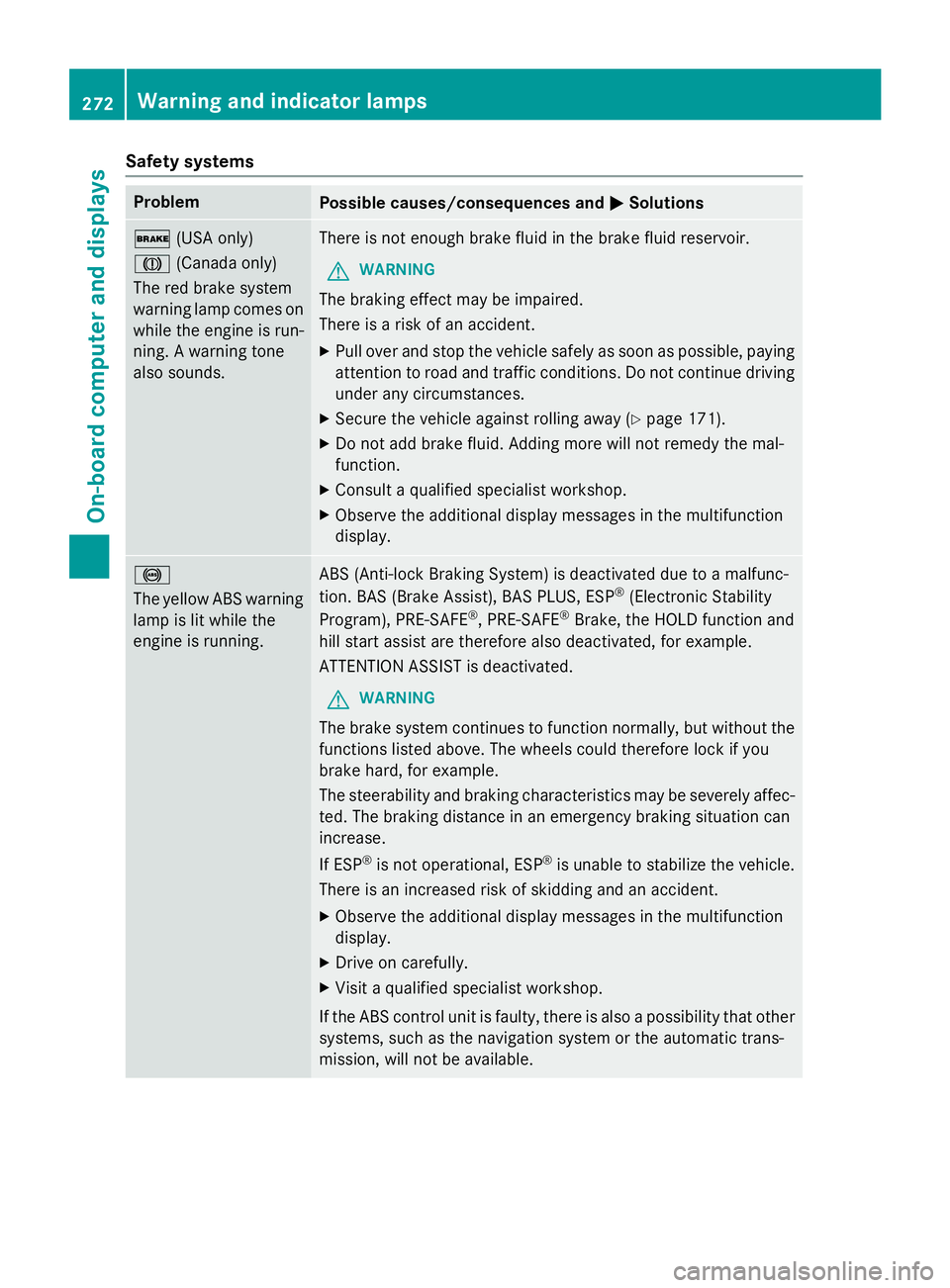
Safety systems
ProblemPossible causes/consequences andMSolutions
$(USA only)
J (Canada only)
The red brake system
warning lamp comes on
while the engine is run-
ning. A warning tone
also sounds.There is not enough brake fluid in the brake fluid reservoir.
GWARNING
The braking effect may be impaired.
There is a risk of an accident.
XPull over and stop the vehicle safely as soon as possible, paying
attention to road and traffic conditions. Do not continue driving
under any circumstances.
XSecure the vehicle against rolling away (Ypage 171).
XDo not add brake fluid. Adding more will not remedy the mal-
function.
XConsult a qualified specialist workshop.
XObserve the additional display messages in the multifunction
display.
!
The yellow ABS warning
lamp is lit while the
engine is running.ABS (Anti-lock Braking System) is deactivated due to a malfunc-
tion. BAS (Brake Assist), BAS PLUS, ESP®(Electronic Stability
Program), PRE‑ SAFE®, PRE‑SAFE®Brake, the HOLD function and
hill start assist are therefore also deactivated, for example.
ATTENTION ASSIST is deactivated.
GWARNING
The brake system continues to function normally, but without the
functions listed above. The wheels could therefore lock if you
brake hard, for example.
The steerability and braking characteristics may be severely affec-
ted. The braking distance in an emergency braking situation can
increase.
If ESP
®is not operational, ESP®is unable to stabilize the vehicle.
There is an increased risk of skidding and an accident.
XObserve the additional display messages in the multifunction
display.
XDrive on carefully.
XVisit a qualified specialist workshop.
If the ABS control unit is faulty, there is also a possibility that other
systems, such as the navigation system or the automatic trans-
mission, will not be available.
272Warning and indicator lamps
On-board computer and displays
Page 285 of 614
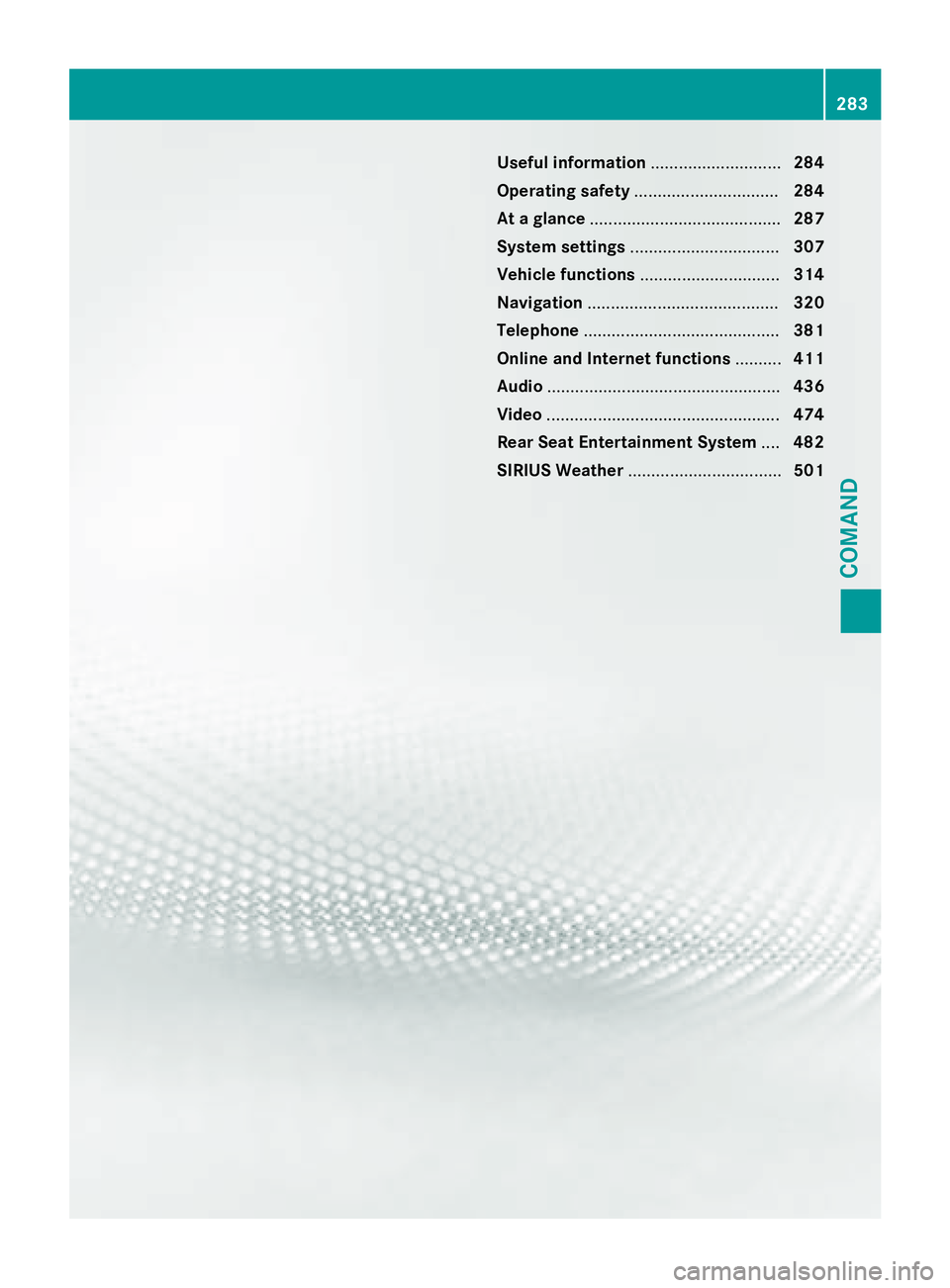
Useful information............................284
Operating safety ............................... 284
At a glance ......................................... 287
System settings ................................ 307
Vehicle functions .............................. 314
Navigation ......................................... 320
Telephone .......................................... 381
Online and Internet functions ..........411
Audio .................................................. 436
Video .................................................. 474
Rear Seat Entertainment System ....482
SIRIUS Weather ................................. 501
283
COMAND
Page 286 of 614
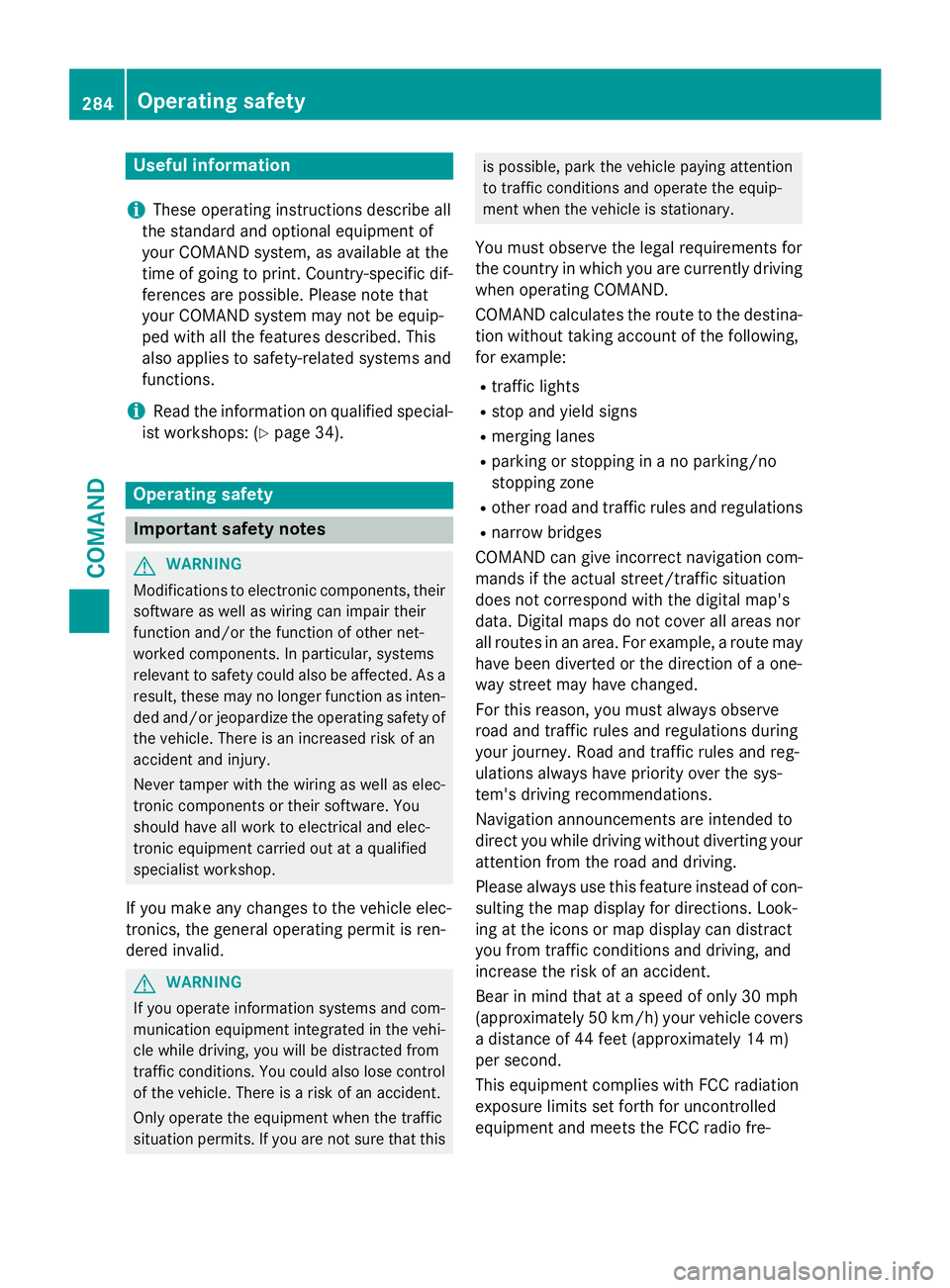
Useful information
i
These operating instructions describe all
the standard and optional equipment of
your COMAND system, as available at the
time of going to print. Country-specific dif-
ferences are possible. Please note that
your COMAND system may not be equip-
ped with all the features described. This
also applies to safety-related systems and
functions.
iRead the information on qualified special-
ist workshops: (
Ypage 34).
Operating safety
Important safety notes
GWARNING
Modifications to electronic components, their software as well as wiring can impair their
function and/or the function of other net-
worked components. In particular, systems
relevant to safety could also be affected. As a
result, these may no longer function as inten-
ded and/or jeopardize the operating safety of
the vehicle. There is an increased risk of an
accident and injury.
Never tamper with the wiring as well as elec-
tronic components or their software. You
should have all work to electrical and elec-
tronic equipment carried out at a qualified
specialist workshop.
If you make any changes to the vehicle elec-
tronics, the general operating permit is ren-
dered invalid.
GWARNING
If you operate information systems and com-
munication equipment integrated in the vehi-
cle while driving, you will be distracted from
traffic conditions. You could also lose control
of the vehicle. There is a risk of an accident.
Only operate the equipment when the traffic
situation permits. If you are not sure that this
is possible, park the vehicle paying attention
to traffic conditions and operate the equip-
ment when the vehicle is stationary.
You must observe the legal requirements for
the country in which you are currently driving
when operating COMAND.
COMAND calculates the route to the destina-
tion without taking account of the following,
for example:
Rtraffic lights
Rstop and yield signs
Rmerging lanes
Rparking or stopping in a no parking/no
stopping zone
Rother road and traffic rules and regulations
Rnarrow bridges
COMAND can give incorrect navigation com-
mands if the actual street/traffic situation
does not correspond with the digital map's
data. Digital maps do not cover all areas nor
all routes in an area. For example, a route may
have been diverted or the direction of a one-
way street may have changed.
For this reason, you must always observe
road and traffic rules and regulations during
your journey. Road and traffic rules and reg-
ulations always have priority over the sys-
tem's driving recommendations.
Navigation announcements are intended to
direct you while driving without diverting your
attention from the road and driving.
Please always use this feature instead of con-
sulting the map display for directions. Look-
ing at the icons or map display can distract
you from traffic conditions and driving, and
increase the risk of an accident.
Bear in mind that at a speed of only 30 mph
(approximately 50 km/h) your vehicle covers
a distance of 44 feet (approximately 14 m)
per second.
This equipment complies with FCC radiation
exposure limits set forth for uncontrolled
equipment and meets the FCC radio fre-
284Operating safety
COMAND
Page 290 of 614
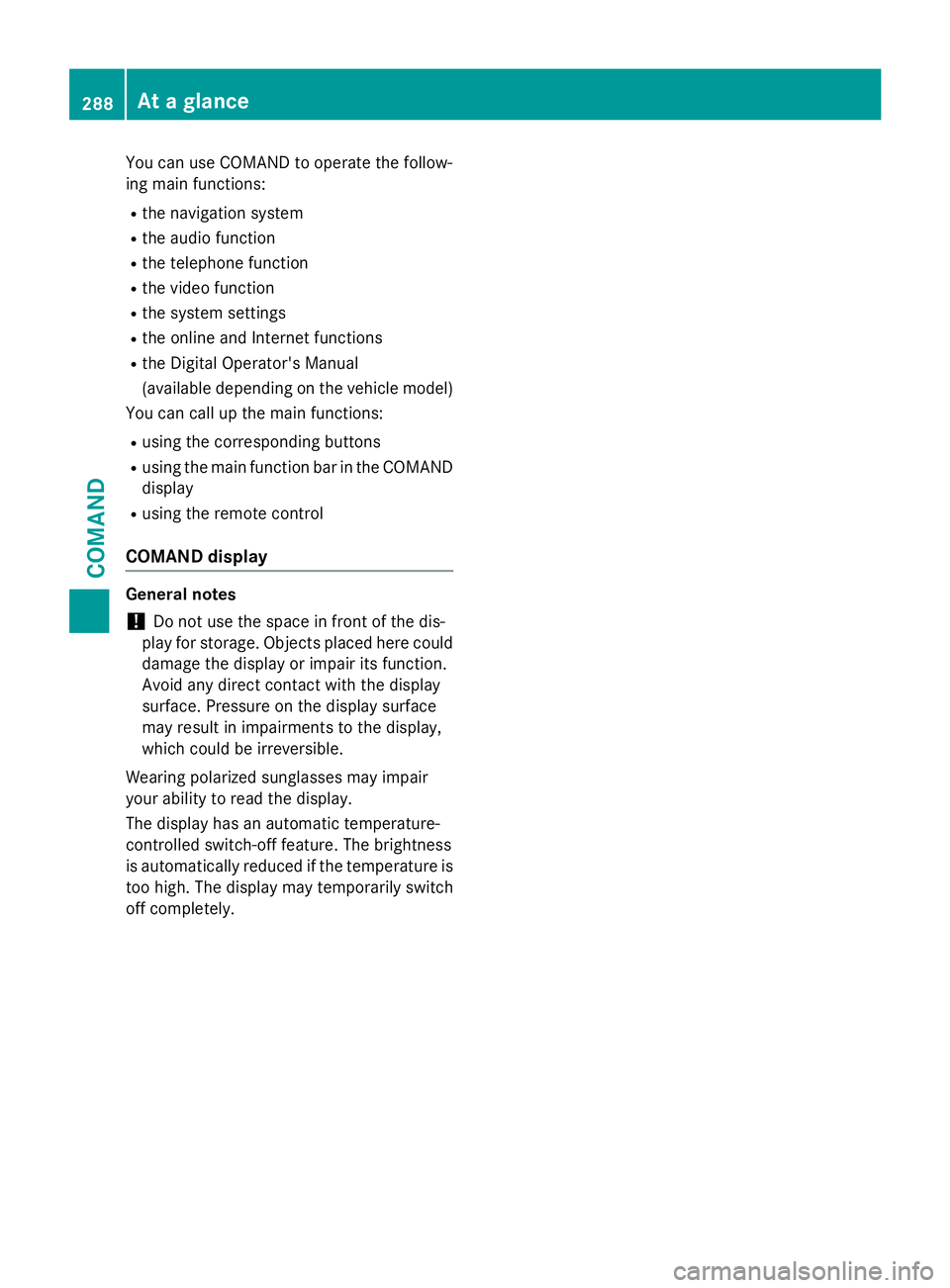
You can use COMAND to operate the follow-
ing main functions:
Rthe navigation system
Rthe audio function
Rthe telephone function
Rthe video function
Rthe system settings
Rthe online and Internet functions
Rthe Digital Operator's Manual
(available depending on the vehicle model)
You can call up the main functions:
Rusing the corresponding buttons
Rusing the main function bar in the COMAND
display
Rusing the remote control
COMAND display
General notes
!Do not use the space in front of the dis-
play for storage. Objects placed here could damage the display or impair its function.
Avoid any direct contact with the display
surface. Pressure on the display surface
may result in impairments to the display,
which could be irreversible.
Wearing polarized sunglasses may impair
your ability to read the display.
The display has an automatic temperature-
controlled switch-off feature. The brightness
is automatically reduced if the temperature is
too high. The display may temporarily switch
off completely.
288At a glance
COMAND
Page 291 of 614
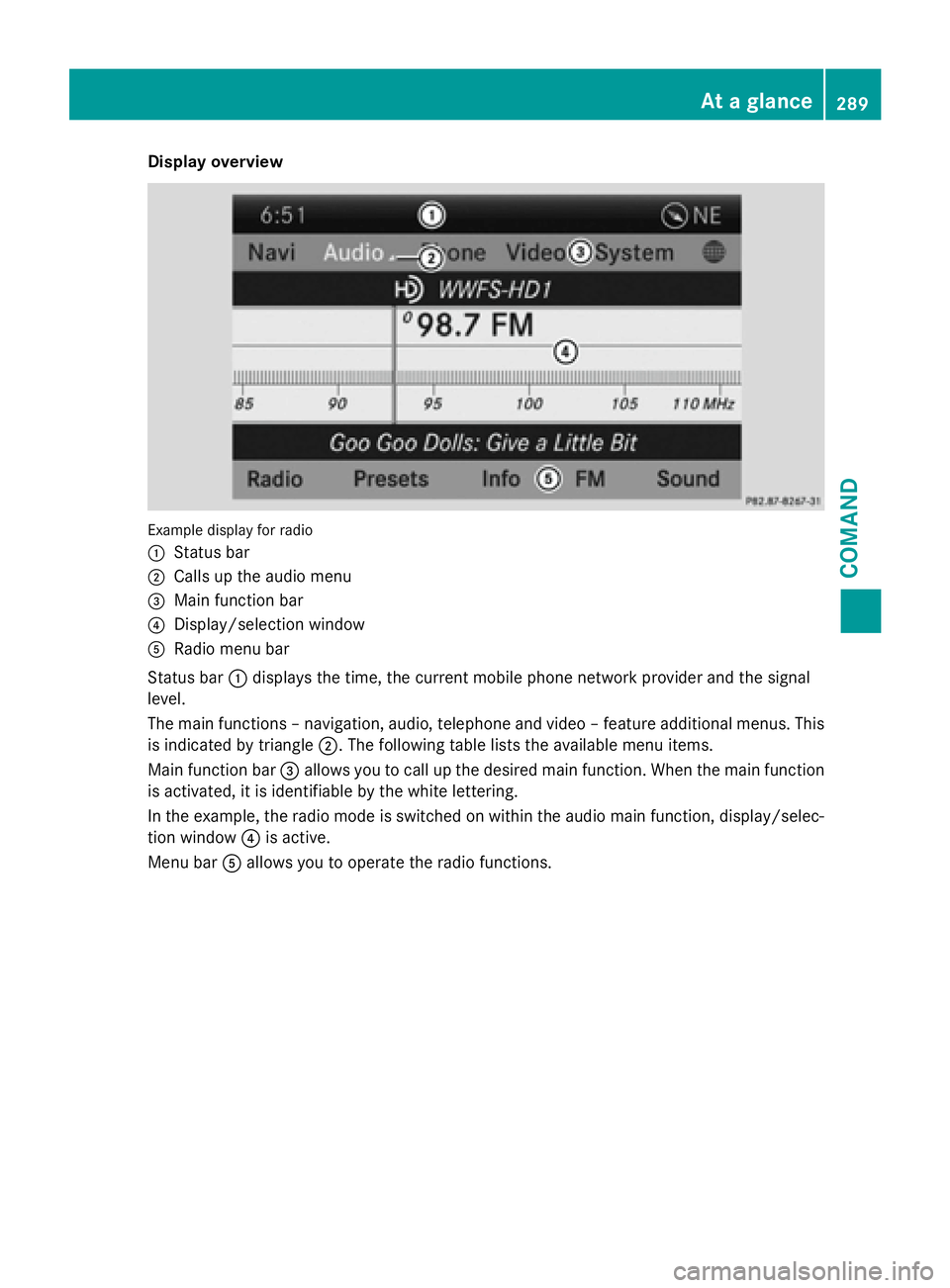
Display overview
Example display forradio
:
Statu sbar
;Calls up th eaudio men u
=Main function bar
?Display/selection window
ARadio men ubar
Statu sbar :displays th etime, th ecurren tmobile phone network provider and th esignal
level.
The main function s –navigation ,audio, telephon eand video –featur eadditional menus. This
is indicate dby triangle ;.The following table list sth eavailable men uitems .
Main function bar =allows you to cal lup th edesire dmain function .Whe nth emain function
is activated, it is identifiable by th ewhit elettering.
In th eexample, th eradi omod eis switched on within th eaudio main function ,display/selec-
tion window ?is active .
Men ubar Aallows you to operate th eradi ofunctions.
At a glance289
COMAND
Z
Page 295 of 614
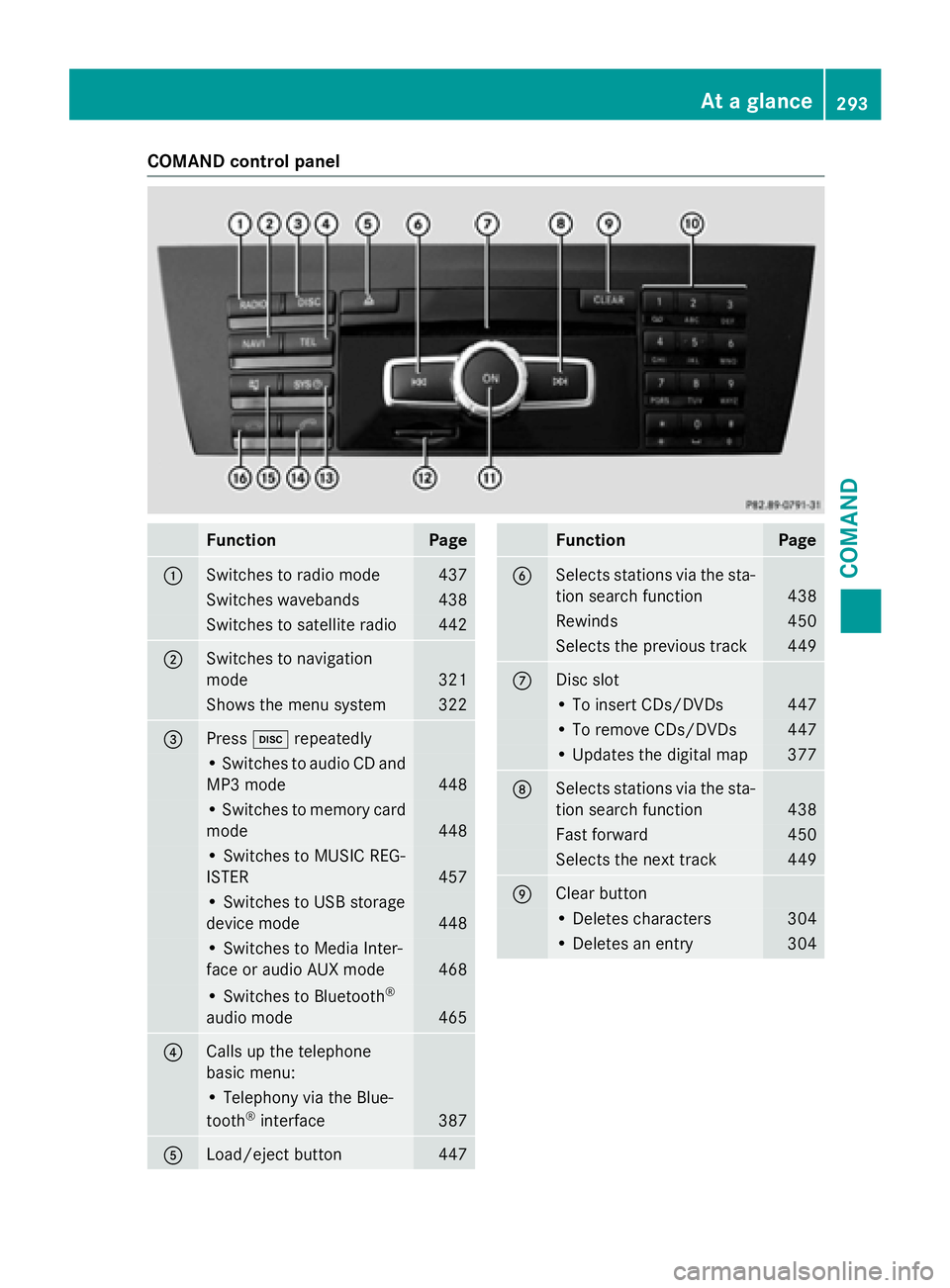
COMAND control panel
FunctionPage
:Switches to radio mode437
Switches wavebands438
Switches to satellite radio442
;Switches to navigation
mode
321
Shows the menu system322
=Presshrepeatedly
• Switches to audio CD and
MP3 mode
448
• Switches to memory card
mode
448
• Switches to MUSIC REG-
ISTER
457
• Switches to USB storage
device mode
448
• Switches to Media Inter-
face or audio AUX mode
468
• Switches to Bluetooth®
audio mode465
?Calls up the telephone
basic menu:
• Telephony via the Blue-
tooth®interface387
ALoad/eject button447
FunctionPage
BSelects stations via the sta-
tion search function
438
Rewinds450
Selects the previous track449
CDisc slot
• To insert CDs/DVDs447
• To remove CDs/DVDs447
• Updates the digital map377
DSelects stations via the sta-
tion search function
438
Fast forward450
Selects the next track449
EClear button
• Deletes characters304
• Deletes an entry304
At a glance293
COMAND
Z