start stop button MERCEDES-BENZ SL ROADSTER 2012 Service Manual
[x] Cancel search | Manufacturer: MERCEDES-BENZ, Model Year: 2012, Model line: SL ROADSTER, Model: MERCEDES-BENZ SL ROADSTER 2012Pages: 637, PDF Size: 20.68 MB
Page 363 of 637
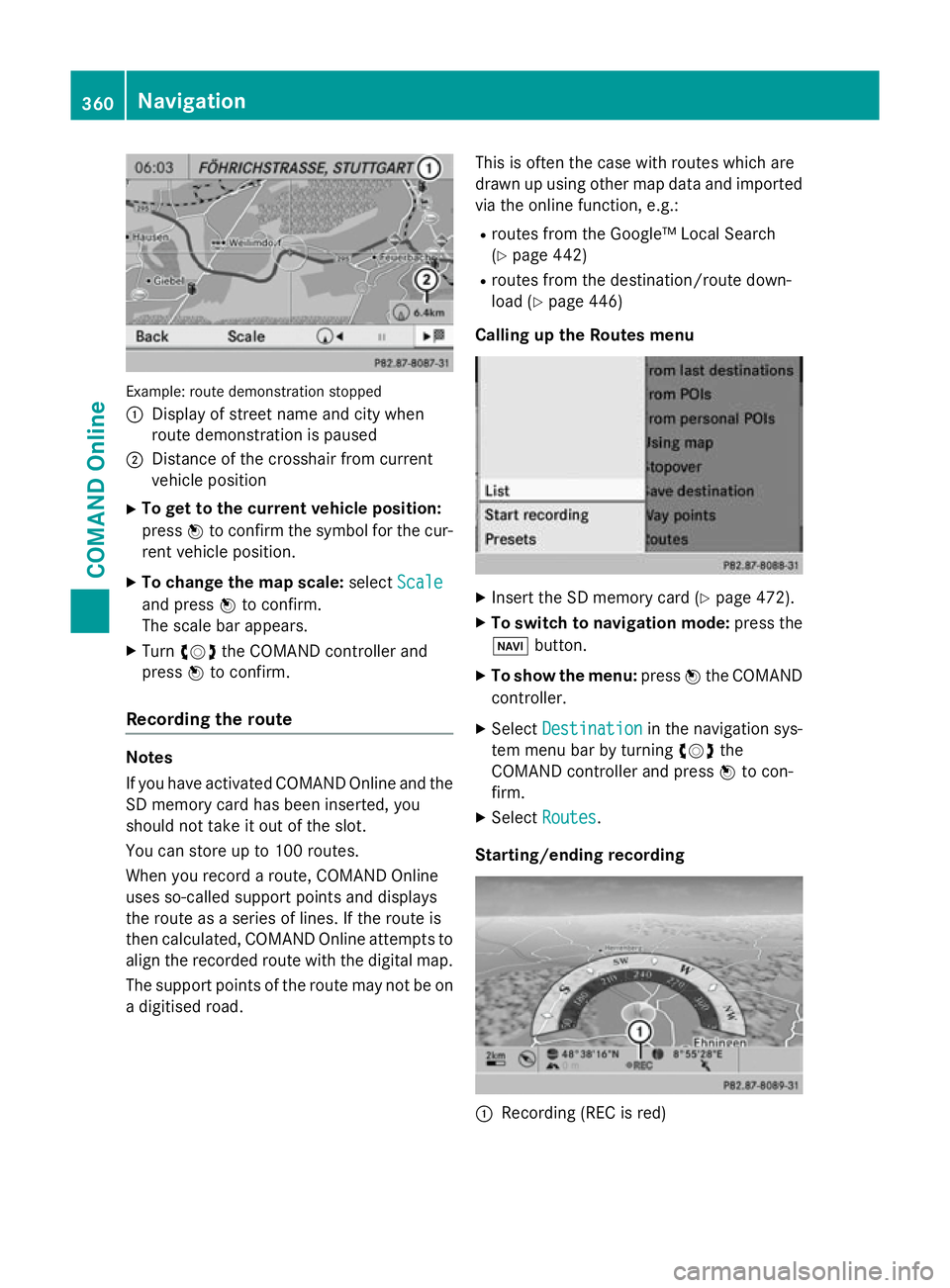
Example: route demonstration stopped
: Display of street name and city when
route demonstration is paused
; Distance of the crosshair from current
vehicle position
X To get to the current vehicle position:
press Wto confirm the symbol for the cur-
rent vehicle position.
X To change the map scale: selectScale
Scale
and press Wto confirm.
The scale bar appears.
X Turn cVd the COMAND controller and
press Wto confirm.
Recording the route Notes
If you have activated COMAND Online and the
SD memory card has been inserted, you
should not take it out of the slot.
You can store up to 100 routes.
When you record a route, COMAND Online
uses so-called support points and displays
the route as a series of lines. If the route is
then calculated, COMAND Online attempts to
align the recorded route with the digital map.
The support points of the route may not be on
a digitised road. This is often the case with routes which are
drawn up using other map data and imported
via the online function, e.g.:
R routes from the Google™ Local Search
(Y page 442)
R routes from the destination/route down-
load (Y page 446)
Calling up the Routes menu X
Insert the SD memory card (Y page 472).
X To switch to navigation mode: press the
Ø button.
X To show the menu: pressWthe COMAND
controller.
X Select Destination Destination in the navigation sys-
tem menu bar by turning cVdthe
COMAND controller and press Wto con-
firm.
X Select Routes
Routes .
Starting/ending recording :
Recording (REC is red) 360
NavigationCOMAND Online
Page 468 of 637
selection window for the radio display is
active.
or
X Press the EorF button.
The needle jumps to the left or right.
X To make a selection in the station list:
select Radio
Radio by sliding VÆand turning
cVd the COMAND controller and press W
to confirm.
X Confirm Station list Station list by pressingW.
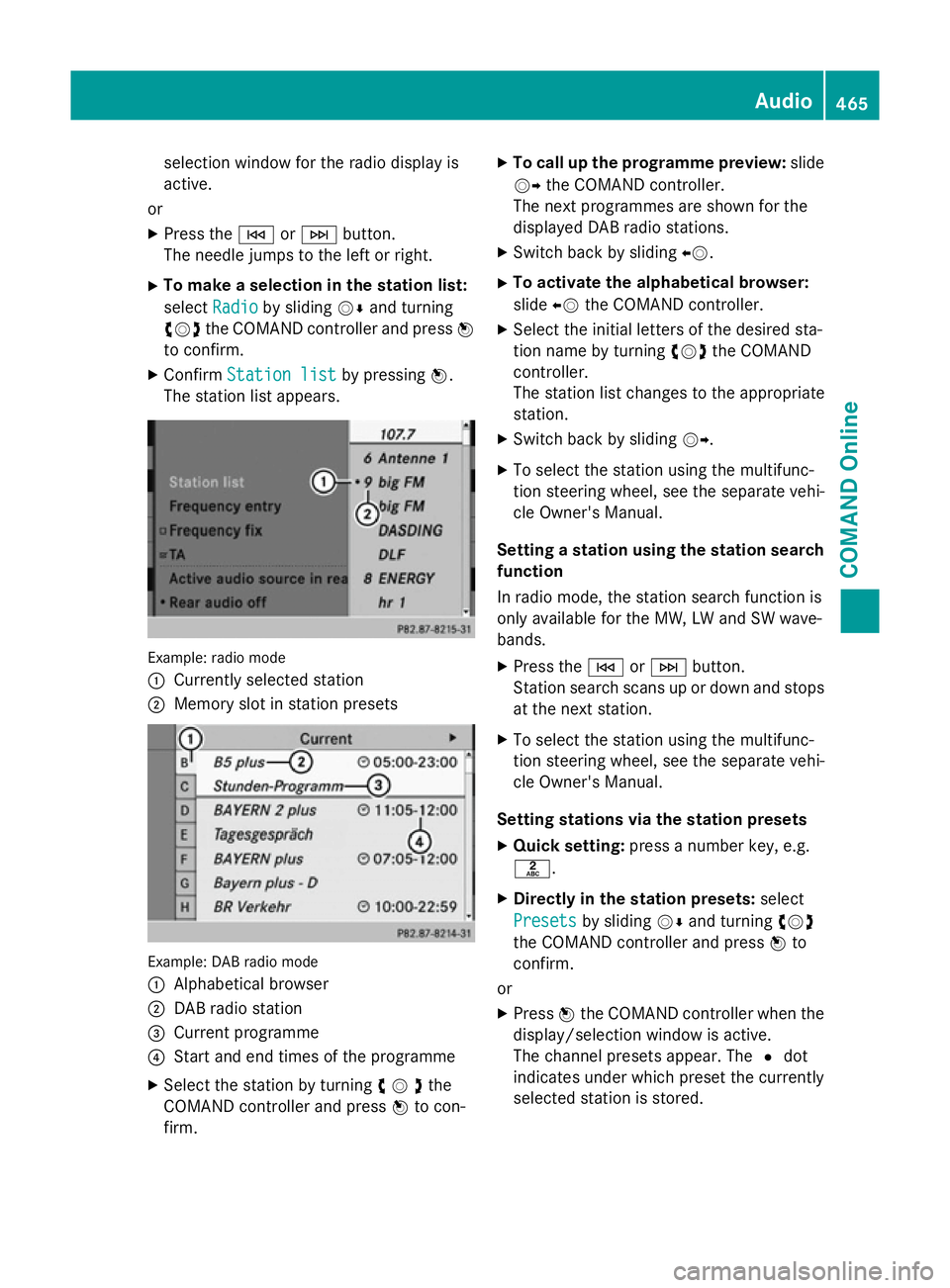
The station list appears. Example: radio mode
:
Currently selected station
; Memory slot in station presets Example: DAB radio mode
:
Alphabetical browser
; DAB radio station
= Current programme
? Start and end times of the programme
X Select the station by turning cVdthe
COMAND controller and press Wto con-
firm. X
To call up the programme preview: slide
VY the COMAND controller.
The next programmes are shown for the
displayed DAB radio stations.
X Switch back by sliding XV.
X To activate the alphabetical browser:
slide XVthe COMAND controller.
X Select the initial letters of the desired sta-
tion name by turning cVdthe COMAND
controller.
The station list changes to the appropriate
station.
X Switch back by sliding VY.
X To select the station using the multifunc-
tion steering wheel, see the separate vehi-
cle Owner's Manual.
Setting a station using the station search function
In radio mode, the station search function is
only available for the MW, LW and SW wave-
bands.
X Press the EorF button.
Station search scans up or down and stops
at the next station.
X To select the station using the multifunc-
tion steering wheel, see the separate vehi-
cle Owner's Manual.
Setting stations via the station presets X Quick setting: press a number key, e.g.
l.
X Directly in the station presets: select
Presets
Presets by sliding VÆand turning cVd
the COMAND controller and press Wto
confirm.
or X Press Wthe COMAND controller when the
display/selection window is active.
The channel presets appear. The #dot
indicates under which preset the currently
selected station is stored. Audio
465COMAND Online Z
Page 477 of 637
Pause function
In CD/audio DVD and MP3 mode
X To pause playback: briefly press the8
button.
The , symbol appears at the top left in
the status bar.
X To continue playback: briefly press the
8 button again.
The , symbol disappears.
Only in audio DVD mode
X To pause playback: switch on audio DVD
mode (Y page 472).
X Select Ëby sliding VÆand turning
cVd the COMAND controller and press W
to confirm.
The Ë symbol changes to Ì.
X To continue playback: selectÌand
press Wto confirm.
Playback continues from the point where it
was interrupted. The Ìsymbol changes
to Ë.
Stop function This function is only available in audio DVD
mode.
X Switch on audio DVD mode (Y page 472).
X To interrupt playback: selectÉby
sliding VÆand turning cVdthe COMAND
controller and press Wto confirm.
The Ë symbol changes to Ì. The
É symbol remains highlighted.
X To continue playback: selectÌand
press Wto confirm.
Playback continues from the point where it
was interrupted.
X To stop playback: while playback is inter-
rupted, select Éagain and press Wto
confirm.
or
X Select Éand confirm by pressing W
twice in rapid succession.
Ì is highlighted. X
To restart playback: selectÌand
press Wto confirm.
Playback starts at the beginning of the
DVD.
Selecting CD/audio DVD/MP3 discs Selecting via the media list
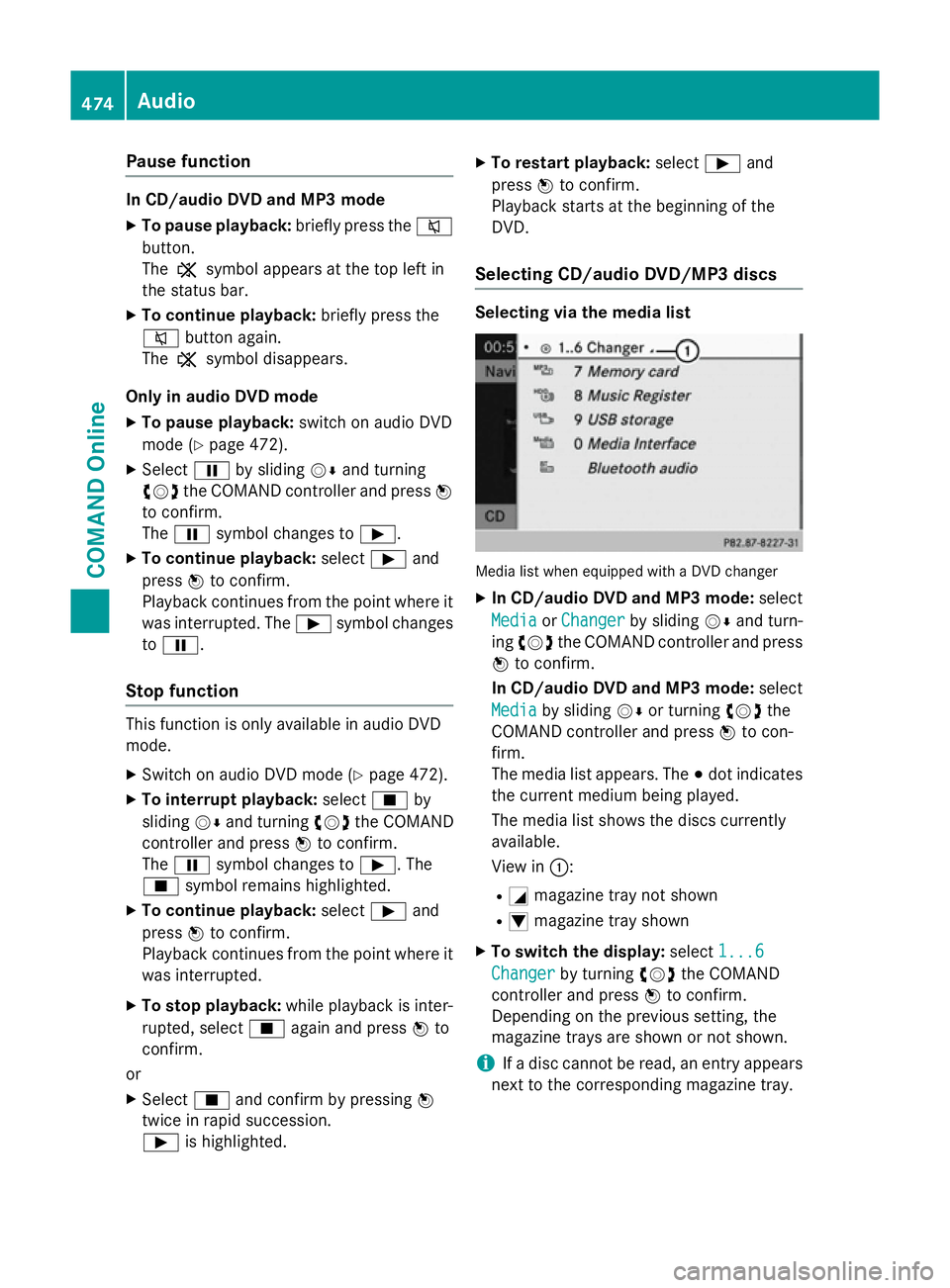
Media list when equipped with a DVD changer
X In CD/audio DVD and MP3 mode: select
Media Media orChanger
Changer by sliding VÆand turn-
ing cVd the COMAND controller and press
W to confirm.
In CD/audio DVD and MP3 mode: select
Media
Media by sliding VÆor turning cVdthe
COMAND controller and press Wto con-
firm.
The media list appears. The #dot indicates
the current medium being played.
The media list shows the discs currently
available.
View in ::
R G magazine tray not shown
R I magazine tray shown
X To switch the display: select1...6 1...6
Changer
Changer by turning cVdthe COMAND
controller and press Wto confirm.
Depending on the previous setting, the
magazine trays are shown or not shown.
i If a disc cannot be read, an entry appears
next to the corresponding magazine tray. 474
AudioCOMAND Online
Page 495 of 637
Using the Bluetooth
®
audio basic display
X Connect Bluetooth ®
audio devices
(Y page 488)
or
X Reconnect the Bluetooth ®
audio device
(Y page 490).
COMAND Online activates the Bluetooth ®
audio device. The basic display appears
and the device starts playing.
Using the function button
X Press the hfunction button one or more
times.
By pressing the function button repeatedly,
you can change the operating mode in the
following order:
R audio CD/DVD/MP3 (disc)
R memory card mode
R MUSIC REGISTER
R USB memory
R Media Interface or audio AUX mode
R operation with Bluetooth ®
audio
Using the media list X Select Bluetooth audio
Bluetooth audio in the media list
by turning cVdthe COMAND controller
and press Wto confirm (Y page 474).
COMAND Online activates the connected
device. You will see a message to this
effect. The basic display then appears.
Starting/stopping playback X
To start playback: selectÌby sliding
VÆ and turning cVdthe COMAND con-
troller and press Wto confirm.
Playback starts. Éis selected.
X To stop playback: selectÉby turning
cVd the COMAND controller and press W
to confirm.
A message appears. Ìis selected. X
To continue playback: selectÌby
turning cVdthe COMAND controller and
press Wto confirm.
A message appears. Éis selected.
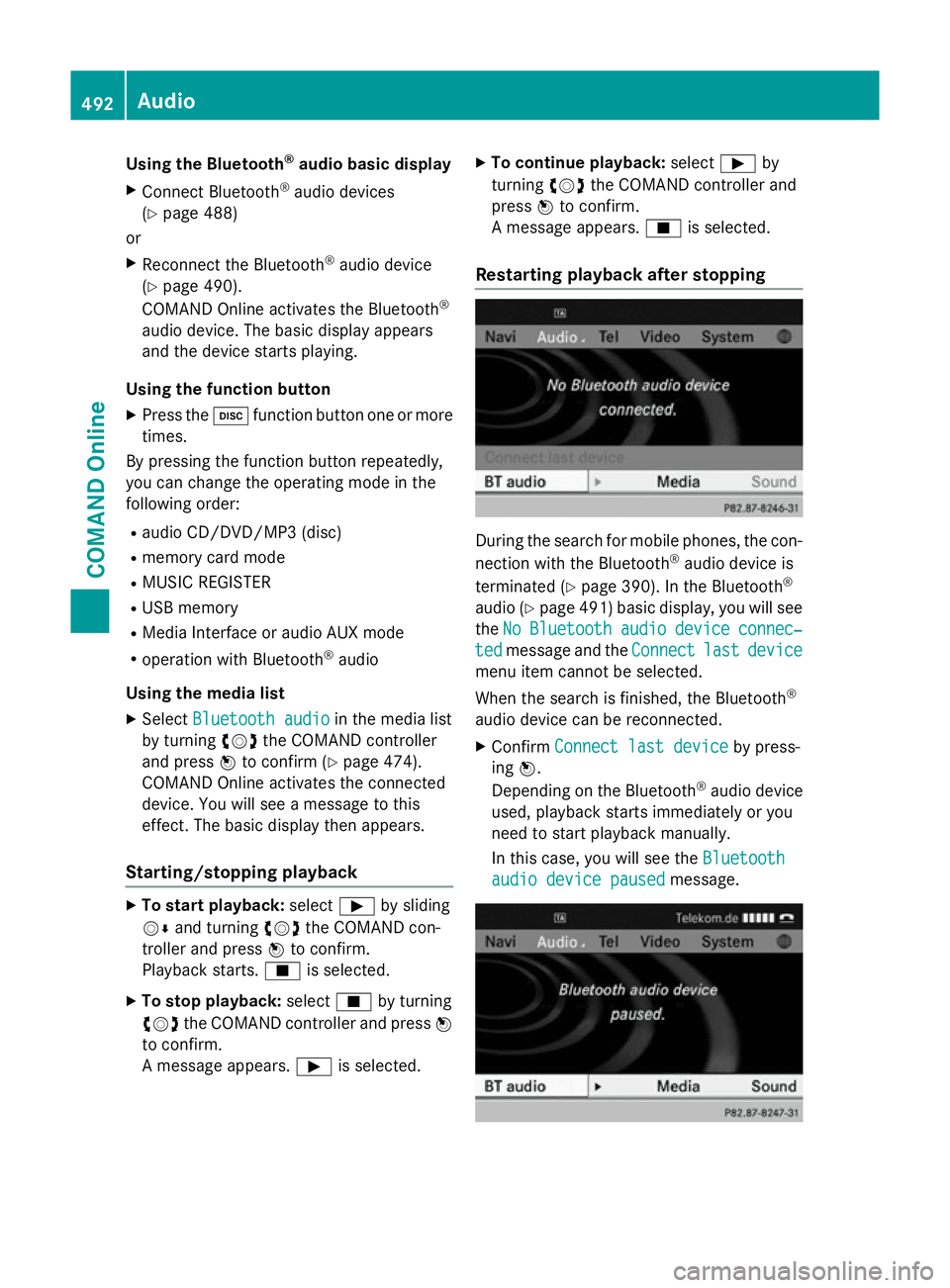
Restarting playback after stopping During the search for mobile phones, the con-
nection with the Bluetooth ®
audio device is
terminated (Y page 390). In the Bluetooth ®
audio (Y page 491) basic display, you will see
the No NoBluetooth
Bluetooth audio
audiodevice
device connec‐
connec‐
ted
ted message and the Connect
Connectlast
lastdevice
device
menu item cannot be selected.
When the search is finished, the Bluetooth ®
audio device can be reconnected. X Confirm Connect last device
Connect last device by press-
ing W.
Depending on the Bluetooth ®
audio device
used, playback starts immediately or you
need to start playback manually.
In this case, you will see the Bluetooth Bluetooth
audio device paused
audio device paused message.492
AudioCOMAND Online
Page 516 of 637
X
To hide: slide the ZVCOMAND controller
and confirm Full screen
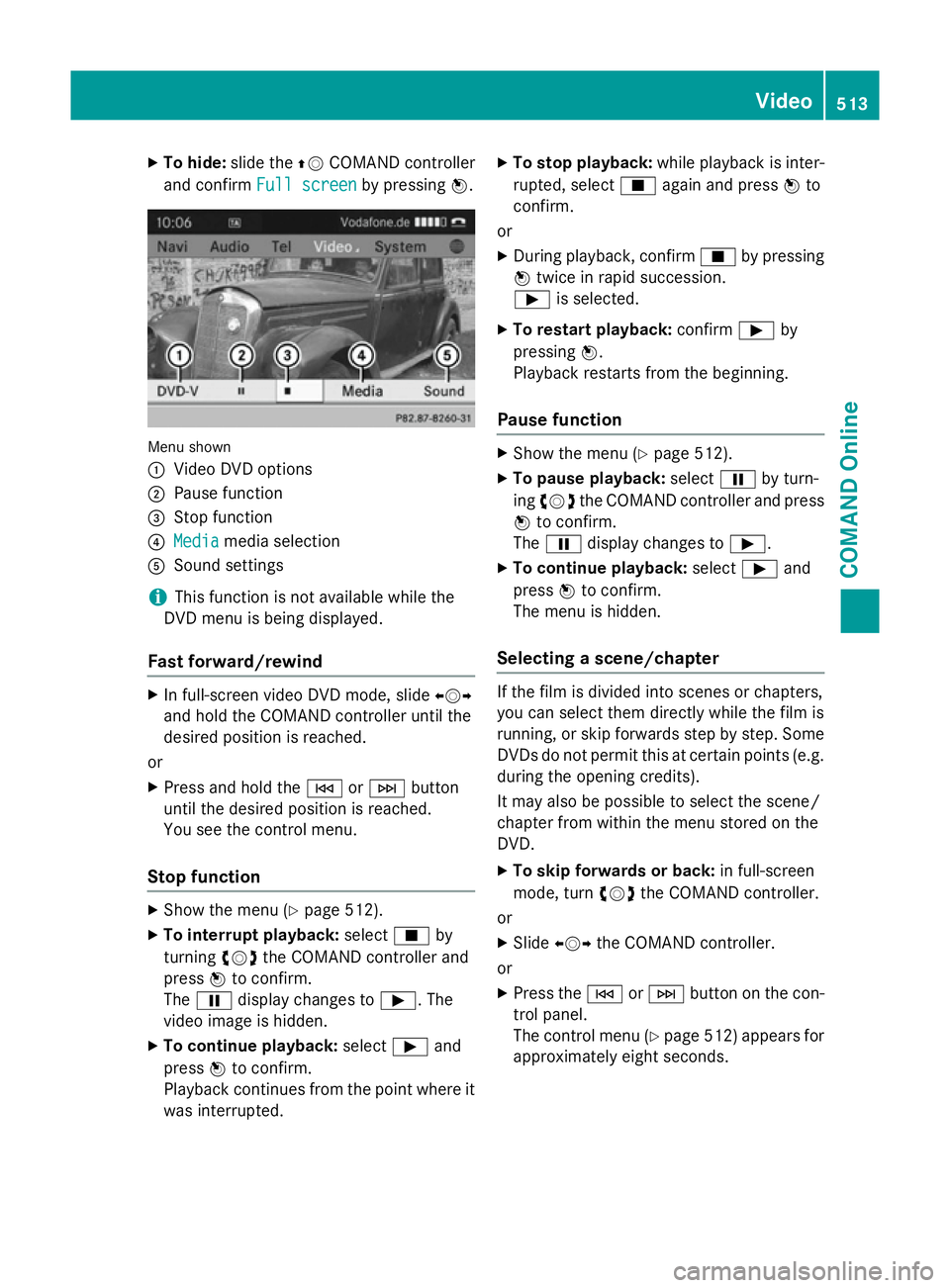
Full screen by pressingW. Menu shown
:
Video DVD options
; Pause function
= Stop function
? Media Media media selection
A Sound settings
i This function is not available while the
DVD menu is being displayed.
Fast forward/rewind X
In full-screen video DVD mode, slide XVY
and hold the COMAND controller until the
desired position is reached.
or X Press and hold the EorF button
until the desired position is reached.
You see the control menu.
Stop function X
Show the menu (Y page 512).
X To interrupt playback: selectÉby
turning cVdthe COMAND controller and
press Wto confirm.
The Ë display changes to Ì. The
video image is hidden.
X To continue playback: selectÌand
press Wto confirm.
Playback continues from the point where it was interrupted. X
To stop playback: while playback is inter-
rupted, select Éagain and press Wto
confirm.
or
X During playback, confirm Éby pressing
W twice in rapid succession.
Ì is selected.
X To restart playback: confirmÌby
pressing W.
Playback restarts from the beginning.
Pause function X
Show the menu (Y page 512).
X To pause playback: selectËby turn-
ing cVd the COMAND controller and press
W to confirm.
The Ë display changes to Ì.
X To continue playback: selectÌand
press Wto confirm.
The menu is hidden.
Selecting a scene/chapter If the film is divided into scenes or chapters,
you can select them directly while the film is
running, or skip forwards step by step. Some
DVDs do not permit this at certain points (e.g. during the opening credits).
It may also be possible to select the scene/
chapter from within the menu stored on the
DVD.
X To skip forwards or back: in full-screen
mode, turn cVdthe COMAND controller.
or X Slide XVY the COMAND controller.
or X Press the EorF button on the con-
trol panel.
The control menu (Y page 512) appears for
approximately eight seconds. Video
513COMAND Online Z
Page 533 of 637
X
Select a folder using the 9:buttons
and press the 9button to confirm.
You will see the tracks in the folder.
X Select a track using the 9:buttons
and press the 9button to confirm.
The track is played and the corresponding
folder is now the active folder.
Pause function This function is only available in audio DVD
mode.
X To pause playback: selectËusing
the :=; buttons on the remote
control and press the 9button to confirm.
The Ë display changes to Ì.
X To continue playback: selectÌand
press the 9button to confirm.
The Ì display changes to Ë.
Stop function This function is only available in audio DVD
mode.
X To interrupt playback: selectÉusing
the :=; buttons on the remote
control and press the 9button to confirm.
The Ë display changes to Ì.
X To continue playback: selectÌand
press the 9button to confirm.
Playback continues from the point where it
was interrupted.
X To stop playback: while playback is inter-
rupted, select Éagain and press the 9
button to confirm.
Playback stops and returns to the begin-
ning of the DVD. Ìis highlighted.
X To restart playback: selectÌand
press the 9button to confirm.
Playback starts from the beginning of the
DVD. Setting the audio format Further information on audio formats is avail-
able in the "Audio" section (Y page 478).
X Select DVD-A
DVD-Ausing the :=;
buttons on the remote control and press 9
to confirm.
X Select Group
Group using the 9: buttons
and press the 9button to confirm.
The list of available audio formats appears. The #dot indicates the format currently
selected.
X Select an audio format using the 9:
buttons and press the 9button to confirm.
X To exit the menu: press the=or;
button.
Playback options Further information on playback options is
available in the "Audio" section (Y
page 478).
X Select CD CD,DVD-A
DVD-A orMP3
MP3 using
the :=; buttons on the remote
control and press the 9button to confirm.
The options list appears. The #dot indi-
cates the option currently selected.
X Select Normal
Normal track
tracksequence
sequence, Random
Random
tracks
tracks orRandom folder
Random folder using the
9: buttons and press the 9button
to confirm.
The option is switched on. For all options
except Normal track sequence Normal track sequence, you will
see a corresponding display in the display/
selection window.
i If you switch the data carrier which you
are currently listening to, the Normal
Normal
track sequence
track sequence option is activated auto-
matically. If an option is selected, it
remains selected after the Rear Seat Enter- tainment System is switched on or off.
Switching track information on/off
(MP3 mode only) If the function is switched on, folder and track
names are displayed. 530
Rear Seat Entertainment SystemCOMAND Online
Page 539 of 637
Switching to video DVD mode
X
Insert a video DVD (Y page 528).
The Rear Seat Entertainment System loads the disc.
If disc mode was the last mode selected, it
will now be active.
If it was not, switch on video DVD mode as described in the following instructions.
X Select Disc
Disc in the menu using the
9=; buttons on the remote
control and confirm by pressing the 9
button.
If the video DVD fulfils the playback criteria:
the film either starts automatically or the
menu saved on the DVD appears. If the
DVD menu appears, you must start the film manually.
X Select the corresponding menu item in the
DVD menu.
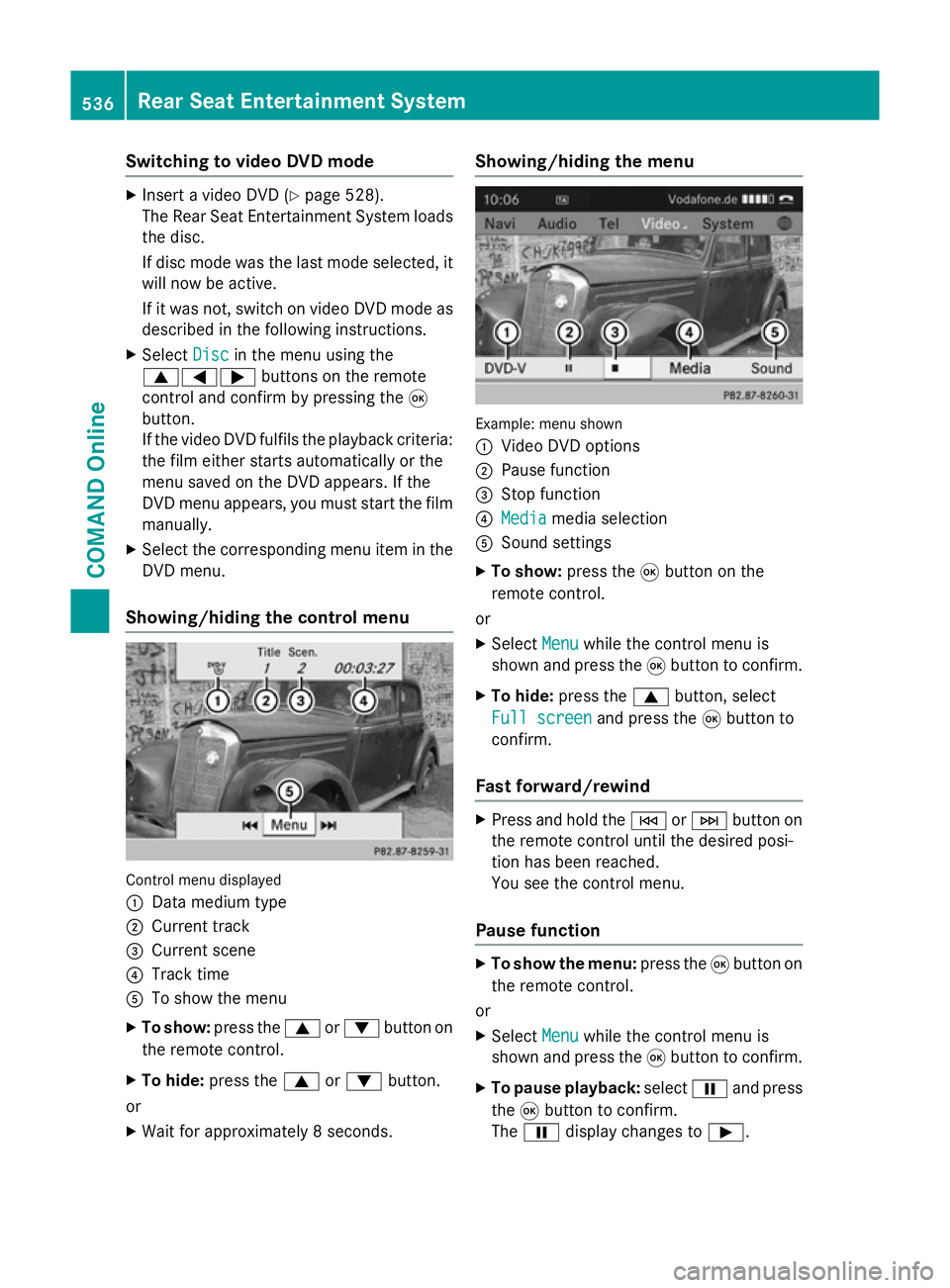
Showing/hiding the control menu Control menu displayed
:
Data medium type
; Current track
= Current scene
? Track time
A To show the menu
X To show: press the9or: button on
the remote control.
X To hide: press the 9or: button.
or
X Wait for approximately 8 seconds. Showing/hiding the menu
Example: menu shown
:
Video DVD options
; Pause function
= Stop function
? Media Media media selection
A Sound settings
X To show: press the9button on the
remote control.
or
X Select Menu
Menu while the control menu is
shown and press the 9button to confirm.
X To hide: press the 9button, select
Full screen
Full screen and press the9button to
confirm.
Fast forward/rewind X
Press and hold the EorF button on
the remote control until the desired posi-
tion has been reached.
You see the control menu.
Pause function X
To show the menu: press the9button on
the remote control.
or
X Select Menu
Menu while the control menu is
shown and press the 9button to confirm.
X To pause playback: selectËand press
the 9button to confirm.
The Ë display changes to Ì.536
Rear Seat Entertainment SystemCOMAND Online
Page 540 of 637
X
To continue playback: selectÌand
press the 9button to confirm.
The menu is hidden.
Stop function X
To show the menu: press the9button on
the remote control.
or
X Select Menu
Menuwhile the control menu is
shown and press the 9button to confirm.
X To interrupt playback: selectÉand
press the 9button to confirm.
The Ë display changes to Ì. The
video image is hidden.
X To continue playback: selectÌand
press the 9button to confirm.
Playback continues from the point where it
was interrupted. The menu is hidden.
X To stop playback: while playback is inter-
rupted, select Éagain and press the 9
button to confirm.
Playback stops and returns to the begin-
ning of the DVD. Ìis highlighted.
X To restart playback: selectÌand
press the 9button to confirm.
Playback starts from the beginning of the
DVD.
Selecting a scene/chapter General notes
Also observe the information on the video
DVD mode (Y page 513).
Skipping forwards/backwards
X Press the =or; button on the
remote control.
or
X Press the EorF button.
The control menu (Y page 512) appears for
approximately eight seconds. Selecting a scene/chapter directly
The examples illustrate how to select scene/
chapter 5.
X Option 1: while the film is playing, press
the h button on the remote control.
X Press the corresponding number key, such
as 5.
X Option 2: while the film is playing, press
the 9button on the remote control and
show the menu.
X Select DVD-V DVD-Vand press the 9button to
confirm.
X Select DVD functions DVD functions and press the9
button to confirm.
X Select Scene
Scene selection
selection and press the 9
button to confirm.
X Select 5
5using the 9or: button and
press the 9button to confirm.
In both cases, playback will begin from the
5th scene/chapter after a brief pause.
Selecting a film/title Option 1:
X Press the 9button on the remote control
and show the menu.
X Select DVD-V
DVD-Vand press the 9button on
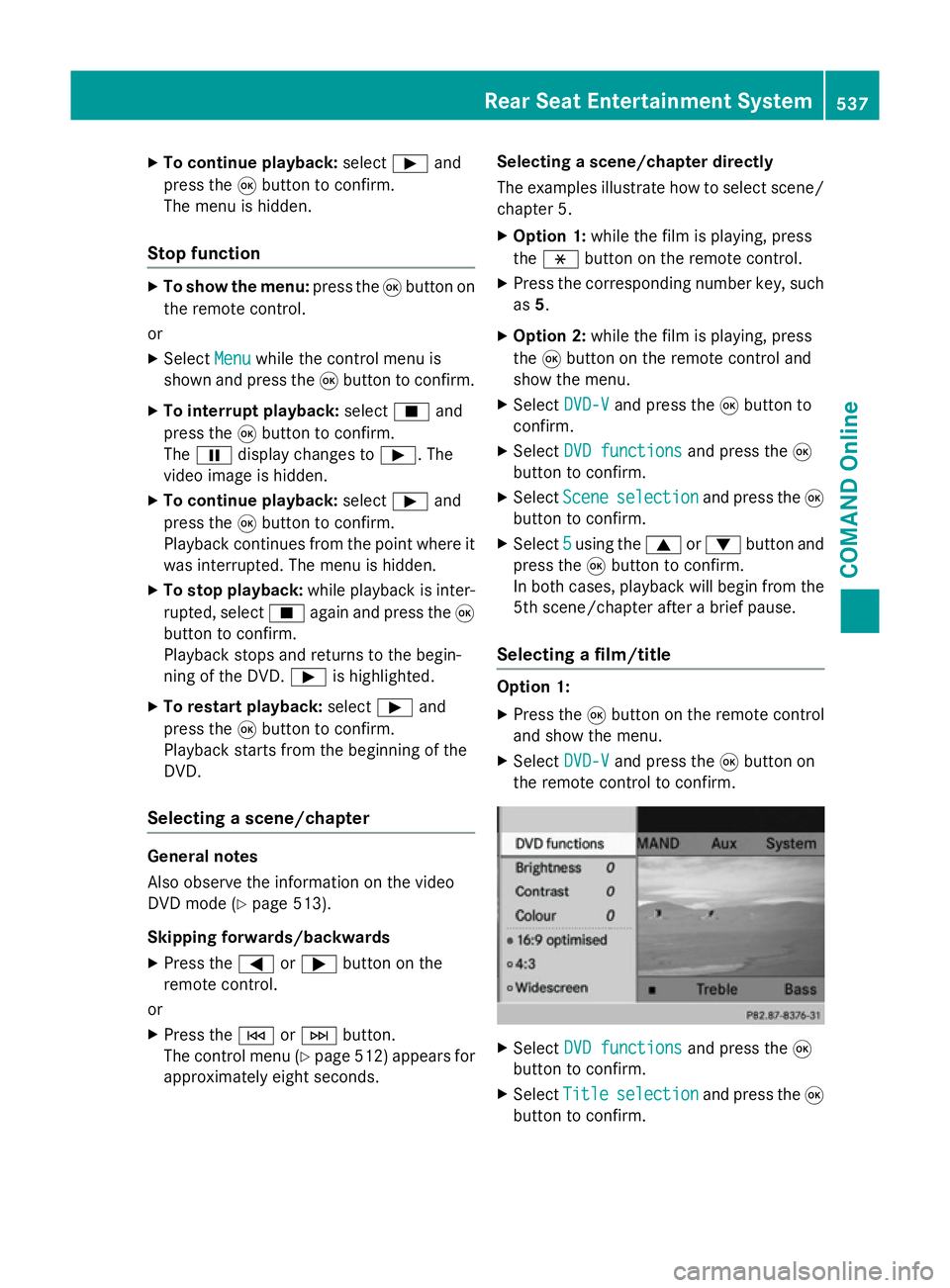
the remote control to confirm. X
Select DVD functions DVD functions and press the9
button to confirm.
X Select Title Title selection
selection and press the 9
button to confirm. Rear Seat Entertainment System
537COMAND Online Z
Page 569 of 637
X
Park the vehicle on a level surface.
Only check the coolant level if the vehicle is
on a level surface and the engine has
cooled down.
X Turn the key to position 2in the ignition
lock (Y page 155).
On vehicles with KEYLESS-GO, press the
Start/Stop button twice (Y page 155).
X Check the coolant temperature gauge in
the multifunction display.
The coolant temperature must be below
70 †.
X Turn the key to position 0(Y page 155) in
the ignition lock.
X Slowly turn cap ;half a turn anti-clock-
wise to allow excess pressure to escape.
X Turn cap ;further anti-clockwise and
remove it.
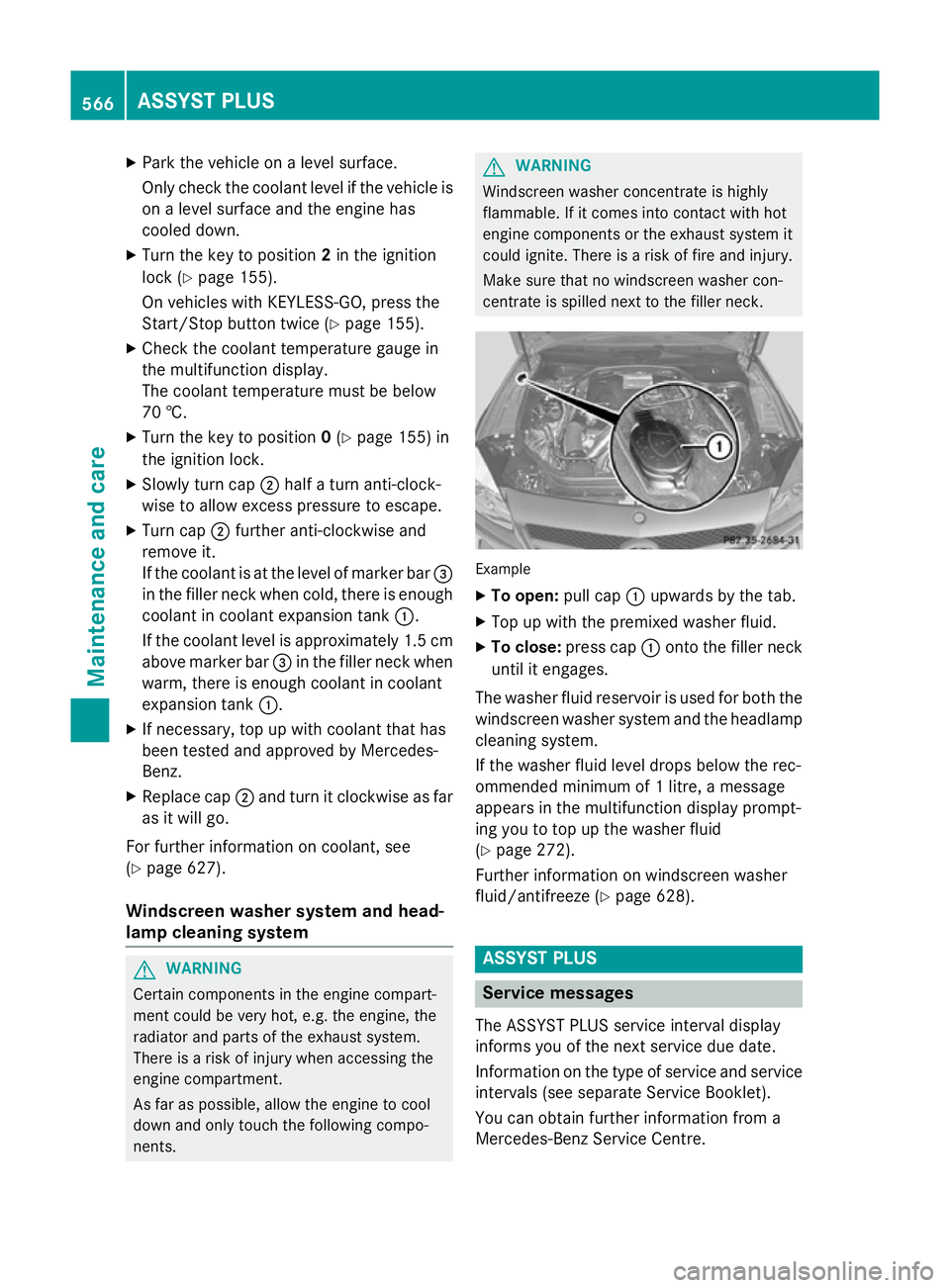
If the coolant is at the level of marker bar =
in the filler neck when cold, there is enough
coolant in coolant expansion tank :.
If the coolant level is approximately 1.5 cm above marker bar =in the filler neck when
warm, there is enough coolant in coolant
expansion tank :.
X If necessary, top up with coolant that has
been tested and approved by Mercedes-
Benz.
X Replace cap ;and turn it clockwise as far
as it will go.
For further information on coolant, see
(Y page 627).
Windscreen washer system and head-
lamp cleaning system G
WARNING
Certain components in the engine compart-
ment could be very hot, e.g. the engine, the
radiator and parts of the exhaust system.
There is a risk of injury when accessing the
engine compartment.
As far as possible, allow the engine to cool
down and only touch the following compo-
nents. G
WARNING
Windscreen washer concentrate is highly
flammable. If it comes into contact with hot
engine components or the exhaust system it
could ignite. There is a risk of fire and injury.
Make sure that no windscreen washer con-
centrate is spilled next to the filler neck. Example
X To open: pull cap:upwards by the tab.
X Top up with the premixed washer fluid.
X To close: press cap :onto the filler neck
until it engages.
The washer fluid reservoir is used for both the
windscreen washer system and the headlamp cleaning system.
If the washer fluid level drops below the rec-
ommended minimum of 1 litre, a message
appears in the multifunction display prompt-
ing you to top up the washer fluid
(Y page 272).
Further information on windscreen washer
fluid/antifreeze (Y page 628). ASSYST PLUS
Service messages
The ASSYST PLUS service interval display
informs you of the next service due date.
Information on the type of service and service
intervals (see separate Service Booklet).
You can obtain further information from a
Mercedes-Benz Service Centre. 566
ASSYST PLUSMaintenance and care
Page 581 of 637
Tyre-change tool kit
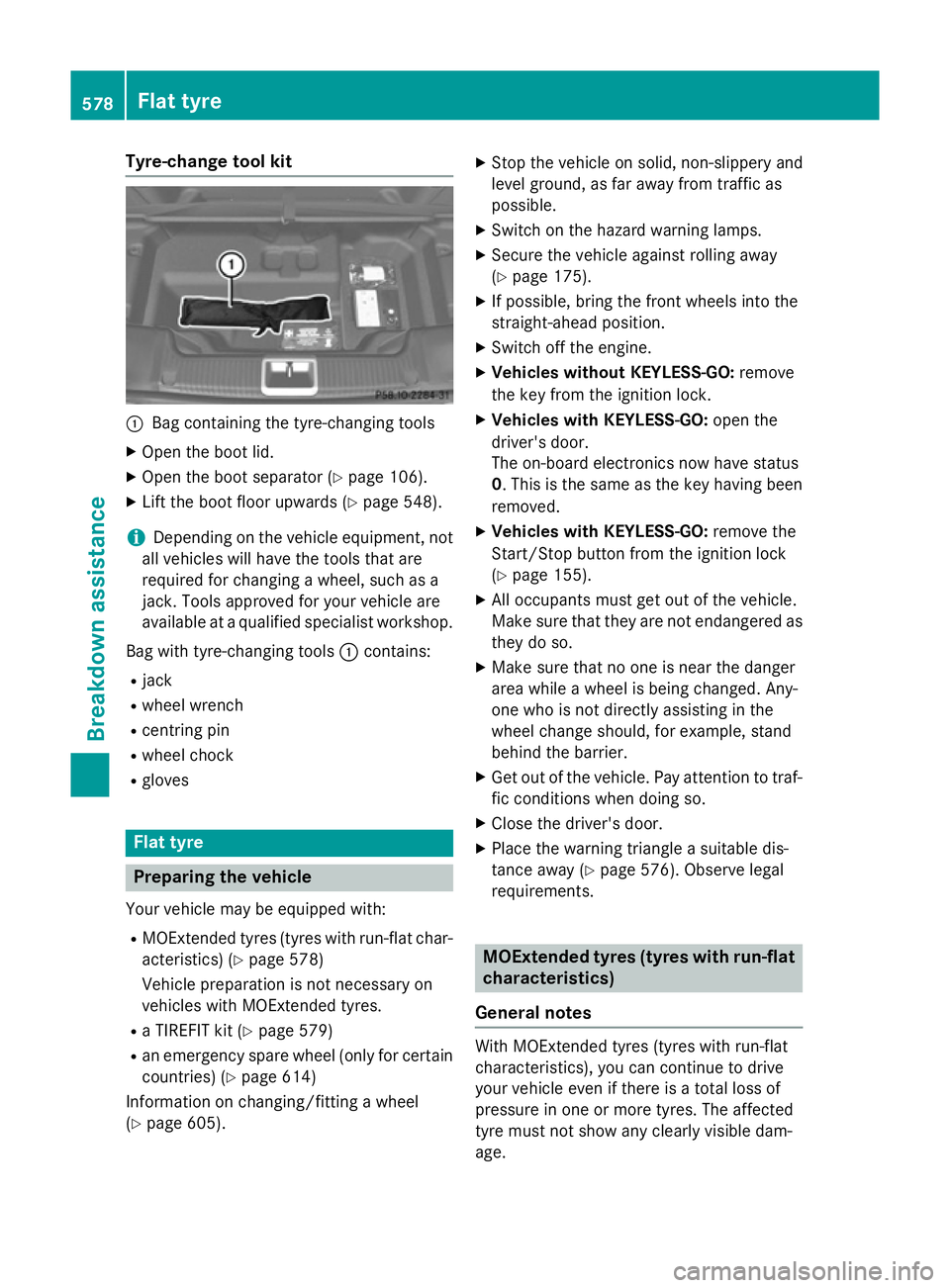
:
Bag containing the tyre-changing tools
X Open the boot lid.
X Open the boot separator (Y page 106).
X Lift the boot floor upwards (Y page 548).
i Depending on the vehicle equipment, not
all vehicles will have the tools that are
required for changing a wheel, such as a
jack. Tools approved for your vehicle are
available at a qualified specialist workshop.
Bag with tyre-changing tools :contains:
R jack
R wheel wrench
R centring pin
R wheel chock
R gloves Flat tyre
Preparing the vehicle
Your vehicle may be equipped with: R MOExtended tyres (tyres with run-flat char-
acteristics) (Y page 578)
Vehicle preparation is not necessary on
vehicles with MOExtended tyres.
R a TIREFIT kit (Y page 579)
R an emergency spare wheel (only for certain
countries) (Y page 614)
Information on changing/fitting a wheel
(Y page 605). X
Stop the vehicle on solid, non-slippery and
level ground, as far away from traffic as
possible.
X Switch on the hazard warning lamps.
X Secure the vehicle against rolling away
(Y page 175).
X If possible, bring the front wheels into the
straight-ahead position.
X Switch off the engine.
X Vehicles without KEYLESS-GO: remove
the key from the ignition lock.
X Vehicles with KEYLESS-GO: open the
driver's door.
The on-board electronics now have status
0. This is the same as the key having been
removed.
X Vehicles with KEYLESS-GO: remove the
Start/Stop button from the ignition lock
(Y page 155).
X All occupants must get out of the vehicle.
Make sure that they are not endangered as
they do so.
X Make sure that no one is near the danger
area while a wheel is being changed. Any-
one who is not directly assisting in the
wheel change should, for example, stand
behind the barrier.
X Get out of the vehicle. Pay attention to traf-
fic conditions when doing so.
X Close the driver's door.
X Place the warning triangle a suitable dis-
tance away (Y page 576). Observe legal
requirements. MOExtended tyres (tyres with run-flat
characteristics)
General notes With MOExtended tyres (tyres with run-flat
characteristics), you can continue to drive
your vehicle even if there is a total loss of
pressure in one or more tyres. The affected
tyre must not show any clearly visible dam-
age. 578
Flat tyreBreakdown assistance