Home MERCEDES-BENZ SLK-Class 2012 R172 Comand Manual
[x] Cancel search | Manufacturer: MERCEDES-BENZ, Model Year: 2012, Model line: SLK-Class, Model: MERCEDES-BENZ SLK-Class 2012 R172Pages: 234, PDF Size: 6.74 MB
Page 98 of 234

X
Sel ect Destination in
the navi gation
sy stem menu barb ytur ning cVd the
COMA NDcontro ller and pressing W to
co nfirm .
X Se lec tSav e Des
tin ation and
pressW to
co nfirm .
You cannowsele ctstor age options
(Y page 96).
Fro mt helisto fprev ious des tinations X
To sho wthe men u:pre ssW the COMAND
contr oller.
X Sel ect Destination in
the navigati on
sy ste mm enubarbyturn ingcVd the
COMAND controller andpressing Wto
con firm.
X Select FromLastDestina tions and
press Wtocon firm.
The listoflast destin ations appears.
X Select adestin ationbyturn ingcVd the
COMAND controller andpress Wto
con firm.
The destin ationaddress isshown.
X Select Save and
press Wtocon firm.
You cannow select storage option s.
Selecting storingoptions X
To save thedestina tionwithout a
name: selectSaveWithout Name and
press Wtocon firm.
COMAND storesthe destin ationinthe
destin ationmemory anduses theaddress
as the destin ationname.
X To save thedestina tionasMy
Addr ess:select Saveas"My Address " and
press Wtocon firm.
COMAND storesthe destin ationinthe
destin ationmemory asMy Address .
If the
select edaddress bookentryalready
con tains address datathatcanbeused for
navigation (Licon), aprompt willappear asking
whether youwish tooverwrit ethe
exist ingdata.
X Select Yes or
No and
press Wtocon firm.
If you select Yes ,
the entryisoverwrit ten.
If you select No ,
the process willbeaborted.
X To save thedestina tionwith aname:
select SaveWithName and
press Wto
con firm.
X Select acategor y,e.g. Home ,
and press W
to con firm.
The input menu appears withdata fields
and thecharact erbar. Ex
ample: savingadestin ationwithaname
: Select eddata fieldwithcursor
; Character bar
X Proceed asdescribed under"Entering
charact ersusing thecharact erbar" inthe
"Ent ering charact ersinnavigation mode
(ent ering acity)" section(Ypage 31).
X Then, select ¬andpress Wtocon firm.
COMAND storesthe destin ationunder the
name entered.
Assigning adesti nation toan address
book entry An
addre sswith completeaddre ssdata that
is suit able fornav igat ioncan beassign edto
a pre- existing addre ssbook entry.You can
th en late rstar troute guidance tothis address
straight fromtheaddress book
(Y page 139).
X Select Assign toAddress BookEntry and
press Wtoconf irm. 96
Destination
memoryNavigation
Page 99 of 234
X
Sel ect acate gory,e.g. Home ,
and pressW
to confi rm.
Yo uwi llsee theaddre ssboo keithe rwith
the char acterbar oras aselec tionlist.
X To select anaddress book entry:
proc eedasdesc ribed inthe "Searc hingfor
an address bookentry" sect ion
(Y page 136).
COMA NDstores thedata ifthe address
book entryselec teddoes notyetcontain
navig ableaddress data.
If the selec tedaddress bookentryalready
con tain snavig ableaddress data,aprom pt
will appear askingwhet heryou wish to
over writethe exis tingdata.
X Selec tYes or
No and
press Wtocon firm .
If you selec tYes ,
COMA NDstores thedata. Deleting
adesti nation orthehom e
ad dress from thed esti nation mem ory
X To switch onnav igat ionmod e:pres sth e
Ø function butt on.
X To show themen u:pres sW theCOMA ND
con troller .
X Sele ctDes tin ation in
thenav igat ion
syst emmen ubar byturnin gcVd the
COMA NDcontroller andpres singW to
con firm.
X Sele ctFro mMem ory and
pres sW to
con firm.
You willsee thedest inationmem orylist
eit her with thechar acterbar (opt ion1)or
as aselec tionlist (opt ion2).
X Opt ion 1:dest inationmem orylistwith
char acterbar :proc eedasdesc ribed inthe
"En tering char acters using thechar acter
bar" section(Ypage 31).
X Opt ion 2:dest inationmem orylistas
selection list:selec tadestination byturn
ingcVd theCOMAND controller and
press Wtocon firm.
You seetheaddress dataofthe select ed
ent ry.
X Select Delete and
press Wtocon firm.
Ap rompt appears asking whethe ryou wish
to delete thedestination .
X Select Yes or
No and
press Wtoconf irm.
If you select Yes ,
COMAND deletesthe
destination .You will see amessage tothis
effec t.
If you select No ,
the process willbe
canc eled.
i Ifthe navigable addressdataforthe
destin ationbeing deleted isalso assigned
to an address bookentry,COMAND will
also delete thisdata from there.Ifthe
corr espondin gaddress bookentrydoes
not contain anyfurth erdata, suchas
telephon enumbers, COMAND deletesthe
ent ireaddress bookentry. Previous
destinations Introd
uction
COMAND automaticallystoresthe previous
destin ations forwhich theroute calculation
has been started.Ifthe memory isfull,
COMAND deletestheoldest destination. You
can also save adestin ationfromthelistof
previous destinations inthe destin ation
memory. Itwill bestor edther epermanen tly. Stor
ingadesti nation permanent lyin
th edest inationmem ory
X Proc eedasdesc ribed inthe"Fr om thelist
of prev ious destinations"sec tion
(Y page 96). Pr
evious destinations
97Naviga tion Z
Page 130 of 234

Crea
tinganew entryintheph one
book
X Slid eZV theCOMA NDcontroll er
repe atedly inthephon ebook untilth e
selec tionlist appears.
X Selec tthe list symbol onthe right inthe
selection listbysliding VYtheCOMAND
cont roller andpress Wtoconfirm .
X Select New entry and
press Wtoconfirm .
X Select acategory forthe number, e.g.
Home ,
and press Wtoconfirm .
X Select acategory forthe phone, e.g.
Mobile ,
and press Wtoconfirm . X
Select Cont. and
press Wtoconfirm .
The input menu withdata fields appea rs. :
Selected datafieldwithcursor
; Character bar
X Ent ercharacters andsave theentr y.
Proceed asdescribed undercharacter
entr yin the "Ataglance" section
(Y page 28). i
The entryis created inthe phone book
and inthe address book. Adding
telephone numberstoan
existing phonebookentry
X Select anentr yin the selection listby
turning cVdtheCOMAND controller.
X Select thelistsymbol tothe right ofthe
entr yby sliding VYtheCOMAND
cont roller andpress Wtoconfirm .
X Select AddPhone No. and
press Wto
confirm .
X Select acategory forthe number, e.g.
Home ,
and press Wtoconfirm .
X Select acategory forthe phone, e.g.
Mobile ,
and press Wtoconfirm .
X Select Continue and
press Wtoconfirm .
COMAND storesthedata ifthere arefewer
than fivenumbers assigned tothe entr yyou
are searching forinthe selected number
category.
If five numbers arestored forthe entr yin
the selected numbercategory, aprompt
will appea rasking whether youwish to
overwrite oneofthe existing numbers.
X Select Yes or
No and
press Wtoconfirm.
If you select Yes ,
a selection listwill appea r
cont aining thefive existing numbers.
If you select No ,
the process willbeaborted.
X Select thenumber tobe overwritten by
turning cVdtheCOMAND controller and
press Wtoconfirm.
An input menu appears.The data fieldfor
entering thenew phone number is
highlig hted.
X Ent ercharacters andsave theentry.
Proceed asdescribed undercharacter
entry inthe "Ataglance" section
(Y page 28). 128
Using
thephone bookTelephone
Page 132 of 234

Disp
laying detailsab out alist entr y
COMAN Dcanalso showasho rten ed list entry
in full.
X Sel ect alist entry by turnin gcVd the
COMA NDcontroll er.
X Sel ect thelist symb olto therigh tofthe
entr yby sliding VYtheCOMAND
cont roller andpress Wtoconfirm .
X Select Details and
press Wtoconfirm .
The detailed displayappea rs.
X To go back tothe list: slide XVY
repeatedly untilthelistishighlighted. Storing
aphone number whichhas
not yetbeen stored
Introduction For
incoming callsfrom aperson whoisnot
in the address book,COMAND displaysthe
phone number inthe call list. You cansave
this entry.
Storing asanew entry inthe address
book X
Open acall listand select anentr y
(Y page 129).
X Select thelistsymbol tothe right ofthe
entr yby sliding VYtheCOMAND
cont roller andpress Wtoconfirm .
X Select Save and
press Wtoconfirm .
i Save is
shown ingray ifthe selected list
entr yhas already beensaved inthe address
book.
X Select New Entry and
press Wtoconfirm .
X Select acategory forthe number, e.g.
Home ,
and press Wtoconfirm .
X Select acategory forthe phone, e.g.
Mobile Phone ,
and press Wtoconfirm . Num
bercategory Display
(phone
book andaddr ess
book) Not
Classified No
symbol Home ¸
Work ·
Phone
category Display
(phone
book andaddr ess
book) Not
classified ;
Mobile
Phone Ï
Car ´
Pager ¨
X
Select Save and
press Wtoconfirm .
An input menu withdata fields isshown.
The data fieldforthe telephone numberis
filled inautomatically . :
Data fieldwithcursor
; Telephone numberandsymbol forthe
phone category (automatically entered)
= Character bar
X Proceed asdescribed under"Entering
characters" inthe "Ent ering characters in
the address andphone books" section
(Y page 31). 130
Using
calllistsTelephone
Page 133 of 234
Add
ingaph one num bertoan address
book entry X
Open acall listand selectan entry
(Y page 129).
X Se lec tthe list symbol tothe right ofthe
entr yby sliding VYtheCOMAND
cont roller andpress Wtoconfirm .
X Select Save and
press Wtoconfirm .
i Save is
shown ingray ifthe selected list
entr yhas already beensaved.
X Select AddPhone No. and
press Wto
confirm .
X Select acategory forthe number, e.g.
Home ,
and press Wtoconfirm .
X Select acategory forthe phone, e.g.
Mobile Phone ,
and press Wtoconfirm .
X Select Save .
The search menuforaddress bookentries
appea rs.
X Search forthe desired entry.Proceed as
described under"Searching foraphone
book entry"(Y page 126).
X Press Wwhen youhave finished searching.
COMAND storesthedata ifthere arefewer
than fivenumbers assigned tothe entr yyou
are searching forinthe selected number
category.
You willsee amessage tothis effect .
If five numbers arestored forthe entr yyou
are searching for,aprompt willappea r
asking whether youwish tooverwrite one
of the existing numbers.
X Select Yes or
No and
press Wtoconfirm .
If you select Yes ,
a selection listwith the
five existing numbers isdispla yed.
If you select No ,
the process willbeaborted.
X Select thenumber tobe overwritten inthe
list byturning cVdtheCOMAND controller
and press Wtoconfirm .
COMAND overwrites theselected number
with thenew data. Dele
ting calllists
This funct ionisavaila blewhen COMAND
creates andmanages thecall lists.
This isthe case ifyou useaBluetooth ®
telephone withoutthesupport ofthe PBAP
Bluetooth ®
profile.
i Ifyou delete thecall lists from themobile
phone (separate mobilephoneoperating
instruct ions),COMAND updatesthecall list
displa ythe next time itconn ects. Thecall
lists areempty inthe case described.
X Select CallLists in
the telephone basic
menu byturning cVdtheCOMAND
cont roller andpress Wtoconfirm .
X Select Delete CallLists and
press W
to confirm .
Ap rompt appears asking whethe ryou wish
to delete allcall lists.
X Select Yes or
No and
press Wtoconf irm.
If you select Yes ,
the call lists aredeleted.
If you select No ,
the process willbeaborted. Using
thespeed diallist Storing
aphone bookentry inthe
speed diallist
You canassign tenspeed dialpresets (0–9 )
to the spee ddial list. There aretwo optio ns
av ailabl e for thispu rpo se.
Opti on1:
X Sea rchforaph one book entry inthe phone
bo ok (Ypage 126) .
X Ifan entry hasse ver alph one num bers,
se lect the desired num berb ytur ning
cVd theCOMA NDcontro ller . Usin
gth esp eed dial list
131Telepho ne Z
Page 140 of 234
Star
ting route guidance toan add ress X
Select theaddress datafieldbyturnin g
cVd theCOMAND controller andpress
W toconf irm.
The route tothe destination addressis
calculated androute guidancestarts
(Y page 57).
Calling ateleph onenum ber X
Sele ctthephon enum berdata fieldby
tur nin gcVd theCOMA NDcontroller and
pres sW tocon firm.
This initiate sdialin gand youcan then mak e
your call(Ypage 122).
Showing thedet ails ofan address book
entr y X
Sele ctthelist symbo lto therigh tofthe
entr yby sliding VYtheCOMAND
cont roller andpress Wtoconfirm .
X Select Details and
press Wtoconfirm .
The displa yis shown infull.
X To close thedetailed display:pressthe
% button. Changing
anadd ress book entry
Changing anentry X
Option 1:search foranaddress bookentry
and turn cVd theCOMAND controller to
select itin the selection list(Ypage 136).
X Select thelistsymbol tothe right ofthe
entr yby sliding VYtheCOMAND
cont roller andpress Wtoconfirm .
Am enu appears. X
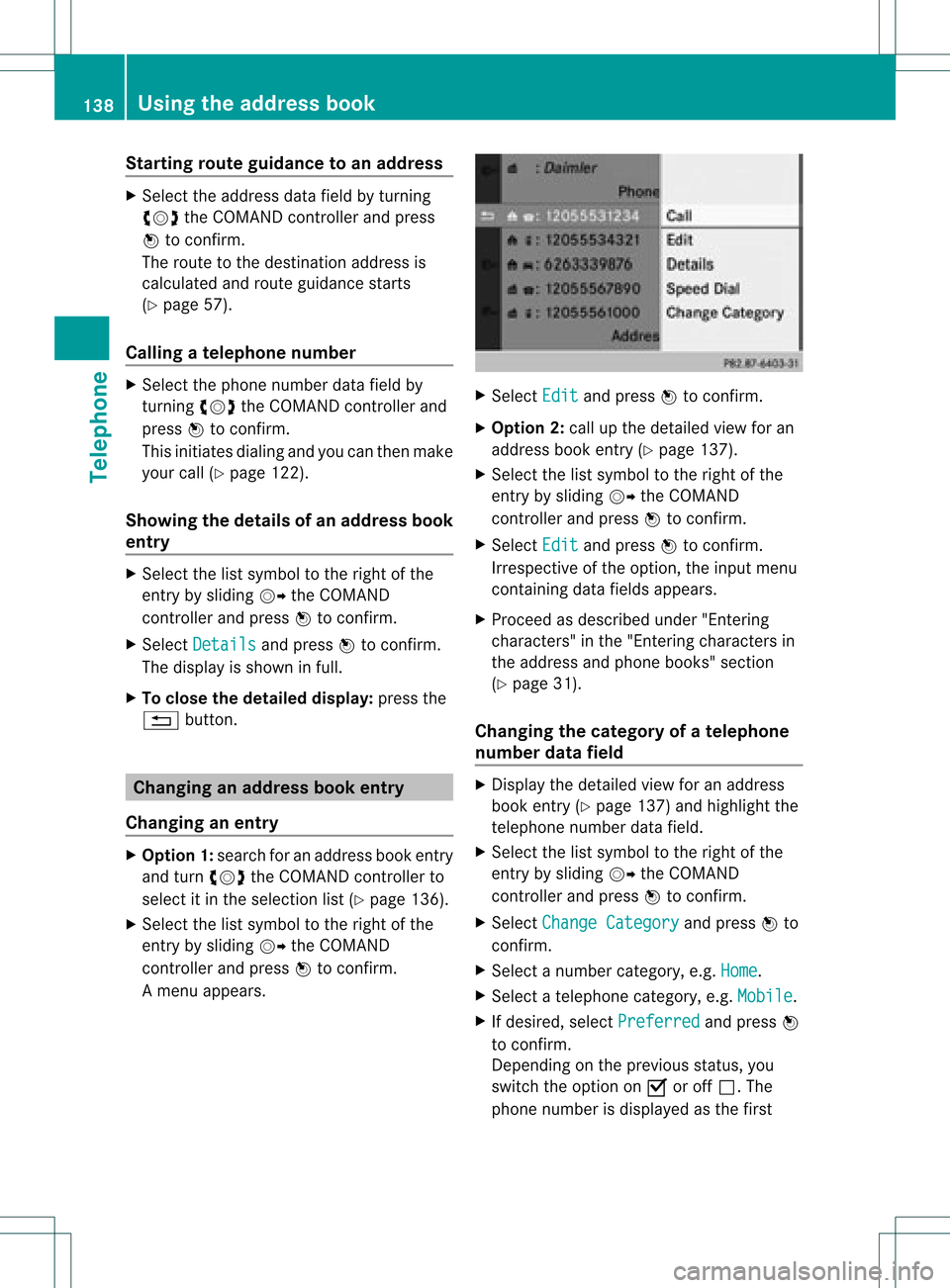
Select Edit and
press Wtocon firm.
X Opt ion 2:call upthe detailed viewforan
address bookentry(Y page 137).
X Select thelistsymbol tothe right ofthe
ent ryby sliding VYtheCOMAND
con troller andpress Wtocon firm.
X Select Edit and
press Wtocon firm.
Irrespec tiveofthe option ,the input menu
con tainin gdata fields appears.
X Proceed asdescribed under"Entering
charact ers"inthe "Ent ering charact ersin
the address andphone books" section
(Y page 31).
Changing thecategory ofatelephone
number datafield X
Display thedetailed viewforanaddress
book entry(Y page 137)and highlight the
telephon enumber datafield.
X Select thelistsymbol tothe right ofthe
ent ryby sliding VYtheCOMAND
con troller andpress Wtocon firm.
X Select Change Category and
press Wto
con firm.
X Select anumber category,e.g. Home .
X Select atelephon ecategor y,e.g. Mobile .
X Ifdesired, selectPreferr ed and
press W
to con firm.
Depen dingonthe previous status,you
switch theoption onO oroff ª.T he
phone number isdispla yedasthe first 138
Using
theaddress bookTelephone