radio MERCEDES-BENZ SLS 2011 C197 User Guide
[x] Cancel search | Manufacturer: MERCEDES-BENZ, Model Year: 2011, Model line: SLS, Model: MERCEDES-BENZ SLS 2011 C197Pages: 436, PDF Size: 20.86 MB
Page 75 of 436
Components of COMAND
COMAND comprises:
Rthe COMAND display
Rthe COMAND control unit with DVD
changer
Rthe COMAND controller with the Back and
Clear button
You can use COMAND to operate the
following main functions:
Rthe navigation system
Rthe audio function with the radio, SatRadio,
disc (CD audio, DVD audio or MP3 mode),
PCMCIA memory card (MP3 mode), Music
Register and Audio Aux modes
Rthe telephone and the address book
function
RDVD Video
Rsystems settings
You can call up the main functions:
Rusing the corresponding function buttons
Rusing the main function line in the
COMAND display
COMAND Display
iDo not touch the COMAND display. The
display has a very sensitive high-gloss
surface; there is a risk of scratching. Should
the display need cleaning, use a mild
cleaning agent and a soft, antistatic, lint-
free cloth. Commercially available alcohol
and ammonia-free TFT or LCD cleaners are
recommended.
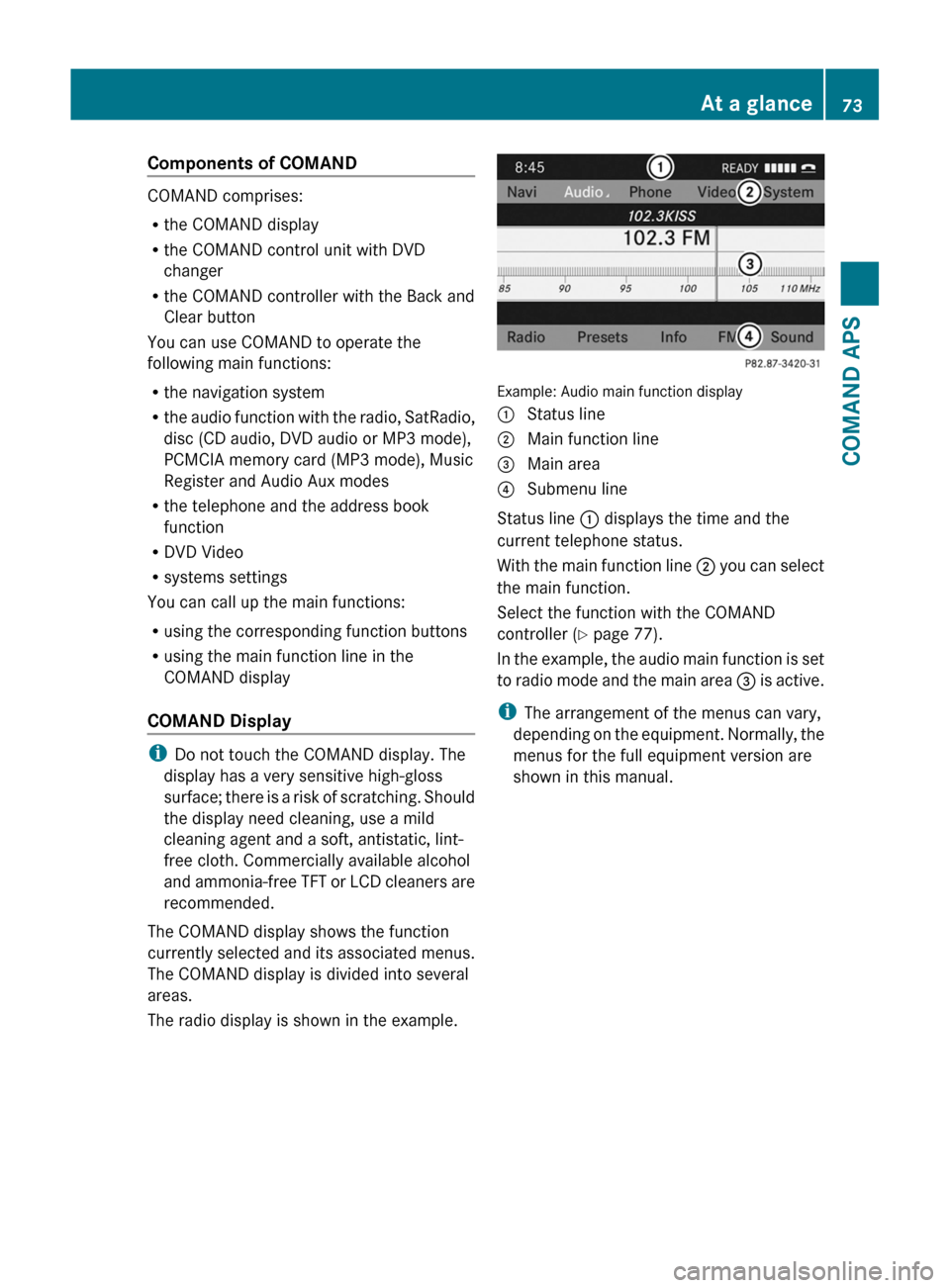
The COMAND display shows the function
currently selected and its associated menus.
The COMAND display is divided into several
areas.
The radio display is shown in the example.
Example: Audio main function display
1 Status line2 Main function line3 Main area4 Submenu line
Status line 1 displays the time and the
current telephone status.
With the main function line 2 you can select
the main function.
Select the function with the COMAND
controller (Y page 77).
In the example, the audio main function is set
to radio mode and the main area 3 is active.
iThe arrangement of the menus can vary,
depending on the equipment. Normally, the
menus for the full equipment version are
shown in this manual.
At a glance73COMAND APSBA 197 USA, CA Edition A 2011; 1; 27, en-UShereepeVersion: 3.0.3.52010-03-24T15:31:10+01:00 - Seite 73Z
Page 76 of 436
Menu Overview
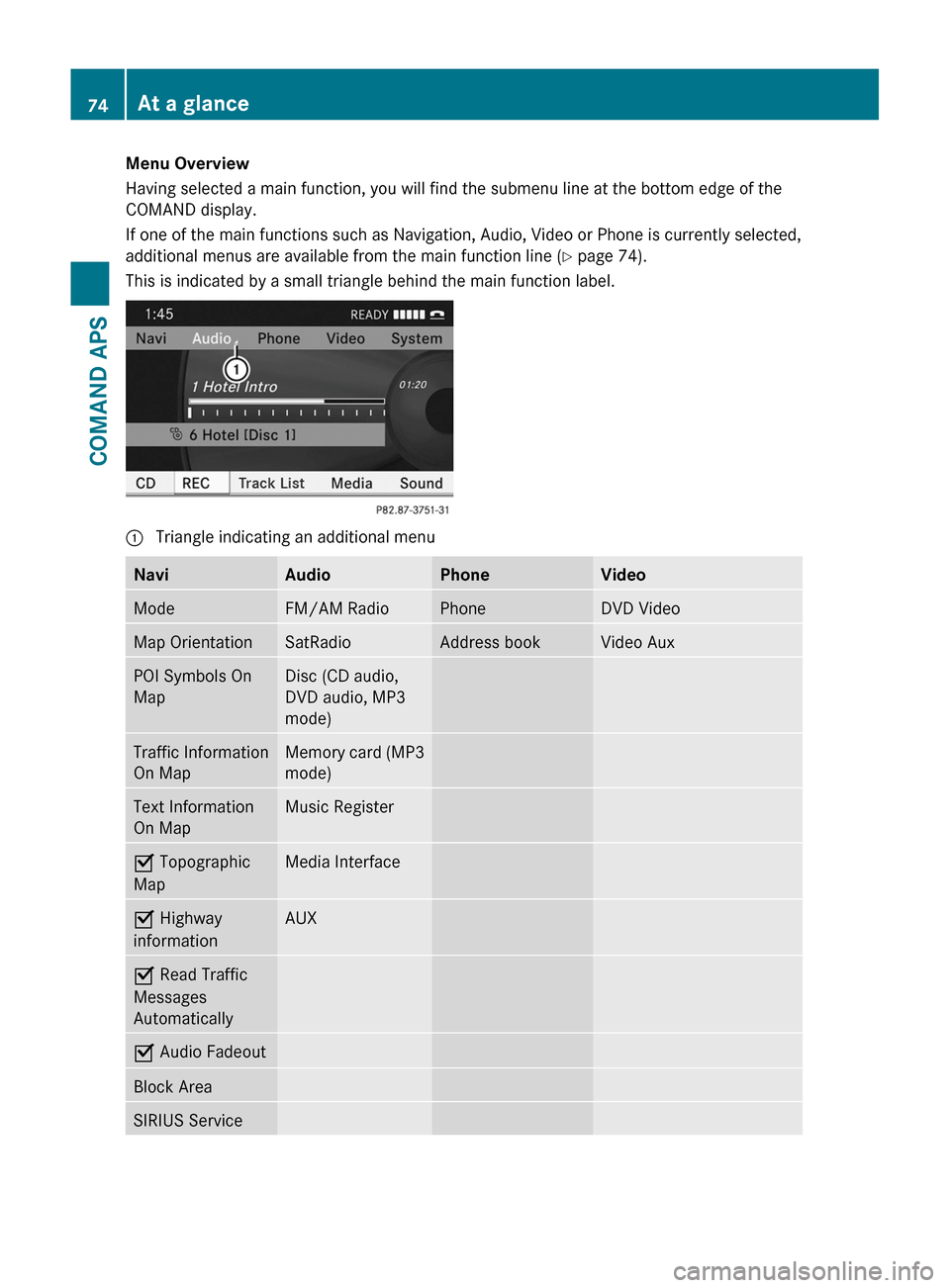
Having selected a main function, you will find the submenu line at the bottom edge of the
COMAND display.
If one of the main functions such as Navigation, Audio, Video or Phone is currently selected,
additional menus are available from the main function line (Y page 74).
This is indicated by a small triangle behind the main function label.
1 Triangle indicating an additional menuNaviAudioPhoneVideoModeFM/AM RadioPhoneDVD VideoMap OrientationSatRadioAddress bookVideo AuxPOI Symbols On
Map
Disc (CD audio,
DVD audio, MP3
mode)
Traffic Information
On Map
Memory card (MP3
mode)
Text Information
On Map
Music RegisterÇ Topographic
Map
Media InterfaceÇ Highway
information
AUXÇ Read Traffic
Messages
Automatically
Ç Audio FadeoutBlock AreaSIRIUS Service74At a glanceCOMAND APS
BA 197 USA, CA Edition A 2011; 1; 27, en-UShereepeVersion: 3.0.3.52010-03-24T15:31:10+01:00 - Seite 74
Page 78 of 436
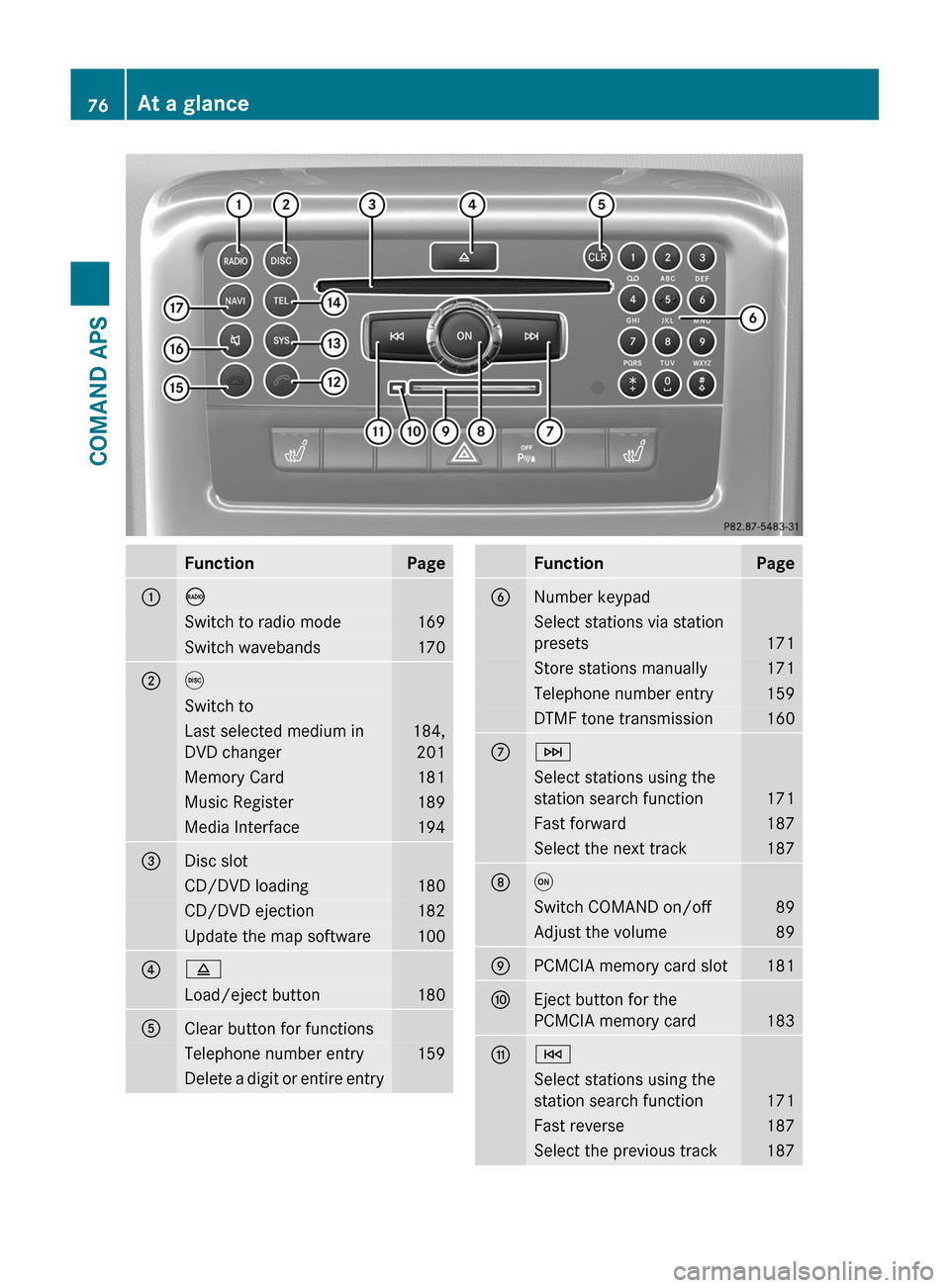
FunctionPage1óSwitch to radio mode169Switch wavebands1702eSwitch toLast selected medium in
DVD changer
184,
201
Memory Card181Music Register189Media Interface1943Disc slotCD/DVD loading180CD/DVD ejection182Update the map software10048Load/eject button1805Clear button for functionsTelephone number entry159Delete a digit or entire entryFunctionPage6Number keypadSelect stations via station
presets171
Store stations manually171Telephone number entry159DTMF tone transmission1607FSelect stations using the
station search function171
Fast forward187Select the next track1878qSwitch COMAND on/off89Adjust the volume899PCMCIA memory card slot181aEject button for the
PCMCIA memory card183
bESelect stations using the
station search function171
Fast reverse187Select the previous track18776At a glanceCOMAND APS
BA 197 USA, CA Edition A 2011; 1; 27, en-UShereepeVersion: 3.0.3.52010-03-24T15:31:10+01:00 - Seite 76
Page 83 of 436
Operating the Multifunction DisplayGWarning!
A driver’s attention to the road and traffic
conditions must always be his/her primary
focus when driving.
For your safety and the safety of others,
selecting features through the multifunction
steering wheel should only be done by the
driver when traffic and road conditions permit
it to be done safely.
Bear in mind that at a speed of just 30 mph
(approximately 50 km/h), your vehicle is
covering a distance of 44 feet (approximately
14 m) every second.
XTo select a menu: Press the =
or ; button.
XTo select a submenu or scroll in a list:
Press the 9 or : button.
XTo select the next menu level up: Press
the % button.
XTo select the standard display: Press the
% button repeatedly until the standard
display with the odometer and trip
odometer appears again in the display.
or
XPress and hold the % button until the
standard display with the odometer and trip
odometer appears.
XTo confirm the selection: Press the
a button.
XTo confirm a display message: Press the
a or % button.
Multifunction Display
The description field on the multifunction
display shows you values and settings as well
as any display messages that may have been
generated.
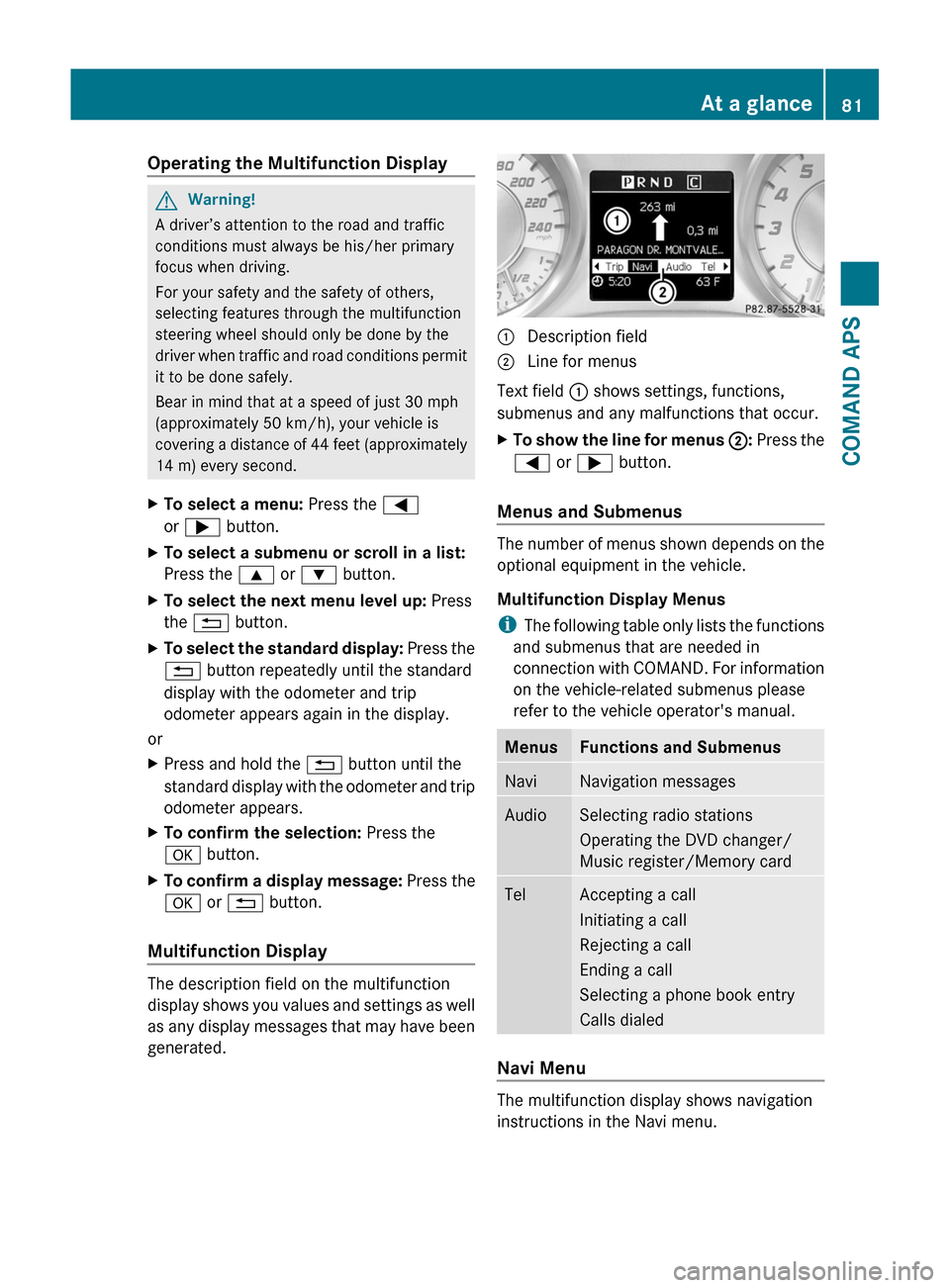
1 Description field2 Line for menus
Text field 1 shows settings, functions,
submenus and any malfunctions that occur.
XTo show the line for menus 2: Press the
= or ; button.
Menus and Submenus
The number of menus shown depends on the
optional equipment in the vehicle.
Multifunction Display Menus
iThe following table only lists the functions
and submenus that are needed in
connection with COMAND. For information
on the vehicle-related submenus please
refer to the vehicle operator's manual.
MenusFunctions and SubmenusNaviNavigation messagesAudioSelecting radio stations
Operating the DVD changer/
Music register/Memory card
TelAccepting a call
Initiating a call
Rejecting a call
Ending a call
Selecting a phone book entry
Calls dialed
Navi Menu
The multifunction display shows navigation
instructions in the Navi menu.
At a glance81COMAND APSBA 197 USA, CA Edition A 2011; 1; 27, en-UShereepeVersion: 3.0.3.52010-03-24T15:31:10+01:00 - Seite 81Z
Page 85 of 436
appears, for example, with relatively large
special destinations.
RNew Route...: the system is calculating a
new route, for example because you have
deviated from the previous route. Route
guidance is subsequently resumed.
RCalculating Route: a route is being
calculated, after which route guidance will
start.
ROff Map: the vehicle is outside the range
of the digital map. The vehicle is in an off-
map position.
ROff Mapped Road: the vehicle is on a road
which is not in the digital map, or is away
from the road, for example in a car park.
RNo Route: no route to the selected
destination could be calculated.
Audio Menu
Use the functions in the Audio menu to
operate the audio equipment. If no audio
equipment is switched on, the multifunction
display shows the message Audio Off.
XTo adjust the volume: Press the W or
X button.
Selecting a Radio Station/Channel
XSwitch on COMAND and select FM/AM
Radio (Y page 169) or SatRadio
(Y page 174).
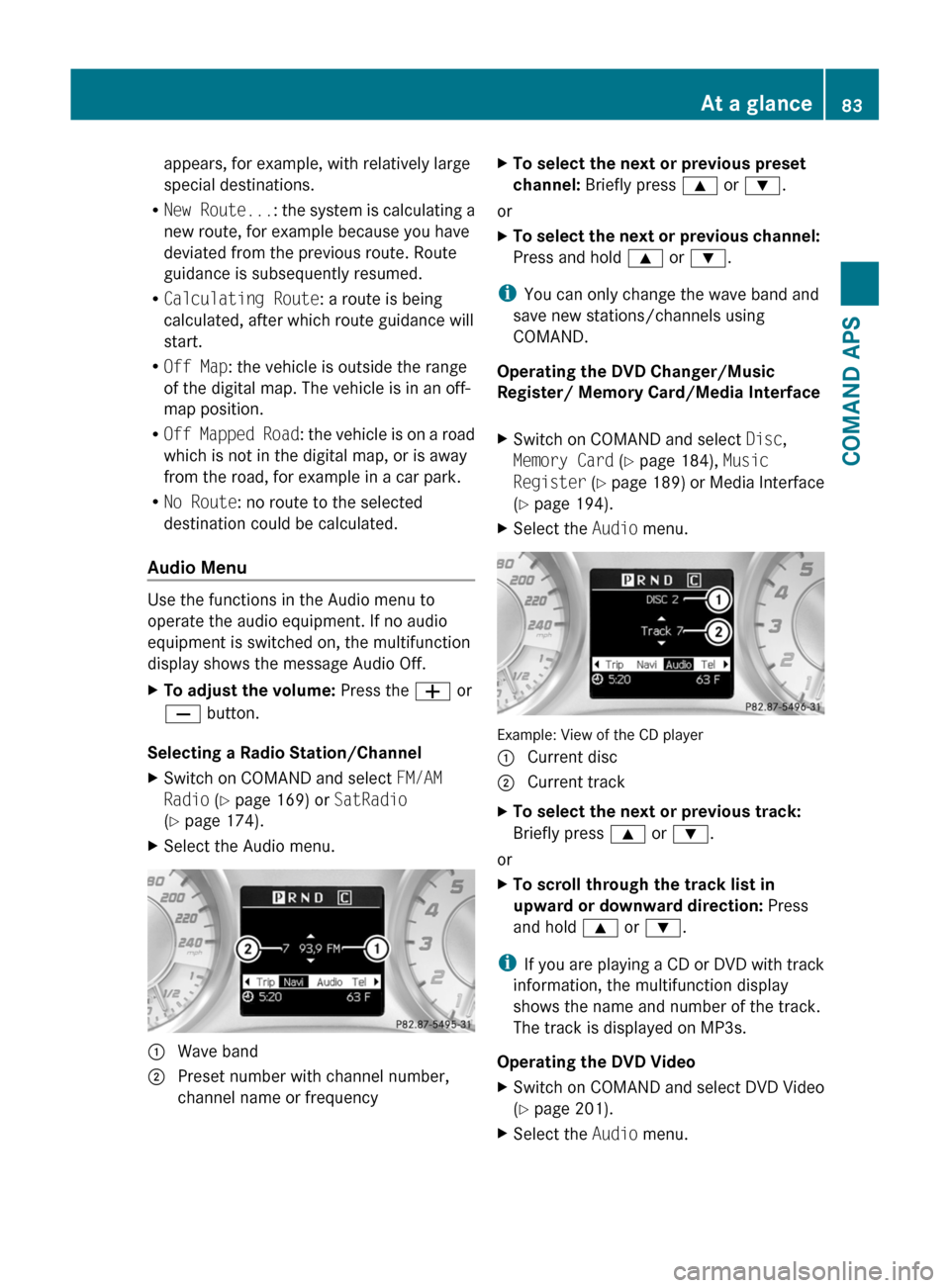
XSelect the Audio menu.1 Wave band2 Preset number with channel number,
channel name or frequency
XTo select the next or previous preset
channel: Briefly press 9 or :.
or
XTo select the next or previous channel:
Press and hold 9 or :.
iYou can only change the wave band and
save new stations/channels using
COMAND.
Operating the DVD Changer/Music
Register/ Memory Card/Media Interface
XSwitch on COMAND and select Disc,
Memory Card (Y page 184), Music
Register (Y page 189) or Media Interface
(Y page 194).
XSelect the Audio menu.
Example: View of the CD player
1 Current disc2 Current trackXTo select the next or previous track:
Briefly press 9 or :.
or
XTo scroll through the track list in
upward or downward direction: Press
and hold 9 or :.
iIf you are playing a CD or DVD with track
information, the multifunction display
shows the name and number of the track.
The track is displayed on MP3s.
Operating the DVD Video
XSwitch on COMAND and select DVD Video
(Y page 201).
XSelect the Audio menu.At a glance83COMAND APSBA 197 USA, CA Edition A 2011; 1; 27, en-UShereepeVersion: 3.0.3.52010-03-24T15:31:10+01:00 - Seite 83Z
Page 88 of 436
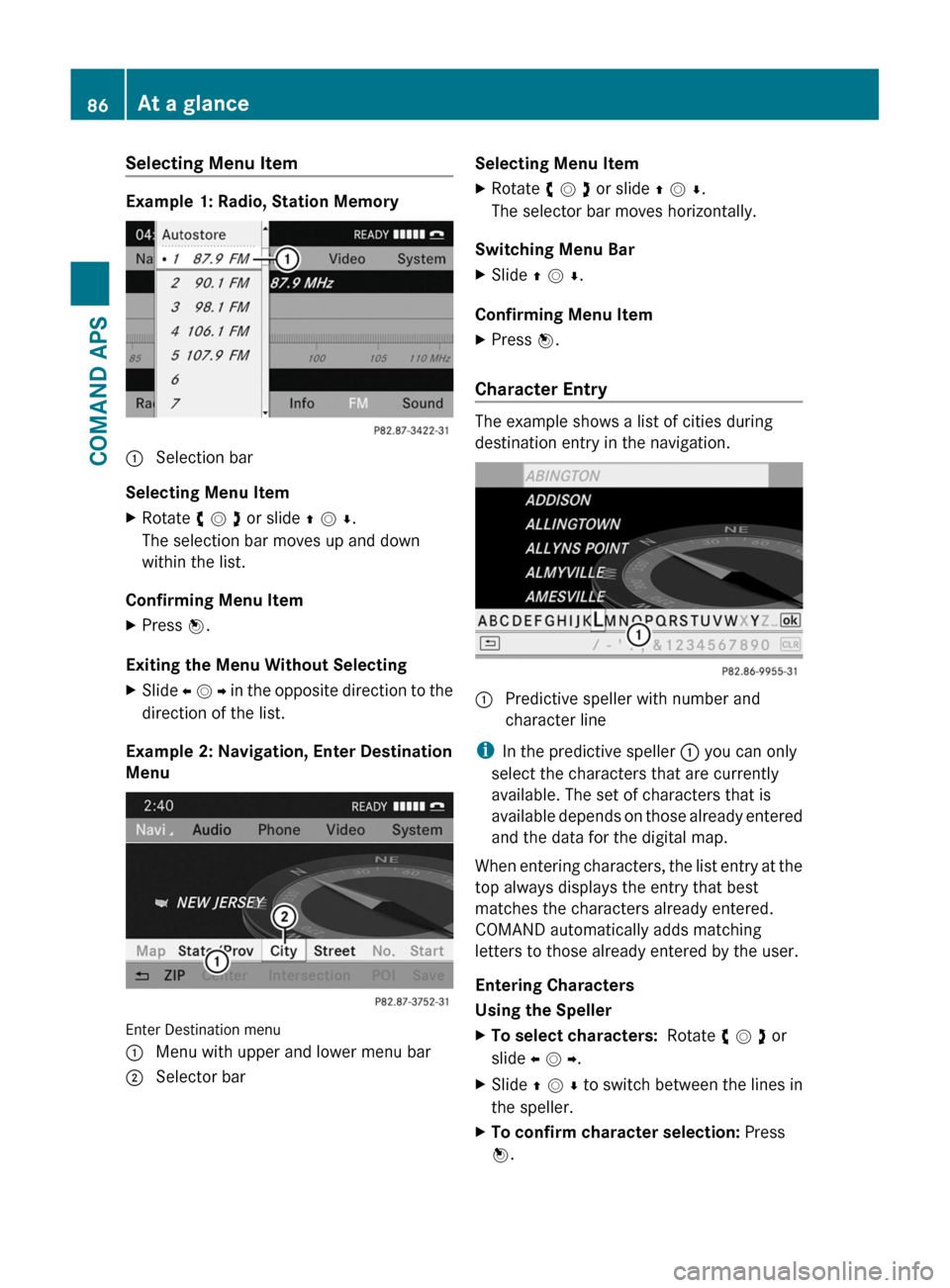
Selecting Menu Item
Example 1: Radio, Station Memory
1 Selection bar
Selecting Menu Item
XRotate y m z or slide q m r.
The selection bar moves up and down
within the list.
Confirming Menu Item
XPress n.
Exiting the Menu Without Selecting
XSlide o m p in the opposite direction to the
direction of the list.
Example 2: Navigation, Enter Destination
Menu
Enter Destination menu
1 Menu with upper and lower menu bar2 Selector barSelecting Menu ItemXRotate y m z or slide q m r.
The selector bar moves horizontally.
Switching Menu Bar
XSlide q m r.
Confirming Menu Item
XPress n.
Character Entry
The example shows a list of cities during
destination entry in the navigation.
1 Predictive speller with number and
character line
iIn the predictive speller 1 you can only
select the characters that are currently
available. The set of characters that is
available depends on those already entered
and the data for the digital map.
When entering characters, the list entry at the
top always displays the entry that best
matches the characters already entered.
COMAND automatically adds matching
letters to those already entered by the user.
Entering Characters
Using the Speller
XTo select characters: Rotate y m z or
slide o m p.
XSlide q m r to switch between the lines in
the speller.
XTo confirm character selection: Press
n.
86At a glanceCOMAND APS
BA 197 USA, CA Edition A 2011; 1; 27, en-UShereepeVersion: 3.0.3.52010-03-24T15:31:10+01:00 - Seite 86
Page 90 of 436
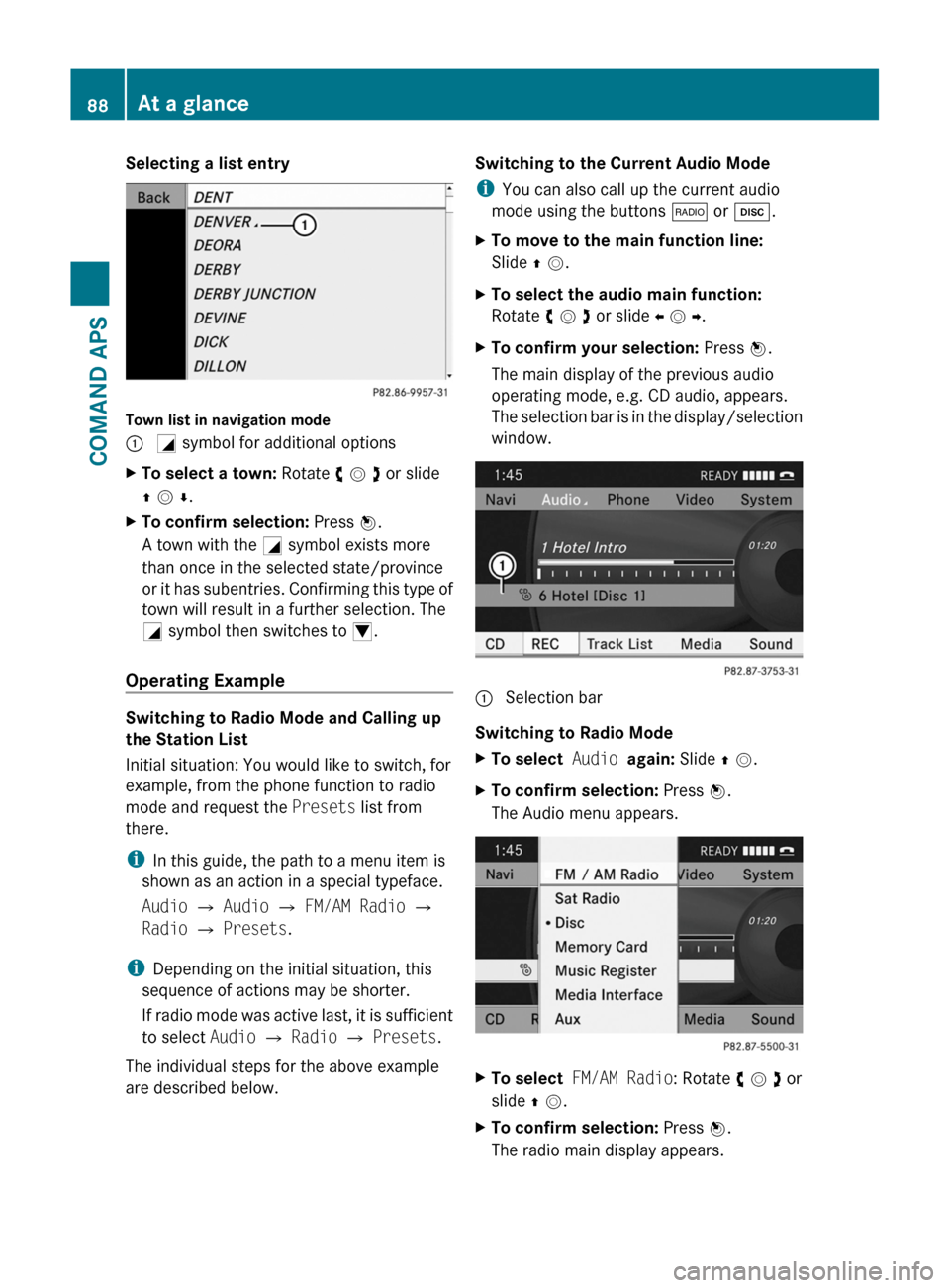
Selecting a list entry
Town list in navigation mode
: G symbol for additional optionsXTo select a town: Rotate y m z or slide
q m r.
XTo confirm selection: Press n.
A town with the G symbol exists more
than once in the selected state/province
or it has subentries. Confirming this type of
town will result in a further selection. The
G symbol then switches to I.
Operating Example
Switching to Radio Mode and Calling up
the Station List
Initial situation: You would like to switch, for
example, from the phone function to radio
mode and request the Presets list from
there.
iIn this guide, the path to a menu item is
shown as an action in a special typeface.
Audio £ Audio £ FM/AM Radio £
Radio £ Presets.
iDepending on the initial situation, this
sequence of actions may be shorter.
If radio mode was active last, it is sufficient
to select Audio £ Radio £ Presets.
The individual steps for the above example
are described below.
Switching to the Current Audio Mode
iYou can also call up the current audio
mode using the buttons $ or h.
XTo move to the main function line:
Slide q m.
XTo select the audio main function:
Rotate y m z or slide o m p.
XTo confirm your selection: Press n.
The main display of the previous audio
operating mode, e.g. CD audio, appears.
The selection bar is in the display/selection
window.
1 Selection bar
Switching to Radio Mode
XTo select Audio again: Slide q m.XTo confirm selection: Press n.
The Audio menu appears.
XTo select FM/AM Radio: Rotate y m z or
slide q m.
XTo confirm selection: Press n.
The radio main display appears.
88At a glanceCOMAND APS
BA 197 USA, CA Edition A 2011; 1; 27, en-UShereepeVersion: 3.0.3.52010-03-24T15:31:10+01:00 - Seite 88
Page 92 of 436
During a telephone call:XTurn the q rotary/push button.
or
XPress the W or X button on the multi-
function steering wheel.
Sound Settings
You can select different sound settings for
each audio and video source. The sound
menu can be opened from the submenu of the
desired operating mode.
Examples:
RAudio £ FM/AM Radio £ Sound
RAudio £ Disc £ Sound
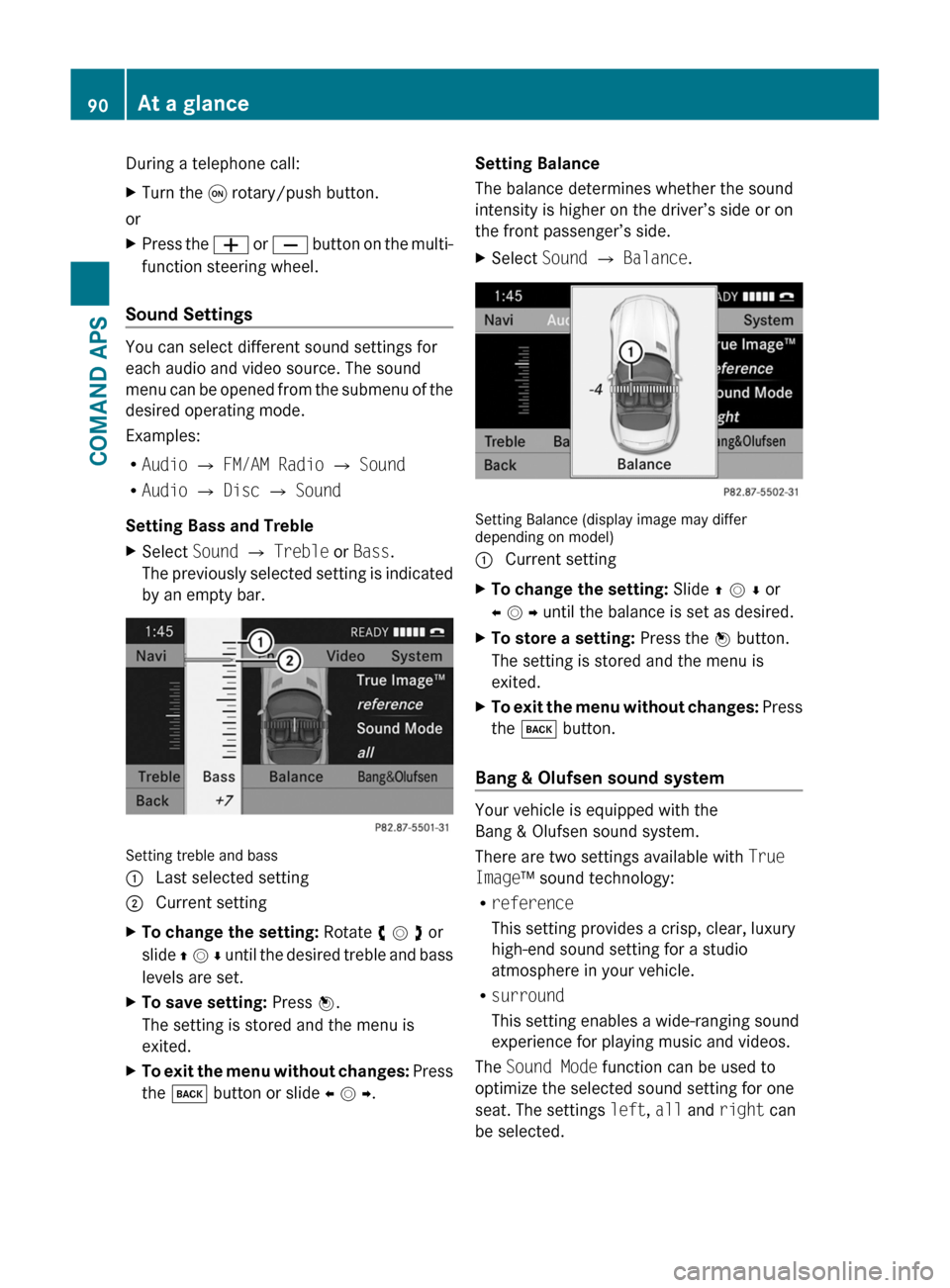
Setting Bass and Treble
XSelect Sound £ Treble or Bass.
The previously selected setting is indicated
by an empty bar.
Setting treble and bass
1 Last selected setting2 Current settingXTo change the setting: Rotate y m z or
slide q m r until the desired treble and bass
levels are set.
XTo save setting: Press n.
The setting is stored and the menu is
exited.
XTo exit the menu without changes: Press
the k button or slide o m p.
Setting Balance
The balance determines whether the sound
intensity is higher on the driver’s side or on
the front passenger’s side.
XSelect Sound £ Balance.
Setting Balance (display image may differdepending on model)
1 Current settingXTo change the setting: Slide q m r or
o m p until the balance is set as desired.
XTo store a setting: Press the n button.
The setting is stored and the menu is
exited.
XTo exit the menu without changes: Press
the k button.
Bang & Olufsen sound system
Your vehicle is equipped with the
Bang & Olufsen sound system.
There are two settings available with True
Image™ sound technology:
Rreference
This setting provides a crisp, clear, luxury
high-end sound setting for a studio
atmosphere in your vehicle.
Rsurround
This setting enables a wide-ranging sound
experience for playing music and videos.
The Sound Mode function can be used to
optimize the selected sound setting for one
seat. The settings left, all and right can
be selected.
90At a glanceCOMAND APS
BA 197 USA, CA Edition A 2011; 1; 27, en-UShereepeVersion: 3.0.3.52010-03-24T15:31:10+01:00 - Seite 90
Page 93 of 436
The Bang & Olufsen sound system provides
the following operating modes:
RRadio (FM only)
RSat radio
RAudio CD
RAudio DVD (MLP, DTS, PCM and Dolby
Digital audio formats)
RMP3 (including PCMCIA memory card)
RMedia Interface
RVideo DVD (PCM, DTS and Dolby Digital
audio formats)
RAUX
Since many DVDs contain both stereo and
multi-channel audio formats, it may be
necessary to set the audio format
(Y page 189).
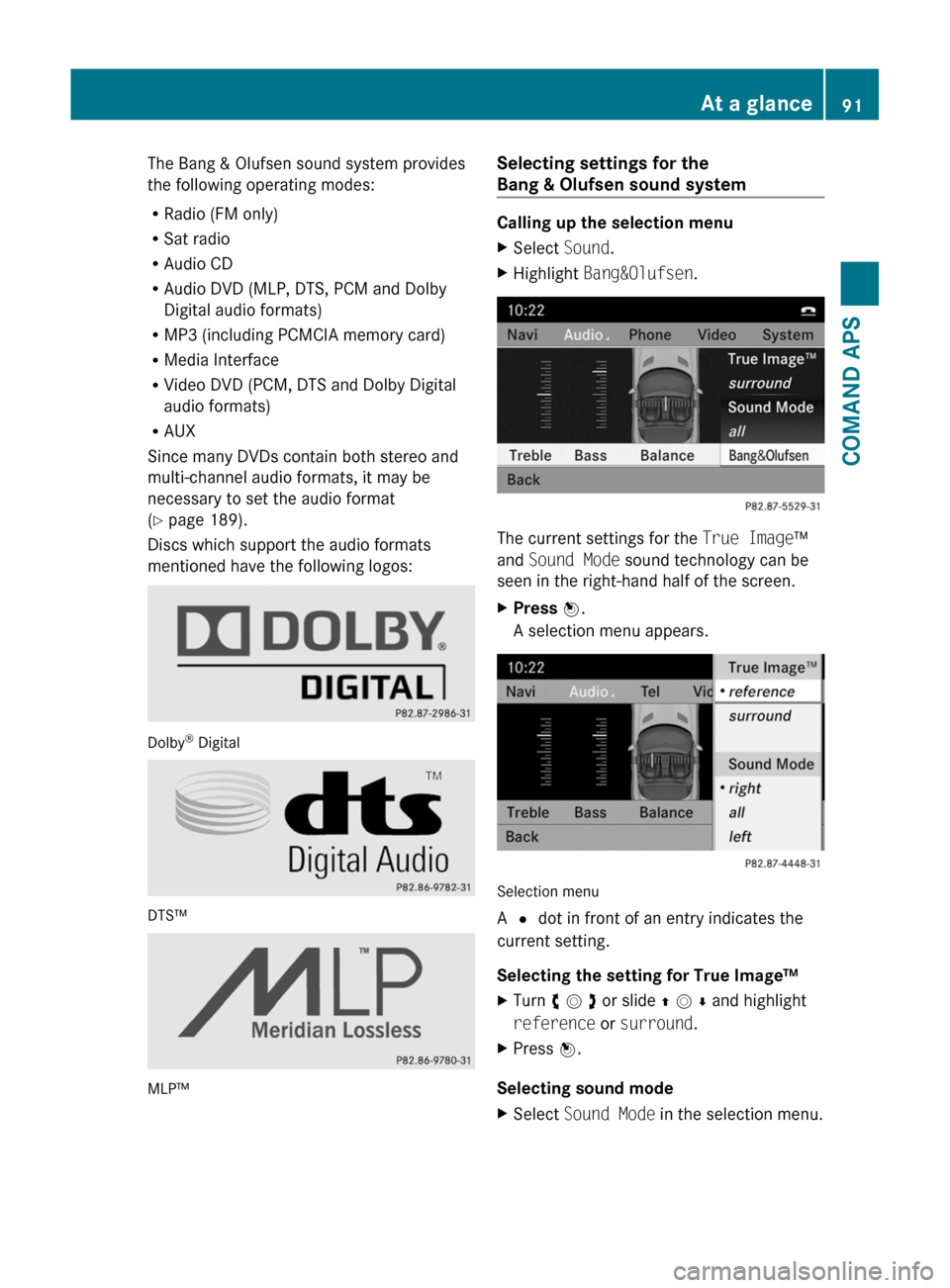
Discs which support the audio formats
mentioned have the following logos:
Dolby® Digital
DTS™
MLP™
Selecting settings for the
Bang & Olufsen sound system
Calling up the selection menu
XSelect Sound.XHighlight Bang&Olufsen.
The current settings for the True Image™
and Sound Mode sound technology can be
seen in the right-hand half of the screen.
XPress W.
A selection menu appears.
Selection menu
A # dot in front of an entry indicates the
current setting.
Selecting the setting for True Image™
XTurn c V d or slide Z V Æ and highlight
reference or surround.
XPress W.
Selecting sound mode
XSelect Sound Mode in the selection menu.At a glance91COMAND APSBA 197 USA, CA Edition A 2011; 1; 27, en-UShereepeVersion: 3.0.3.52010-03-24T15:31:10+01:00 - Seite 91Z
Page 94 of 436
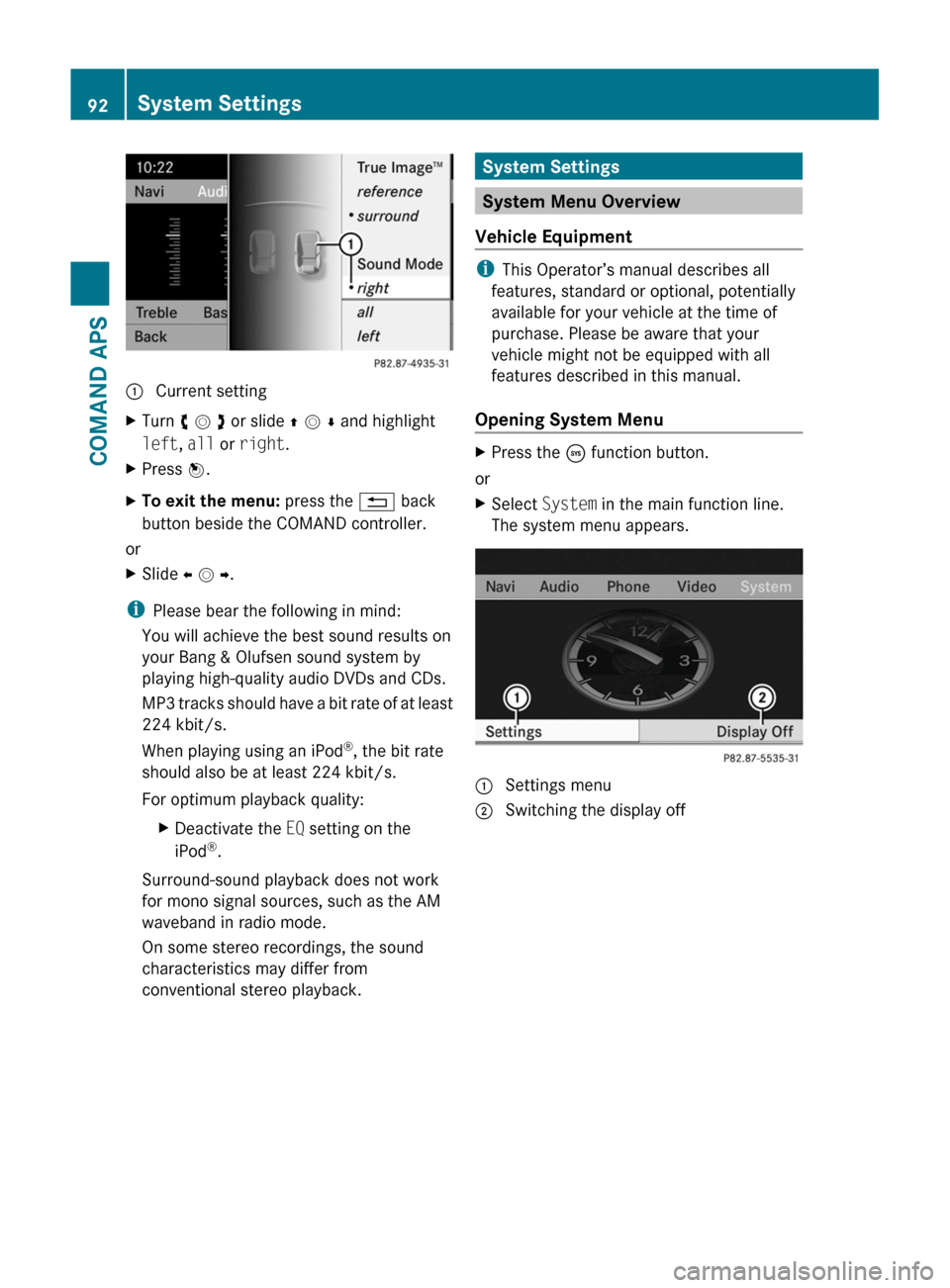
: Current settingXTurn c V d or slide Z V Æ and highlight
left, all or right.
XPress W.XTo exit the menu: press the % back
button beside the COMAND controller.
or
XSlide X V Y.
iPlease bear the following in mind:
You will achieve the best sound results on
your Bang & Olufsen sound system by
playing high-quality audio DVDs and CDs.
MP3 tracks should have a bit rate of at least
224 kbit/s.
When playing using an iPod®, the bit rate
should also be at least 224 kbit/s.
For optimum playback quality:
XDeactivate the EQ setting on the
iPod®.
Surround-sound playback does not work
for mono signal sources, such as the AM
waveband in radio mode.
On some stereo recordings, the sound
characteristics may differ from
conventional stereo playback.
System Settings
System Menu Overview
Vehicle Equipment
iThis Operator’s manual describes all
features, standard or optional, potentially
available for your vehicle at the time of
purchase. Please be aware that your
vehicle might not be equipped with all
features described in this manual.
Opening System Menu
XPress the ö function button.
or
XSelect System in the main function line.
The system menu appears.1 Settings menu2 Switching the display off92System SettingsCOMAND APS
BA 197 USA, CA Edition A 2011; 1; 27, en-UShereepeVersion: 3.0.3.52010-03-24T15:31:10+01:00 - Seite 92