bluetooth MERCEDES-BENZ SLS AMG 2011 Owner's Manual
[x] Cancel search | Manufacturer: MERCEDES-BENZ, Model Year: 2011, Model line: SLS AMG, Model: MERCEDES-BENZ SLS AMG 2011Pages: 436, PDF Size: 17.73 MB
Page 169 of 436
External Bluetooth® device
RBluetooth® is activated in COMAND and on
the Bluetooth® device (see operating
instructions of the device).
RThe Bluetooth® device can send vCards via
Bluetooth® (see operating instructions of
the device).
RThe Bluetooth® device in the vehicle is
switched on.
It is not necessary to authorize the device in
COMAND to receive vCards.
Downloading from a Mobile Phone with
PBAP Support
XSelect Address Book or, if the phone main
menu is displayed, Phone on COMAND.
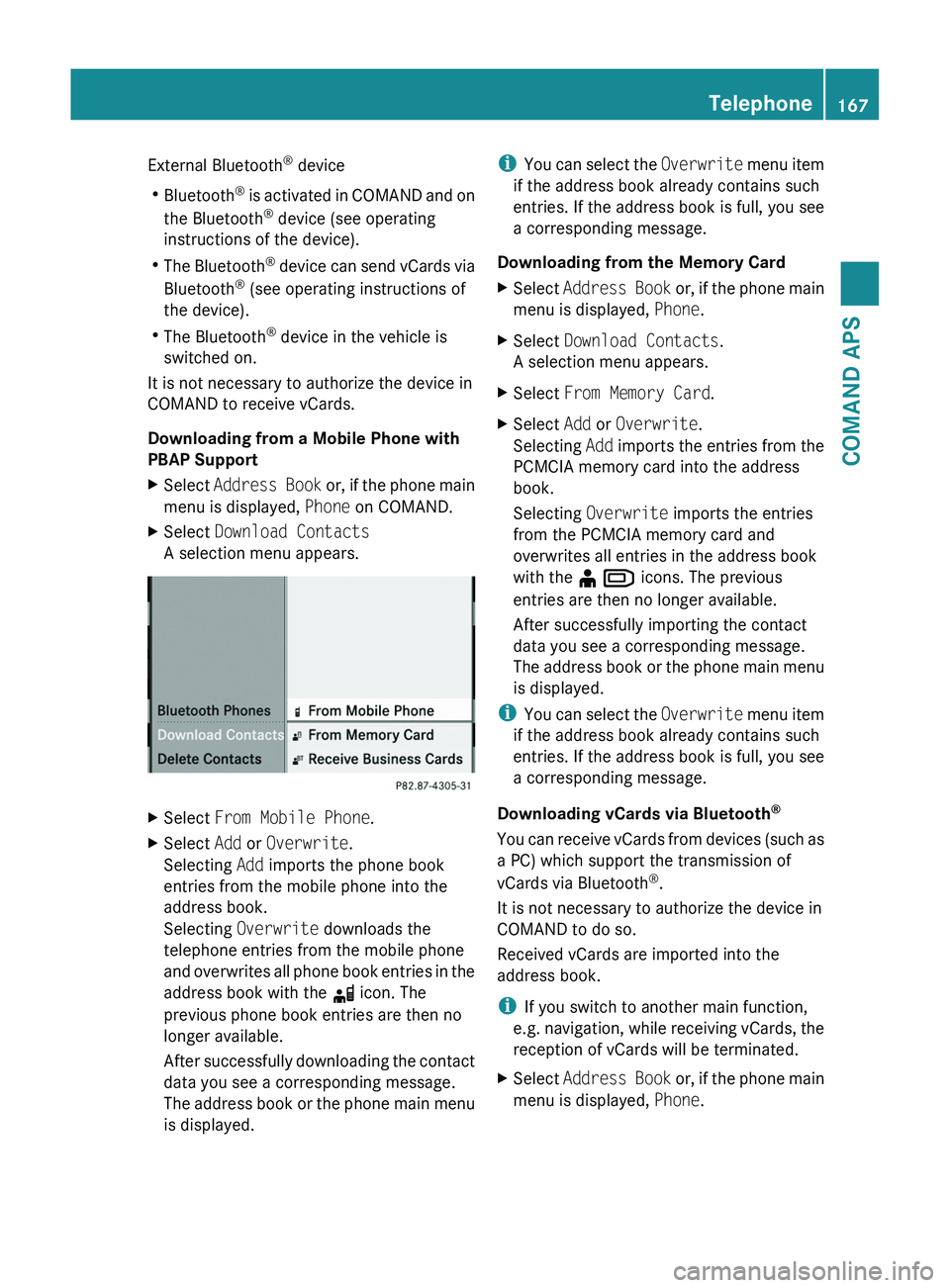
XSelect Download Contacts
A selection menu appears.
XSelect From Mobile Phone.XSelect Add or Overwrite.
Selecting Add imports the phone book
entries from the mobile phone into the
address book.
Selecting Overwrite downloads the
telephone entries from the mobile phone
and overwrites all phone book entries in the
address book with the \0004 icon. The
previous phone book entries are then no
longer available.
After successfully downloading the contact
data you see a corresponding message.
The address book or the phone main menu
is displayed.
iYou can select the Overwrite menu item
if the address book already contains such
entries. If the address book is full, you see
a corresponding message.
Downloading from the Memory Card
XSelect Address Book or, if the phone main
menu is displayed, Phone.
XSelect Download Contacts.
A selection menu appears.
XSelect From Memory Card.XSelect Add or Overwrite.
Selecting Add imports the entries from the
PCMCIA memory card into the address
book.
Selecting Overwrite imports the entries
from the PCMCIA memory card and
overwrites all entries in the address book
with the ¥ \000
Page 170 of 436
XSelect Download Contacts.
A selection menu appears.
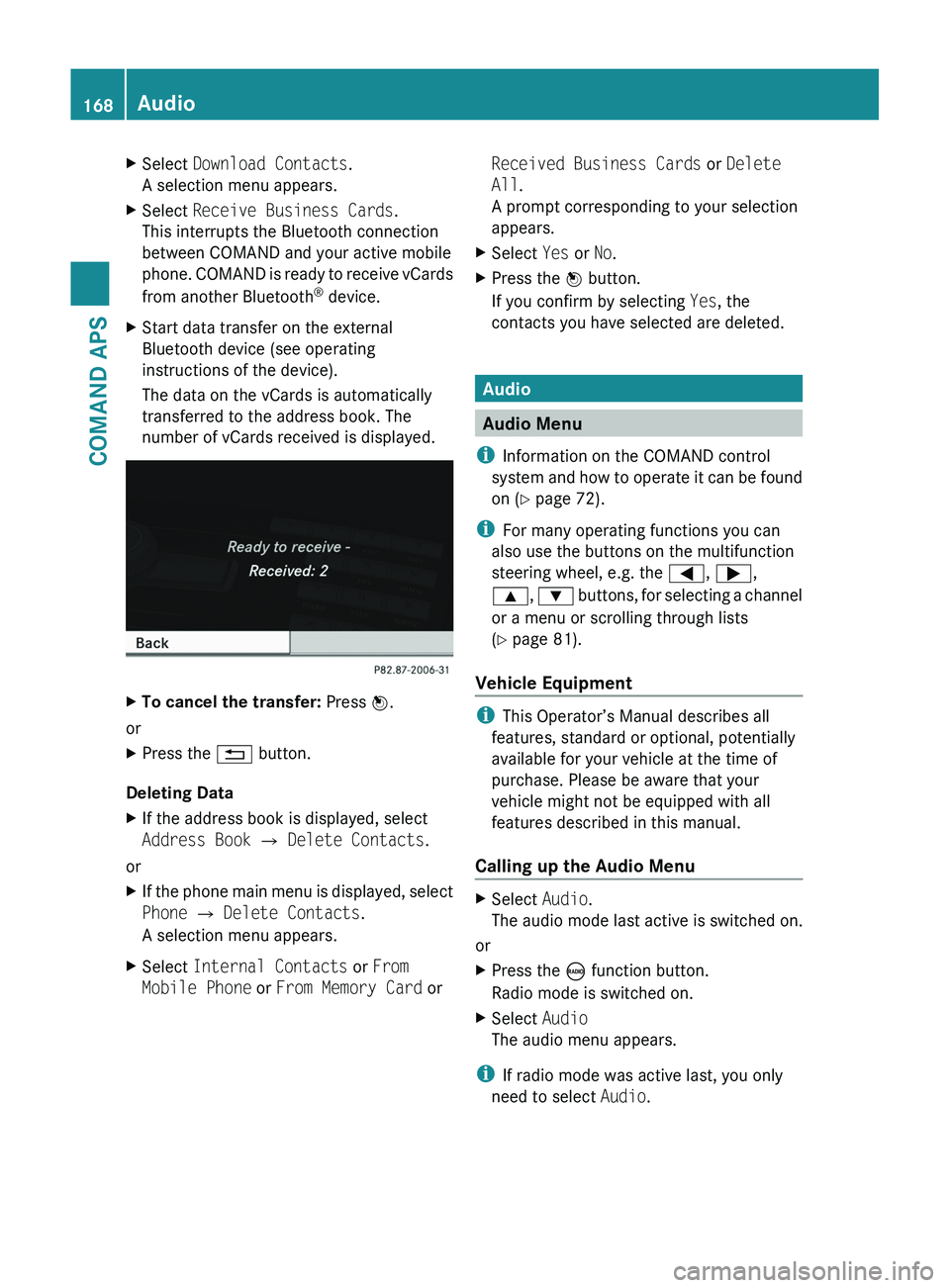
XSelect Receive Business Cards.
This interrupts the Bluetooth connection
between COMAND and your active mobile
phone. COMAND is ready to receive vCards
from another Bluetooth® device.
XStart data transfer on the external
Bluetooth device (see operating
instructions of the device).
The data on the vCards is automatically
transferred to the address book. The
number of vCards received is displayed.
XTo cancel the transfer: Press \000
Page 195 of 436
Supported Data Formats (USB devices)
The following data types are supported:
RMP3: CBR, VBR (up to 320 kbit/s)
RWMA: CBR, VBR (up to 320 kbit/s)
In order to display the metadata during
playback, ID3 tags (version 1.x, 2.3, 2.4) and
WMA tags in ASCII and UTF16 coding are
supported.
Notes on USB Devices
RIn order to keep the initialisation time short,
do not store data other than music files on
the USB device.
RUp to eight directory levels with up to 1,000
tracks are supported.
RDo not use a USB extension cable or
adapter. These may impair functionality.
RPlaylists are searched for in the
background on the USB device and, if
available, are offered beside folders in a
separate category.
RYou can only use USB devices formatted
with the file system format FAT (File
Allocation Table).
iFiles protected with DRM (Digital Rights
Management) are not supported by the
Media Interface.
Connecting External Devices
You will find the connection sockets in the
glove compartment.
Never connect more than one device at a
time. Please consult a Mercedes-Benz
Service Center for further information.
iDo not leave external devices in the
vehicle, as functionality cannot be
guaranteed above certain temperatures
(such as inside a vehicle in direct sunlight).
Mercedes-Benz does not take
responsibility for any damage to external
devices.
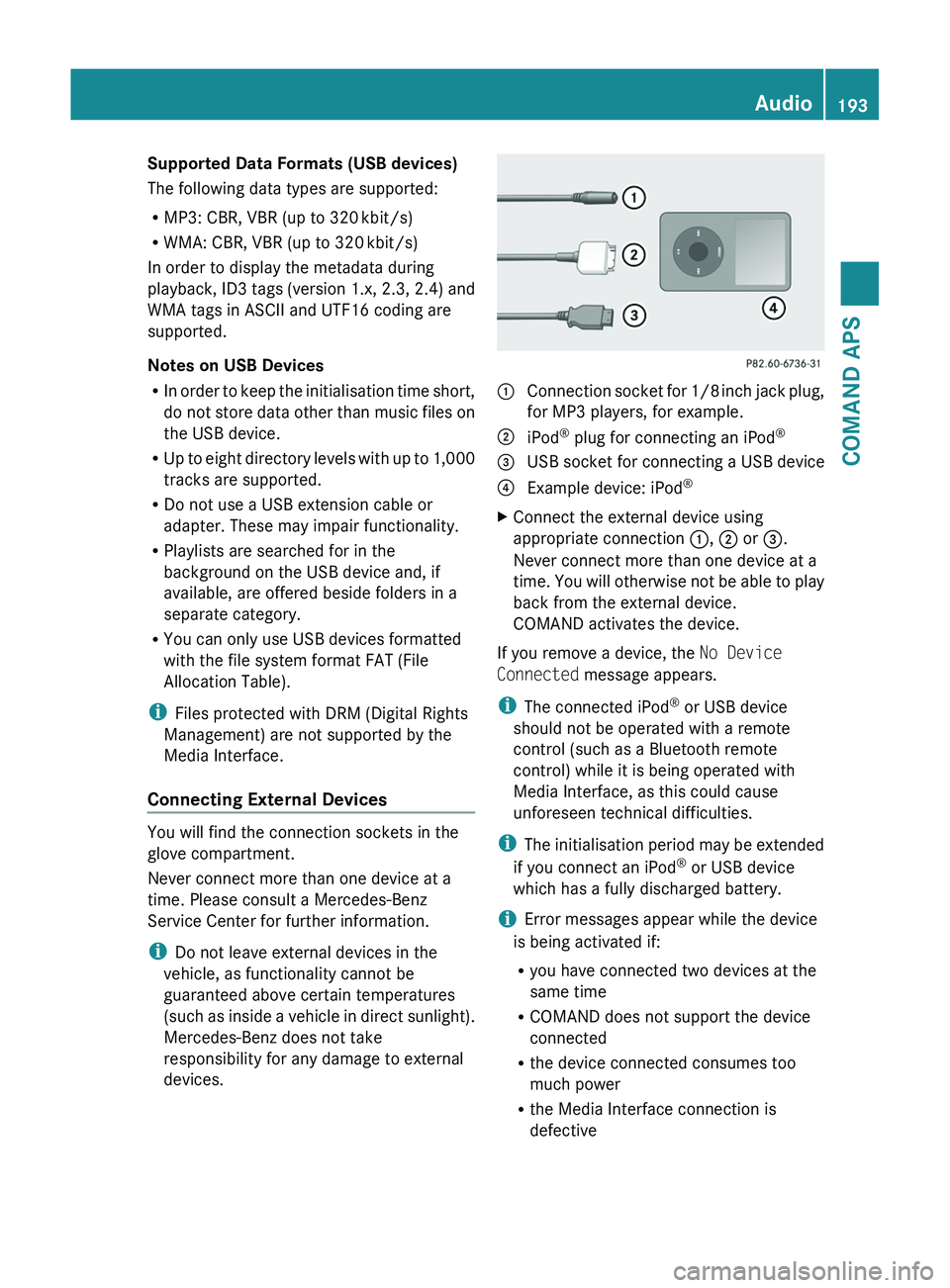
1 Connection socket for 1/8 inch jack plug,
for MP3 players, for example.
2 iPod® plug for connecting an iPod®3 USB socket for connecting a USB device4 Example device: iPod®XConnect the external device using
appropriate connection 1, 2 or 3.
Never connect more than one device at a
time. You will otherwise not be able to play
back from the external device.
COMAND activates the device.
If you remove a device, the No Device
Connected message appears.
iThe connected iPod® or USB device
should not be operated with a remote
control (such as a Bluetooth remote
control) while it is being operated with
Media Interface, as this could cause
unforeseen technical difficulties.
iThe initialisation period may be extended
if you connect an iPod® or USB device
which has a fully discharged battery.
iError messages appear while the device
is being activated if:
Ryou have connected two devices at the
same time
RCOMAND does not support the device
connected
Rthe device connected consumes too
much power
Rthe Media Interface connection is
defective
Audio193COMAND APSBA 197 USA, CA Edition A 2011; 1; 27, en-UShereepeVersion: 3.0.3.52010-03-24T15:31:10+01:00 - Seite 193Z
Page 211 of 436
XPress the 005A or 005B button.
The volume increases or decreases during
voice output.
or
XSet the volume for the voice output on the
volume control for COMAND.
Display Messages
The audible help function can be
supplemented by visual help on the display
( Y page 95). If the help function is switched
on, the most important commands that are
currently possible appear in the display when
you start the dialog.
In the address book and navigation system, a
selection list is shown in the display if voice
control requires additional information from
you.
Entering Numbers
R Digits from “zero” to “nine” are permitted.
R Say the phone number in groups of three
to five digits.
Spell
R The letters of the alphabet and the numbers
0 to 9 are permitted.
R Say the letters in groups of five to seven
letters.
R Say each individual letter clearly.
i Using individualization, you can fine-tune
voice control to your own voice and thus
improve voice recognition. The process of
individualization is described in chapter
“System Settings” ( Y page 95).
i If you use individualization, it may impair
recognition of other users. Switch off
individualization if it makes recognition of
other users worse.
PhoneGWarning
Some jurisdictions prohibit the driver from
using a cellular telephone while driving.
Whether or not prohibited by law, for safety
reasons, the driver should not use the cellular
telephone while the vehicle is in motion. Stop
the vehicle in a safe location before placing or
answering a call.
If you nonetheless choose to use the mobile
phone while driving, please use the handsfree
feature and be sure to pay attention to the
traffic situation at all times. Use the mobile
phone only when road, weather and traffic
conditions permit. Otherwise, you may not be
able to observe traffic conditions and could
endanger yourself and others.
Bear in mind that at a speed of just 30 mph
(approximately 50 km/h), your vehicle is
covering a distance of 44 feet (approximately
14 m) every second.
Operation
You can use voice control to:
R place a call by using your voice to input a
phone number
R store names and numbers in the address
book
R dial a number from the address book
R dial a number from the received calls or
latest calls list
R listen to the phone book
R retrieve and manage your voice mail and
recorded announcement services
R redial
Voice control recognizes whether:
R your phone is switched on
R your phone is connected via Bluetooth ®
R the car phone is registered with the
relevant mobile phone network
R it is possible to dial
If it is not possible to dial, voice control issues
a message to this effect.
Voice Control209COMAND APSBA 197 USA, CA Edition A 2011; 1; 27, en-UShereepeVersion: 3.0.3.52010-03-24T15:31:10+01:00 - Seite 209Z
Page 282 of 436
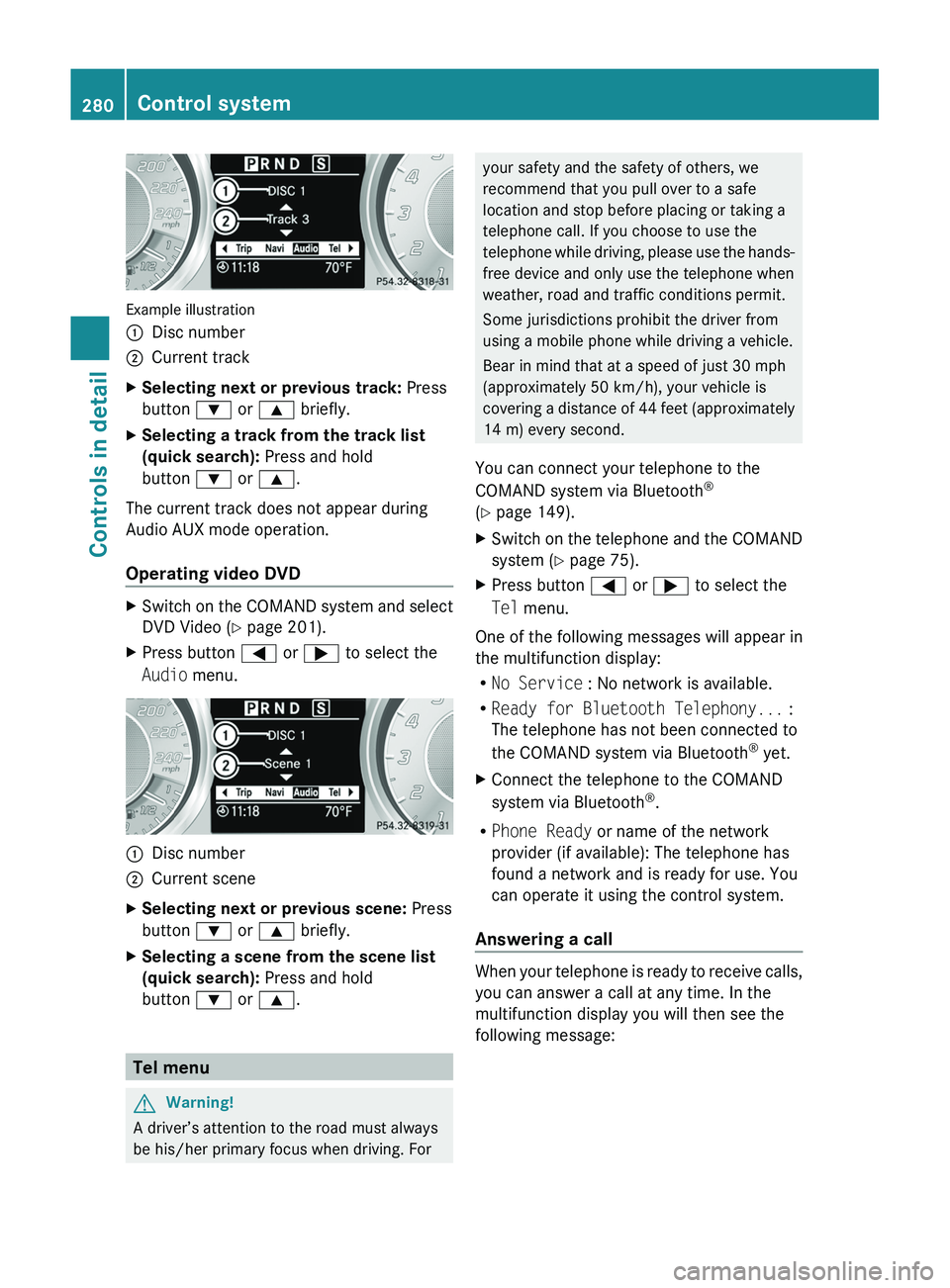
Example illustration
0046Disc number0047Current trackXSelecting next or previous track: Press
button 003D or 003C briefly.XSelecting a track from the track list
(quick search): Press and hold
button 003D or 003C .
The current track does not appear during
Audio AUX mode operation.
Operating video DVD
XSwitch on the COMAND system and select
DVD Video ( Y page 201).XPress button 0040 or 003E to select the
Audio menu.0046Disc number0047Current sceneXSelecting next or previous scene: Press
button 003D or 003C briefly.XSelecting a scene from the scene list
(quick search): Press and hold
button 003D or 003C .
Tel menu
GWarning!
A driver’s attention to the road must always
be his/her primary focus when driving. For
your safety and the safety of others, we
recommend that you pull over to a safe
location and stop before placing or taking a
telephone call. If you choose to use the
telephone while driving, please use the hands-
free device and only use the telephone when
weather, road and traffic conditions permit.
Some jurisdictions prohibit the driver from
using a mobile phone while driving a vehicle.
Bear in mind that at a speed of just 30 mph
(approximately 50 km/h), your vehicle is
covering a distance of 44 feet (approximately
14 m) every second.
You can connect your telephone to the
COMAND system via Bluetooth ®
( Y page 149).XSwitch on the telephone and the COMAND
system ( Y page 75).XPress button 0040 or 003E to select the
Tel menu.
One of the following messages will appear in
the multifunction display:
R No Service : No network is available.
R Ready for Bluetooth Telephony... :
The telephone has not been connected to
the COMAND system via Bluetooth ®
yet.
XConnect the telephone to the COMAND
system via Bluetooth ®
.
R Phone Ready or name of the network
provider (if available): The telephone has
found a network and is ready for use. You
can operate it using the control system.
Answering a call
When your telephone is ready to receive calls,
you can answer a call at any time. In the
multifunction display you will then see the
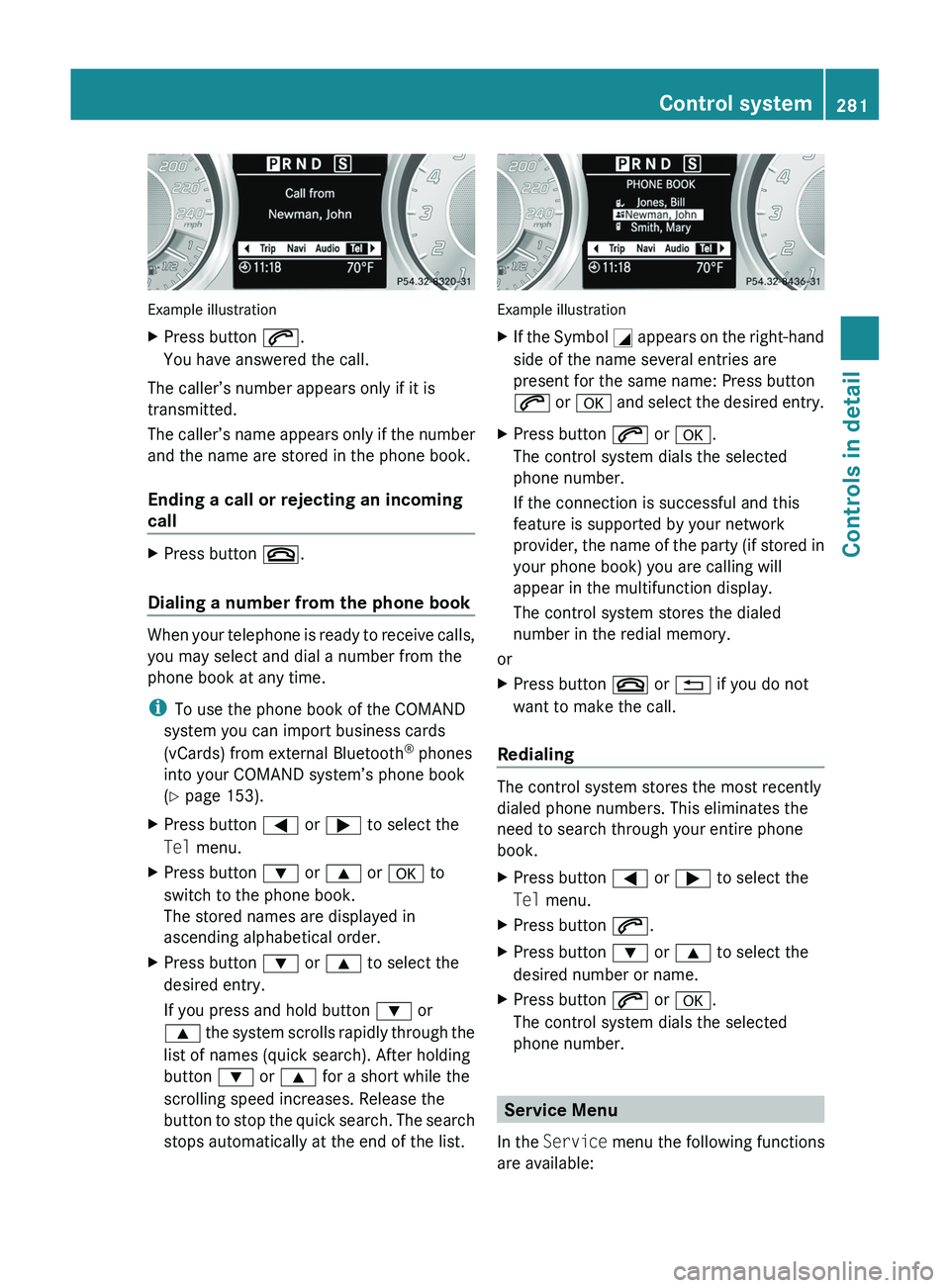
following message:
280Control systemControls in detail
BA 197 USA, CA Edition A 2011; 1; 27, en-UShereepeVersion: 3.0.3.52010-03-24T15:31:10+01:00 - Seite 280
Page 283 of 436
Example illustration
XPress button 006A.
You have answered the call.
The caller’s number appears only if it is
transmitted.
The caller’s name appears only if the number
and the name are stored in the phone book.
Ending a call or rejecting an incoming
call
XPress button 007F.
Dialing a number from the phone book
When your telephone is ready to receive calls,
you may select and dial a number from the
phone book at any time.
i To use the phone book of the COMAND
system you can import business cards
(vCards) from external Bluetooth ®
phones
into your COMAND system’s phone book
( Y page 153).
XPress button 0040 or 003E to select the
Tel menu.XPress button 003D or 003C or 0064 to
switch to the phone book.
The stored names are displayed in
ascending alphabetical order.XPress button 003D or 003C to select the
desired entry.
If you press and hold button 003D or
003C the system scrolls rapidly through the
list of names (quick search). After holding
button 003D or 003C for a short while the
scrolling speed increases. Release the
button to stop the quick search. The search
stops automatically at the end of the list.
Example illustration
XIf the Symbol 004C appears on the right-hand
side of the name several entries are
present for the same name: Press button
006A or 0064 and select the desired entry.XPress button 006A or 0064 .
The control system dials the selected
phone number.
If the connection is successful and this
feature is supported by your network
provider, the name of the party (if stored in
your phone book) you are calling will
appear in the multifunction display.
The control system stores the dialed
number in the redial memory.
or
XPress button 007F or 0041 if you do not
want to make the call.
Redialing
The control system stores the most recently
dialed phone numbers. This eliminates the
need to search through your entire phone
book.
XPress button 0040 or 003E to select the
Tel menu.XPress button 006A.XPress button 003D or 003C to select the
desired number or name.XPress button 006A or 0064 .
The control system dials the selected
phone number.
Service Menu
In the Service menu the following functions
are available:
Control system281Controls in detailBA 197 USA, CA Edition A 2011; 1; 27, en-UShereepeVersion: 3.0.3.52010-03-24T15:31:10+01:00 - Seite 281Z