AUX MERCEDES-BENZ SLS AMG 2011 Owners Manual
[x] Cancel search | Manufacturer: MERCEDES-BENZ, Model Year: 2011, Model line: SLS AMG, Model: MERCEDES-BENZ SLS AMG 2011Pages: 436, PDF Size: 17.73 MB
Page 7 of 436
Gear selector lever ........................263
Hill-start assist system ..................293
Kickdown ....................................... 266
Kickdown (manual shift program) ..270
Manual shift program ..................... 268
Messages in the multifunction
display ........................................... 388
One-touch gearshifting ..................267
Program mode indicator ................267
Program mode selector dial ... 267, 269
Shifting procedure .........................264
Steering wheel gearshift control ....267
Transmission position indicator .....265
Transmission positions ..................265
Announcement phase (driving
maneuvers) ........................................ 133
Announcements, navigation see Navigation announcements
Announcements, traffic (real-time) . 143
Answering incoming calls .......... 84, 158
Anticorrosion/antifreeze .................. 428
Antilock Brake System see ABS
Anti-theft systems ............................... 66
Anti-theft alarm system ...................66
Canceling the alarm .........................67
Immobilizer ...................................... 66
Aquaplaning
see Hydroplaning
Ashtray ............................................... 307
Aspect ratio (tires) ............................ 345
Audio .................................................. 168
announcements ............................. 137
CD, DVD, and MP3 ........................177
loudness .......................................... 89
phone volume ................................ 151
read-out ........................................... 89
sound settings ................................. 90
steering wheel operation .................83
turning off ........................................ 89
voice control .................................. 206
see Muting audio
see Navigation announcements
see Read-aloud announcements
see Volume Audio Aux (auxiliary)
main system .................................. 197
switching to ................................... 197
voice commands for ......................225
Audio format
audio playback ............................... 189
DVD Video ..................................... 205
Audio menu ............................... 168, 279
Authorizing Bluetooth devices ......... 149
Auto-dimming rear view mirrors ..... 247
Automatic central locking ................ 239
Automatic headlamp mode .............. 250
Automatic interior lighting control .. 253
Automatic picture switch-off ........... 199
Automatic shift program .................. 267
Auxiliary (Aux) operation main audio ..................................... 197
main video ..................................... 205
voice commands for ......................225
voice control with .......................... 230
AUX socket ........................................ 304
Avoid settings for route guidance ... 107
Axle oils .............................................. 425
B
Back button ......................................... 79
Backrest see Seats
Backup lamps
Messages in the multifunction
display ........................................... 384
Backward track skip ......................... 187
Balance (sound), setting ..................... 90
Bang & Olufsen sound system ........... 90
Bar (air pressure unit) ....................... 345
BAS (Brake Assist System) ................. 62
Bass setting main system .................................... 90
Battery, SmartKey
Checking condition ........................237
Replacing ....................................... 399
Battery, Vehicle ................................. 410
Charging ........................................ 412
Jump starting ................................. 413
Messages in the multifunction
display ................................... 368, 383
Bead (tire) .......................................... 345
Index5BA 197 USA, CA Edition A 2011; 1; 27, en-UShereepeVersion: 3.0.3.52010-03-24T15:31:10+01:00 - Seite 5
Page 26 of 436
U
Uniform Tire Quality Grading
Standards .................................. 339, 346
Units Selecting speedometer display
mode ............................................. 283
Units of measurement, navigation .. 103
Unleaded gasoline, premium ........... 427
Unlocking the vehicle Manually ........................................ 398
SmartKey ....................................... 236
Updating Gracenote ®
Media
Database ............................................ 188
Updating map software .................... 100
Upholstery, cleaning ......................... 359
USB devices connecting to ................................. 192
playback options ............................ 197
playlists and folders .......................195
selecting active partition ...............197
selecting tracks .....................195, 196
Useful features .................................. 306
V
Valet locking ...................................... 241
Vehicle Battery ........................................... 410
Care ............................................... 354
Control system .............................. 272
Identification Number (VIN) ...........420
Locking/unlocking ........................236
Modifications and alterations,
Operating safety .............................. 28
Towing ........................................... 415
Unlocking/locking manually ..........398
Vehicle dimensions
see Vehicle specification
Vehicle Identification Number
(VIN) ................................................... 420
Vehicle jack see Jack
Vehicle lighting .................................. 249
Vehicle loading Load limit ....................................... 335
Terminology ................................... 345
Vehicle location (current)
displaying ...................................... 110
GPS reception ................................ 103
moving map to ............................... 107
saving in Last Destinations ....106, 147
Vehicle maximum load on the tire ... 347
Vehicle specification SLS AMG (197) .............................. 421
Vehicle status message memory .... 282
Vehicle tool kit .................................. 362
Vehicle washing see Vehicle care
Vehicle weights
see Vehicle specification
Video .................................................. 198
control menu, displaying/hiding ....201
handling and care of discs .............199
interactive content ........................205
operating DVD menu .....................203
picture settings .............................. 203
voice control with .......................... 230
Video Aux (auxiliary)
main system .................................. 205
Voice control ..................................... 206
canceling the dialog .......................208
command list ................................. 225
creating voice names .....................219
general operation .......................... 207
help function .................................. 232
interrupting the dialog ...................208
operating safety ............................. 206
starting the dialog ..........................208
switching help screen on or off ........95
troubleshooting ............................. 231
with address book .........166, 218, 231
with DVD changer ..........................224
with external equipment (Aux) .......225
with navigation .............................. 212
with phone ..................................... 209
with radio and satellite radio .........221
Voice Control
delete name ................................... 220
find address ................................... 217
Individualization ............................... 95
Settings ........................................... 95
Voice mail, voice control for ............ 211
Voice names, creating ...................... 21924IndexBA 197 USA, CA Edition A 2011; 1; 27, en-UShereepeVersion: 3.0.3.52010-03-24T15:31:10+01:00 - Seite 24
Page 72 of 436
Introduction
Where to Find it
This operator's manual has been designed to
help you use your COMAND control unit in all
situations. Since not all models have the
same standard equipment, your COMAND
system equipment may deviate from some
descriptions and illustrations.
At a Glance
Here you will find an overview of the
components of COMAND. Then you will find
examples illustrating how to operate
COMAND and information on the basic
functions. If you are operating a COMAND for
the first time or have rented the vehicle, you
should first read this chapter.
System Settings
Here you will find all the important
information regarding the system settings of
the COMAND.
Navigation
Here you will find detailed information
regarding the following topics:
R Setting options for the map display and the
route calculation
R Destination input
R Search & Send
R POI input
R Route guidance
R Traffic information
R Destination memory
Telephone
The telephone functions are described here.
You will also find information on the address
book.
Audio
Here you will find all information regarding
the audio function and its Radio, SatRadio,
CD-audio/DVD audio/MP3, Music Register,
Media Interface and Audio Aux modes.
Video
Here you will find all information regarding
the video system.
Voice Control
Here you will find information about operating
several COMAND functions via Voice Control.
Indexes
Content and keyword indexes are intended to
help you find information quickly.
Symbols
Trademarks ®
:
R Bluetooth ®
is a registered trademark of
Bluetooth SIG Inc.
R Microsoft ®
is a registered trademark of
Microsoft Corporation in the United States
and other countries
R SIRIUS and related marks are trademarks
of SIRIUS Satellite Radio Inc.
R Windows media ®
is a registered trademark
of Microsoft Corporation in the United
States and other countries
You will find the following symbols in these
operating instructions:
GWarning!
Warning notices draw your attention to
hazards that may endanger your health or life,
or the health or life of others.
! Highlights hazards that may result in
damage to your COMAND.
i Helpful hints or further information you
may find useful.
70IntroductionCOMAND APS
BA 197 USA, CA Edition A 2011; 1; 27, en-UShereepeVersion: 3.0.3.52010-03-24T15:31:10+01:00 - Seite 70
Page 75 of 436
Components of COMAND
COMAND comprises:
Rthe COMAND display
Rthe COMAND control unit with DVD
changer
Rthe COMAND controller with the Back and
Clear button
You can use COMAND to operate the
following main functions:
Rthe navigation system
Rthe audio function with the radio, SatRadio,
disc (CD audio, DVD audio or MP3 mode),
PCMCIA memory card (MP3 mode), Music
Register and Audio Aux modes
Rthe telephone and the address book
function
RDVD Video
Rsystems settings
You can call up the main functions:
Rusing the corresponding function buttons
Rusing the main function line in the
COMAND display
COMAND Display
iDo not touch the COMAND display. The
display has a very sensitive high-gloss
surface; there is a risk of scratching. Should
the display need cleaning, use a mild
cleaning agent and a soft, antistatic, lint-
free cloth. Commercially available alcohol
and ammonia-free TFT or LCD cleaners are
recommended.
The COMAND display shows the function
currently selected and its associated menus.
The COMAND display is divided into several
areas.
The radio display is shown in the example.
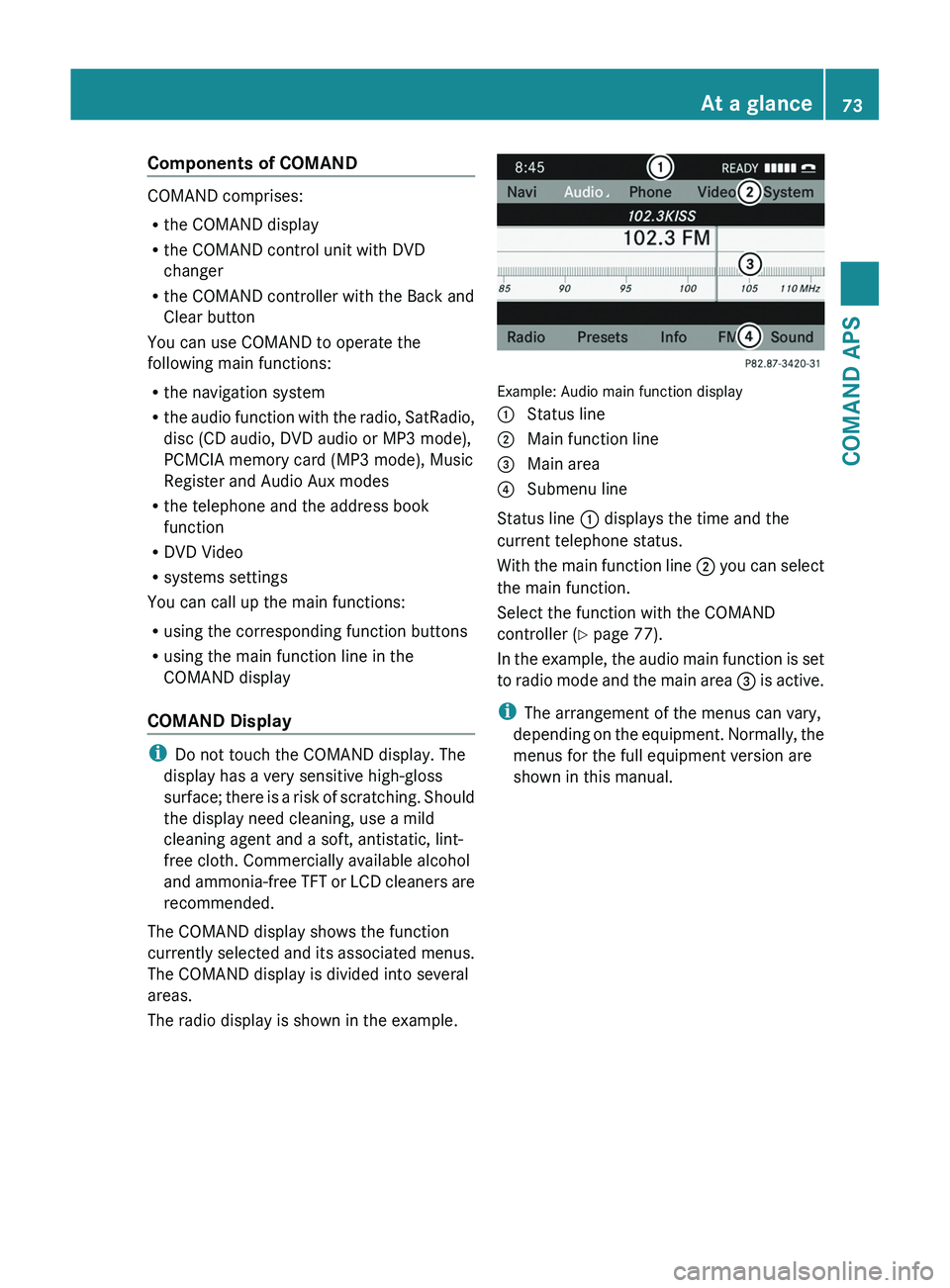
Example: Audio main function display
1 Status line2 Main function line3 Main area4 Submenu line
Status line 1 displays the time and the
current telephone status.
With the main function line 2 you can select
the main function.
Select the function with the COMAND
controller (Y page 77).
In the example, the audio main function is set
to radio mode and the main area 3 is active.
iThe arrangement of the menus can vary,
depending on the equipment. Normally, the
menus for the full equipment version are
shown in this manual.
At a glance73COMAND APSBA 197 USA, CA Edition A 2011; 1; 27, en-UShereepeVersion: 3.0.3.52010-03-24T15:31:10+01:00 - Seite 73Z
Page 76 of 436
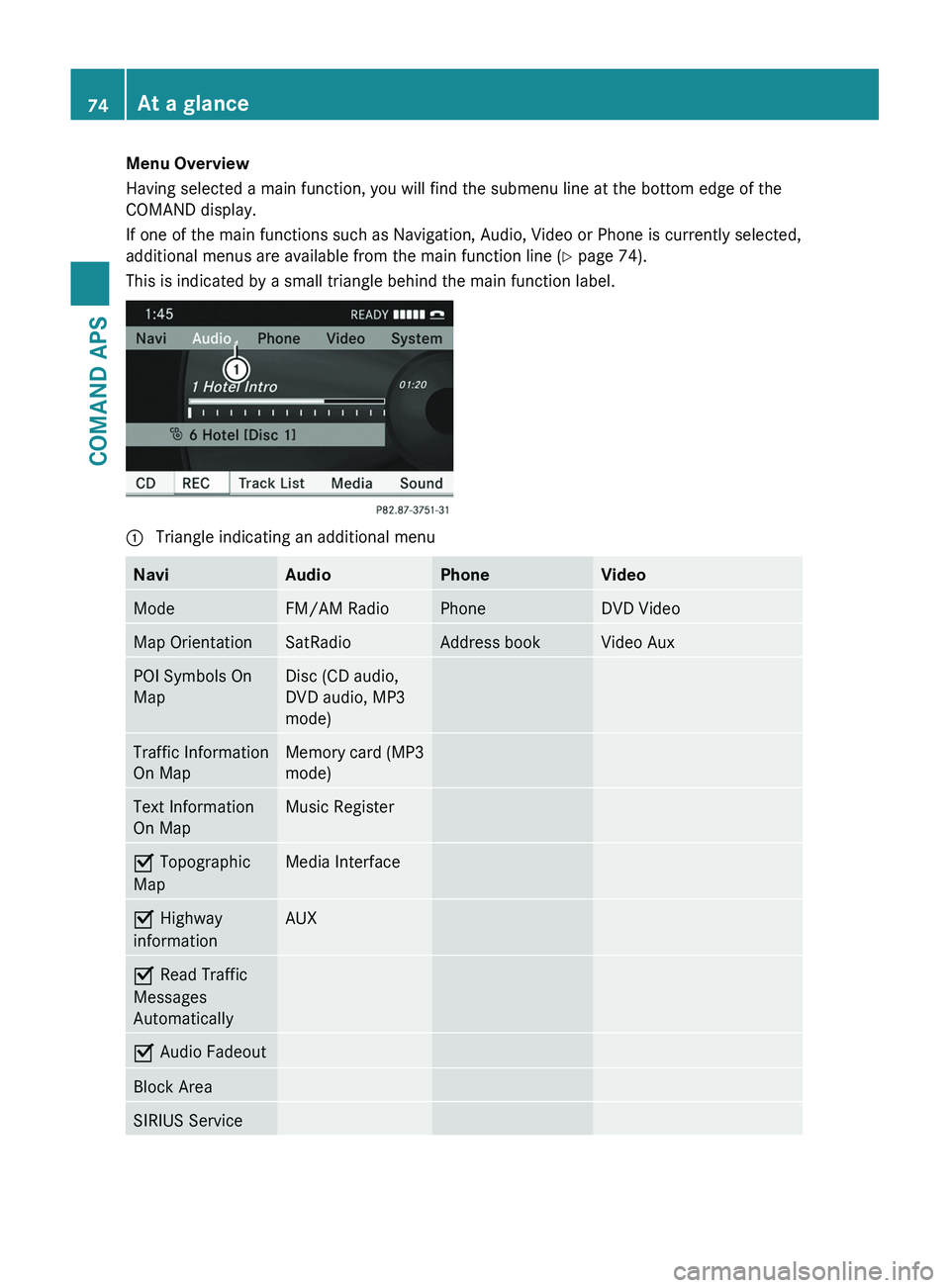
Menu Overview
Having selected a main function, you will find the submenu line at the bottom edge of the
COMAND display.
If one of the main functions such as Navigation, Audio, Video or Phone is currently selected,
additional menus are available from the main function line (Y page 74).
This is indicated by a small triangle behind the main function label.
1 Triangle indicating an additional menuNaviAudioPhoneVideoModeFM/AM RadioPhoneDVD VideoMap OrientationSatRadioAddress bookVideo AuxPOI Symbols On
Map
Disc (CD audio,
DVD audio, MP3
mode)
Traffic Information
On Map
Memory card (MP3
mode)
Text Information
On Map
Music RegisterÇ Topographic
Map
Media InterfaceÇ Highway
information
AUXÇ Read Traffic
Messages
Automatically
Ç Audio FadeoutBlock AreaSIRIUS Service74At a glanceCOMAND APS
BA 197 USA, CA Edition A 2011; 1; 27, en-UShereepeVersion: 3.0.3.52010-03-24T15:31:10+01:00 - Seite 74
Page 77 of 436
You can determine basic settings for the map display, route calculation and route guidance
functions in Navigation.
i You can call up functions such as destination entry and the destination memory at the
bottom of the COMAND display in the Navigation Submenu line.
In the Audio main function, you can switch modes in the audio menu.
In the Phone main function, you can choose between the telephone mode and the address
book.
In the Video main function, you can choose between the DVD mode and the Video Aux mode.COMAND Control Unit
The COMAND control unit allows you to:
R switch COMAND on/off
R adjust the volume
R select the main function/mode directly
R enter telephone numbers and accept,
reject, initiate and end calls
R load and eject CDs/DVDs or a PCMCIA
memory card
At a glance75COMAND APSBA 197 USA, CA Edition A 2011; 1; 27, en-UShereepeVersion: 3.0.3.52010-03-24T15:31:10+01:00 - Seite 75Z
Page 93 of 436
The Bang & Olufsen sound system provides
the following operating modes:
RRadio (FM only)
RSat radio
RAudio CD
RAudio DVD (MLP, DTS, PCM and Dolby
Digital audio formats)
RMP3 (including PCMCIA memory card)
RMedia Interface
RVideo DVD (PCM, DTS and Dolby Digital
audio formats)
RAUX
Since many DVDs contain both stereo and
multi-channel audio formats, it may be
necessary to set the audio format
(Y page 189).
Discs which support the audio formats
mentioned have the following logos:
Dolby® Digital
DTS™
MLP™
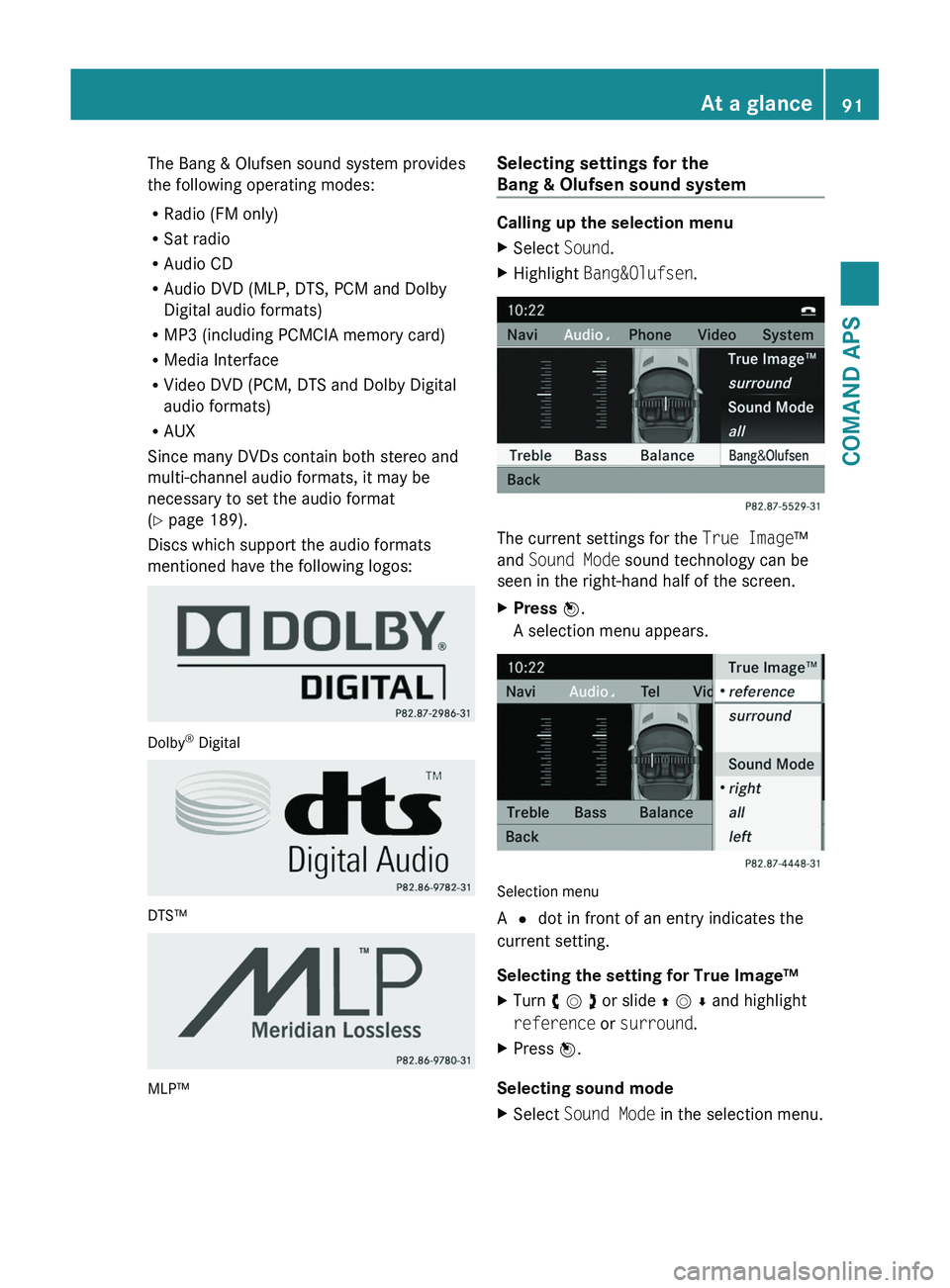
Selecting settings for the
Bang & Olufsen sound system
Calling up the selection menu
XSelect Sound.XHighlight Bang&Olufsen.
The current settings for the True Image™
and Sound Mode sound technology can be
seen in the right-hand half of the screen.
XPress \000
Page 171 of 436
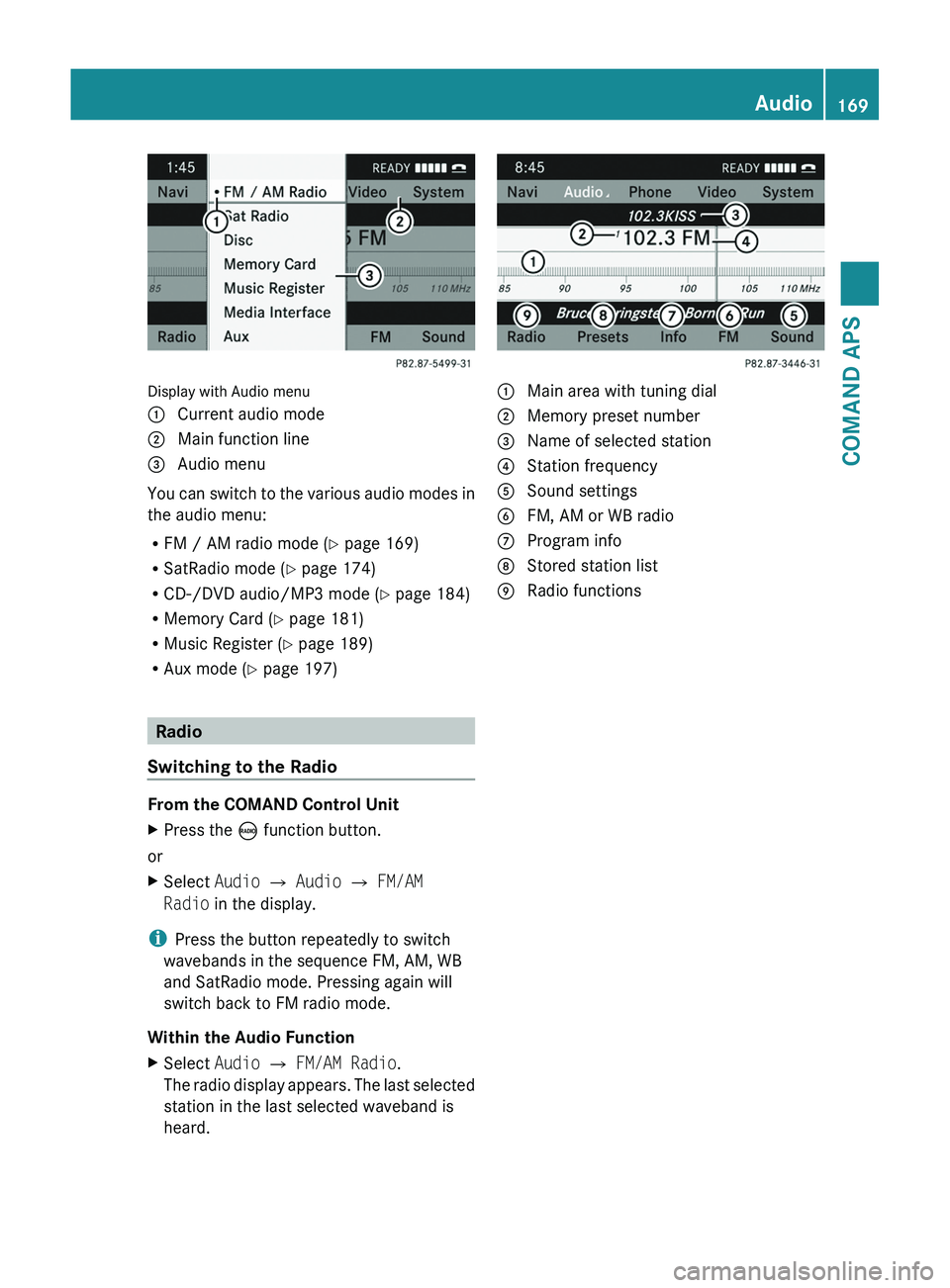
Display with Audio menu
1 Current audio mode2 Main function line3 Audio menu
You can switch to the various audio modes in
the audio menu:
RFM / AM radio mode (Y page 169)
RSatRadio mode (Y page 174)
RCD-/DVD audio/MP3 mode (Y page 184)
RMemory Card (Y page 181)
RMusic Register (Y page 189)
RAux mode (Y page 197)
Radio
Switching to the Radio
From the COMAND Control Unit
XPress the \000
Page 186 of 436
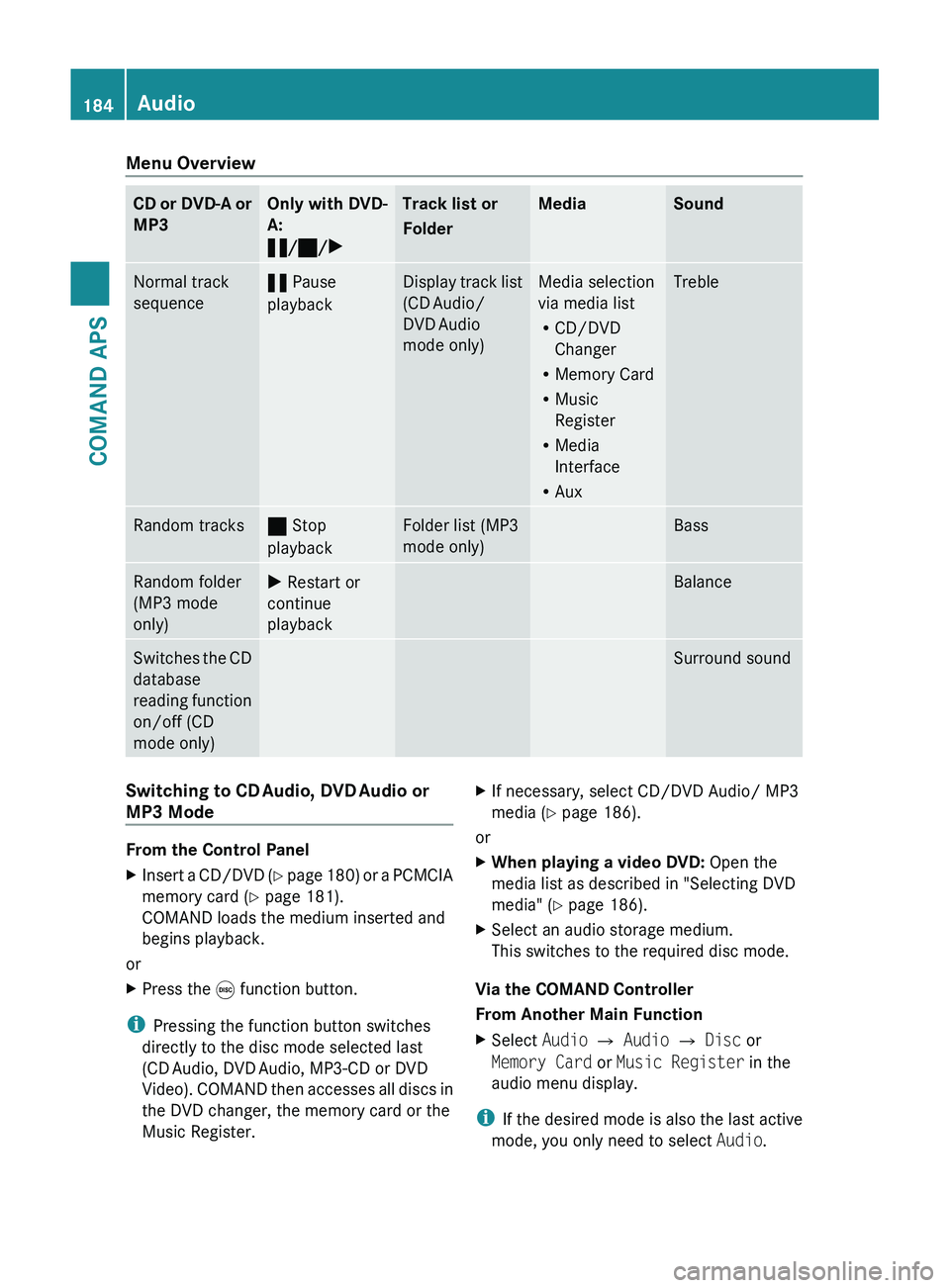
Menu OverviewCD or DVD-A or
MP3Only with DVD-
A:
« /± /XTrack list or
FolderMediaSoundNormal track
sequence« Pause
playbackDisplay track list
(CD Audio/
DVD Audio
mode only)Media selection
via media list
R CD/DVD
Changer
R Memory Card
R Music
Register
R Media
Interface
R AuxTrebleRandom tracks± Stop
playbackFolder list (MP3
mode only)BassRandom folder
(MP3 mode
only)X Restart or
continue
playbackBalanceSwitches the CD
database
reading function
on/off (CD
mode only)Surround soundSwitching to CD Audio, DVD Audio or
MP3 Mode
From the Control Panel
XInsert a CD/DVD (Y page 180) or a PCMCIA
memory card ( Y page 181).
COMAND loads the medium inserted and
begins playback.
or
XPress the 0035 function button.
i
Pressing the function button switches
directly to the disc mode selected last
(CD Audio, DVD Audio, MP3-CD or DVD
Video). COMAND then accesses all discs in
the DVD changer, the memory card or the
Music Register.
XIf necessary, select CD/DVD Audio/ MP3
media ( Y page 186).
or
XWhen playing a video DVD: Open the
media list as described in "Selecting DVD
media" ( Y page 186).XSelect an audio storage medium.
This switches to the required disc mode.
Via the COMAND Controller
From Another Main Function
XSelect Audio £ Audio £ Disc or
Memory Card or Music Register in the
audio menu display.
i If the desired mode is also the last active
mode, you only need to select Audio.
184AudioCOMAND APS
BA 197 USA, CA Edition A 2011; 1; 27, en-UShereepeVersion: 3.0.3.52010-03-24T15:31:10+01:00 - Seite 184
Page 199 of 436
This function is not available within
playlists, for example.XSelect a category, e.g. artists.
The available artists appear.XPress the corresponding number key once
or repeatedly to select the initial letter of
the desired artist. For example, to select an
artist whose name begins with C, press the
number key "2" three times.
You see the available letters at the bottom
edge of the display.
After a message, the first entry in the list
which matches the letter entered is
highlighted.
i If there is no entry which matches the
letter which has been entered, the last
entry in the list which matches a previous
letter is highlighted.
USB Devices
i This function is available for directories
which are arranged in alphabetical order.
This function is not available within
playlists.
XPress the number key in question once or
repeatedly in a directory to select the initial
letter of the desired artist.
For example, to select an artist whose
name begins with C, press the number key
“2” three times.
You see the available letters at the bottom
edge of the display.
If the directory only contains folders,
COMAND searches for folders. The first
entry in the list that matches the letter is
highlighted.
If this does not happen, COMAND searches
for tracks. After a message, the first entry
in the list which matches the letter entered
is highlighted.
i If there is no entry which matches the
letter which has been entered, the last
entry in the list which matches a previous
letter is highlighted.
Selecting the Active Partition (USB
Devices Only)
You can select this function for USB devices
when the storage device is partitioned. Up to
four partitions (primary or logical and FAT-
formatted) are supported.
i The Windows formatting program
supports FAT partitions with either FAT16
or FAT32.
XSelect Media Interface £ Select
Active partition .
Playback Options
The following options are available to you:
R Normal Track Sequence:
You hear the tracks in their normal order
(numerical or alphabetical).
R Random Tracks:
You hear all tracks in random order.
R Random Categories or Random Folder
(in the case of USB devices when Folder
has been selected):
You hear the tracks in the current active
category or folder and any subfolders in
random order.
XTo select an option: Select Media
Interface in the basic display.
The option list appears. A R dot indicates
the option selected.XSelect an option.
Audio Aux
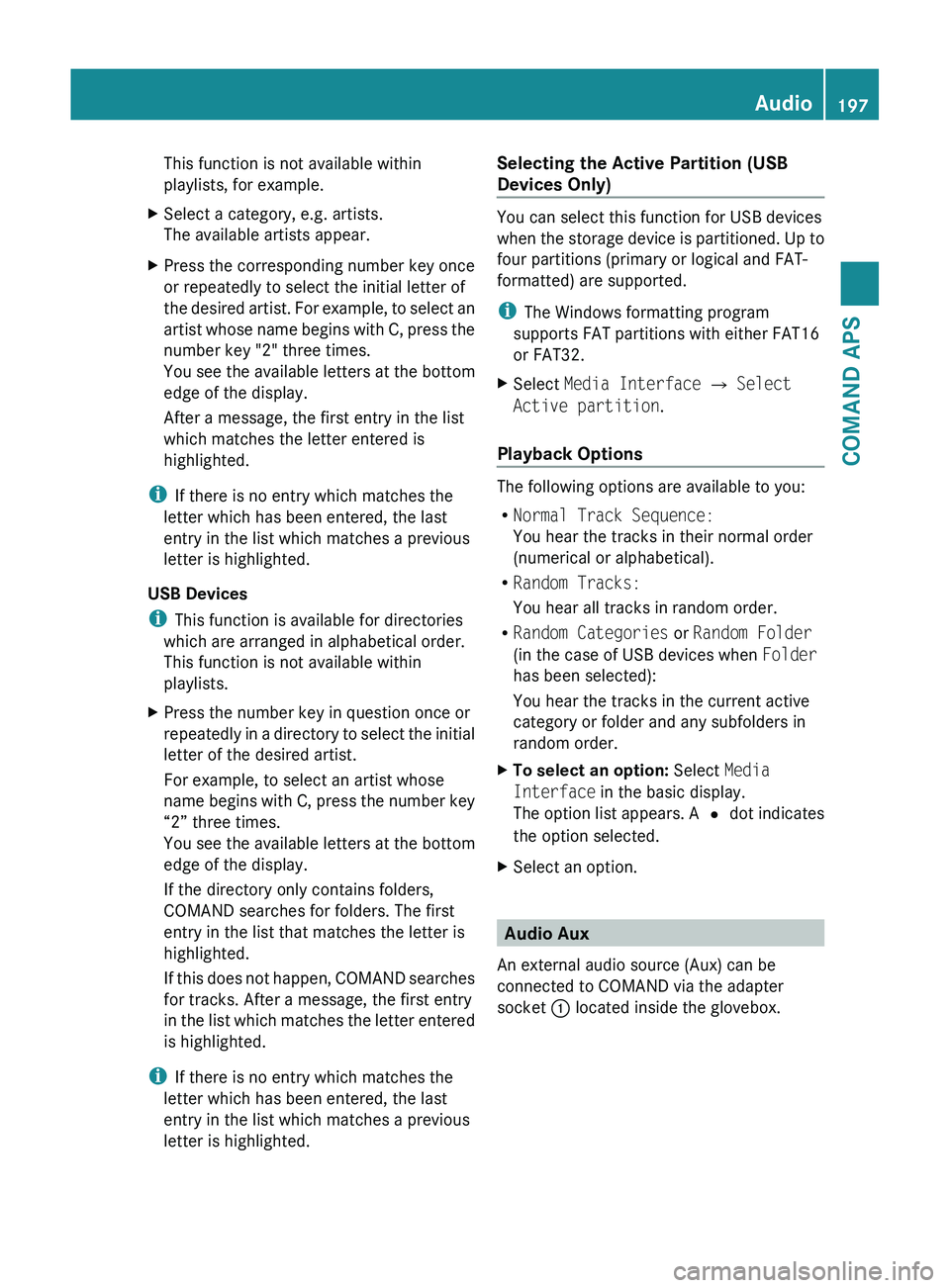
An external audio source (Aux) can be
connected to COMAND via the adapter
socket 1 located inside the glovebox.
Audio197COMAND APSBA 197 USA, CA Edition A 2011; 1; 27, en-UShereepeVersion: 3.0.3.52010-03-24T15:31:10+01:00 - Seite 197Z