CD player MERCEDES-BENZ SLS COUPE 2010 Owners Manual
[x] Cancel search | Manufacturer: MERCEDES-BENZ, Model Year: 2010, Model line: SLS COUPE, Model: MERCEDES-BENZ SLS COUPE 2010Pages: 361, PDF Size: 6.32 MB
Page 9 of 361
Trim strips
..................................... 285
Windows ........................................ 283
Wiper blades .................................. 283
Care products .................................... 280
CD Cop yprotection ............................. 167
Disc ............................................... 167
General information .......................167
Multisession .................................. 166
Playback options ........................... 178
Selecting amedium ....................... 175
Selecting atrack ............................ 176
CD/DVD
Ejecting .......................................... 170
Loading .......................................... 168
CD player/CD changer
Operating (on-board computer) .....235
Central locking
Key ................................................ 200
Central unlocking
Key ................................................ 200
Centre
Entering ........................................... 98
Centre console
Lowe rsection .................................. 30
Uppe rsection .................................. 29
Changing awheel
see Flat tyre
Changing bulbs
Headlamps .................................... .323
Tai llamp ........................................ 324
Changing direction ............................112
Announcement phase ....................112
Change of direction phase .............112
Preparation phase .........................112
Character entry ................................... 64
Charge maintenance socket ............264
Children In the vehicle ................................... 40
Restraint system .............................. 41
Child seat
Automatic recognition .....................42
Automatic recognition (malfunc-
tion) ............................................... 307
Child sea tlock ................................. 45
Display message ............................ 291Recommendations
...........................45
Suitable positions ............................ 44
Child seat lock ..................................... 45
Cigarette lighter ................................ 260
Cleaning agents ................................. 280
Cockpit Overview .......................................... 23
COMAND
Basi cfunction s................................ 67
Components .................................... 55
Switching on/off .............................. 67
COMAND controller .............................59
COMAND control panel .......................57
COMAND display ................................. 55
Cleaning ......................................... 284
Cleaning instructions .......................57
Setting ............................................. 72
COMAND operating system ................ 55
Constant headlamp mode see Daytime driving lights ..............238
Control menu
Showing/hiding ............................. 193
Convenience closing feature ............219
Convenience opening feature ..........219
Coolant Checking the leve l......................... 269
Display message ............................ 299
Mixture ratio .................................. 351
Copy protection (CD/DVD) ...............167
Country Selecting .......................................... 93
Crosshair
Hiding .............................................. 84
Crosshair position
Saving ...................................... 84, 127
Cruise control .................................... 243
Display message ............................ 293
Cup holder ......................................... 258
Current fuel consumption (on-
board computer) ............................... 233 D
DAB Sub-programme ............................. 165
DAB radio mode
Switching to ................................... 1586
Index BA 197 ECE RE 2010/6a; 1; 2, en-GB
sabbae uV ersion: 3.0.3.6
2010-05-07T14:19:43+02:00 - Seite 6
Page 14 of 361
LINGUATRONIC
Individualisatio n............................... 74
Settings ........................................... 73
Luggage net
Front-passenger footwell ...............259 M
Main-beam headlamps Display message ............................ 301
Maintenance
Battery ........................................... 334
Manual drive program ......................229
Map Adjusting the map scal e.................. 83
Arrival time/distance to destina-
tion .................................................. 88
Calling up ....................................... 103
Centring on vehicle or destination
position ............................................ 84
Information on map .........................88
Map displa y..................................... 84
Moving ............................................. 83
RDS-TMC displays .........................120
Showing geo-coordinates ................89
Showing road names .......................89
Map orientation ................................... 84
Setting ............................................. 84
Map scale
Setting ............................................. 83
Matt paintwork
Cleaning ......................................... 282
Media Interface
Metadata ....................................... 187
MP3 player. ................................... 184
Media Interface mode .......................183
Connectio noption s....................... 183
Media Interface operation
Basi cmenu .................................... 186
Select file ....................................... 186
Switching ....................................... 185
Media list ........................................... 175
Memory card (on-board computer) .235
Memory function ............................... 210
Menu Menu overview .............................. 232
Menu (on-board computer) ...............232
AMG ............................................... 241 Audi
o............................................. 235
Navigation ..................................... 234
Service .......................................... .237
Settings ......................................... 238
Telephone ...................................... 236
Trip ................................................ 232
Menu item
Selecting .......................................... 64
Menu overview
Address book ................................. 151
Bluetooth ®
telephony .................... 133
CD/DVD audio and MP3 mode ...... 172
Convenience telephony .................135
DAB radio mode ............................ .160
MUSIC REGISTER ........................... 180
Navigation ........................................ 81
Radio mode ................................... 160
Video DVD ..................................... 193
Menu system
Showing/hiding .......................83, 194
Mercedes-Benz Contact ....................156
Message see Display message .....................289
see Warning and indicator lamps ...308
Mirrors
Sun visor ........................................ 259
see Exterior mirrors or Rear-view mirror
Mobile phone ..................................... 260
Authorisation ................................. 129
Connecting (Bluetooth ®
interface) .129
Connecting (convenience teleph-
ony) ............................................... 133
De-authorisation ............................ 131
External authorisation ....................131
Installatio n..................................... 347
Telephone menu (on-board com-
puter) ............................................. 236
Modifying the programming
Key ................................................ 200
Motorway information ........................89
MP3 Bit/sampling rates ......................... 166
Copyright ....................................... 167
Disc ............................................... 166
File systems ................................... 166
Formats ......................................... 166 Index
11 BA 197 ECE RE 2010/6a; 1; 2, en-GB
sabbaeu Version: 3.0.3.6 2010-05-07T14:19:43+02:00 - Seite 11
Page 187 of 361
You can connec
tthe following data carriers
to COMAND via the Media Interface:
R iPod ®
R USB devices
i iPod ®
is a registered trademark of Apple
Inc., Cupertino, California, USA.
For further information refer to the "Connect-
ing external devices" section (Y page 184).
Supported iPod ®
variants
The following are examples of supported
iPod ®
variants:
R iPod ®
mini
R iPod ®
nano
R iPod ®
classic
R iPod ®
touch
Supported USB devices
The following USB devices are supported:
R USB sticks (flash memory)
R USB hard drives (1-inch, 1.8-inch and 2.5-
inch drives) with a starting/continuous cur-
rent of up to 800 mA (a separate power
supply may be required in some cases)
R selected MP3 players
i The Media Interface supports USB stor-
age media of "USB Device Subclass 6".
Information concerning USB Device Sub-
class 6is available from the equipment
manufacturer.
Supported data formats (USB devices)
The following data formats are supported:
R MP3: CBR, VBR (up to 320 kbit/s)
R WMA: CBR, VBR (up to 320 kbit/s)
Characteristics of USB devices
R If possible, store only music data on the
USB device so that the start-up time is not
extended unnecessarily.
R Up to eight directory levels with up to 1,000
tracks per directory are supported. R
Do not use a USB extension cable or an
adapter. These may impair functionality.
R A background search of the USB device is
performed and any playlists found are
shown in a separate category in addition to
the folders. Initialisation of larger USB
mass storage devices containing a high
number of files may take several minutes.
i DRM (Digital Rights Management) protec-
ted files are not supported by the Media
Interface.
Connecting external devices To connect external devices to the Media
Interface, device-specific adapter cables are
required. These are included in the Media
Interface scope of delivery.
For further details and a list of supported
devices, contact a Mercedes-Benz Service
Centre or visit http://www.mercedes-
benz.com/connect .Then follow the instruc-
tions in the "Media Interface" section.
You will find the connection sockets in the
glove compartment.
Never connect more than one device. Other-
wise, you will be unable to use the external
equipment. Please consult a Mercedes-Benz
Service Centre for further information.
i Do not leave external devices in the vehi-
cle. At extreme temperatures, e.g. in direct
sunlight or extremely low outside temper-
atures, it cannot be guaranteed that they
will function correctly (see operating
instructions for the respective device).
Mercedes-Ben zaccepts no liability for
damage to external devices. 184
AudioCOMAND APS
BA 197 ECE RE 2010/6a; 1; 2, en-GB
sabbaeu
Version: 3.0.3.6 2010-05-07T14:19:43+02:00 - Seite 184
Page 188 of 361
0001
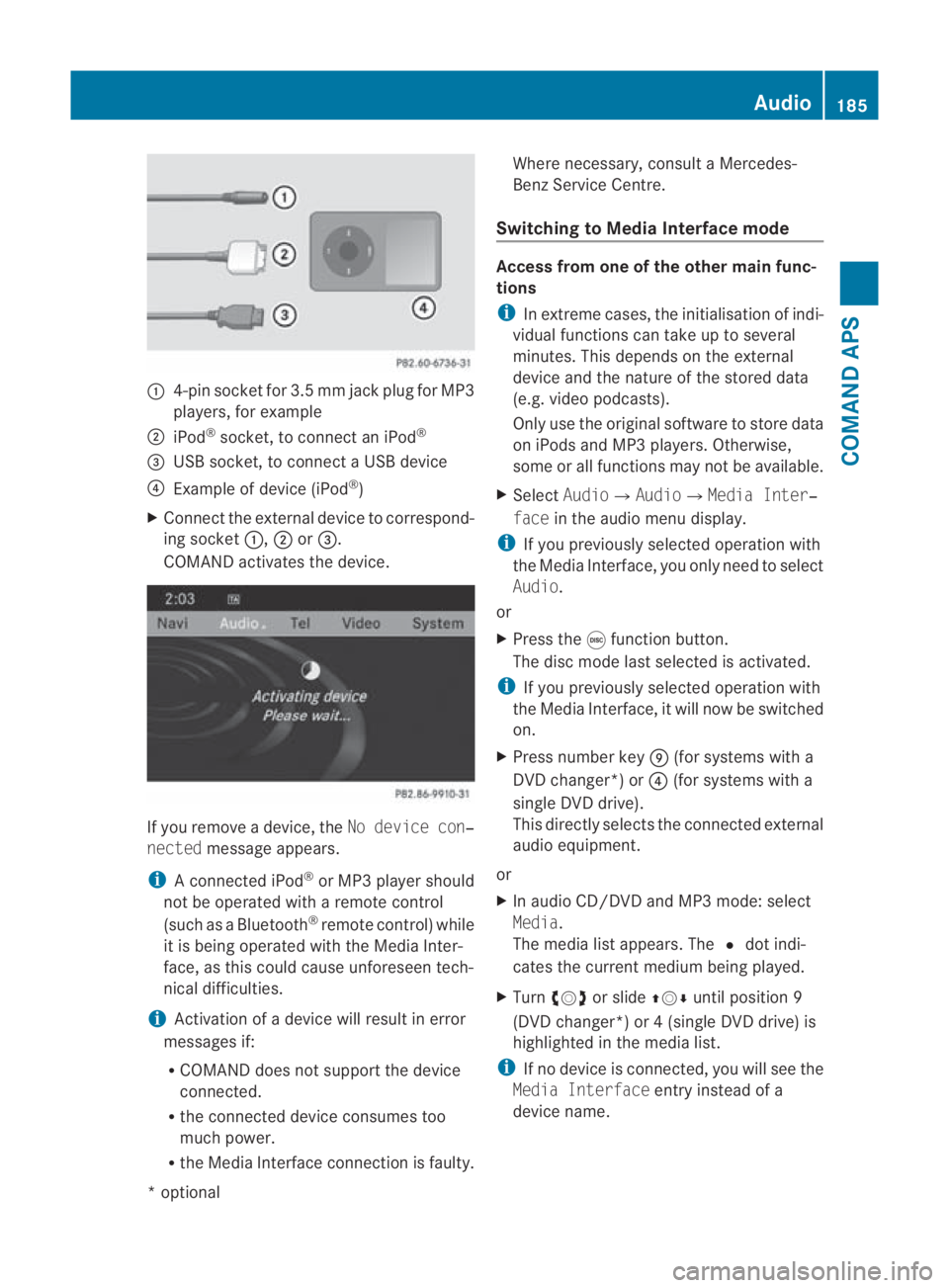
4-pin socket for 3.5 mm jack plu gfor MP3
players, for example
0002 iPod ®
socket, to connect an iPod ®
0015 USB socket, to connect aUSB device
0014 Example of device (iPod ®
)
X Connect the external device to correspond-
ing socket 0001,0002or0015.
COMAND activates the device. If you remove a device, the
No device con‐
nected message appears.
i A connected iPod ®
or MP3 player should
not be operated with a remote control
(such as a Bluetooth ®
remote control) while
it is being operated with the Media Inter-
face, as this could cause unforeseen tech-
nical difficulties.
i Activation of a device will resul tinerror
messages if:
R COMAND does not support the device
connected.
R the connected device consumes too
much power.
R the Media Interface connection is faulty. Where necessary, consult a Mercedes-
Benz Service Centre.
Switching to Media Interface mode Access from one of the other main func-
tions
i
In extreme cases, the initialisation of indi-
vidual functions can take up to several
minutes. This depends on the external
device and the nature of the stored data
(e.g. video podcasts).
Only use the original software to store data
on iPods and MP3 players .Otherwise,
some or all functions may not be available.
X Select Audio0004 Audio0004Media Inter‐
face in the audio menu display.
i If you previously selected operatio nwith
the Media Interface, you only need to select
Audio.
or
X Press the 000Efunction button.
The disc mode last selected is activated.
i If you previously selected operation with
the Media Interface, it will now be switched
on.
X Press number key 000C(for systems with a
DVD changer*) or 0014(for systems with a
single DV Ddrive).
This directly selects the connected external
audio equipment.
or
X In audio CD/DVD and MP3 mode: select
Media.
The media list appears. The 0023dot indi-
cates the current medium being played.
X Turn 002800130029 or slide 001F0013000Duntil position 9
(DVD changer*) or 4 (single DVD drive) is
highlighted in the media list.
i If no device is connected, you will see the
Media Interface entry instead of a
device name. Audio
185COMAND APS
*optional
BA 197 ECE RE 2010/6a; 1; 2, en-GB
sabbaeu
Version: 3.0.3.6 2010-05-07T14:19:43+02:00 - Seite 185 Z
Page 189 of 361
If COMAND does not support the device
connected or if two devices have been con-
nected, the Unavailable entry appears.
X Press 0017.
COMAND activates the connected device.
You will see a message to this effect. The
basicd isplay the nappears. Example display: iPod
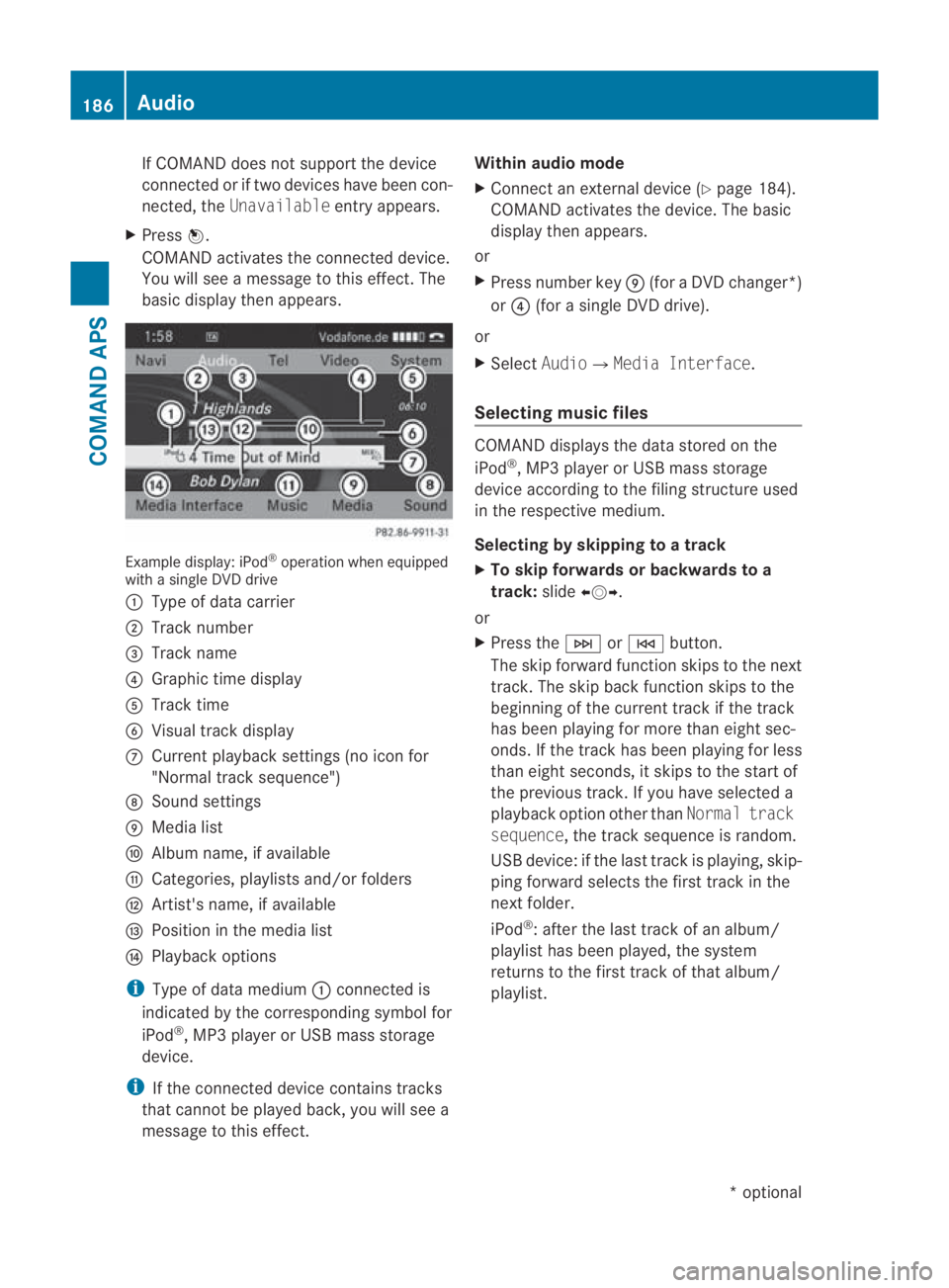
®
operation when equipped
with a single DVD drive
0001 Type of data carrier
0002 Track number
0015 Track name
0014 Graphic time display
0012 Track time
0013 Visual trac kdisplay
000A Curren tplayback settings (no icon for
"Normal track sequence")
000B Sound settings
000C Media list
000D Album name, if available
000E Categories, playlists and/or folders
000F Artist's name, if available
0010 Position in the media list
0011 Playback options
i Type of data medium 0001connected is
indicated by the corresponding symbol for
iPod ®
, MP3 player or USB mass storage
device.
i If the connected device contains tracks
that cannot be played back, you will see a
message to this effect. Within audio mode
X
Connect an external devic e(Ypage 184).
COMAND activates the device. The basic
display then appears.
or
X Press number key 000C(for aDVD changer*)
or 0014 (for a single DVD drive).
or
X Select Audio0004Media Interface.
Selecting music files COMAND displays the data stored on the
iPod
®
, MP3 player or USB mass storage
device according to the filing structure used
in the respective medium.
Selecting by skipping to atrack
X To skip forwards or backwards to a
track: slide002B0013002C.
or
X Press the 0002or0001 button.
The skip forward functio nskips to the next
track. The skip back function skips to the
beginning of the current track if the track
has been playing for more tha neight sec-
onds .Ifthe track has been playing for less
than eight seconds, it skips to the start of
the previous track.Ify ou have selected a
playback option other than Normal track
sequence, the track sequence is random.
USB device: if the last track is playing, skip-
ping forward selects the first track in the
next folder.
iPod ®
: after the last track of an album/
playlist has been played, the system
returns to the first track of that album/
playlist. 186
AudioCOMAND APS
*o
ptional
BA 197 ECE RE 2010/6a; 1; 2, en-GB
sabbaeu
Version: 3.0.3.6 2010-05-07T14:19:43+02:00 - Seite 186
Page 190 of 361
Using the multifunction steering wheel
X
Switch to Media Interface operation on the
COMAND control panel (Y page 185).
X On the multifunction steering wheel, press
0008 or000E to select the Audiomenu.
X On the multifunction steering wheel, press
000F or000C to select a track.
Selecting by number pad
X To make an entry: press the0007button.
The input menu appears. The number of
characters available for input depends on
the number of stored tracks.
X To enter a track number: press a number
key, e.g. 0012.
The digit is entered in the first position of
the input line.
i If an invalid number is entered, COMAND
will ignore it and it will not be displayed.
X If desired, enter further digits.
X To confirm the entry: press0017.
or
X Press and hold the number key for the last
digit.
The selected trac kis played.
Fast forward/rewind
X If the display/selection window is
active: slide and hold 002B0013002Cuntil the
desired position has been reached.
or
X Press and hold the 0002or0001 button
until the desired position is reached.
i On an iPod ®
, fast rewind only functions
within the current track.
Selecting acategory/playlist/folder iPod
®
and selected MP3 players
You can select tracks for an iPod ®
or MP3
playera ccording to categories and folders. Examples of categories include:
R
Current track list
R Playlists (e.g.All)
R Artists
R Albums
R Tracks
R Podcasts
R Genres
R Composers
R Audiobooks
i Some playback categories contai nthe
All entry. When this entry is selected, the
entire content of the category selected will
be displayed.
USB devices
For USB mass storage devices, you can select
folders and also playlists (if available). When
playing back playlists, COMAND can also dis-
play the respective albuma nd artistname
(metadata), if this has been uploaded to the
system.
Playlists are indicated in the display by a spe-
cial icon. When you open the playlist, the cor-
responding tracks are opened. The playback
options may now feature Random catego‐
ries instead of Random folder .
For US Bmass storage devices, you can
choose to display the metadat acontained in
the tags of the encoded music data, or to dis-
play the file and directory names when the
music is playing.
X To display album and artist name: select
Media Interface 0004Display Metadata .
Selecting categories and opening folders
X To open acategory list/folder: press0017
whe nthe display/selection window is
active.
or
X Select Music.
The available categories or the folder con-
tents (e.g. further folders) are displayed. Audio
187COMAND APS
BA 197 ECE RE 2010/6a; 1; 2, en-GB
sabbaeu Version: 3.0.3.6 2010-05-07T14:19:43+02:00 - Seite 187 Z
Page 191 of 361
i
The Music menu item is not available until
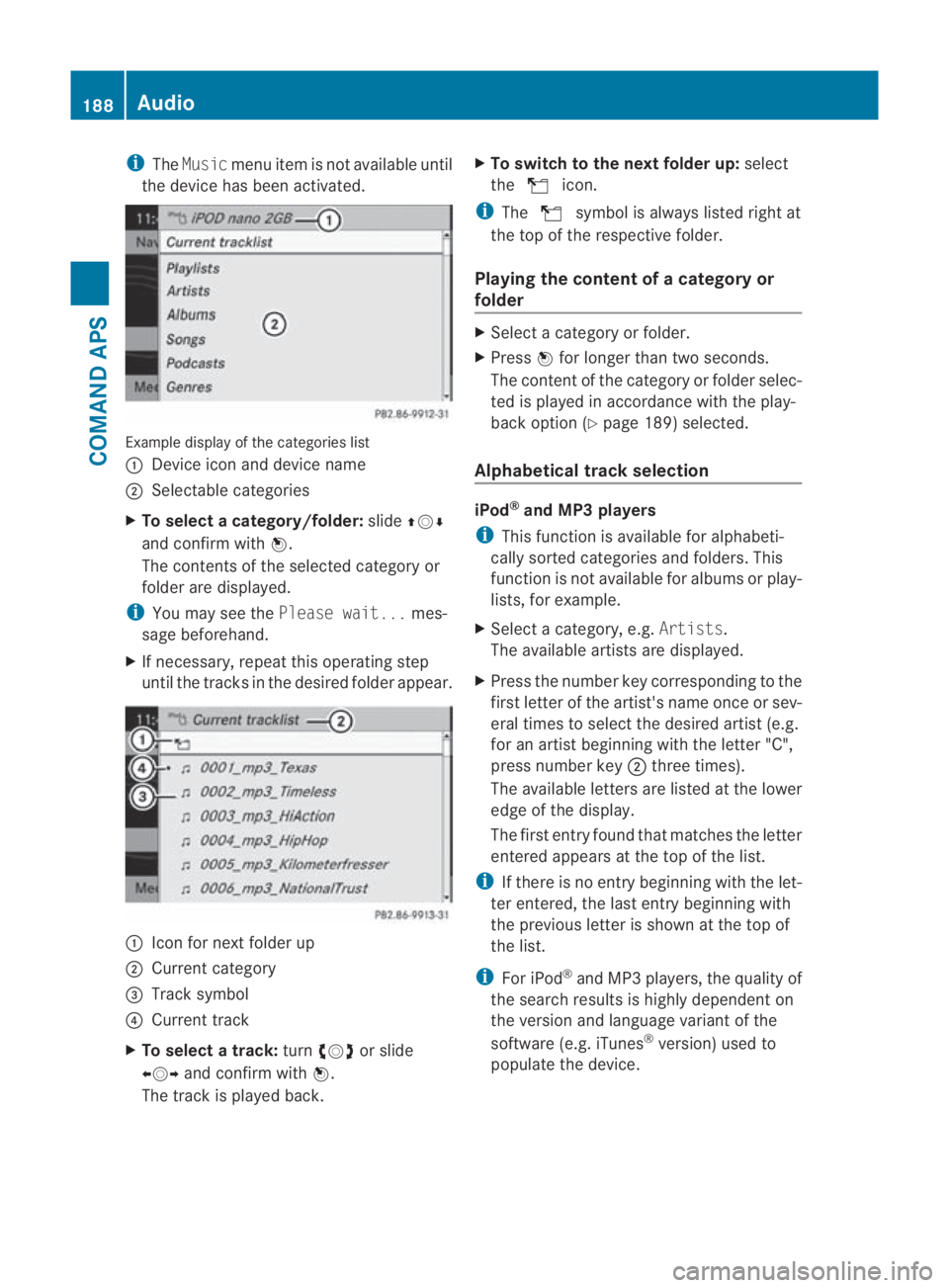
the device has been activated. Example display of the categories list
0001
Device icon and device name
0002 Selectable categories
X To select acategory/folder: slide001F0013000D
and confirm with 0017.
The contents of the selected category or
folder are displayed.
i You may see the Please wait... mes-
sage beforehand.
X If necessary, repeat this operating step
until the tracks in the desired folder appear. 0001
Icon for next folder up
0002 Current category
0015 Track symbol
0014 Current track
X To select a track: turn002800130029 or slide
002B0013002C and confirm with 0017.
The track is played back. X
To switch to the next folder up: select
the 000F icon.
i The 000F symbol is always listed righ tat
the top of the respectiv efolder.
Playing the content of a category or
folder X
Select a category or folder.
X Press 0017for longer than two seconds.
The content of the category or folder selec-
ted is played in accordanc ewith the play-
back option (Y page 189) selected.
Alphabetical track selection iPod
®
and MP3 players
i This function is available for alphabeti-
cally sorted categories and folders. This
function is not available for albums or play-
lists, for example.
X Selec tacategory, e.g. Artists.
The available artists are displayed.
X Press the number key corresponding to the
firs tletter of the artist's name once or sev-
eral times to select the desired artist (e.g.
for an artist beginning with the letter "C",
press number key 0002three times).
The available letters are listed at the lower
edge of the display.
The first entry found that matches the letter
entered appears at the top of the list.
i If there is no entry beginning with the let-
ter entered, the last entry beginning with
the previous letter is shown at the top of
the list.
i For iPod ®
and MP3 players, the quality of
the search results is highly dependen ton
the version and language variant of the
software (e.g. iTunes ®
version) used to
populate the device. 188
AudioCOMAND
APS
BA 197 ECE RE 2010/6a; 1; 2, en-GB
sabbaeuV ersion: 3.0.3.6
2010-05-07T14:19:43+02:00 - Seite 188
Page 239 of 361
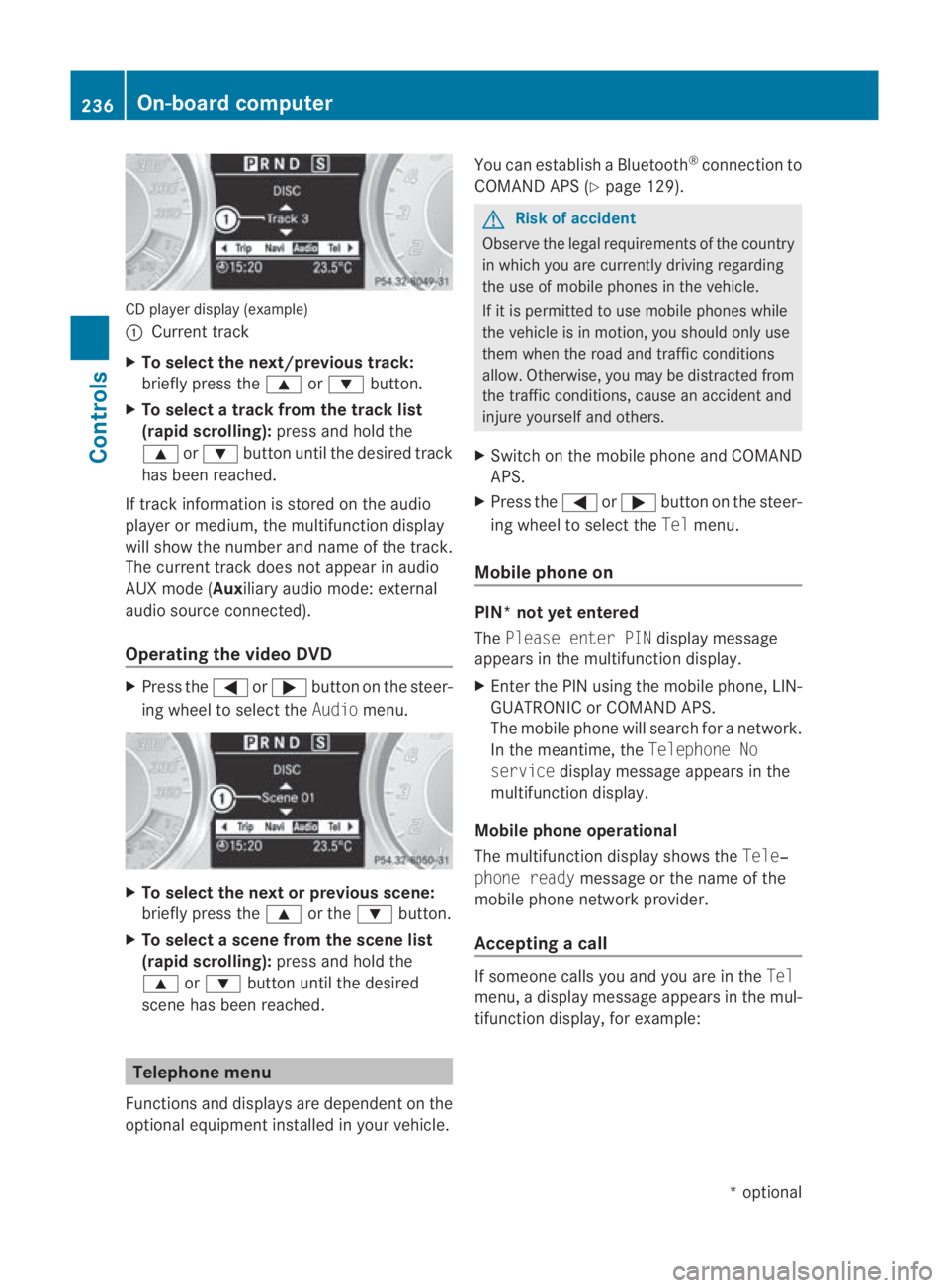
CD player display (example)
0001
Current track
X To select the next/previou strack:
briefly press the 000For000C button.
X To select a track from the track list
(rapid scrolling): press and hold the
000F or000C button until the desired track
has been reached.
If track information is stored on the audio
player or medium, the multifunctio ndisplay
will show the number and name of the track.
The current track does not appear in audio
AUX mode (Aux iliary audio mode: external
audio source connected).
Operating the video DVD X
Press the 0008or000E button on the steer-
ing wheel to selec tthe Audio menu. X
To selectt he next or previous scene:
briefly press the 000For the 000Cbutton.
X To selectas cene from the scene list
(rapid scrolling): press and hold the
000F or000C buttonuntil the desired
scene has been reached. Telephone menu
Functions and displays ar edependen tonthe
optional equipment installed in your vehicle. You can establish a Bluetooth
®
connection to
COMAND APS (Y page 129). G
Risk of accident
Observe the legal requirements of the country
in which you are currently driving regarding
the use of mobile phones in the vehicle.
If it is permitted to use mobile phones while
the vehicle is in motion, you should only use
them when the road and traffic conditions
allow.O therwise, you may be distracted from
the traffic conditions, cause an accident and
injure yourself and others.
X Switch on the mobile phone and COMAND
APS.
X Press the 0008or000E button on the steer-
ing wheel to select the Telmenu.
Mobile phone on PIN* not yet entered
The
Please enter PIN display message
appears in the multifunctio ndisplay.
X Enter the PIN using the mobile phone, LIN-
GUATRONIC or COMAND APS.
The mobile phone will search for a network.
In the meantime, the Telephone No
service display message appears in the
multifunction display.
Mobile phone operational
The multifunction display shows the Tele‐
phone ready message or the name of the
mobile phone network provider.
Accepting acall If someone calls you and you are in the
Tel
menu, a display message appears in the mul-
tifunctio ndisplay, for example: 236
On-board computerControls
*o
ptional
BA 197 ECE RE 2010/6a; 1; 2, en-GB
sabbaeu
Version: 3.0.3.6 2010-05-07T14:19:43+02:00 - Seite 236