start stop button MERCEDES-BENZ SLS COUPE 2010 Owners Manual
[x] Cancel search | Manufacturer: MERCEDES-BENZ, Model Year: 2010, Model line: SLS COUPE, Model: MERCEDES-BENZ SLS COUPE 2010Pages: 361, PDF Size: 6.32 MB
Page 8 of 361
Audio DVD
Stop function ................................. 174
Audio format
Setting (audio DVD mode )............. 178
Audio menu ........................................ 157
AUTO lights Display message ............................ 300
Automatic car wash ..........................281
Autostore ........................................... 163B
Back button ......................................... 60
Bang &Olufsen sound system ...........68
BAS (Brake Assist) ............................... 46
Battery Charging ........................................ 336
Checking (key )............................... 323
Check lamp (key )........................... 323
Disconnecting ................................ 336
Display message .................... 295, 303
Jump-starting ................................. 338
Maintenance (vehicle) .................... 334
Reconnecting ................................. 337
Removing/fitting ........................... 336
Vehicle battery .............................. 334
Belt force limiters
Activation ......................................... 35
Belt tensioners
Activation ......................................... 35
Belt warning ....................................... 212
Bird's-eye view .................................... 84
Bluetooth ®
Activating/deactivating ...................75
Authorising devices .........................76
Revoking authorisatio n.................... 77
Settings ........................................... 75
Bluetooth ®
telephones list .................76
Bonnet Bonnet catch ................................. 268
Display message ............................ 294
Opening/closing ............................ 267
Releas elever ................................. 268
Boot
Emergency release ........................322
Locking separatel y......................... 202
Opening ......................................... 202Boot lid
Display message ............................ 294
Opening/closing ............................ 201
Boot load (maximum) ........................ 352
Brake Assist see BAS ........................................... 46
Brake fluid .......................................... 351
Display message ............................ 299
Brake lamps
Adaptive .......................................... .46
Display message ............................ 301
Brake system
Display message ............................ 295
Bulbs
Licence plate lamp ......................... 324
see Lamp C
Call Accepting or rejecting ...................146
Ending ............................................ 146
Call (telephone)
Placing ........................................... 144
Calling up a fault
see Display message .....................289
Call lists ............................................. 142
Displaying details ........................... 143
Storing an entry which has not yet
bee nstore d................................... 143
Care
Automatic car wash .......................281
Care products ................................ 280
Cleaning agents ............................. 280
Dashboard ..................................... 284
Display ........................................... 284
Exterior .......................................... 281
Headlamps ..................................... 283
High-pressure cleaners ..................282
Interior ........................................... 284
Matt paintwork .............................. 282
Paintwork ...................................... 283
Plastic trim .................................... 285
Reversing camera ..........................284
Seat covers .................................... 285
Sensors ......................................... 284
Steering wheel boss ......................284
Tai lpipes ....................................... 284 Index
5 BA 197 ECE RE 2010/6a; 1; 2, en-GB
sabbae uV ersion: 3.0.3.6
2010-05-07T14:19:43+02:00 - Seite 5
Page 33 of 361
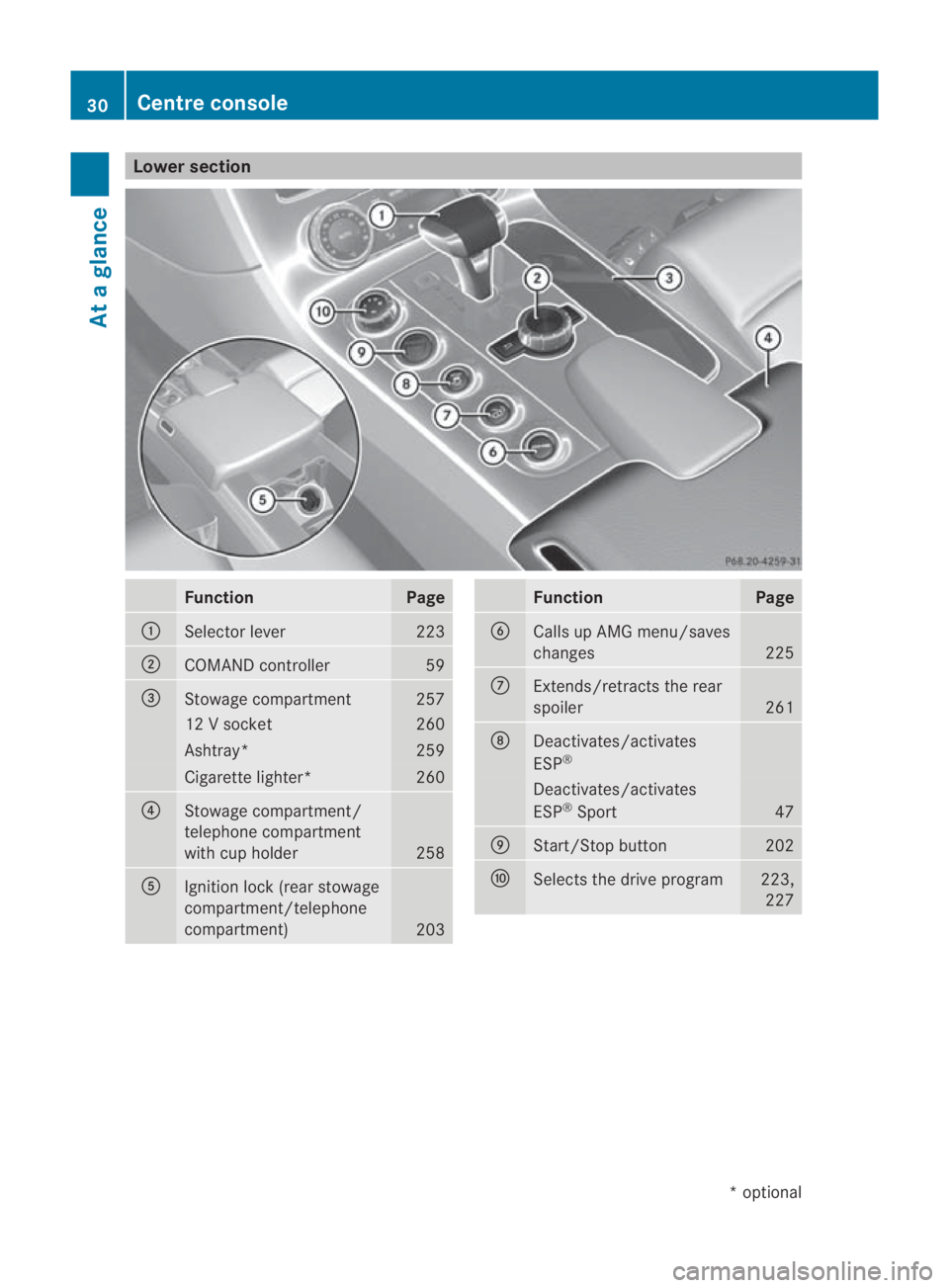
Lower section
Function Page
0001
Selector lever 223
0002
COMAND controller 59
0015
Stowage compartment 257
12 V socket 260
Ashtray* 259
Cigarette lighter* 260
0014
Stowage compartment/
telephone compartment
with cup holder
258
0012
Ignitio
nlock (rear stowage
compartment/telephone
compartment) 203 Function Page
0013
Calls up AMG menu/saves
changes
225
000A
Extends/retracts the rear
spoiler
261
000B
Deactivates/activates
ESP
® Deactivates/activates
ESP
®
Sport 47
000C
Start/Stop button 202
000D
Selects the drive program 223,
227 30
Centre consoleAt a glance
*o
ptional
BA 197 ECE RE 2010/6a; 1; 2, en-GB
sabbaeu
Version: 3.0.3.6 2010-05-07T14:19:43+02:00 - Seite 30
Page 46 of 361
in the even
tofanaccident, and could lead to
injuries.
i The headbag, the sidebag and the belt
tensioner on the front-passenger side are
still active eve nifthe front-passenger front
airbag is disabled by the automatic child-
seat recognition on the front-passenger
seat. G
Risk of injury
Do not place electronic devices on the front-
passenger seat, e.g.:
R laptops, when switched on
R mobile phones
R cards with transponders, e.g. ski passes or
access cards
Signals from electronic equipment can cause
interference in the automatic child seat rec-
ognition sensor system. This can lead to a
system malfunction. This may cause the
000A PASSENGER AIRBAG OFF indicator
lamp to light up without there being a child
seat with automatic child seat recognition fit-
ted, and the front-passenger front airbag will
not deploy during an accident. It is also pos-
sible that the 000APASSENGER AIRBAG OFF
indicator lamp does not light up briefly when
you set the Start/Stop button to position 2. Occupant safety
43Safety
BA 197 ECE RE 2010/6a; 1; 2, en-GB
sabbaeu Version: 3.0.3.6 2010-05-07T14:19:43+02:00 - Seite 43 Z
Page 52 of 361
EBD (Electronic Brake-force Distribu-
tion)
EBD monitors and controls the brake pres-
sure on the rear wheels to improve driving
stability while braking. G
Ris
kofa ccident
If EBV is malfunctioning, the brake system is
still available with full brak eboosting effect.
However, the rear wheels can still lock, e.g.
under full braking. This could cause you to
lose control of your vehicle and cause an acci-
dent. You should therefore adapt your driving
style to the different handling characteristics. ADAPTIVE BRAKE
ADAPTIVE BRAKE enhances braking safety
and offers increased braking comfort. In addi-
tion to the braking function, ADAPTIVE BRAKE
also features the hill start assist function
(Y page 221). For further information, see
Driving tips (Y page 277). Anti-theft systems
Immobiliser
The immobiliser prevents your vehicle from
being started without the correc tkey.
Activating the immobiliser X
While the engine is running turn the Start/
Stop button to key position 0
(Y page 202).
The engine switches off.
or
X Remove the key from the ignition lock.
Deactivating the immobiliser X
Turn the Start/Stop button to key position
2without depressing the brake pedal.
i The immobiliser is always deactivated
when you start the engine. ATA (Anti-Theft Alarm system)
Av isual and audible alarm is triggered if the
alarm system is primed and you open:
R a door
R a door using the emergency key element
R the boot lid
R the bonnet
The alarm is not switched off even if you close
an open door again. X
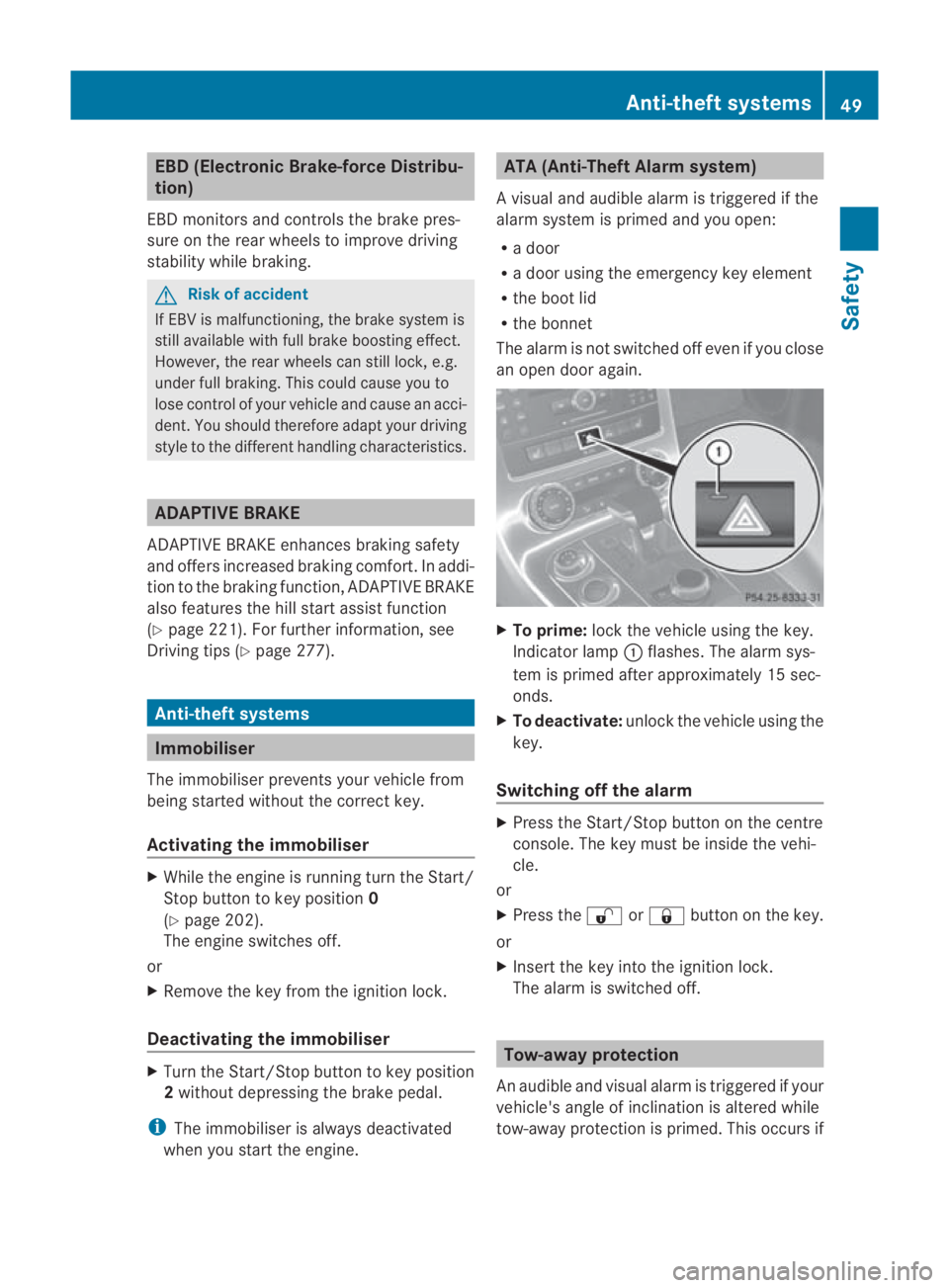
To prime: lock the vehicle using the key.
Indicator lamp 0001flashes .The alarm sys-
tem is primed after approximately 15 sec-
onds.
X To deactivate: unlock the vehicle using the
key.
Switching off the alarm X
Press the Start/Stop button on the centre
console. The key must be inside the vehi-
cle.
or
X Press the 000Bor0009 button on the key.
or
X Insert the key into the ignition lock.
The alarm is switched off. Tow-away protection
An audible and visual alarm is triggered if your
vehicle's angle of inclination is altered while
tow-away protection is primed. This occurs if Anti-theft systems
49Safety
BA 197 ECE RE 2010/6a; 1; 2, en-GB
sabbaeu Version: 3.0.3.6 2010-05-07T14:19:43+02:00 - Seite 49 Z
Page 53 of 361
the vehicle is jacked up on one side, for exam-
ple.
Priming tow-away protection X
Loc kthe vehicle using the key.
Tow-away protection is primed after
approximately 30 seconds.
Deactivating tow-away protection Tow-away protection is automatically deacti-
vated when you unlock your vehicle using the
key.
To prevent a false alarm, deactivate tow-away
protection manually if your vehicle:
R is being transported
R is being loaded, e.g. onto a ferry or car
transporter
R is parked on a movable surface, e.g. in a
split-level garage X
Using the Start/Stop button, set to key
position 0.
or
X Remove the key from the ignition lock.
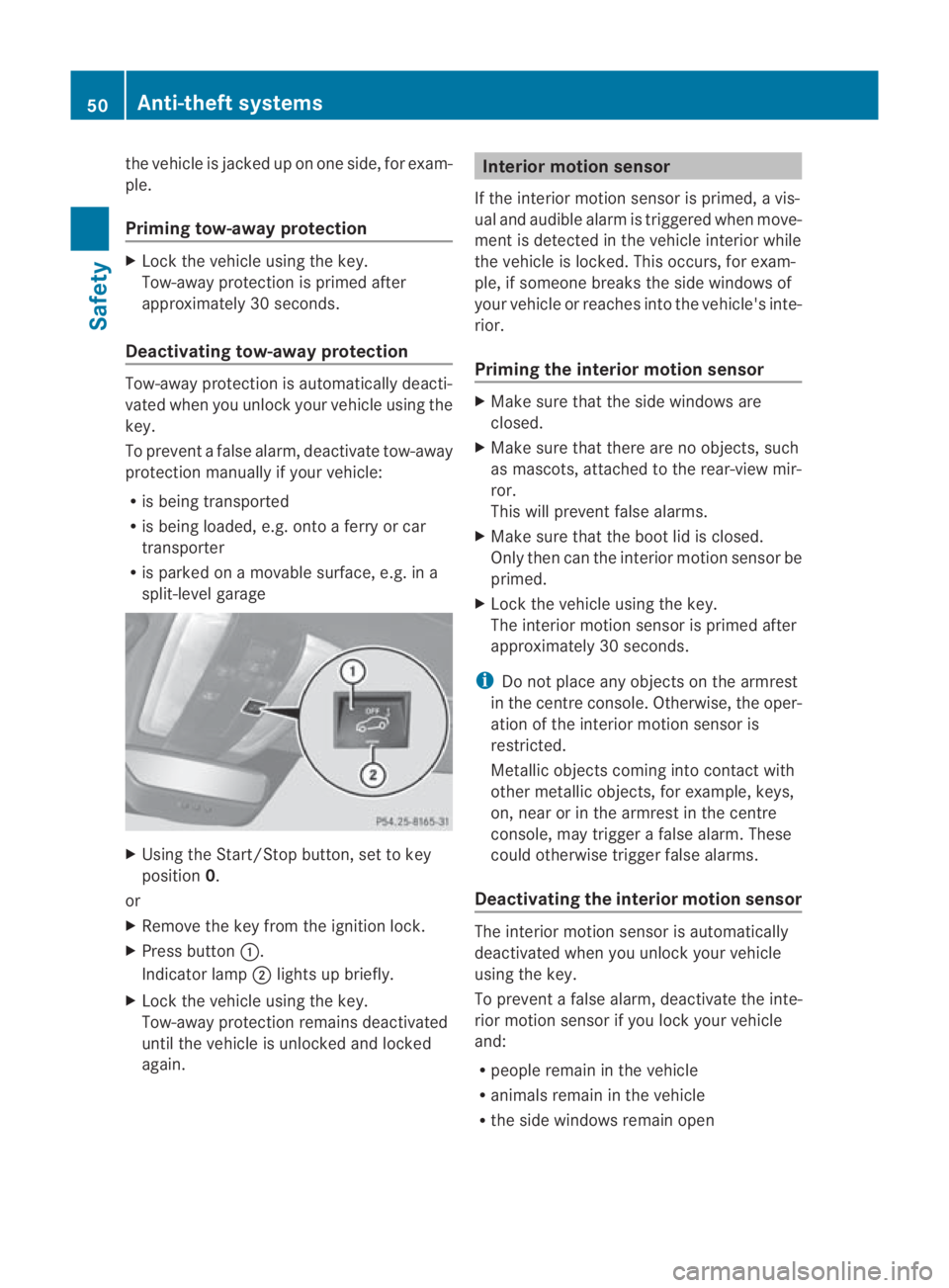
X Press button 0001.
Indicator lamp 0002lights up briefly.
X Lock the vehicle using the key.
Tow-away protection remains deactivated
until the vehicle is unlocked and locked
again. Interior motion sensor
If the interior motion sensor is primed, a vis-
ual and audible alarm is triggered when move-
ment is detected in the vehicle interior while
the vehicle is locked. This occurs, for exam-
ple, if someone breaks the side windows of
your vehicle or reaches into the vehicle's inte-
rior.
Priming the interior motion sensor X
Make sure that the side windows are
closed.
X Make sure that there are no objects, such
as mascots, attached to the rear-view mir-
ror.
This will prevent false alarms.
X Make sure that the boot lid is closed.
Only then can the interior motion sensor be
primed.
X Lock the vehicle using the key.
The interior motion sensor is primed after
approximately 30 seconds.
i Do not place any objects on the armrest
in the centre console. Otherwise, the oper-
ation of the interior motion sensor is
restricted.
Metallic objects coming into contact with
other metallic objects, for example, keys,
on, near or in the armrest in the centre
console, may trigger a false alarm. These
could otherwise trigger false alarms.
Deactivating the interior motion sensor The interior motion sensor is automatically
deactivated when you unlock your vehicle
using the key.
To prevent a false alarm, deactivate the inte-
rior motion sensor if you lock your vehicle
and:
R people remain in the vehicle
R animals remain in the vehicle
R the side windows remain open 50
Anti-theft systemsSafety
BA 197 ECE RE 2010/6a; 1; 2, en-GB
sabbaeu
Version: 3.0.3.6 2010-05-07T14:19:43+02:00 - Seite 50
Page 54 of 361
X
Using the Start/Stop button, set to key
position 0.
or
X Remove the key from the ignition lock.
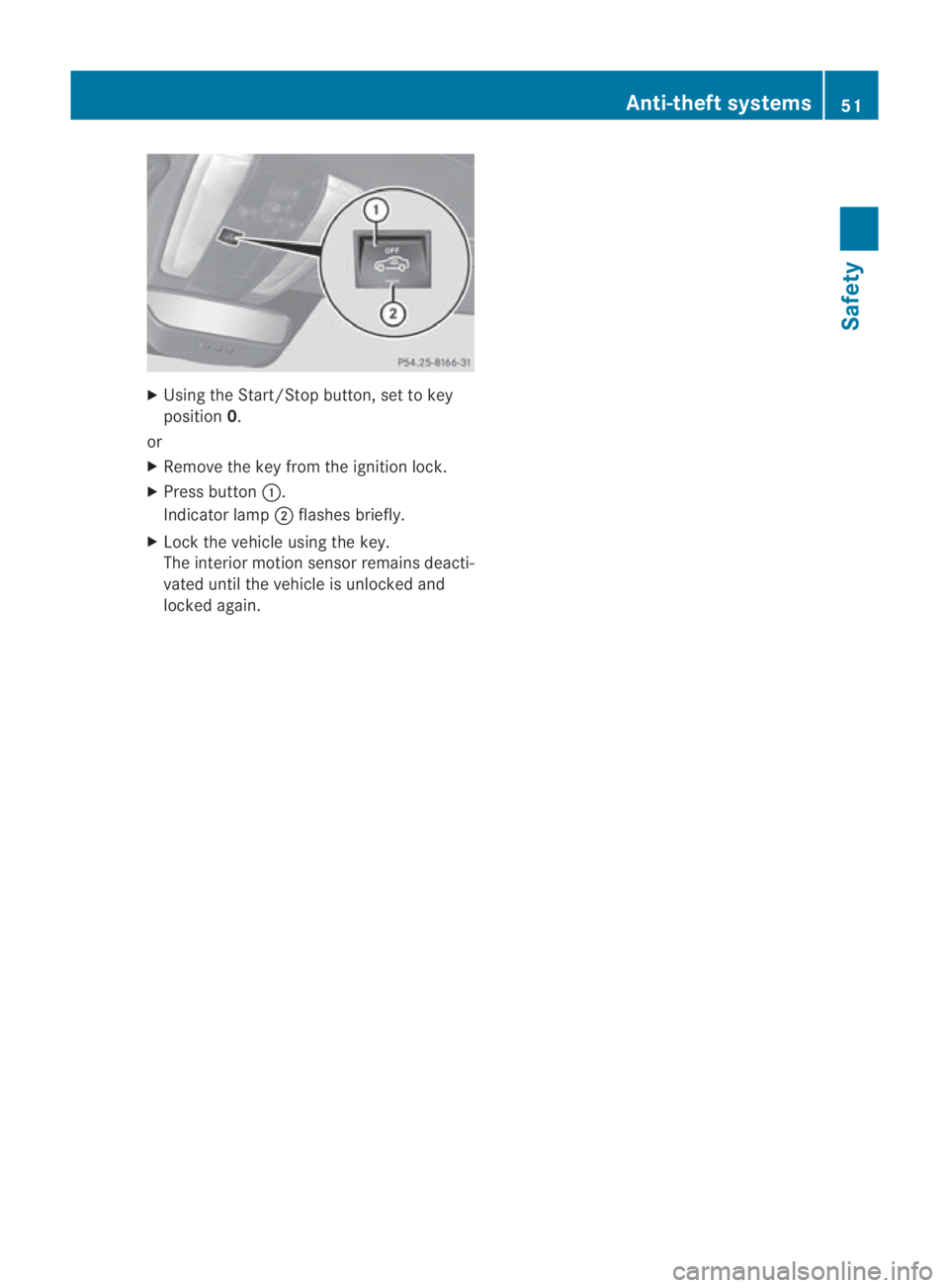
X Press button 0001.
Indicator lamp 0002flashes briefly.
X Lock the vehicle using the key.
The interior motion sensor remains deacti-
vated until the vehicle is unlocked and
locked again. Anti-theft systems
51Safety
BA 197 ECE RE 2010/6a; 1; 2, en-GB
sabbaeu Version: 3.0.3.6 2010-05-07T14:19:43+02:00 - Seite 51 Z
Page 104 of 361
X
To cancel the selection: selectBackand
press 0017.
or
X Press the 0001back button next to the
COMAND controller.
X To confirm your selection: press0017.
After you have confirme dyour selection,
the address input menu appears again.
COMAND has accepted the selected junc-
tion and automatically entered it in the
address input menu. You can now start
route calculation.
Starting route calculation i
You cannot start route calculation until all
the necessary address data has been
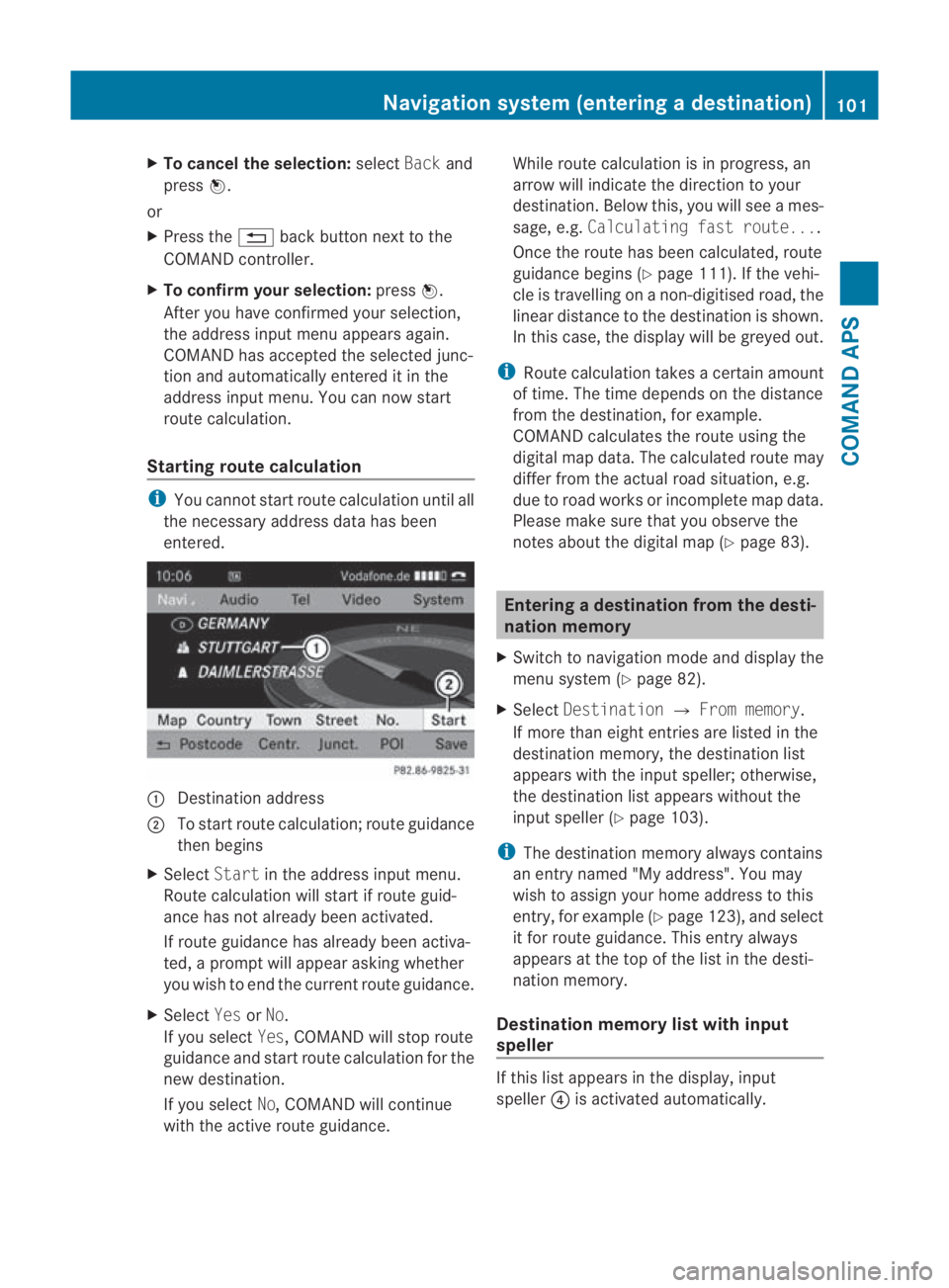
entered. 0001
Destination address
0002 To start route calculation; route guidance
then begins
X Select Startin the address input menu.
Route calculation will start if route guid-
ance has not already been activated.
If route guidance has already been activa-
ted, a prompt will appear asking whether
you wish to end the current route guidance.
X Select YesorNo.
If you select Yes, COMAND will stop route
guidance and start route calculation for the
new destination.
If you select No, COMAND will continue
with the active route guidance. While route calculation is in progress, an
arrow will indicate the direction to your
destination .Below this, you will see a mes-
sage, e.g. Calculating fast route....
Once the route has been calculated, route
guidance begins (Y page 111). If the vehi-
cle is travelling on a non-digitised road, the
linear distance to the destination is shown.
In this case, the display will be greyed out.
i Route calculation takes a certain amount
of time. The time depends on the distance
from the destination, for example.
COMAND calculates the route using the
digital map data. The calculated route may
differ from the actual road situation, e.g.
due to road works or incomplete map data.
Please make sure that you observe the
notes about the digital map (Y page 83). Entering
adestination from the desti-
nation memory
X Switch to navigation mode and display the
menu system (Y page 82).
X Select Destination 0004From memory .
If more than eight entries are listed in the
destination memory, the destination list
appears with the input speller; otherwise,
the destination list appears without the
input spelle r(Ypage 103).
i The destination memory always contains
an entry named "My address". You may
wish to assign your home address to this
entry, for example (Y page 123), and select
it for route guidance. This entry always
appears at the top of the list in the desti-
nation memory.
Destination memory list with input
speller If this list appears in the display, input
speller
0014is activated automatically. Navigation system (entering
adestination)
101COMAND APS
BA 197 ECE RE 2010/6a; 1; 2, en-GB
sabbaeu Version: 3.0.3.6
2010-05-07T14:19:43+02:00 - Seite 101 Z
Page 119 of 361
message, a directio
narrow and the distance
to the destination or to the intermediate stop,
if this was configured (Y page 104). The direc-
tional arrow shows the linea rdirection of the
destination. The distance and the estimated
arrival time are displayed in grey in this case.
The route is highlighted blue, starting from
the last recognised street the vehicle was on
before it left the map.
As soon as the vehicle is back on a digitised
road, the distance to the destination appears,
based on the calculated route. Route guid-
ance continues in the usual way.
Route guidance from an off-map loca-
tion to adestination If the vehicle position is outside the area cov-
ered by the digital map, then the vehicle is in
an off-map location. COMAND is also able to
guide you to a destination even from such a
location.
At the start of route guidance you will see the
Off road message, a directio narrow and the
linea rdistance to the destination or to the
intermediate stop, if this has been config-
ured. The arrow shows the compass heading
to the road left last.
The route is highlighted blue fro mthe nearest
road known to the system.
As soon as the vehicle is back on a road
known to the system, route guidance contin-
ues in the usual way.
Off-road during route guidance Due to roadworks, for example, there may be
differences between the data on the digital
map and the actual course of the road.
In such cases, the system will temporarily be
unable to locate the vehicle position on the
digital map and thus considers the vehicle to
be in an off-road position.
You will see the Off roadmessage in the
display, a direction arrow and the distance to
the destination or to the intermediate stop, if
this was configured. As soon as the system can assign the vehicle
position to the map again, route guidance
continues in the usual way. Navigation announcements
i Audible navigation announcements are
muted during a telephone call.
If you have missed an announcement, you can
call up the current announcement at any
time.
X To call up the current announcement:
select 0025in the map display with the menu
system (Y page 83) shown.
X To switch off navigation announce-
ments: during the announcement, press
and hold the 000Bbutton.
You will briefly see the message: The
guidance instructions have been
muted.
X To switch navigation announcements
on again manually: select0025in the map
display with menu system displayed.
or
X Start a new route calculation
(Y page 101).
or
X Switch COMAND on again or start the
engine.
i COMAND switches the navigation
announcements on automatically if it
receives RDS-TMC traffic announcements
during dynamic route guidance
(Y page 119) and starts recalculating the
route.
X To adjust the volume of the announce-
ments: adjust the volume during the auto-
matic announcement (Y page 67).
or
X Call up an announcemen tmanually using
Navi00040025 and adjust the volume.116
Navigation system (route guidance)COMAND APS
BA 197 ECE RE 2010/6a; 1; 2, en-GB
sabbaeu
Version: 3.0.3.6
2010-05-07T14:19:43+02:00 - Seite 116
Page 121 of 361
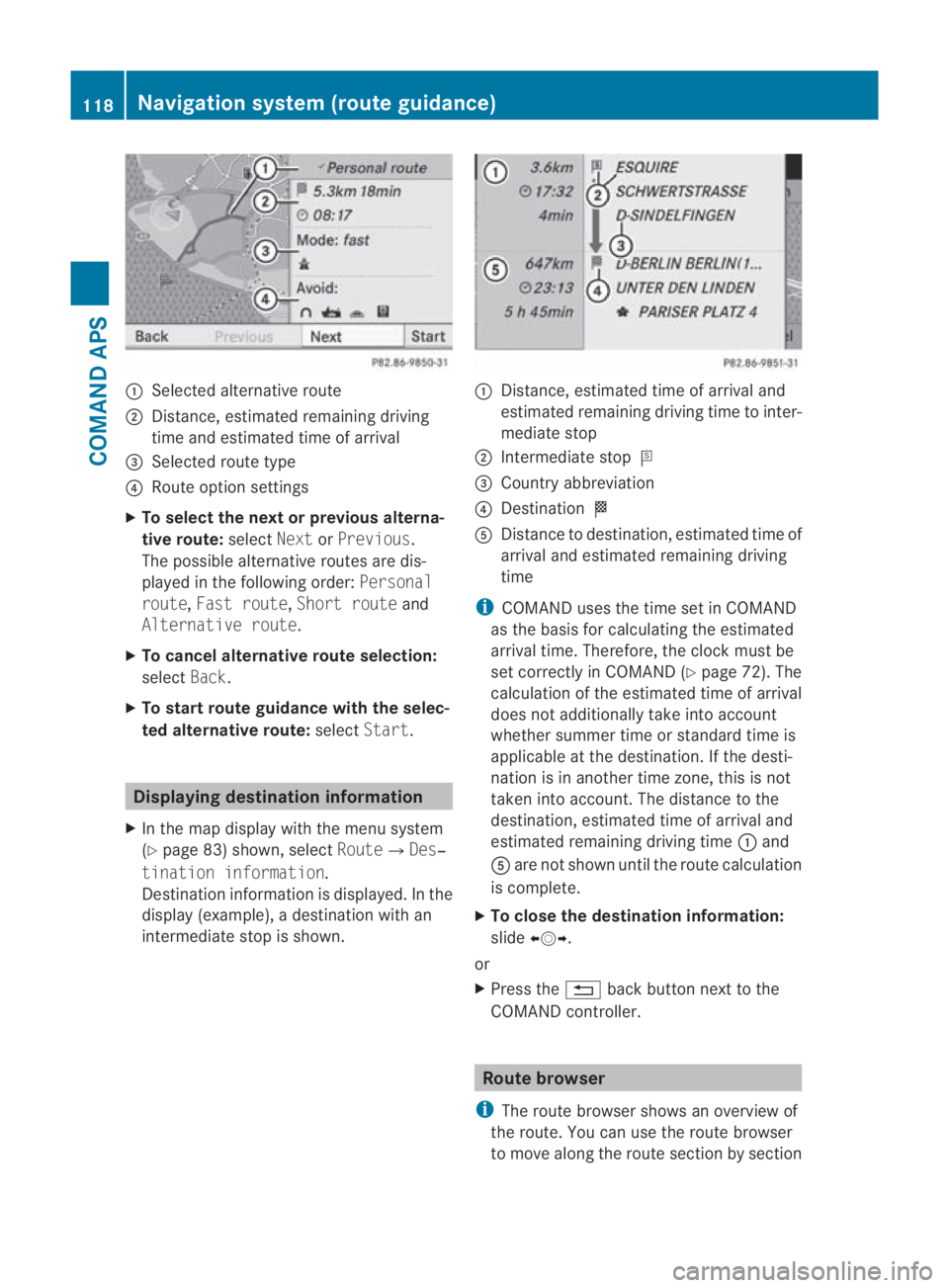
0001
Selected alternative route
0002 Distance, estimated remaining driving
time and estimated time of arrival
0015 Selected route type
0014 Route option settings
X To select the next or previous alterna-
tive route: selectNextorPrevious.
The possible alternative routes are dis-
played in the following order: Personal
route, Fast route, Short route and
Alternative route.
X To cancel alternative route selection:
select Back.
X To start route guidance with the selec-
ted alternative route: selectStart. Displaying destination information
X In the map display with the menu system
(Y page 83) shown, select Route0004Des‐
tination information.
Destination information is displayed .Inthe
display (example), a destination with an
intermediate stop is shown. 0001
Distance, estimated time of arrival and
estimated remaining driving time to inter-
mediate stop
0002 Intermediate stop 000C
0015 Country abbreviation
0014 Destination 000B
0012 Distance to destination, estimated time of
arrival and estimated remaining driving
time
i COMAND uses the time set in COMAND
as the basis for calculating the estimated
arrival time. Therefore, the clock must be
set correctly in COMAND (Y page 72). The
calculation of the estimated time of arrival
does not additionally take into account
whether summer time or standard time is
applicable at the destination. If the desti-
nation is in another time zone, this is not
taken into account. The distance to the
destination, estimated time of arrival and
estimated remaining driving time 0001and
0012 are not shown until the route calculation
is complete.
X To close the destination information:
slide 002B0013002C.
or
X Press the 0001back button next to the
COMAND controller. Route browser
i The route browser shows an overview of
the route. You can use the route browser
to move along the route section by section 118
Navigation system (route guidance)COMAND APS
BA 197 ECE RE 2010/6a; 1; 2, en-GB
sabbaeu
Version: 3.0.3.6 2010-05-07T14:19:43+02:00 - Seite 118
Page 196 of 361
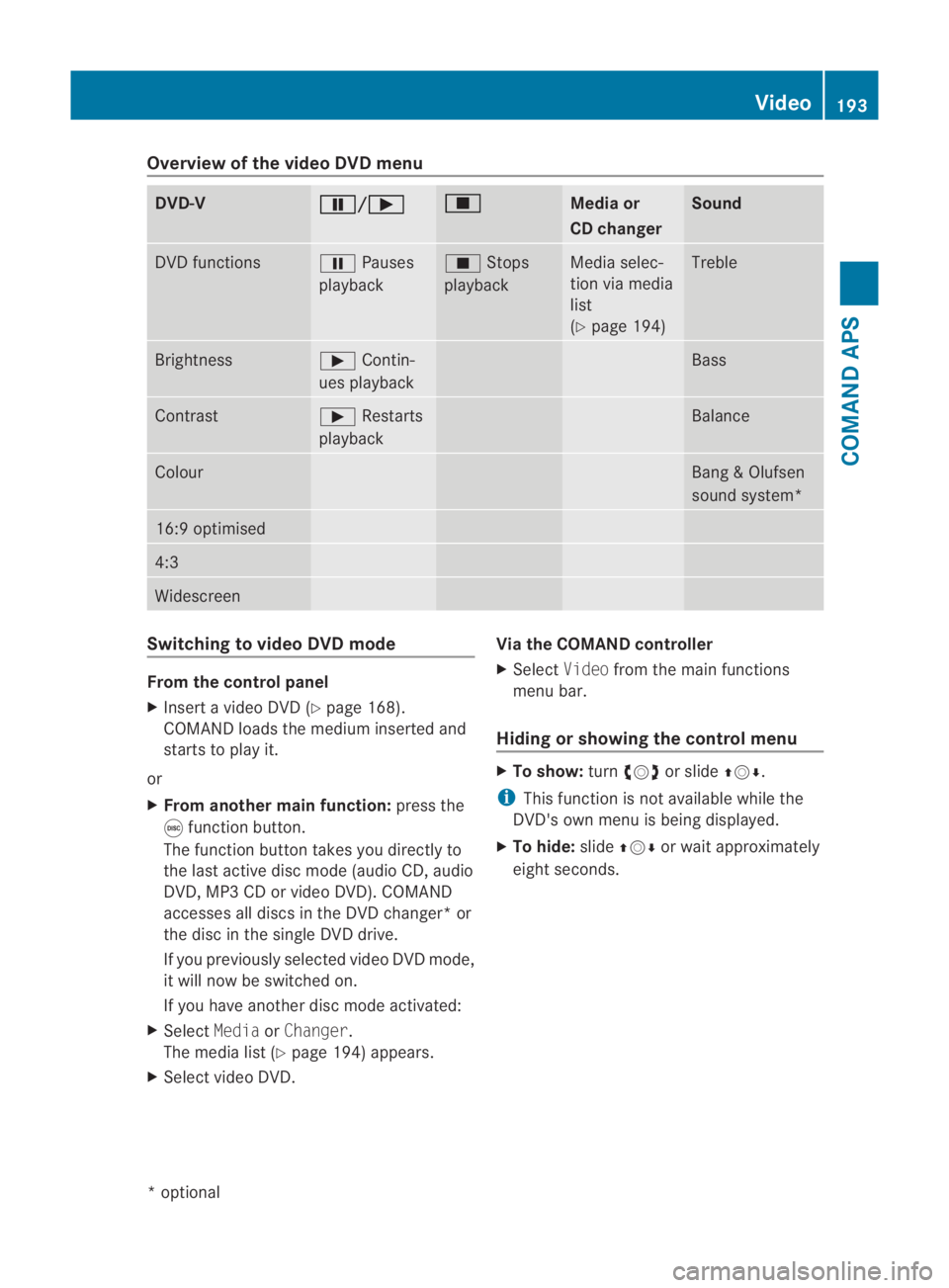
Overview of the video DVD menu
DVD-V 0007 /000D 0010
Media or
CD changer Sound
DVD functions 0007
Pauses
playback 0010
Stops
playback Media selec-
tion via media
list
(Y
page 194) Treble
Brightness 000D
Contin-
ues playback Bass
Contrast 000D
Restarts
playback Balance
Colour Bang
&Olufsen
sound system* 16:9 optimised
4:3
Widescreen
Switching to video DVD mode
From the control panel
X
Insert a video DVD (Y page 168).
COMAND loads the medium inserted and
starts to play it.
or
X From another main function: press the
000E function button.
The function button takes you directly to
the last active disc mode (audio CD, audio
DVD, MP3 CD or video DVD). COMAND
accesses all discs in the DV Dchanger* or
the disc in the single DVD drive.
If you previously selected video DVD mode,
it will now be switched on.
If you have another disc mode activated:
X Select MediaorChanger.
The media list (Y page 194) appears.
X Select video DVD. Via the COMAND controller
X
Select Videofrom the main functions
menu bar.
Hiding or showing the control menu X
To show: turn002800130029 or slide 001F0013000D.
i This function is not available while the
DVD's own menu is being displayed.
X To hide: slide001F0013000D or wait approximately
eight seconds. Video
193COMAND APS
*optional
BA 197 ECE RE 2010/6a; 1; 2, en-GB
sabbaeu
Version: 3.0.3.6 2010-05-07T14:19:43+02:00 - Seite 193 Z