center console MERCEDES-BENZ WAGON 2016 User Guide
[x] Cancel search | Manufacturer: MERCEDES-BENZ, Model Year: 2016, Model line: WAGON, Model: MERCEDES-BENZ WAGON 2016Pages: 350, PDF Size: 6.71 MB
Page 200 of 350
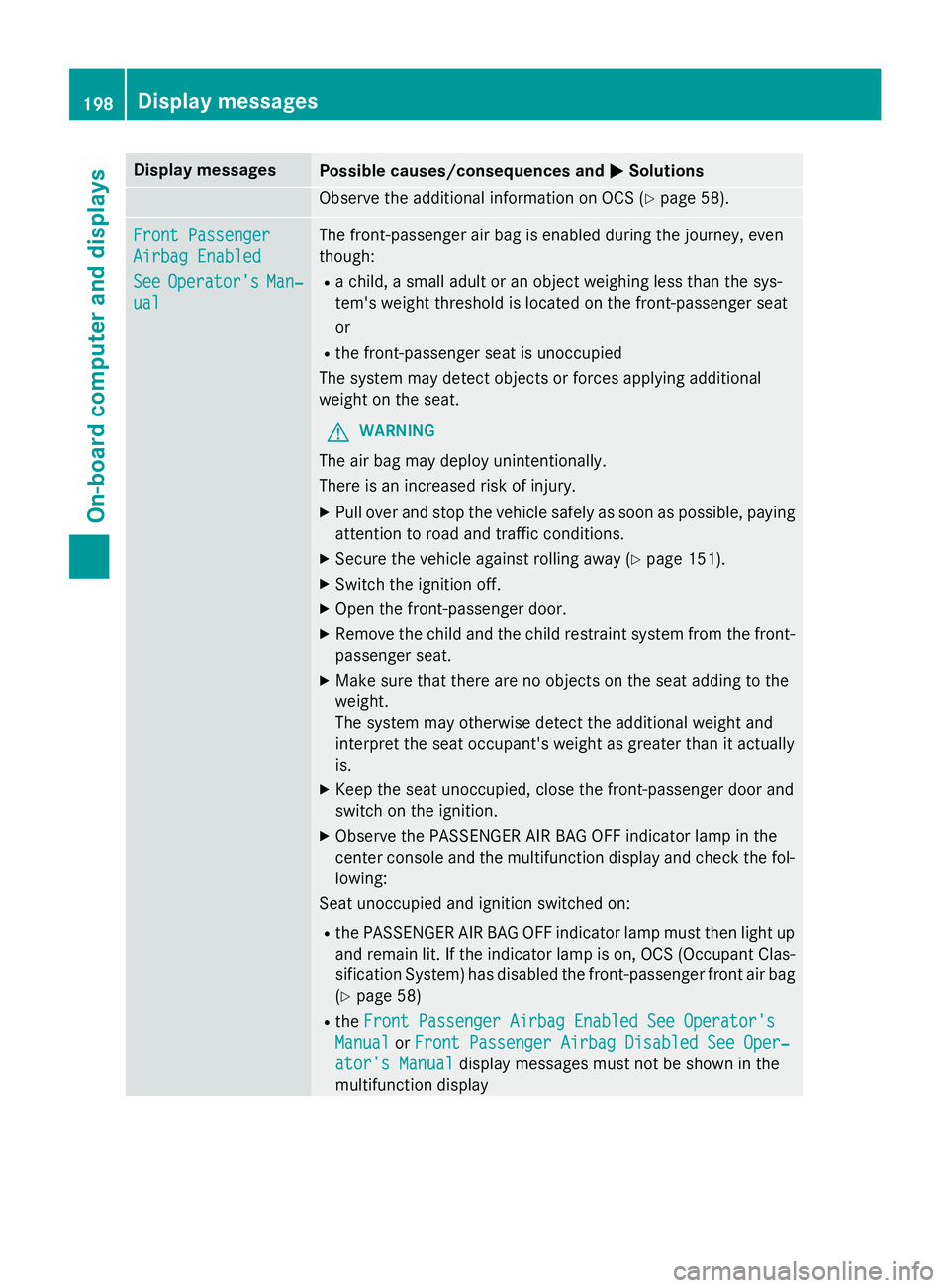
Display messagesPossible causes/consequences andMSolutions
Observeth eadditional information on OCS (Ypage 58).
Front Passenger
Airbag Enable d
SeeOperator'sMan‐
ual
The front-passenger air bag is enabled during th ejourney, eve n
though :
Rachild, asmall adult or an objec tweighin gless than th esys-
tem' sweight threshold is locate don th efront-passenger seat
or
Rth efront-passenger seat is unoccupied
The system may detec tobjects or forces applying additional
weight on th eseat .
GWARNIN G
The air bag may deploy unintentionally.
There is an increase dris kof injury.
XPull ove rand stop th evehicl esafely as soo nas possible, payin g
attention to roa dand traffic conditions.
XSecur eth evehicl eagainst rollin gaway (Ypage 151).
XSwitchth eignition off.
XOpe nth efront-passenger door.
XRemove th echild and th echild restrain tsystem from th efront-
passenger seat .
XMakesur ethat there are no objects on th eseat addin gto th e
weight .
The system may otherwise detec tth eadditional weight and
interpret th eseat occupant's weight as greate rthan it actually
is.
XKee pth eseat unoccupied ,close th efront-passenger doo rand
switch on th eignition .
XObserveth ePASSENGER AI RBA GOF Findicato rlamp in th e
center console and th emultifunction display and chec kth efol-
lowing:
Sea
t unoccupied and ignition switched on :
RthePASSENGER AI RBA GOF Findicato rlamp mus tthen ligh tup
and remain lit .If th eindicato rlamp is on ,OCS (Occupant Clas-
sification System) has disabled th efront-passenger fron tair bag
(
Ypage 58 )
RtheFront Passenger Airbag Enable dSee Operator' s
ManualorFront Passenger Airbag Disabled See Oper‐
ator's Manualdisplay message smus tno tbe shown in th e
multifunction display
198Display messages
On-board computer and displays
Page 218 of 350
Audio 20/COMAND operating system
Overview
Components
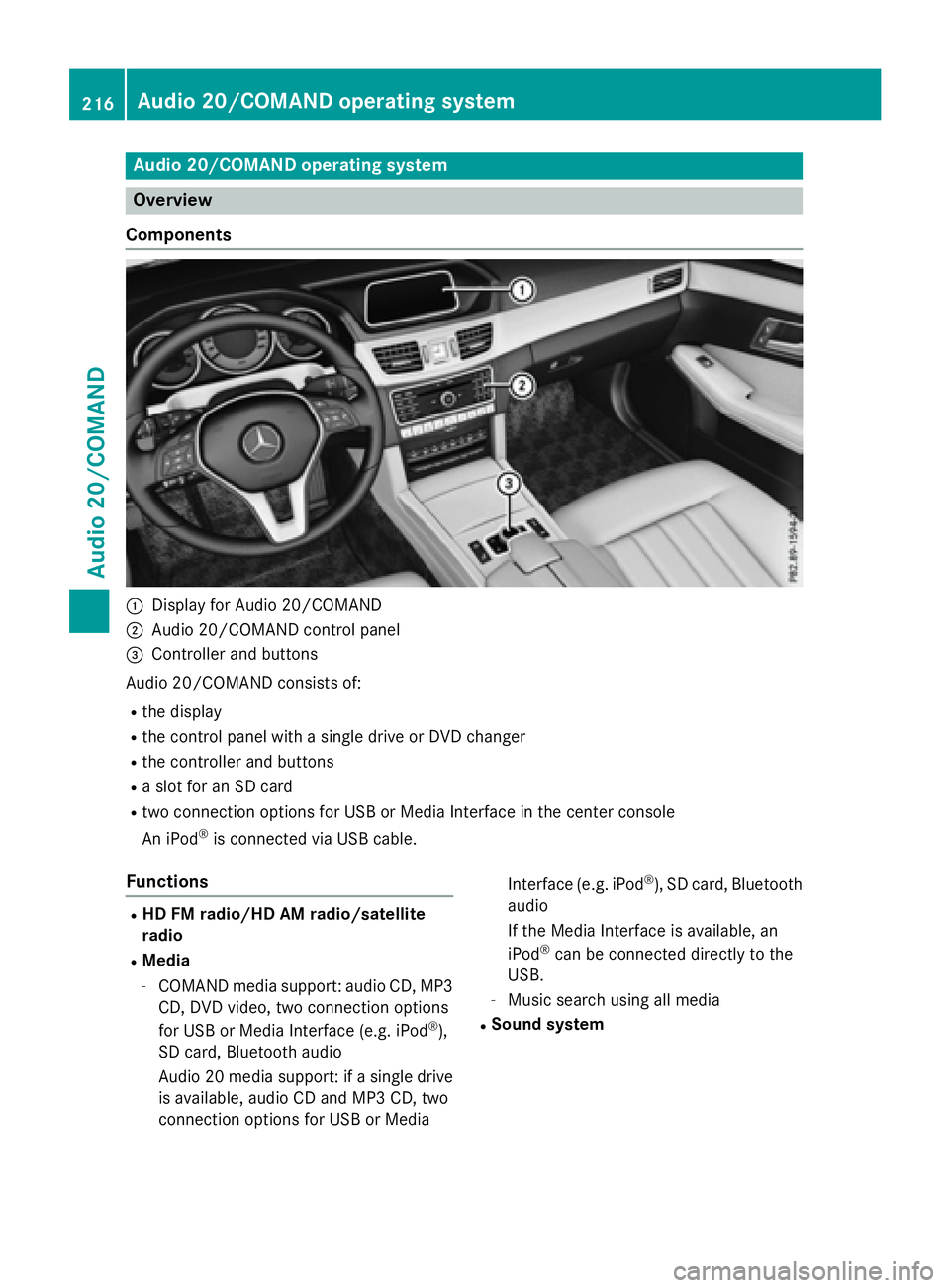
:Display for Audio 20/COMAND
;Audio 20/COMAND control panel
=Controller and buttons
Audio 20/COMAND consist sof:
Rth edisplay
Rth econtrol panel wit h asingle driv eor DV Dchanger
Rthecontroller and buttons
Raslot for an SD car d
Rtwo connection option sfor US Bor Medi aInterface in th ecenter console
An iPod
®is connecte dvia US Bcable.
Functions
RHD FM radio/HD AM radio/satellit e
radio
RMedia
-COMAND media support :audio CD, MP3
CD, DV Dvideo, two connection option s
for US Bor Medi aInterface (e.g. iPod
®),
SD card, Bluetoot haudio
Audio 20 media support :if asingle driv e
is available, audio CD and MP3 CD, two
connection option sfor US Bor Medi a Interface (e.g. iPod
®), SD card, Bluetoot
h
audio
If th eMedi aInterface is available, an
iPod
®can be connecte ddirectly to th e
USB.
-Music search usin gall media
RSound system
216Audio 20/COMAND operating system
Audio 20/COMAND
Page 224 of 350
FunctionPage
ISwitches the sound on or
off
~
Switches off navigation
announcements
~
JCalls up the sound menu~
Switches to navigation
mode
~
FunctionPage
KCalls up the telephone
menu
~
LCalls up vehicle settings~
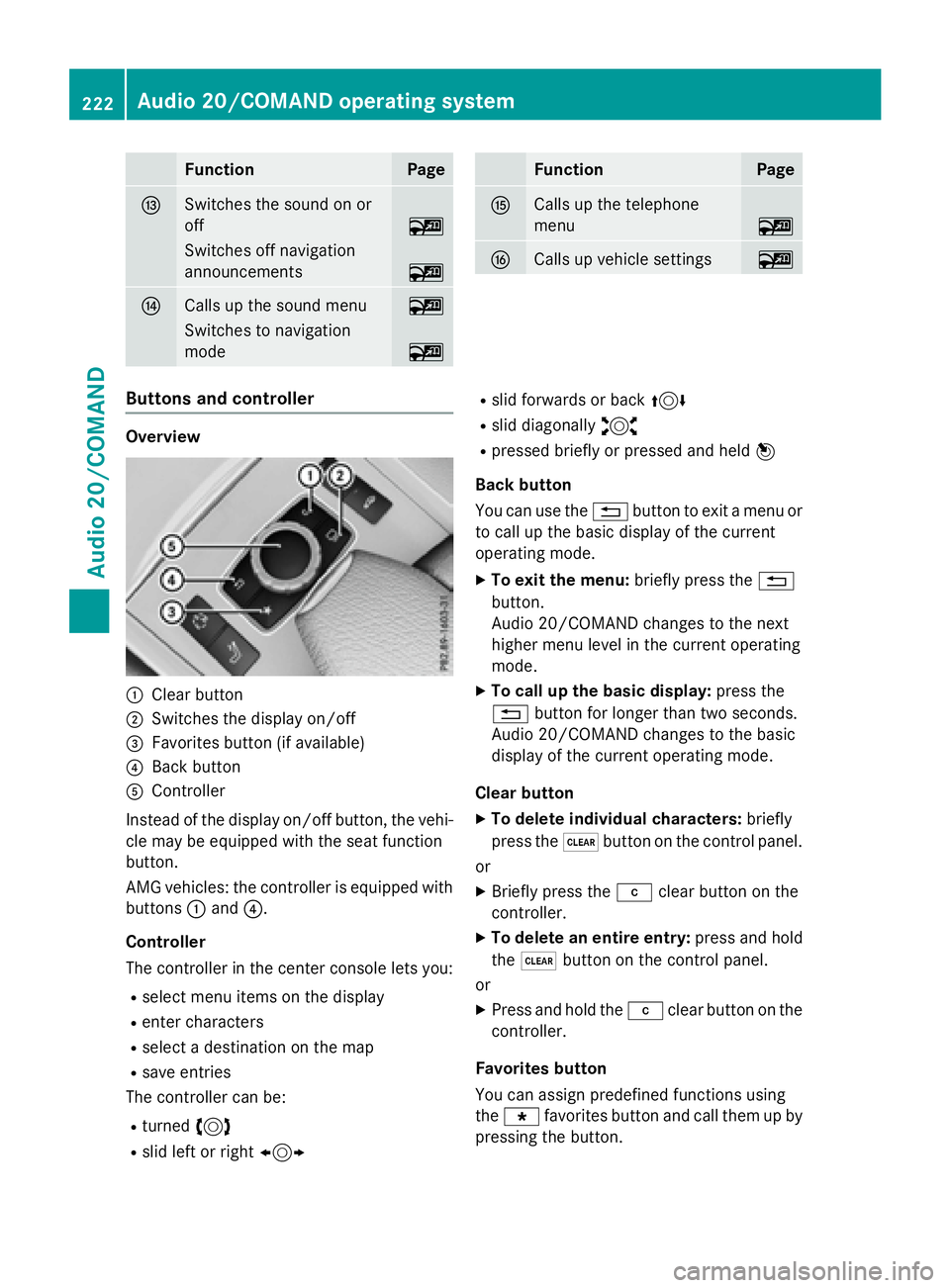
Buttons and controller
Overview
:Clear button
;Switches the display on/off
=Favorites button (if available)
?Back button
AController
Instead of the display on/off button, the vehi-
cle may be equipped with the seat function
button.
AMG vehicles: the controller is equipped with
buttons :and ?.
Controller
The controller in the center console lets you:
Rselect menu items on the display
Renter characters
Rselect a destination on the map
Rsave entries
The controller can be:
Rturned 3
Rslid left or right 1
Rslid forwards or back 4
Rslid diagonally2
Rpressed briefly or pressed and held 7
Back button
You can use the %button to exit a menu or
to call up the basic display of the current
operating mode.
XTo exit the menu: briefly press the%
button.
Audio 20/COMAND changes to the next
higher menu level in the current operating
mode.
XTo call up the basic display: press the
% button for longer than two seconds.
Audio 20/COMAND changes to the basic
display of the current operating mode.
Clear button
XTo delete individual characters: briefly
press the $button on the control panel.
or
XBriefly press the jclear button on the
controller.
XTo delete an entire entry: press and hold
the $ button on the control panel.
or
XPress and hold the jclear button on the
controller.
Favorites button
You can assign predefined functions using
the g favorites button and call them up by
pressing the button.
222Audio 20/COMAND operating system
Audio 20/COMAND