AUX Mercury Sable 2008 s User Guide
[x] Cancel search | Manufacturer: MERCURY, Model Year: 2008, Model line: Sable, Model: Mercury Sable 2008Pages: 328, PDF Size: 2.65 MB
Page 50 of 328
Note:Headphone A can access any possible media (AM, FM1, FM2, SAT
(if equipped), CD, DVD, DVD-AUX). Headphone B can only access DVD
and DVD-AUX.
For further information, refer toSingle play/Dual playlater in this
section.
2.
/(Stop/Eject): Press once
to stop and press a second time to
eject a disc from the DVD system.
3.
(Reverse): Press and
release for the previous chapter or
track. Press and hold to reverse
search a DVD, Video CD, or FES CD in DVD/CD mode.
4.
(Fast forward): Press and
release for the next chapter or
track. Press and hold to forward
search a DVD, Video CD, or FES CD in DVD/CD mode.
5.
/(Play/Pause): Press
(Play) to select DVD mode (and to
turn the DVD system on if it is off).
If a disc is present, it will resume or begin to play. Press (Pause) while
playing a disc to pause a DVD or CD.
6.On/Off:Press to turn the DVD
system On/Off.
7.VIDEO:Press repeatedly to cycle
through the following video state
options which will be indicated on
the bottom right hand corner of the
display: DVD DISC, DVD-AUX,
NON-DVD and Off (no indicator). If you select the DVD-AUX video
source, the display will turn off if there is no video signal detected. When
a video signal is detected on the auxiliary video input, and the display is
in the DVD-AUX video mode, the display will automatically turn on.
8.Infrared (IR) Receiver & Transmitter:System sensor which reads
the signals from the remote control and sends audio signals to the
infrared (IR) wireless headphones.
2008 Sable(mgo)
Owners Guide (post-2002-fmt)
USA(fus)
Entertainment Systems
50
Page 51 of 328
9.LCD screen:The eight inch diagonal screen rotates down to view and
up into housing to store when not in use. Ensure that the screen is
latched into the housing when being stored.
10.Volume:When in Single Play,
press to increase (
) or decrease
(
) the volume over all speakers.
When in Dual Play, press to increase
(
) or decrease () the volume
for the wired headphones. (Wireless headphone volume is controlled
with the rotary dial on the right ear piece.)
11.
/(Headphones/Speakers): Press once for Dual Play
(Headphone mode- the rear speakers are muted) and press again for
Single Play (same media playing through all speakers). You can also
press the 2 and 4 memory preset buttons on the audio system at the
same time to perform the same function. For further interaction
information, refer toSingle Play/Dual play.
12.MEDIA:Press repeatedly to
select from the various possible
playing media sources (AM, FM1,
FM2, SAT (if equipped), CD, DVD, DVD-AUX). The media will show in
the status display on the top of the screen when in Dual Play mode.
When in Single Play mode, the media source will be displayed on the
radio.
Note:Channel A can access any possible media source (AM, FM1, FM2,
SAT (if equipped), CD, DVD, DVD-AUX). Channel B can only access
DVD and DVD-AUX sources.
13.RETURN:Press to return to the
playing media or to resume
playback.
14.MENU:When playing a DVD,
press MENU once to enter the DVD
disc menu (if available) and press
twice to enter the system set-up menu. From the set-up menu, you may
select from Angle, Aspect Ratio, Language, Subtitles, Disc resume,
Compression, Restore Defaults and Back. For more detailed information,
refer toMenu mode.
2008 Sable(mgo)
Owners Guide (post-2002-fmt)
USA(fus)
Entertainment Systems
51
Page 54 of 328
(Wireless headphone volume is controlled with the rotary dial on the
right ear piece.)
8.Fast Forward/Next:In DVD mode, press and hold for a quick
advance within the DVD. Press and release to advance to the next
chapter. In CD/MP3 mode, press to access the next track.
9.Play/Pause:Press to play or pause a DVD.
10.SHUFFLE:Press to play all tracks on the current CD/MP3 disc in
random order.
11.STOP:Press to stop the current DVD or CD/MP3.
12.
/Speaker/Headphone(Single/Dual Play): Press to toggle
between Single Play (same media playing through all speakers) and Dual
Play (headphone mode — the rear speakers are muted). You can also
press the 2 and 4 memory presets on the audio system at the same time
to perform the same function.
13.Keypad:Use the numeric controls to enter in a specific CD/MP3
track or DVD chapter to be played.
14.C (Cancel):Press to cancel/clear the numeric input (i.e. chapter
number).
15.MEDIA:Press to cycle through the possible media sources: AM,
FM1, FM2, SAT (if equipped), CD, DVD, LINE IN (if equipped),
DVD-AUX.
Channel B can only access DVD and AUX sources.
16.VIDEO:Press to cycle through video states: DVD-DISC, DVD-AUX,
NON-DVD, Off.
17.EJECT:Press to eject a disc from the FES.
18.Fast reverse/Previous:When a DVD is playing, press and hold for a
quick reverse within the DVD. Press and release for the previous
chapter. Press PLAY to resume normal playback speed and volume.
In CD/MP3 mode, press to access the previous track.
19.MENU:Press to access the DVD disc menu for selections. Press
MENU again when in the DVD disc menu to access the system set-up
menu.
20.SUBTITLE(DVD dependent): Press to turn the subtitle feature ON
or OFF.
21.LANGUAGE(DVD dependent): Press to select the desired
language.
22.ENTER:Press to select the highlighted menu option.
2008 Sable(mgo)
Owners Guide (post-2002-fmt)
USA(fus)
Entertainment Systems
54
Page 59 of 328
Wired headphones
Do not leave children unattended in the vehicle and do not let
children operate the system while unsupervised. If wired
headphones or auxiliary systems are used, children may become
entangled in the cords and seriously injure themselves.
The driver should never use the headphones while driving the
vehicle. Using headphones may prevent the driver from hearing
audible warnings such as horns or emergency sirens, which could
result in a crash causing serious injury. Give your full attention to
driving and to the road.
You may purchase wired headphones for your FES (Family
Entertainment System). Plug them into the 3.5 mm headphone jack(s)
located on the left and right sides of the system. (Channel A is located
on the left side and Channel B is located on the right side.) These
headphones will be active when in Dual Play mode.
To listen to the audio on wired headphones (not included), connect the
wired headphones into the headphone jacks on the sides of the DVD
system. The wired headphone jack for Channel A is located on the left
side of the FES and is labeled
A. Headphones plugged into this
headphone jack will hear audio from the audio source selected to be the
Channel A source. The wired headphone jack for Channel B is located on
the right side of the FES and is labeled
B. Headphones plugged into
this headphone jack will hear audio from the audio source selected to be
the Channel B source.
Adjust the headphone volume using
the volume control on the DVD
system.
Operation
Single play/Dual play
Your DVD and audio system work together with the infrared headphones
and wired headphones (not included) to allow the rear seat passengers
to listen to the radio (and other media sources) over the headphones.
This enables the front and rear seat passengers to listen to a variety of
sources a variety of ways.
2008 Sable(mgo)
Owners Guide (post-2002-fmt)
USA(fus)
Entertainment Systems
59
Page 60 of 328
Single Play:Single play consists of all occupants in the vehicle listening
to the same playing media over the front and rear speakers. When the
DVD system is on, and the same source is playing through the front and
rear speakers, SINGLE PLAY will appear in the front radio display.
Dual Play:Dual play is when the rear seat passengers choose to listen
to a different playing media than the front seat passengers. With the
DVD and Rear Seat Controls turned ON, the rear seat passengers may
choose to listen to the radio, CD, MP3, DVD, or DVD-AUX media sources
over headphones while the front speakers play the chosen selection for
the front audio system, they may listen to another over the headphones.
DUAL PLAY will appear in the radio display.
When both the front seat passengers and the rear seat passengers listen
to the same audio source, SHARED MODE will appear on the radio.
Note:If the front seat passengers are listening to the radio, the rear seat
passengers can also listen to the radio; however, they will be limited to
listening to the same radio channel.
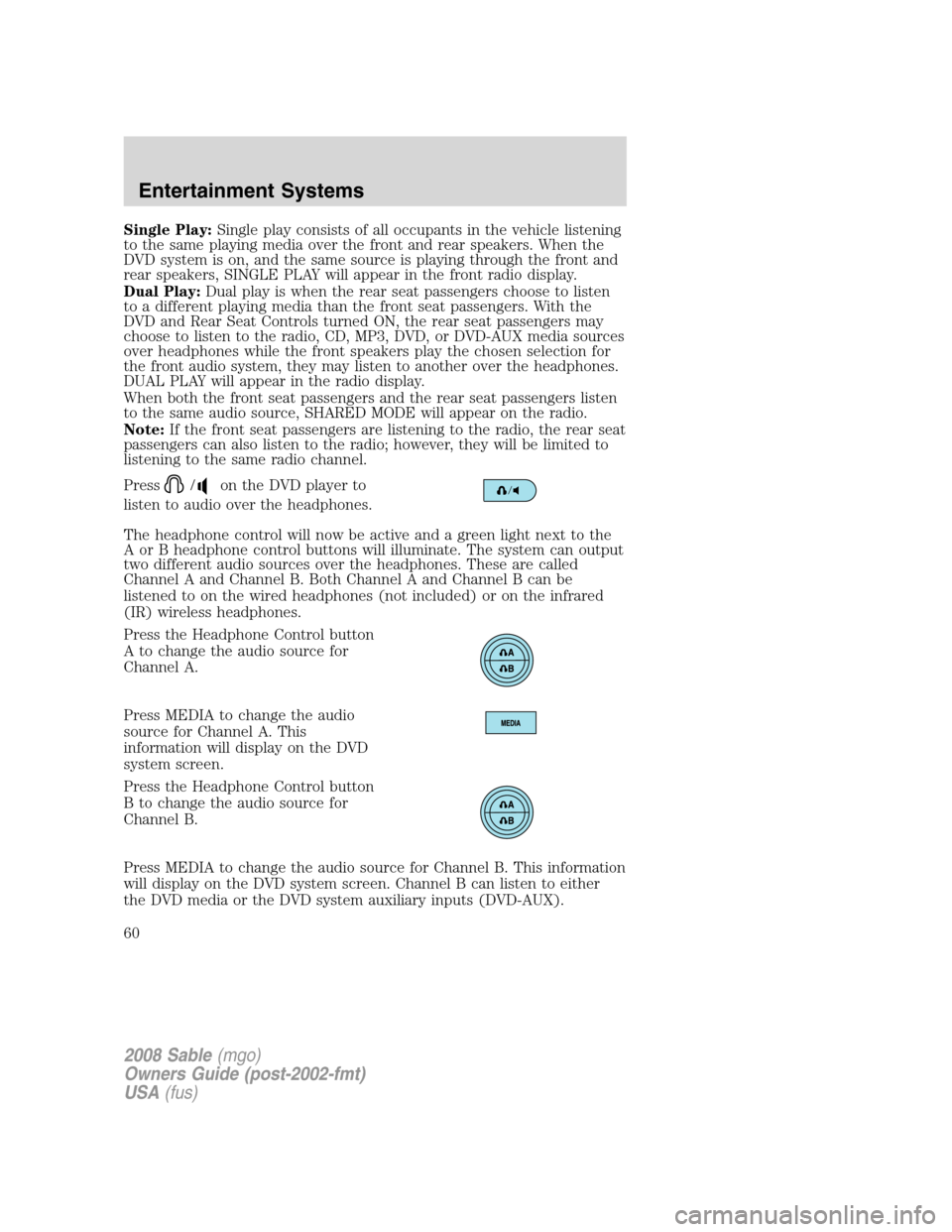
Press
/on the DVD player to
listen to audio over the headphones.
The headphone control will now be active and a green light next to the
A or B headphone control buttons will illuminate. The system can output
two different audio sources over the headphones. These are called
Channel A and Channel B. Both Channel A and Channel B can be
listened to on the wired headphones (not included) or on the infrared
(IR) wireless headphones.
Press the Headphone Control button
A to change the audio source for
Channel A.
Press MEDIA to change the audio
source for Channel A. This
information will display on the DVD
system screen.
Press the Headphone Control button
B to change the audio source for
Channel B.
Press MEDIA to change the audio source for Channel B. This information
will display on the DVD system screen. Channel B can listen to either
the DVD media or the DVD system auxiliary inputs (DVD-AUX).
2008 Sable(mgo)
Owners Guide (post-2002-fmt)
USA(fus)
Entertainment Systems
60
Page 61 of 328
Operation with an aftermarket audio system
(Headphone only mode)
When the Family Entertainment System (FES) detects that the original
radio supplied by Ford Motor Company has been removed from the
vehicle, the Family Entertainment System will work in a state referred to
as “Headphone Only Mode”.
While operating in Headphone Only Mode, the system will have limited
functionality.
•The system will only output audio to the headphones. It will not be
capable of providing audio to the speakers.
•The available sources in FES Headphone Only Mode are DVD-DISC
and DVD-AUX, regardless of headphone channel (A or B).
•When a disc is inserted into the FES while in Headphone Only Mode,
both headphone channels (A&B) will be connected to FES-DISC.
Menu mode
Press MENU once on the DVD system to access the DVD disc menu if
available.
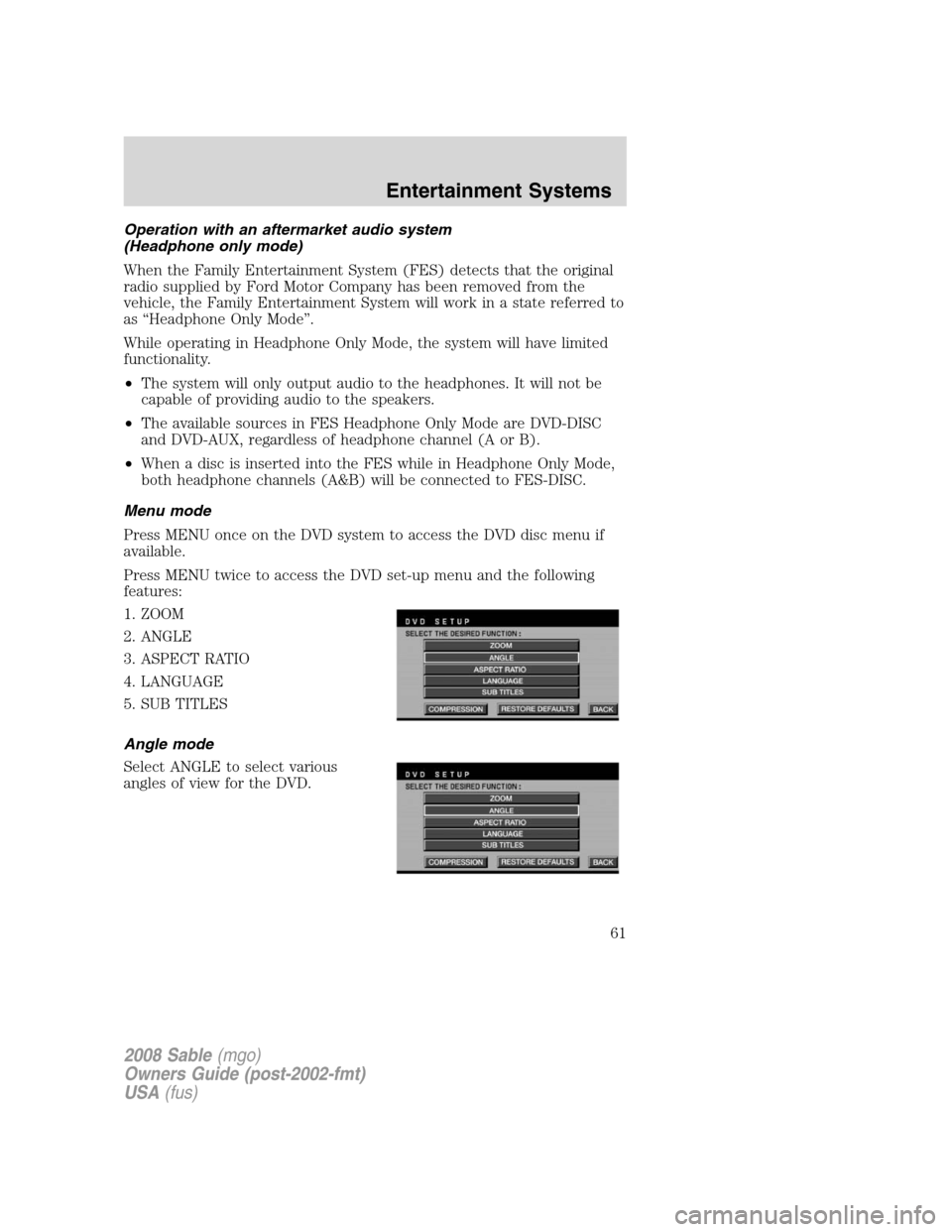
Press MENU twice to access the DVD set-up menu and the following
features:
1. ZOOM
2. ANGLE
3. ASPECT RATIO
4. LANGUAGE
5. SUB TITLES
Angle mode
Select ANGLE to select various
angles of view for the DVD.
2008 Sable(mgo)
Owners Guide (post-2002-fmt)
USA(fus)
Entertainment Systems
61
Page 67 of 328
Press to adjust volume levels.
Slow play
1. With a DVD playing, press pause.
2. Press and hold the reverse or
advance button to enter into slow
play mode. Once in slow play mode,
press and release the reverse or advance button repeatedly to cycle
through 1/4 and 1/2. These will display on the status bar on top of the
screen as the screens cycle through at this rate.
Frame by frame
1. With a DVD playing, press pause.
2. Press the right cursor button. The
DVD will advance one frame. Each
press of the right cursor button will
advance the DVD video by one
frame.
Headphone/auxiliary jacks
There are wired headphones (not included) and auxiliary jacks on the
left and right side of your DVD system. They can be used to plug in
wired headphones or to connect and play auxiliary electronic devices
such as game systems, personal camcorders, video cassette recorders,
etc.
2008 Sable(mgo)
Owners Guide (post-2002-fmt)
USA(fus)
Entertainment Systems
67
Page 68 of 328
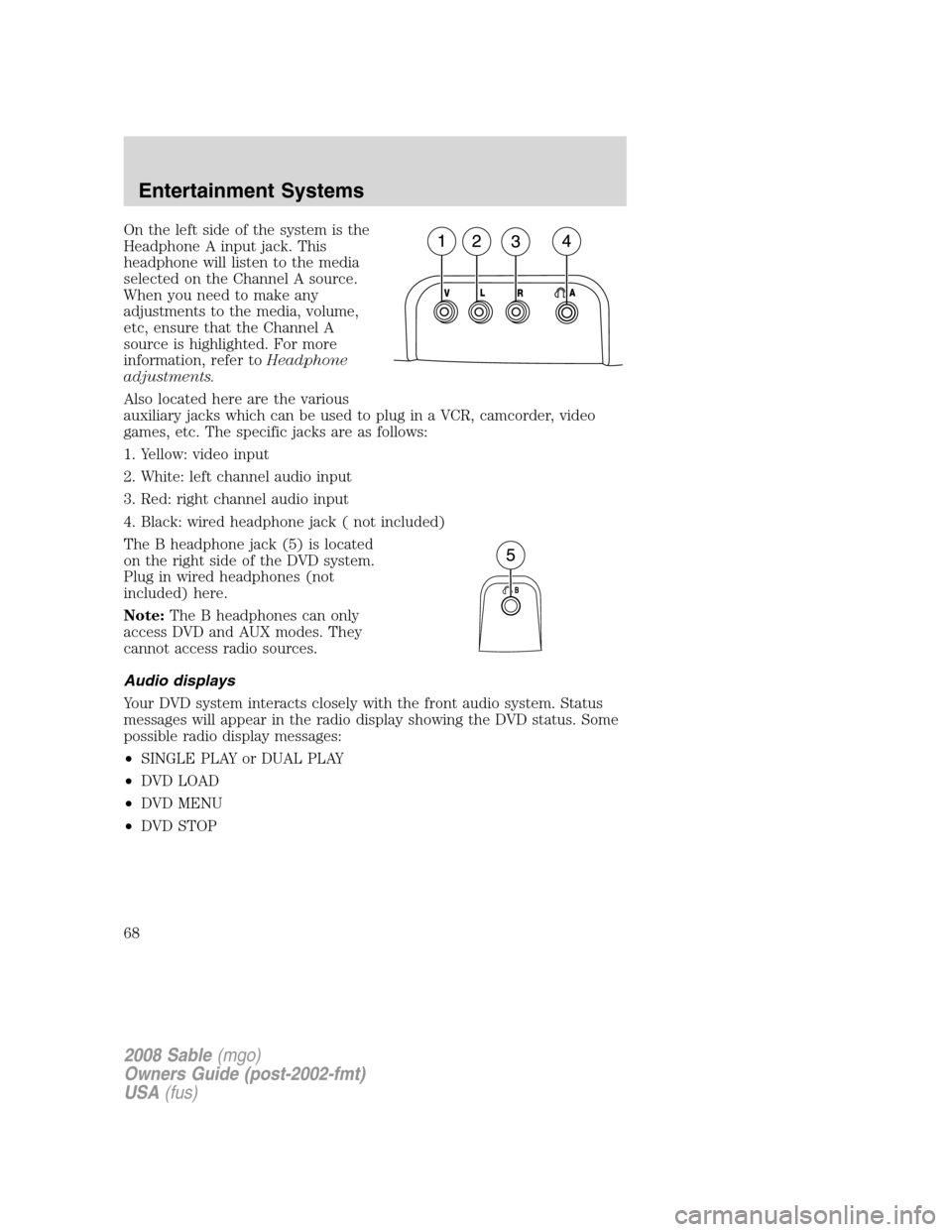
On the left side of the system is the
Headphone A input jack. This
headphone will listen to the media
selected on the Channel A source.
When you need to make any
adjustments to the media, volume,
etc, ensure that the Channel A
source is highlighted. For more
information, refer toHeadphone
adjustments.
Also located here are the various
auxiliary jacks which can be used to plug in a VCR, camcorder, video
games, etc. The specific jacks are as follows:
1. Yellow: video input
2. White: left channel audio input
3. Red: right channel audio input
4. Black: wired headphone jack ( not included)
The B headphone jack (5) is located
on the right side of the DVD system.
Plug in wired headphones (not
included) here.
Note:The B headphones can only
access DVD and AUX modes. They
cannot access radio sources.
Audio displays
Your DVD system interacts closely with the front audio system. Status
messages will appear in the radio display showing the DVD status. Some
possible radio display messages:
•SINGLE PLAY or DUAL PLAY
•DVD LOAD
•DVD MENU
•DVD STOP
2008 Sable(mgo)
Owners Guide (post-2002-fmt)
USA(fus)
Entertainment Systems
68
Page 71 of 328
Do not attempt to service, repair or modify the Family Entertainment
System (FES). See your dealer.
Do not insert foreign objects into the DVD compartment.
Do not leave children unattended in the vehicle and do not let
children operate the system while unsupervised. If wired
headphones or auxiliary systems are used, children may become
entangled in the cords and seriously injure themselves.
The front glass on the liquid crystal display (LCD) flip-down
screen may break when hit with a hard surface. If the glass
breaks, do not touch the liquid crystalline material. In case of contact
with skin, wash immediately with soap and water.
The driver should not attempt to operate any function of the
DVD system while the vehicle is in motion. Give full attention to
driving and to the road. Pull off the road in a safe place before
inserting or extracting DVDs from the system. A remote control is
included in the system to allow the rear seat occupants to operate the
FES functions without distracting the driver.
Do not expose the liquid crystal display (LCD) flip-down screen
to direct sunlight or intensive ultraviolet rays for extensive
periods of time. Ultraviolet rays deteriorate the liquid crystal.
Be sure to review User Manuals for video games and video game
equipment when used as auxiliary inputs for your Family Entertainment
System (FES).
Do not operate video games or video equipment if the power cords
and/or cables are broken, split or damaged. Carefully place cords and/or
cables where they will not be stepped on or interfere with the operation
of seats and/or compartments.
Disconnect video games and video equipment power cords and/or cables
when not in use.
Avoid touching auxiliary input jacks with your fingers. Do not blow on
them or allow them to get wet or dirty.
Do not clean any part of the DVD player with benzene, paint thinner or
any other solvent.
Federal Communication Commission (FCC) Compliance
Changes or modifications not approved by Ford Lincoln-Mercury could
void user’s authority to operate the equipment. This equipment has been
2008 Sable(mgo)
Owners Guide (post-2002-fmt)
USA(fus)
Entertainment Systems
71
Page 73 of 328

Cleaning the liquid crystal display (LCD) flip-down screen
Clean the display screen by applying a small amount of water or any
ammonia-based household glass cleaner directly to a soft cloth. Rub the
screen gently until the dust, dirt or fingerprints are removed. Do not
spray the screen directly with water or glass cleaning solvents. Overspray
from these fluids could drip down into the internal electronics of the
screen and cause damage. Do not apply excessive pressure while
cleaning the screen.
Cleaning DVD and CD discs
Inspect all discs for contamination before playing. If necessary, clean
discs only with an approved DVD and CD cleaner and wipe from the
center out to the edge. Do not use circular motion.
Compatibility with aftermarket audio systems
(headphone only mode)
When the Family Entertainment System (FES) detects that the original
radio supplied by Ford Motor Company has been removed from the
vehicle, the FES will work in a state referred to as “Headphone Only
Mode.” This mode allows the FES to operate as a standalone system,
without interface to the radio.
While operating in Headphone Only Mode, the system will have limited
functionality.
•The system will only output audio to the headphones. It will not be
capable of providing audio to the speakers.
•The available sources in FES Headphone Only Mode are DVD-DISC
and DVD-AUX, regardless of headphone channel (A or B).
•When a disc is inserted into the FES while in Headphone Only Mode,
both headphone channels (A and B) will be connected to FES-DISC.
NAVIGATION SYSTEM (IF EQUIPPED)
Your vehicle may be equipped with a Navigation System. Refer to the
Navigation supplementfor further information.
SYNC (LATE AVAILABILITY — IF EQUIPPED)
Your vehicle may be equipped with SYNC, a hands-free communications
and entertainment system with special phone and media features. For
more information, please refer to theSYNC supplementor to theSYNC
chapter in theNavigation supplement(if equipped).
2008 Sable(mgo)
Owners Guide (post-2002-fmt)
USA(fus)
Entertainment Systems
73