steering MINI Clubman 2011 (Mini Connected) Owner's Guide
[x] Cancel search | Manufacturer: MINI, Model Year: 2011, Model line: Clubman, Model: MINI Clubman 2011Pages: 256, PDF Size: 3.75 MB
Page 156 of 256
CommunicationsHands-free device Bluetooth
154
Hands-free device Bluetooth
Overview
The concept
Mobile phones can be connected to the vehicle
through Bluetooth.
Bluetooth® is a registered trademark of Blue-
tooth® SIG, Inc.
After being paired once, when the ignition is
switched on, these devices are automatically
detected as soon as they are present in the vehi-
cle and can be controlled via the on-board com-
puter, the buttons on the steering wheel, and by
voice
*.
Up to four mobile phones can be paired.
It may be necessary for some functions to be
activated by the mobile phone provider. Only make entries when traffic conditions
permit. Do not hold the mobile phone in
your hand while you are driving; use the hands-
free system instead. If you do not observe this
precaution, your being distracted can endanger
vehicle occupants and other road users. <
Suitable mobile phones
Precise information as to which mobile phones
are supported by the hands-free device can be
found at www.mini.com/connectivity.
With a certain software version, these suitable
mobile phones support the vehicle functions
described below.
With other mobile phones or software versions,
malfunctions may occur.
A mobile phone that is connected to the vehicle
should not be operated via the mobile phone
keypad; otherwise, ma lfunctions may occur.
Displaying vehicle identification number
and software part number
To check which mobile phones are supported by
the hands-free device, th e vehicle identification
number and the software part number will be
required. The software version of the mobile
phone may also be required.
1. "Telephone"
2. Open "Options".
3. "Bluetooth® info"
4. "Display system information"
Pairing/unpairing mobile
phone
Requirements
>Suitable mobile phone, refer to page 154.
> Mobile phone operational.
> Bluetooth activated in vehicle, refer to
page 154, and in the mobile phone.
> Bluetooth presets in the mobile phone are
required, e.g. connection not confirmed or
visible, refer to Ow ner's Manual for the
mobile phone.
> A number with at least 4 and at most
16 digits has been established as the Blue-
tooth passkey. Only required once for pair-
ing.
> Ignition switched on.
Activating/deactivating Bluetooth link
Bluetooth is not permitted everywhere. Comply
with all safety guidelines and regulations.
1."Telephone"
2. Open "Options".
*
Page 159 of 256
Hands-free device BluetoothCommunications
157
Operation
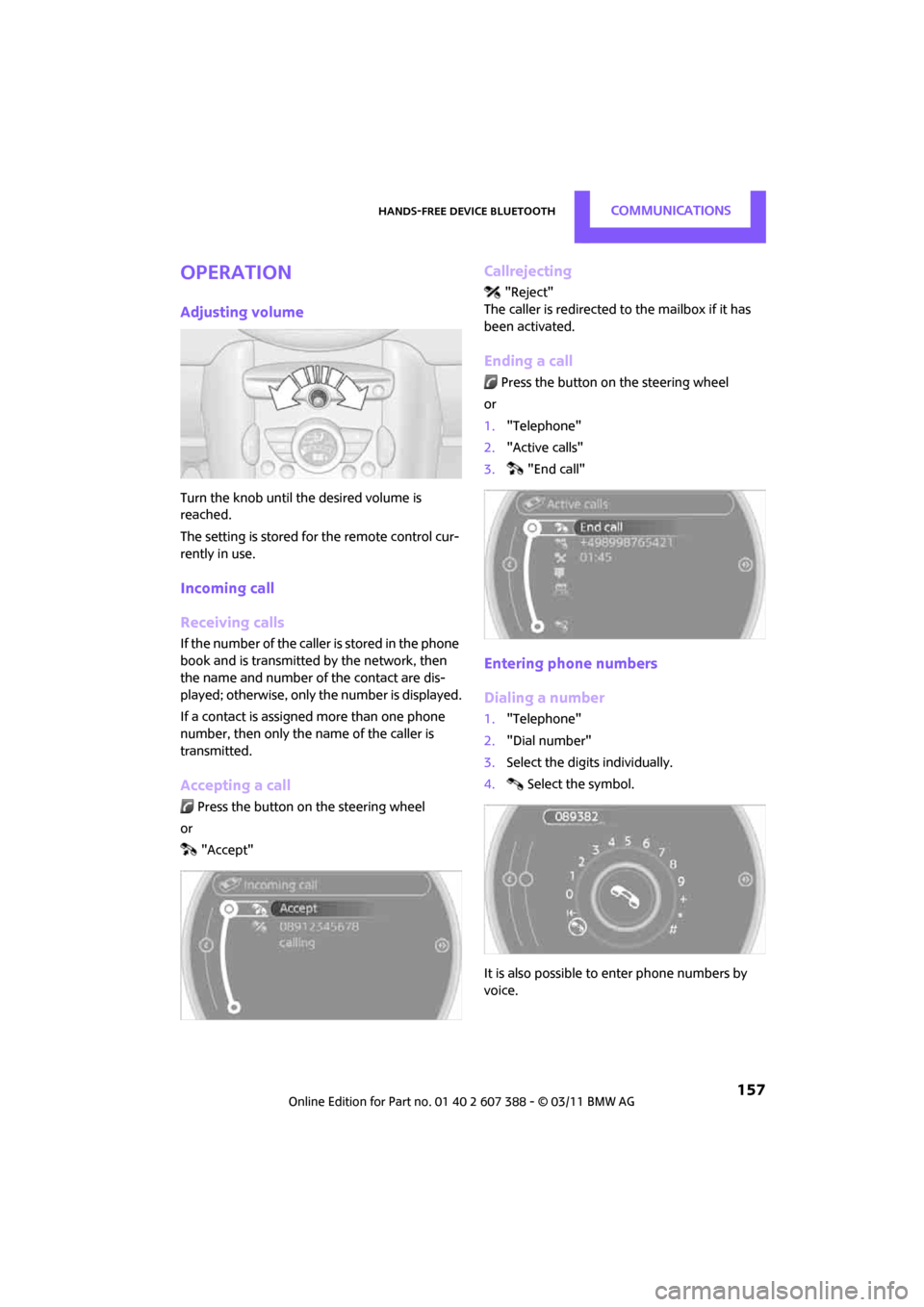
Adjusting volume
Turn the knob until the desired volume is
reached.
The setting is stored for the remote control cur-
rently in use.
Incoming call
Receiving calls
If the number of the caller is stored in the phone
book and is transmitted by the network, then
the name and number of the contact are dis-
played; otherwise, only the number is displayed.
If a contact is assigned more than one phone
number, then only the name of the caller is
transmitted.
Accepting a call
Press the button on the steering wheel
or "Accept"
Callrejecting
"Reject"
The caller is redirected to the mailbox if it has
been activated.
Ending a call
Press the button on the steering wheel
or
1. "Telephone"
2. "Active calls"
3. "End call"
Entering phone numbers
Dialing a number
1."Telephone"
2. "Dial number"
3. Select the digits individually.
4. Select the symbol.
It is also possible to enter phone numbers by
voice.
Page 166 of 256
CommunicationsMobile phone preparation Bluetooth
164
Mobile phone preparation
Bluetooth
Overview
The concept
Mobile phones or other external devices, e.g.
audio players, can be connected to the vehicle
via Bluetooth.
Bluetooth® is a registered trademark of Blue-
tooth® SIG, Inc.
After being paired once, when the ignition is
switched on, these devices are automatically
detected as soon as they are present in the vehi-
cle and can be controlled via the on-board com-
puter, the buttons on the steering wheel, and by
voice
*.
Depending on whether they are functioning as a
telephone and/or as an audio source, external
devices can be used via the vehicle. The tele-
phone functions will be described below. Oper-
ation of audio functions, refer to page 146.
It may be necessary for some functions to be
activated by the mobile phone provider.
Only make entries when traffic conditions
permit. Do not hold the mobile phone in
your hand while you are driving; use the hands-
free system instead. If you do not observe this
precaution, your being distracted can endanger
vehicle occupants and other road users. <
Snap-in adapter*
The snap-in adapter, refer to page175, makes it
possible to:
> Accommodate the mobile phone.
> Recharge its battery.
> Connect it to an exte rnal antenna of the
vehicle.
This assures a better network connection
and constant sound quality. A mobile phone that is connected to the vehicle
should not be operated via the mobile phone
keypad; otherwise, ma
lfunctions may occur.
Suitable mobile phones
For precise information as to which mobile
phones and external devices with Bluetooth
interfaces are supported by the mobile phone
preparation, go to ww w.mini.com/connectivity.
With a certain software version, these suitable
mobile phones support the vehicle functions
described below.
With other mobile phones or software versions,
malfunctions may occur.
It is possible to perform a software update
*,
refer to page 149.
Displaying vehicle identification number
and software part number
Checking which mobile phones are supported
by the mobile phone preparation requires the
vehicle identification number and software part
number. The software version of the mobile
phone may also be required.
1."Telephone"
2. Open "Options".
3. "Bluetooth® info"
4. "Display system information"
Pairing/unpairing mobile
phone
Overview
>Using a mobile phone as a telephone.
> Using a mobile phone as an auxiliary
phone
*.
*
Page 171 of 256
Mobile phone preparation BluetoothCommunications
169
The telephone connection quality is low.
>Depending on the mobile phone, it is possi-
ble to adjust the strength of the Bluetooth
signal.
> Insert the mobile phone into the snap-in
adapter
* or place it in the vicinity of the cen-
ter console.
> Adjust the volume of the microphone and
speaker separately.
If you have gone through all items in the list and
still cannot activate the desired function please
contact the Hotline or your MINI dealer.
Operation
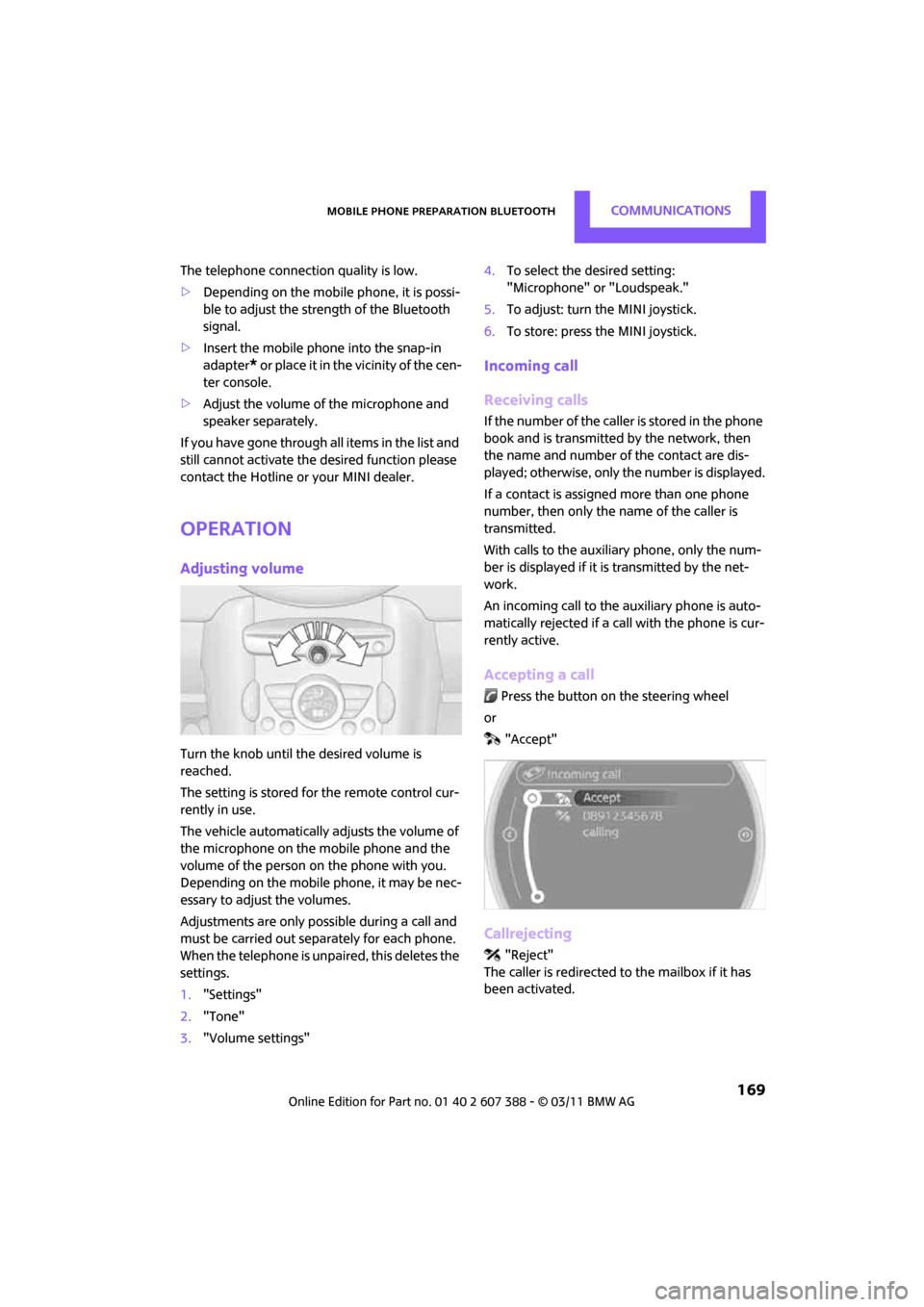
Adjusting volume
Turn the knob until the desired volume is
reached.
The setting is stored for the remote control cur-
rently in use.
The vehicle automatically adjusts the volume of
the microphone on the mobile phone and the
volume of the person on the phone with you.
Depending on the mobile phone, it may be nec-
essary to adjust the volumes.
Adjustments are only possible during a call and
must be carried out sepa rately for each phone.
When the telephone is unpaired, this deletes the
settings.
1. "Settings"
2. "Tone"
3. "Volume settings" 4.
To select the desired setting:
"Microphone" or "Loudspeak."
5. To adjust: turn the MINI joystick.
6. To store: press the MINI joystick.
Incoming call
Receiving calls
If the number of the caller is stored in the phone
book and is transmitted by the network, then
the name and number of the contact are dis-
played; otherwise, only the number is displayed.
If a contact is assigned more than one phone
number, then only the name of the caller is
transmitted.
With calls to the auxiliary phone, only the num-
ber is displayed if it is transmitted by the net-
work.
An incoming call to the auxiliary phone is auto-
matically rejected if a ca ll with the phone is cur-
rently active.
Accepting a call
Press the button on the steering wheel
or
"Accept"
Callrejecting
"Reject"
The caller is redirected to the mailbox if it has
been activated.
Page 172 of 256
CommunicationsMobile phone preparation Bluetooth
170
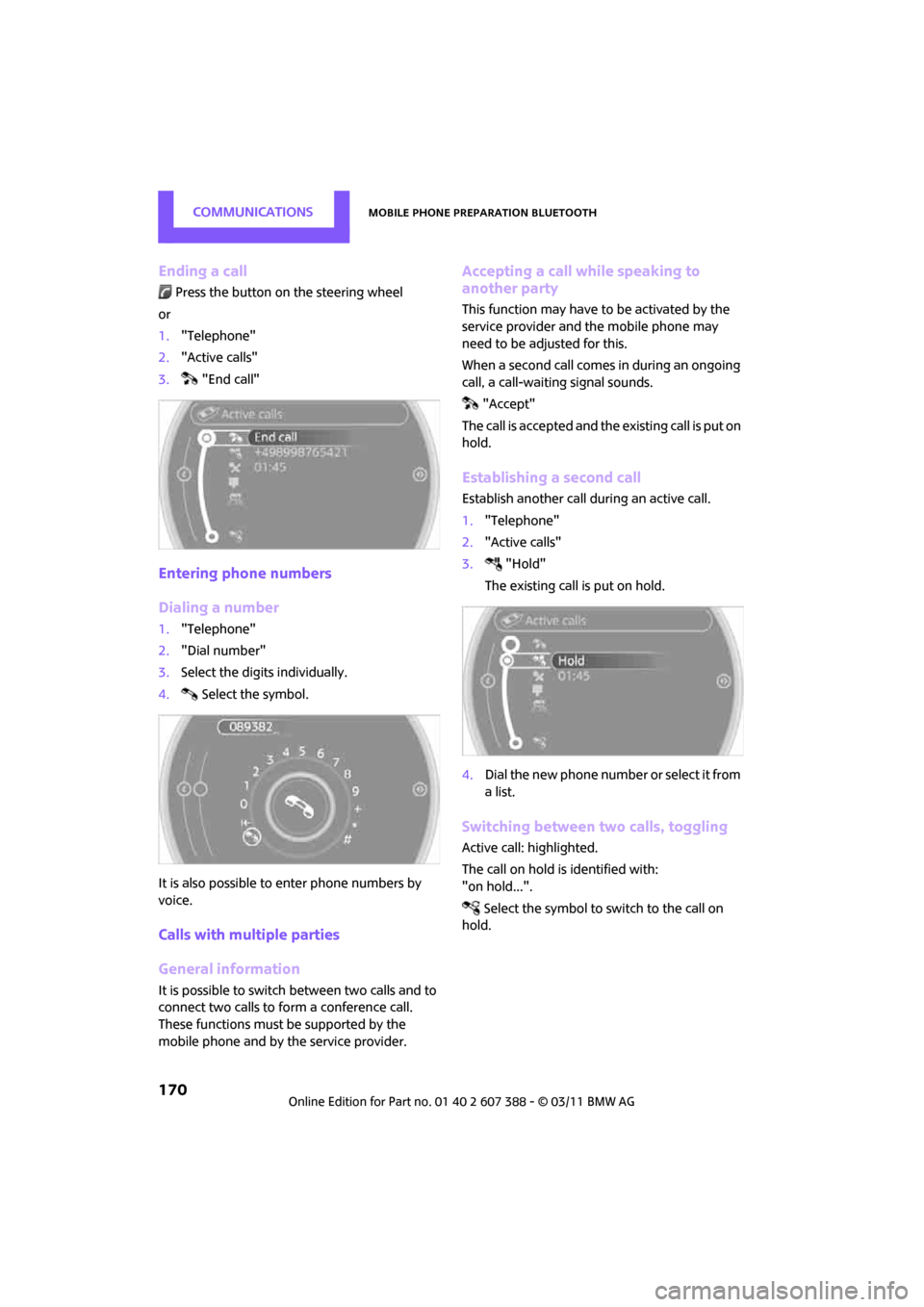
Ending a call
Press the button on the steering wheel
or
1. "Telephone"
2. "Active calls"
3. "End call"
Entering phone numbers
Dialing a number
1."Telephone"
2. "Dial number"
3. Select the digits individually.
4. Select the symbol.
It is also possible to enter phone numbers by
voice.
Calls with multiple parties
General information
It is possible to switch between two calls and to
connect two calls to fo rm a conference call.
These functions must be supported by the
mobile phone and by the service provider.
Accepting a call while speaking to
another party
This function may have to be activated by the
service provider and the mobile phone may
need to be adjusted for this.
When a second call comes in during an ongoing
call, a call-waiting signal sounds.
"Accept"
The call is accepted and the existing call is put on
hold.
Establishing a second call
Establish another call during an active call.
1. "Telephone"
2. "Active calls"
3. "Hold"
The existing call is put on hold.
4. Dial the new phone number or select it from
a list.
Switching between two calls, toggling
Active call: highlighted.
The call on hold is identified with:
"on hold...".
Select the symbol to switch to the call on
hold.
Page 175 of 256

Mobile phone preparation BluetoothCommunications
173
Deleting a single entry or all entries*
1.Highlight the entry.
2. Open "Options".
3. "Delete entry" or "Delete list".
Saving an entry in the contacts
1.Highlight the entry.
2. Open "Options".
3. "Store as new contact" or "Add to existing
contact".
4. Select the type of number: "Home", "Busi-
ness", "Mobile" or "Other".
5. Complete the entries if necessary.
6. "Store contact" if necessary
Hands-free system
General information
Calls being conducted using the hands-free sys-
tem can be continued using the mobile phone
and vice versa.
From the mobile phone to the
hands-free system
Calls that have been initiated from outside the
Bluetooth range of the vehicle can be continued
using the hands-free system if the ignition is
switched on.
Depending on the mobile phone, the call is
automatically switched to hands-free mode.
If the switch does not occur automatically, then
follow the instructions th at appear on the dis-
play of the mobile phone, also refer to the
Owner's Manual for the mobile phone.
From hands-free system to mobile
phone
Calls being conducted using the hands-free sys-
tem can also be continued using the mobile
phone if so desired, depending on the mobile
phone. At this point, follow the
instructions that appear
on the display of the mobile phone, also refer to
the Owner's Manual for the mobile phone.
Operation by voice*
Equipped with voice activation system: to oper-
ate, refer to page 21. For the list with the short
commands, refer to page 230; does not apply
for this type of voice operation.
Equipped without voice activation system:
depending upon the equipment, the mobile
phone can be voice-operated as described
below.
The concept
> The mobile phone can be operated without
removing your hand from the steering
wheel.
> In many cases, the entry process is sup-
ported by means of announcements or
questions.
> {...} Verbal instructions to use with the voice
activation system.
> {{...}} Indicates responses of the voice acti-
vation system.
Voice commands
Activating voice activation system
1. Briefly press the button on the steering
wheel.
2. Say the command.
Finishing voice input
Press the button on the steering wheel
briefly
or
{Cancel }.
Page 176 of 256
CommunicationsMobile phone preparation Bluetooth
174
Possible commands
Having possible commands read aloud
Press the button on the steering wheel.
Possible commands are read aloud.
Each digit can be spoken individually or com-
bined into a sequence to accelerate the entry
process.
Using alternative commands
There are often a number of commands to run a
function, e.g.:
Example: dialing phone numbers
1. Briefly press the button on the steering
wheel.
2. {Dial number }
3. System announces: {{Please say the num-
ber }}
4. For example: {123 456 7890 }
5. System announces: {{123 456 7890. Con-
tinue? }}
6. {Dial }
System announces: {{Dialing number }}
Calling
Dialing phone numbers
The connection to the desired subscriber is
established.
Correcting phone number
Digit sequences can be deleted after the system
has repeated the digits.
The command can be repeated as often as nec-
essary.
Deleting phone number
All digits entered up to this point are deleted.
Redialing
Voice phone book*
Depending on how your vehicle is equipped, it
may be necessary to create your own voice
phone book.
The entries must be entered by voice and are
independent of the mobile phone's memory. Up
to 50 entries can be set up.
Store the entry.
Delete the entry.
{Help }.
{ Dial name } or {Name }.
1. {Dial number }.
2. Say the phone number.
3. {Dial }.
{Correct number }.
{ Delete} .
{ Redial }.
1. {Save name }.
2. Say the name aloud. Do not exceed a
speaking duration of about 2 seconds.
3. Say the phone number after being
prompted to do so by the system.
4. {Save }.
1. {Delete name }.
2. Say the name when prompted.
3. Confirm the query with {Yes }.
Page 187 of 256
MINI ConnectedCommunications
185
Using MINI Connected
After successful connection of the mobile phone
to the vehicle and activation of MINI Connected,
the applications are displayed on the Control
Display and can be operated using the MINI joy-
stick.
Volume adjustments can be made using the
buttons on the steering wheel, refer to page10,
or using the volume control knob on the radio,
refer to page 130.
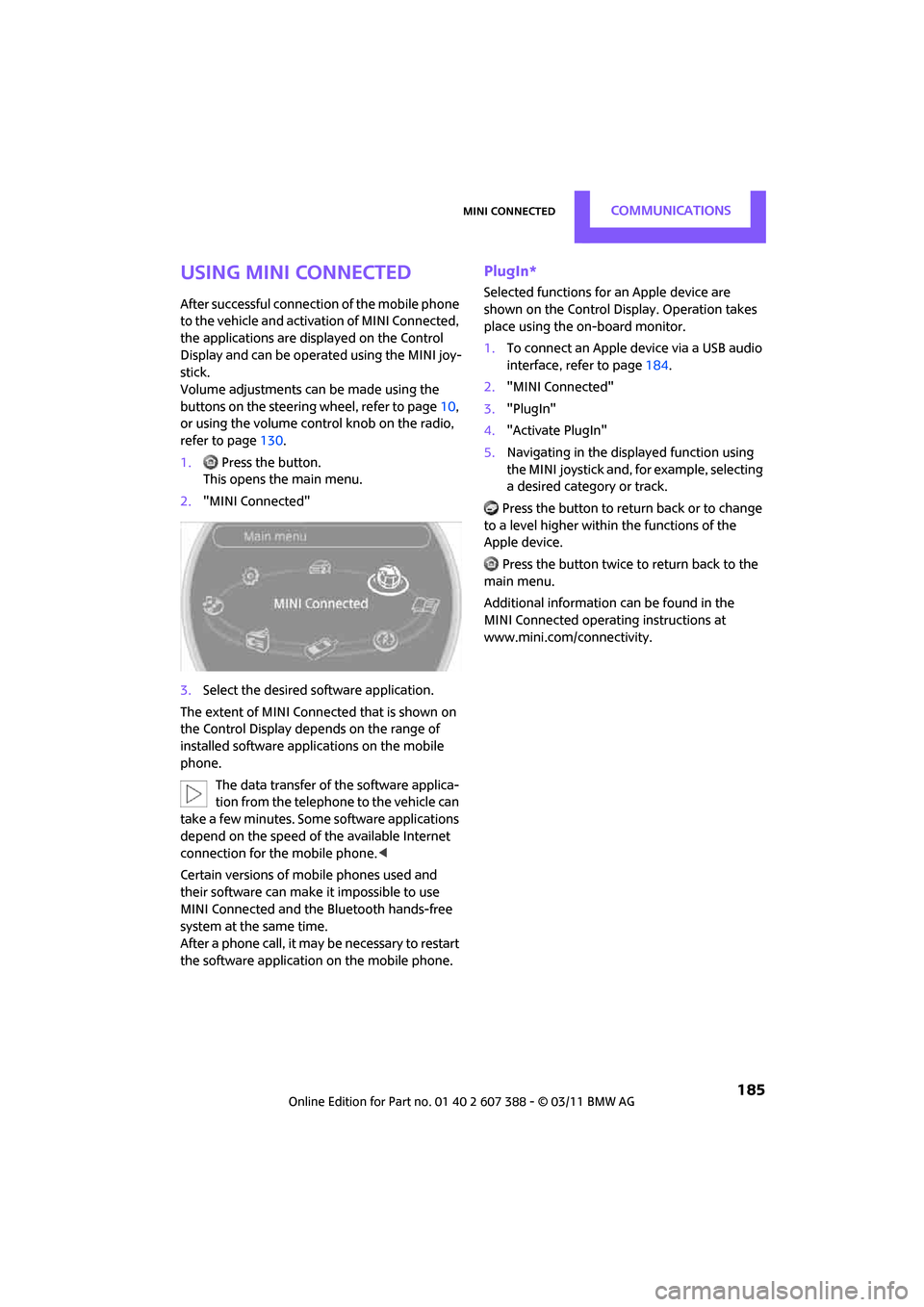
1. Press the button.
This opens the main menu.
2. "MINI Connected"
3. Select the desired software application.
The extent of MINI Connected that is shown on
the Control Display depends on the range of
installed software applic ations on the mobile
phone.
The data transfer of the software applica-
tion from the telephone to the vehicle can
take a few minutes. Some software applications
depend on the speed of the available Internet
connection for the mobile phone.<
Certain versions of mo bile phones used and
their software can make it impossible to use
MINI Connected and the Bluetooth hands-free
system at the same time.
After a phone call, it may be necessary to restart
the software application on the mobile phone.
PlugIn*
Selected functions for an Apple device are
shown on the Control Display. Operation takes
place using the on-board monitor.
1. To connect an Apple device via a USB audio
interface, refer to page 184.
2. "MINI Connected"
3. "PlugIn"
4. "Activate PlugIn"
5. Navigating in the displayed function using
the MINI joystick and, for example, selecting
a desired category or track.
Press the button to return back or to change
to a level higher within the functions of the
Apple device.
Press the button twice to return back to the
main menu.
Additional information can be found in the
MINI Connected operating instructions at
www.mini.com/connectivity.
Page 215 of 256
Replacing componentsMOBILITY
213
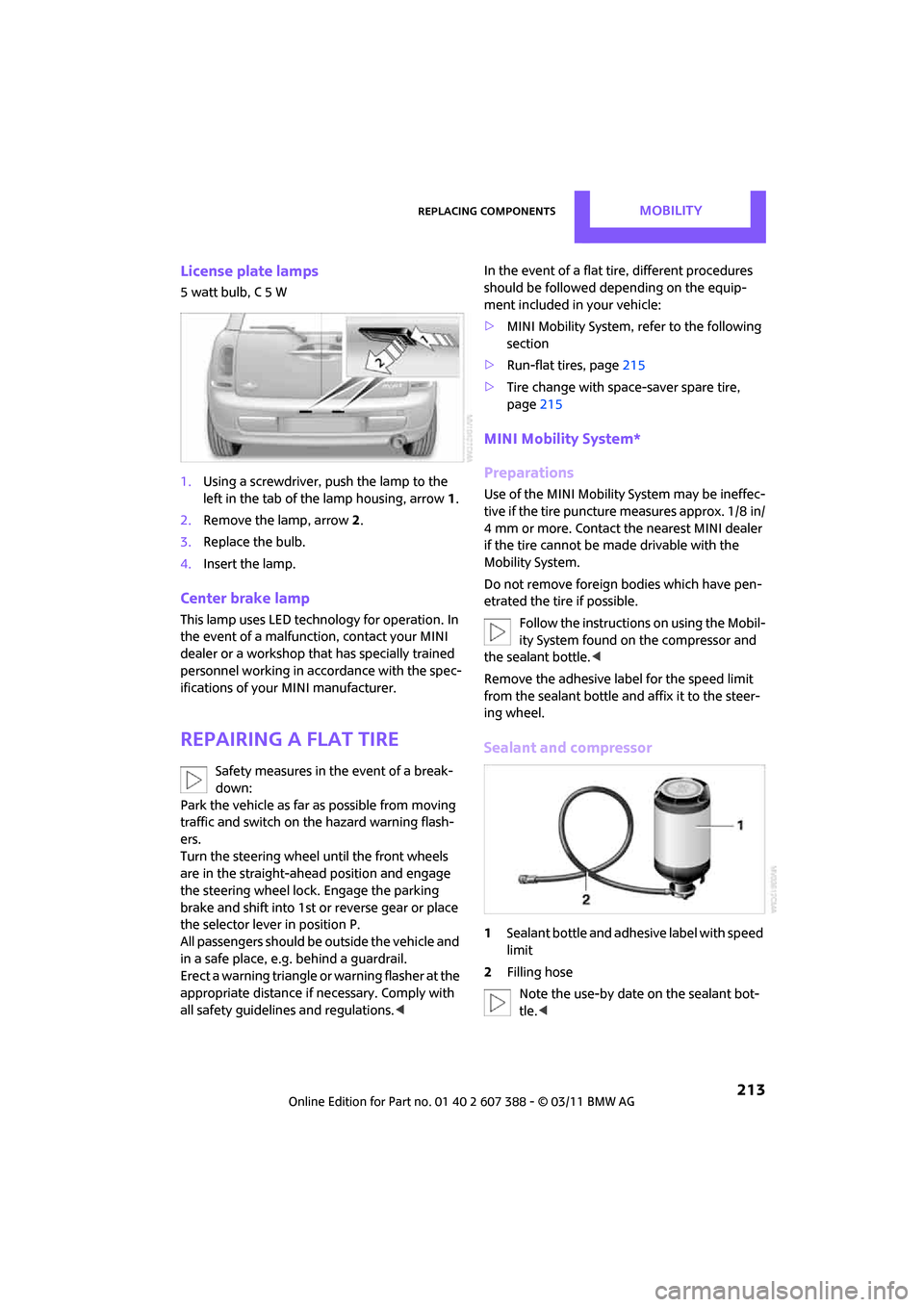
License plate lamps
5watt bulb, C5W
1.Using a screwdriver, push the lamp to the
left in the tab of the lamp housing, arrow 1.
2. Remove the lamp, arrow 2 .
3. Replace the bulb.
4. Insert the lamp.
Center brake lamp
This lamp uses LED technology for operation. In
the event of a malfunction, contact your MINI
dealer or a workshop that has specially trained
personnel working in acco rdance with the spec-
ifications of your MINI manufacturer.
Repairing a flat tire
Safety measures in the event of a break-
down:
Park the vehicle as far as possible from moving
traffic and switch on th e hazard warning flash-
ers.
Turn the steering wheel until the front wheels
are in the straight-ahead position and engage
the steering wheel lock. Engage the parking
brake and shift into 1st or reverse gear or place
the selector lever in position P.
All passengers should be outside the vehicle and
in a safe place, e.g. behind a guardrail.
Erect a warning triangle or warning flasher at the
appropriate distance if necessary. Comply with
all safety guidelines and regulations.
ment included in your vehicle:
>
MINI Mobility System, refer to the following
section
> Run-flat tires, page 215
> Tire change with space-saver spare tire,
page 215
MINI Mobility System*
Preparations
Use of the MINI Mobility System may be ineffec-
tive if the tire puncture measures approx. 1/8 in/
4 mm or more. Contact the nearest MINI dealer
if the tire cannot be made drivable with the
Mobility System.
Do not remove foreign bodies which have pen-
etrated the tire if possible.
Follow the instructions on using the Mobil-
ity System found on the compressor and
the sealant bottle. <
Remove the adhesive label for the speed limit
from the sealant bottle and affix it to the steer-
ing wheel.
Sealant and compressor
1 Sealant bottle and adhesi ve label with speed
limit
2 Filling hose
Note the use-by date on the sealant bot-
tle. <
Page 218 of 256
MOBILITYReplacing components
216
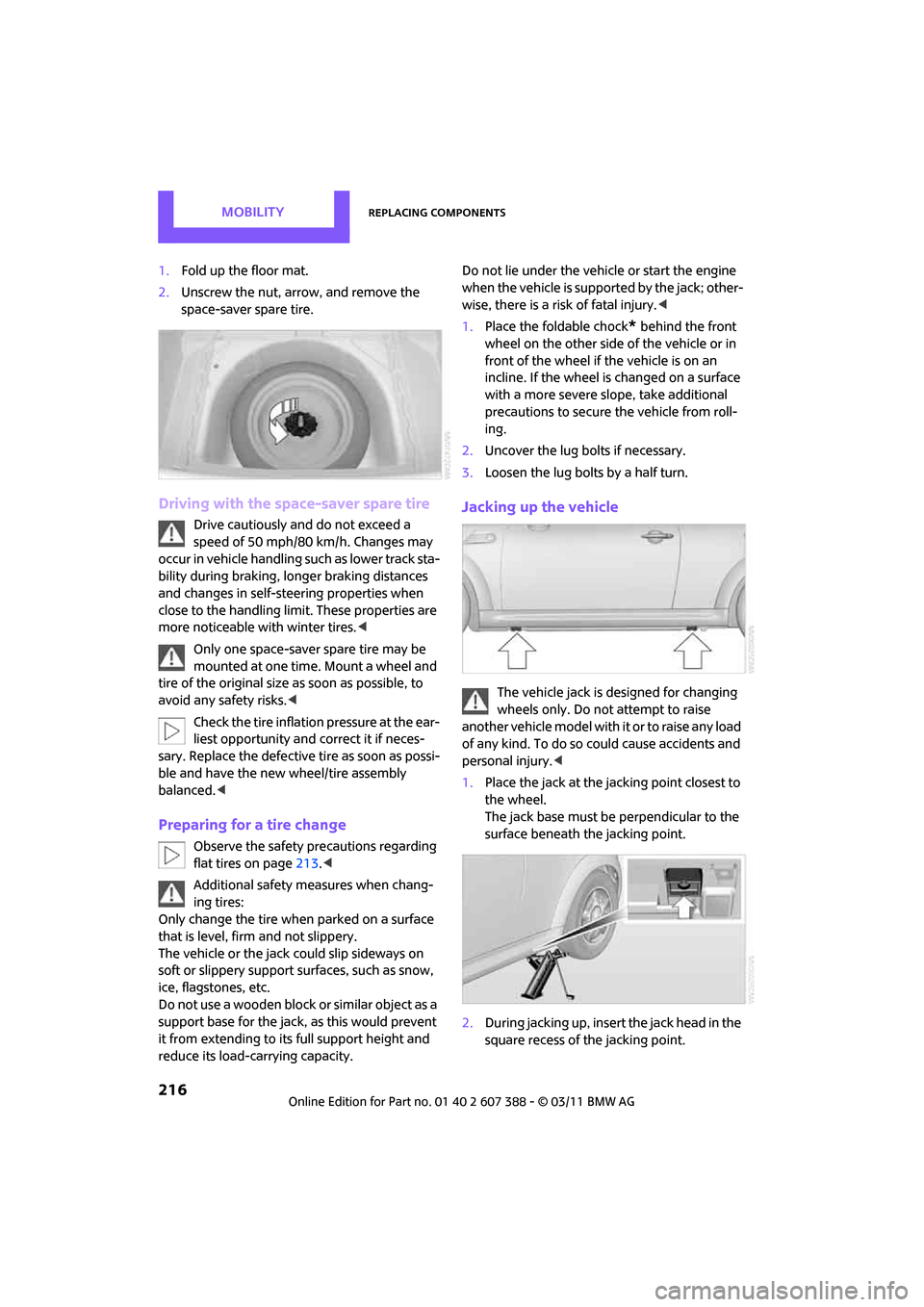
1.Fold up the floor mat.
2. Unscrew the nut, arrow, and remove the
space-saver spare tire.
Driving with the space-saver spare tire
Drive cautiously and do not exceed a
speed of 50 mph/80 km/h. Changes may
occur in vehicle handling such as lower track sta-
bility during br aking, longer braking distances
and changes in self-steering properties when
close to the handling limit. These properties are
more noticeable with winter tires. <
Only one space-saver spare tire may be
mounted at one time. Mount a wheel and
tire of the original size as soon as possible, to
avoid any safety risks. <
Check the tire inflation pressure at the ear-
liest opportunity and correct it if neces-
sary. Replace the defective tire as soon as possi-
ble and have the new wheel/tire assembly
balanced. <
Preparing for a tire change
Observe the safety precautions regarding
flat tires on page 213.<
Additional safety measures when chang-
ing tires:
Only change the tire wh en parked on a surface
that is level, firm and not slippery.
The vehicle or the jack could slip sideways on
soft or slippery support surfaces, such as snow,
ice, flagstones, etc.
Do not use a wooden block or similar object as a
support base for the jack, as this would prevent
it from extending to its full support height and
reduce its load-carrying capacity. Do not lie under the vehicle or start the engine
when the vehicle is supported by the jack; other-
wise, there is a risk of fatal injury.
<
1. Place the foldable chock
* behind the front
wheel on the other side of the vehicle or in
front of the wheel if the vehicle is on an
incline. If the wheel is changed on a surface
with a more severe sl ope, take additional
precautions to secure the vehicle from roll-
ing.
2. Uncover the lug bolts if necessary.
3. Loosen the lug bolts by a half turn.
Jacking up the vehicle
The vehicle jack is designed for changing
wheels only. Do not attempt to raise
another vehicle model with it or to raise any load
of any kind. To do so could cause accidents and
personal injury. <
1. Place the jack at the jacking point closest to
the wheel.
The jack base must be perpendicular to the
surface beneath the jacking point.
2. During jacking up, insert the jack head in the
square recess of the jacking point.