light MINI Clubman 2011 (Mini Connected) Workshop Manual
[x] Cancel search | Manufacturer: MINI, Model Year: 2011, Model line: Clubman, Model: MINI Clubman 2011Pages: 256, PDF Size: 3.75 MB
Page 140 of 256
ENTERTAINMENTRadio
138
5.Select the desired league.
6. Select "Add all teams" or a desired team.
Accessing favorites
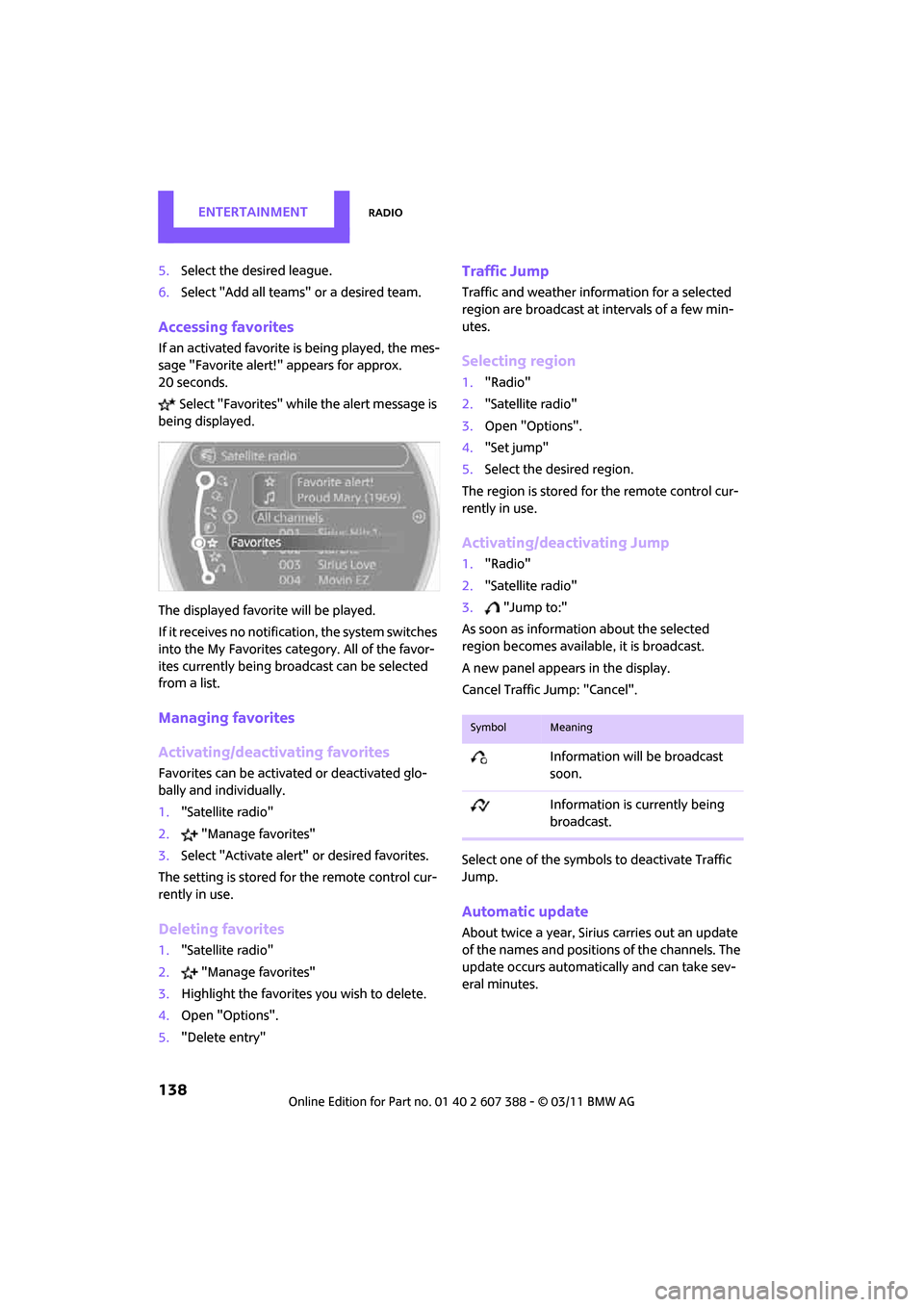
If an activated favorite is being played, the mes-
sage "Favorite alert!" appears for approx.
20 seconds.
Select "Favorites" while the alert message is
being displayed.
The displayed favorite will be played.
If it receives no notification, the system switches
into the My Favorites category. All of the favor-
ites currently being broadcast can be selected
from a list.
Managing favorites
Activating/deactivating favorites
Favorites can be activated or deactivated glo-
bally and individually.
1. "Satellite radio"
2. "Manage favorites"
3. Select "Activate alert" or desired favorites.
The setting is stored fo r the remote control cur-
rently in use.
Deleting favorites
1. "Satellite radio"
2. "Manage favorites"
3. Highlight the favorites you wish to delete.
4. Open "Options".
5. "Delete entry"
Traffic Jump
Traffic and weather information for a selected
region are broadcast at intervals of a few min-
utes.
Selecting region
1."Radio"
2. "Satellite radio"
3. Open "Options".
4. "Set jump"
5. Select the desired region.
The region is stored fo r the remote control cur-
rently in use.
Activating/deactivating Jump
1. "Radio"
2. "Satellite radio"
3. "Jump to:"
As soon as information about the selected
region becomes availabl e, it is broadcast.
A new panel appears in the display.
Cancel Traffic Jump: "Cancel".
Select one of the symbols to deactivate Traffic
Jump.
Automatic update
About twice a year, Sirius carries out an update
of the names and positions of the channels. The
update occurs automati cally and can take sev-
eral minutes.
SymbolMeaning
Information will be broadcast
soon.
Information is currently being
broadcast.
Page 150 of 256
ENTERTAINMENTExternal devices
148
Playback menu*
Depending on the device, all functions may not
be available.
Track search*
Depending on the device, it is possible to search
by track.
1."CD/Multimedia"
2. "External devices"
3. Select the symbol.
4. "Search device content"
5. "A-Z search"
6. Select desired entry or directory.
Player program*
Depending on the device, there may be various
programs for playing music files.
1."CD/Multimedia"
2. "External devices"
3. Select the symbol.
4. Open "Options".
5. "Select player"
6. Select the desired program.
Disconnecting an audio connection
1."CD/Multimedia"
2. "Bluetooth® (audio)"
3. Select the desired device from the list of con-
nected devices.
4. Open "Options".
5. "Configure phone" 6.
Deactivate "Audio".
7. "OK"
With a mobile phone, only the audio connection
is disconnected. All other connections remain
active.
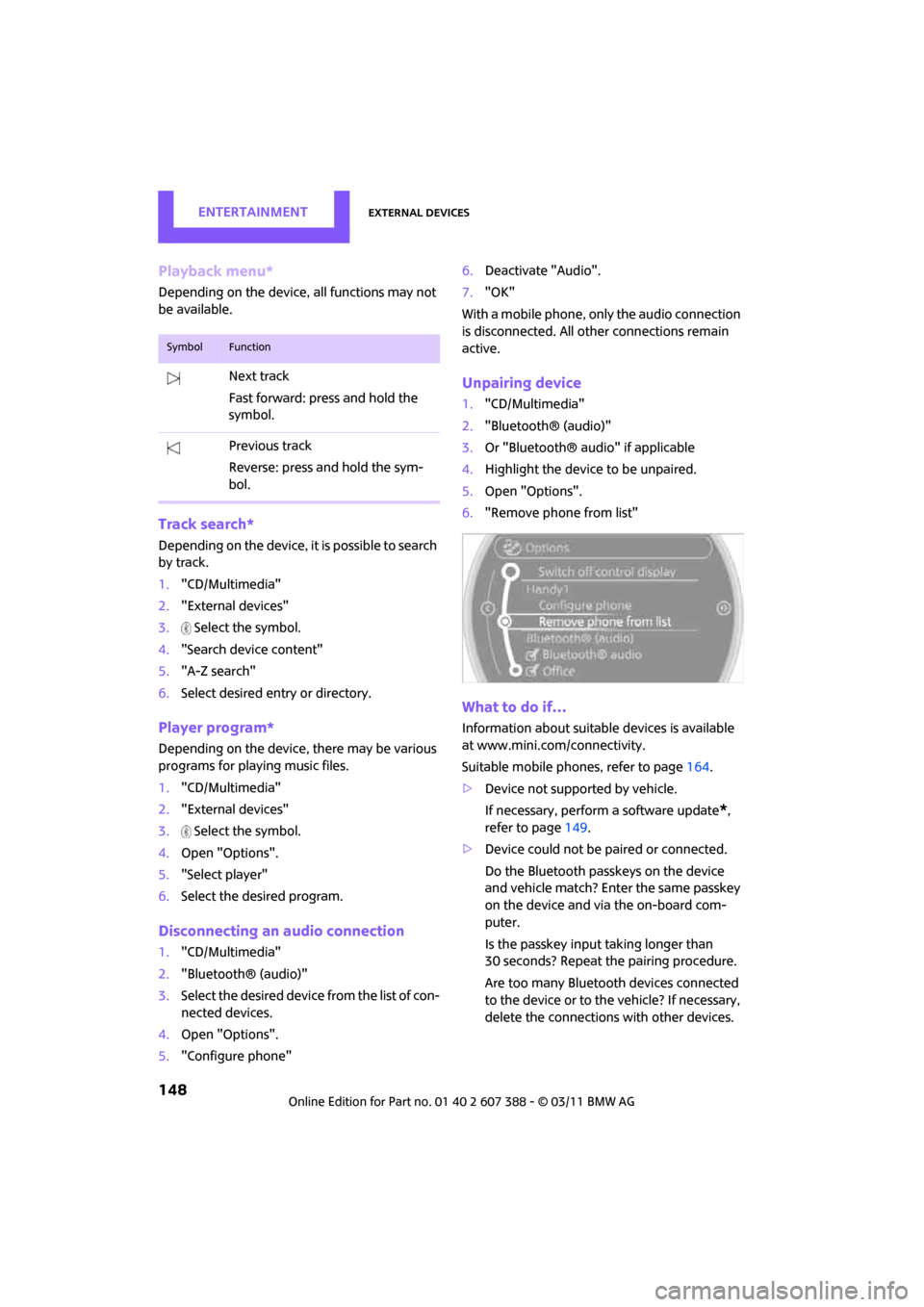
Unpairing device
1. "CD/Multimedia"
2. "Bluetooth® (audio)"
3. Or "Bluetooth® audio" if applicable
4. Highlight the device to be unpaired.
5. Open "Options".
6. "Remove phone from list"
What to do if…
Information about suitable devices is available
at www.mini.com /connectivity.
Suitable mobile phones, refer to page 164.
> Device not supported by vehicle.
If necessary, perform a software update
*,
refer to page 149.
> Device could not be paired or connected.
Do the Bluetooth passkeys on the device
and vehicle match? Enter the same passkey
on the device and via the on-board com-
puter.
Is the passkey input taking longer than
30 seconds? Repeat th e pairing procedure.
Are too many Bluetoot h devices connected
to the device or to the vehicle? If necessary,
delete the connections with other devices.
SymbolFunction
Next track
Fast forward: press and hold the
symbol.
Previous track
Reverse: press and hold the sym-
bol.
Page 158 of 256
CommunicationsHands-free device Bluetooth
156
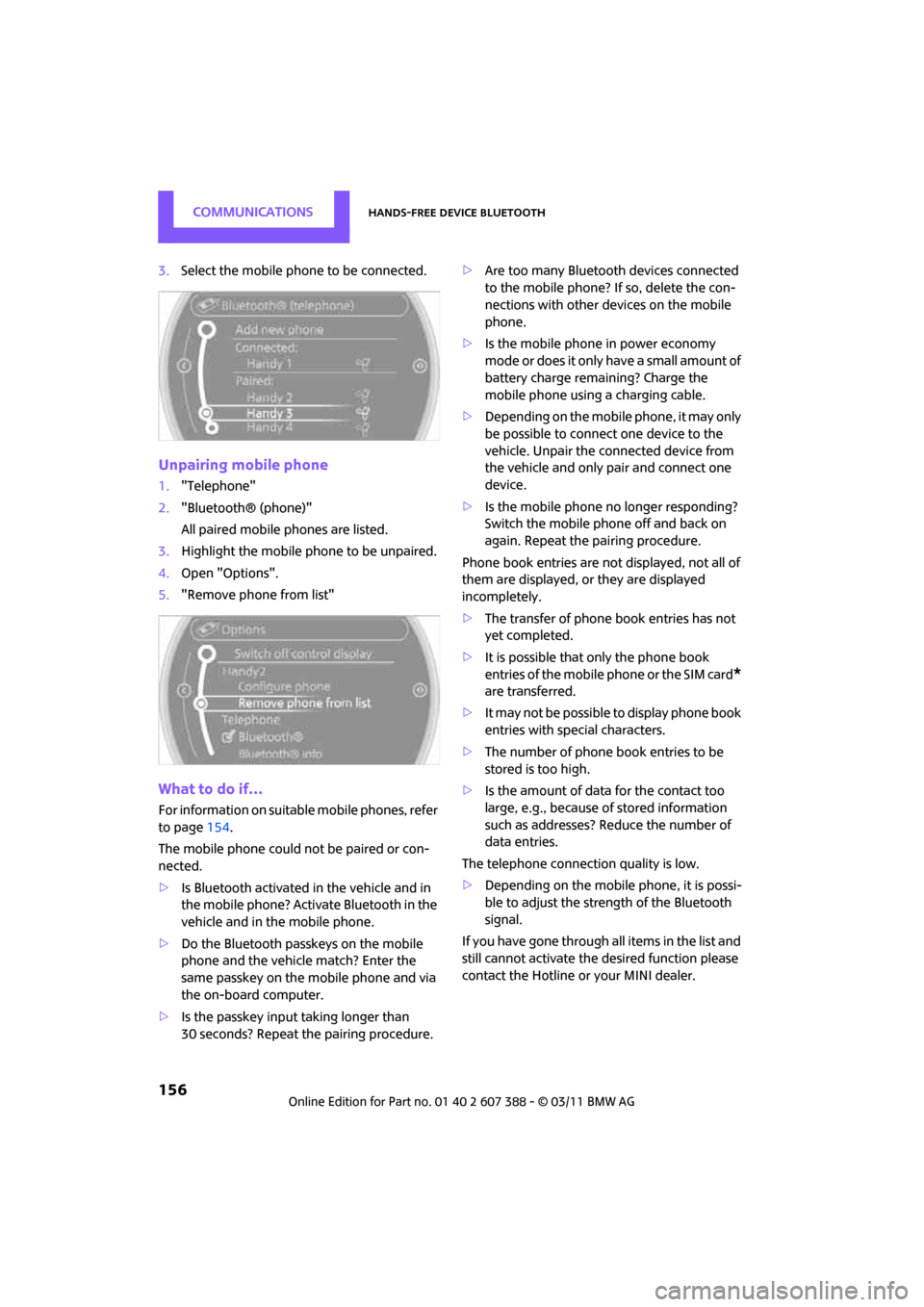
3.Select the mobile phone to be connected.
Unpairing mobile phone
1."Telephone"
2. "Bluetooth® (phone)"
All paired mobile phones are listed.
3. Highlight the mobile phone to be unpaired.
4. Open "Options".
5. "Remove phone from list"
What to do if…
For information on suitab le mobile phones, refer
to page 154.
The mobile phone could not be paired or con-
nected.
> Is Bluetooth activated in the vehicle and in
the mobile phone? Activate Bluetooth in the
vehicle and in the mobile phone.
> Do the Bluetooth passkeys on the mobile
phone and the vehicle match? Enter the
same passkey on the mobile phone and via
the on-board computer.
> Is the passkey input taking longer than
30 seconds? Repeat th e pairing procedure. >
Are too many Bluetoot h devices connected
to the mobile phone? If so, delete the con-
nections with other devices on the mobile
phone.
> Is the mobile phone in power economy
m o d e o r d o e s i t o n l y have a small amount of
battery charge remaining? Charge the
mobile phone using a charging cable.
> Depending on the mobile phone, it may only
be possible to connect one device to the
vehicle. Unpair the connected device from
the vehicle and only pair and connect one
device.
> Is the mobile phone no longer responding?
Switch the mobile phone off and back on
again. Repeat the pairing procedure.
Phone book entries are not displayed, not all of
them are displayed, or they are displayed
incompletely.
> The transfer of phone book entries has not
yet completed.
> It is possible that only the phone book
entries of the mobile phone or the SIM card
*
are transferred.
> It may not be possible to display phone book
entries with special characters.
> The number of phone book entries to be
stored is too high.
> Is the amount of data for the contact too
large, e.g., because of stored information
such as addresses? Reduce the number of
data entries.
The telephone connection quality is low.
> Depending on the mobile phone, it is possi-
ble to adjust the strength of the Bluetooth
signal.
If you have gone through all items in the list and
still cannot activate the desired function please
contact the Hotline or your MINI dealer.
Page 160 of 256
CommunicationsHands-free device Bluetooth
158
Calls with multiple parties
General information
It is possible to switch between two calls and to
connect two calls to form a conference call.
These functions must be supported by the
mobile phone and by the service provider.
Accepting a call wh ile speaking to
another party
This function may have to be activated by the
service provider and the mobile phone may
need to be adjusted for this.
When a second call comes in during an ongoing
call, a call-waiting signal sounds.
"Accept"
The call is accepted and the existing call is put on
hold.
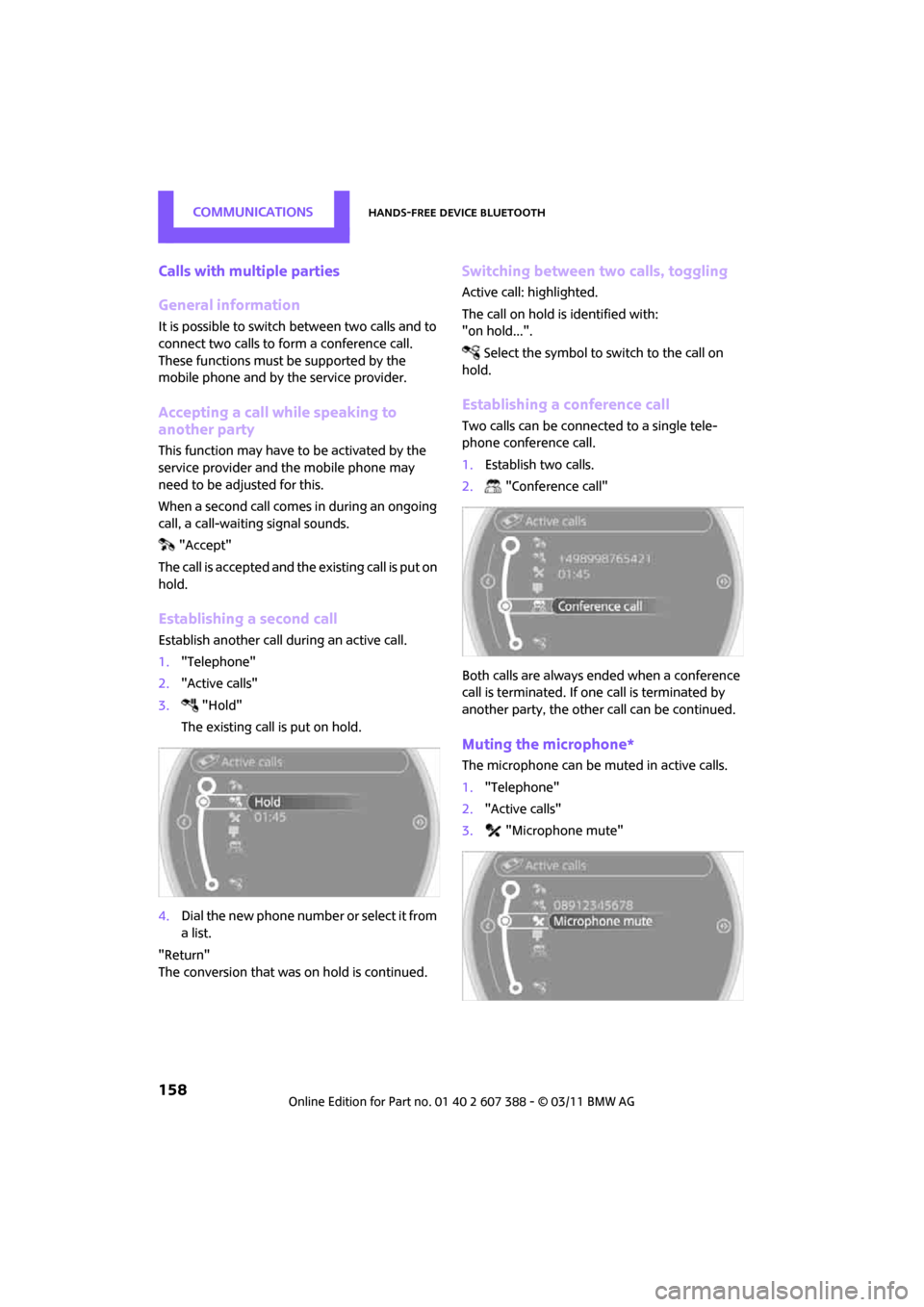
Establishing a second call
Establish another call during an active call.
1. "Telephone"
2. "Active calls"
3. "Hold"
The existing call is put on hold.
4. Dial the new phone number or select it from
a list.
"Return"
The conversion that was on hold is continued.
Switching between two calls, toggling
Active call: highlighted.
The call on hold is identified with:
"on hold...".
Select the symbol to switch to the call on
hold.
Establishing a conference call
Two calls can be connected to a single tele-
phone conference call.
1. Establish two calls.
2. "Conference call"
Both calls are always ended when a conference
call is terminated. If one call is terminated by
another party, the other call can be continued.
Muting the microphone*
The microphone can be muted in active calls.
1. "Telephone"
2. "Active calls"
3. "Microphone mute"
Page 161 of 256
Hands-free device BluetoothCommunications
159
The muted microphone is automatically acti-
vated:
>If a new call is made.
> When switching between callers on hold.
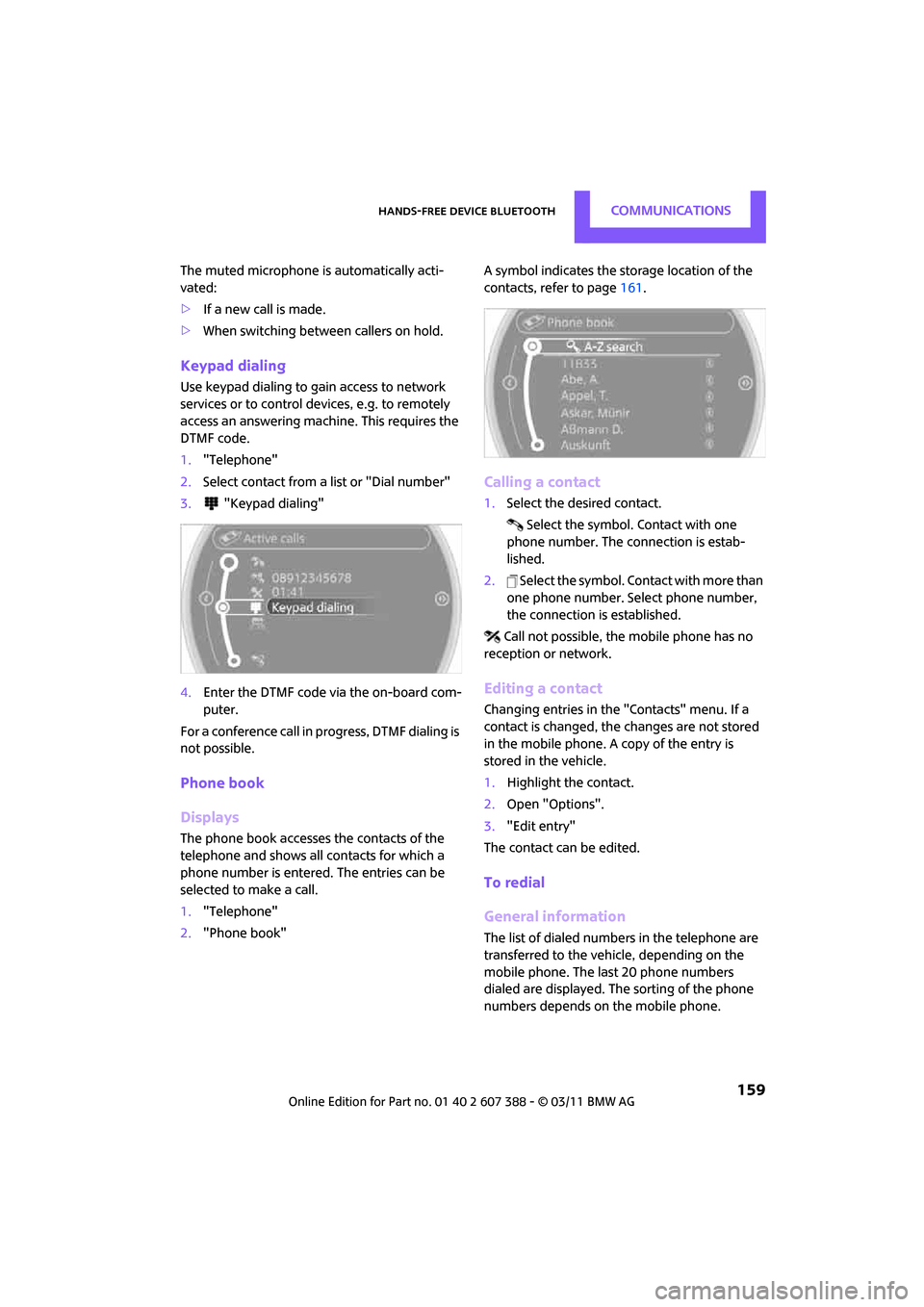
Keypad dialing
Use keypad dialing to gain access to network
services or to control de vices, e.g. to remotely
access an answering machine. This requires the
DTMF code.
1. "Telephone"
2. Select contact from a list or "Dial number"
3. "Keypad dialing"
4. Enter the DTMF code via the on-board com-
puter.
For a conference call in progress, DTMF dialing is
not possible.
Phone book
Displays
The phone book accesses the contacts of the
telephone and shows all contacts for which a
phone number is entered. The entries can be
selected to make a call.
1. "Telephone"
2. "Phone book" A symbol indicates the storage location of the
contacts, refer to page
161.
Calling a contact
1.Select the desired contact.
Select the symbol. Contact with one
phone number. The connection is estab-
lished.
2. Select the symbol. Contact with more than
one phone number. Select phone number,
the connection is established.
Call not possible, the mobile phone has no
reception or network.
Editing a contact
Changing entries in the "Contacts" menu. If a
contact is changed, the changes are not stored
in the mobile phone. A copy of the entry is
stored in the vehicle.
1. Highlight the contact.
2. Open "Options".
3. "Edit entry"
The contact can be edited.
To redial
General information
The list of dialed numbers in the telephone are
transferred to the vehicle, depending on the
mobile phone. The last 20 phone numbers
dialed are displayed. The sorting of the phone
numbers depends on the mobile phone.
Page 162 of 256
CommunicationsHands-free device Bluetooth
160
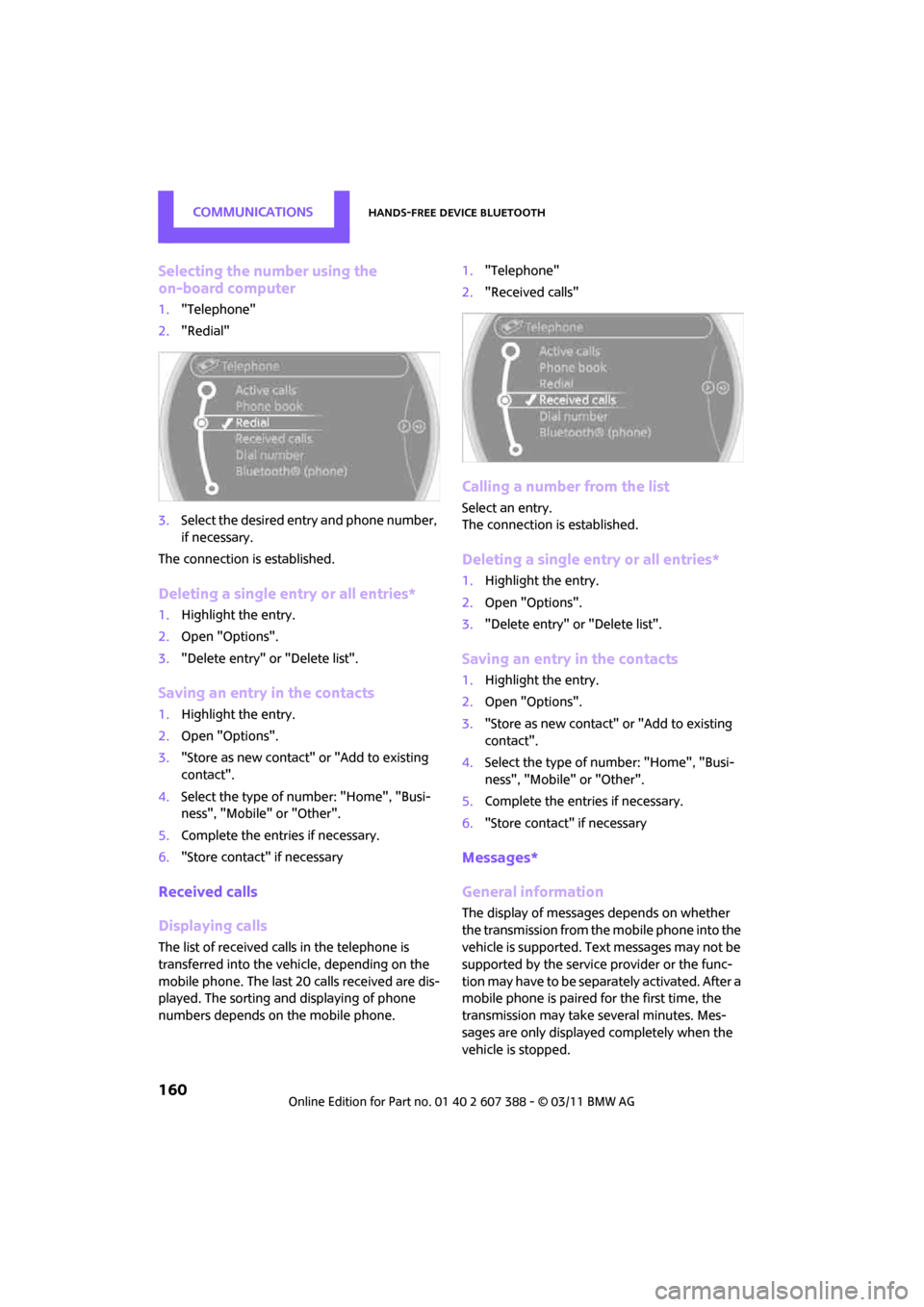
Selecting the number using the
on-board computer
1."Telephone"
2. "Redial"
3. Select the desired entry and phone number,
if necessary.
The connection is established.
Deleting a single entry or all entries*
1. Highlight the entry.
2. Open "Options".
3. "Delete entry" or "Delete list".
Saving an entry in the contacts
1.Highlight the entry.
2. Open "Options".
3. "Store as new contact" or "Add to existing
contact".
4. Select the type of number: "Home", "Busi-
ness", "Mobile" or "Other".
5. Complete the entries if necessary.
6. "Store contact" if necessary
Received calls
Displaying calls
The list of received calls in the telephone is
transferred into the vehi cle, depending on the
mobile phone. The last 20 calls received are dis-
played. The sorting and displaying of phone
numbers depends on the mobile phone. 1.
"Telephone"
2. "Received calls"
Calling a number from the list
Select an entry.
The connection is established.
Deleting a single entry or all entries*
1.Highlight the entry.
2. Open "Options".
3. "Delete entry" or "Delete list".
Saving an entry in the contacts
1.Highlight the entry.
2. Open "Options".
3. "Store as new contact" or "Add to existing
contact".
4. Select the type of number: "Home", "Busi-
ness", "Mobile" or "Other".
5. Complete the entries if necessary.
6. "Store contact" if necessary
Messages*
General information
The display of messages depends on whether
the transmission from the mobile phone into the
vehicle is supported. Te xt messages may not be
supported by the service provider or the func-
tion may have to be separately activated. After a
mobile phone is paired for the first time, the
transmission may take several minutes. Mes-
sages are only displayed completely when the
vehicle is stopped.
Page 164 of 256
CommunicationsHands-free device Bluetooth
162
My contacts
General information
A list of all contacts from the vehicle.
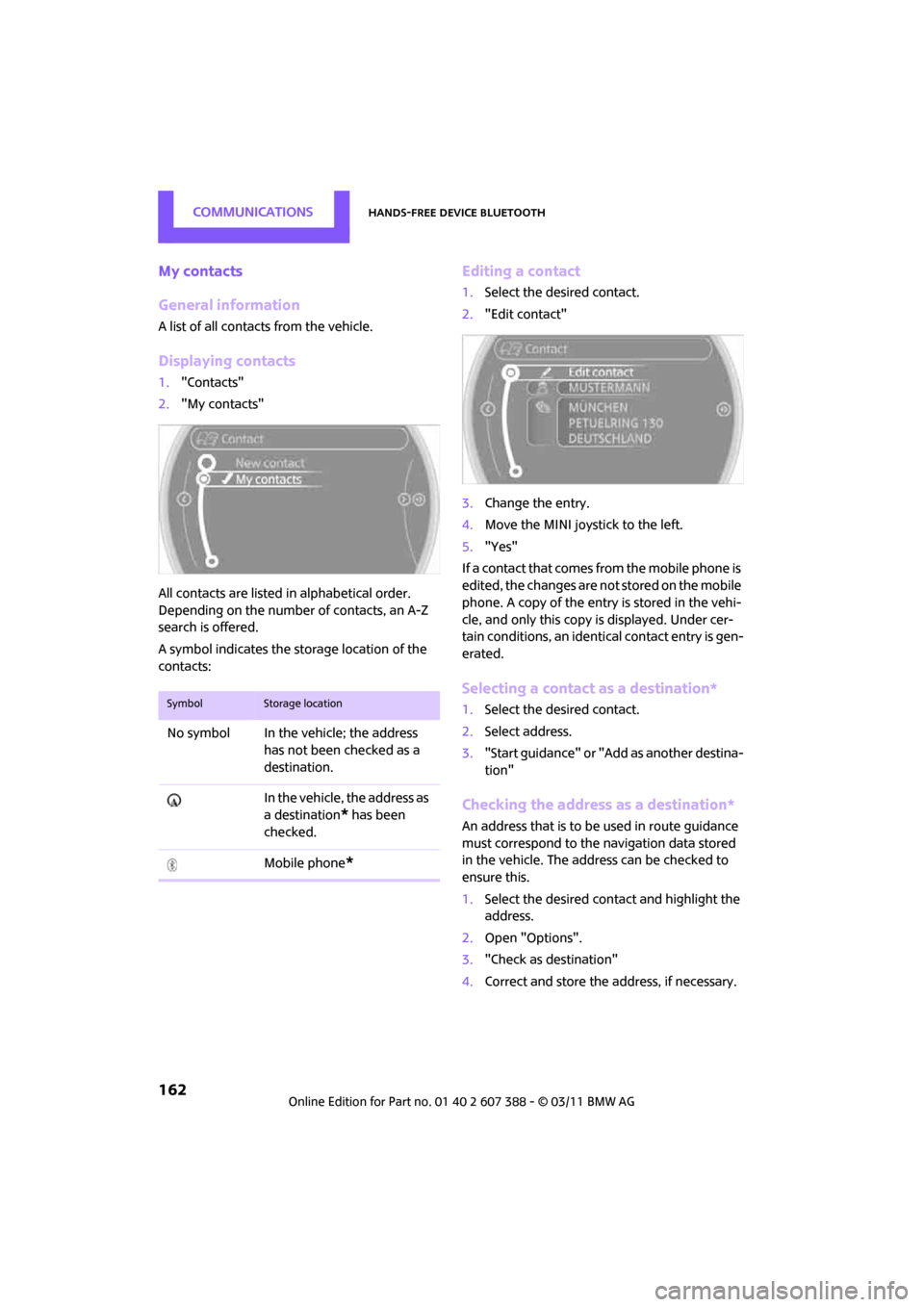
Displaying contacts
1."Contacts"
2. "My contacts"
All contacts are listed in alphabetical order.
Depending on the number of contacts, an A-Z
search is offered.
A symbol indicates the st orage location of the
contacts:
Editing a contact
1. Select the desired contact.
2. "Edit contact"
3. Change the entry.
4. Move the MINI joystick to the left.
5. "Yes"
If a contact that comes from the mobile phone is
edited, the changes are not stored on the mobile
phone. A copy of the entry is stored in the vehi-
cle, and only this copy is displayed. Under cer-
tain conditions, an identi cal contact entry is gen-
erated.
Selecting a contact as a destination*
1. Select the desired contact.
2. Select address.
3. "Start guidance" or "Add as another destina-
tion"
Checking the address as a destination*
An address that is to be used in route guidance
must correspond to the navigation data stored
in the vehicle. The address can be checked to
ensure this.
1. Select the desired contact and highlight the
address.
2. Open "Options".
3. "Check as destination"
4. Correct and store the address, if necessary.
SymbolStorage location
No symbol In the vehicle; the address
has not been checked as a
destination.
In the vehicle, the address as
a destination
* has been
checked.
Mobile phone
*
Page 165 of 256
Hands-free device BluetoothCommunications
163
Selecting name sorting
Names can be displayed in different orders.
1."My contacts"
2. Open "Options".
3. "Display: last, first name " or "Display: first,
last name"
Deleting contacts
1. "My contacts"
2. Highlight the contact.
3. Open "Options".
4. "Delete contact" or "Delete all contacts".
Page 169 of 256
Mobile phone preparation BluetoothCommunications
167
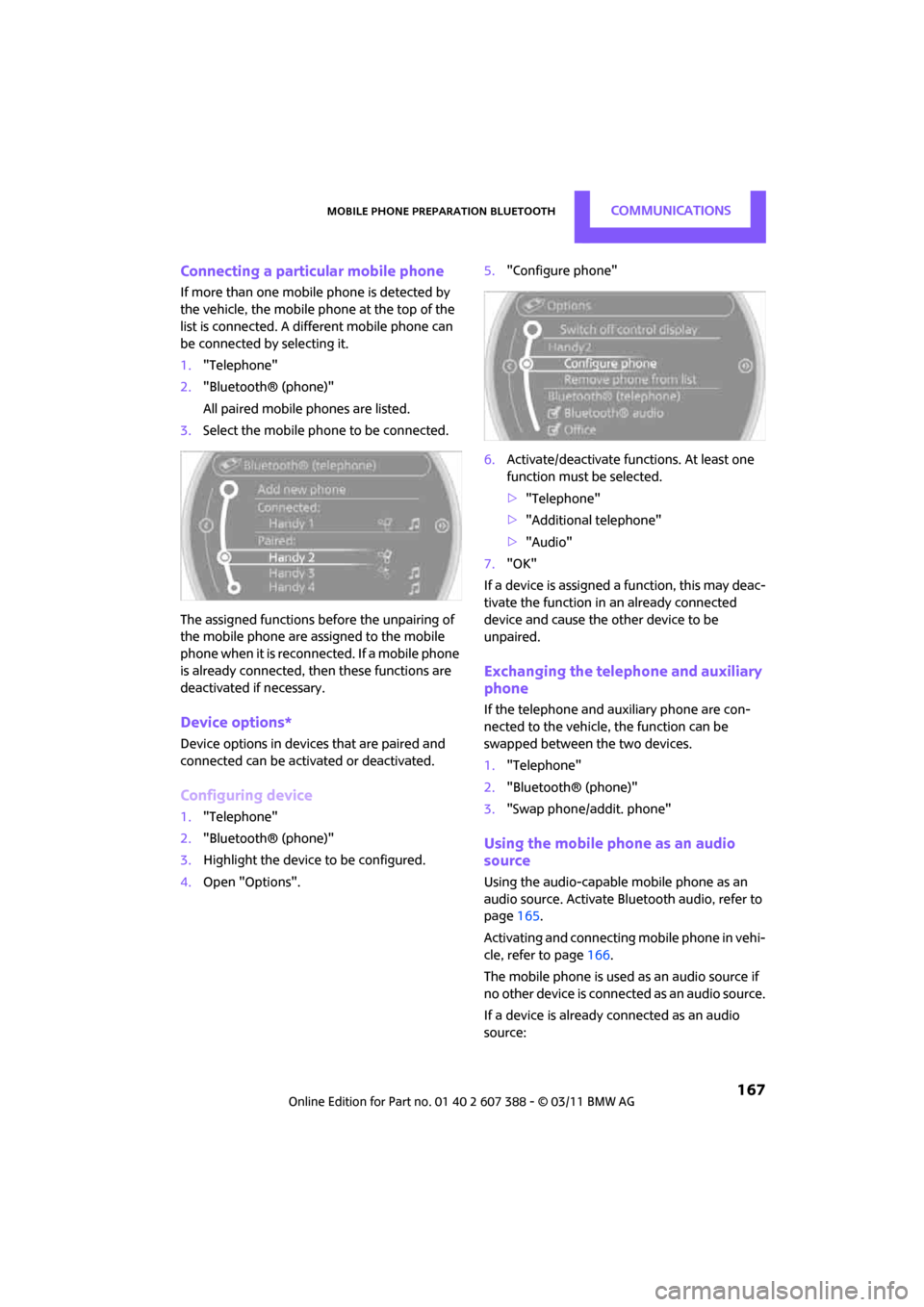
Connecting a particular mobile phone
If more than one mobile phone is detected by
the vehicle, the mobile phone at the top of the
list is connected. A diff erent mobile phone can
be connected by selecting it.
1. "Telephone"
2. "Bluetooth® (phone)"
All paired mobile phones are listed.
3. Select the mobile phone to be connected.
The assigned functions before the unpairing of
the mobile phone are assigned to the mobile
phone when it is reconnected. If a mobile phone
is already connected, then these functions are
deactivated if necessary.
Device options*
Device options in device s that are paired and
connected can be activated or deactivated.
Configuring device
1. "Telephone"
2. "Bluetooth® (phone)"
3. Highlight the device to be configured.
4. Open "Options". 5.
"Configure phone"
6. Activate/deactivate func tions. At least one
function must be selected.
> "Telephone"
> "Additional telephone"
> "Audio"
7. "OK"
If a device is assigned a function, this may deac-
tivate the function in an already connected
device and cause the other device to be
unpaired.
Exchanging the telephone and auxiliary
phone
If the telephone and auxiliary phone are con-
nected to the vehicle, the function can be
swapped between the two devices.
1. "Telephone"
2. "Bluetooth® (phone)"
3. "Swap phone/addit. phone"
Using the mobile phone as an audio
source
Using the audio-capable mobile phone as an
audio source. Activate Blue tooth audio, refer to
page 165.
Activating and connecting mobile phone in vehi-
cle, refer to page 166.
The mobile phone is used as an audio source if
no other device is connec ted as an audio source.
If a device is already connected as an audio
source:
Page 170 of 256
CommunicationsMobile phone preparation Bluetooth
168
1.Activating and connecting mobile phone in
vehicle, refer to page 166.
2. "Use for audio"
The mobile phone is connected as an audio
source. The previous audio source is no
longer connected to the vehicle.
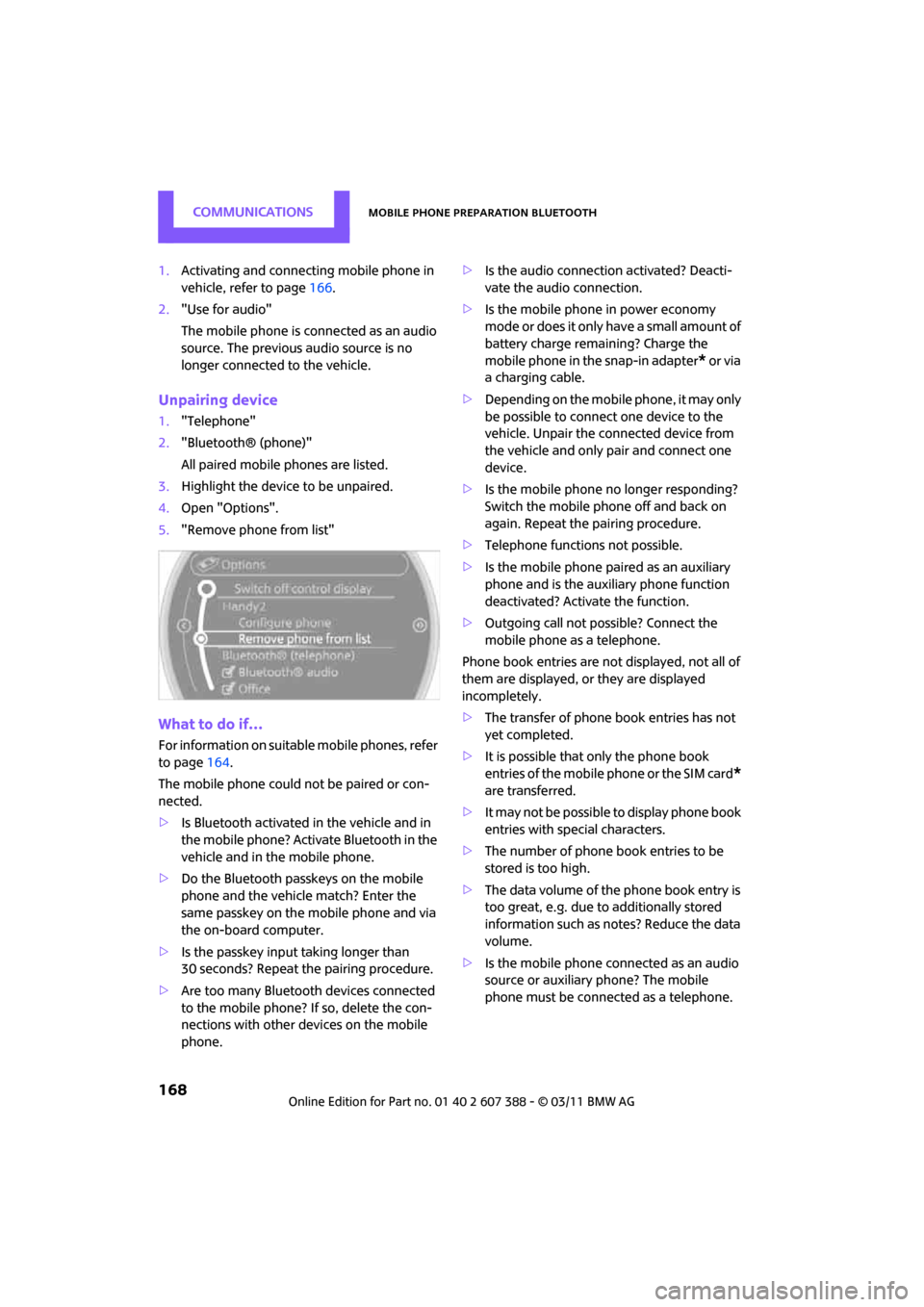
Unpairing device
1."Telephone"
2. "Bluetooth® (phone)"
All paired mobile phones are listed.
3. Highlight the device to be unpaired.
4. Open "Options".
5. "Remove phone from list"
What to do if…
For information on suitab le mobile phones, refer
to page 164.
The mobile phone could not be paired or con-
nected.
> Is Bluetooth activated in the vehicle and in
the mobile phone? Activate Bluetooth in the
vehicle and in the mobile phone.
> Do the Bluetooth passkeys on the mobile
phone and the vehicle match? Enter the
same passkey on the mobile phone and via
the on-board computer.
> Is the passkey input taking longer than
30 seconds? Repeat th e pairing procedure.
> Are too many Bluetoot h devices connected
to the mobile phone? If so, delete the con-
nections with other devices on the mobile
phone. >
Is the audio connection activated? Deacti-
vate the audio connection.
> Is the mobile phone in power economy
m o d e o r d o e s i t o n l y have a small amount of
battery charge remaining? Charge the
mobile phone in the snap-in adapter
* or via
a charging cable.
> Depending on the mobile phone, it may only
be possible to connect one device to the
vehicle. Unpair the connected device from
the vehicle and only pair and connect one
device.
> Is the mobile phone no longer responding?
Switch the mobile phone off and back on
again. Repeat the pairing procedure.
> Telephone functions not possible.
> Is the mobile phone paired as an auxiliary
phone and is the auxiliary phone function
deactivated? Activate the function.
> Outgoing call not possible? Connect the
mobile phone as a telephone.
Phone book entries are not displayed, not all of
them are displayed, or they are displayed
incompletely.
> The transfer of phone book entries has not
yet completed.
> It is possible that only the phone book
entries of the mobile phone or the SIM card
*
are transferred.
> It may not be possible to display phone book
entries with special characters.
> The number of phone book entries to be
stored is too high.
> The data volume of the phone book entry is
too great, e.g. due to additionally stored
information such as notes? Reduce the data
volume.
> Is the mobile phone connected as an audio
source or auxiliary phone? The mobile
phone must be connected as a telephone.