AUX MINI Clubman 2011 Owner's Manual (Mini Connected)
[x] Cancel search | Manufacturer: MINI, Model Year: 2011, Model line: Clubman, Model: MINI Clubman 2011Pages: 256, PDF Size: 3.75 MB
Page 106 of 256
DRIVING TIPSThings to remember when driving
104
Loading roof-mounted luggage rack
Because roof racks raise the vehicle's center of
gravity when loaded, they have a major effect
on vehicle handling and steering response.
You should therefore always remember not to
exceed the approved roof load capacity, the
approved gross vehicle weight or the axle loads
when loading the rack.
You can find the applicable data under Weights
on page 228.
The roof load must be distributed uniformly and
should not be too large in area. Heavy items
should always be placed at the bottom.
When loading, make sure that there is sufficient
space for the movement of the glass roof.
Fasten roof-mounted cargo correctly and
securely to prevent it from shifting or falling off
during the trip.
Drive smoothly. Avoid su dden acceleration and
braking maneuvers, and take corners gently.
Saving fuel
Fuel consumption depends on a number of dif-
ferent factors. The implementation of certain
measures, your driving style and regular mainte-
nance can have an influence on fuel consump-
tion and on the environmental impact.
Remove unnecessary cargo
Additional weight incr eases fuel consumption.
Remove attached parts no longer in use
Remove auxiliary mirrors, roof- or rear-mounted
luggage racks whenever you are not using
them.
Attached parts on the ve hicle affect its aero-
dynamics and increase fuel consumption.
Check tire inflation pressure regularly
Check and, if necessary, correct tire inflation
pressure at least twice a month and before start-
ing on a long trip. Low inflation pressure increases rolling resis-
tance and thus leads to greater fuel consump-
tion and tire wear.
Drive off immediately
Do not wait for the engine to warm up while the
vehicle remains stationary. Start driving right
away, but at moderate engi
ne speeds. This is the
fastest way for the cold engine to reach its oper-
ating temperature.
Think ahead while driving
Avoid unnecessary acceleration and braking by
maintaining a suitable di stance to the vehicle
driving ahead.
Driving smoothly and an ticipating impending
traffic situations reduces fuel consumption.
Avoid high engine speeds
Use first gear only for driving off. In second and
higher gears, accelerate smoothly to a suitable
engine and road speed. In doing so, avoid high
engine speeds and shift up early.
When you reach your desired traveling speed,
shift to the highest suit able gear and drive at
constant speed.
As a rule: driving at lo w engine speeds lowers
fuel consumption and reduces wear.
Coasting
When approaching a red traffic light, take your
foot off the accelerator and let the vehicle coast
to a halt in the highest suitable gear.
On a downhill gradient, take your foot off the
accelerator and let the vehicle coast in a suitable
gear.
Fuel supply is shut off automatically when the
vehicle is coasting.
Switch off the engine during lengthy
stops
Switch off the engine when stopping for lengthy
periods, e.g. at traffic li ghts, railroad crossings or
in traffic jams.
Page 144 of 256

ENTERTAINMENTExternal devices
142
External devices
Overview
AUX-IN connection
Overview
>It is possible to connect audio devices, e.g.
MP3 players. Sound is output over the vehi-
cle speakers.
> Recommended settings: mid-level tone and
volume settings on the audio device. Tone
may depend on the quality of the audio files.
Connecting
1USB interface
2 Connection for audio playback:
TRS connector 1/8"/3.5 mm
For audio playback through the vehicle speak-
ers, connect the headphones or line-out con-
nection of the device to the AUX-IN
connection 2.
Starting audio playback
The audio device must be switched on.
1. "CD/Multimedia"
2. Or "External devices" if applicable
3. "AUX front"
Sound is output on the vehicle loudspeakers.
Volume
The volume of the sound output depends on the
audio device. If this volume differs markedly
from the volume of the other audio sources, it is
advisable to adjust the volumes.
Adjusting volume
1. "CD/Multimedia"
2. Or "External devices" if applicable
3. "AUX front"
4. "Volume"
5. Turn MINI joystick until the desired volume
is set and then press the MINI joystick.
SymbolMeaning
USB audio interface*
Mobile phone audio interface*
Bluetooth audio*
AUX-IN connection
Page 166 of 256
CommunicationsMobile phone preparation Bluetooth
164
Mobile phone preparation
Bluetooth
Overview
The concept
Mobile phones or other external devices, e.g.
audio players, can be connected to the vehicle
via Bluetooth.
Bluetooth® is a registered trademark of Blue-
tooth® SIG, Inc.
After being paired once, when the ignition is
switched on, these devices are automatically
detected as soon as they are present in the vehi-
cle and can be controlled via the on-board com-
puter, the buttons on the steering wheel, and by
voice
*.
Depending on whether they are functioning as a
telephone and/or as an audio source, external
devices can be used via the vehicle. The tele-
phone functions will be described below. Oper-
ation of audio functions, refer to page 146.
It may be necessary for some functions to be
activated by the mobile phone provider.
Only make entries when traffic conditions
permit. Do not hold the mobile phone in
your hand while you are driving; use the hands-
free system instead. If you do not observe this
precaution, your being distracted can endanger
vehicle occupants and other road users. <
Snap-in adapter*
The snap-in adapter, refer to page175, makes it
possible to:
> Accommodate the mobile phone.
> Recharge its battery.
> Connect it to an exte rnal antenna of the
vehicle.
This assures a better network connection
and constant sound quality. A mobile phone that is connected to the vehicle
should not be operated via the mobile phone
keypad; otherwise, ma
lfunctions may occur.
Suitable mobile phones
For precise information as to which mobile
phones and external devices with Bluetooth
interfaces are supported by the mobile phone
preparation, go to ww w.mini.com/connectivity.
With a certain software version, these suitable
mobile phones support the vehicle functions
described below.
With other mobile phones or software versions,
malfunctions may occur.
It is possible to perform a software update
*,
refer to page 149.
Displaying vehicle identification number
and software part number
Checking which mobile phones are supported
by the mobile phone preparation requires the
vehicle identification number and software part
number. The software version of the mobile
phone may also be required.
1."Telephone"
2. Open "Options".
3. "Bluetooth® info"
4. "Display system information"
Pairing/unpairing mobile
phone
Overview
>Using a mobile phone as a telephone.
> Using a mobile phone as an auxiliary
phone
*.
*
Page 167 of 256
Mobile phone preparation BluetoothCommunications
165
>Using a mobile phone as an audio source*
>Using an audio device as an audio source,
refer to page 146.
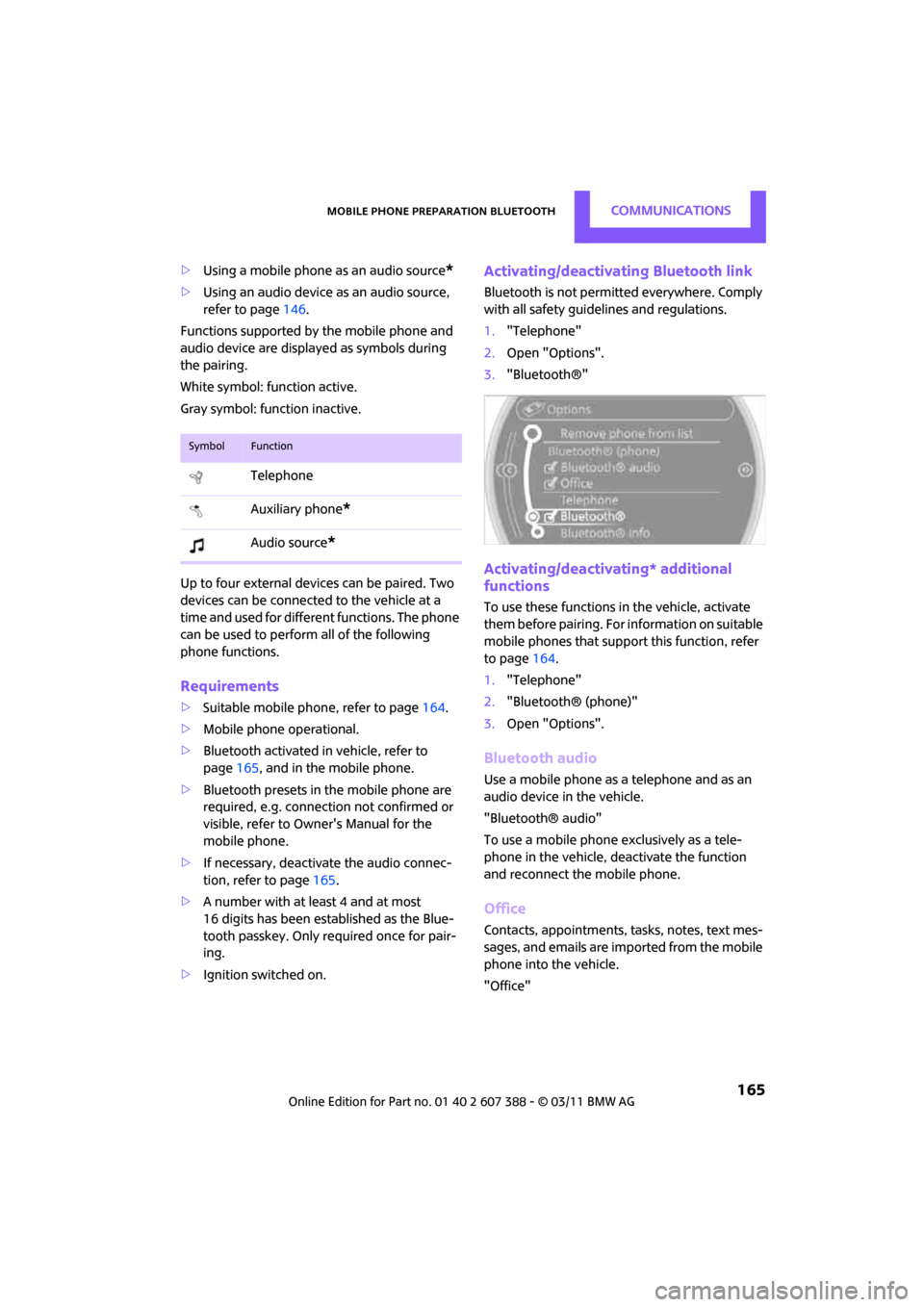
Functions supported by the mobile phone and
audio device are displayed as symbols during
the pairing.
White symbol: function active.
Gray symbol: function inactive.
Up to four external devices can be paired. Two
devices can be connecte d to the vehicle at a
time and used for different functions. The phone
can be used to perform all of the following
phone functions.
Requirements
> Suitable mobile phone, refer to page 164.
> Mobile phone operational.
> Bluetooth activated in vehicle, refer to
page 165, and in the mobile phone.
> Bluetooth presets in the mobile phone are
required, e.g. connection not confirmed or
visible, refer to Ow ner's Manual for the
mobile phone.
> If necessary, deactivate the audio connec-
tion, refer to page 165.
> A number with at le ast 4 and at most
16 digits has been established as the Blue-
tooth passkey. Only required once for pair-
ing.
> Ignition switched on.
Activating/deactivating Bluetooth link
Bluetooth is not permitted everywhere. Comply
with all safety guidel ines and regulations.
1. "Telephone"
2. Open "Options".
3. "Bluetooth®"
Activating/deactivat ing* additional
functions
To use these functions in the vehicle, activate
them before pairing. For information on suitable
mobile phones that suppo rt this function, refer
to page 164.
1. "Telephone"
2. "Bluetooth® (phone)"
3. Open "Options".
Bluetooth audio
Use a mobile phone as a telephone and as an
audio device in the vehicle.
"Bluetooth® audio"
To use a mobile phone exclusively as a tele-
phone in the vehicle, deactivate the function
and reconnect the mobile phone.
Office
Contacts, appointments, tasks, notes, text mes-
sages, and emails are imported from the mobile
phone into the vehicle.
"Office"
SymbolFunction
Telephone
Auxiliary phone
*
Audio source*
Page 168 of 256
CommunicationsMobile phone preparation Bluetooth
166
Auxiliary phone*
Incoming calls to the auxiliary phone can be
accepted, refer to page169. Missed calls to the
auxiliary phone can be shown in the Control Dis-
play.
Another mobile phone can be used as an auxil-
iary phone.
"Additional telephone"
Pairing and connecting
Only pair the mobile phone when the
vehicle is stopped; otherwise, inattention
may lead to endangerment of passengers or
other road users.<
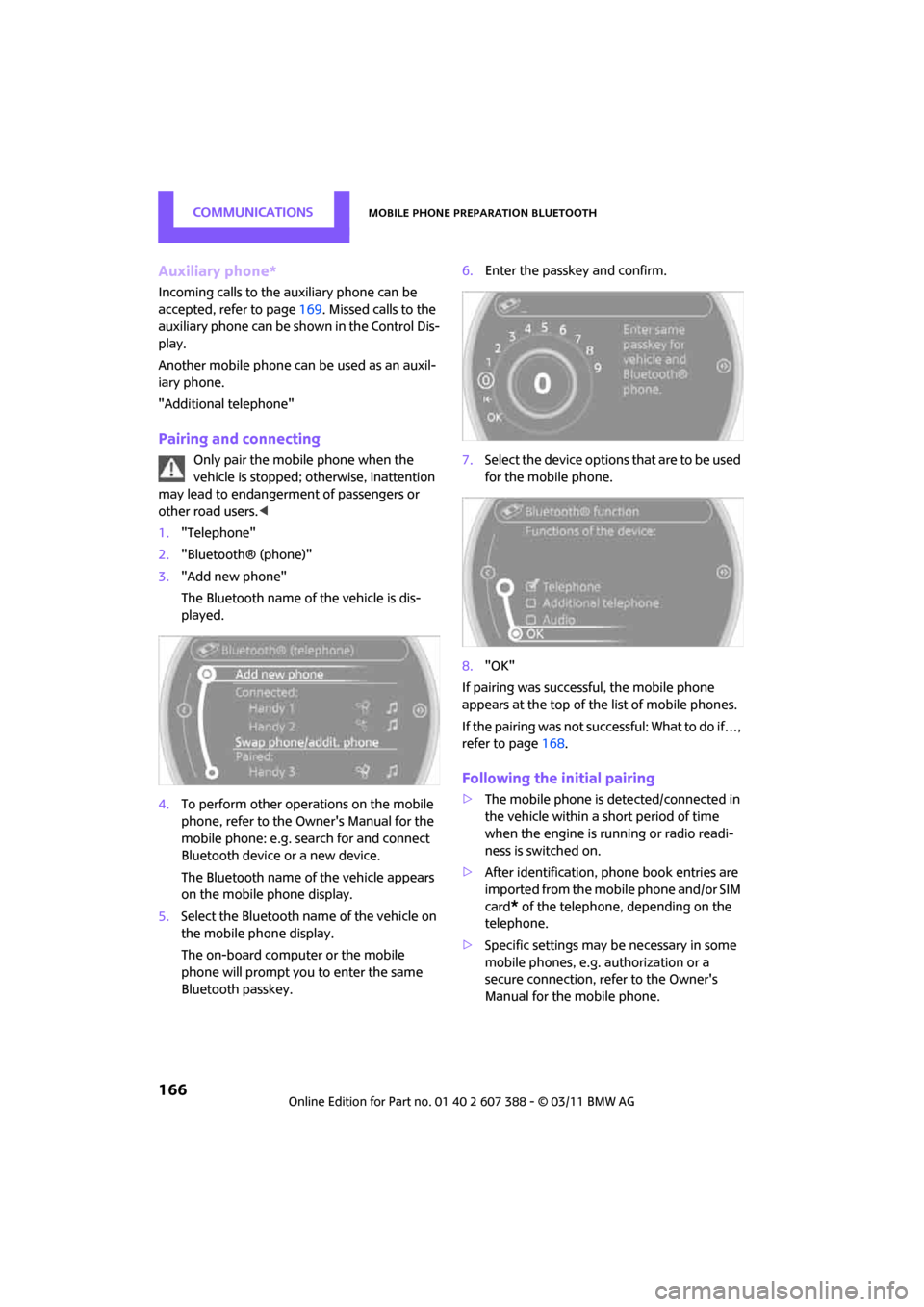
1. "Telephone"
2. "Bluetooth® (phone)"
3. "Add new phone"
The Bluetooth name of the vehicle is dis-
played.
4. To perform other operations on the mobile
phone, refer to the Ow ner's Manual for the
mobile phone: e.g. search for and connect
Bluetooth device or a new device.
The Bluetooth name of the vehicle appears
on the mobile phone display.
5. Select the Bluetooth name of the vehicle on
the mobile phone display.
The on-board computer or the mobile
phone will prompt you to enter the same
Bluetooth passkey. 6.
Enter the passkey and confirm.
7. Select the device options that are to be used
for the mobile phone.
8. "OK"
If pairing was successful, the mobile phone
appears at the top of the list of mobile phones.
If the pairing was not successful: What to do if…,
refer to page 168.
Following the initial pairing
>The mobile phone is detected/connected in
the vehicle within a short period of time
when the engine is running or radio readi-
ness is switched on.
> After identification, phone book entries are
imported from the mobile phone and/or SIM
card
* of the telephone, depending on the
telephone.
> Specific settings may be necessary in some
mobile phones, e.g. authorization or a
secure connection, re fer to the Owner's
Manual for the mobile phone.
Page 169 of 256
Mobile phone preparation BluetoothCommunications
167
Connecting a particular mobile phone
If more than one mobile phone is detected by
the vehicle, the mobile phone at the top of the
list is connected. A diff erent mobile phone can
be connected by selecting it.
1. "Telephone"
2. "Bluetooth® (phone)"
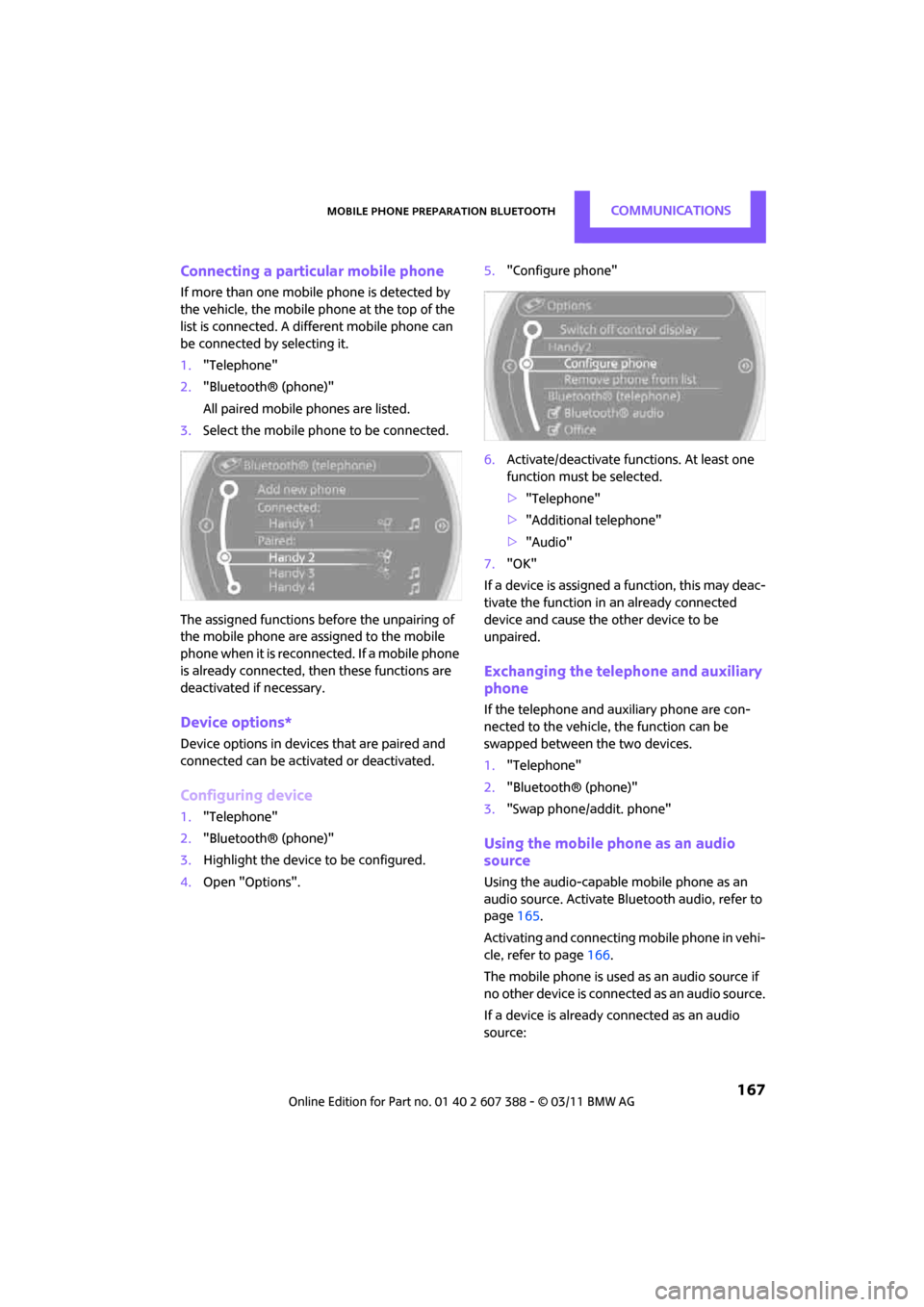
All paired mobile phones are listed.
3. Select the mobile phone to be connected.
The assigned functions before the unpairing of
the mobile phone are assigned to the mobile
phone when it is reconnected. If a mobile phone
is already connected, then these functions are
deactivated if necessary.
Device options*
Device options in device s that are paired and
connected can be activated or deactivated.
Configuring device
1. "Telephone"
2. "Bluetooth® (phone)"
3. Highlight the device to be configured.
4. Open "Options". 5.
"Configure phone"
6. Activate/deactivate func tions. At least one
function must be selected.
> "Telephone"
> "Additional telephone"
> "Audio"
7. "OK"
If a device is assigned a function, this may deac-
tivate the function in an already connected
device and cause the other device to be
unpaired.
Exchanging the telephone and auxiliary
phone
If the telephone and auxiliary phone are con-
nected to the vehicle, the function can be
swapped between the two devices.
1. "Telephone"
2. "Bluetooth® (phone)"
3. "Swap phone/addit. phone"
Using the mobile phone as an audio
source
Using the audio-capable mobile phone as an
audio source. Activate Blue tooth audio, refer to
page 165.
Activating and connecting mobile phone in vehi-
cle, refer to page 166.
The mobile phone is used as an audio source if
no other device is connec ted as an audio source.
If a device is already connected as an audio
source:
Page 170 of 256
CommunicationsMobile phone preparation Bluetooth
168
1.Activating and connecting mobile phone in
vehicle, refer to page 166.
2. "Use for audio"
The mobile phone is connected as an audio
source. The previous audio source is no
longer connected to the vehicle.
Unpairing device
1."Telephone"
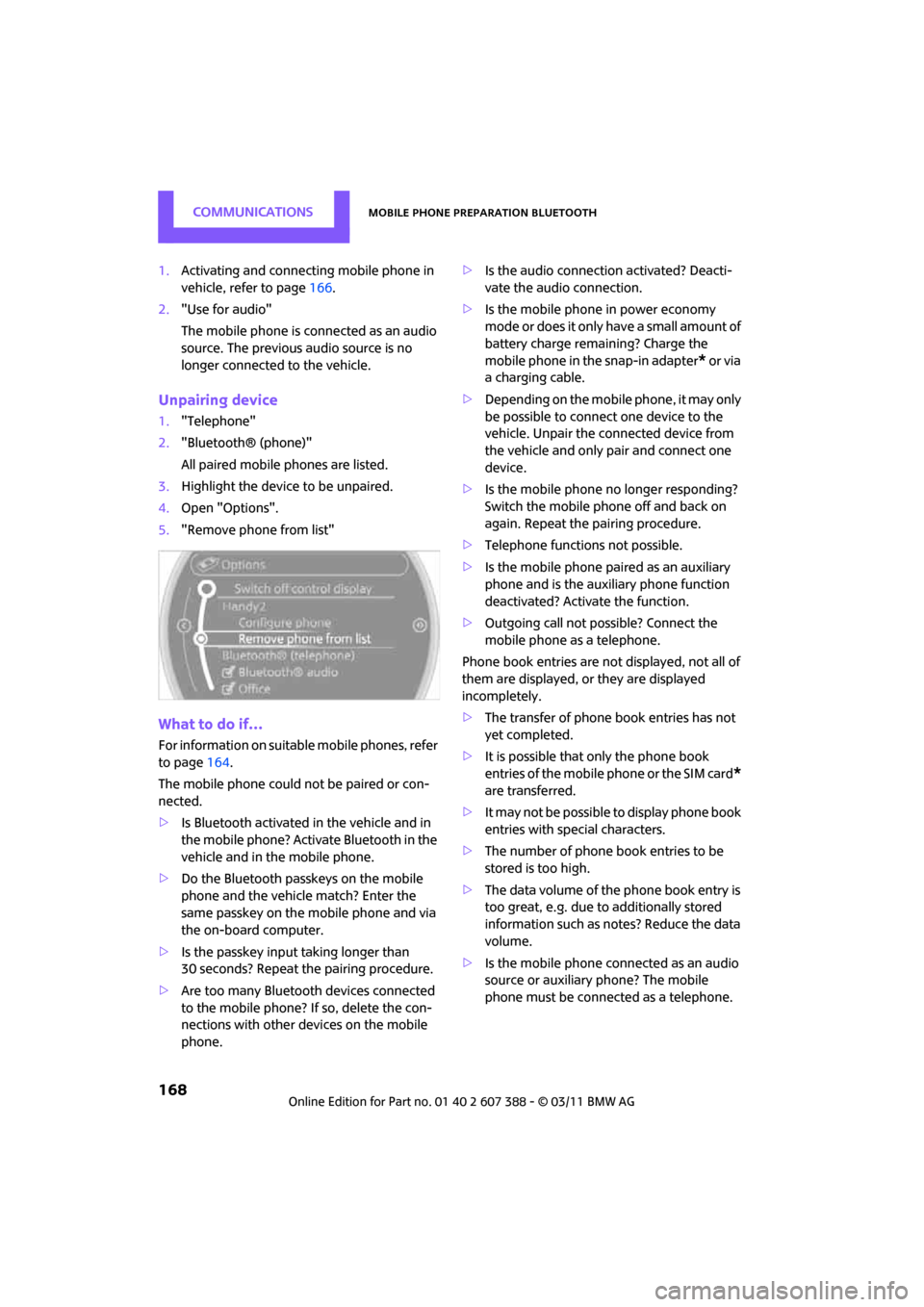
2. "Bluetooth® (phone)"
All paired mobile phones are listed.
3. Highlight the device to be unpaired.
4. Open "Options".
5. "Remove phone from list"
What to do if…
For information on suitab le mobile phones, refer
to page 164.
The mobile phone could not be paired or con-
nected.
> Is Bluetooth activated in the vehicle and in
the mobile phone? Activate Bluetooth in the
vehicle and in the mobile phone.
> Do the Bluetooth passkeys on the mobile
phone and the vehicle match? Enter the
same passkey on the mobile phone and via
the on-board computer.
> Is the passkey input taking longer than
30 seconds? Repeat th e pairing procedure.
> Are too many Bluetoot h devices connected
to the mobile phone? If so, delete the con-
nections with other devices on the mobile
phone. >
Is the audio connection activated? Deacti-
vate the audio connection.
> Is the mobile phone in power economy
m o d e o r d o e s i t o n l y have a small amount of
battery charge remaining? Charge the
mobile phone in the snap-in adapter
* or via
a charging cable.
> Depending on the mobile phone, it may only
be possible to connect one device to the
vehicle. Unpair the connected device from
the vehicle and only pair and connect one
device.
> Is the mobile phone no longer responding?
Switch the mobile phone off and back on
again. Repeat the pairing procedure.
> Telephone functions not possible.
> Is the mobile phone paired as an auxiliary
phone and is the auxiliary phone function
deactivated? Activate the function.
> Outgoing call not possible? Connect the
mobile phone as a telephone.
Phone book entries are not displayed, not all of
them are displayed, or they are displayed
incompletely.
> The transfer of phone book entries has not
yet completed.
> It is possible that only the phone book
entries of the mobile phone or the SIM card
*
are transferred.
> It may not be possible to display phone book
entries with special characters.
> The number of phone book entries to be
stored is too high.
> The data volume of the phone book entry is
too great, e.g. due to additionally stored
information such as notes? Reduce the data
volume.
> Is the mobile phone connected as an audio
source or auxiliary phone? The mobile
phone must be connected as a telephone.
Page 171 of 256
Mobile phone preparation BluetoothCommunications
169
The telephone connection quality is low.
>Depending on the mobile phone, it is possi-
ble to adjust the strength of the Bluetooth
signal.
> Insert the mobile phone into the snap-in
adapter
* or place it in the vicinity of the cen-
ter console.
> Adjust the volume of the microphone and
speaker separately.
If you have gone through all items in the list and
still cannot activate the desired function please
contact the Hotline or your MINI dealer.
Operation
Adjusting volume
Turn the knob until the desired volume is
reached.
The setting is stored for the remote control cur-
rently in use.
The vehicle automatically adjusts the volume of
the microphone on the mobile phone and the
volume of the person on the phone with you.
Depending on the mobile phone, it may be nec-
essary to adjust the volumes.
Adjustments are only possible during a call and
must be carried out sepa rately for each phone.
When the telephone is unpaired, this deletes the
settings.
1. "Settings"
2. "Tone"
3. "Volume settings" 4.
To select the desired setting:
"Microphone" or "Loudspeak."
5. To adjust: turn the MINI joystick.
6. To store: press the MINI joystick.
Incoming call
Receiving calls
If the number of the caller is stored in the phone
book and is transmitted by the network, then
the name and number of the contact are dis-
played; otherwise, only the number is displayed.
If a contact is assigned more than one phone
number, then only the name of the caller is
transmitted.
With calls to the auxiliary phone, only the num-
ber is displayed if it is transmitted by the net-
work.
An incoming call to the auxiliary phone is auto-
matically rejected if a ca ll with the phone is cur-
rently active.
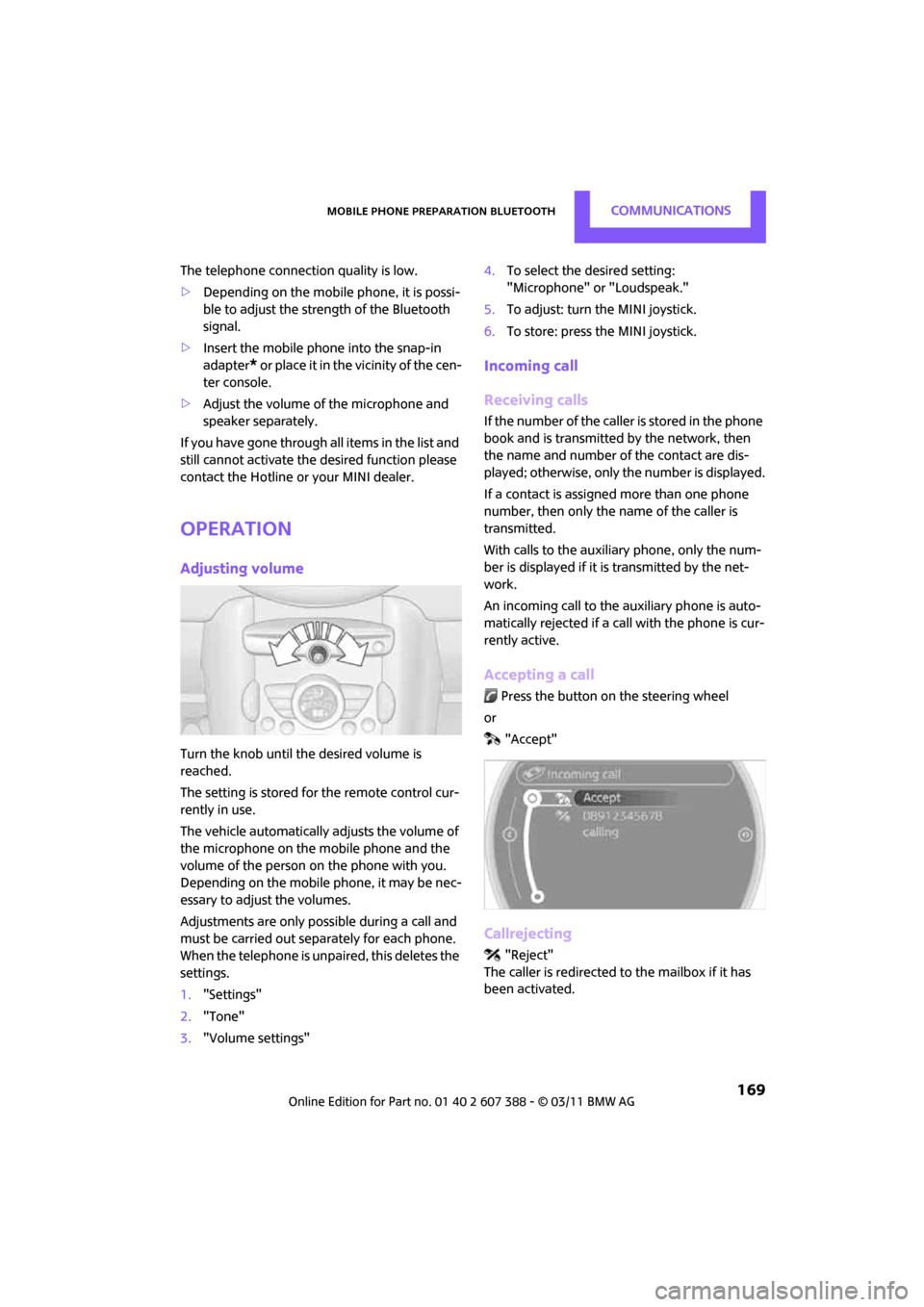
Accepting a call
Press the button on the steering wheel
or
"Accept"
Callrejecting
"Reject"
The caller is redirected to the mailbox if it has
been activated.
Page 182 of 256
CommunicationsOffice
180
Displaying contact pictures*
Pictures stored with contacts are stored in the
vehicle when the mobile phone is connected to
the vehicle. The number of pictures transmitted
depends on the mobile phone. The mobile
phone must support this function.
1."Contacts"
2. Open "Options".
3. "Show images"
The display of all contact pictures is activated or
deactivated.
Exporting/importing contacts*
Contacts can be exported and imported using
Personal Profile, refer to page26. Depending on
which ignition key is in use, only contacts that
are stored in the vehicle are stored.
Deleting contacts
Only contacts that are stored in the vehicle are
deleted. The contacts on the mobile phone
*
cannot be deleted.
1. "Contacts"
2. Highlight the contact.
3. "Options"
4. "Delete contact" or "Delete all contacts".
Messages
General information
The displaying of text messages depends on
whether the mobile phone supports transmis-
sion to the vehicle. Te xt messages may not be
supported by the service provider or the func-
tion may have to be separately activated. After a
mobile phone is paired for the first time, the
transmission may take several minutes. Mes-
sages are only displayed completely when the
vehicle is stopped. Messages from the auxiliary
phone are not transmitted.
Displaying messages
1. "Office"
2. "Messages"
Message type
A symbol indicates the type of message.
Read message.
Unread message.
Reading message aloud
Reading text messages aloud, refer to page183.
Text message
Calling a text message sender
1. Select the desired message.
2. Select the symbol.
Saving sender in the contacts
1.Highlight the desired message.
2. Open "Options".
3. "Store as new contact" or "Add to existing
contact"
Calendar
Displaying calendar
Appointments from the last 20 days and the
next 50 days can be displayed.
1."Office"
2. "Calendar"
Appointments of the current day are dis-
played.
SymbolMessage type
Text message
Page 185 of 256
OfficeCommunications
183
Reminders
Displaying reminders
Reminders for imminent appointments and
tasks are displayed. After an appointment has
passed or a task is due, the reminder is deleted.
1."Office"
2. "Reminders"
3. Select the desired reminder.
The associated appointmen t or task is displayed.
Reading aloud
Text messages, appointmen t entries, tasks, and
notes can be read aloud to you.
1. Select the desired message, appointment,
task, or note.
2. Select the symbol.
While the message is being read aloud, you have
the following options:
> "Pause"
Interrupt the reading. Select again to
resume the reading.
> "Back to beginning"
Read message again from the beginning.
> Select the symbol.
Skip back one paragraph.
> Select the symbol.
Skip over a paragraph.
> To terminate the reading, move the
MINI joystick to the left.
What to do if…
For information on suitable mobile phones, refer
to page 164.
> Appointments, tasks, notes, or text mes-
sages are not being displayed?
The mobile phone is not suitable for the
missing function or is not correctly con-
nected.
The mobile phone is connected as an auxil-
iary phone.
The Office function is deactivated.
The appointments are older than 20 days
and are more than 50 days in the future.
The tasks have been marked as completed
or are more than 90 days in the future.
Depending on the number of appointments,
tasks, notes, and mess ages stored in the
mobile phone, not all of them are displayed
in the vehicle.
> Appointments or tasks from the mobile
phone are not being displayed at the correct
time?
The time zone, time, or date is incorrectly set
in the Control Display and in the mobile
phone.
> Texts of entries are not displayed com-
pletely?
Texts are already shor tened by the mobile
phone.
Synchronization betwee n the mobile phone
and vehicle can take a few minutes.
> Contact pictures are not being displayed?
Up to max. 200 contact pictures can be
stored in the vehicle.
> If you have gone through all items in the list
and still cannot activate the desired function
please contact the Hotline or your MINI
dealer.