pairing phone MINI Clubman 2014 (Mini Connected) User Guide
[x] Cancel search | Manufacturer: MINI, Model Year: 2014, Model line: Clubman, Model: MINI Clubman 2014Pages: 276, PDF Size: 6.44 MB
Page 183 of 276

If the pairing was successful, the mobile phone
appears at the top of the list of mobile phones.
The functions supported by the mobile phone
and audio device are displayed as symbols
when paired.
White symbol: the function is active.
Gray symbol: the function is inactive.SymbolFunction Telephone. Additional telephone. Audio source.
Four mobile phones can be paired with the ve‐
hicle at once. Three mobile phones can be con‐
nected with the vehicle at once.
If pairing was unsuccessful: What to do if..., re‐
fer to page 184.
Following the initial pairing
▷The mobile phone is detected/connected in
the vehicle within a short period of time
when the engine is running or the ignition
is switched on.▷The phone book entries of the telephone
stored on the SIM card or mobile phone are
transmitted to the vehicle after detection,
depending on the mobile phone.▷Specific settings may be necessary in some
mobile phones, e.g., authorization or a se‐
cure connection; refer to the mobile phone
operating instructions.
Connecting a particular mobile phone
1."Telephone"2."Bluetooth® (phone)"
All paired mobile phones are listed.3.Select the mobile phone that is to be con‐
nected.
The functions assigned to the mobile phone
before unpairing are assigned to the mobile
phone when it is reconnected. These functions
are deactivated in a mobile phone that is al‐
ready connected.
Device options Device options can be activated or deactivated
for paired and connected devices.
Configuring the mobile phoneAdditional functions can be activated or deacti‐
vated for paired and connected mobile phones.
1."Telephone"2."Bluetooth® (phone)"3.Highlight the mobile phone to be config‐
ured.4.Open "Options".5."Configure phone"6.At least one function must be selected.▷"Telephone"Seite 183Bluetooth mobile phone preparation packageCommunication183
Online Edition for Part no. 01 40 2 911 452 - VI/13
Page 184 of 276
▷"Additional telephone"▷"Audio"7."OK"
If a function has already been assigned to an‐
other connected mobile phone, the function is
deactivated in that mobile phone and the mo‐
bile phone is unpaired when the function is as‐
signed to a new mobile phone.
Swapping the telephone and additional
telephone
If a phone and additional phone are connected
to the vehicle, the function can be swapped be‐
tween the two devices.
1."Telephone"2."Bluetooth® (phone)"3."Swap phone/addit. phone"
Using a mobile phone as an audio
source
An audio-capable mobile phone can be used as
an audio source. Activate Bluetooth audio, refer
to page 182.
Pair the mobile phone with the vehicle and
connect it, refer to page 182.
The mobile phone is used as the audio source,
provided that another device has not been con‐
nected as the audio source.
If another device has already been connected
as the audio source:
1.Pair the mobile phone with the vehicle and
connect it, refer to page 182.2."Use for audio"
The mobile phone is connected as an audio
source. The previous audio source is no lon‐
ger connected to the vehicle.
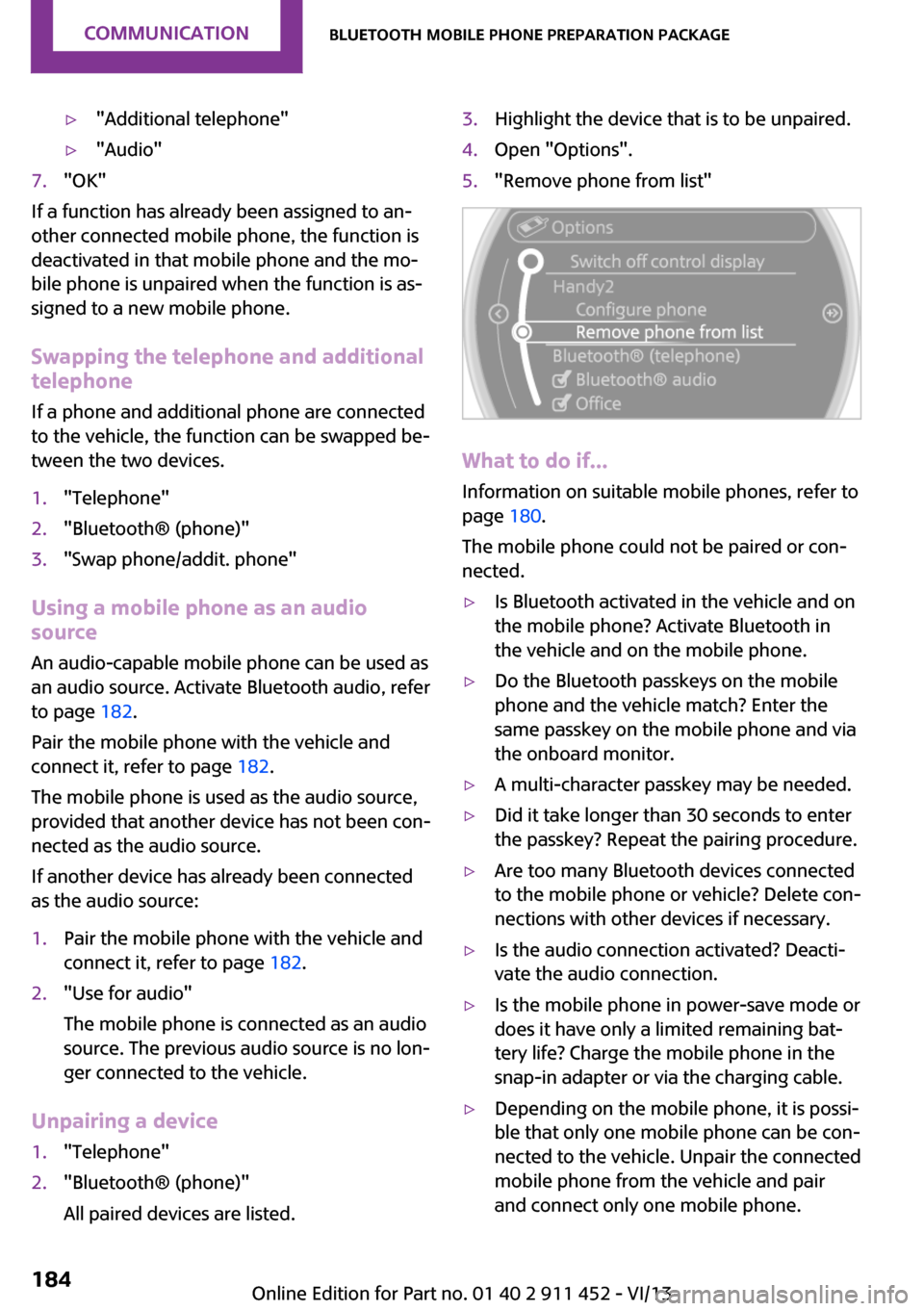
Unpairing a device
1."Telephone"2."Bluetooth® (phone)"
All paired devices are listed.3.Highlight the device that is to be unpaired.4.Open "Options".5."Remove phone from list"
What to do if...
Information on suitable mobile phones, refer to
page 180.
The mobile phone could not be paired or con‐
nected.
▷Is Bluetooth activated in the vehicle and on
the mobile phone? Activate Bluetooth in
the vehicle and on the mobile phone.▷Do the Bluetooth passkeys on the mobile
phone and the vehicle match? Enter the
same passkey on the mobile phone and via
the onboard monitor.▷A multi-character passkey may be needed.▷Did it take longer than 30 seconds to enter
the passkey? Repeat the pairing procedure.▷Are too many Bluetooth devices connected
to the mobile phone or vehicle? Delete con‐
nections with other devices if necessary.▷Is the audio connection activated? Deacti‐
vate the audio connection.▷Is the mobile phone in power-save mode or
does it have only a limited remaining bat‐
tery life? Charge the mobile phone in the
snap-in adapter or via the charging cable.▷Depending on the mobile phone, it is possi‐
ble that only one mobile phone can be con‐
nected to the vehicle. Unpair the connected
mobile phone from the vehicle and pair
and connect only one mobile phone.Seite 184CommunicationBluetooth mobile phone preparation package184
Online Edition for Part no. 01 40 2 911 452 - VI/13
Page 265 of 276

Brake fluid, refer to Service re‐quirements 70
Brake force distribution, elec‐ tronic 88
Brake pads, breaking in 112
Brakes– Handbrake 56
Brakes, MINI maintenance
system 228
Brakes, service require‐ ments 70
Brake system, MINI mainte‐ nance system 228
Braking, notes 114
Breakdown assistance, Road‐ side Assistance 244
Breaking in 112
Brightness on the Control Dis‐ play 70
Button for starting the engine, refer to Start/Stop button 54
C
Calendar 196
California Proposition 65 Warning 7
Car battery, refer to Vehicle battery 240
Car care products 249
Care, displays 251
Care, vehicle 249
Cargo area
– Comfort Access 39– Doors, refer to Split door 37– Opening from the out‐
side 37– Tailgate, refer to Split
door 37
Cargo area doors, refer to Split
door 37
Cargo area lamp, refer to Inte‐ rior lamps 77
Cargo area tailgate, refer to Tailgate 37
Car horn, refer to Horn 14
Carpet, care 251
Car phone, refer to Tele‐
phone 170, 180
Car wash 248
CBC, Cornering Brake Con‐ trol 88
CBS Condition Based Serv‐ ice 228
CD 156
CD/DVD drives, care 251
CD player 156
Center console, refer to Around the center con‐
sole 18
Central locking– Comfort Access 38– From the inside 36– From the outside 34
Central locking system
– Concept 33– From the outside 33
Central screen, see Control
Display 20
Changes, technical, refer to
Safety 7
Changing wheels/tires 217
Check Control 71
Children, transporting 50
Child restraint fixing system LATCH 51
Child restraint fixing sys‐ tems 50
Child restraint fixing systems, mounting 50
Child seat, mounting 50
Child seats, refer to Transport‐ ing children safely 50
Chrome parts, care 251
Circulation of air, refer to Re‐ circulated air mode 95, 97
Cleaning, displays 251
Cleaning, refer to Care 248
Climate 94
Climate mode
– Ventilation 98
Clock 64
Clock– 12h/24h format 68– Setting the time and date 68
Closing
– From the inside 36– From the outside 34
Clubdoor 37
Clutch, breaking in 112
Cockpit 14
Cold start, refer to Starting the engine 55
Combination instrument, refer
to Displays 16
Combination switch, refer to Turn signal/high beams/
headlamp flasher 57
Combination switch, refer to Washer/wiper system 57
Comfort Access
– In the car wash 40– Replacing the battery 40
Comfort area, refer to Around
the center console 18
Compact wheel, inflation pres‐ sure 211
Compartment for remote con‐ trol, refer to Ignition lock 54
Compass, digital 101
Computer 65
Computer, displaying informa‐ tion 65
Condition Based Service CBS 228
Confirmation signals for vehi‐ cle locking/unlocking 35
Connecting, mobile phone, re‐ fer to Pairing the mobile
phone 170, 181
Consumption, refer to Aver‐ age fuel consumption 66
Contacts 177, 193
Control Display 20
Control Display, care 251
Control Display, settings 69
Controls and displays 14
Control systems, driving stabil‐ ity 88
Seite 265Everything from A to ZReference265
Online Edition for Part no. 01 40 2 911 452 - VI/13
Page 270 of 276
Mirrors, folding in and out 48
Mirrors, interior mirror 48
Mobile communication devi‐ ces in the vehicle 113
Mobile phone, refer to Tele‐ phone 170, 180
Mobility System 219
Modifications, technical, refer to Safety 7
Monitor, see Control Dis‐ play 20
Mounting of child restraint fix‐ ing systems 50
MP3 player 159
N
Navigation 124
Navigation data 124
Navigation data, updat‐ ing 124
Navigation system– Destination entry by
voice 132
Neck restraints, refer to Head
restraints 47
New wheels and tires 217
Notes 6, 197
Nozzles, refer to Ventila‐ tion 98
O
OBD Onboard Diagnos‐ tics 229
OBD socket, refer to Socket for OBD Onboard Diagno‐
sis 229
Octane number, refer to Fuel quality 208
Octane rating, refer to Gaso‐ line quality 208
Odometer 64
Office 192
Oil additives 226
Oil level 225
Oil types, alternative 226
Oil types, approved 226
Onboard Diagnostics OBD 229
Onboard monitor 20
Onboard vehicle tool kit 230
Opening and closing– Comfort Access 38– From the inside 36– From the outside 34– Using the door lock 35– Via the remote control 34
Opening and unlocking
– From the inside 36
Operating concept of the on‐
board monitor 20
Outside air mode
– Automatic climate con‐
trol 97
Outside air, refer to Recircu‐
lated air mode 95, 97
Overheating of engine, refer to Coolant temperature 65
P Pairing, mobile phone 170, 181
Park Distance Control PDC 92
Parking aid, refer to Park Dis‐ tance Control PDC 92
Parking assistant, refer to Park Distance Control PDC 92
Parking brake, refer to Hand‐ brake 56
Parking lamp, bulb replace‐ ment 234
Parking lamps 74
Parking lamps/low beams 74
PDC Park Distance Control 92
Personal information 192
Personal Profile 32
Pinch protection
– Windows 43
Plastic, care 250
Pollen– Refer to Microfilter 96– Refer to Microfilter/acti‐
vated-charcoal filter 96– Refer to Microfilter/acti‐
vated-charcoal filter with
automatic climate control 98
Position, storing 128
Postal code, entering in navi‐ gation 127
Power, refer to Engine data 254
Power windows 42
Power windows
– Initializing 43
Power windows, refer to Win‐
dows 42
Prescribed engine oils, refer to Approved engine oils 226
Pressure monitoring of tires, refer to Tire Pressure Monitor
TPM 83
Pressure, tires 210
Pressure warning, tires 80
Profile depth, refer to Mini‐ mum tread depth 216
Profile, tires 216
Protective function, refer to
Pinch protection
– Windows 43
R
Radio 148
Radio-operated key, refer to Remote control with
integrated key 32
Radio ready state 54
Radio ready state, switched off 55
Radio ready state, switched on 54
Radio setting, refer to Radio ready state 54
Rain sensor 58
Random 157
Random playback 157
Seite 270ReferenceEverything from A to Z270
Online Edition for Part no. 01 40 2 911 452 - VI/13