air condition MINI COOPER 2013 User Guide
[x] Cancel search | Manufacturer: MINI, Model Year: 2013, Model line: COOPER, Model: MINI COOPER 2013Pages: 267, PDF Size: 3.53 MB
Page 108 of 267
Things to remember when drivingDRIVING TIPS
107
Fuel consumption depends on a number of dif-
ferent factors. Fuel consumption and environ-
mental pollution are affected by various actions,
the manner of driving and regular maintenance.
Remove unnecessary cargo
Additional weight increases fuel consumption.
Remove attached parts no longer in use
Remove auxiliary mirrors, roof- or rear-mounted
luggage racks whenever you are not using
them.
Attached parts on the vehicle affect its aerody-
namics and increase fuel consumption.
Closing windows
Open windows increase air resistance and
therefore fuel consumption.
Check tire inflation pressure regularly
Check and, if necessary, correct tire inflation
pressure at least twice a month and before start-
ing on a long trip.
Low inflation pressure increases rolling resis-
tance and thus leads to greater fuel consump-
tion and tire wear.
Drive off immediately
Do not wait for the engine to warm up while the
vehicle remains stationary. Start driving right
away, but at moderate engine speeds. This is the
fastest way for the cold engine to reach its oper-
ating temperature.
Think ahead while driving
Avoid unnecessary accelera tion and braking, by
maintaining a suitable di stance to the vehicle
driving ahead.
Looking-ahead an d smooth driving reduces fuel
consumption.
Avoid high engine speeds
Use first gear only for driving off. In second and
higher gears, accelerate smoothly to a suitable engine and road speed. In doing so, avoid high
engine speeds and shift up early.
When you reach your desired traveling speed,
shift to the highest suit
able gear and drive at
constant speed.
As a rule: driving at lo w engine speeds lowers
fuel consumption and reduces wear.
Coasting
When approaching a red traffic light, take your
foot off the accelerator and let the car roll to a
stop in the highest gear possible.
On a downhill gradient, take your foot off the
accelerator and let the vehi cle coast in a suitable
gear.
Fuel supply is shut off automatically when the
vehicle is coasting.
Switch off the engine during lengthy
stops
Switch off the engine when stopping for lengthy
periods, e.g. at traffic lights, railroad crossings or
in traffic jams.
Switch off any features that are not
currently required
Features such as air conditioning, seat heaters
and the rear window defroster require a great
deal of energy and result in greater fuel con-
sumption, especially in city driving and during
Stop & Go operation. For this reason, switch off
these features if they are not really needed.
Have the vehicle serviced
Have your vehicle serviced regularly to achieve
good economy and a long vehicle life. The man-
ufacturer of your MINI recommends having the
vehicle serviced by a MINI dealer. Also note the
MINI Maintenance System, page 211.
00320051004F004C00510048000300280047004C0057004C005200510003
Page 150 of 267
External devicesENTERTAINMENT
149
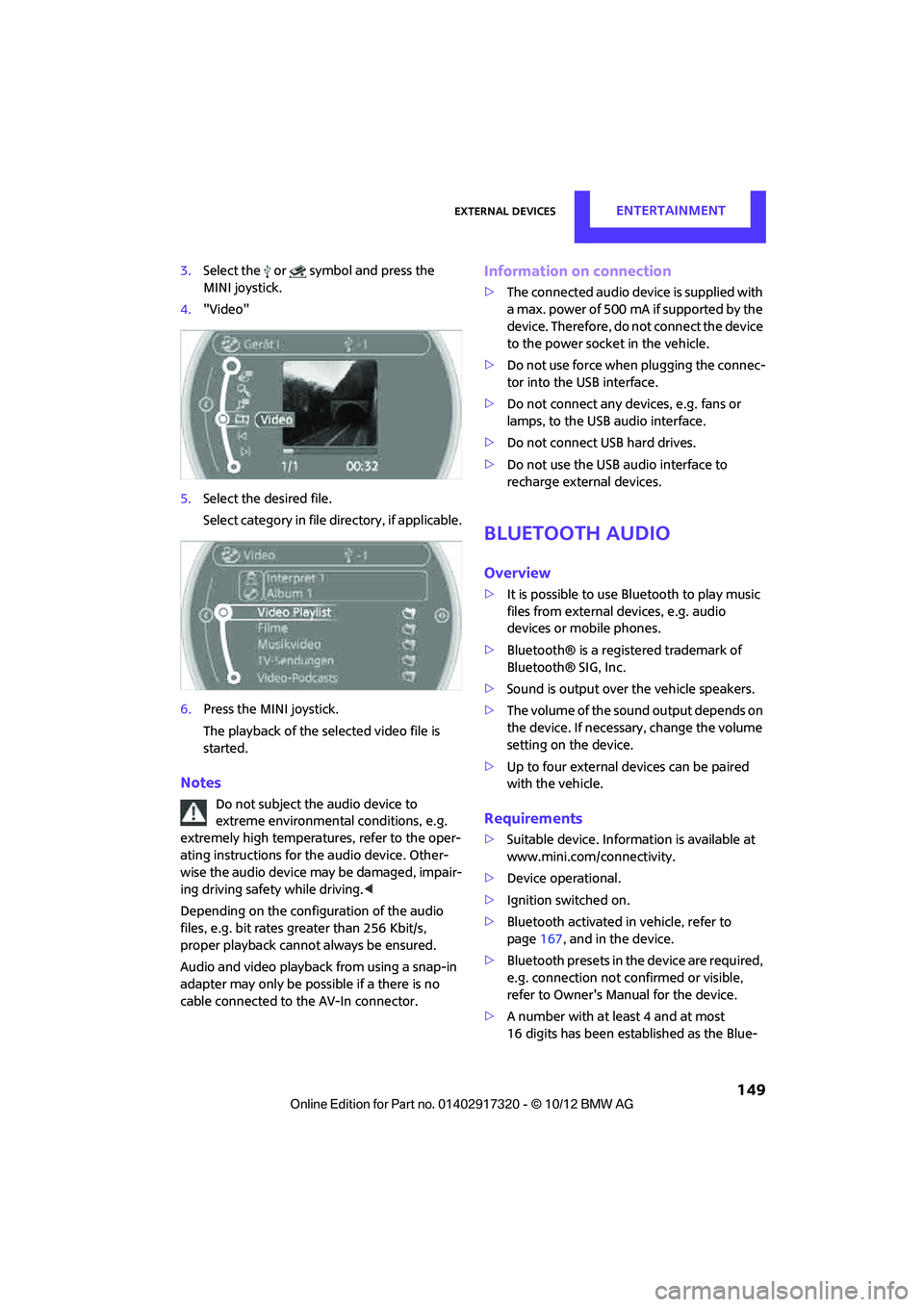
3.Select the or symbol and press the
MINI joystick.
4. "Video"
5. Select the desired file.
Select category in file directory, if applicable.
6. Press the MINI joystick.
The playback of the selected video file is
started.
Notes
Do not subject the audio device to
extreme environmental conditions, e.g.
extremely high temperatures, refer to the oper-
ating instructions for the audio device. Other-
wise the audio device may be damaged, impair-
ing driving safety while driving. <
Depending on the config uration of the audio
files, e.g. bit rates greater than 256 Kbit/s,
proper playback cannot always be ensured.
Audio and video playback from using a snap-in
adapter may only be possible if a there is no
cable connected to the AV-In connector.
Information on connection
> The connected audio device is supplied with
a max. power of 500 mA if supported by the
device. Therefore, do not connect the device
to the power socket in the vehicle.
> Do not use force when plugging the connec-
tor into the USB interface.
> Do not connect any devices, e.g. fans or
lamps, to the USB audio interface.
> Do not connect USB hard drives.
> Do not use the USB audio interface to
recharge external devices.
Bluetooth audio
Overview
>It is possible to use Bluetooth to play music
files from external devices, e.g. audio
devices or mobile phones.
> Bluetooth® is a registered trademark of
Bluetooth® SIG, Inc.
> Sound is output over the vehicle speakers.
> The volume of the sound output depends on
the device. If necessary, change the volume
setting on the device.
> Up to four external devices can be paired
with the vehicle.
Requirements
>Suitable device. Information is available at
www.mini.com/connectivity.
> Device operational.
> Ignition switched on.
> Bluetooth activated in vehicle, refer to
page 167, and in the device.
> Bluetooth presets in the device are required,
e.g. connection not confirmed or visible,
refer to Owner's Ma nual for the device.
> A number with at least 4 and at most
16 digits has been established as the Blue-
00320051004F004C00510048000300280047004C0057004C005200510003
Page 157 of 267

COMMUNICATIONSHands-free device Bluetooth
156
Hands-free device Bluetooth
Vehicle equipment
In this chapter, all production, country, and
optional equipment that is offered in the model
range is described. Equipment is also described
that is not available because of, for example,
selected options or coun try version. This also
applies to safety relate d functions and systems.
Overview
The concept
Mobile phones can be connected to the vehicle
through Bluetooth.
Bluetooth® is a registered trademark of Blue-
tooth® SIG, Inc.
After being paired once, when the ignition is
switched on, these devices are automatically
detected as soon as they are present in the vehi-
cle and can be controlled via the onboard com-
puter, the buttons on the steering wheel, and by
voice.
Up to four mobile phones can be paired.
It may be necessary for some functions to be
activated by the mobile phone provider.
Only make entries when traffic conditions
permit. Do not hold the mobile phone in
your hand while you are driving; use the hands-
free system instead. If you do not observe this
precaution, your being distracted can endanger
vehicle occupants and other road users. <
Suitable mobile phones
Precise information as to which mobile phones
are supported by the hands-free device can be
found at www.mini.com/connectivity.
With a certain software version, these suitable
mobile phones support the vehicle functions
described below. With other mobile phones
or software versions,
malfunctions may occur.
A mobile phone that is connected to the vehicle
should not be operated via the mobile phone
keypad; otherwise, ma lfunctions may occur.
Displaying vehicle identification number
and software part number
To check which mobile phones are supported by
the hands-free device, th e vehicle identification
number and the software part number will be
required. The software version of the mobile
phone may also be required.
1. "Telephone"
2. Open "Options".
3. "Bluetooth® info"
4. "Display system information"
Notes
Do not expose your mobile phone to extreme
ambient conditions, for example, very high tem-
peratures; otherwise, fu nctions on your mobile
phone may not work. Follow the operating
instructions for yo ur mobile phone.
Pairing/unpairing mobile
phone
Requirements
>Suitable mobile phone, refer to page 156.
> Mobile phone operational.
> Bluetooth activated in vehicle, refer to
page 157, and in the mobile phone.
> Bluetooth presets in the mobile phone are
required, e.g. connection not confirmed or
visible, refer to Ow ner's Manual for the
mobile phone.
00320051004F004C00510048000300280047004C0057004C005200510003
Page 167 of 267
COMMUNICATIONSMobile phone preparation Bluetooth
166
Mobile phone preparation Bluetooth
Vehicle equipment
In this chapter, all production, country, and
optional equipment that is offered in the model
range is described. Equipment is also described
that is not available because of, for example,
selected options or coun try version. This also
applies to safety relate d functions and systems.
Overview
The concept
Mobile phones or other external devices, e.g.
audio players, can be connected to the vehicle
via Bluetooth.
Bluetooth® is a registered trademark of Blue-
tooth® SIG, Inc.
After being paired once, when the ignition is
switched on, these devices are automatically
detected as soon as they are present in the vehi-
cle and can be controlled via the onboard com-
puter, the buttons on the steering wheel, and by
voice.
Depending on whether they are functioning as a
telephone and/or as an audio source, external
devices can be used via the vehicle. The tele-
phone functions will be described below. Oper-
ation of audio functions, refer to page 149.
It may be necessary for some functions to be
activated by the mobile phone provider.
Only make entries when traffic conditions
permit. Do not hold the mobile phone in
your hand while you are driving; use the hands-
free system instead. If you do not observe this
precaution, your being distracted can endanger
vehicle occupants and other road users. <
Snap-in adapter
The snap-in adapter, refer to page177, makes it
possible to:
> Accommodate the mobile phone.
> Recharge its battery.
> Connect it to an exte rnal antenna of the
vehicle.
This assures a better network connection
and constant sound quality.
A mobile phone that is connected to the vehicle
should not be operated via the mobile phone
keypad; otherwise, ma lfunctions may occur.
Suitable mobile phones
For precise information as to which mobile
phones and external devices with Bluetooth
interfaces are supported by the mobile phone
preparation package, go to www.mini.com/con-
nectivity.
With a certain software version, these suitable
mobile phones support the vehicle functions
described below.
With other mobile phones or software versions,
malfunctions may occur.
It is possible to perform a software update, refer
to page 153.
Displaying vehicle identification number
and software part number
Checking which mobile phones are supported
by the mobile phone preparation requires the
vehicle identification number and software part
number. The software version of the mobile
phone may also be required.
1."Telephone"
2. Open "Options".
3. "Bluetooth® info"
4. "Display system information"
00320051004F004C00510048000300280047004C0057004C005200510003
Page 168 of 267
Mobile phone preparation BluetoothCOMMUNICATIONS
167
Notes
Do not expose your mobile phone to extreme
ambient conditions, for example, very high tem-
peratures; otherwise, functions on your mobile
phone may not work. Follow the operating
instructions for your mobile phone.
Pairing/unpairing mobile
phone
Overview
> Using a mobile phone as a telephone.
> Using the mobile phone as an auxiliary
phone.
> Using a mobile phone as an audio source.
> Using an audio device as an audio source,
refer to page 149.
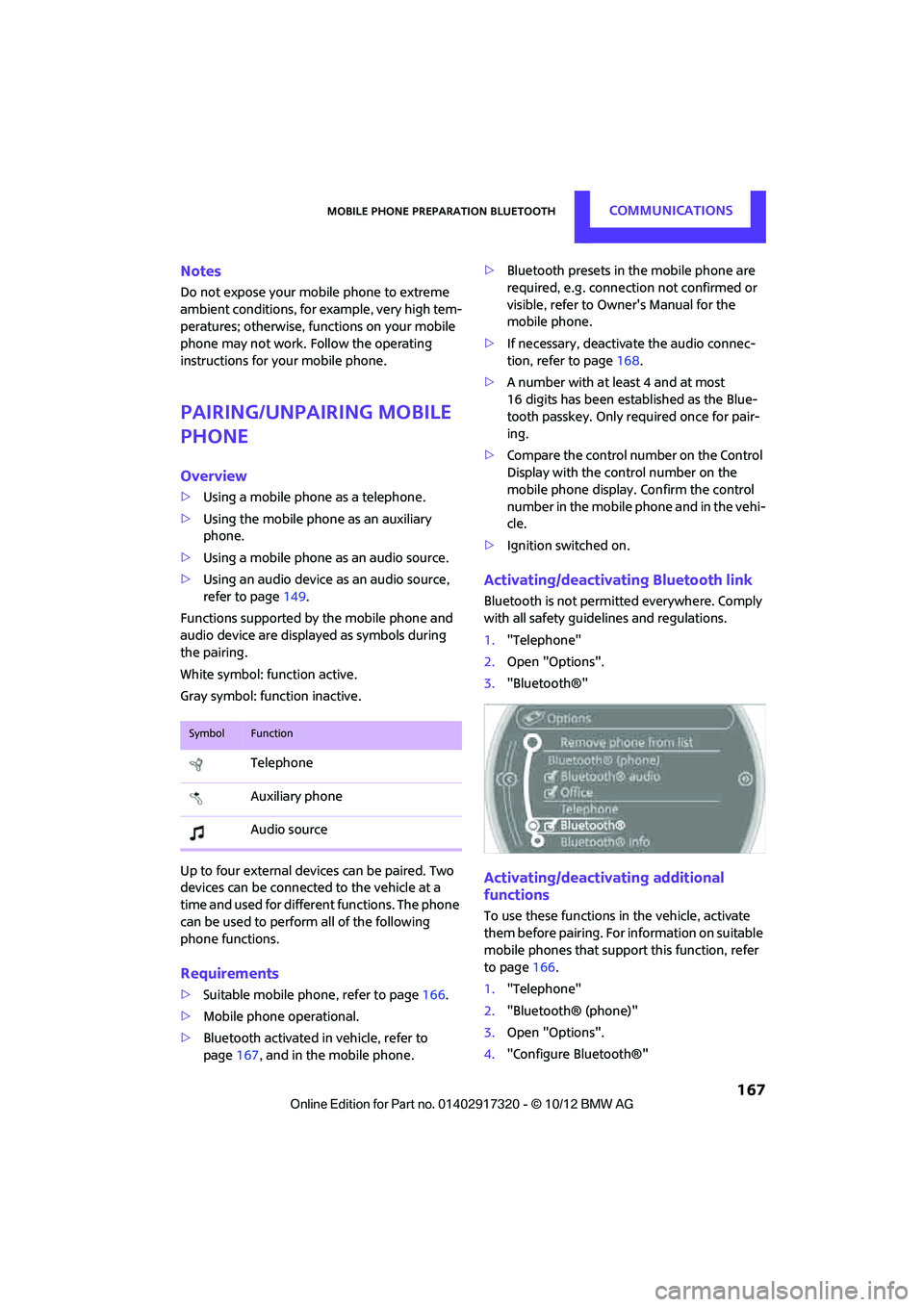
Functions supported by the mobile phone and
audio device are displayed as symbols during
the pairing.
White symbol: function active.
Gray symbol: function inactive.
Up to four external devices can be paired. Two
devices can be connecte d to the vehicle at a
time and used for different functions. The phone
can be used to perform all of the following
phone functions.
Requirements
> Suitable mobile phone, refer to page 166.
> Mobile phone operational.
> Bluetooth activated in vehicle, refer to
page 167, and in the mobile phone. >
Bluetooth presets in the mobile phone are
required, e.g. connection not confirmed or
visible, refer to Ow ner's Manual for the
mobile phone.
> If necessary, deactivate the audio connec-
tion, refer to page 168.
> A number with at least 4 and at most
16 digits has been established as the Blue-
tooth passkey. Only required once for pair-
ing.
> Compare the control number on the Control
Display with the control number on the
mobile phone display. Confirm the control
number in the mobile phone and in the vehi-
cle.
> Ignition switched on.
Activating/deactivating Bluetooth link
Bluetooth is not permitted everywhere. Comply
with all safety guidel ines and regulations.
1. "Telephone"
2. Open "Options".
3. "Bluetooth®"
Activating/deactivating additional
functions
To use these functions in the vehicle, activate
them before pairing. For information on suitable
mobile phones that suppo rt this function, refer
to page 166.
1. "Telephone"
2. "Bluetooth® (phone)"
3. Open "Options".
4. "Configure Bluetooth®"
SymbolFunction
Telephone
Auxiliary phone
Audio source
00320051004F004C00510048000300280047004C0057004C005200510003
Page 196 of 267
Wheels and tiresMOBILITY
195
Wheels and tires
Vehicle equipment
In this chapter, all production, country, and
optional equipment that is offered in the model
range is described. Equipment is also described
that is not available because of, for example,
selected options or count ry version. This also
applies to safety related functions and systems.
Tire inflation pressures
Information for your safety
It is not merely the tires' service life, but also
driving comfort and, to a great extent, driving
safety that depend on the condition of the tires
and the maintenance of the specified tire pres-
sure.
Checking pressure
Check the tire inflatio n pressure regularly
and correct it, if nece ssary: at least twice a
month and before starting long trips. If you fail
to observe this precaution you may be driving
on tires with incorrect tire pressures, a condition
that can not only compromise your vehicle's
driving stability, but also lead to tire damage and
the risk of an accident. Do not drive with
deflated, i.e. flat tires, except when using run-
flat tires. A flat tire will seriously impair your
vehicle's handling and braking response.
Attempts to drive on a flat tire can lead to loss of
control over the vehicle. <
Check the tire inflation pressures only on cold
tires. This means after a maximum of 1.25 miles/
2 km driving or when the vehicle has been
parked for at least 2 hours. When tires are warm,
the tire inflation pressure is higher. After adjusting the tire inflation pressure,
reinitialize the Flat Tire Monitor, page 72,
or reset the Tire Pressure Monitor, page 75.<
MINI: checking the tire inflation
pressure of the compact tire
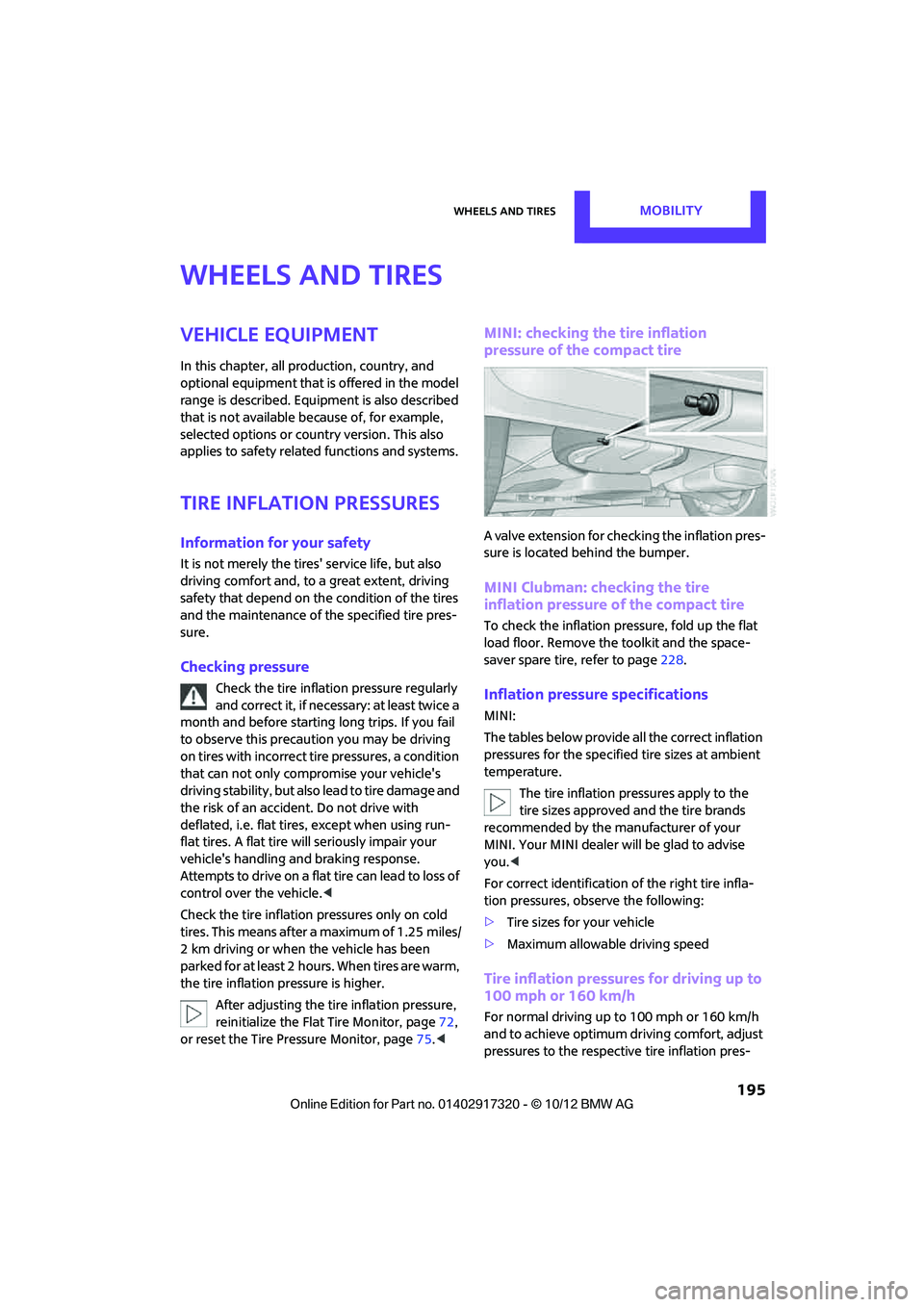
A valve extension for checking the inflation pres-
sure is located behind the bumper.
MINI Clubman: checking the tire
inflation pressure of the compact tire
To check the inflation pressure, fold up the flat
load floor. Remove the toolkit and the space-
saver spare tire, refer to page 228.
Inflation pressure specifications
MINI:
The tables below provide all the correct inflation
pressures for the specified tire sizes at ambient
temperature.
The tire inflation pressures apply to the
tire sizes approved and the tire brands
recommended by the manufacturer of your
MINI. Your MINI dealer will be glad to advise
you. <
For correct identification of the right tire infla-
tion pressures, observe the following:
> Tire sizes for your vehicle
> Maximum allowable driving speed
Tire inflation pressures for driving up to
100 mph or 160 km/h
For normal driving up to 100 mph or 160 km/h
and to achieve optimum dr iving comfort, adjust
pressures to the respective tire inflation pres-
00320051004F004C00510048000300280047004C0057004C005200510003
Page 206 of 267
Wheels and tiresMOBILITY
205
Run-flat tires
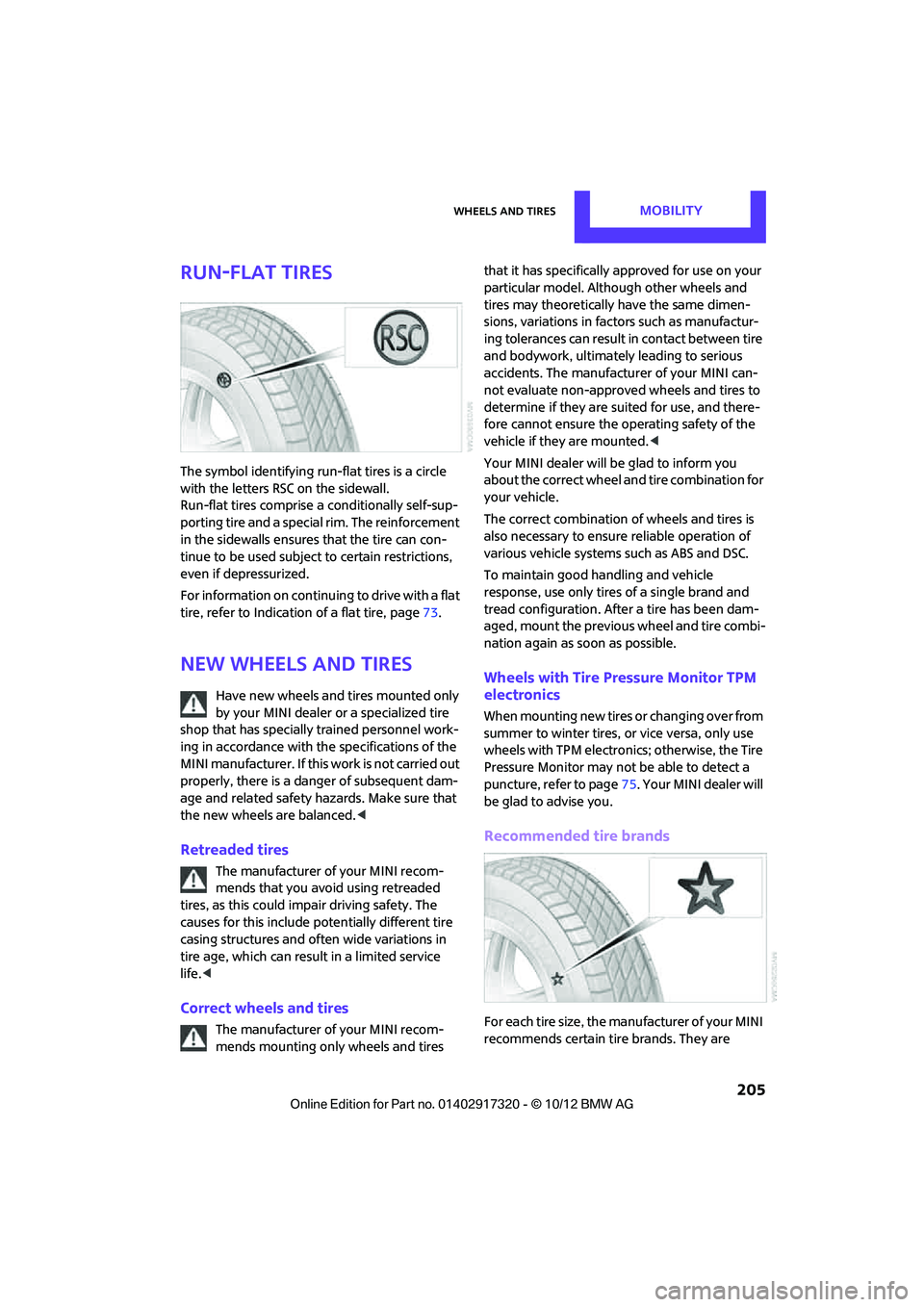
The symbol identifying run-flat tires is a circle
with the letters RSC on the sidewall.
Run-flat tires comprise a conditionally self-sup-
porting tire and a special rim. The reinforcement
in the sidewalls ensures that the tire can con-
tinue to be used subject to certain restrictions,
even if depressurized.
For information on continuing to drive with a flat
tire, refer to Indication of a flat tire, page73.
New wheels and tires
Have new wheels and tires mounted only
by your MINI dealer or a specialized tire
shop that has specially trained personnel work-
ing in accordance with th e specifications of the
MINI manufacturer. If this work is not carried out
properly, there is a danger of subsequent dam-
age and related safety ha zards. Make sure that
the new wheels are balanced. <
Retreaded tires
The manufacturer of your MINI recom-
mends that you avoid using retreaded
tires, as this could impair driving safety. The
causes for this include potentially different tire
casing structures and of ten wide variations in
tire age, which can result in a limited service
life.<
Correct wheels and tires
The manufacturer of your MINI recom-
mends mounting only wheels and tires that it has specifically approved for use on your
particular model. Alth
ough other wheels and
tires may theoretically have the same dimen-
sions, variations in factors such as manufactur-
ing tolerances can result in contact between tire
and bodywork, ultimately leading to serious
accidents. The manufactur er of your MINI can-
not evaluate non-approved wheels and tires to
determine if they are su ited for use, and there-
fore cannot ensure the operating safety of the
vehicle if they are mounted. <
Your MINI dealer will be glad to inform you
about the correct wheel an d tire combination for
your vehicle.
The correct combination of wheels and tires is
also necessary to ensure reliable operation of
various vehicle systems such as ABS and DSC.
To maintain good handling and vehicle
response, use only tires of a single brand and
tread configuration. After a tire has been dam-
aged, mount the previous wheel and tire combi-
nation again as soon as possible.
Wheels with Tire Pressure Monitor TPM
electronics
When mounting new tires or changing over from
summer to winter tires, or vice versa, only use
wheels with TPM electronics; otherwise, the Tire
Pressure Monitor may not be able to detect a
puncture, refer to page 75. Your MINI dealer will
be glad to advise you.
Recommended tire brands
For each tire size, the manufacturer of your MINI
recommends certain tire brands. They are
00320051004F004C00510048000300280047004C0057004C005200510003
Page 212 of 267

MaintenanceMOBILITY
211
Maintenance
Vehicle equipment
In this chapter, all production, country, and
optional equipment that is offered in the model
range is described. Equipment is also described
that is not available because of, for example,
selected options or count ry version. This also
applies to safety related functions and systems.
MINI Maintenance System
The MINI Maintenance System will remind you
of necessary maintenance measures and by
doing so, will assist you in maintaining the traffic
and operating safety of your vehicle.
If and when you come to sell your MINI, a com-
prehensive record of servicing will prove a signif-
icant benefit.
Condition Based Service CBS
Sensors and special algori thms take the different
driving conditions of your MINI into account.
Condition Based Service uses this to determine
the current and future se rvice requirements. By
letting you define a service and maintenance
regimen that reflects your own individual
requirements, the system builds the basis for
trouble-free driving.
On the Control Display, you can have the
remaining times or distan ces for selected main-
tenance tasks and any legally prescribed dates
displayed, page 61.
Service data in the remote control
Your vehicle continuously stores service-
requirement info rmation in the remote control
while you are driving. Your MINI dealer can read
out this data from the remote control unit, and
propose an optimized maintenance approach.
Whenever you take your car in for servicing you
should therefore hand your MINI dealer the
remote control unit that you last used.
Make sure that the date is always set cor-
rectly, page 63; otherwise, the effective-
ness of Condition Based Service CBS is not
assured. <
Service and Warranty Information
Booklet for US models and Warranty and
Service Guide Booklet for Canadian
models
Please consult your Service and Warranty Infor-
mation Booklet for US models and Warranty and
Service Guide Booklet for Canadian models for
additional information on service requirements.
The manufacturer of the MINI recom-
mends that you have service and repair
operations performed at your MINI dealer.
Take the time to ensure that these service pro-
cedures are confirmed by entries in your vehi-
cle's Service and Warranty Information Booklet
for US models and Warranty and Service Guide
Booklet for Canadian models. These entries ver-
ify that your vehicle has received the specified
regular maintenance. <
00320051004F004C00510048000300280047004C0057004C005200510003
Page 253 of 267
252
REFERENCEEverything from A to Z
Everything from A to Z
Index
A
ABS Antilock Brake System69
Accepting a call 159,171
Accessories, see Vehicle equipment 4
Acknowledgment signals for locking/unlocking vehicle 28
Activated-charcoa l filter for
automatic climate control 89
Adaptive Light Control 82
Adding engine oil 209
Additives
– coolant 210
– engine oil 209
Address, entering 118
Address for navigation
– entering 112,118
Adjusting temperature inside the car, refer to Air
conditioner 86
Adjusting temperature inside the car, refer to Automatic
climate control 87
Adjusting the tone during audio operation, refer to
Tone control 133
Airbags 78
– sitting safely 38
– warning lamp 79
Air conditioner 85
Air conditioning mode
– air conditioner 86
– automatic cl imate control87
– ventilation 89
Air distribution
– automatic 88
– individual 87
– manual 87 Air flow rate
86,88
– air conditioning system 86
– automatic climate control 88
– heating, ventilation 86
Airing, refer to Ventilation89
Air outlets, refe r to Air vents86
Air pressure, checking, refer to Tire inflation pressure 195
Air recirculation, refer to
Recirculated-air
mode 86,88
Air supply
– air conditioner 86
– automatic climate control 87
– ventilation 89
Air vents 86
AKI, refer to Fuel grade 193
Alarm system 32
All-season ti res, refer to Winter
tires 206
AM, waveband 135
Ambi ent a
ir, refer to
Recirculated-air
mode 86,88
Ambient lighting 84
Antenna, care 213
Antifreeze
– coolant 210
– washer fluid 54
Antilock Brake System ABS 69
Anti-theft alarm system, refer to Alarm system 32
Anti-theft system 27
Approved axle loads, refer to Weights 242
Approved engine oils 209
Approved gross vehicle weight, refer to Weights 242
Armrest, refer to Center armrest 95 Arrival time
– computer
59
– route guidance 121
Ashtray 96
Assistant systems, refer to
– Dynamic Stability Control
DSC 69
Audio 132
– controls 132
– switching on/off 132
– tone control 133
– volume 133
Audio device, external 94
Automatic
– air distribution 88
– air flow rate 88
– cruise control 55
– headlamp control 81
Automatic climate control 85
– automatic air distribution 88
Automatic transmission with Steptronic 49
– Interlock 50
– overriding selector lever lock 51
– Shiftlock 50
– sport program 51
AUTO program for automatic climate control 88
Auxiliary phone 168
AUX-In, refer to External audio device 94
AUX-In connection 145
Average fuel consumption 58
– setting the units 60
Average speed 59
Av oiding highways for
navigati o
n121
Axle loads, refer to Weights 242
00320051004F004C00510048000300280047004C0057004C005200510003
Page 256 of 267
Everything from A to ZREFERENCE
255
Deactivating front passenger airbags 78
Deadlocking, refer to Locking 28
Defect
– door lock 29
Defective
– fuel filler flap 192
Defining a home address 181
Defogging windows 87,89
Defrosting windows 87,89
Defrosting windows and removing condensation
– air conditioner 87
– automatic climate control 89
Defrosting windshield, refer to
Defrosting windows 87,89
Defrost position, refer to Defrosting windows 87,89
Deleting contacts 165,182
Destination address
– entering 112,118
Destination for navigation
– entering 112
– entering via map 117
Differential, breaking in 100
Digital compass 92
Digital radio, refer to HD
Radio 136
Dimensions 239
Dipstick, engine oil 208
Directional indicators, refer to Turn signals 52
Direction announcements, refer to Voice
instructions 125
Direction instructions, refer to Voice instructions 125
Directory for navigation, refer
to Address book 114
Displacement, refer to Engine data 238
Display, refer to Onboard computer controls 16
Displaying contact
pictures 182
Displaying contacts 164Displaying special
destinations 117
Display lighting, refer to Instrument lighting 83
Displays 12
– instrument panel 12
– on the Control Display 16
Displays, care 216
Displays and controls 10
Disposal
– of coolan
t210
–
remote control battery 35
– vehicle battery 230
Distance remaining to service, refer to Service
requirements 61
Distance warning, refer to Park Distance Control PDC 68
Door
– rear, refer to Club Door 30
Door key, refer to Integrated key/remote control 26
Door lock 29
Door lock, confirmation signals 28
Doors, manual operation 29
DOT Quality Grades 203
Double doors, refer to Split
Rear Barn Doors 31
Drinks holders, refer to
Cupholders 96
Drive-off assistant, refer to Hill
Assist 71
Driving dynamics control, refer to Sport button 71
Driving lamps, refer to Parking
lamps/low beams 81
Driving notes 100
Driving off on inclines, refer to
Hill Assist 71
Driving stability control systems 69
Driving through water 101
Driving tips, refer to Driving notes 100
Dry air, refer to Cooling function 89 DSC Dynamic Stability
Control 69
DTC Dynamic Traction Control 70
Dynamic Brake Control DBC, refer to Brake Assist 69
Dynamic route guidance 128
Dynamic Stability Control DSC 69
Dynamic Traction Control
DTC 70
E
Eject button, refer to Buttons
on the CD player 132
Electrical malfunction
– door lock 29
– fuel filler flap 192
Electric power windows
– initializing 37
Electronic brake-force
distribution 69
Electronic Stability Program ESP, refer to Dynamic
Stability Control DSC 69
E-mail 183
Emergency operation, refer to
Manual operation
– door lock 29
– fuel filler flap 192
– transmission lock, automatic transmission 51
Emergency services, refer to Roadside Assistance 231
Ending a call 160,172
Engine
– breaking in 100
– data 238
– overheated, refer to Coolant temperature 210
– speed 238
– starting, Comfort Access 33
Engine compartment 207
Engine coolant, refer to
Coolant 210
00320051004F004C00510048000300280047004C0057004C005200510003