audio MINI COOPER 2013 Owner's Manual
[x] Cancel search | Manufacturer: MINI, Model Year: 2013, Model line: COOPER, Model: MINI COOPER 2013Pages: 267, PDF Size: 3.53 MB
Page 169 of 267
COMMUNICATIONSMobile phone preparation Bluetooth
168
5.Select desired addi tional function.
Bluetooth audio
Use a mobile phone as a telephone and as an
audio device in the vehicle.
"Bluetooth® audio"
To use a mobile phone exclusively as a tele-
phone in the vehicle, deactivate the function
and reconnect the mobile phone.
Office
Contacts, appointments, tasks, notes, text mes-
sages, and e-mails ar e imported from the
mobile phone into the vehicle.
"Office"
Auxiliary phone
Another mobile phone can be used as an auxil-
iary phone.
"Additional telephone"
Incoming calls to the auxiliary phone can be
accepted, refer to page 171. Missed calls to the
auxiliary phone are show n in the Control Dis-
play.
Pairing and connecting
Only pair the mobile phone when the
vehicle is stopped; otherwise, inattention
may lead to endangerment of passengers or
other road users.<
1. "Telephone"
2. "Bluetooth® (phone)"
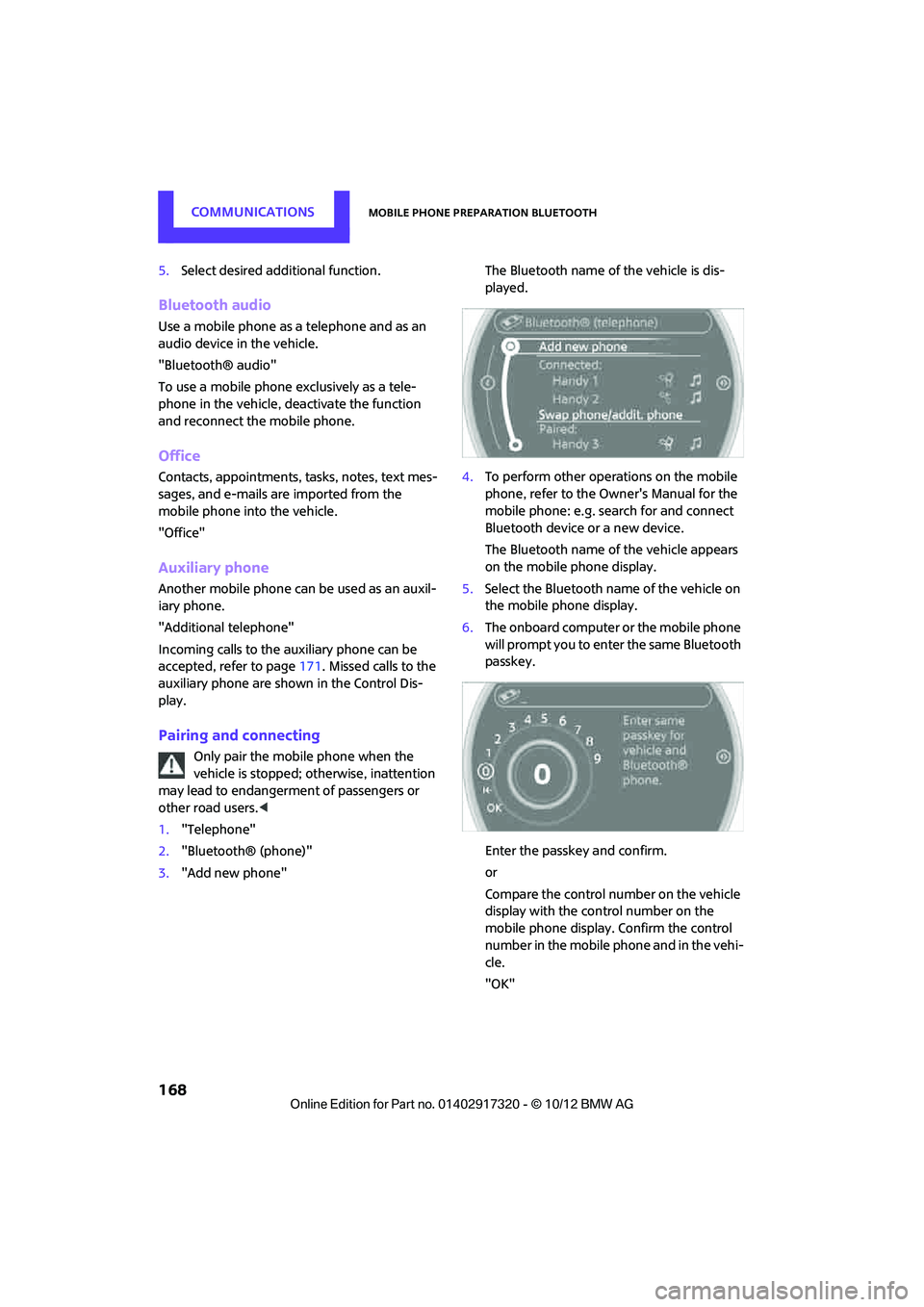
3. "Add new phone" The Bluetooth name of the vehicle is dis-
played.
4. To perform other operations on the mobile
phone, refer to the Ow ner's Manual for the
mobile phone: e.g. search for and connect
Bluetooth device or a new device.
The Bluetooth name of the vehicle appears
on the mobile phone display.
5. Select the Bluetooth name of the vehicle on
the mobile phone display.
6. The onboard computer or the mobile phone
will prompt you to enter the same Bluetooth
passkey.
Enter the passkey and confirm.
or
Compare the control number on the vehicle
display with the control number on the
mobile phone display. Confirm the control
number in the mobile phone and in the vehi-
cle.
"OK"
00320051004F004C00510048000300280047004C0057004C005200510003
Page 170 of 267
Mobile phone preparation BluetoothCOMMUNICATIONS
169
7.Select the functions that are to be used for
the mobile phone.
8. "OK"
9. Move the MINI joystick to the left.
If pairing was successful, the mobile phone
appears at the top of the list of mobile phones.
If the pairing was not succe ssful: What to do if…,
refer to page 170.
Following the initial pairing
>The mobile phone is detected/connected in
the vehicle within a short period of time
when the engine is running or radio readi-
ness is switched on.
> After identification, phone book entries are
imported from the mobile phone and/or SIM
card of the telephone, depending on the
telephone.
> Specific settings may be necessary in some
mobile phones, e.g. authorization or a
secure connection, re fer to the Owner's
Manual for the mobile phone.
Connecting a particular mobile phone
1. "Telephone"
2. "Bluetooth® (phone)"
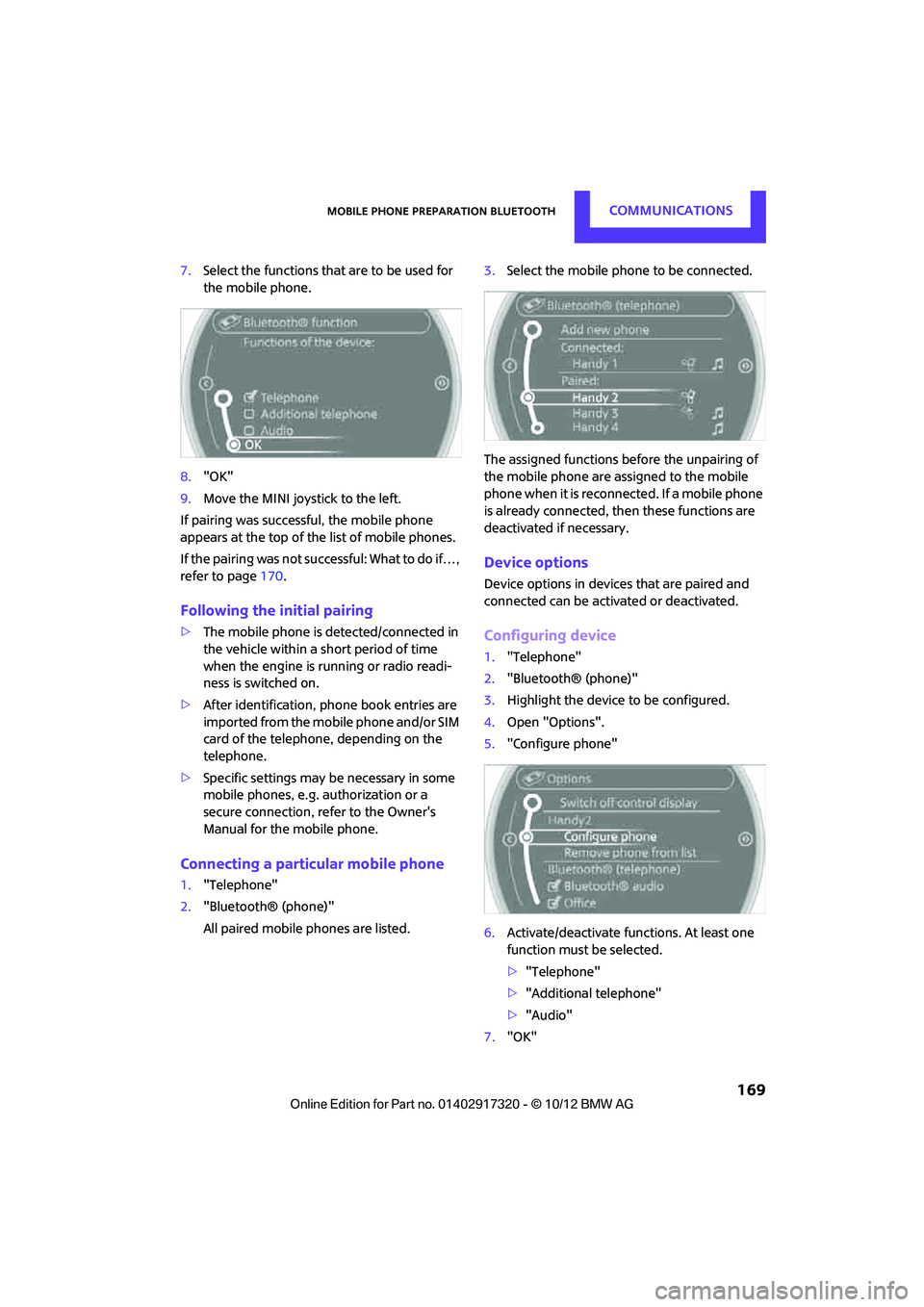
All paired mobile phones are listed. 3.
Select the mobile phone to be connected.
The assigned functions be fore the unpairing of
the mobile phone are assigned to the mobile
phone when it is reconnected. If a mobile phone
is already connected, then these functions are
deactivated if necessary.
Device options
Device options in device s that are paired and
connected can be activated or deactivated.
Configuring device
1. "Telephone"
2. "Bluetooth® (phone)"
3. Highlight the device to be configured.
4. Open "Options".
5. "Configure phone"
6. Activate/deactivate func tions. At least one
function must be selected.
> "Telephone"
> "Additional telephone"
> "Audio"
7. "OK"
00320051004F004C00510048000300280047004C0057004C005200510003
Page 171 of 267
COMMUNICATIONSMobile phone preparation Bluetooth
170
If a device is assigned a function, this may deac-
tivate the function in an already connected
device and cause the other device to be
unpaired.
Exchanging the telephone and auxiliary
phone
If the telephone and auxiliary phone are con-
nected to the vehicle, the function can be
swapped between the two devices.
1. "Telephone"
2. "Bluetooth® (phone)"
3. "Swap phone/addit. phone"
Using the mobile phone as an audio
source
Using the audio-capable mobile phone as an
audio source. Activate Bluetooth audio, refer to
page 168.
Activate and connect the mobile phone in vehi-
cle, refer to page 168.
The mobile phone is used as an audio source if
no other device is connected as an audio source.
If a device is already connected as an audio
source:
1. Activate and connect the mobile phone in
vehicle, refer to page 168.
2. "Use for audio"
The mobile phone is connected as an audio
source. The previous audio source is no
longer connected to the vehicle.
Unpairing device
1."Telephone"
2. "Bluetooth® (phone)"
All paired devices are listed.
3. Highlight the device to be unpaired.
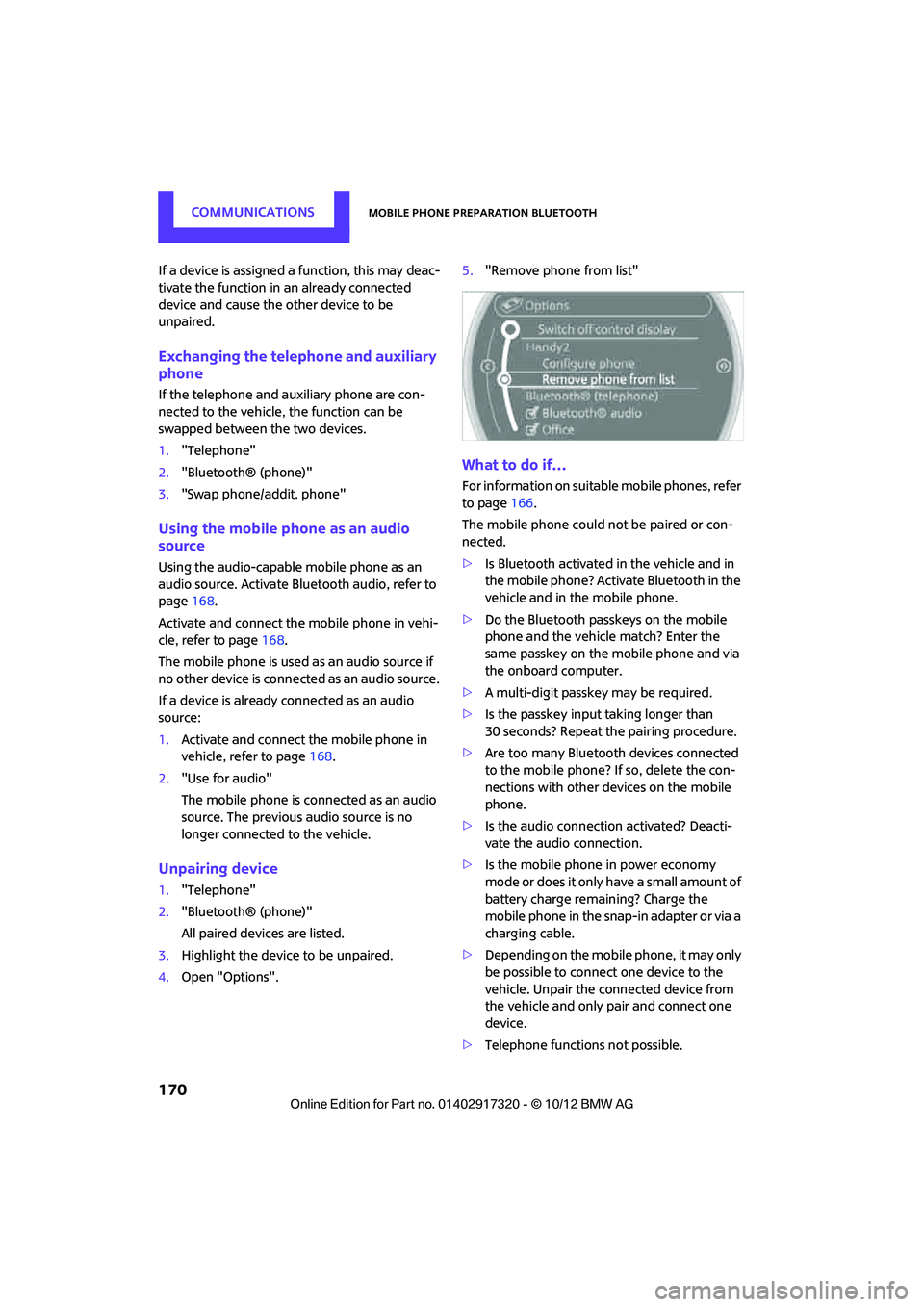
4. Open "Options". 5.
"Remove phone from list"
What to do if…
For information on suitab le mobile phones, refer
to page 166.
The mobile phone could not be paired or con-
nected.
> Is Bluetooth activated in the vehicle and in
the mobile phone? Activate Bluetooth in the
vehicle and in the mobile phone.
> Do the Bluetooth passkeys on the mobile
phone and the vehicle match? Enter the
same passkey on the mobile phone and via
the onboard computer.
> A multi-digit passkey may be required.
> Is the passkey input taking longer than
30 seconds? Repeat th e pairing procedure.
> Are too many Bluetoot h devices connected
to the mobile phone? If so, delete the con-
nections with other devices on the mobile
phone.
> Is the audio connection activated? Deacti-
vate the audio connection.
> Is the mobile phone in power economy
m o d e o r d o e s i t o n l y have a small amount of
battery charge remaining? Charge the
mobile phone in the snap-in adapter or via a
charging cable.
> Depending on the mobile phone, it may only
be possible to connect one device to the
vehicle. Unpair the connected device from
the vehicle and only pair and connect one
device.
> Telephone functions not possible.
00320051004F004C00510048000300280047004C0057004C005200510003
Page 172 of 267
Mobile phone preparation BluetoothCOMMUNICATIONS
171
>Is the mobile phone paired as an auxiliary
phone and is the auxiliary phone function
deactivated? Activate the function.
> Outgoing call not possible? Connect the
mobile phone as a telephone.
Is the mobile phone no longer responding?
> Switch the mobile ph one off and back on
again. Repeat the pairing procedure.
> Is the ambient temperature too high or too
low? Do not subject your mobile phone to
extreme ambient temperatures.
Phone book entries are not displayed, not all of
them are displayed, or they are displayed
incompletely.
> The transfer of phone book entries has not
yet completed.
> It is possible that only the phone book
entries of the mobile phone or the SIM card
are transferred.
> It may not be possible to display phone book
entries with special characters.
> The number of phone book entries to be
stored is too high.
> The data volume of the phone book entry is
too great, e.g. due to additionally stored
information such as notes? Reduce the data
volume.
> Is the mobile phone connected as an audio
source or auxiliary phone? The mobile
phone must be connected as a telephone.
The telephone connection quality is low.
> Depending on the mobile phone, it is possi-
ble to adjust the strength of the Bluetooth
signal.
> Insert the mobile phone into the snap-in
adapter or place it in the vicinity of the cen-
ter console.
> Adjust the volume of the microphone and
speaker separately.
If you have gone through all items in the list and
still cannot activate the desired function please
contact the Hotline or your MINI dealer.Operation
Adjusting volume
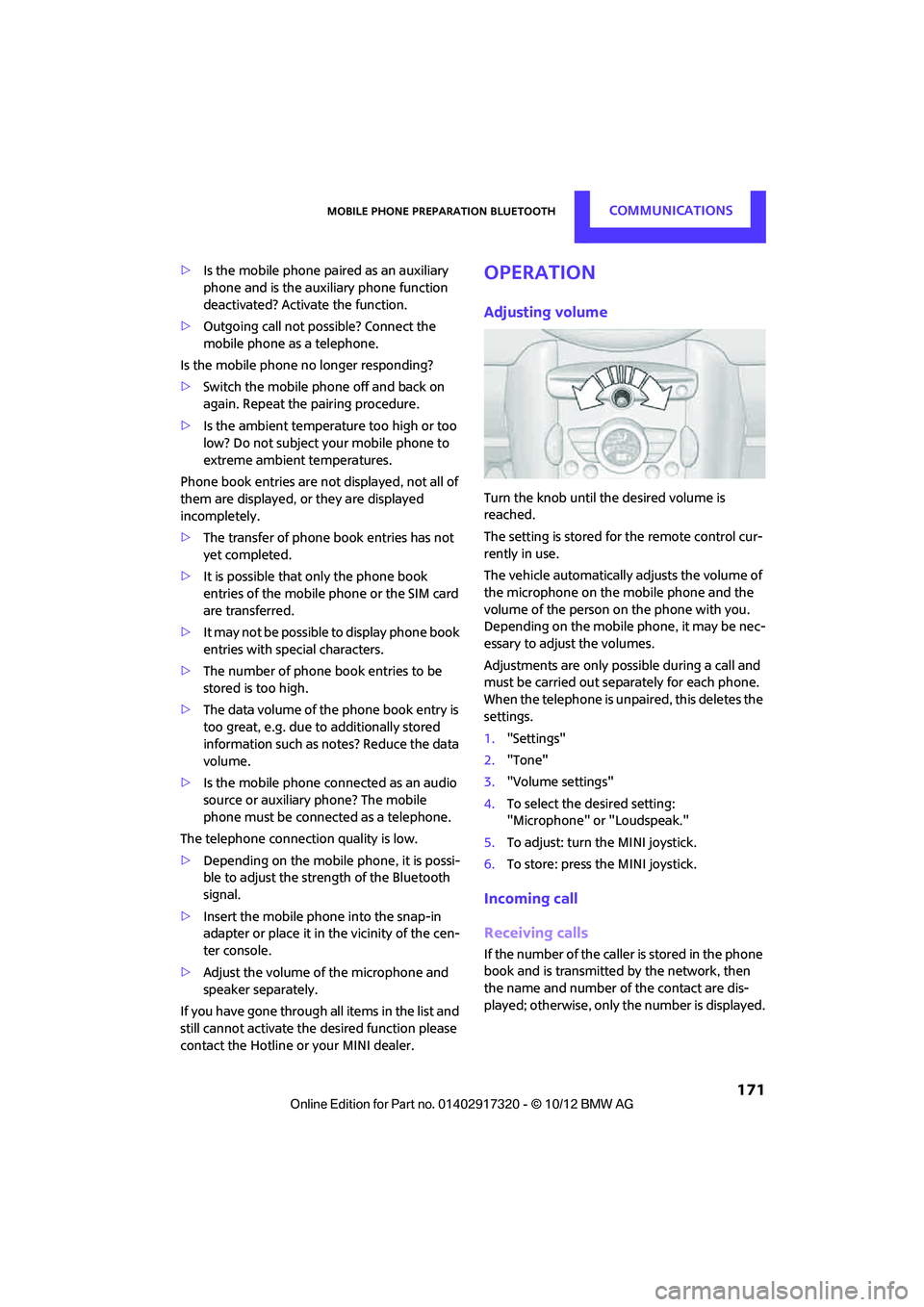
Turn the knob until the desired volume is
reached.
The setting is stored for the remote control cur-
rently in use.
The vehicle automatically adjusts the volume of
the microphone on the mobile phone and the
volume of the person on the phone with you.
Depending on the mobile phone, it may be nec-
essary to adjust the volumes.
Adjustments are only possible during a call and
must be carried out separately for each phone.
When the telephone is unpaired, this deletes the
settings.
1. "Settings"
2. "Tone"
3. "Volume settings"
4. To select the desired setting:
"Microphone" or "Loudspeak."
5. To adjust: turn the MINI joystick.
6. To store: press the MINI joystick.
Incoming call
Receiving calls
If the number of the caller is stored in the phone
book and is transmitted by the network, then
the name and number of the contact are dis-
played; otherwise, only the number is displayed.
00320051004F004C00510048000300280047004C0057004C005200510003
Page 178 of 267
Mobile phone preparation BluetoothCOMMUNICATIONS
177
The entries must be entered by voice and are
independent of the mobile phone's memory. Up
to 50 entries can be set up.
Storing the entry
Deleting the entry
Deleting all entries
Reading and selecting the entries
Selecting an entry
Adjusting volume
Turn knob during announcement.
>The volume remains the same, even if the
volume of other audio sources is changed.
> The volume is stored for the remote control
currently in use.
Notes
Do not use the voice operation system to initiate
an emergency call. In stressful situations, the
voice and vocal pitch can change. This can
unnecessarily delay the establishment of a tele-
phone connection.
Ambient conditions
>Say the commands, numbers and letters
smoothly and with normal volume, empha-
sis and speed.
> Always say the commands in the language
of the system. The language for voice oper-
ation system is pres et and can not be
changed via the Control Display.
> Keep doors, windows, glass sunroof/pan-
oramic sunroof, or convertible top closed to
avoid noise interference.
> Avoid ambient noise in the vehicle while
speaking.
Snap-in adapter
The concept
The snap-in adapter makes it possible to do the
following:
>Accommodate the mobile phone.
> Recharge its battery.
> Connect to the outside antenna of the vehi-
cle.
This assures a better network connection and
constant sound quality.
General information
Detailed information on snap-in adapters that
compatibly support mobile phone functions can
be found at your MINI dealer.
Do not expose your mobile phone to extreme
ambient conditions, for example, very high tem-
peratures; otherwise, functions on your mobile
phone may not work. Follow the operating
instructions for your mobile phone.
1.
{Save name }.
2. Say the name aloud. Do not exceed a
speaking duration of about 2 seconds.
3. Say the phone number after being
prompted to do so by the system.
4. {Save }.
1. {Delete name }.
2. Say the name when prompted.
3. Confirm prompt with {Yes }.
1. {Delete phonebook }.
The dialog for deleti ng phone book is
opened.
2. Confirm prompt with {Yes }.
3. Confirm repeated prompt with {Yes }.
1. {Read phonebook }.
The dialog for reading phone book is
opened.
2. {Dial number } when the desired entry is
read aloud.
1. {Dial name }.
2. Say the name when prompted.
3. Confirm prompt with {Yes }.
00320051004F004C00510048000300280047004C0057004C005200510003
Page 188 of 267
MINI ConnectedCOMMUNICATIONS
187
MINI Connected
Vehicle equipment
In this chapter, all production, country, and
optional equipment that is offered in the model
range is described. Equipment is also described
that is not available because of, for example,
selected options or count ry version. This also
applies to safety related functions and systems.
Overview
The concept
You can use MINI Connected to integrate certain
software applications of a suitable mobile phone
into your MINI. These software applications are
displayed on the Control Display. They are oper-
ated using the MINI joystick.
The range of software applications can be coun-
try-specific.
Requirements
The following requirements must be met for the
function of MINI Connected:
> The operating system of the mobile phone
must support the software applications of
MINI Connected.
> The software applications are installed on
the mobile phone and are operational.
> Suitable mobile phone.
> Appropriate mobile phone contract.
Possible additional costs incurred are not
included with MINI Connected.
Only make entries when the traffic situa-
tion allows you to do so. If you do not
observe this precaution, your being distracted
can endanger vehicle occupants and other road
users.
For safety reasons, some software applications
can only be used when the vehicle is stopped.
wise, malfunctions may result. <
Notes
For information on suitable mobile phones,
available software applic ations, and their instal-
lation:
> at: www.mini.com/connectivity
> at your MINI dealer.
Connecting a mobile
phone
Connecting via the USB audio interface
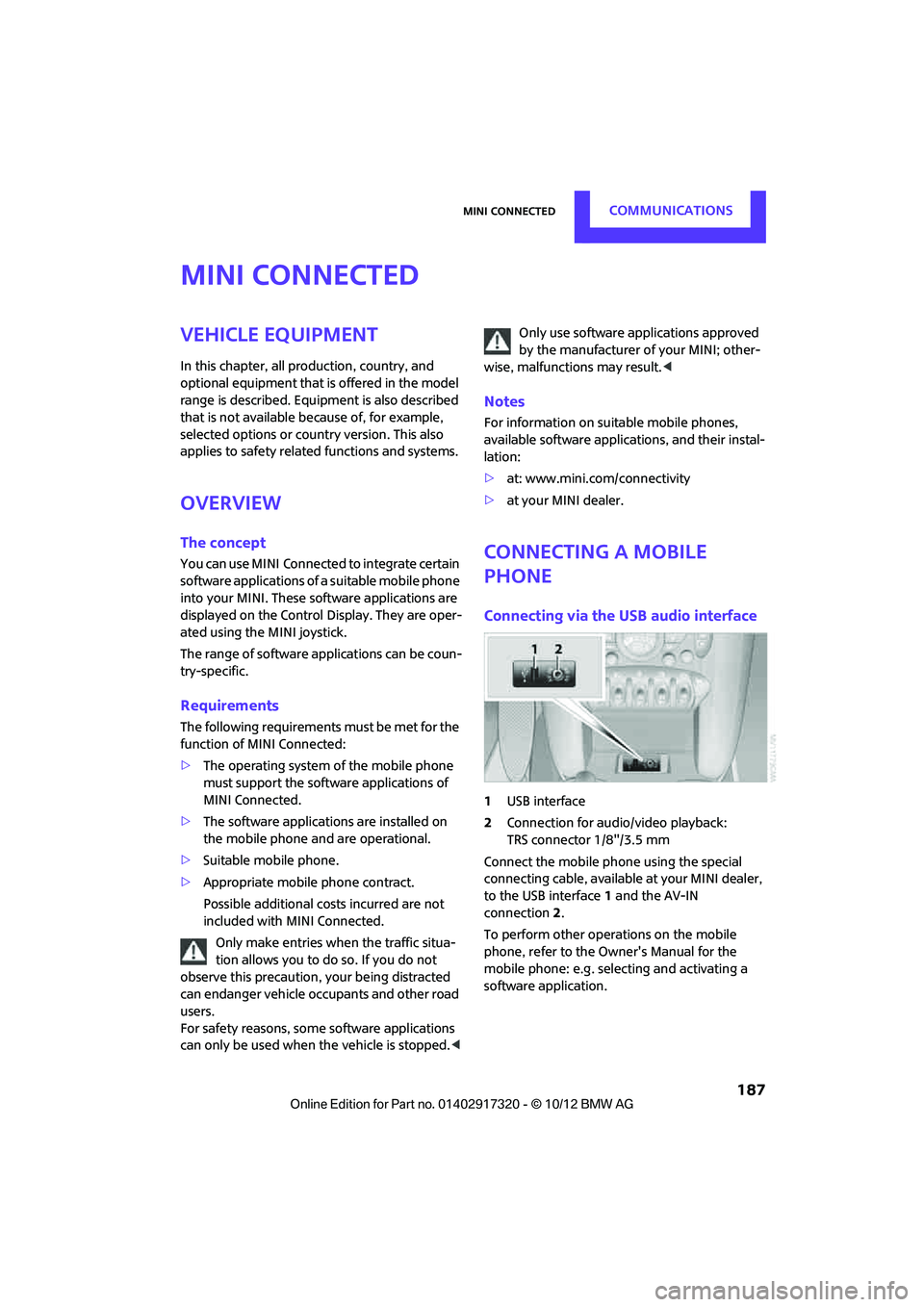
1USB interface
2 Connection for audi o/video playback:
TRS connector 1/8"/3.5 mm
Connect the mobile phone using the special
connecting cable, available at your MINI dealer,
to the USB interface 1 and the AV-IN
connection 2.
To perform other operations on the mobile
phone, refer to the Owner's Manual for the
mobile phone: e.g. selecting and activating a
software application.
00320051004F004C00510048000300280047004C0057004C005200510003
Page 189 of 267
COMMUNICATIONSMINI Connected
188
Connecting via the snap-in adapter
The mobile phone can also be connected using
the snap-in adapter, refer to page177.
Using MINI Connected
After successful connection of the mobile phone
to the vehicle and activation of MINI Connected,
the applications are di splayed on the Control
Display and can be operated using the MINI joy-
stick.
Volume adjustments can be made using the
buttons on the steering wheel, refer to page 10,
or using the volume control knob on the radio,
refer to page 133.
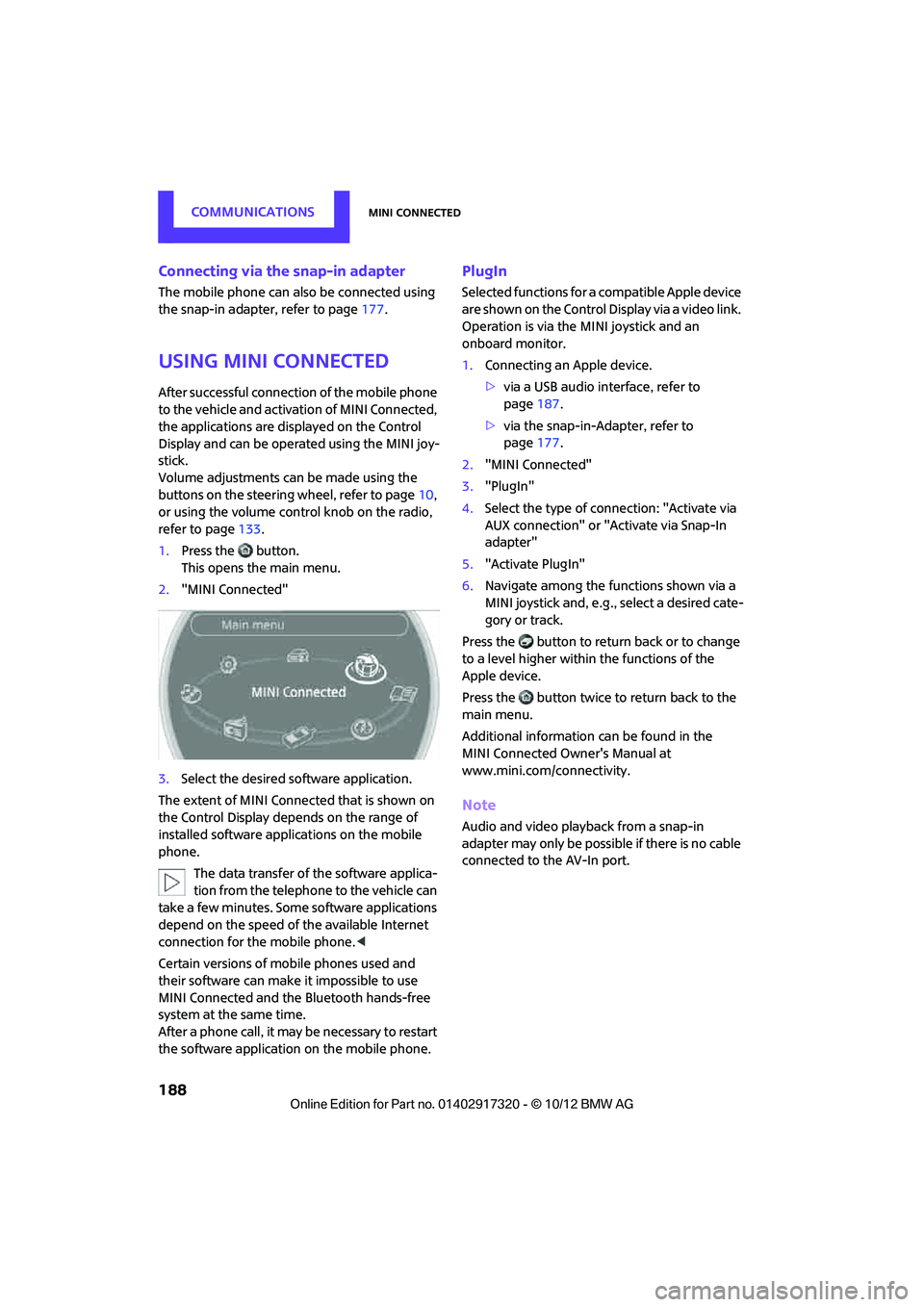
1. Press the button.
This opens the main menu.
2. "MINI Connected"
3. Select the desired so ftware application.
The extent of MINI Connected that is shown on
the Control Display depends on the range of
installed software applic ations on the mobile
phone.
The data transfer of the software applica-
tion from the telephone to the vehicle can
take a few minutes. Some software applications
depend on the speed of the available Internet
connection for the mobile phone. <
Certain versions of mobile phones used and
their software can make it impossible to use
MINI Connected and the Bluetooth hands-free
system at the same time.
After a phone call, it may be necessary to restart
the software application on the mobile phone.
PlugIn
Selected functions for a compatible Apple device
are shown on the Control Display via a video link.
Operation is via the MINI joystick and an
onboard monitor.
1. Connecting an Apple device.
>via a USB audio interface, refer to
page 187.
> via the snap-in-Adapter, refer to
page 177.
2. "MINI Connected"
3. "PlugIn"
4. Select the type of connection: "Activate via
AUX connection" or "Activate via Snap-In
adapter"
5. "Activate PlugIn"
6. Navigate among the functions shown via a
MINI joystick and, e.g., select a desired cate-
gory or track.
Press the button to return back or to change
to a level higher within the functions of the
Apple device.
Press the button twice to return back to the
main menu.
Additional information can be found in the
MINI Connected Owner's Manual at
www.mini.com/c onnectivity.
Note
Audio and video playba ck from a snap-in
adapter may only be possible if there is no cable
connected to the AV-In port.
00320051004F004C00510048000300280047004C0057004C005200510003
Page 253 of 267
252
REFERENCEEverything from A to Z
Everything from A to Z
Index
A
ABS Antilock Brake System69
Accepting a call 159,171
Accessories, see Vehicle equipment 4
Acknowledgment signals for locking/unlocking vehicle 28
Activated-charcoa l filter for
automatic climate control 89
Adaptive Light Control 82
Adding engine oil 209
Additives
– coolant 210
– engine oil 209
Address, entering 118
Address for navigation
– entering 112,118
Adjusting temperature inside the car, refer to Air
conditioner 86
Adjusting temperature inside the car, refer to Automatic
climate control 87
Adjusting the tone during audio operation, refer to
Tone control 133
Airbags 78
– sitting safely 38
– warning lamp 79
Air conditioner 85
Air conditioning mode
– air conditioner 86
– automatic cl imate control87
– ventilation 89
Air distribution
– automatic 88
– individual 87
– manual 87 Air flow rate
86,88
– air conditioning system 86
– automatic climate control 88
– heating, ventilation 86
Airing, refer to Ventilation89
Air outlets, refe r to Air vents86
Air pressure, checking, refer to Tire inflation pressure 195
Air recirculation, refer to
Recirculated-air
mode 86,88
Air supply
– air conditioner 86
– automatic climate control 87
– ventilation 89
Air vents 86
AKI, refer to Fuel grade 193
Alarm system 32
All-season ti res, refer to Winter
tires 206
AM, waveband 135
Ambi ent a
ir, refer to
Recirculated-air
mode 86,88
Ambient lighting 84
Antenna, care 213
Antifreeze
– coolant 210
– washer fluid 54
Antilock Brake System ABS 69
Anti-theft alarm system, refer to Alarm system 32
Anti-theft system 27
Approved axle loads, refer to Weights 242
Approved engine oils 209
Approved gross vehicle weight, refer to Weights 242
Armrest, refer to Center armrest 95 Arrival time
– computer
59
– route guidance 121
Ashtray 96
Assistant systems, refer to
– Dynamic Stability Control
DSC 69
Audio 132
– controls 132
– switching on/off 132
– tone control 133
– volume 133
Audio device, external 94
Automatic
– air distribution 88
– air flow rate 88
– cruise control 55
– headlamp control 81
Automatic climate control 85
– automatic air distribution 88
Automatic transmission with Steptronic 49
– Interlock 50
– overriding selector lever lock 51
– Shiftlock 50
– sport program 51
AUTO program for automatic climate control 88
Auxiliary phone 168
AUX-In, refer to External audio device 94
AUX-In connection 145
Average fuel consumption 58
– setting the units 60
Average speed 59
Av oiding highways for
navigati o
n121
Axle loads, refer to Weights 242
00320051004F004C00510048000300280047004C0057004C005200510003
Page 254 of 267
Everything from A to ZREFERENCE
253
B
Background lighting, refer to
Ambient lighting 84
Backrests, refer to Seats 39
Backup lamps
– replacing bulb 222,223
Band-aids, refer to First aid pouch 231
Bar, refer to Tow-starting,
towing away 234
Base plate for telephone or mobile phone
– refer to Snap-in adapter 177
Bass sounds, refer to Tone control 133
Battery 229
– disposal 35,230
– jump-starting 232
– temporary power failure 230
Battery renewal
– remote control 35
Being towed 234
Belts, refer to Safety belts 41
Belt tensioner, refer to Safety
belts 41
Beverage holders, refer to Cupholders 96
Black ice, refer to External temperature warning 58
Blower, refer to Air flow rate 86,88
Bluetooth, activating/
deactivating 157,167
Bluetooth audio 149
– device pairing 150
– disconnecting an audio connection 152
– playback 151
– unpairing device 152
– What to do if... 152
Bottle holders, refer to
Cupholders 96
Brake Assist 69
Brake fluid, refer to Service
requirements 61 Brake lamps
– replacing bulbs
222,223
Brake pads, breaking in 100
Brake rotors 102
– brakes 100
– breaking in 100
Brakes
– ABS 69
– breaking in 100
– MINI Maintenance
System 211
– parking brake 49
– service requirem ents
61
Brakes, refer to Braking sa fely 101
Br
ake system 100
– breaking in 100
– disc brakes 102
– MINI Maintenance
System 211
Breakdown service, refer to Roadside Assistance 231
Breaking in the clutch 100
Break-in period 100
Bulb changing, refer to Lamps
and bulbs 219
Button for starting the engine 47
Buttons on the steering wheel 11
C
Calendar 183
– displaying appointment 183
– selecting calendar day 183
California Proposition 65 warning 5
Call
– ending 160,172
– muting the microphone 173
Calling, refer to Phone
numbers, dialing 160,172
Calling, refer to Telephone 95
Can holders, refer to
Cupholders 96
Capacities 244 Car battery, refer to Vehicle
battery 229
Car care 213
Care 213
– car-care products 213
– car washes 213
– CD/DVD drives 216
– high-pressure washers 214
– leather 215
– manual washing 214
– upholstery and fabrics 215
– windows 214
– wiper blades 214
Cargo, securing 105
Cargo area 102
– capacity 242
– Comfort Access 34
– cover 102
– doors, refer to Split Rear Barn
Doors 31
– lamp 84
– opening from outside 31
– trunk lid, refer to Split Rear Barn Doors 31
Cargo area, expanding 103
Cargo area doors, refer to Split Rear Barn Doors 31
Cargo area lamp 84
Cargo area lid, refer to Tailgate 31
Cargo area partition net, refer to Cargo net 104
Cargo loading 104
– securing cargo 105
– stowing cargo 105
– vehicle 102
Cargo net 104
Car key, refer to Keys/remote controls 26
Carpets, care 215
Car phone
– installation location, refer to
Ce
nter armrest 95
– refer to Telephone 95
Car phone, refer to
Telephone 156,166
Car radio, refer to Radio 135
00320051004F004C00510048000300280047004C0057004C005200510003
Page 255 of 267
REFERENCEEverything from A to Z
254
Car wash, care213
Car washes 213
Catalytic conver ter, refer to
Hot exhaust system 101
CD, audio playback 143
CD player 143
– controls 132
– fast forward/reverse 144
– random order 144
– selecting a track 143
– switching on/off 132
– tone control 133
– volume 133
Center armrest 95
Center brake lamp 224
Center console, refer to
Around the center
console 14
Central locking system 27
– Comfort Access 33
– from inside 30
– from outside 27
Changing bulbs 219
Changing the language on the Control Display 66
Changing the measurement units on the Control
Display 60
Changing wheels 227
Charging the battery 229
Chassis number, refer to Engine compartment 207
Check Control 63
Child restraint fixing system LATCH 45
Child restraint systems 44
Child seats 44
Chrome parts, care 215
Chrome parts, refer to
Care 213
Cigarette lighter 96
Cleaning headlamps 54
– washer fluid 55
Clock
– setting time 62
– 12 h/24 h mode 63Closing
– from inside
30
– from outside 27
Clothes hooks 95
Club Door 30
Cockpit 10
Cold start, refer to Starting the
engine 48
Comfort Access 33
– replacing the battery 35
– what to observe before entering a car wash 35
C omfort ar
ea, refer to Around
the center console 14
Compartment for remote control, refer to Ignition
lock 47
Compass 92
Computer 58
– displays on Control Display 59
Condensation, refer to When
the vehicle is parked 102
Condition Based Service CBS 211
Configuring settings, refer to Personal Profile 26
Connecting vacuum cleaner,
refer to Connecting electrical
appliances 97
Consumption, refer to Average fuel consumption 58
Contact
– editing 164
Contacts 163,180
– new contact 181
Continuing route guidance 121
Control Display
– settings 60
Control Display, refer to iDrive
– switching on/off 16
Control Display, refer to Onboard computer 16
Controls and displays 10
Control stick, refer to Onboard computer 16 Control unit, refer to Onboard
computer 16
Convenience operation
– windows 28
Convenient access, refer to Comfort Access 33
Convenient star t, refer to
Starting the engine 48
Coolant 210
– checking level 210
– filling 210
Coolant temperature 210
Cooling, maximum 88
Cooling fluid, refer to Coolant 210
Copyright 2
Cornering light, refer to Adaptive Light Control 82
Criteria for route 121
Cruise control
– indicator lamp 13
Cruising range 58
Cupholders 96
Curb weight, refer to Weights 242
Current fuel consumption 59
Curren t playback
– external devices 148
D
Dashboard, refer to Cockpit 10
Dashboard instruments, refer
to Displays 12
Dashboard lighting, refer to Instrument lighting 83
Data 238
– capacities 244
– dimensions 239
– engine 238
– weights 242
Date
– setting 63
– setting format 63
Daytime running lights 82
DBC Dynamic Brake Control, refer to Brake Assist 69
00320051004F004C00510048000300280047004C0057004C005200510003