light MINI COOPER 2014 Owner's Manual
[x] Cancel search | Manufacturer: MINI, Model Year: 2014, Model line: COOPER, Model: MINI COOPER 2014Pages: 230, PDF Size: 11.58 MB
Page 65 of 230

The lever automatically returns to its initial po‐
sition when released.▷Normal wiping speed: press up once.
The wipers switch to intermittent operation
when the vehicle is stationary.▷Fast wiping speed: press up twice or press
once beyond the resistance point.
The wipers switch to normal speed when
the vehicle is stationary.
Switching off and brief wipe
Press the wiper levers down.
The lever automatically returns to its initial po‐
sition when released.
▷Brief wipe: press down once.▷To switch off normal wipe: press down
once.▷To switch off fast wipe: press down twice.
Intermittent operation or rain sensor
The concept
Without the rain sensor, the frequency of the
wiper operation is preset.
The rain sensor automatically controls the time
between wipes depending on the intensity of
the rainfall. The sensor is located on the wind‐
shield, directly behind the interior rearview mir‐
ror.
Activating/deactivating
Press the button on the wiper lever.
The LED in the wiper lever lights up and a wip‐
ing operation is started. If there is frost, wiper
operation is not started.
Deactivate the rain sensor in car washes
Deactivate the rain sensor when passing
through an automatic car wash; otherwise,
damage could be caused by undesired wiper
activation. ◀
Setting the frequency or sensitivity of
the rain sensor
Turn the thumbwheel.
Seite 65DrivingCONTROLS65
Online Edition for Part no. 01 40 2 927 905 - II/14
Page 69 of 230
The selected selector lever position is briefly
displayed in the instrument cluster, followed by
the current one.
Manual mode M/S: prevent automatic
upshifting
Once maximum engine speed is attained, M/S
manual mode is automatically upshifted as
needed.
For vehicles with Sport automatic transmission,
automatic shift operations are not performed if
one of the following conditions is met:▷DSC is deactivated.▷TRACTION is activated.
In addition, the kickdown is deactivated.
Ending the sport program/manual
mode
Push the selector lever to the right.
D is displayed in the instrument cluster.
Shift paddles for Sport automatic
transmission
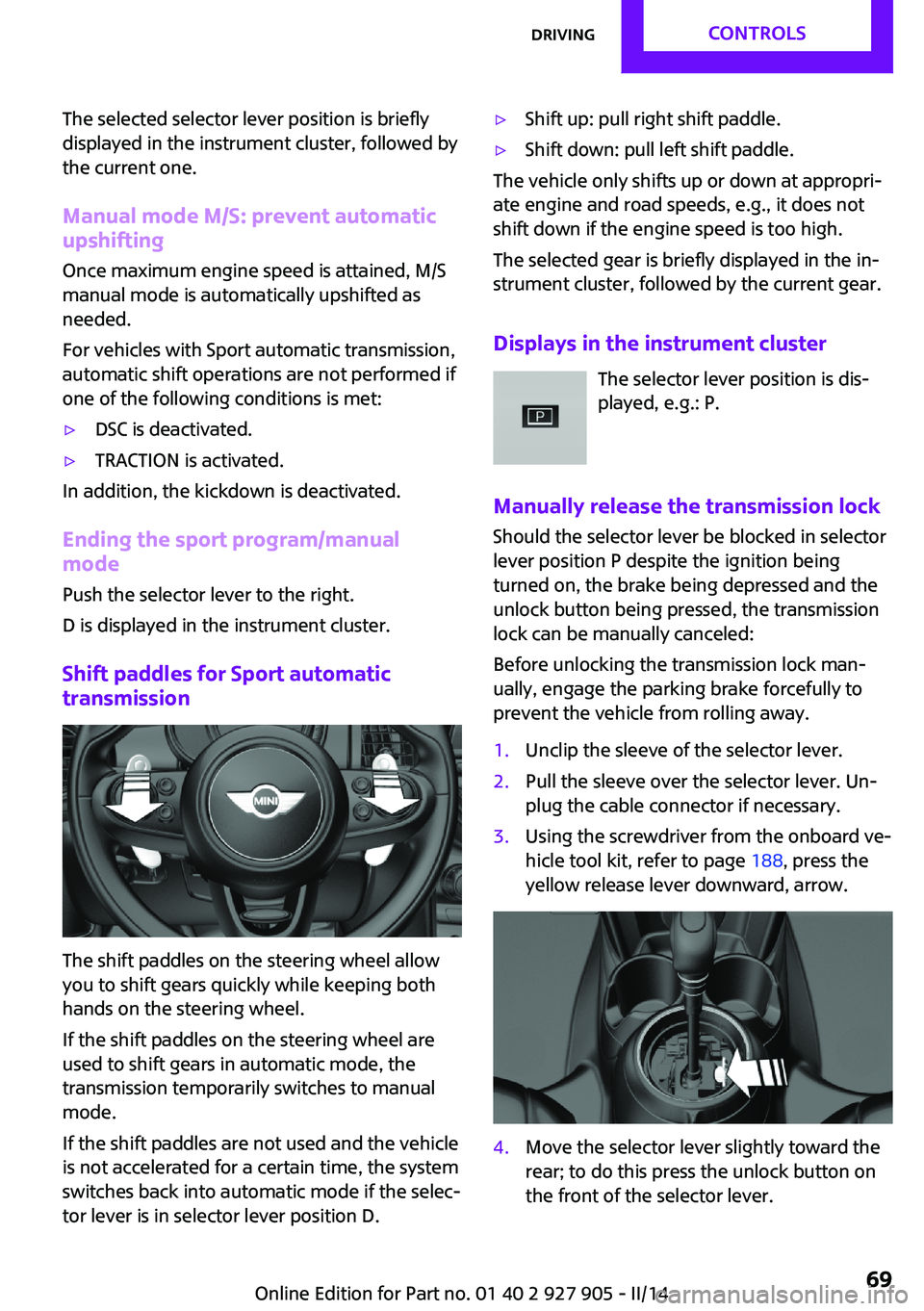
The shift paddles on the steering wheel allow
you to shift gears quickly while keeping both
hands on the steering wheel.
If the shift paddles on the steering wheel are
used to shift gears in automatic mode, the
transmission temporarily switches to manual
mode.
If the shift paddles are not used and the vehicle
is not accelerated for a certain time, the system
switches back into automatic mode if the selec‐
tor lever is in selector lever position D.
▷Shift up: pull right shift paddle.▷Shift down: pull left shift paddle.
The vehicle only shifts up or down at appropri‐
ate engine and road speeds, e.g., it does not
shift down if the engine speed is too high.
The selected gear is briefly displayed in the in‐
strument cluster, followed by the current gear.
Displays in the instrument cluster The selector lever position is dis‐
played, e.g.: P.
Manually release the transmission lock
Should the selector lever be blocked in selector
lever position P despite the ignition being
turned on, the brake being depressed and the
unlock button being pressed, the transmission
lock can be manually canceled:
Before unlocking the transmission lock man‐
ually, engage the parking brake forcefully to
prevent the vehicle from rolling away.
1.Unclip the sleeve of the selector lever.2.Pull the sleeve over the selector lever. Un‐
plug the cable connector if necessary.3.Using the screwdriver from the onboard ve‐
hicle tool kit, refer to page 188, press the
yellow release lever downward, arrow.4.Move the selector lever slightly toward the
rear; to do this press the unlock button on
the front of the selector lever.Seite 69DrivingCONTROLS69
Online Edition for Part no. 01 40 2 927 905 - II/14
Page 70 of 230
Release the release lever.5.Bring the selector lever into the desired po‐
sition.
Sport automatic transmission: Launch
Control
The concept
Launch Control enables optimum acceleration
on surfaces with good traction.
Hints Component wear
Do not use Launch Control too often; oth‐
erwise, this may result in premature wear of
components due to the high stress placed on
the vehicle. ◀
Did not use Launch Control during the break-in,
refer to page 148, period.
To increase vehicle stability, activate DSC again
as soon as possible.
An experienced driver may be able to achieve
better acceleration values in DSC OFF mode, re‐
fer to page 106.
Requirements Launch Control is available when the engine is
warmed up, that is, after uninterrupted driving
of at least 6 miles/10 km.
To start with Launch Control do not steer the
steering wheel.
Start with launch control
While the engine is running:
1. Press button and select with the
Driving Dynamics Control, refer to
page 108, Sport+.
In the instrument cluster, TRACTION is dis‐
played in combination with SPORT. The DSC
OFF indicator lamp lights up.2.Engage selector lever position S.3.With the left foot, forcefully press down on
the brake.4.Press on the accelerator pedal beyond the
resistance point at the full throttle position.
A flag symbol appears in the instrument
cluster.5.The starting engine speed adjusts. Within
3 seconds, release the brake.
Before using Launch Control, allow the trans‐
mission to cool down for approx. 5 minutes.
Seite 70CONTROLSDriving70
Online Edition for Part no. 01 40 2 927 905 - II/14
Page 72 of 230

Electronic displays1Driver assistance systems
Messages, e.g. Check Control
Time 75
External temperature 75
Selection lists 78
Miles/trip miles 74Computer 792Selector lever position display 67
Gear shift indicator 763Driving Dynamics Control 108
StatusCheck Control
The concept
The Check Control system monitors functions in
the vehicle and notifies you of malfunctions in the monitored systems.
A Check Control message is displayed as a com‐
bination of indicator or warning lamps and text
messages in the instrument cluster and in the
Head-up Display.
In addition, an acoustic signal may be output
and a text message may appear on the Control Display.Indicator/warning lamps
The indicator and warning lamps can light up in
a variety of combinations and colors.
Several of the lamps are checked for proper
functioning and light up temporarily when the
engine is started or the ignition is switched on.
Overview: indicator/warning lampsSymbolFunction or systemTurn signalFront fog lampsSeite 72CONTROLSDisplays72
Online Edition for Part no. 01 40 2 927 905 - II/14
Page 78 of 230
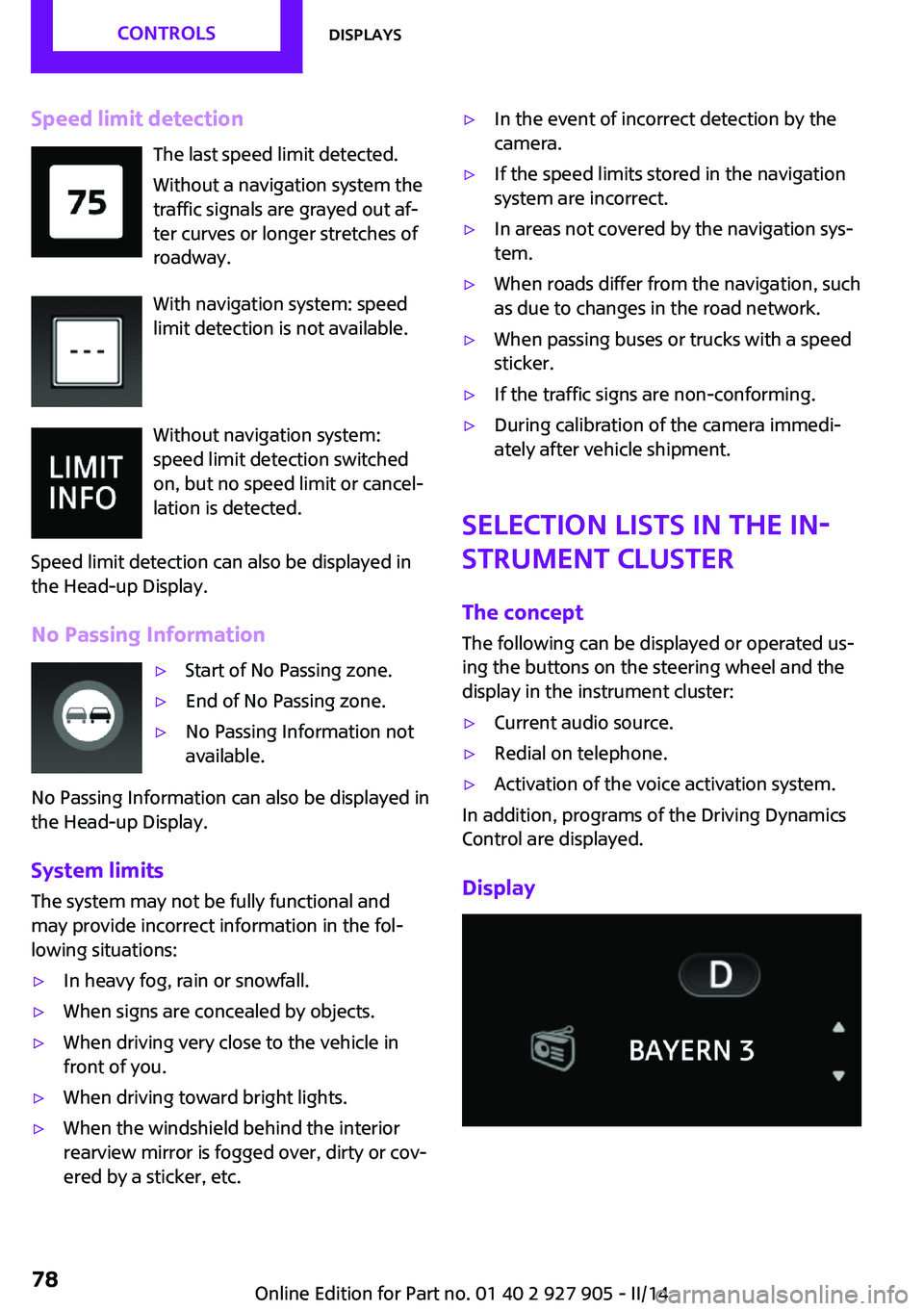
Speed limit detectionThe last speed limit detected.
Without a navigation system the
traffic signals are grayed out af‐
ter curves or longer stretches of
roadway.
With navigation system: speed
limit detection is not available.
Without navigation system:
speed limit detection switched
on, but no speed limit or cancel‐
lation is detected.
Speed limit detection can also be displayed in
the Head-up Display.
No Passing Information▷Start of No Passing zone.▷End of No Passing zone.▷No Passing Information not
available.
No Passing Information can also be displayed in
the Head-up Display.
System limits The system may not be fully functional and
may provide incorrect information in the fol‐
lowing situations:
▷In heavy fog, rain or snowfall.▷When signs are concealed by objects.▷When driving very close to the vehicle in
front of you.▷When driving toward bright lights.▷When the windshield behind the interior
rearview mirror is fogged over, dirty or cov‐
ered by a sticker, etc.▷In the event of incorrect detection by the
camera.▷If the speed limits stored in the navigation
system are incorrect.▷In areas not covered by the navigation sys‐
tem.▷When roads differ from the navigation, such
as due to changes in the road network.▷When passing buses or trucks with a speed
sticker.▷If the traffic signs are non-conforming.▷During calibration of the camera immedi‐
ately after vehicle shipment.
Selection lists in the in‐
strument cluster
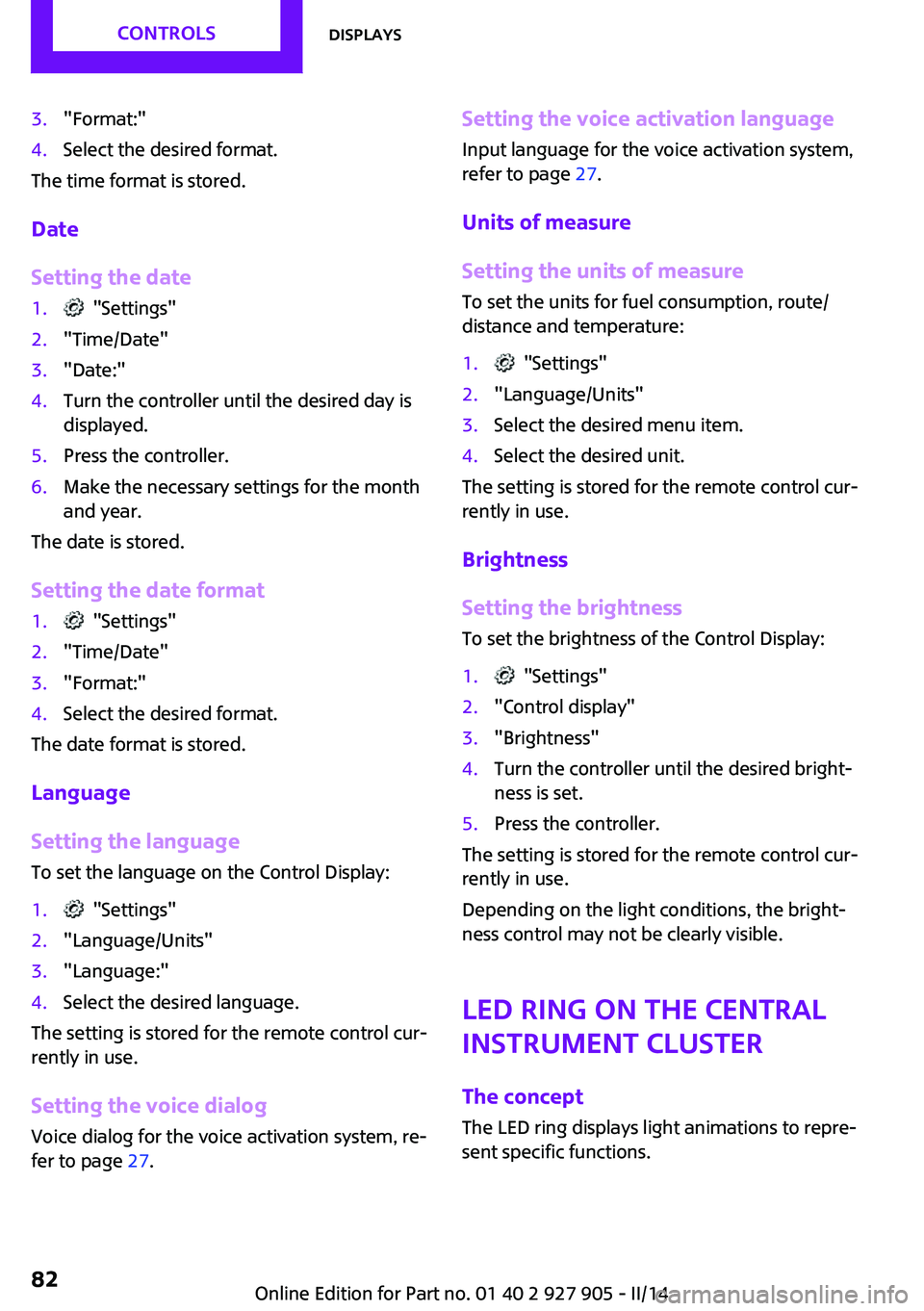
The concept
The following can be displayed or operated us‐
ing the buttons on the steering wheel and the
display in the instrument cluster:
▷Current audio source.▷Redial on telephone.▷Activation of the voice activation system.
In addition, programs of the Driving Dynamics
Control are displayed.
Display
Seite 78CONTROLSDisplays78
Online Edition for Part no. 01 40 2 927 905 - II/14
Page 82 of 230
3."Format:"4.Select the desired format.
The time format is stored.
Date
Setting the date
1. "Settings"2."Time/Date"3."Date:"4.Turn the controller until the desired day is
displayed.5.Press the controller.6.Make the necessary settings for the month
and year.
The date is stored.
Setting the date format
1. "Settings"2."Time/Date"3."Format:"4.Select the desired format.
The date format is stored.
Language
Setting the language
To set the language on the Control Display:
1. "Settings"2."Language/Units"3."Language:"4.Select the desired language.
The setting is stored for the remote control cur‐
rently in use.
Setting the voice dialog Voice dialog for the voice activation system, re‐
fer to page 27.
Setting the voice activation language
Input language for the voice activation system,
refer to page 27.
Units of measure
Setting the units of measure To set the units for fuel consumption, route/
distance and temperature:1. "Settings"2."Language/Units"3.Select the desired menu item.4.Select the desired unit.
The setting is stored for the remote control cur‐
rently in use.
Brightness
Setting the brightness To set the brightness of the Control Display:
1. "Settings"2."Control display"3."Brightness"4.Turn the controller until the desired bright‐
ness is set.5.Press the controller.
The setting is stored for the remote control cur‐
rently in use.
Depending on the light conditions, the bright‐
ness control may not be clearly visible.
LED ring on the central
instrument cluster
The concept
The LED ring displays light animations to repre‐
sent specific functions.
Seite 82CONTROLSDisplays82
Online Edition for Part no. 01 40 2 927 905 - II/14
Page 83 of 230
Basic displays
Basic functions, for example the tachometer,
can be set to be displayed continually if de‐
sired.
Event displays
Functions that are only displayed temporarily,
for example the volume or temperature set‐
tings, can be set as event displays.
Several vehicle assistance functions can also be
displayed on the LED ring. The display here cor‐
responds to the displays of the function in the
respective display.
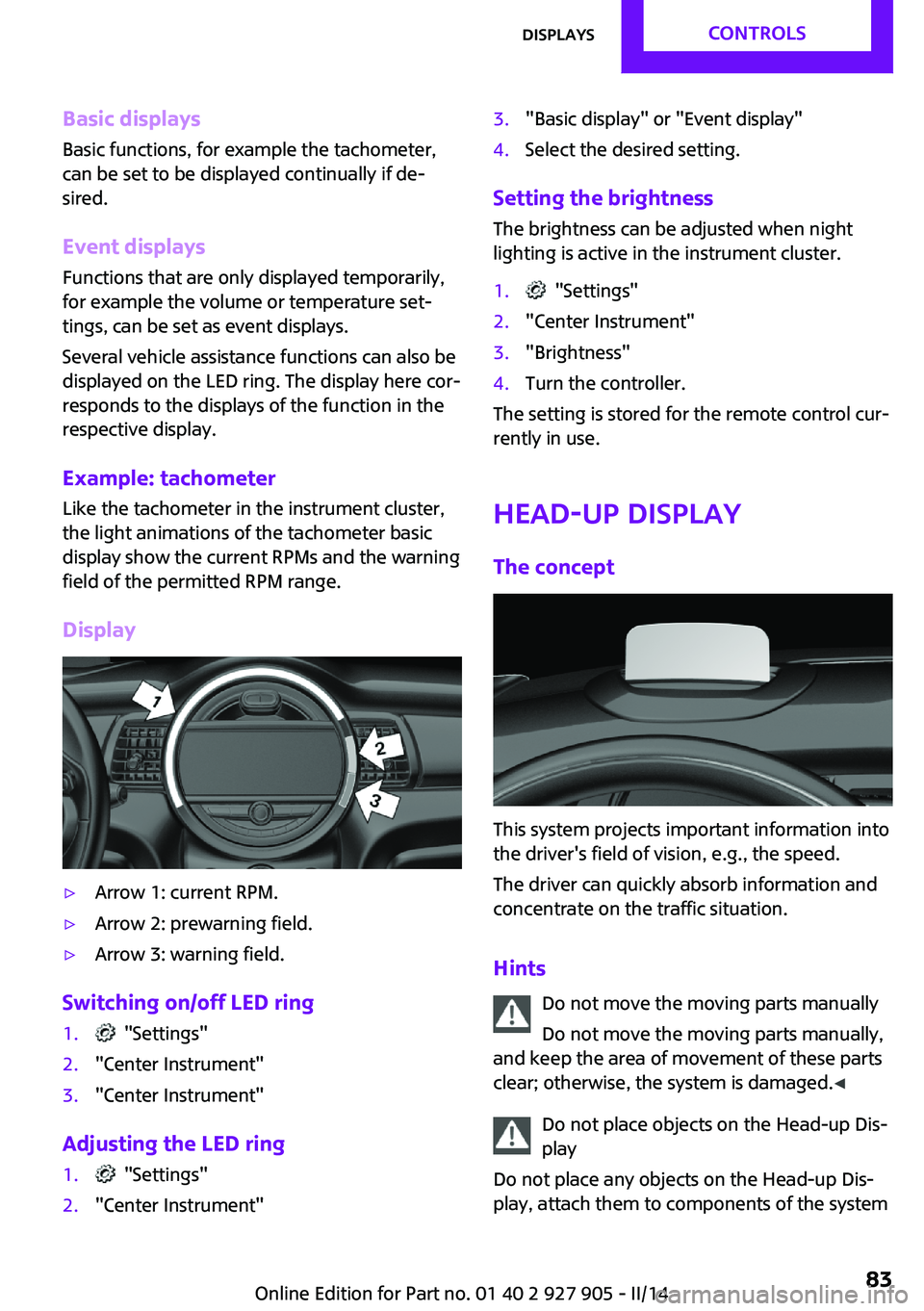
Example: tachometer
Like the tachometer in the instrument cluster,
the light animations of the tachometer basic
display show the current RPMs and the warning
field of the permitted RPM range.
Display▷Arrow 1: current RPM.▷Arrow 2: prewarning field.▷Arrow 3: warning field.
Switching on/off LED ring
1. "Settings"2."Center Instrument"3."Center Instrument"
Adjusting the LED ring
1. "Settings"2."Center Instrument"3."Basic display" or "Event display"4.Select the desired setting.
Setting the brightnessThe brightness can be adjusted when night
lighting is active in the instrument cluster.
1. "Settings"2."Center Instrument"3."Brightness"4.Turn the controller.
The setting is stored for the remote control cur‐
rently in use.
Head-up Display
The concept
This system projects important information into
the driver's field of vision, e.g., the speed.
The driver can quickly absorb information and
concentrate on the traffic situation.
Hints Do not move the moving parts manually
Do not move the moving parts manually,
and keep the area of movement of these parts
clear; otherwise, the system is damaged. ◀
Do not place objects on the Head-up Dis‐
play
Do not place any objects on the Head-up Dis‐
play, attach them to components of the system
Seite 83DisplaysCONTROLS83
Online Edition for Part no. 01 40 2 927 905 - II/14
Page 84 of 230

or insert them in the system, or else the system
can be damaged. ◀
Follow the instructions for cleaning the Head-
up Display, refer to page 210.
Display visibility
The visibility of the displays in the Head-up Dis‐
play is influenced by the following factors:▷Certain sitting positions.▷Objects on the cover of the Head-up Dis‐
play.▷Sunglasses with certain polarization filters.▷Wet roads.▷Unfavorable light conditions.
Switching on/off
When switching on, the projection lens of the
Head-up Display is extended. When switching
off, the projection lens of the Head-up Display
is retracted again.
Press the button.
Display
Overview
▷Speed.▷Navigation system.▷Check Control messages.▷Selection list from the instrument cluster.▷Speed limit detection.▷Driver assistance systems.Some of this information is only displayed
briefly as needed.
Selecting displays in the Head-up
Display1. "Settings"2."Head-Up Display"3."Displayed information"4.Select the desired displays in the Head-up
Display.
The settings are stored for the remote control
currently in use.
Setting the brightness The brightness is automatically adjusted to the
ambient light.
The basic setting can be adjusted manually.
1. "Settings"2."Head-Up Display"3."Brightness"4.Turn the controller.
When the low beams are switched on, the
brightness of the Head-up Display can be addi‐
tionally influenced using the instrument light‐
ing, refer to page 89.
The setting is stored for the remote control cur‐
rently in use.
Adjusting the height
1. "Settings"2."Head-Up Display"3."Height"4.Turn the controller.
The setting is stored for the remote control cur‐
rently in use.
Setting the rotation
1. "Settings"2."Head-Up Display"Seite 84CONTROLSDisplays84
Online Edition for Part no. 01 40 2 927 905 - II/14
Page 86 of 230
LampsVehicle equipmentAll standard, country-specific and optional
equipment that is offered in the model series is
described in this chapter. Therefore, equipment
is also described that is not available in a vehi‐
cle, e. g., because of the selected optional
equipment or country variant. This also applies
for safety-related functions and systems.
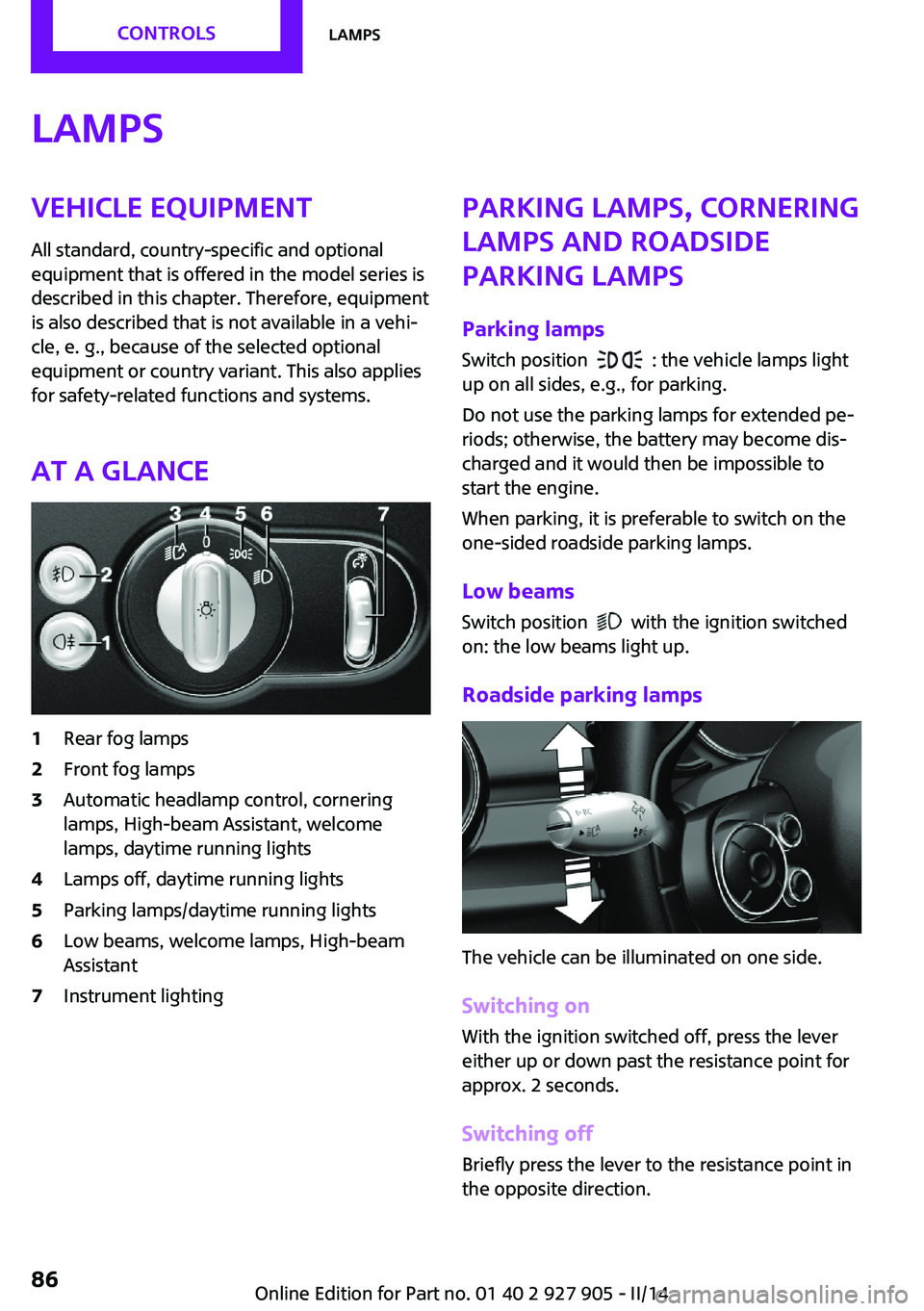
At a glance1Rear fog lamps2Front fog lamps3Automatic headlamp control, cornering
lamps, High-beam Assistant, welcome
lamps, daytime running lights4Lamps off, daytime running lights5Parking lamps/daytime running lights6Low beams, welcome lamps, High-beam
Assistant7Instrument lightingParking lamps, cornering
lamps and roadside
parking lamps
Parking lamps Switch position
: the vehicle lamps light
up on all sides, e.g., for parking.
Do not use the parking lamps for extended pe‐
riods; otherwise, the battery may become dis‐
charged and it would then be impossible to
start the engine.
When parking, it is preferable to switch on the
one-sided roadside parking lamps.
Low beams
Switch position
with the ignition switched
on: the low beams light up.
Roadside parking lamps
The vehicle can be illuminated on one side.
Switching on With the ignition switched off, press the lever
either up or down past the resistance point for
approx. 2 seconds.
Switching off Briefly press the lever to the resistance point in
the opposite direction.
Seite 86CONTROLSLamps86
Online Edition for Part no. 01 40 2 927 905 - II/14
Page 87 of 230

Welcome lamps and
headlamp courtesy de‐
lay feature
Welcome lamps
When the vehicle is parked, leave the switch in
position
or : parking and interior lamps
come on briefly when the vehicle is unlocked
depending on the ambient light.
Activating/deactivating
1. "Settings"2."Lighting"3."Welcome lights"
The setting is stored for the remote control cur‐
rently in use.
Headlamp courtesy delay feature The low beams stay lit for a short while if the
headlamp flasher is switched on after the lights
and ignition are switched off.
Setting the duration
1. "Settings"2."Lighting"3."Pathway lighting:"4.Set the duration.
The setting is stored for the remote control cur‐
rently in use.
Automatic headlamp
control
Switch position
: the low beams are
switched on and off automatically, e.g., in tun‐
nels, in twilight or if there is precipitation. The
indicator lamp in the instrument cluster lights
up.
A blue sky with the sun low on the horizon can
cause the lights to be switched on.
The low beams always stay on when the fog
lamps are switched on.
Personal responsibility
The automatic headlamp control cannot
serve as a substitute for your personal judg‐
ment in determining when the lamps should be
switched on in response to ambient lighting
conditions.
For example, the sensors are unable to detect
fog or hazy weather. To avoid safety risks, you
should always switch on the lamps manually
under these conditions. ◀
Daytime running lights
With the ignition switched on, the daytime run‐
ning lights light up in position 0,
or .
After the ignition is switched off, the parking
lamps light up in position
.
Activating/deactivating
In some countries, daytime running lights are
compulsory, so it may not be possible to deacti‐
vate the daytime running lights.
1. "Settings"2."Lighting"3."Daytime running lamps"
The setting is stored for the remote control cur‐
rently in use.
Cornering lamp
Switch position
: during cornering, the cor‐
nering lamp also lights the interior area of the
curve. Below a speed of approx.
25 mph/40 km/h when the flasher is switched
on and the steering angle is detected, there is
automatic activation.
Malfunction
A Check Control message is displayed.
Seite 87LampsCONTROLS87
Online Edition for Part no. 01 40 2 927 905 - II/14