buttons MINI COOPER CONVERTIBLE 2015 User Guide
[x] Cancel search | Manufacturer: MINI, Model Year: 2015, Model line: COOPER CONVERTIBLE, Model: MINI COOPER CONVERTIBLE 2015Pages: 231, PDF Size: 5.56 MB
Page 142 of 231
TelephoneVehicle equipment
This chapter describes all series equipment as
well as country-specific and special equipment
offered for this model series. Therefore, it also
describes equipment that may not be found in
your vehicle, for instance due to the selected
special equipment or the country version. This
also applies to safety-related functions and sys‐
tems.
When using the features and systems described
here, adhere to local regulations.
At a glance
The concept
Mobile phones can be connected with the vehi‐
cle via Bluetooth.
After a suitable mobile phone is paired with the
vehicle once, you can operate the mobile
phone via the radio and via the buttons on the
steering wheel.
Bluetooth® is a registered trademark of Blue‐
tooth® SIG, Inc.
Certain functions may need to be enabled by
the mobile phone provider or service provider.
Using the mobile phone while driving
Make entries only when traffic and road
conditions allow. Do not hold the mobile phone
in your hand while you are driving; use the
hands-free system instead. If you do not ob‐
serve this precaution, you can endanger the ve‐
hicle occupants and other road users. ◀
Snap-in adapter
The snap-in adapter is used to:▷Hold the mobile phone.▷Recharge the battery.▷Connect the mobile phone to an outside
antenna of the vehicle.
This provides for better network reception
and consistent sound quality.
Do not operate a mobile phone that is con‐
nected to the vehicle on the mobile phone key‐
pad, as this may lead to a malfunction.
Approved mobile phones
Details on which mobile phones with a Blue‐
tooth interface are supported by the mobile
phone preparation package can be obtained at
www.mini.com/connectivity.
Notes At high temperatures, the charging function of
the mobile phone may be limited and functions
may not be executed.
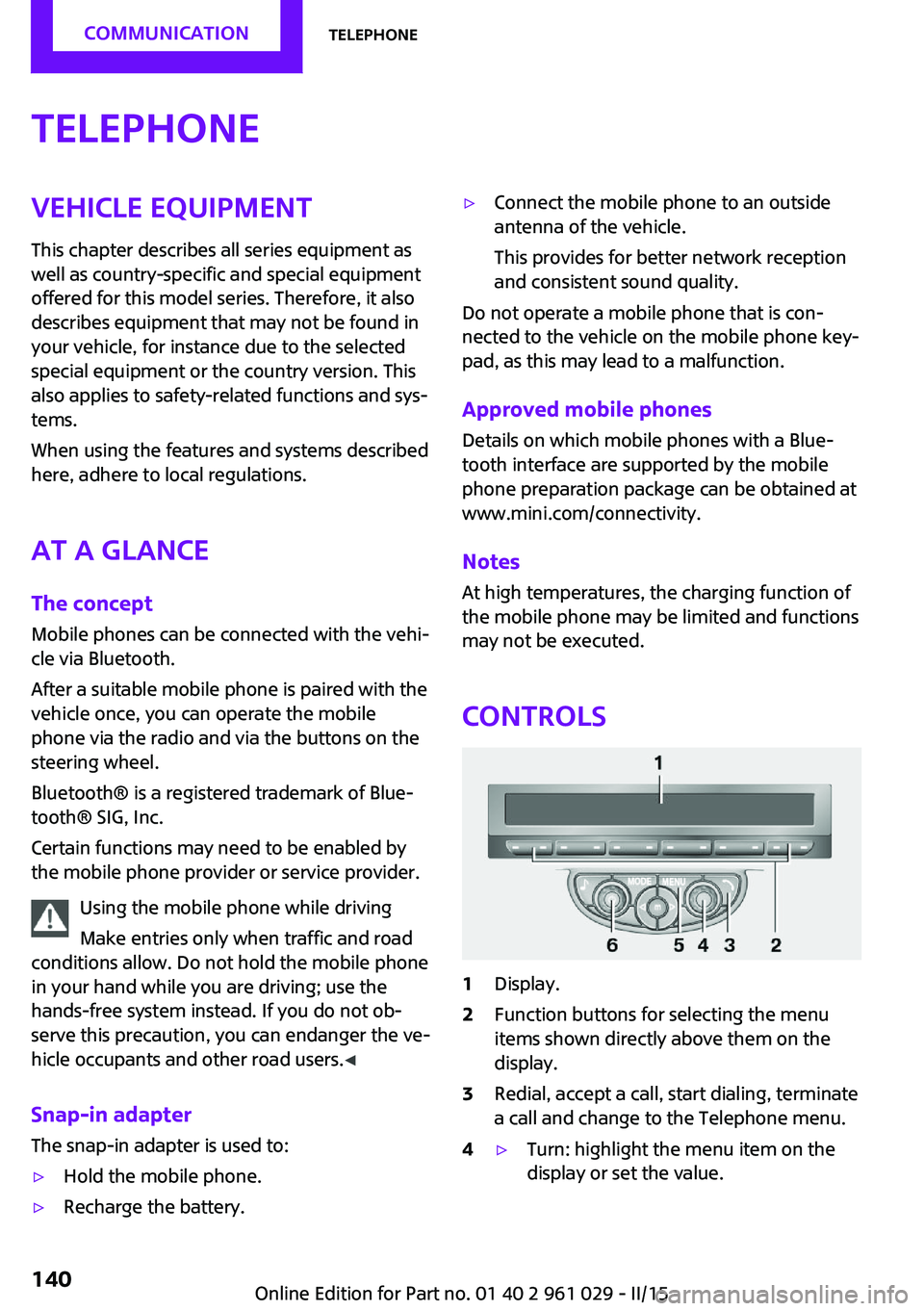
Controls
1Display.2Function buttons for selecting the menu
items shown directly above them on the
display.3Redial, accept a call, start dialing, terminate
a call and change to the Telephone menu.4▷Turn: highlight the menu item on the
display or set the value.Seite 140COMMUNICATIONTelephone140
Online Edition for Part no. 01 40 2 961 029 - II/15
Page 143 of 231

▷Press: select the highlighted menu item
or store the setting.5Opens the main menu.6On/off, volume control.
Menu navigation
Selecting menu items
There are two ways to select a menu item on
the display.
Using the right knob
▷To mark a menu item: turn the right knob,
arrow 2.▷To select a menu item: press the right knob,
arrow 1.
Using the function buttons
Press the left or right side of the functionbutton under the menu item.
If only one menu item is displayed above the
function button, press the middle of the button.
Representation in the Owner's Manual
"…" Identifies radio display texts used to select
individual functions.
Symbols on the displaySymbolMeaning Function is selected. Leave the menu, one menu back. Display additional menu items. Scroll display. The list contains more
than two entries. Reception of the wireless network:
the display depends on the signal
strength. Using the hands-free system. Roaming is active.
Pairing/unpairing the
mobile phone
Requirements
▷The mobile phone is suitable, refer to
page 140.▷The mobile phone is ready for operation.▷Bluetooth is activated in the vehicle and on
the mobile phone.▷Bluetooth presettings may need to be
made on the mobile phone, e.g., for a con‐
nection without confirmation or visibility,
refer to the mobile phone operating in‐
structions.▷A number with at least four and a maxi‐
mum of 16 digits was defined as the Blue‐
tooth passkey. It is only required once for
pairing.▷The ignition is switched on.
Activating/deactivating Bluetooth
Bluetooth is not permitted everywhere. Comply
with all safety guidelines and regulations.
Seite 141TelephoneCOMMUNICATION141
Online Edition for Part no. 01 40 2 961 029 - II/15
Page 144 of 231

To activate the connection:1.Switch on the radio ready state or the igni‐
tion.2. Press the button.3."PHONE"4."BT-ON"
To deactivate the connection again:
1."BT"2."BT-OFF"3."YES"
Pairing and connecting
Pairing the mobile phone
To avoid becoming distracted and posing
an unnecessary hazard both to your own vehi‐
cle's occupants and to other road users, only
pair the mobile phone while the vehicle is sta‐
tionary. ◀
1.Switch on the radio ready state or the igni‐
tion.2. Press the button.3."PHONE"4."BT"5."PAIR"
Turn the right knob to display the Bluetooth
name of your vehicle.6.To perform additional steps on the mobile
phone, refer to the mobile phone operating
instructions: for instance, search for or con‐
nect the Bluetooth device or a new device.
The Bluetooth name of the vehicle appears
on the mobile phone display.7.Select the Bluetooth name of the vehicle on
the mobile phone display.
You are prompted by the radio or mobile
phone to enter the same Bluetooth pass‐
key.8.Enter the passkey on the mobile phone and
confirm it.9."ADD"10.Enter the same passkey on the radio using
the function buttons and confirm it.
To delete the last digit: "DELETE"11."OK"
Press twice if necessary.
If pairing was successful, the mobile phone ap‐
pears on the radio display.
Four mobile phones can be paired with the ve‐
hicle at once.
If pairing was unsuccessful: What to do if..., re‐
fer to page 143.
Repeating the pairing procedure/help If pairing failed:
1."REPEAT"2.Repeat steps 6 to 10.
To display the Customer Relations phone num‐
ber: "CALLS"
Turn the right knob to display the Customer Re‐
lations phone number and information needed
for pairing.
Following the initial pairing
▷The mobile phone is detected/connected in
the vehicle within a short period of time
when the engine is running or the ignition
is switched on.▷The phone book entries of the telephone
stored on the SIM card or mobile phone are
transmitted to the vehicle after detection,
depending on the mobile phone.▷Specific settings may be necessary in some
mobile phones, e.g., authorization or a se‐
cure connection; refer to the mobile phone
operating instructions.Seite 142COMMUNICATIONTelephone142
Online Edition for Part no. 01 40 2 961 029 - II/15
Page 146 of 231
If all points in this list have been checked and
the required function is still not available, con‐
tact Customer Relations or the service center.
Controls▷Accept/reject a call.▷Dial a phone number.▷Dial a phone number from the phone book.▷Dial a stored phone number, such as from
the list of accepted calls.▷End the call.
When the ignition and the radio ready state are
switched off, such as after the remote control is
removed, an existing call can be continued for
up to 25 minutes on the hands-free system.
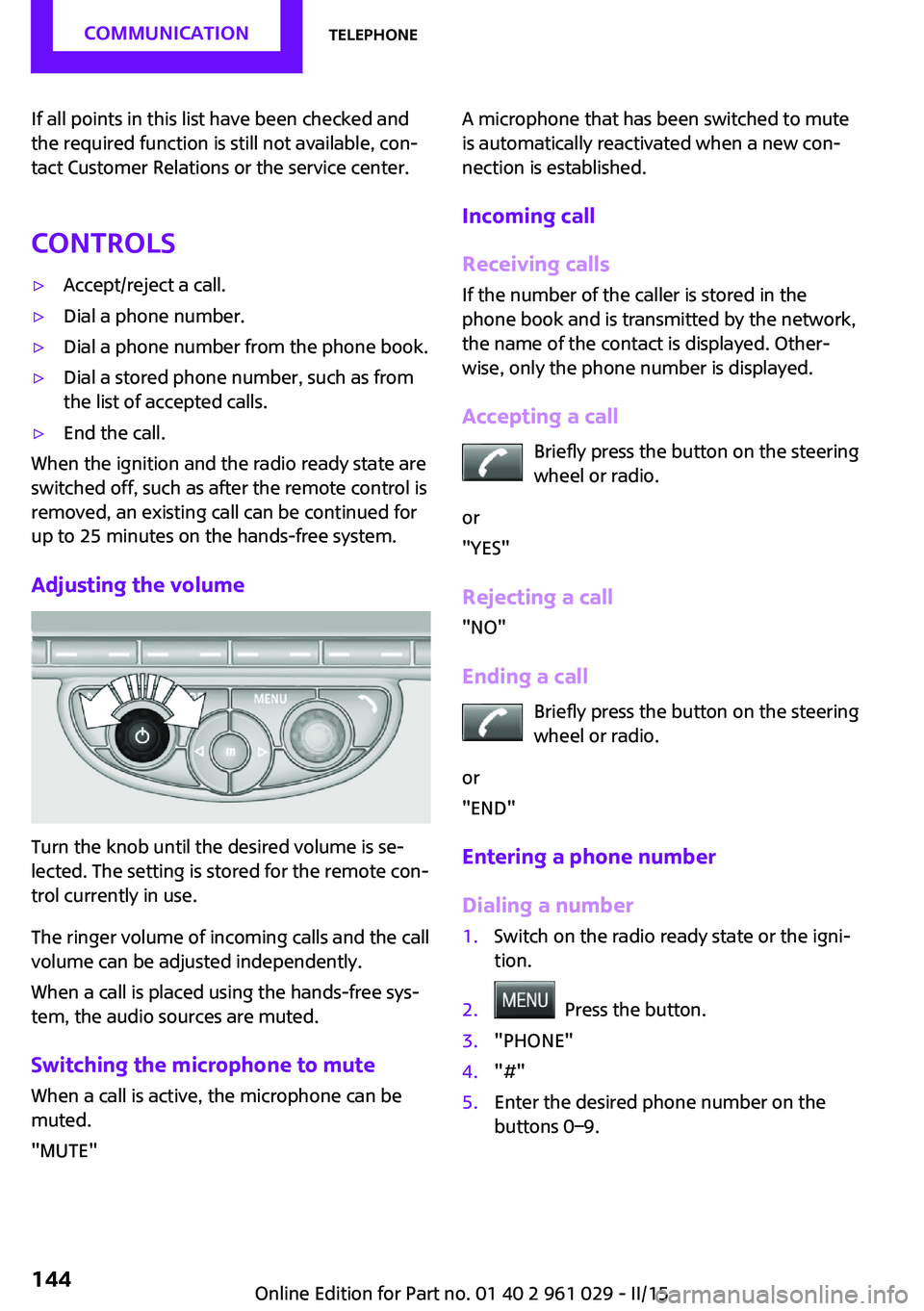
Adjusting the volume
Turn the knob until the desired volume is se‐
lected. The setting is stored for the remote con‐
trol currently in use.
The ringer volume of incoming calls and the call
volume can be adjusted independently.
When a call is placed using the hands-free sys‐
tem, the audio sources are muted.
Switching the microphone to mute
When a call is active, the microphone can be
muted.
"MUTE"
A microphone that has been switched to mute
is automatically reactivated when a new con‐
nection is established.
Incoming call
Receiving calls If the number of the caller is stored in the
phone book and is transmitted by the network,
the name of the contact is displayed. Other‐
wise, only the phone number is displayed.
Accepting a call Briefly press the button on the steering
wheel or radio.
or
"YES"
Rejecting a call
"NO"
Ending a call Briefly press the button on the steering
wheel or radio.
or
"END"
Entering a phone number
Dialing a number1.Switch on the radio ready state or the igni‐
tion.2. Press the button.3."PHONE"4."#"5.Enter the desired phone number on the
buttons 0–9.Seite 144COMMUNICATIONTelephone144
Online Edition for Part no. 01 40 2 961 029 - II/15
Page 148 of 231
4.Enter additional digits on the buttons 0–9.5.Press the right knob to dial the phone num‐
ber.
Dialing a phone number from the phone
book using the buttons on the steering
wheel
1. Press and hold the button to dis‐
play the Telephone menu.2.Press the arrow buttons on the steering
wheel to leaf through the phone book.3. Press the button to dial the phone
number.
Dialing a phone number stored in a list
To select an entry and establish a connection:
1.Switch on the radio ready state or the igni‐
tion.2. Press the button.3."PHONE"4.Select a list, for instance "TOP8"5.Turn the right knob to select an entry and
press the knob to dial the phone number.
Deleting an individual entry
1.Select an entry from the list.2."DEL"
DTMF suffix dialing
DTMF suffix dialing can be used for gaining ac‐
cess to network services or for controlling devi‐
ces, e.g., to make a remote inquiry of an an‐
swering machine. The DTMF code is needed for
this purpose.
This function is only available if a connection
exists and if the hands-free system is being
used.
1."KEYPAD"2.Enter the DTMF code on the buttons 0–9.3.If necessary, press and hold the function
button on the right or left to enter special
characters.
Displaying the call duration
During a call:
"DURAT"
Hands-free system
General information
Calls that are being made on the hands-free
system can be continued on the mobile phone
and vice versa.
From the mobile phone to the hands-
free system
Calls that were begun outside of the Bluetoothrange of the vehicle can be continued on the
hands-free system with the ignition switched
on.
Depending on the mobile phone, the system
automatically switches to the hands-free sys‐
tem.
If the system does not switch over automati‐
cally, follow the instructions on the mobile
phone display; refer also to the mobile phone
operating instructions.
From the hands-free system to the
mobile phone
Calls that are made on the hands-free system
can in some cases be continued on the mobile
phone; this depends on the mobile phone.
Follow the instructions on the mobile phone
display; refer also to the mobile phone operat‐
ing instructions.
MINI phone numbers When the ignition is switched on, various serv‐ice phone numbers can be displayed.
Seite 146COMMUNICATIONTelephone146
Online Edition for Part no. 01 40 2 961 029 - II/15
Page 149 of 231

▷"Road Assist": Roadside Assistance, if help
is required in the event of a breakdown.▷"Serv. Appt.": MINI service center, if a serv‐
ice appointment needs to be arranged.▷"Cust Relat": Customer Relations, for infor‐
mation on all aspects of your vehicle.
Displaying the phone numbers
1.Switch on the radio ready state or the igni‐
tion.2. Press the button.3."MINI"4.Turn the right knob until the desired phone
number is displayed.
Snap-in adapter
General information More information on compatible snap-in
adapters that support the functions of the mo‐
bile phone is available at the service center.
Notes At high temperatures, the charging function of
the mobile phone may be limited and functions
may not be executed.
When using the mobile phone via the vehicle,
note the operating instructions of the mobile
phone.
Installation position In the center armrest.
Inserting/removing the snap-in adapter1.Press the button, arrow 1, and remove the
cover, arrow 2.2.Insert the snap-in adapter at the front, ar‐
row 1, and press down, arrow 2, until it en‐
gages.
To remove:
To remove the snap-in adapter, press the but‐
ton.
Inserting the mobile phone
1.Depending on the mobile phone, remove
the protective cap from the antenna con‐
nector and from the USB connection of the
mobile phone.2.With the buttons facing up, slide the mobile
phone up toward the electrical contacts, ar‐Seite 147TelephoneCOMMUNICATION147
Online Edition for Part no. 01 40 2 961 029 - II/15
Page 225 of 231

Lighting, vehicle, refer toLamps 75
Lights, parking lamps/low beams 75
Light switch 75
Lock buttons on doors, refer to Locking 26
Locking from the inside 26
Locking, from the outside 23
Locking, setting the confirma‐ tion signal 24
Locking the vehicle from the inside 26
Locking vehicle, from the out‐ side 22
Locking without remote con‐ trol, refer to Comfort Ac‐
cess 29
Longlife oils, alternative oil types 173
Longlife oils, refer to Ap‐ proved engine oils 173
Low beams 75
Low beams, automatic 75
Low beams, bulb replace‐ ment 180
Lower back support, refer to Lumbar support 46
Luggage compartment lid, re‐ fer to Tailgate 27
Luggage compartment, refer to Cargo area 27
Lumbar support 46
M
Main inspection, refer to Serv‐ ice requirements 71
Maintenance, refer to Service booklet
Maintenance, refer to Service requirements 71
Maintenance require‐ ments 175
Maintenance system MINI 175 Makeup mirror 105
Malfunction, convertible top 36, 42
Malfunction, door lock 26
Malfunction, fuel filler flap 152
Malfunction, Steptronic trans‐ mission 65
Malfunction, tailgate 27
Malfunction warnings, refer to Check Control 73
Manual air distribution, air conditioner 100
Manual air distribution, auto‐ matic climate control 103
Manual convertible top 39
Manual mode, Steptronic transmission 64
Manual operation, door lock 26
Manual operation, electrical convertible top 36, 42
Manual operation, fuel filler flap 152
Manual operation, selector lever lock, Steptronic trans‐
mission 65
Manual operation, tailgate 27
Marking on approved tires 165
Maximum cooling 103
Maximum speed, winter tires 166
Mechanical convertible top 39
Microfilter 101
Microfilter, with automatic cli‐ mate control 103
MINI Homepage 6
MINI Internet page 6
MINI maintenance sys‐ tem 175
MINI Mobility System 167
Minimum tread, tires 164
Mirrors 49
Mirrors, folding in and out 49 Mirrors, interior mirror 50
Mobile communication devi‐ ces in the vehicle 115
Mobile phone, refer to Tele‐ phone 140
Mobility System 167
Modifications, technical, refer to Safety 6
Mounting of child restraint fix‐ ing systems 51
N Neck restraints, refer to Head restraints 48
New wheels and tires 165
Notes 6
Nozzles, refer to Ventila‐ tion 104
O
OBD Onboard Diagnos‐ tics 176
OBD socket, refer to Socket for OBD Onboard Diagno‐
sis 176
Octane number, refer to Fuel quality 154
Octane rating, refer to Recom‐ mended fuel grade 154
Odometer 66
Oil additives 173
Oil level 172
Oil types, alternative 173
Oil types, approved 173
Onboard Diagnostics OBD 176
Onboard vehicle tool kit 177
Opening and closing, Comfort Access 29
Opening and closing from the inside 26
Opening and closing, from the outside 22 Seite 223Everything from A to ZREFERENCE223
Online Edition for Part no. 01 40 2 961 029 - II/15