phone MINI Countryman 2011 (Mini Connected) Workshop Manual
[x] Cancel search | Manufacturer: MINI, Model Year: 2011, Model line: Countryman, Model: MINI Countryman 2011Pages: 254, PDF Size: 3.84 MB
Page 183 of 254
OfficeCommunications
181
Displaying task
1.Select the desired task.
2. To scroll through the task, if necessary:
> Turn the MINI joystick.
> Select the symbol.
Using contact data
If the task contains ph one numbers or email
addresses, then these can be used directly or
stored in the contacts.
1. "Use contact data"
2. To display a contact or dial a phone number:
>Select a contact to display a detailed view
of the contact.
> Select a phone number to directly estab-
lish a connection.
Storing contact data
1. Highlight a phone number or email address.
2. Open "Options".
3. "Add to existing contact" or "Store as new
contact"
Reading a task aloud
Reading a task aloud, refer to page 182.
Notes
Displaying notes
1."Office"
2. "Notes"
All notes are displayed.
Displaying a note
1.Select the desired note.
2. To scroll through the note, if necessary:
>Turn the MINI joystick.
> Select the symbol.
Using contact data
If the note contains phone numbers or email
addresses, then these can be used directly or
stored in the contacts.
1. "Use contact data"
2. To display a contact or dial a phone number:
>Select a contact to display a detailed view
of the contact.
> Select a phone number to directly estab-
lish a connection.
Storing contact data
1. Highlight a phone number or email address.
2. Open "Options".
3. "Add to existing contact" or "Store as new
contact"
Reading a note aloud
Reading a note aloud, refer to page 182.
Reminders
Displaying reminders
Reminders for imminent appointments and
tasks are displayed. Af ter an appointment has
passed or a task is due, the reminder is deleted.
Page 184 of 254
CommunicationsOffice
182
1."Office"
2. "Reminders"
3. Select the desired reminder.
The associated appointmen t or task is displayed.
Reading aloud
Text messages, appointmen t entries, tasks, and
notes can be read aloud to you.
1. Select the desired message, appointment,
task, or note.
2. Select the symbol.
While the message is bein g read aloud, you have
the following options:
> "Pause"
Interrupt the reading. Select again to
resume the reading.
> "Back to beginning"
Read message again from the beginning.
> Select the symbol.
Skip back one paragraph.
> Select the symbol.
Skip over a paragraph.
> To terminate the re ading, move the
MINI joystick to the left.
What to do if…
For information on suitab le mobile phones, refer
to page 163.
> Appointments, tasks, notes, or text mes-
sages are not being displayed?
The mobile phone is not suitable for the
missing function or is not correctly con-
nected.
The mobile phone is connected as an auxil-
iary phone.
The Office function is deactivated. The appointments are older than 20 days
and are more than 50 days in the future.
The tasks have been marked as completed
or are more than 90 days in the future.
Depending on the number of appointments,
tasks, notes, and messages stored in the
mobile phone, not all of them are displayed
in the vehicle.
> Appointments or tasks from the mobile
phone are not being displayed at the correct
time?
The time zone, time, or date is incorrectly set
in the Control Display and in the mobile
phone.
> Texts of entries are not displayed com-
pletely?
Texts are already shortened by the mobile
phone.
Synchronization between the mobile phone
and vehicle can take a few minutes.
> Contact pictures are not being displayed?
Up to max. 200 contact pictures can be
stored in the vehicle.
> If you have gone through all items in the list
and still cannot activate the desired function
please contact the Hotline or your MINI
dealer.
Page 185 of 254
MINI ConnectedCommunications
183
MINI Connected
Overview
The concept
You can use MINI Connected to integrate certain
software applications of a suitable mobile phone
into your MINI. These software applications are
displayed on the Control Display. They are oper-
ated using the MINI joystick.
The range of software applications can be coun-
try-specific.
Requirements
The following requirements must be met for the
function of MINI Connected:
> The operating system of the mobile phone
must support the software applications of
MINI Connected.
> The software applications are installed on
the mobile phone and are operational.
> Suitable mobile phone
> Appropriate mobile phone contract.
Possible additional costs incurred are not
included with MINI Connected.
Only make entries when the traffic situa-
tion allows you to do so. If you do not
observe this precaution, your being distracted
can endanger vehicle occupants and other road
users.
For safety reasons, some software applications
can only be used when the vehicle is stopped. <
Only use software applications approved
by the manufacturer of your MINI; other-
wise, malfunctions may result. <
Notes
For information on suitable mobile phones,
available software applic ations, and their instal-
lation:
> at: www.mini.com/connectivity
> at your MINI dealer.
Connecting a mobile
phone
Connect via the USB audio interface
1USB interface
2 Connection for audi o/video playback:
TRS connector 1/8"/3.5 mm
Connect the mobile phone using the special
connecting cable, available at your MINI dealer,
to the USB interface 1 and the AV-IN
connection 2.
To perform other operations on the mobile
phone, refer to the Owner's Manual for the
mobile phone: e.g. selecting and activating a
software application.
Connecting via the snap-in adapter*
The mobile phone can also be connected using
the snap-in adapter, refer to page 174.
*
Page 186 of 254
CommunicationsMINI Connected
184
Using MINI Connected
After successful connection of the mobile phone
to the vehicle and activation of MINI Connected,
the applications are di splayed on the Control
Display and can be operated using the MINI joy-
stick.
Volume adjustments can be made using the
buttons on the steering wheel, refer to page 10,
or using the volume control knob on the radio,
refer to page 130.
1. Press the button.
This opens the main menu.
2. "MINI Connected"
3. Select the desired so ftware application.
The extent of MINI Connected that is shown on
the Control Display depends on the range of
installed software applic ations on the mobile
phone.
The data transfer of the software applica-
tion from the telephone to the vehicle can
take a few minutes. Some software applications
depend on the speed of the available Internet
connection for the mobile phone. <
Certain versions of mobile phones used and
their software can make it impossible to use
MINI Connected and the Bluetooth hands-free
system at the same time.
After a phone call, it may be necessary to restart
the software application on the mobile phone.
PlugIn*
Selected functions of an Apple device are shown
on the Control Display. They are operated using
the on-board computer.
1. Connecting an Apple device over a USB
audio interface, refer to page 183.
2. "MINI Connected"
3. "PlugIn"
4. "Activate PlugIn"
5. Navigating among the functions shown via a
MINI joystick and, e. g., selecting a desired
category or track.
Press the button to switch back or to switch
to a higher level within the functions of an Apple
device.
Press the button twice to switch back to the
main menu.
Additional information can be found in the
MINI Connected operatin g instructions at
www.mini.com/c onnectivity.
Page 206 of 254
MOBILITYCare
204
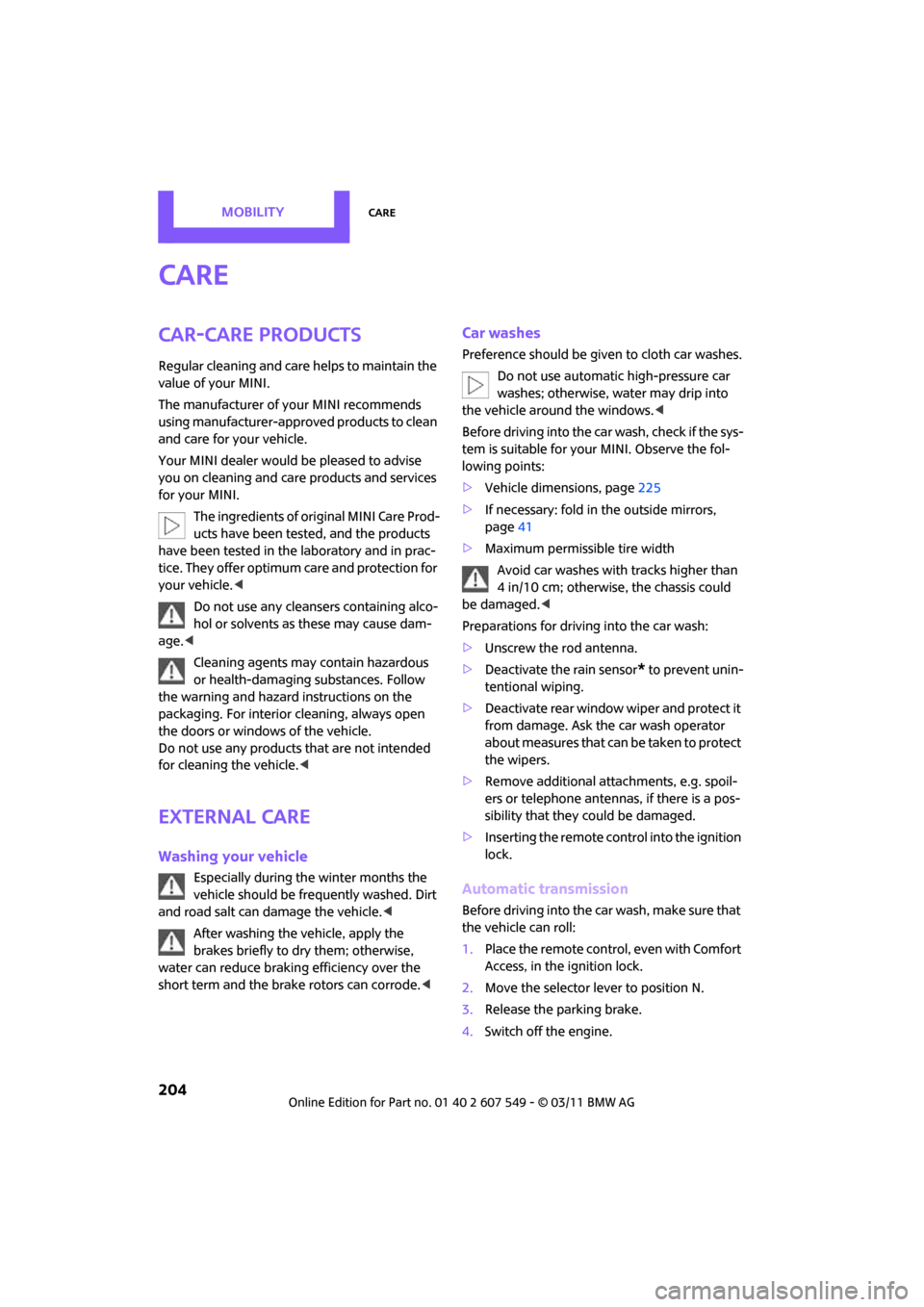
Care
Car-care products
Regular cleaning and care helps to maintain the
value of your MINI.
The manufacturer of your MINI recommends
using manufacturer-approved products to clean
and care for your vehicle.
Your MINI dealer would be pleased to advise
you on cleaning and care products and services
for your MINI.The ingredients of original MINI Care Prod-
ucts have been tested, and the products
have been tested in the laboratory and in prac-
tice. They offer optimum care and protection for
your vehicle. <
Do not use any cleansers containing alco-
hol or solvents as these may cause dam-
age. <
Cleaning agents may contain hazardous
or health-damaging substances. Follow
the warning and hazard instructions on the
packaging. For interior cleaning, always open
the doors or windows of the vehicle.
Do not use any products that are not intended
for cleaning the vehicle. <
External care
Washing your vehicle
Especially during the winter months the
vehicle should be frequently washed. Dirt
and road salt can damage the vehicle. <
After washing the vehicle, apply the
brakes briefly to dry them; otherwise,
water can reduce braking efficiency over the
short term and the brake rotors can corrode. <
Car washes
Preference should be given to cloth car washes.
Do not use automatic high-pressure car
washes; otherwise, water may drip into
the vehicle around the windows. <
Before driving in to the car wash, check if the sys-
tem is suitable for your MINI. Observe the fol-
lowing points:
> Vehicle dimensions, page 225
> If necessary: fold in the outside mirrors,
page 41
> Maximum permissible tire width
Avoid car washes with tracks higher than
4 in/10 cm; otherwise, the chassis could
be damaged. <
Preparations for driving into the car wash:
> Unscrew the rod antenna.
> Deactivate the rain sensor
* to prevent unin-
tentional wiping.
> Deactivate rear window wiper and protect it
from damage. Ask the car wash operator
about measures that can be taken to protect
the wipers.
> Remove additional atta chments, e.g. spoil-
ers or telephone antennas, if there is a pos-
sibility that they could be damaged.
> Inserting the remote control into the ignition
lock.
Automatic transmission
Before driving into the car wash, make sure that
the vehicle can roll:
1.Place the remote control, even with Comfort
Access, in the ignition lock.
2. Move the selector le ver to position N.
3. Release the parking brake.
4. Switch off the engine.
Page 220 of 254

MOBILITYGiving and receiving assistance
218
Giving and receiving assistance
Roadside Assistance
Roadside Assistance is available by phone
24 hours a day in many countries. You can
obtain assistance there in the event of a vehicle
breakdown.
First aid pouch*
Some of the articles co ntained in the first aid
pouch have a limited service life. Therefore,
check the expiration dates of the contents regu-
larly and replace any item s in good time, if nec-
essary.
The first aid pouch is located on the rear cargo
well by the left side trim panel or under the pull-
out floor panel.
Warning triangle*
In the cargo area under the loading sill.
To remove, open the two clasps.
Jump-starting
If the car's own battery is flat, your MINI's engine
can be started by connecting two jumper cables
to another vehicle's battery. You can also use
the same method to help start another vehicle.
Only use jumper cables with fully-insulated
clamp handles.
Do not touch any electrically live parts
wh en t he e ngine is run nin g, or a fatal acci-
dent may occur. Carefully adhere to the follow-
ing sequence, both to prevent damage to one or
both vehicles, and to guard against possible per-
sonal injuries. <
Preparation
1.Check whether the battery of the other vehi-
cle has a voltage of 12 volts and approxi-
mately the same capa citance in Ah. This
information can be found on the battery.
2. Switch off the engine of the support vehicle.
3. Switch off any consumers in both vehicles.
There must not be any contact between
the bodies of the two vehicles; otherwise,
there is a danger of shorting. <
Page 229 of 254
Short commands for the voice activation systemREFERENCE
227
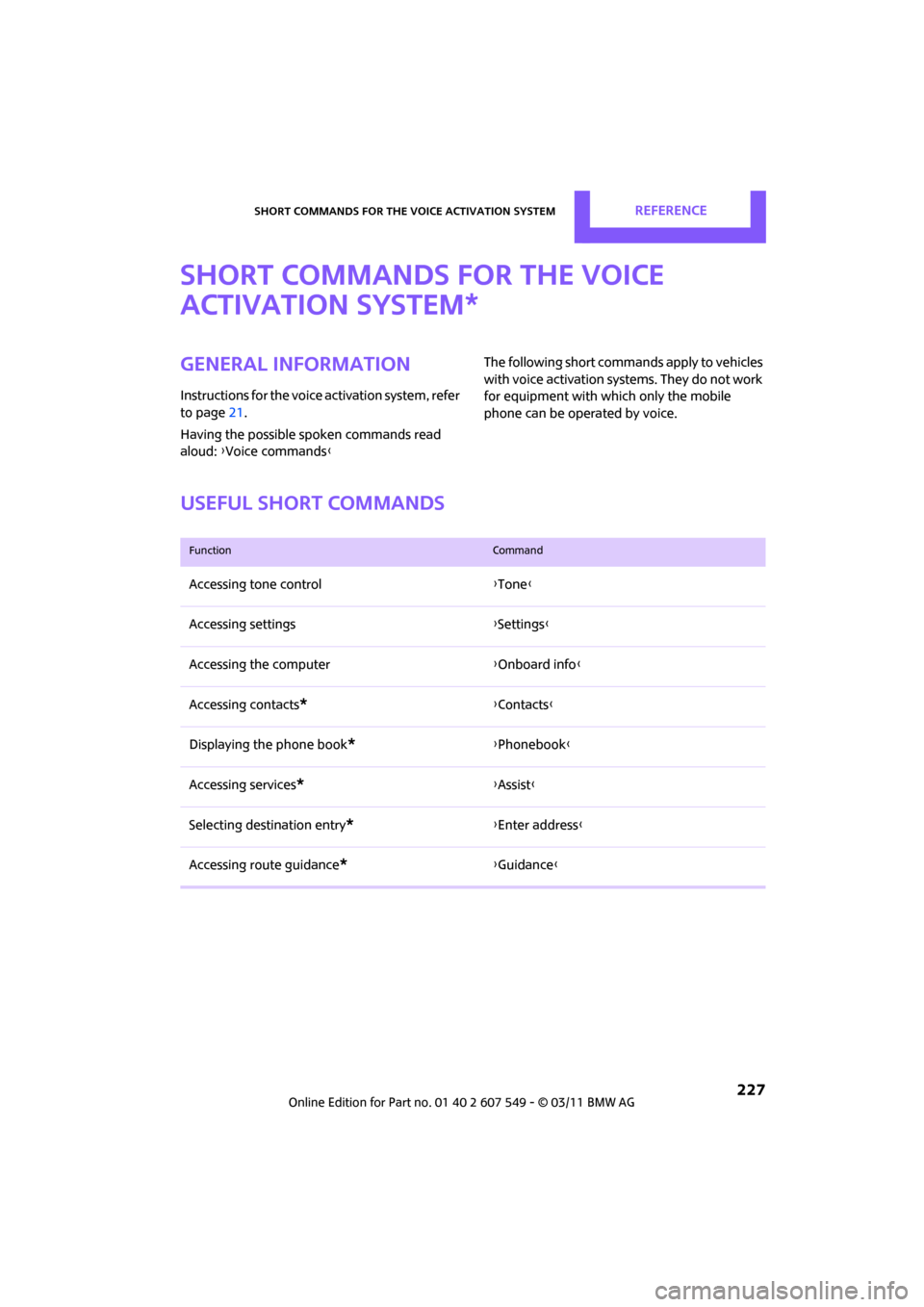
Short commands for the voice
activation system
General information
Instructions for the voice activation system, refer
to page 21.
Having the possible spoken commands read
aloud: {Voice commands } The following short commands apply to vehicles
with voice activation systems. They do not work
for equipment with which only the mobile
phone can be operated by voice.
Useful short commands
*
FunctionCommand
Accessing tone control
{Tone }
Accessing settings {Settings }
Accessing the computer {Onboard info }
Accessing contacts
*{ Contacts }
Displaying the phone book
*{ Phonebook }
Accessing services
*{ Assist }
Selecting destination entry
*{ Enter address}
Accessing route guidance
*{ Guidance }
Page 232 of 254

REFERENCEShort commands for the voice activation system
230
Stored stations
Telephone
Office*
FunctionCommand
Selecting stored stations{Presets }
Choosing a stored station {Select preset }
Selecting a stored station {Preset … } e.g. stored station 2
FunctionCommand
Opening the Telephone menu {Telephone }
To display phone book {Phonebook }
To redial {Redial }
Displaying accepted calls {Received calls }
Dialing a phone number {Dial number }
Displaying the list of messages {Messages }
Displaying Bluetooth devices {Bluetooth }
FunctionCommand
Calling up the Office menu {Office }
Displaying Current office {Current office }
Displaying contacts {Contacts }
Page 238 of 254
236
REFERENCEEverything from A to Z
Everything from A to Z
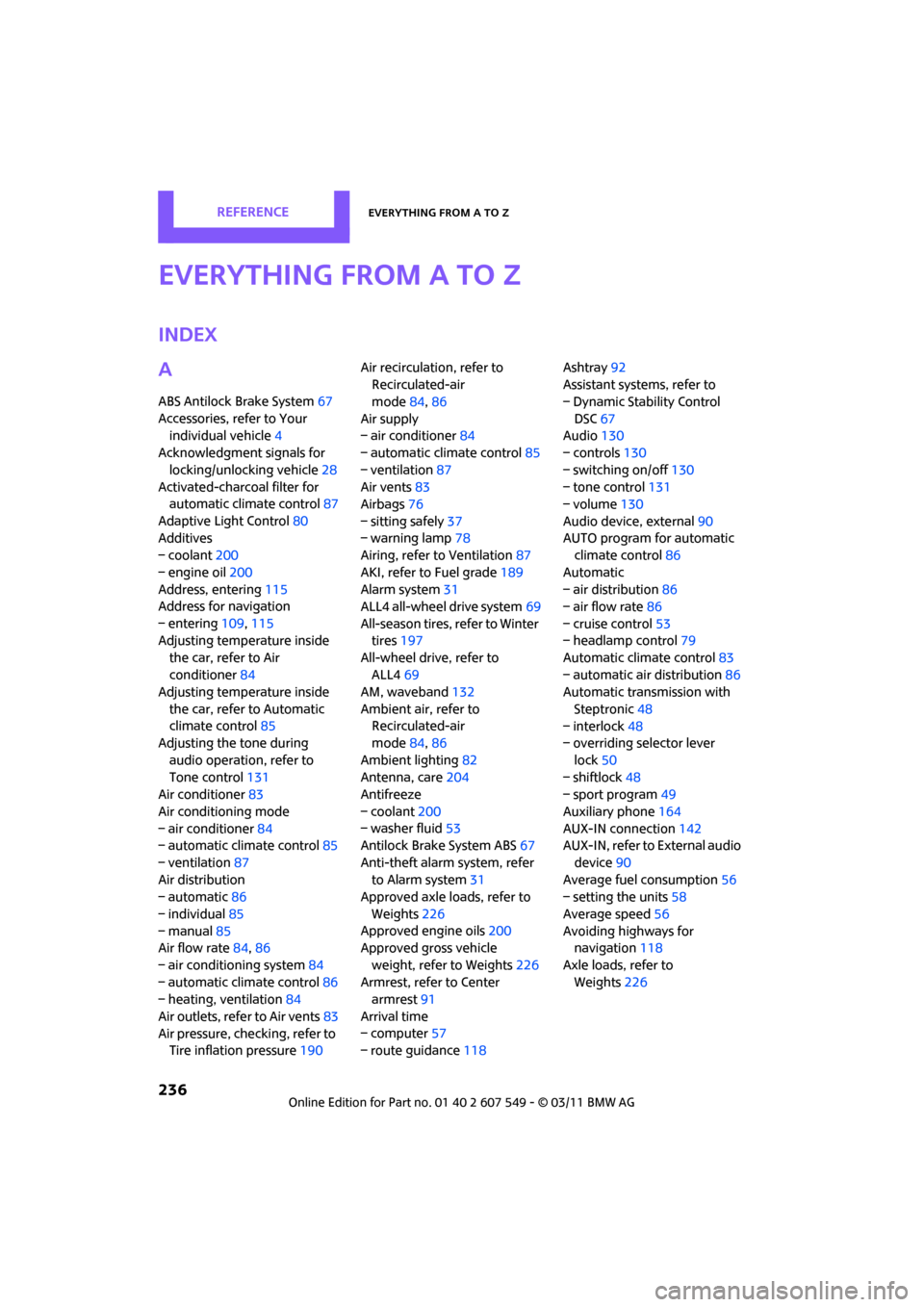
INDEX
A
ABS Antilock Brake System67
Accessories, refer to Your individual vehicle 4
Acknowledgment signals for
locking/unlocking vehicle 28
Activated-charcoa l filter for
automatic climate control 87
Adaptive Light Control 80
Additives
– coolant 200
– engine oil 200
Address, entering 115
Address for navigation
– entering 109,115
Adjusting temperature inside the car, refer to Air
conditioner 84
Adjusting temperature inside
the car, refer to Automatic
climate control 85
Adjusting the tone during
audio operation, refer to
Tone control 131
Air conditioner 83
Air conditioning mode
– air conditioner 84
– automatic cl imate control85
– ventilation 87
Air distribution
– automatic 86
– individual 85
– manual 85
Air flow rate 84,86
– air conditioning system 84
– automatic cl imate control86
– heating, ventilation 84
Air outlets, refer to Air vents 83
Air pressure, checking, refer to Tire inflation pressure 190Air recirculation, refer to
Recirculated-air
mode 84,86
Air supply
– air conditioner 84
– automatic climate control 85
– ventilation 87
Air vents 83
Airbags 76
– sitting safely 37
– warning lamp 78
Airing, refer to Ventilation87
AKI, refer to Fuel grade 189
Alarm system 31
ALL4 all-wheel drive system 69
All-season tires, refer to Winter tires 197
All-wheel drive, refer to
ALL4 69
AM, wa
veband 132
Ambient air, refer to Recirculated-air
mode 84,86
Ambient lighting 82
Antenna, care 204
Antifreeze
– coolant 200
– washer fluid 53
Antilock Brake System ABS 67
Anti-theft alarm system, refer to Alarm system 31
Approved axle loads, refer to
Weights 226
Approved engine oils 200
Approved gross vehicle
weight, refer to Weights 226
Armrest, refer to Center armrest 91
Arrival time
– computer 57
– route guidance 118Ashtray
92
Assistant systems, refer to
– Dynamic Stability Control
DSC 67
Audio 130
– controls 130
– switching on/off 130
– tone control 131
– volume 130
Audio device, external 90
AUTO program for automatic climate control 86
Automatic
– air distribution 86
– air flow rate 86
– cruise control 53
– headlamp control 79
Automatic climate control 83
– automatic air distribution 86
Automatic transmission with
Steptronic 48
– interlock 48
– overriding selector lever
lock 50
– shiftlock 48
– sport program 49
Auxiliary phone 164
AUX-IN connection 142
AUX-IN, refer to External audio
device 90
Average fuel consumption 56
– setting the units 58
Average speed 56
Avoiding highways for navigation 118
Axle loads, refer to Weights 22
6
Page 239 of 254
Everything from A to ZREFERENCE
237
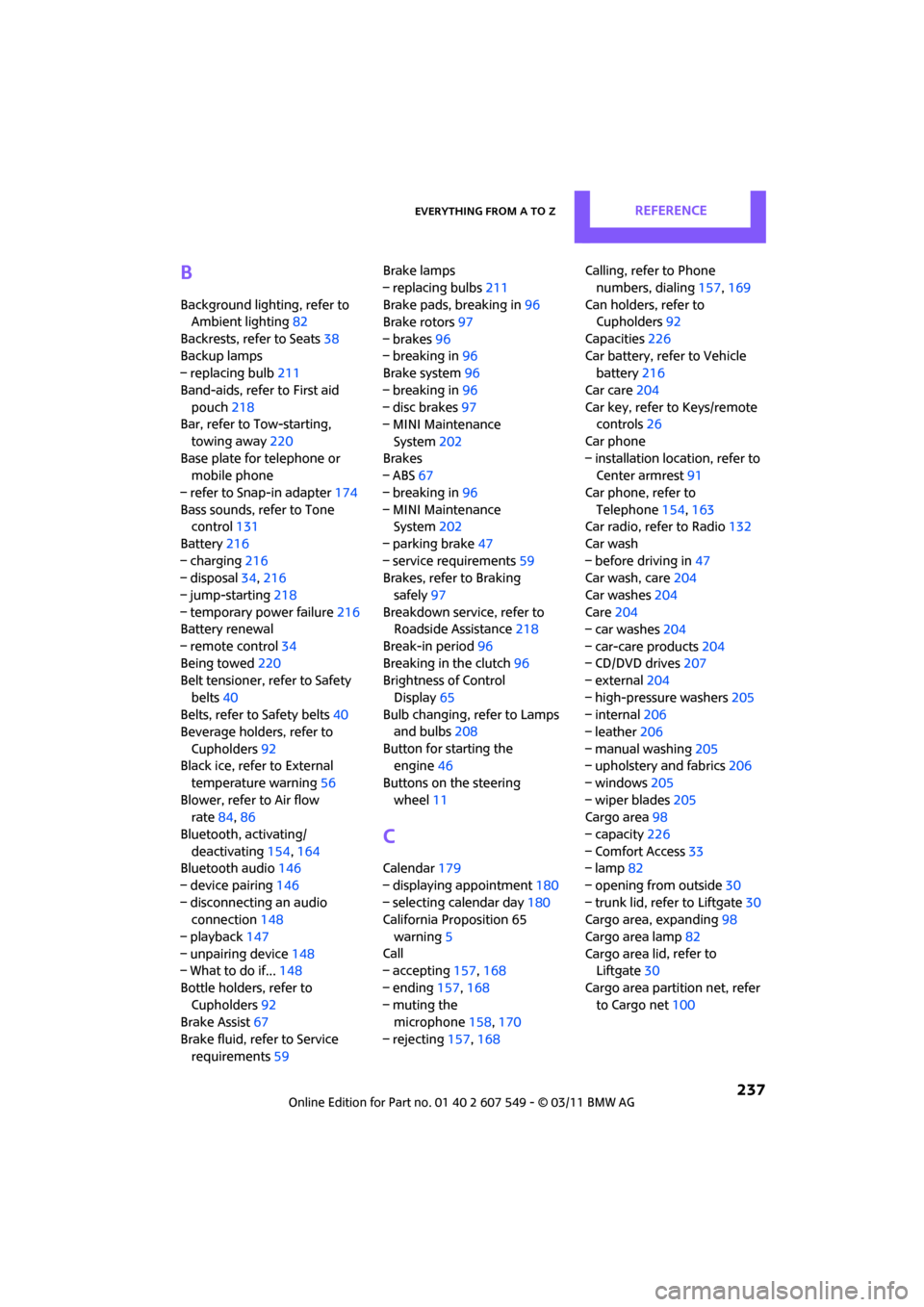
B
Background lighting, refer to
Ambient lighting 82
Backrests, refer to Seats 38
Backup lamps
– replacing bulb 211
Band-aids, refer to First aid pouch 218
Bar, refer to Tow-starting,
towing away 220
Base plate for telephone or mobile phone
– refer to Snap-in adapter 174
Bass sounds, refer to Tone control 131
Battery 216
– charging 216
– disposal 34,216
– jump-starting 218
– temporary power failure 216
Battery renewal
– remote control 34
Being towed 220
Belt tensioner, refer to Safety
belts 40
Belts, refer to Safety belts 40
Beverage holders, refer to
Cupholders 92
Black ice, refer to External
temperature warning 56
Blower, refer to Air flow rate 84,86
Bluetooth, activating/ deactivating 154,164
Bluetooth audio 146
– device pairing 146
– disconnecting an audio connection 148
– playback 147
– unpairing device 148
– What to do if... 148
Bottle holders, refer to Cupholders 92
Brake Assist 67
Brake fluid, refer to Service requirements 59 Brake lamps
– replacing bulbs
211
Brake pads, breaking in 96
Brake rotors 97
– brakes 96
– breaking in 96
Brake system 96
– breaking in 96
– disc brakes 97
– MINI Maintenance
System 202
Brakes
– ABS 67
– b
reaking in 96
– MINI Maintenance System 202
– parking brake 47
– service requirements 59
Brakes, refer to Braking
safely 97
Breakdown service, refer to Roadside Assistance 218
Break-in period 96
Breaking in the clutch 96
Brightness of Control
Display 65
Bulb changing, refer to Lamps and bulbs 208
Button for starting the engine 46
Buttons on the steering wheel 11
C
Calendar 179
– displaying appointment 180
– selecting calendar day 180
California Proposition 65
warning 5
Call
– accepting 157,168
– ending 157,168
– muting the microphone 158,170
– rejecting 157,168 Calling, refer to Phone
numbers, dialing 157,169
Can holders, refer to Cupholders 92
Capacities 226
Car battery, refer to Vehicle battery 216
Car care 204
Car key, refer to Keys/remote controls 26
Car phone
– installation location, refer to Center armrest 91
Car phone, refer to Telephone 154,163
Car radio, refer to Radio 132
Car wash
– before driving in 47
Car wash, care 204
Car washes 204
Care 204
– car washes 204
– car-care products 204
– CD/DVD drives 207
– external 204
– high-pressure washers 205
– internal 206
– leather 206
– manual washing 205
– upholstery and fabrics 206
– windows 205
– wiper blades 205
Cargo area 98
– capacity 226
– Comfort Access 33
– lamp 82
– opening from outside 30
– trunk lid, refer to Liftgate 30
Cargo area, expanding 98
Cargo area lamp 82
Cargo area li
d, refer to
Liftgate 30
Cargo area partition net, refer to Cargo net 100