audio MINI Countryman 2012 (Mini Connected) User Guide
[x] Cancel search | Manufacturer: MINI, Model Year: 2012, Model line: Countryman, Model: MINI Countryman 2012Pages: 259, PDF Size: 3.07 MB
Page 145 of 259

ENTERTAINMENTRadio
144
3."Replay - Time shift"
> The red arrow indicates the current playback
position.
> The time difference from the live broadcast
is displayed next to the cache memory bar.
> For live transmissions: "live".
Time shift menu
Automatic time shift
When the function is acti vated, audio playback is
stopped automatically in the event of:
> Incoming and outgoing telephone calls.
> Activation of the voice activation system.
> Muting.
The audio playback then continues with a time
delay.
Activating
1. "Radio"
2. "Satellite radio"
3. "Replay - Time shift"
4. "Automatic time shift"
Deactivating
"Automatic time shift"
Storing favorites
Up to 30 favorites can be stored in the favorites
list. Possible favorites incl ude artist, track, game,
league, and team.
Storing artist, track, or game
Only current broadcasts can be stored as favor-
ites. The channel informat ion must be available.
1. "Radio"
2. "Satellite radio"
3. Select "All channels" or the desired
category.
4. Select desired channel.
5. Press the MINI joystick again.
6. Select artist, track, or game.
Storing league or team
Leagues or teams can be added to the favorites
from a selection list.
1. "Radio"
2. "Satellite radio"
3. "Manage favorites"
4. "Add sports information"
SymbolFunction
Go to live broadcast
Playback/pause
Next track
Previous track
Fast forward
Reverse
Automatic time shift
deactivated/activated
Online Edition for Part no. 01 40 2 914 849 - \251 07/12 BMW AG
Page 148 of 259
CD playerENTERTAINMENT
147
CD player
Vehicle equipment
In this chapter, all production, country, and
optional equipment that is offered in the model
range is described. Equipment is also described
that is not available because of, for example,
selected options or count ry version. This also
applies to safety related functions and systems.
General information
Inserting CD
Insert the CD into the drive with the labeled side
up. Die CD is automatically pulled in.
Playback starts automatically if the sound out-
put is on. For CDs with compressed audio files, it
can take several minutes to the data, depending
on the folder structure.
Playable formats
CD player
> CD: CD-ROM, CD-R, CD-RW, CD-DA
> Compressed audio file s: MP3, WMA, AAC
Ejecting CD
Press the button on the CD player.
The CD will be slid a short distance out from the
drive.
Audio playback
Selecting the track using the button
Press the button for the corresponding
direction repeatedly until you reach the desired
track.
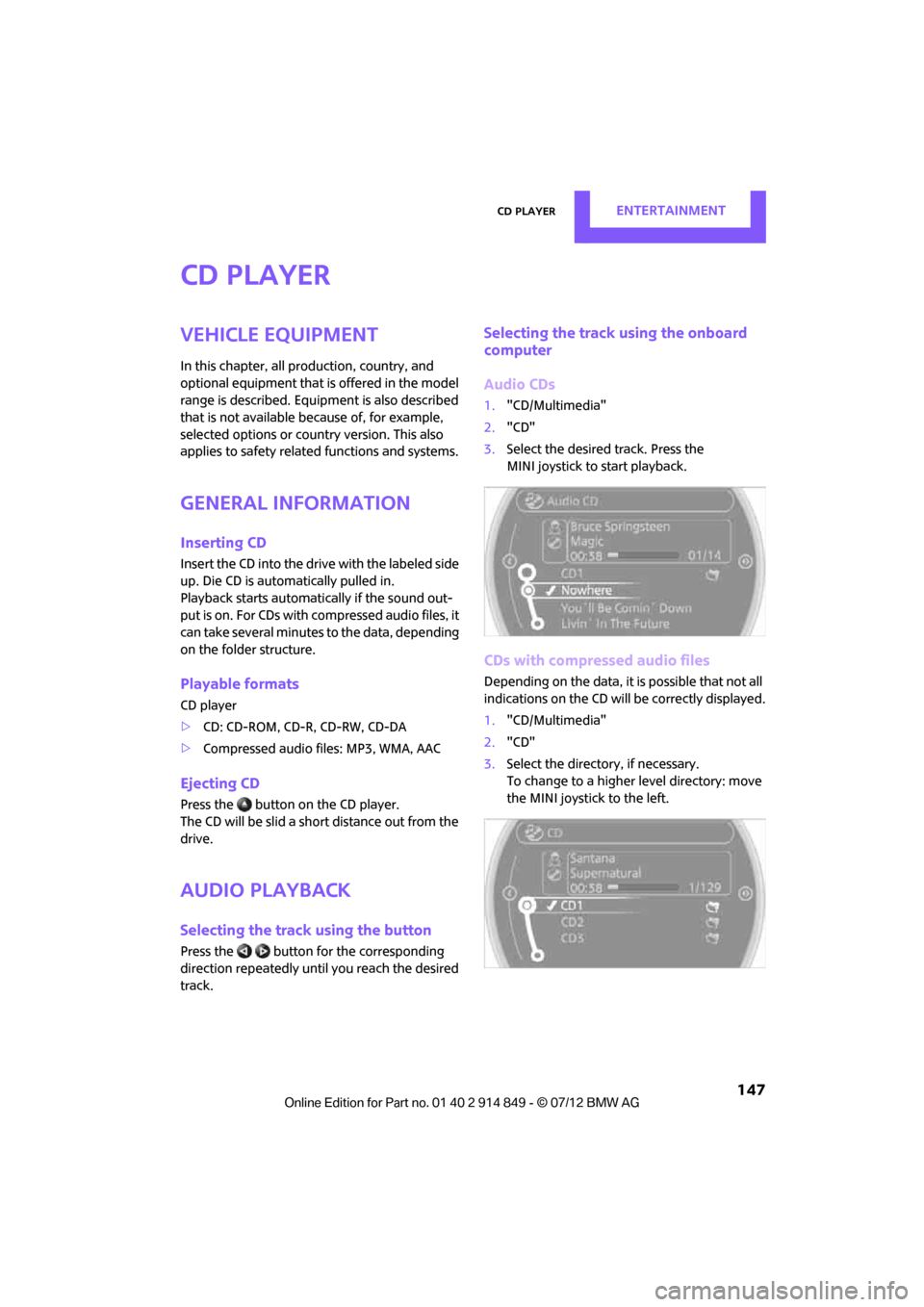
Selecting the track using the onboard
computer
Audio CDs
1. "CD/Multimedia"
2. "CD"
3. Select the desired track. Press the
MINI joystick to start playback.
CDs with compressed audio files
Depending on the data, it is possible that not all
indications on the CD will be correctly displayed.
1."CD/Multimedia"
2. "CD"
3. Select the director y, if necessary.
To change to a higher level directory: move
the MINI joystick to the left.
Online Edition for Part no. 01 40 2 914 849 - \251 07/12 BMW AG
Page 150 of 259
External devicesENTERTAINMENT
149
External devices
Vehicle equipment
In this chapter, all production, country, and
optional equipment that is offered in the model
range is described. Equipment is also described
that is not available because of, for example,
selected options or count ry version. This also
applies to safety related functions and systems.
Overview
Different external devices can be connected to
the vehicle. Sound is output over the vehicle
speakers. Depending upon how the external
device is connected to the vehicle, the device
may be operated using the MINI joystick.
AUX-In connection
Overview
> It is possible to connect audio devices, e.g.
MP3 players. Sound is output over the vehi-
cle speakers.
> Recommended settings: mid-level tone and
volume settings on th e audio device. Tone
may depend on the quality of the audio files.
Connecting
1 USB interface
2 Connection for audio playback:
TRS connector 1/8''/3.5 mm
For audio playback over the vehicle speakers,
connect the headphones or line-out connection
of the device to the AUX-In connection 2.
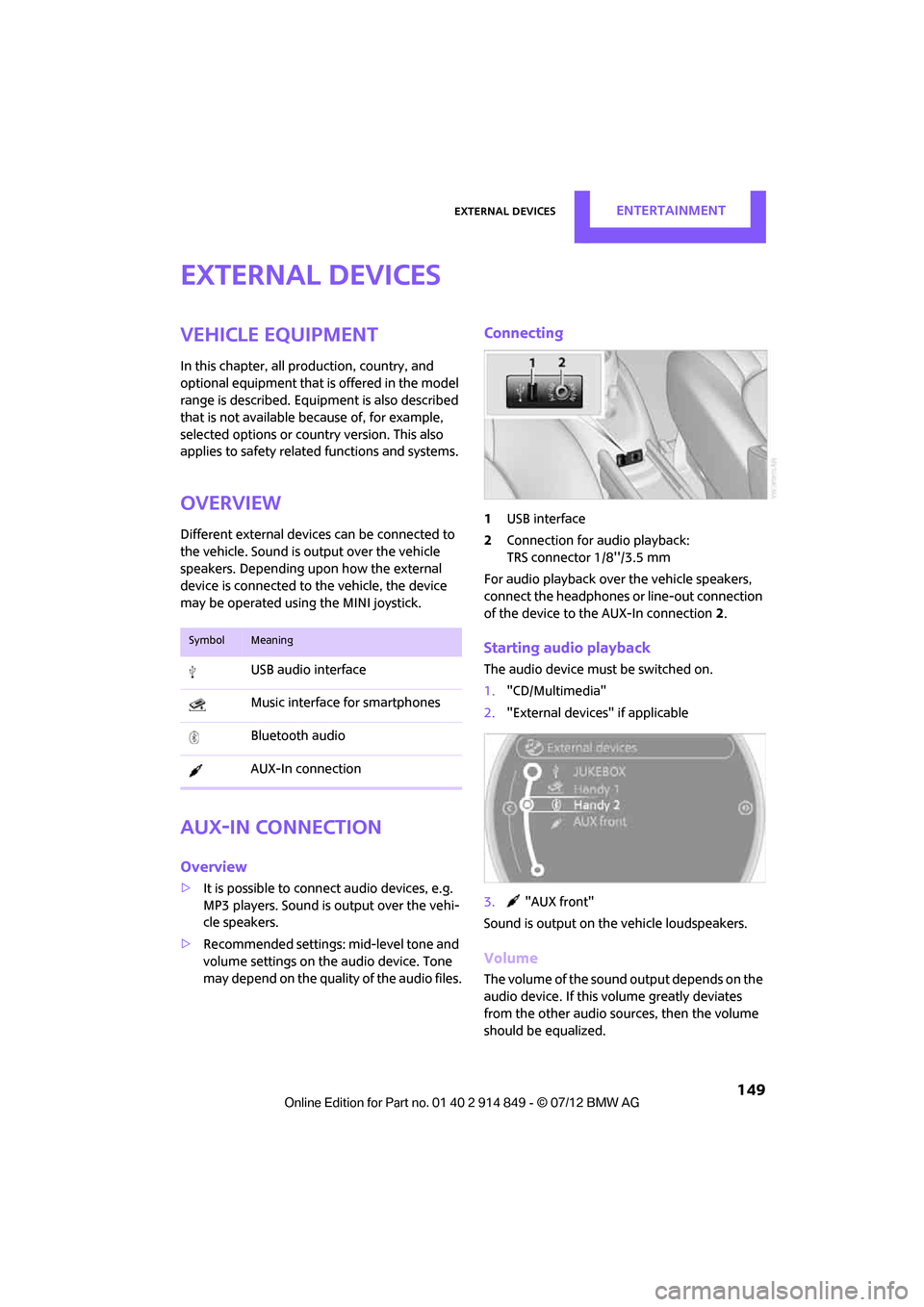
Starting audio playback
The audio device must be switched on.
1. "CD/Multimedia"
2. "External devices" if applicable
3. "AUX front"
Sound is output on the vehicle loudspeakers.
Volume
The volume of the sound output depends on the
audio device. If this volume greatly deviates
from the other audio sources, then the volume
should be equalized.
SymbolMeaning
USB audio interface
Music interface for smartphones
Bluetooth audio
AUX-In connection
Online Edition for Part no. 01 40 2 914 849 - \251 07/12 BMW AG
Page 151 of 259
ENTERTAINMENTExternal devices
150
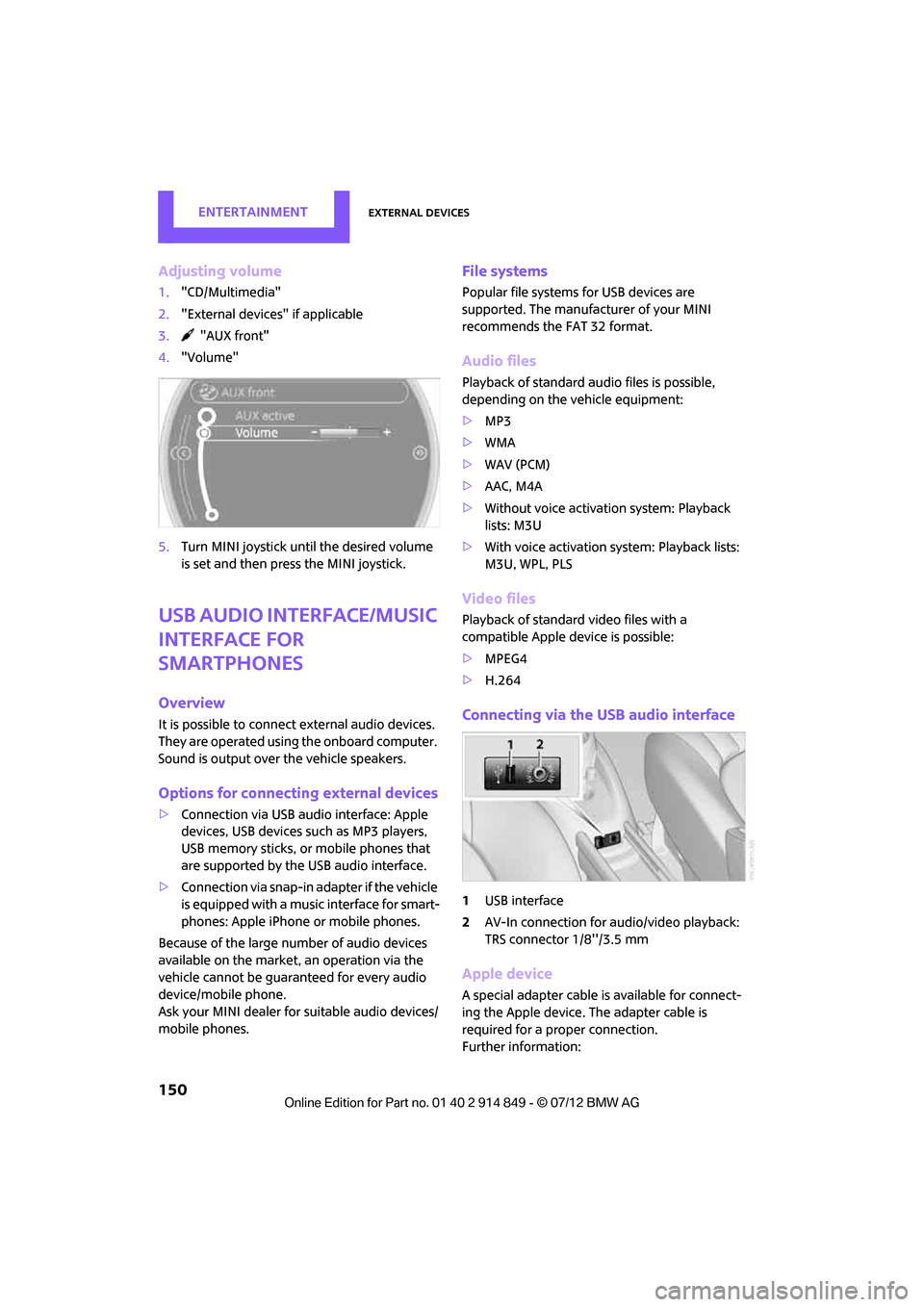
Adjusting volume
1."CD/Multimedia"
2. "External devices" if applicable
3. "AUX front"
4. "Volume"
5. Turn MINI joystick until the desired volume
is set and then press the MINI joystick.
USB audio interface/Music
interface for
smartphones
Overview
It is possible to connect external audio devices.
They are operated using the onboard computer.
Sound is output over the vehicle speakers.
Options for connecting external devices
>Connection via USB audio interface: Apple
devices, USB devices such as MP3 players,
USB memory sticks, or mobile phones that
are supported by the USB audio interface.
> Connection via snap-in adapter if the vehicle
is equipped with a music interface for smart-
phones: Apple iPhone or mobile phones.
Because of the large number of audio devices
available on the market, an operation via the
vehicle cannot be guaranteed for every audio
device/mobile phone.
Ask your MINI dealer for suitable audio devices/
mobile phones.
File systems
Popular file systems for USB devices are
supported. The manufacturer of your MINI
recommends the FAT 32 format.
Audio files
Playback of standard au dio files is possible,
depending on the vehicle equipment:
> MP3
> WMA
> WAV (PCM)
> AAC, M4A
> Without voice activation system: Playback
lists: M3U
> With voice activation sy stem: Playback lists:
M3U, WPL, PLS
Video files
Playback of standard video files with a
compatible Apple device is possible:
> MPEG4
> H.264
Connecting via the USB audio interface
1USB interface
2 AV-In connection for au dio/video playback:
TRS connector 1/8''/3.5 mm
Apple device
A special adapter cable is available for connect-
ing the Apple device. The adapter cable is
required for a proper connection.
Further information:
Online Edition for Part no. 01 40 2 914 849 - \251 07/12 BMW AG
Page 152 of 259

External devicesENTERTAINMENT
151
>At: www.mini.com/connectivity
> At your MINI dealer.
For audio playback over the vehicle speakers,
connect the Apple device using the special
adapter cable with AV-In connection 2 and USB
interface 1 or using a flexible adapter cable with
a USB interface 1.
The USB audio interface supports the menu
structure of the Apple device.
USB device
To protect the USB interface and USB device
from mechanical damage, connect them with
a flexible adapter cable.
Connect the USB device to the USB interface 1.
After initial connection
Track information, e.g. ar tist or music style and
the playlists of the USB device are imported into
the vehicle. This process can take some time.
The time required is dependent on the USB
device and on the number of tracks.
During transmission, the tracks can be accessed
via the file directory.
Number of tracks
The data from up to four USB devices or for
approx. 26,000 tracks can be stored in the
vehicle. If a fifth device is connected or if more
than 26,000 tracks are stored, then the data of
existing tracks may be deleted.
Copy protection
Music tracks with integrated Digital Rights
Management (DRM) cannot be played.
Audio playback
Starting audio playback
1. "CD/Multimedia"
2. "External devices"
3. Select the or symbol and press the
MINI joystick.
Playback begins with the first track.
Track search
Selection is possible via:
> Playback lists
> Information: musi c style, artist; if applicable,
composer, album, track.
> Additionally for USB device s: file directory; if
applicable, composer.
Track titles are displayed if they have been
stored in the Latin alphabet.
Starting the track search
1. "CD/Multimedia"
2. "External devices"
3. Select the or symbol.
4. Select desired catego ry, e.g. "Genre",
"Artist".
All entries are displayed in a list.
> Open "A-Z search" and enter the desired
input. When a letter is entered, the
results are filtered using this letter as the
first letter. If multiple letters are entered,
all results that contain that sequence are
displayed.
> Select the desired entry from the list.
Online Edition for Part no. 01 40 2 914 849 - \251 07/12 BMW AG
Page 154 of 259
External devicesENTERTAINMENT
153
Notes
Do not subject the audio device to
extreme environmental conditions, e.g.
extremely high temperatures, refer to the
operating instructions for the audio device.
Otherwise the audio device may be damaged,
impairing driving safety while driving. <
Depending on the config uration of the audio
files, e.g. bit rates greater than 256 Kbit/s,
proper playback cannot always be ensured.
Audio and video playback from using a snap-in
adapter may only be possible if a there is no
cable connected to the AV-In connector.
Information on connection
> The connected audio device is supplied with
a max. power of 500 mA if supported by the
device. Therefore, do not connect the device
to the power socket in the vehicle.
> Do not use force when plugging the connec-
tor into the USB interface.
> Do not connect any devices, e.g. fans or
lamps, to the USB audio interface.
> Do not connect USB hard drives.
> Do not use the USB audio interface to
recharge external devices.
Bluetooth audio
Overview
>It is possible to use Bluetooth to play music
files from external devices, e.g. audio
devices or mobile phones.
> Bluetooth® is a registered trademark of
Bluetooth® SIG, Inc.
> Sound is output over the vehicle speakers.
> The volume of the sound output depends on
the device. If necessary, change the volume
setting on the device.
> Up to four external devices can be paired
with the vehicle.
Requirements
>Suitable device. Information is available at
www.mini.com/connectivity.
> Device operational.
> Ignition switched on.
> Bluetooth activated in vehicle, refer to
page 170, and in the device.
> Bluetooth presets in the device are required,
e.g. connection not confirmed or visible,
refer to Owner's Ma nual for the device.
> A number with at least 4 and at most
16 digits has been established as the
Bluetooth passkey. Only required once for
pairing.
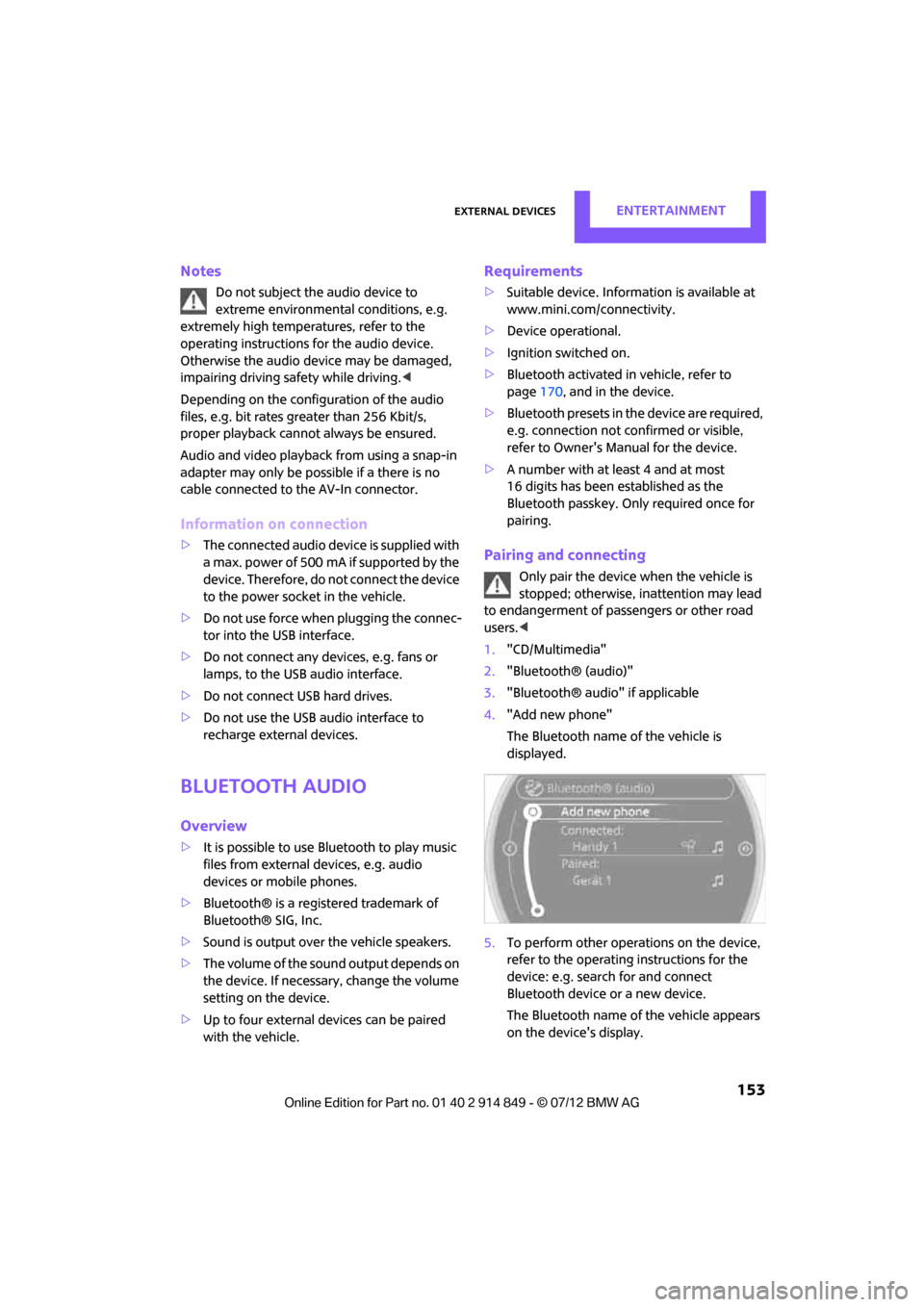
Pairing and connecting
Only pair the device when the vehicle is
stopped; otherwise, inattention may lead
to endangerment of passengers or other road
users. <
1. "CD/Multimedia"
2. "Bluetooth® (audio)"
3. "Bluetooth® audio" if applicable
4. "Add new phone"
The Bluetooth name of the vehicle is
displayed.
5. To perform other operations on the device,
refer to the operating instructions for the
device: e.g. search for and connect
Bluetooth device or a new device.
The Bluetooth name of the vehicle appears
on the device's display.
Online Edition for Part no. 01 40 2 914 849 - \251 07/12 BMW AG
Page 155 of 259
ENTERTAINMENTExternal devices
154
6.Select the Bluetooth name of the vehicle on
the device's display.
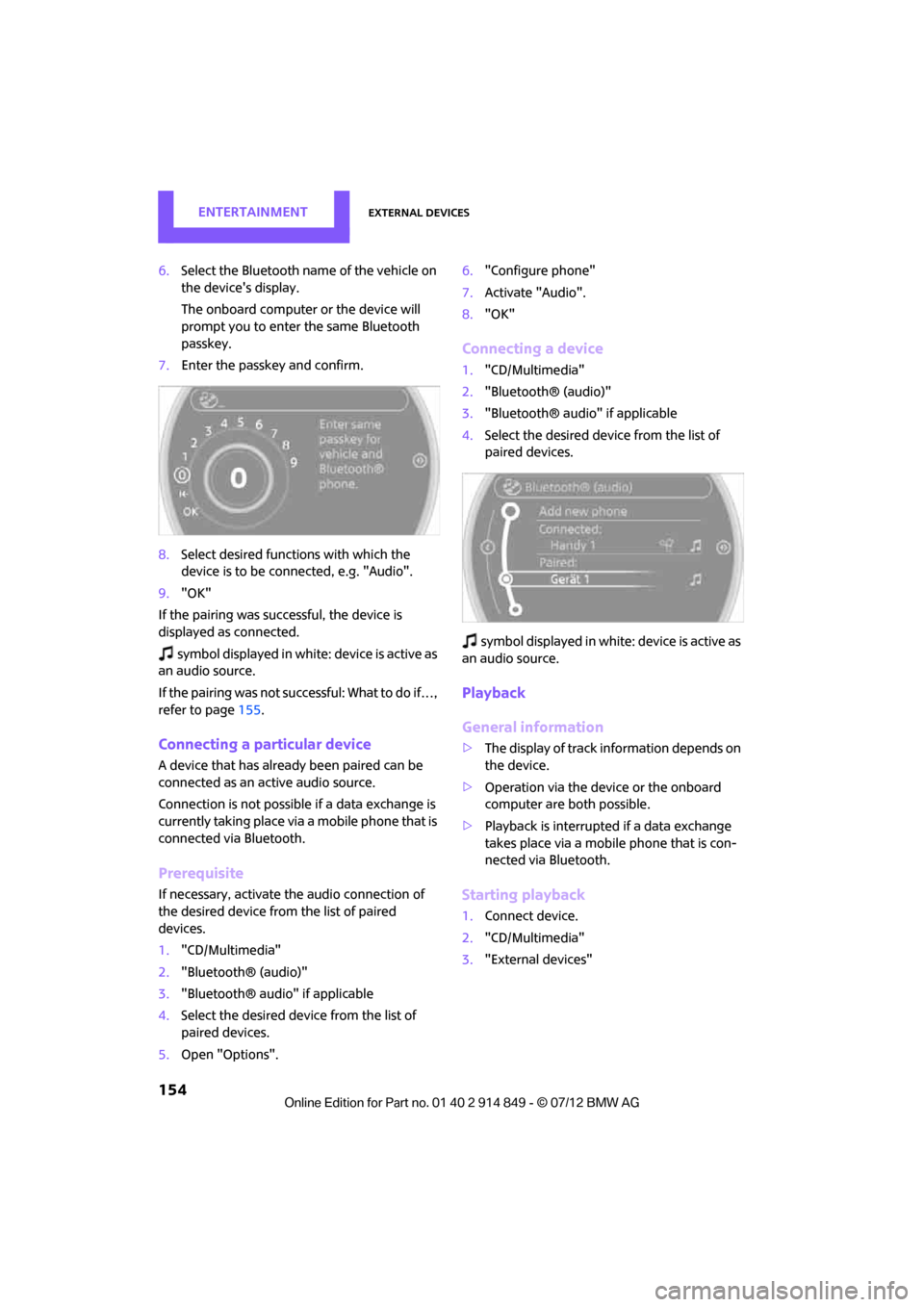
The onboard computer or the device will
prompt you to enter the same Bluetooth
passkey.
7. Enter the passkey and confirm.
8. Select desired functions with which the
device is to be connected, e.g. "Audio".
9. "OK"
If the pairing was successful, the device is
displayed as connected.
symbol displayed in white: device is active as
an audio source.
If the pairing was not successful: What to do if…,
refer to page 155.
Connecting a particular device
A device that has alread y been paired can be
connected as an active audio source.
Connection is not possible if a data exchange is
currently taking place via a mobile phone that is
connected via Bluetooth.
Prerequisite
If necessary, activate the audio connection of
the desired device from the list of paired
devices.
1. "CD/Multimedia"
2. "Bluetooth® (audio)"
3. "Bluetooth® audio" if applicable
4. Select the desired device from the list of
paired devices.
5. Open "Options". 6.
"Configure phone"
7. Activate "Audio".
8. "OK"
Connecting a device
1."CD/Multimedia"
2. "Bluetooth® (audio)"
3. "Bluetooth® audio" if applicable
4. Select the desired device from the list of
paired devices.
sy mbo l disp layed in w hit e: d evice is act ive as
an audio source.
Playback
General information
> The display of track information depends on
the device.
> Operation via the device or the onboard
computer are both possible.
> Playback is interrupted if a data exchange
takes place via a mobile phone that is con-
nected via Bluetooth.
Starting playback
1. Connect device.
2. "CD/Multimedia"
3. "External devices"
Online Edition for Part no. 01 40 2 914 849 - \251 07/12 BMW AG
Page 156 of 259
External devicesENTERTAINMENT
155
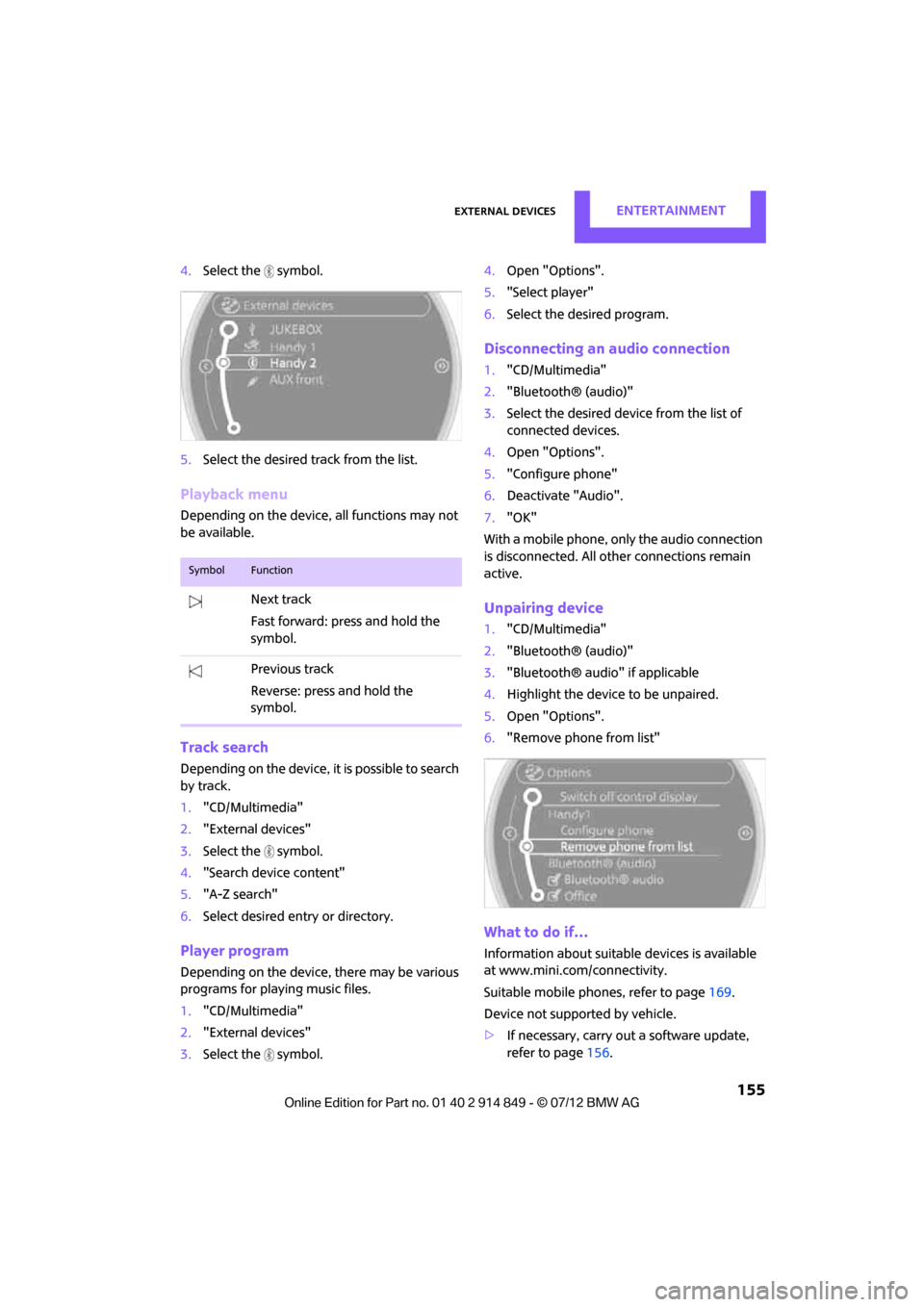
4.Select the symbol.
5. Select the desired track from the list.
Playback menu
Depending on the device, all functions may not
be available.
Track search
Depending on the device, it is possible to search
by track.
1."CD/Multimedia"
2. "External devices"
3. Select the symbol.
4. "Search device content"
5. "A-Z search"
6. Select desired entry or directory.
Player program
Depending on the device, there may be various
programs for playing music files.
1."CD/Multimedia"
2. "External devices"
3. Select the symbol. 4.
Open "Options".
5. "Select player"
6. Select the desired program.
Disconnecting an audio connection
1."CD/Multimedia"
2. "Bluetooth® (audio)"
3. Select the desired device from the list of
connected devices.
4. Open "Options".
5. "Configure phone"
6. Deactivate "Audio".
7. "OK"
With a mobile phone, only the audio connection
is disconnected. All ot her connections remain
active.
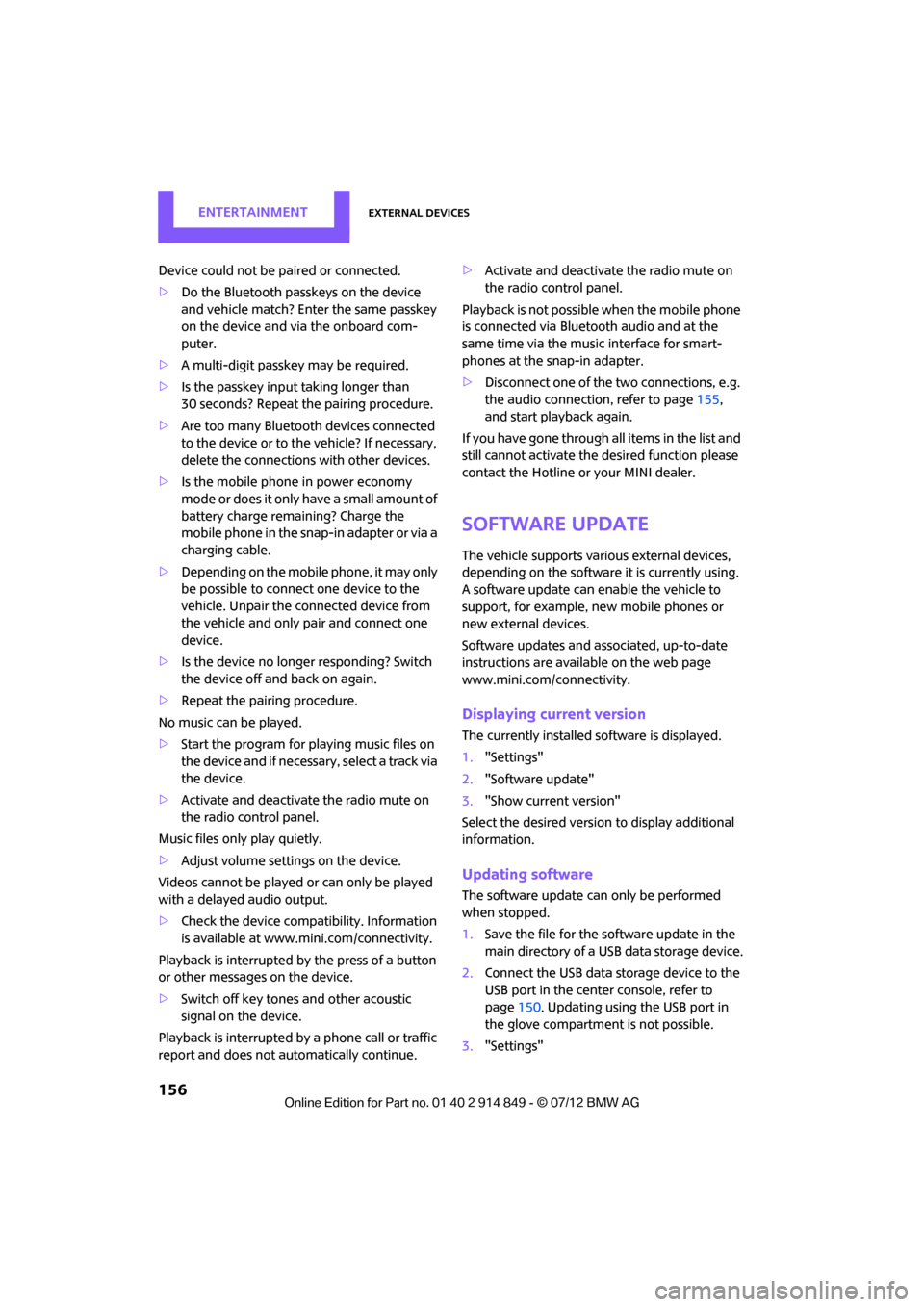
Unpairing device
1. "CD/Multimedia"
2. "Bluetooth® (audio)"
3. "Bluetooth® audio" if applicable
4. Highlight the device to be unpaired.
5. Open "Options".
6. "Remove phone from list"
What to do if…
Information about suitable devices is available
at www.mini.com/connectivity.
Suitable mobile phones, refer to page 169.
Device not support ed by vehicle.
> If necessary, carry out a software update,
refer to page 156.
SymbolFunction
Next track
Fast forward: press and hold the
symbol.
Previous track
Reverse: press and hold the
symbol.
Online Edition for Part no. 01 40 2 914 849 - \251 07/12 BMW AG
Page 157 of 259
ENTERTAINMENTExternal devices
156
Device could not be paired or connected.
>Do the Bluetooth passkeys on the device
and vehicle match? Enter the same passkey
on the device and via the onboard com-
puter.
> A multi-digit passkey may be required.
> Is the passkey input taking longer than
30 seconds? Repeat th e pairing procedure.
> Are too many Bluetoot h devices connected
to the device or to the vehicle? If necessary,
delete the connections with other devices.
> Is the mobile phone in power economy
mode or does it only have a small amount of
battery charge remaining? Charge the
mobile phone in the snap-in adapter or via a
charging cable.
> Depending on the mobile phone, it may only
be possible to connect one device to the
vehicle. Unpair the connected device from
the vehicle and only pair and connect one
device.
> Is the device no longer responding? Switch
the device off an d back on again.
> Repeat the pairing procedure.
No music can be played.
> Start the program for playing music files on
the device and if necessary, select a track via
the device.
> Activate and deactivate the radio mute on
the radio control panel.
Music files only play quietly.
> Adjust volume settings on the device.
Videos cannot be played or can only be played
with a delayed audio output.
> Check the device compatibility. Information
is available at www.mini.com/connectivity.
Playback is interrupted by the press of a button
or other messages on the device.
> Switch off key tones and other acoustic
signal on the device.
Playback is interrupted by a phone call or traffic
report and does not automatically continue. >
Activate and deactivate the radio mute on
the radio control panel.
Playback is not possible when the mobile phone
is connected via Blueto oth audio and at the
same time via the music interface for smart-
phones at the snap-in adapter.
> Disconnect one of the two connections, e.g.
the audio connection, refer to page 155,
and start playback again.
If you have gone through all items in the list and
still cannot activate the desired function please
contact the Hotline or your MINI dealer.
Software update
The vehicle supports various external devices,
depending on the software it is currently using.
A software update can enable the vehicle to
support, for example, new mobile phones or
new external devices.
Software updates and a ssociated, up-to-date
instructions are availa ble on the web page
www.mini.com/c onnectivity.
Displaying current version
The currently installed software is displayed.
1."Settings"
2. "Software update"
3. "Show current version"
Select the desired versio n to display additional
information.
Updating software
The software update can only be performed
when stopped.
1. Save the file for the software update in the
main directory of a USB data storage device.
2. Connect the USB data storage device to the
USB port in the center console, refer to
page 150. Updating using the USB port in
the glove compartment is not possible.
3. "Settings"
Online Edition for Part no. 01 40 2 914 849 - \251 07/12 BMW AG
Page 170 of 259
Mobile phone preparation BluetoothCOMMUNICATIONS
169
Mobile phone preparation Bluetooth
Vehicle equipment
In this chapter, all production, country, and
optional equipment that is offered in the model
range is described. Equipment is also described
that is not available because of, for example,
selected options or count ry version. This also
applies to safety related functions and systems.
Overview
The concept
Mobile phones or other external devices, e.g.
audio players, can be connected to the vehicle
via Bluetooth.
Bluetooth® is a registered trademark of
Bluetooth® SIG, Inc.
After being paired once, when the ignition is
switched on, these devices are automatically
detected as soon as they are present in the
vehicle and can be controlled via the onboard
computer, the buttons on the steering wheel,
and by voice.
Depending on whether they are functioning as a
telephone and/or as an audio source, external
devices can be used via the vehicle. The tele-
phone functions will be described below.
Operation of audio functions, refer to page 153.
It may be necessary for some functions to be
activated by the mobile phone provider.
Only make entries when traffic conditions
permit. Do not hold the mobile phone in
your hand while you are driving; use the hands-
free system instead. If you do not observe this
precaution, your being di stracted can endanger
vehicle occupants and other road users. <
Snap-in adapter
The snap-in adapter, refer to page180, makes it
possible to:
> Accommodate the mobile phone.
> Recharge its battery.
> Connect it to an exte rnal antenna of the
vehicle.
This assures a better network connection
and constant sound quality.
A mobile phone that is connected to the vehicle
should not be operated via the mobile phone
keypad; otherwise, ma lfunctions may occur.
Suitable mobile phones
For precise information as to which mobile
phones and external devices with Bluetooth
interfaces are supported by the mobile phone
preparation package, go to www.mini.com/con-
nectivity.
With a certain software version, these suitable
mobile phones support the vehicle functions
described below.
With other mobile phones or software versions,
malfunctions may occur.
It is possible to perform a software update, refer
to page 156.
Displaying vehicle identification number
and software part number
Checking which mobile phones are supported
by the mobile phone preparation requires the
vehicle identification number and software part
number. The software version of the mobile
phone may also be required.
1."Telephone"
2. Open "Options".
3. "Bluetooth® info"
4. "Display system information"
Online Edition for Part no. 01 40 2 914 849 - \251 07/12 BMW AG