phone MINI Countryman 2012 (Mini Connected) User Guide
[x] Cancel search | Manufacturer: MINI, Model Year: 2012, Model line: Countryman, Model: MINI Countryman 2012Pages: 259, PDF Size: 3.07 MB
Page 80 of 259
Technology for driving comfort and safetyCONTROLS
79
Protective action
Observe the instructions on page37 to
ensure the best possible personal protec-
tion. <
The front airbags help protect the driver and
front passenger by responding to frontal
impacts in which safety belts alone cannot pro-
vide adequate restraint. When needed, the head
and side airbags help provide protection in the
event of side impact. Th e relevant side airbag
supports the side upper body area. The head air
bag supports the head.
The airbags are designed to not be triggered in
every type of collision, e.g. not in minor acci-
dents, certain rollover si tuations or rear impacts.
Do not apply adhesive materials to the
cover panels of the airbags, cover them or
modify them in any other way.
Keep the dashboard and window on the passen-
g e r s i d e f r e e f r o m o b s t r u c t i o n , i . e . d o n o t c o v e r i t
with adhesive film or coverings, and do not affix
any holders such as for a navigation device or a
mobile phone.
Do not attach seat covers, cushions or other
objects not specifically approved for seats with
integral side airbags to the front seats. Do not
hang items of clothing such as coats or jackets
over the backrests. Do not attempt to remove
the airbag retention system from the vehicle. Do
not modify the individual components of the
system or its wiring in any way. This includes the
upholstery in the center of the steering wheel,
on the instrument panel, the doors, and the roof
pillars as well as the side s of the headliner. Do
not attempt to remove or dismantle the steering
wheel. <
Do not touch the individual components
immediately after the system has been
triggered, because there is a danger of burns.
Have the testing, repair , removal, and disposal
of airbag generators executed only by your MINI
dealer or a workshop that has the required
explosives licenses.
Otherwise, unprofessional attempts to service
the system could lead to failure in an emergency or undesired airbag activation, either of which
could result in personal injury.
<
Warning notices and in formation about the
airbags can also be found on the sun visors.
Automatic deactivation of the front
passenger airbags
The presence of a passenger in the front passen-
ger seat is detected by measuring the resistance
of the human body. The system correspondingly
activates or deactivates the front, side, and knee
airbags for the front passenger.
Make sure that the front passenger's feet
remain in the footwell; otherwise, it is not
possible to guarantee the function of the front
passenger airbags. <
The indicator lamp above the interior rearview
mirror shows the current st atus of the front pas-
senger airbags, deactivate d or activated, refer to
Status of front passenger airbags below.
Before transporting a child on the front
passenger seat, read the safety informa-
tion and follow the instructions under Transport-
ing children safely, page 44.<
Malfunction of the automatic
deactivation
When teenagers and adul ts assume certain sit-
ting positions, this can cause the front, side, and
knee airbags to deactivate. The indicator lamp
for the front passenger airbags lights up when
this occurs. In such case s, the passenger should
change his or her sittin g position so that the
front passenger airbags are activated and the
indicator lamp goes out. If the desired airbag
status cannot be achieved by changing the sit-
ting position, transport the relevant passenger
on a rear seat.
> Do not attach covers, cushions, ball mats or
other items to the front passenger seat
unless they are specifically recommended
by the manufacturer of your MINI.
Online Edition for Part no. 01 40 2 914 849 - \251 07/12 BMW AG
Page 97 of 259

CONTROLSPractical interior accessories
96
when the hand brake lever is operated.
In addition, do not position accessory parts
directly behind the center armrest on the rail;
otherwise they could be damaged upon open-
ing the center armrest.<
Smartphone holder
The upper part of the smartphone holder can be
rotated by 360°.
When installing in the front of the rail, ensure
that there is sufficient space, e.g., away from the
seat; otherwise, damage may be caused when
rotating.
1.Pull the lever 1 up to unlock the mounts.
2. First install the smartphone on the Center
Rail with the mounts 2.
3. To secure, push lever 1 down. Ensure that
the lever can lock it properly.
When connecting a smartphone to the USB
audio interface, see page 150, guide the con-
nection cable under the smartphone holder.
Base plate
On the base plate, vari ous accessories can be
attached, such as cup holders, holders for sun-
glasses and cell phone holders.
Inserting base plate
The lever 3 can be locked in three positions.
0 Locking
1 Sliding along the rail
2 Inserting base plate
For inserting, move the lever into position 2.
Sliding and locking
1. Push lever 3 into position 1.
2. Slide the base plate.
3. Push the lever 3 down, into position 0, and
lock the base plate in place.
Lock the base plate in place before
driving; otherwise, injuries may result in
the event of an accident. <
Example: cupholder
Put cupholder in the back between the rear
seats and push in.
Installing cupholder
1.Lock base plate in place if necessary, refer to
Sliding and locking.
2. Pull the lever 6 up to unlock the mounts.
Online Edition for Part no. 01 40 2 914 849 - \251 07/12 BMW AG
Page 119 of 259
NAVIGATIONDestination entry
118
>Setting "Route preference",
refer to page 125.
> Search for "Points of Interest at loc.",
refer to page 120.
Address book
To create contacts, refer to page 167 or
page 183.
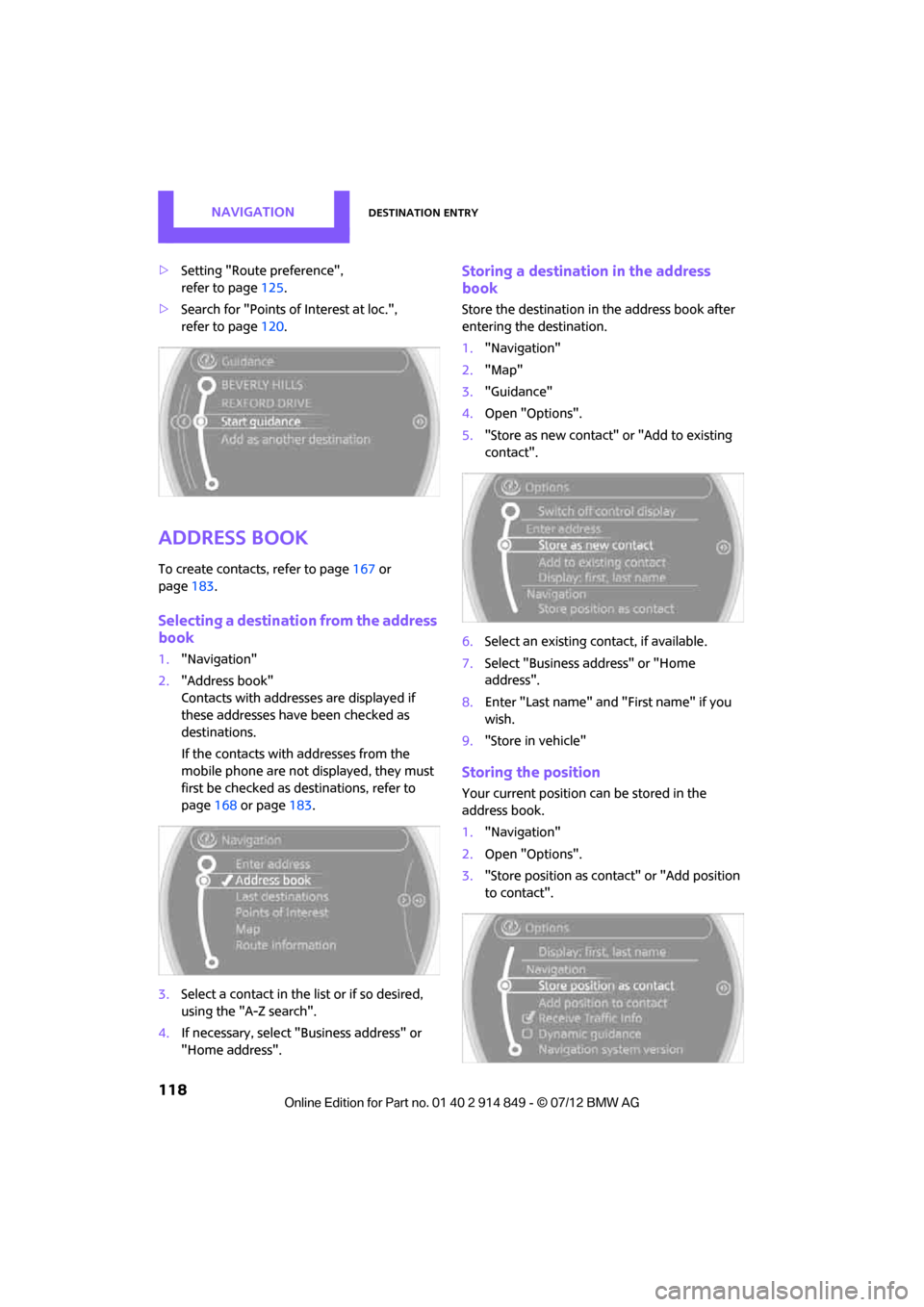
Selecting a destination from the address
book
1."Navigation"
2. "Address book"
Contacts with addresses are displayed if
these addresses have been checked as
destinations.
If the contacts with addresses from the
mobile phone are not displayed, they must
first be checked as de stinations, refer to
page 168 or page 183.
3. Select a contact in the li st or if so desired,
using the "A-Z search".
4. If necessary, select "B usiness address" or
"Home address".
Storing a destination in the address
book
Store the destination in the address book after
entering the destination.
1. "Navigation"
2. "Map"
3. "Guidance"
4. Open "Options".
5. "Store as new contact" or "Add to existing
contact".
6. Select an existing co ntact, if available.
7. Select "Business address" or "Home
address".
8. Enter "Last name" and "First name" if you
wish.
9. "Store in vehicle"
Storing the position
Your current position can be stored in the
address book.
1."Navigation"
2. Open "Options".
3. "Store position as contact" or "Add position
to contact".
Online Edition for Part no. 01 40 2 914 849 - \251 07/12 BMW AG
Page 121 of 259
NAVIGATIONDestination entry
120
Special destinations
You can search for a special destination, e.g.
a hotel or place of interest, and start route
guidance to the corresponding location.The scope of information provided
depends on the particular set of naviga-
tion data you are using. <
Accessing search for special
destinations
1."Navigation"
2. Select "Points of Interest"
search.
A-Z search
1."A-Z search"
2. "Town/City"
3. "Category"
4. "Category details"
For some special destinations, it is possible
to select several catego ry details. Move the
MINI joystick to the left to exit category
details.
5. "Keyword"
6. Enter keyword.
A list of the special destinations is displayed.
7. Select the special destination.
8. Select the symbol.
9. "Start guidance" or "Add as another destina-
tion".
If several details are stored, then you can
scroll through the pages.
If a phone number is available, a connection
can be established, if desired.
Category search
1."Category search"
2. "Search destination"
3. Select or enter town/city.
4. "Category"
5. Select category. 6.
"Category details"
For some special destinations, it is possible
to select several catego ry details. Move the
MINI joystick to the left to exit category
details.
7. "Start search"
A list of the special destinations is displayed.
8. Select the special destination.
Details are displayed.
9. Select the symbol.
10. "Start guidance" or "Add as another destina-
tion".
If several details are stored, then you can scroll
through the pages. If a phone number is avail-
able, a connection can be established, if desired.
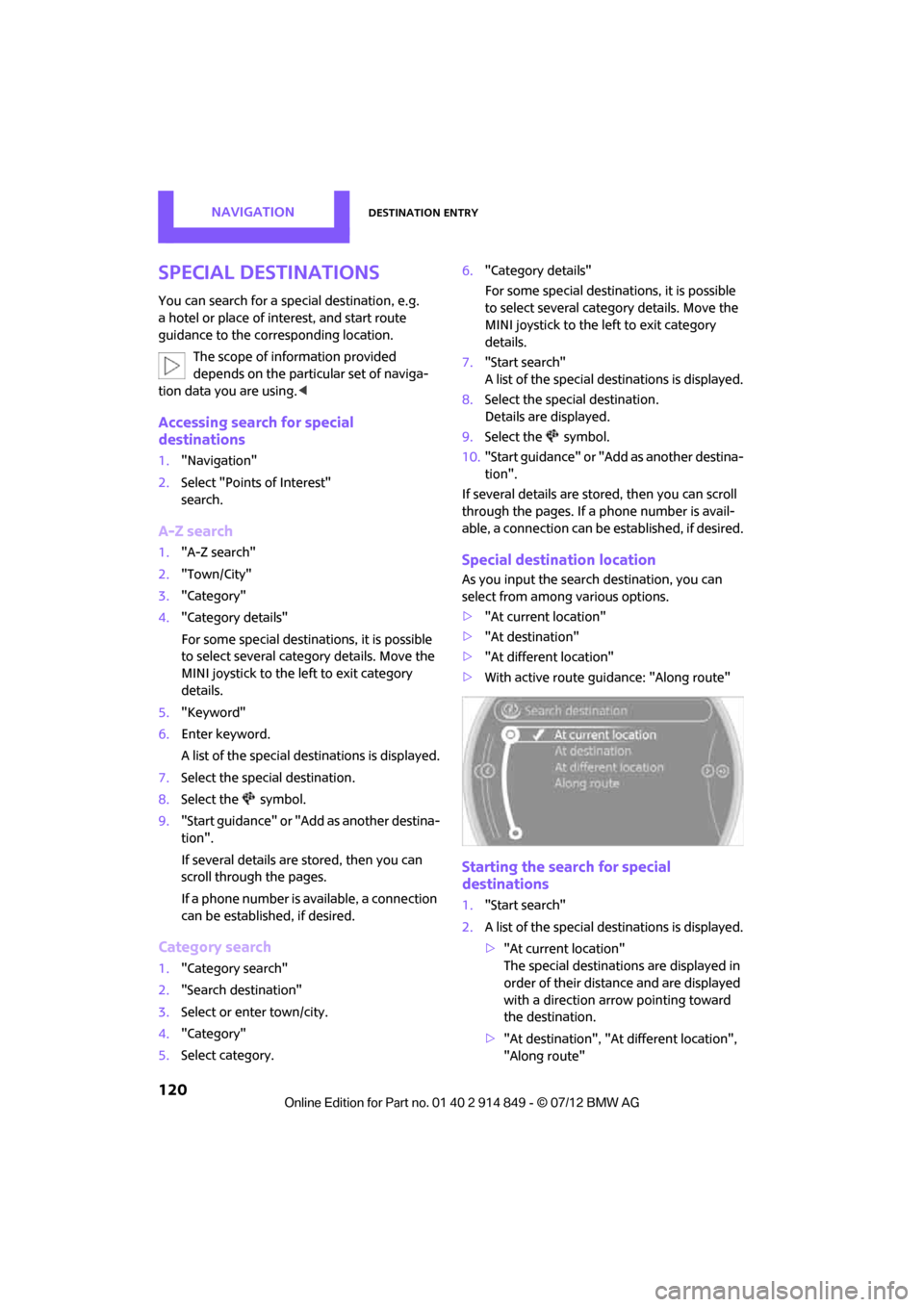
Special destination location
As you input the search destination, you can
select from among various options.
> "At current location"
> "At destination"
> "At different location"
> With active route guidance: "Along route"
Starting the search for special
destinations
1."Start search"
2. A list of the special destinations is displayed.
>"At current location"
The special destinations are displayed in
order of their distance and are displayed
with a direction arrow pointing toward
the destination.
> "At destination", "At different location",
"Along route"
Online Edition for Part no. 01 40 2 914 849 - \251 07/12 BMW AG
Page 129 of 259
NAVIGATIONRoute guidance
128
>Gray road sign: the obstruction does not
relate to the planned route or direction of
travel.
Traffic information, refer to page 129.
Planned route
After route guidance is started, the planned
route is displayed on the map.
Status boxes
Show/hide: Press the MINI joystick.
>Upper status box: time, phone details, and
entertainment details.
> Lower status box: symb ol for active route
guidance, traffic inform ation status, arrival
time, and distance from destination.
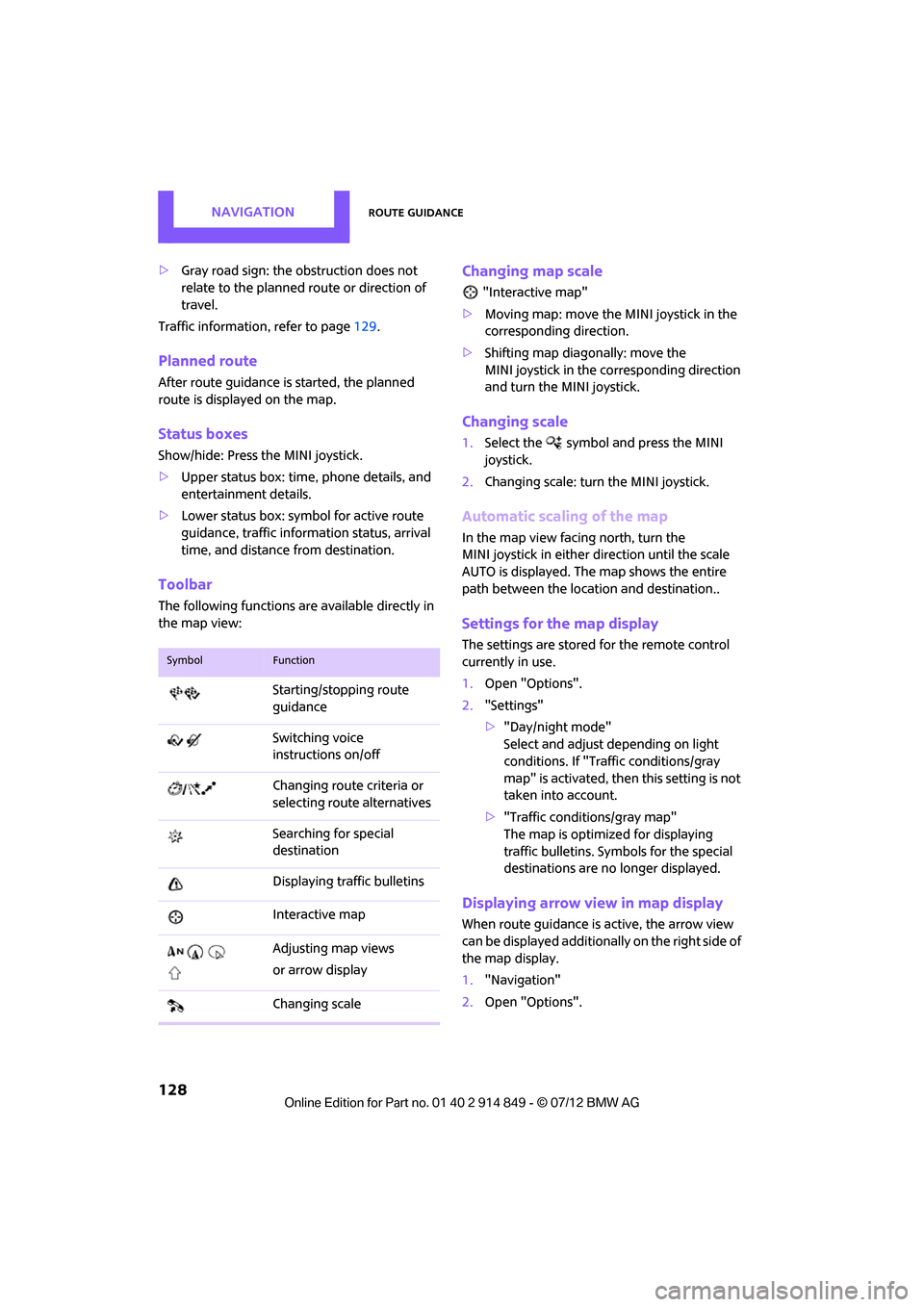
Toolbar
The following functions ar e available directly in
the map view:
Changing map scale
"Interactive map"
> Moving map: move the MINI joystick in the
corresponding direction.
> Shifting map diagonally: move the
MINI joystick in the co rresponding direction
and turn the MINI joystick.
Changing scale
1. Select the symbol and press the MINI
joystick.
2. Changing scale: turn the MINI joystick.
Automatic scaling of the map
In the map view facing north, turn the
MINI joystick in either direction until the scale
AUTO is displayed. The map shows the entire
path between the locati on and destination..
Settings for the map display
The settings are stored for the remote control
currently in use.
1.Open "Options".
2. "Settings"
>"Day/night mode"
Select and adjust depending on light
conditions. If "Traffic conditions/gray
map" is activated, then this setting is not
taken into account.
> "Traffic conditions/gray map"
The map is optimize d for displaying
traffic bulletins. Symbols for the special
destinations are no longer displayed.
Displaying arrow view in map display
When route guidance is active, the arrow view
can be displayed additionally on the right side of
the map display.
1. "Navigation"
2. Open "Options".
SymbolFunction
Starting/stopping route
guidance
Switching voice
instructions on/off
Changing route criteria or
selecting route alternatives
Searching for special
destination
Displaying traffic bulletins
Interactive map
Adjusting map views
or arrow display
Changing scale
Online Edition for Part no. 01 40 2 914 849 - \251 07/12 BMW AG
Page 138 of 259
On/off and toneENTERTAINMENT
137
Adjusting volume
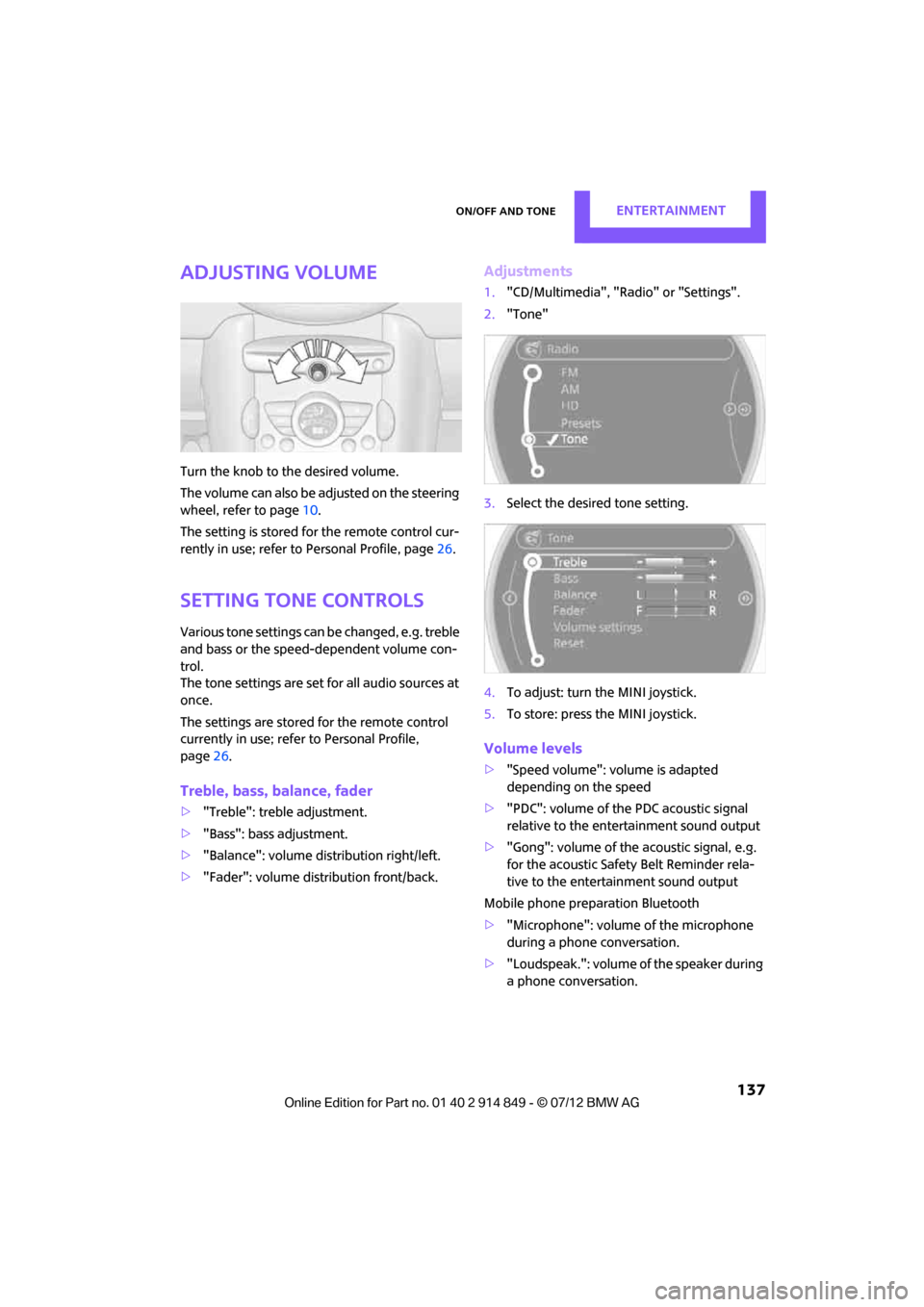
Turn the knob to the desired volume.
The volume can also be adjusted on the steering
wheel, refer to page10.
The setting is stored for the remote control cur-
rently in use; refer to Personal Profile, page 26.
Setting tone controls
Various tone settings can be changed, e.g. treble
and bass or the speed-dependent volume con-
trol.
The tone settings are set for all audio sources at
once.
The settings are stored for the remote control
currently in use; refer to Personal Profile,
page 26.
Treble, bass, balance, fader
> "Treble": treble adjustment.
> "Bass": bass adjustment.
> "Balance": volume distribution right/left.
> "Fader": volume distribution front/back.
Adjustments
1."CD/Multimedia", "Rad io" or "Settings".
2. "Tone"
3. Select the desired tone setting.
4. To adjust: turn the MINI joystick.
5. To store: press the MINI joystick.
Volume levels
>"Speed volume": vo lume is adapted
depending on the speed
> "PDC": volume of the PDC acoustic signal
relative to the entertainment sound output
> "Gong": volume of the acoustic signal, e.g.
for the acoustic Safety Belt Reminder rela-
tive to the entertainment sound output
Mobile phone preparation Bluetooth
> "Microphone": volume of the microphone
during a phone conversation.
> "Loudspeak.": volume of the speaker during
a phone conversation.
Online Edition for Part no. 01 40 2 914 849 - \251 07/12 BMW AG
Page 142 of 259
RadioENTERTAINMENT
141
When setting a station with a digital signal, it
may be a few seconds until the station is repro-
duced in digital quality.
In areas in which the station is not continuously
received in digital mode, playback switches
between analog and digita l reception. In this
case, switch off digi tal radio reception.
Displaying additional information
Some stations broadcast additional information
on the current track, such as the name of the
artist.
1.Select the desired station.
2. Open "Options".
3. "Station info"
Selecting a substation
The symbol indicates that a main station also
broadcasts additional su bstations. The station
name of the main station ends in HD1. The
station names of the su bstations end in HD2,
HD3, etc.
1. Select the desired station.
2. Press the MINI joystick.
3. Select the substation.
When reception is poor, the substation is muted
for several seconds.
Stored stations
It is possible to store up to 40 stations.
Selecting a station
1. "Radio"
2. "Presets"
3. Select the desired station.
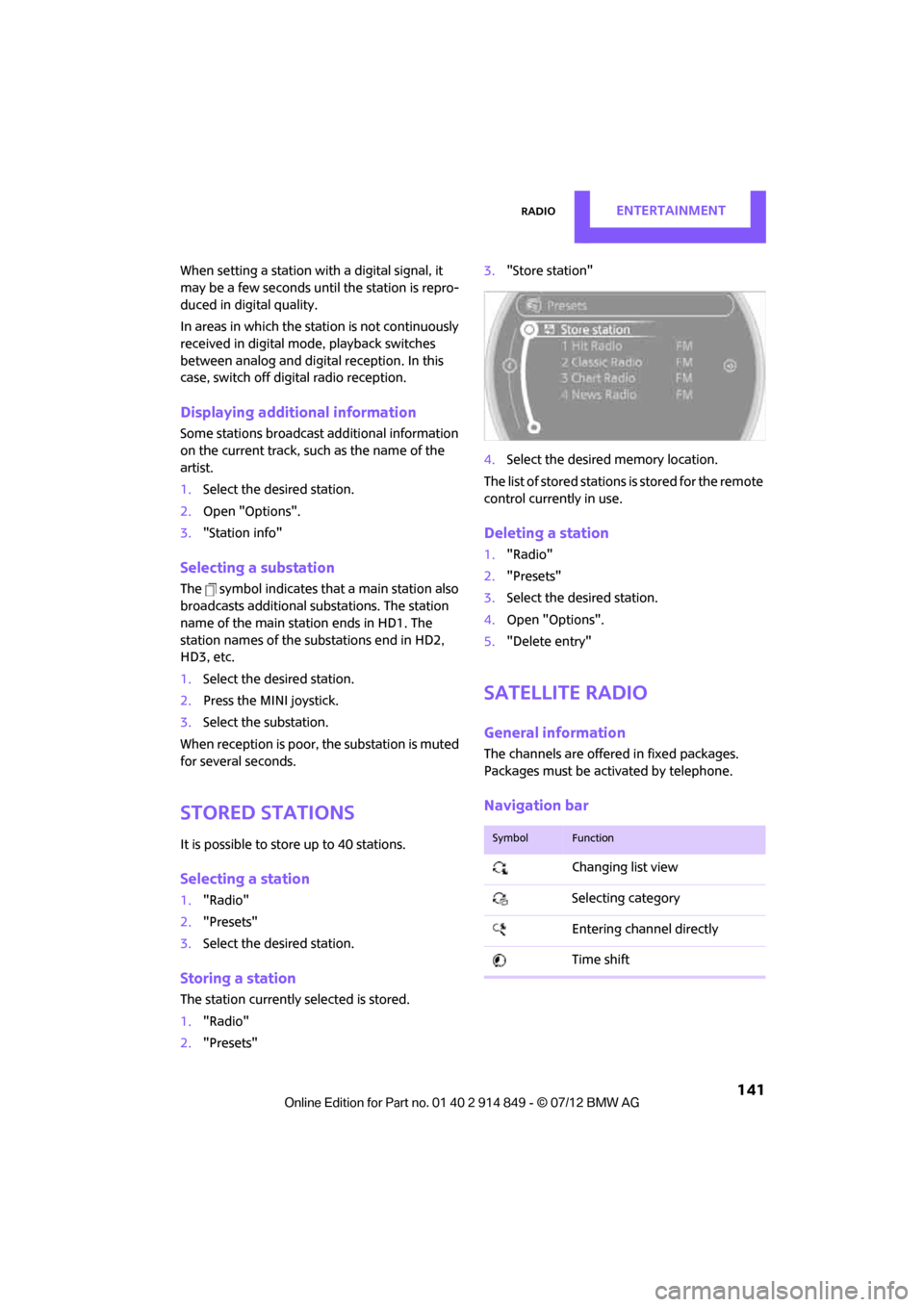
Storing a station
The station curre ntly selected is stored.
1. "Radio"
2. "Presets" 3.
"Store station"
4. Select the desired memory location.
The list of stored stations is stored for the remote
control current ly in use.
Deleting a station
1."Radio"
2. "Presets"
3. Select the desired station.
4. Open "Options".
5. "Delete entry"
Satellite radio
General information
The channels are offered in fixed packages.
Packages must be activated by telephone.
Navigation bar
SymbolFunction
Changing list view
Selecting category
Entering channel directly
Time shift
Online Edition for Part no. 01 40 2 914 849 - \251 07/12 BMW AG
Page 143 of 259

ENTERTAINMENTRadio
142
Managing subscription
Clear reception is required for activating and
deactivating channels. Reception is best when
you have an unobstructed view to the sky. The
channel name is displayed in the status line.
Activating channels
The category 'Unsubscribed Channels' includes
all channels that are not activated.
1."Radio"
2. "Satellite radio"
3. "Category"
4. Select the catego ry 'Unsubscribed
Channels'.
5. Select desired channel.
The telephone number and electronic serial
number, ESN, are displayed. 6.
Dial the telephone number to have the
channels activated.
This telephone number can also be used to
deactivate the channels.
Deactivating channels
1. "Radio"
2. "Satellite radio"
3. Open "Options".
4. "Manage subscription"
The telephone number and electronic serial
number, ESN, are displayed.
5. Call Sirius to deactivate the channels.
Selecting channels
You can only listen to activated channels.
The selected channel is stored for the remote
control currently in use.
Using the onboard computer
1."Radio"
2. "Satellite radio"
3. Select "All channels" or the desired
category.
Accessing favorites, selecting
the My Favorites category
Managing favorites
Traffic Jump
SymbolFunction
Online Edition for Part no. 01 40 2 914 849 - \251 07/12 BMW AG
Page 145 of 259

ENTERTAINMENTRadio
144
3."Replay - Time shift"
> The red arrow indicates the current playback
position.
> The time difference from the live broadcast
is displayed next to the cache memory bar.
> For live transmissions: "live".
Time shift menu
Automatic time shift
When the function is acti vated, audio playback is
stopped automatically in the event of:
> Incoming and outgoing telephone calls.
> Activation of the voice activation system.
> Muting.
The audio playback then continues with a time
delay.
Activating
1. "Radio"
2. "Satellite radio"
3. "Replay - Time shift"
4. "Automatic time shift"
Deactivating
"Automatic time shift"
Storing favorites
Up to 30 favorites can be stored in the favorites
list. Possible favorites incl ude artist, track, game,
league, and team.
Storing artist, track, or game
Only current broadcasts can be stored as favor-
ites. The channel informat ion must be available.
1. "Radio"
2. "Satellite radio"
3. Select "All channels" or the desired
category.
4. Select desired channel.
5. Press the MINI joystick again.
6. Select artist, track, or game.
Storing league or team
Leagues or teams can be added to the favorites
from a selection list.
1. "Radio"
2. "Satellite radio"
3. "Manage favorites"
4. "Add sports information"
SymbolFunction
Go to live broadcast
Playback/pause
Next track
Previous track
Fast forward
Reverse
Automatic time shift
deactivated/activated
Online Edition for Part no. 01 40 2 914 849 - \251 07/12 BMW AG
Page 150 of 259
External devicesENTERTAINMENT
149
External devices
Vehicle equipment
In this chapter, all production, country, and
optional equipment that is offered in the model
range is described. Equipment is also described
that is not available because of, for example,
selected options or count ry version. This also
applies to safety related functions and systems.
Overview
Different external devices can be connected to
the vehicle. Sound is output over the vehicle
speakers. Depending upon how the external
device is connected to the vehicle, the device
may be operated using the MINI joystick.
AUX-In connection
Overview
> It is possible to connect audio devices, e.g.
MP3 players. Sound is output over the vehi-
cle speakers.
> Recommended settings: mid-level tone and
volume settings on th e audio device. Tone
may depend on the quality of the audio files.
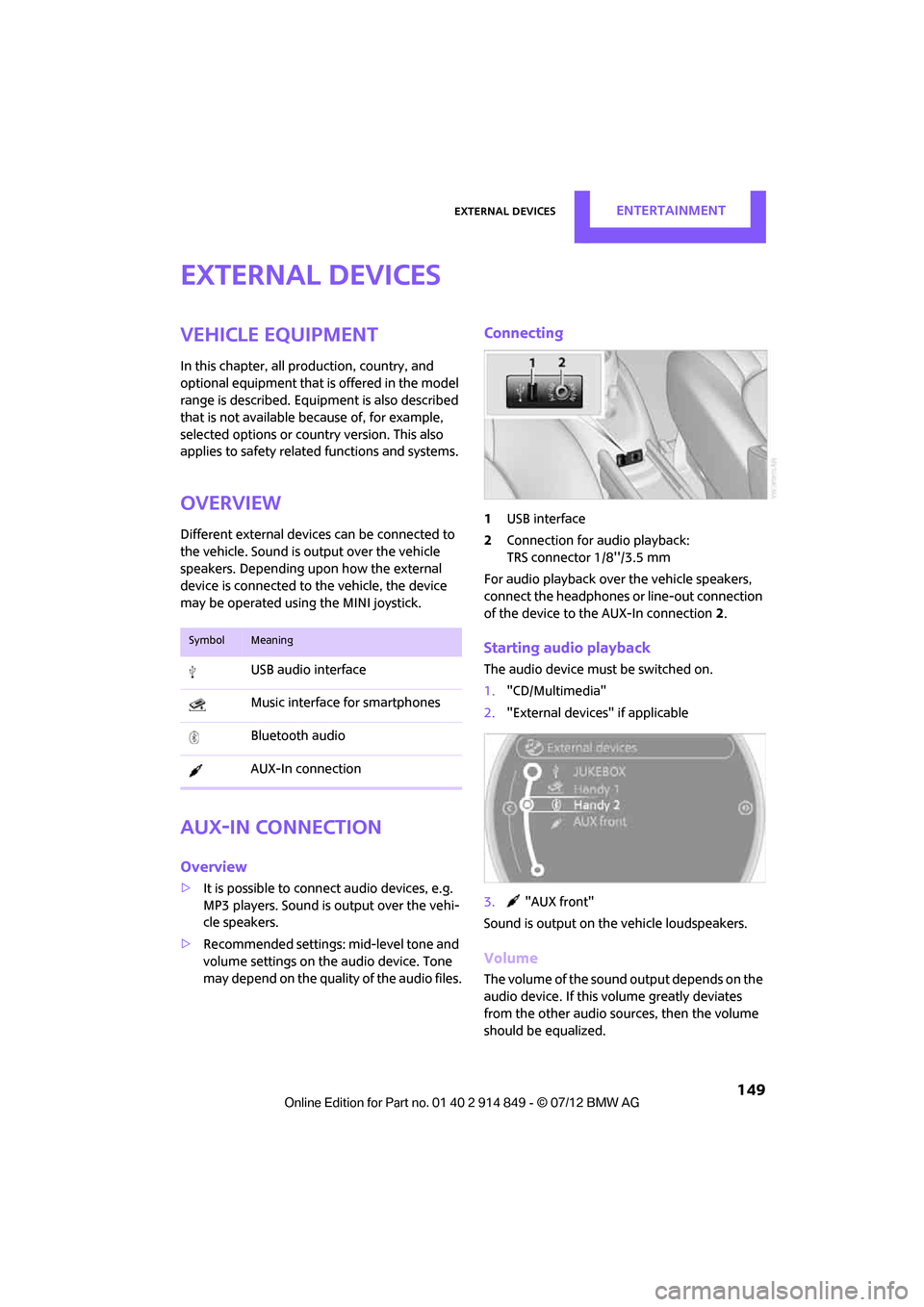
Connecting
1 USB interface
2 Connection for audio playback:
TRS connector 1/8''/3.5 mm
For audio playback over the vehicle speakers,
connect the headphones or line-out connection
of the device to the AUX-In connection 2.
Starting audio playback
The audio device must be switched on.
1. "CD/Multimedia"
2. "External devices" if applicable
3. "AUX front"
Sound is output on the vehicle loudspeakers.
Volume
The volume of the sound output depends on the
audio device. If this volume greatly deviates
from the other audio sources, then the volume
should be equalized.
SymbolMeaning
USB audio interface
Music interface for smartphones
Bluetooth audio
AUX-In connection
Online Edition for Part no. 01 40 2 914 849 - \251 07/12 BMW AG